Opening and converting PDF files one at a time is manageable for a handful of documents, but it quickly becomes impractical once the pile grows into dozens or hundreds of files. Batch conversion solves this by letting you select an entire folder of PDFs once and process every file in a single run, rather than repeating the same export steps over and over.
This matters most for recurring tasks like preparing scanned reports for a website, converting a month's worth of invoices to images, or compressing a folder of archived contracts, where the time saved compounds every time the task repeats.
Batchify PDF Converter runs on Windows 10 and Windows 11, both 64-bit, and installs as a single self-contained application with no separate Poppler or Ghostscript dependency to configure. That keeps setup to a couple of minutes, whether the app is going on a personal laptop or a shared office PC handling document conversion for a whole team.
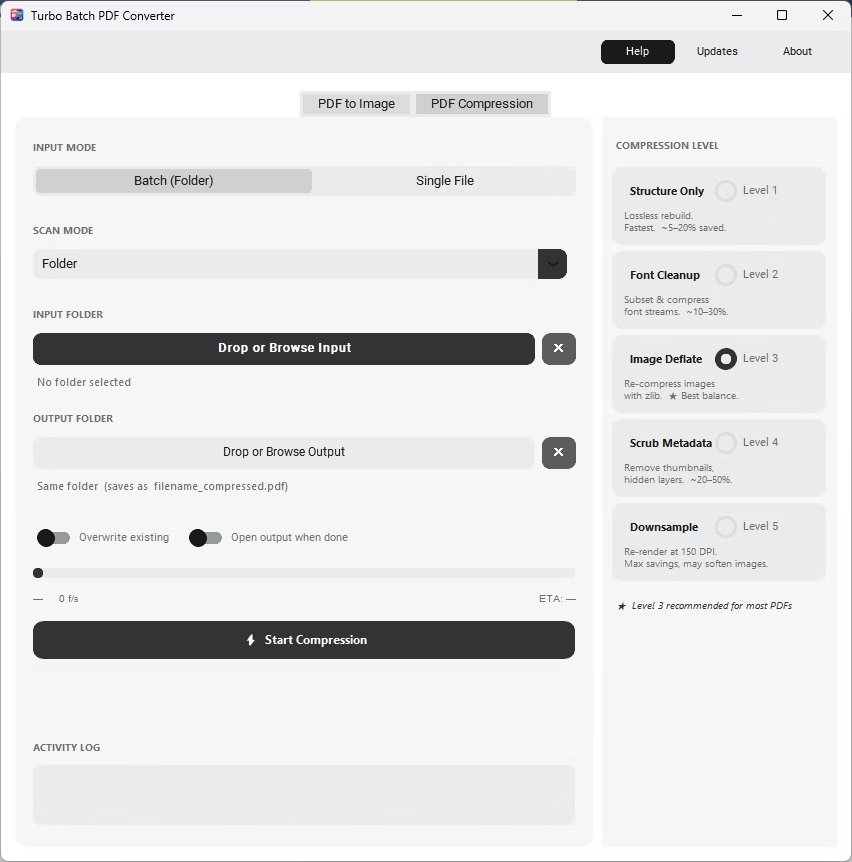
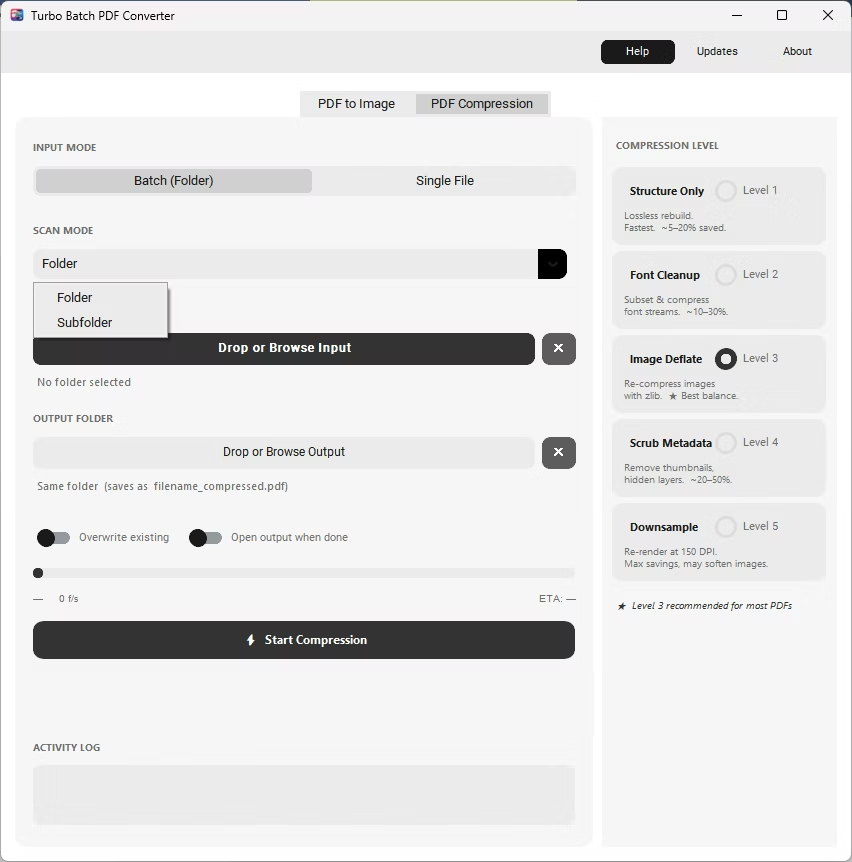
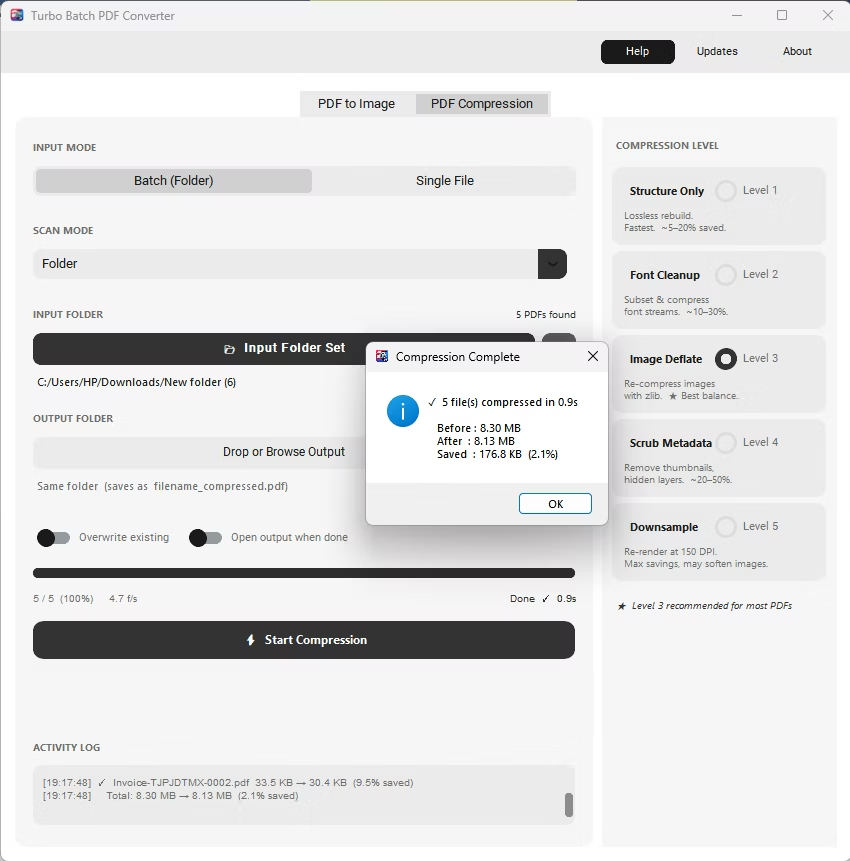
The same app also includes a built-in PDF compressor with five compression levels, so shrinking file sizes for email or storage doesn't require switching to a separate tool. Everything runs locally through a one-time Gumroad license, without a recurring subscription, and pairs naturally with other BatchifyApp utilities such as Batchify Renaming Tool for organizing converted files afterward.
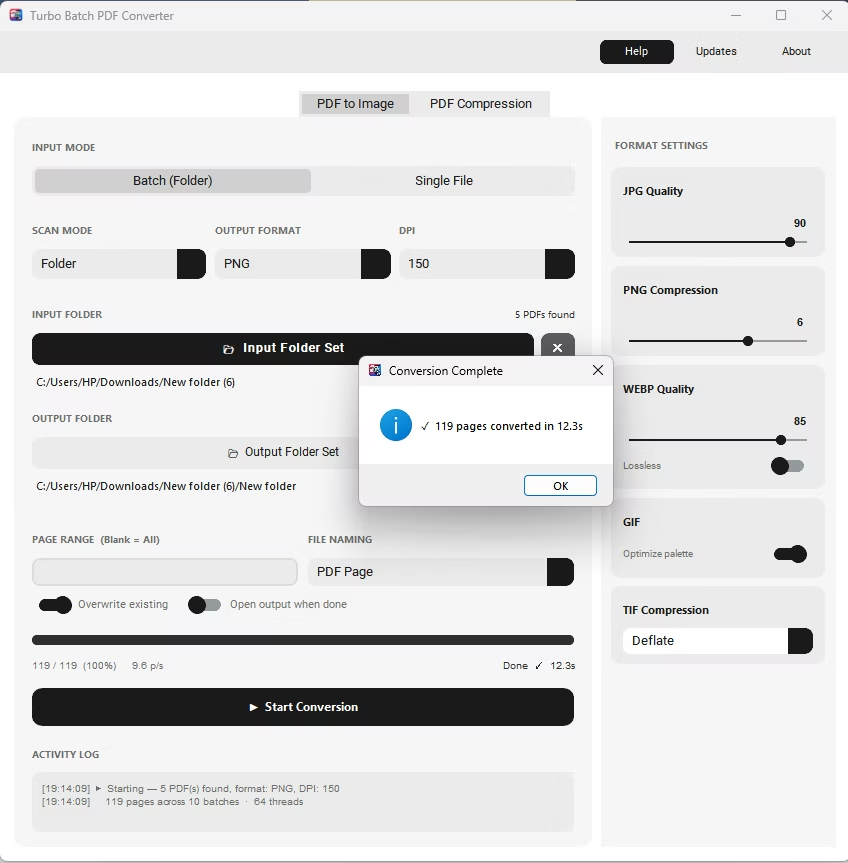
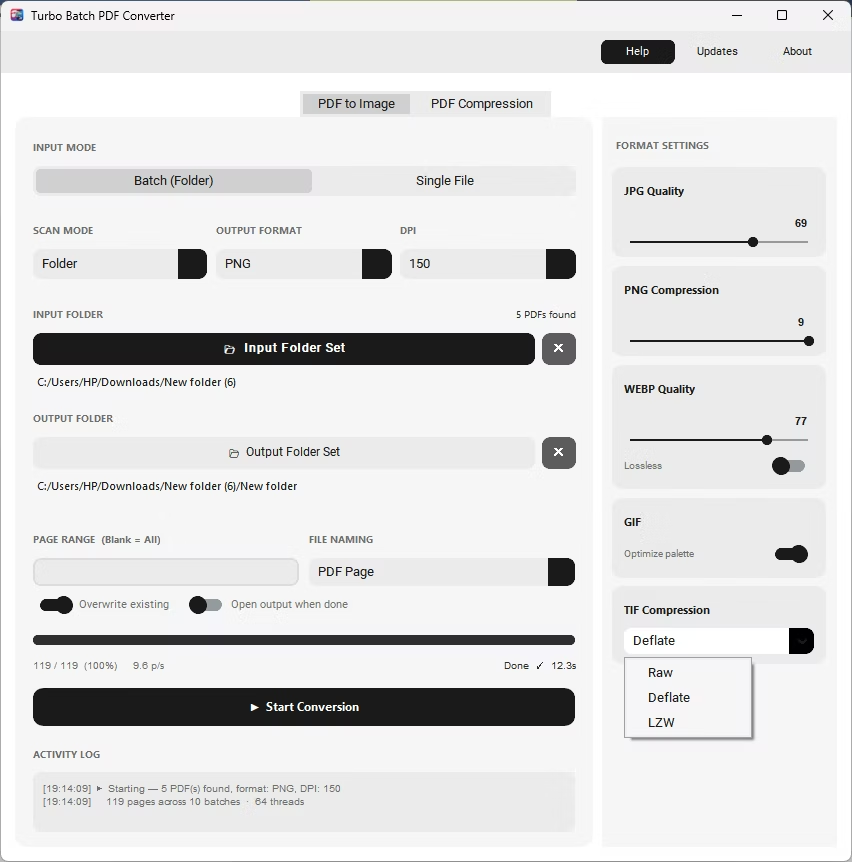
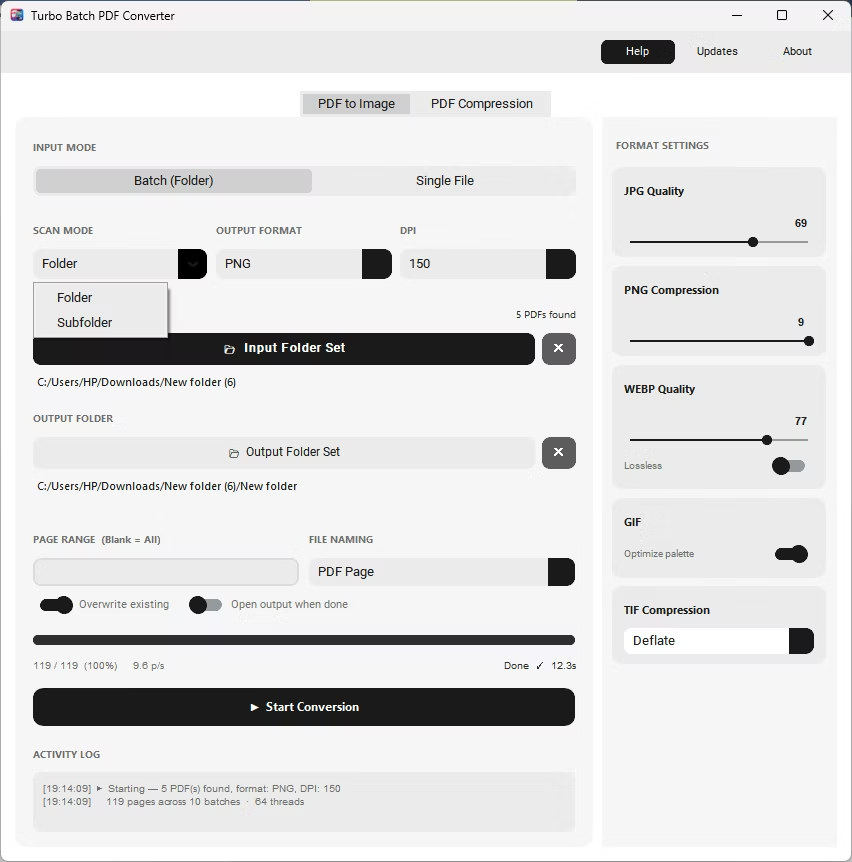
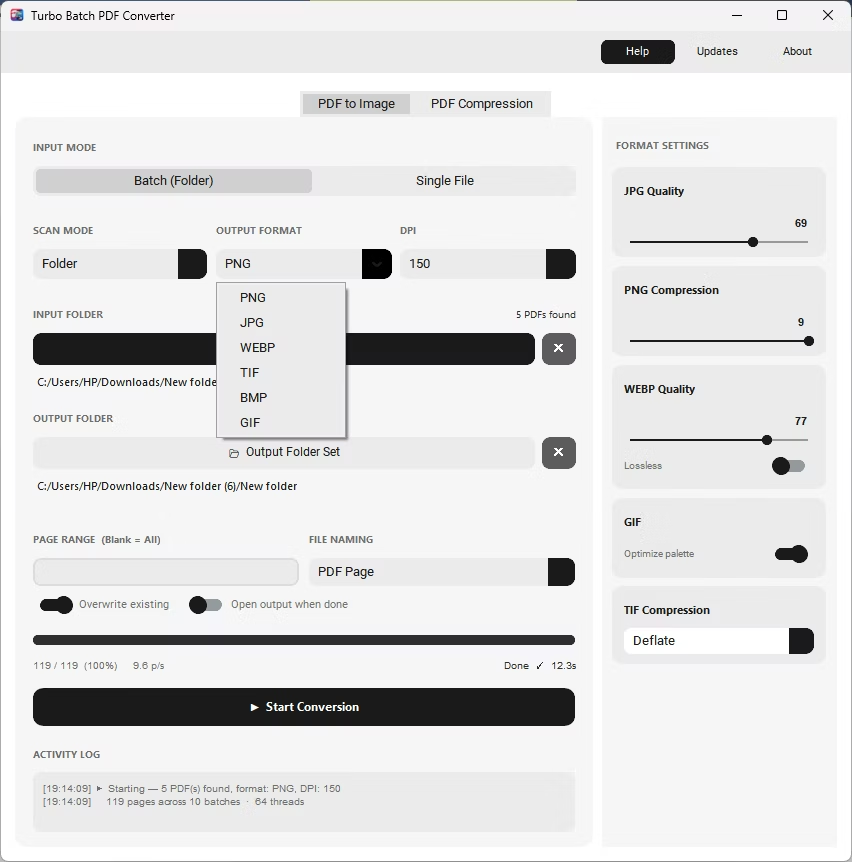
- Install Batchify PDF Converter on your Windows PC.
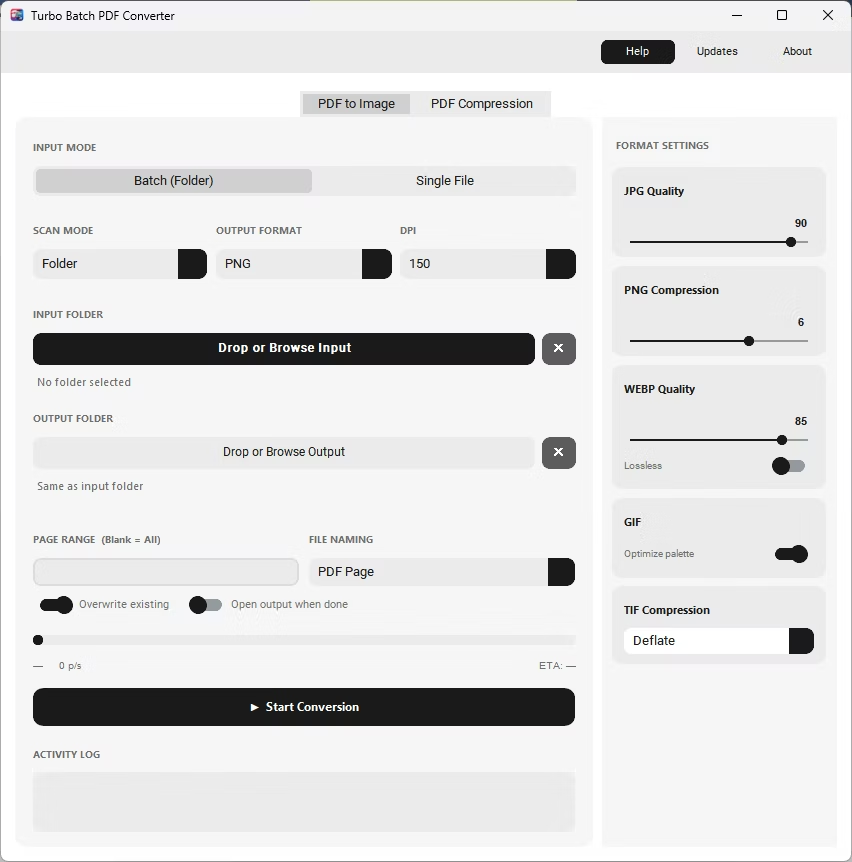
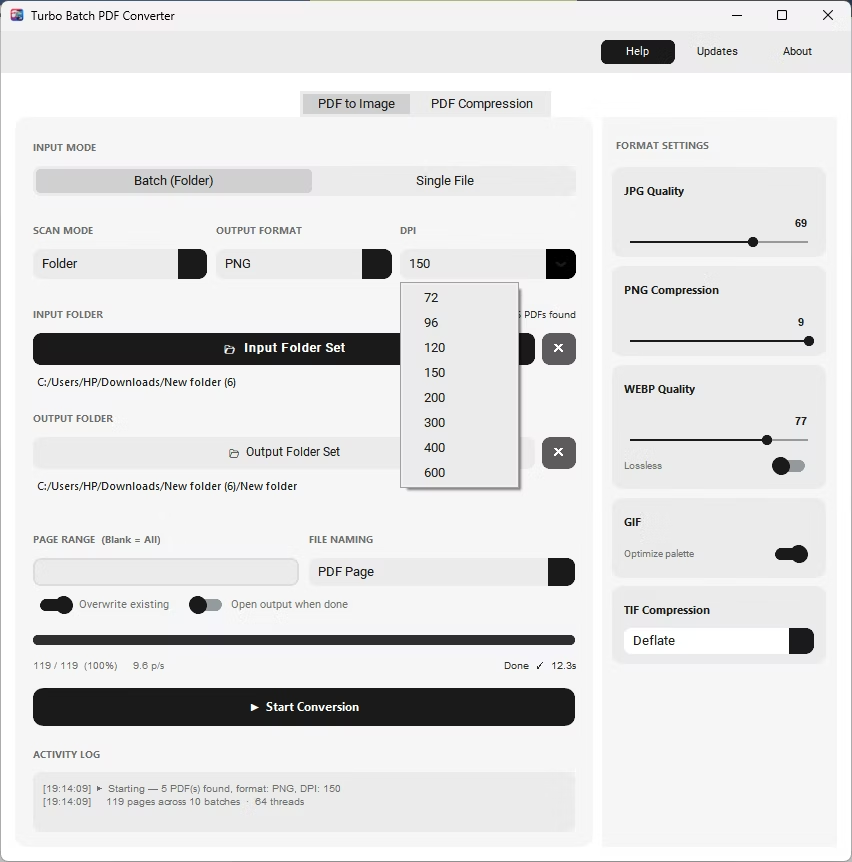
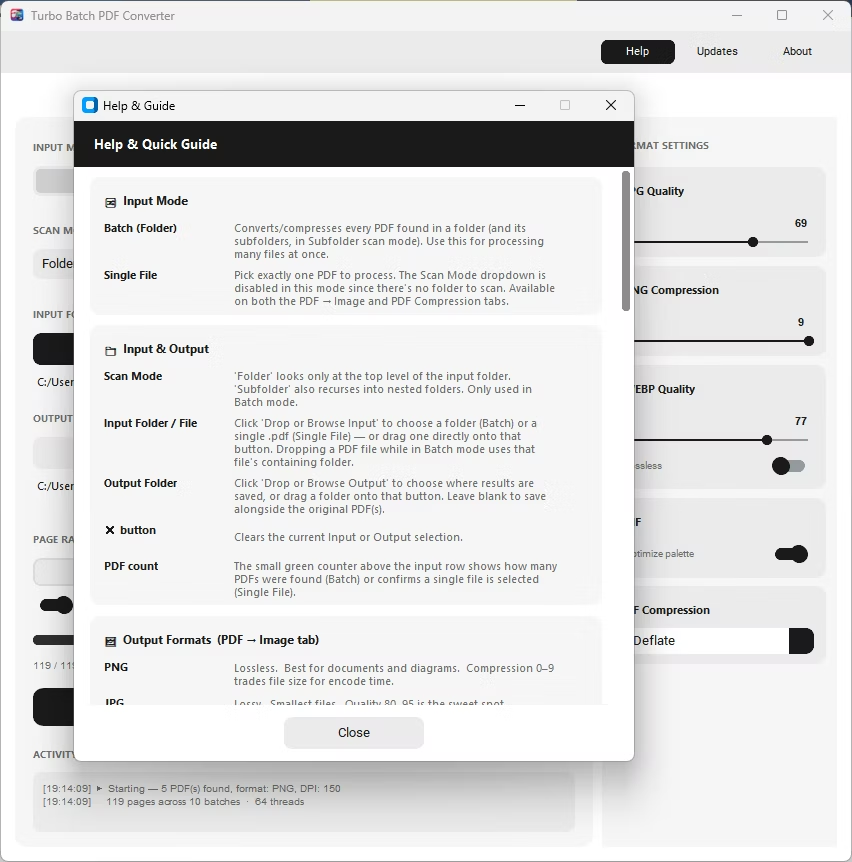
- Open the app and select Batch (Folder) mode on the PDF to Image tab.
- Drag the folder containing your group of PDF files into the app, or use the Browse button.
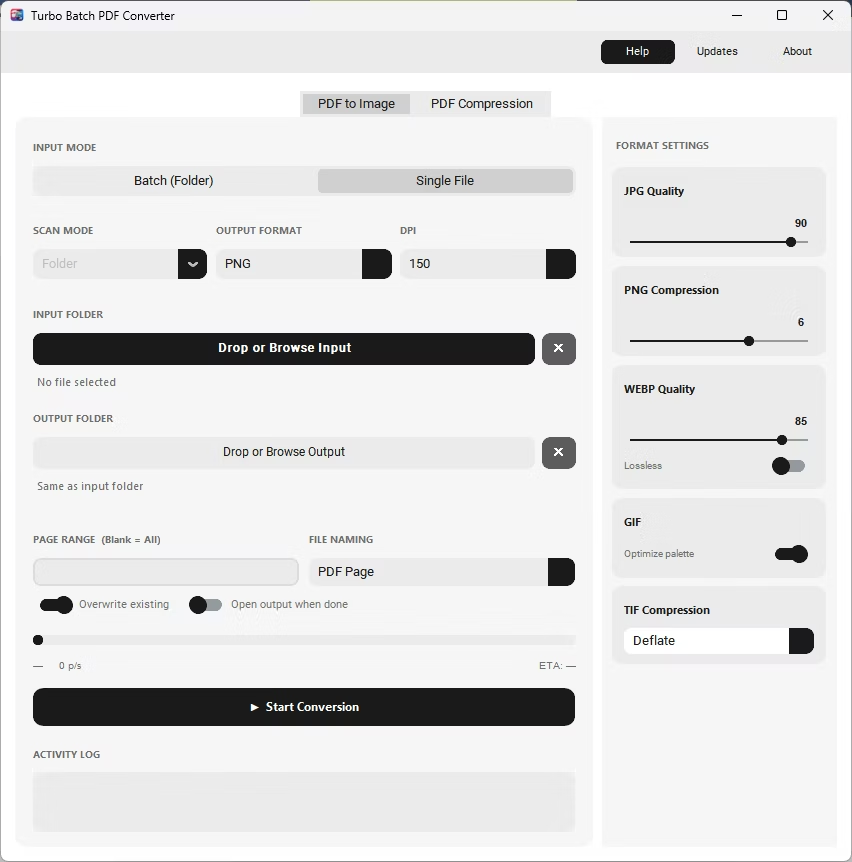
- Choose your output format, DPI, and quality settings, then set the output folder.
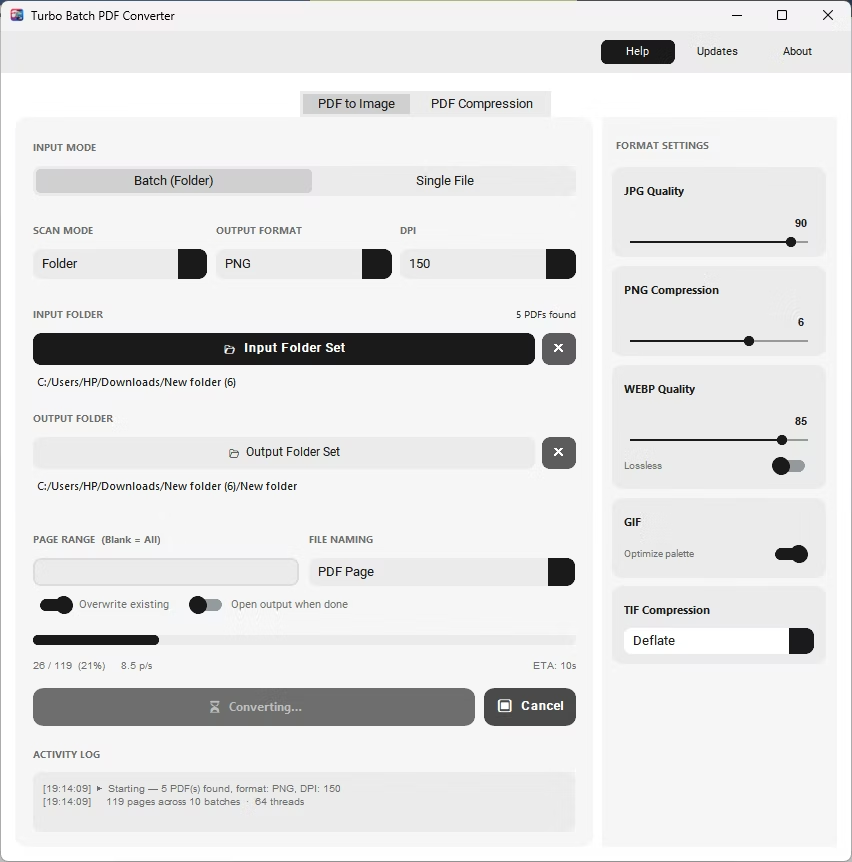
- Click Start Conversion. All PDF files in the folder are processed one after another using parallel workers, fully offline.
- Up to 64 parallel workers process multiple files and pages simultaneously
- Live stats show pages done, conversion speed, and estimated time remaining
- Conversion continuity keeps the batch running even if one file fails
- Overwrite existing and Open output when done toggles save extra clicks
- Works for both PDF to Image conversion and PDF Compression
- No limit on the number of files in a single batch
Is there a limit to how many PDFs I can convert in one batch?
No, the app is built to handle folders with hundreds of PDFs and documents with thousands of pages without slowing down.
Can I convert a group of PDFs and compress them at the same time?
The PDF to Image tab and PDF Compression tab are separate, so run one batch for image conversion and a second batch for compression.
What happens if I close the app during a large batch?
It's best to let a batch finish or use Cancel first, since closing the app mid-conversion may leave the last file incomplete.
Ready to convert your PDFs offline, in bulk, with full privacy?