
Turbo Large Data Splitter
for Windows
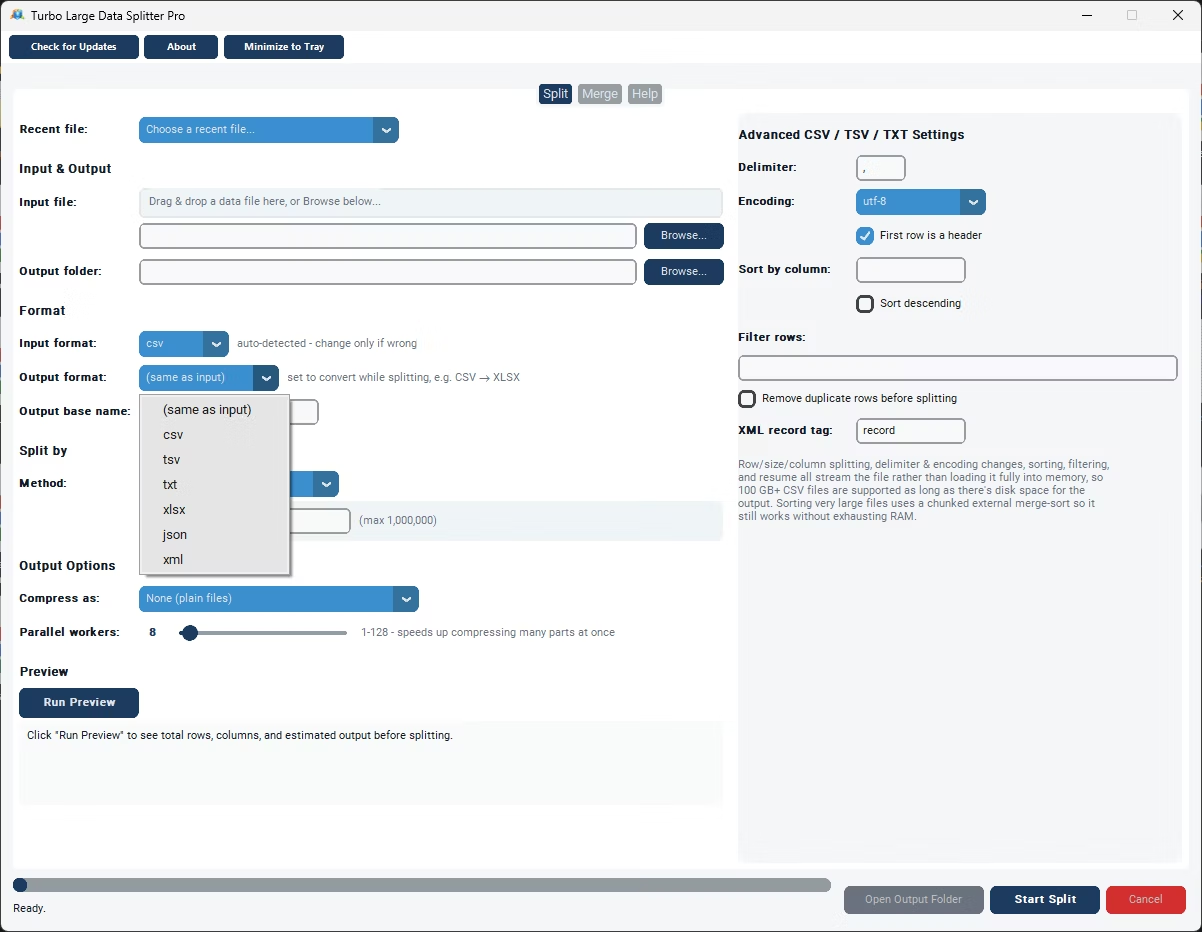
What Turbo Large Data Splitter Does
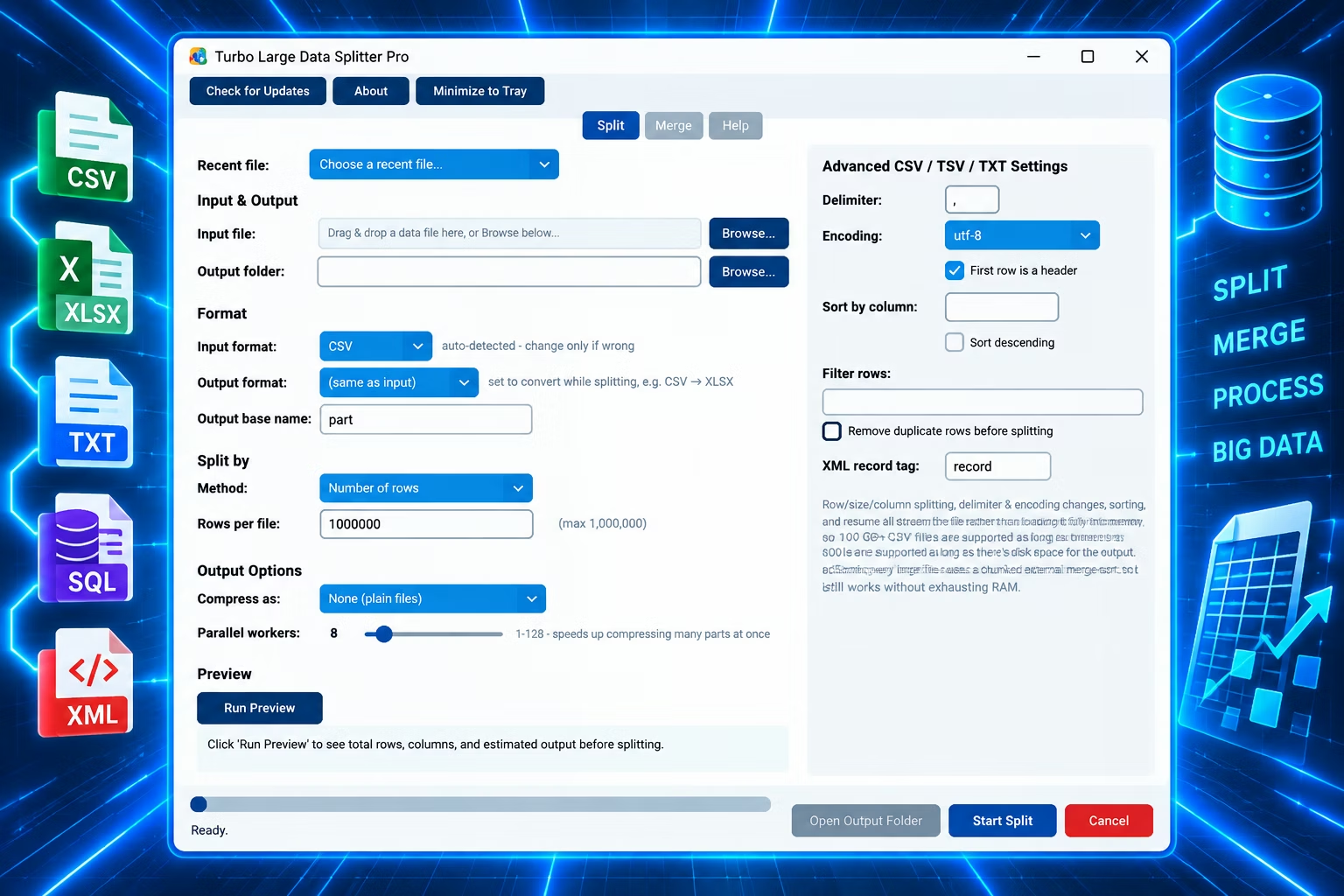
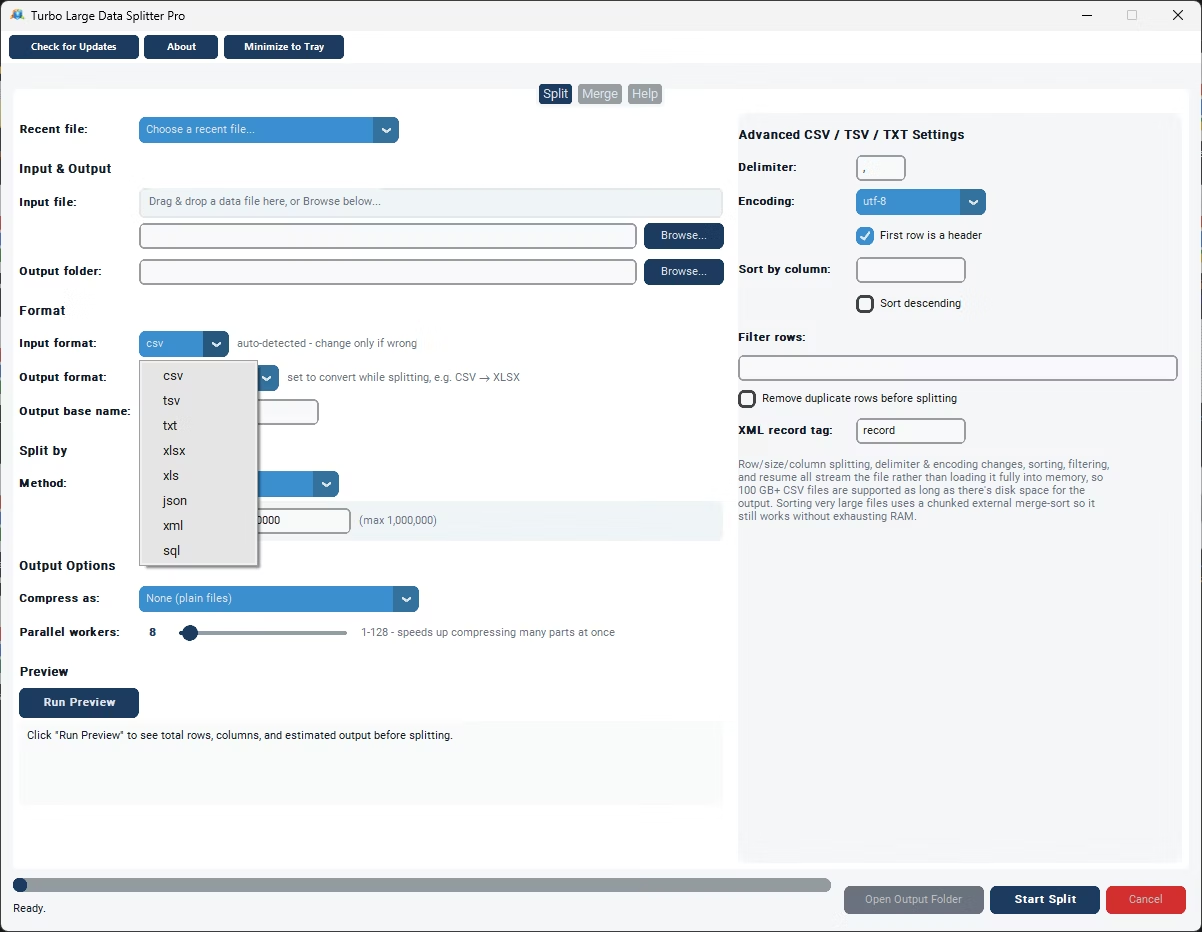
Turbo Large Data Splitter is a Windows tool that splits CSV, Excel and other large data files into smaller ones and merges them back together, without the row limits and memory problems of opening huge files in a spreadsheet. It reads CSV, TSV, TXT, XLSX, XLS, JSON, XML and SQL dump files, and can convert formats while splitting — for example turning one giant CSV into several smaller XLSX workbooks. Every file streams through in a single pass, so the practical limit is free disk space rather than RAM, and files over 100 GB work.
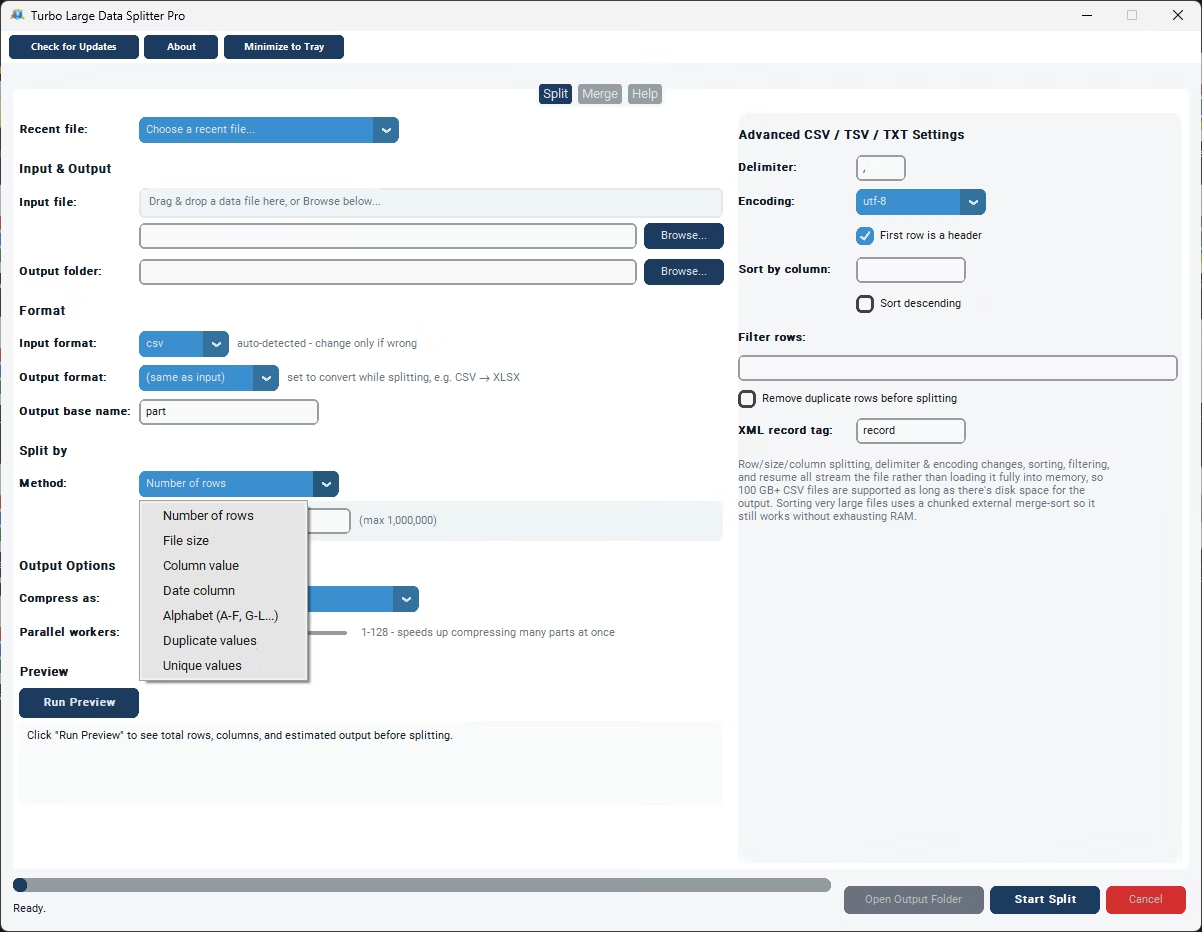
A single Excel worksheet stops at roughly 1,048,576 rows, and long before that a multi-gigabyte export can freeze a machine or refuse to open. Seven split methods — rows, file size, column value, date, alphabet range, duplicates and unique values — turn one enormous export into a set of files sized for whatever comes next, and the Merge tab reassembles parts back into one file with a single header.
Supported Formats
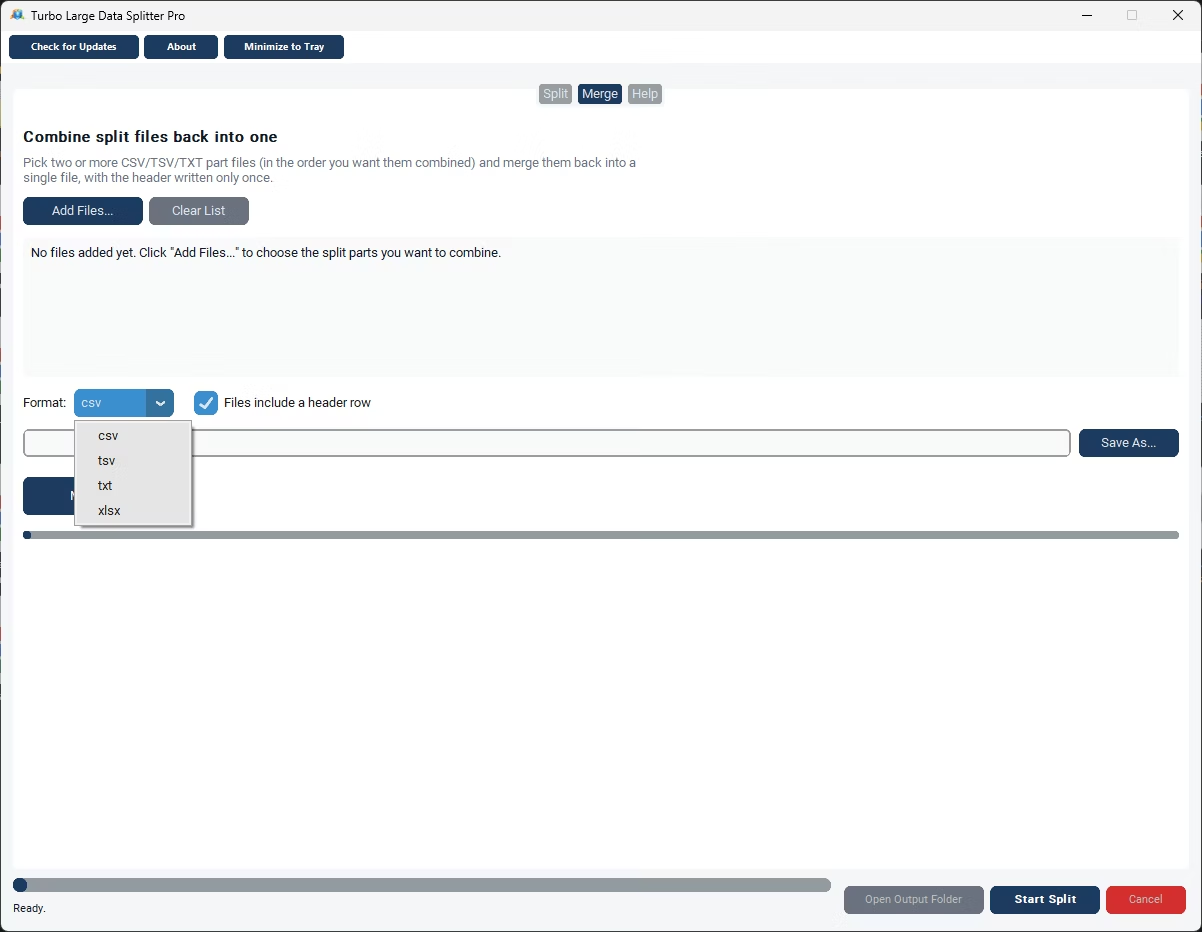
Input and output are independent settings, so CSV to XLSX, XLSX to CSV, JSON to CSV and similar pairs all work in the same pass as the split or merge. Leave the output on "(same as input)" for a plain split. SQL dump files are read line by line, so each line is treated as one row; SQL is an input format only.
Seven Split Methods
| Method | What it does | Reach for it when |
|---|---|---|
| Number of Rows | Every part gets the same number of rows, up to 1,000,000 per file. | The most common choice: pieces that open in Excel or stay under an import limit. |
| File Size | Starts a new part once the current one reaches your target size in MB. | A size cap such as an upload portal or email limit; parts hold different row counts but stay near the target. |
| Column Value | One output file per distinct value in a chosen column. | One file per Country or Department, handing each group only its own rows. |
| Date Column | Groups rows by day, month or year based on a date column. | Transaction logs, order histories and sensor data in monthly or yearly files. |
| Alphabet Ranges | Buckets rows into A–F, G–L, M–R, S–Z, 0–9 and Other by a column’s first letter. | Name-sorted or catalog-style datasets. |
| Duplicate Values | Splits rows into a "duplicates" file and a "first seen" file. | Isolating repeated records for review instead of deleting them. |
| Unique Values | Keeps only the first occurrence of each row and drops later duplicates. | Cleaning noise out of a file before splitting or merging it. |
Each method needs a single setting: rows per file, target MB, the column to split on or the date granularity. The header row is kept on every part.
Key Features
Split and Merge
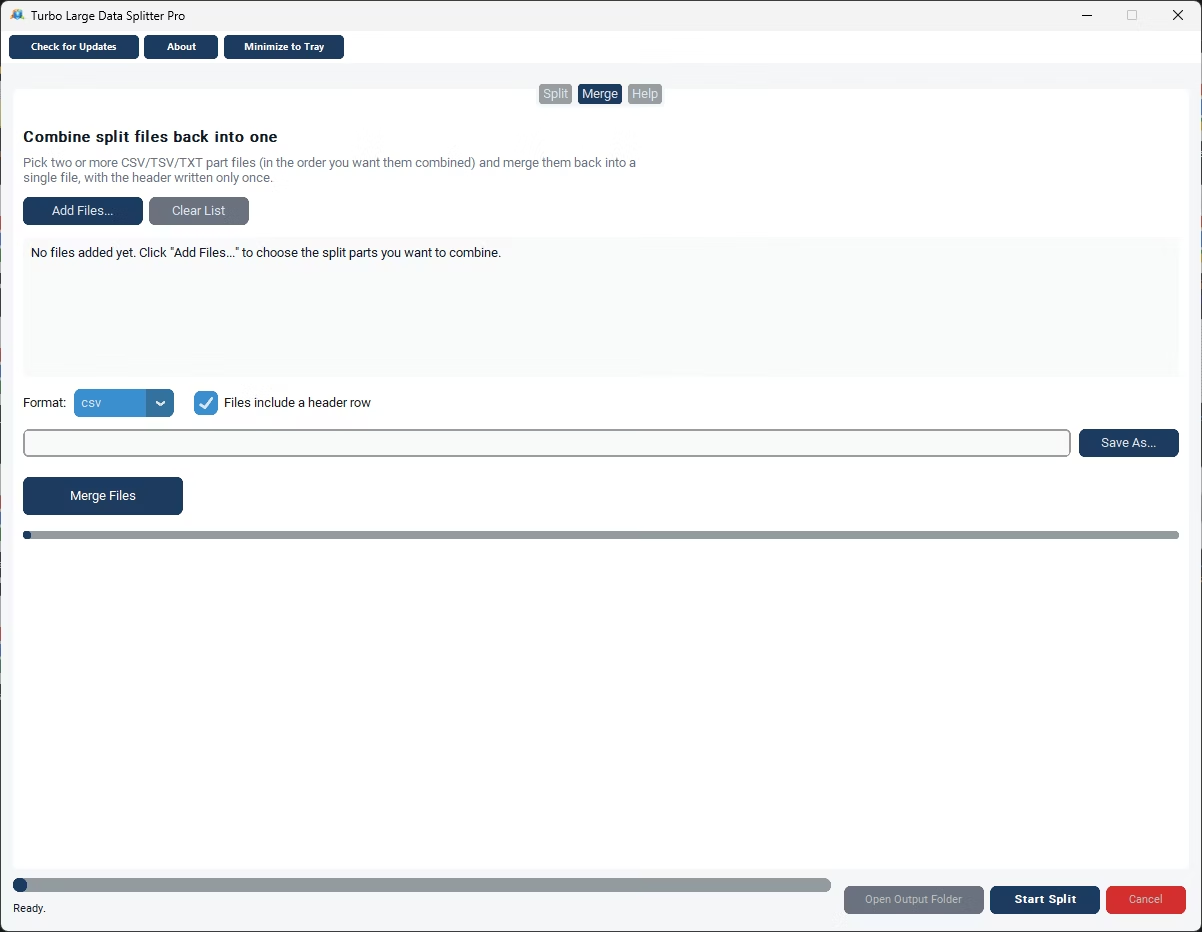
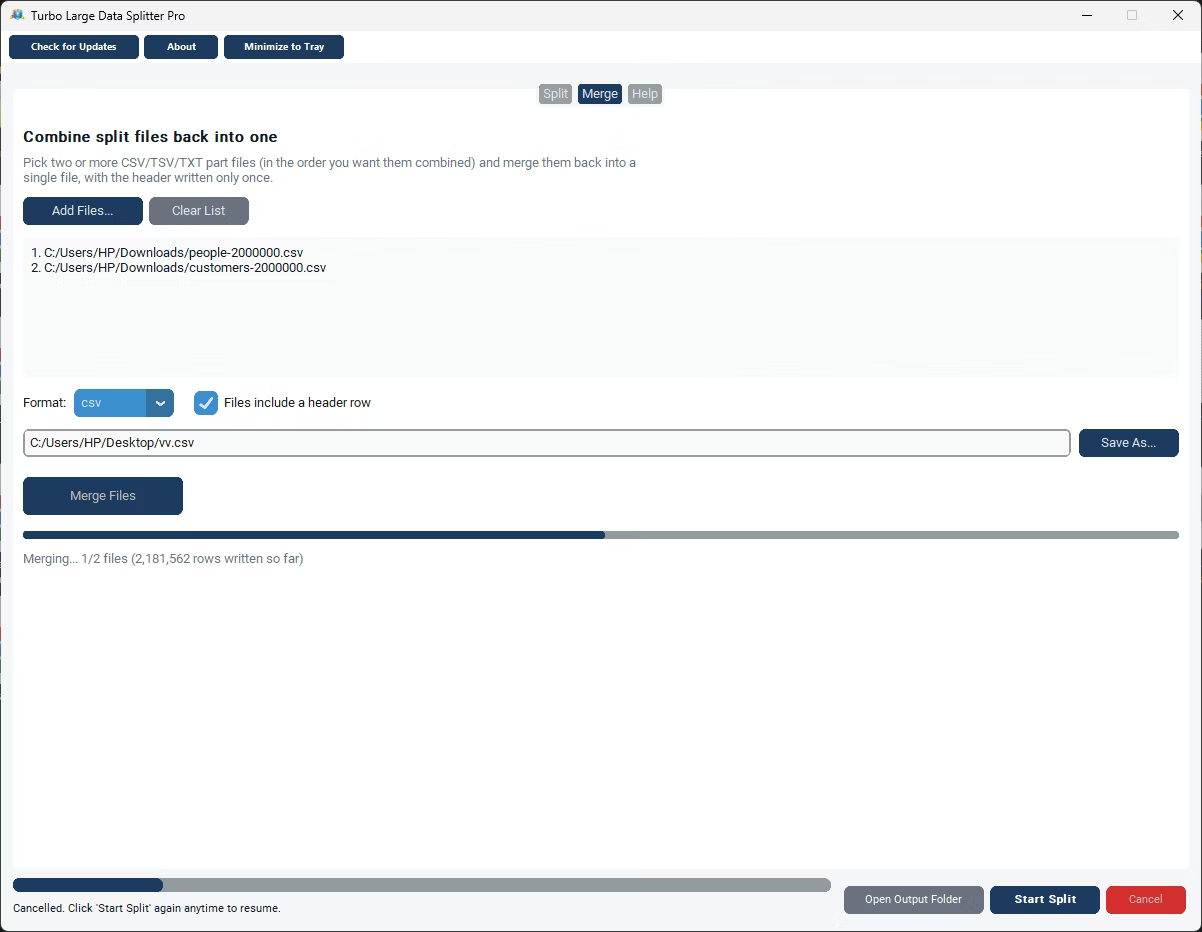
Split CSV, TSV, TXT, XLSX, XLS, JSON, XML and SQL dump files into multiple files, or merge parts back into one. The Merge tab writes the header once and appends every row after it.
Seven Split Methods
Number of rows, target file size, column value, date column, alphabet ranges, duplicate values and unique values. Everything streams row by row, so splitting never depends on how much memory your PC has.
Multi-Sheet Excel Support
When an XLSX has more than one sheet, choose the largest sheet automatically, always use the first, or pick an exact sheet name. The same choice applies when you merge XLSX files.
Advanced CSV / TSV / TXT Settings
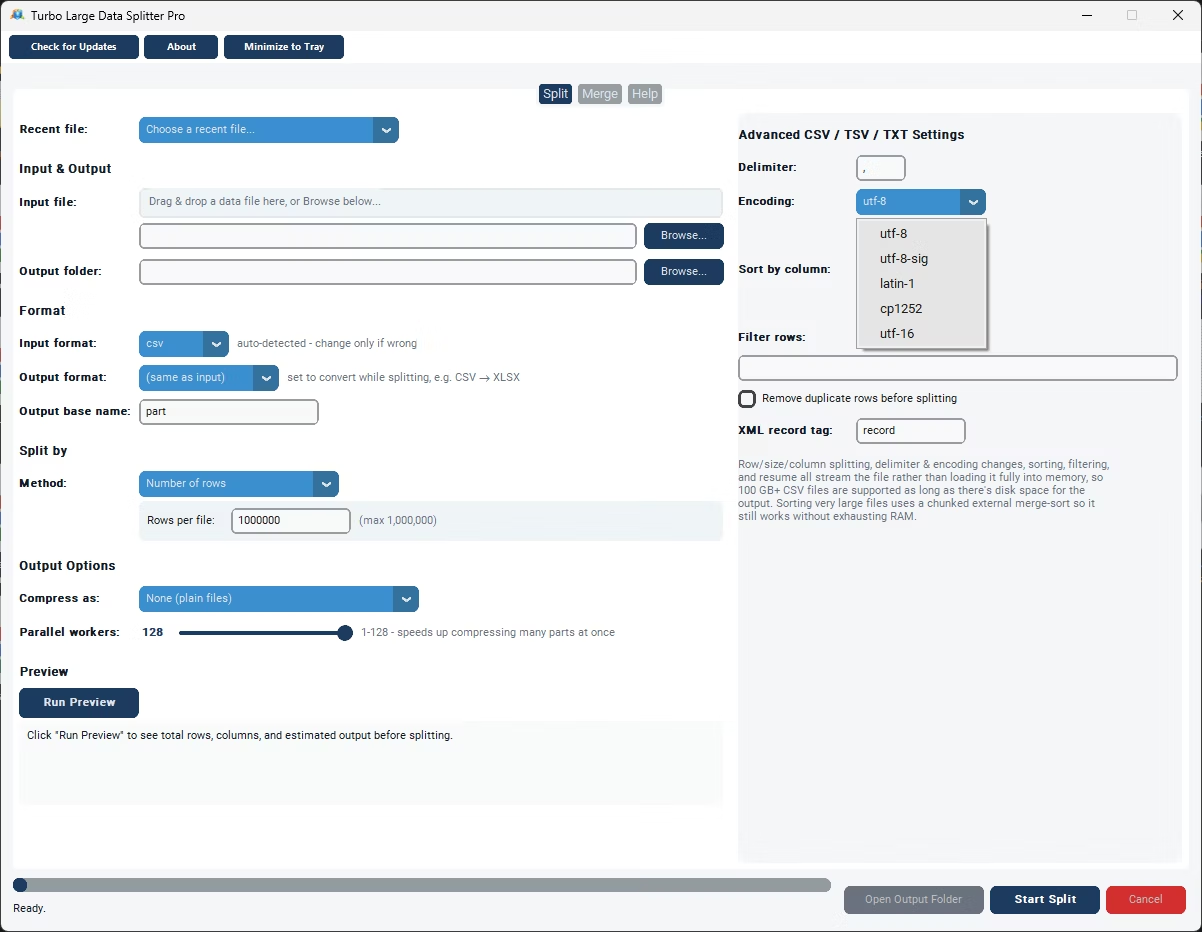
Set the delimiter, text encoding and whether the first row is a header. Sort by a column with a disk-based merge sort that works on huge files, filter rows with a simple expression and remove exact duplicates before splitting.
Compression Options
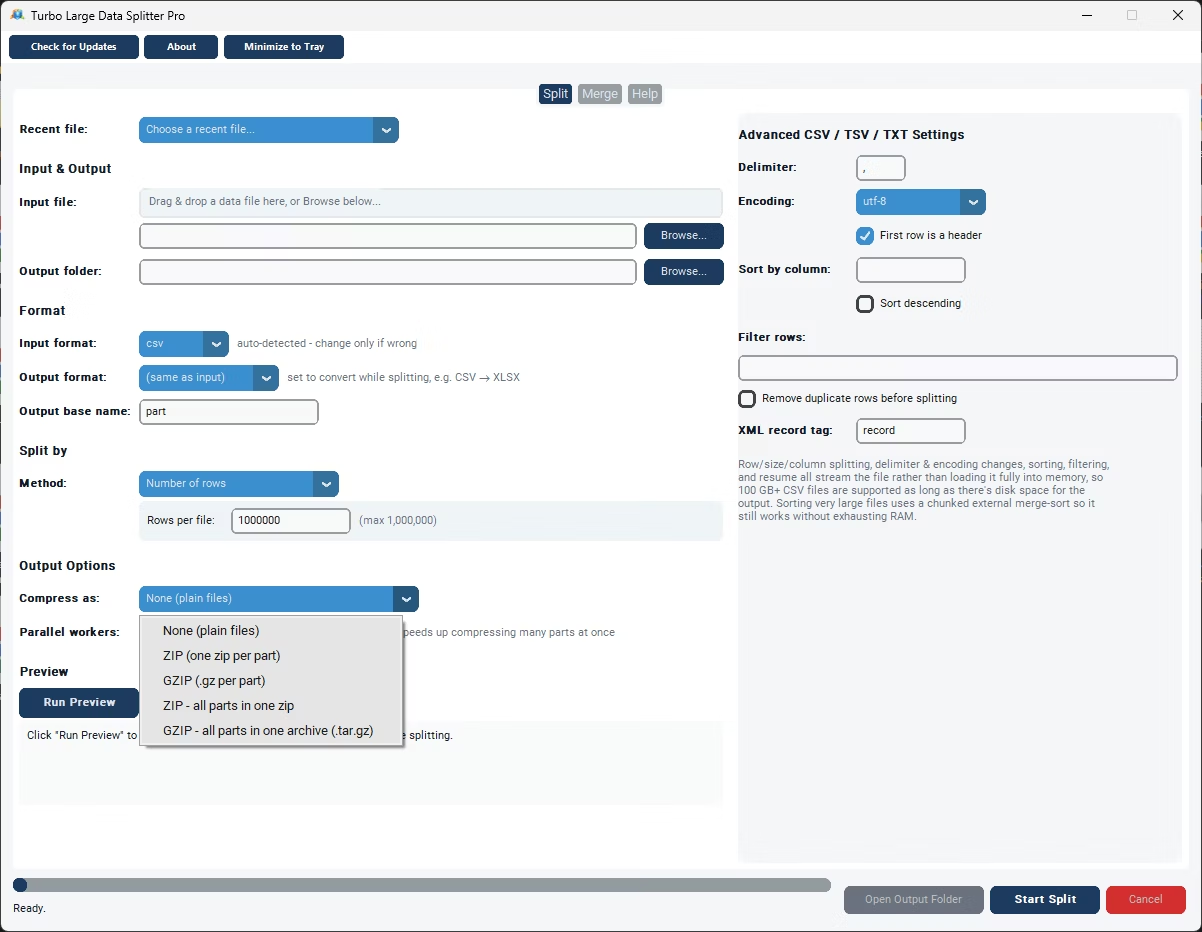
Leave parts as plain files, compress each with ZIP or GZIP, or bundle every part into a single ZIP archive or GZIP tarball. Compressing finished parts can run on up to 128 parallel workers.
Resume Interrupted Jobs
If a job is cancelled, closed or interrupted, a checkpoint is saved automatically and running the same job again picks up where it stopped.
Preview, Drag and Drop, Recent Files
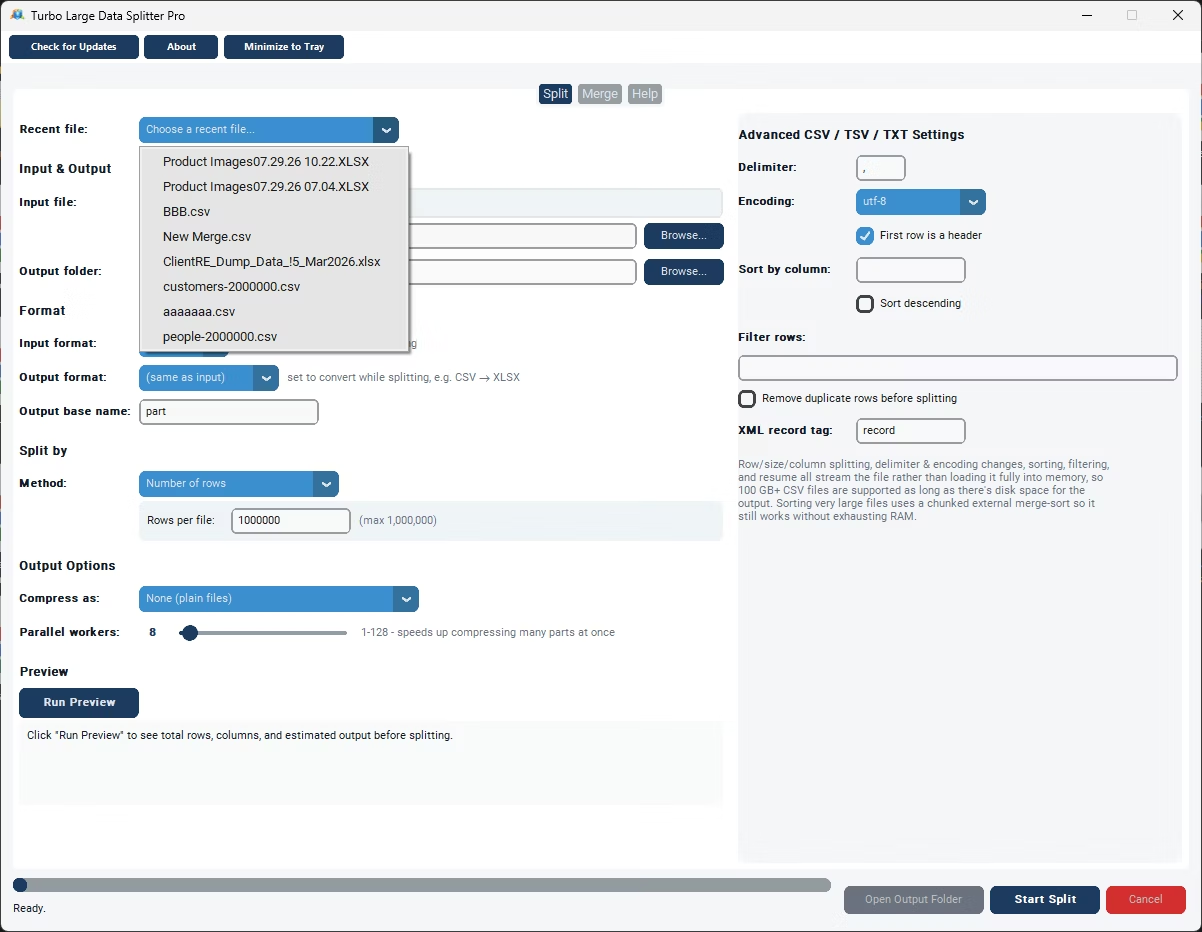
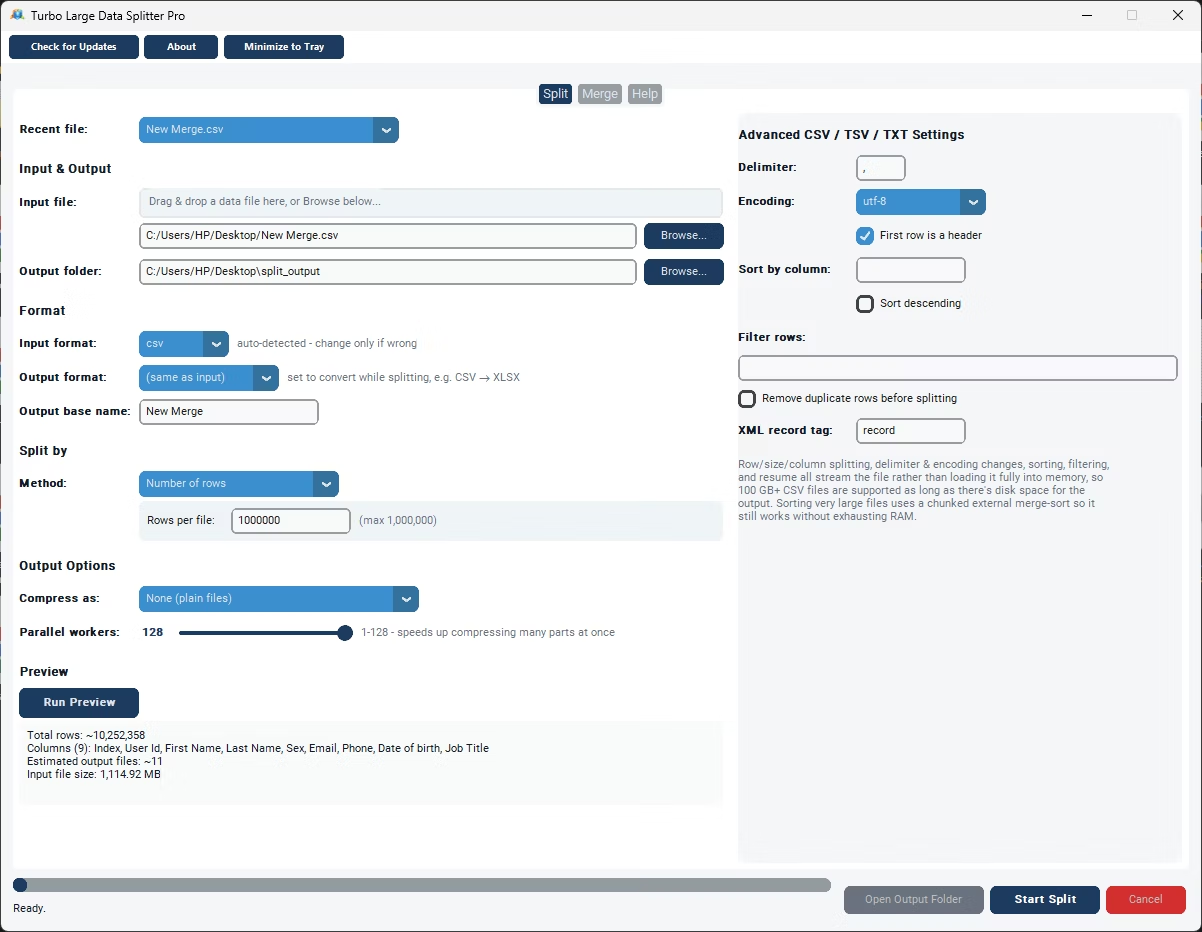
Drag a file onto the window or pick it from the Recent Files list. A live preview shows the total row count, detected columns and an estimate of how many output files you will get before you start.
Three Tabs, One Workflow
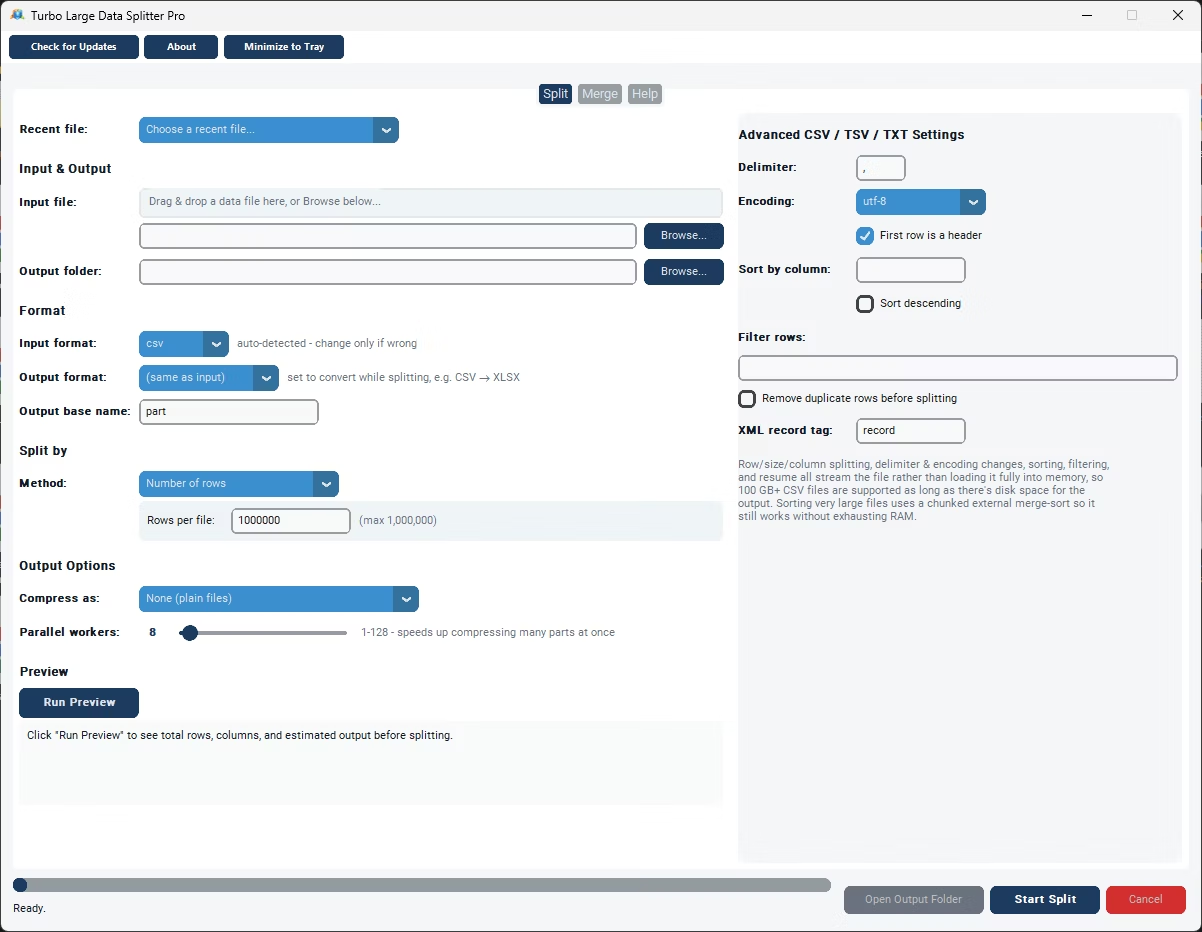
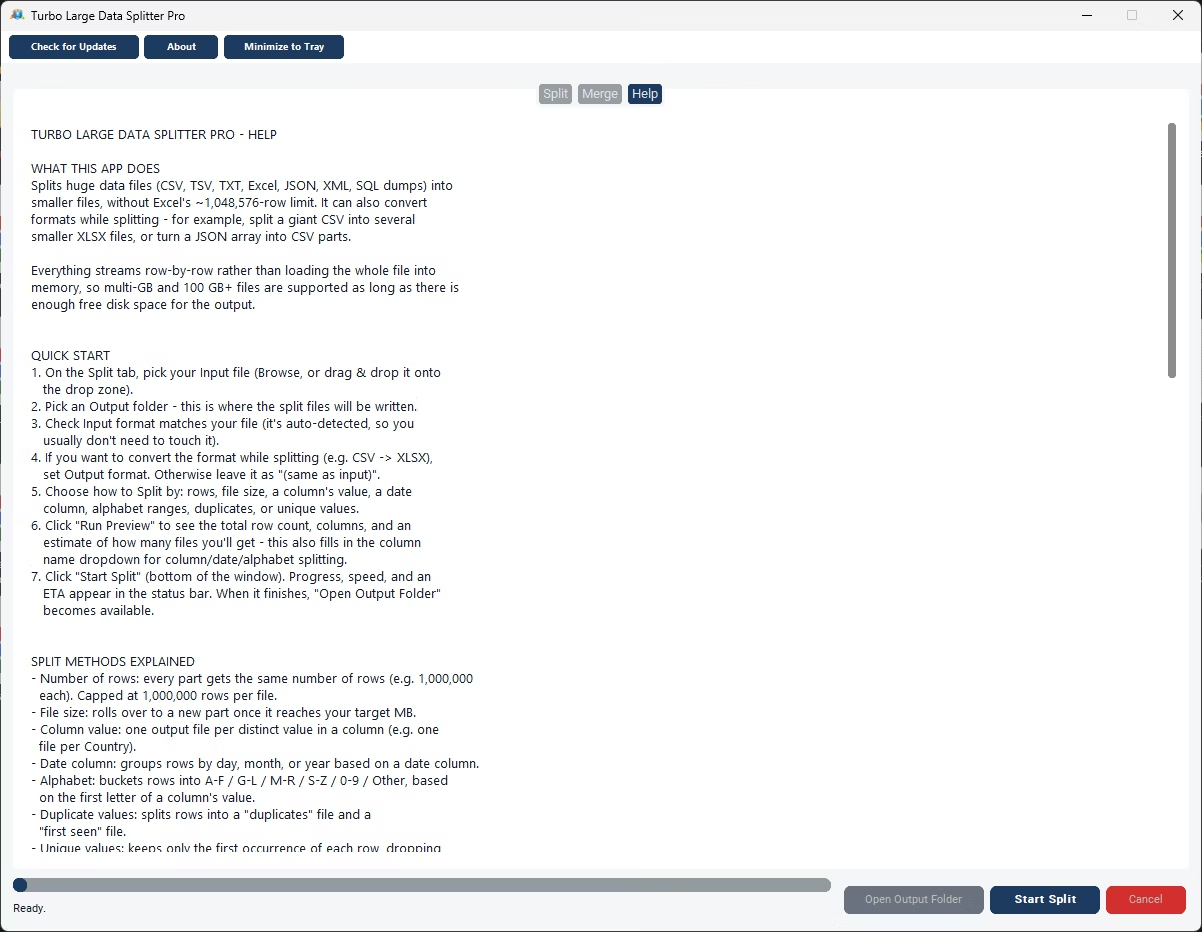
Split, Merge and Help tabs in a clean light theme. The Split tab holds the input and output formats, method, output folder, compression, workers slider and the advanced settings; Help documents every method and setting.
Convert Formats While You Split
- CSV to XLSX. Turn a giant CSV export into several Excel workbooks sized under the worksheet row limit, ready to open and share.
- XLSX to CSV. Convert a workbook, including a chosen sheet from a multi-sheet file, into lightweight CSV parts for import elsewhere.
- JSON to CSV. Flatten a large JSON array into tabular CSV files that open in any spreadsheet, split into manageable pieces along the way.
- SQL dump to rows. Each line of a line-oriented dump becomes one record that can be written out as CSV, JSON, XML and more.
How It Works: A Step-by-Step Split
- Add your file. Browse, drag it onto the window or pick it from Recent Files. The input format is detected from the extension.
- Pick input and output formats. Keep "(same as input)" for a plain split, or choose CSV, TSV, TXT, XLSX, JSON or XML to convert while splitting.
- Choose a split method and fill in its single setting.
- Set output and compression. Choose the output folder, optionally compress each part or bundle everything into one archive, and adjust the advanced CSV settings only if needed.
- Run Preview. It reports the row count, detected columns, the estimated number and size of output files, and a note when a conversion is set.
- Start Split. Watch progress, live speed and ETA in the status bar, then open the output folder.
Performance
Reading and splitting happen in one continuous, ordered pass, which keeps row order correct and makes resuming possible. Because files are streamed rather than loaded, the practical limit is free disk space, and 100 GB+ files are supported. Excel files are read with a high-speed engine, which keeps large XLSX-to-CSV and XLSX-to-XLSX splits quick. Only compressing the finished parts is parallel, on up to 128 workers, which speeds up jobs that produce many ZIP or GZIP files.
Common Jobs
- Make a huge export open in Excel. Choose Number of Rows at 1,000,000 and set the output format to XLSX; a 12-million-row CSV becomes twelve workbooks that each open cleanly with the header row.
- Distribute data by region. Pick Column Value and the Region column for one file per region. Apply a simple filter for the current quarter and sort so each file arrives in a sensible order.
- Convert a JSON feed to spreadsheets. Load the JSON, set the output to XLSX, choose Number of Rows and split; a nested export becomes tabular workbooks your team can open immediately.
- Archive transactions by month. Choose Date Column, set the granularity to month and point it at the order-date column; twelve monthly files come out in one pass.
- Reassemble split parts. On the Merge tab add the files in order, choose where to save and click Merge Files for one file with a single header.
Scope and Limitations
- Row-based splitting is capped at 1,000,000 rows per output file, which keeps each part within Excel’s worksheet ceiling.
- Legacy .xls is read by loading the whole workbook into memory, which is fine because .xls itself tops out at 65,536 rows.
- Previewing and counting rows in an XLSX requires a full read of the sheet, so it is not instant on very large workbooks.
- Duplicate and Unique splitting keep a hash of every row seen in memory, which works well to tens of millions of rows; column or alphabet splitting suits extreme cardinalities better.
- SQL dumps are split by treating each physical line as one row. It is not a full SQL parser, and SQL is an input only.
Offline and Private
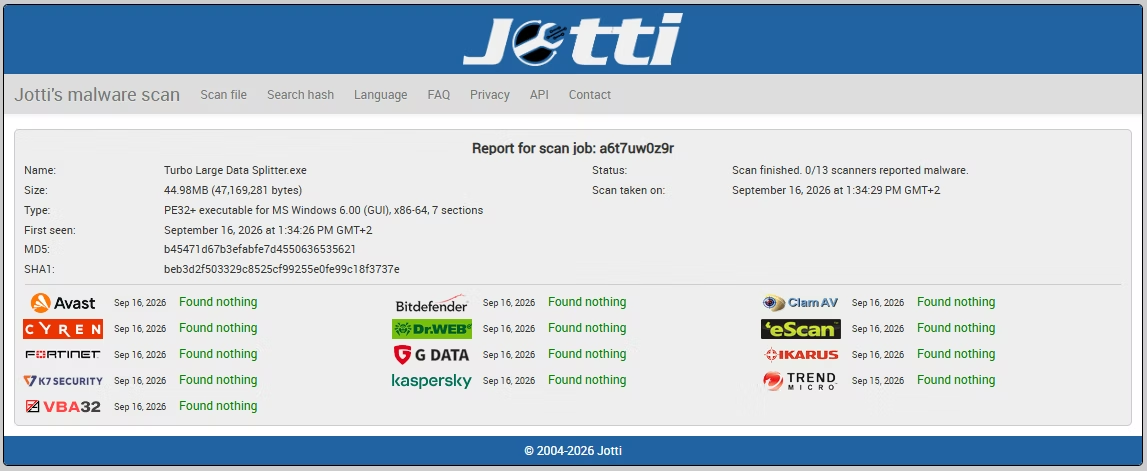
All splitting, merging, sorting and filtering happen on your own computer. No files are uploaded, scanned remotely or shared with third parties, and there is no server-imposed file-size cap. Internet is used only for license validation, and the request contains no file names or file content. Suitable for financial records, customer data and other confidential datasets.
System Requirements
| Requirement | Minimum | Recommended |
|---|---|---|
| Operating system | Windows 8 (64-bit) | Windows 10 or later (64-bit) |
| Processor | 1–2 CPU cores | 4 or more CPU cores |
| Memory | 4 GB RAM | 8 GB RAM or more |
| Storage | Free space at least the size of the input file | SSD; at least twice the input size, for output and checkpoint files |
Getting Started and Licensing
Turbo Large Data Splitter is distributed through Gumroad and activated with the email and license key from your purchase receipt. Buy a license with the Buy Now button on this page, run the installer or packaged executable on Windows 10 or 11, and enter the email and key at first launch; no browser, server or online account is needed. After activation the app opens straight to the Split tab: drag a file onto the window, pick a method, run Preview and click Start Split.