
Turbo Excel Image Extractor and Inserter
for Windows
Two Tools in One Window: Extract and Insert Images in Excel
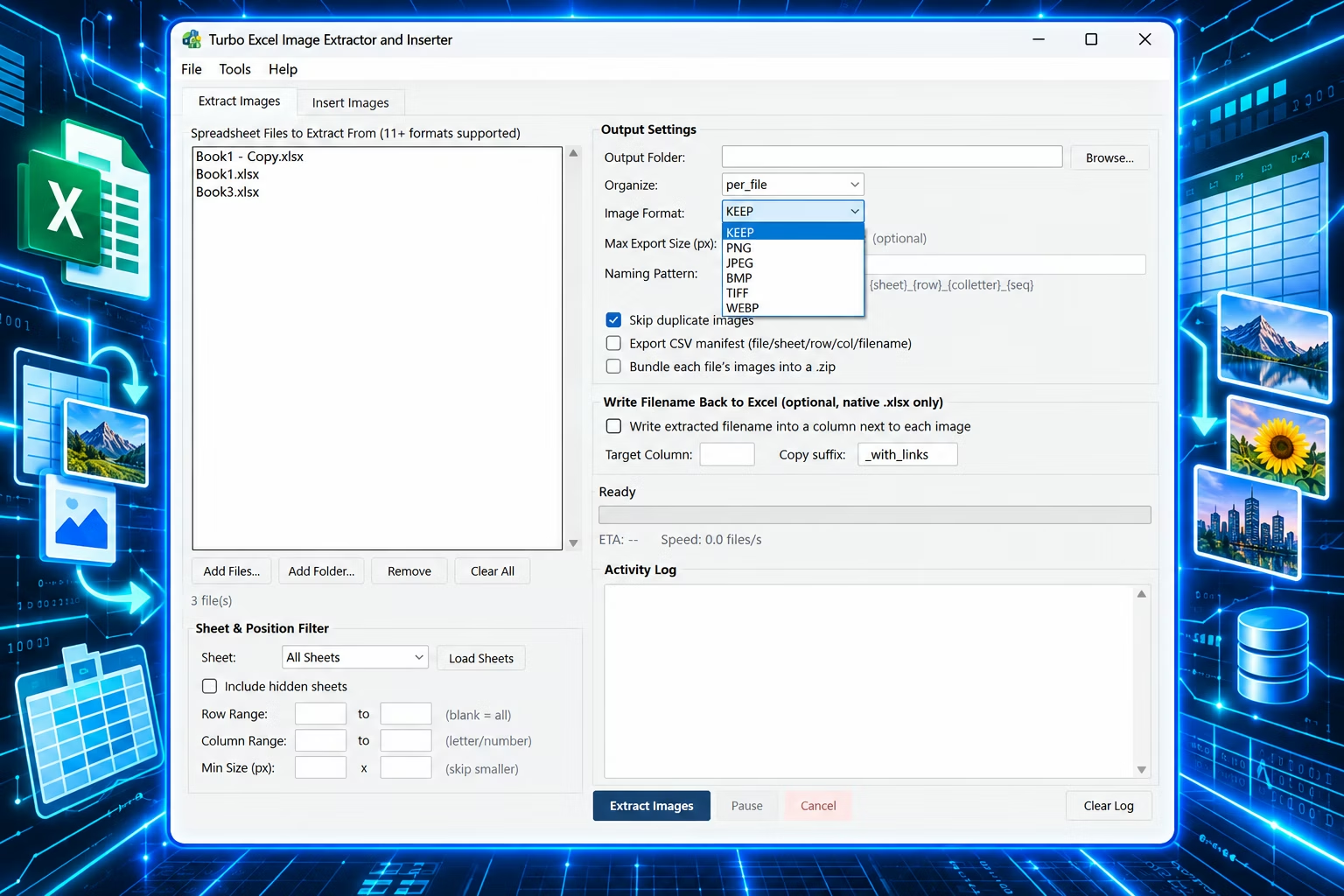
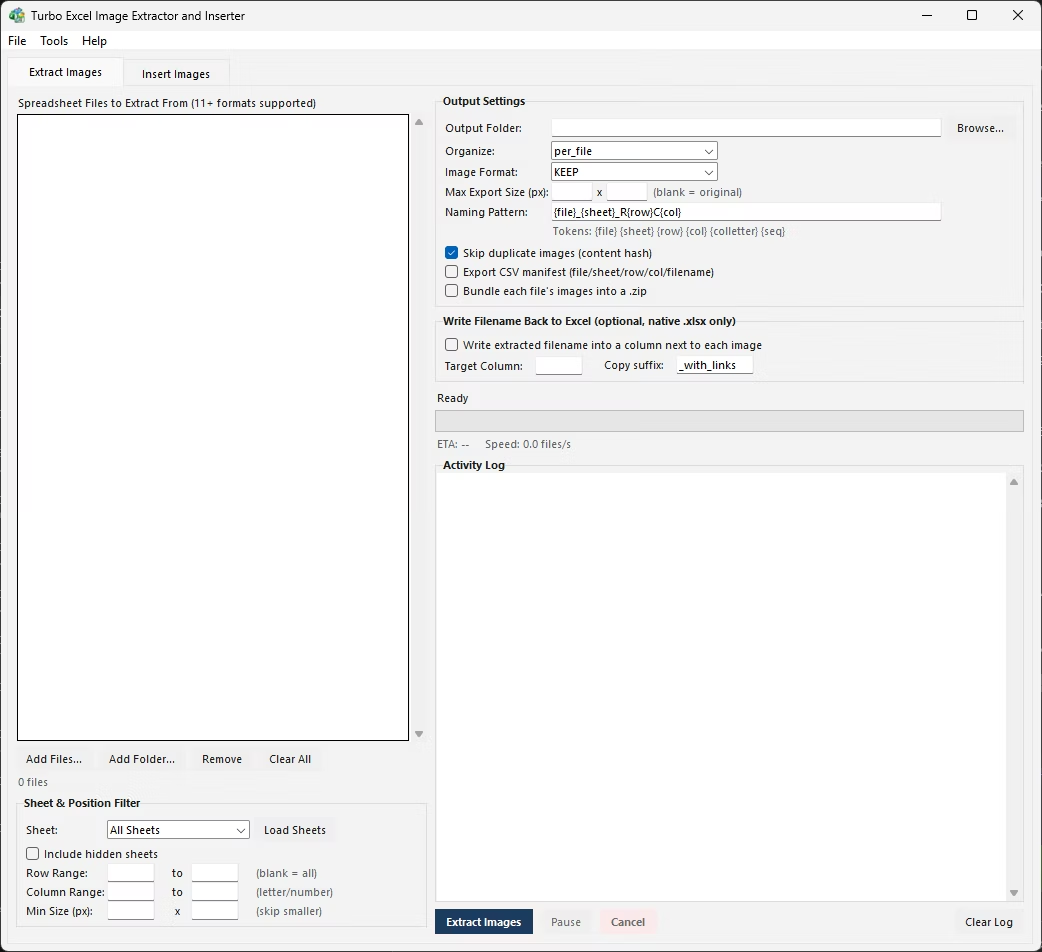
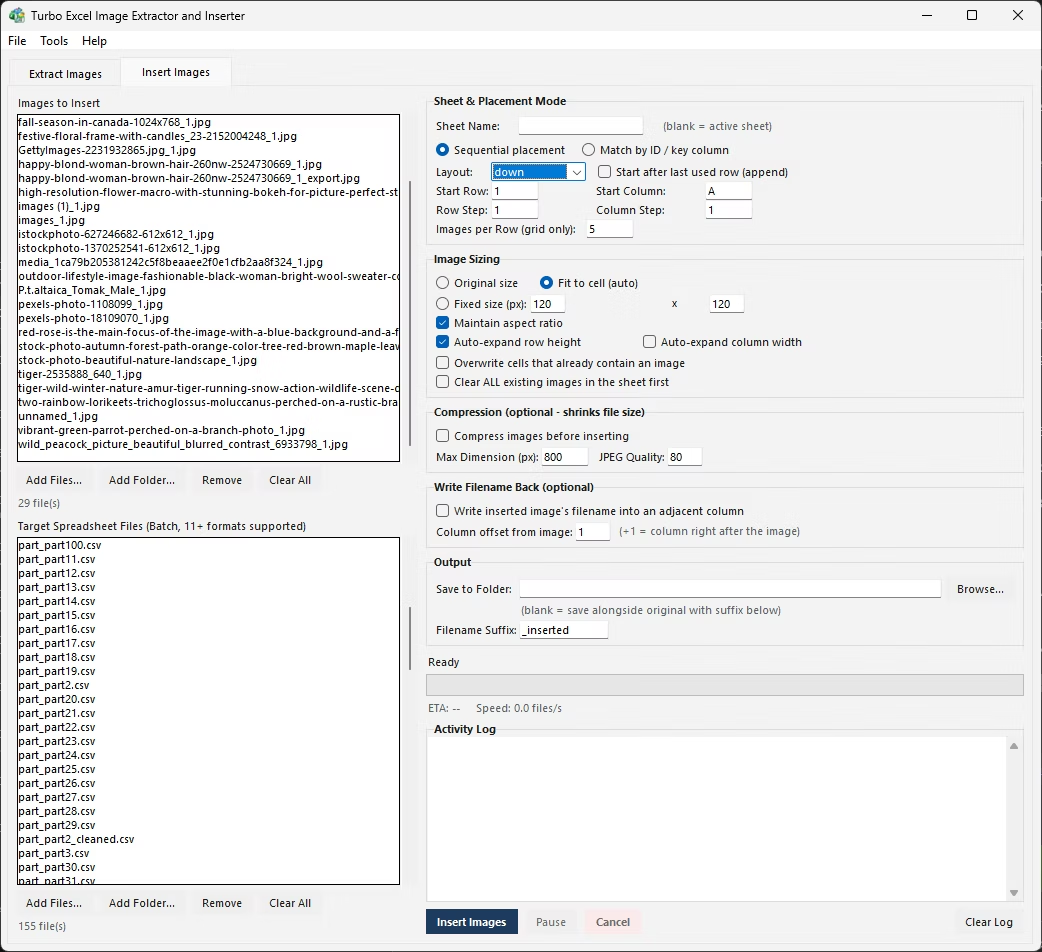
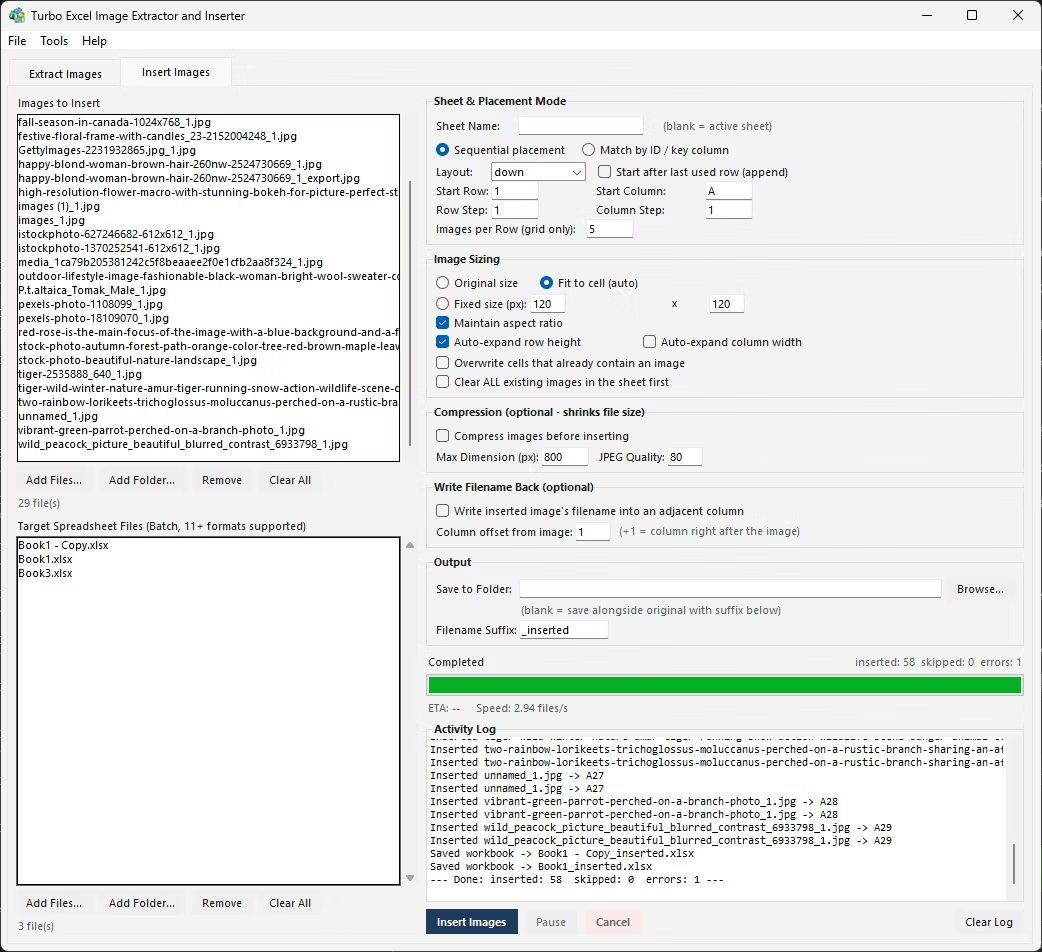
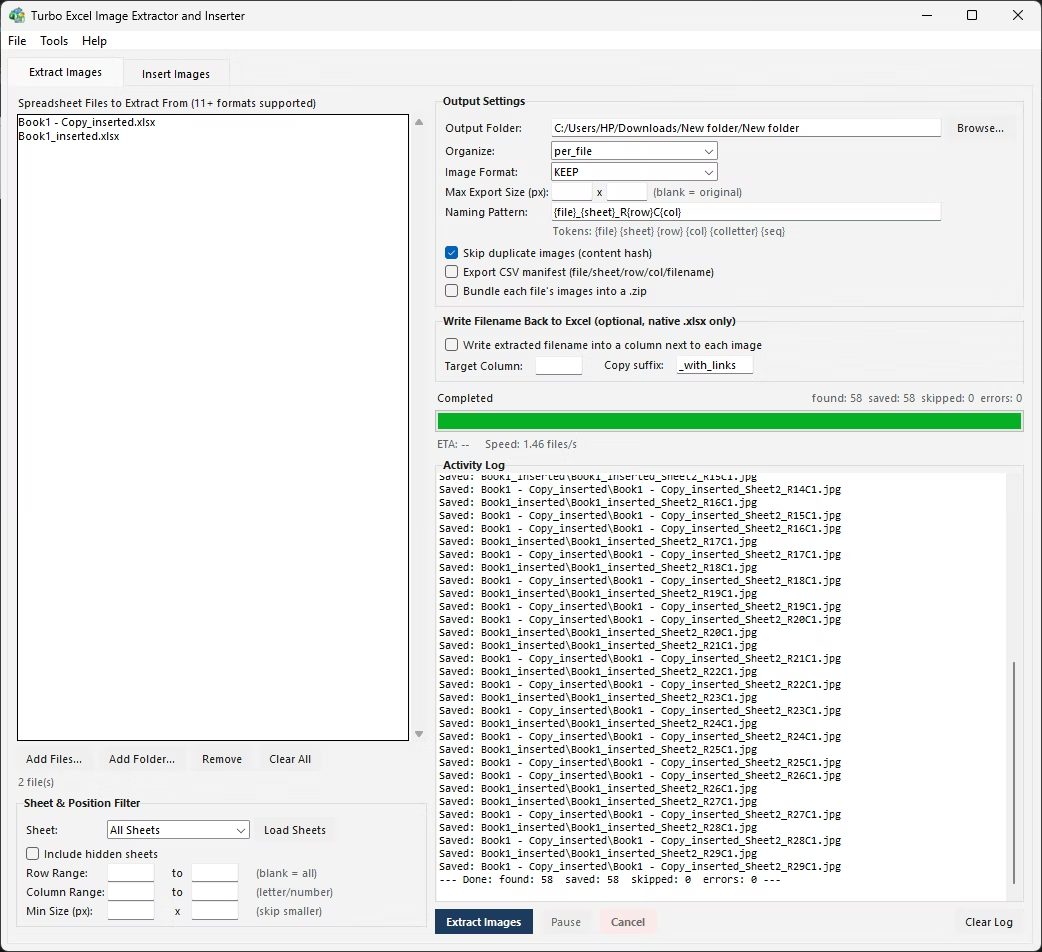
Turbo Excel Image Extractor and Inserter opens to a single window with two tabs that mirror the two problems people have with images and spreadsheets. Extract Images takes pictures that are trapped inside a workbook and turns them back into files you can use anywhere. Insert Images does the reverse: with a folder of pictures and a spreadsheet, it puts the pictures into the sheet in the correct places at a sensible size. Both tabs accept a single file, a handful of files or an entire folder scanned recursively, run on a parallel batch engine, and share the same progress bar, speed readout, ETA and activity log, with Pause, Resume and Cancel at any moment.
Excel is a superb place for structured data and a frustrating place to manage pictures. Getting fifty embedded photos out means right-clicking each one, choosing Save As Picture and typing a filename fifty times; putting a folder of photos into the right rows by hand is worse. This tool erases both chores. Extraction writes out the pictures a workbook holds and records which sheet, row and column each came from. Insertion places a folder of images automatically, either in sequence or matched to the right row by a shared identifier. You keep full control of which images, what size, which cells, what names and what safeguards against overwriting, and nothing is uploaded or guessed silently.
Supported Spreadsheet Formats (13)
The tool reads and writes thirteen formats, from modern Excel workbooks to legacy binary files, OpenDocument spreadsheets and plain-text delimited files. Every one can be an insertion target. Extraction is different: embedded images can only be pulled from the five native Excel container formats, which store pictures in a way the app can read directly. If you add any other format to the Extract tab, the app says plainly that it does not store extractable images.
| Format group | Extensions | Extract images? | Insert images? |
|---|---|---|---|
| Native Excel (OOXML) | .xlsx, .xlsm, .xltx, .xltm, .xlam | Yes | Yes (in place or as a copy) |
| Legacy Excel | .xls, .xlt | No | Yes (saved as new .xlsx) |
| Binary Excel | .xlsb | No | Yes (saved as new .xlsx) |
| OpenDocument | .ods, .ots | No | Yes (saved as new .xlsx) |
| Delimited text | .csv, .tsv, .txt | No | Yes (saved as new .xlsx) |
Inserting into a non-native format carries your cell data into a brand-new .xlsx, with the images inside it. Reading legacy .xls/.xlt, .xlsb and .ods/.ots depends on optional helper libraries (xlrd, pyxlsb and odfpy); if one is missing, the app names the package it needs.
Key Features
Extract Every Embedded Image
Pull every picture out of an .xlsx or .xlsm workbook in a single pass, across all sheets or one named sheet, and optionally reach into hidden sheets.
Insert by Sequence or by Match
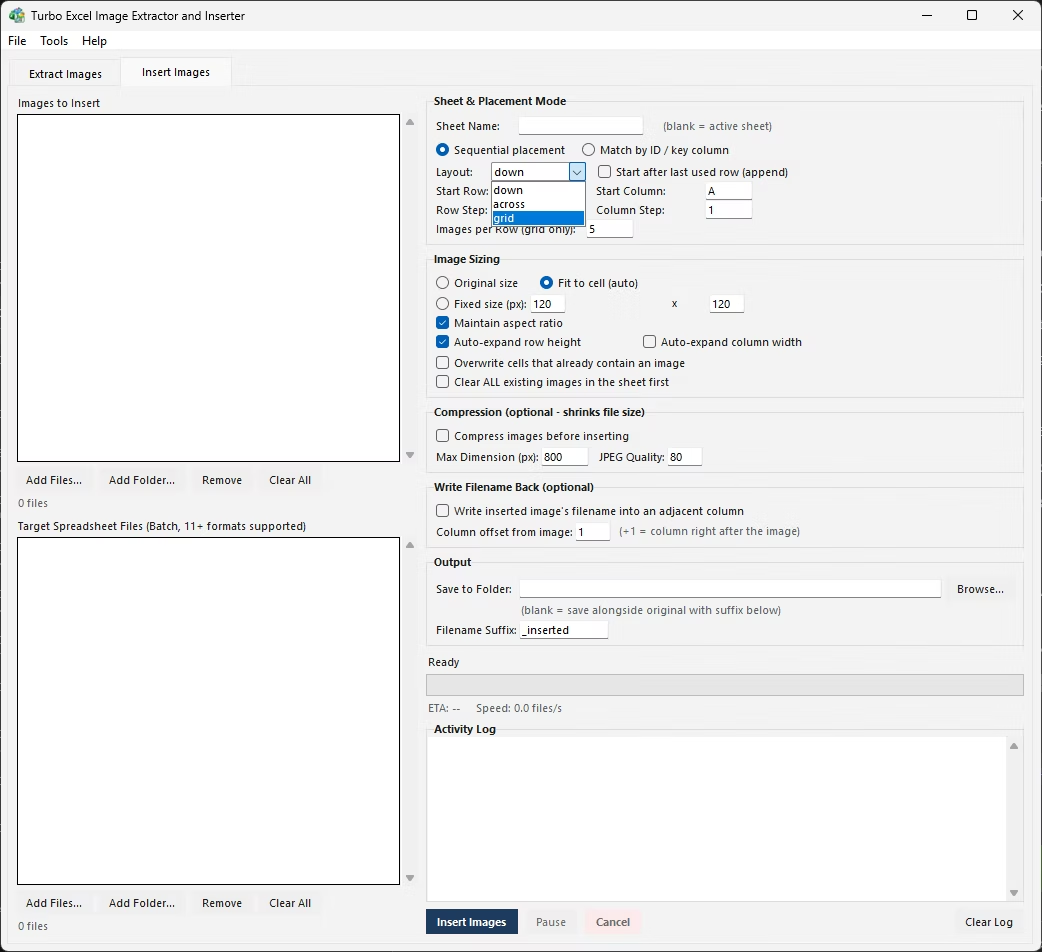
Lay images out down a column, across a row or in a grid, or match each file’s name to a key column so every picture lands in the row it belongs to.
Row, Column and Size Filters
Extract only from a defined block of rows and columns, and skip anything below a minimum pixel size so small logos and icons do not clutter the output.
Fit-to-Cell and Auto-Expanding Sizing
Scale inserted images to the destination column and row, hold a fixed pixel size, or keep the original. Optionally grow row height and column width to fit, never shrinking existing ones.
Token-Based Naming
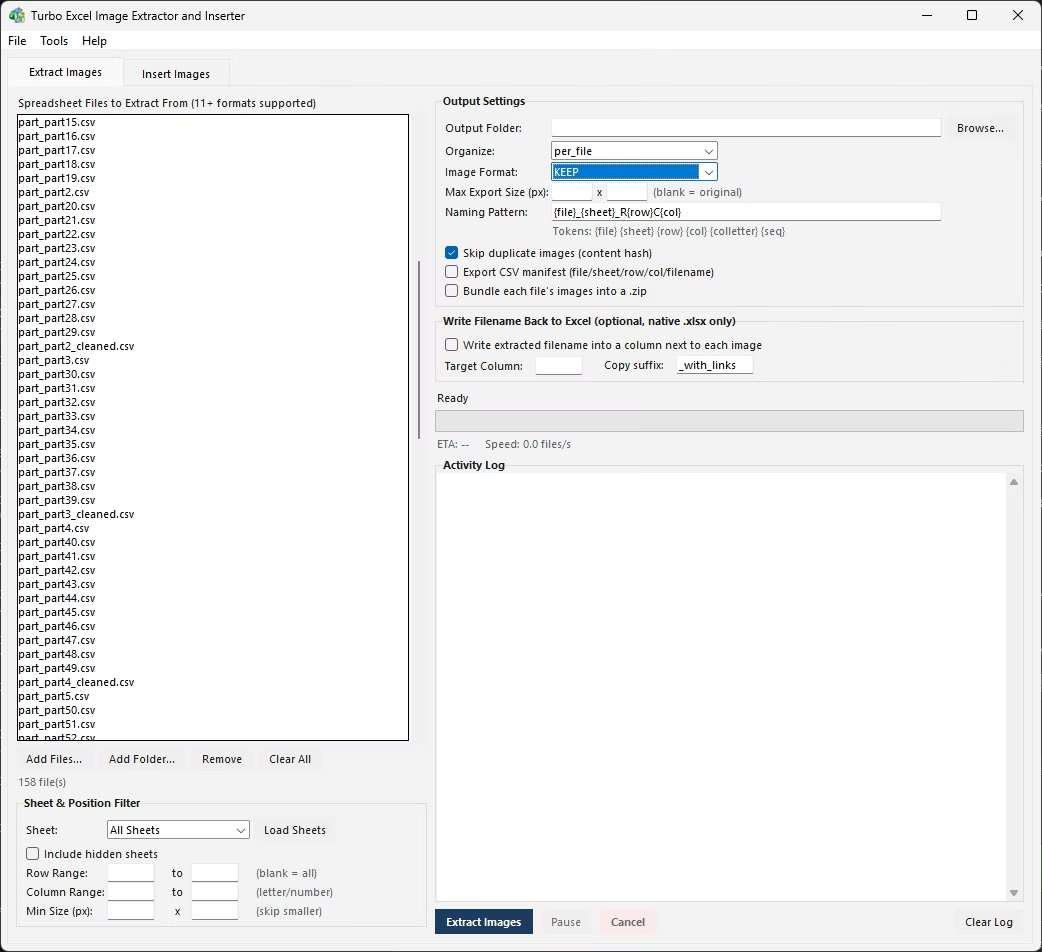
Compose extracted filenames from file, sheet, row, column, column-letter and sequence tokens, with automatic numbering whenever two names would collide.
Format Conversion on Export
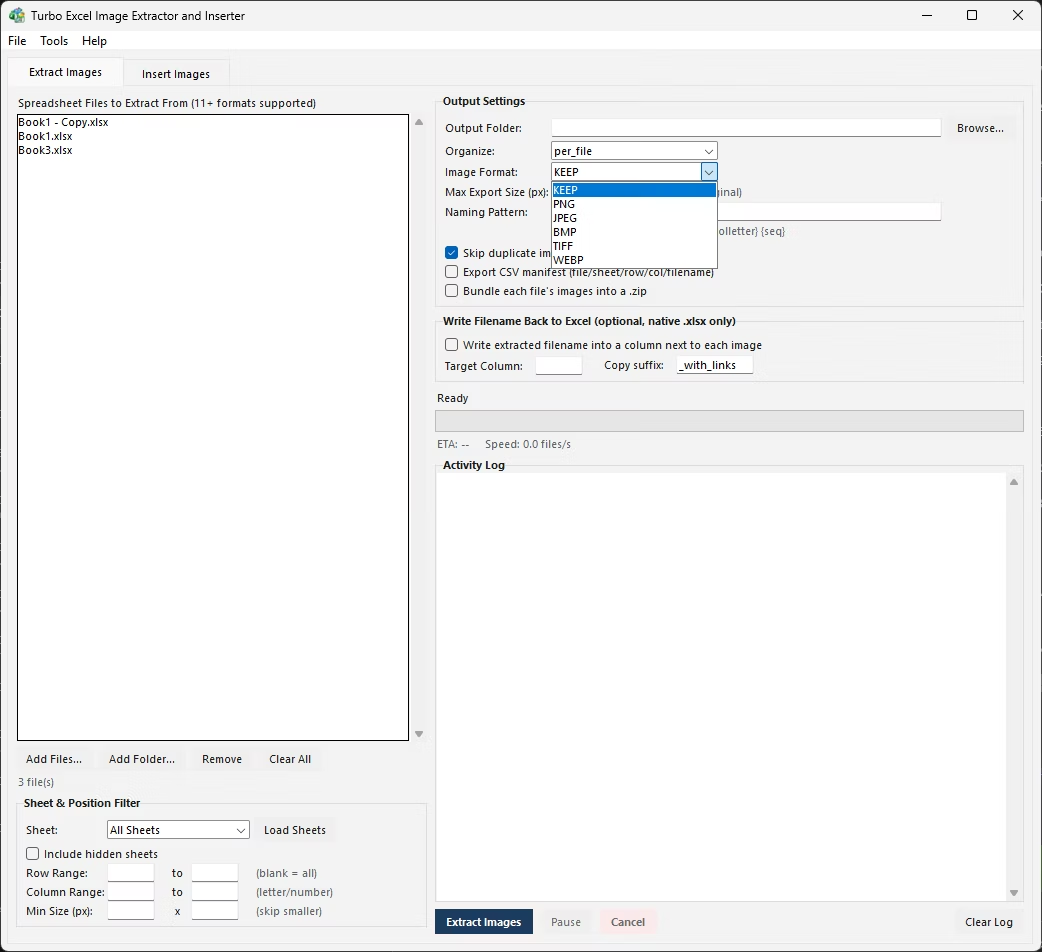
Keep each image’s native format or convert everything to PNG, JPEG, BMP, TIFF or WebP, with an optional maximum export size.
Deduplication, Manifest and ZIP
Skip identical pictures by content hash, record every image’s file, sheet, row, column and dimensions in a CSV manifest, and bundle each source file’s images into a ZIP.
Two-Way Filename Write-Back
Write the saved filename next to each extracted image, or the source filename next to each inserted one, so the spreadsheet documents what is where.
Compression Before Insert
Downscale to a maximum dimension and re-encode as JPEG at a chosen quality before insertion, keeping a photo-heavy workbook under control.
Parallel Batch Engine
Queue a whole folder of workbooks or images and process them across up to 128 worker threads while the window stays fully responsive.
How It Works
Extracting images, step by step
- Add files. On the Extract Images tab add spreadsheets or a whole folder; the recursive scan runs in the background so queuing a large folder never stalls the window.
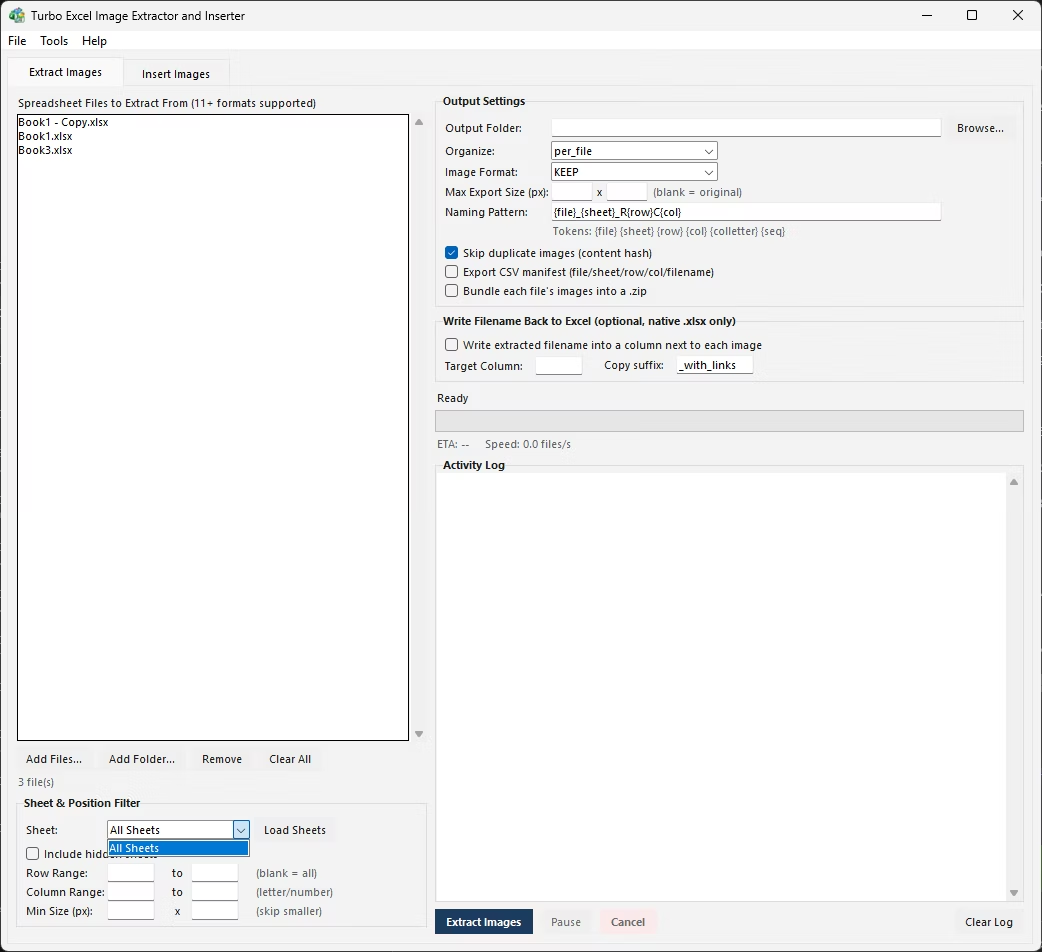
- Pick sheets. Click Load Sheets, then choose All Sheets or a single sheet, and decide whether hidden sheets are included.
- Set filters. Optionally give a row range, a column range (letters or numbers) and a minimum width and height in pixels.
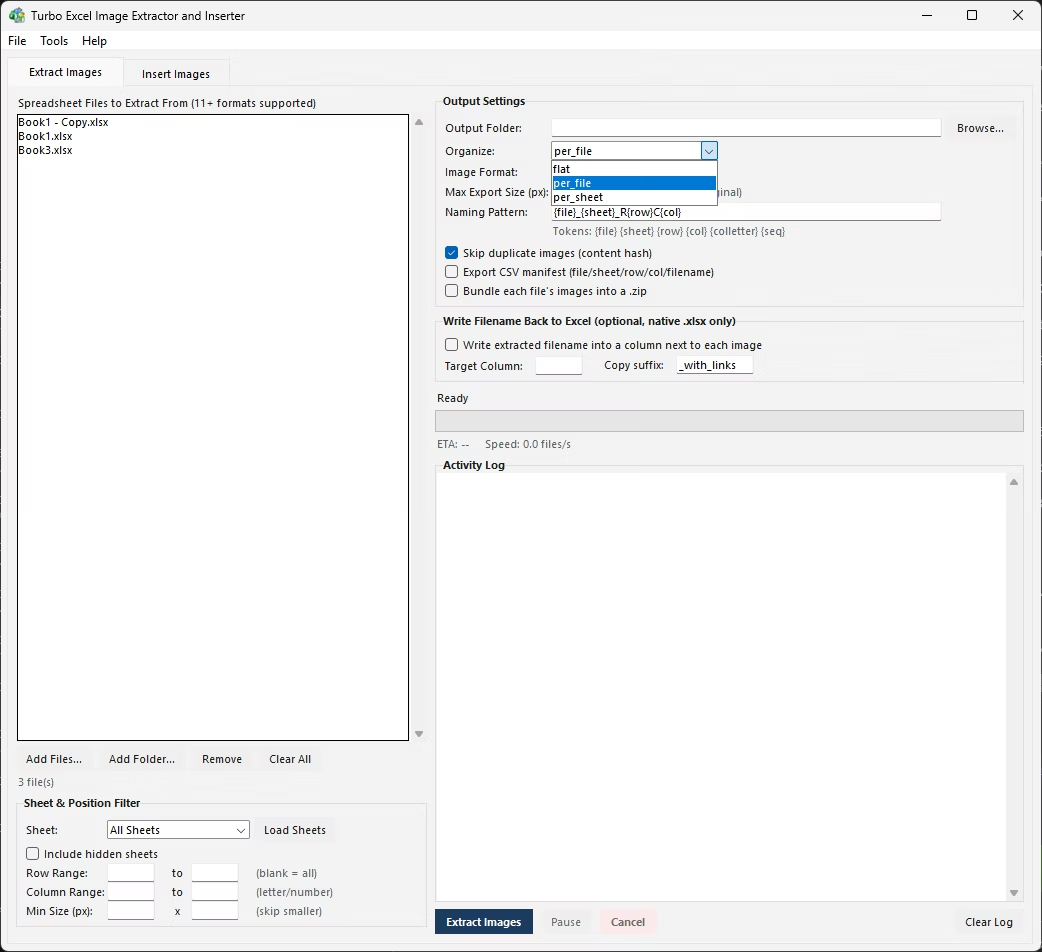
- Choose the output. Pick a folder, an organization (flat, one subfolder per file or per sheet), the image format and a naming pattern.
- Enable extras such as skipping duplicates, a CSV manifest, ZIP bundling or filename write-back, then click Extract Images.
Inserting images, step by step
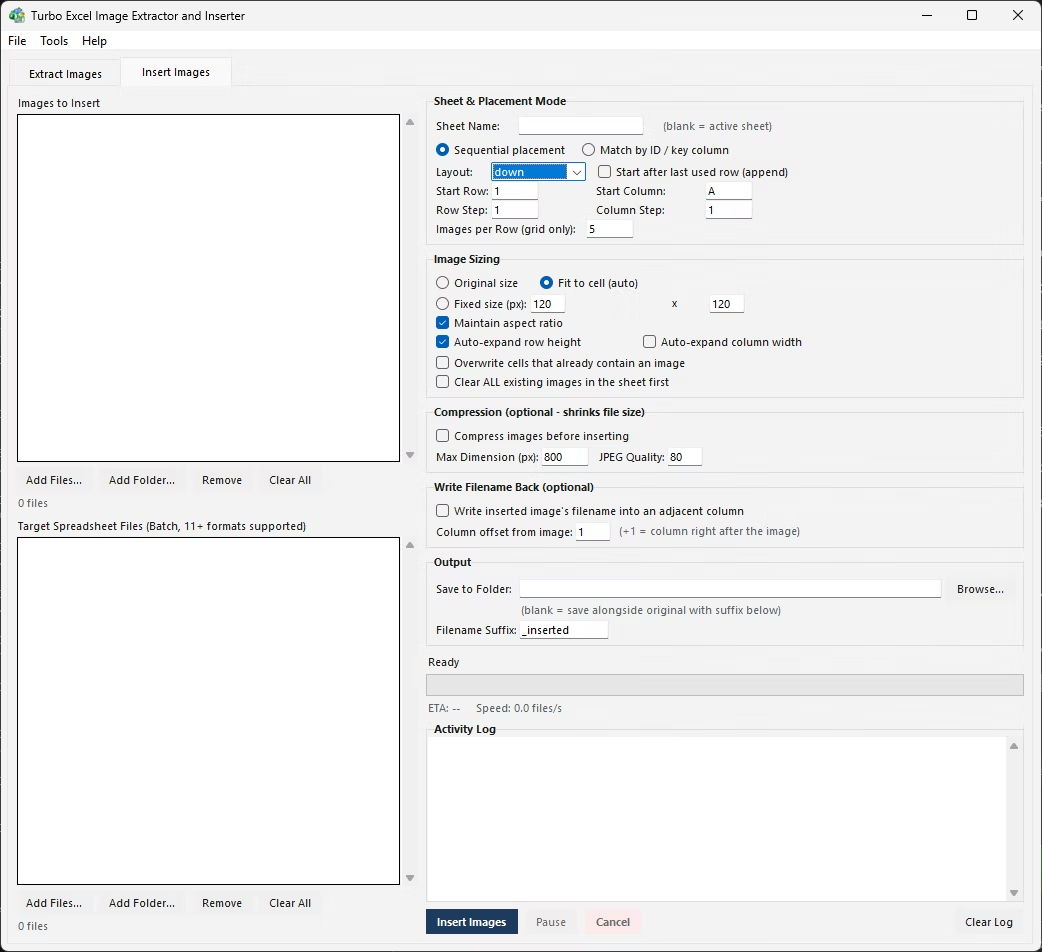
- Add both queues. On the Insert Images tab, add the images to the first queue and the target spreadsheets to the second; folders can be added at once.
- Name the sheet (or leave it blank to use each file’s active sheet), then choose a placement mode: Sequential or Match.
- Choose sizing (original, fit to cell or fixed size with aspect ratio preserved) and whether rows or columns auto-expand.
- Decide how to treat occupied cells: skip them, overwrite them, or clear every existing image first. Optionally turn on compression and filename write-back.
- Choose where to save, a separate output folder or alongside the originals with a filename suffix, and click Insert Images.
Extraction Options in Detail
- Sheets and hidden sheets. Extract from every sheet or one; hidden sheets are excluded by default so you do not export pictures from a sheet that was hidden for a reason, and one checkbox brings them in.
- Position filters. Every embedded image is anchored to a cell, so row and column ranges capture just a gallery of product photos and leave unrelated logos behind.
- Minimum and maximum size. The minimum width and height skips small logos, icons and signatures; the maximum export size downscales larger images on the way out but never upscales small ones.
- Output format and folders. Keep native formats or convert to PNG, JPEG, BMP, TIFF or WebP. Flat puts everything in one folder, Per File makes a subfolder per workbook, and Per Sheet makes one per sheet.
- Deduplication, manifest and ZIP. Deduplication compares pixel-data hashes, not filenames, so a stock photo reused forty times is saved once. The CSV manifest records the source file, sheet, row, column and dimensions of every image.
- Write-back safety. Filename write-back never touches the workbook the images came from. It writes into a fresh copy with a suffix such as
_with_links, leaving your original untouched.
Naming tokens
| Token | Inserts |
|---|---|
| {file} | The source workbook’s filename, without its extension |
| {sheet} | The name of the sheet the image was found on |
| {row} / {col} | The one-based row and column numbers the image is anchored to |
| {colletter} | The column as an Excel letter (A, B, … Z, AA, AB …) |
| {seq} | A zero-padded running count of images saved from that file (0001, 0002 …) |
The default pattern {file}_{sheet}_R{row}C{col} gives names like PriceList_Sheet1_R14C3.png. Characters that are illegal in Windows filenames are replaced automatically, and colliding names get a numeric suffix.
Insertion Options in Detail
- Sequential mode. Images are sorted naturally by filename (img2.jpg before img10.jpg). Down lays one per row in a column, Across one per column in a row, and Grid combines both, from a starting cell you set or automatically after the last used row.
- Match mode. For a sheet of records (products, employees, assets, listings) and a folder of images named by identifier, such as SKU-1042.jpg, you give the key column and the target column. Values are trimmed, compared case-insensitively, and 1042 equals 1042.0.
- Sizing. Original inserts native pixel dimensions. Fit to cell scales each image to the destination column and row, the fastest way to a uniform grid whatever the source resolution. Fixed size takes an exact width and height in pixels.
- Protecting existing images. By default any cell that already has an image is skipped and noted in the log. Overwrite replaces it, and a separate option clears every existing image first.
- Compression and write-back. Compression resizes to a maximum dimension and re-encodes as JPEG at your chosen quality before embedding, and write-back records each image’s source filename in a column offset from where it was placed.
Batch Processing and Performance
Files are dispatched across a pool of worker threads, defaulting to 128, so a batch of spreadsheets is processed concurrently rather than one at a time. The interface stays on its own thread and workers communicate only through thread-safe queues, so the window never blocks. Folder scans run on a background thread. A progress bar tracks files completed against the total beside a files-per-second figure and ETA. Pause holds every worker in place almost immediately, and Cancel drops every file that has not started so a large job stops without draining the queue. Every image saved, skipped or inserted is written to a scrolling log, followed by a summary of totals.
Safety, Privacy and Limitations
- Never destroys unrequested work. A native file is overwritten in place only if you leave both the output folder and suffix blank; otherwise a new or suffixed file is written, and existing outputs get
_1,_2rather than being overwritten. - Errors do not stop the batch. A corrupt image or unreadable file is logged and counted; a persistent error log opens from the Tools menu, and temporary compression files are cleaned up automatically.
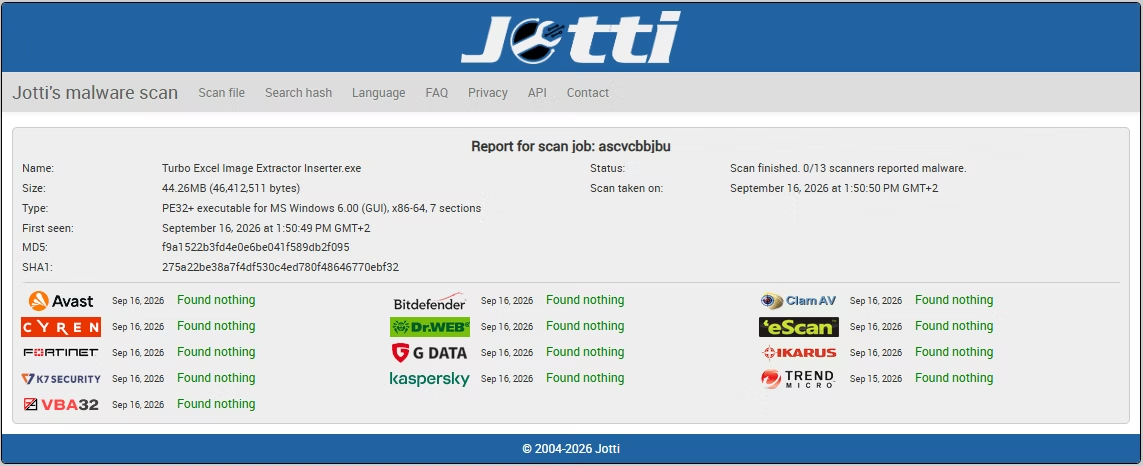
- Fully offline. Every extraction, insertion, resize and compression happens on your own computer; spreadsheet contents and images are never uploaded. The only network use is a one-time license check with your purchase email and key.
- Match mode is exact. It needs a case-insensitive, whitespace-trimmed correspondence between filename and key value; unrelated names are reported as unmatched. Sheet names in legacy .xls imports over 31 characters are truncated to Excel’s own limit.
Licensing
Turbo Excel Image Extractor and Inserter is a one-time purchase through Gumroad with no subscription. It runs on Windows 10 and Windows 11 (64-bit) through a standard installer. On first launch enter your purchase email and license key; the app verifies them against Gumroad and stores an encrypted local copy, so later launches work without a fresh online check.