
Gwen - Clipboard Manager
for Windows
What Is Gwen? An Offline Clipboard Manager for Windows
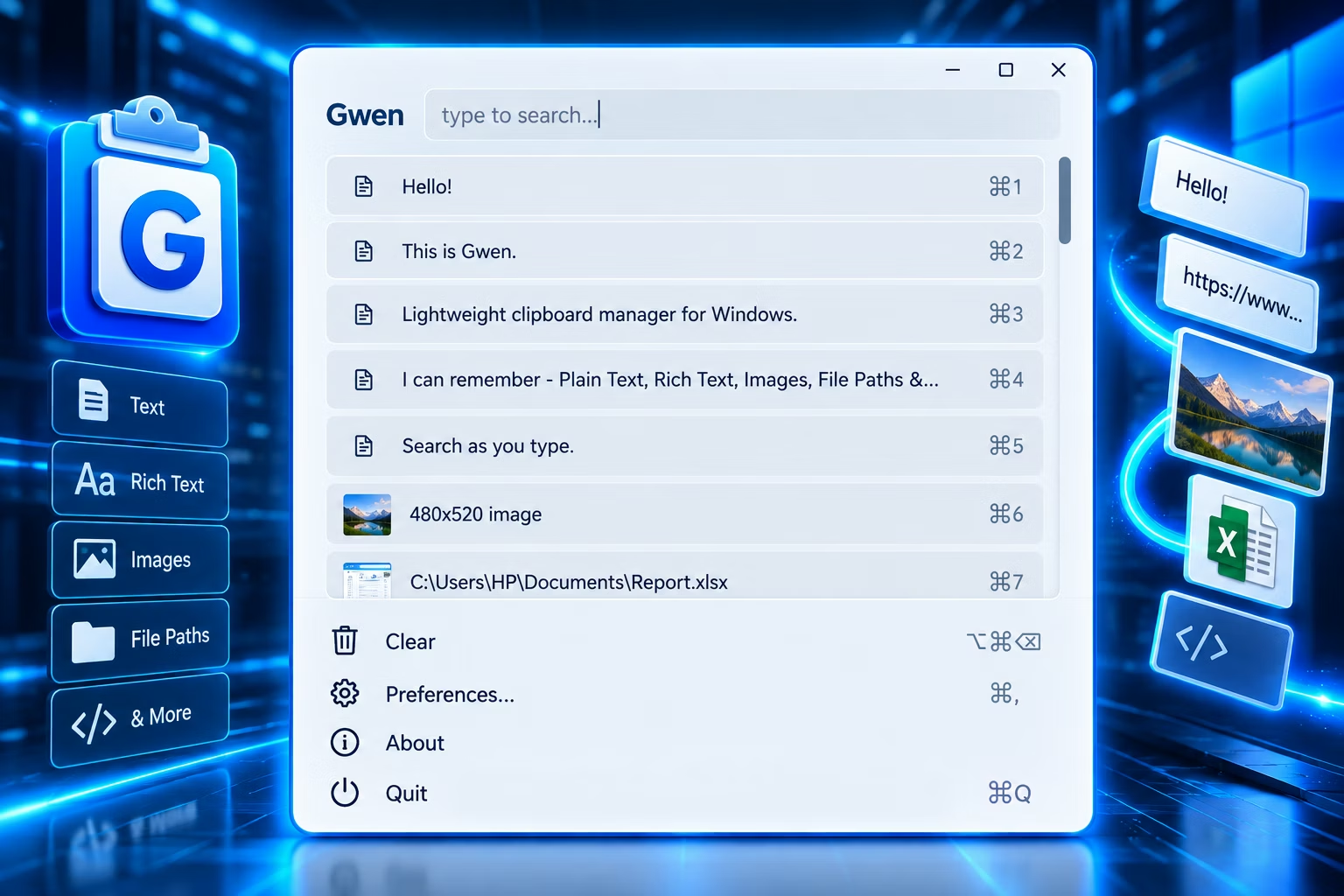
Gwen is a lightweight clipboard manager that runs quietly in the system tray and remembers everything you copy on Windows: text, images, files and even hex color codes. Press a global hotkey and a small popup opens right next to your cursor, showing your recent copies newest-first. Pick one and it is pasted straight back into whatever window you were working in.
The Windows clipboard only remembers one thing at a time; the moment you copy something new, whatever was there is gone. Gwen fixes that single, universal frustration by quietly keeping a history of what you copy, so nothing you clip is ever more than a hotkey away. It is modeled on the same idea as Maccy on macOS: a small, fast, keyboard-driven history that stays out of your way until you summon it. It does not try to be a note-taking suite or a sync service, and everything stays on your own machine.
What Gwen Remembers
- Text. Stored as-is, with a truncated preview so long snippets stay readable. Picking a text entry writes it straight back and pastes it.
- Images. Decoded, cached as a full-size PNG on disk and given a small inline thumbnail, so the list shows a real preview. Re-selecting an image writes it back as a bitmap for image-aware apps.
- Files. Gwen records the path, or a "3 files" style summary for several. Re-selecting pastes the path back as text.
- Colors. A six-digit hex code, with or without the #, is recognized and shown with a live swatch of that exact shade.
Key Features
Global Hotkey Popup
Press Ctrl+Shift+V (configurable) from anywhere in Windows to open a borderless, always-on-top popup right next to your cursor, without switching windows or digging through menus.
Full Clipboard History
Every copy, whether text, image, file or color, is saved to a local SQLite database at %LOCALAPPDATA%\Gwen. History is persistent by default, and the newest copies are always on top.
Live Search and Keyboard Navigation
Start typing in the popup to filter history instantly. Use ↑ / ↓ to move, Enter or a click to paste, and number keys 1–9 to jump straight to a row and paste it.
Hex Color Detection
Copy a hex color code as text, with or without the #, and Gwen recognizes it and shows a live color swatch in the history list.
Smart Duplicate Detection
Each capture is fingerprinted (a hash for images, the raw string for text and files), so a single copy that fires the clipboard event twice, common with images, is recorded only once.
Near-Zero Idle CPU
Gwen polls a lightweight Windows clipboard-sequence counter instead of repeatedly re-reading the clipboard, so it can run all day without noticeable CPU or battery impact.
System Tray and Start With Windows
Lives in the tray with quick access to Open, Clear All, Preferences, About, Start with Windows and Quit. Autostart can be toggled from Preferences or the tray menu.
Configurable, Applied Live
Change the hotkey, maximum history size and poll interval with no restart. A scrollable Preferences window keeps Save and Cancel reachable at any display or DPI setting.
Clear History on Restart
History persists by default, but an optional toggle wipes it on every restart, useful if you sometimes copy passwords, tokens or other sensitive text.
Single Instance and Instant Open
A named Windows mutex ensures only one copy runs, with a native "already running" message on a second launch. The popup paints immediately with what it last showed, then refreshes a moment later.
How Gwen Works, Step by Step
- It watches the clipboard. A background thread checks Windows’ clipboard-change counter a few times a second, and reads what changed only when the counter moves.
- It identifies the type (text, image, file or color) and saves it to a local SQLite database, newest-first, with images cached as PNGs plus a tiny inline preview.
- You press the hotkey. From any app, Ctrl+Shift+V opens the popup by your cursor. Start typing to filter instantly.
- You pick an entry. Click, press Enter or hit a number key 1–9. Gwen writes the item back to the clipboard in the right format.
- It pastes for you. The popup closes, focus returns to your previous window and the item is pasted, so there is no manual paste step.
The Popup, Shortcuts and Preferences
The popup is deliberately plain and fast: a borderless, always-on-top window with a flat, native-Windows grey look. It shows a search box labeled "Gwen", a history list with a type icon or image thumbnail, a preview and a number shortcut for the first nine rows, color swatches for color entries, and a bottom menu for Clear, Preferences, About and Quit. Clicking away or pressing Escape closes it without pasting.
| Shortcut | Action |
|---|---|
| Ctrl+Shift+V | Open the Gwen popup near your cursor (configurable) |
| ↑ / ↓ | Move the selection up or down the history list |
| Enter | Copy the selected item back to the clipboard and auto-paste it |
| 1–9 | Jump straight to that row and paste it immediately |
| Delete | Remove the selected item from history |
| Esc | Close the popup without pasting anything |
| Type anywhere | Filter and search history live as you type |
Preferences
- Global hotkey — change the combination from Ctrl+Shift+V; it takes effect immediately.
- Max history items — 200 by default. Older entries beyond the limit are trimmed automatically, along with their cached image files.
- Poll interval — how often Gwen checks the clipboard, in milliseconds (300 by default). Lower is more responsive; higher is even lighter.
- Start with Windows and Clear on Restart toggles, plus a License section showing who the app is activated to, with Change License to re-activate.
System Tray and Windows Integration
Gwen feels like a native part of Windows rather than a heavy application you manage. A tray icon named Gwen stays running with a right-click menu for Open, Clear All, Preferences, About, Start with Windows and Quit, so the app is reachable even when no window is open. The tray icon is brightened for contrast so it does not disappear at small sizes, and the app icon appears consistently in every title bar. Gwen sets an explicit application identity so Windows gives it its own taskbar button. Enabling Start with Windows writes a standard entry under the current user’s Run key, so Gwen begins watching the moment you log in.
Built to Run All Day
- Change-counter watching. Gwen polls a cheap Windows counter that ticks only when the clipboard changes, so it does nothing expensive until there is something new to capture.
- Inline thumbnails. A tiny base64 preview is generated once at capture time, and decoded thumbnails are cached for the life of the popup, so repeated opens stay snappy even with an image-heavy history.
- Automatic trimming. When history passes your configured maximum, the oldest entries are dropped along with their cached files, so storage never grows without bound.
- Newest-first ordering. The list always shows your most recent copies at the top and resets its scroll position each time it opens.
Everyday Workflows and Tips
- Reuse a snippet you copied earlier. Press Ctrl+Shift+V, type a word from it to filter, and press Enter; it is pasted back instantly.
- Grab a color from a design tool. Copy a hex value like #FE92F5; Gwen shows it with a live swatch, so later you can spot the exact shade and paste the code into your stylesheet.
- Paste the third-from-last thing. Open the popup and press its number key, 3 for example, to jump straight to that row and paste it, with no scrolling or searching.
- Keep sensitive copies out of history. Turn on Clear on Restart so history wipes each session, or press Delete on a single entry to remove just that one.
Tips
- Pick a hotkey you will not fumble; if Ctrl+Shift+V clashes with an app you use, set something else in Preferences.
- Right-size your history: 200 items suits most people, so raise it if you reference older copies often or lower it for a tidier list.
- Search instead of scrolling: typing a distinctive word is almost always faster, since the list filters as you type.
- Turn on Start with Windows so your history is kept from the very first copy of the day.
Scope and Limitations
- Gwen is a Windows application; it is not available for macOS or Linux.
- It captures plain text, images, files and hex colors. It does not preserve rich text or HTML formatting.
- History and the image cache are stored locally only, with no cloud sync or cross-device history.
- Only one copy of Gwen runs at a time, and activation requires a one-time online license check.
Offline and Private
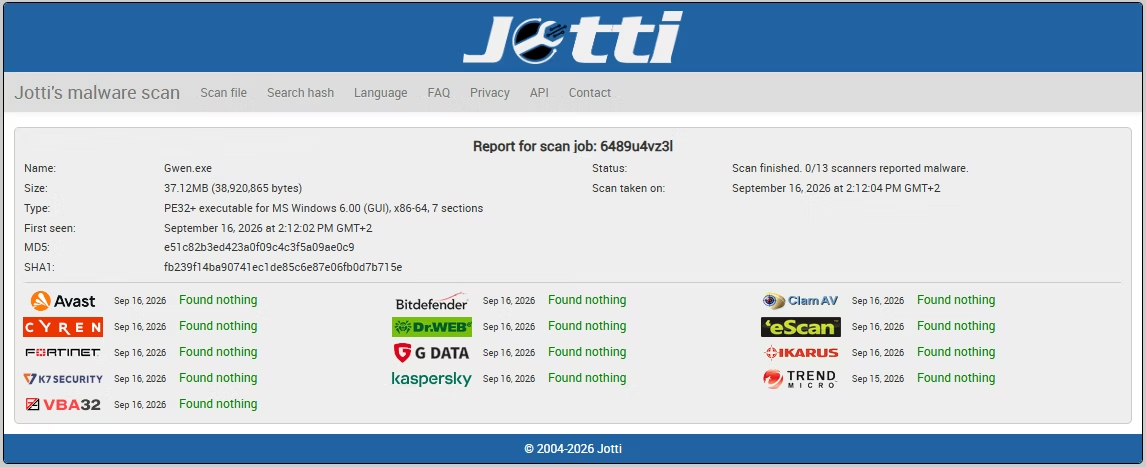
Your clipboard history, including anything you copy, whether text, images, files or colors, is stored only in a local SQLite database on your own PC. Nothing is uploaded, scanned remotely or shared with any third party, and there is no telemetry, analytics or third-party tracking. Everything sits in your own user profile under %LOCALAPPDATA%\Gwen: one SQLite file for the history, plus ordinary PNG files for copied images in a cache subfolder beside it. Clearing history from the popup or tray removes the entries and their cached images, and trimming happens automatically as new copies arrive.
There is no account to create and no server holding a copy of what you clip. The only network call is verifying your license on activation and re-checking it quietly on later launches, and that exchange never includes clipboard content. For credentials and other secrets, combining Clear on Restart with prompt deletion of individual entries gives a simple, predictable way to keep them off disk.
System Requirements and Licensing
| Requirement | Minimum | Recommended |
|---|---|---|
| Operating system | Windows 8 (64-bit) | Windows 11 (64-bit) |
| Processor | Any modern dual-core CPU | Any modern multi-core CPU |
| Memory | 2 GB RAM | 4 GB RAM or more |
| Storage | 100 MB free, plus space for cached images | 500 MB or more for a larger image history |
Gwen is a one-time purchase through Gumroad. Download it, run it and enter the email and license key from your purchase on first launch; Gwen then starts the tray icon, hotkey and clipboard watcher. Just use your PC normally and every copy is captured automatically.