Turbo Batch Image Converter Pro for Windows
Batch Image Converter and Bulk Image Resizer for Windows
Turbo Batch Image Converter Pro is a Windows desktop application that converts and resizes images in bulk. Point it at a folder, choose an input format and an output format, optionally set a new size, and it processes every matching file in one run, including files in nested sub-folders — or switch to Individual mode to convert a single image, or drag and drop a folder straight onto the window.
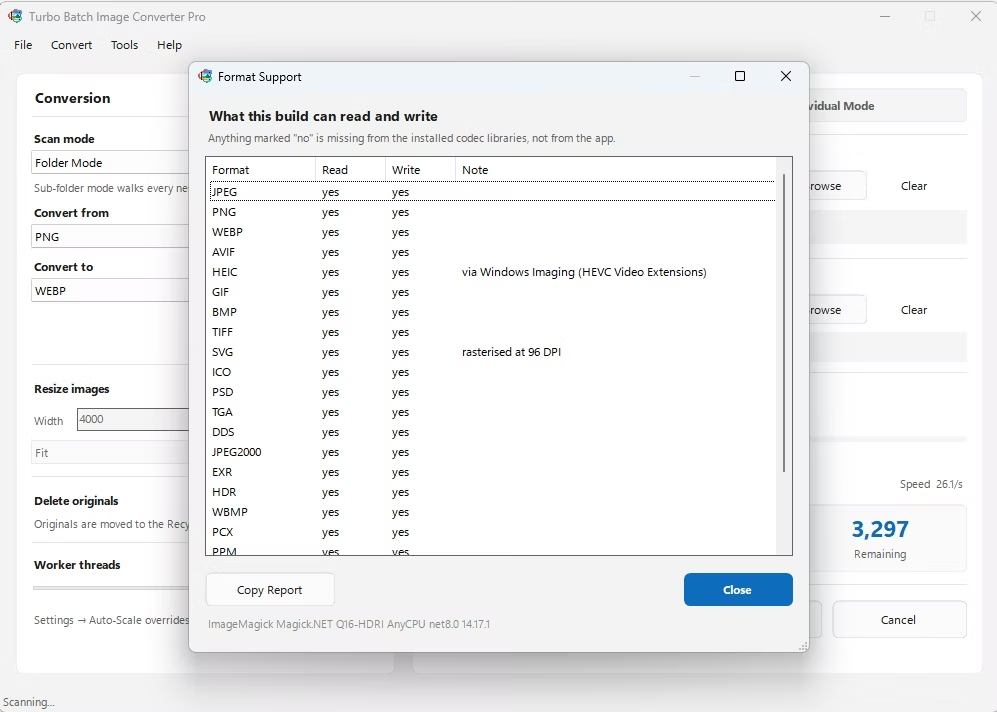
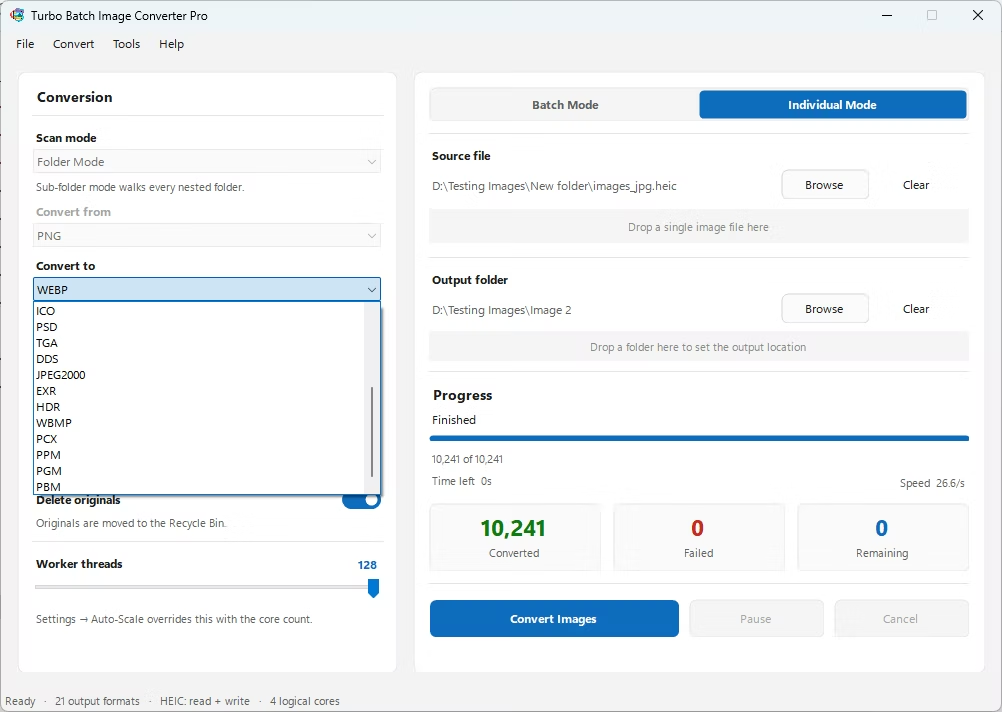
It reads 22 input format families, including HEIC, AVIF, WebP, TIFF, PSD and 47 RAW camera formats, and writes 21 output formats such as JPG, PNG, WebP, AVIF, HEIC, TIFF and ICO. Resizing runs in the same pass as conversion, with Fit, Fill and Stretch modes to control the new dimensions, so a folder of camera files or iPhone photos can come out as correctly sized JPGs or WebPs without a second step.
A multi-threaded engine with up to 128 parallel workers, or Auto-Scale to use every CPU core, keeps large jobs fast, and everything runs offline on your own PC — no image is ever uploaded, and the internet is used only once, to activate your license. It runs on 64-bit Windows 10 and Windows 11 and is sold as a one-time purchase with no subscription.
Key Features
Batch and Individual modes
Convert a whole folder tree in Batch mode, or switch to Individual mode for a single file. In Individual mode the input type is detected automatically, so there is no From selection to make. Resizing and delete-original work in both modes.
Per-format quality settings
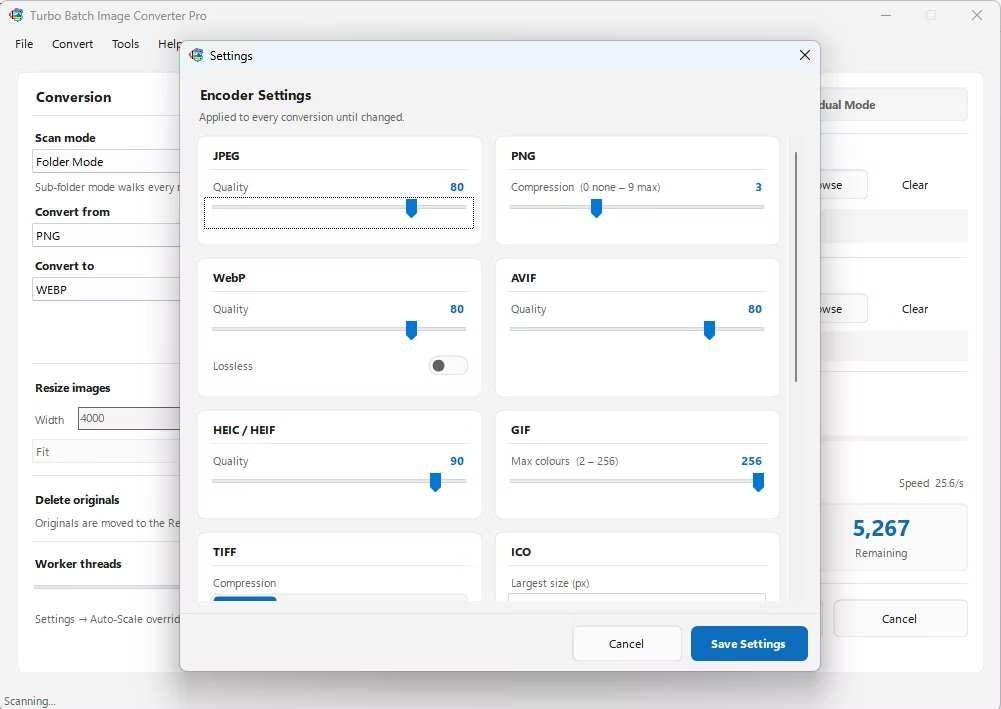
A Settings window gives each output format its own control: quality sliders for JPEG, WebP, AVIF, HEIC and JPEG 2000, PNG compression from 0 to 9, GIF palette size, TIFF compression, ICO sizes, TGA run-length encoding and EXR compression. Defaults work out of the box: JPEG, WebP and AVIF at 80, HEIC at 90 and PNG at level 3. Settings apply to every file in the run.
Live dashboard
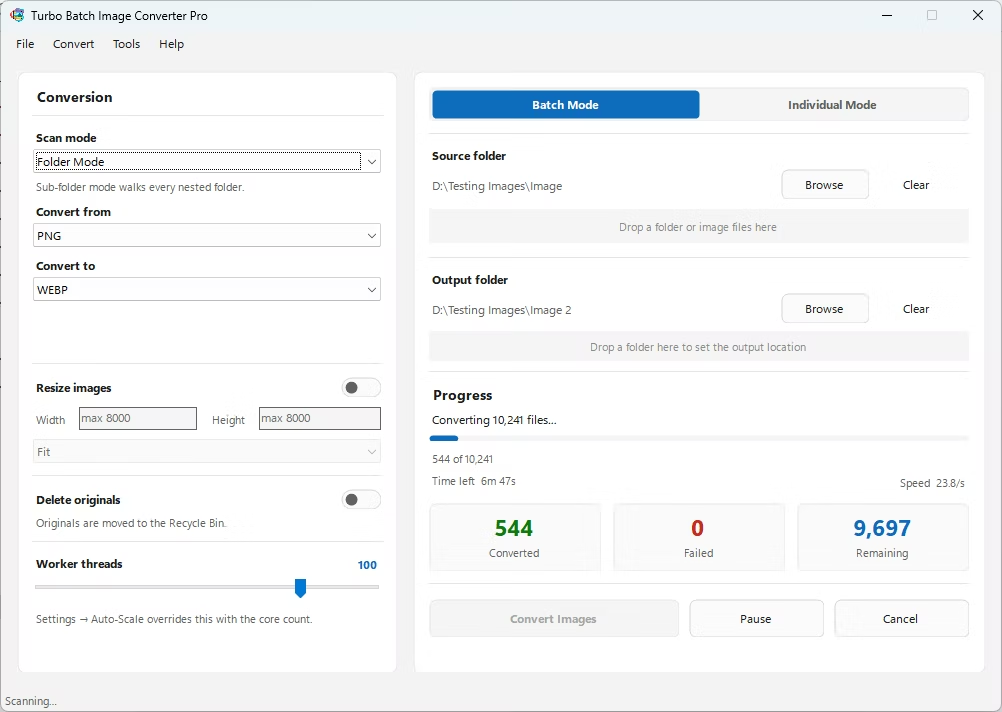
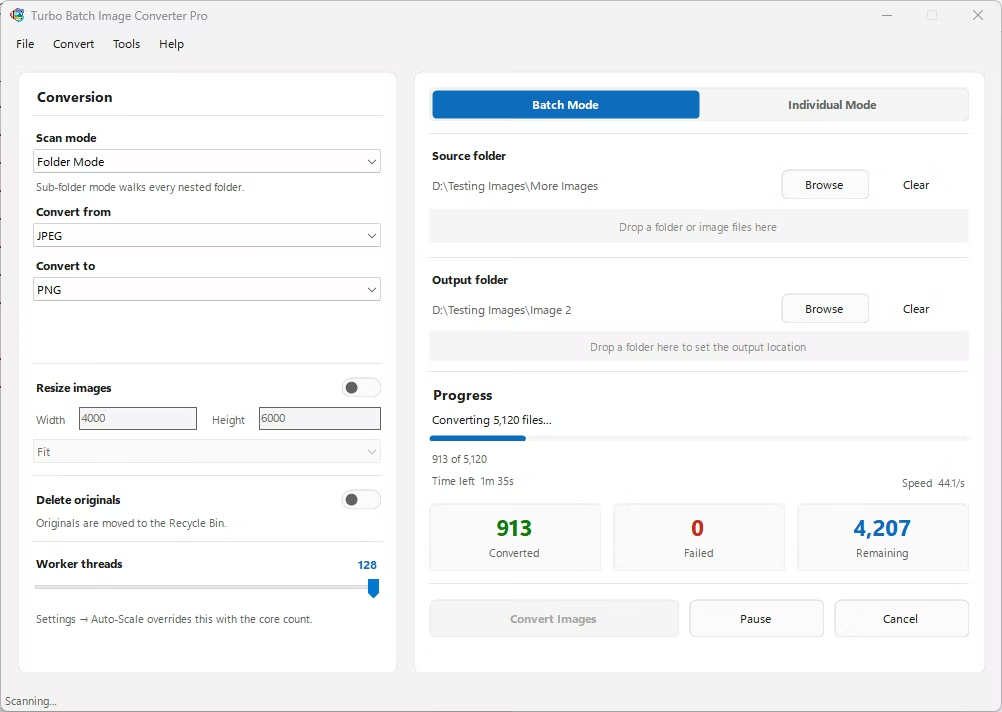
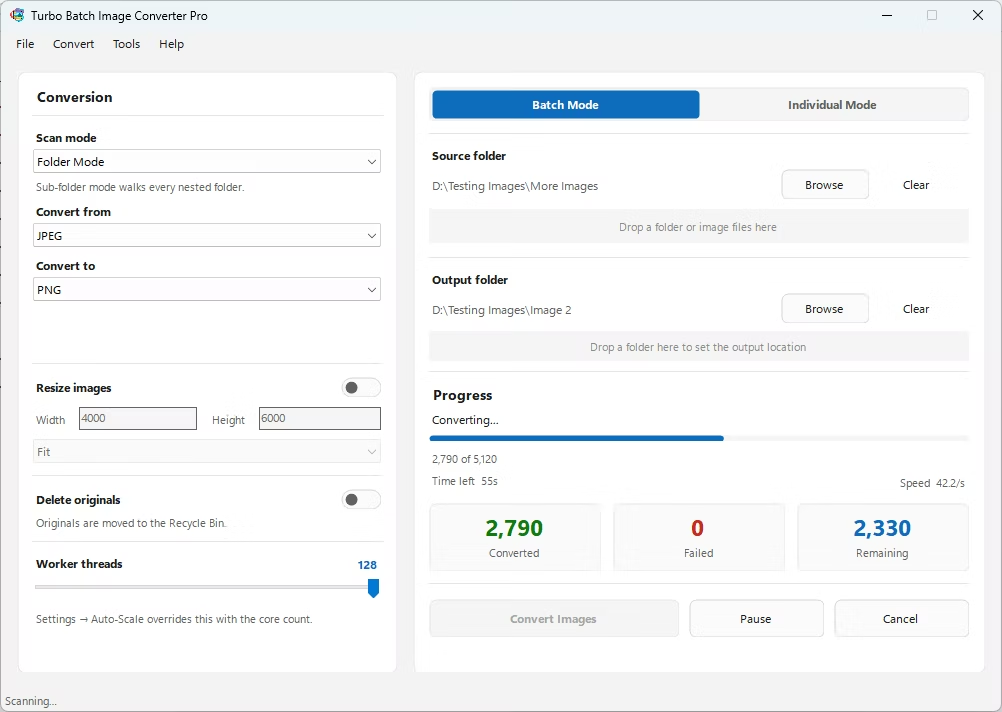
Watch the progress bar, converted and failed counts, speed in files per second, the current file name and the estimated time remaining, refreshed several times a second.
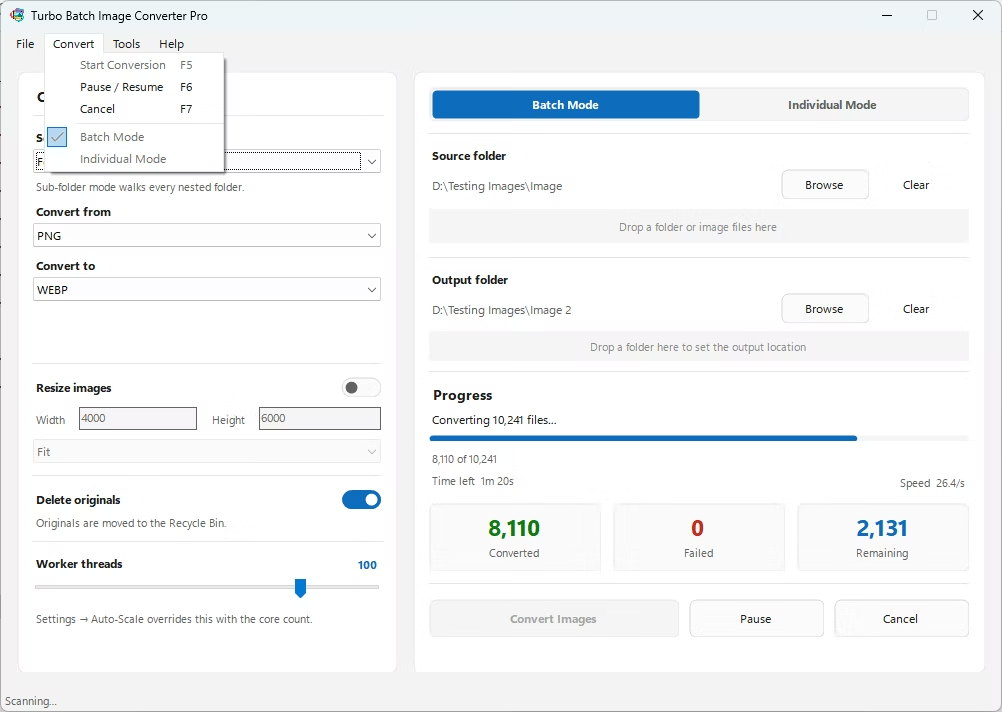
Pause, resume and cancel
Pause a large batch and pick it up again without restarting the queue, or cancel at any point. Stopping never corrupts the output already written.
Failure isolation
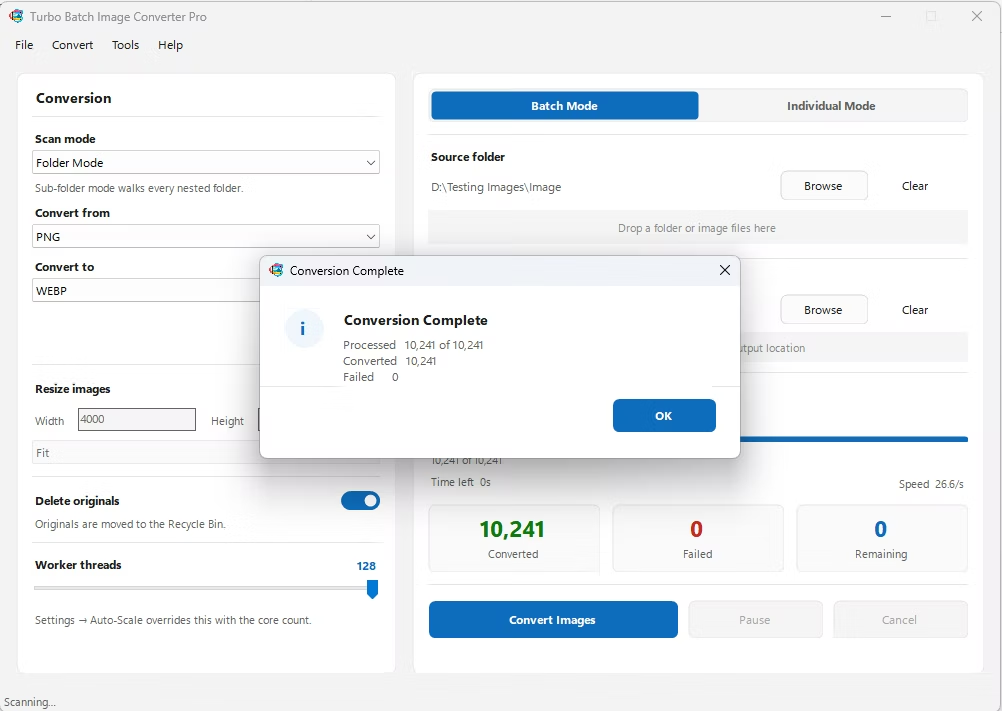
A corrupt, locked or unsupported file is counted as failed and skipped. The rest of the batch keeps running, and the summary reports how many files failed, so you can close whatever program was holding them and re-run just those.
Safe deletion of originals
Optionally send each original to the Recycle Bin once its converted file has been written successfully. Nothing is permanently deleted, and a failed conversion never costs you its source.
Collision-safe naming
Existing files are never overwritten. When two sources share a base name, such as photo.cr2 and photo.nef, the outputs become photo_cr2.jpg and photo_nef.jpg, and a numeric suffix is added if a name is still taken.
EXIF metadata preserved
For output formats that support it, the original EXIF block is copied into the converted file, so capture date, camera model and exposure details survive the conversion.
Drag and drop
Drop folders or image files straight onto the window instead of browsing, and use Clear to reset the selection instantly.
Background operation
Minimize to the Windows system tray so a long batch keeps running while you work. Restore the window from the tray icon at any time to check progress.
Design and game-ready formats
Convert to and from PSD, TGA, DDS, EXR and HDR, and build multi-resolution ICO files that pack 256 to 16 pixel sizes into one icon, capped so nothing is upscaled beyond your source.
No watermark, no file limits
There is no cap on files per batch and no watermark or attribution on the output, which is yours to use commercially.
Supported Image Formats
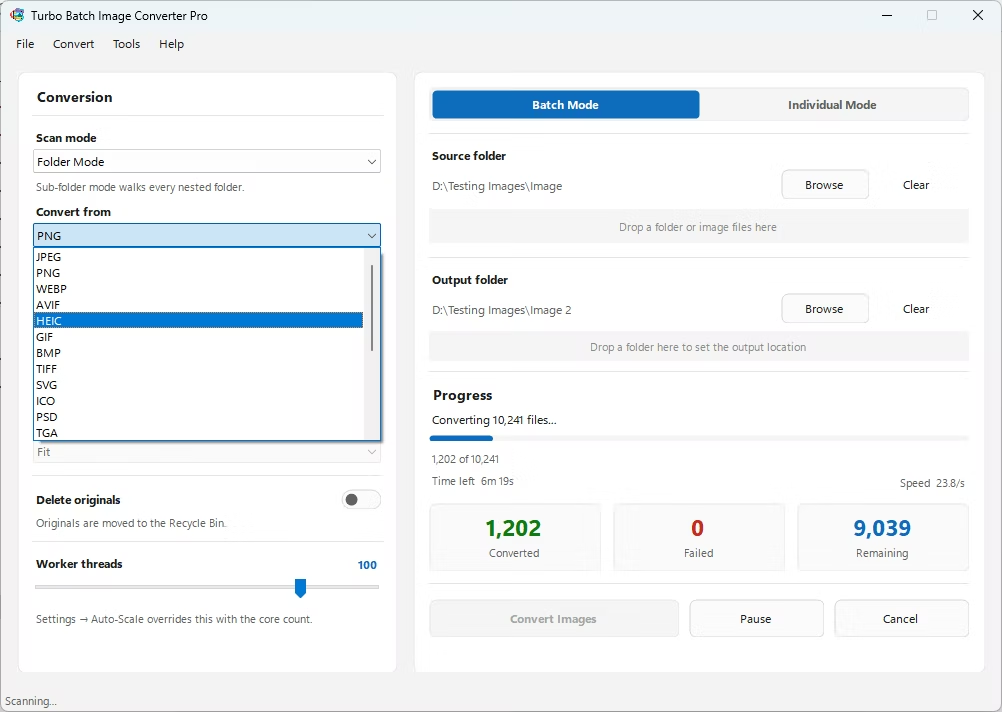
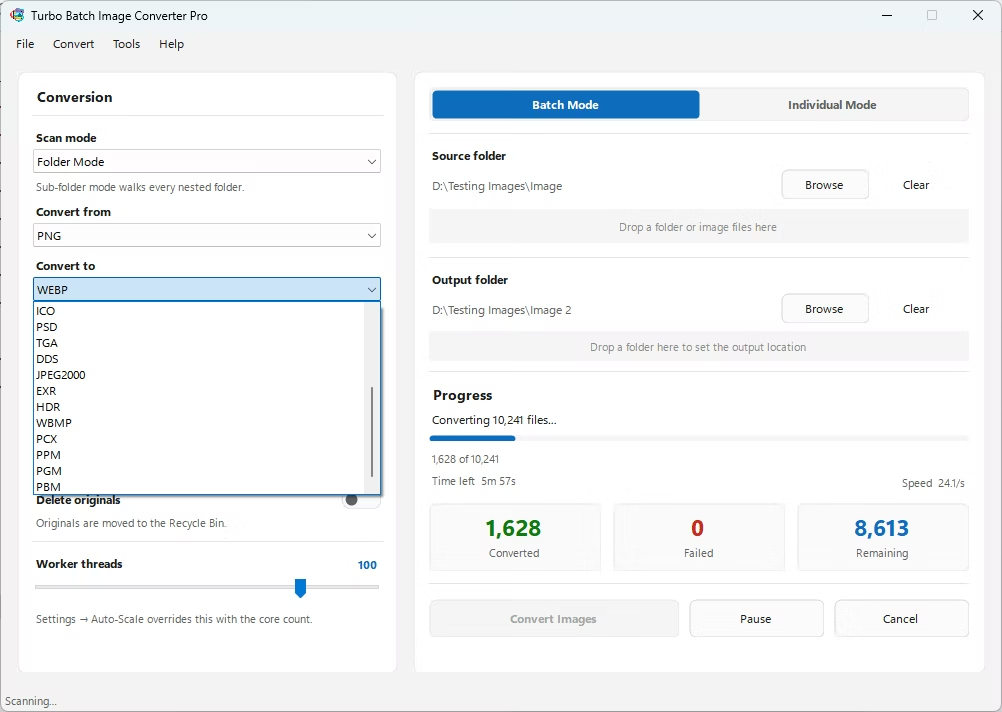
Turbo Batch Image Converter Pro reads 22 input format families and writes 21 output formats. Pick the source type in the From dropdown and the target in the To dropdown, and each pairing is converted directly, with no plug-ins or intermediate steps. JPEG covers both .jpg and .jpeg, HEIC covers .heic and .heif, and TIFF covers .tif and .tiff.
Choosing an output format: JPG suits photos for email, print labs or unknown recipients. PNG suits screenshots, logos and anything transparent. WebP or AVIF give smaller website images, with AVIF often smaller still but slower to encode. TIFF with LZW suits long-term archives. Keep a lossless copy of anything you plan to edit again.
SVG input is rasterized before conversion, and both dropdowns are scrollable and list every supported format. See the image conversion guides for pairing-specific walkthroughs.
Batch Image Conversion
Batch mode converts a whole folder, or a whole folder tree, in one run, applying a single set of settings to every file. Choose Folder mode to process only the images directly inside the selected folder, or Sub-folder mode to walk every nested directory.
The From dropdown limits the scan to one input type, so mixed folders are handled cleanly: select JPEG and only JPEG files are converted while everything else is left alone. Pick the output type in the To dropdown, and the matching decoder and encoder load automatically.
Results can be saved next to their originals or into a separate output folder. In Sub-folder mode the original directory layout is recreated in that folder, so a deep archive comes out organized exactly as it went in.
There is no built-in limit on batch size. The engine is designed for anything from a handful of files to 100,000 or more in one session, with memory managed automatically so speed stays steady. Typical jobs include converting a folder of JPGs to WebP for a website, turning PNG screenshots into JPGs, or converting scanned TIFF archives to smaller JPGs. Every file in a run gets the same settings, so results are consistent; if a job needs two quality levels, run it twice into different folders.
Batch Image Resizing
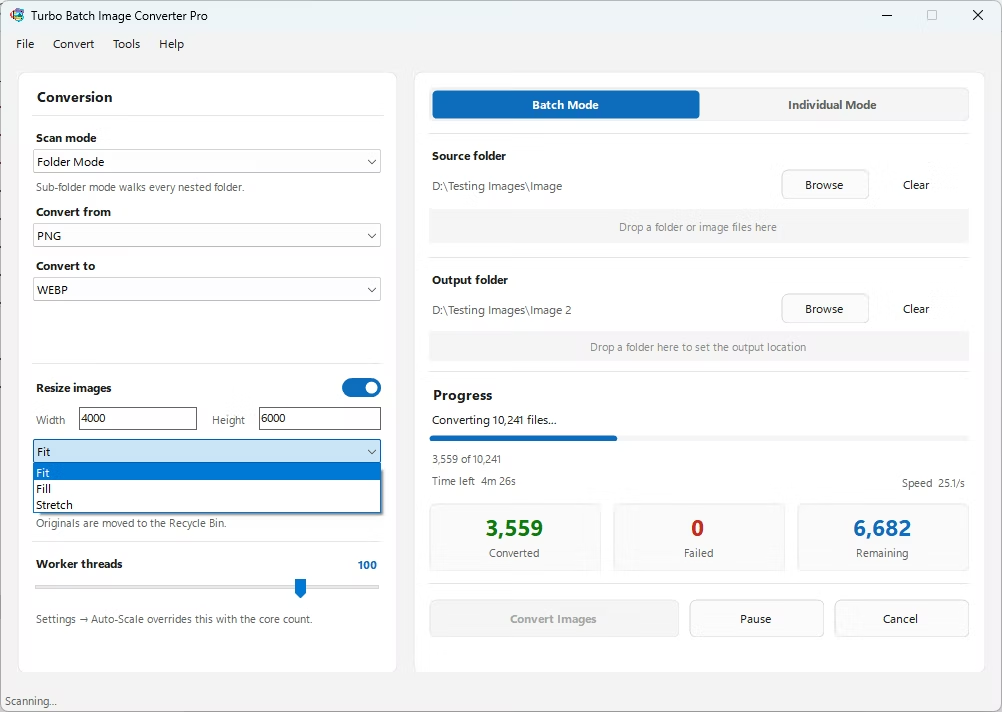
Resizing runs in the same pass as conversion, so there is no separate step. Tick Resize, enter a target width and height (up to 8,000 px each) and choose one of three modes. Lanczos resampling keeps edges and fine detail sharp, and a 64-megapixel ceiling protects memory on extreme dimensions.
Fit
Scales each image to sit inside your width and height while keeping its aspect ratio. Nothing is cropped or distorted, which suits thumbnails and web galleries.
Fill
Scales the image to cover the box, then center-crops the overflow so every output matches your exact dimensions. Ideal for uniform product grids and avatars.
Stretch
Forces the exact width and height regardless of aspect ratio, for systems that demand a precise pixel size.
Entering dimensions does not activate resizing unless the Resize checkbox is ticked. In Fit mode the result is often smaller than the numbers you typed, because the image is scaled to fit inside the box; use Fill or Stretch when the output must match exactly.
RAW, HEIC and AVIF Conversion
RAW to JPG, PNG and WebP
A RAW file is unprocessed sensor data, not a finished picture. To turn it into a usable image the app demosaics it, reconstructing full color for every pixel, and then saves it in the format you choose. That step is CPU-intensive, which is why a RAW batch takes longer than a JPG batch of the same size.
The app reads 47 RAW formats, including CR2, CR3, NEF, ARW, RAF, ORF, RW2 and DNG. Select the RAW family in the From dropdown and all of them are enabled at once, so a card of mixed Canon, Nikon and Sony files converts in a single run. Add Fit resizing to produce client-ready proofs in the same pass, without opening a RAW editor.
HEIC to JPG for iPhone photos
HEIC and HEIF are the default formats for iPhone photos, and they still do not open reliably in older Windows software, on Android devices or in many web upload forms. Point the app at an export folder, choose JPG or PNG as the target and run it; Sub-folder mode picks up nested albums. HEIC also works as an output format, with a quality slider that defaults to 90.
AVIF to JPG and JPG to AVIF
AVIF often produces smaller files than WebP at similar visual quality, which makes it popular for websites. The app reads and writes AVIF, so you can convert AVIF to JPG or PNG for compatibility, or move a library of JPG and PNG assets to AVIF. AVIF encoding is demanding, so a large batch takes longer than the same batch converted to WebP.
Slowest pairings: RAW to HEIC and RAW to AVIF stress the CPU on both decode and encode, and RAW to HEIC can take 3 to 10 times longer than RAW to JPG. The app automatically lowers the worker count for these pairings and displays a caution before you start.
Performance and 128 Parallel Workers
The conversion engine is multi-threaded and scales from dual-core laptops to 32-core workstations. The Threads slider runs from 1 to 128 workers and defaults to your CPU's core count, and Auto-Scale Workers sets the count for you. Each worker loads, optionally resizes and saves one image independently, so workers never share image data.
More workers is not always faster. On a mechanical drive or a network share, storage becomes the bottleneck before the CPU does, and each worker holding a full-resolution RAW image in memory can push a low-RAM machine into swapping. For most PCs the default is right. Light pairings such as JPG to PNG spend time waiting on disk, so a workstation can benefit from up to twice its core count. Use about half your core count if you need the computer responsive while a batch runs, and keep RAW jobs at or below your core count. To find your ceiling, watch the files-per-second figure on the dashboard, raise the slider, and stop when speed no longer improves.
Offline Conversion and Privacy
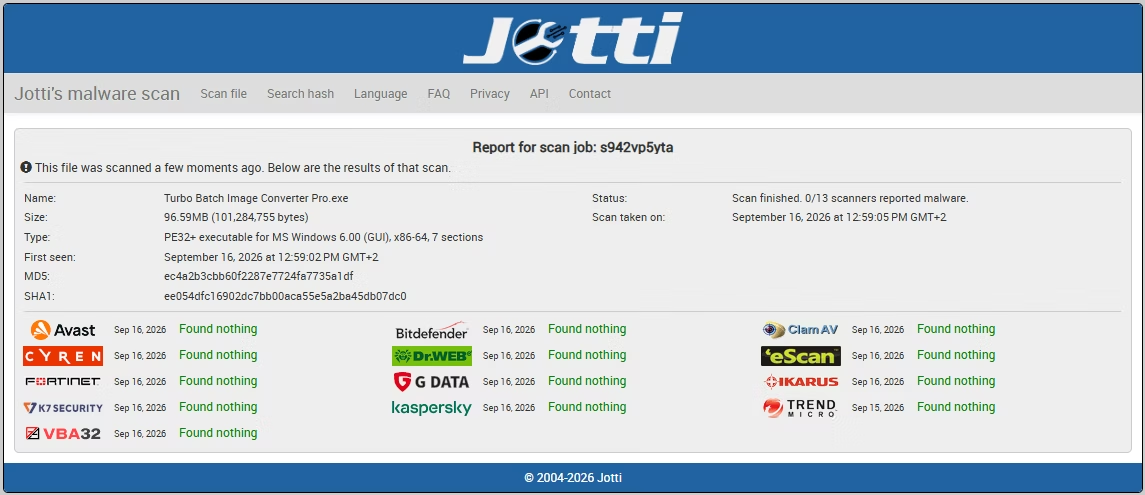
Turbo Batch Image Converter Pro is a fully local desktop application. Every read, conversion and resize happens on your own computer, and no image is ever uploaded, scanned remotely or shared with a third party. The app does not log, analyze or store your image data, and it has no third-party analytics or background telemetry.
The internet is used only once, to validate your license key on first activation. That request contains no file names, image data or personal information beyond the key, and after activation the app works entirely offline. This makes it suitable for confidential client work, medical and legal archives, corporate networks and air-gapped machines.
How to Use Turbo Batch Image Converter Pro
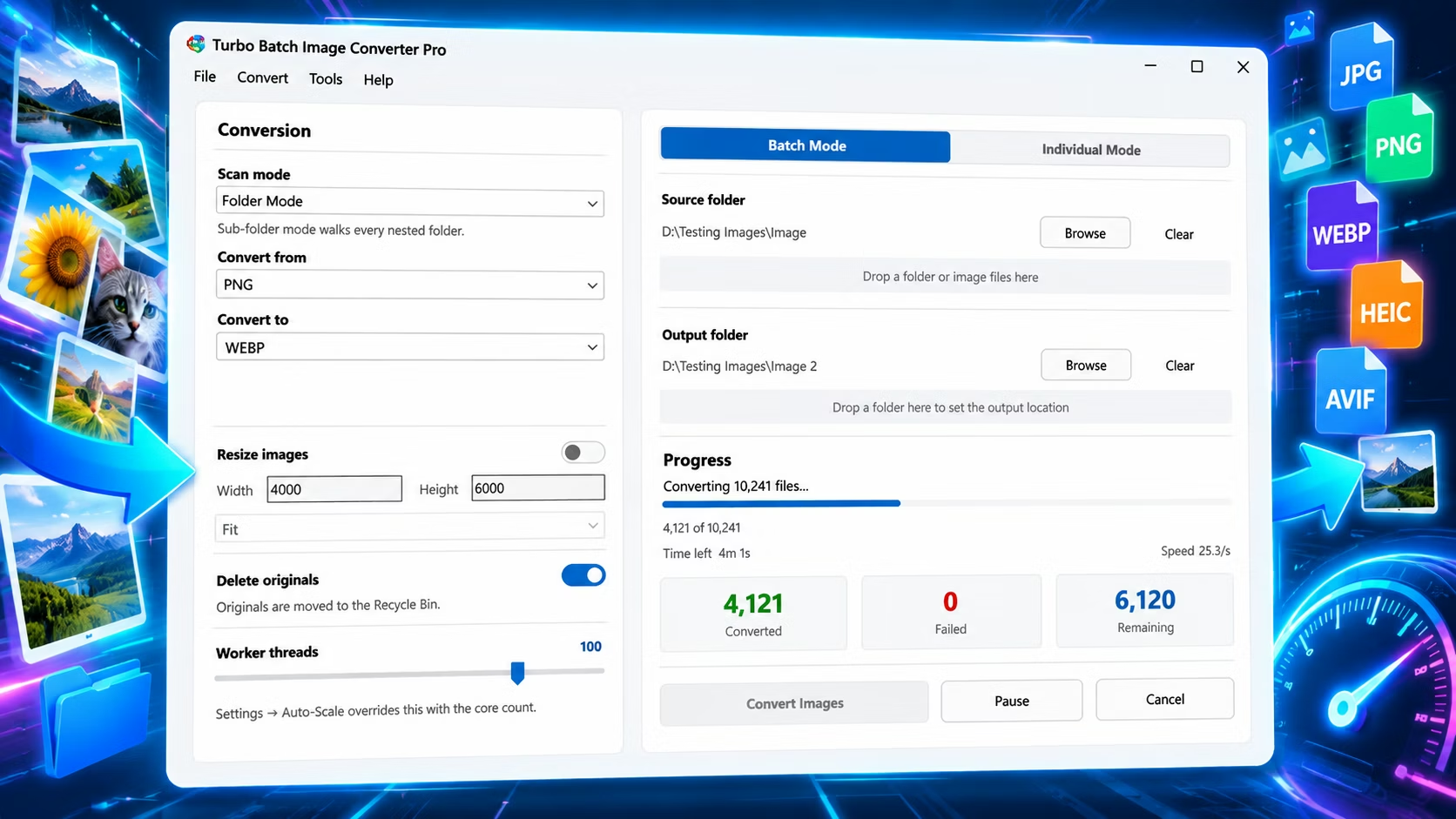
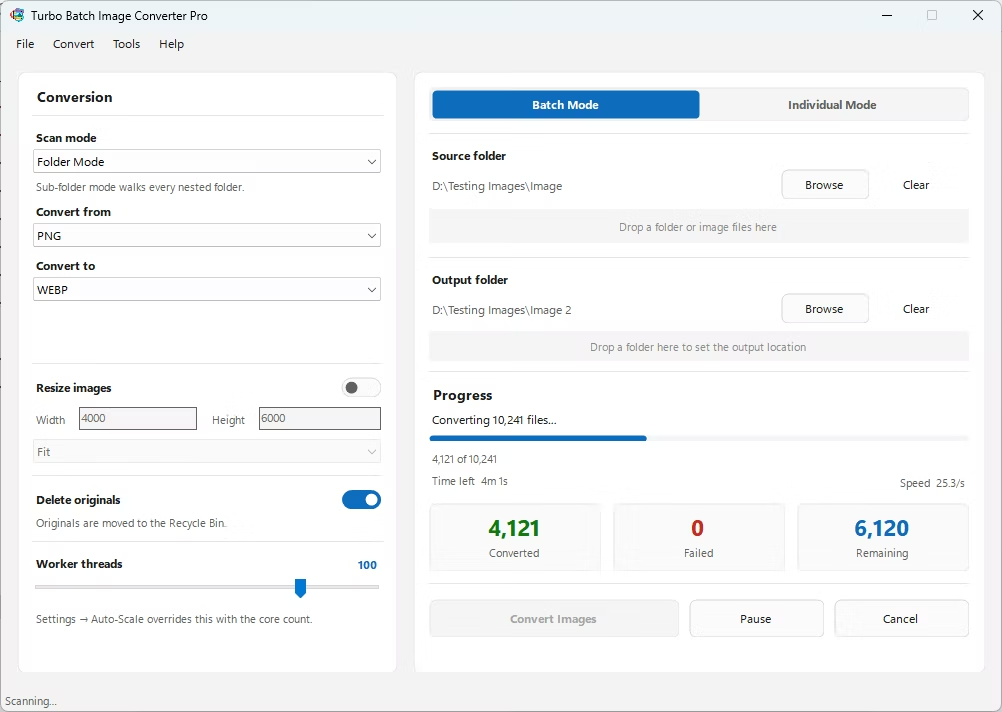
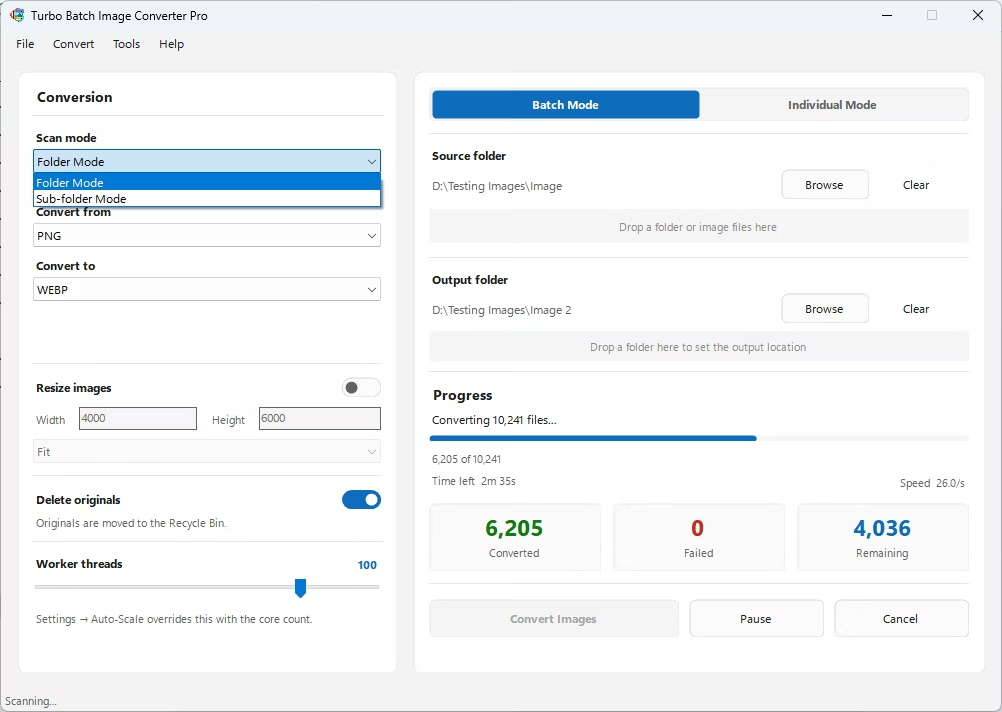
The window is split into two panels. The left panel holds the settings that control how files are converted, and the right panel holds the source, the progress dashboard and the action buttons. There is no project setup, no queue file to save and no account to create.
- Choose a scan mode. Folder mode converts only the images directly inside the chosen folder; Sub-folder mode processes every nested folder.
- Select the input and output formats. Use the From dropdown for the input type to scan for, such as JPEG, HEIC or RAW, and the To dropdown for the output format.
- Point the app at your files. Click Browse or drag a folder onto the window. Optionally choose a separate output folder.
- Set resize, cleanup and thread options. Tick Resize and enter a width, height and Fit, Fill or Stretch mode, tick Delete Originals After Conversion if you want it, set the Threads slider, and adjust per-format quality in Settings.
- Convert and monitor progress. Press Convert Images and follow the progress bar, counts, speed and estimated time remaining. Pause, resume or cancel at any point.
- Review the result. A summary shows how many files converted and how many failed. If Delete Originals was on, the sources are in the Recycle Bin.
To convert a single file, switch the toggle from Batch Mode to Individual Mode, browse to the image, pick the output format and click Convert; Pause and Cancel are inactive here because single-file jobs finish almost instantly. Before a large run, test your settings on a dozen files and leave Delete Originals off until you have checked the result.