
Turbo Excel Cleaner
for Windows

Clean Excel Files Automatically, in One Click
Blank rows left by an export, duplicated records from two systems merged into one sheet, dates written four different ways, trailing spaces that break every lookup formula, a header row repeated eleven times because someone concatenated eleven CSV files. Fixing that by hand means Find & Replace, Go To Special and sort-then-delete, one workbook at a time.
Turbo Excel Cleaner turns the job into a checklist. Load one file or a queue of exports, tick the operations you want from a list of 43, and the app applies them to every sheet in every file. Originals are never modified; each result is a separate cleaned copy.
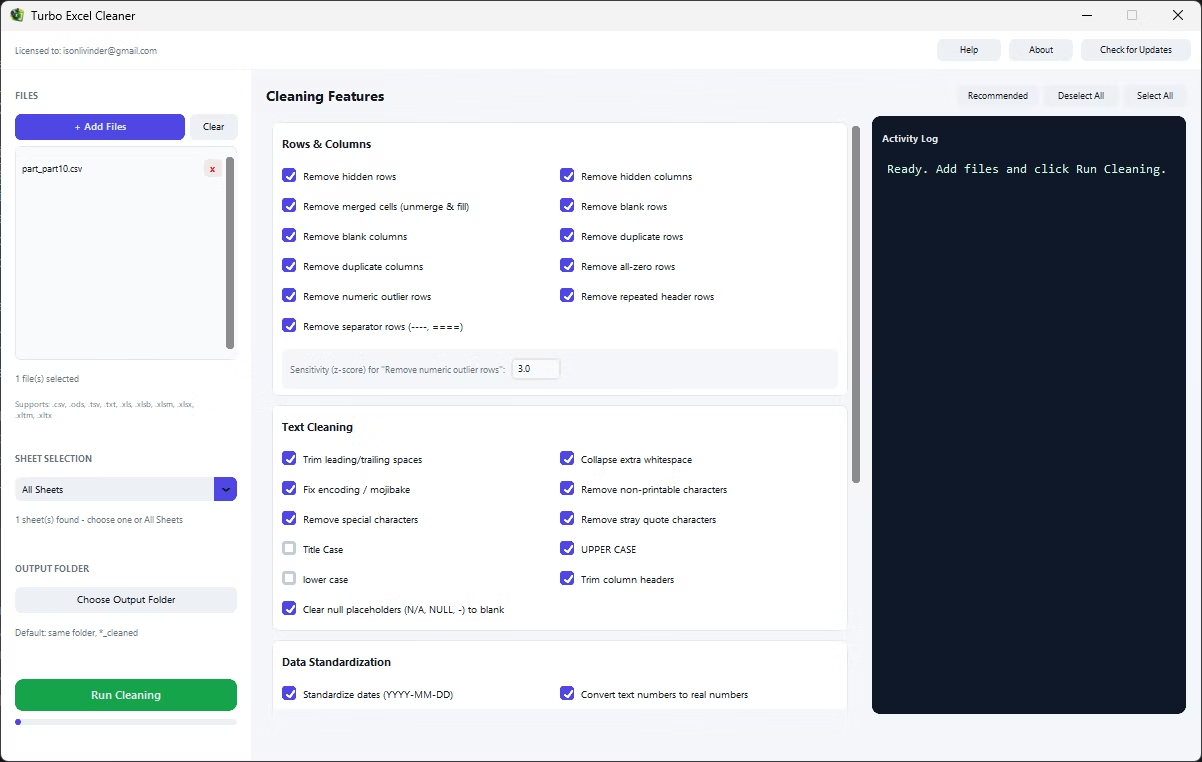
The 43 features sit in four categories matching the four kinds of mess a spreadsheet accumulates. Rows & Columns handles structural junk. Text Cleaning handles what is inside the cells. Data Standardization makes values consistent. Structure & Formatting deals with the workbook itself — formulas, comments, hyperlinks, formatting rules, images, sheets.
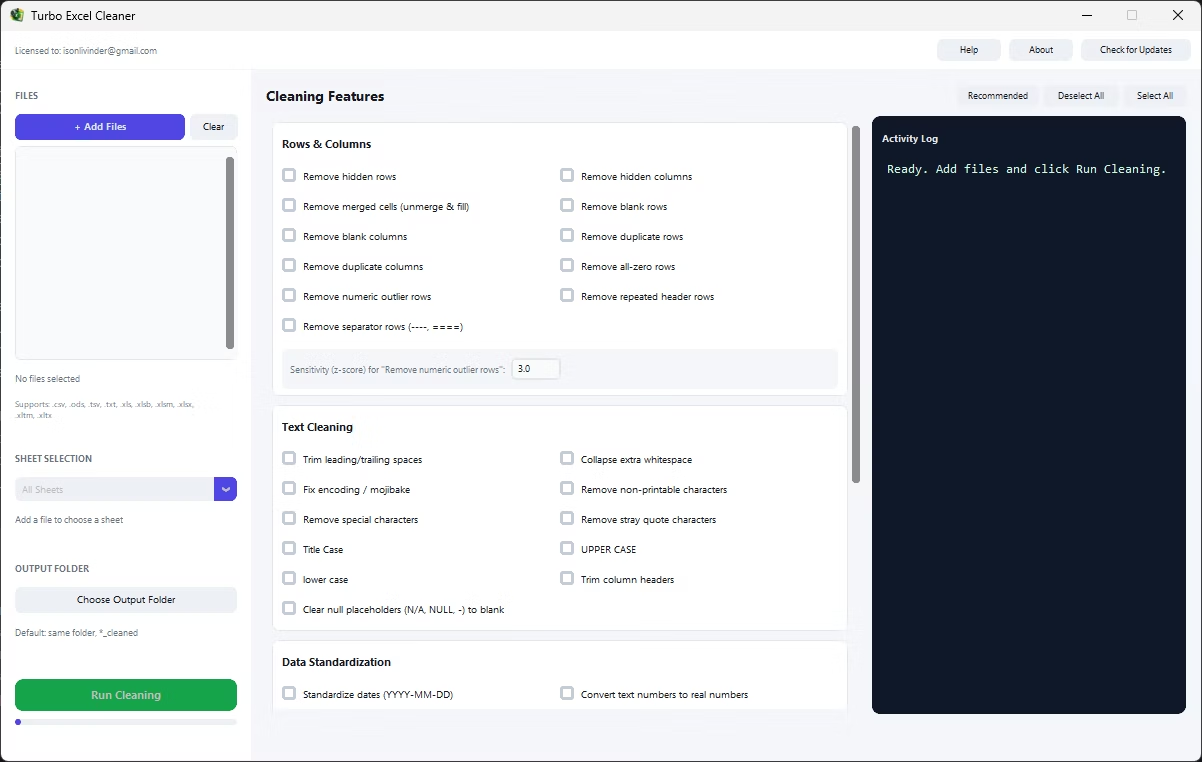
Every feature starts unchecked, so nothing runs until you opt in. One Recommended button applies a curated set of 19 safe, non-destructive features, chosen so they are safe on data you have not reviewed yet. Everything runs locally, so workbooks of financial or customer records never leave the machine.
Supported Spreadsheet Formats (10 Input Types)
| Format | Extensions | How it is handled |
|---|---|---|
| Excel Workbook | .xlsx | Native read and write, full feature support |
| Excel Macro-Enabled | .xlsm | Native read and write, full feature support |
| Excel Template | .xltx, .xltm | Native read and write, full feature support |
| Legacy Excel | .xls | Read through xlrd, always written back out as .xlsx |
| Excel Binary | .xlsb | Read through pyxlsb, always written back out as .xlsx |
| OpenDocument Spreadsheet | .ods | Read through odfpy, always written back out as .xlsx |
| CSV | .csv | Delimiter auto-detected, saved back as .csv |
| TSV | .tsv | Tab-delimited, saved back as .tsv |
| Plain text | .txt | Tab-delimited by default with auto-detection, saved back as .txt |
Encoding and delimiters are detected, not assumed. Delimited files fall back through UTF-8 with BOM, UTF-8, CP1252 and Latin-1, and the delimiter is sniffed from a sample. A file that fails every encoding is still read with bad bytes replaced rather than refusing to open.
Features that only make sense for a real Excel file — hidden rows, merged cells, comments, hyperlinks, formatting rules, images, validation, gridlines, freeze panes, auto-fit — are skipped automatically for CSV, TSV and TXT. Numbers written to delimited formats come back as 200, not 200.0.
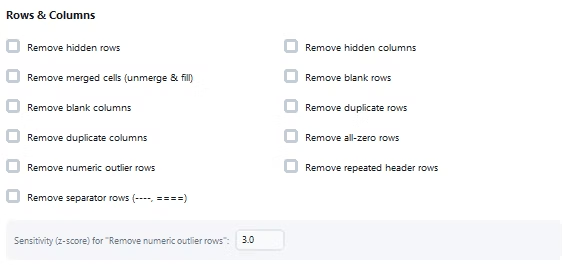
Rows & Columns: 11 Structural Cleanup Features
These attack the shape of the sheet rather than the contents of the cells. Each is an independent checkbox.
Remove hidden rows
Deletes every row flagged as hidden, where filtered-out records and concealed working data tend to live.
Remove hidden columns
The same for columns, which often carry stale calculation helpers nobody wants in a final export.
Remove merged cells
Unmerges every range and fills the value into the anchor cell, so a cosmetically formatted report becomes something a formula or pivot table can read.
Remove blank rows
Deletes rows where every cell in the used range is empty, including ones that only look occupied because of leftover formatting.
Remove blank columns
The column equivalent, for exports that trail empty columns to the right of the real data.
Remove duplicate rows
Keeps the first occurrence and drops later exact repeats. Runs after text cleaning, so rows differing only by a trailing space are caught.
Remove duplicate columns
Removes columns whose contents duplicate an earlier column — what happens when two exports are pasted side by side.
Remove all-zero rows
Drops rows where every numeric cell is zero, common in accounting and inventory exports that pad unused line items.
Remove numeric outlier rows
Uses a per-column z-score to find values far outside the distribution. The threshold sits beside the checkbox, defaulting to 3.0; columns with fewer than five numeric values or zero variance are skipped.
Remove repeated header rows
Deletes rows elsewhere in the sheet that exactly duplicate the header — the fix for a file built from a dozen concatenated exports that each brought their own.
Remove separator rows
Deletes rows containing nothing but dividers such as runs of dashes or equals signs. Formatting-as-text, not data, and it breaks every sort.
Text Cleaning: 11 Cell-Content Features
Where the invisible problems get fixed — the ones that make VLOOKUP return #N/A on two strings that look identical on screen.
Trim leading/trailing spaces
Strips whitespace from both ends of every text cell. The single most common cause of failed lookups and mismatched joins.
Collapse extra whitespace
Reduces runs of spaces or tabs inside a value to one space, so "Acme Corp" and "Acme Corp" stop being two customers.
Fix encoding / mojibake
Repairs text decoded with the wrong character set, classically UTF-8 bytes read as Latin-1, and normalizes values so visually identical characters compare equal.
Remove non-printable characters
Strips control characters and null bytes that survive a copy from a terminal, a PDF or a mainframe report.
Remove special characters
Removes symbols outside a safe allowlist, keeping the punctuation real data needs: full stops, commas, hyphens, slashes, at signs, brackets, percent signs and ampersands.
Remove stray quote characters
Trims apostrophes and double quotes that CSV round-trips leave wrapped around otherwise clean values.
Title Case
Word-aware title casing that handles apostrophes correctly, so possessives and contractions are not mangled.
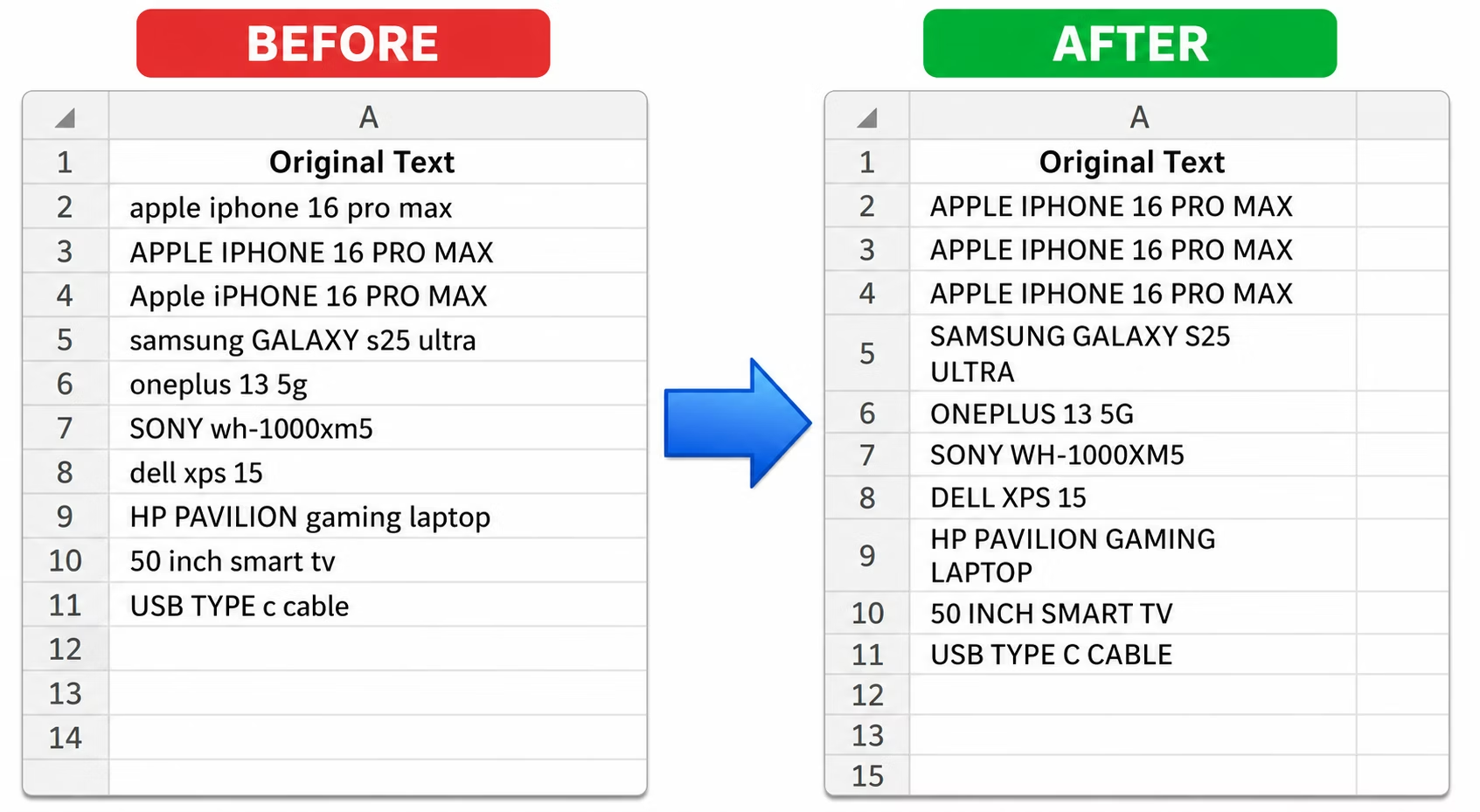
UPPER CASE
Uppercases text cells. Useful for country codes, SKUs and any column where case is noise rather than signal.
lower case
Lowercases text cells, usually what you want before deduplicating tags, usernames or category labels.
Trim column headers
Cleans the header row specifically, since a header with a trailing space breaks every downstream import and named-range reference.
Clear null placeholders
Converts N/A, NULL, None, -, --, unknown and #N/A into genuinely empty cells, so blank detection treats them as empty rather than as data.
All three case options leave email addresses, phone numbers and already-standardized YYYY-MM-DD dates untouched, whichever mode you pick.
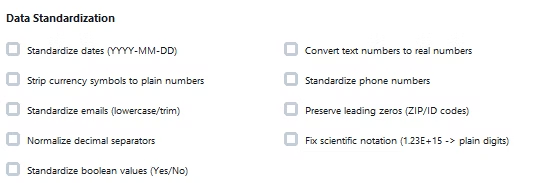
Data Standardization: 9 Value-Consistency Features
These take values that mean the same thing but are written differently and make them match. Each acts only on values it can confidently recognize.
Standardize dates
Recognizes thirteen layouts — day-first, month-first, year-first, dotted European, spelled-out months, compact eight-digit — and rewrites them all to ISO YYYY-MM-DD.
Convert text numbers to real numbers
Turns numeric values stored as text into actual numbers, so they sum and chart instead of silently contributing zero.
Strip currency symbols
Converts values carrying a dollar, euro, pound or yen sign into plain numbers, dropping the symbol and thousands separators.
Standardize phone numbers
Normalizes ten-digit numbers to one bracketed format, tolerating spaces, dots, dashes and a leading country digit. Anything with an unexpected digit count is left alone.
Standardize emails
Trims and lowercases anything that validates as a real address. Values with an at sign that are not valid addresses are left untouched rather than guessed at.
Preserve leading zeros
Flags ZIP codes, employee IDs and product codes beginning with zero as text, so nothing quietly turns 07421 into 7421.
Normalize decimal separators
Converts European-style numbers using a full stop for thousands and a comma for decimals into standard decimal numbers.
Fix scientific notation
Expands long IDs that Excel collapsed into 1.23E+15 back into a full plain digit string, stored as text so no later step can re-collapse it.
Standardize boolean values
Normalizes yes, y, true, no, n and false, in any capitalization, to Yes or No. It deliberately skips bare 1 and 0 text and genuine TRUE/FALSE cells, too easy to confuse with real data.
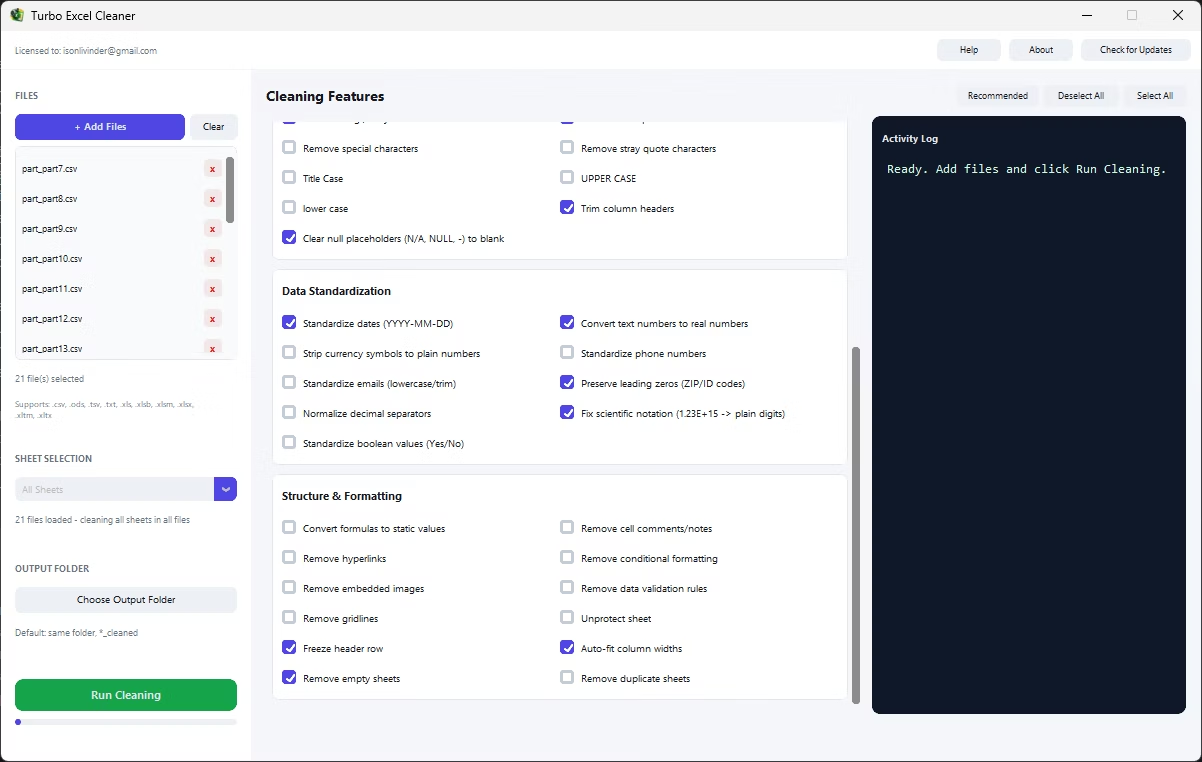
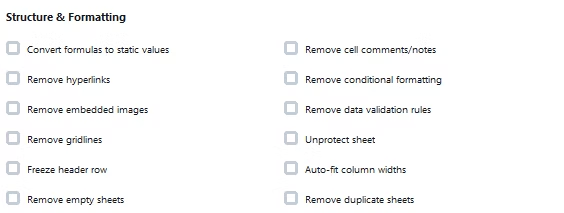
Structure & Formatting: 12 Workbook-Level Features
This category works on the workbook rather than its values: the objects, rules and decorations that make a file heavy, fragile or awkward to hand on.
Convert formulas to static values
Replaces every formula with its last calculated result: a file that opens instantly, carries no broken external references, and cannot recalculate differently elsewhere.
Remove cell comments/notes
Strips review comments and sticky notes, usually the first thing you want gone before a workbook leaves the building.
Remove hyperlinks
Clears link targets while leaving the visible text, so a pasted list of URLs stops catching accidental clicks.
Remove conditional formatting
Deletes formatting rules. Old workbooks accumulate hundreds of overlapping ones that bloat the file and slow scrolling.
Remove embedded images
Strips logos, screenshots and pasted charts that inflate file size without contributing to the data.
Remove data validation rules
Clears dropdowns and input restrictions built for an older version of the sheet that now reject valid entries.
Remove gridlines
Turns off gridline display for a cleaner printed or presented sheet.
Unprotect sheet
Removes protection so the cleaning steps, and you, can edit cells locked by a previous owner.
Freeze header row
Freezes the top row so headings stay visible while scrolling, which makes a long cleaned sheet usable.
Auto-fit column widths
Sizes every column to its longest value, clamped so one long cell cannot stretch a column across the screen.
Remove empty sheets
Deletes sheets with no real content anywhere in their used range, not just one-cell-blank ones, catching sheets left empty after other steps removed their rows.
Remove duplicate sheets
Removes sheets whose contents exactly duplicate an earlier sheet — the residue of one "Move or Copy" too many.
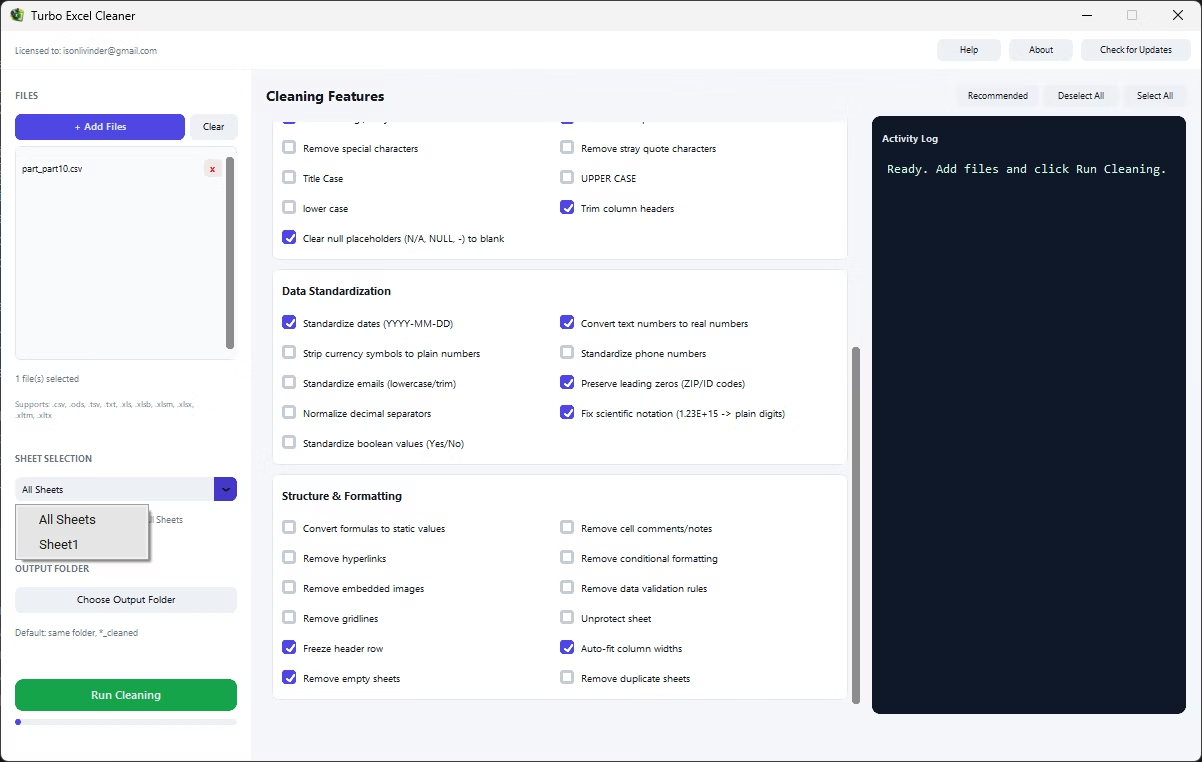
The last two operate across the whole workbook by definition, so they run only in All Sheets mode. Target a single sheet and they are skipped automatically.
The Recommended Preset: 19 Safe Features in One Click
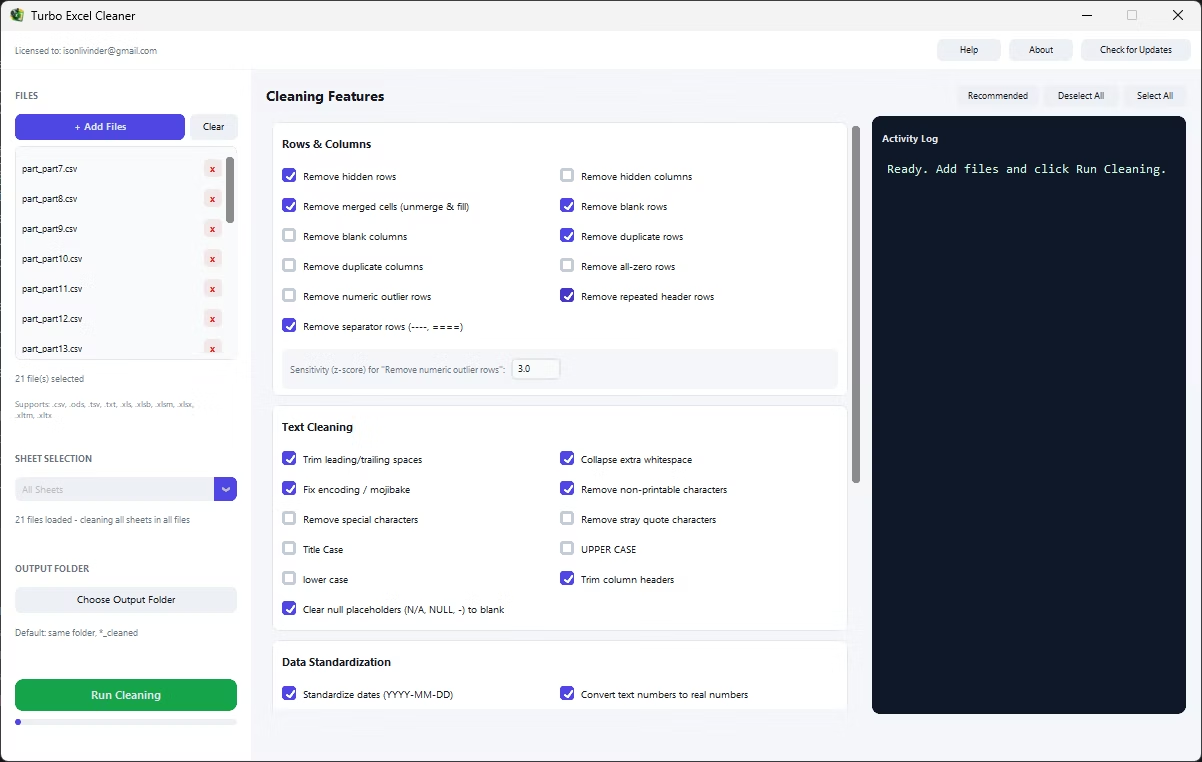
Forty-three checkboxes is a lot of decisions about a file you have not opened. Recommended applies a fixed set of 19 features chosen to be broadly useful and non-destructive.
- Remove hidden rows, remove merged cells
- Remove repeated header rows, remove separator rows
- Remove blank rows, remove duplicate rows
- Fix encoding, trim spaces, collapse whitespace, remove non-printable characters
- Clear null placeholders, trim column headers
- Standardize dates, preserve leading zeros, fix scientific notation, convert text numbers to numbers
- Freeze header row, auto-fit column widths, remove empty sheets
What it leaves out matters as much: no case rewriting, no outlier removal, no boolean normalization — nothing opinionated about what your data should look like. It always produces the same 19 regardless of what is ticked, so it doubles as a reset. Select All and Deselect All sit beside it; Select All turns on one case mode rather than all three, since only one can apply per run.
How to Clean Excel Files Automatically
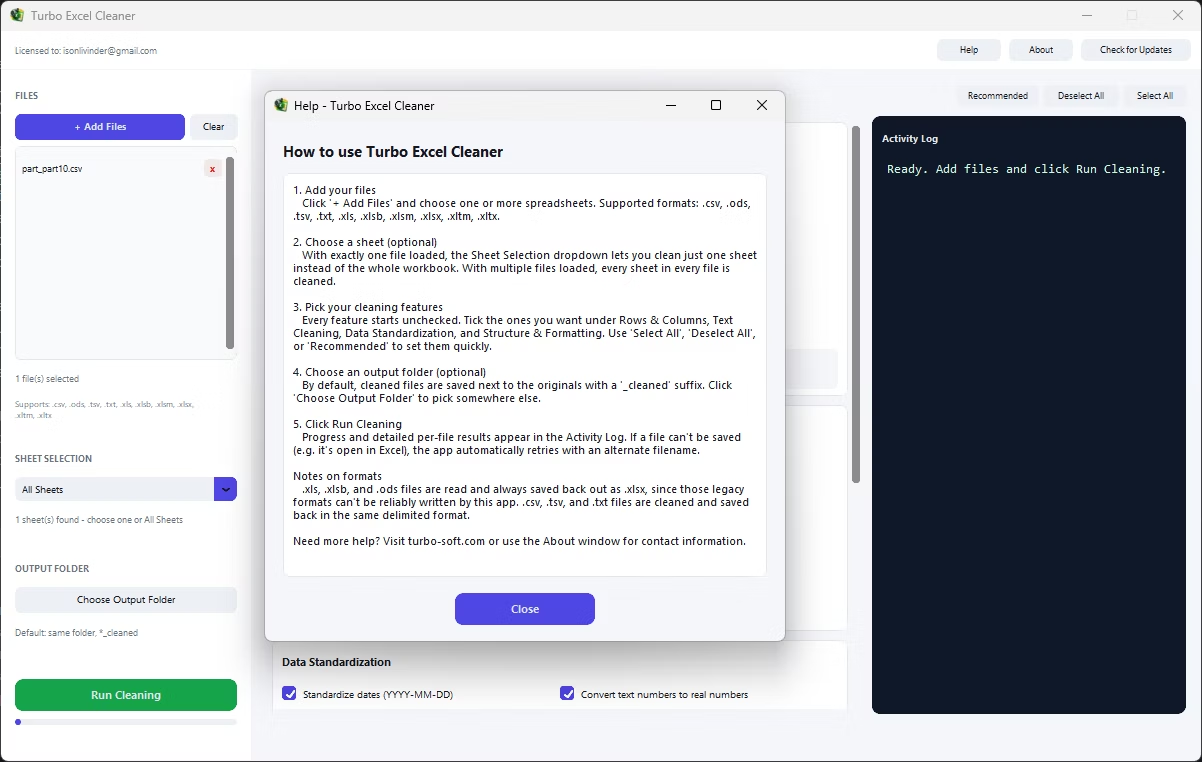
- Add your files. Click Add Files and pick one or more spreadsheets. Unsupported types are rejected with a warning listing exactly which files were skipped.
- Choose a sheet. With exactly one file loaded, Sheet Selection reads the real sheet names so you can clean a single sheet; with several files it locks to All Sheets.
- Pick your cleaning features. Every feature starts unchecked. Tick the ones you want, or press Recommended to apply a curated set of 19 safe features in one click.
- Choose an output folder. By default cleaned files are written next to the originals with a
_cleanedsuffix; click Choose Output Folder to send them elsewhere. - Run the cleaning. Click Run Cleaning. The progress bar and Activity Log report each file, each sheet and how many cells or rows each feature changed.
- Review the results. A summary reports how many files cleaned successfully. Your original files are never modified.
The Interface, Sheet Selection and Processing Order
The interface
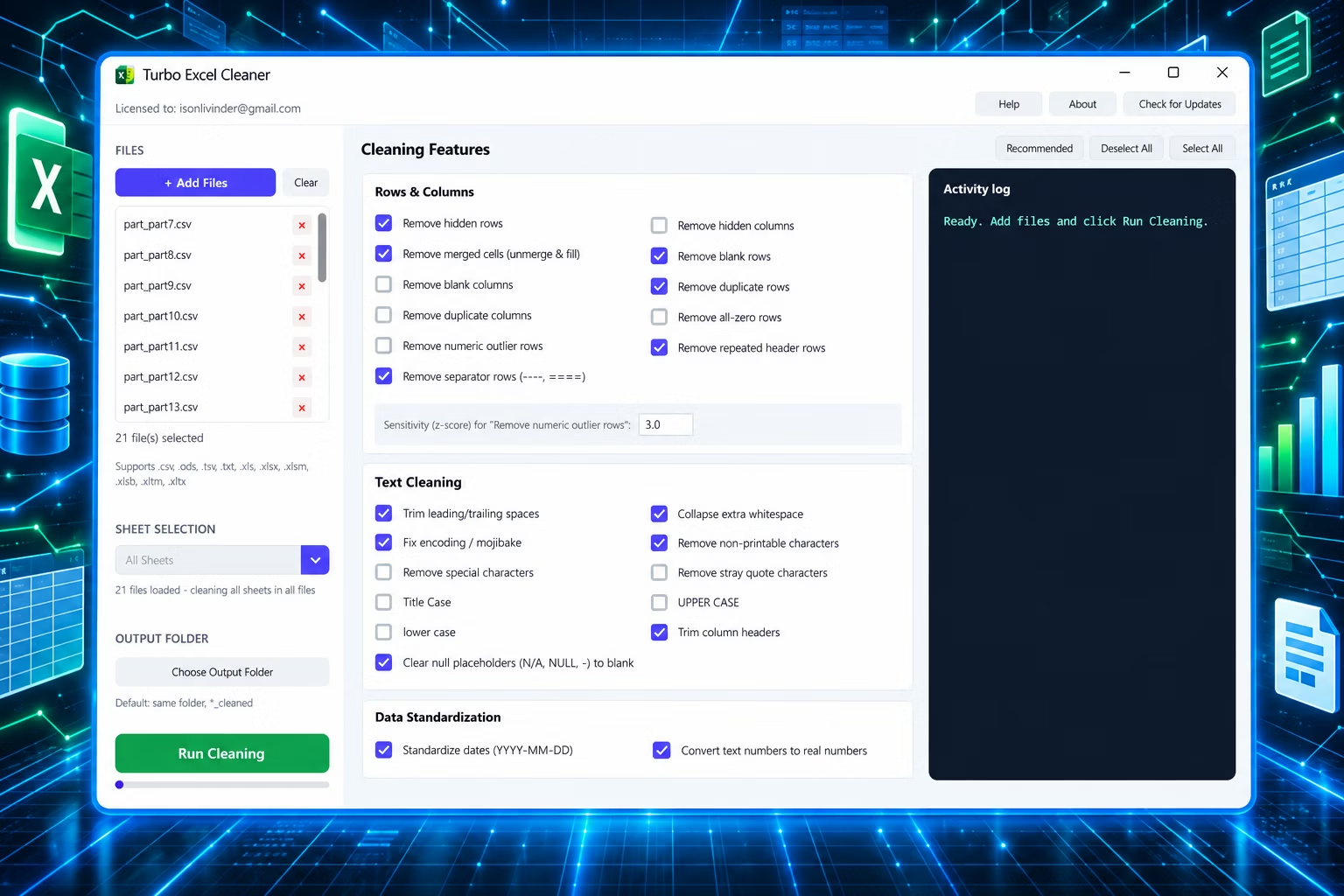
A compact fixed window in three areas. The top bar shows license status on the left (the email the copy is licensed to, or "Unlicensed") and Help, About and Check for Updates on the right. The sidebar holds Add Files and Clear, a scrollable queue with a remove control on each entry, Sheet Selection, Choose Output Folder, and a green Run Cleaning button with a progress bar pinned at the bottom; The main panel holds the 43 features, two per row in four bordered cards with Select All, Deselect All and Recommended in the header, beside a dark live log. The log shows which file and sheet is being cleaned and one line per feature reporting how many cells, rows or sheets it changed; features that changed nothing stay quiet.
Sheet selection
- One file loaded: the dropdown lists that workbook’s real sheet names plus All Sheets. Pick one and only that sheet is cleaned; every other sheet is written back untouched.
- Zero or several files: it locks to All Sheets, since per-sheet targeting stops making sense across workbooks with different sheet names. If a targeted sheet is missing from a file, that file is skipped with a warning.
- CSV, TSV and TXT always report a single sheet.
Why processing order matters
Cleaning operations interfere with each other, so the pipeline applies a fixed order whichever boxes you tick; your checkbox order has no effect.
- Sheet removal runs first, so no work is wasted on a sheet about to disappear, and merged cells are flattened before any deletion because merge ranges do not re-anchor reliably when rows shift.
- Repeated headers and separator rows are detected before text cleaning, since both match whole rows against raw content and a trimmed duplicate header would no longer match.
- Text cleaning runs next. Phone and email standardization run before number conversion, or a digit-only phone number is silently turned into a plain number, and number conversion respects leading-zero preservation.
- Row and column reduction runs after text cleanup so blank and duplicate detection compare cleaned values; formula flattening and formatting cleanup run last.
- One failure never kills the batch: each function is self-contained and guarded, so an error on one sheet is logged and the run continues.
Output Files and Safe Saving
Originals are never modified. Every run produces new files, written beside the source with a _cleaned suffix or into an output folder you choose.
Native Excel formats are saved back as they came in. Legacy binary formats — .xls, .xlsb, .ods — are always converted to .xlsx. Delimited formats keep their own: a CSV returns a CSV, a TSV a TSV.
Two things block a save regularly, neither a bug: a previous cleaned copy is still open in Excel, or Windows Controlled Folder Access is protecting Downloads, Documents and Desktop, which it does by default. Rather than a raw error, the app retries with alternate filenames — _cleaned_2.xlsx, _cleaned_3.xlsx — up to four attempts, logging which it used. Only if all four are blocked does it stop, with one clear message naming the likely causes.
Security and Privacy
Cleaning happens entirely on your machine. Nothing is uploaded, there is no cloud step and no account to create, and once installed the app works with the network disconnected. The only traffic it generates is license verification, which sends your purchase email and key and nothing else. That matters when the files you need to clean are payroll runs or client ledgers.
System Requirements
| Requirement | Minimum | Recommended |
|---|---|---|
| Operating system | 64-bit Windows 10 or Windows 11 | 64-bit Windows 11 |
| Processor | 64-bit x86 processor | Modern multi-core 64-bit processor |
| Memory | 2 GB RAM | 8 GB RAM or more for very large workbooks |
| Disk space | 300 MB free | 1 GB free, plus room for the cleaned copies; SSD speeds up large batches |
| Display | 1280 × 800 or larger | 1920 × 1080 |
| Internet | Required once, for license activation | |
Cleaning holds a workbook in memory, so peak memory use scales with the largest single file rather than with how many files are queued.
Installation, Activation and Licensing
- Purchase and download the Windows build. No subscription, no recurring fee.
- Launch it. On first run, an activation window asks for the email you purchased with and your license key.
- Activate once. The pair is verified, then cached locally so you never re-enter it.
- Later launches are silent. The cached license is re-verified before the main window opens; the activation window only reappears if that check fails.
- Check your status any time in the top-left corner of the main window.
To switch licenses, delete the cached license file from the app's folder in your local application data directory and relaunch.