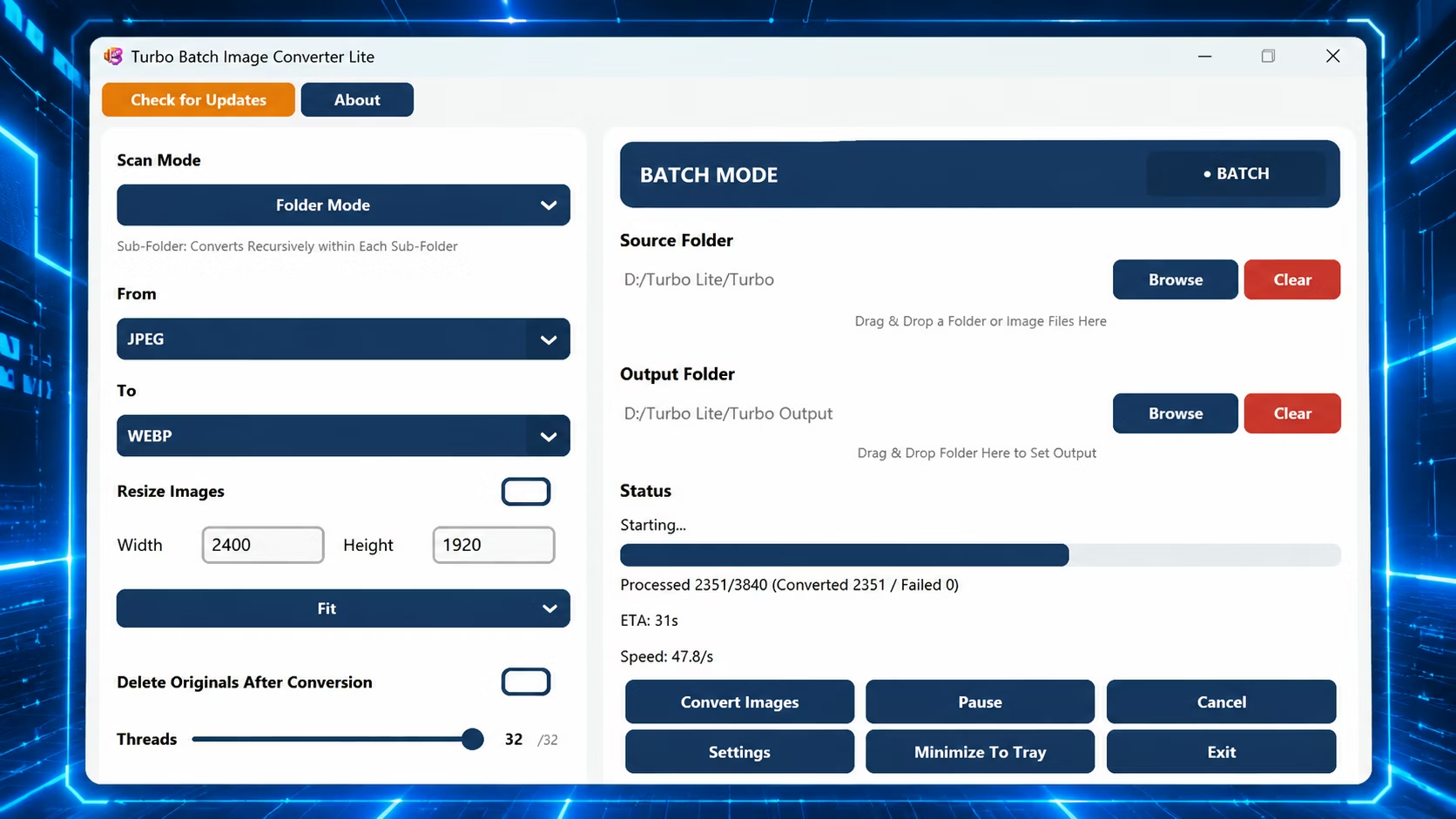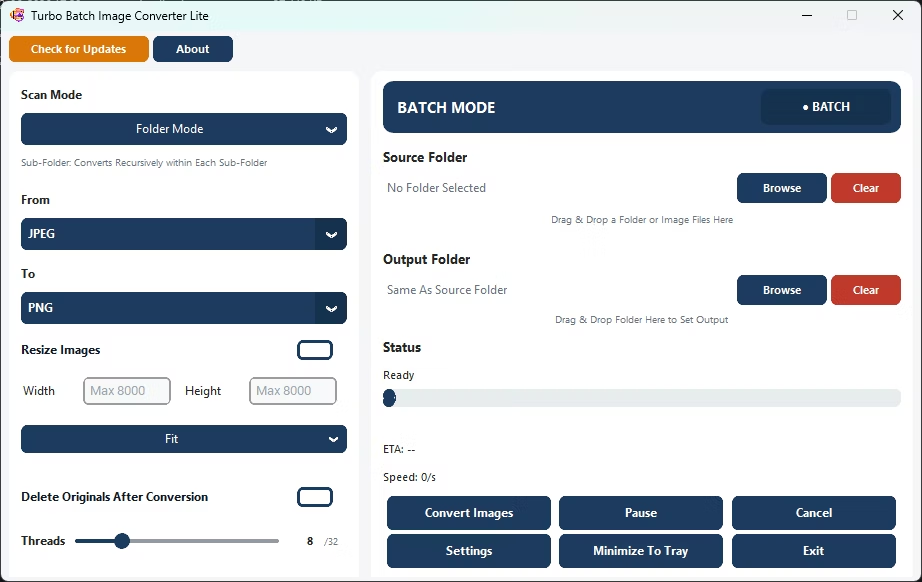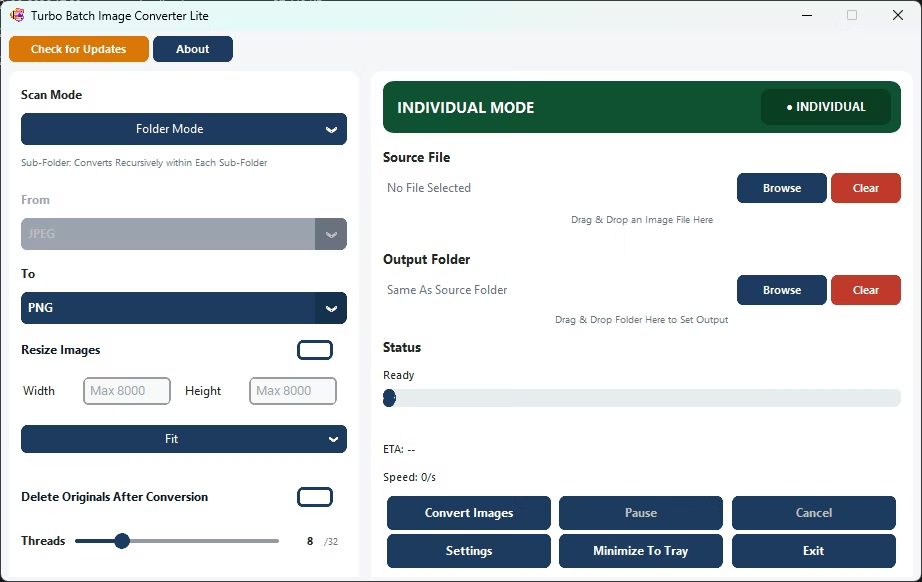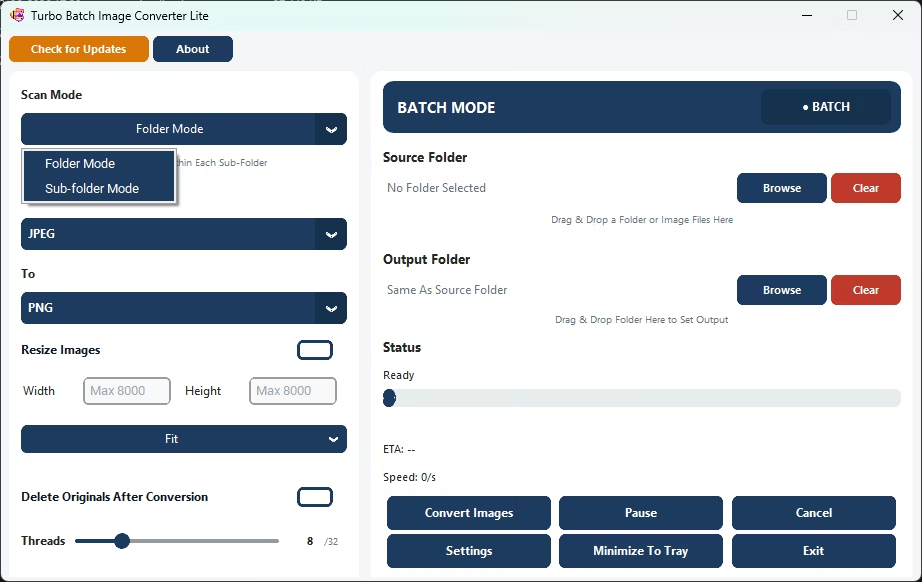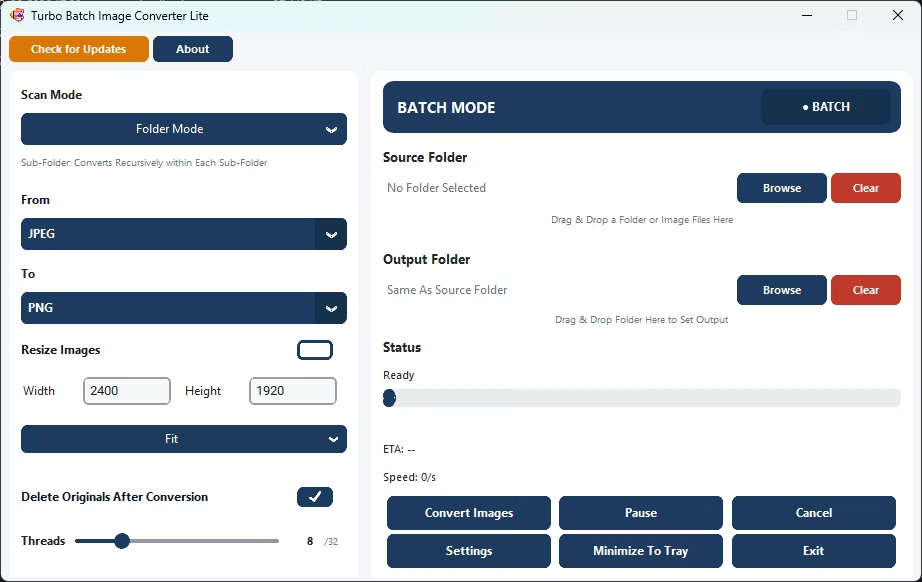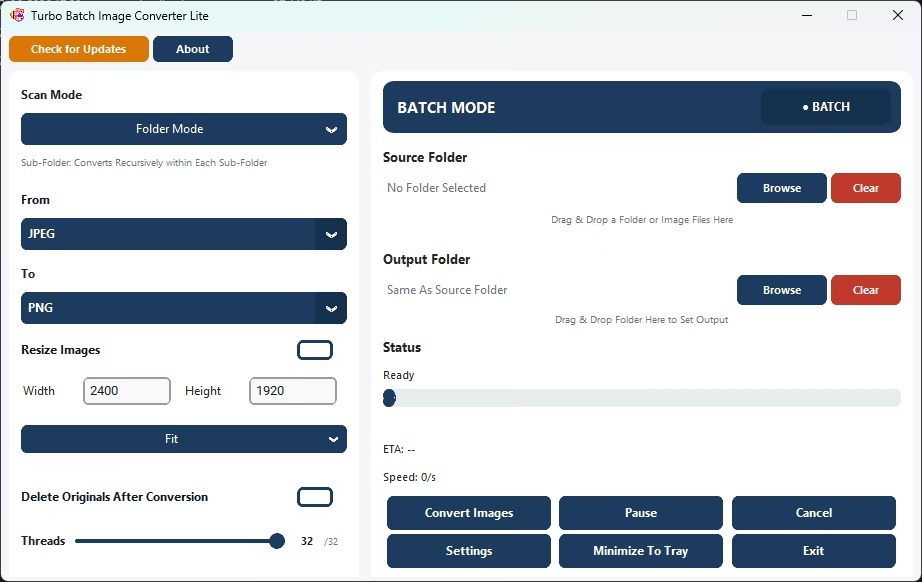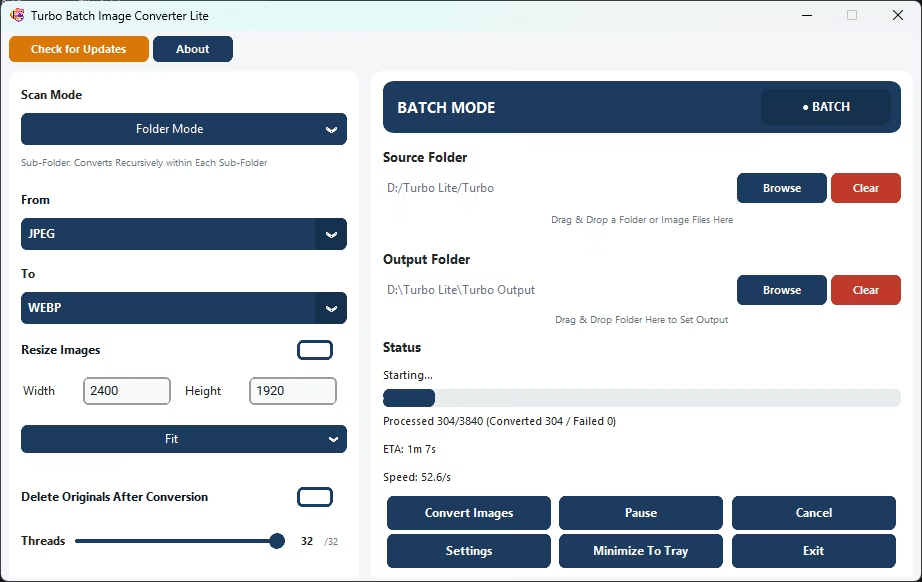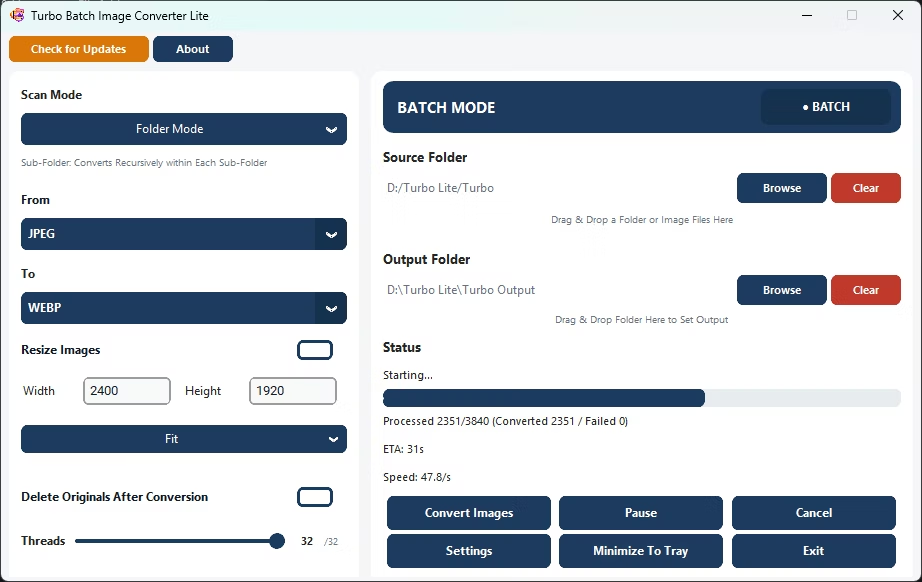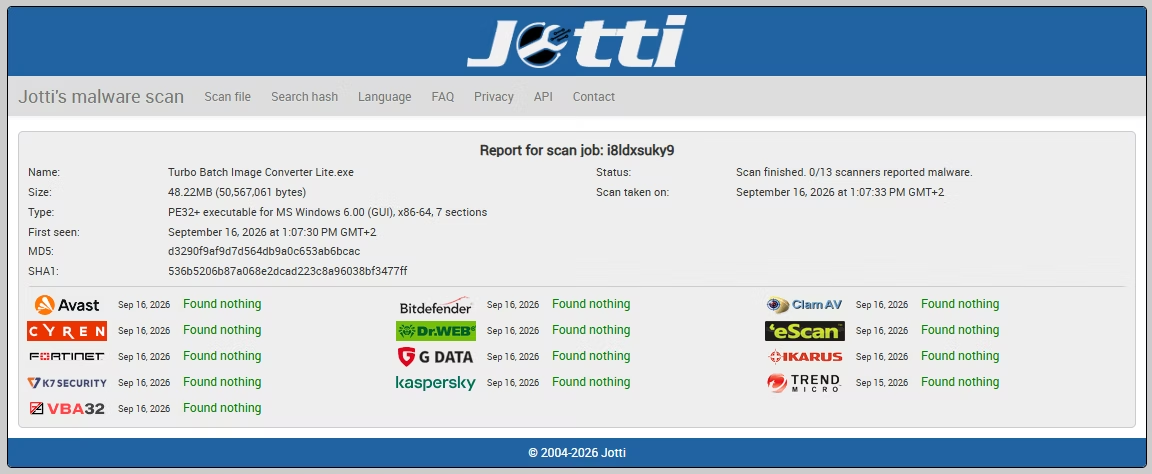
Supported Input Formats:
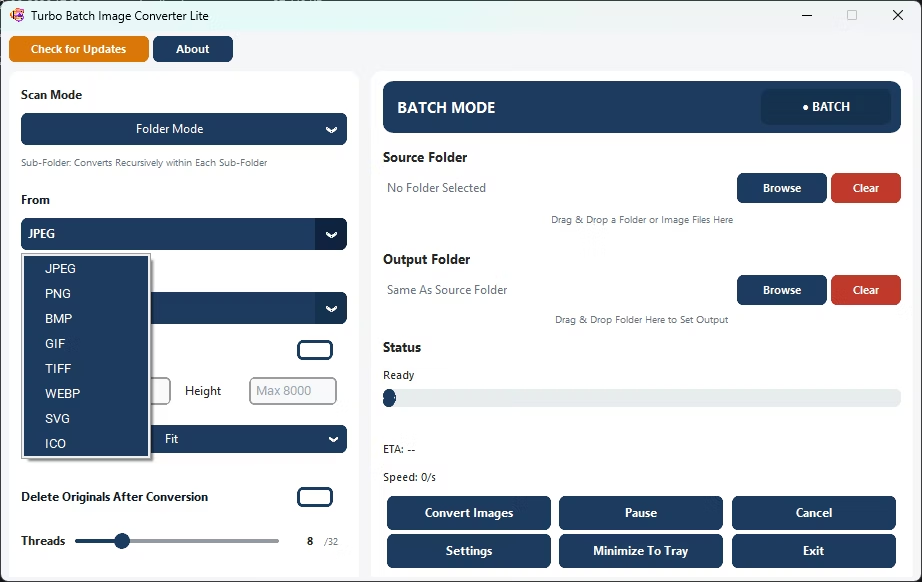
JPEG, JPG, PNG, HEIC, WEBP, GIF, BMP, TIFF, TIF
Supported Output Formats:
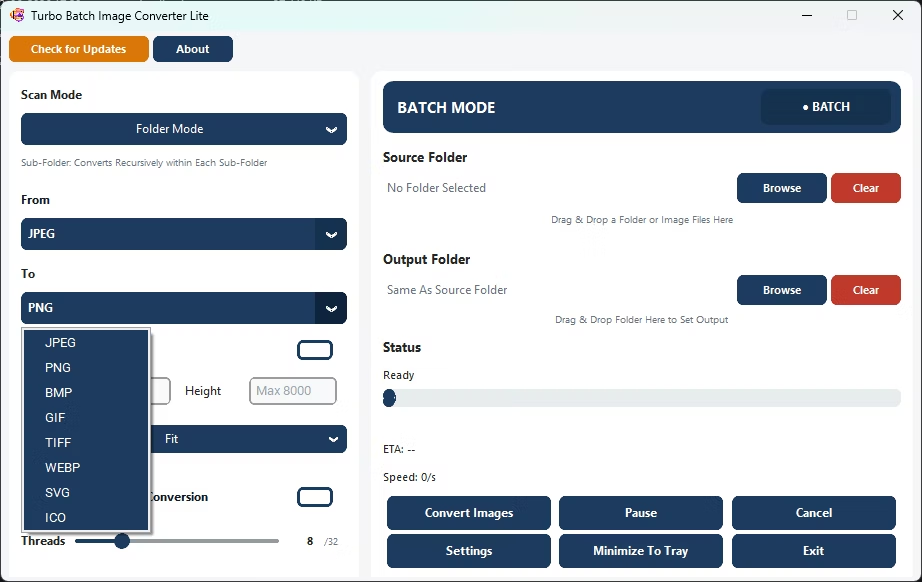
JPEG, PNG, WEBP, AVIF, HEIC, GIF, BMP, TIFF, SVG
Additional Features:
Batch Image Resizing
Nested Sub-Folder Auto Conversion - Convert files within each Sub-Folder recursively
Delete Original Files after Conversion
Auto | Manual Workers allocation - Increase Or Decrease Conversion Speed - 32 Parallel Workers Max
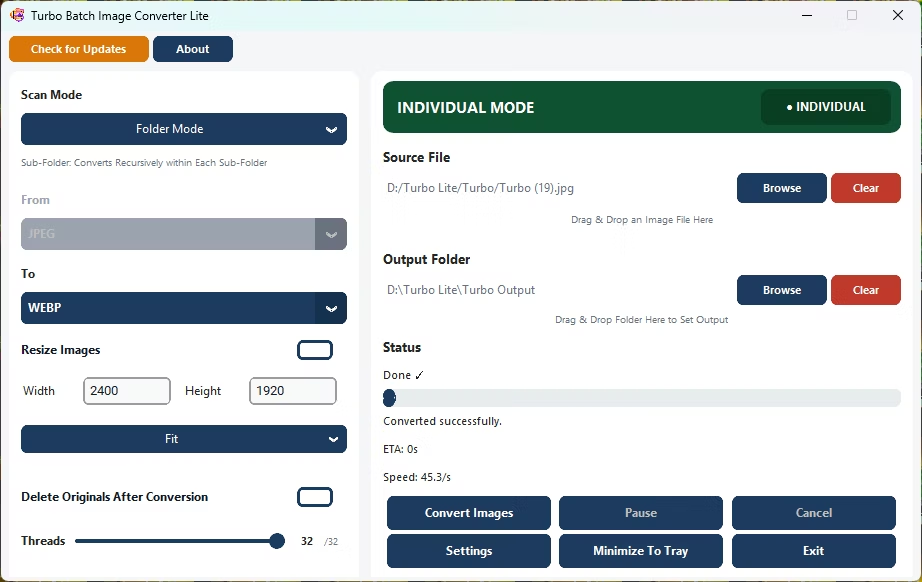
Drag & Drop Input | Output Folders for ease of use
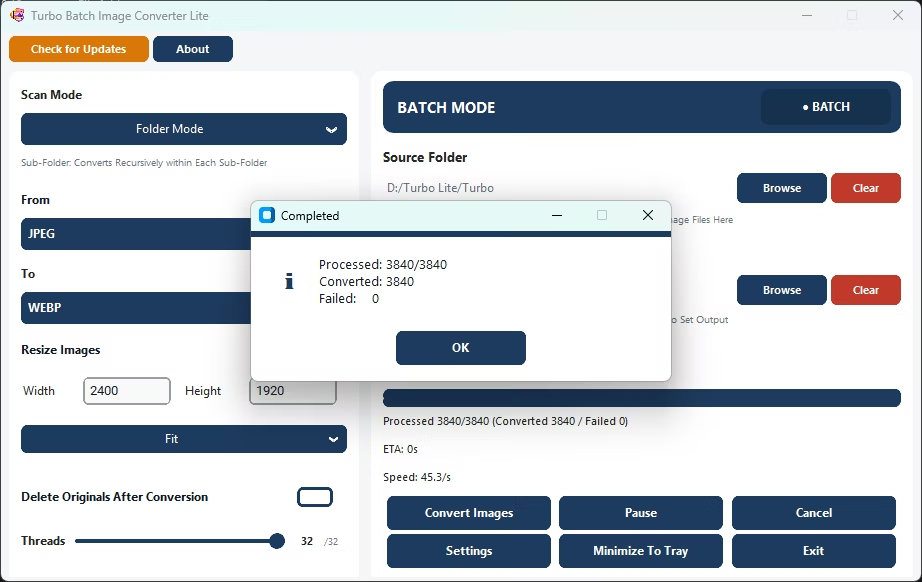
Live Conversion Speed | ETA
Cancel | Pause | Resume Conversion
High-Volume Batch Stability
Multi Output Settings
Performance:
Scales efficiently from low-end dual-core systems to high-performance CPUs with up to 32 parallel workers
If a single image is corrupted, unsupported, or fails to convert, only that task fails
Automatically scales worker count depending on CPU core availability
Ideal for both small batches and extremely large workloads (thousands to 100,000+ images)
Safety:
Safe Multi-Threaded Operation
No race conditions during read/write operations
Offline Processing - No internet connection required
Safe Delete to Recycle Bin - Optional Feature
Ideal for privacy-sensitive environments and restricted networks
Prevents file corruption even during high-speed batch conversions
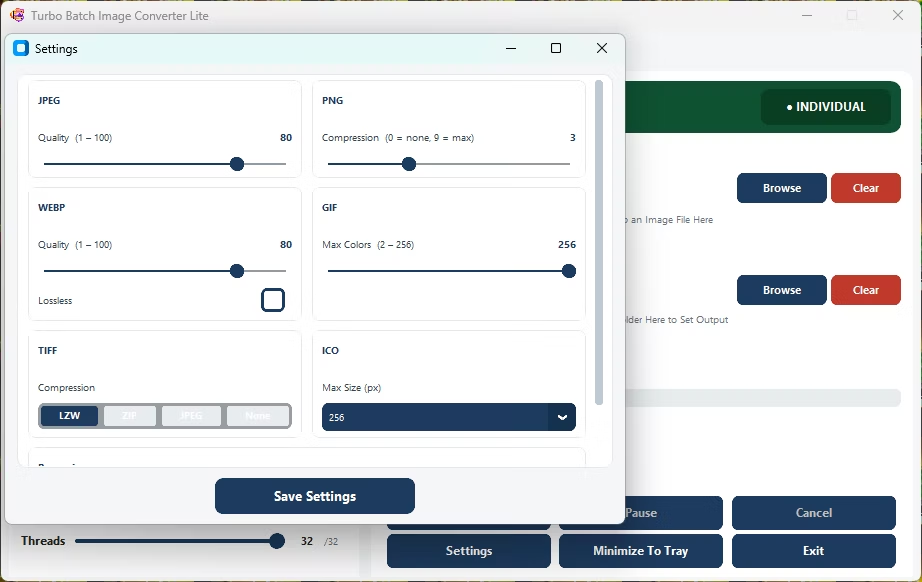
Output Quality Settings:
JPEG Quality - 1 To 100
PNG Compression - 0 To 9
WebP Quality - 1 To 100
WebP lossless
GIF Colors - 2 To 256
Lossless/ Lossy WebP Output
TIFF Compression - LZW | ZIP | JPEG
Minimum System Requirements
These requirements allow Batchify to run reliably for small to moderate batch conversions.
Operating System - Windows 8 (64-bit)
Processor (CPU) - 1 to 2 CPU cores
Memory (RAM) - 2 GB RAM
Storage - At least 500MB of free disk space
Recommended System Requirements
These specifications are recommended for optimal performance, especially when working with large image batches or RAW files.
Operating System - Windows 10 or later (64-bit recommended)
Processor (CPU) - 4 or more CPU cores
Memory (RAM) - 4 GB RAM or more
Storage - Solid State Drive (SSD) recommended
Free Disk Space - At least 2 GB of free disk space
Demo Videos
Watch detailed demo illustrating Batchify's capabilities and workflow.
Batch Conversion & Nested Sub-Folder Conversion
RAW Image Conversion
HEIC Image Conversion
How to Use Batchify Batch Image Converter
Step 1: Select the Source Folder and Output Folder
You can add images to Batchify in two easy ways:
Drag & Drop a folder directly into the application window
Or click Browse to manually select a folder from your system
Batchify automatically scans the selected source folder for supported image formats.
Step 2: Choose Folder or Sub-Folder Mode
Batchify gives you control over how deeply it scans your folders:
Folder Mode - Converts only the images located in the selected folder
Sub-Folder Mode - Recursively scans and converts images inside all sub-folders as well
This is ideal for large image libraries organized by categories or dates.
Step 3: Choose Conversion Format(s)
Select the desired output image format from the supported list.
Convert all images to a single format (e.g., JPG To WEBP)
Choose modern formats like AVIF or HEIC for smaller file sizes
Select lossless formats like PNG or TIFF when quality is critical
Batchify applies the selected format consistently across the batch.
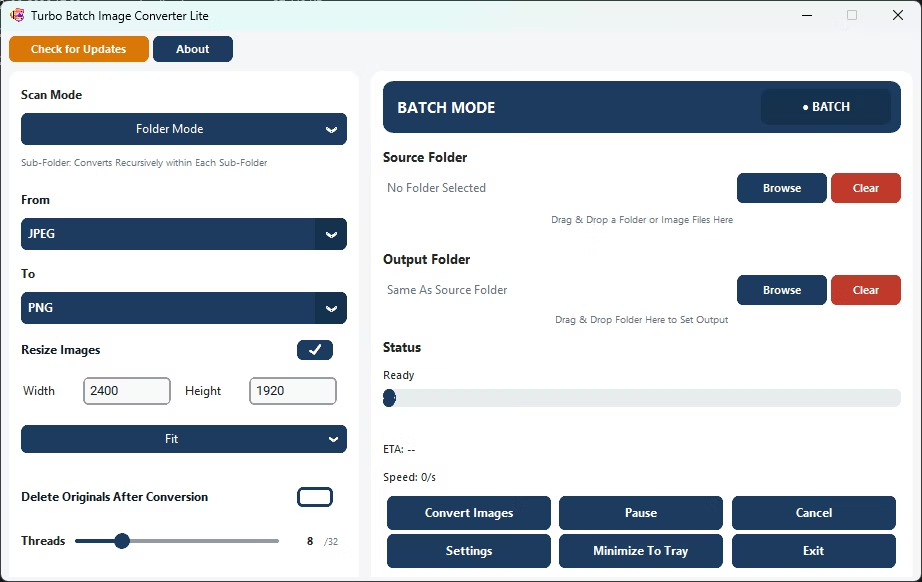
Step 4: Resize
This is an optional and fully customizable feature.
Enable "Resize Images" to activate resizing during conversion
Set your desired Width and Height (up to 8000px)
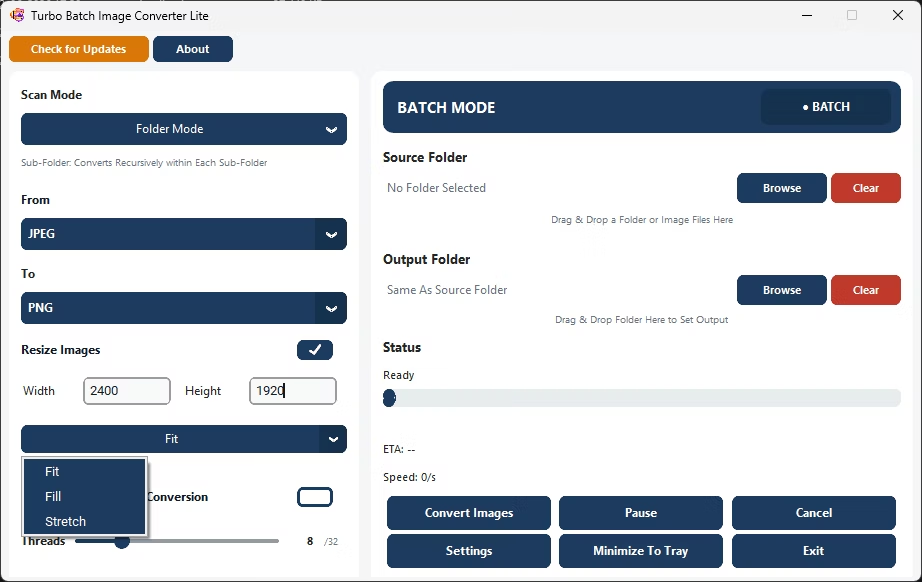
Choose a resizing mode:
Fit: Maintains aspect ratio and fits within the specified dimensions (recommended for most cases)
Fill: Fills the exact dimensions, cropping excess areas if necessary
Stretch: Forces the image into the exact dimensions (may distort aspect ratio)
This feature allows you to standardize image dimensions, optimize file size, and prepare images for web, print, or platform-specific requirements — all during batch conversion.
Step 5: Optional – Enable "Delete Originals"
This is an optional and user-controlled feature.
When enabled, original files are moved to the Recycle Bin
Originals are not permanently deleted
Allows easy recovery if needed
This option helps free up disk space after successful conversion while maintaining safety.
Step 5: Adjust Worker Thread Speed
Batchify allows you to control how many CPU threads are used during conversion.
Increase workers for maximum speed on powerful systems
Reduce workers to keep the system responsive
Auto-scale support ensures safe CPU usage
This flexibility is useful when running Batchify alongside other applications.
Step 6: Set Output Quality
Control the balance between image quality and file size.
Higher quality for print or archival use
Lower quality for web optimization and faster loading
Applies uniformly to all converted images
This ensures consistent results across the entire batch.
Step 7: Click Convert
Once everything is set:
Click the Convert button to start processing
Live progress and ETA are displayed in real time
Errors (if any) are logged without stopping the batch
You can safely let Batchify run in the background or unattended.
What Happens Next
Converted images are saved to the selected output location
Original folder structure is preserved (when applicable)
Any failed files are skipped and reported
Batchify ensures a smooth, predictable, and safe conversion experience from start to finish.
How to Activate Batchify via Gumroad
Batchify Image Converter & Resizer is activated using a license key issued by Gumroad. The activation process is simple and takes only a few minutes.
Step 1: Purchase and Download from Gumroad
Purchase Batchify Image Converter & Resizer on Gumroad using your email address
After successful payment, Gumroad:
- Sends a download link to your registered email ID
- Sends a unique license key to the same email ID
Important:
The license key is linked to the email address used during purchase.
Download Batchify
Step 2: Download and Open Batchify
Download the Batchify ZIP file from the Gumroad email or dashboard
Unzip the downloaded file
Open the Batchify Image Converter & Resizer application
Batchify is a portable application, so no installation is required.
Step 3: Enter License Details
When the application starts, the License Activation Window will appear.
Enter the Email ID used during the Gumroad purchase
Enter the License Key received from Gumroad
Ensure there are no extra spaces while copying and pasting
Step 4: Activate License
Click on the Activate License button
Batchify will open the License Verification Window
The application securely verifies:
- Your Email ID
- Your License Key
- Your purchase record from Gumroad
An active internet connection is required only during activation.
Step 5: License Verification Result
If Verification Succeeds:
The entered Email ID and License Key match your Gumroad purchase
The license is activated successfully
Batchify launches automatically and is ready for use
If Verification Fails:
License verification may fail if:
The entered Email ID does not match the Gumroad purchase email
The License Key is incorrect or incomplete
There is no internet connectivity during activation
Activation is blocked by firewall or antivirus software
Once the license verification is successful, the application launches automatically and is ready for use.
Troubleshooting Activation Issues
If activation fails, please check the following:
Confirm the Email ID is exactly the same as used on Gumroad
Re-check the License Key for typing or copy-paste errors
Ensure your system has active internet access
Temporarily disable or whitelist Batchify in antivirus/firewall software
If the issue still persists - Contact Support:
support@batchifyapp.com
Include:
Your Gumroad purchase email ID
The license key received
A brief description of the issue
After Successful Activation
Batchify launches normally
No repeated activation is required for regular use
All Pro features become fully accessible
Batchify Image Converter & Resizer Lite
Batchify Image Converter & Resizer Lite is a fast and lightweight batch image converter designed for efficient everyday image processing. Supporting widely used formats such as JPG, PNG, SVG, BMP, TIFF, GIF, and WEBP, Batchify Lite allows users to convert, optimize, and manage images for web publishing, e-commerce, social media, digital marketing, and print workflows with speed and reliability. By focusing on the most commonly used image formats, the Lite version delivers a streamlined experience with reduced system overhead while maintaining the powerful batch conversion engine of the original Batchify application.
Built with high-speed multi-threaded processing, Batchify Lite can handle large-scale batch conversions—whether hundreds or tens of thousands of images—within minutes. It includes bulk resizing capabilities, advanced output quality controls, compression settings, live progress tracking, ETA display, and real-time converted/failed file statistics. With drag-and-drop support, pause/resume controls, system tray minimization, and fully offline local processing, Batchify Lite offers a secure, stable, and performance-optimized solution for users who need reliable batch image conversion without advanced RAW or next-generation format requirements.
JPG - JPEG Conversion
JPG and JPEG are the most widely used image formats for web, cameras, and applications. Batchify enables fast, high-quality batch conversions.
Ideal for: File size reduction, lossless exports, web optimization, bulk photo conversion.
Conversions:
Convert JPG - JPEG to PNG
Convert JPG - JPEG to HEIC
Convert JPG - JPEG to AVIF
Convert JPG - JPEG to BMP
Convert JPG - JPEG to TIFF
Convert JPG - JPEG to SVG
Convert JPG - JPEG to GIF
Convert JPG - JPEG to WEBP
PNG Image Conversion
PNG is preferred for transparency, UI assets, and lossless quality. Batchify supports full-scale PNG batch processing.
Ideal for: Transparency handling, quality-preserving compression, cross-platform compatibility.
Conversions:
Convert PNG to JPG
Convert PNG to HEIC
Convert PNG to AVIF
Convert PNG to BMP
Convert PNG to TIFF
Convert PNG to SVG
Convert PNG to GIF
Convert PNG to WEBP
BMP Image Conversion
BMP is an uncompressed legacy format commonly found in older systems.
Ideal for: Reducing file size, modernizing legacy image libraries.
Conversions:
Convert BMP to JPG
Convert BMP to PNG
Convert BMP to HEIC
Convert BMP to AVIF
Convert BMP to TIFF
Convert BMP to SVG
Convert BMP to GIF
Convert BMP to WEBP
TIFF - TIF Image Conversion
TIFF is widely used in print, scanning, and archival workflows
Ideal for: Web publishing, storage optimization, scanned document conversion.
Conversions:
Convert TIFF - TIF to JPG
Convert TIFF - TIF to PNG
Convert TIFF - TIF to HEIC
Convert TIFF - TIF to AVIF
Convert TIFF - TIF to BMP
Convert TIFF - TIF to SVG
Convert TIFF - TIF to GIF
Convert TIFF - TIF to WEBP
GIF Image Conversion
Batchify supports conversion of static GIF images
Note: Animated GIFs may be converted as static frames depending on output format
Conversions:
Convert GIF to JPG
Convert GIF to PNG
Convert GIF to HEIC
Convert GIF to AVIF
Convert GIF to BMP
Convert GIF to TIFF
Convert GIF to SVG
Convert GIF to WEBP
WEBP Image Conversion
WEBP is optimized for fast-loading websites and modern browsers
Ideal for: Editing, printing, archiving, and batch website asset processing
Conversions:
Convert WEBP to JPG
Convert WEBP to PNG
Convert WEBP to HEIC
Convert WEBP to AVIF
Convert WEBP to BMP
Convert WEBP to TIFF
Convert WEBP to SVG
Convert WEBP to GIF
Main Features
Batchify offers Five major features with it: Batch Image Resizing, Automatic Nested Sub Folder Conversion, Safe Delete Original Files (After Conversion), Parallel Workers (Multi-Core Processing) and High-Speed Batch Processing Engine
Batch Image Resizer
Enable "Resize Images" to activate bulk resizing. Set custom Width and Height (up to 8000px). Choose your resize behavior: Fit – Maintains aspect ratio and fits inside given dimensions (no distortion). Fill – Fills the entire dimension while preserving aspect ratio (may crop). Stretch – Forces exact dimensions (may distort image). Works in full Batch Mode — resize hundreds of images at once. Compatible with Sub Folder Mode — automatically scans and resizes images inside all nested folders. Ideal for: Website optimization, E-commerce image preparation, Social media resizing, Bulk compression workflows
Automatic Nested Sub-Folder Conversion
Activate Sub-Folder Mode to process images recursively inside all nested folders. No need to manually open or select individual subfolders. Automatically scans the entire directory tree and converts every supported image found. Maintains workflow efficiency for photographers, designers, and large media libraries. Ideal for bulk operations on structured project folders.
Safe Delete Original Files (After Conversion)
Automatically remove original images once conversion is complete. Eliminates manual cleanup after batch processing. Files are sent to the Recycle Bin — not permanently deleted. Adds safety while keeping your folders clean and optimized. Perfect for format replacement workflows (e.g., PNG to WebP).
Parallel Workers (Multi-Core Processing)
Choose how many workers process images simultaneously. Scale up to 32 parallel workers for maximum performance. Utilizes multi-core CPU power efficiently. Dramatically reduces processing time for large batches. Adjustable performance based on your system capability.
High-Speed Batch Processing Engine
Batchify Image Converter & Resizer is built with a high-performance multi-threaded processing engine designed for ultra-fast batch image conversion. Leveraging intelligent parallel workers and optimized memory management, Batchify efficiently utilizes available CPU cores to process thousands of images within minutes. Whether handling 1,000, 10,000, or even 100,000 files, the application maintains consistent speed, stability, and system responsiveness. The Auto-Scale Workers feature dynamically selects the optimal number of parallel processing threads based on your system specifications, ensuring maximum throughput without overwhelming system resources. This advanced processing architecture significantly reduces conversion time while maintaining output quality, making Batchify ideal for photographers, developers, e-commerce sellers, and businesses that require rapid bulk image conversion at scale.
Batchify’s high-speed engine is engineered to minimize I/O bottlenecks, intelligently queue tasks, and maintain continuous workflow efficiency even during extremely large batch operations. Real-time progress tracking, live ETA display, and instant Pause/Resume/Cancel controls ensure full operational control while processing large image libraries. Combined with support for multiple image formats, RAW digital camera files, and advanced output compression settings, Batchify delivers enterprise-grade batch image processing performance in a lightweight and portable desktop application.
At a Glance
Batchify Image Converter & Resizer is a powerful, portable image conversion software designed for high-performance batch image processing on Windows. It supports 10 popular input formats — JPG, PNG, SVG, BMP, TIFF, HEIC, RAW, AVIF, GIF, and WEBP — and exports to 9 major output formats including JPG, PNG, SVG, BMP, TIFF, HEIC, AVIF, GIF, and WEBP. In addition, the application supports 47 RAW digital camera formats, enabling photographers and professionals to convert RAW files in bulk to any supported output format with precision. Whether you are converting 1,000 images, 10,000 images, or even 100,000 images, Batchify handles large-scale image conversion efficiently while displaying a live ETA for completion. The software provides real-time statistics including Processed, Converted, and Failed file counts, ensuring complete transparency during operation. Conversion failures may occur due to corrupted image files, unsupported or partially supported formats, incomplete downloads, insufficient system memory or disk space, file permission restrictions, locked files, invalid headers or metadata, extremely large image dimensions, or unexpected interruptions during processing.
Built for speed and usability, Batchify features intuitive drag-and-drop functionality, allowing users to instantly select an entire folder by dropping a single image file into the application. Alternatively, folders can be selected manually using the Browse option. The software includes Pause, Resume, and instant Cancel controls, making it ideal for managing large batch conversions without restarting the workflow. Users can also minimize the application to the system tray while conversions continue in the background, keeping the desktop clutter-free. Advanced output configuration options provide full control over image quality and compression settings, including JPEG quality (1–100), PNG compression (1–9), HEIC quality (1–100), GIF color depth (1–256), WebP quality (1–100) with Lossless or Lossy toggle, TIFF compression methods (LZW, ZIP, JPEG), and an intelligent Auto-Scale Workers feature that automatically selects the optimal number of parallel processing threads based on system specifications for maximum performance and stability.
Security & Privacy
Batchify is a fully offline image processing application designed with privacy, security, and data ownership as core principles. All image conversions, resizing operations, compression adjustments, and format transformations are executed locally on your machine using your system’s processing power. No images are uploaded to cloud servers, no files are scanned externally, and no image metadata is transmitted at any point. Batchify does not log, analyze, track, or store your image data, ensuring complete confidentiality for personal, professional, and commercial workflows. This makes it ideal for photographers, businesses, designers, medical institutions, and enterprises handling sensitive or proprietary visual content.
The application operates independently of internet connectivity for all core processing features. A minimal, encrypted HTTPS request is used solely for secure license validation purposes, and this request does not include personal data, file names, image content, metadata, folder paths, or usage history. Batchify does not integrate third-party analytics, advertising trackers, or background telemetry services. By functioning entirely offline for image processing tasks, Batchify delivers high-performance batch conversion while maintaining strict data privacy standards, system-level security, and full user control over digital assets.
App Info
App Name - Batchify Image Converter & Resizer Lite
Current Version - v1.2.14.0
Platform - Windows
Category - Image Converter & Resizer
Developer - Batchifyapp
Ratings & Reviews
Kindly submit your reviews.. We appreciate your response..