A renamer that only does one thing — say, adding a sequential number — is fine until you hit a task it can't handle, like stripping characters from filenames, converting case, or renaming photos based on the date they were taken. The more renaming rules a single tool covers well, the less often you'll need to fall back on manual editing or a second piece of software for an edge case.
Rather than picking software based on a single rule you need today, it's worth checking how broad its rule set is, since renaming needs tend to expand over time as you organize different kinds of files.
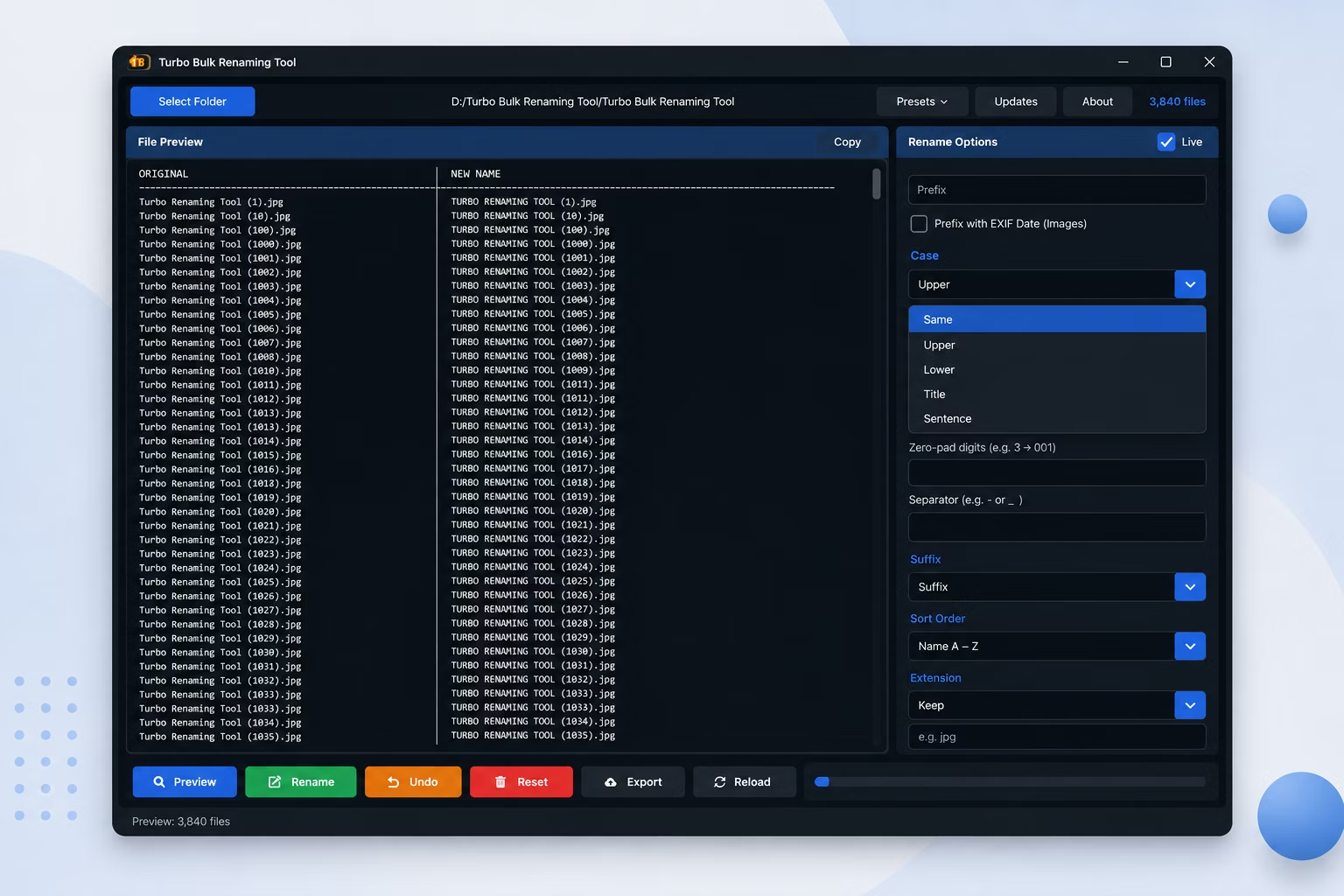
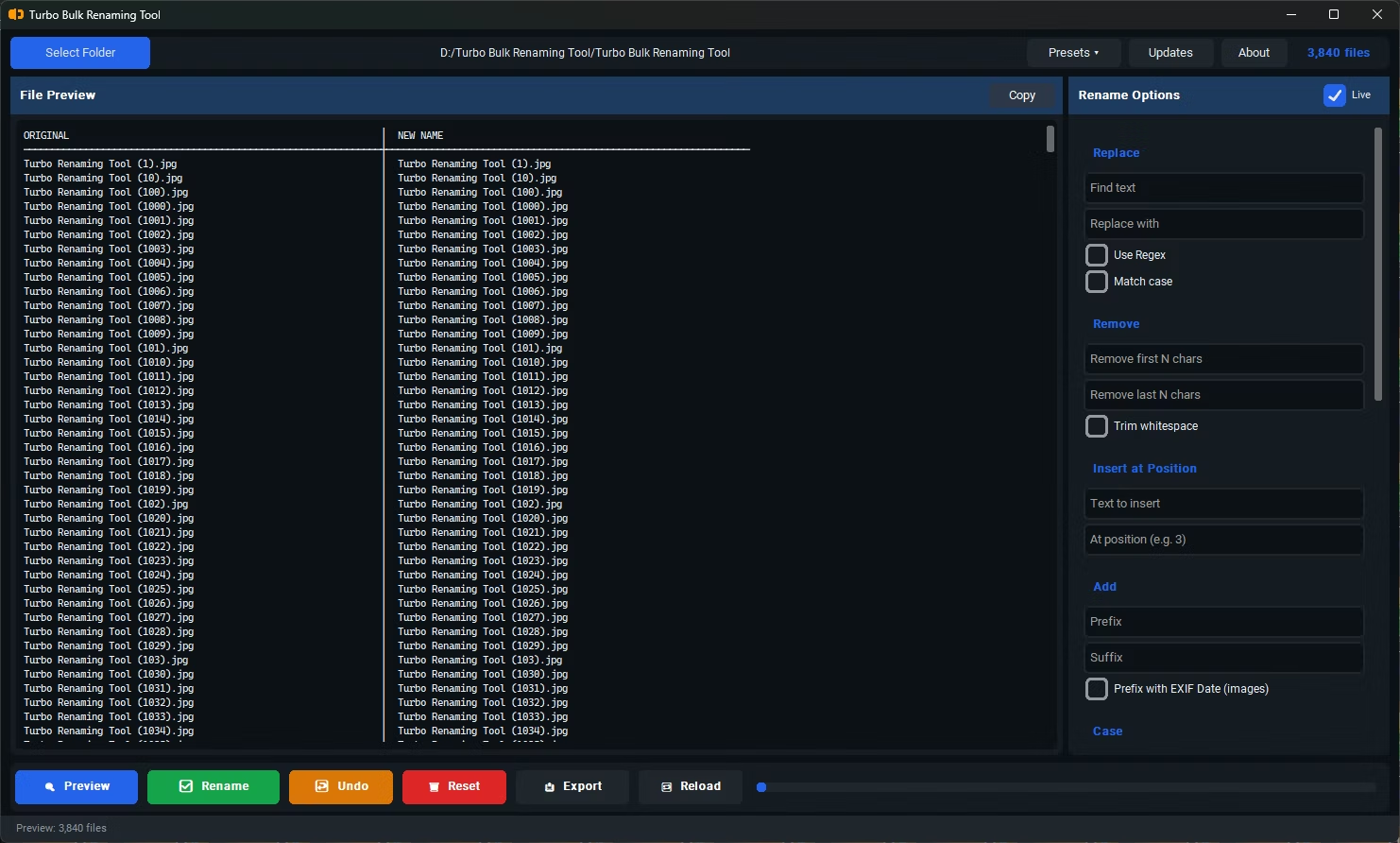
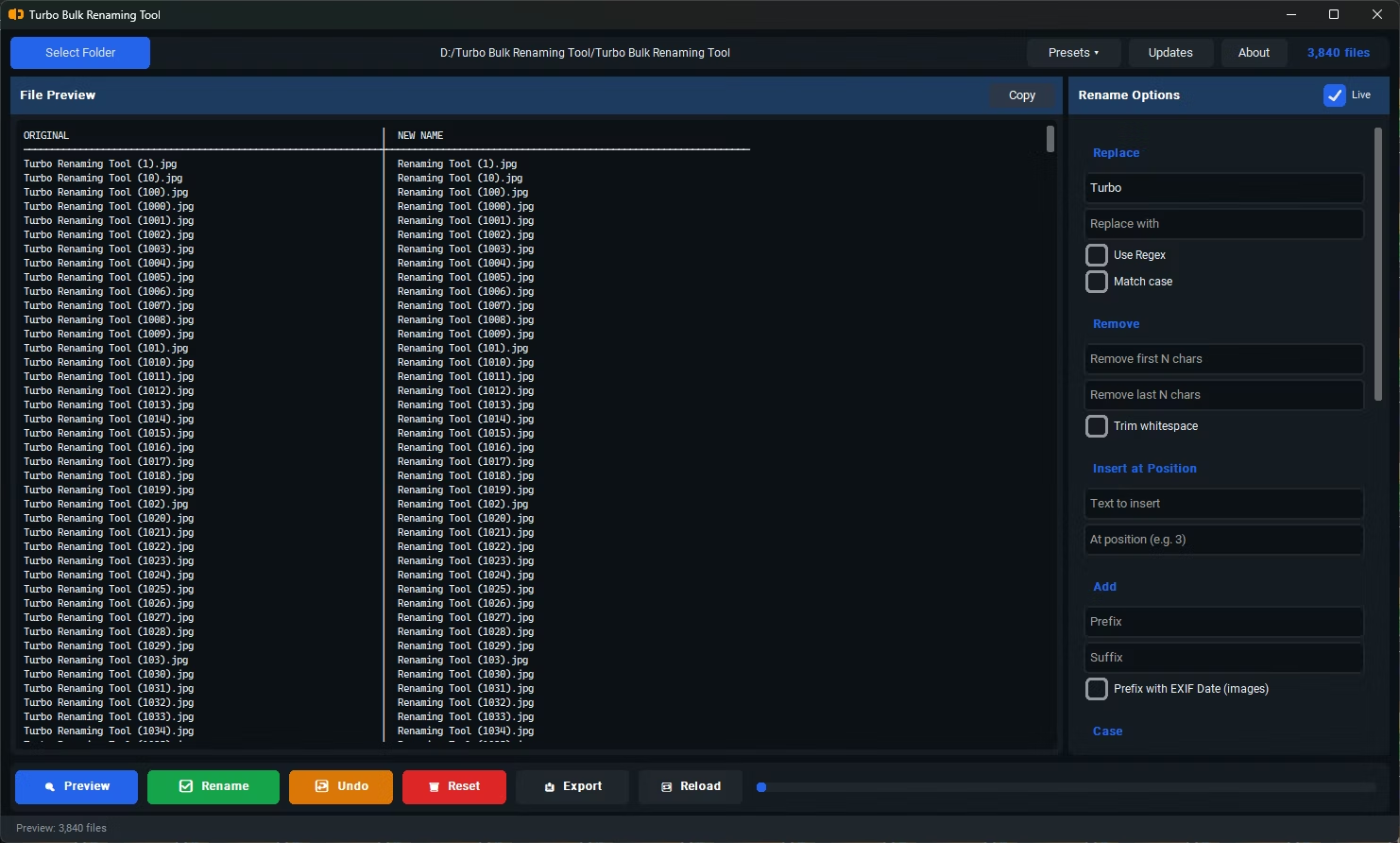
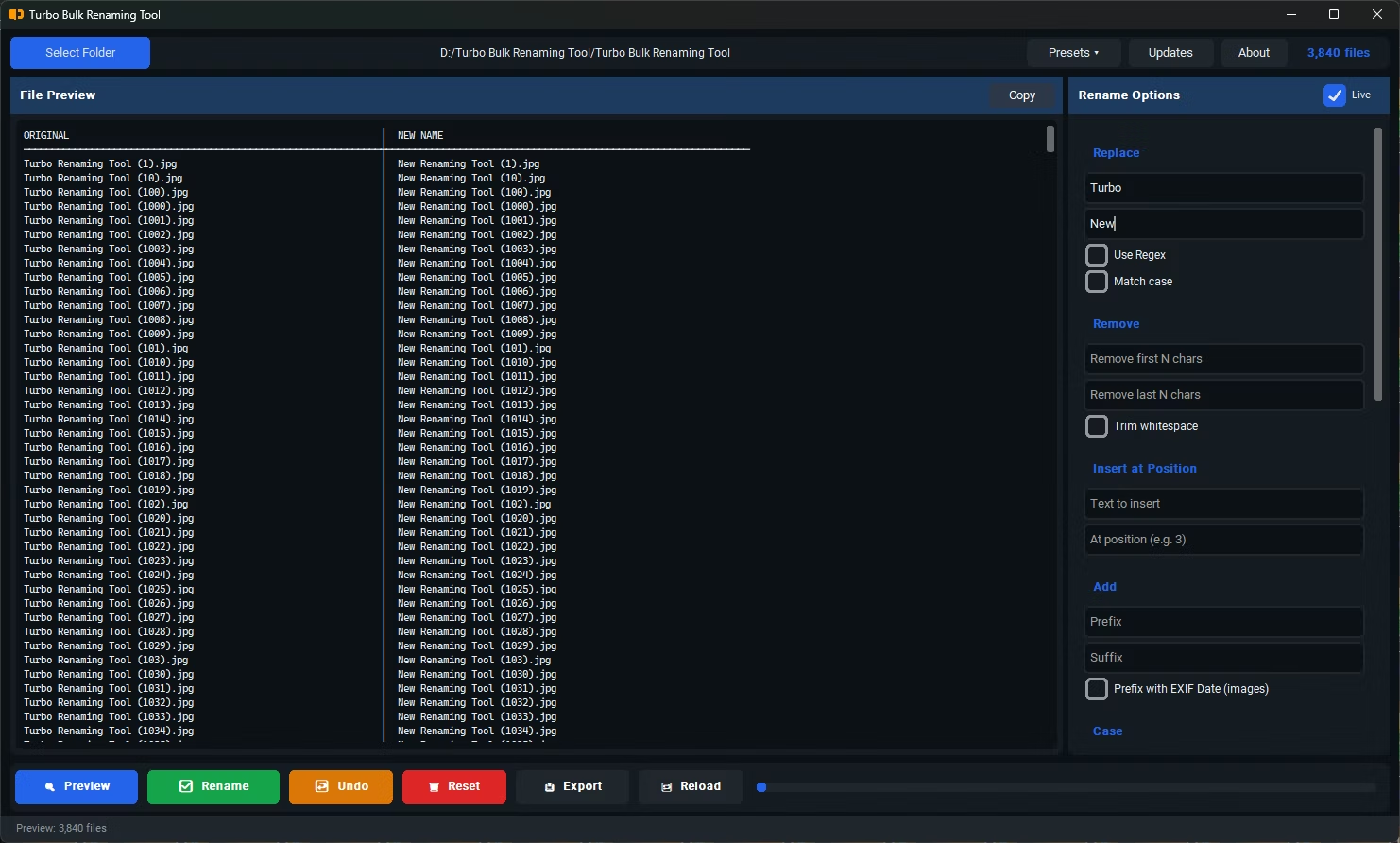
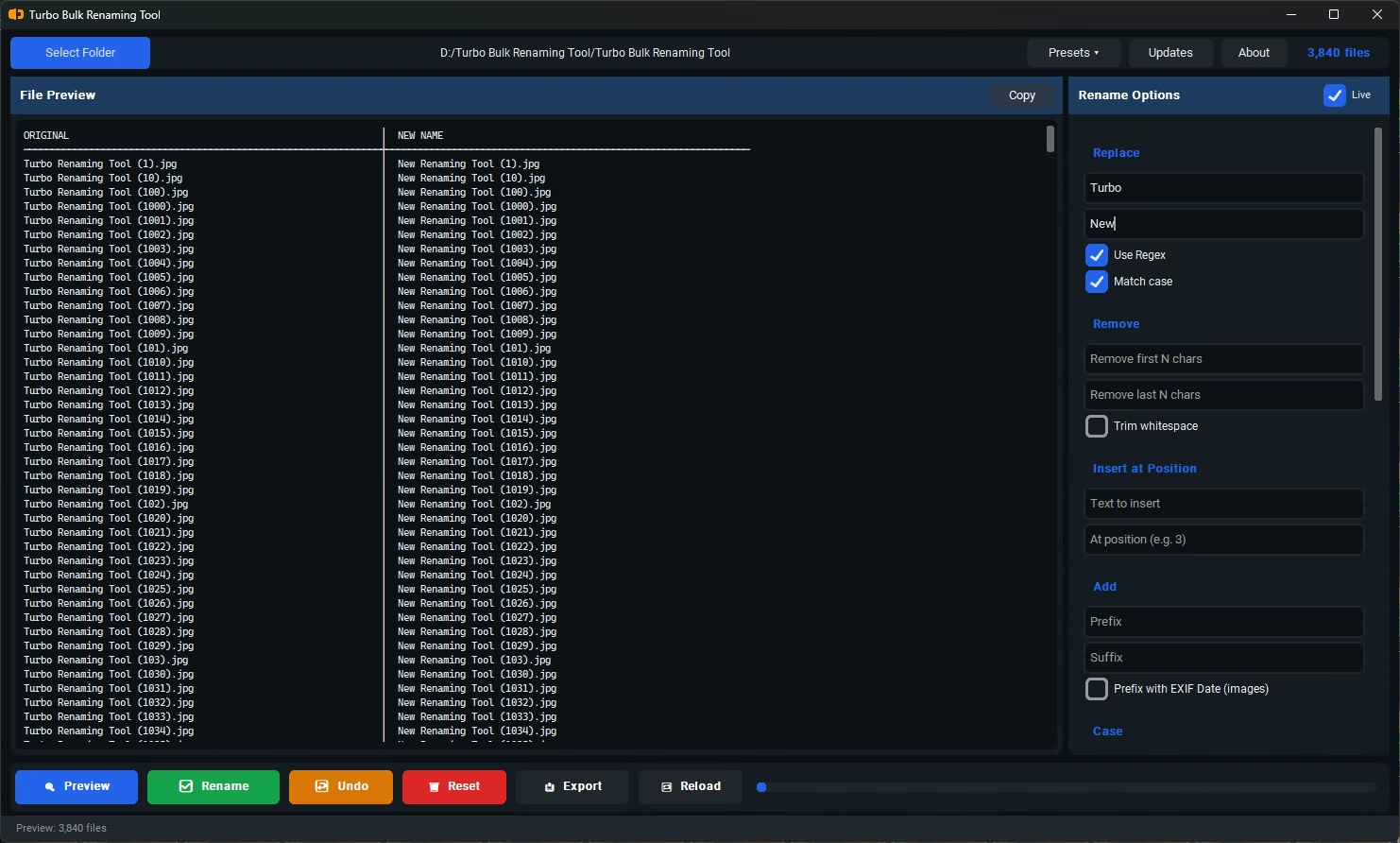
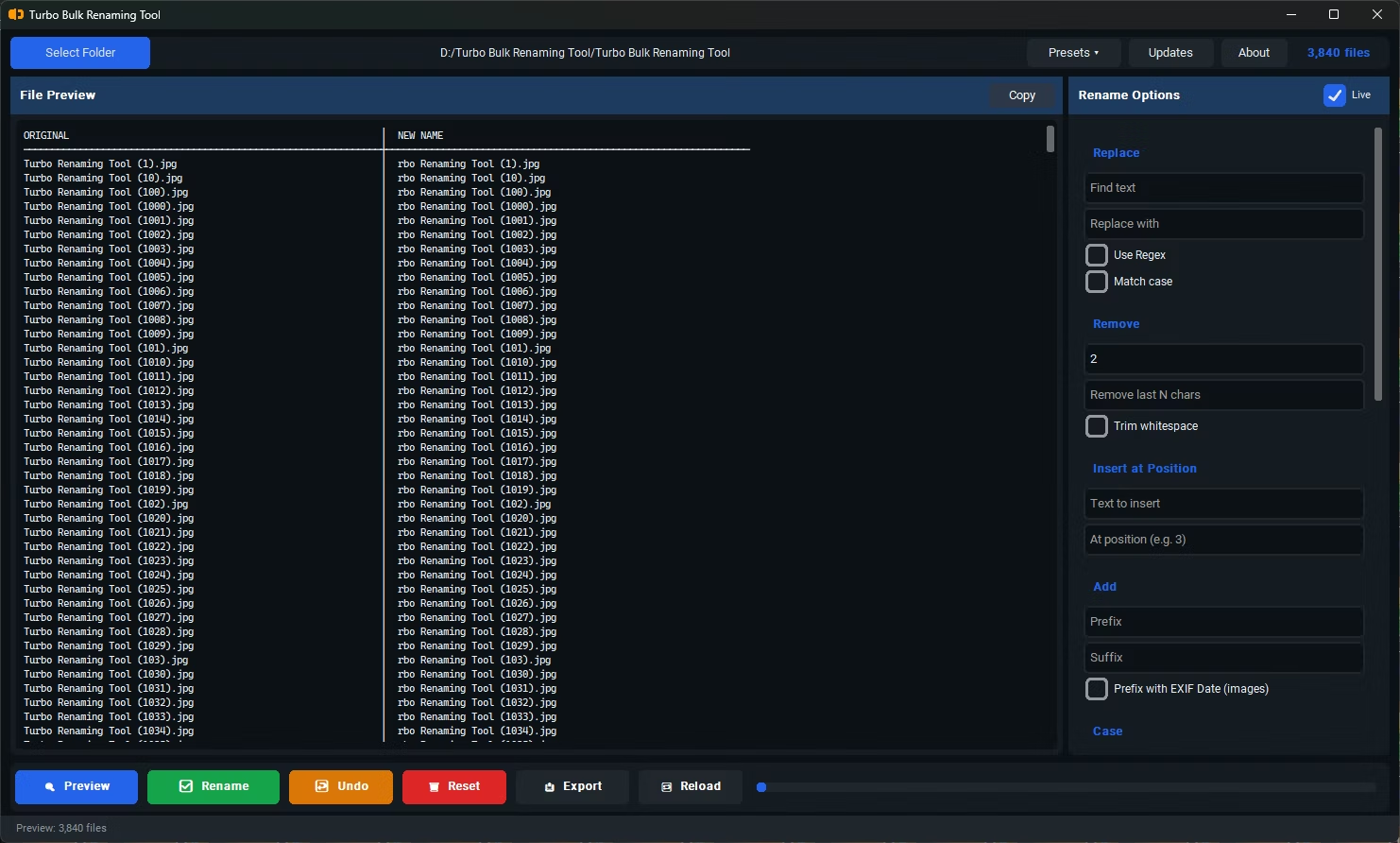
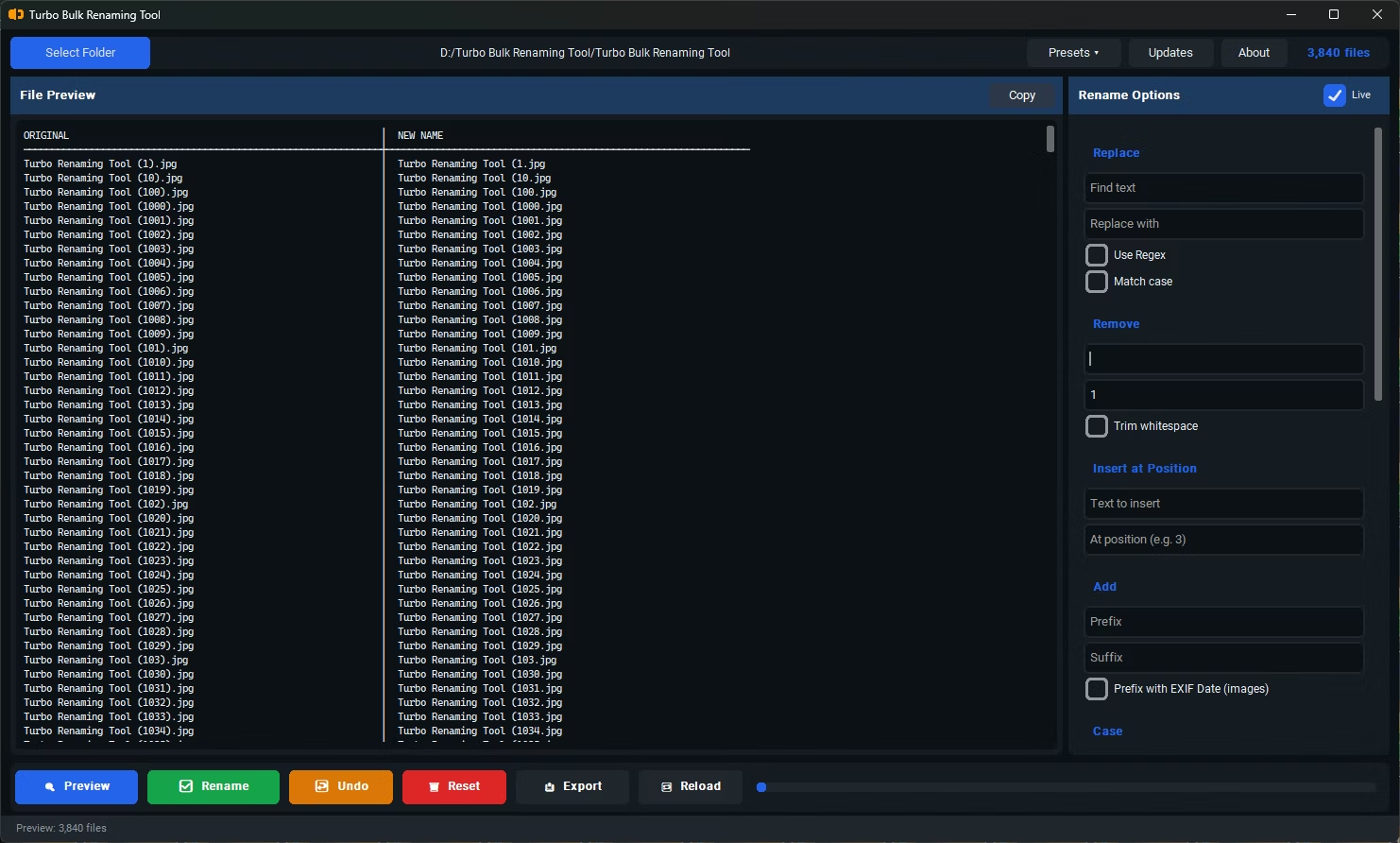
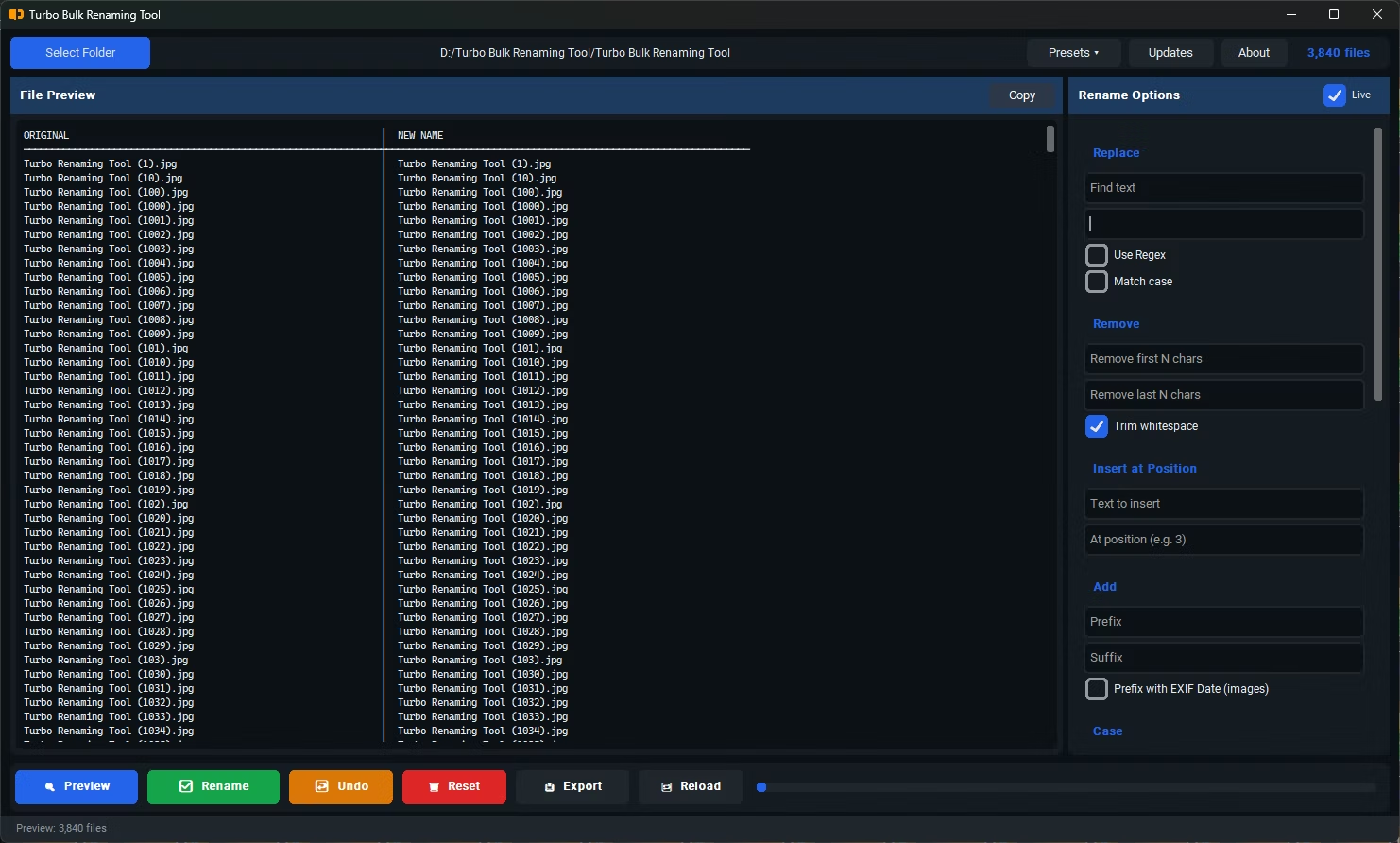
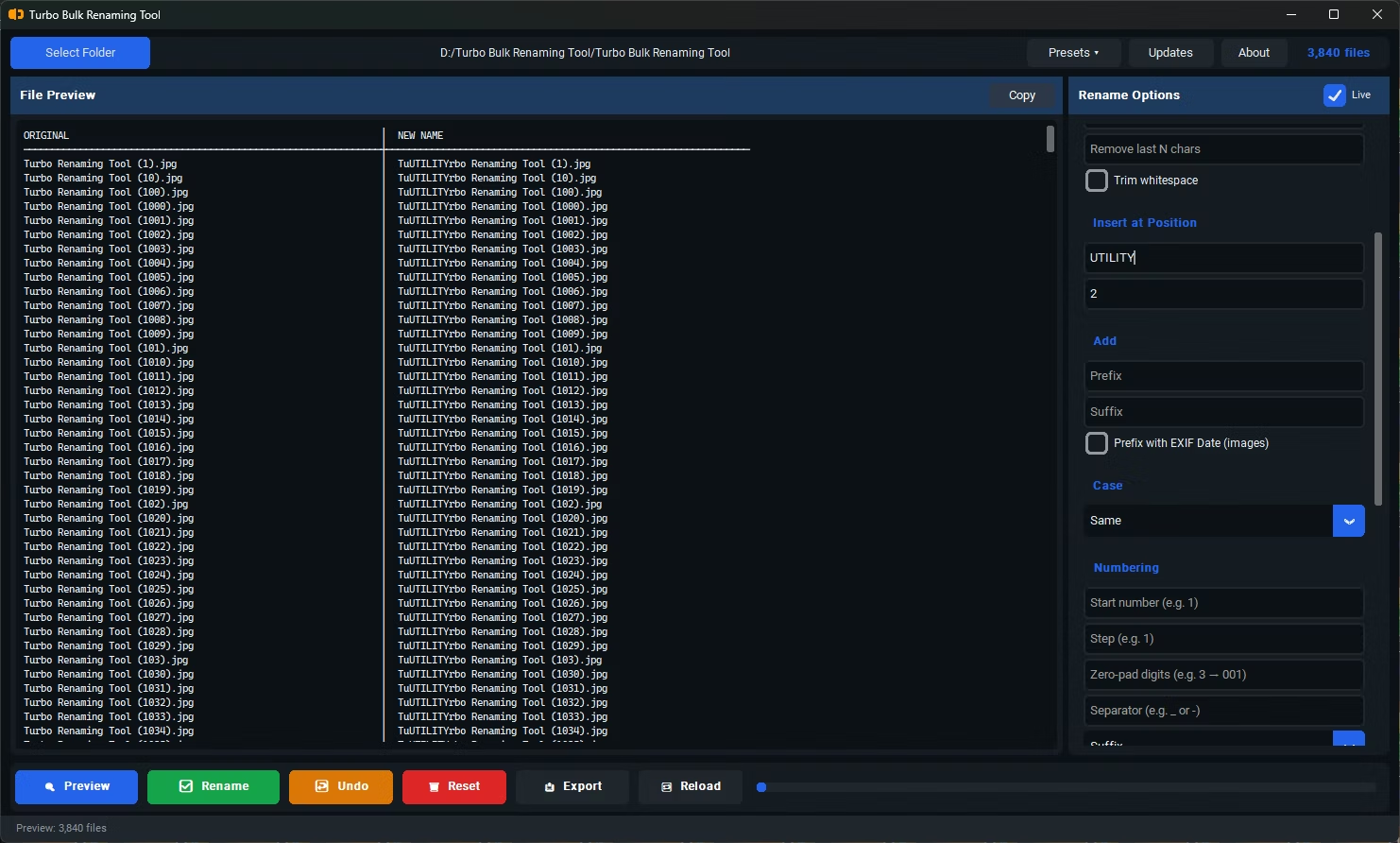
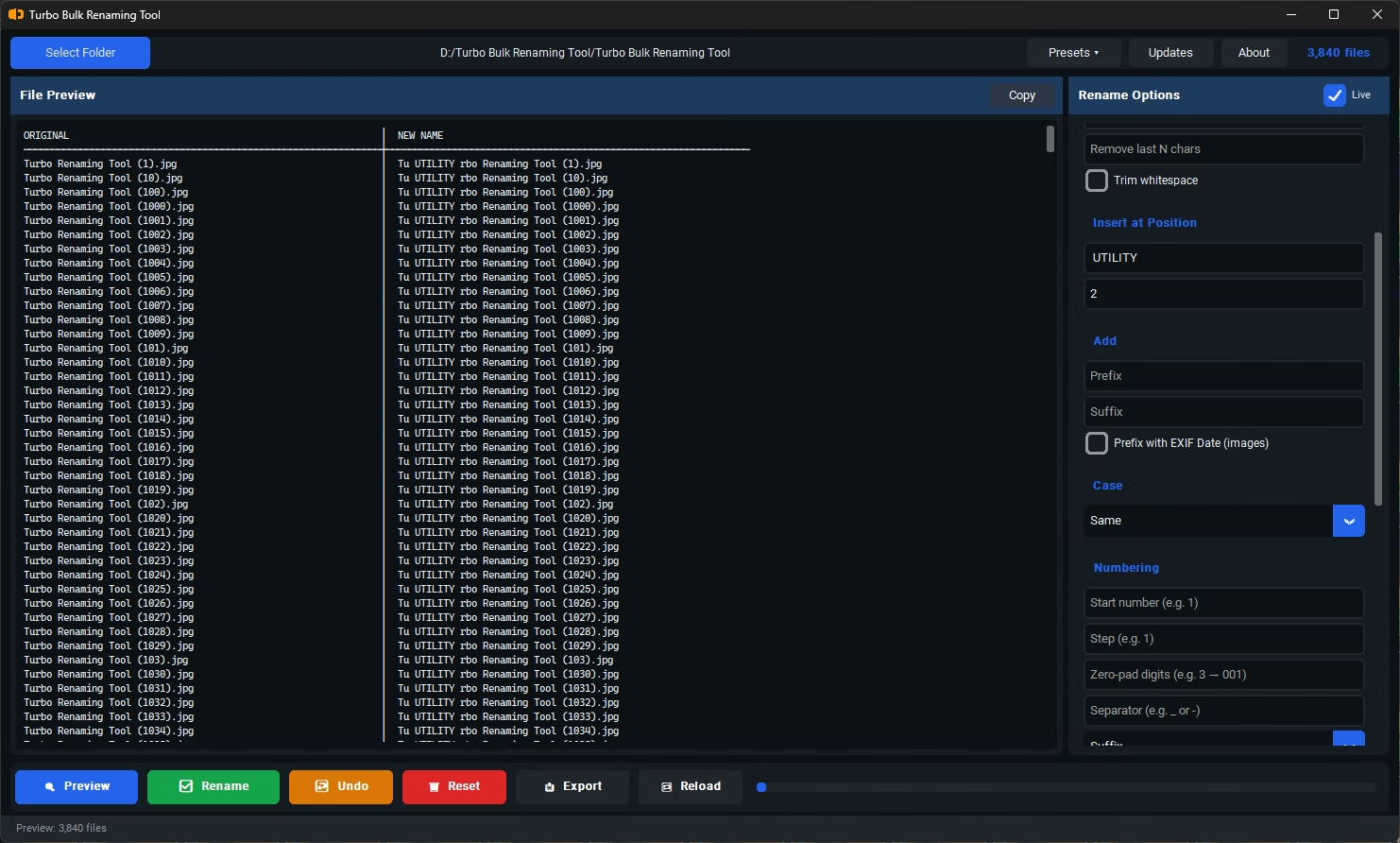
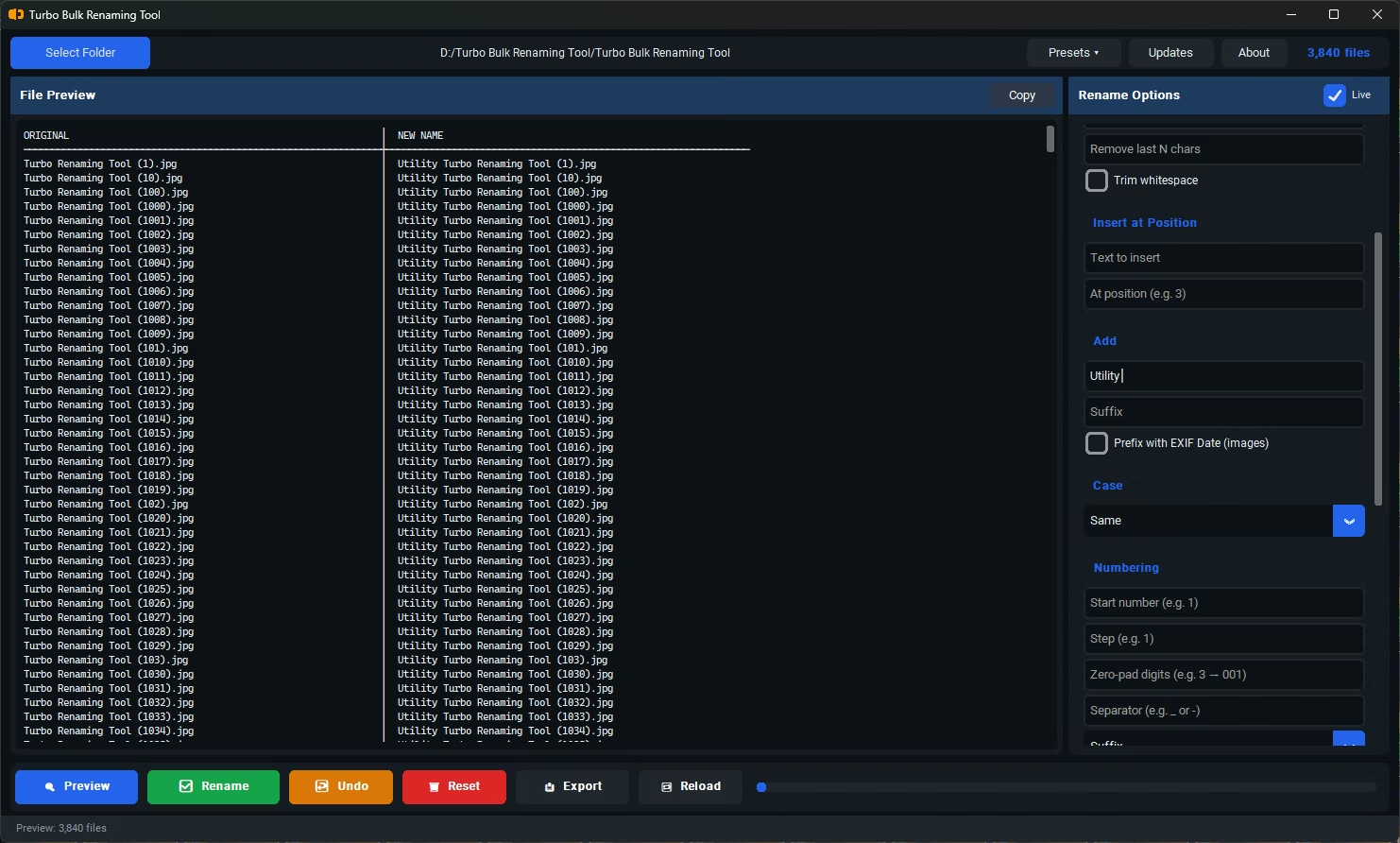
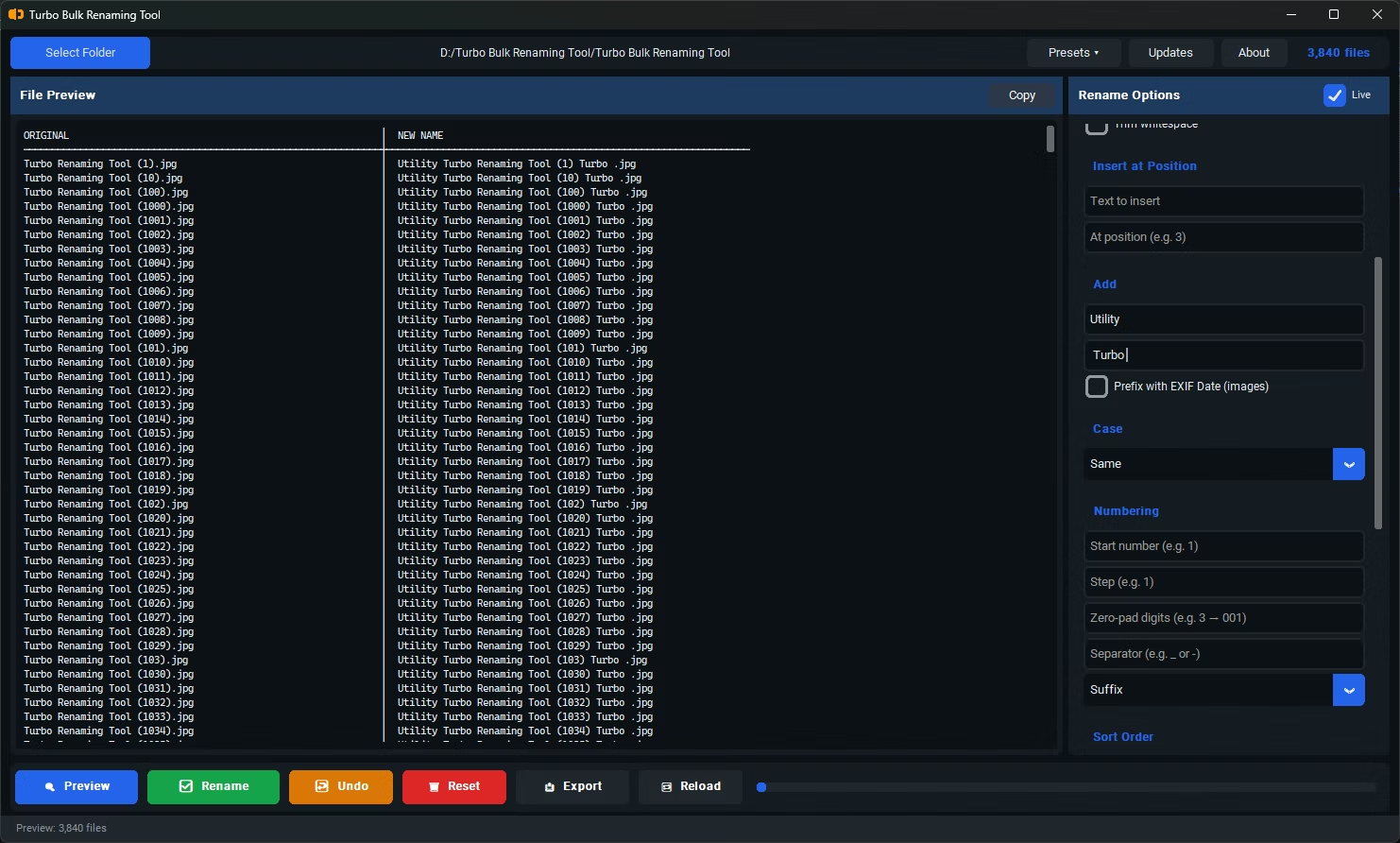
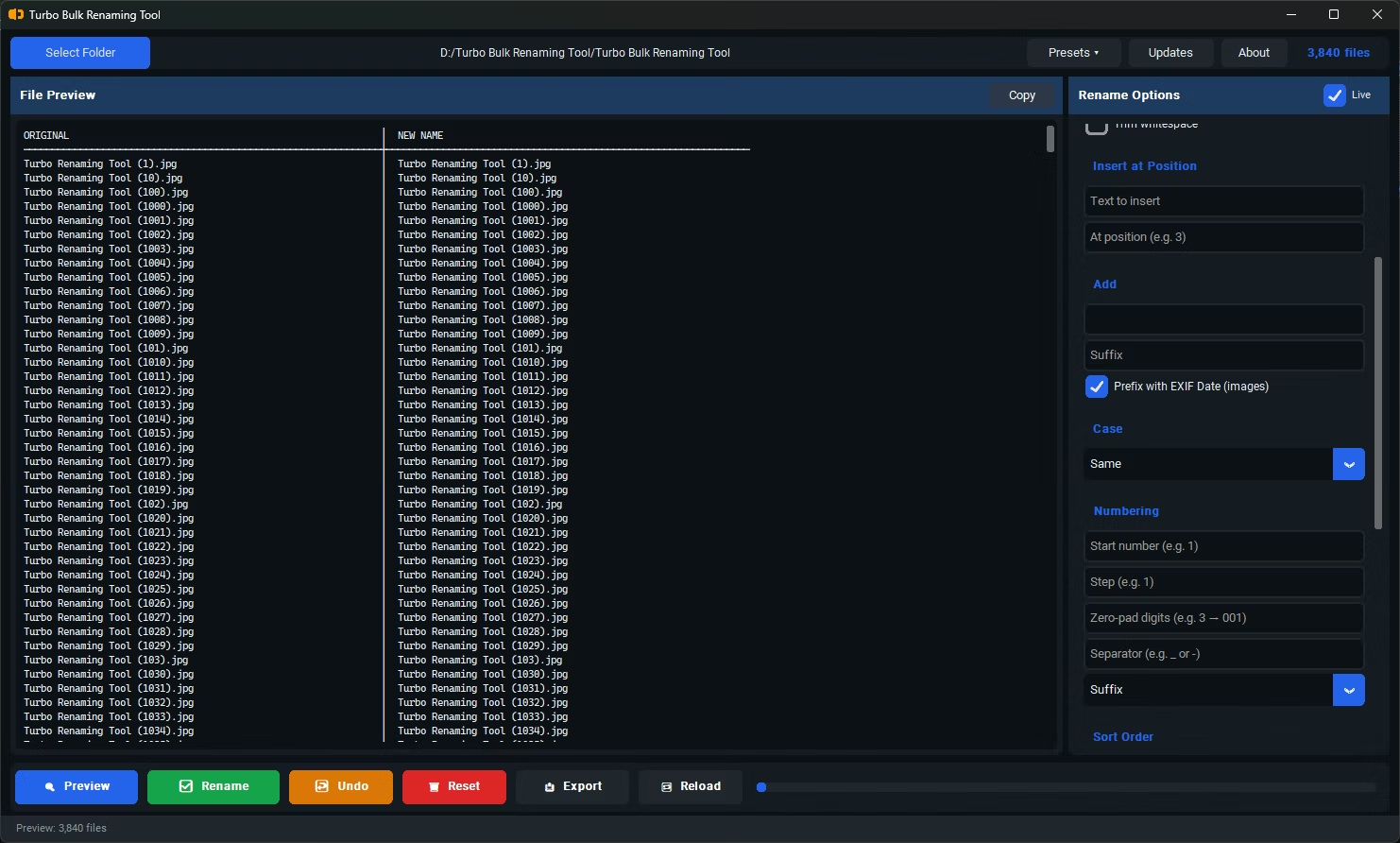
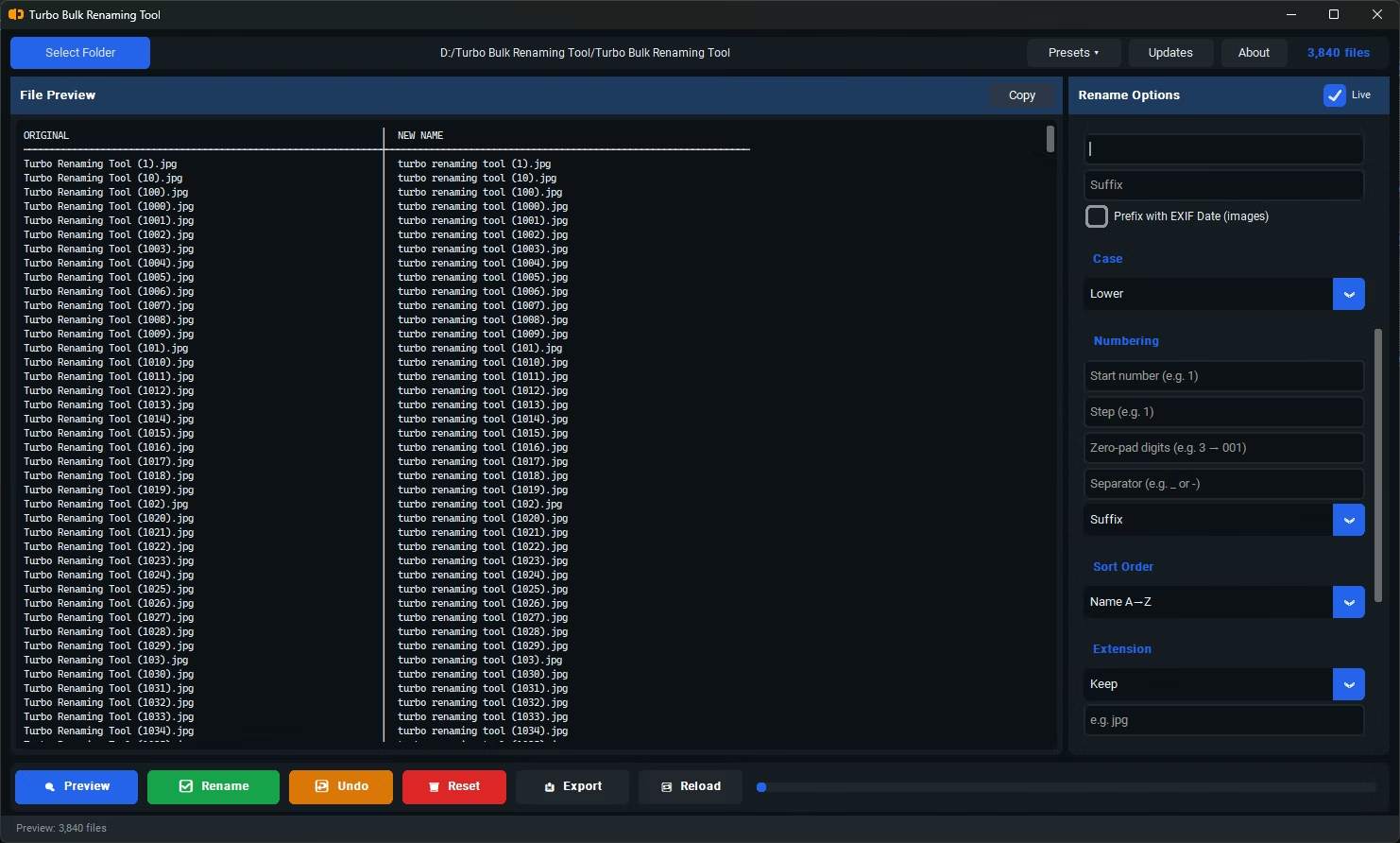
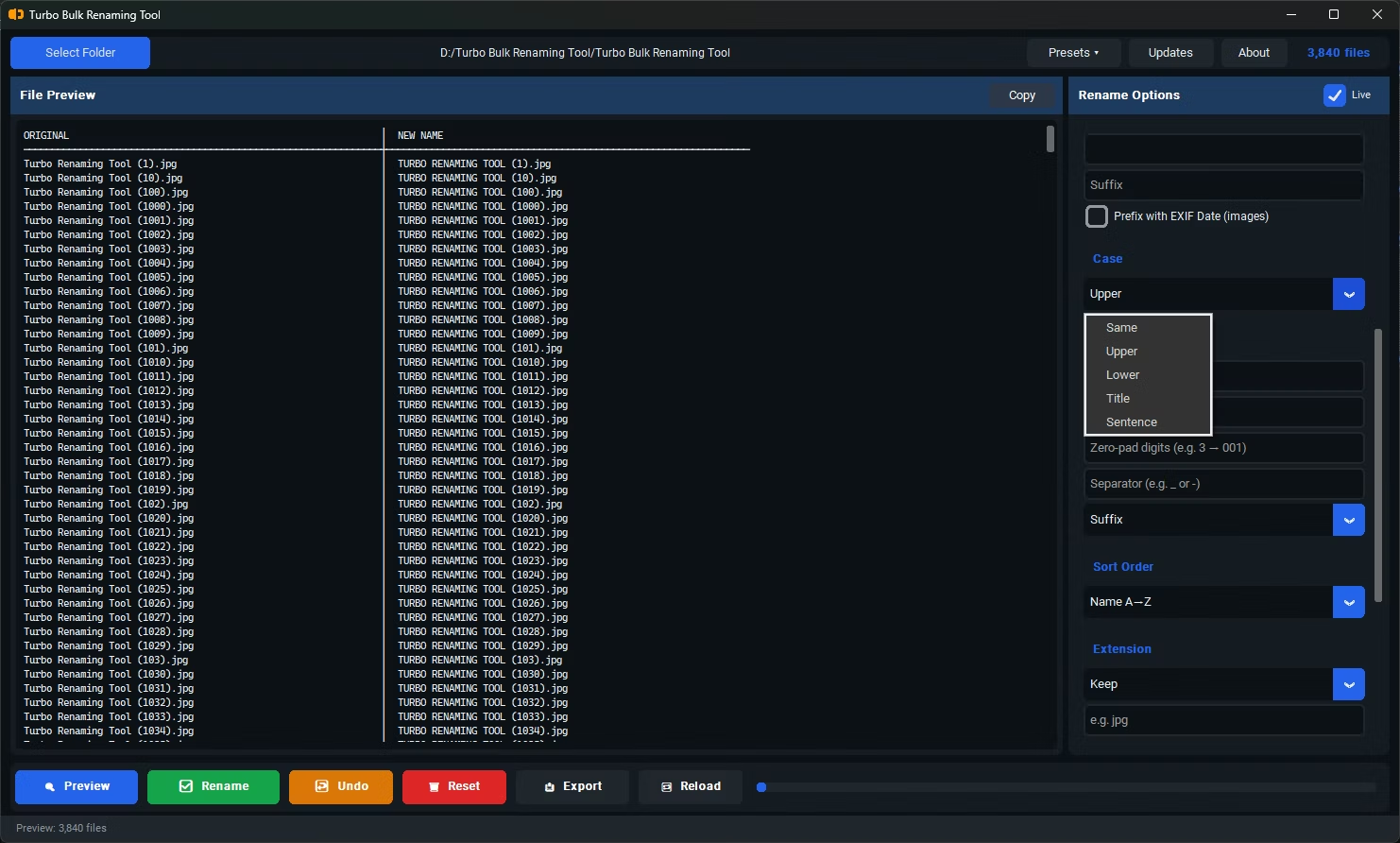
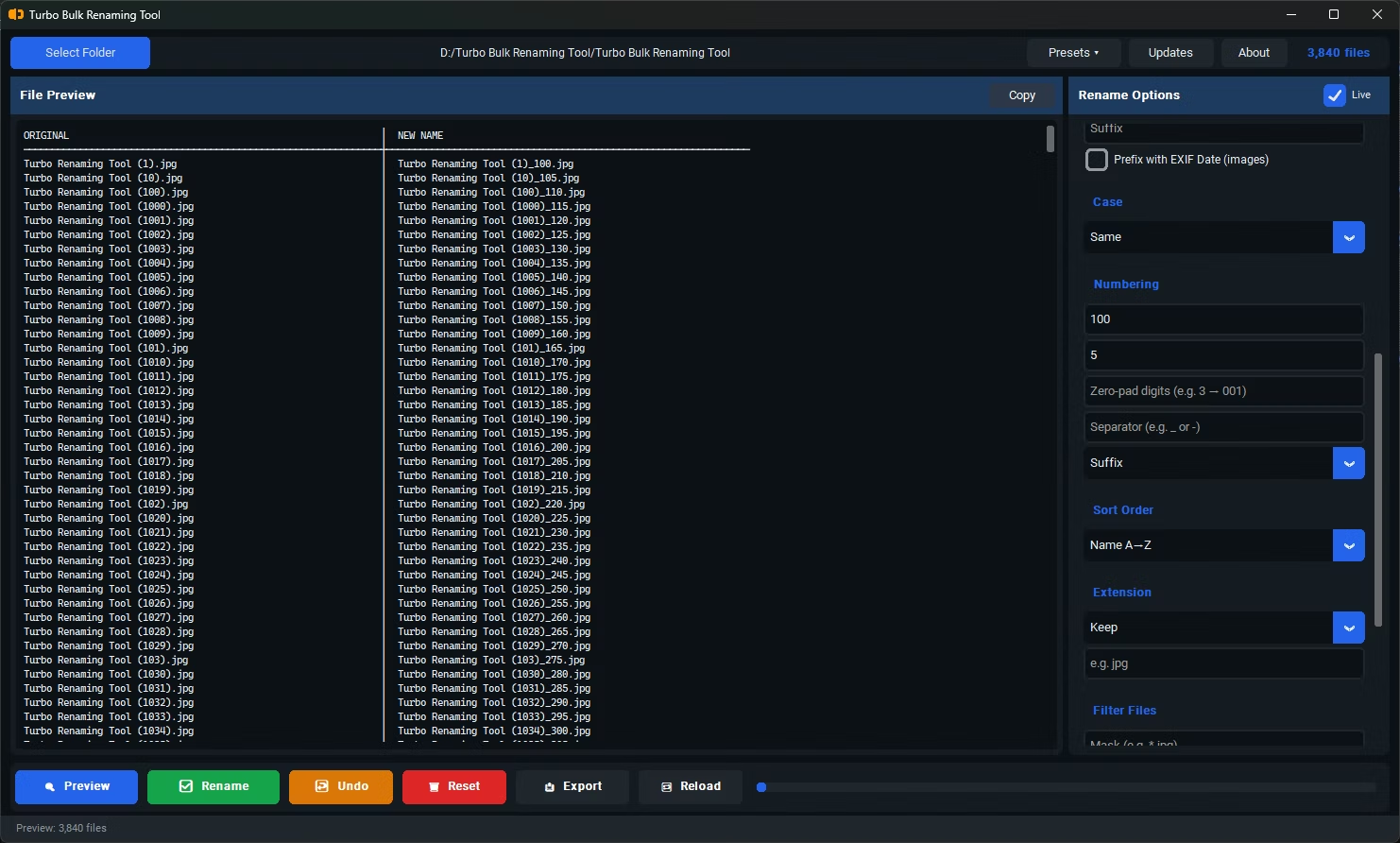
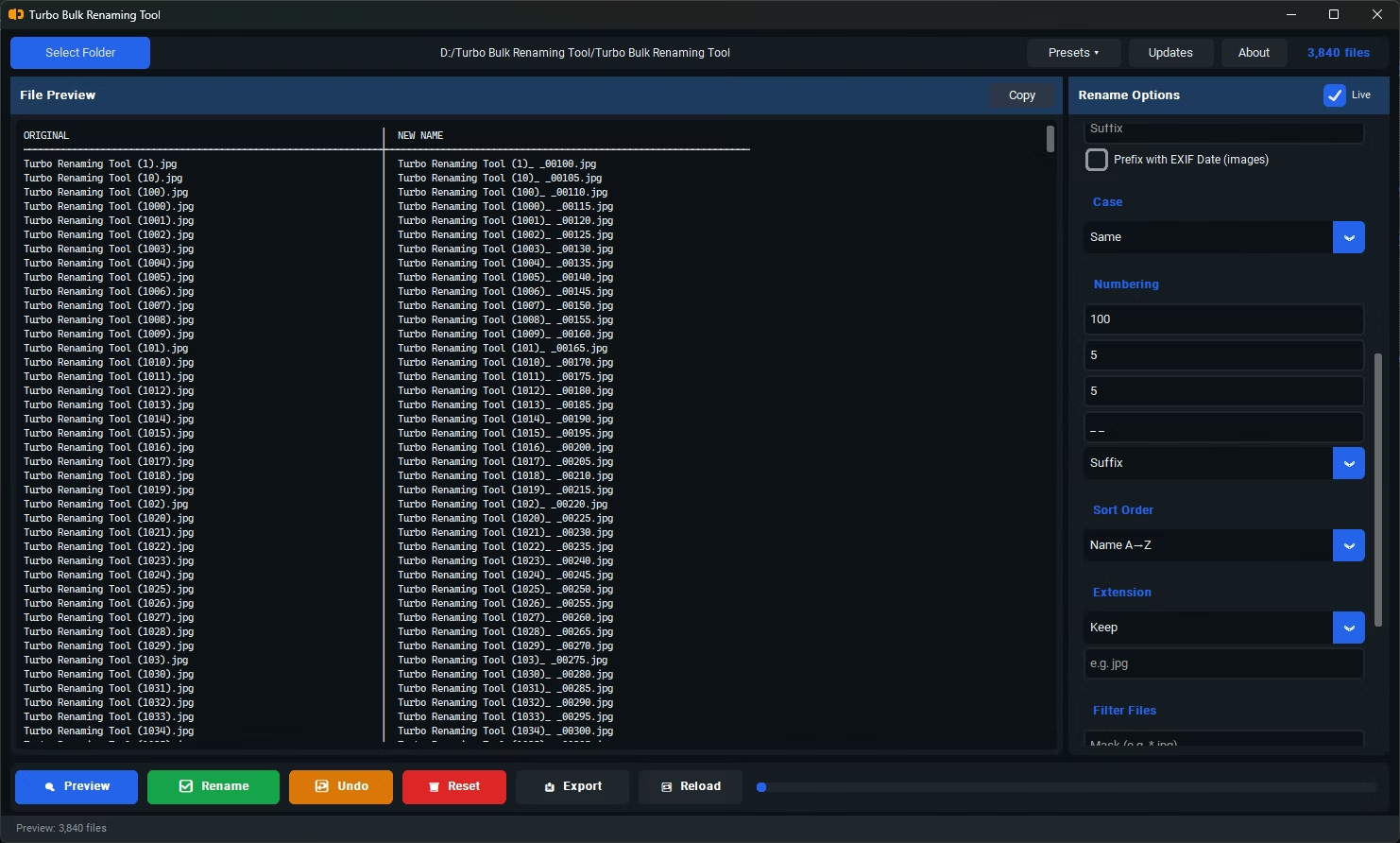
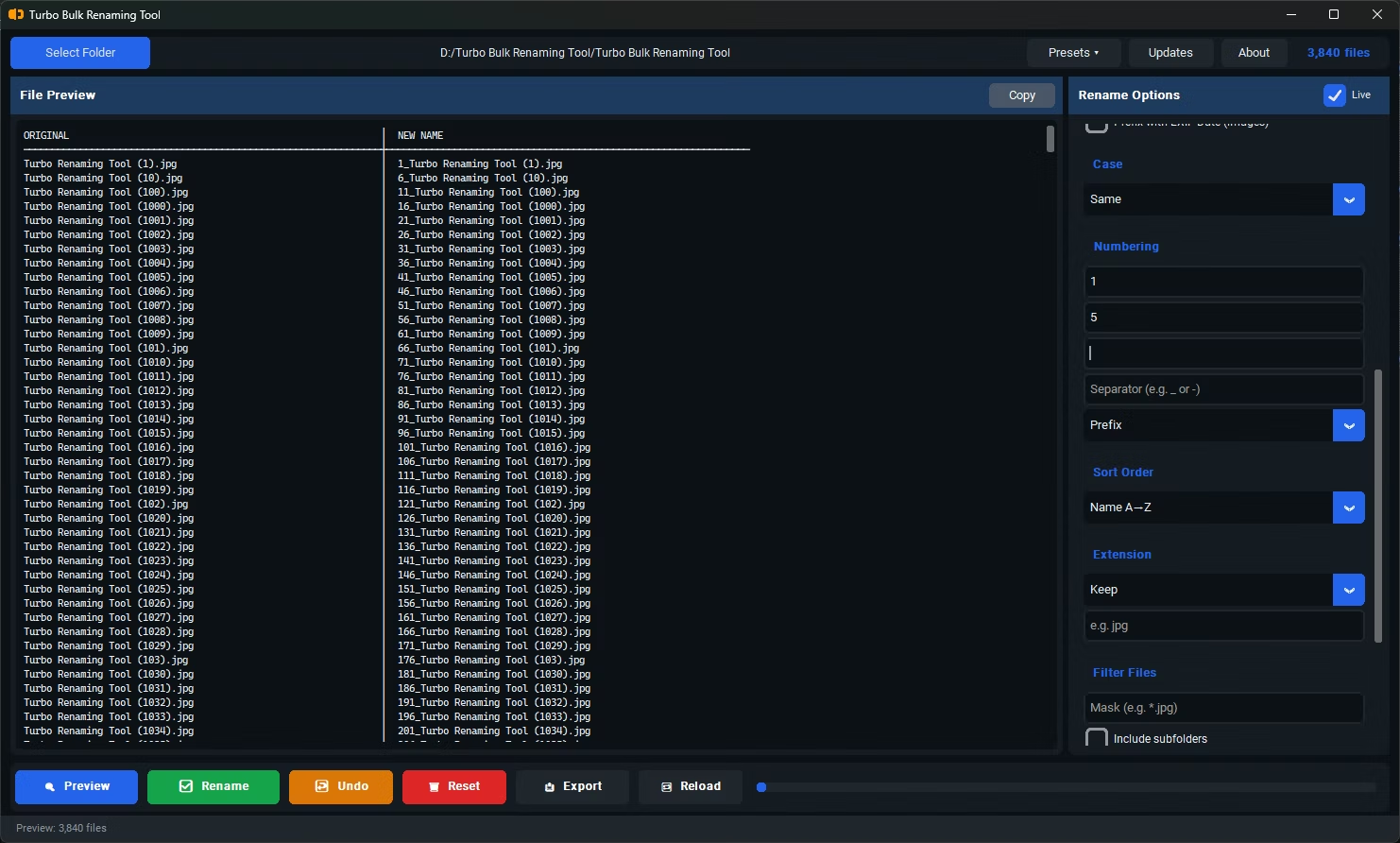
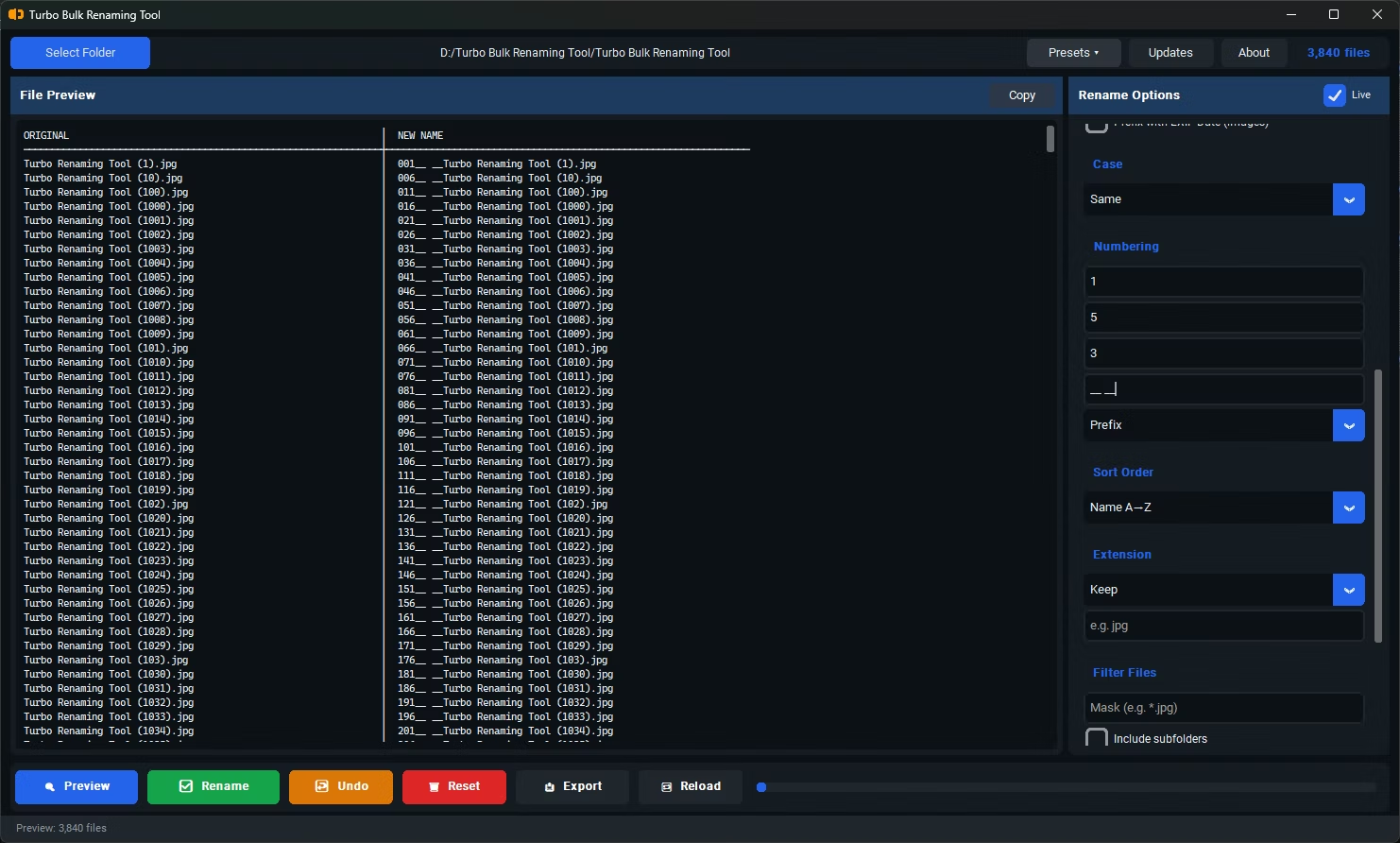
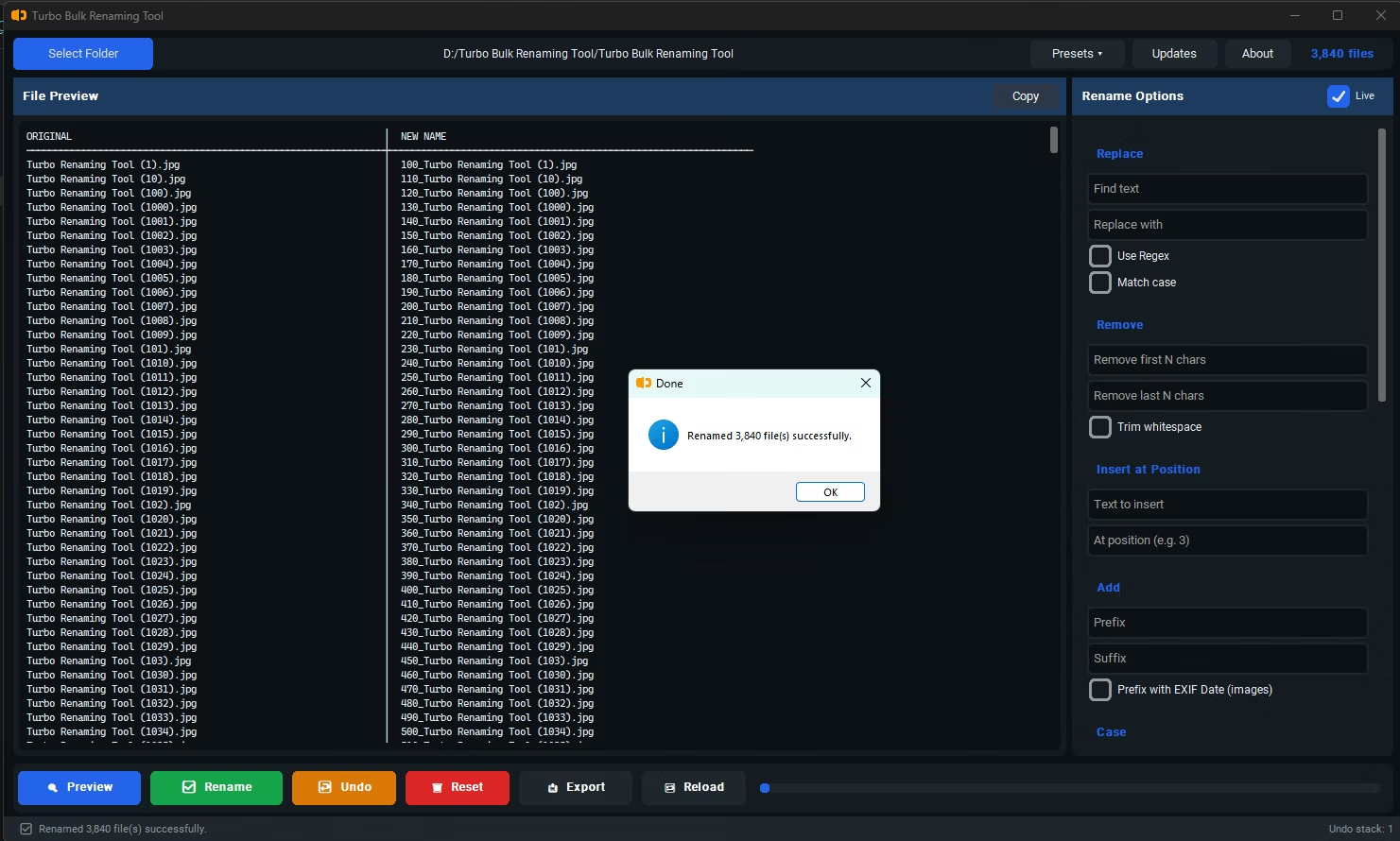
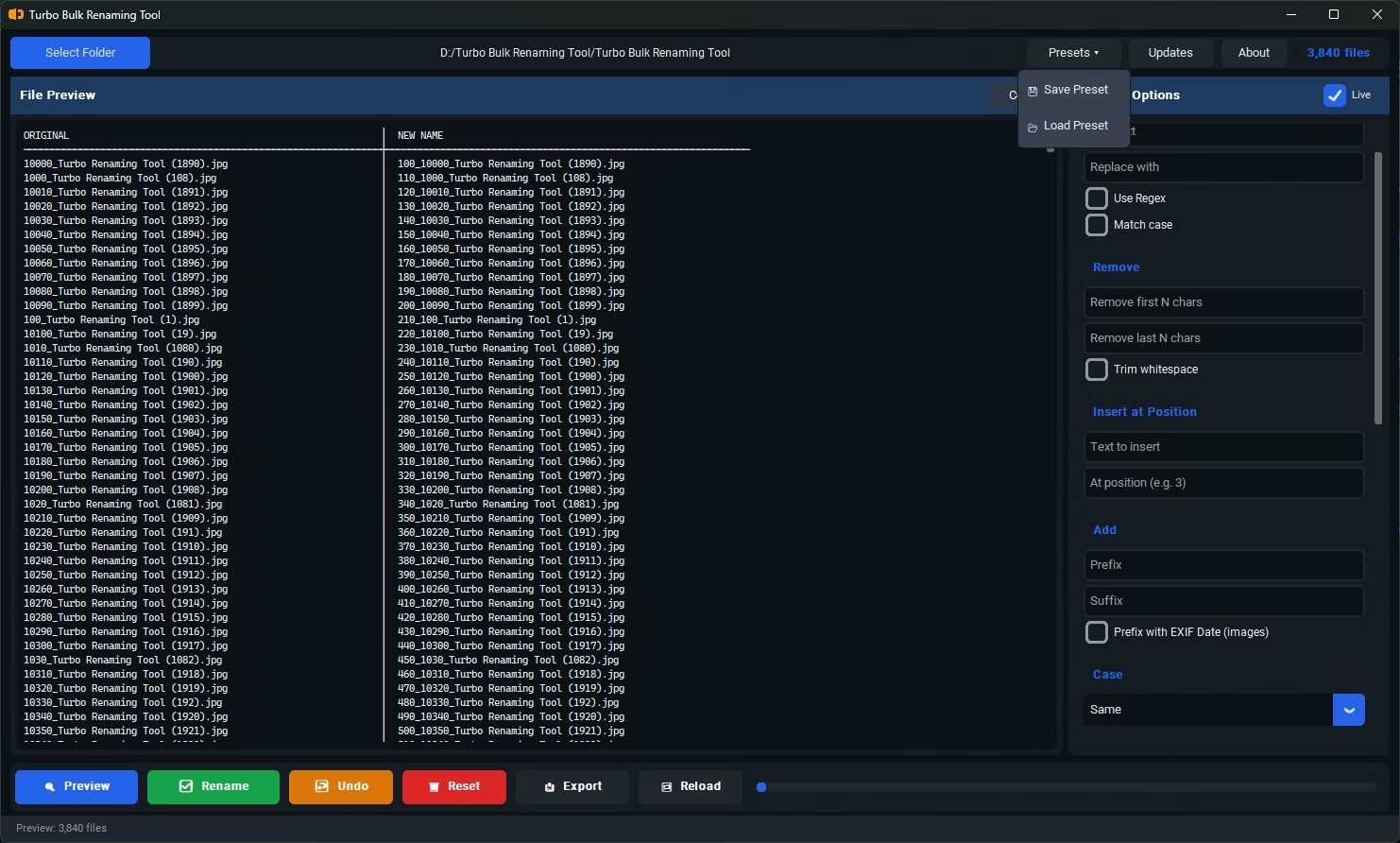
- Sequential numbering with custom start values and separators
- Find & Replace, ideally with optional regex support
- Case conversion (upper, lower, title case)
- Prefix and suffix insertion, including insert-at-position
- Remove First N or Last N characters, and whitespace trimming
- EXIF date-based renaming for photo collections
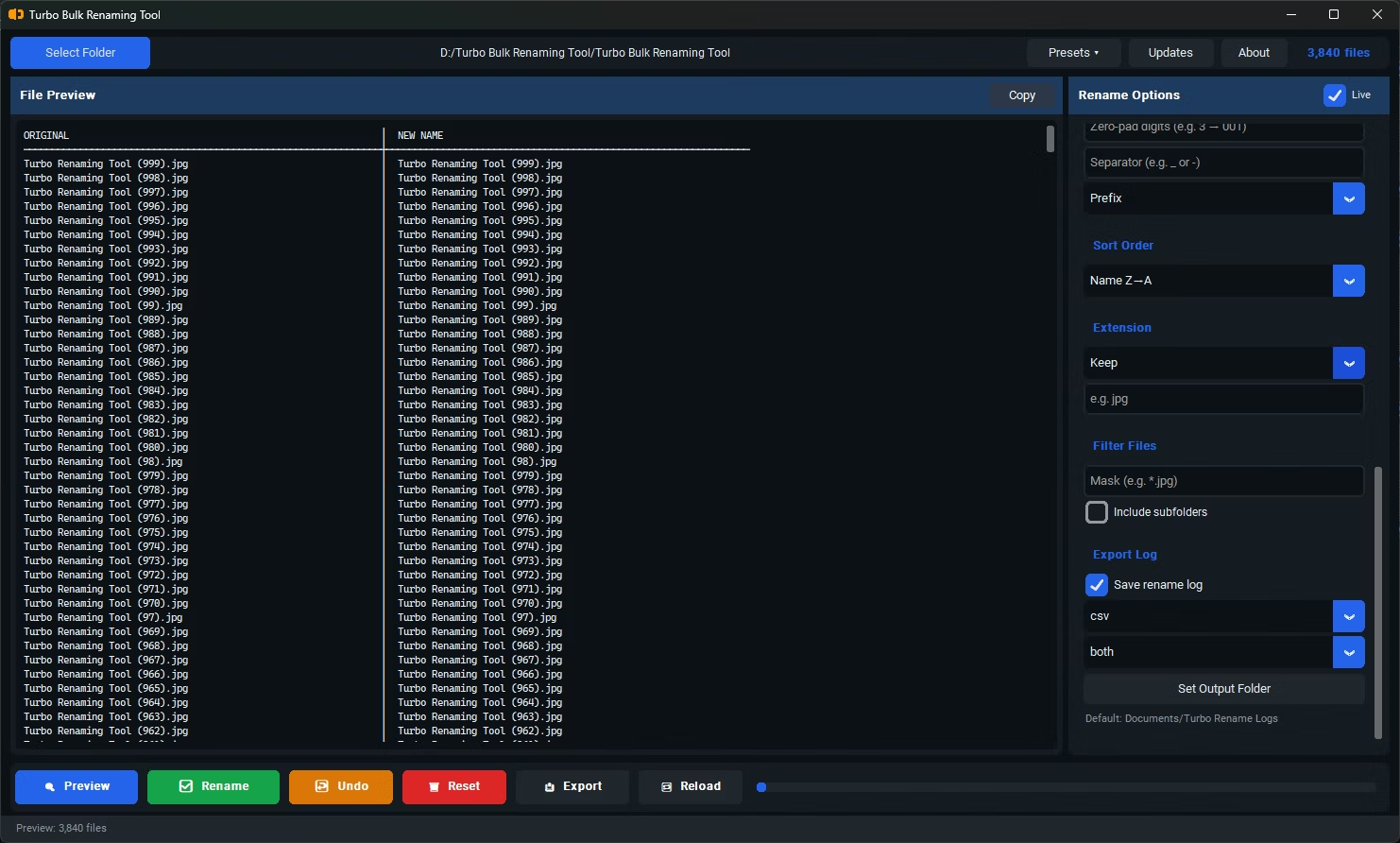
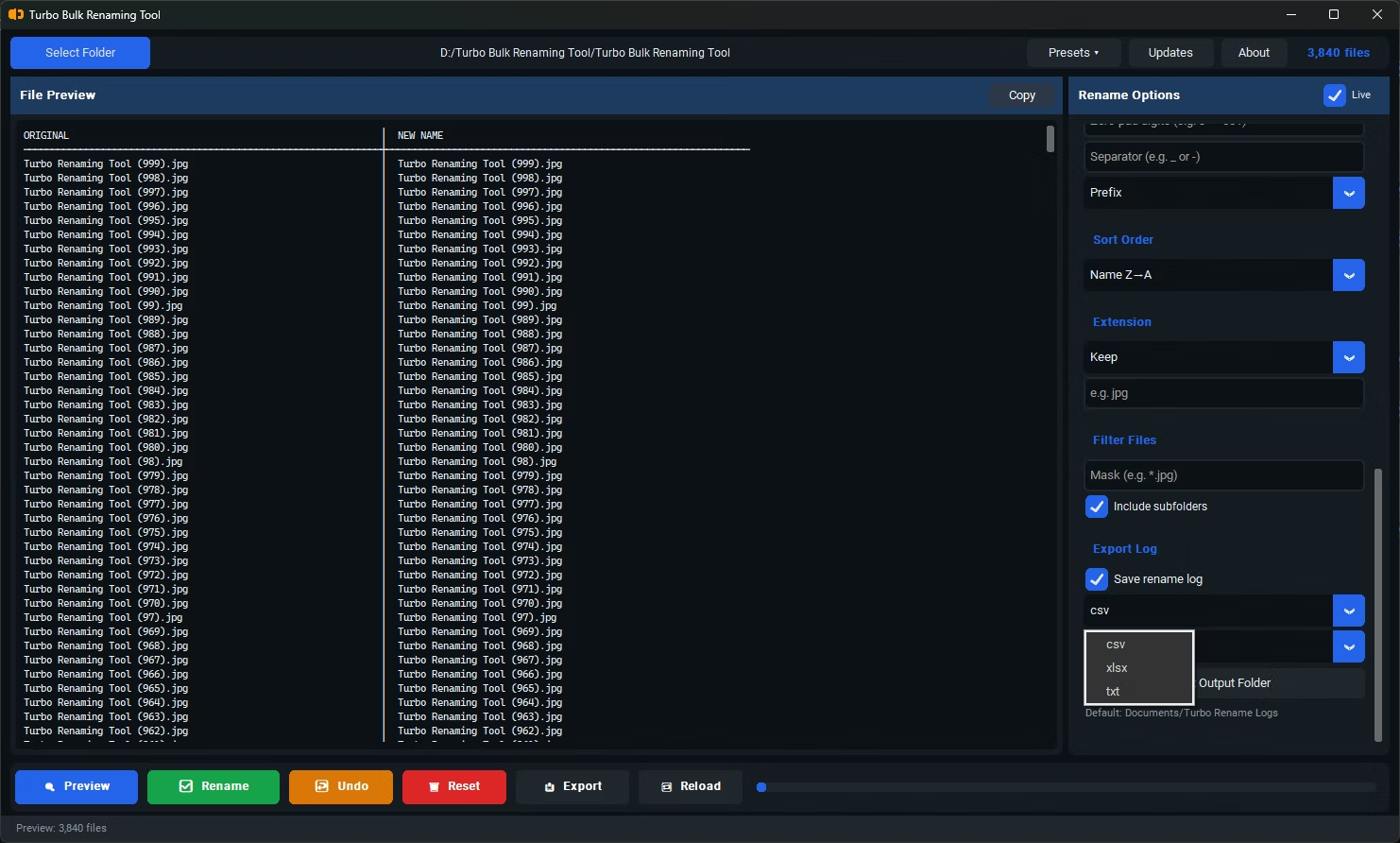
- Recursive sub-folder support and export of filenames to CSV or XLSX
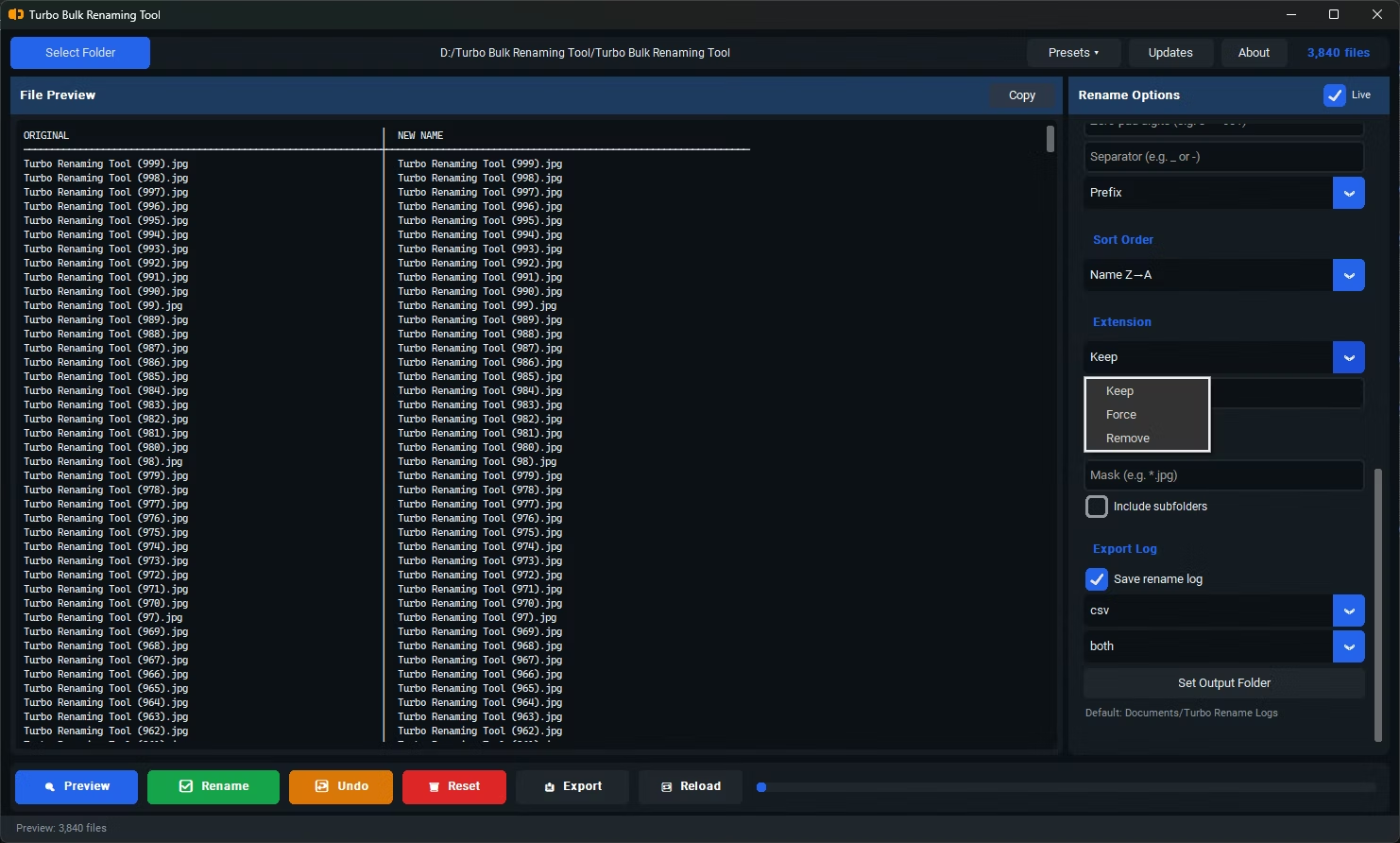
Batchify Batch File Rename Tool includes 15 renaming rules in total, covering everything in the checklist above: Find & Replace with optional regex, Sequential Numbering, Case Conversion, Insert at Position, Remove First or Last N Characters, Trim Whitespace, and EXIF Date Prefix for photos, among others. Every rule comes with a live preview so you see the exact outcome before committing, and recursive sub-folder support means the same rule set applies across nested folder structures.
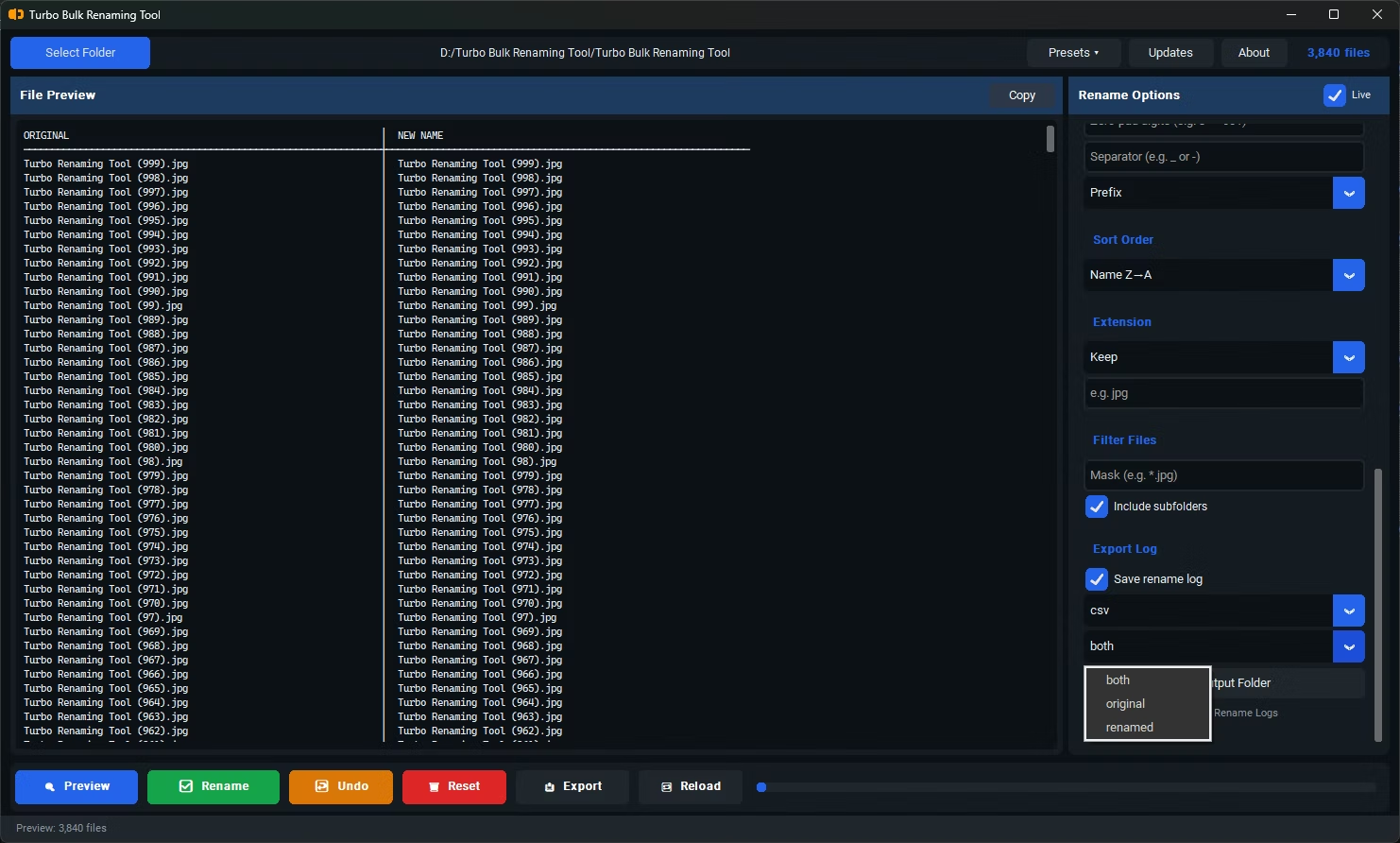
It also includes export functionality — generating a CSV, XLSX, or TXT file of original names, renamed names, or both side by side — along with one-level Undo and conflict detection to catch potential duplicate filenames before they happen.
Do I need regex support for everyday renaming?
Not usually. Most everyday renaming tasks are covered by simpler rules like Find & Replace or Sequential Numbering, but regex support is useful for more complex pattern-based renaming when you need it.
What is EXIF Date Prefix renaming useful for?
It reads the date a photo was taken from its metadata and prepends that date to the filename, which is helpful for organizing photo collections chronologically by filename alone.
Can I export a list of filenames after renaming?
Yes, the Export Only feature generates a CSV, XLSX, or TXT file with original names, renamed names, or both, useful for record-keeping or further processing.
Ready to rename your files in bulk, offline, with full privacy?