There's no single universal "best" file renamer — it depends on what you actually need to do. Someone organizing a handful of vacation photos has different requirements than an office worker batch-renaming thousands of scanned invoices, or a developer who needs regex-based pattern matching. The right way to compare renaming tools is against a consistent set of criteria, then judging how well each one fits your own workflow.
Built-in OS tools like Windows Explorer's rename feature are convenient for tiny batches but limited in pattern control. Dedicated renaming software exists specifically to remove those limitations.
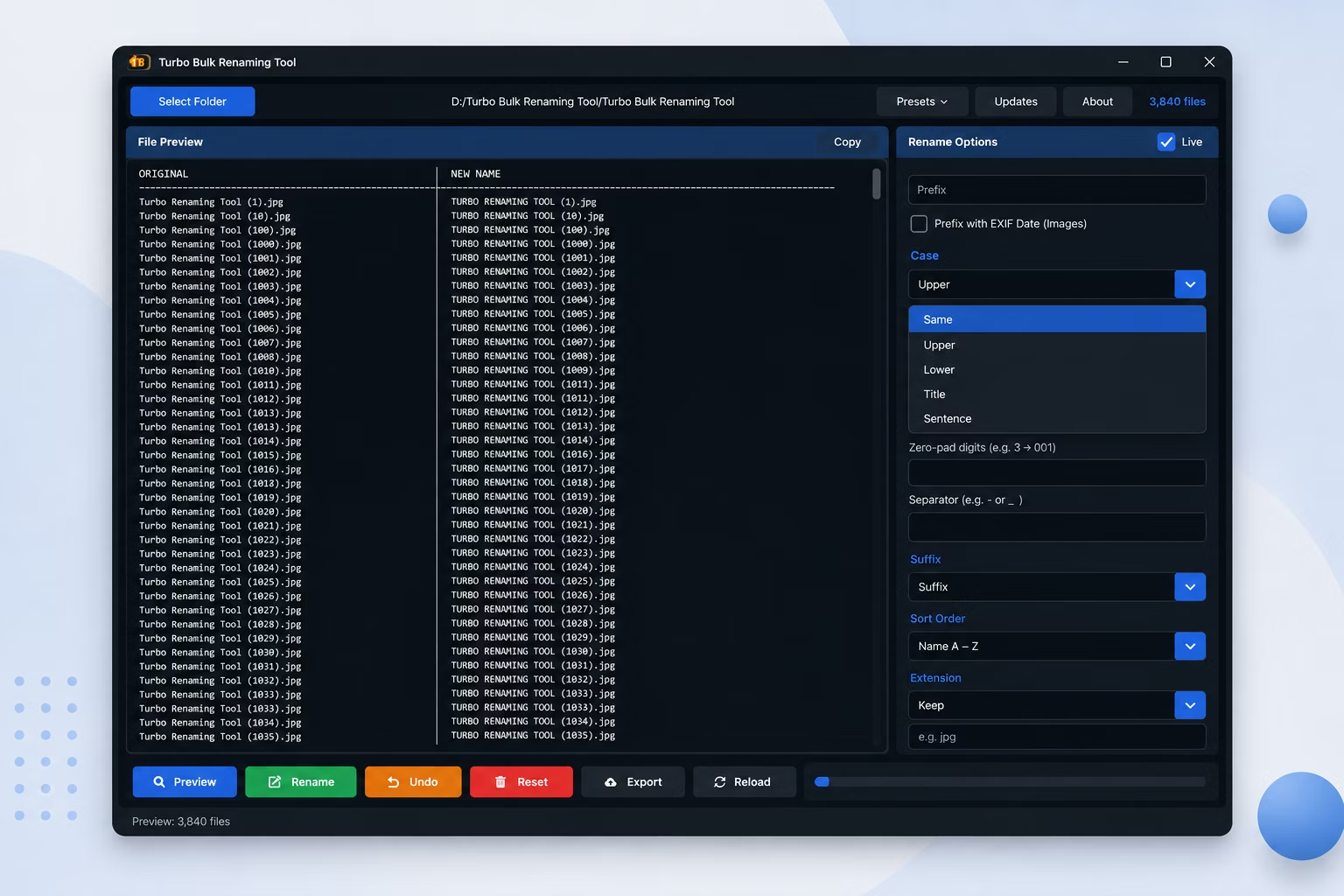
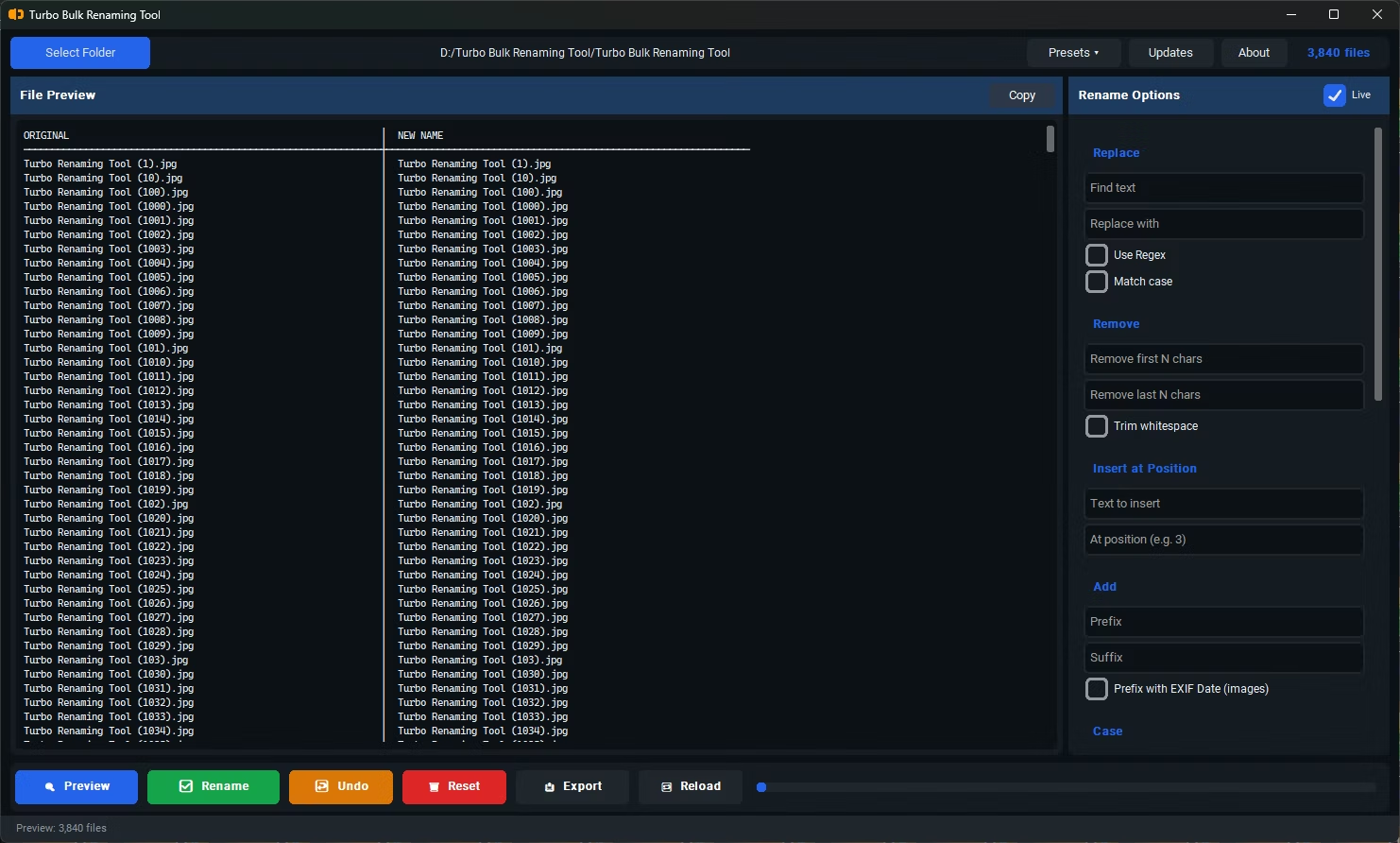
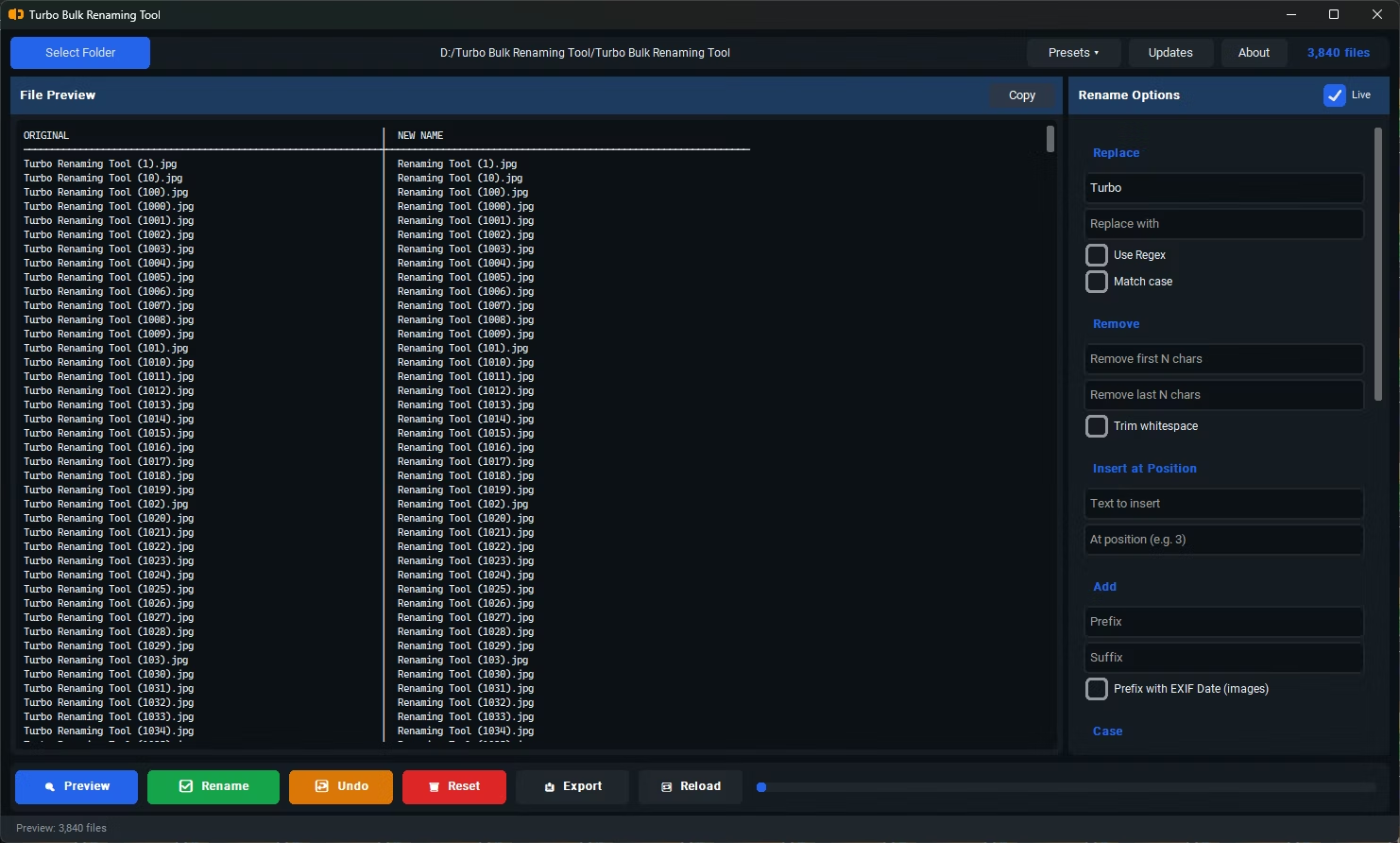
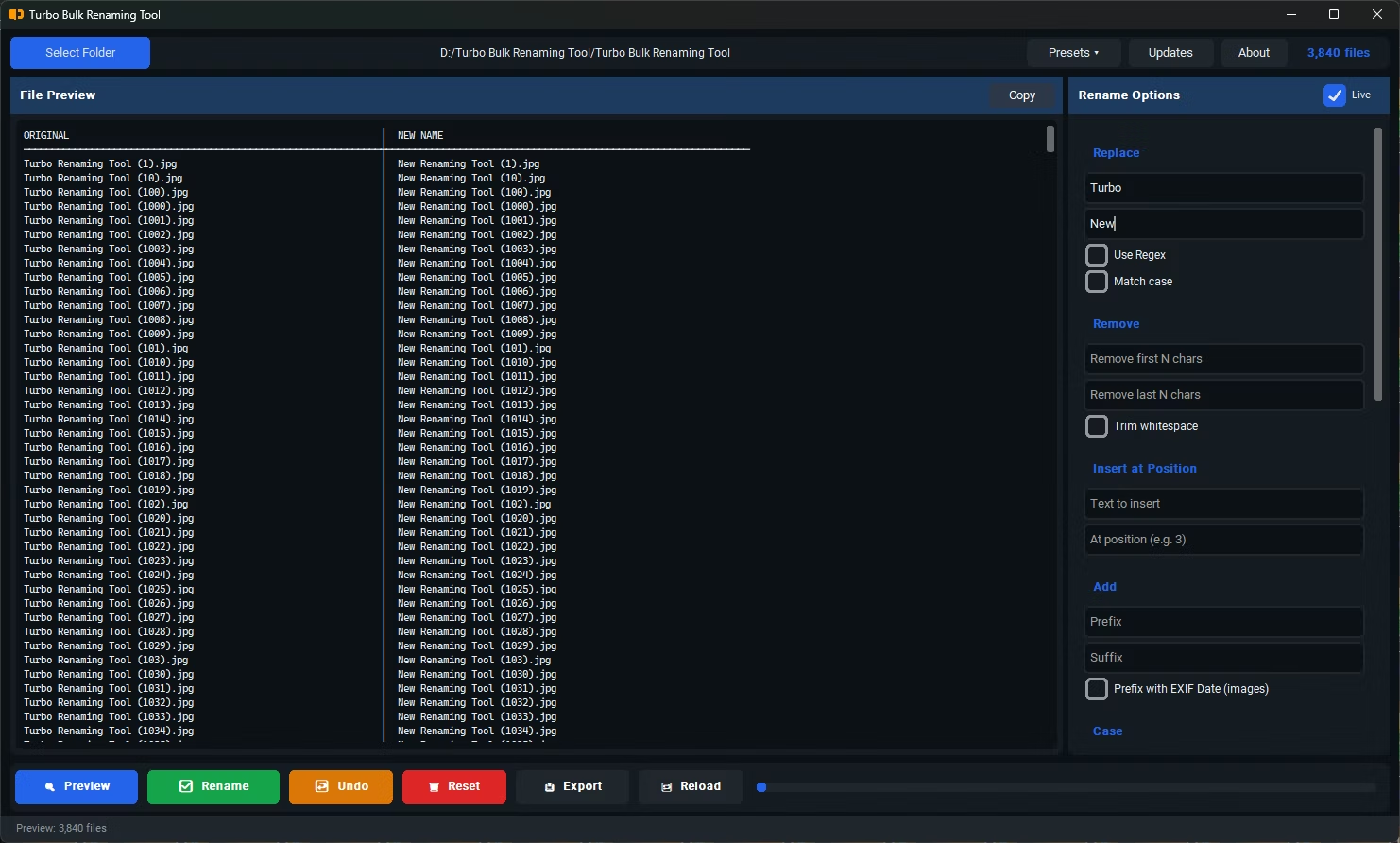
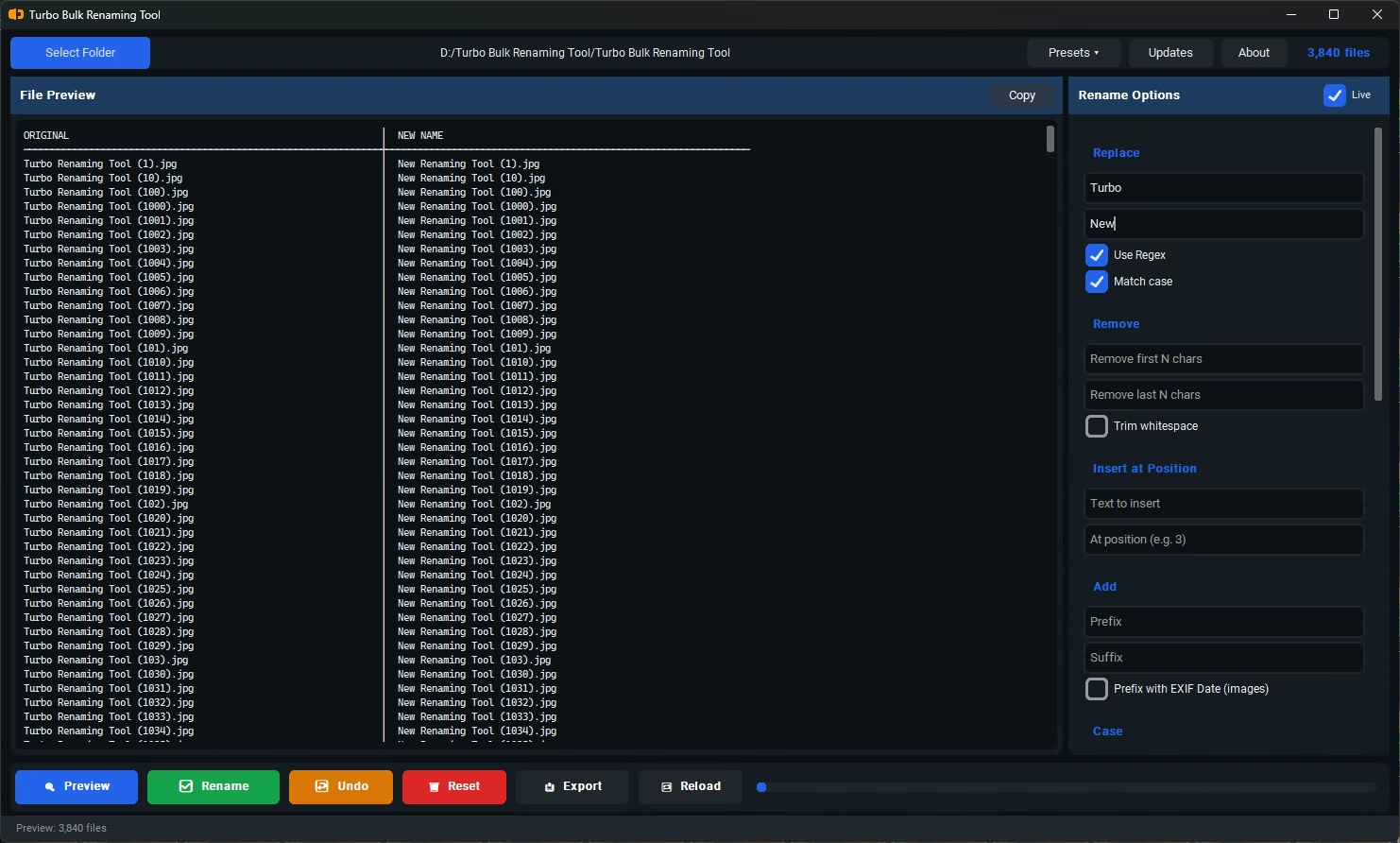
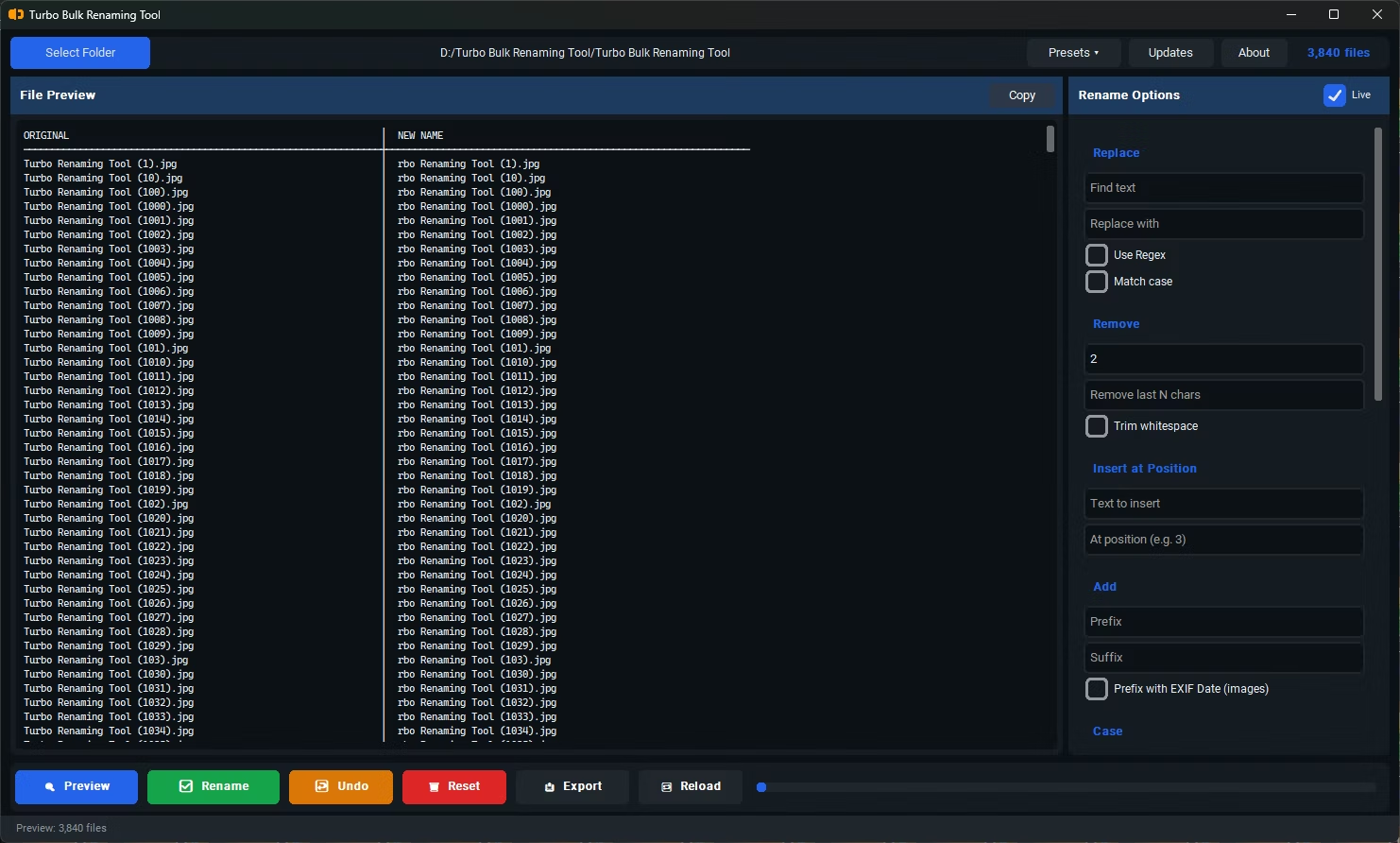
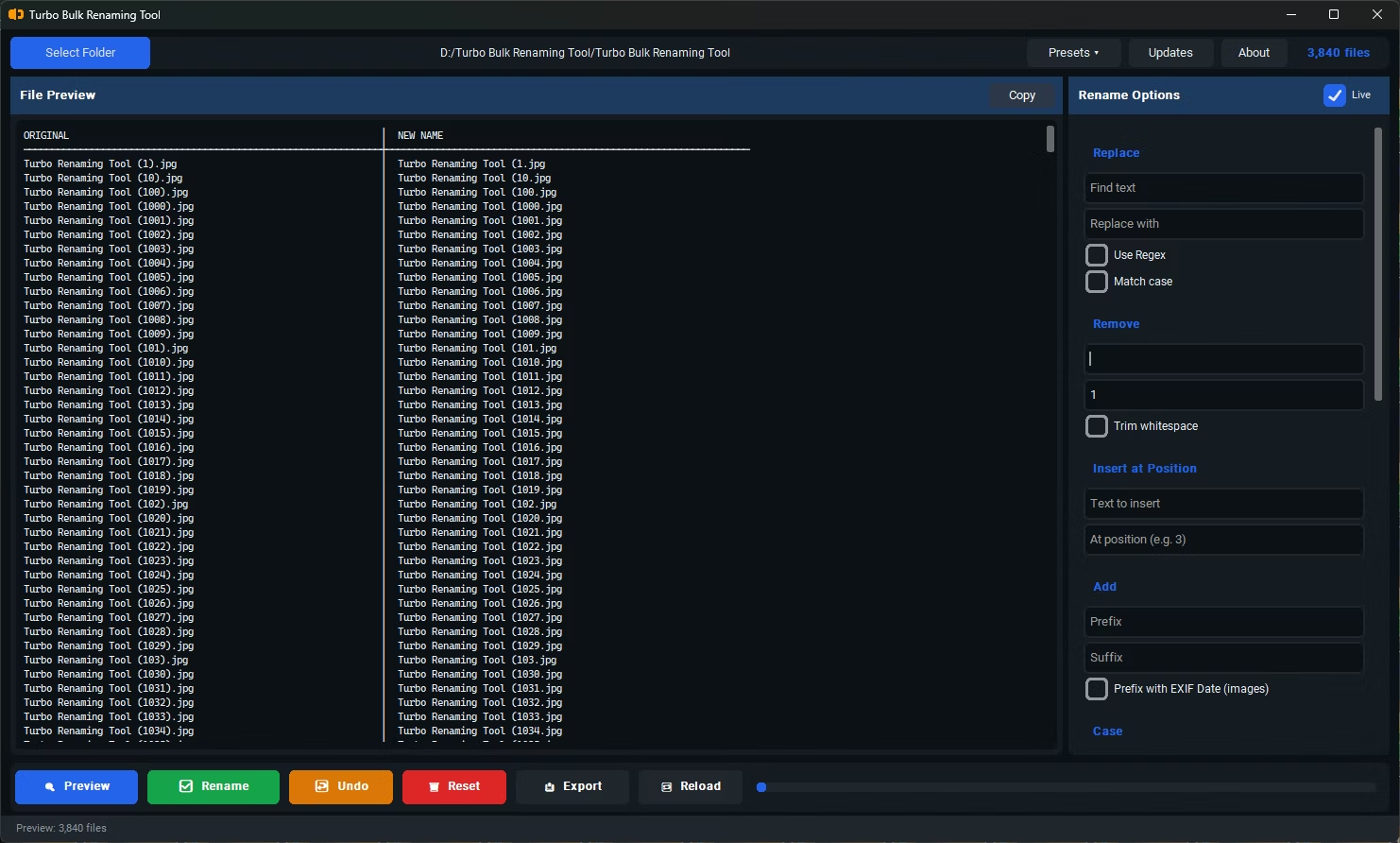
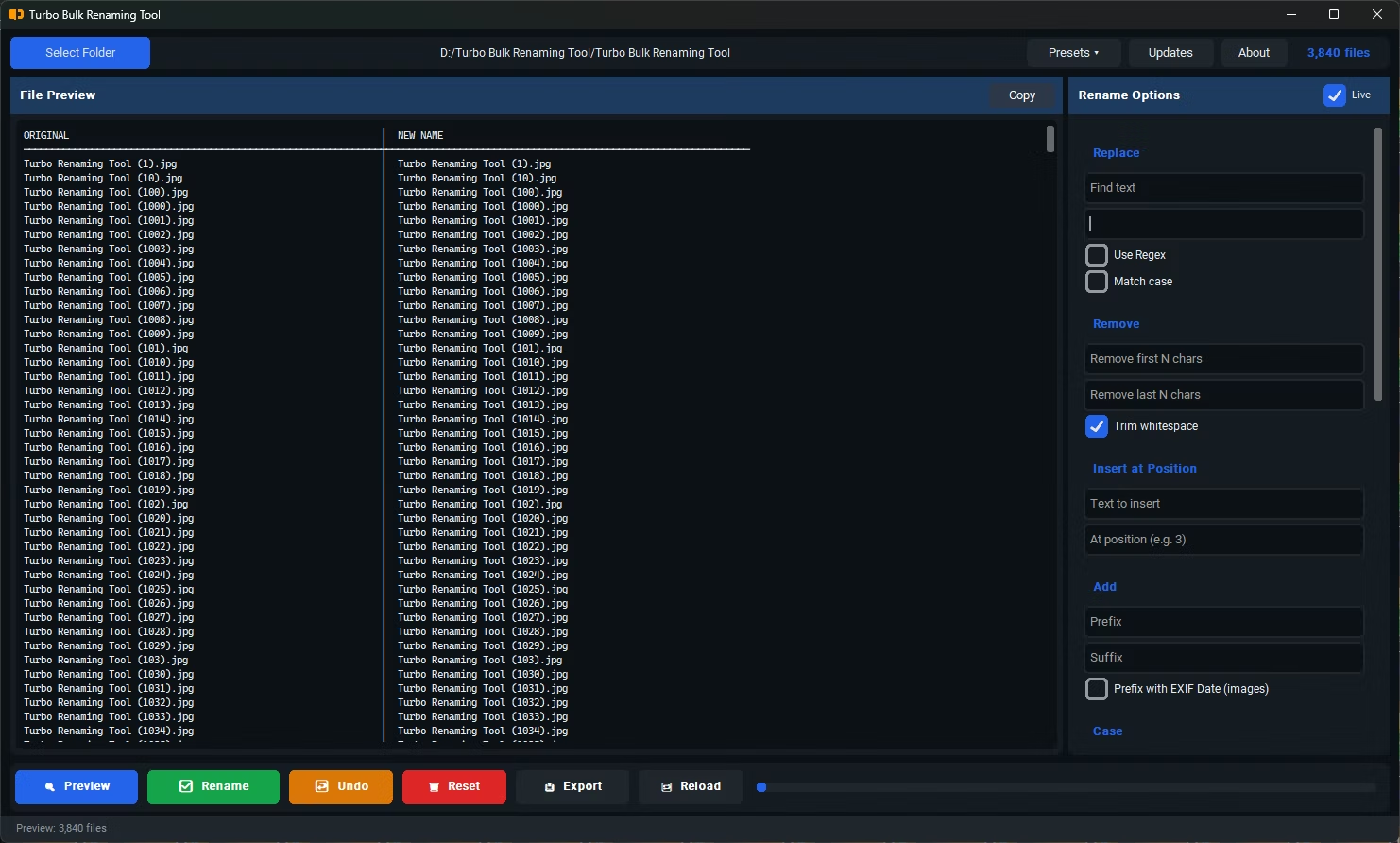
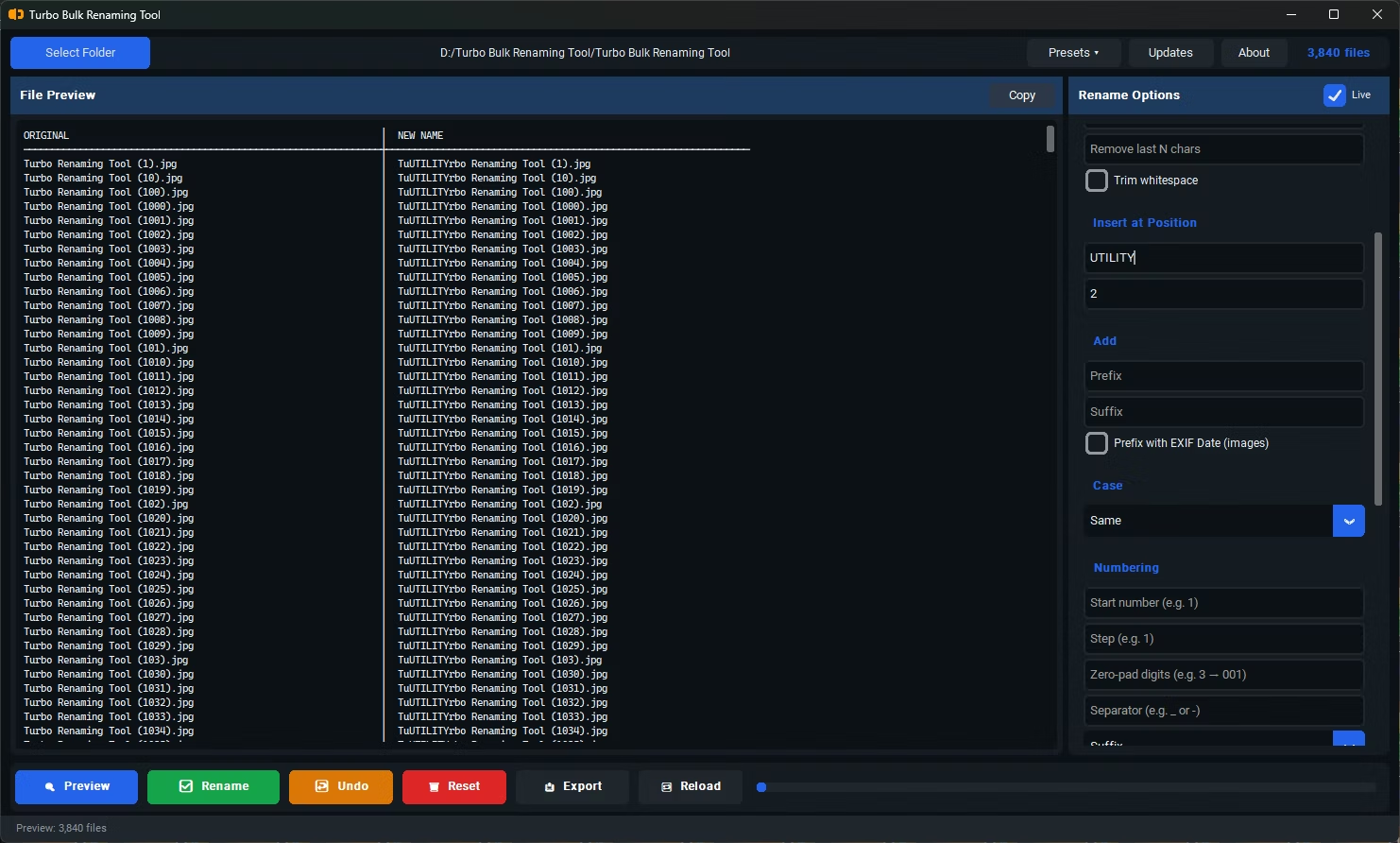
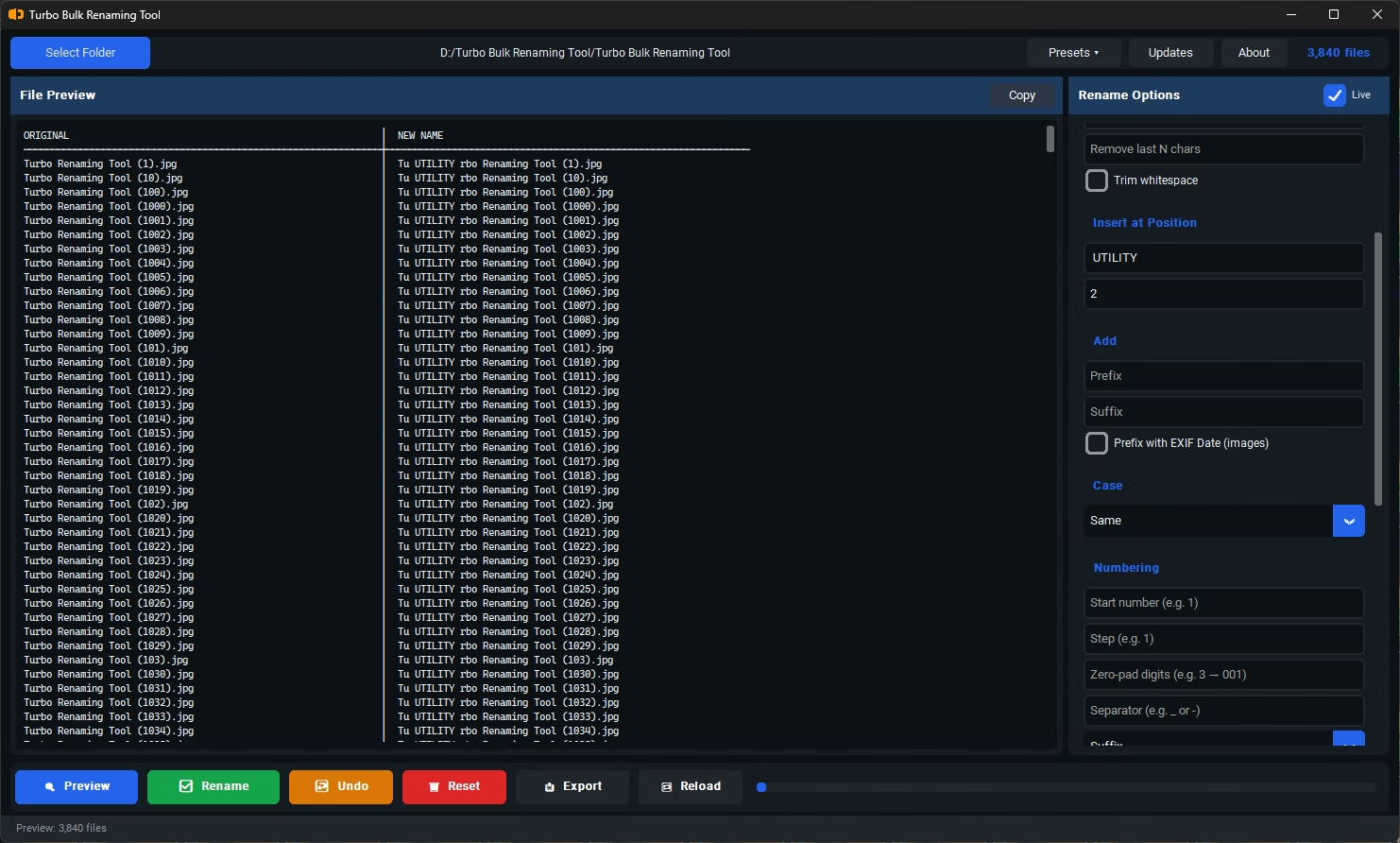
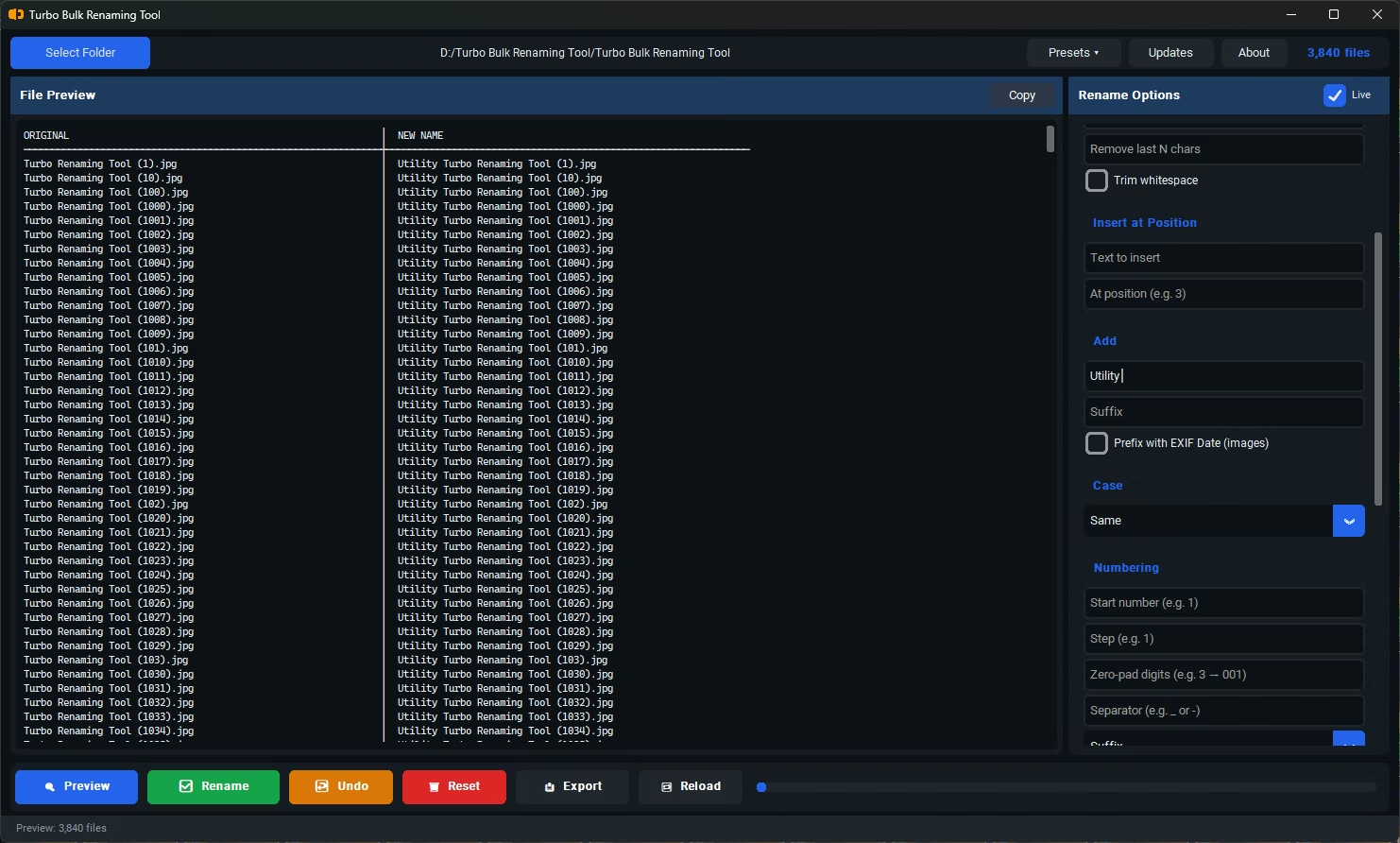
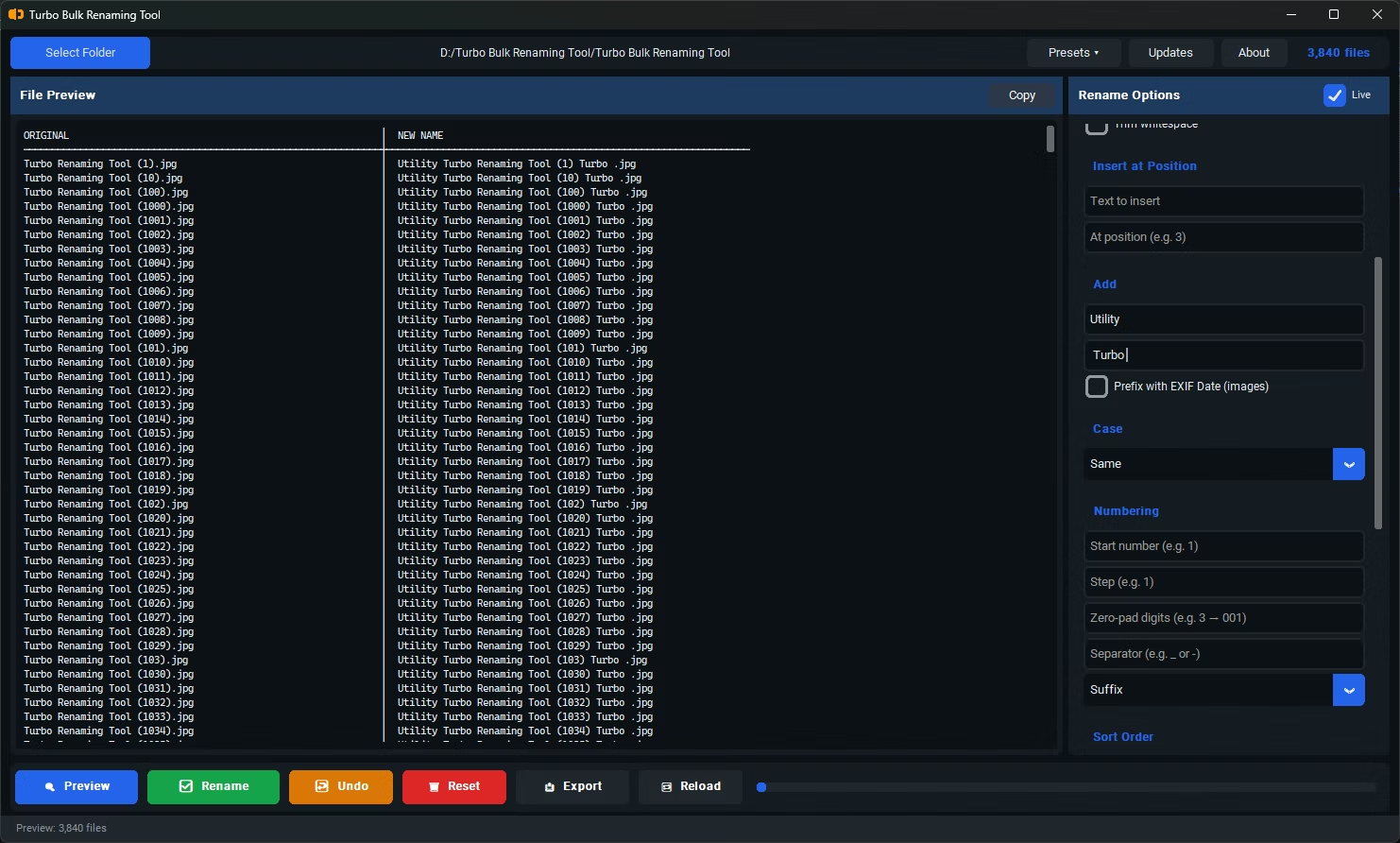
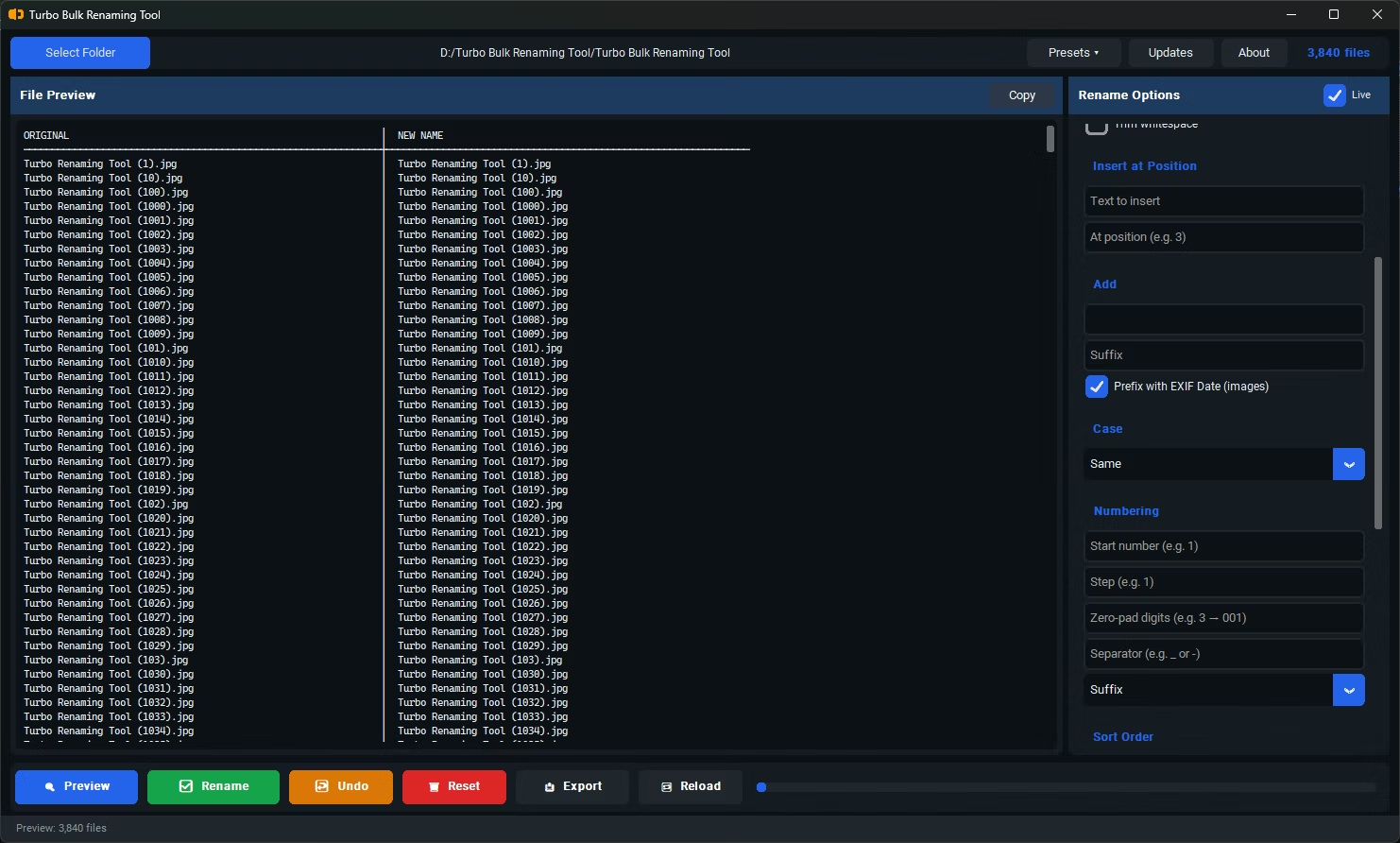
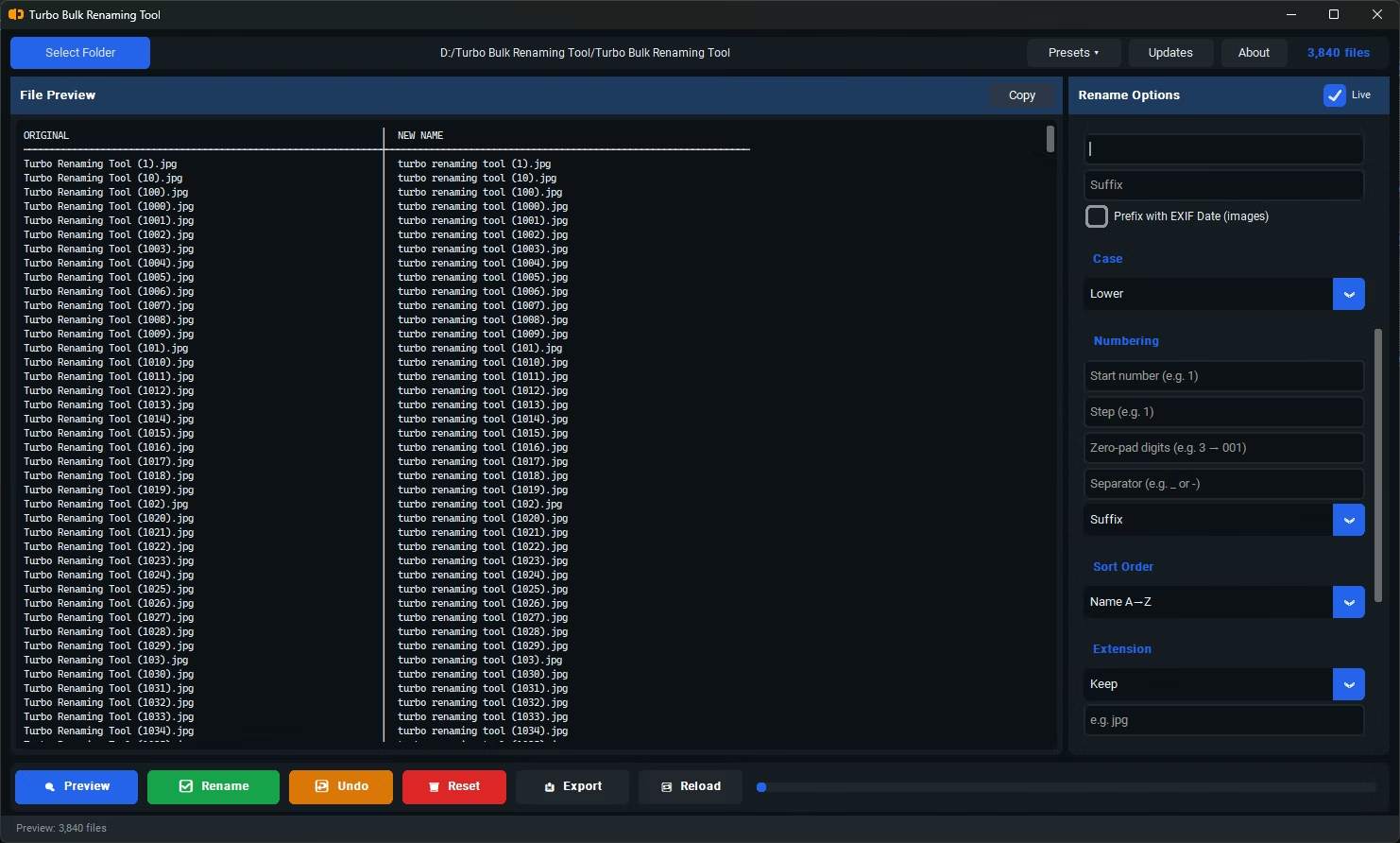
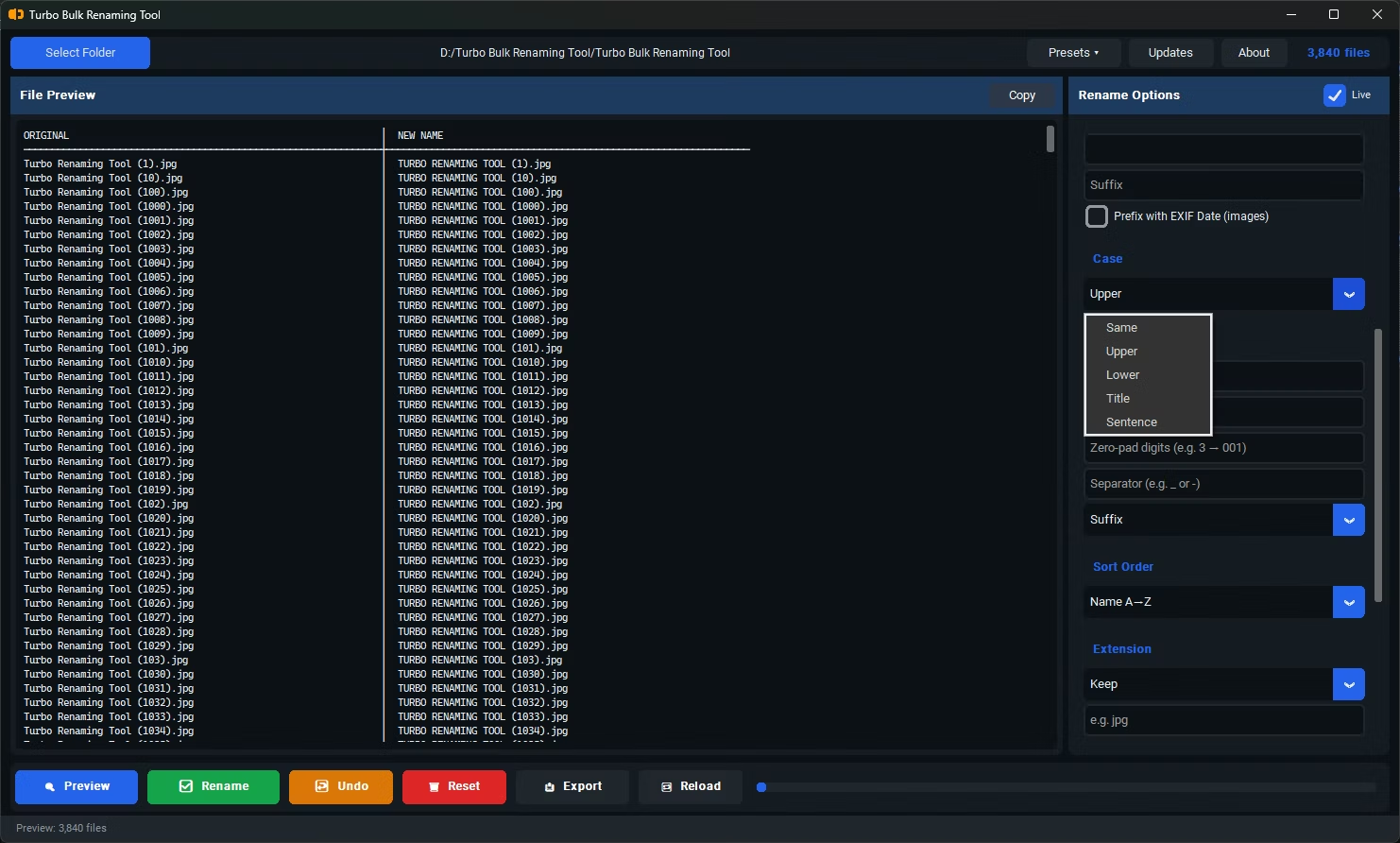
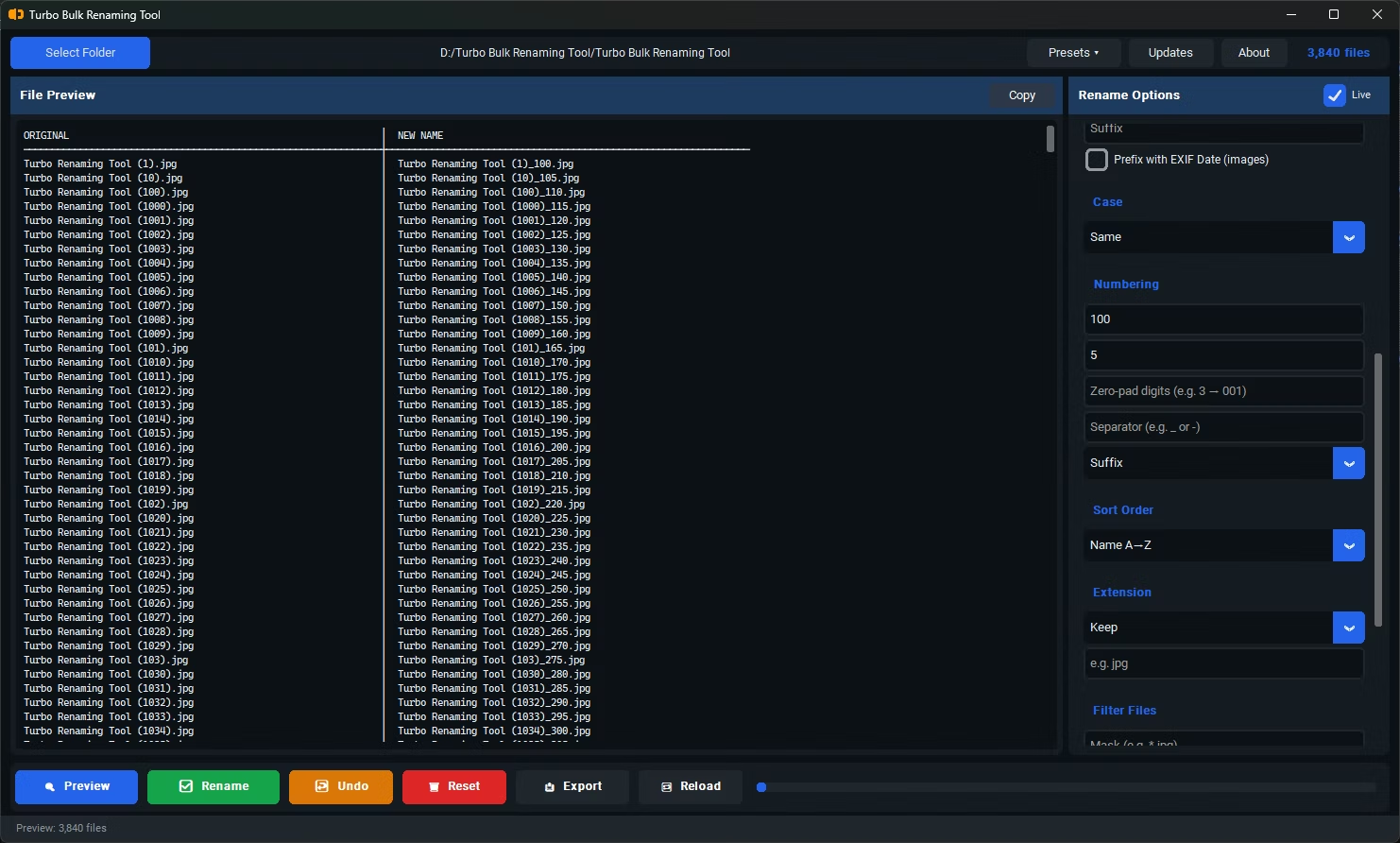
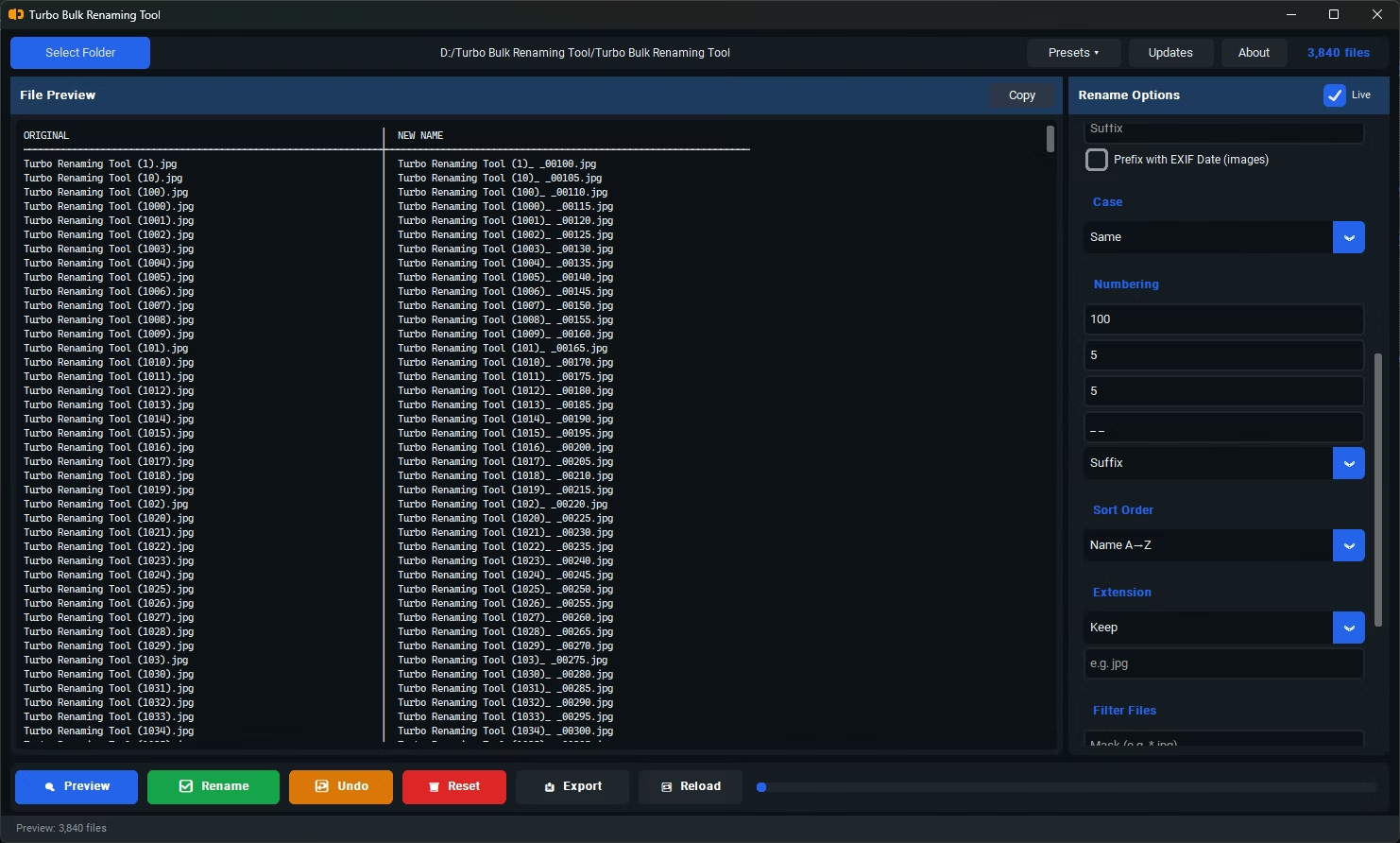
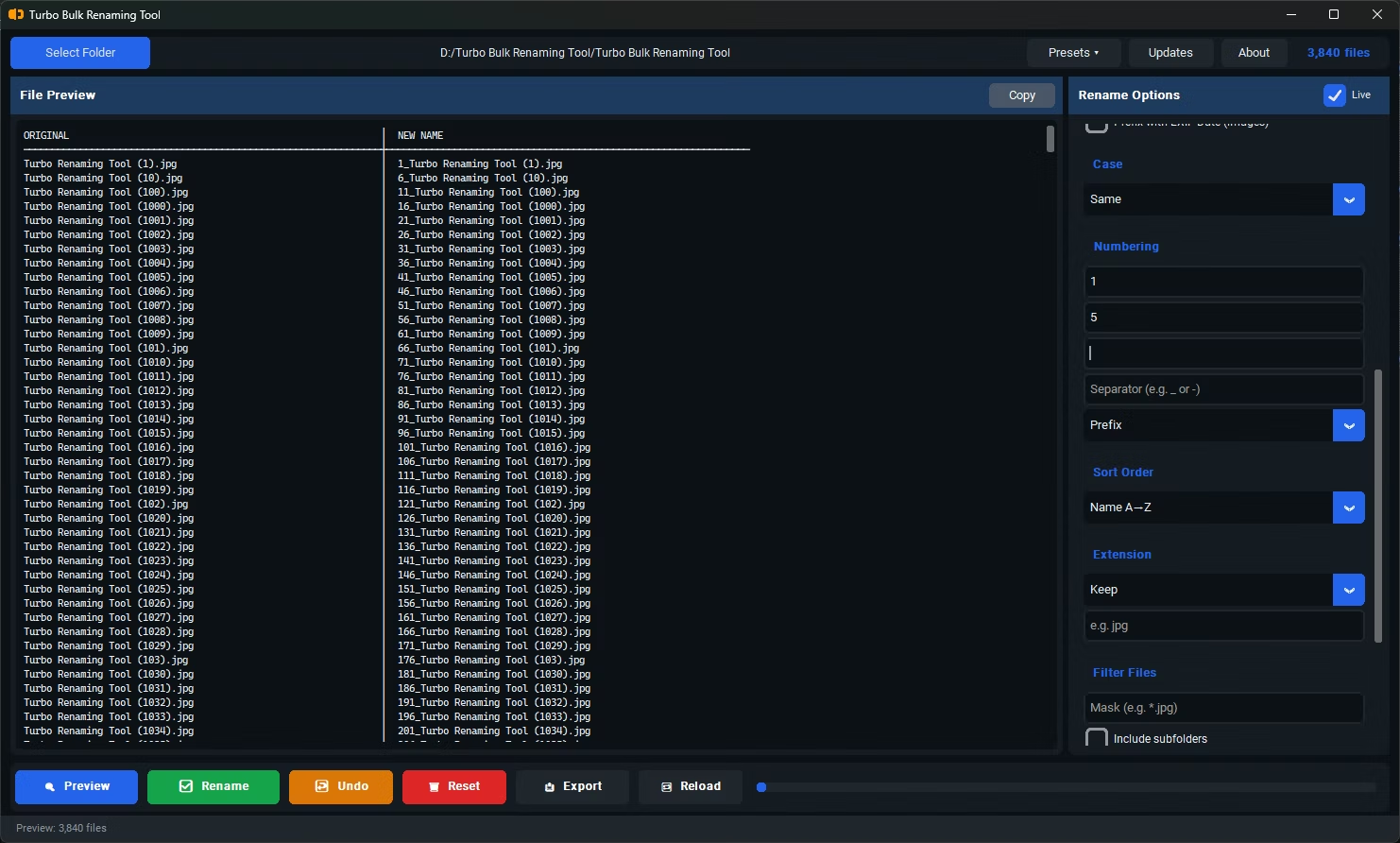
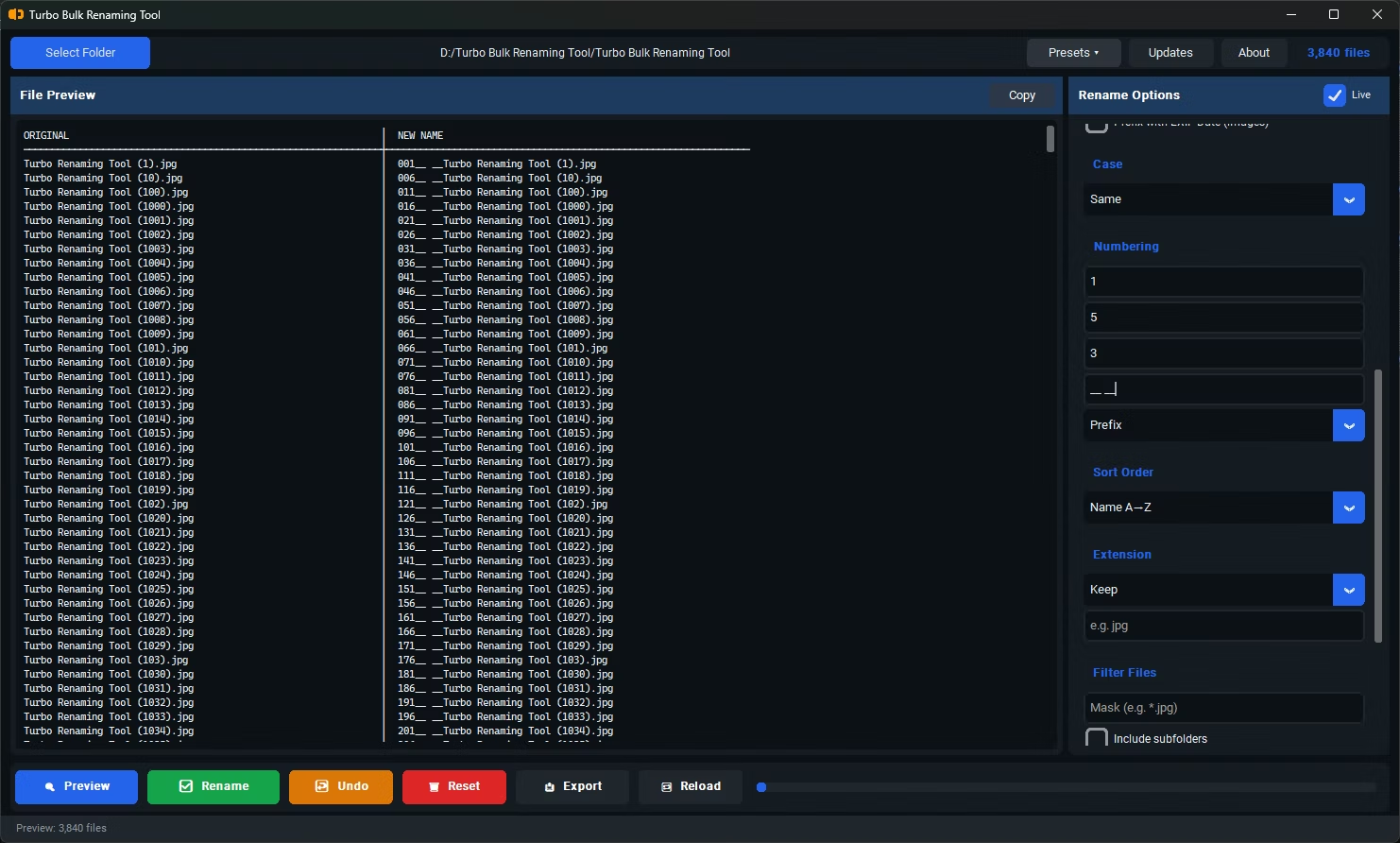
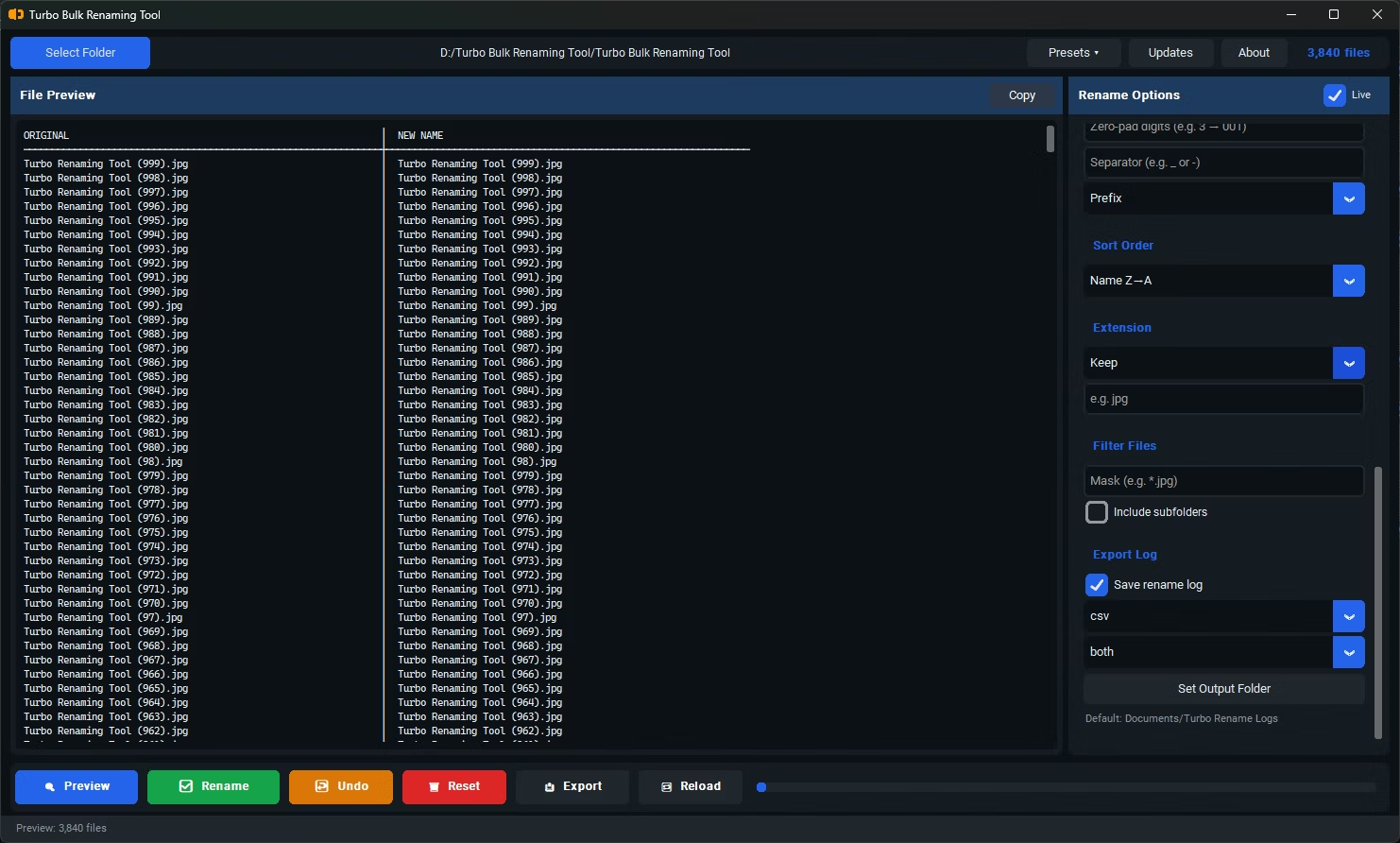
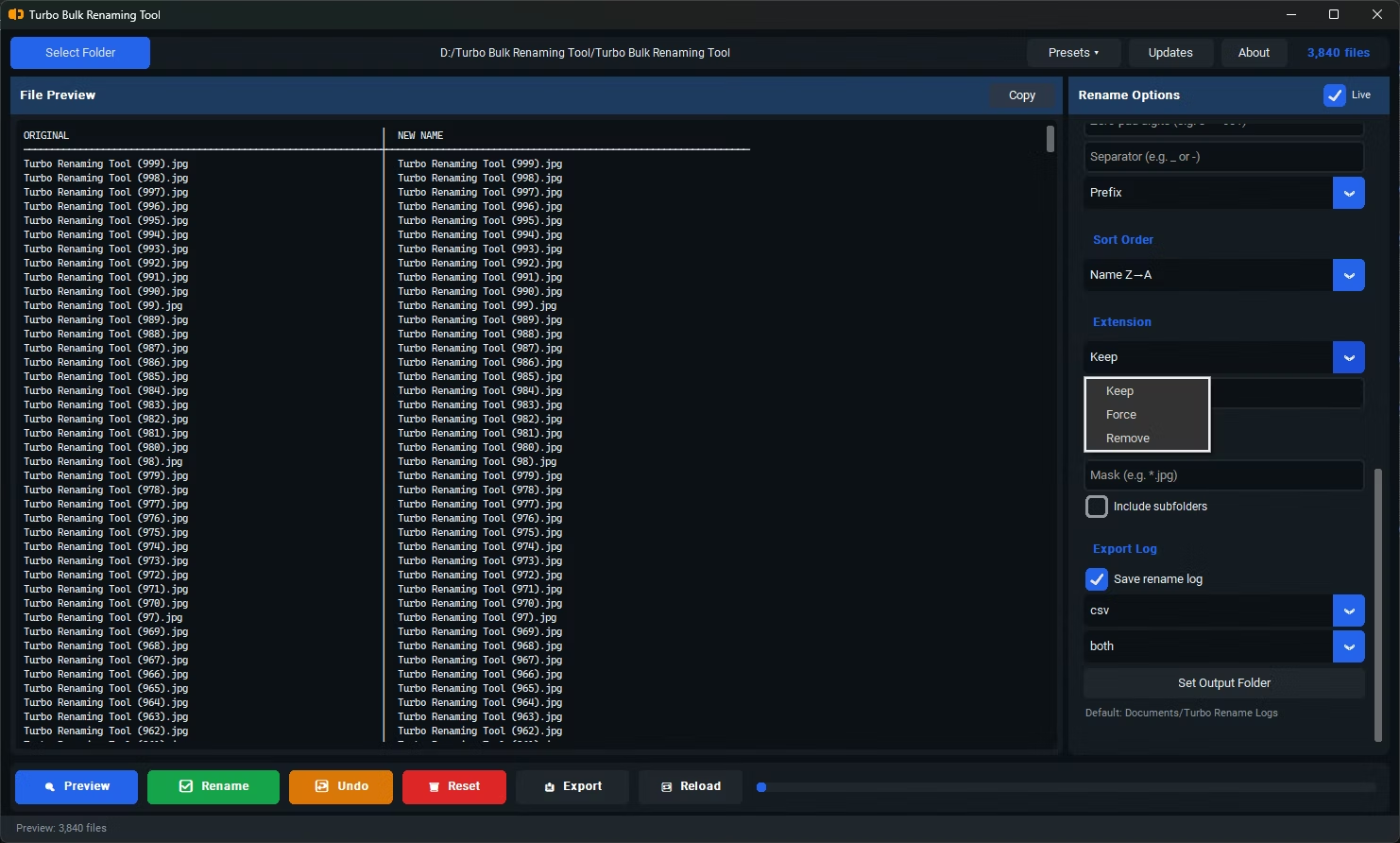
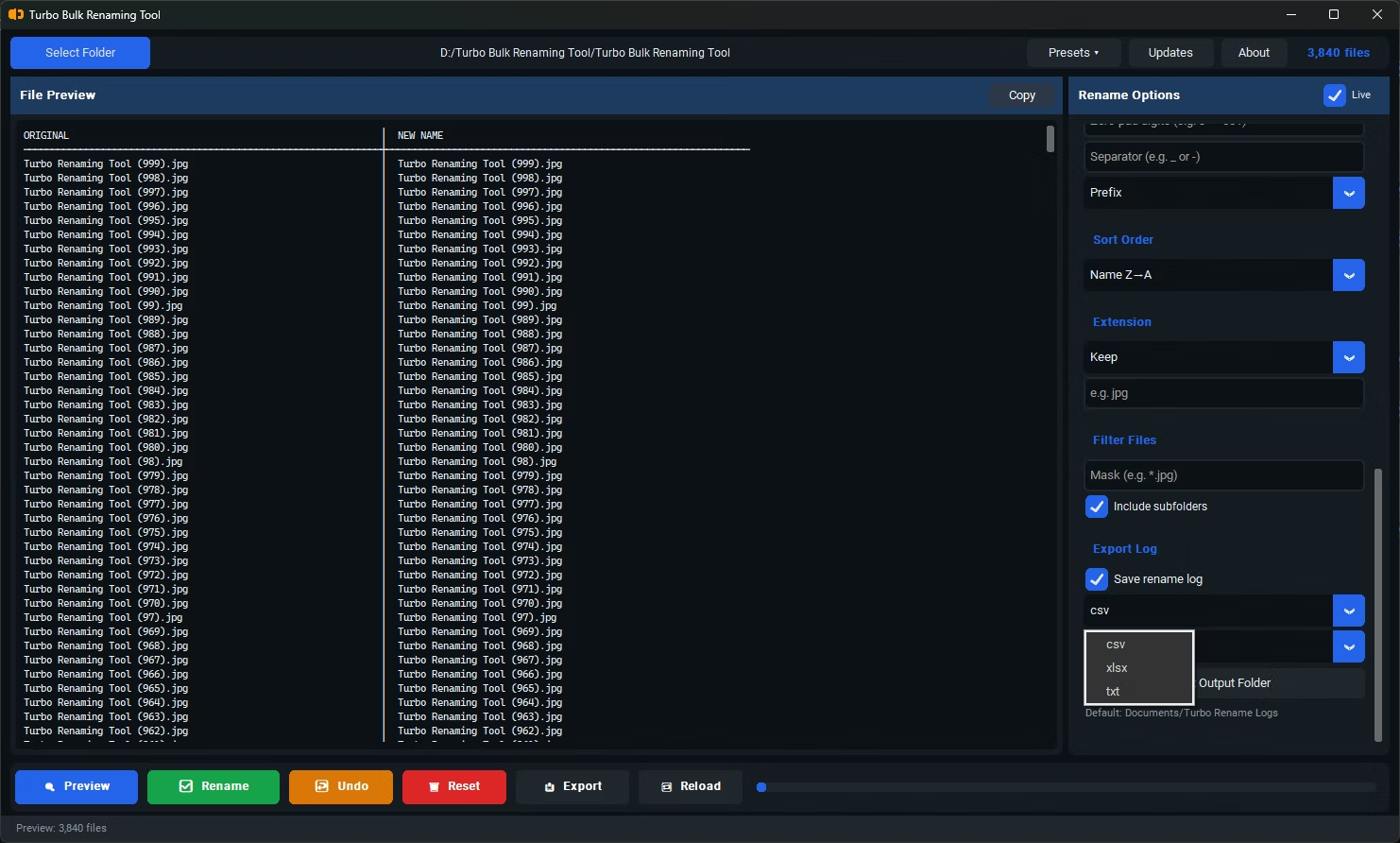
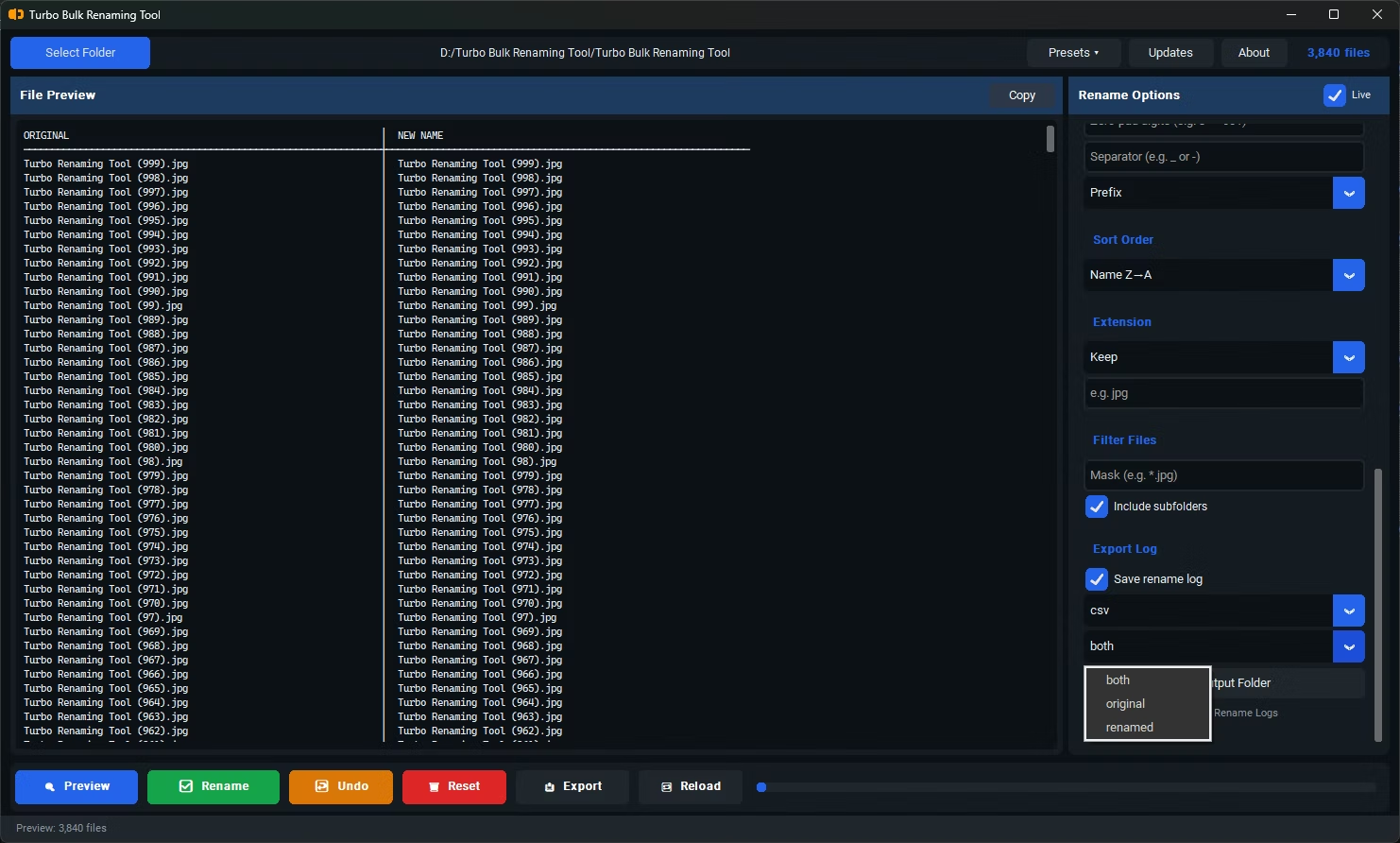
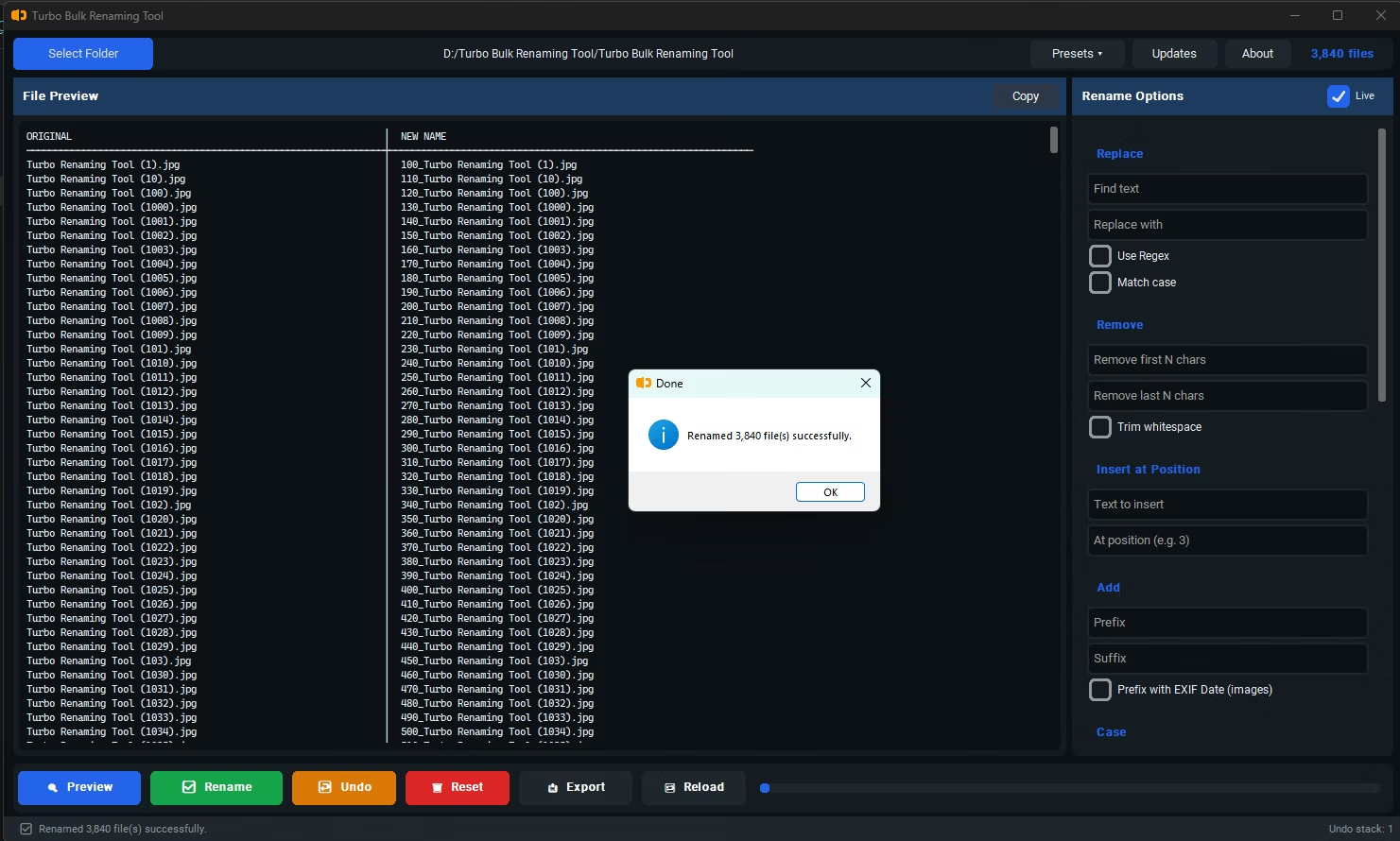
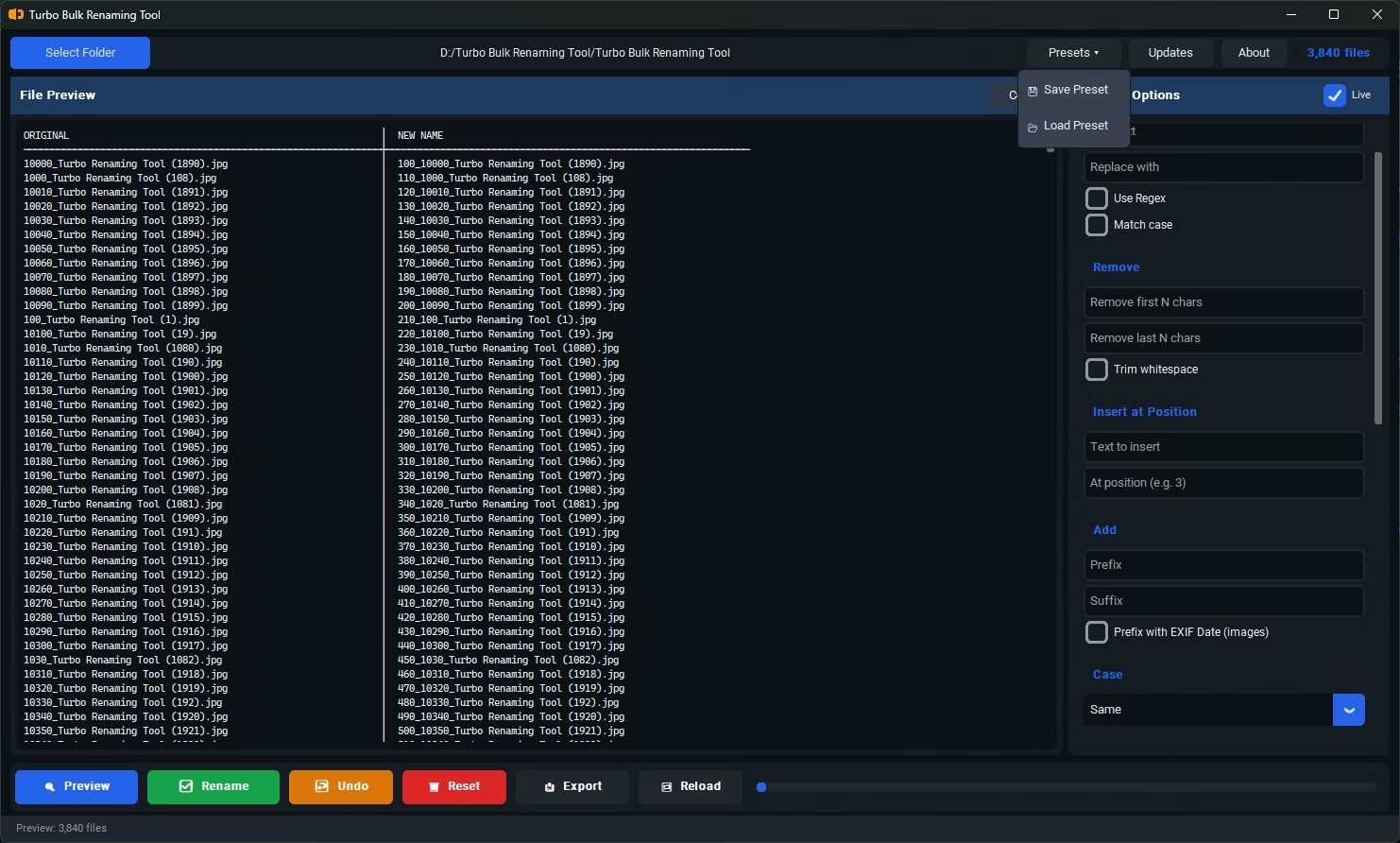
- Variety of renaming rules — numbering, case conversion, find & replace, prefix/suffix, trimming
- Live preview before committing any change to your files
- Recursive sub-folder support for organized, nested file structures
- Conflict detection to avoid accidentally overwriting files with duplicate names
- Undo support in case a rename doesn't turn out as expected
- Offline operation, so your files and folder structure stay private
Batchify Batch File Rename Tool is built around those same criteria. It includes 15 renaming rules covering Find & Replace, Sequential Numbering, Case Conversion, Insert at Position, Remove First or Last N Characters, EXIF Date Prefix, and more. Every rule shows a live preview before you apply it, and conflict detection catches potential duplicate filenames ahead of time. Recursive sub-folder renaming preserves your directory structure while only changing the filename, and a one-level Undo restores the previous names if needed.
If your priorities are pattern variety, a safe preview-before-you-commit workflow, and full offline privacy, it's worth trying alongside any other renaming tool you're evaluating.
Is Windows Explorer's built-in rename good enough for bulk renaming?
For very small batches it can work, but it offers little pattern control and tends to append a number in parentheses by default, which isn't ideal for more structured renaming needs.
Does "best" mean the same thing for everyone?
No. The right renaming tool depends on your specific needs, such as whether you need regex support, EXIF-based renaming for photos, or simple sequential numbering.
How many renaming rules does Batchify Batch File Rename Tool offer?
It includes 15 renaming rules, covering common needs like numbering, case conversion, find & replace, character trimming, and EXIF date-based renaming for photos.
Ready to rename your files in bulk, offline, with full privacy?