Whether you're cleaning up a downloads folder, organizing scanned documents, or preparing exported project files, bulk renaming files already saved on your computer is one of the most common file management tasks. Windows Explorer's built-in rename feature works for very small batches, but it lacks pattern control and tends to append brackets you don't want. A dedicated desktop renaming tool gives you full control while keeping everything local to your machine.
Because the tool works directly with files on your hard drive, there's no upload step and no dependency on an internet connection — you select a folder, choose a rule, and apply it.
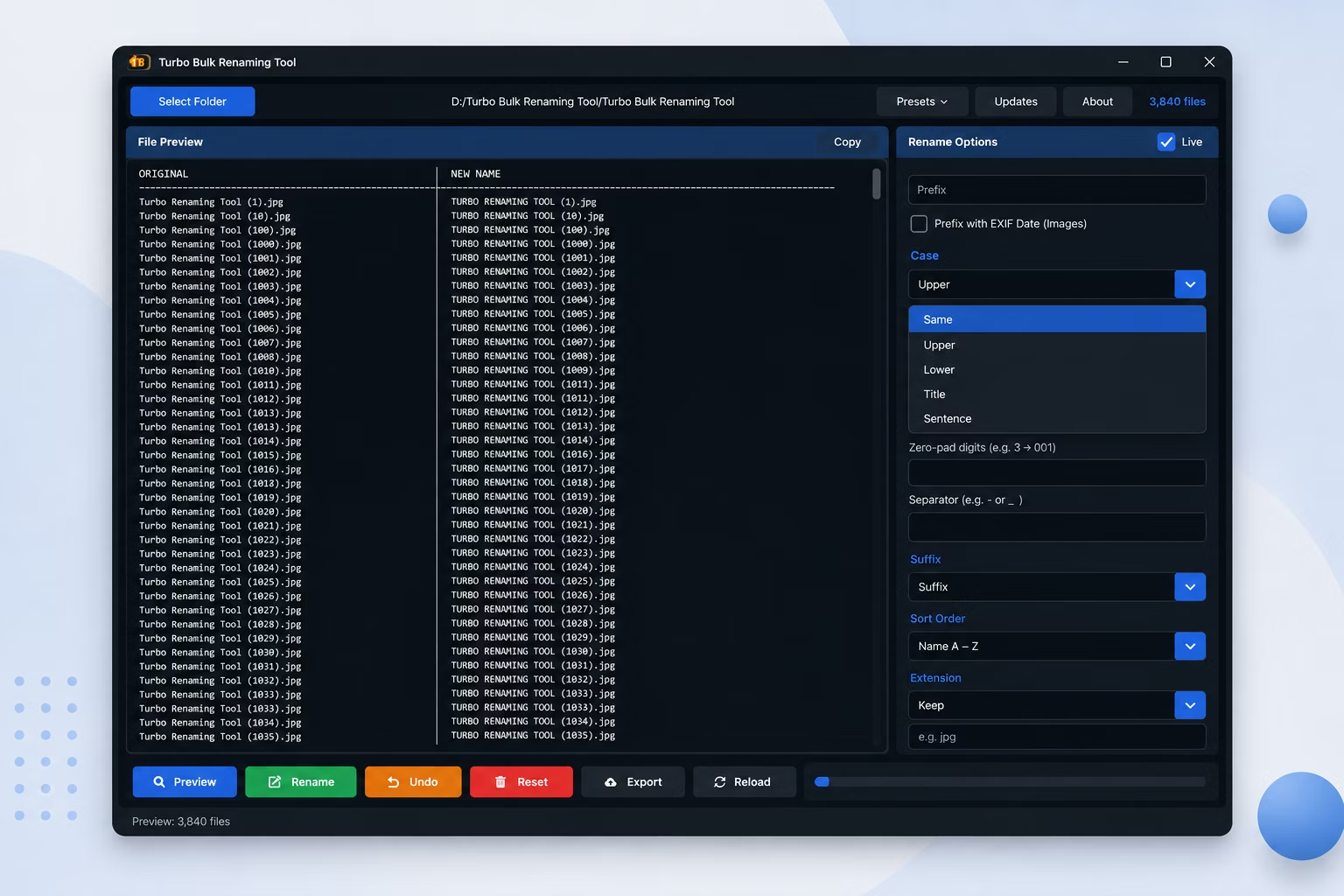
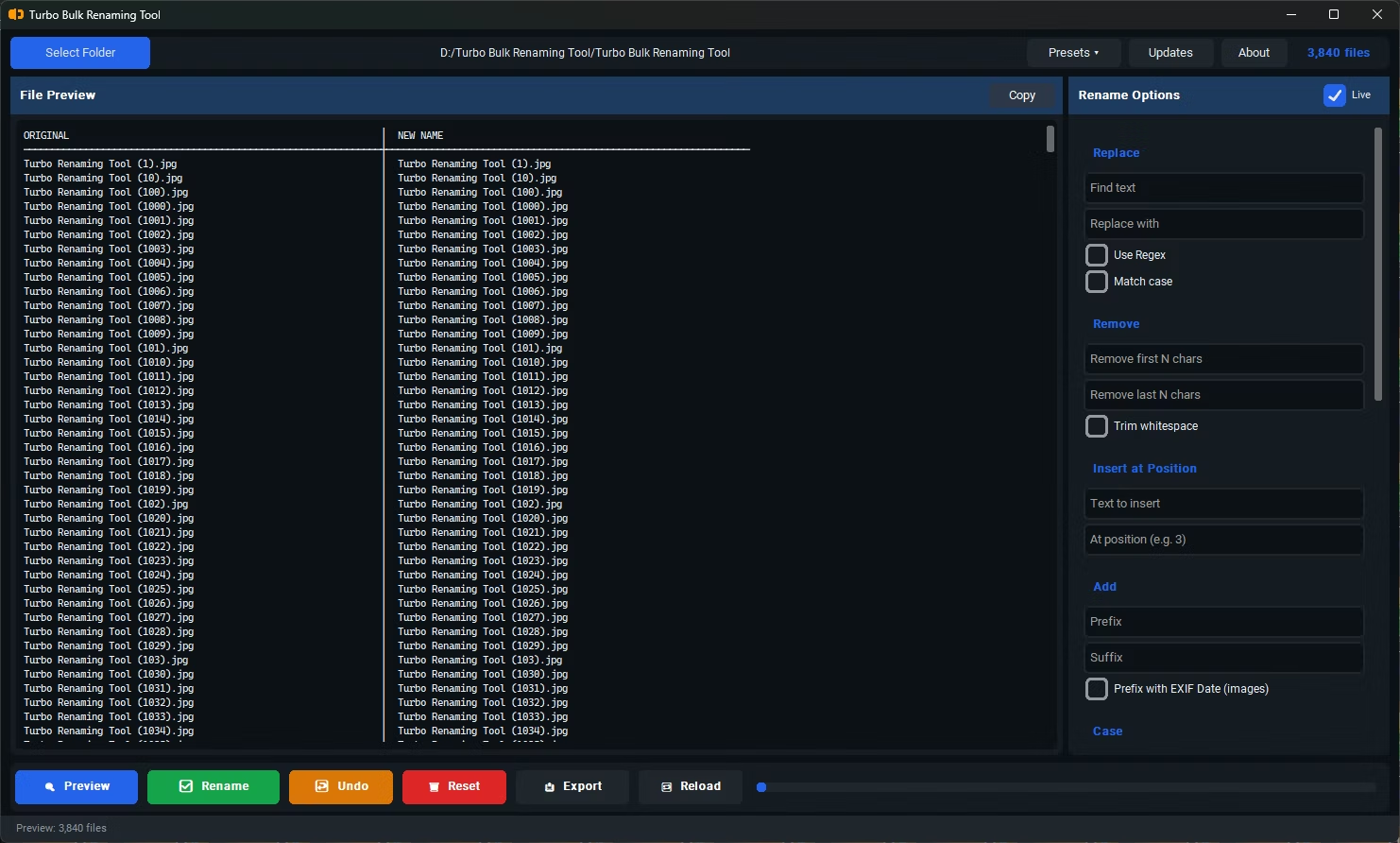
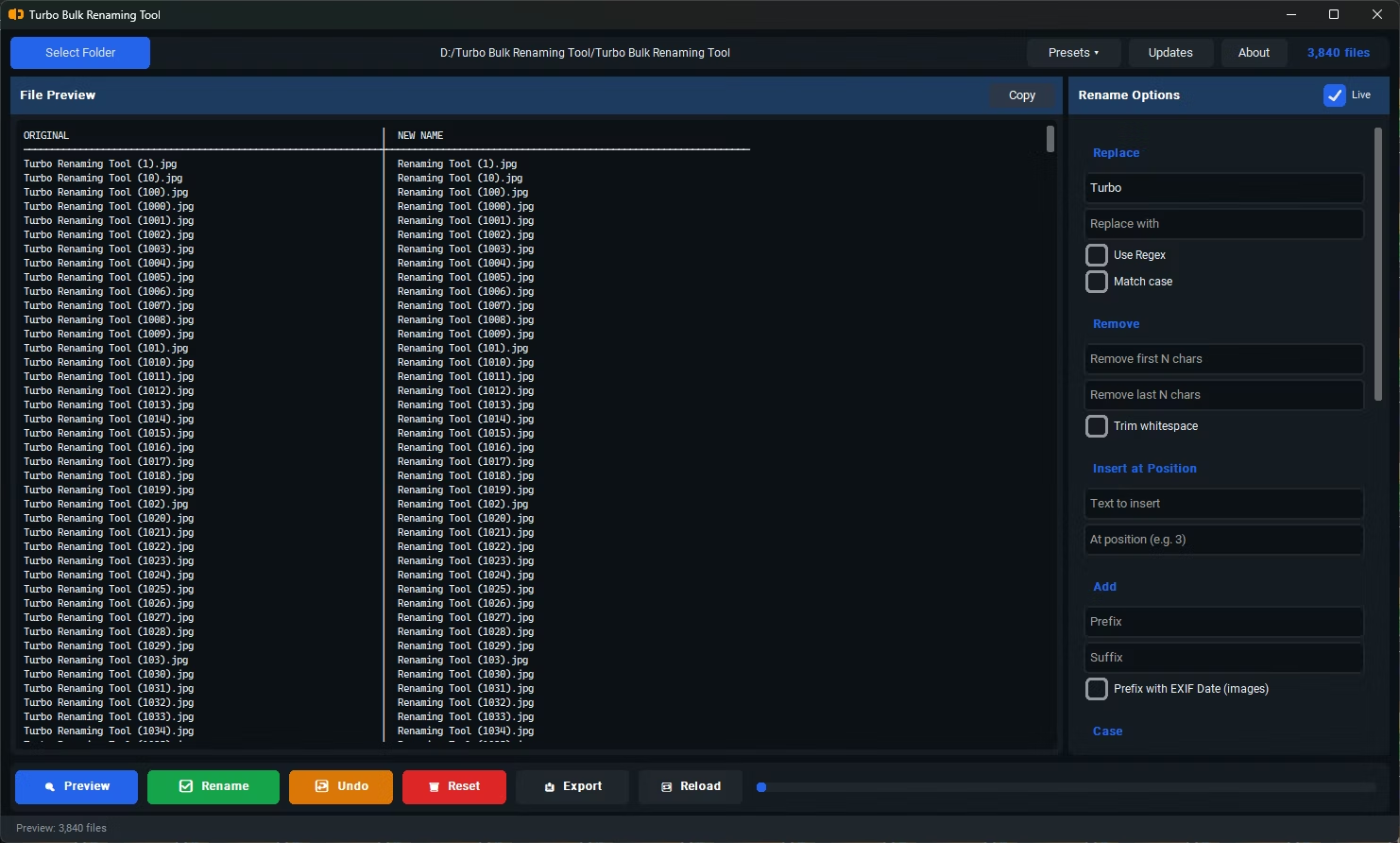
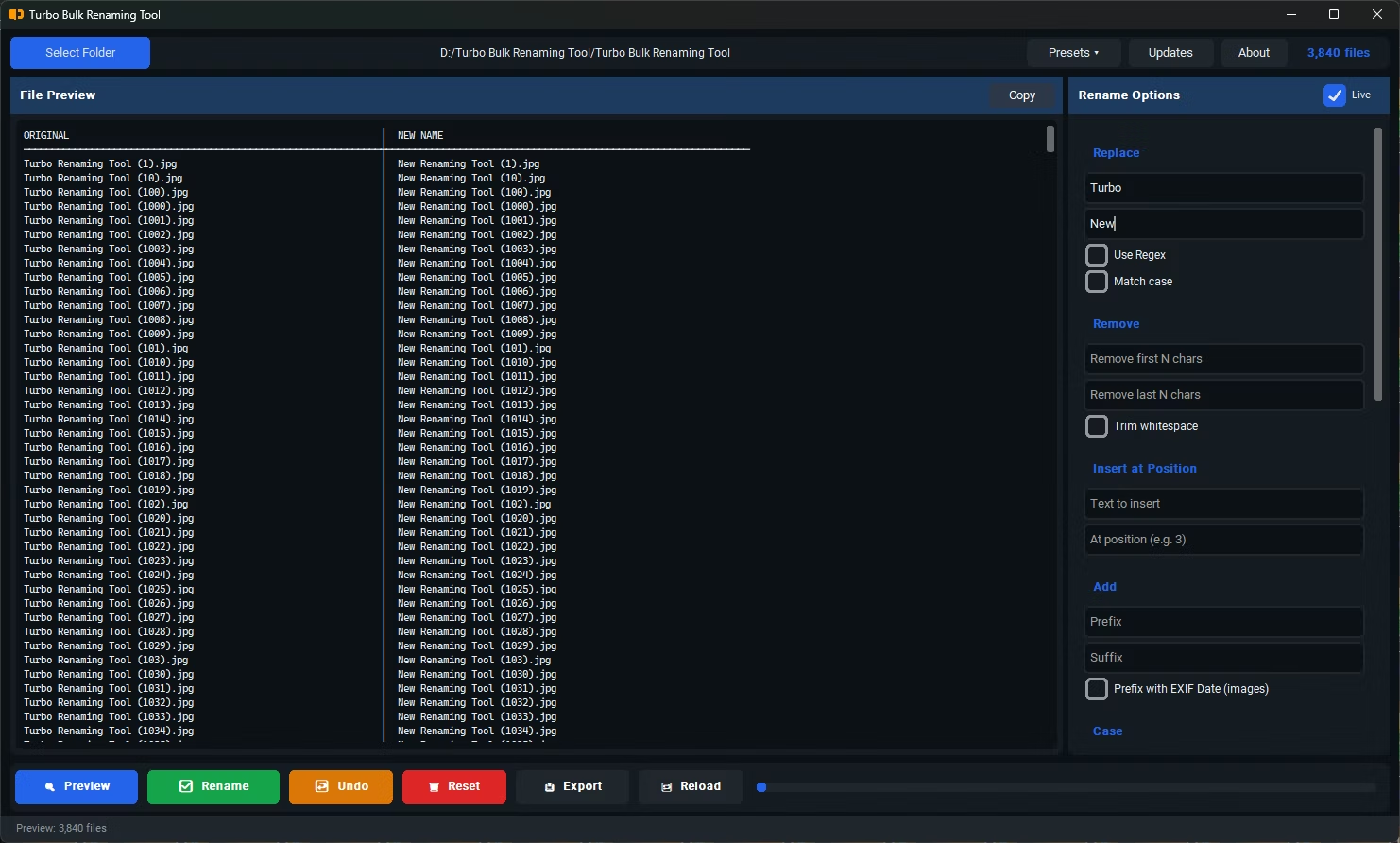
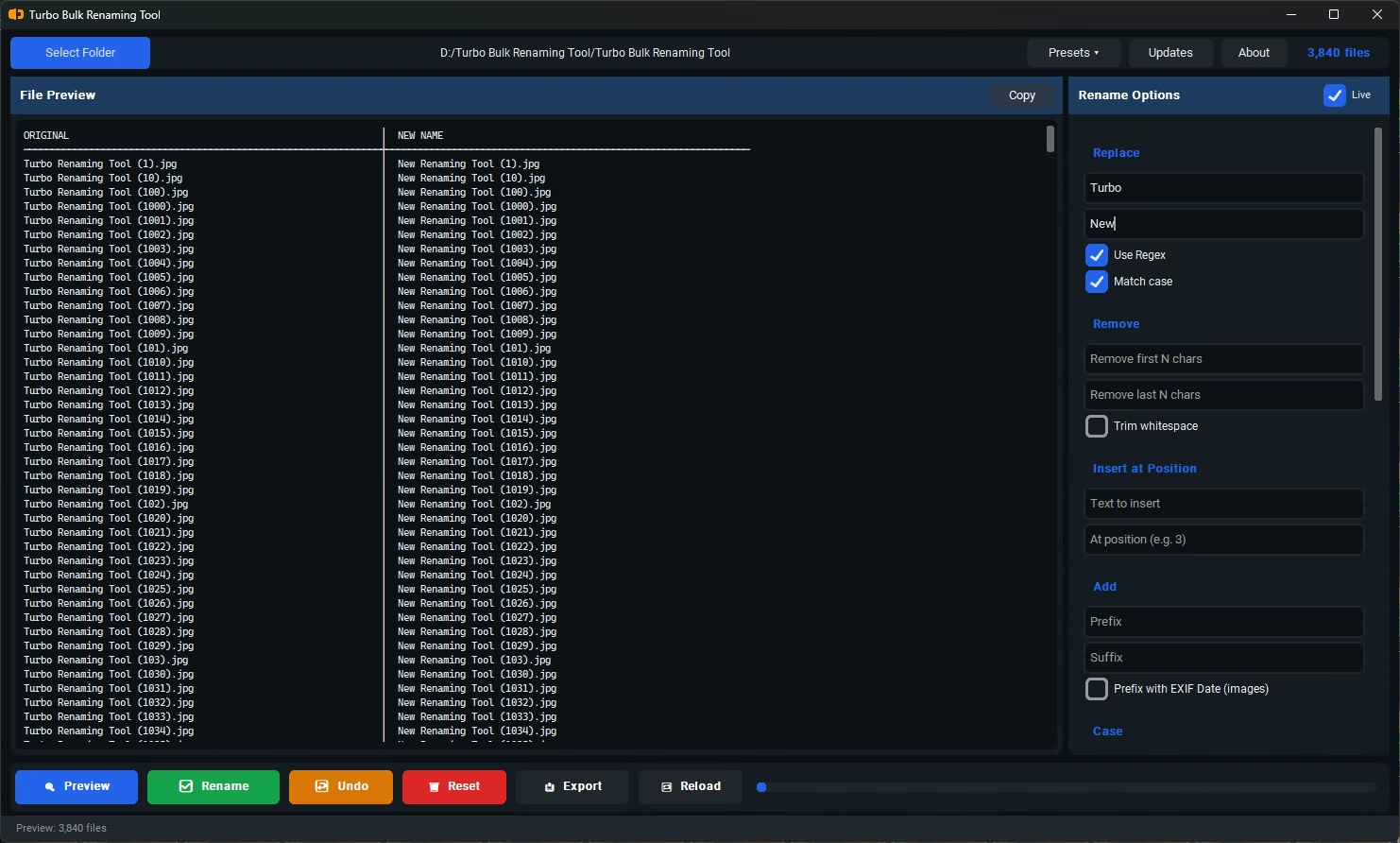
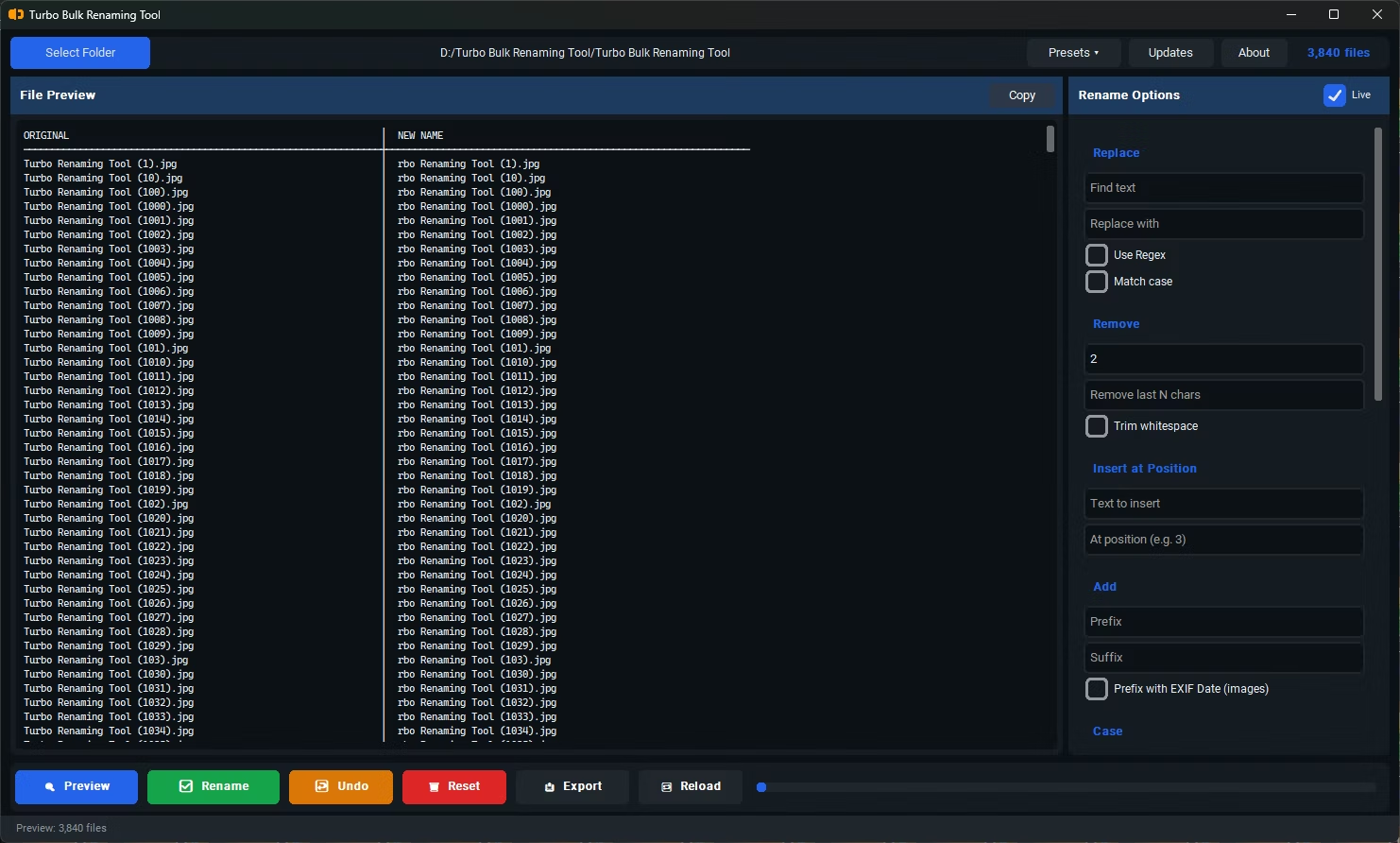
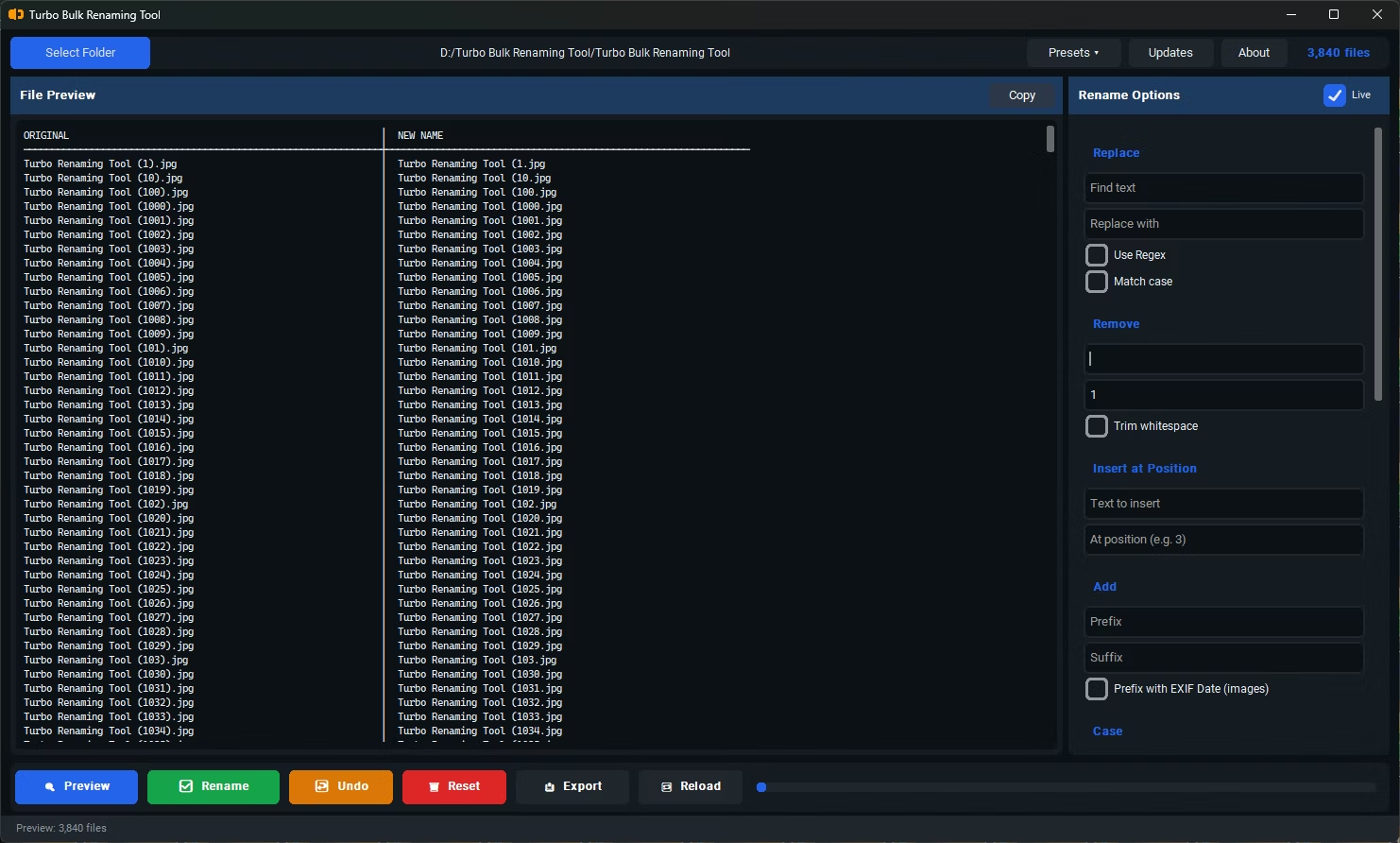
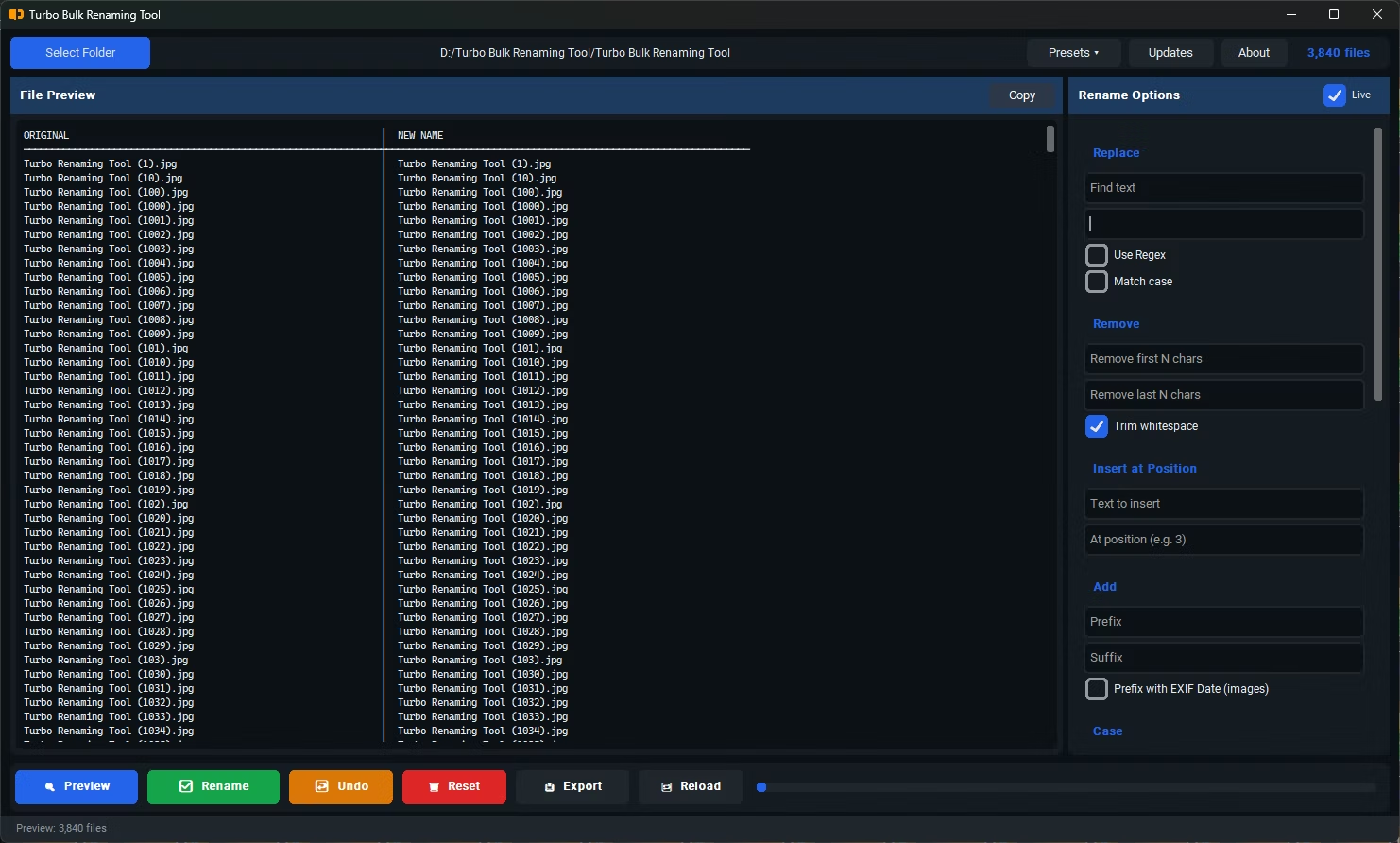
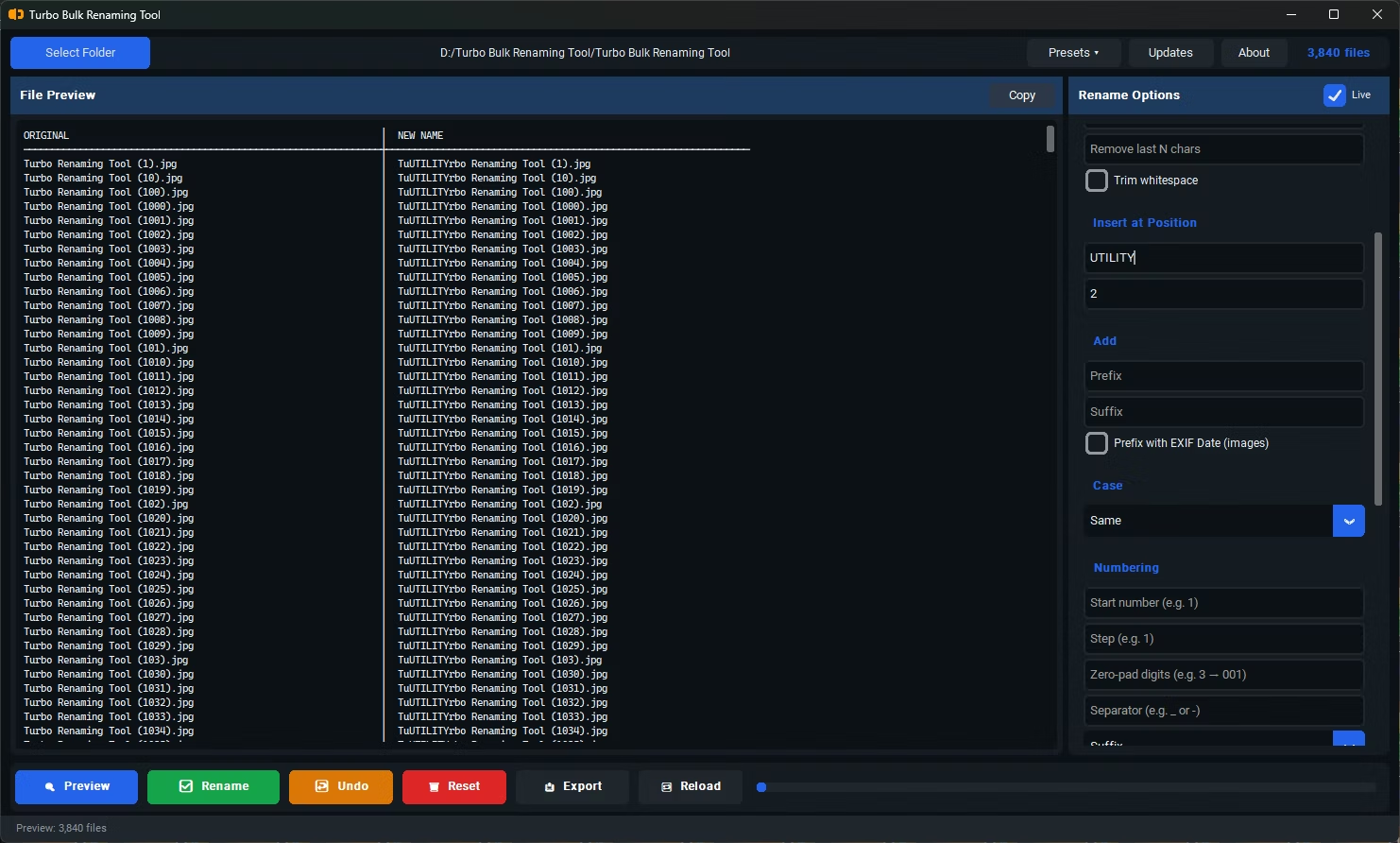
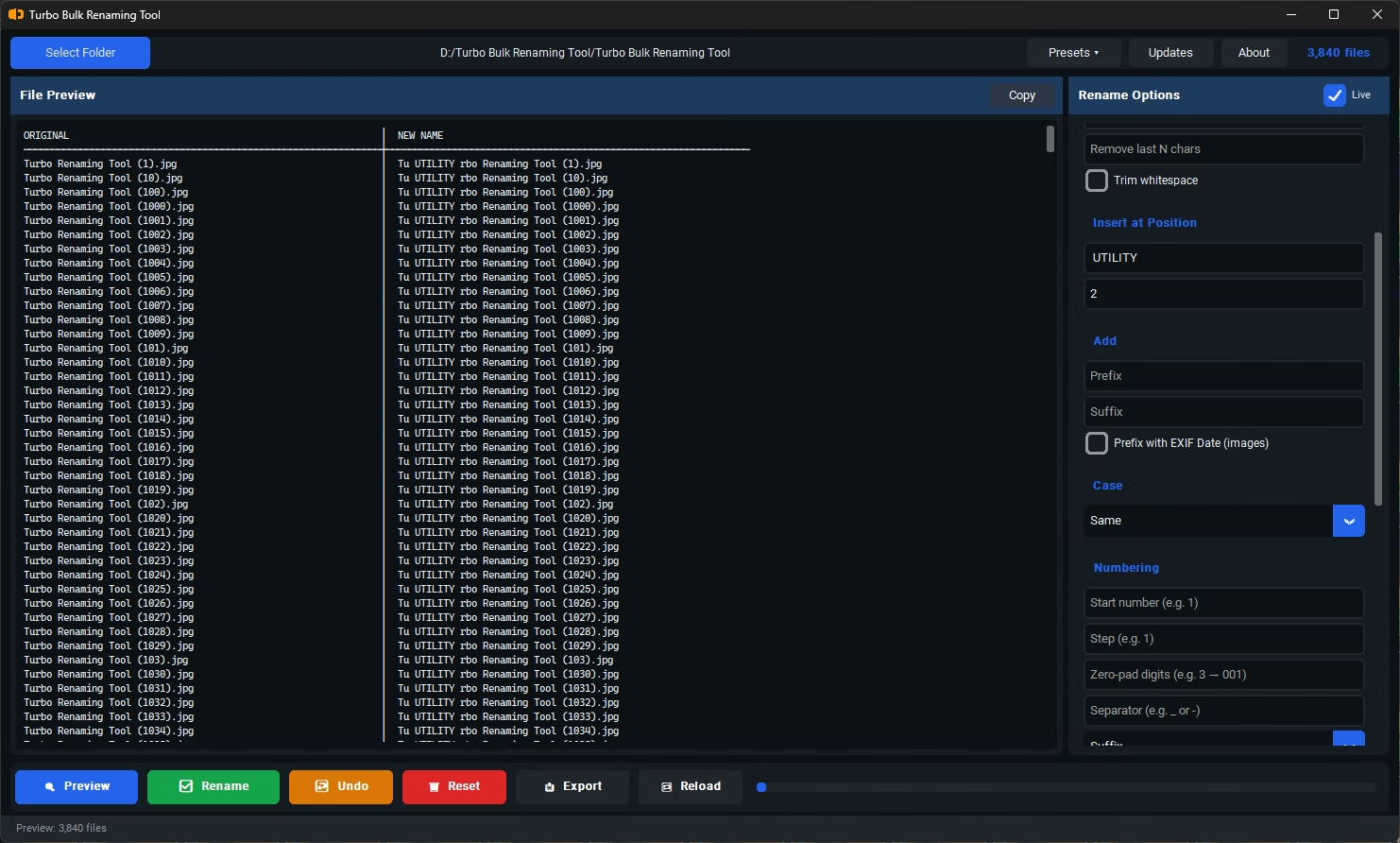
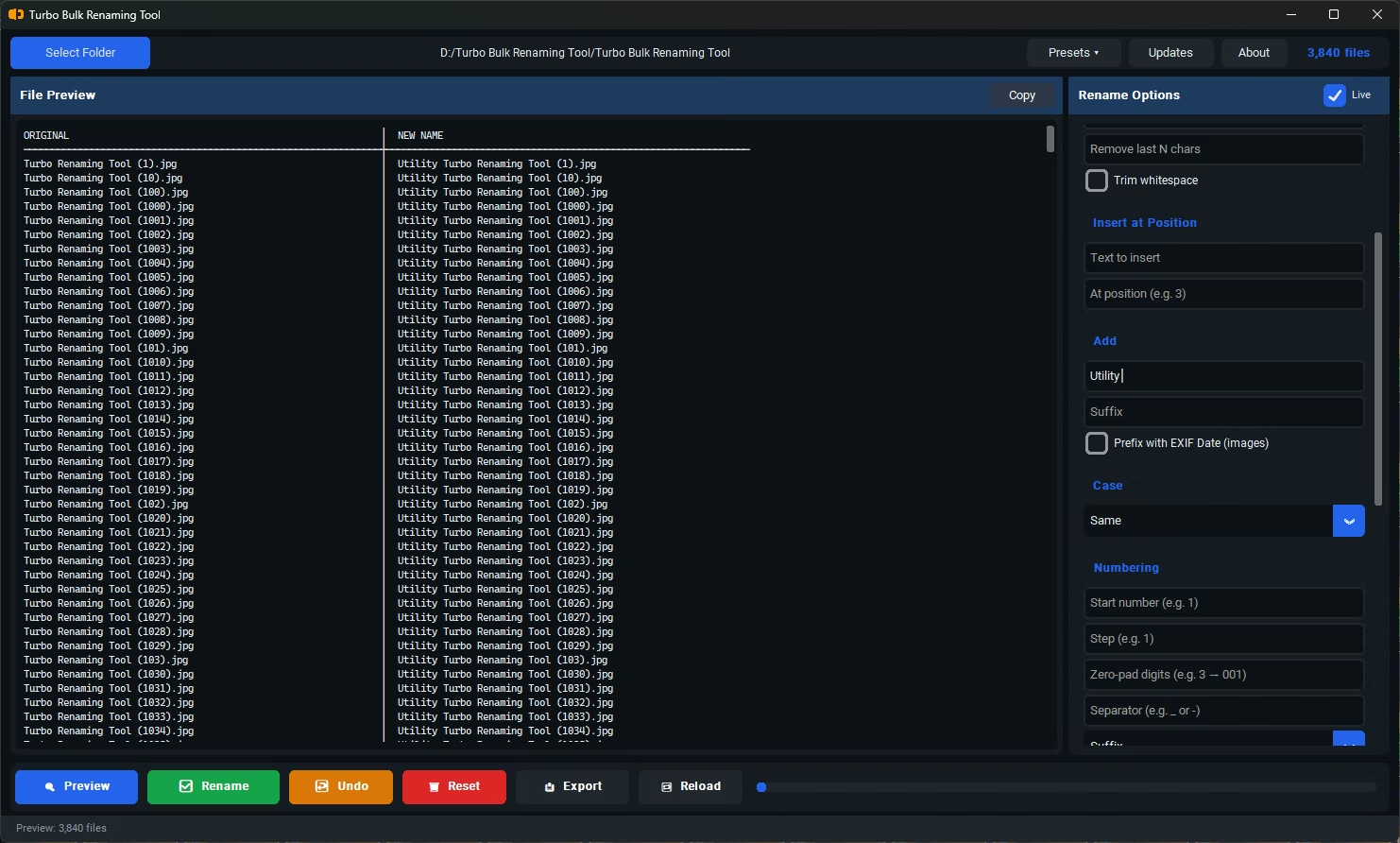
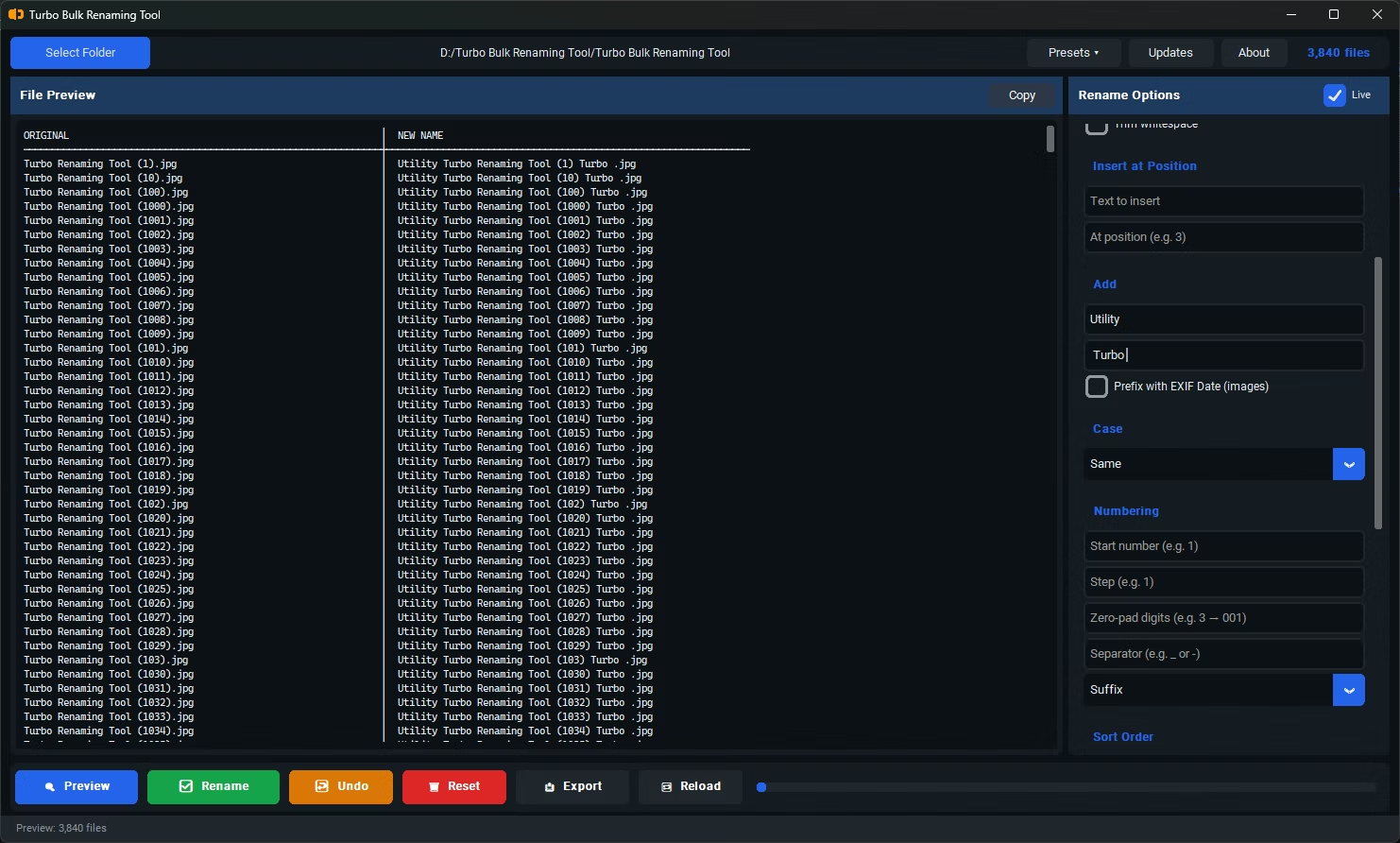
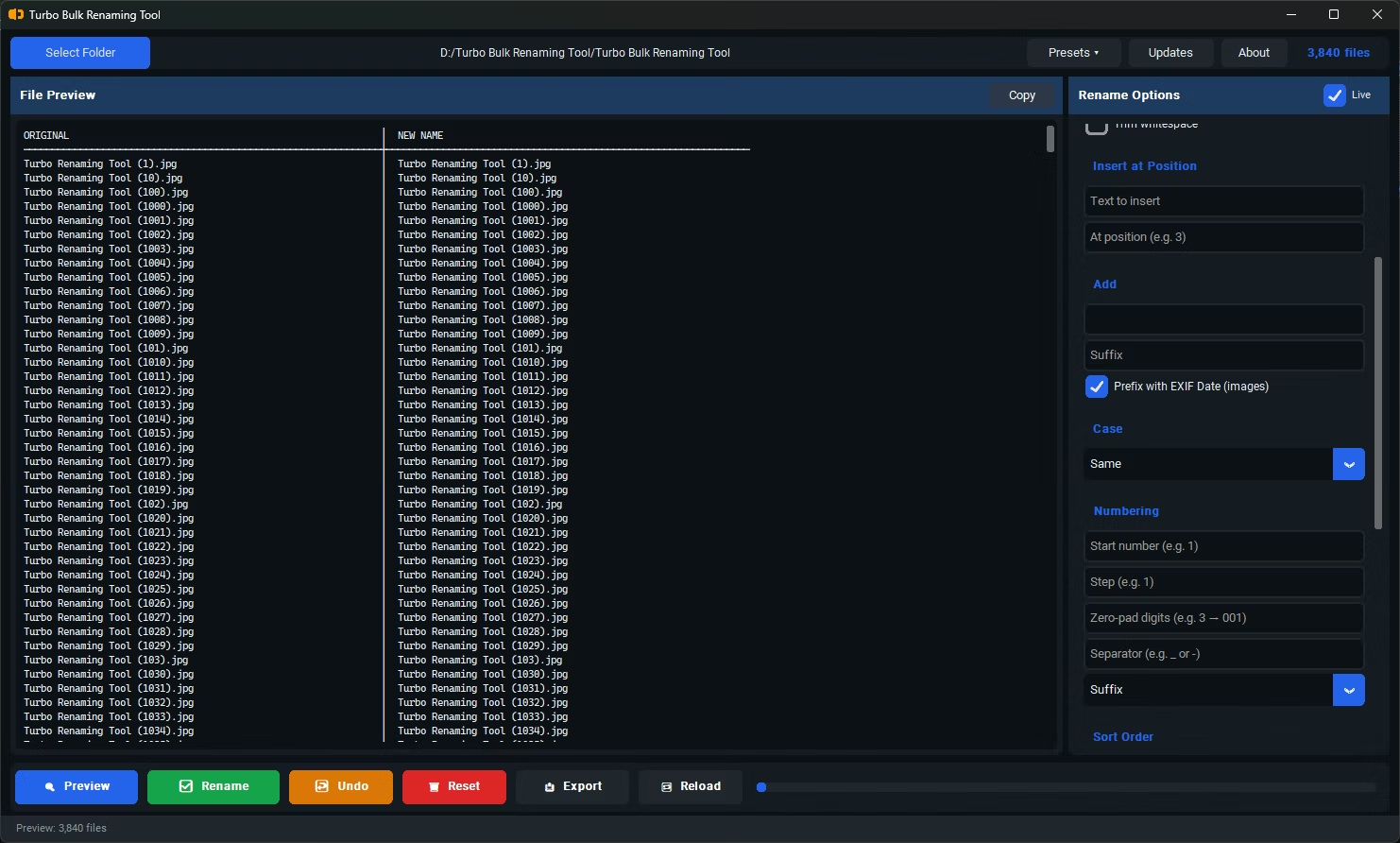
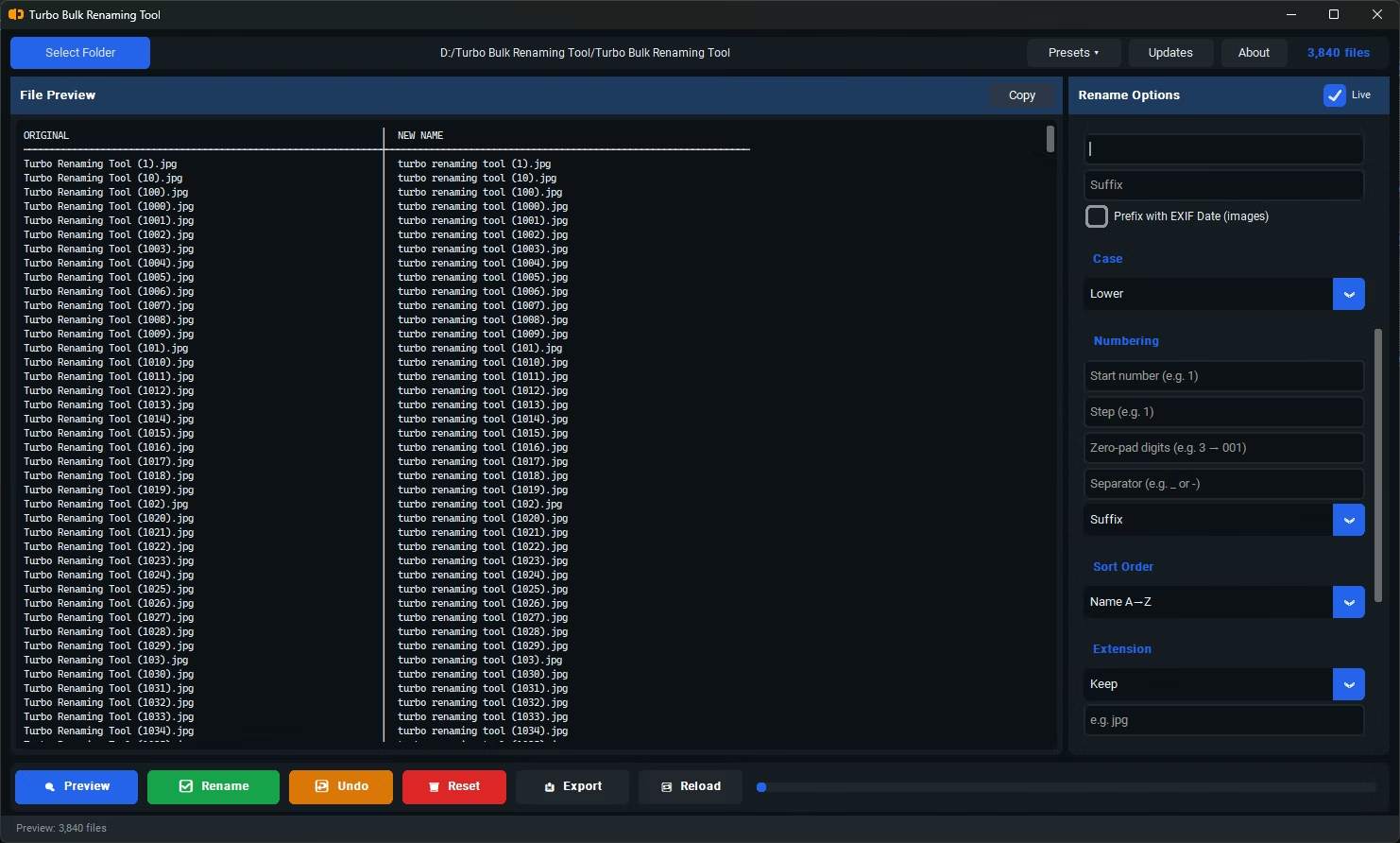
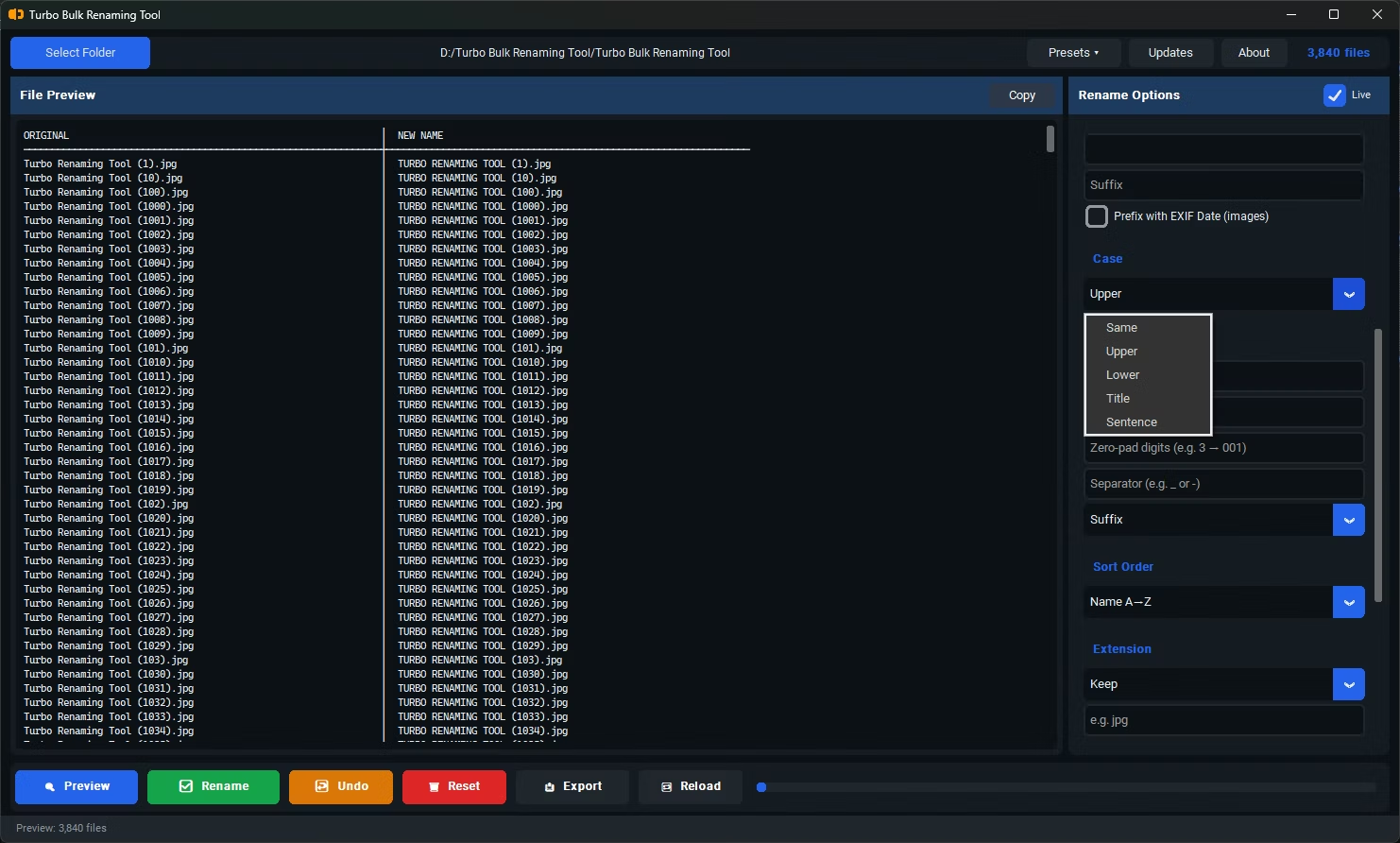
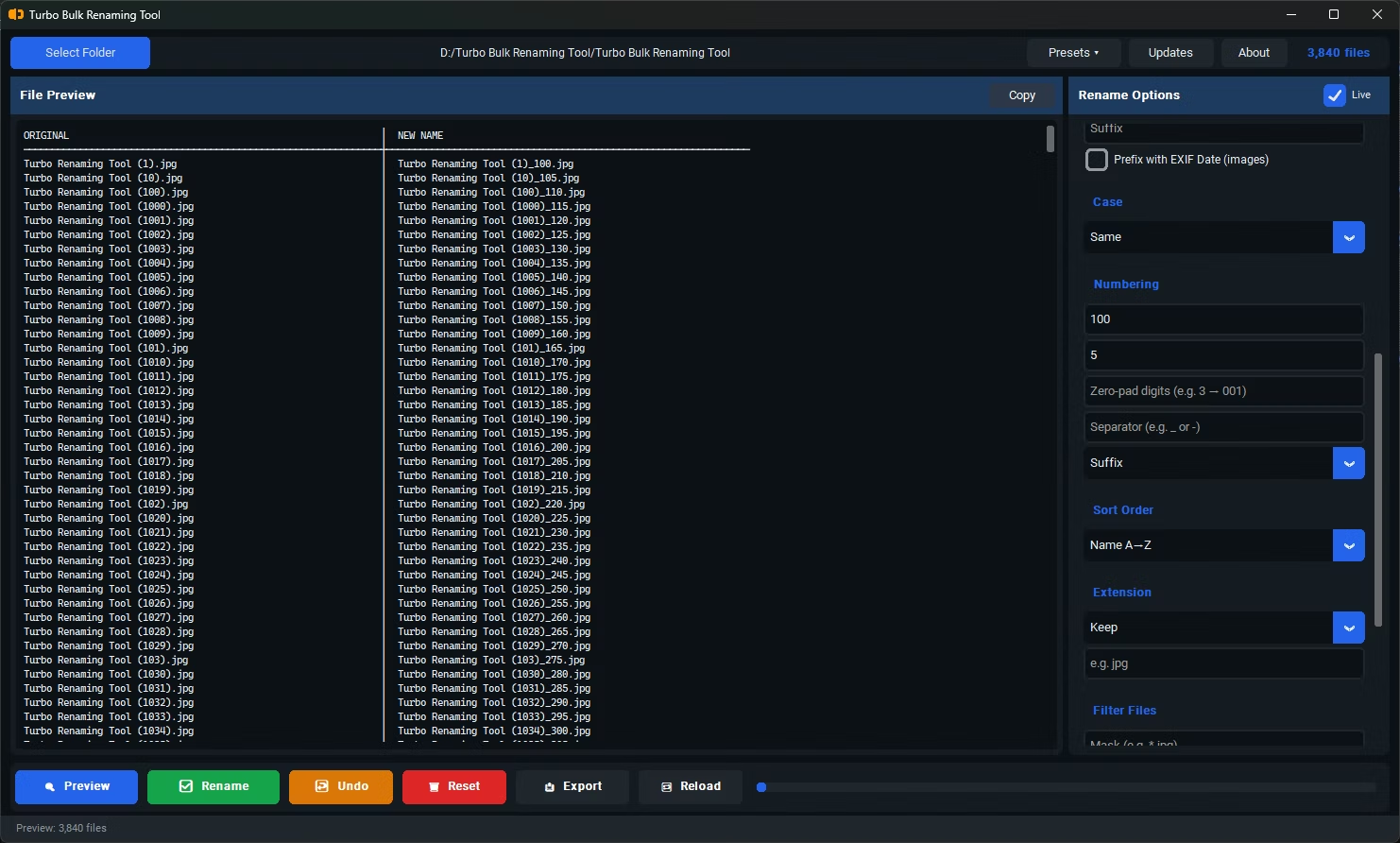
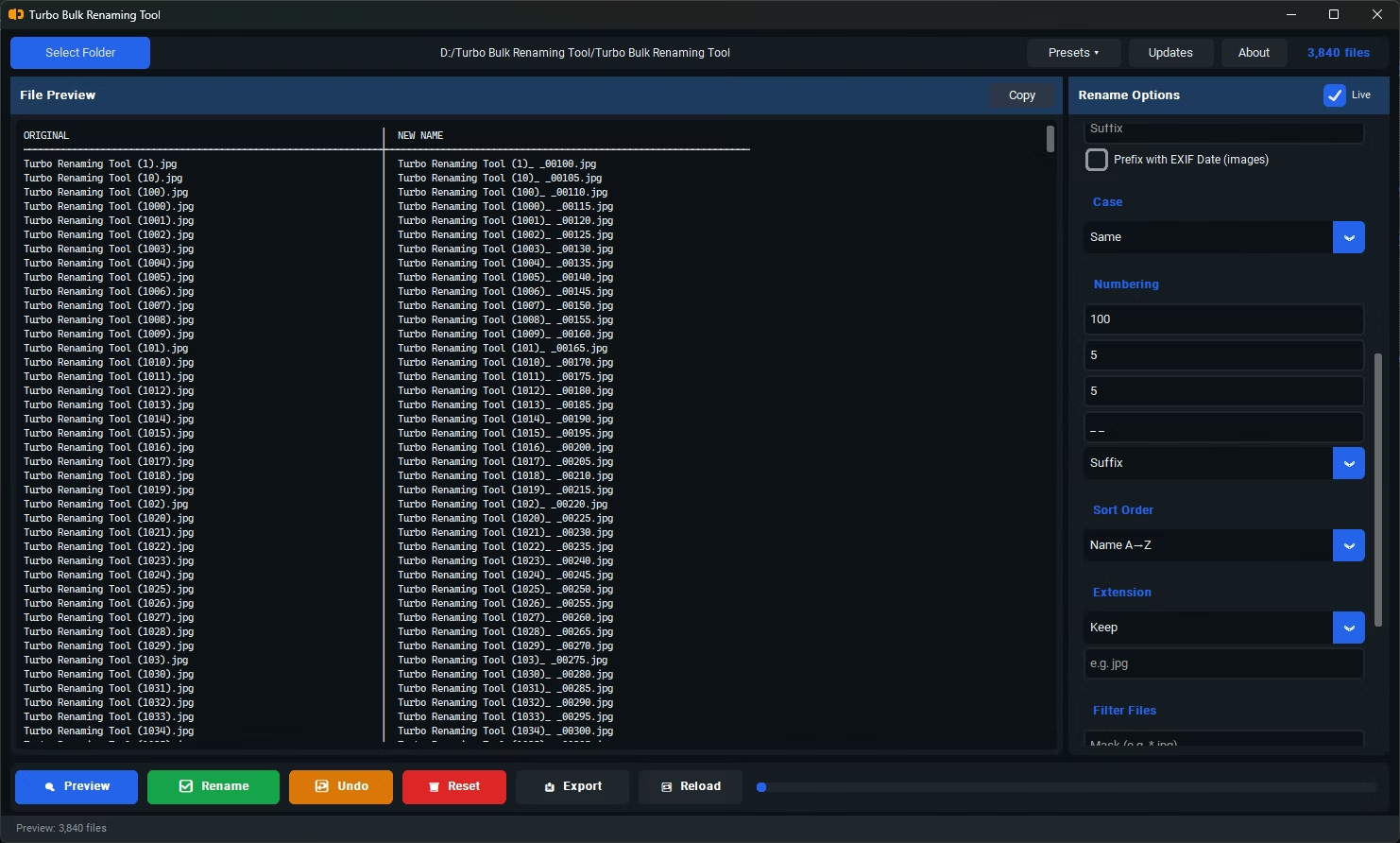
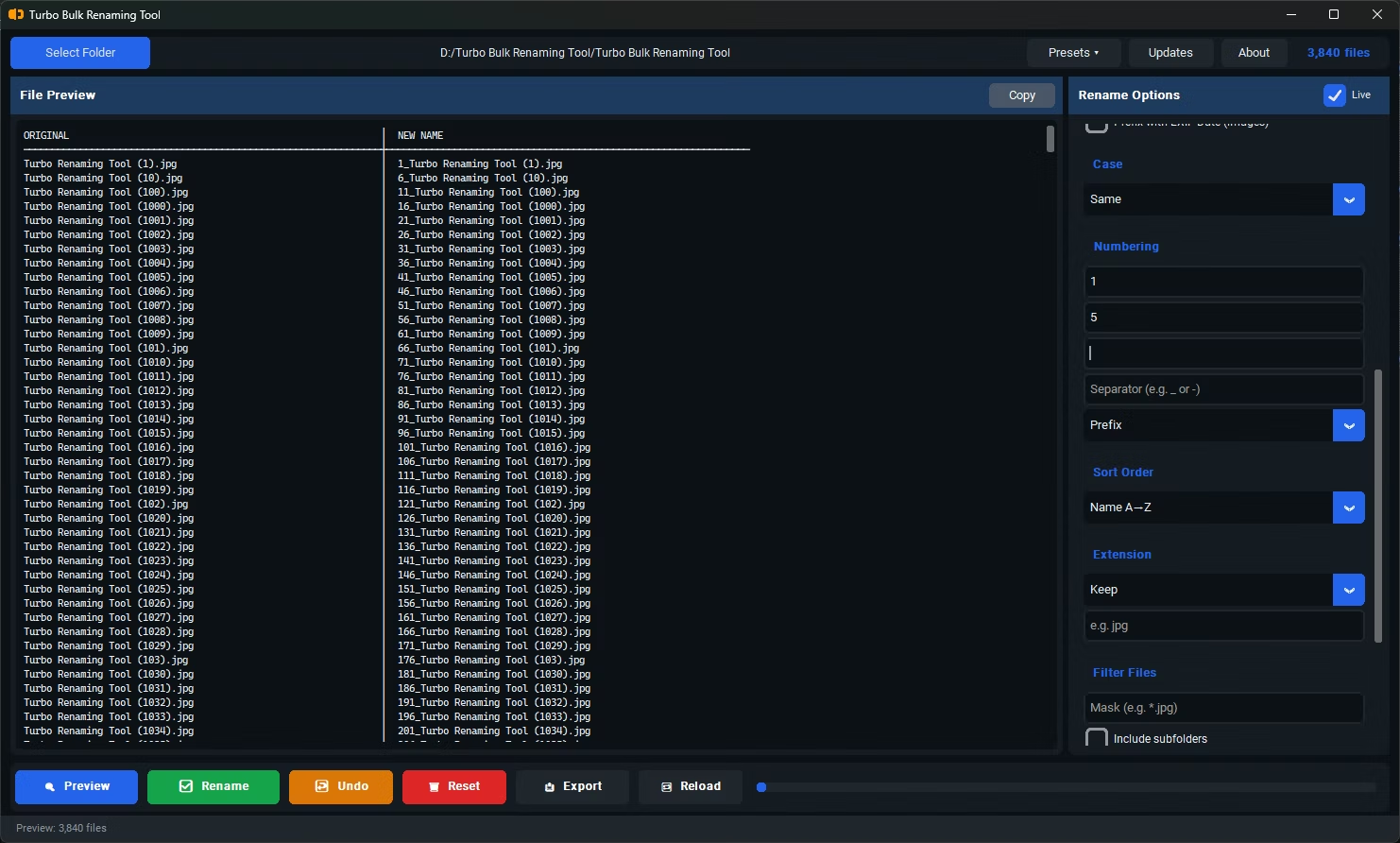
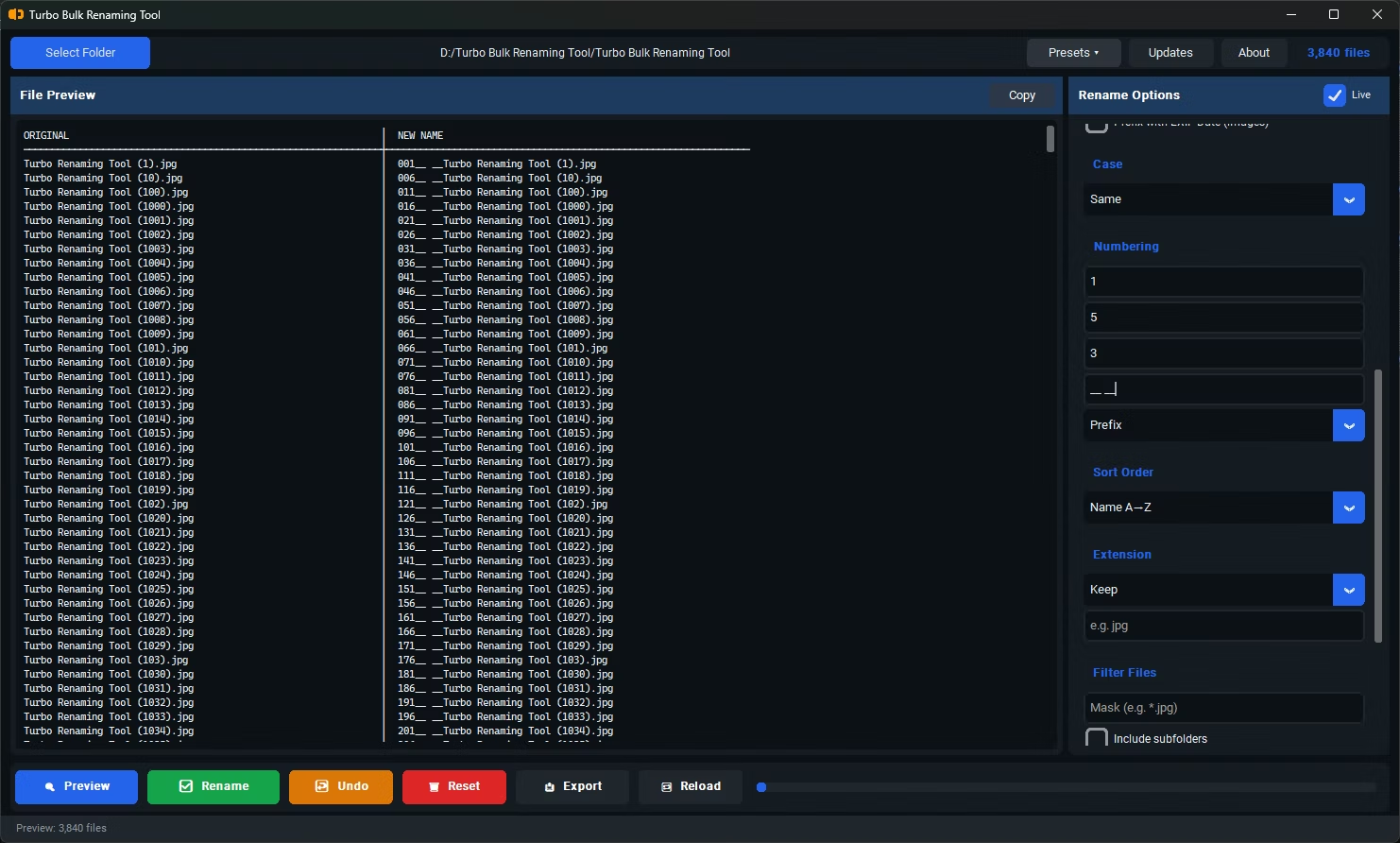
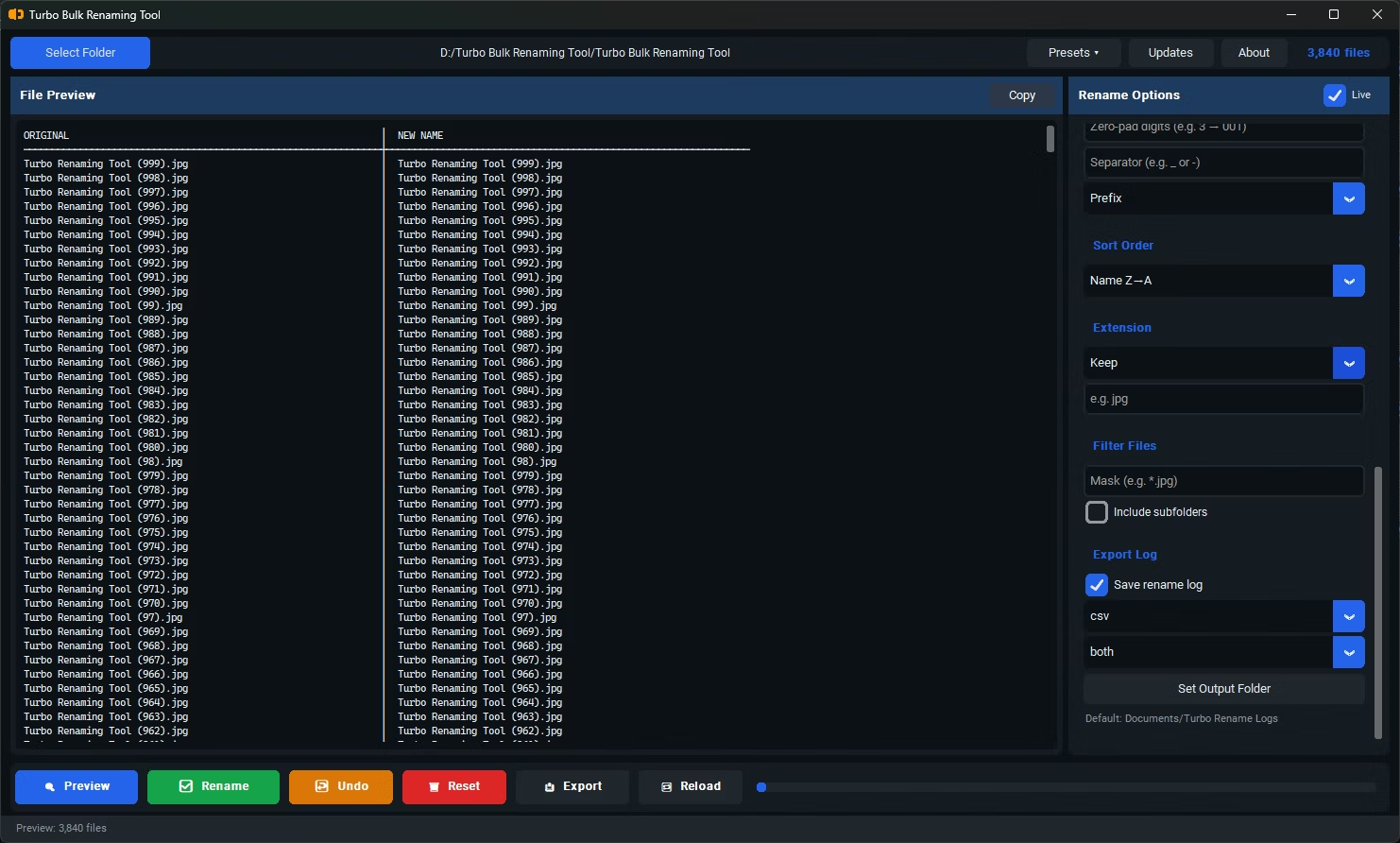
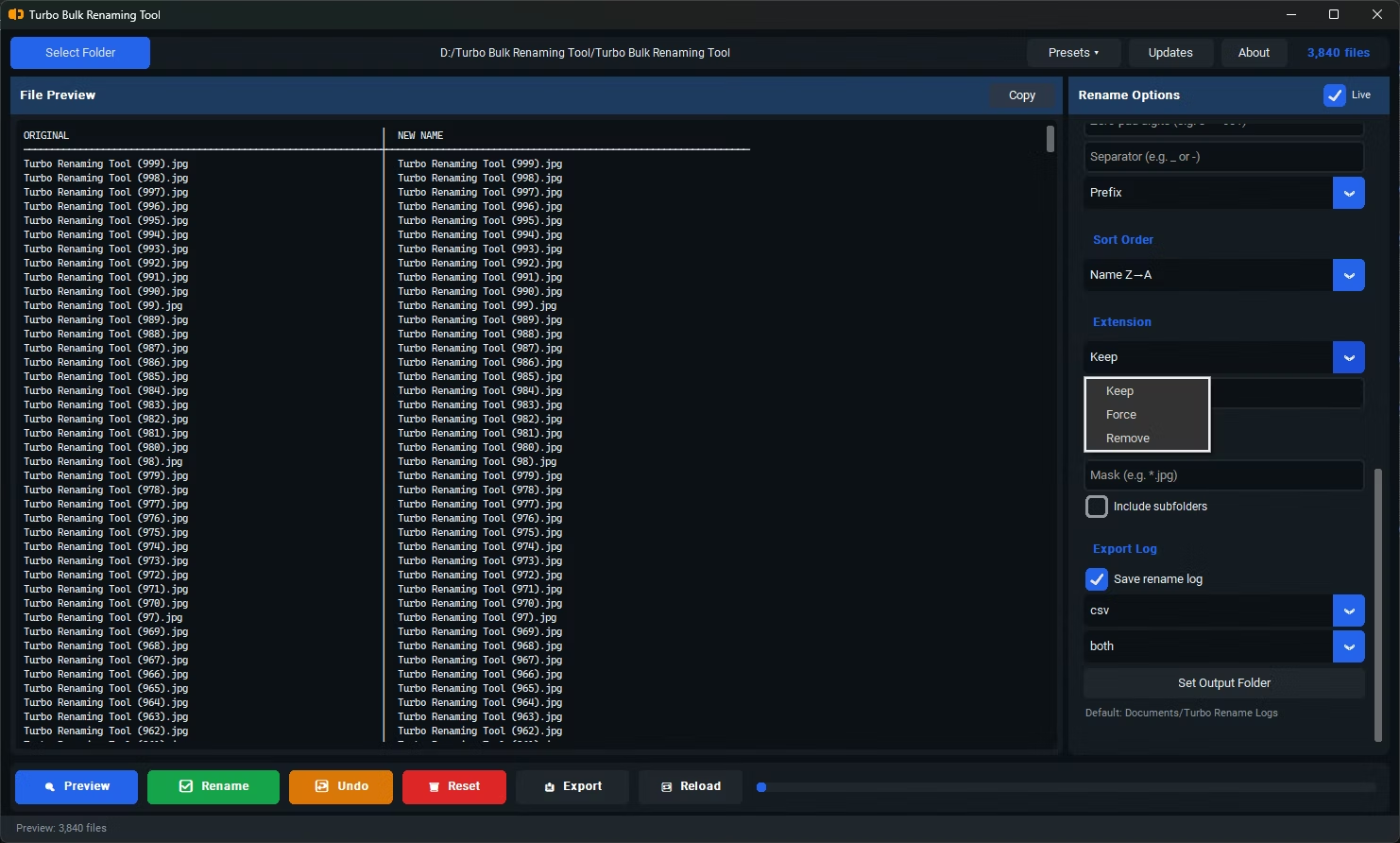
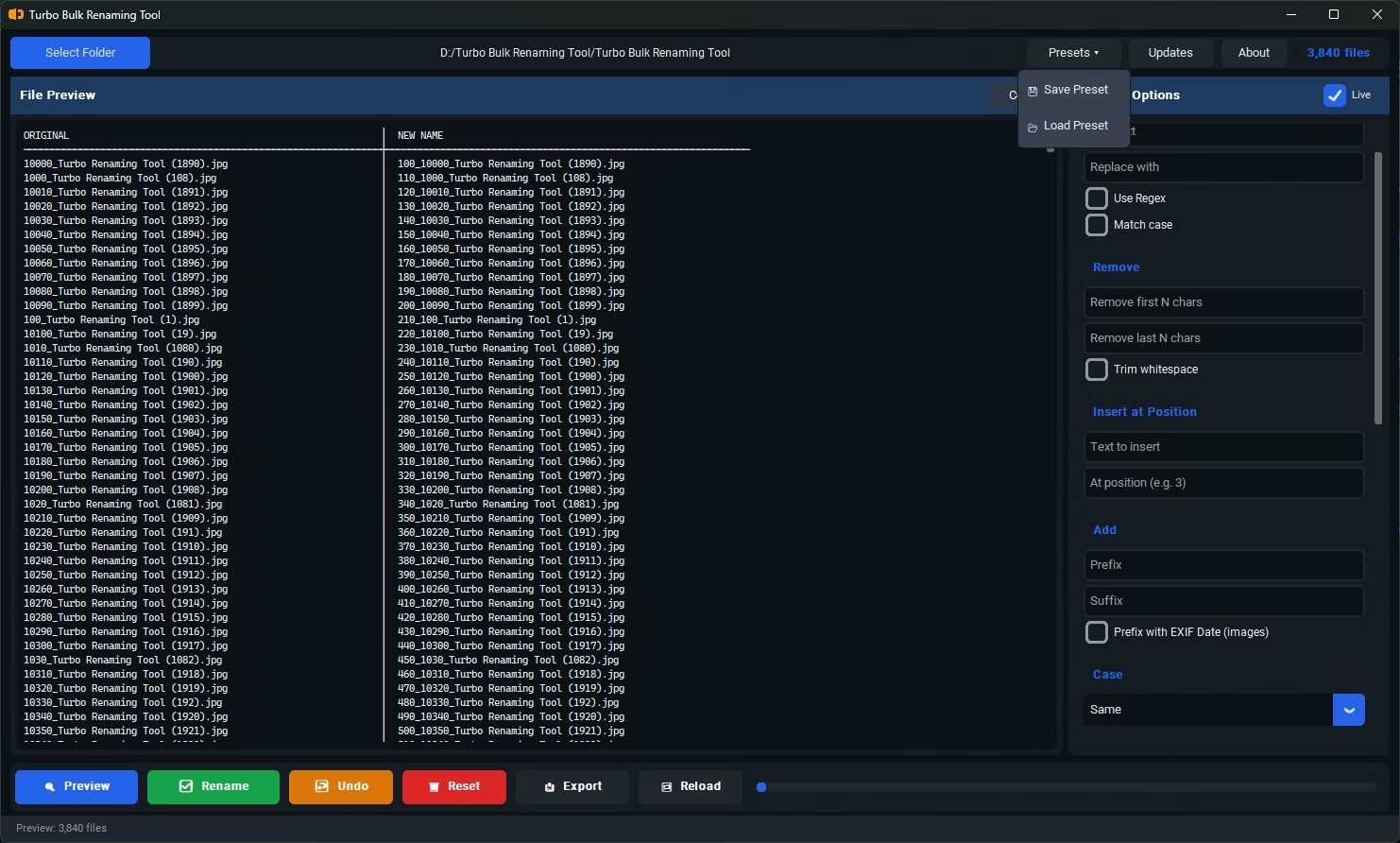
- Install Batchify Batch File Rename Tool on your Windows PC.
- Open the app and browse to or drag in the folder on your computer containing the files you want to rename.
- Enable "Include Subfolders" if the files are spread across nested folders within that location.
- Pick a renaming rule — for example Find & Replace, Sequential Numbering, Prefix, or Suffix.
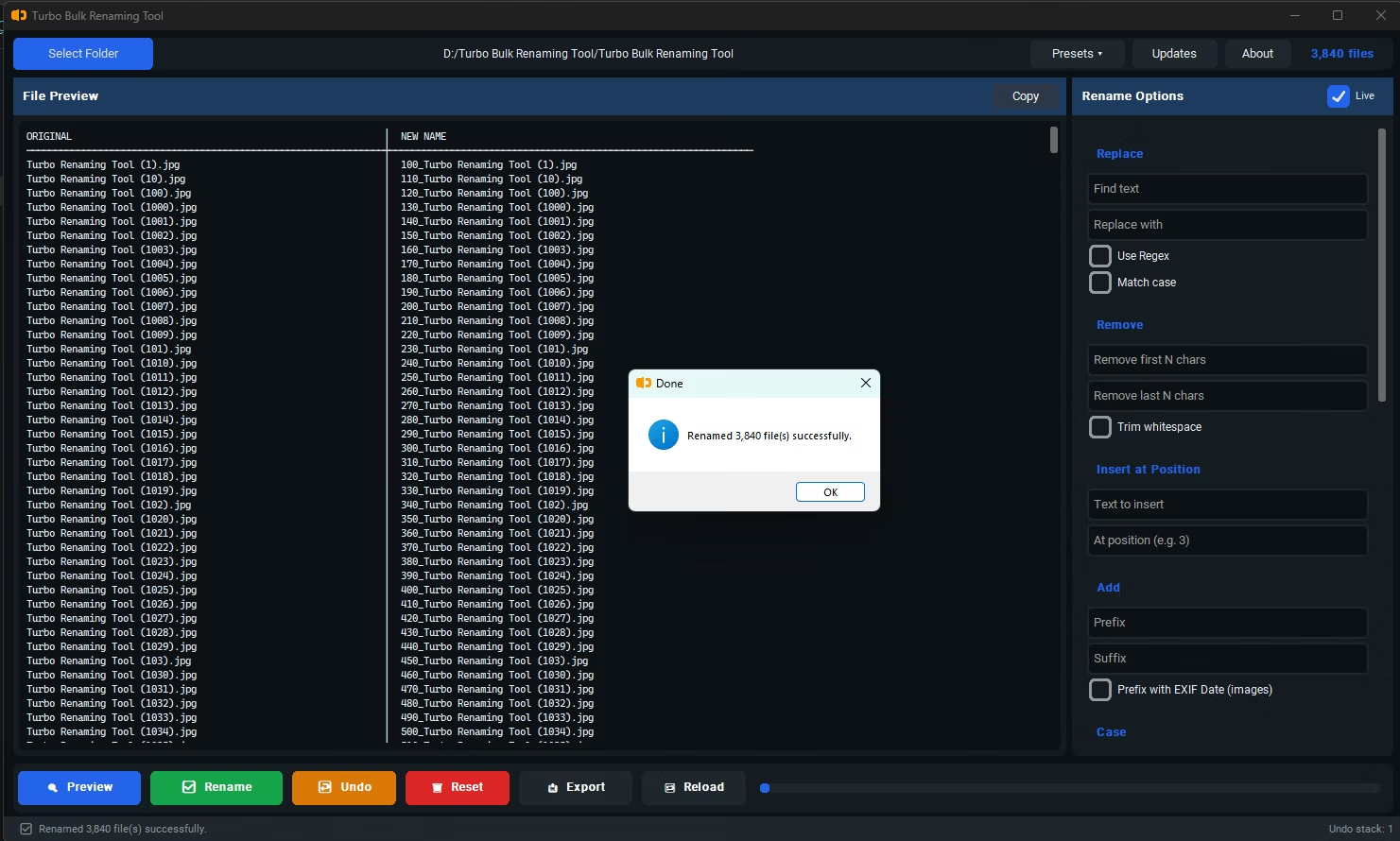
- Check the live preview to confirm the new filenames look correct.
- Click Rename to apply the change to every selected file at once, directly on your computer.
- Files never leave your computer — there's no upload step at all
- Works without an internet connection once installed
- No file-count limits imposed by a remote server
- Recursive folder support for organized, nested file structures
- Live preview and conflict detection prevent renaming mistakes
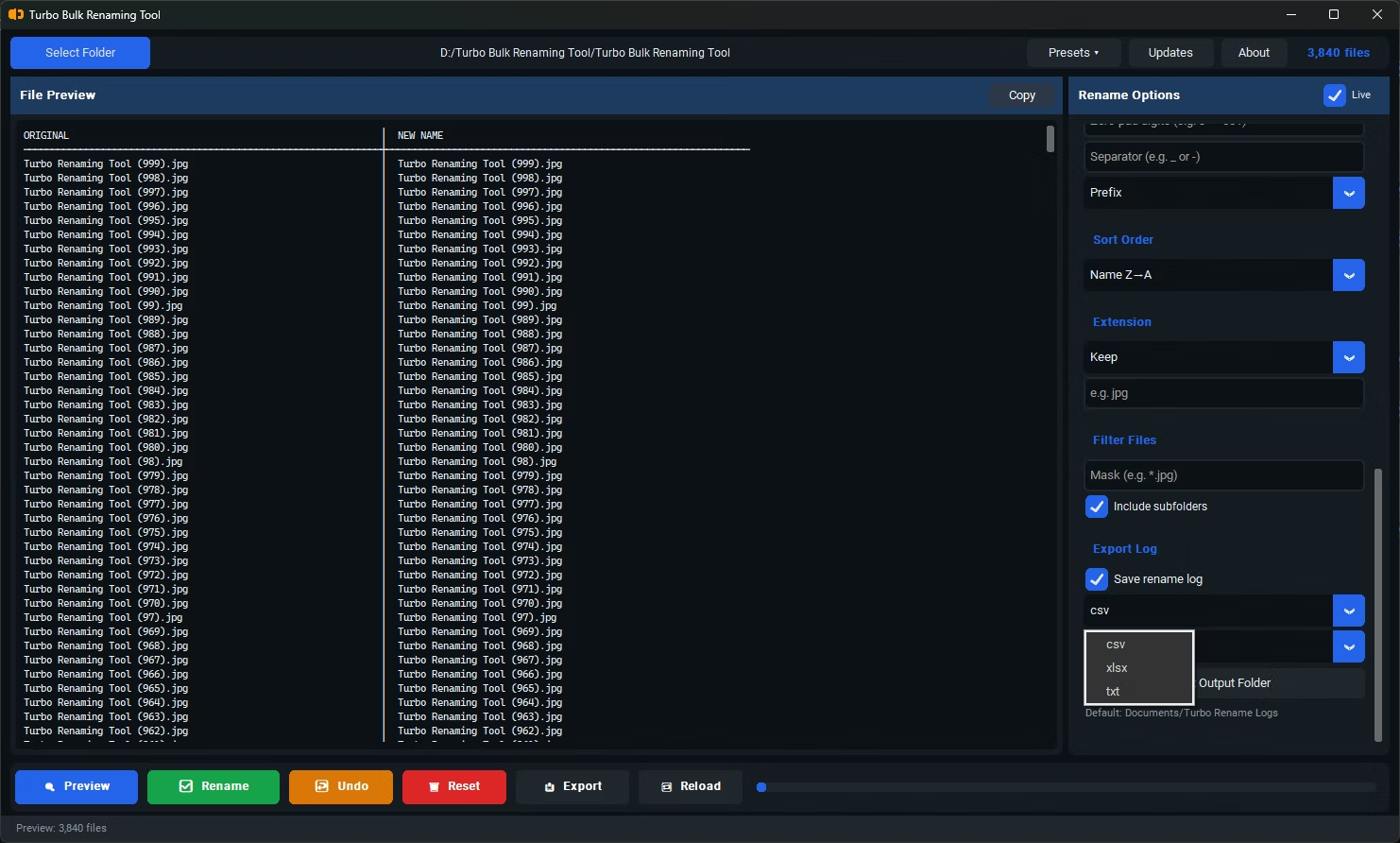
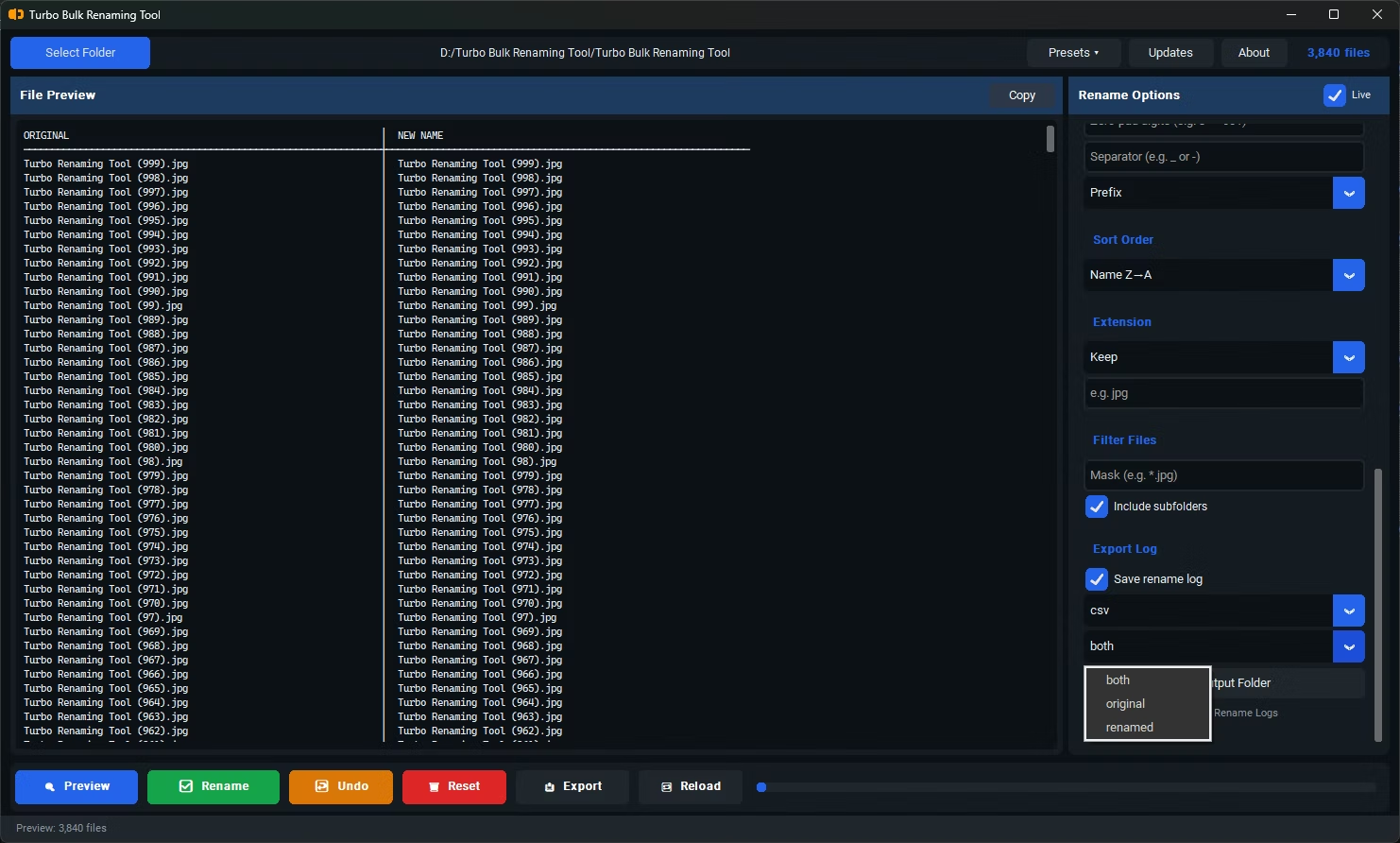
- Export filenames to CSV, XLSX, or TXT if you need a record of the change
Can I rename files across multiple folders at once?
Yes, enabling "Include Subfolders" lets the tool recurse through nested directories, renaming files wherever they're located while preserving the folder structure.
Will renaming affect the file contents?
No, only the filename is changed. The file's contents remain untouched during the rename process.
Is an internet connection needed to rename files this way?
No. Once installed, the tool works entirely offline, renaming files directly on your computer's storage.
Ready to rename your files in bulk, offline, with full privacy?