Inconsistent capitalization across filenames — a mix of UPPERCASE, lowercase, and Title Case in the same folder — makes files harder to scan visually and can cause issues with case-sensitive systems or scripts. Converting an entire folder to a consistent case, whether that's all lowercase for web assets or Title Case for readability, tidies things up instantly.
This is a common cleanup step after merging files from different sources, such as combining downloads from multiple people or systems that each used their own naming convention.
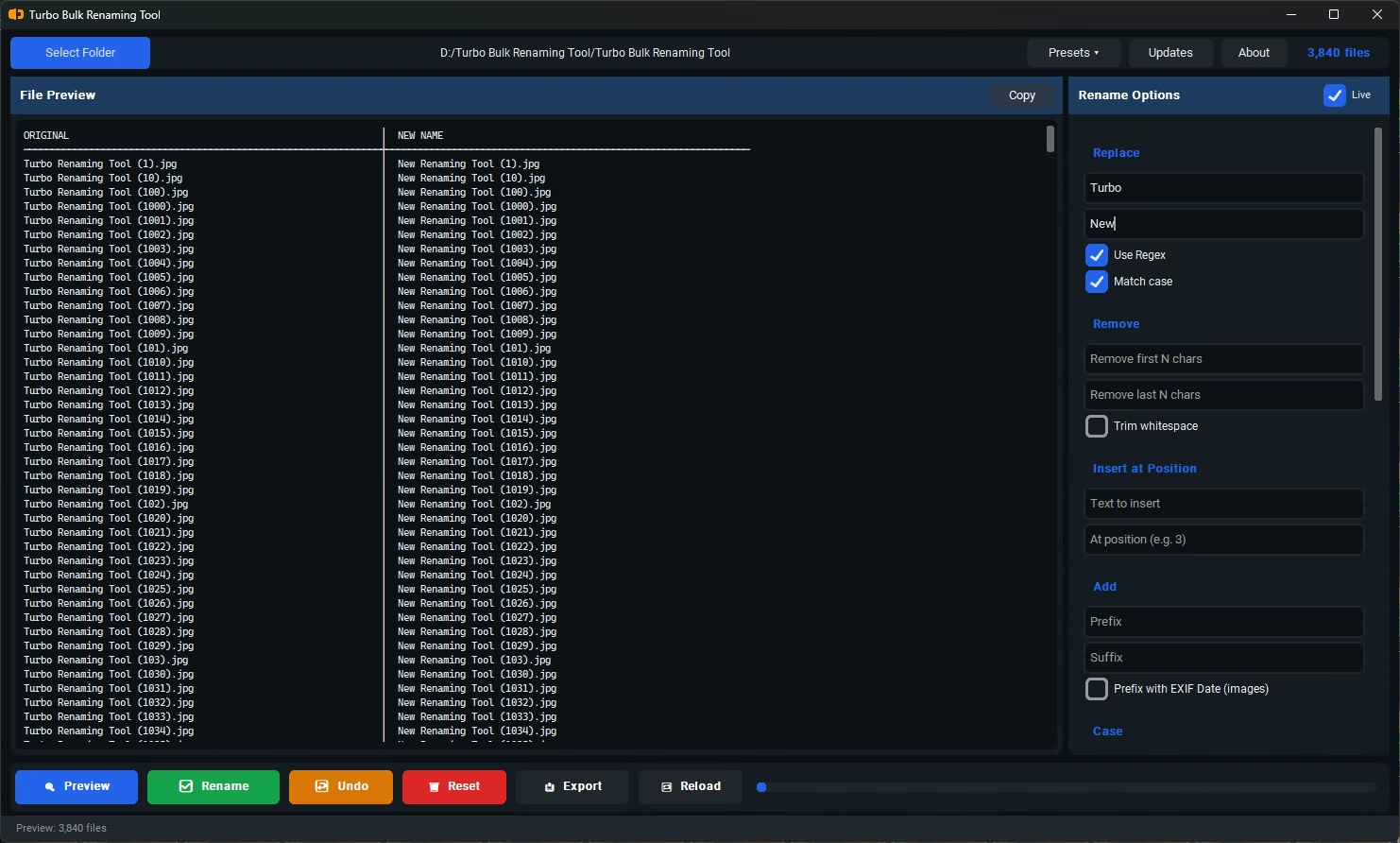
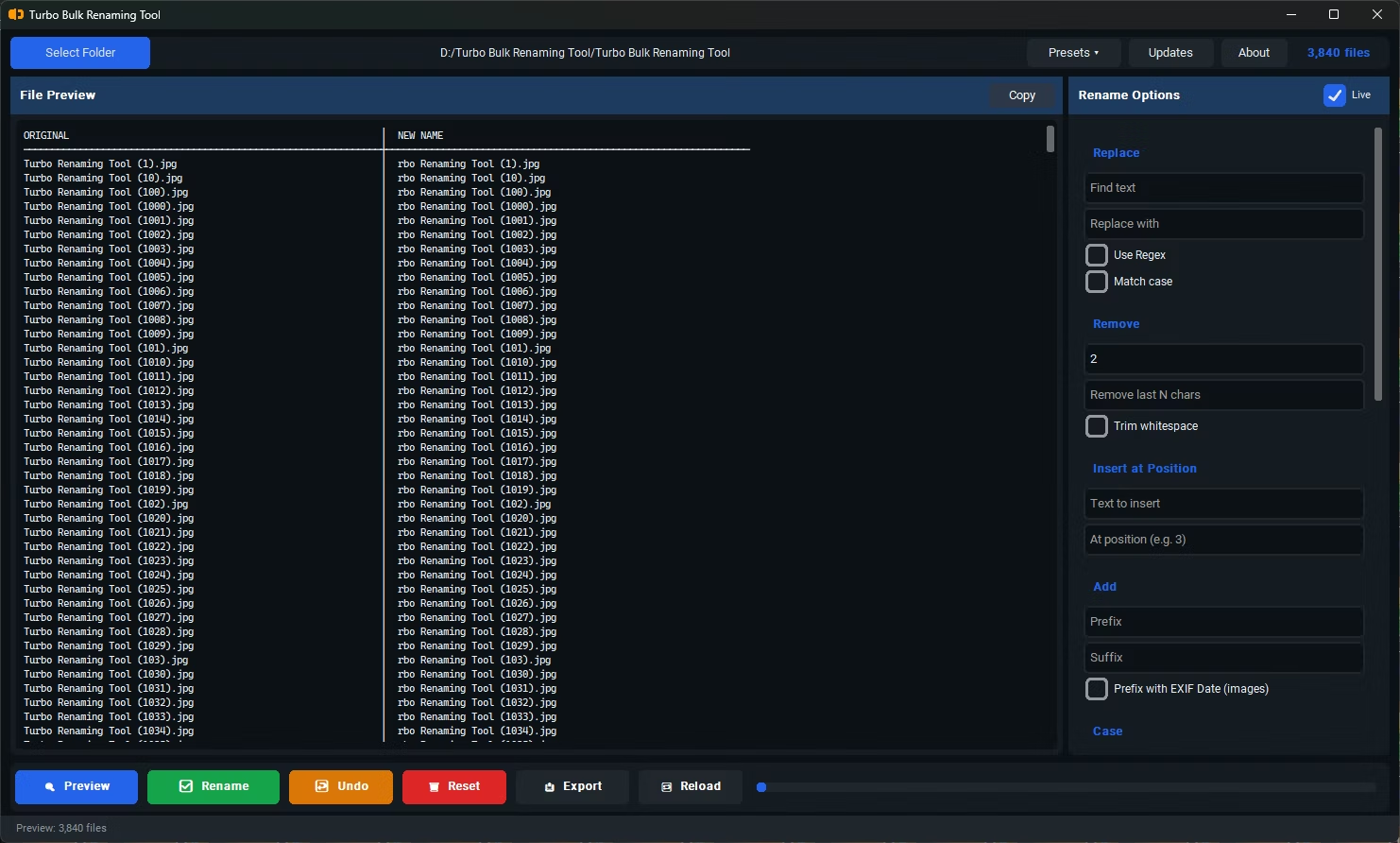
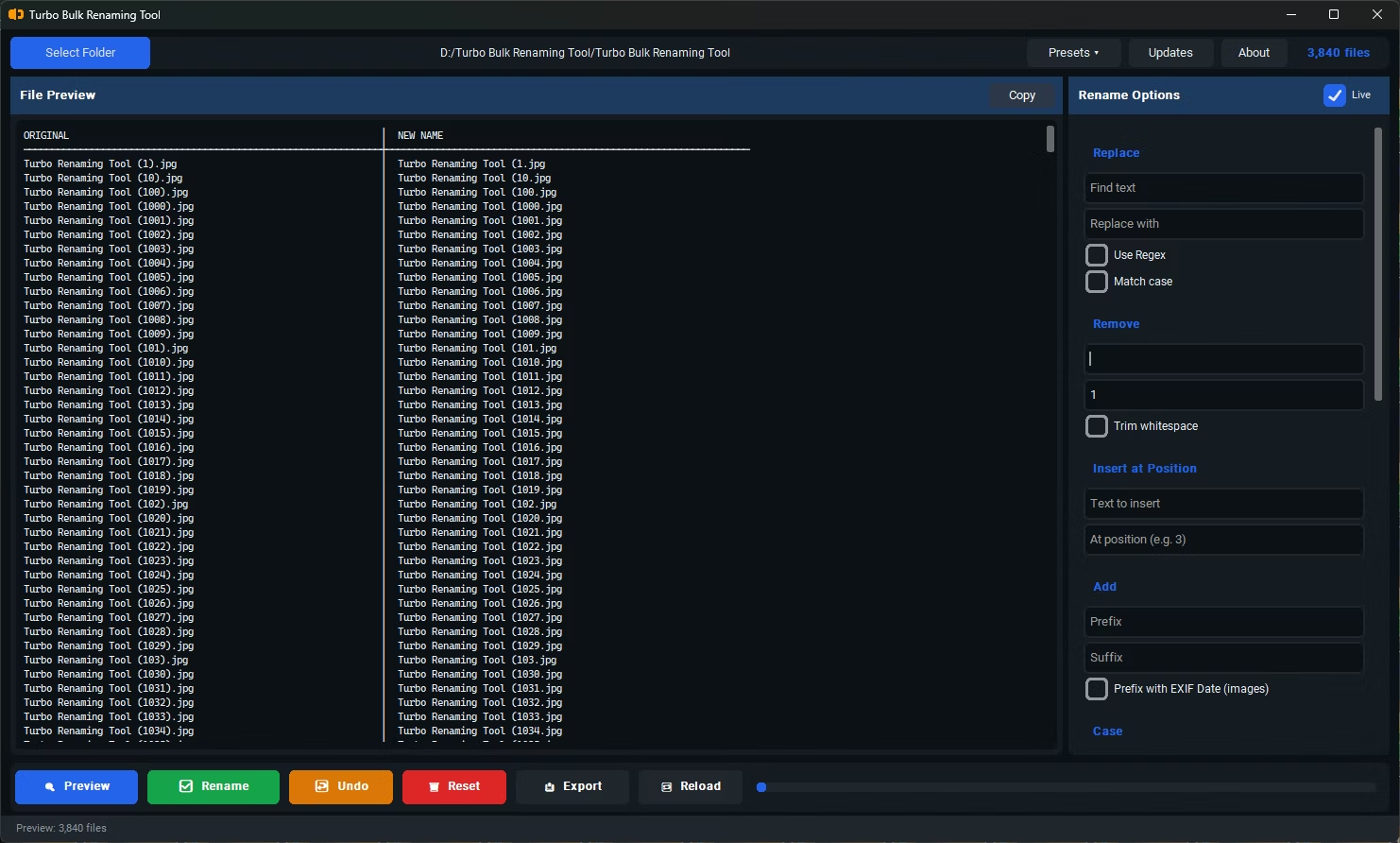
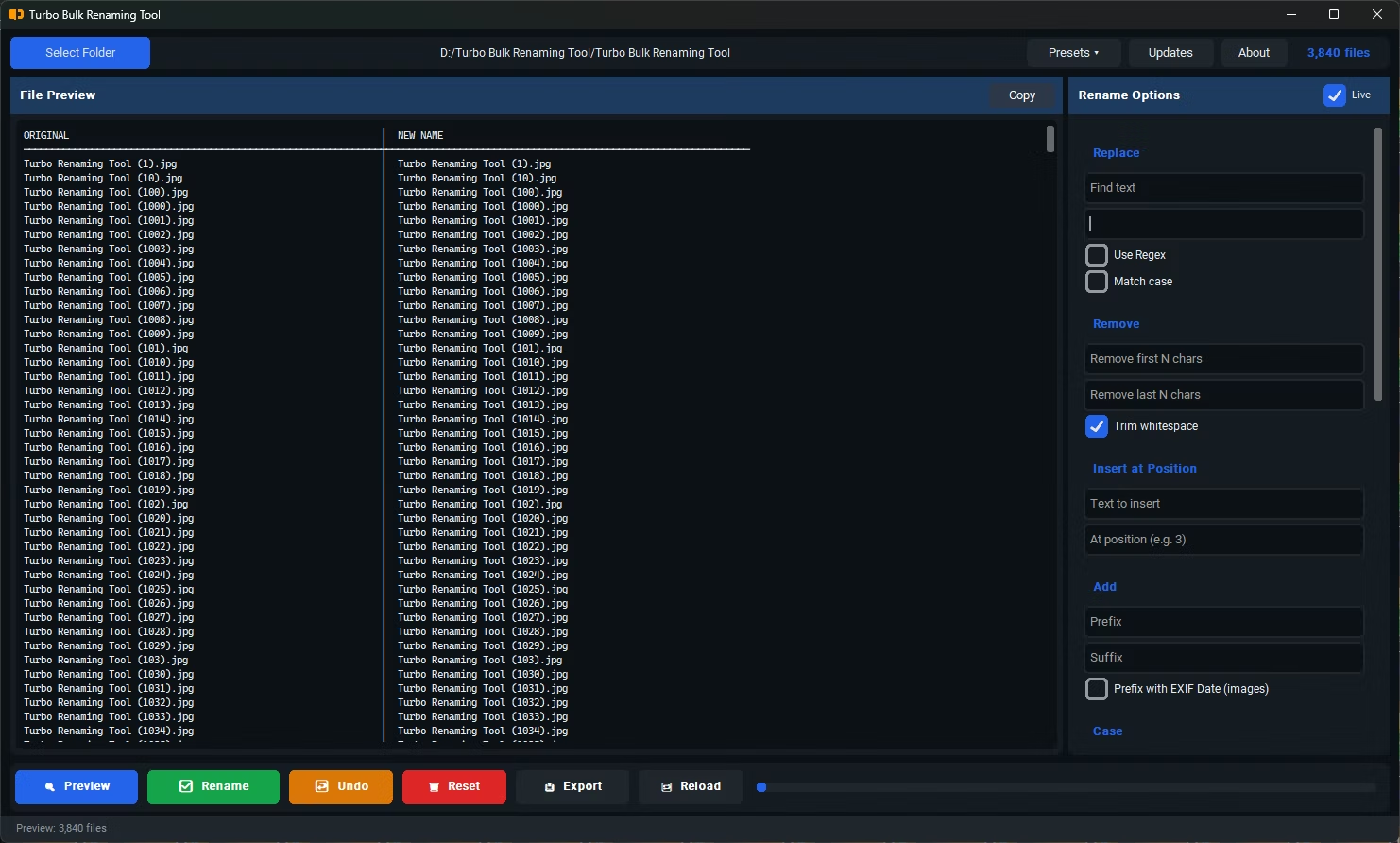
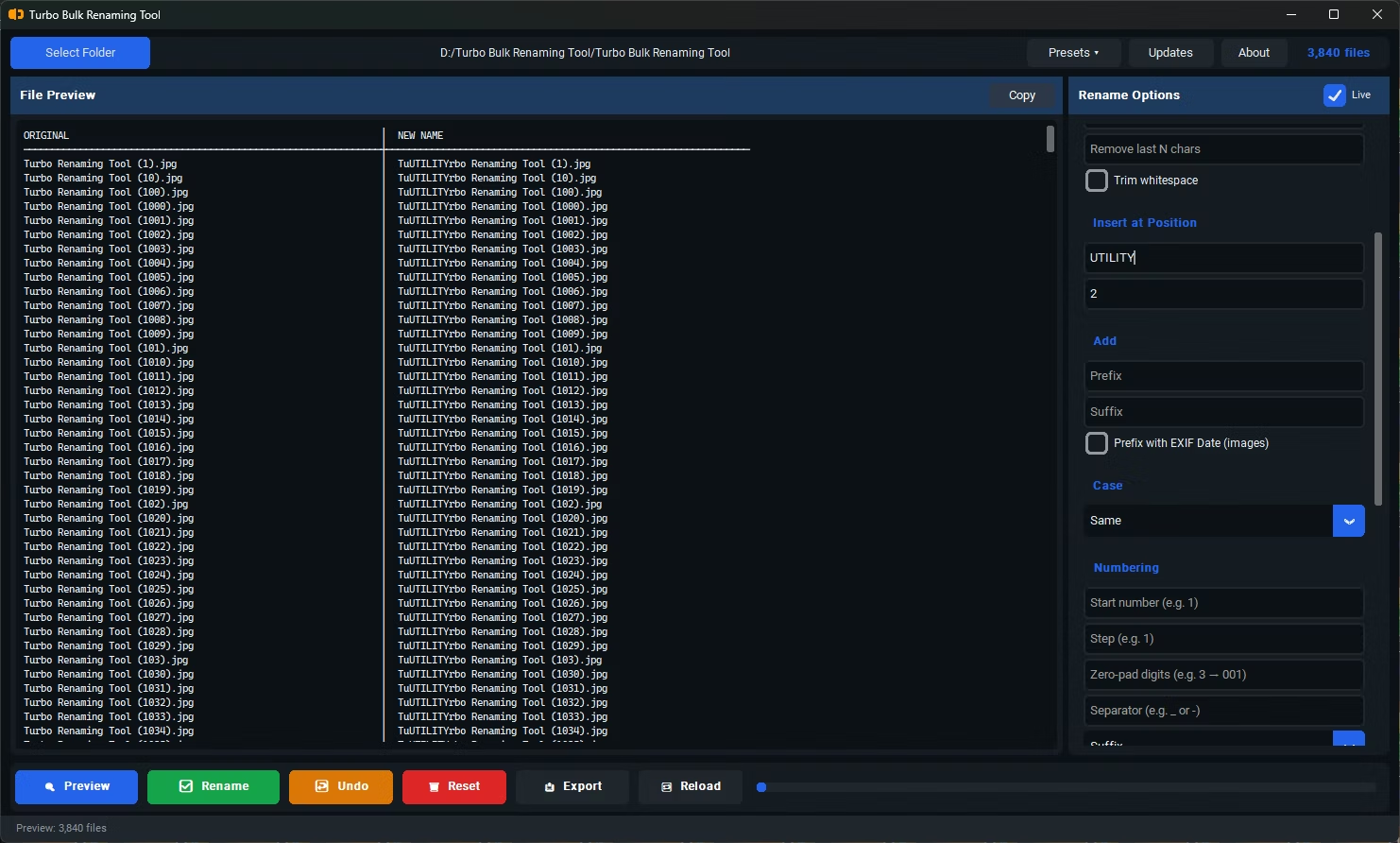
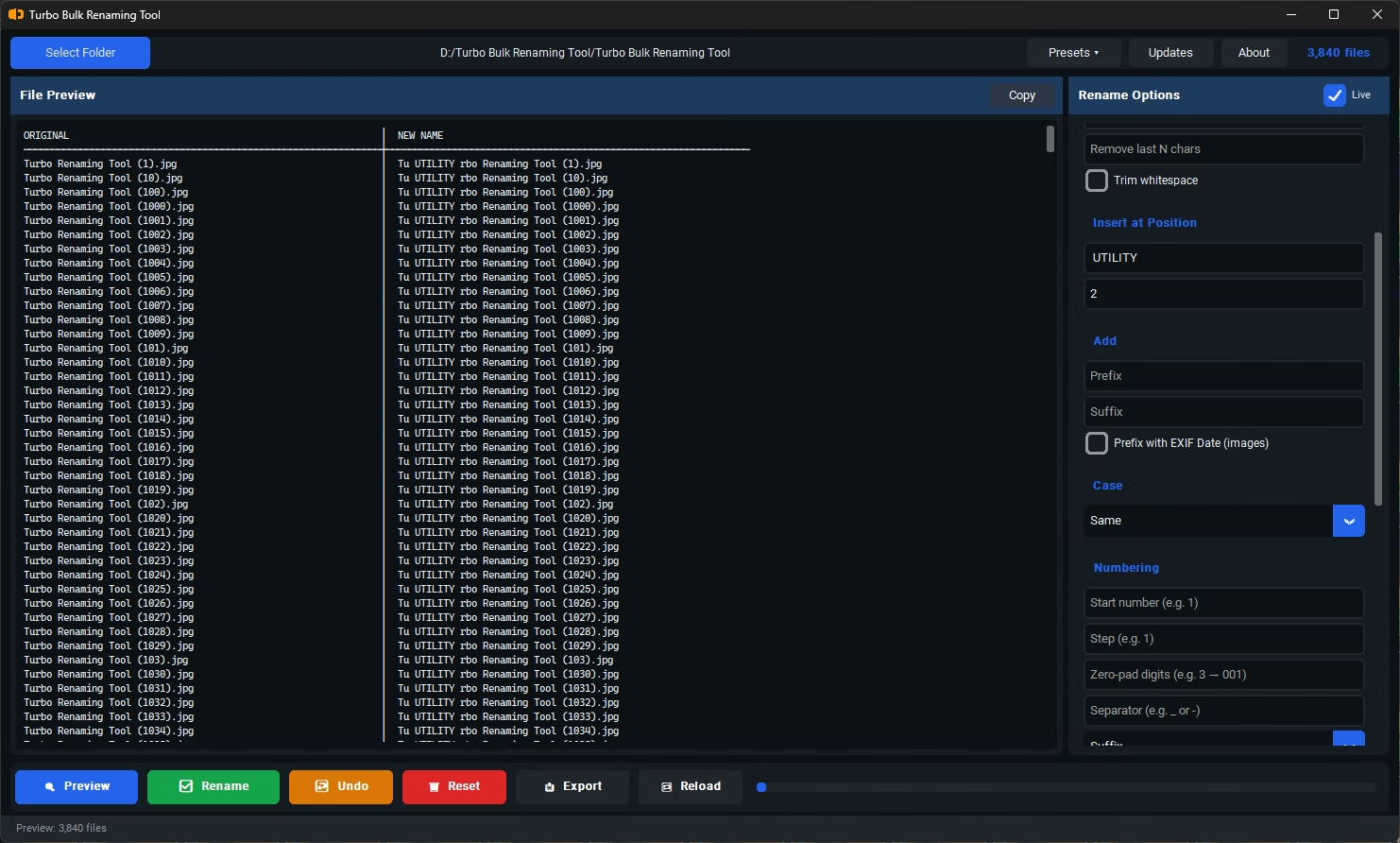
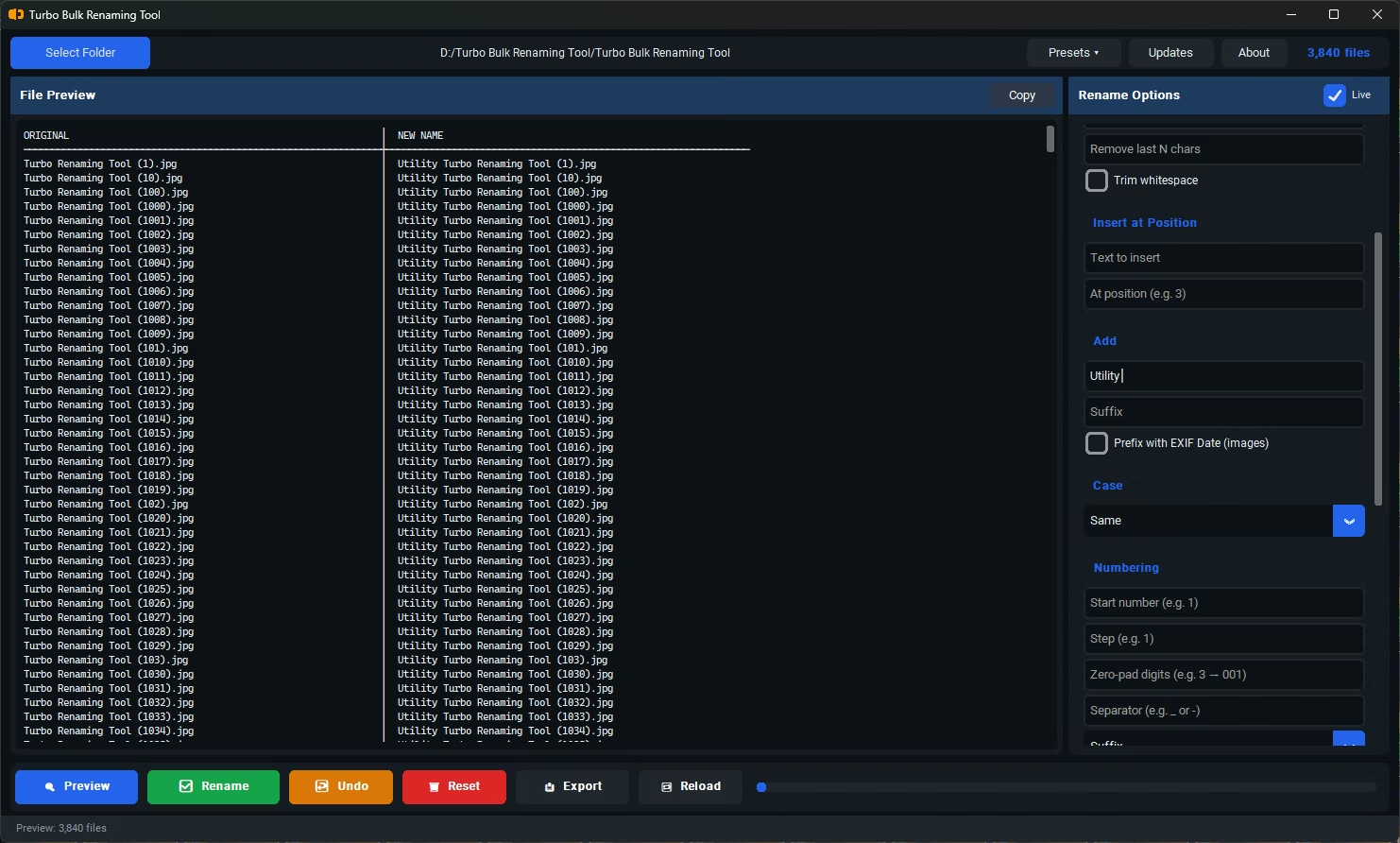
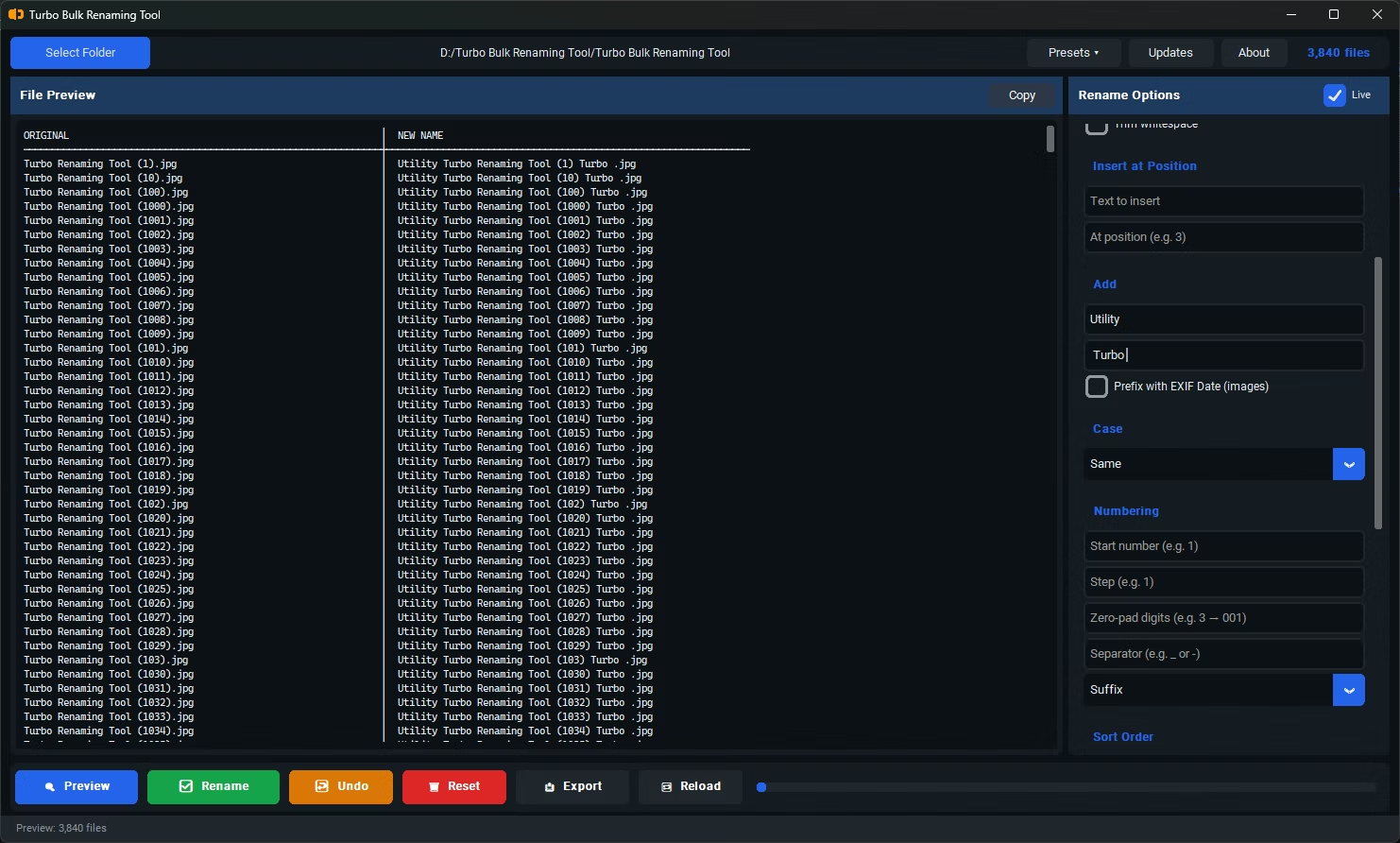
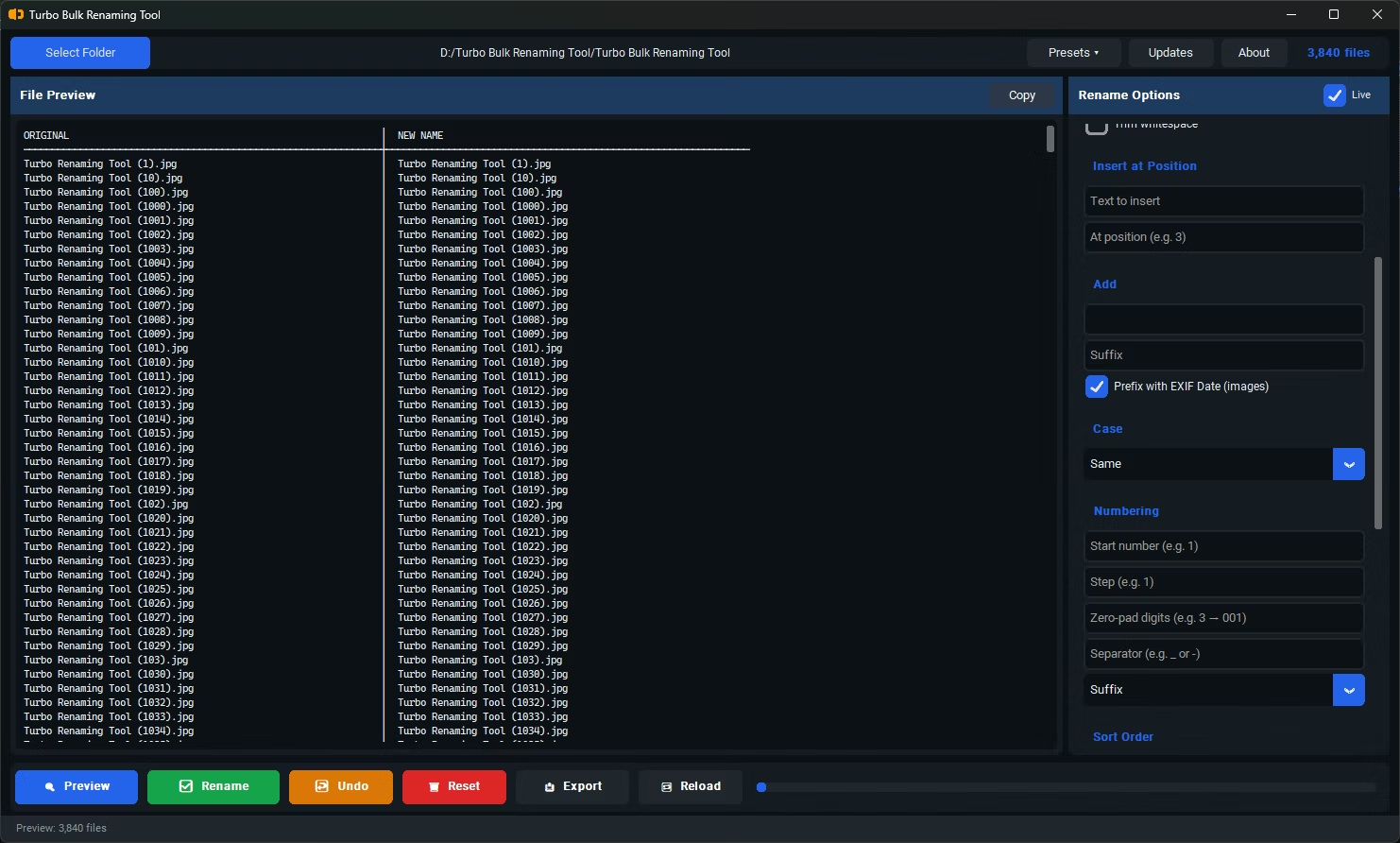
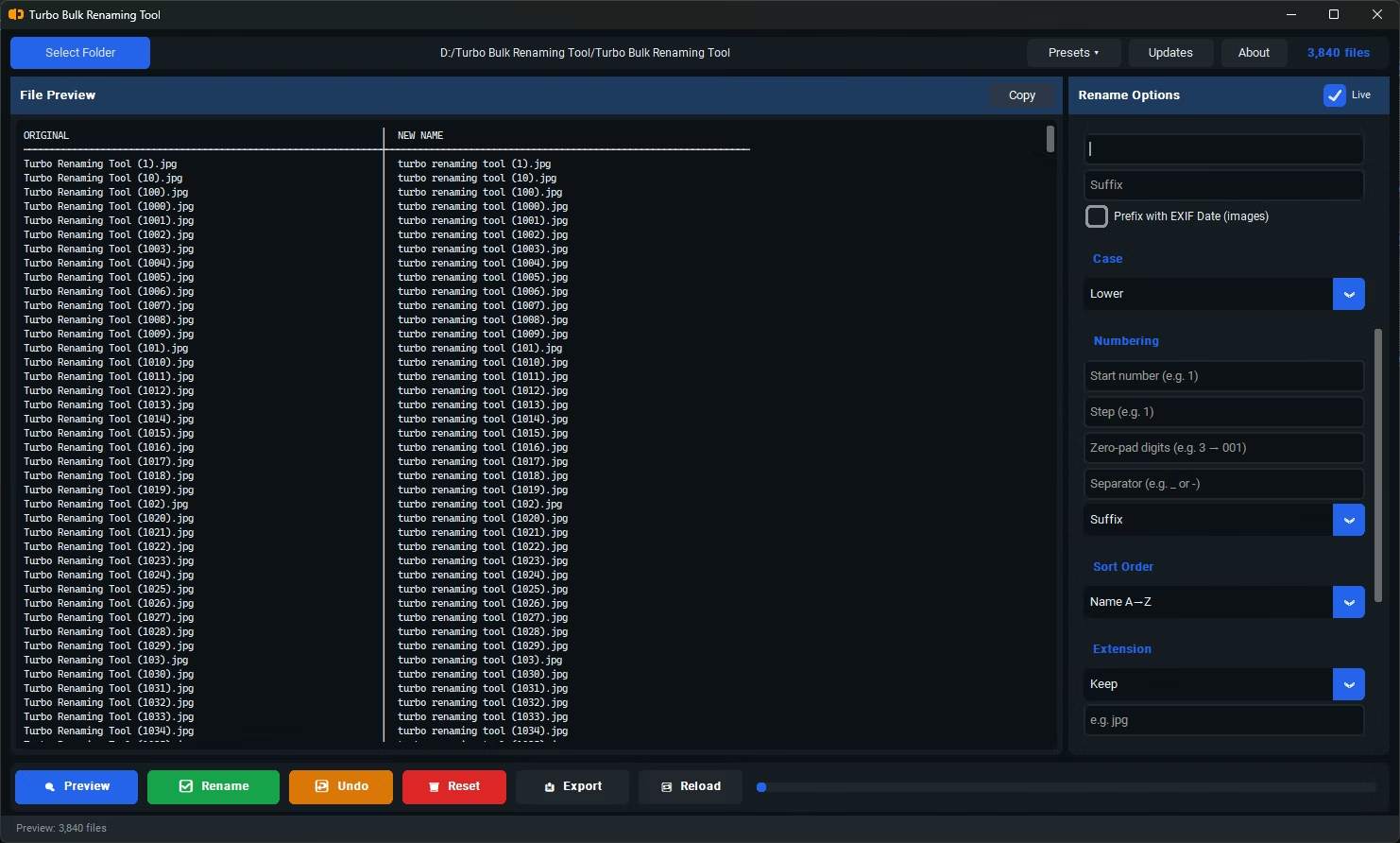
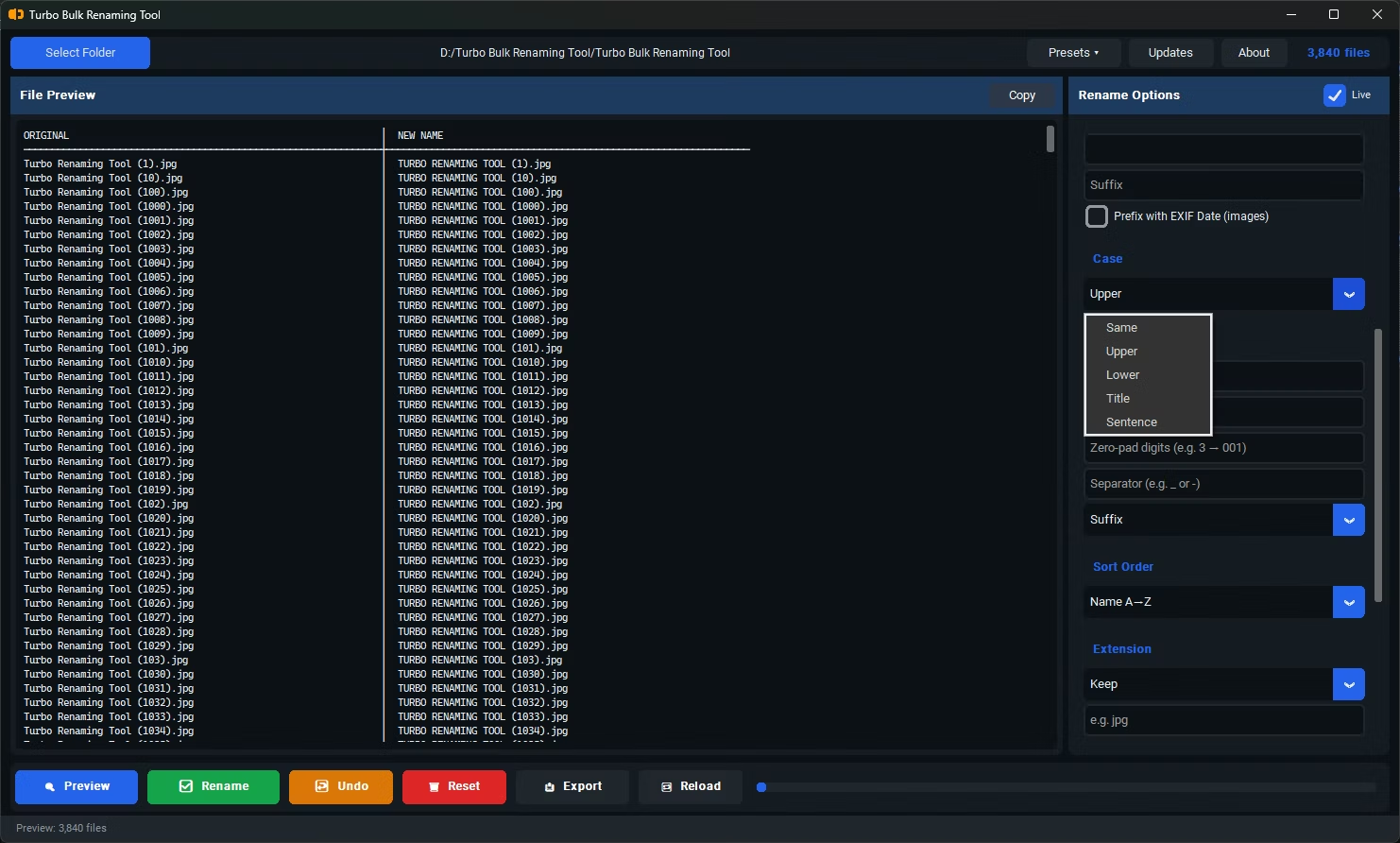
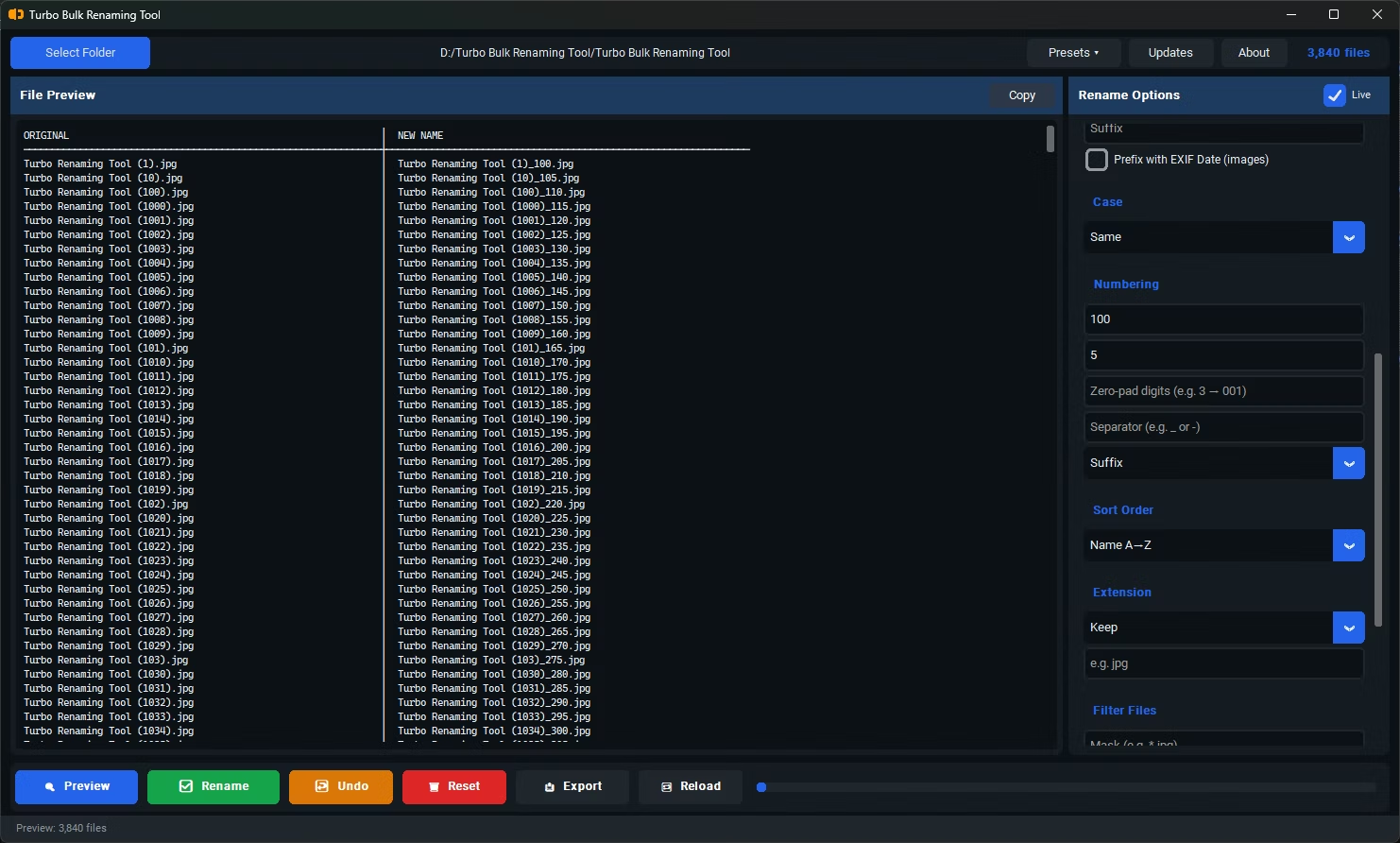
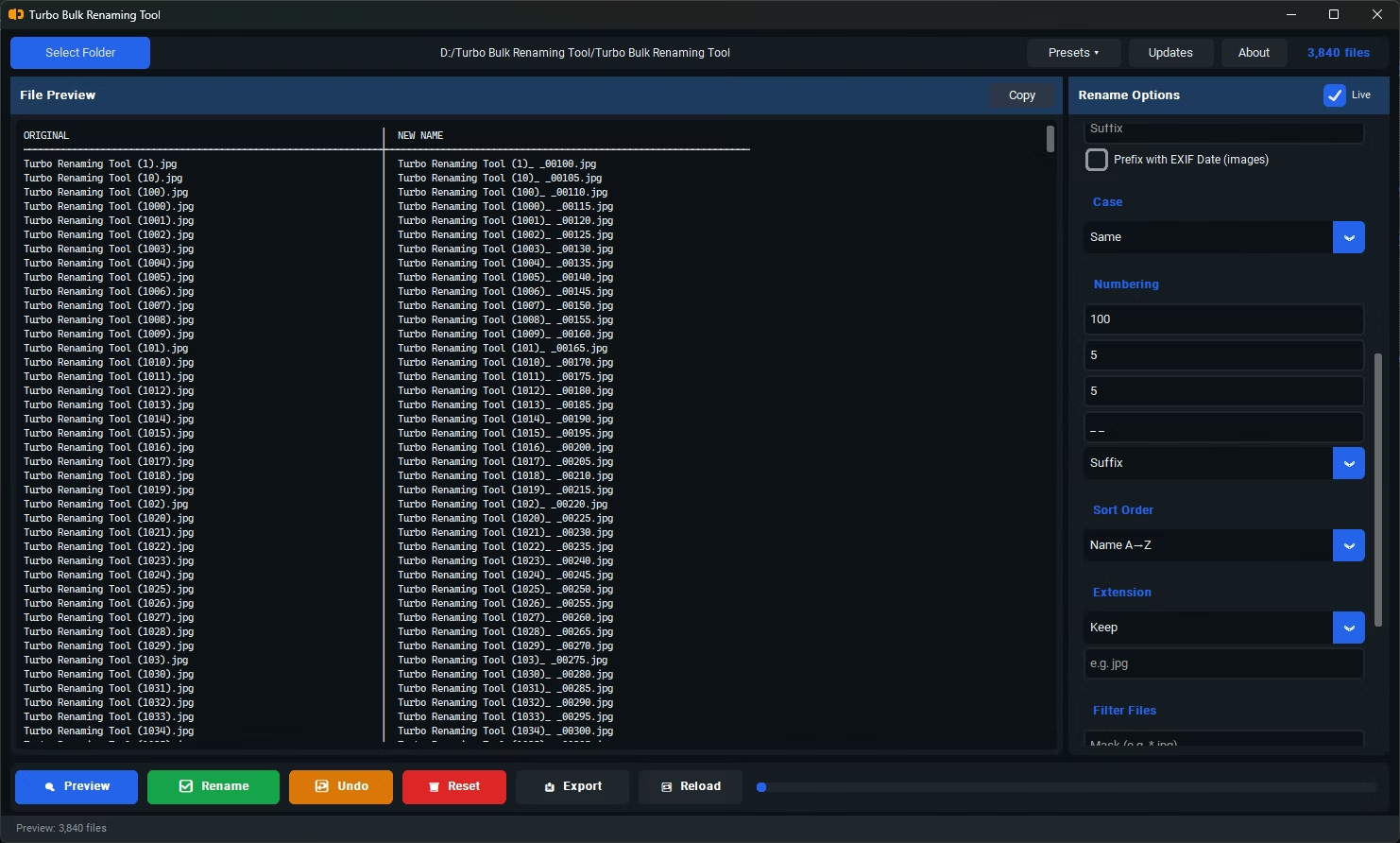
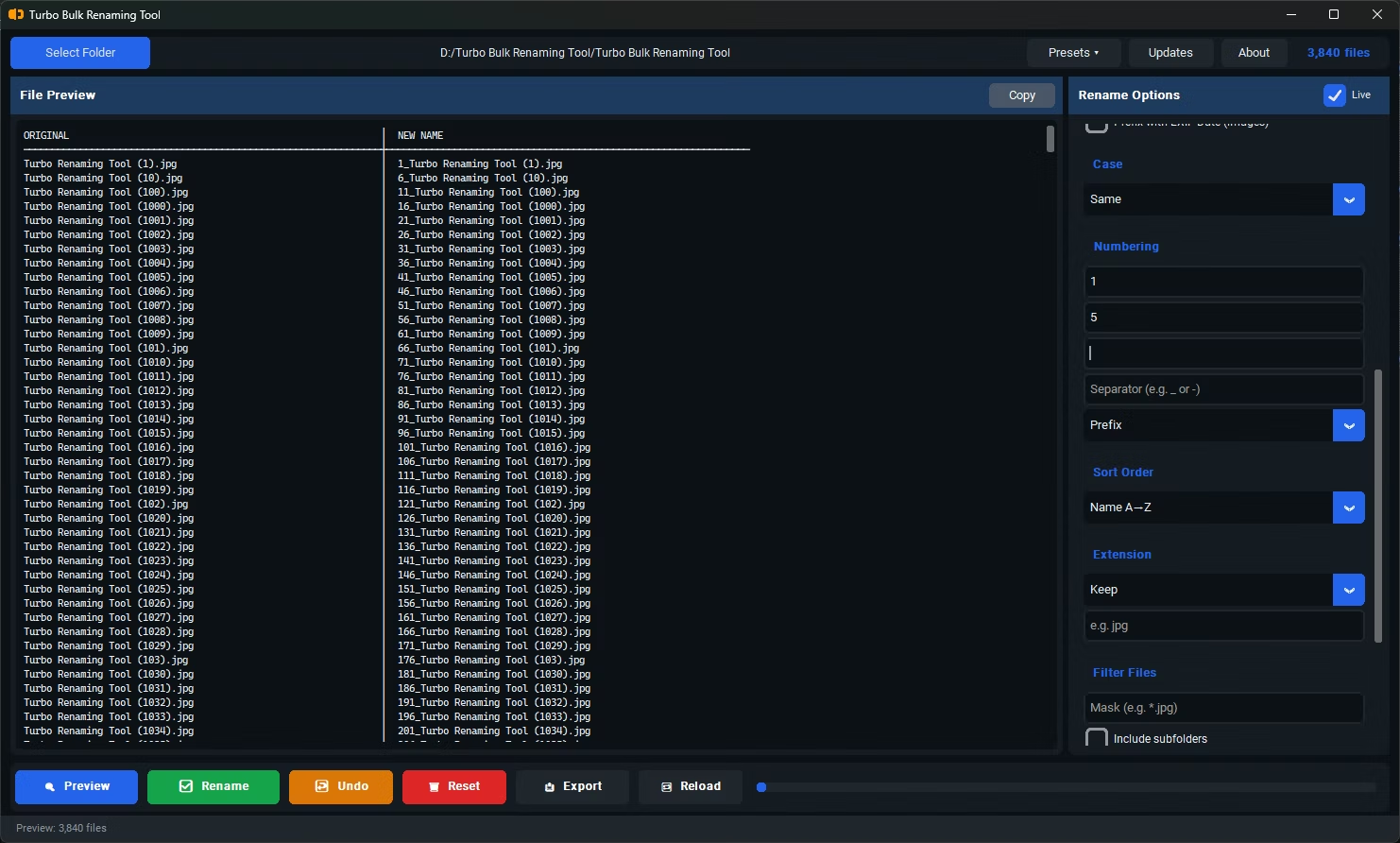
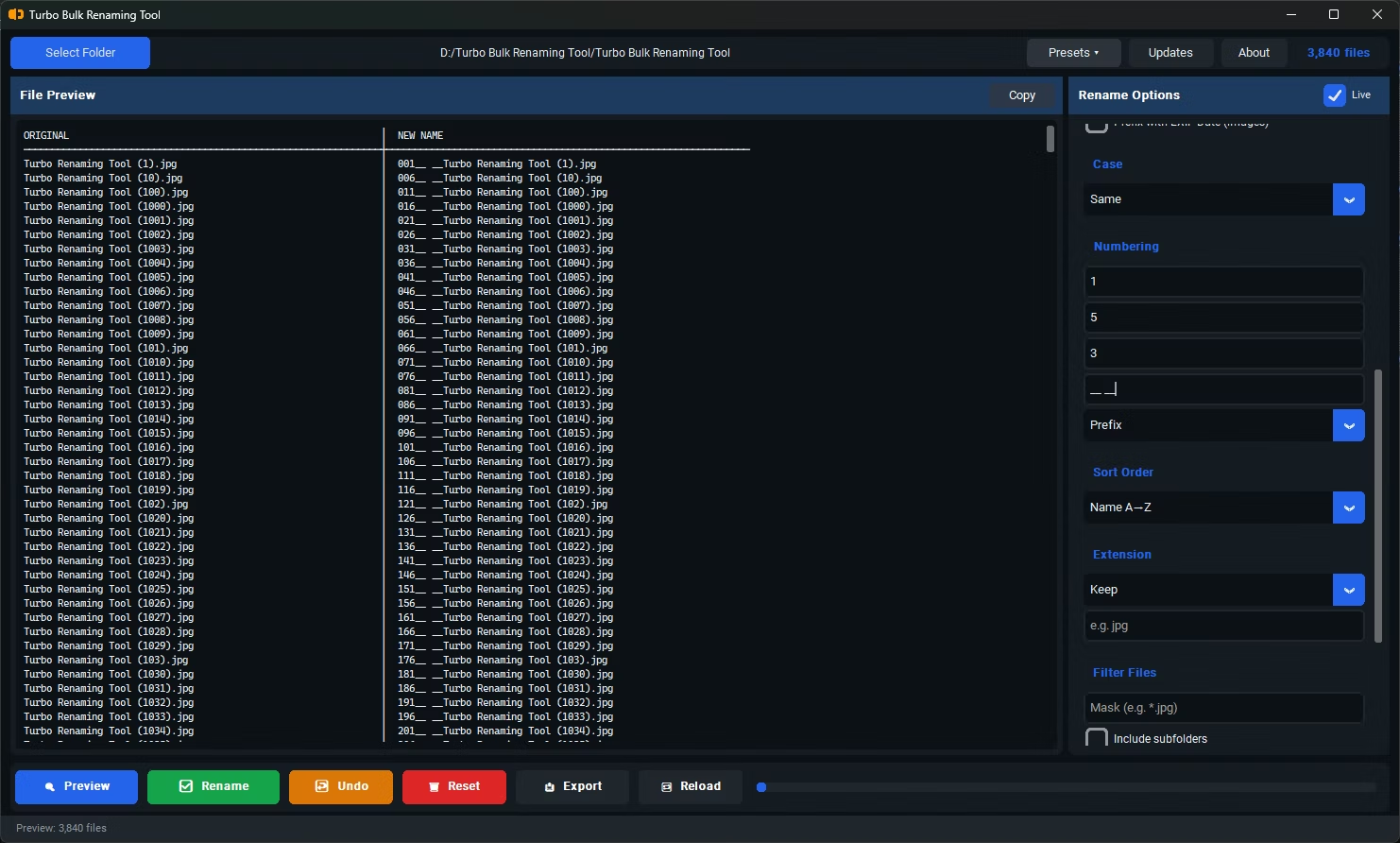
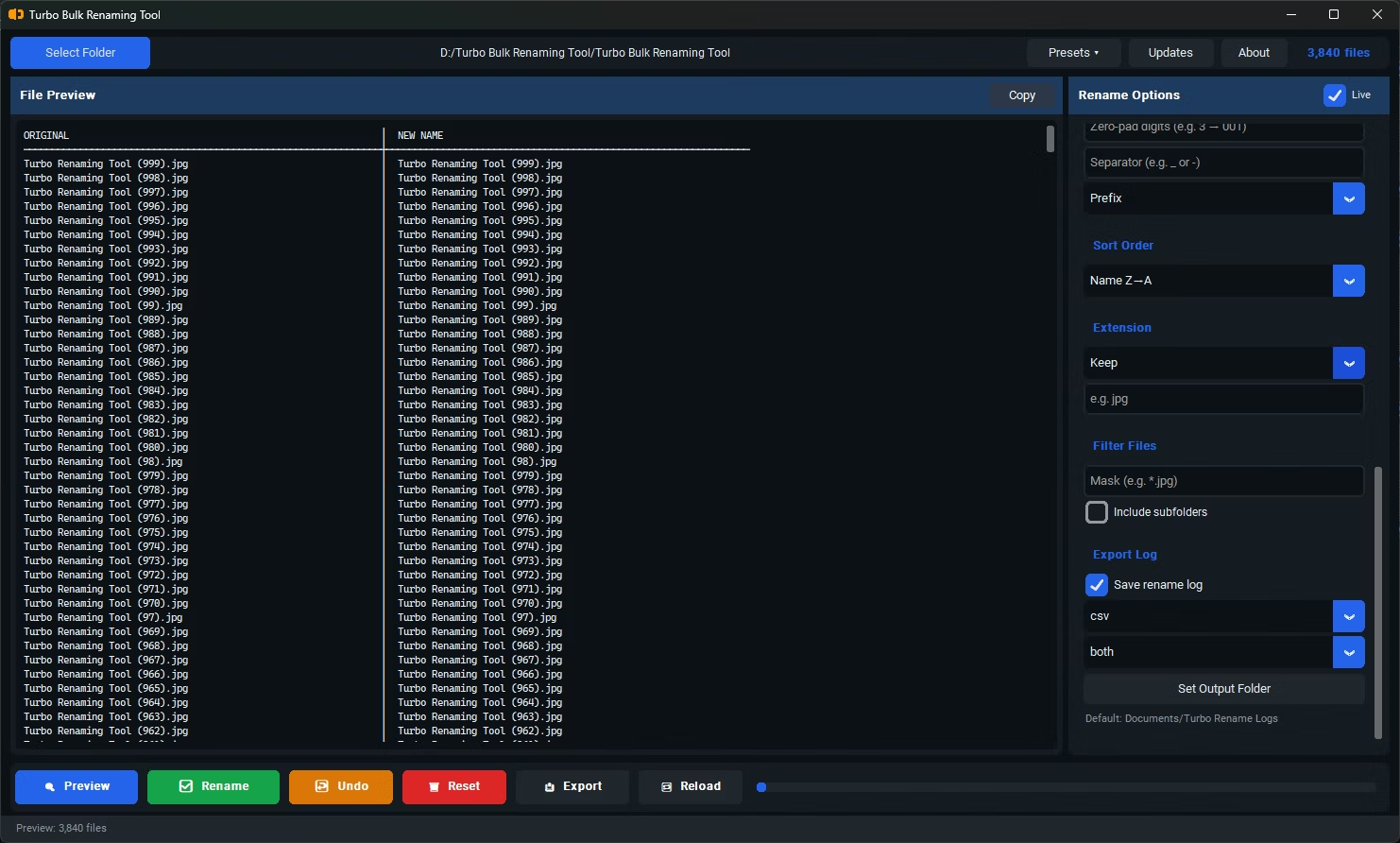
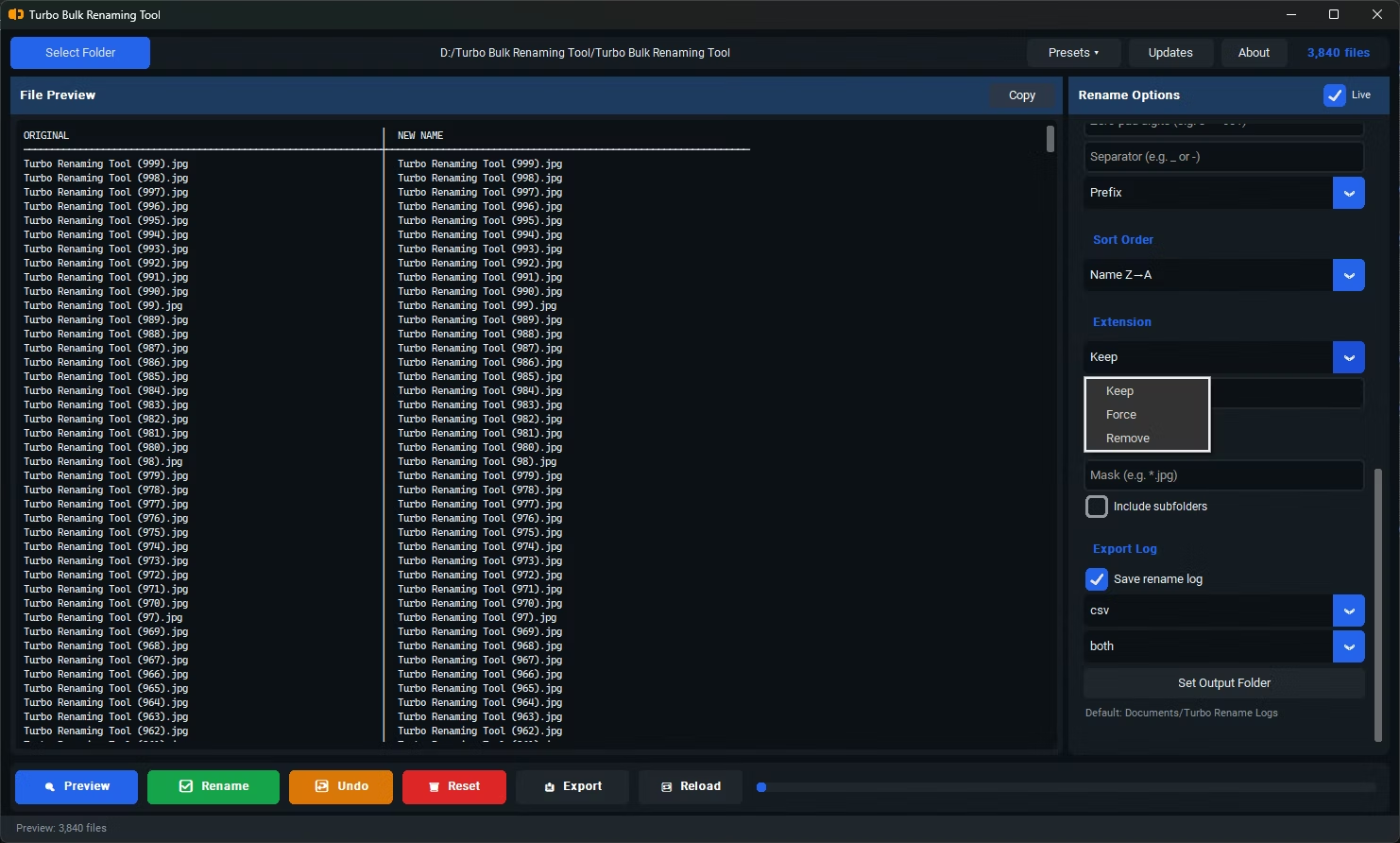
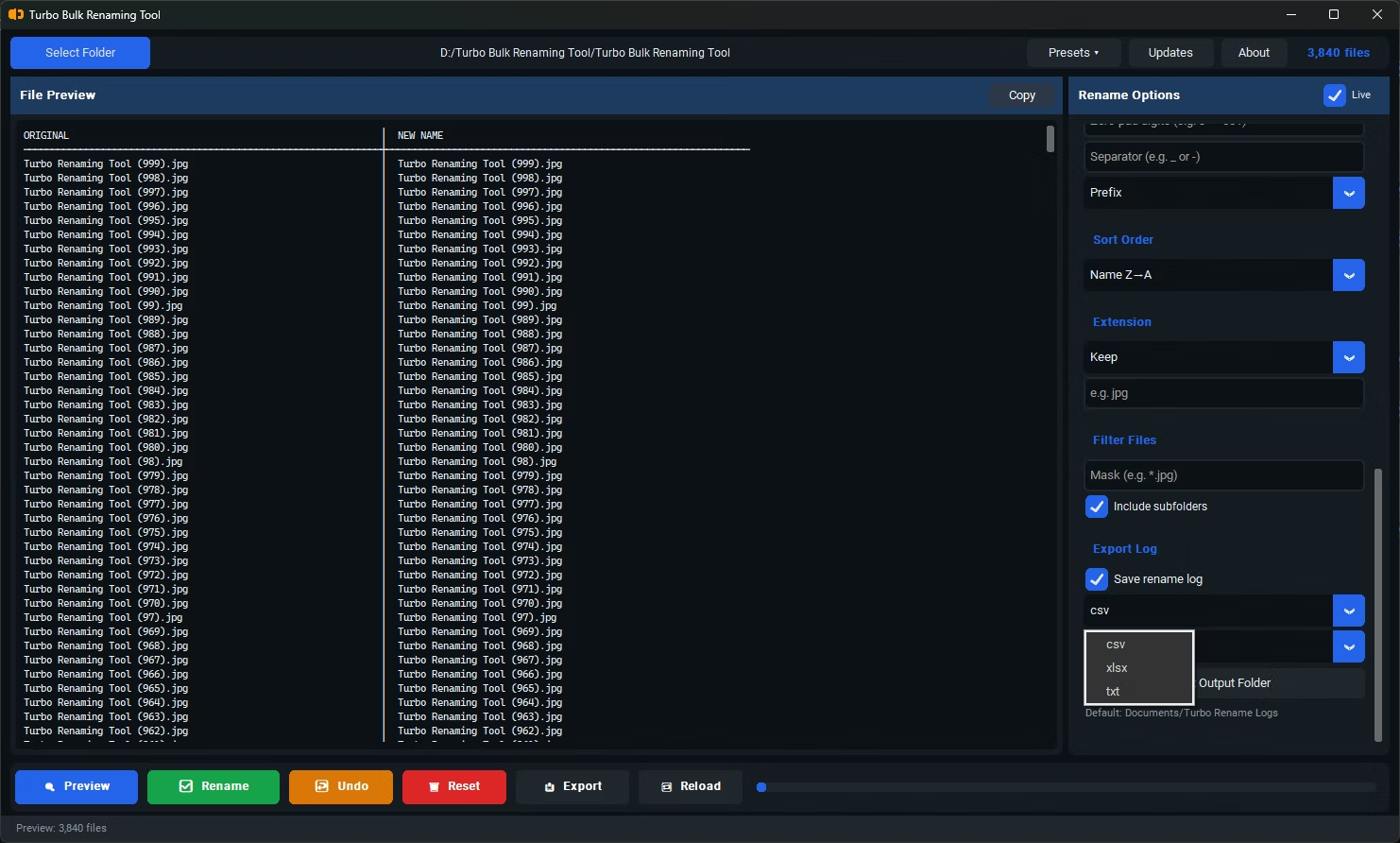
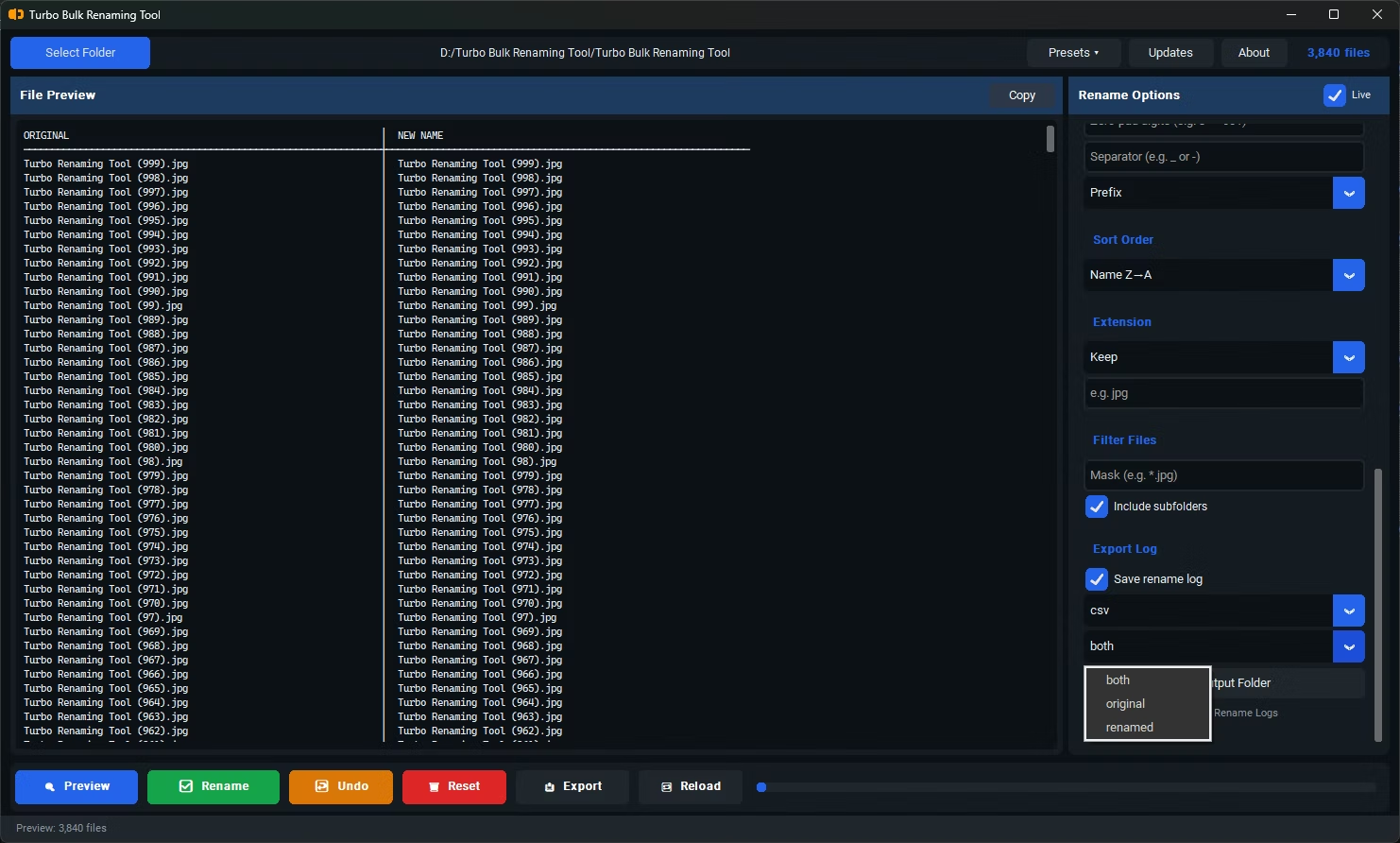
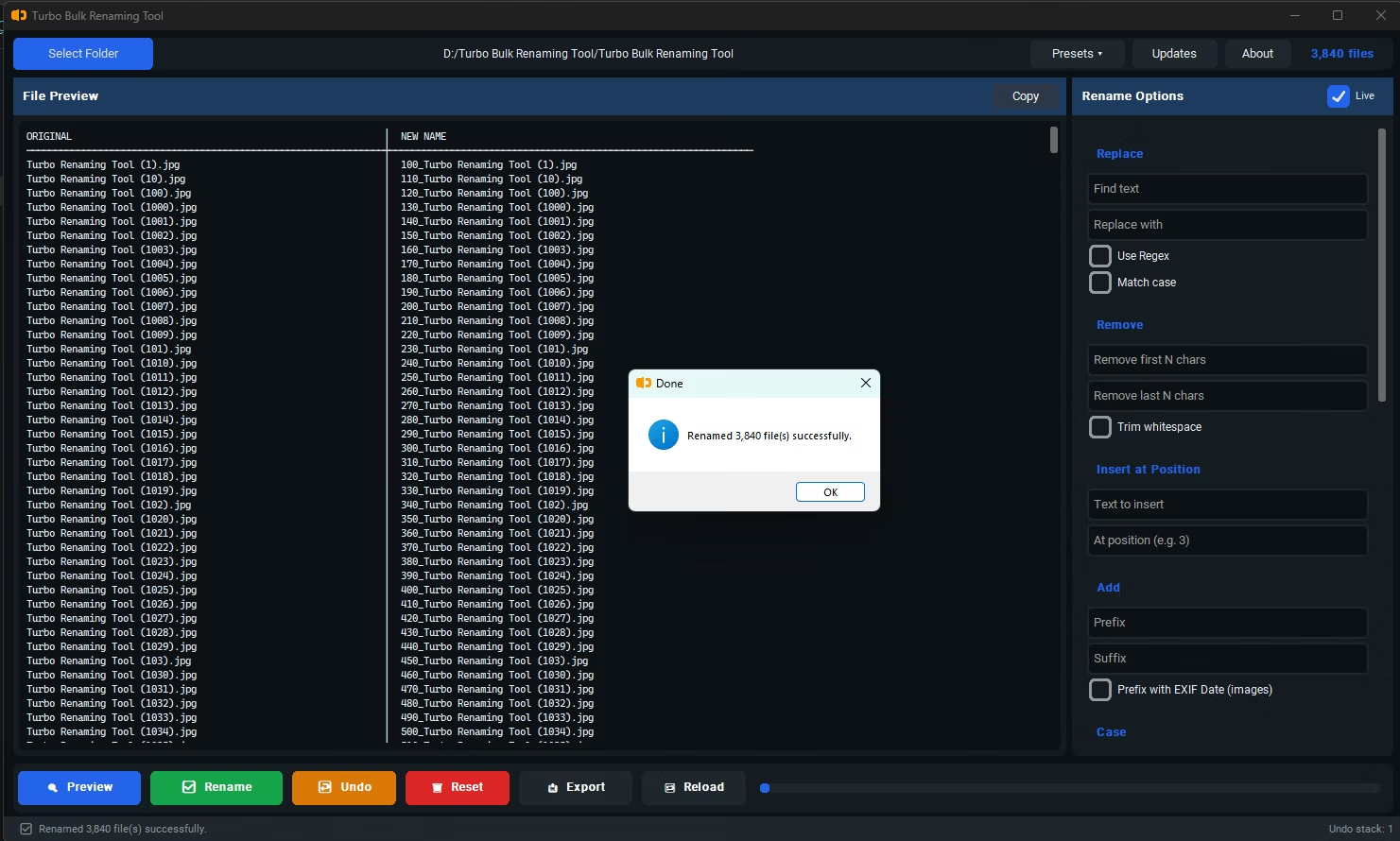
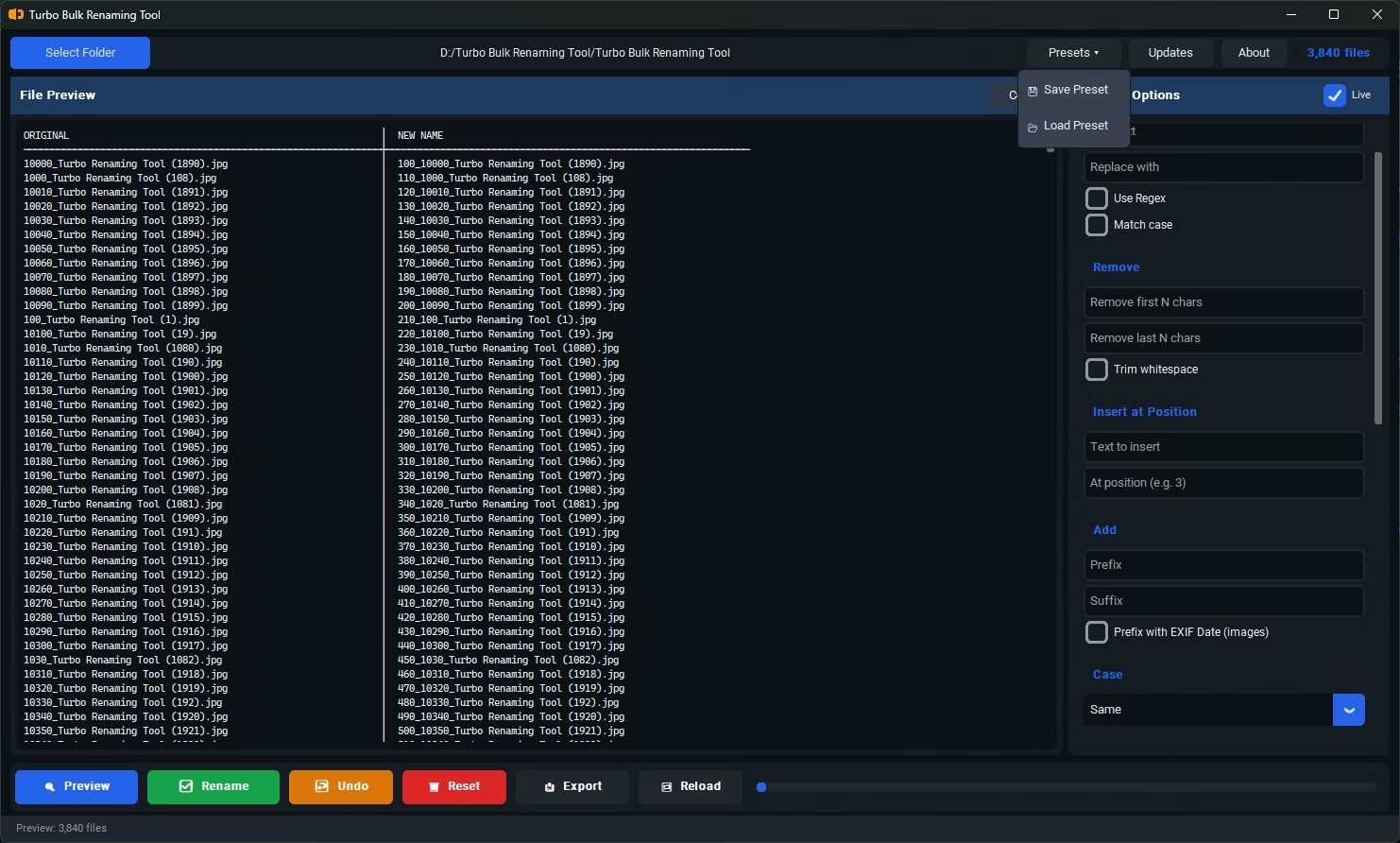
- Install Batchify Batch File Rename Tool on your Windows PC.
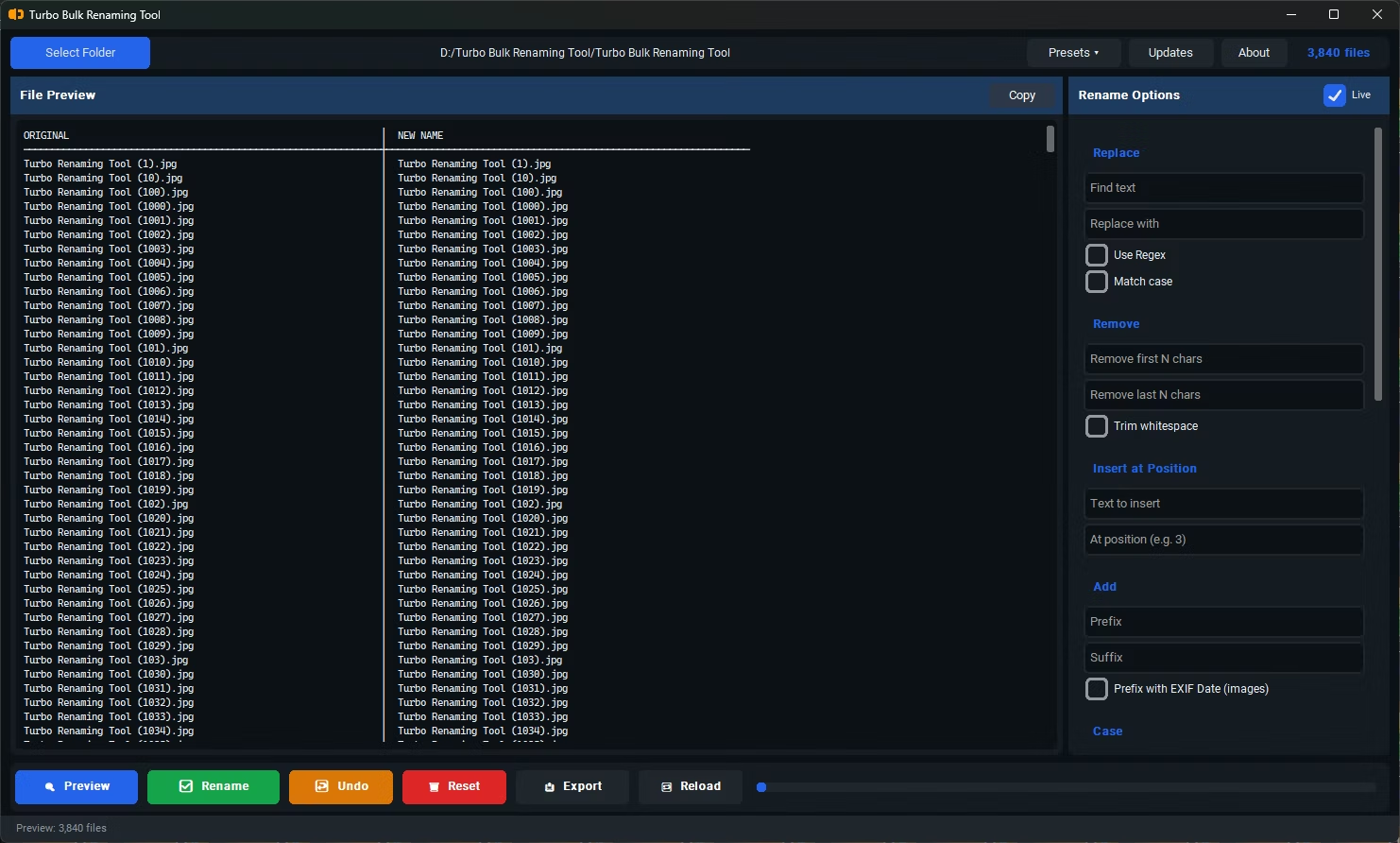
- Open the app and load the folder containing the files you want to standardize.
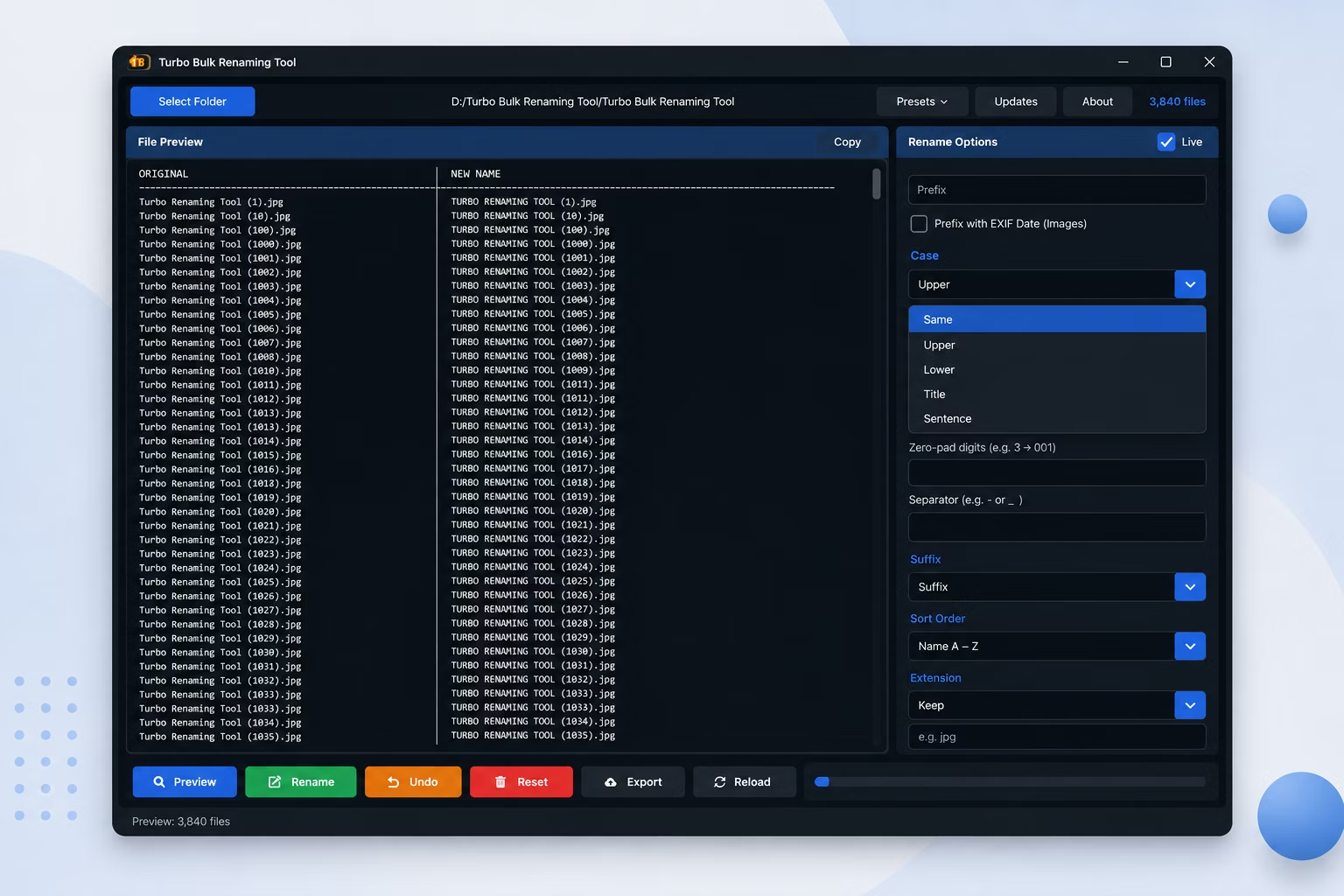
- Select the Case Conversion renaming rule.
- Choose your target case — uppercase, lowercase, or title case.
- Review the live preview to see how every filename will look in the new case.
- Click Rename to apply the case conversion to all selected files at once.
- Supports uppercase, lowercase, and title case conversion
- Applies consistently across an entire folder in one action
- File extensions are handled correctly without unwanted case changes
- Live preview confirms the result before any files are renamed
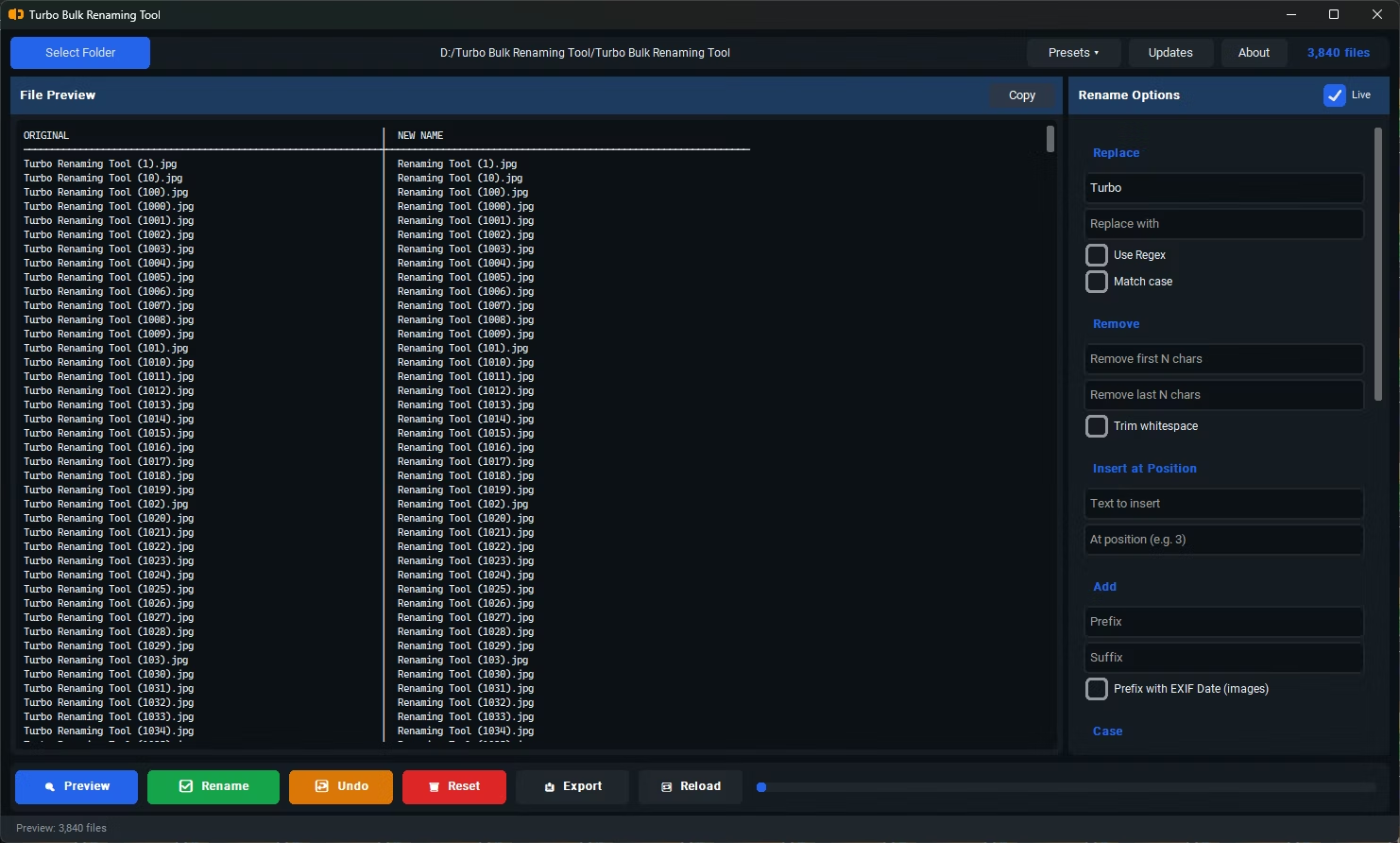
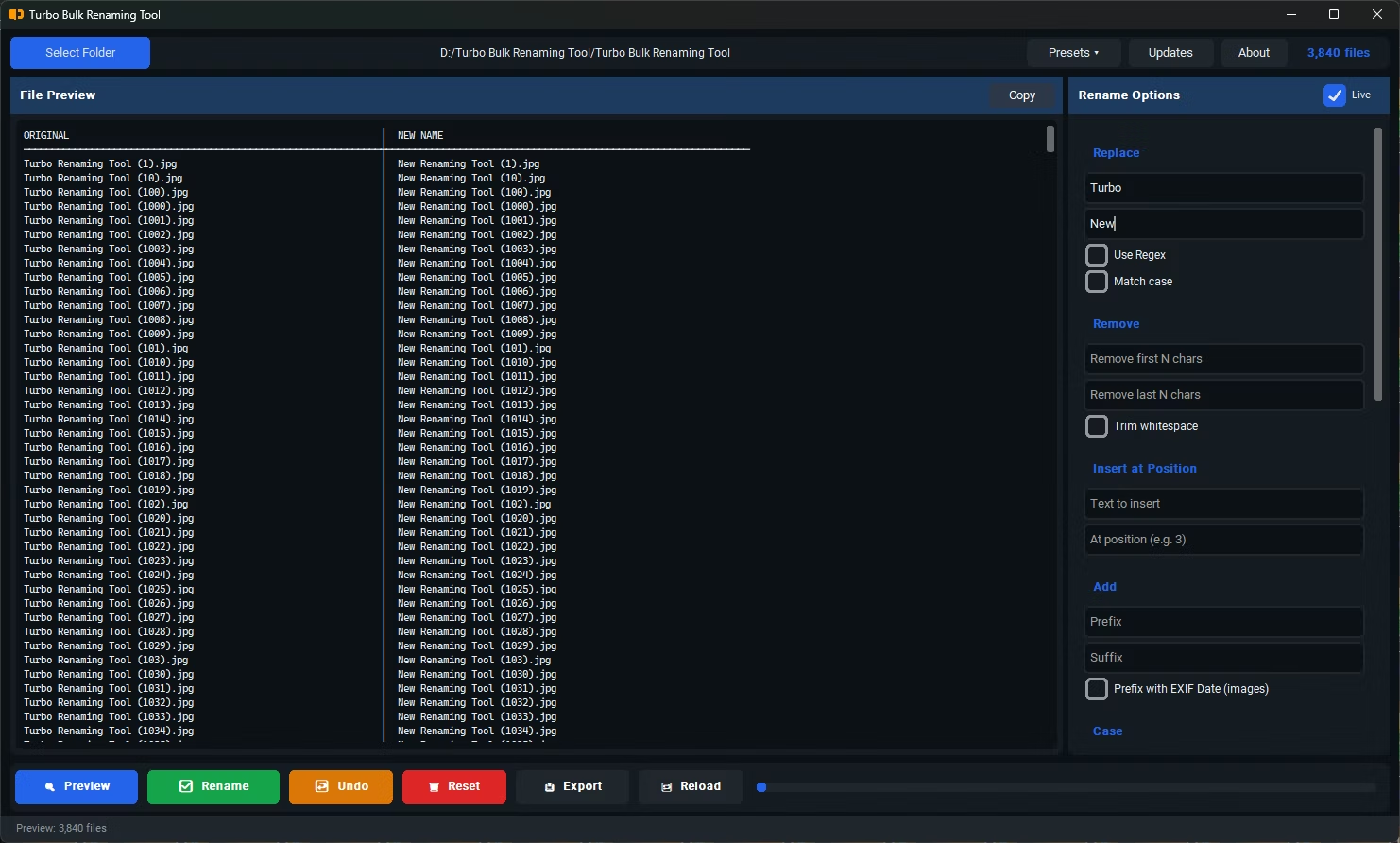
- Can be combined with other rules, such as Find & Replace, for further cleanup
- Recursive sub-folder support for standardizing nested directory structures
Does case conversion affect the file extension?
The tool handles extensions sensibly during conversion, so you won't end up with an inconsistent or broken extension after the rename.
What's the difference between title case and uppercase?
Uppercase converts every letter to capital letters, while title case capitalizes the first letter of each word and keeps the rest lowercase, which tends to read more naturally for longer filenames.
Can I undo a case conversion if I pick the wrong option?
Yes, clicking Undo immediately after the rename restores the previous filenames for that batch.
Ready to rename your files in bulk, offline, with full privacy?