Large document archives are rarely stored in a single flat folder. They're usually organized into nested subfolders by year, department, or client, which means a converter that only scans the top-level directory misses every PDF stored deeper in the folder tree entirely.
Recursive subfolder scanning solves this by walking through every nested folder automatically, so pointing the app at one parent directory is enough to catch every PDF inside, no matter how deeply the archive is organized.
Batchify PDF Converter runs on Windows 10 and Windows 11, both 64-bit, and installs as a single self-contained application with no separate Poppler or Ghostscript dependency to configure. That keeps setup to a couple of minutes, whether the app is going on a personal laptop or a shared office PC handling document conversion for a whole team.
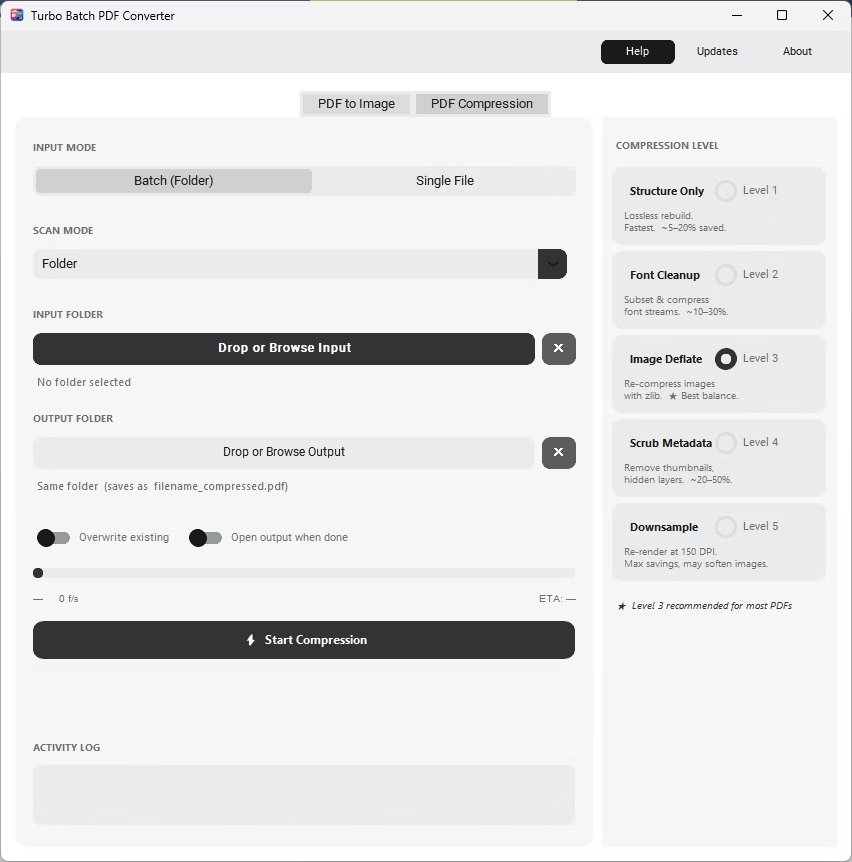
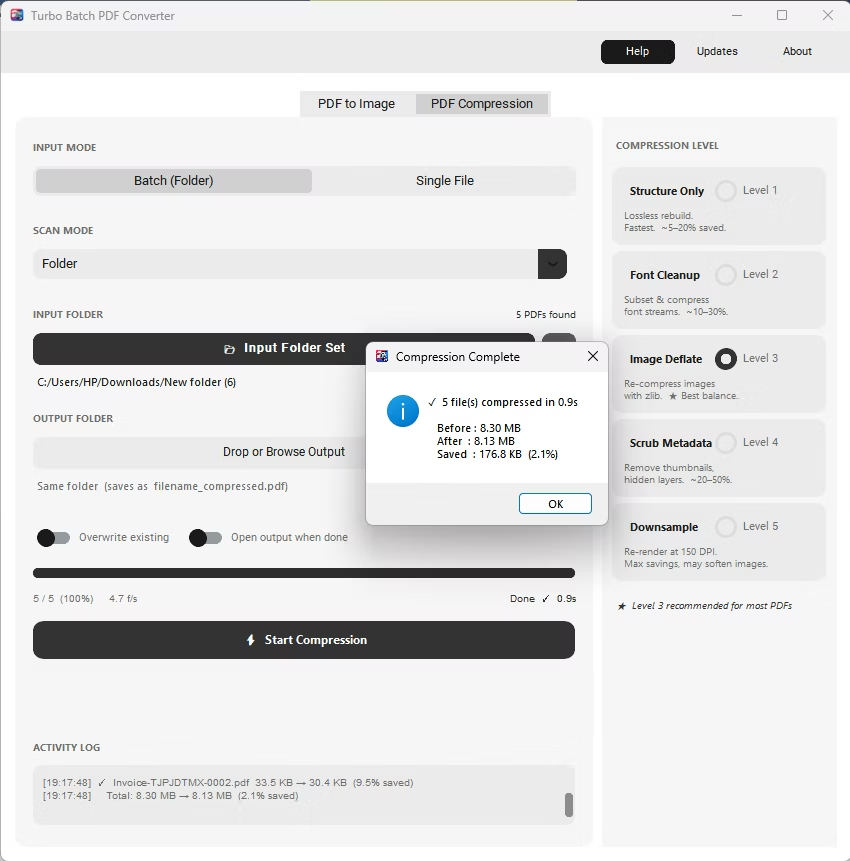
The same app also includes a built-in PDF compressor with five compression levels, so shrinking file sizes for email or storage doesn't require switching to a separate tool. Everything runs locally through a one-time Gumroad license, without a recurring subscription, and pairs naturally with other BatchifyApp utilities such as Batchify Renaming Tool for organizing converted files afterward.
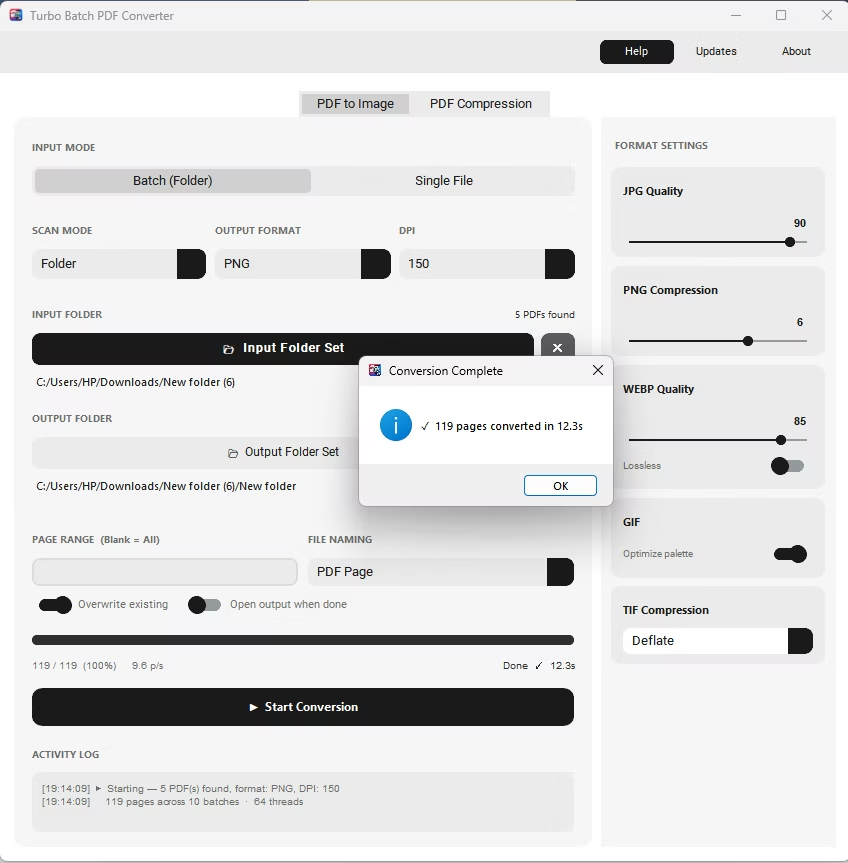
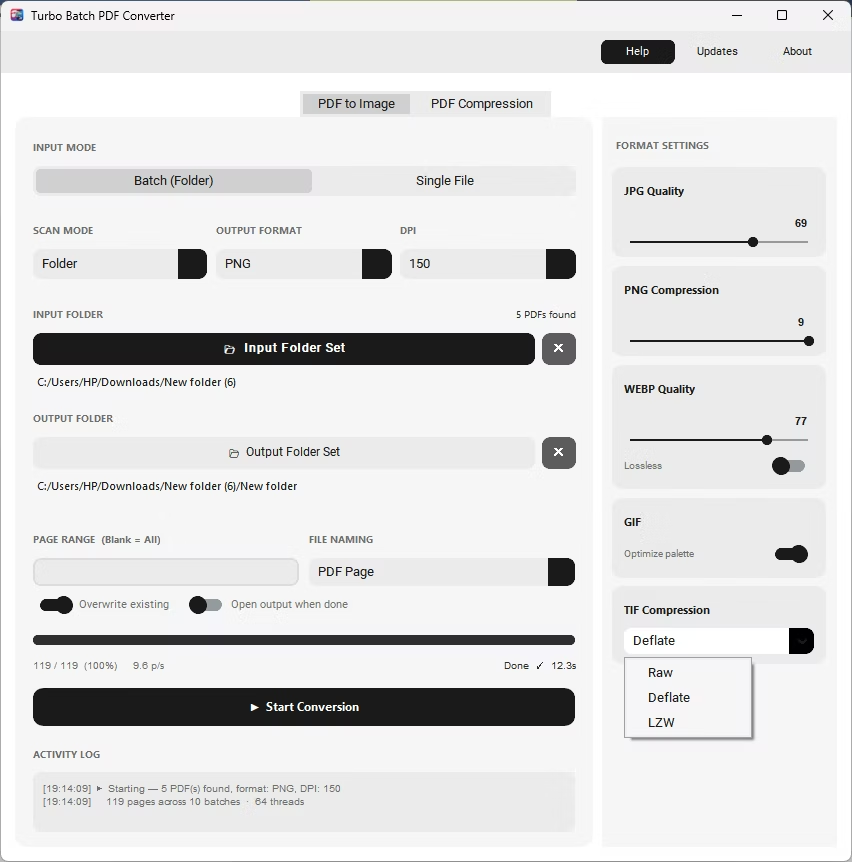
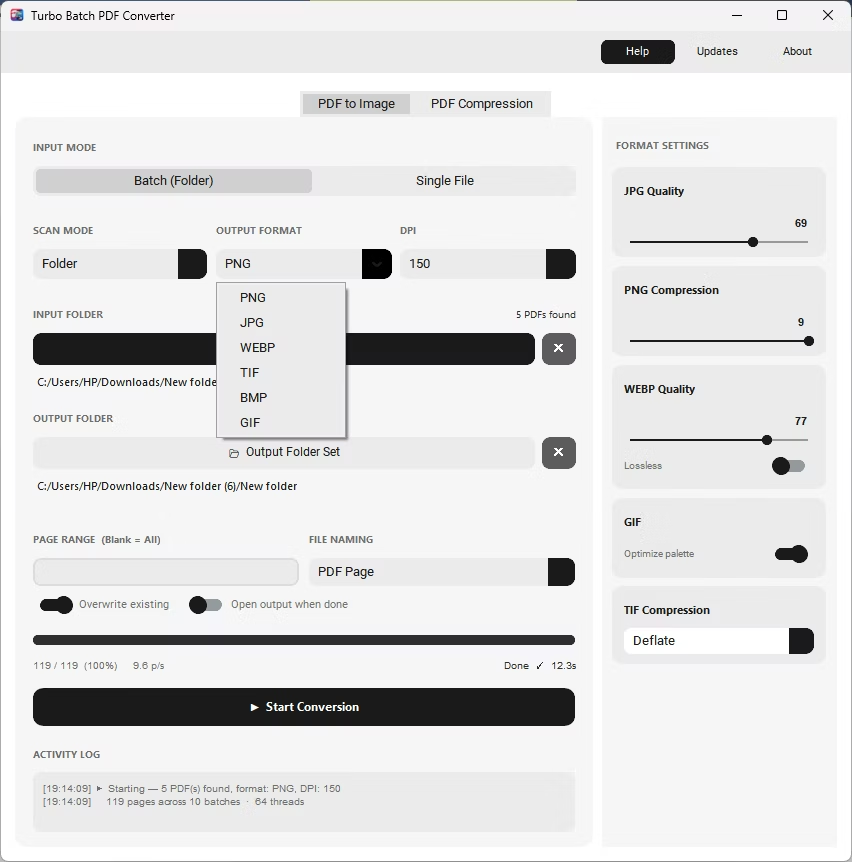
- Install Batchify PDF Converter on your Windows PC.
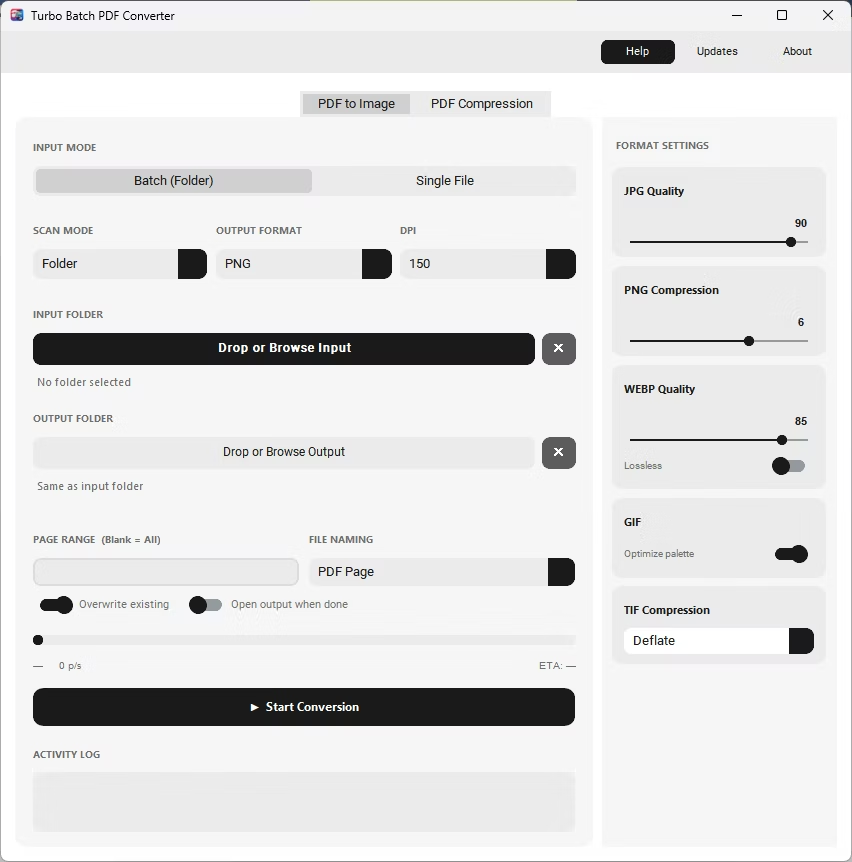
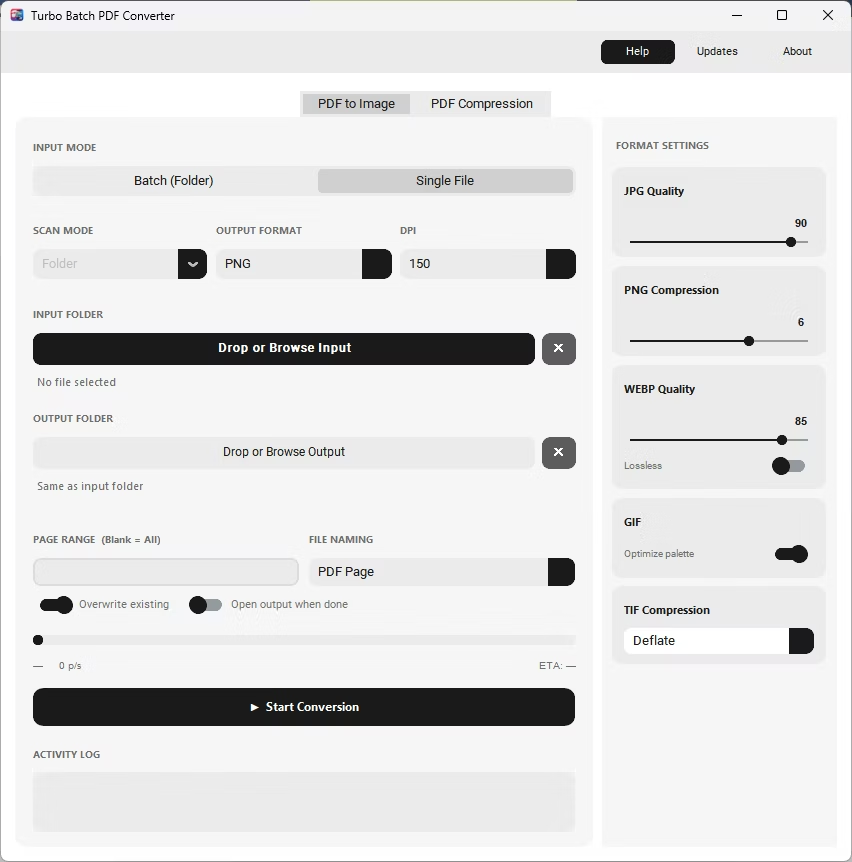
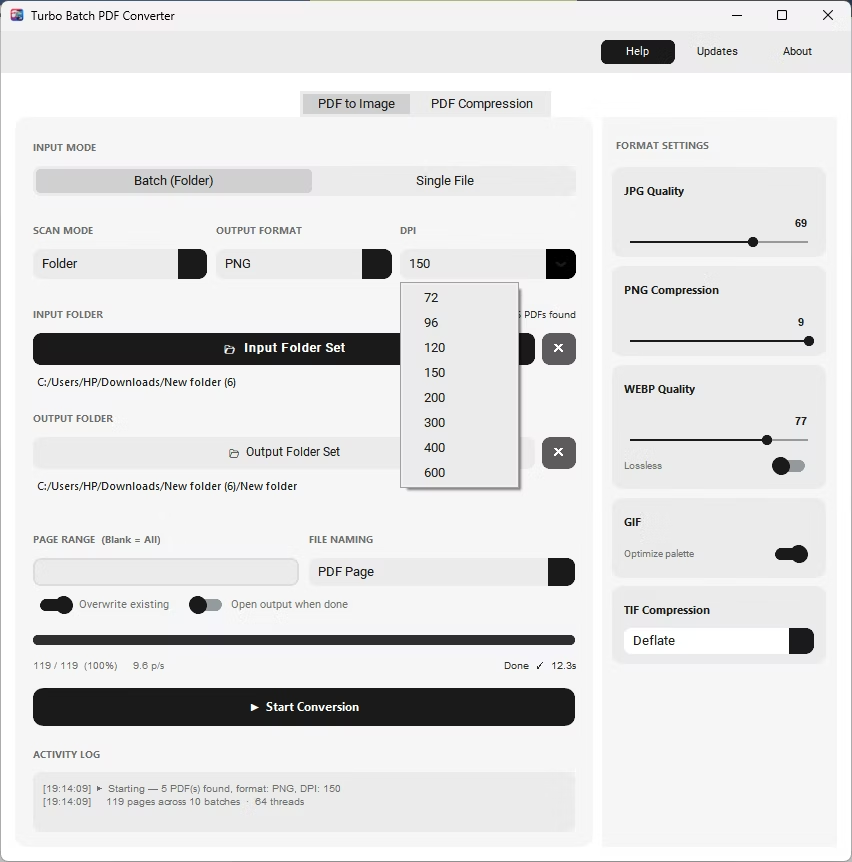
- Open the app and choose Batch (Folder) mode.
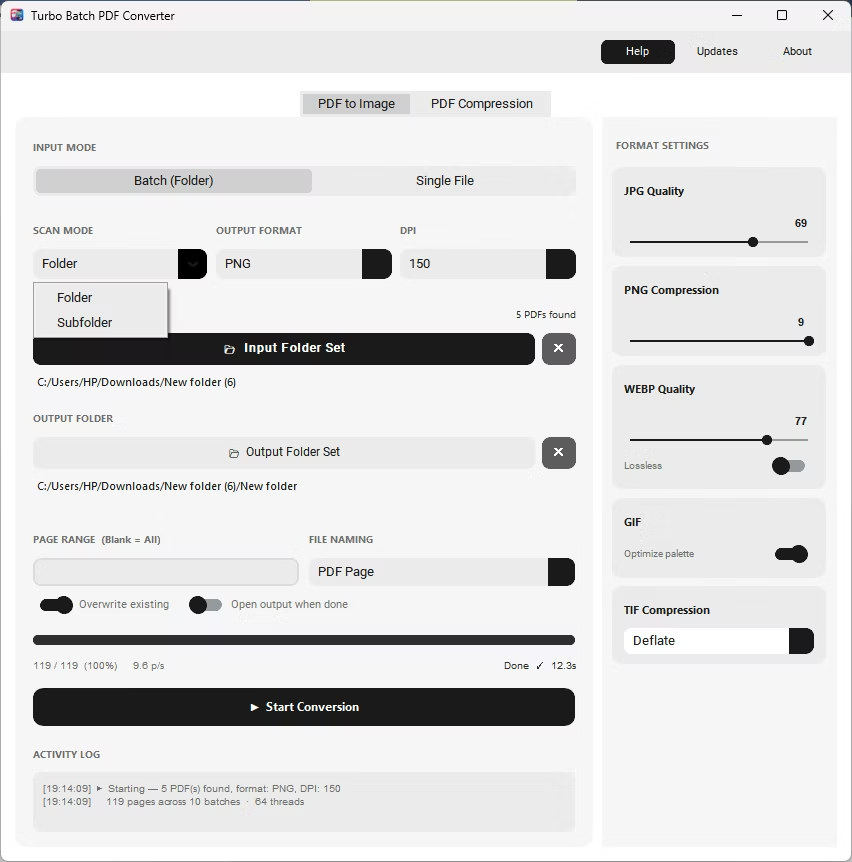
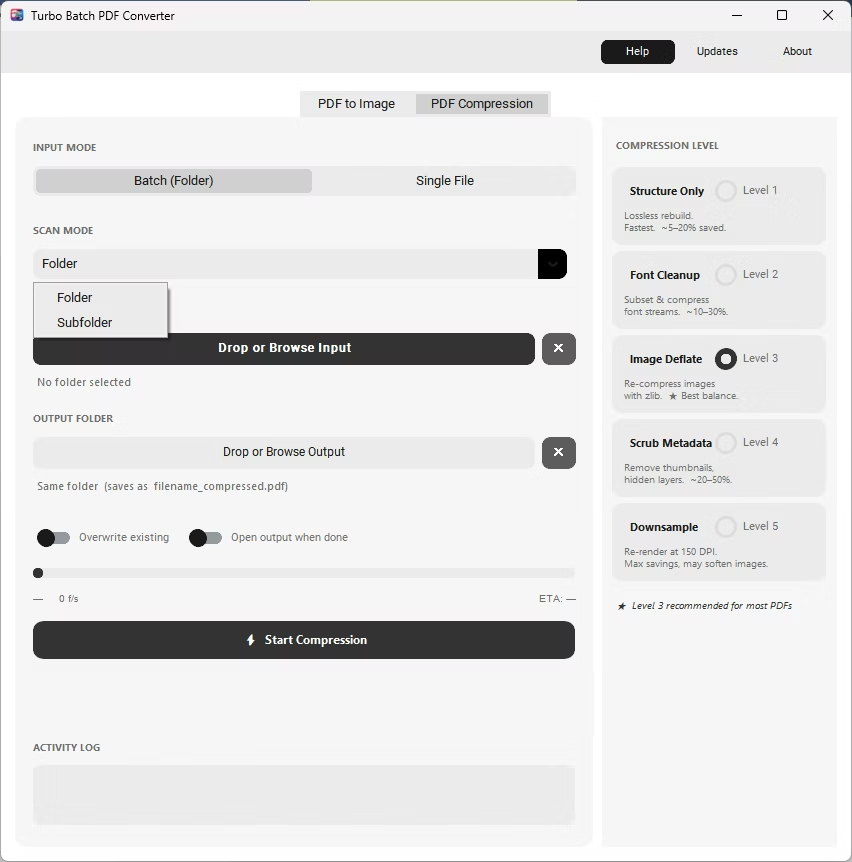
- Switch the scan mode from Folder to Subfolder to enable recursive scanning.
- Browse to the top-level parent folder containing your nested subfolders.
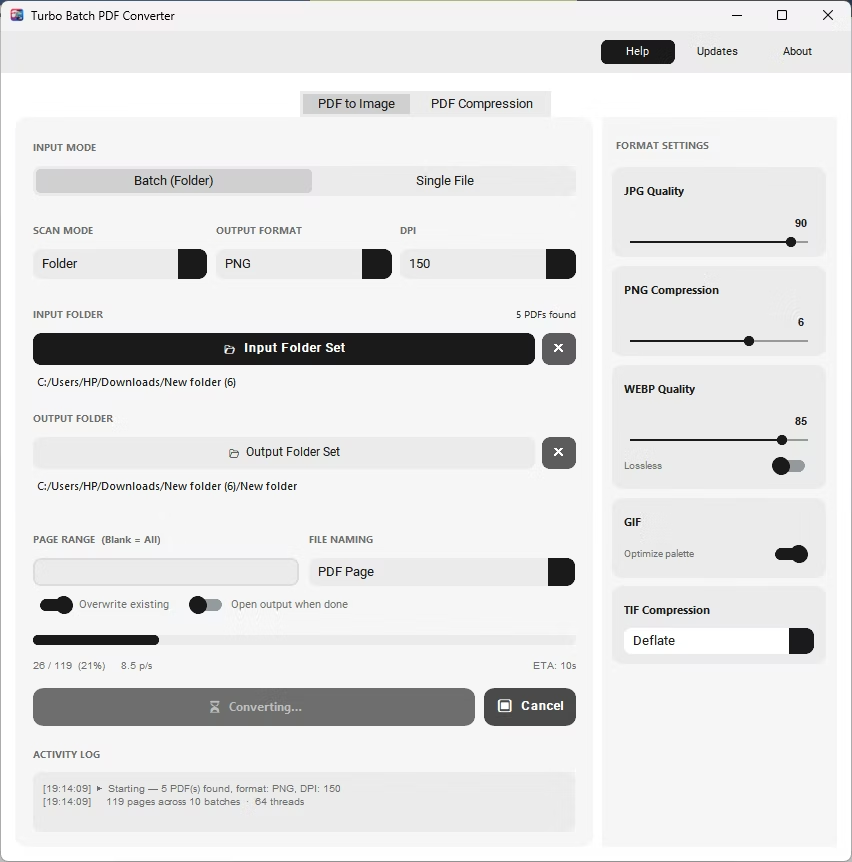
- Click Start Conversion. Every PDF found in every nested subfolder is converted, offline.
- Automatically finds PDFs at any folder depth
- No need to open and convert each subfolder individually
- Available for both the PDF to Image tab and the PDF Compression tab
- Works alongside all six output formats and every compression level
- Activity log lists every file found and processed
- Saves significant time on deeply organized document archives
What's the difference between Folder mode and Subfolder mode?
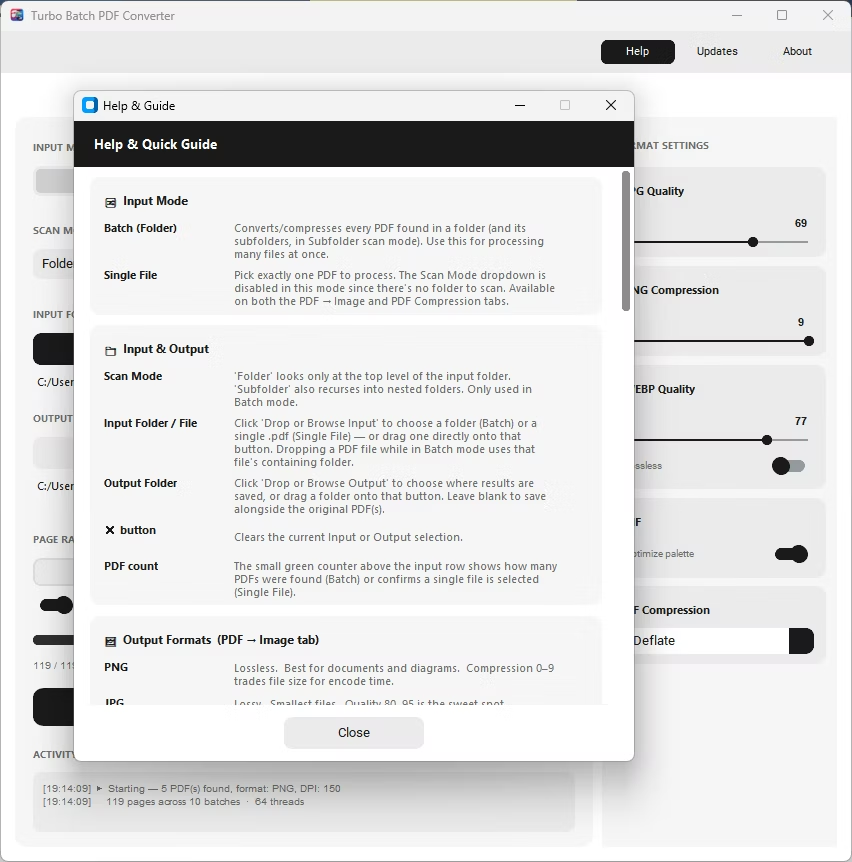
Folder mode scans only the top-level directory you select, while Subfolder mode recursively walks every nested folder inside it.
Is recursive scanning available for PDF compression too?
Yes, both the PDF to Image tab and the PDF Compression tab support the same Folder and Subfolder scanning modes independently.
How deep can the folder structure be?
Subfolder mode walks every nested folder to any depth, so even deeply organized archives are fully covered in one batch.
Ready to convert your PDFs offline, in bulk, with full privacy?