Not every conversion needs the whole document. Sometimes only a cover page, a set of diagrams, or a specific chapter needs to become an image, and converting every page of a long PDF just to use three of them wastes time and clutters the output folder with unwanted files.
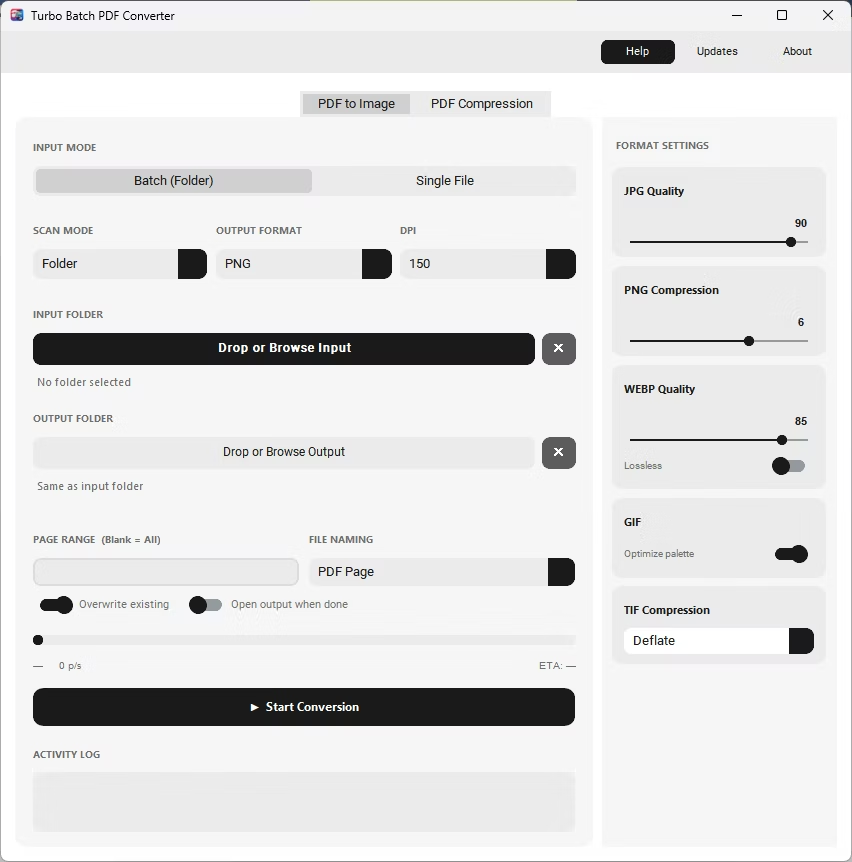
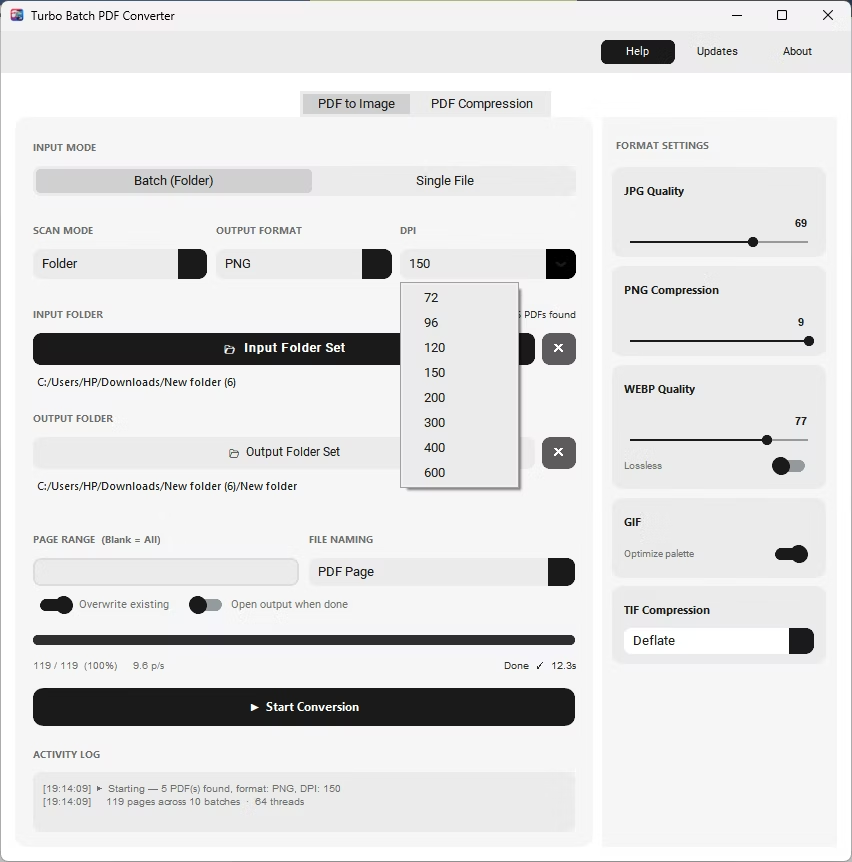
A page range option solves this by letting you specify exactly which pages to render, whether that's a single page, a few individual pages, or a continuous range, and this setting applies across an entire batch of PDFs at once.
Batchify PDF Converter runs on Windows 10 and Windows 11, both 64-bit, and installs as a single self-contained application with no separate Poppler or Ghostscript dependency to configure. That keeps setup to a couple of minutes, whether the app is going on a personal laptop or a shared office PC handling document conversion for a whole team.
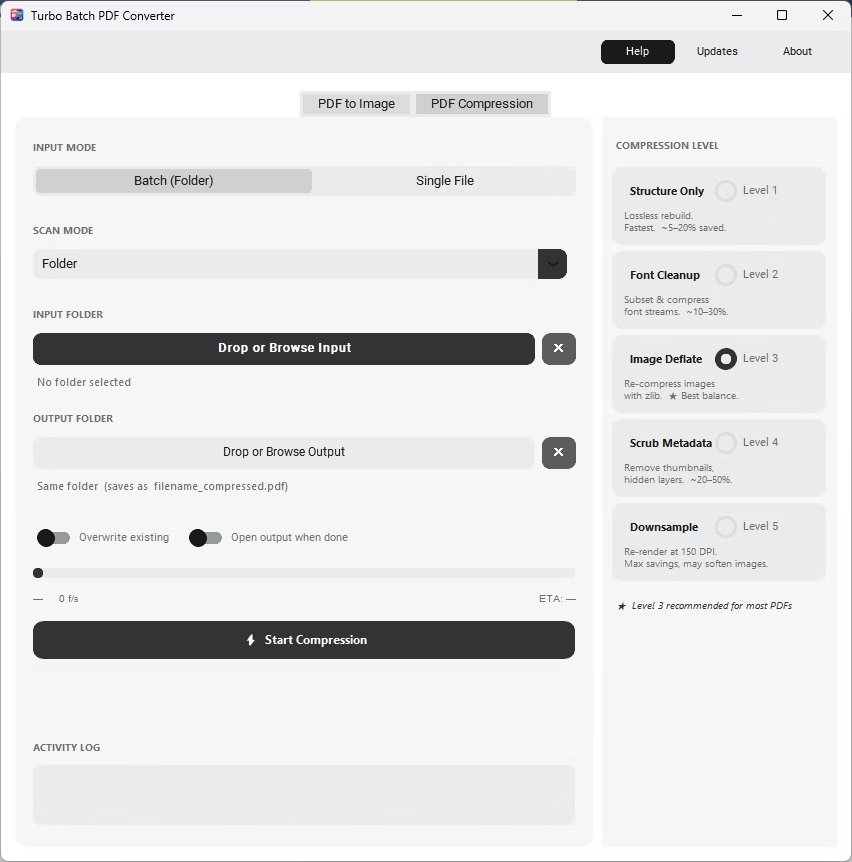
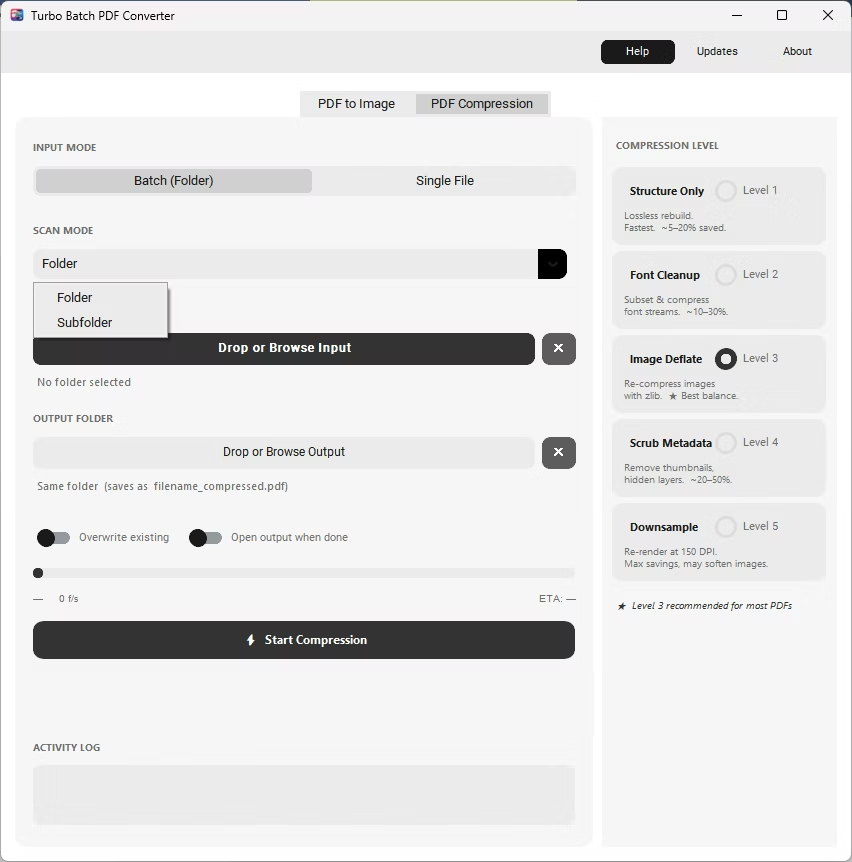
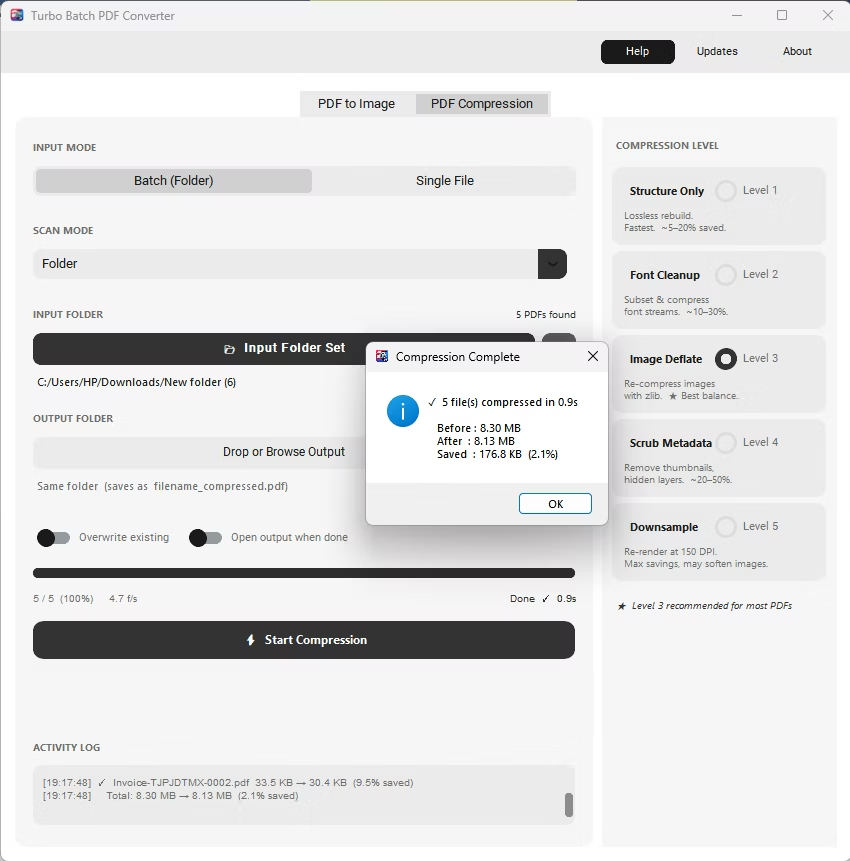
The same app also includes a built-in PDF compressor with five compression levels, so shrinking file sizes for email or storage doesn't require switching to a separate tool. Everything runs locally through a one-time Gumroad license, without a recurring subscription, and pairs naturally with other BatchifyApp utilities such as Batchify Renaming Tool for organizing converted files afterward.
- Install Batchify PDF Converter on your Windows PC.
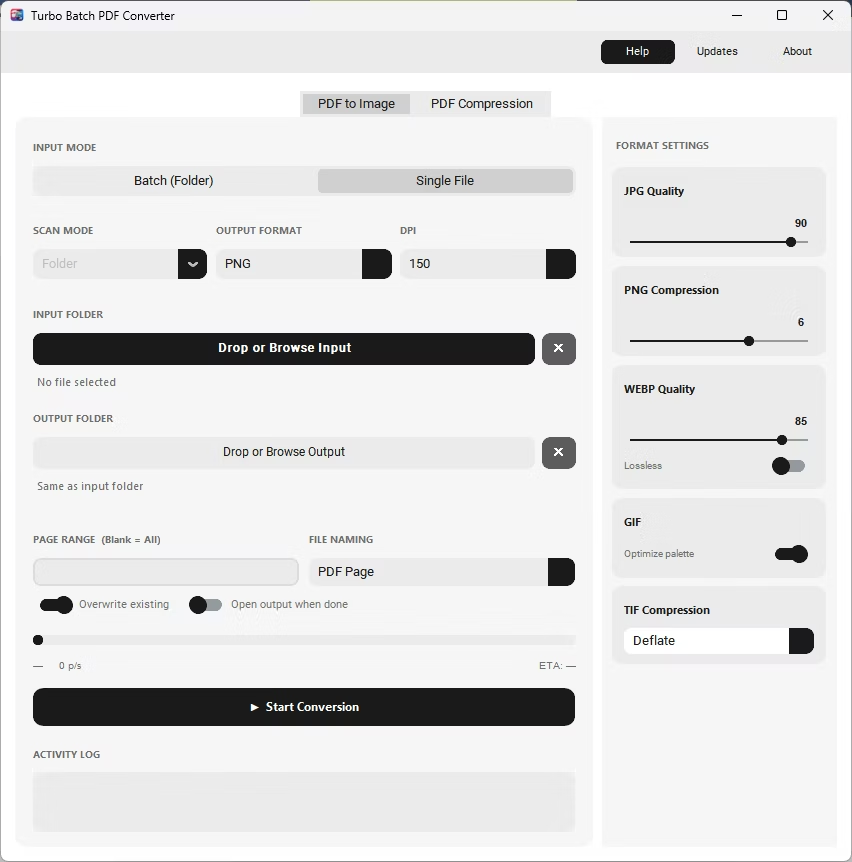
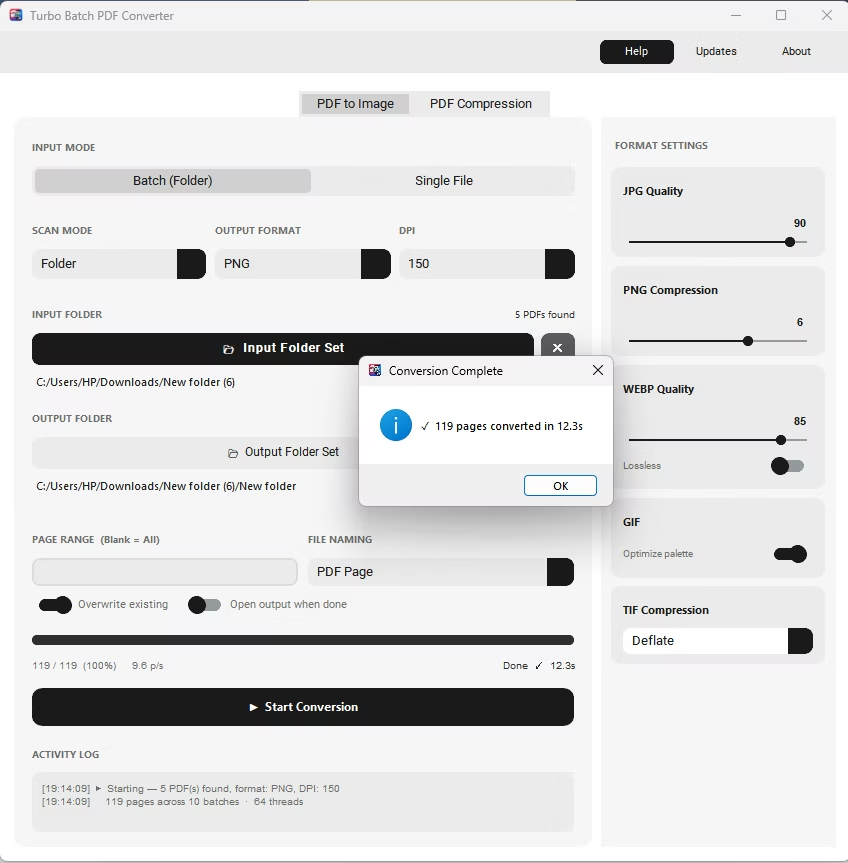
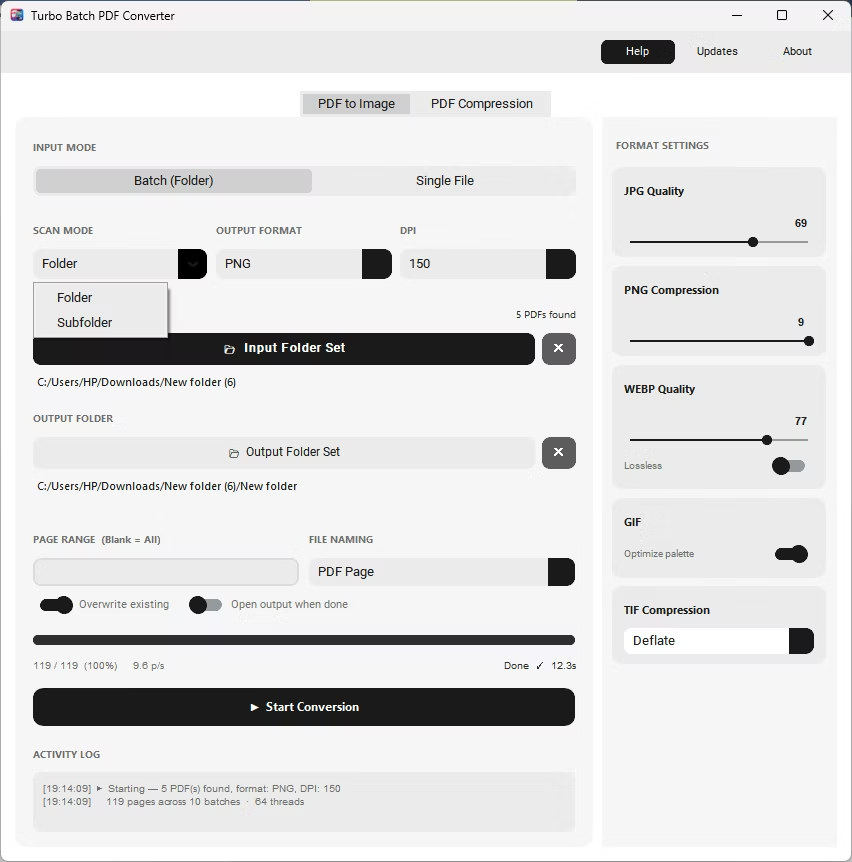
- Open the app and select your PDF file or folder on the PDF to Image tab.
- Enter a page range such as 1-3, 5, 8-10 in the page range field.
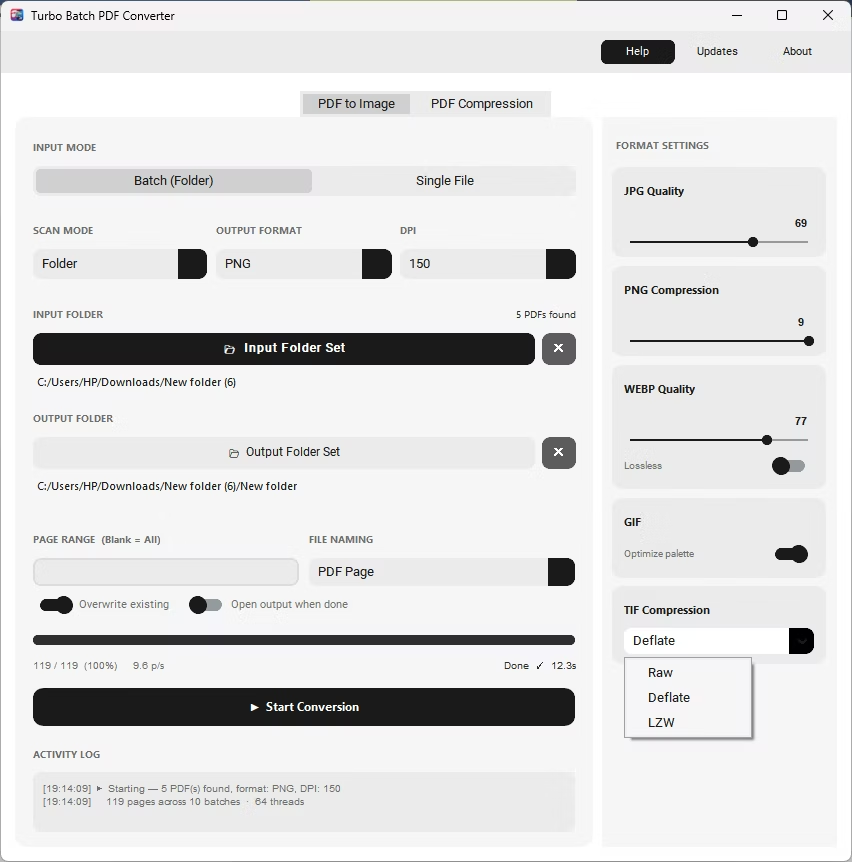
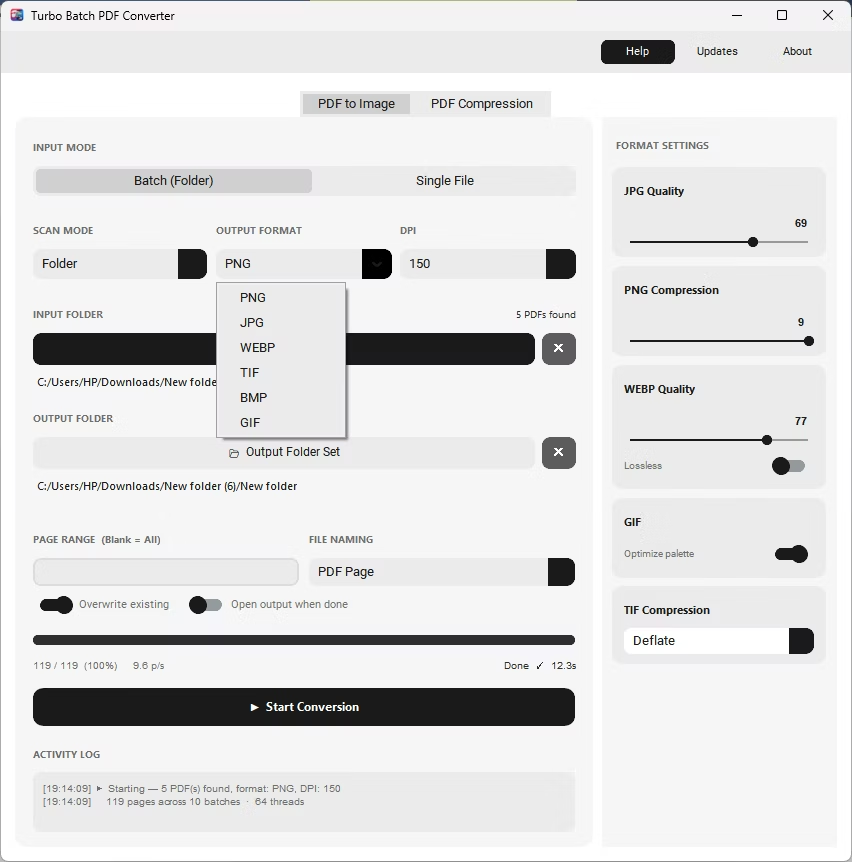
- Choose your output format, DPI, and quality settings as usual.
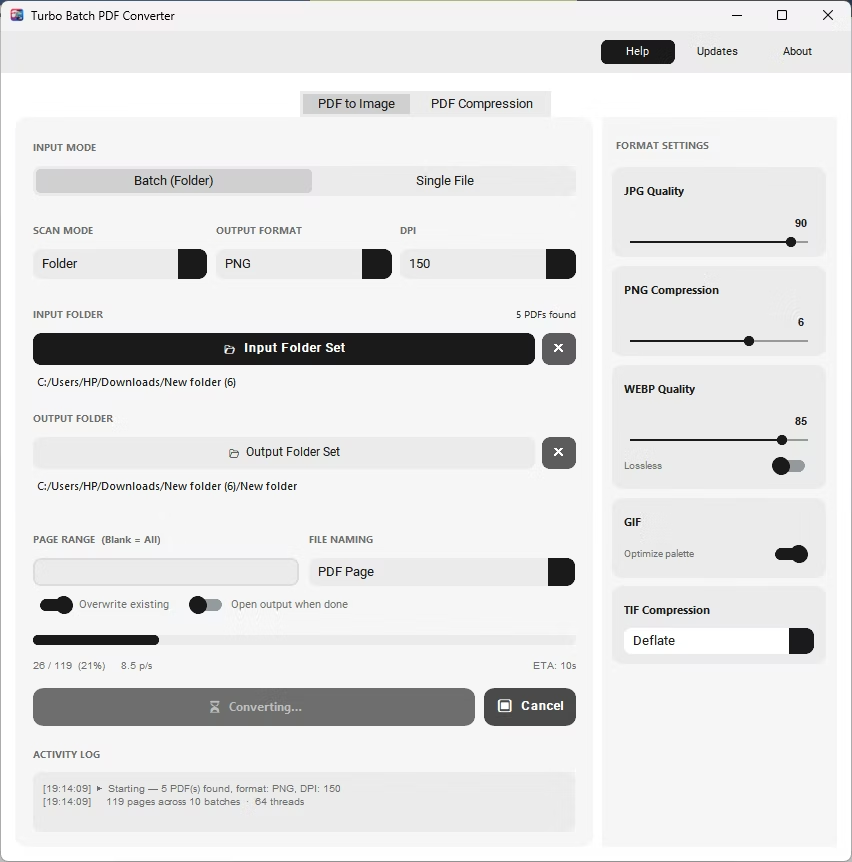
- Click Start Conversion. Only the specified pages are rendered to images, offline.
- Supports mixed ranges like 1-3, 5, 8-10 in a single entry
- Leave the field blank to convert every page as usual
- Applies consistently across an entire batch of PDF files
- Saves significant time on large multi-hundred-page PDFs
- Works with all six supported output formats
- Reduces clutter by skipping pages you don't need
What format does the page range field expect?
Enter individual pages and ranges separated by commas, such as 1-3, 5, 8-10, and only those pages will be converted.
Does the page range apply to every PDF in a batch the same way?
Yes, the same page range is applied across the entire batch, so make sure the range makes sense for all the PDFs being processed together.
What happens if I leave the page range field empty?
Leaving it blank converts every page of each PDF, which is the default behavior when no specific pages are needed.
Ready to convert your PDFs offline, in bulk, with full privacy?