Getting a list of filenames into a spreadsheet is useful for inventory tracking, creating a file index for a client or team, cross-checking against a database, or simply documenting what's in a folder before an archive or cleanup. Manually typing out filenames is slow and invites typos, especially once a folder has more than a handful of files.
Rather than copying filenames one at a time, a bulk file management tool can read every filename in a folder and export the full list directly into a spreadsheet-ready format in one step.
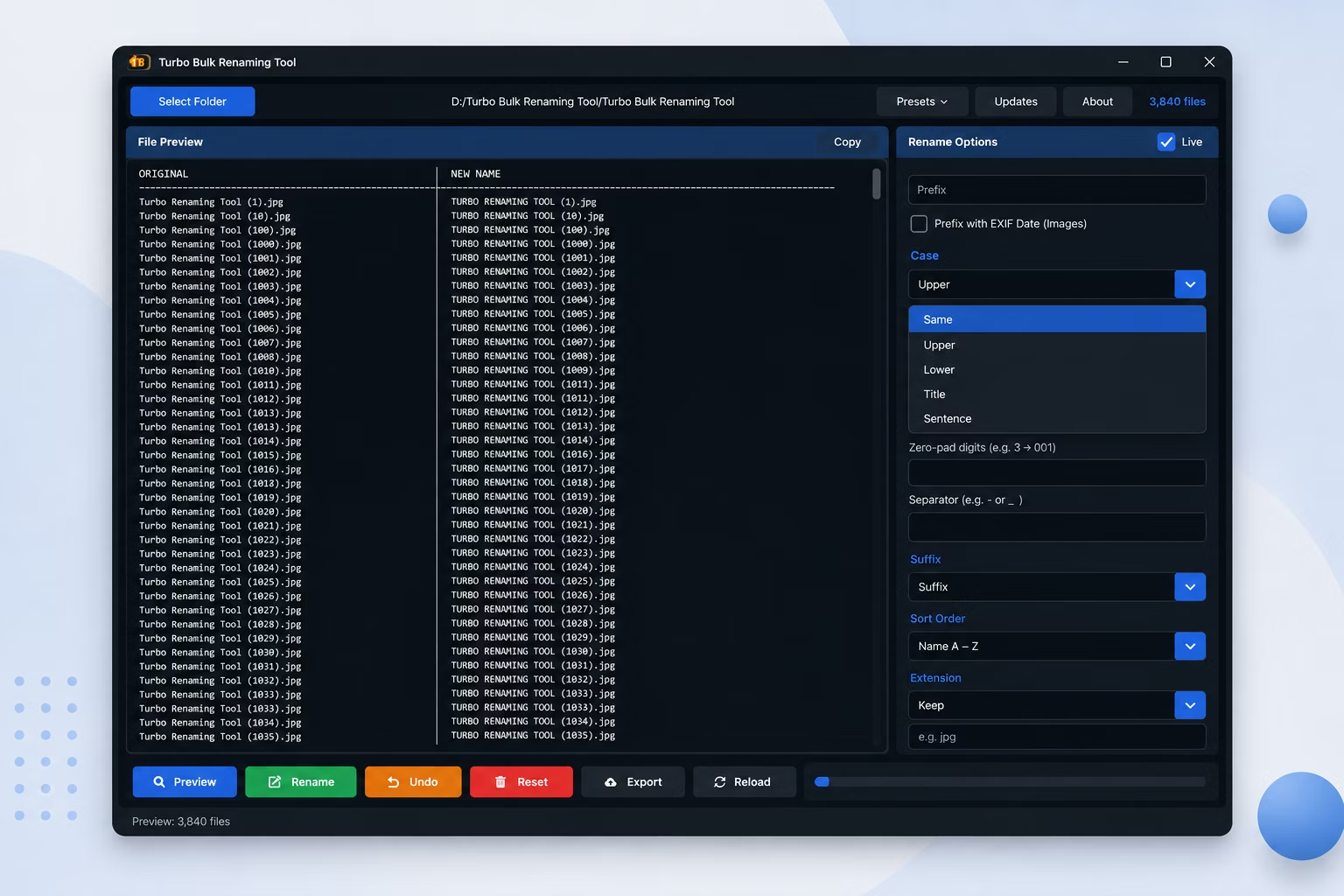
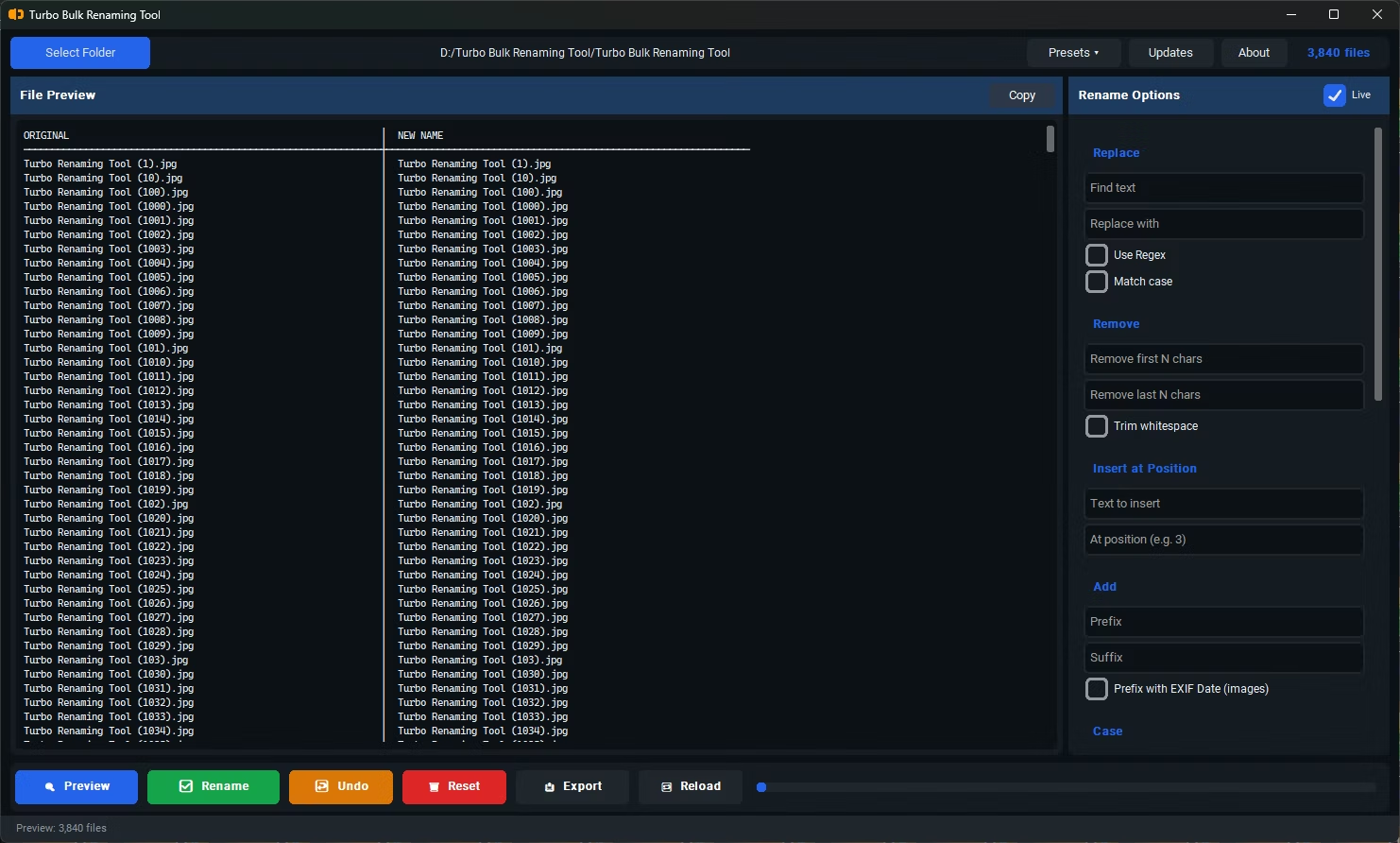
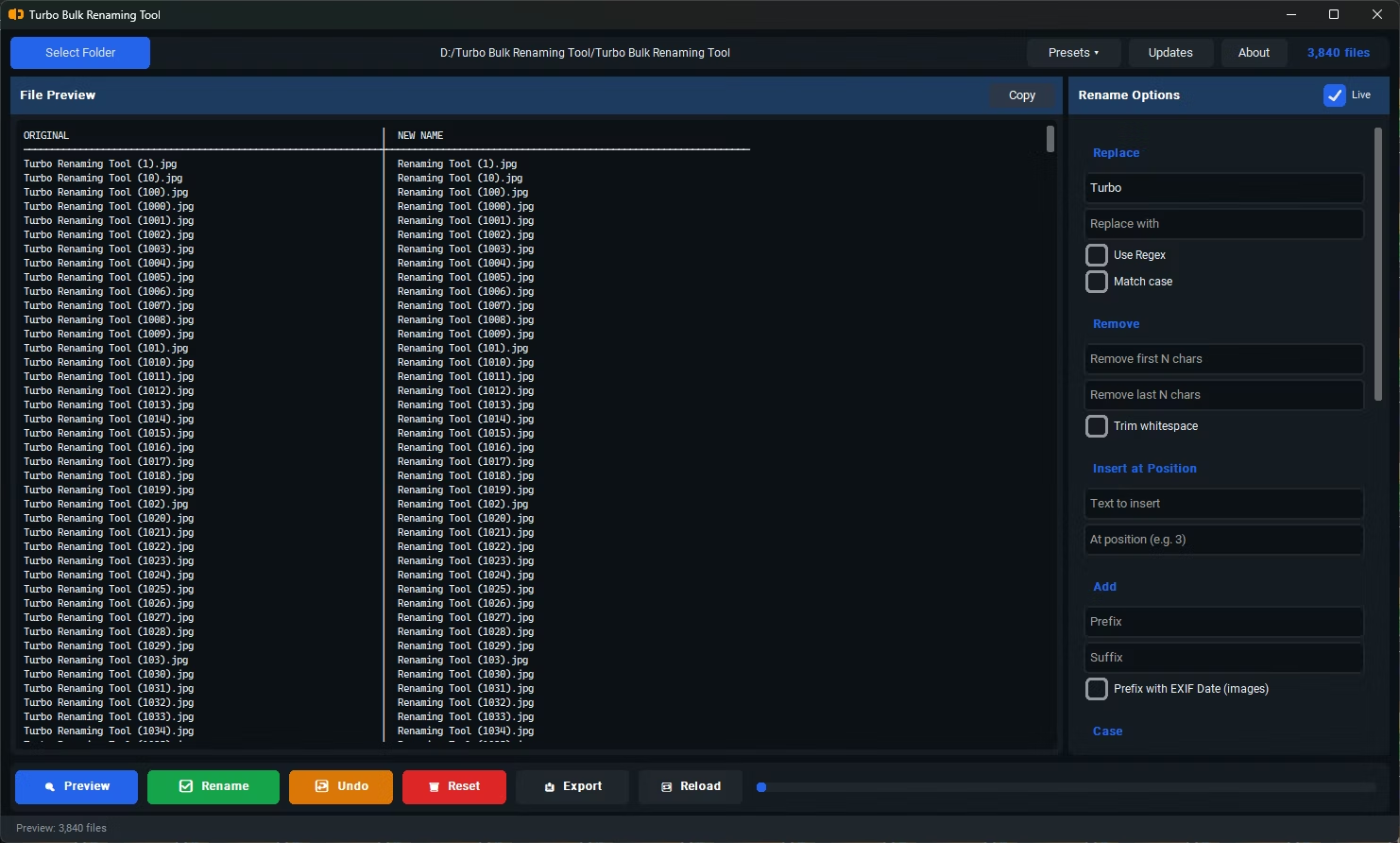
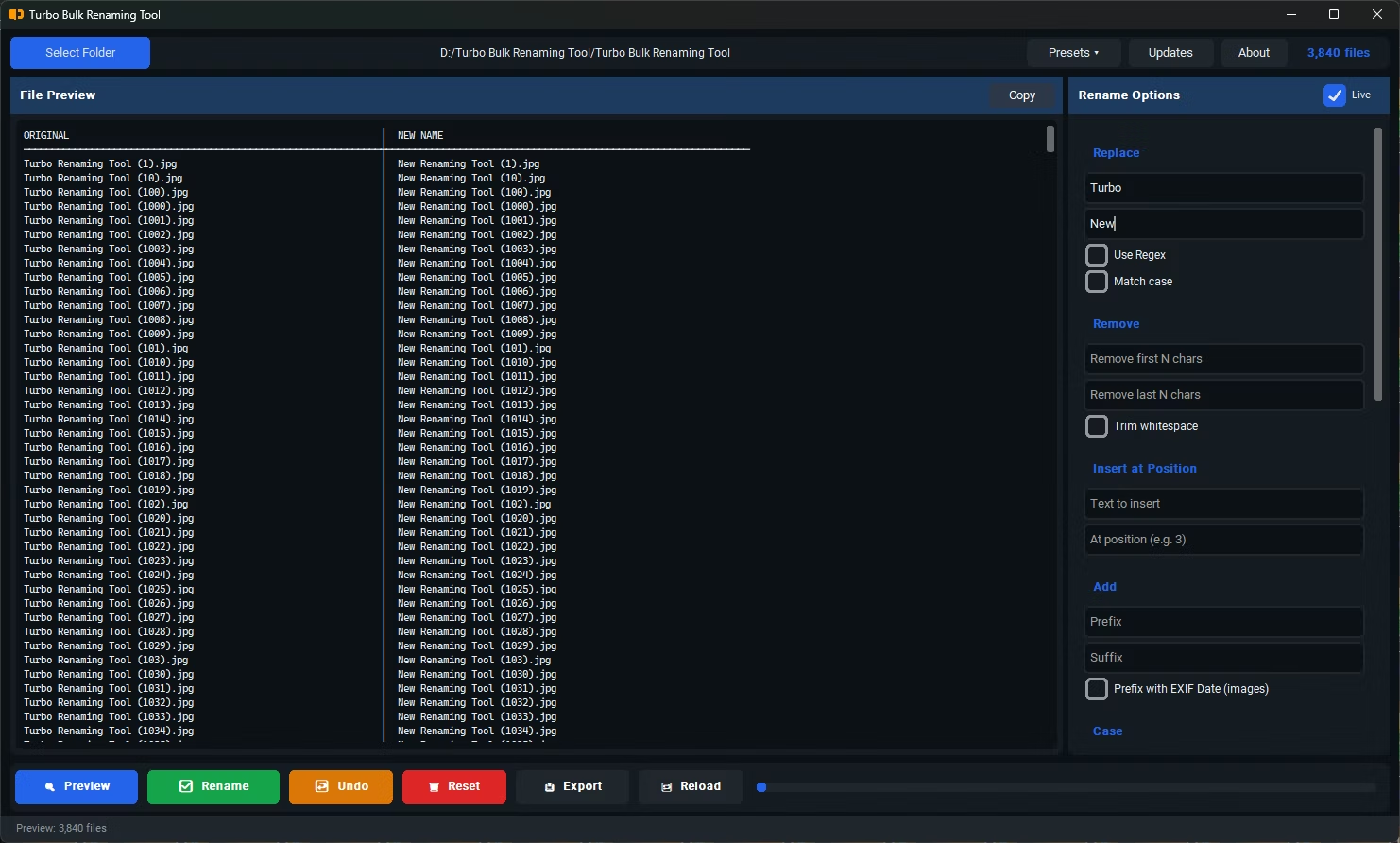
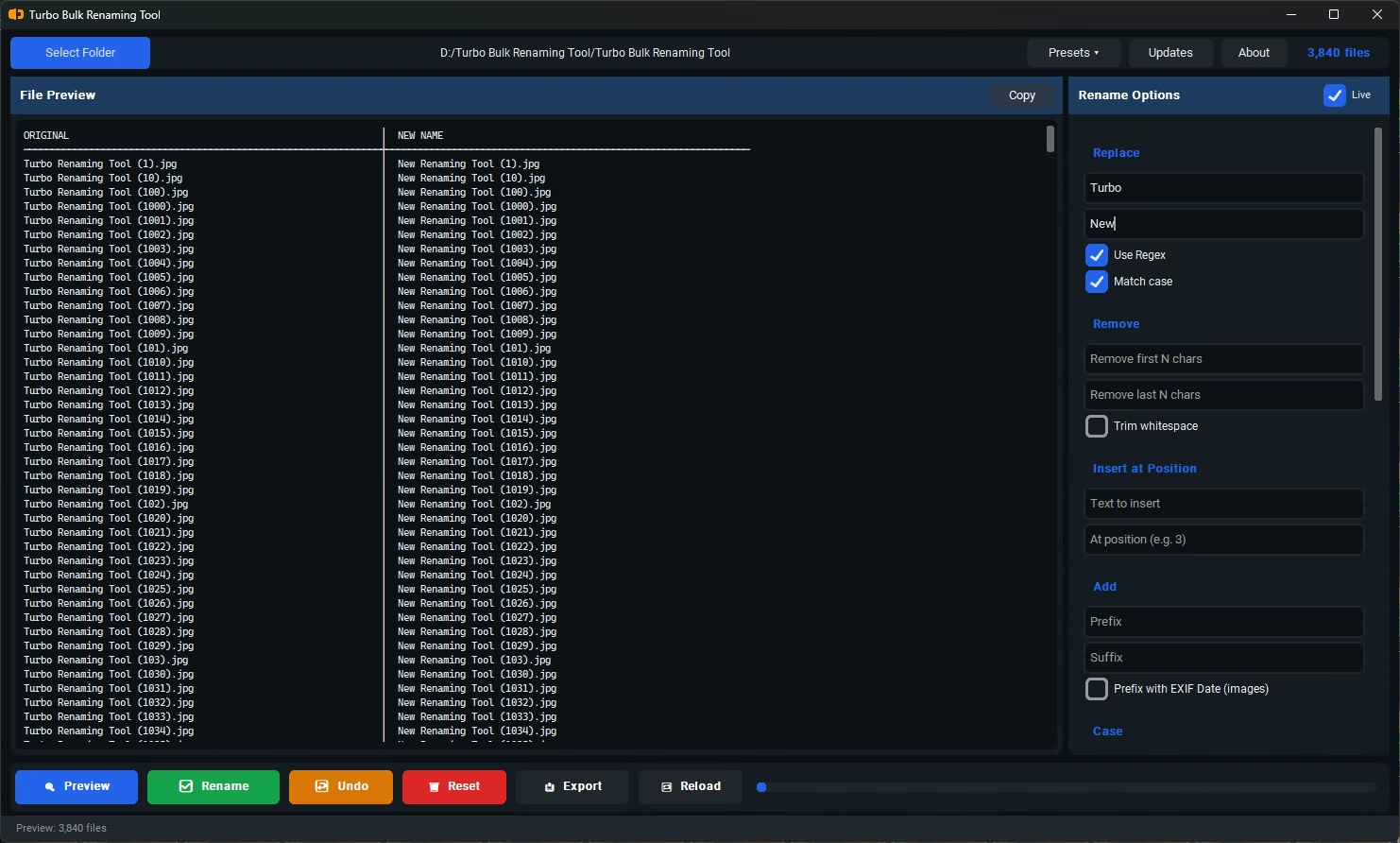
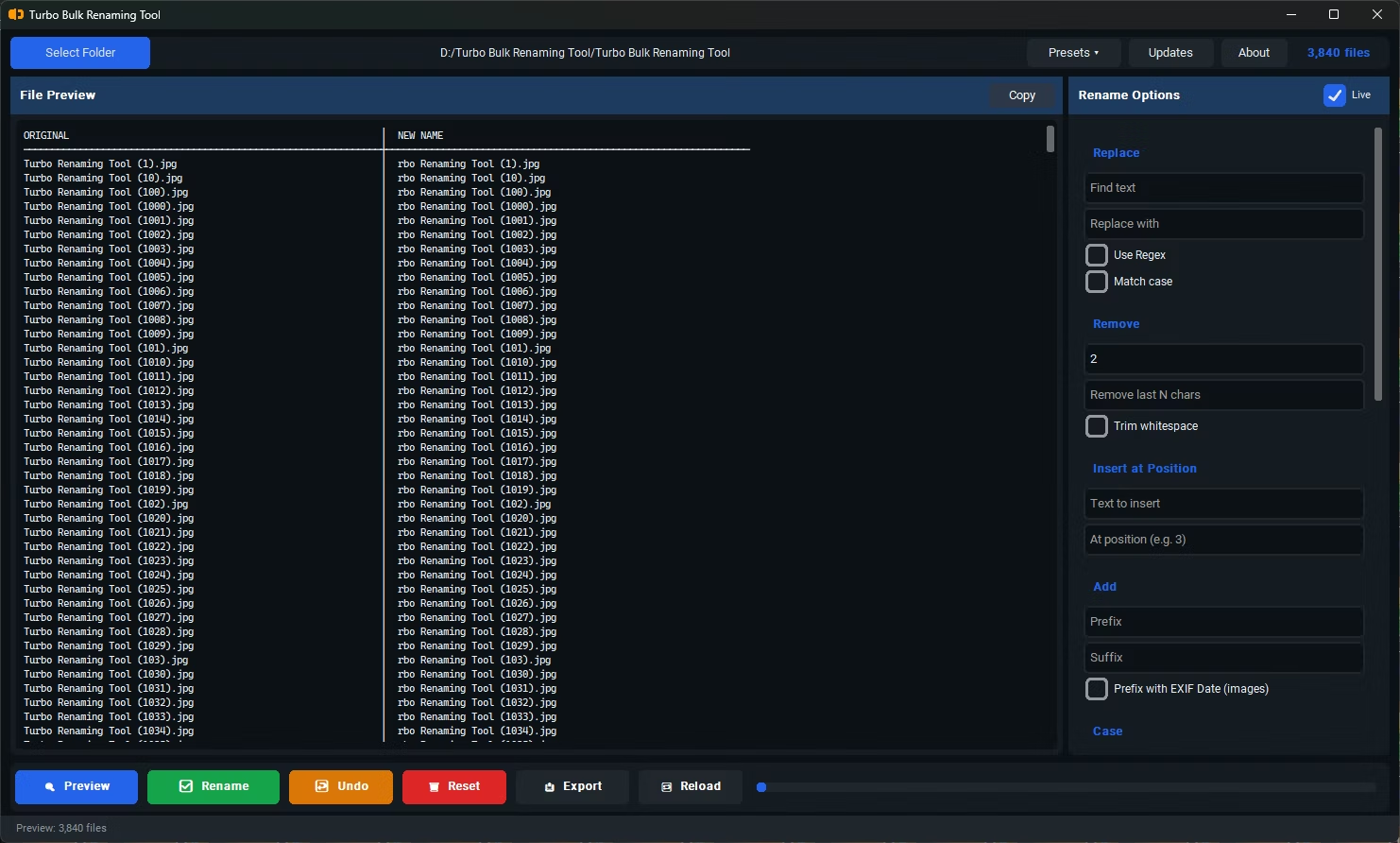
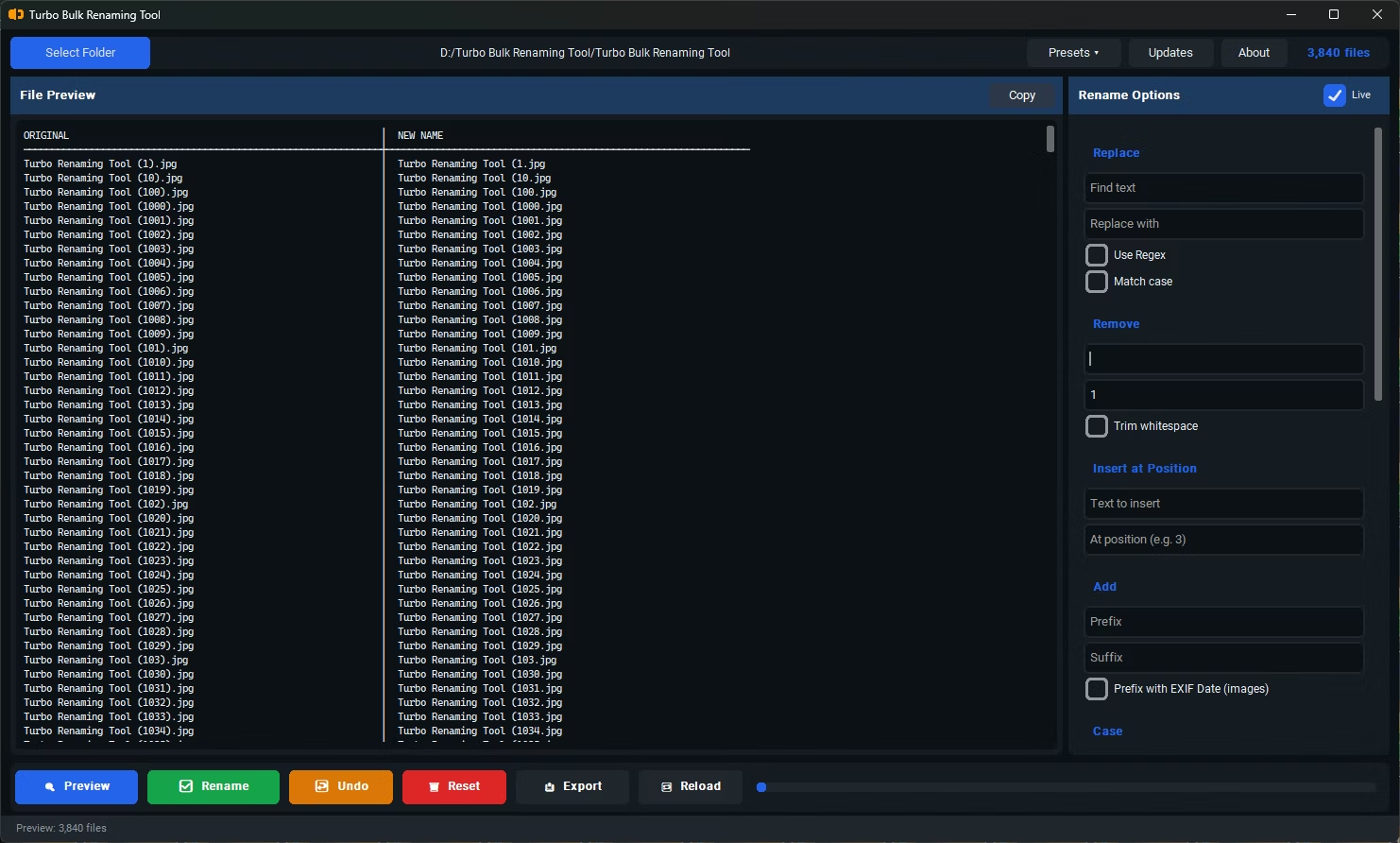
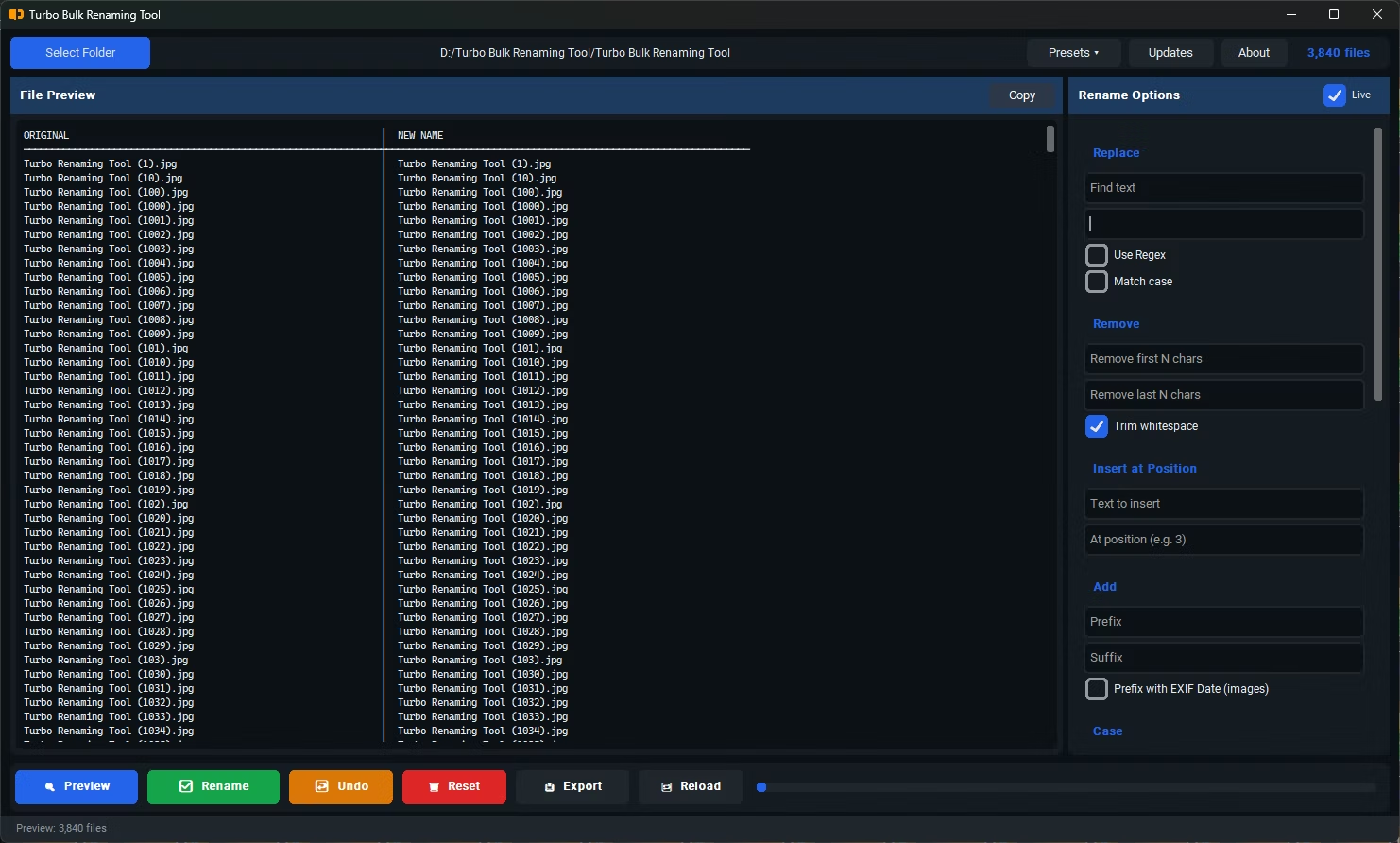
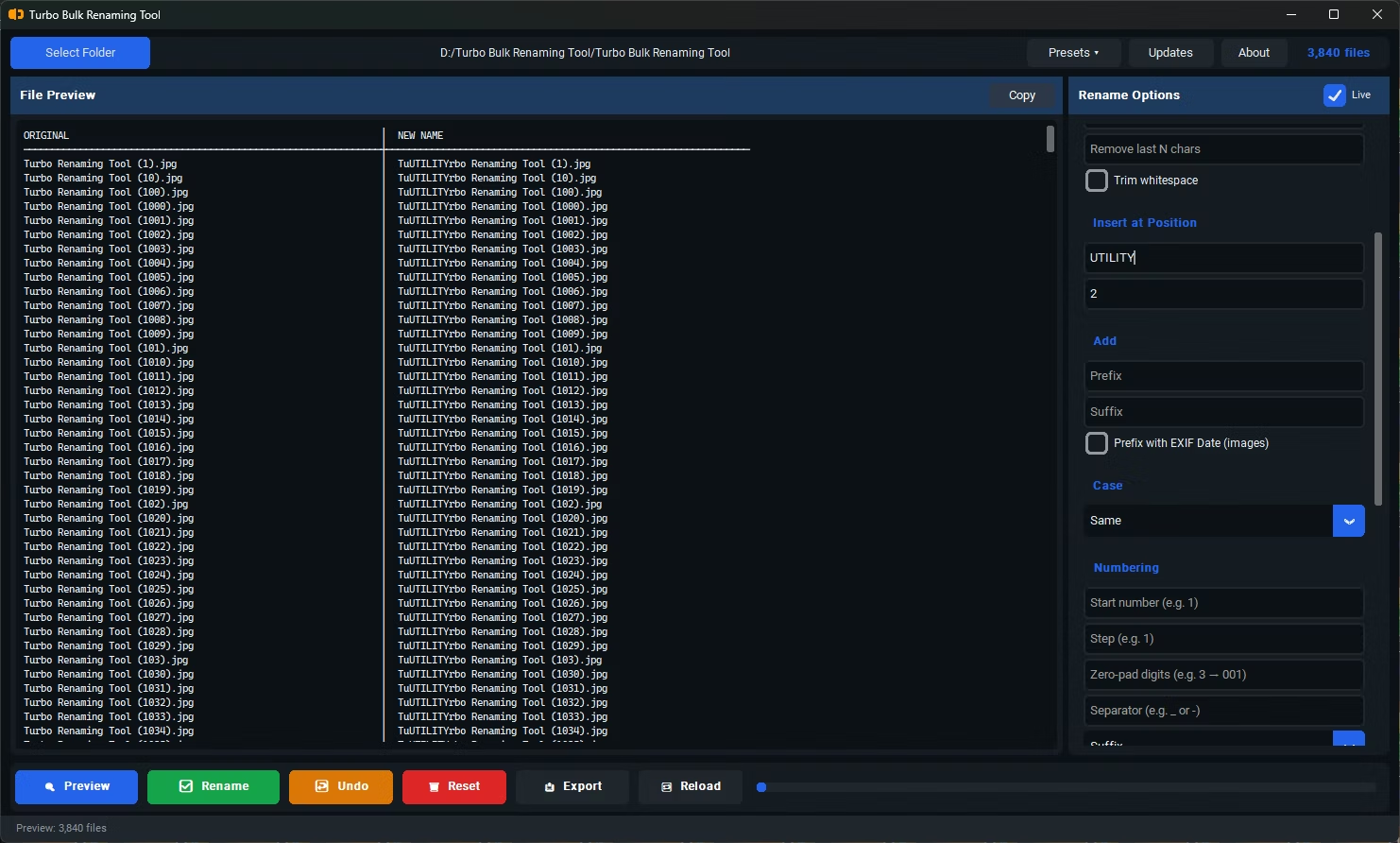
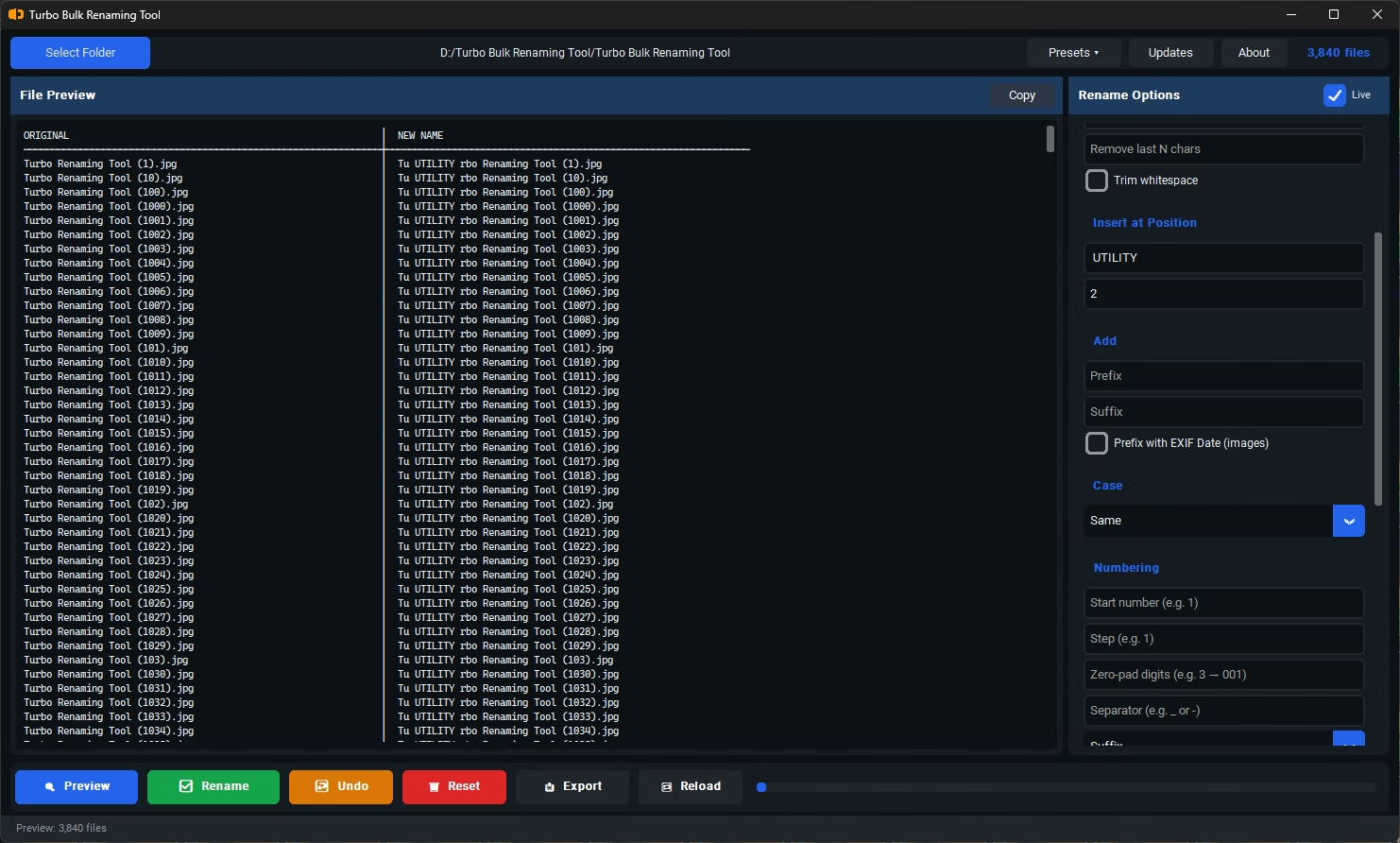
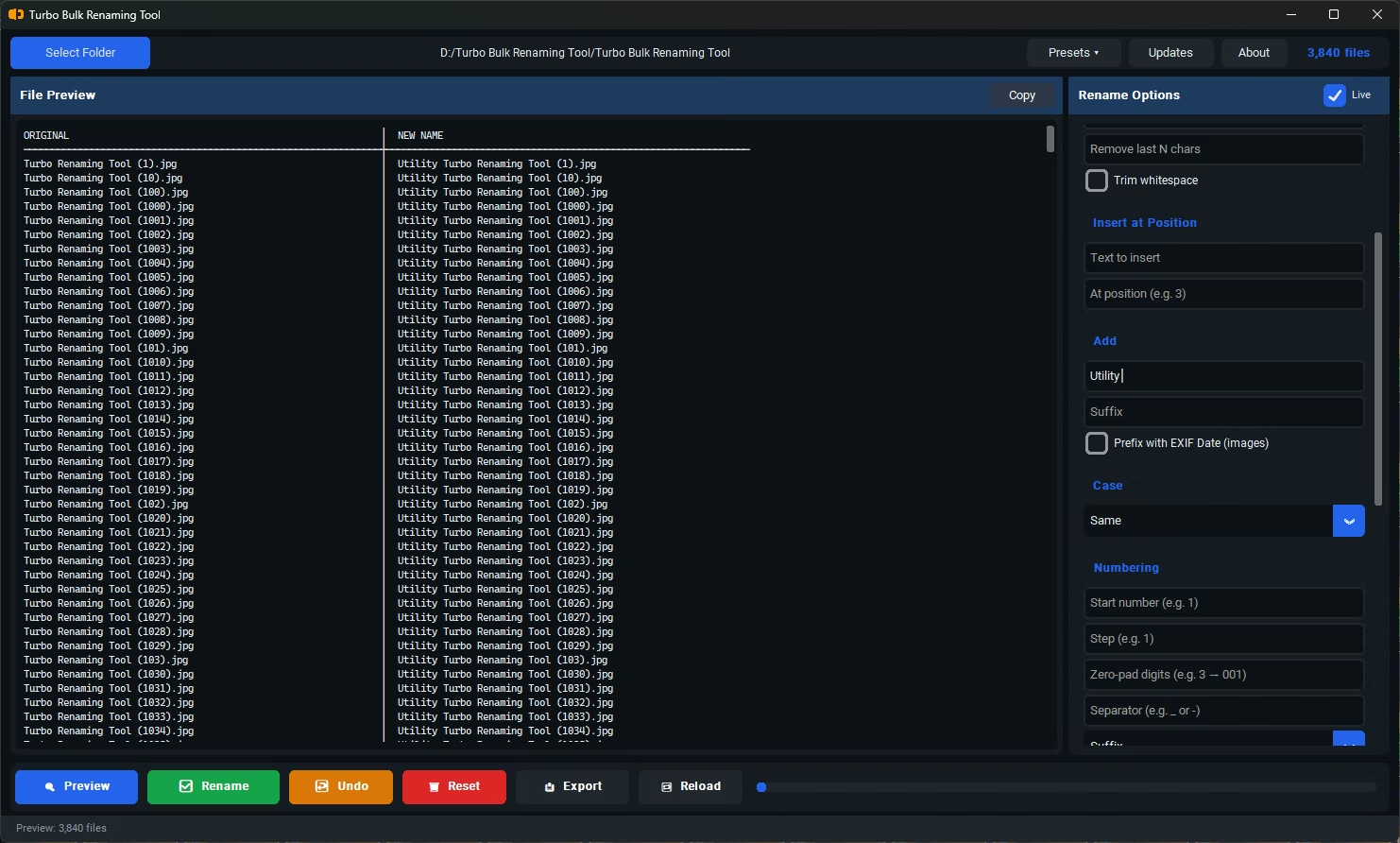
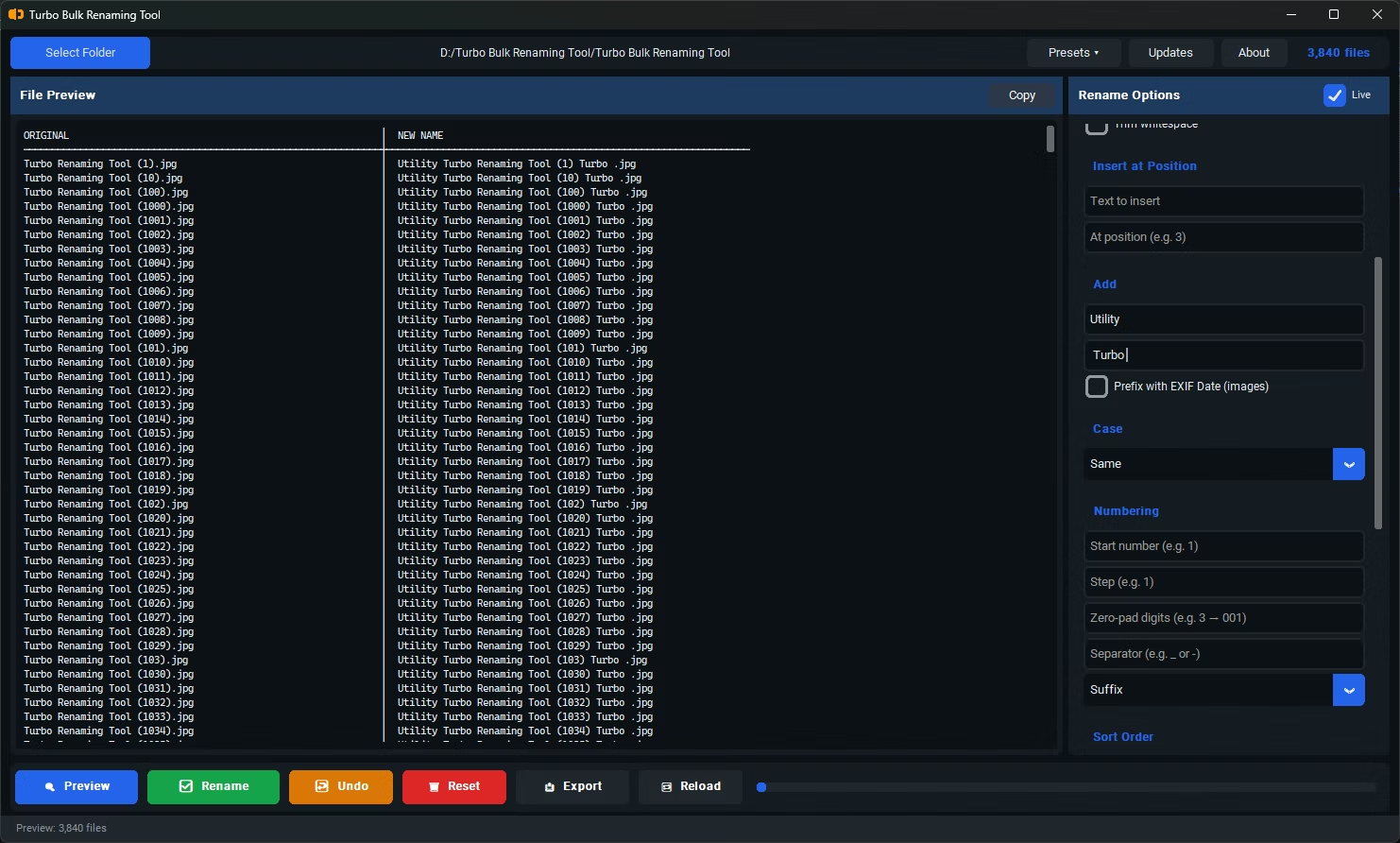
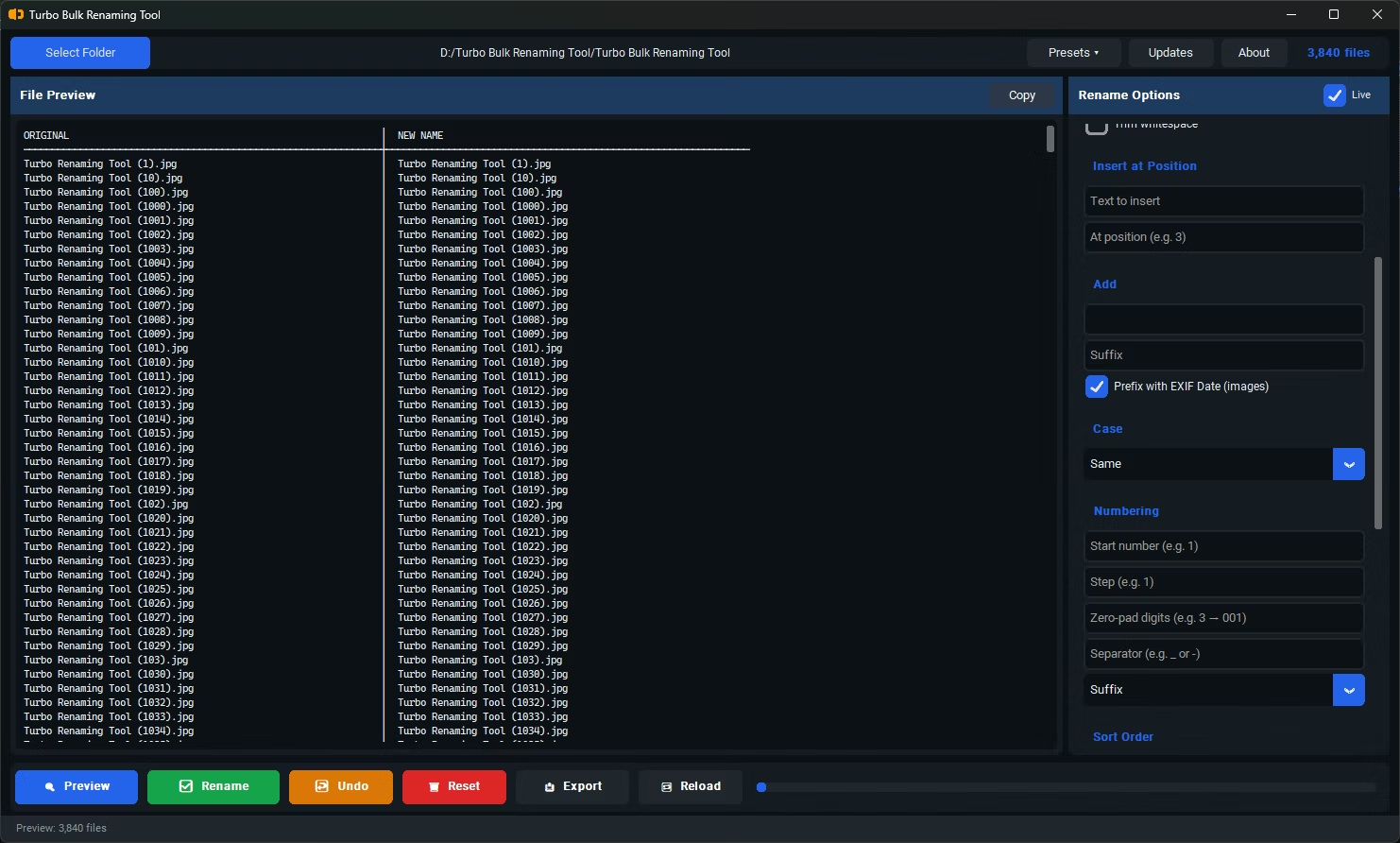
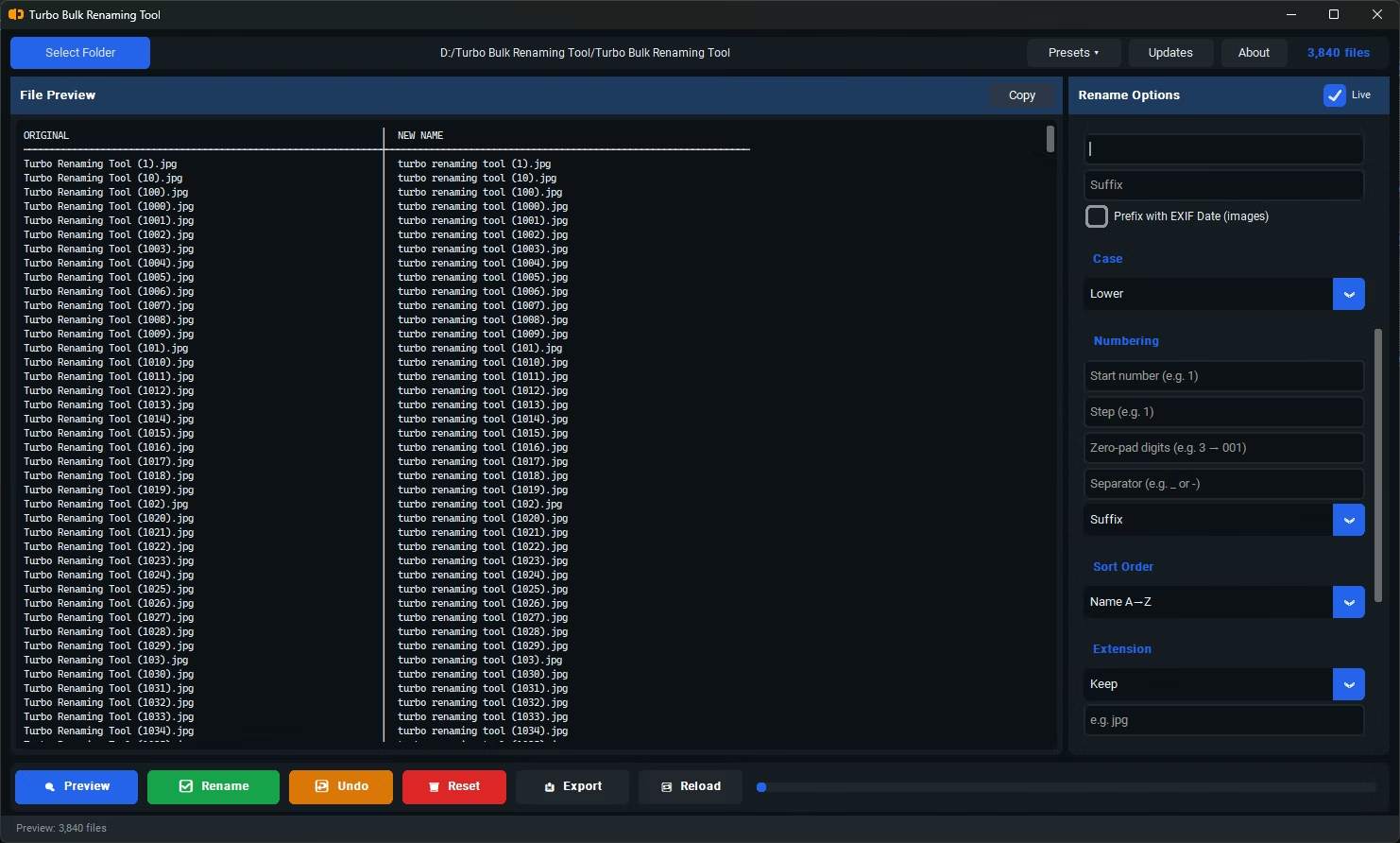
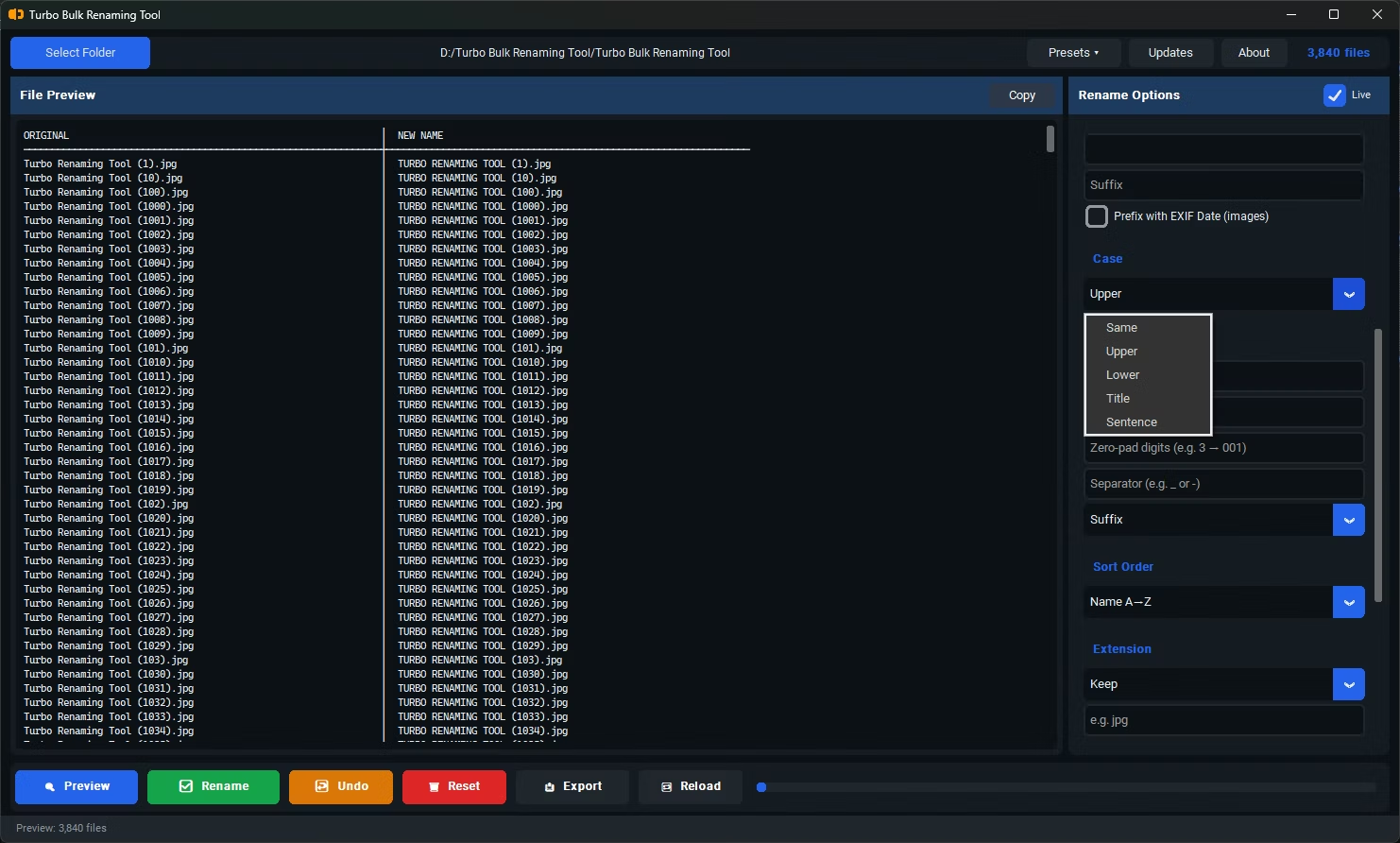
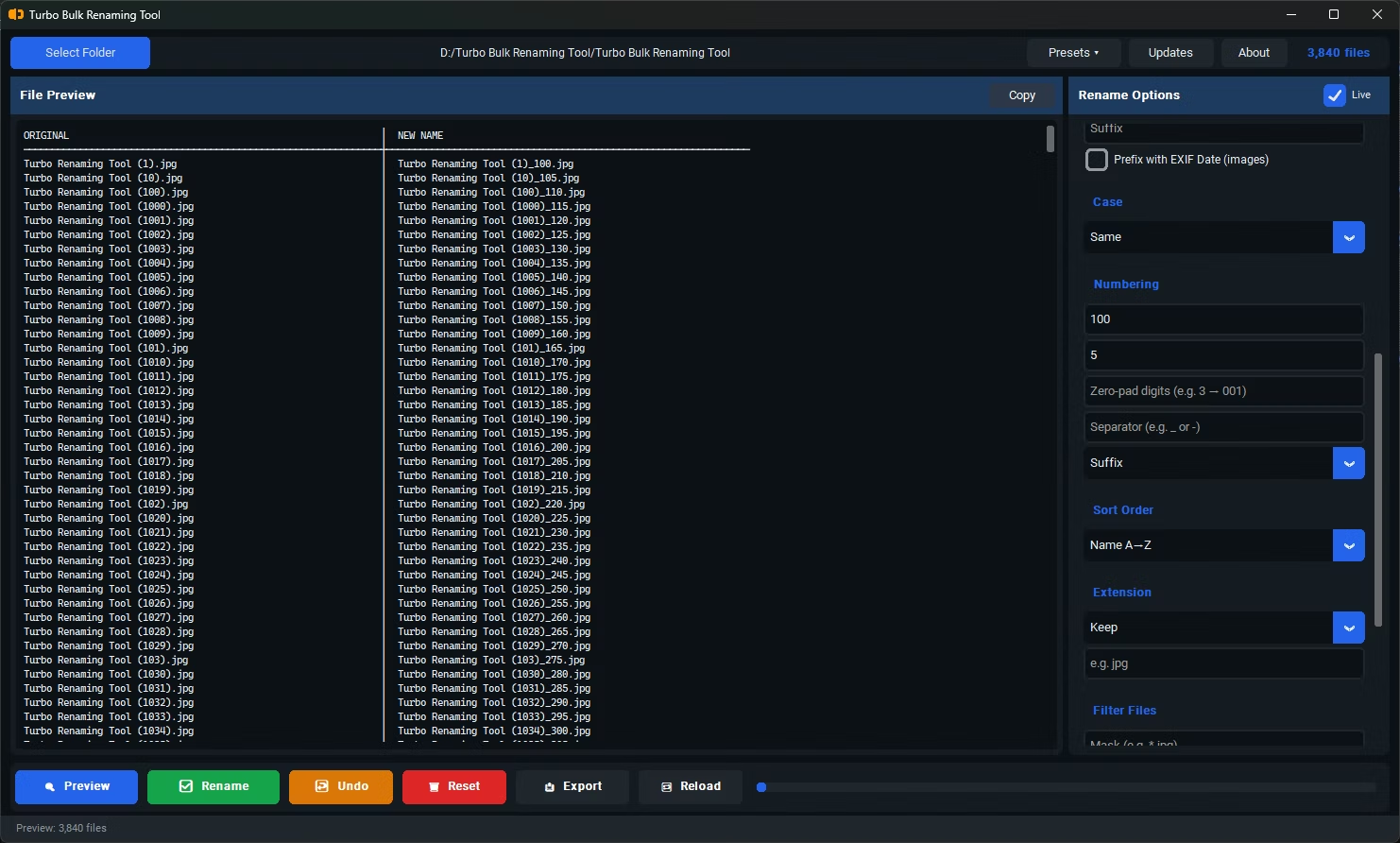
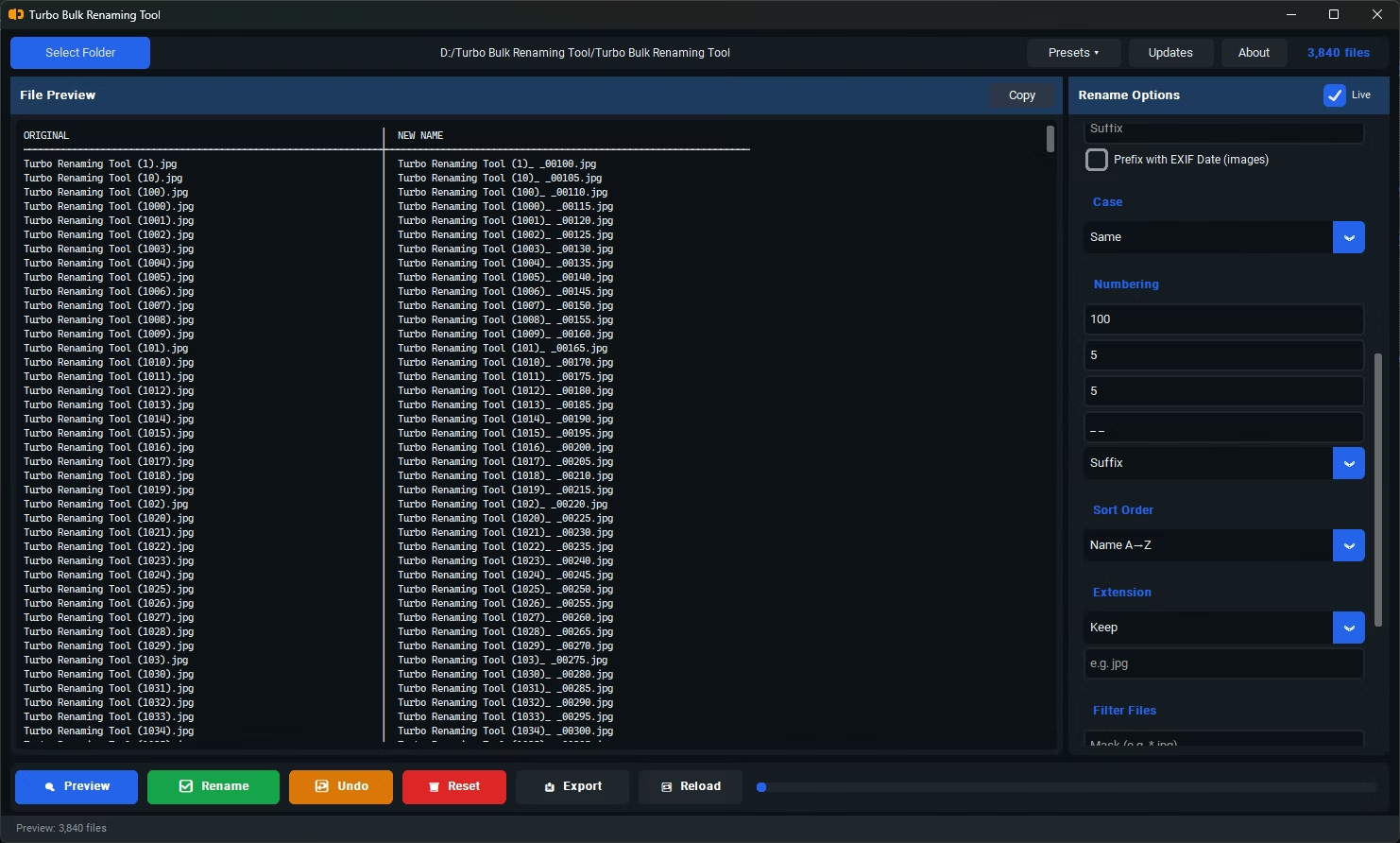
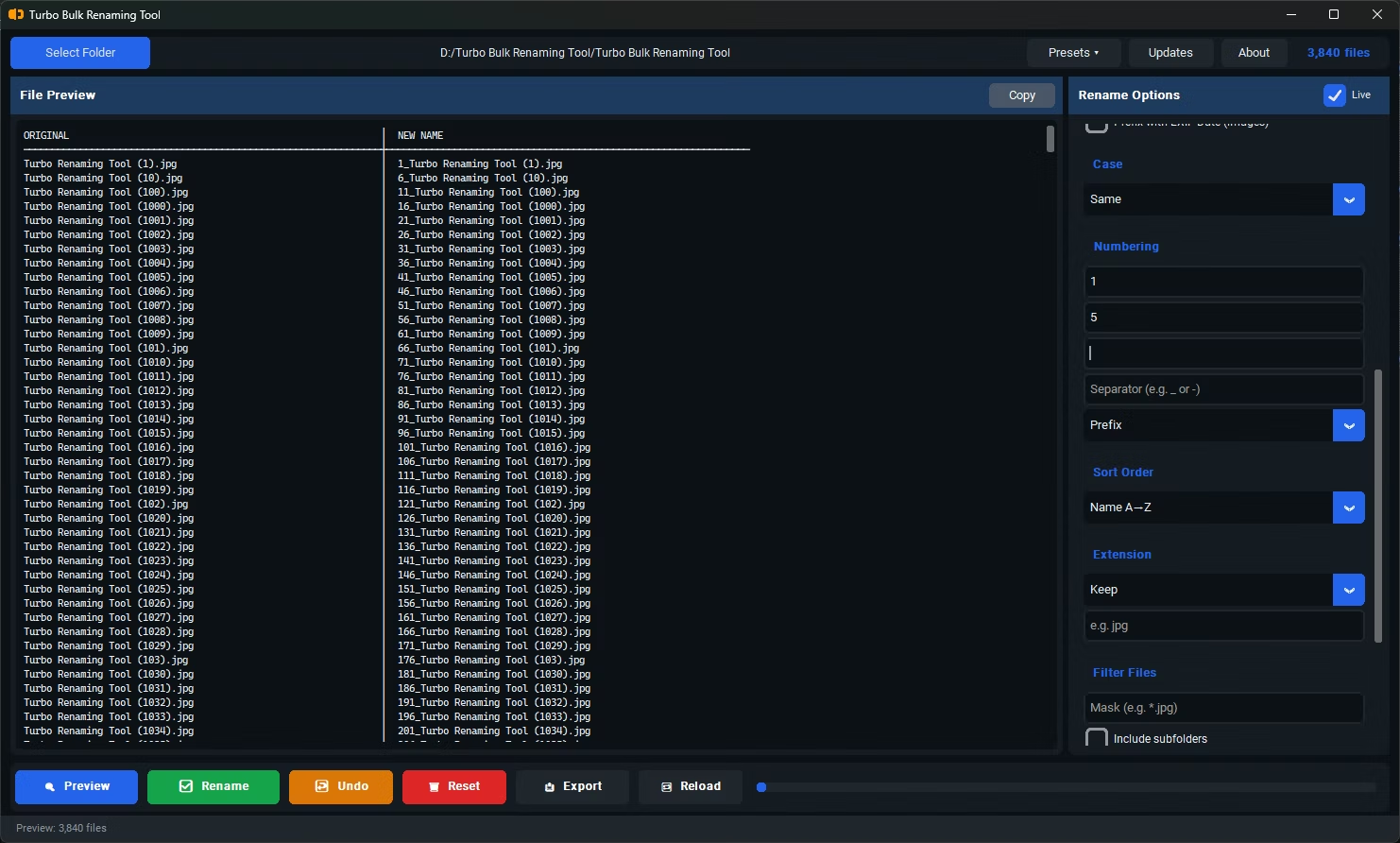
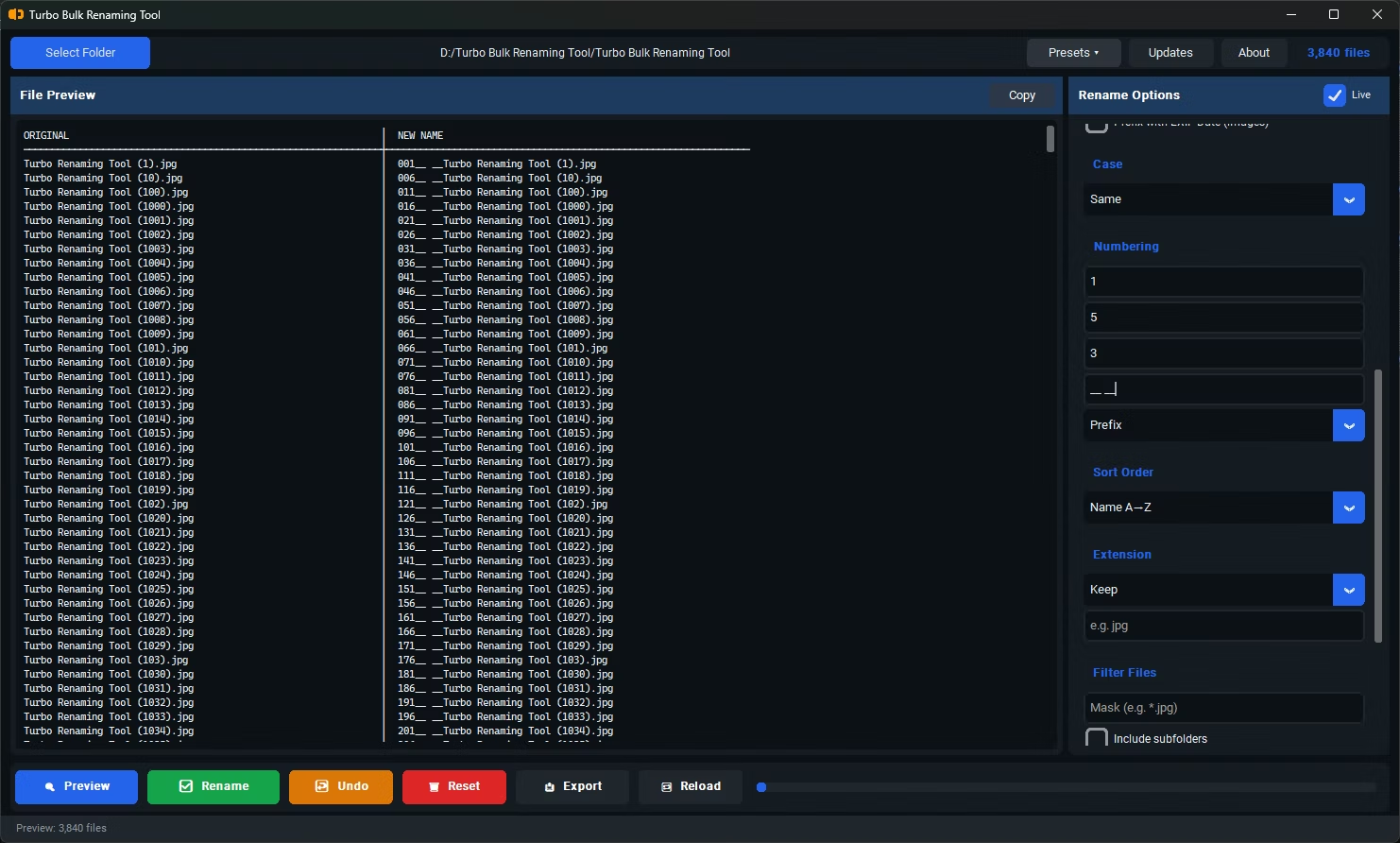
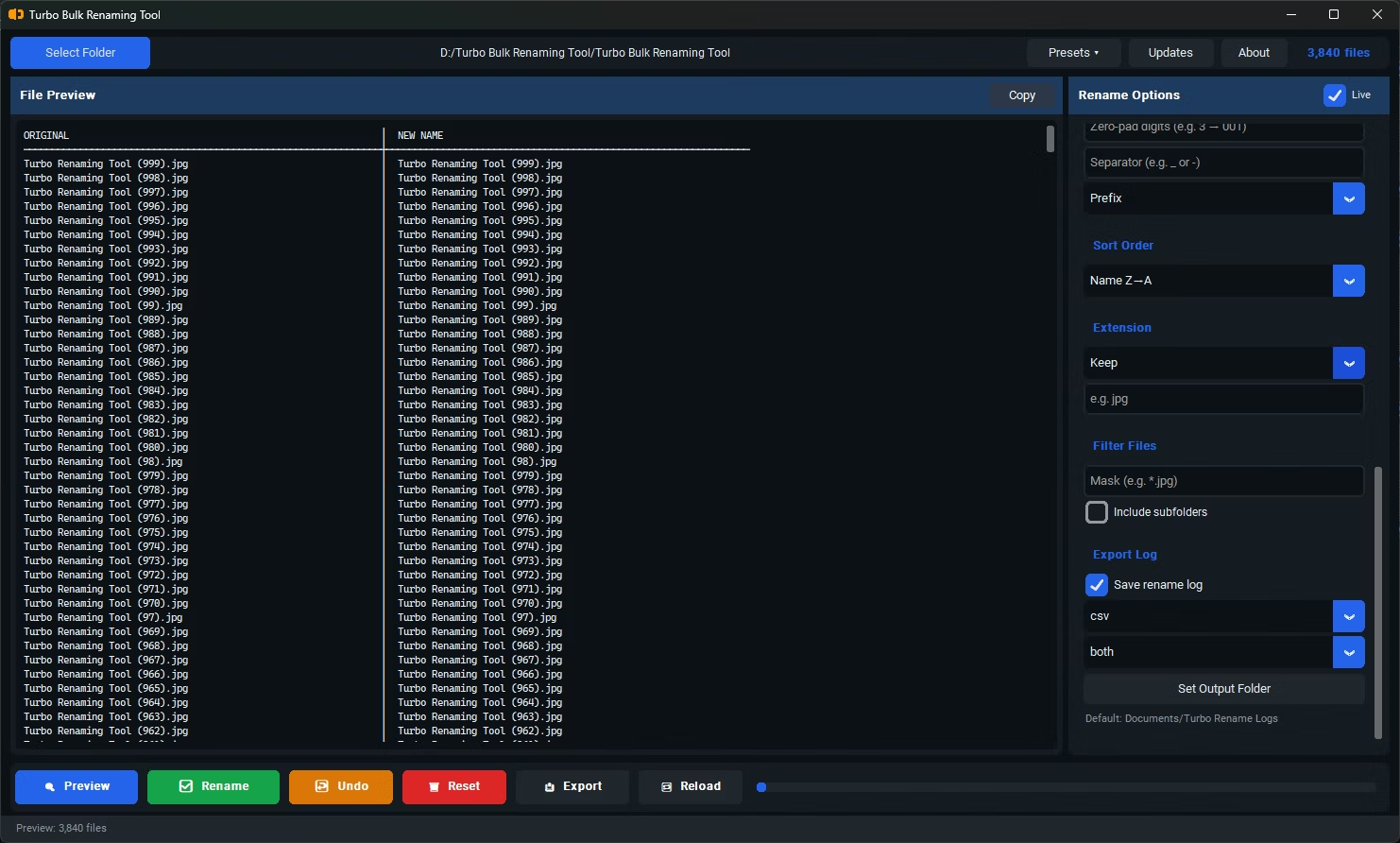
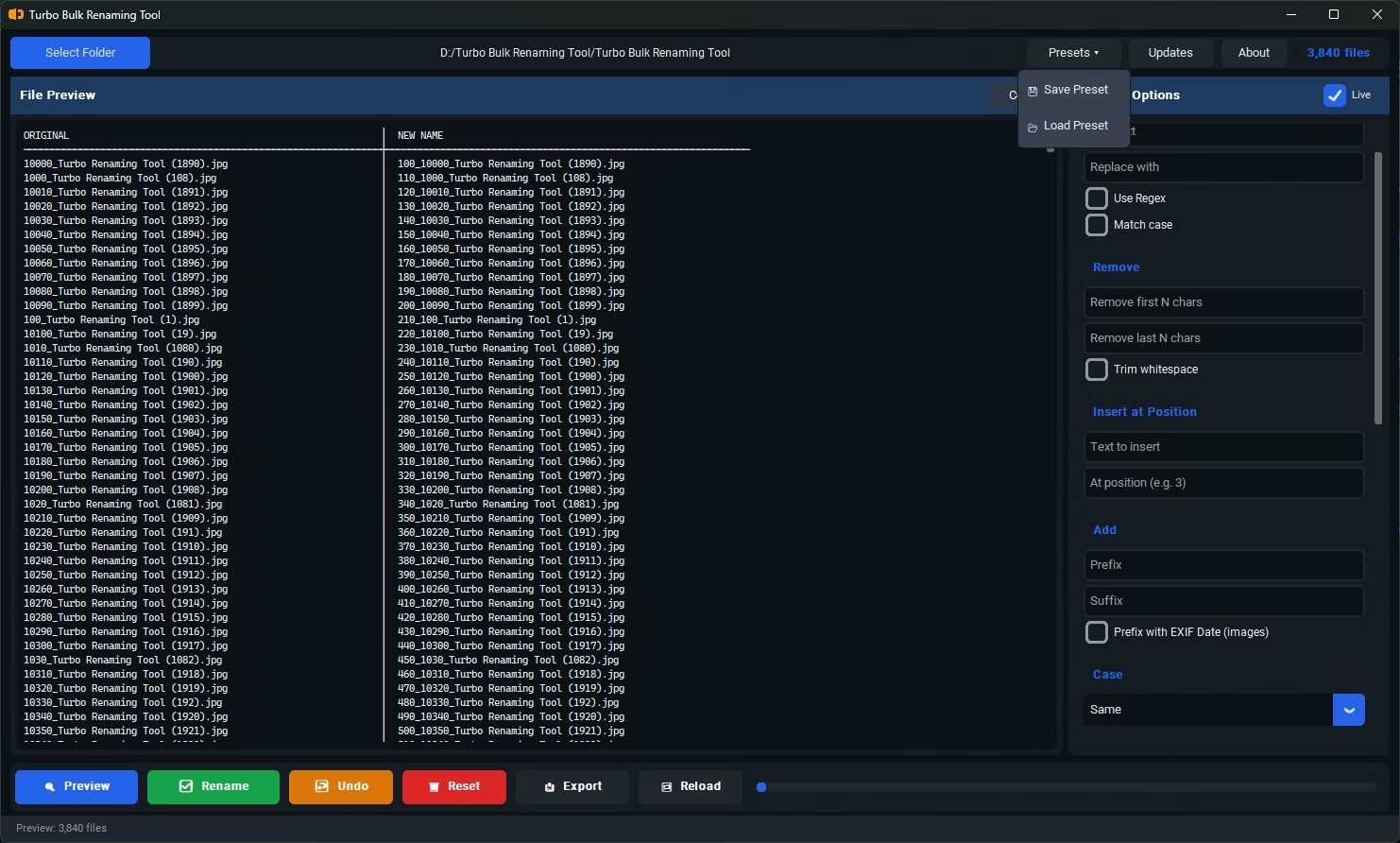
- Install Batchify Renaming Tool on your Windows PC.
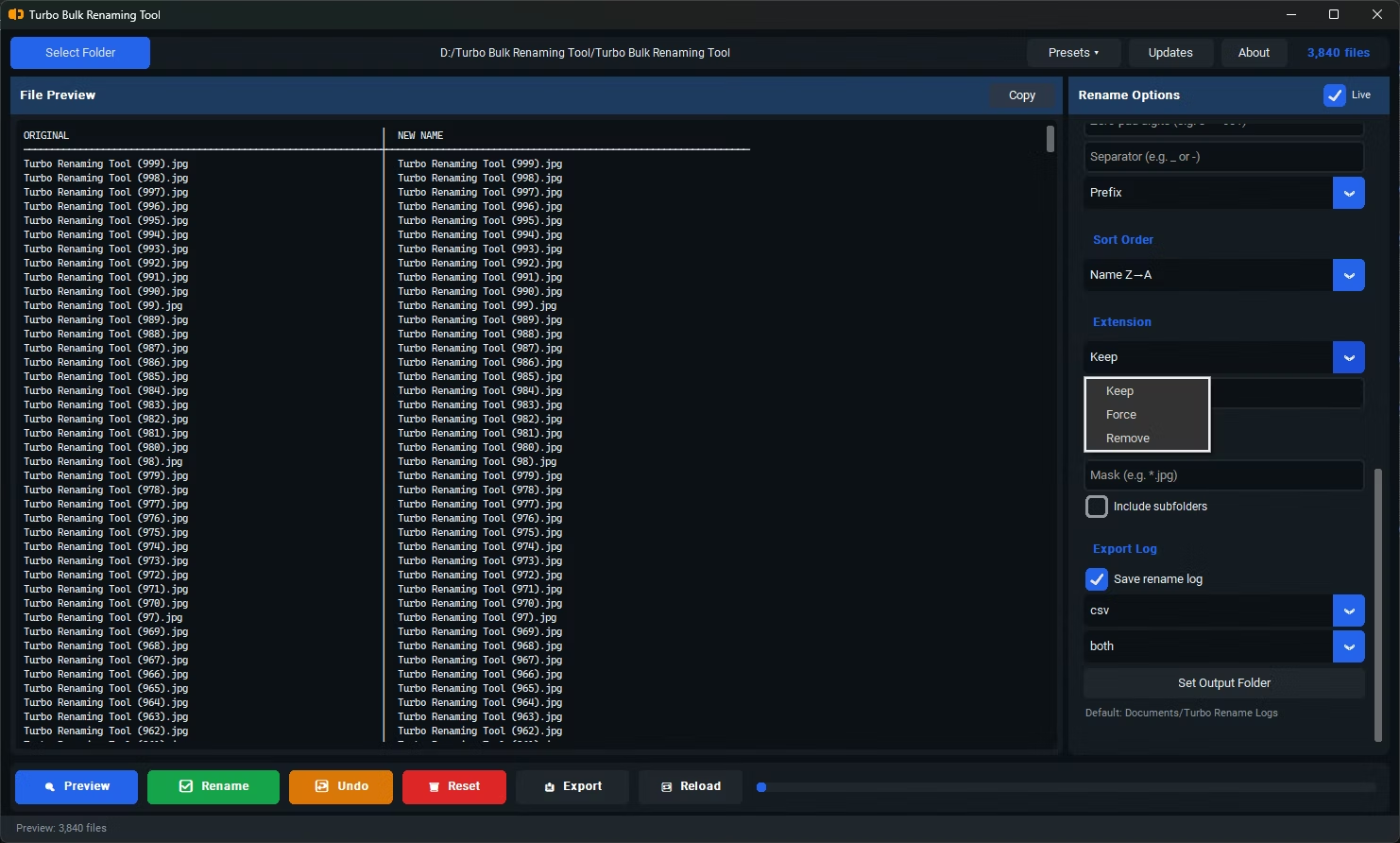
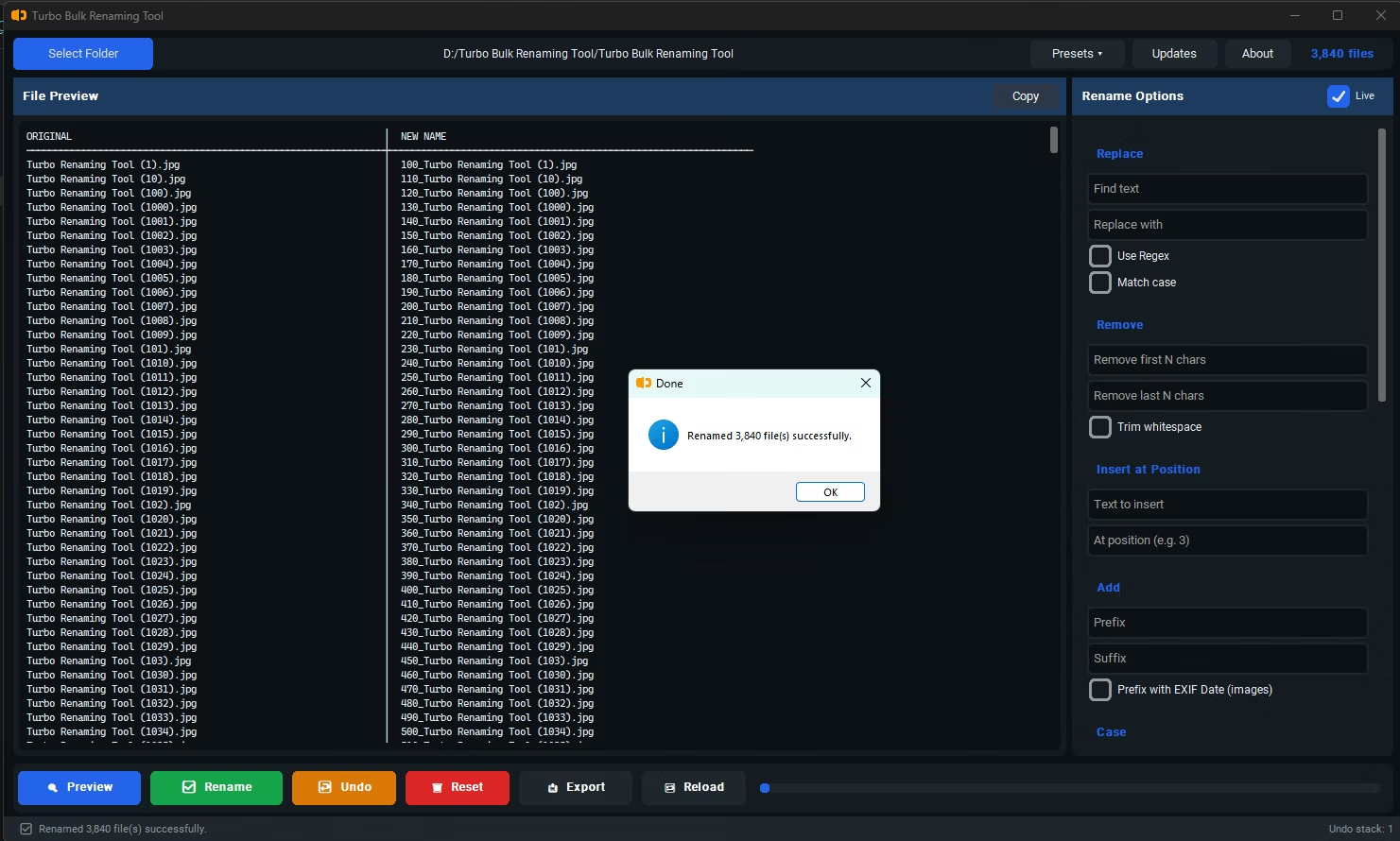
- Open the app and load the folder containing the files whose names you want in Excel.
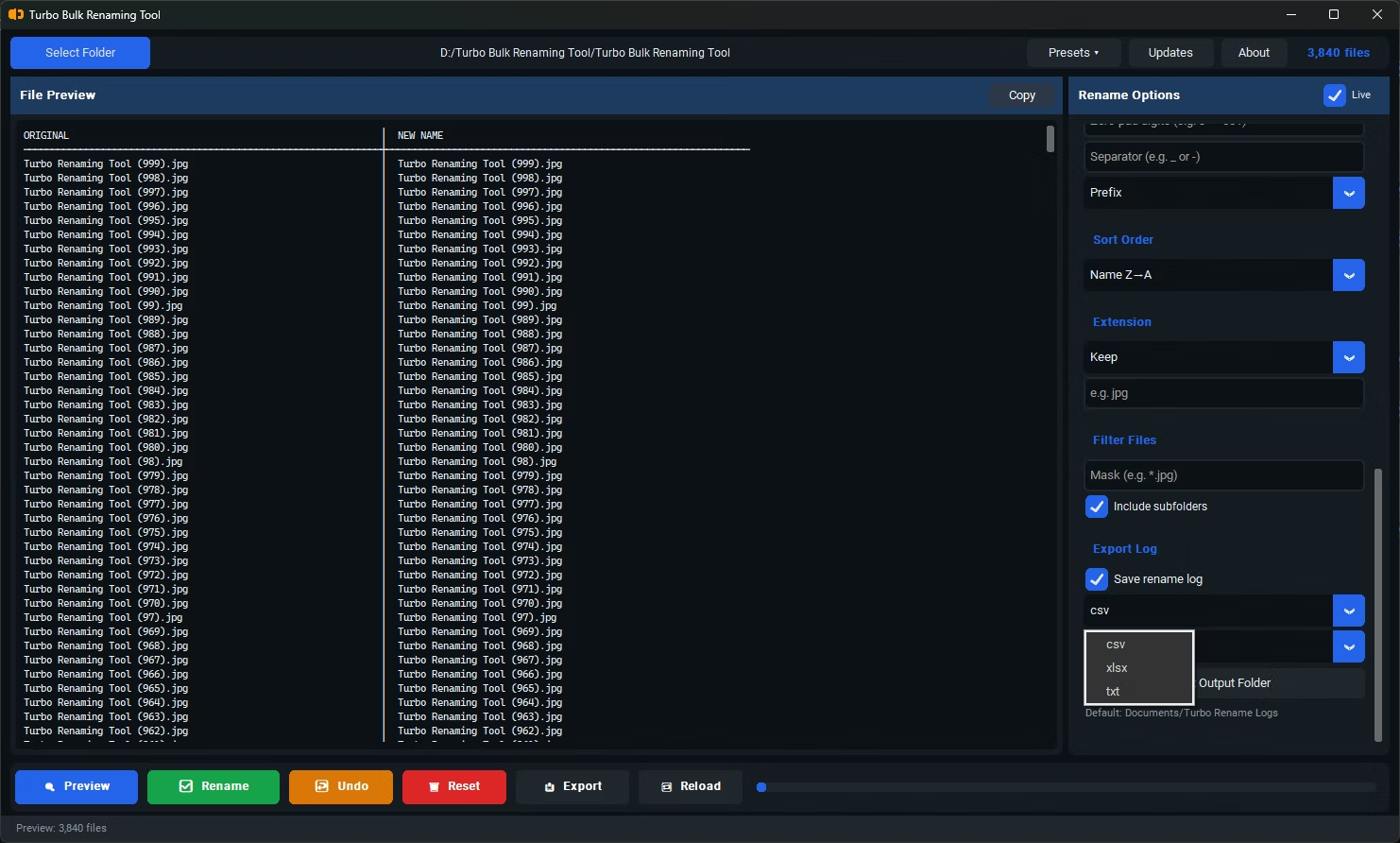
- Enable "Include Subfolders" if you want filenames from nested folders included as well.
- Click Export Only instead of applying a rename rule.
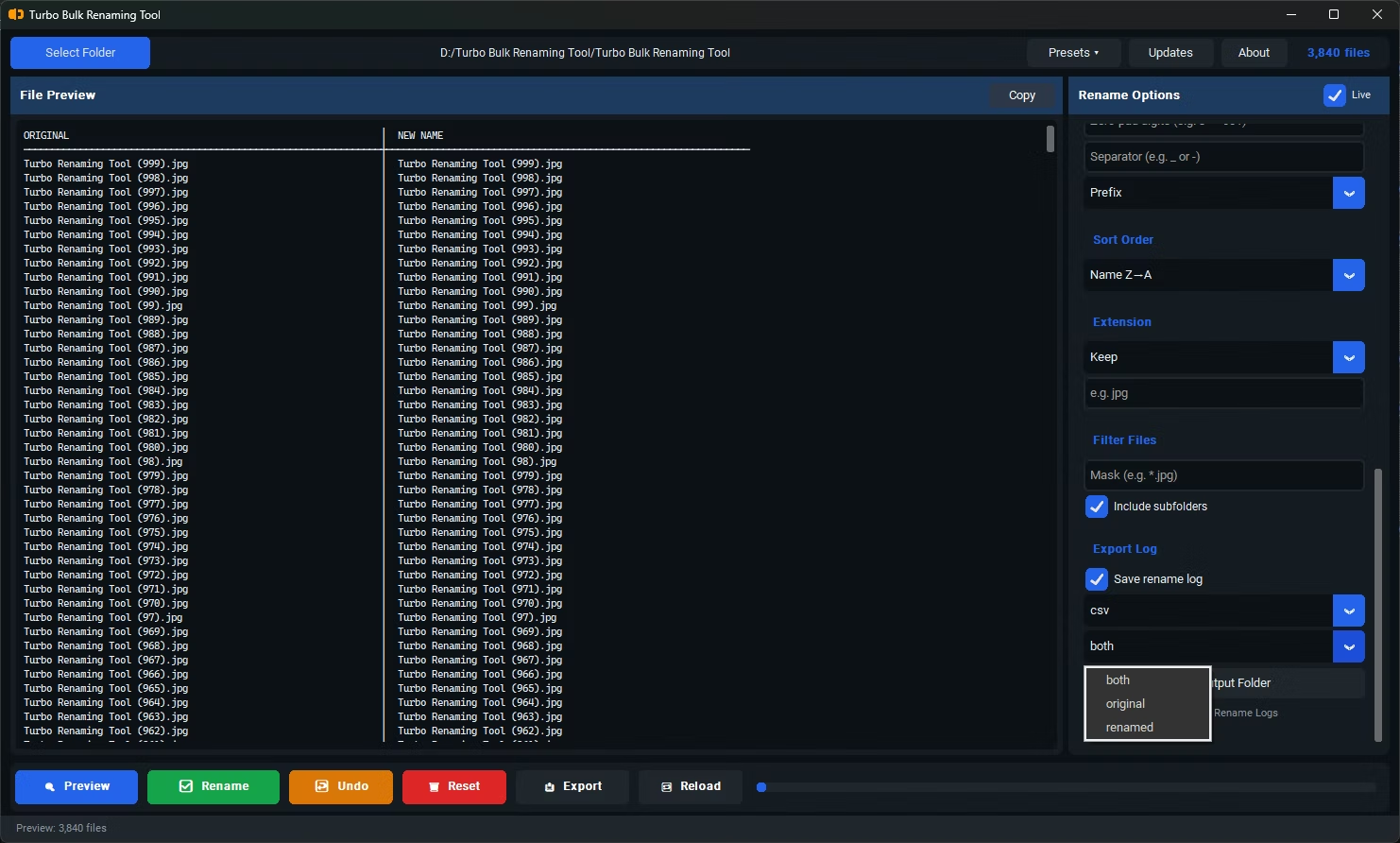
- Choose XLSX as the export format, and select whether to include original names, renamed names, or both as separate columns.
- Open the generated XLSX file directly in Excel, with every filename already listed in its own row.
- Exports directly to XLSX, ready to open in Excel without extra conversion steps
- Captures every filename in a folder, including nested sub-folders if enabled
- Can include both original and renamed filenames as separate columns side by side
- Works as a standalone export, without requiring any renaming to take place first
- Runs fully offline, so your file listing never leaves your computer
- Handles large folders without manual copy-paste effort
Do I need to rename files before exporting their names?
No, Export Only works independently of renaming, so you can export a list of filenames exactly as they currently exist.
Can I export filenames from sub-folders too?
Yes, enabling "Include Subfolders" before exporting captures filenames from nested directories as well as the top-level folder.
What other export formats are available besides XLSX?
CSV and TXT are also available, in case you need a plain text or comma-separated format instead of a native Excel file.
Ready to rename your files in bulk, offline, with full privacy?