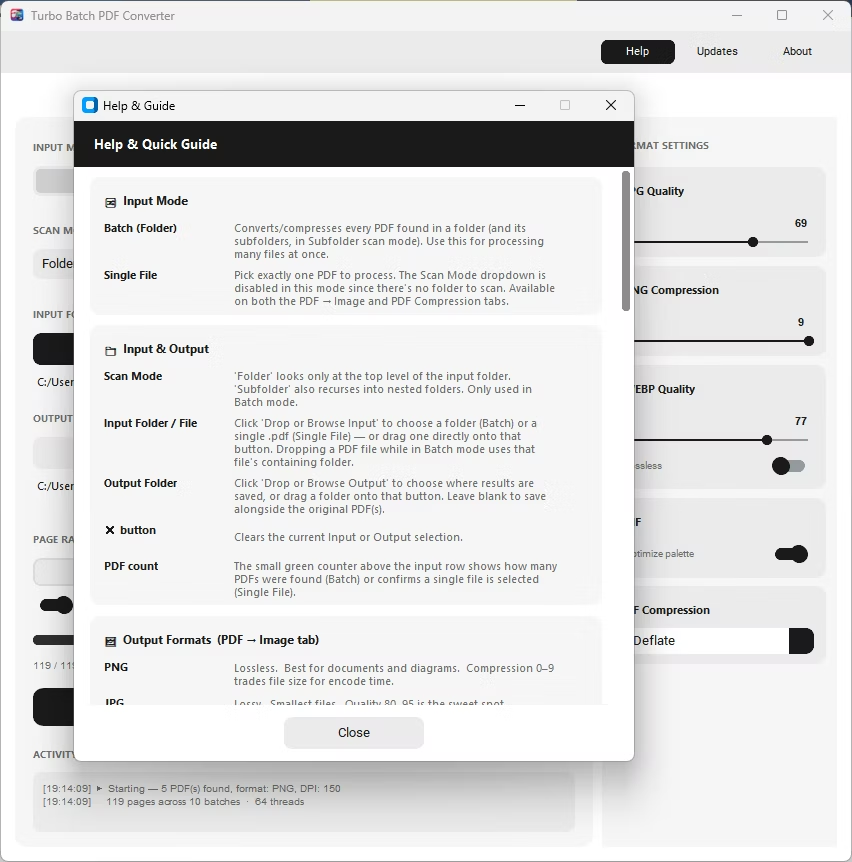
Navigating a file dialog to locate a PDF or folder, click by click, adds unnecessary friction to a task that should take seconds. Drag and drop support removes that step entirely, letting you pull a file or folder straight from Windows Explorer onto the app window to start setting up a conversion immediately.
This is especially useful for repeated, everyday conversion tasks, where dragging a folder onto the app is noticeably quicker than reopening a browse dialog every single time.
Batchify PDF Converter runs on Windows 10 and Windows 11, both 64-bit, and installs as a single self-contained application with no separate Poppler or Ghostscript dependency to configure. That keeps setup to a couple of minutes, whether the app is going on a personal laptop or a shared office PC handling document conversion for a whole team.
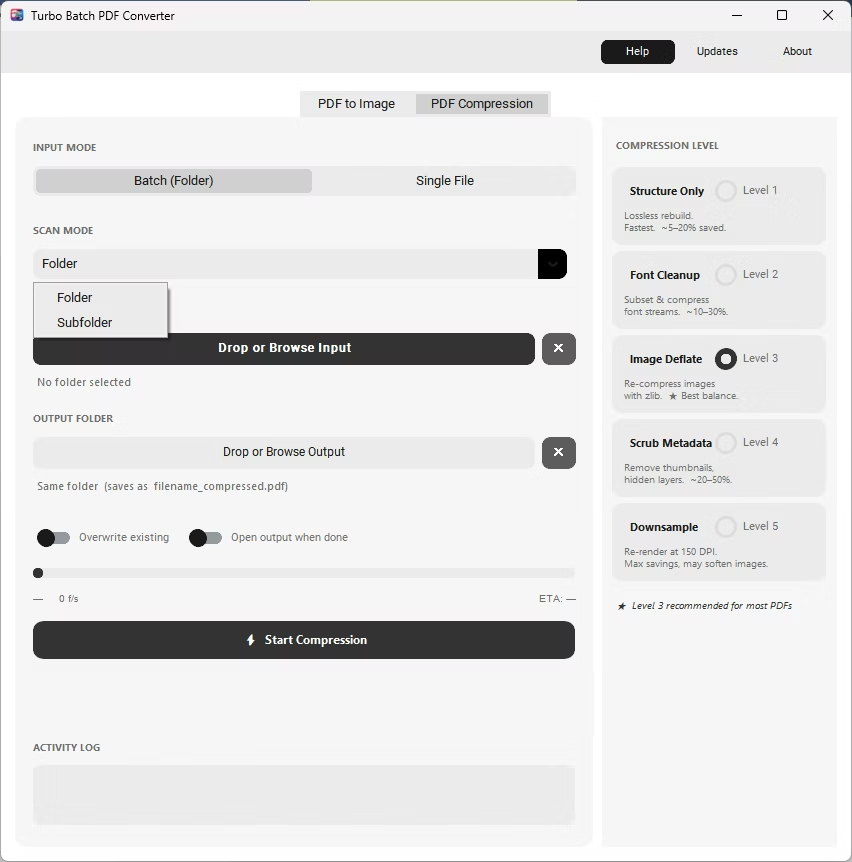
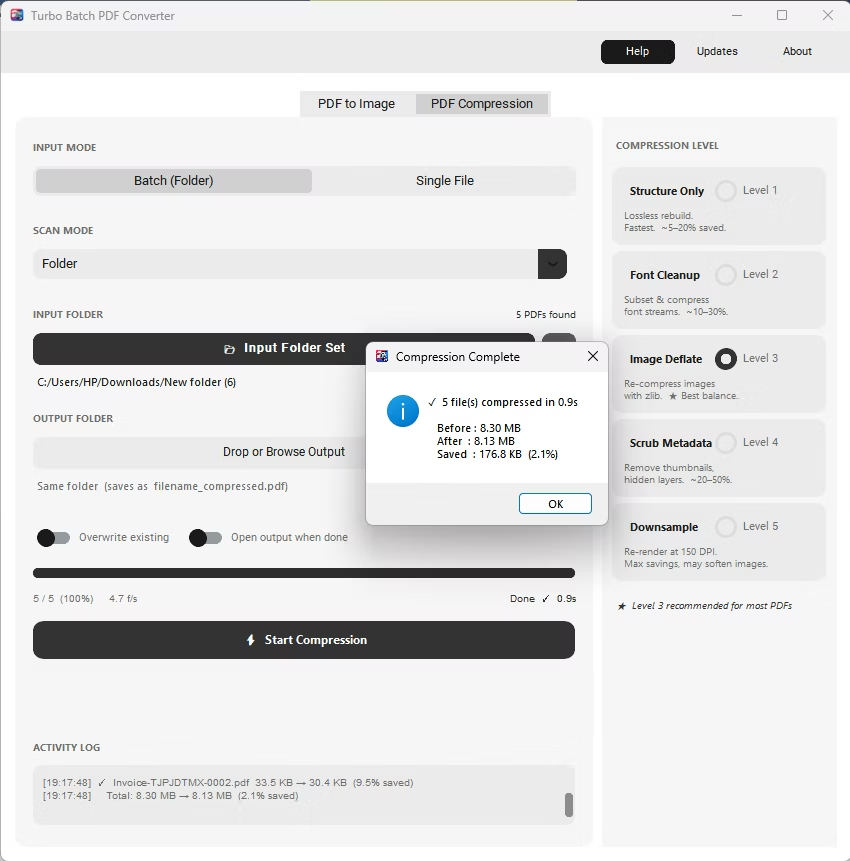
The same app also includes a built-in PDF compressor with five compression levels, so shrinking file sizes for email or storage doesn't require switching to a separate tool. Everything runs locally through a one-time Gumroad license, without a recurring subscription, and pairs naturally with other BatchifyApp utilities such as Batchify Renaming Tool for organizing converted files afterward.
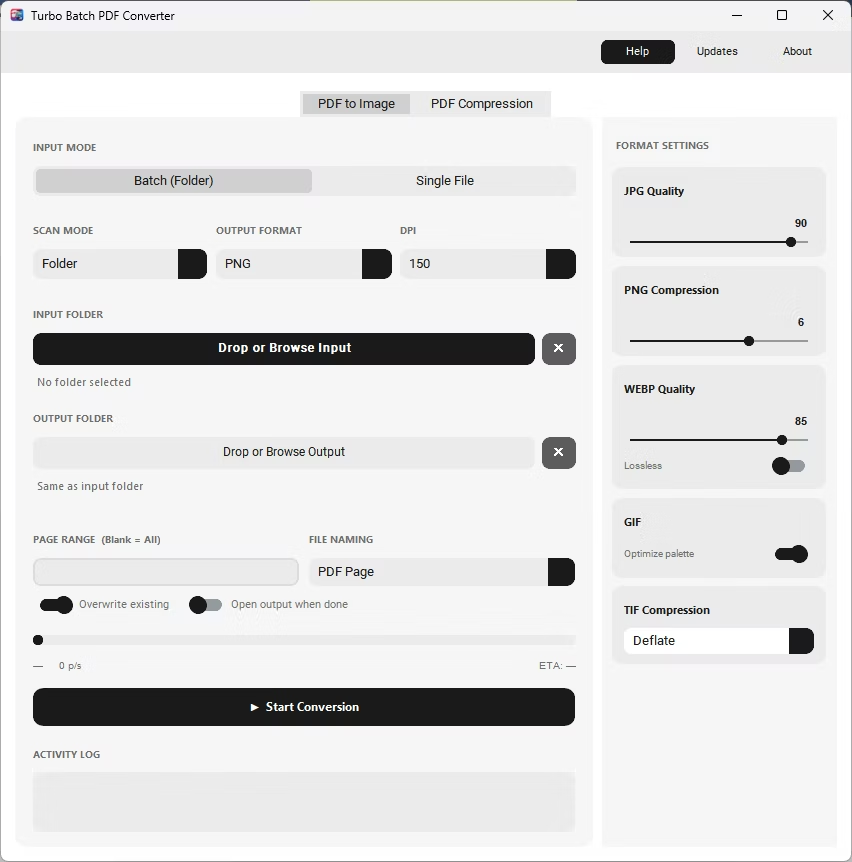
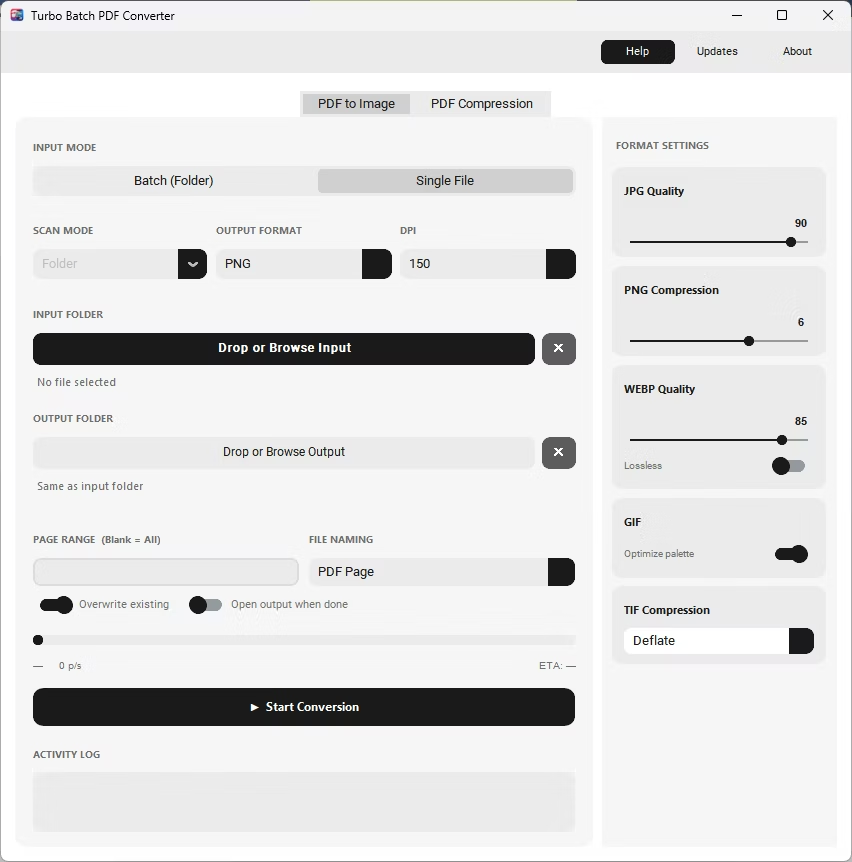
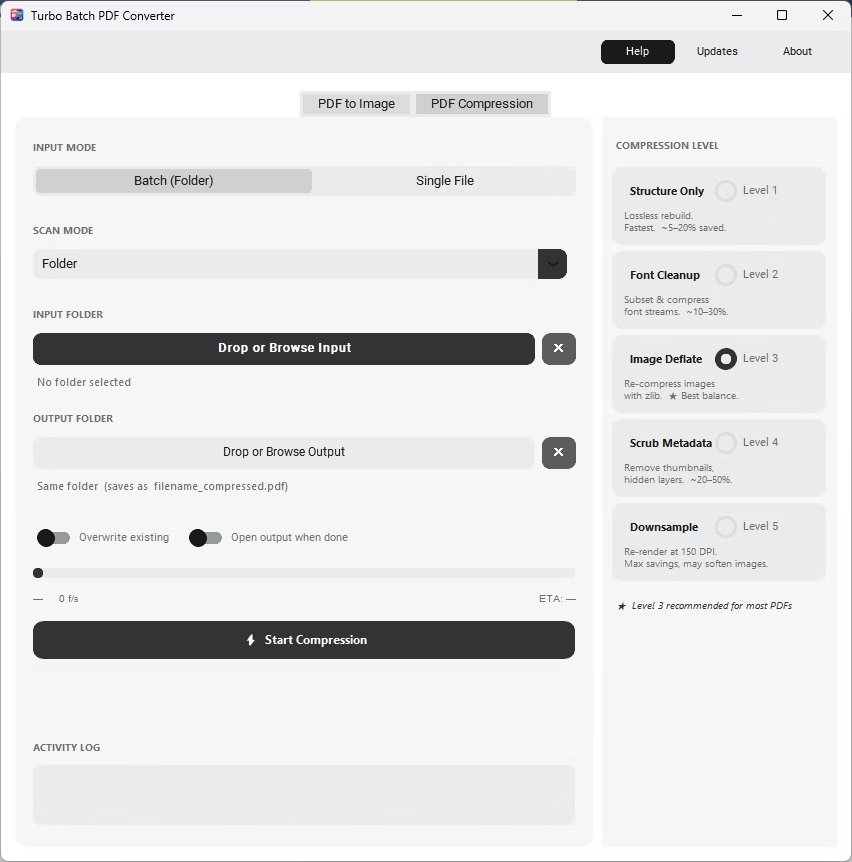
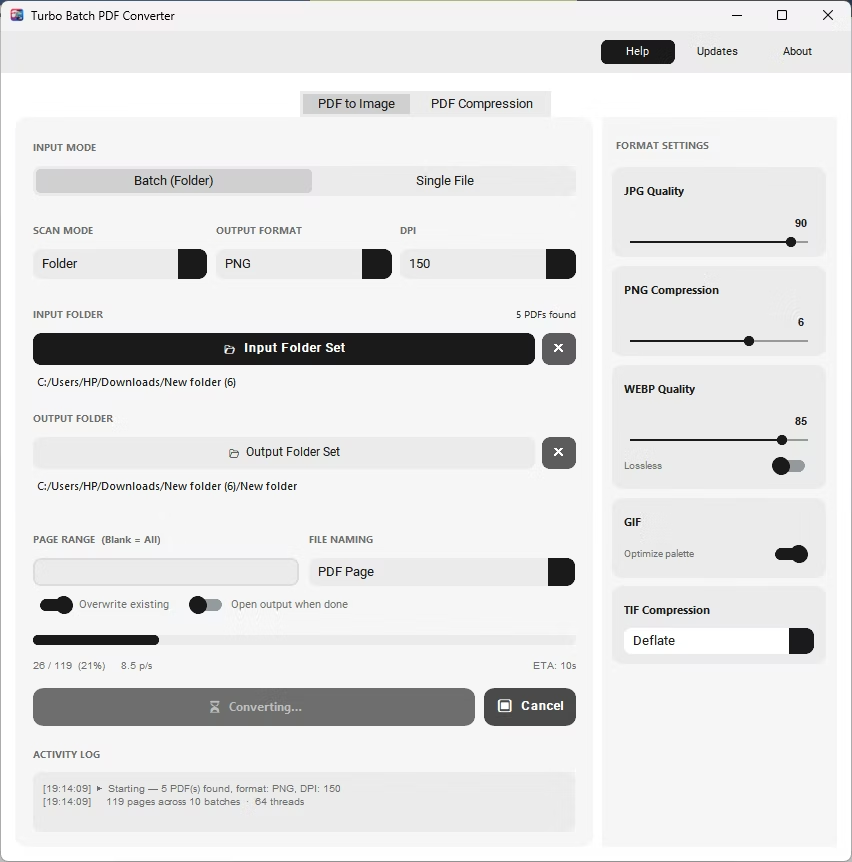
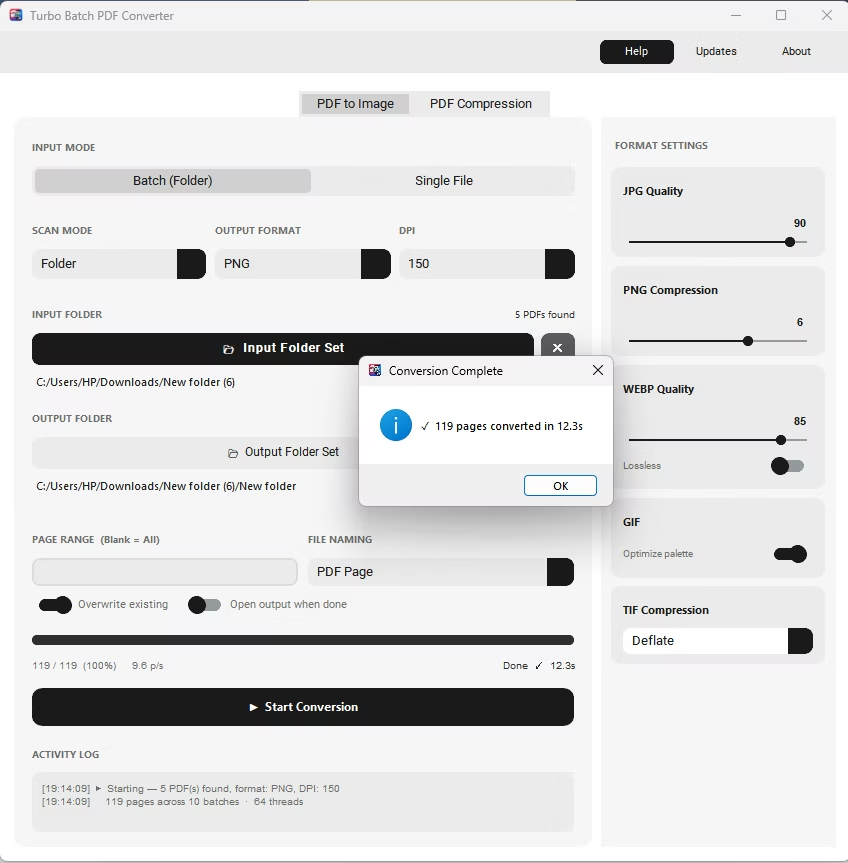
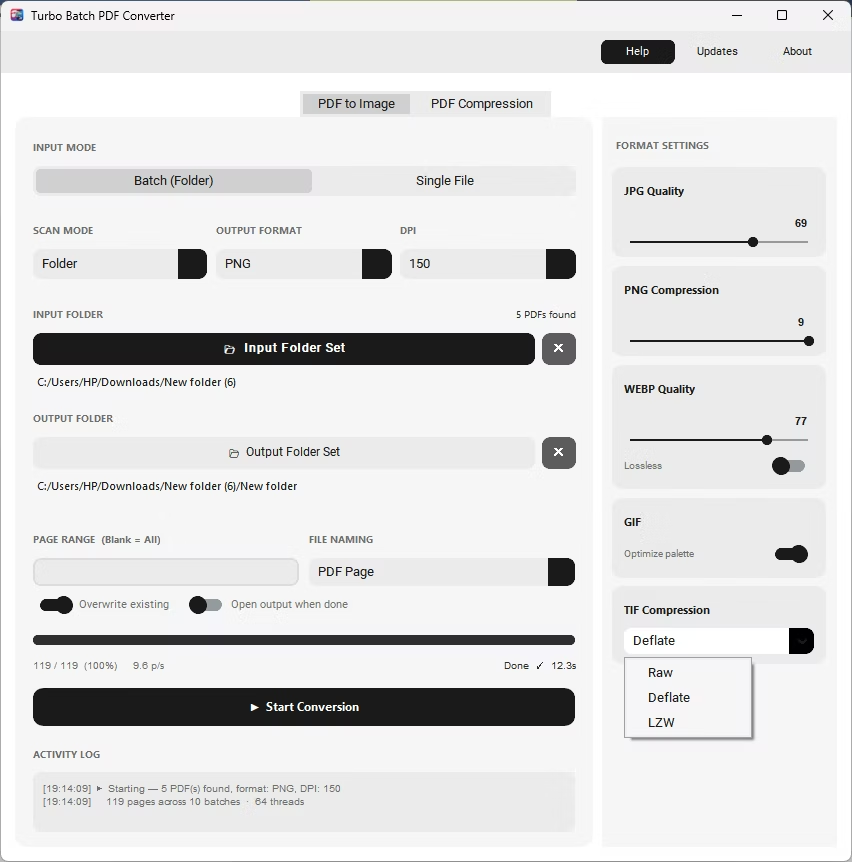
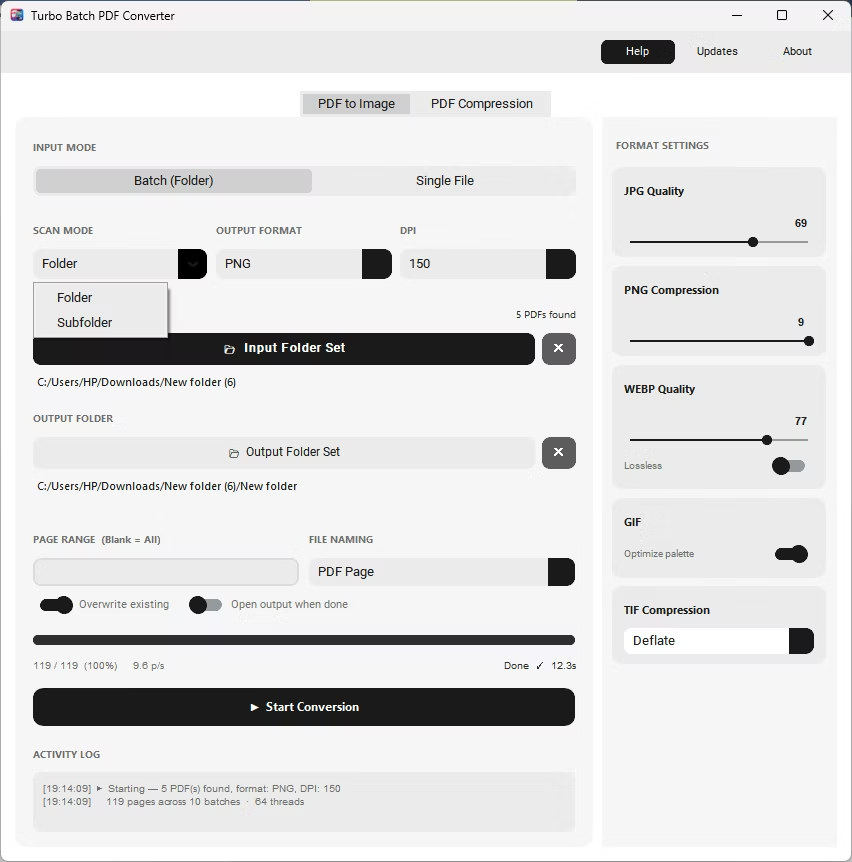
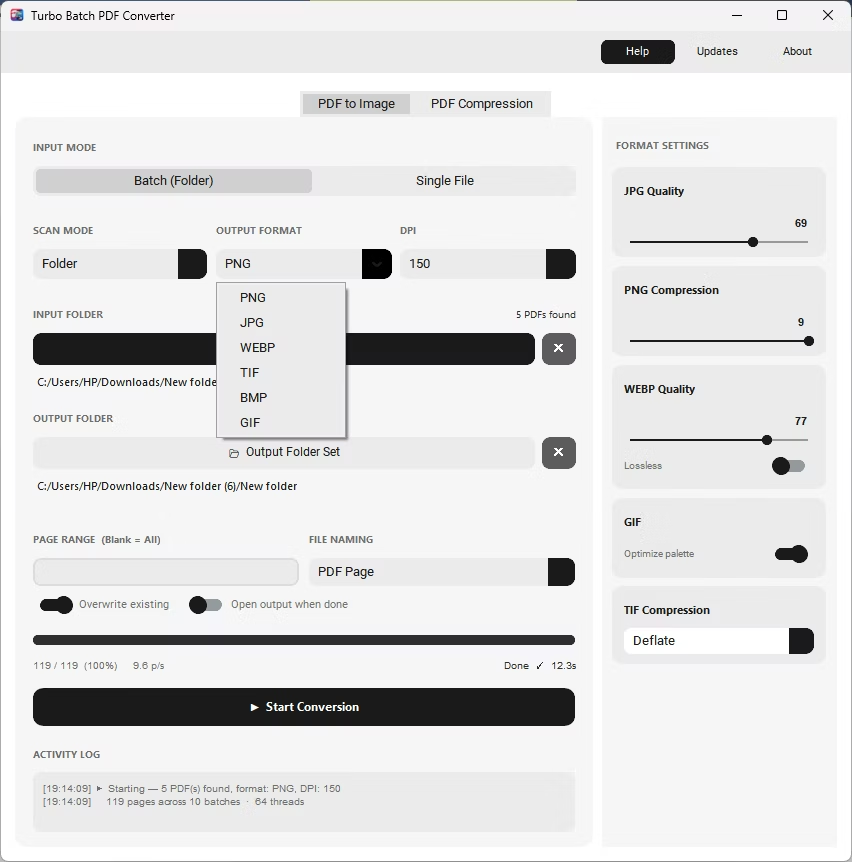
- Install Batchify PDF Converter on your Windows PC.
- Open the app and open Windows Explorer to the folder containing your PDF files.
- Drag a single PDF file, or an entire folder, directly onto the Browse area of the app.
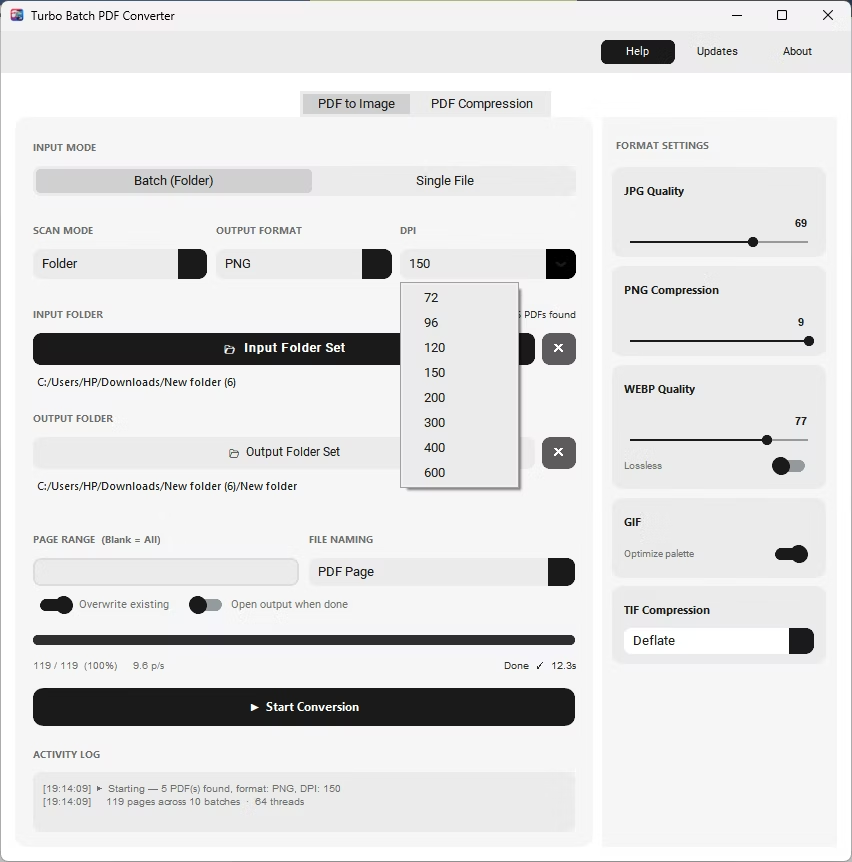
- Set your output format and settings as usual, on either the PDF to Image or PDF Compression tab.
- Click Start Conversion to process the dropped file or folder, fully offline.
- Drop a single PDF file or an entire folder directly onto the app
- Available on both the PDF to Image tab and the PDF Compression tab
- No need to navigate a file dialog for everyday conversions
- Works alongside recursive Subfolder scanning for dropped folders
- Same conversion settings apply whether files are dropped or browsed
- Speeds up repeated, everyday conversion tasks
Can I drag and drop a whole folder, not just single files?
Yes, dropping a folder works the same as browsing to it, and combining this with Subfolder mode picks up nested PDFs too.
Is drag and drop available for PDF compression as well as image conversion?
Yes, the same drag-and-drop support is available on both the PDF to Image tab and the PDF Compression tab.
Do I still need to configure output settings after dropping a file?
Yes, dropping a file or folder only sets the input; you still choose the output format, DPI, or compression level as usual.
Ready to convert your PDFs offline, in bulk, with full privacy?