Camera and phone photos are often saved with generic filenames like "IMG_1234.jpg" that give no indication of when the photo was actually taken. Prefixing each filename with the date and time read from the photo's own EXIF metadata makes a folder of photos sortable chronologically by filename alone, which is especially useful once photos from multiple devices get mixed into the same folder.
Because the date comes from the photo's metadata rather than the file's modified date, it stays accurate even if the files have been copied, backed up, or moved between drives, which can otherwise change a file's system timestamp.
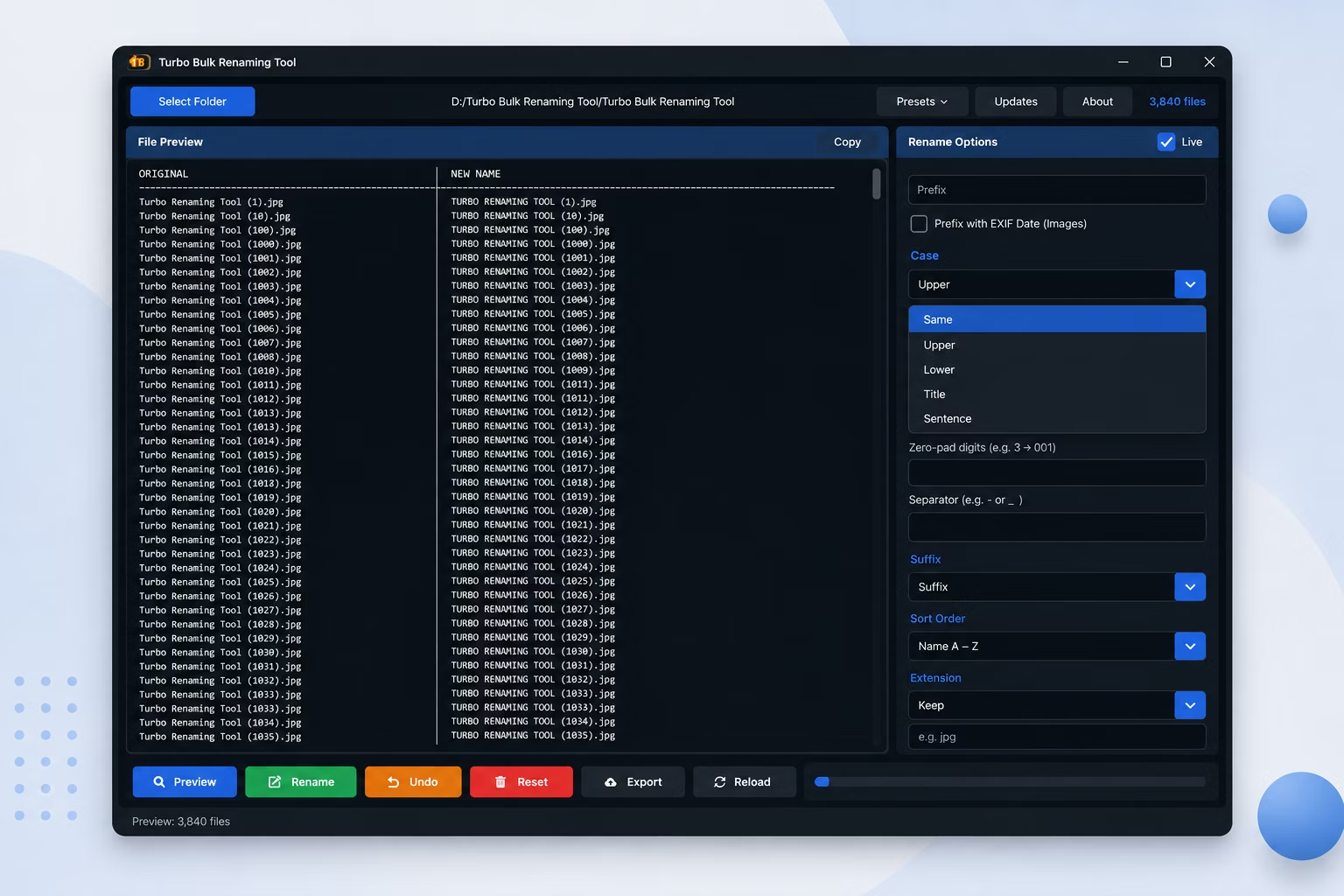
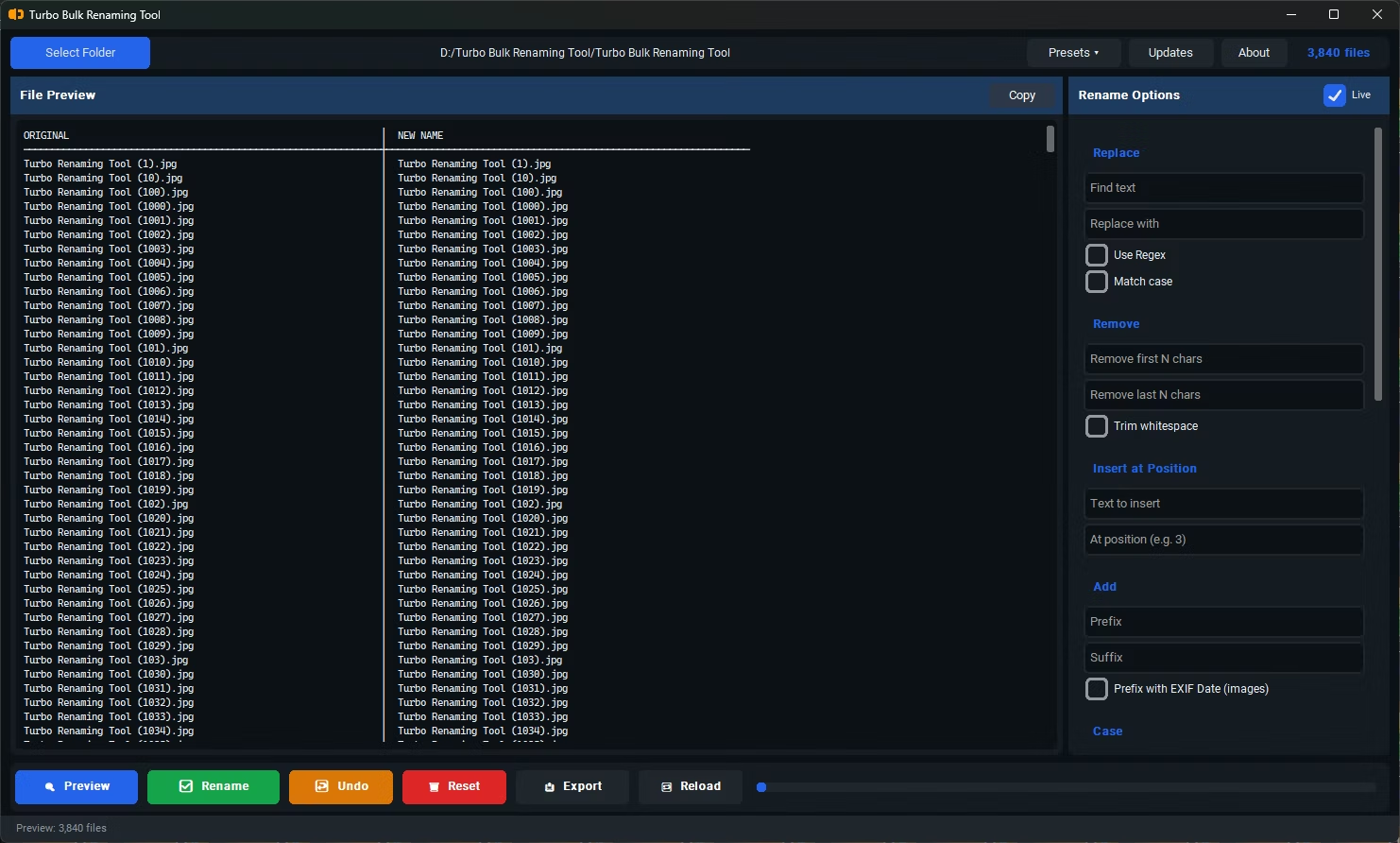
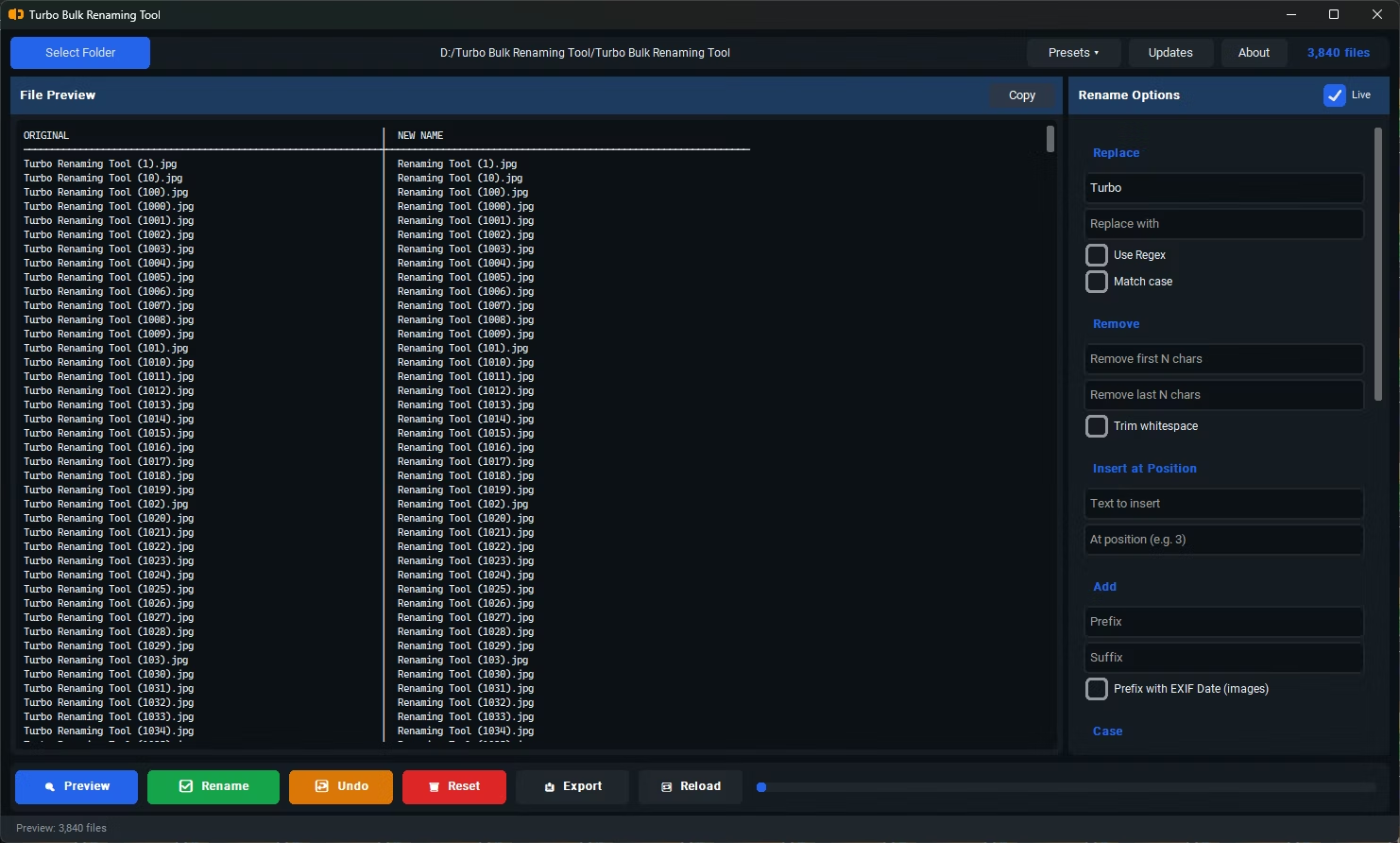
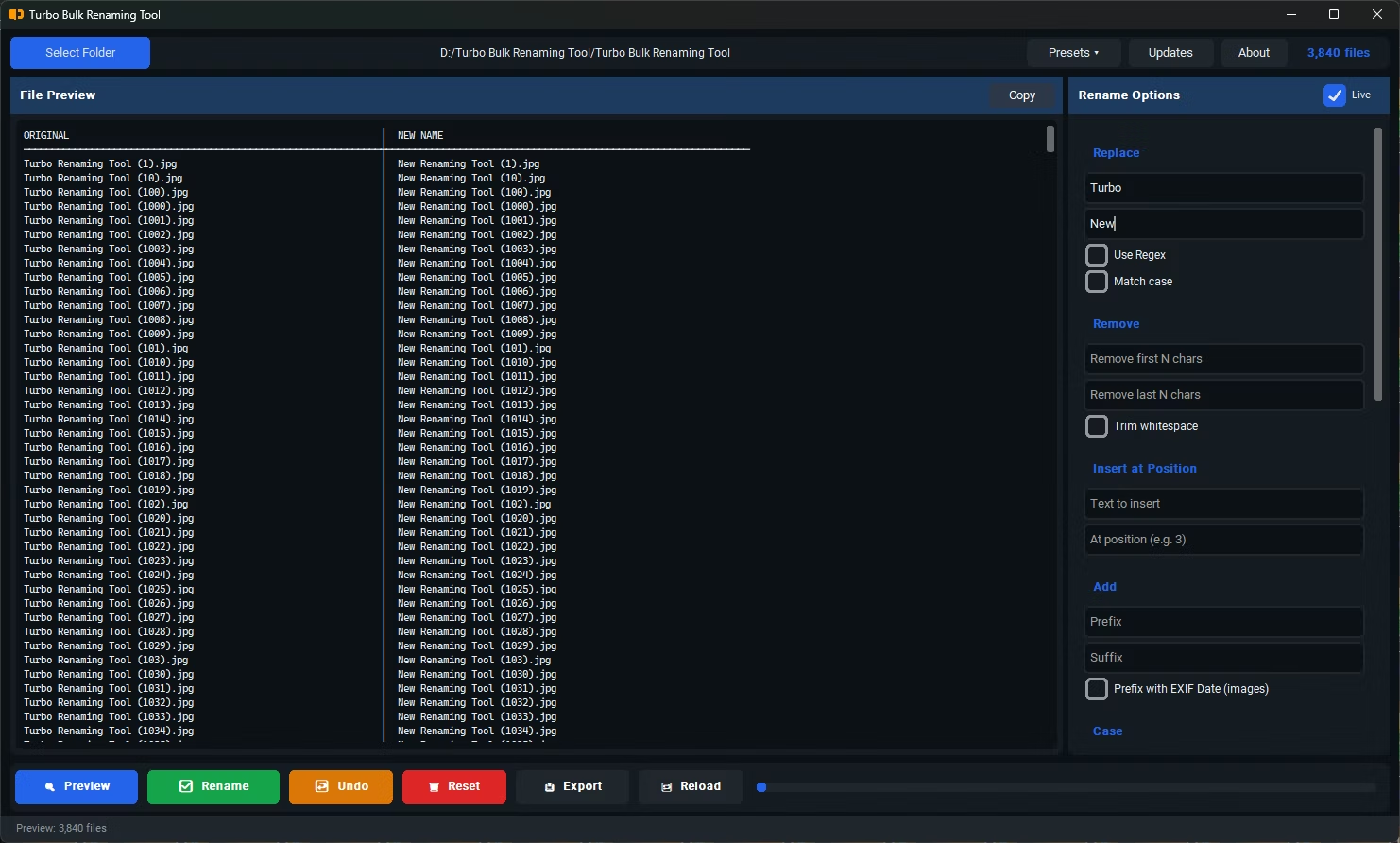
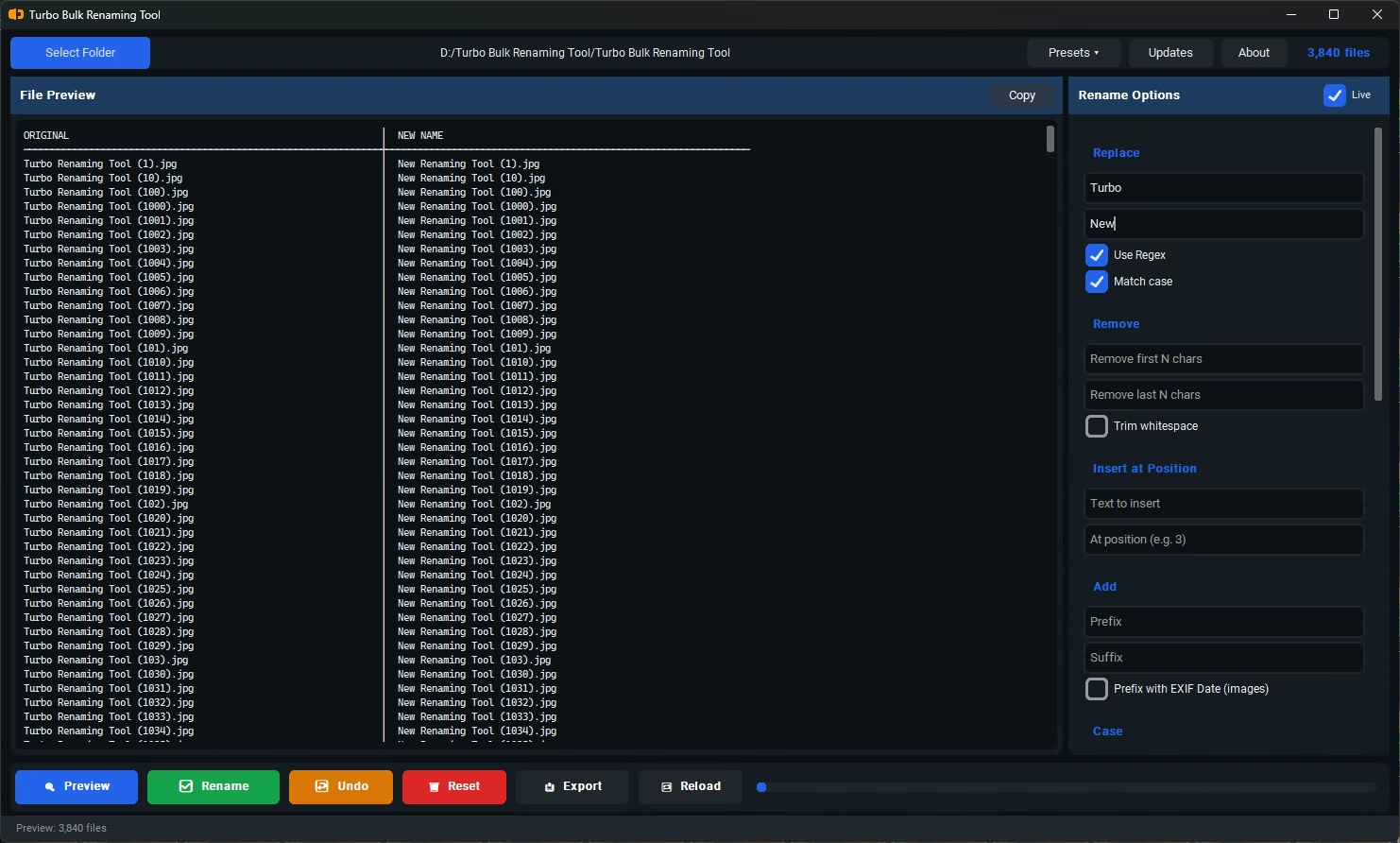
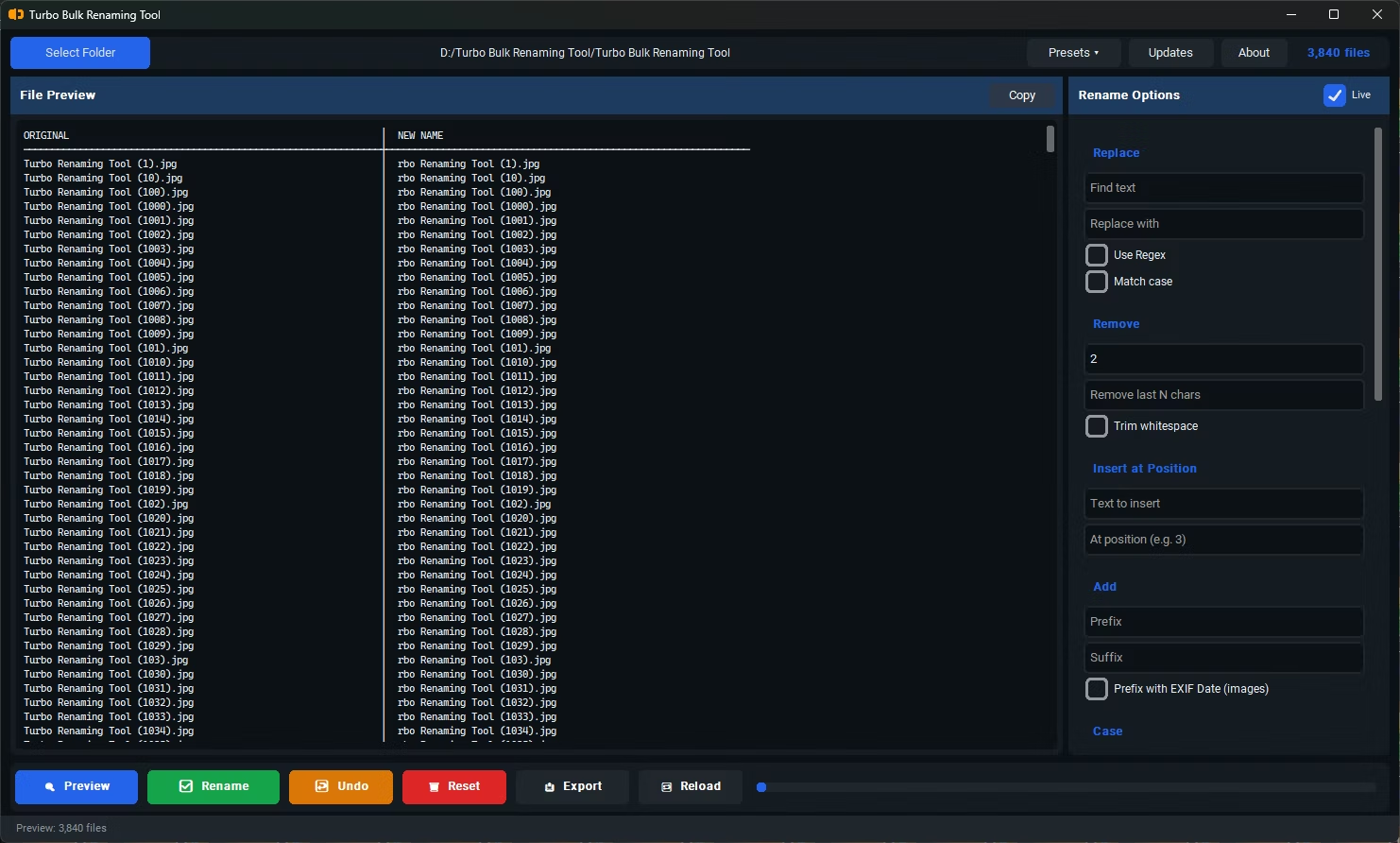
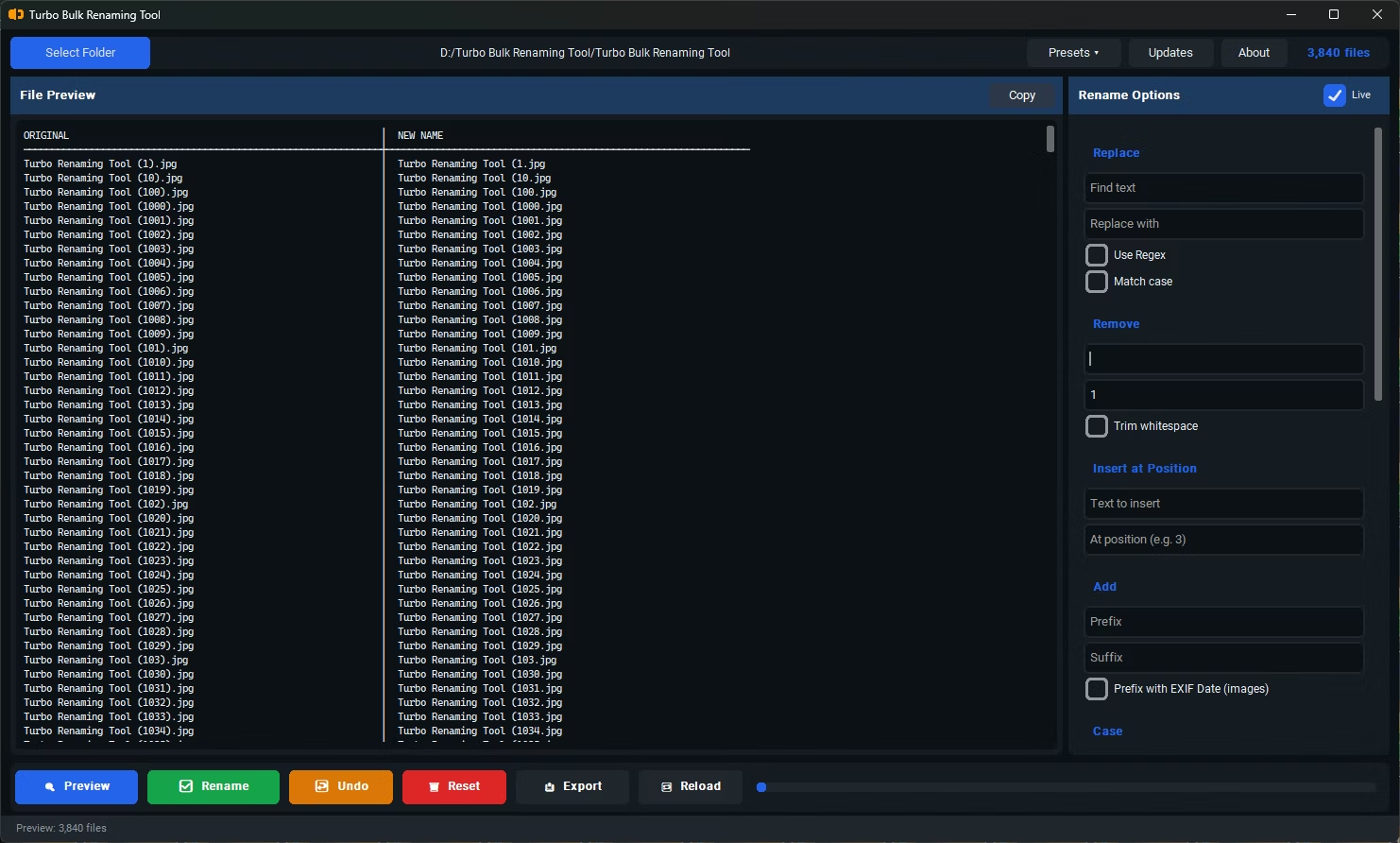
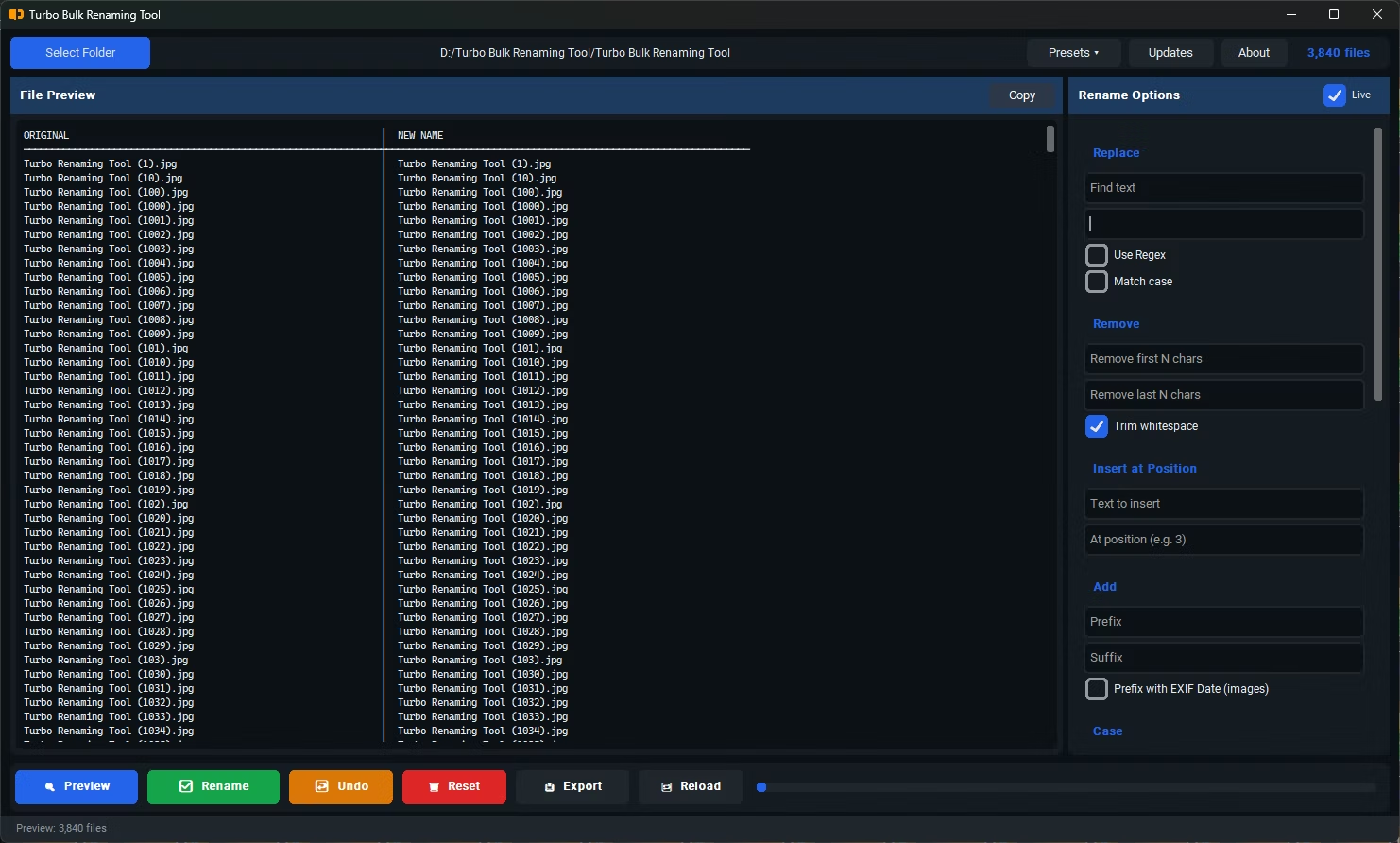
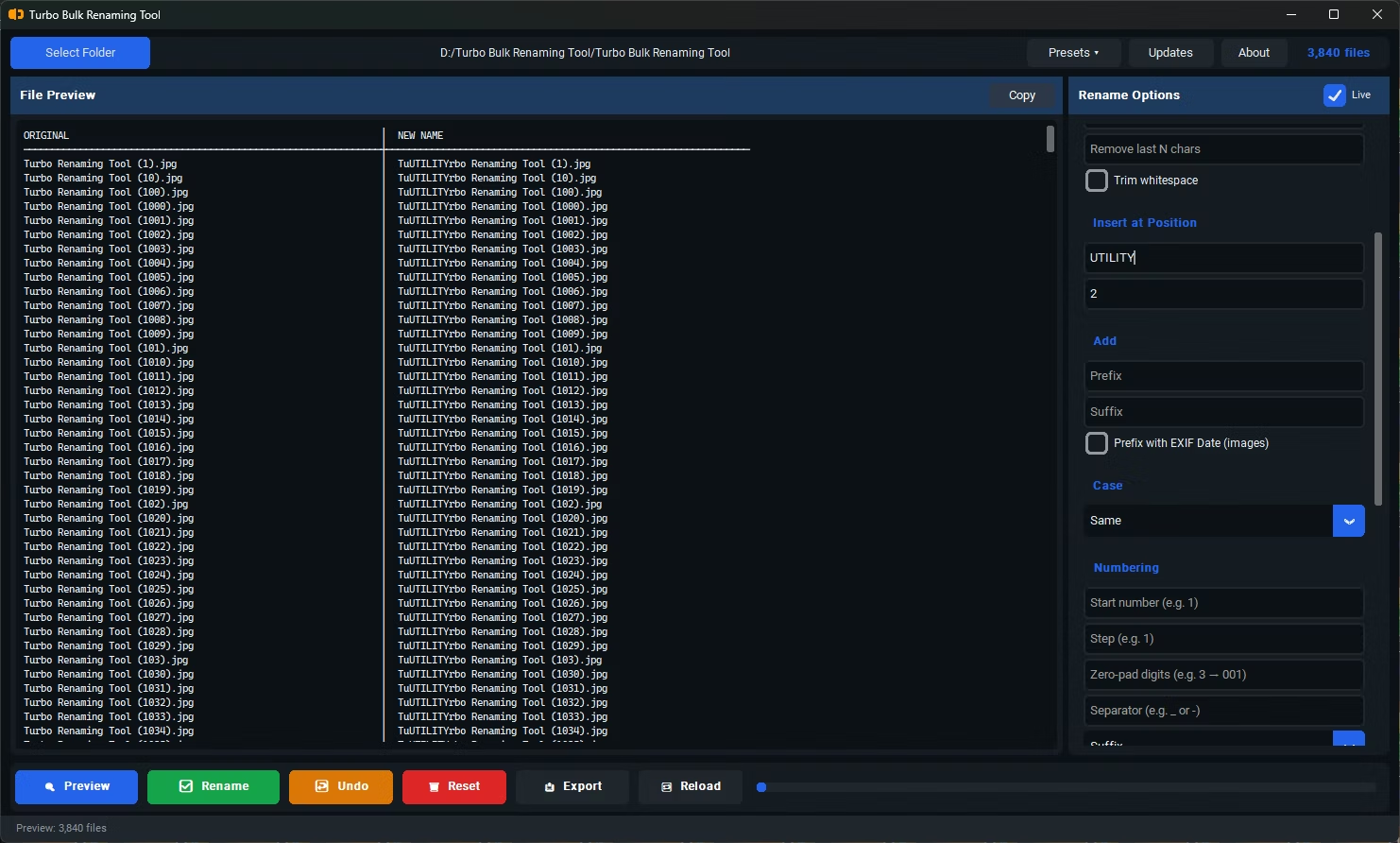
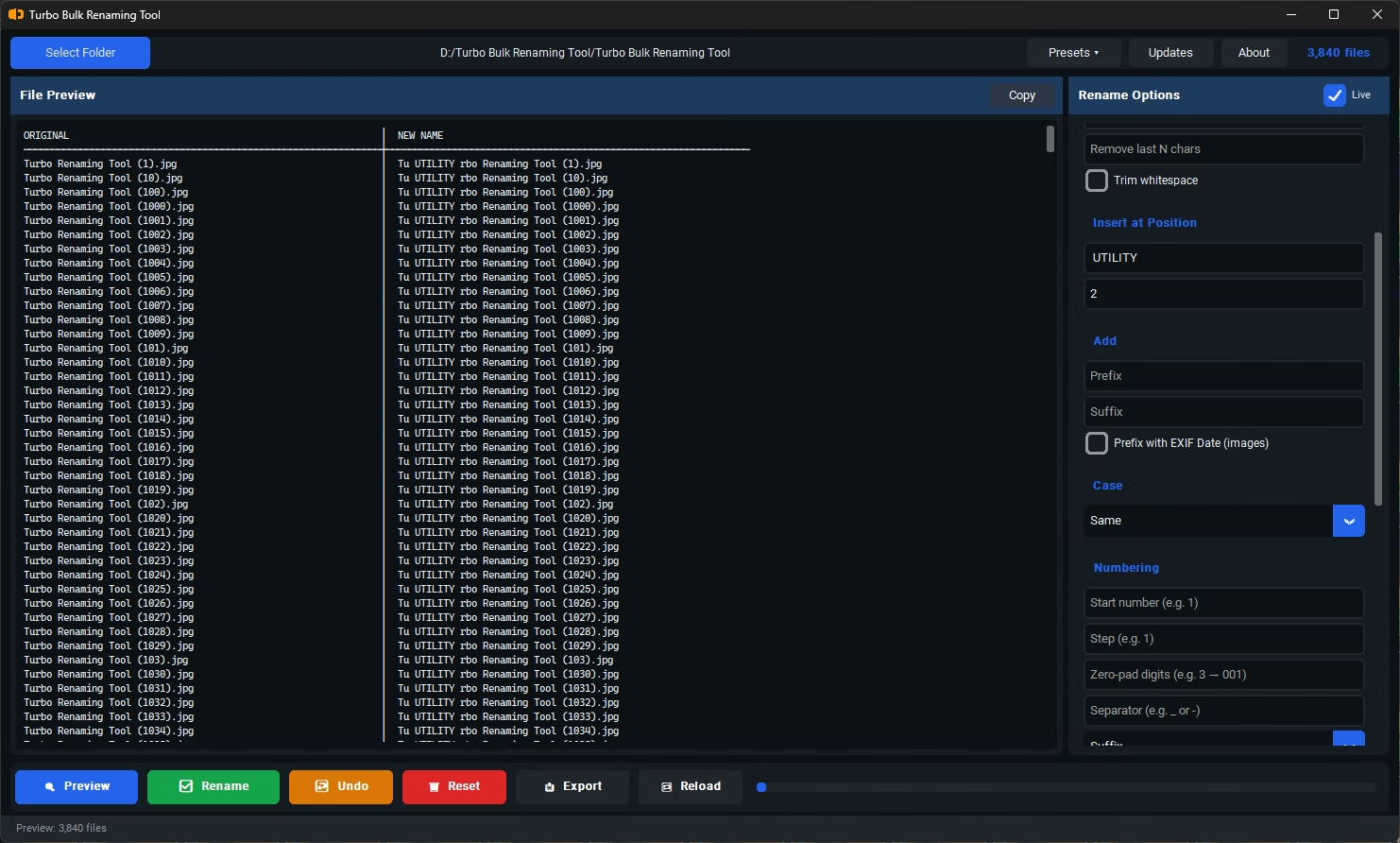
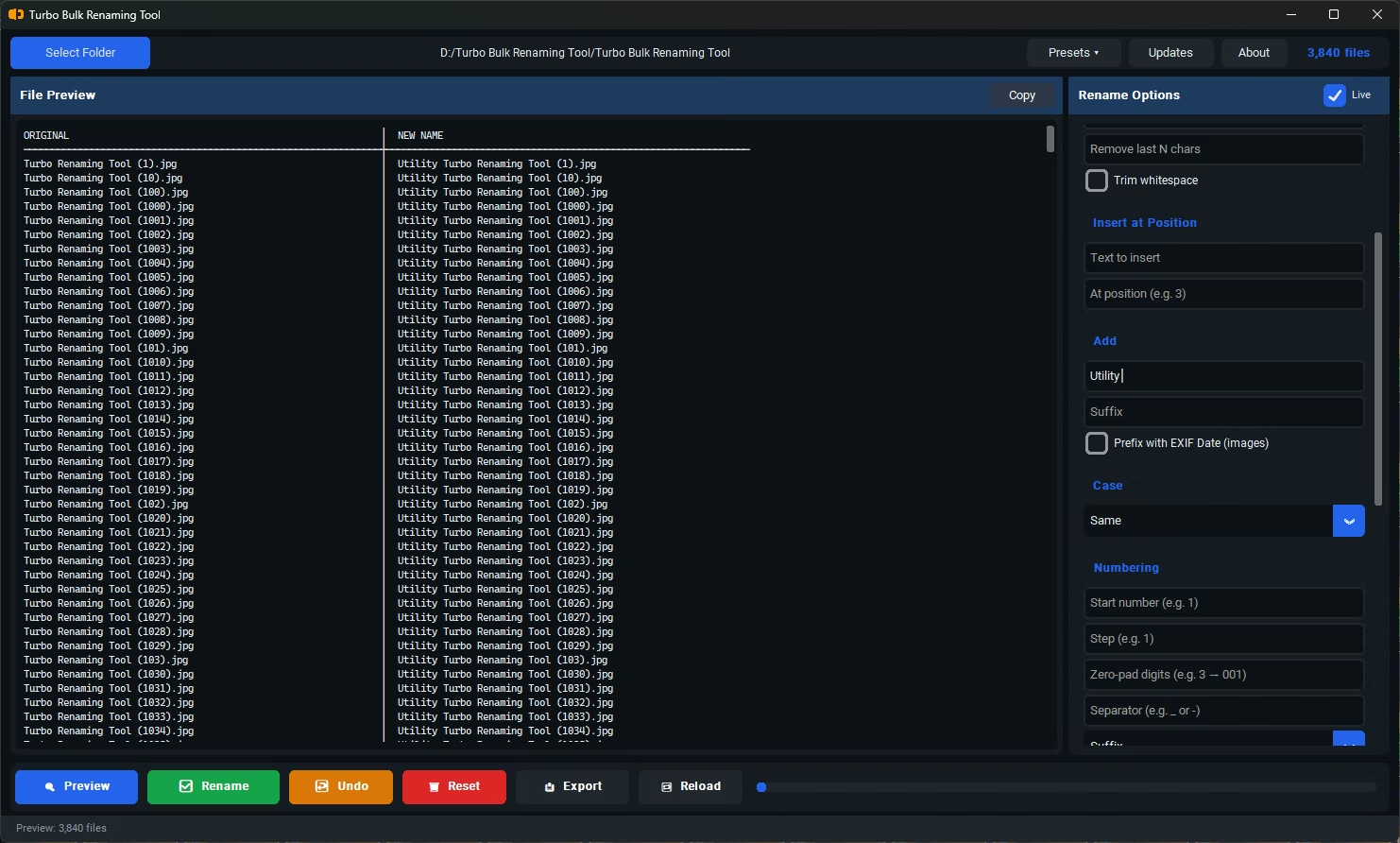
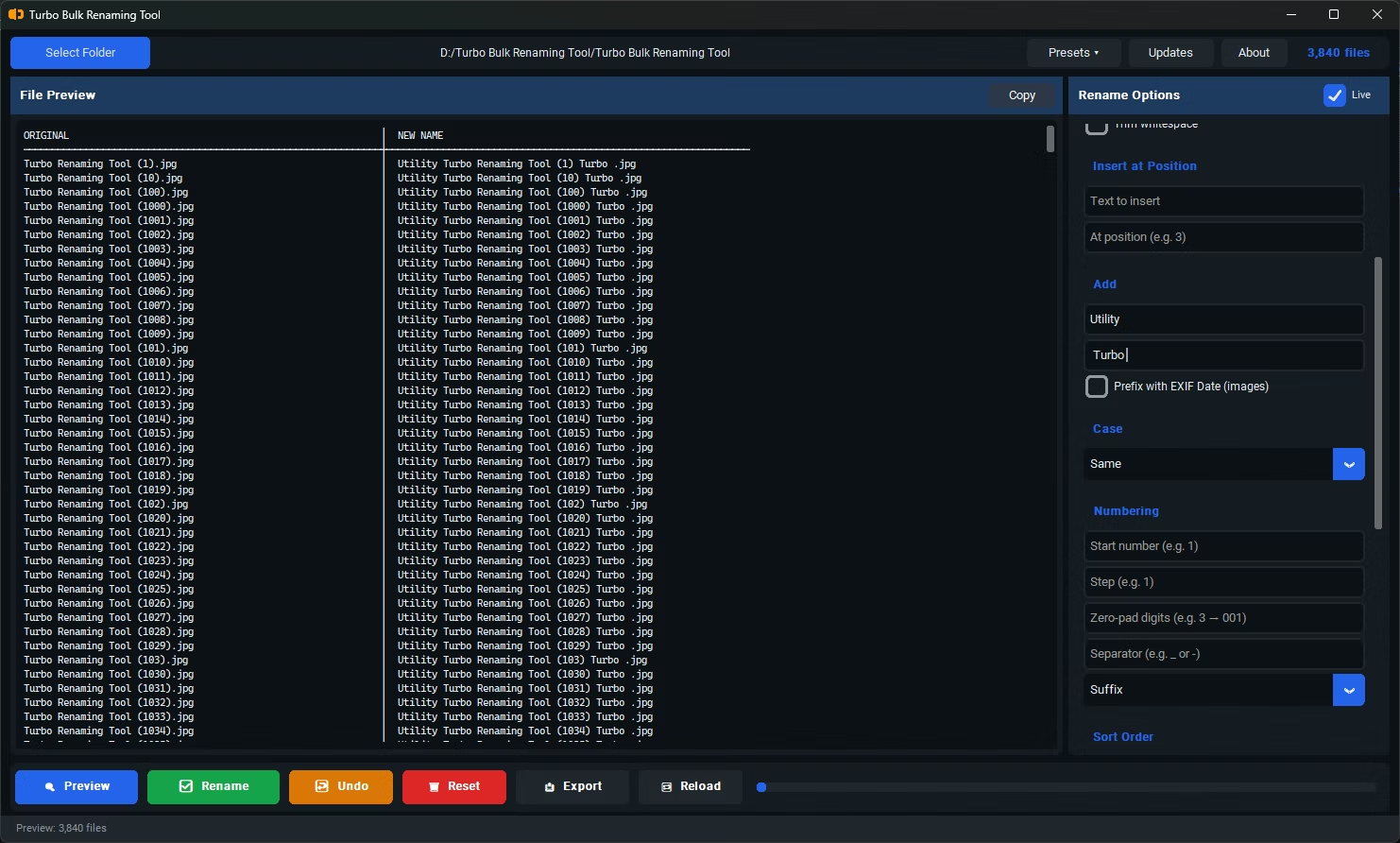
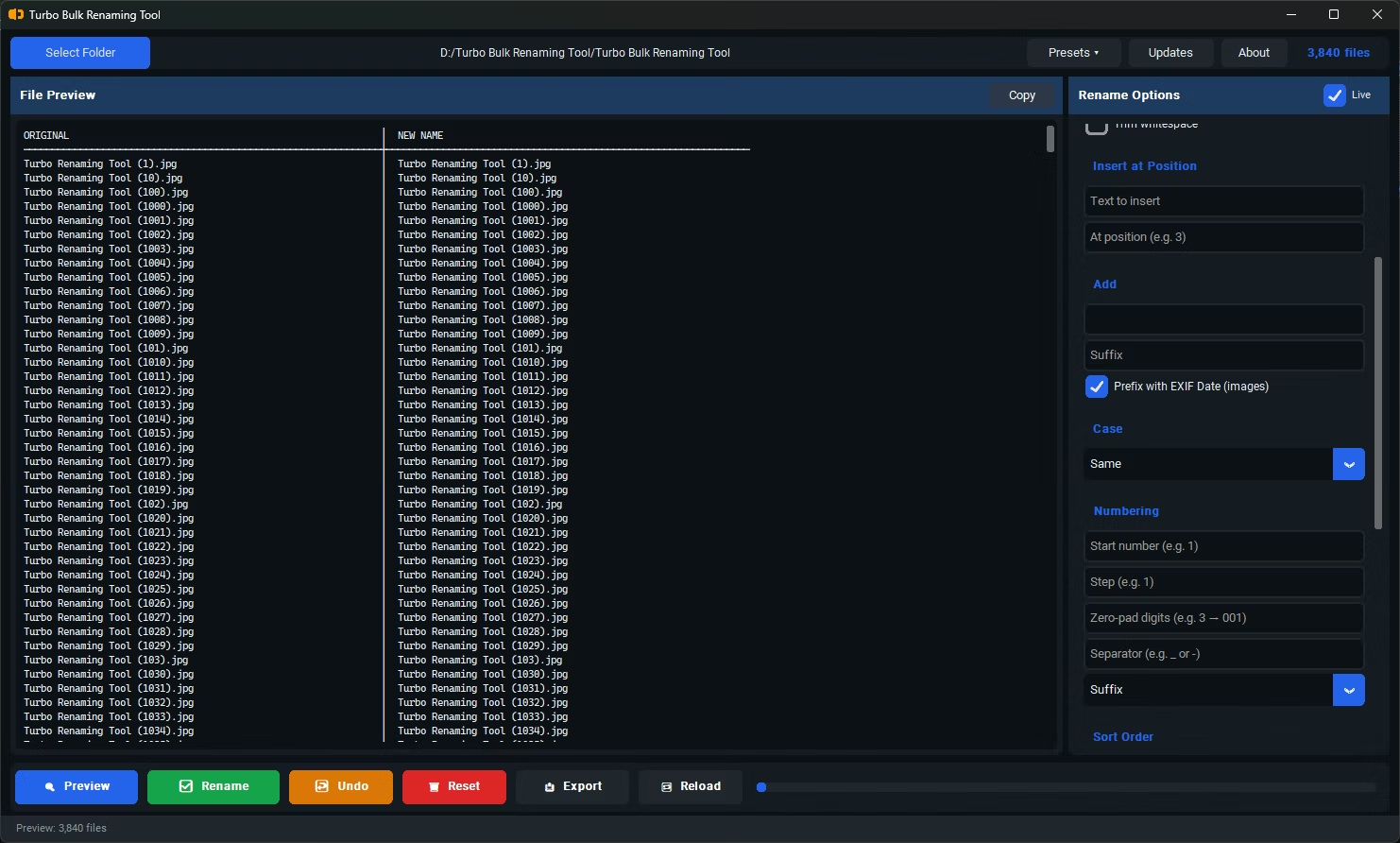
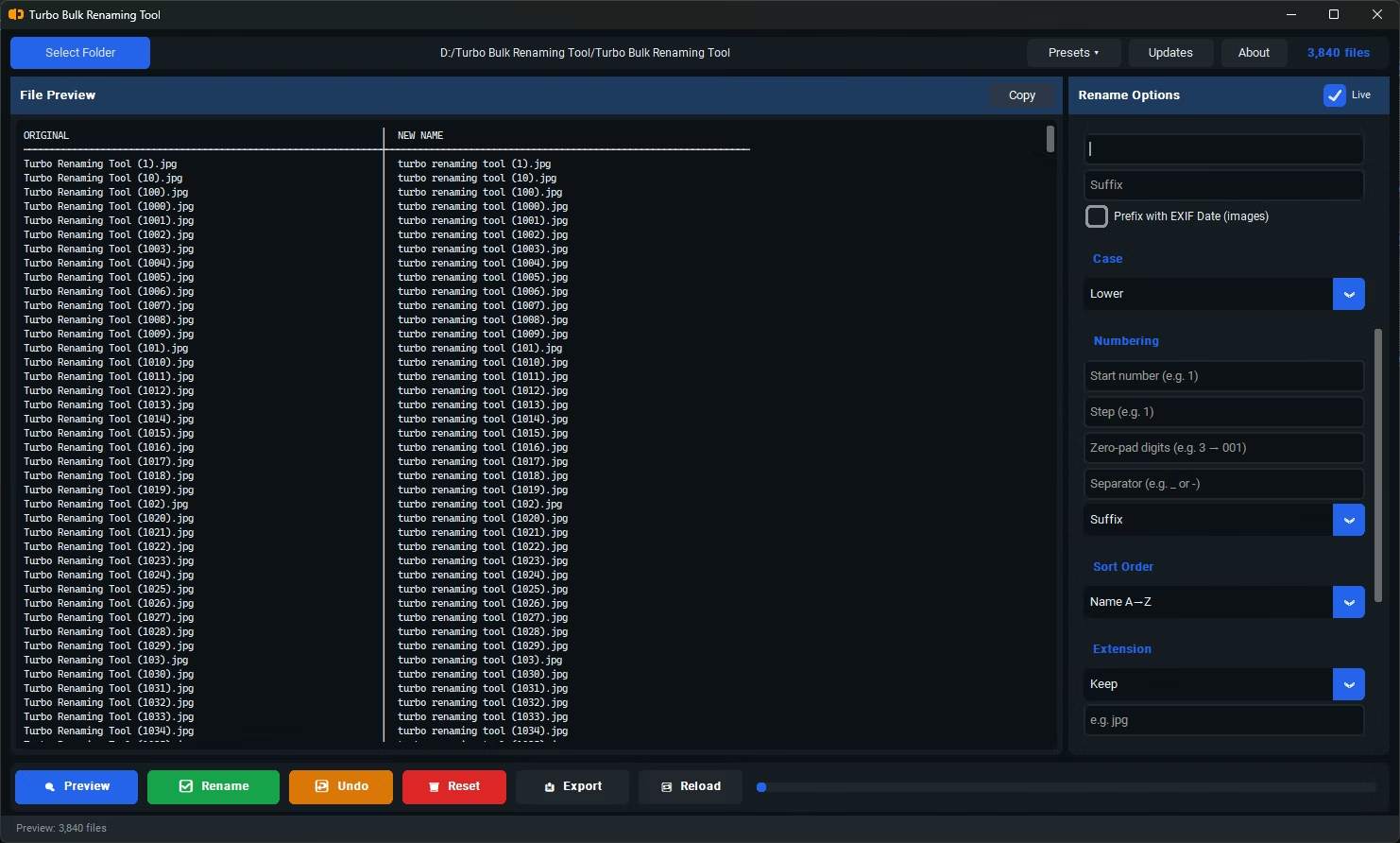
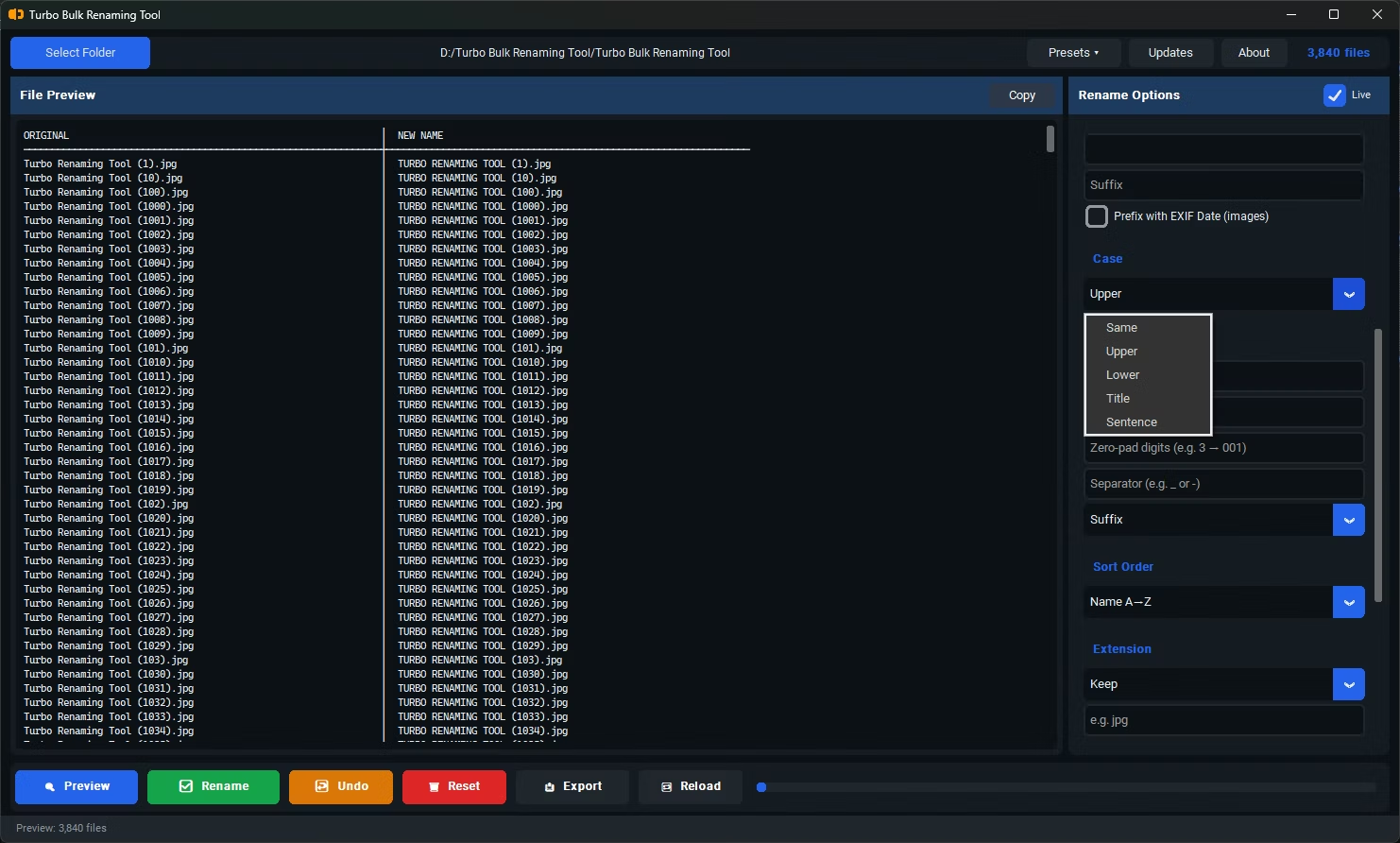
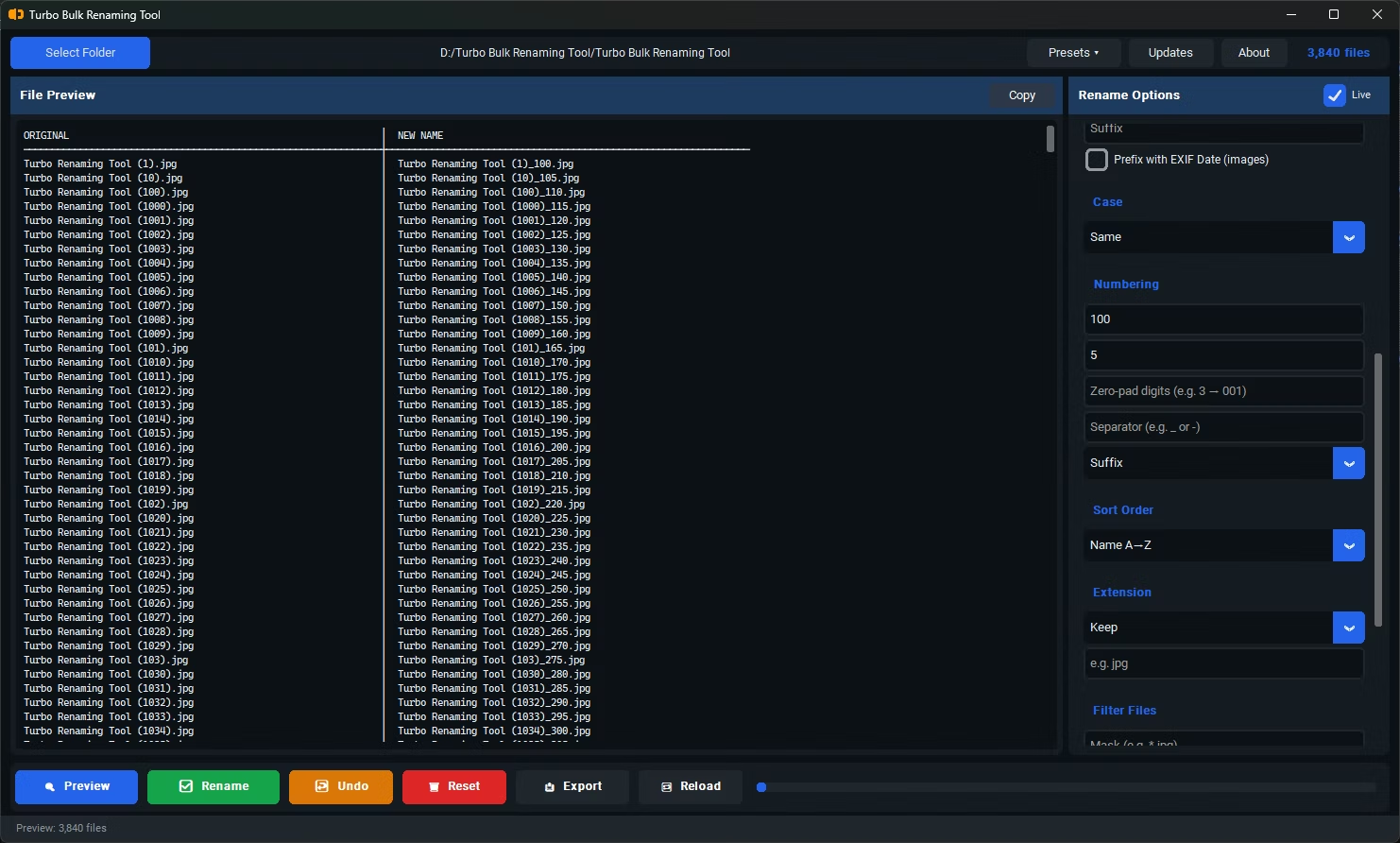
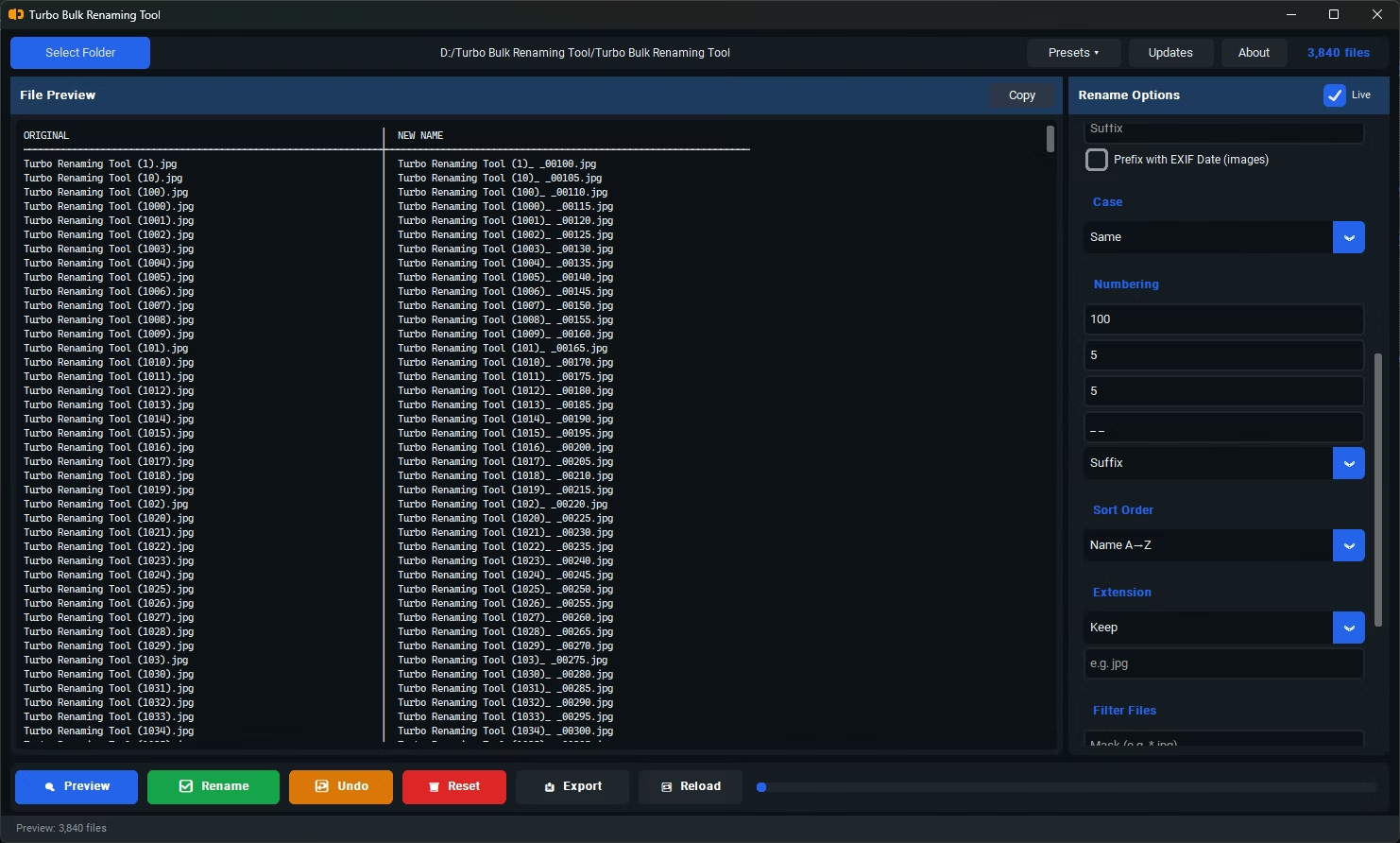
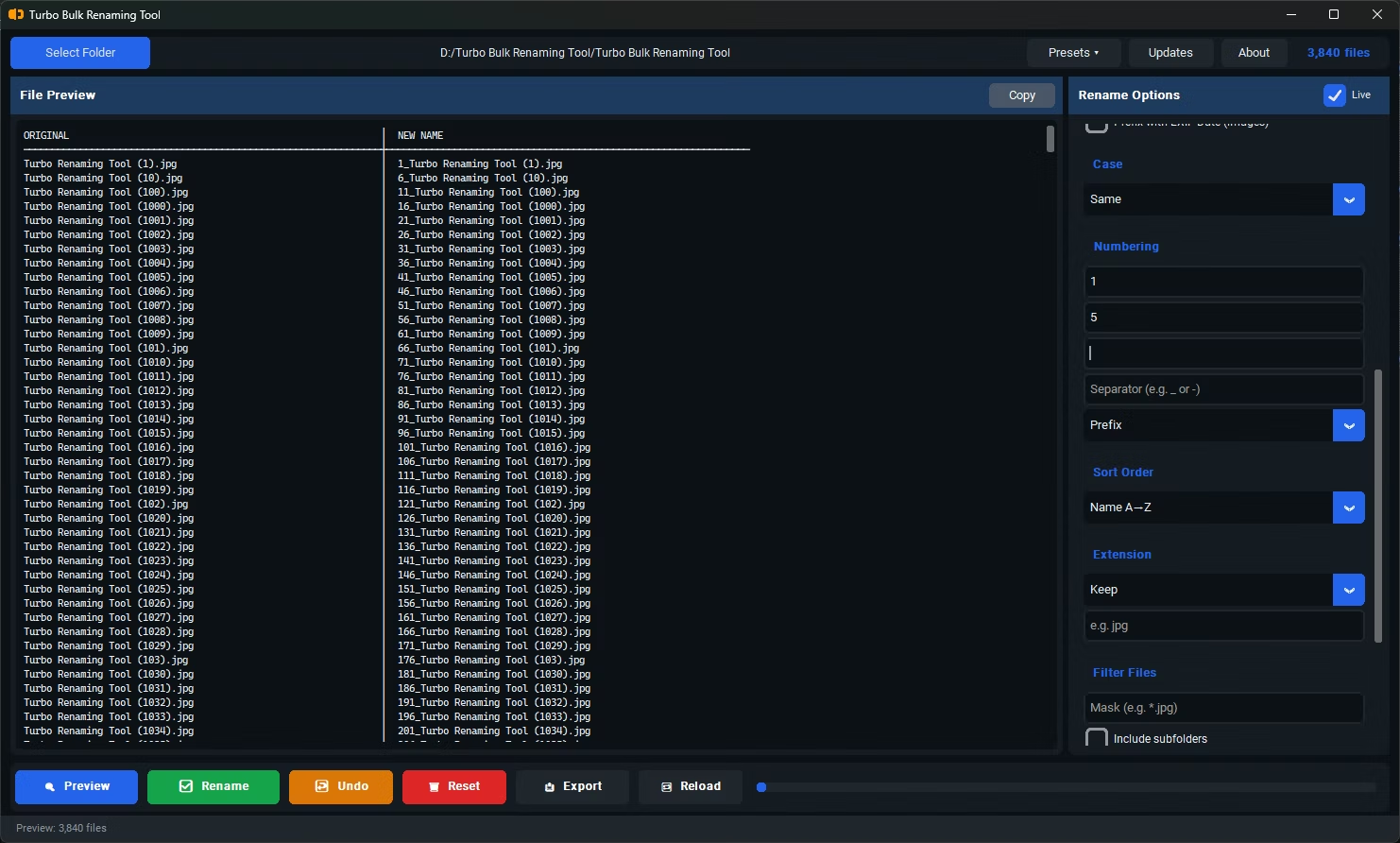
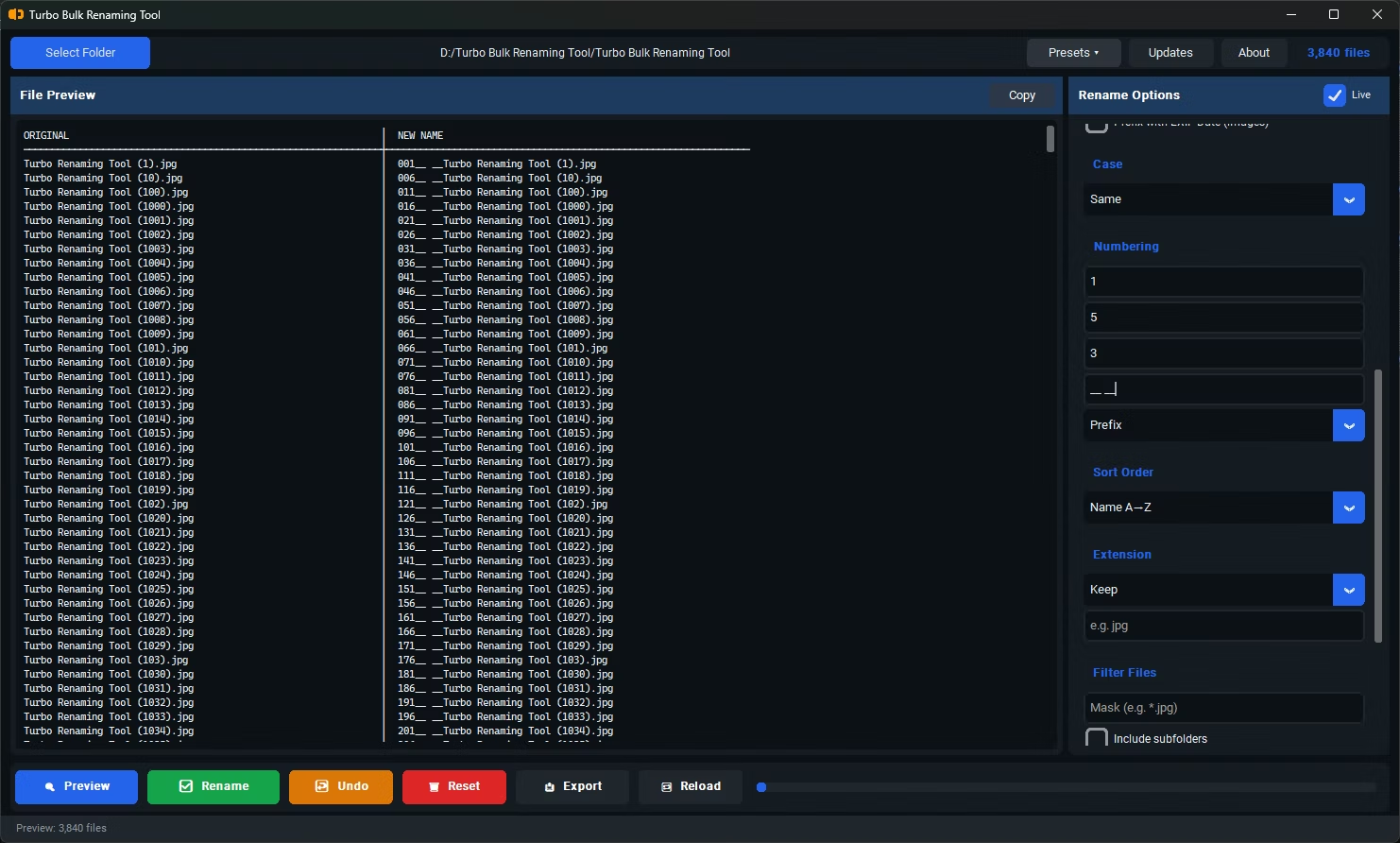
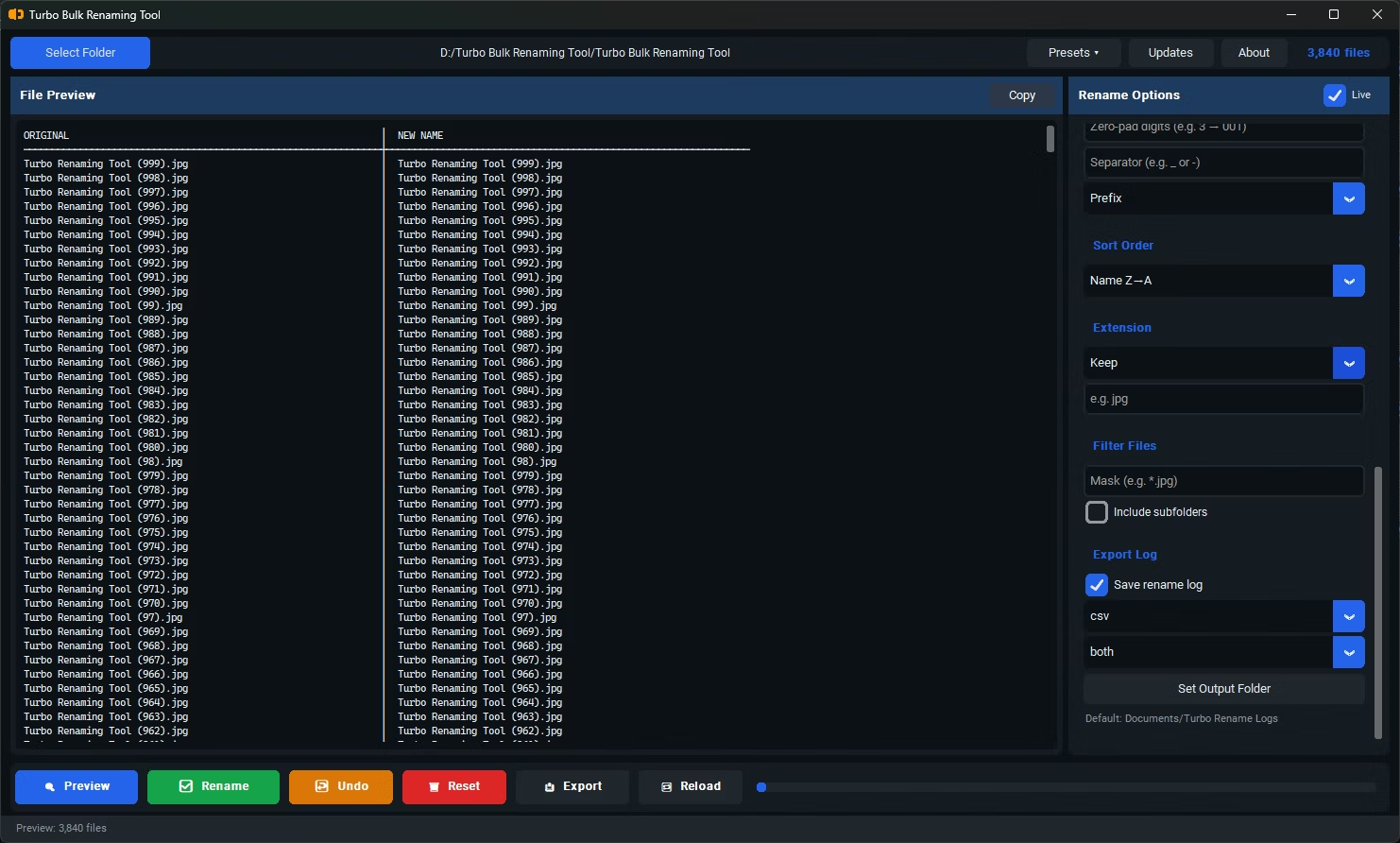
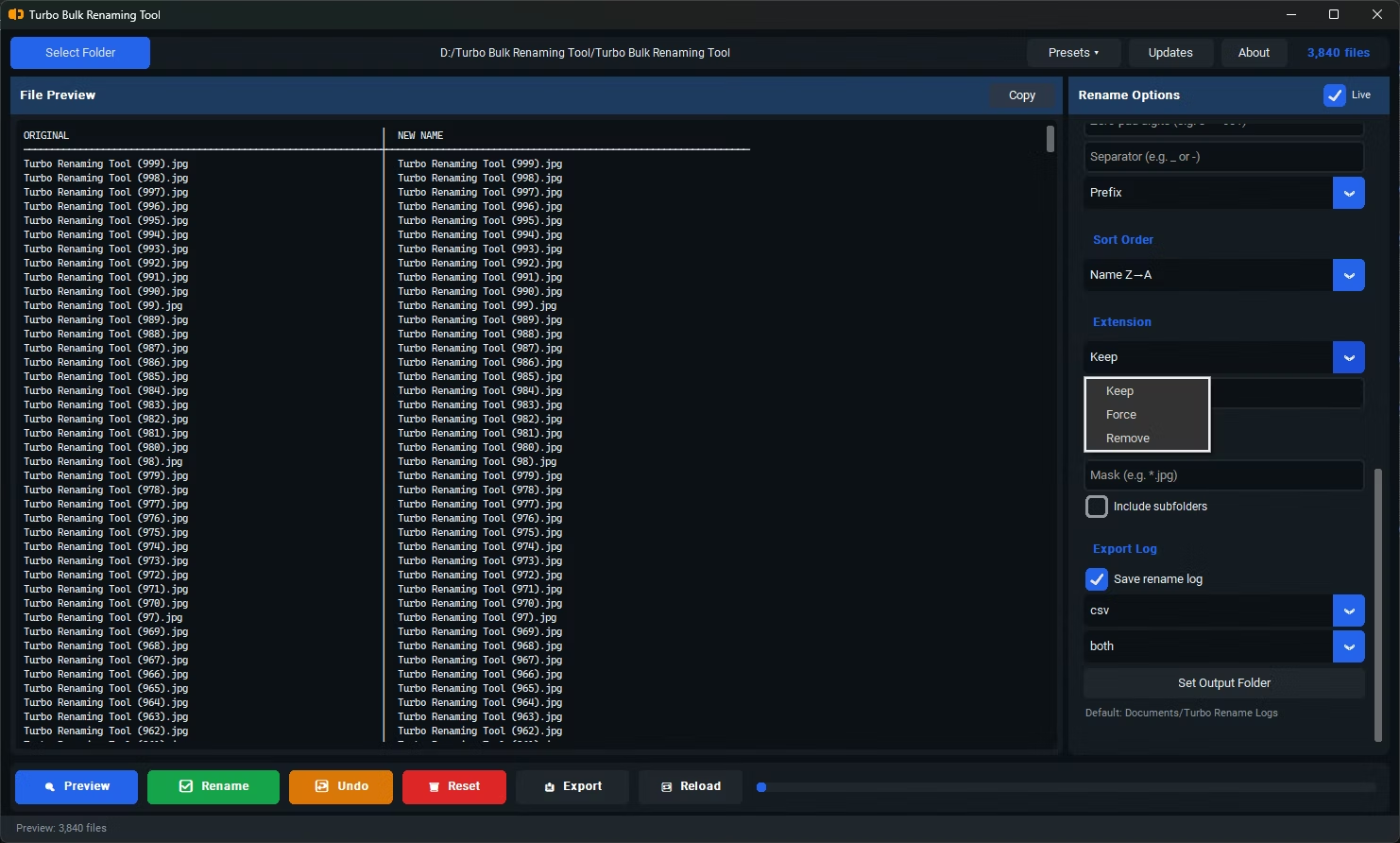
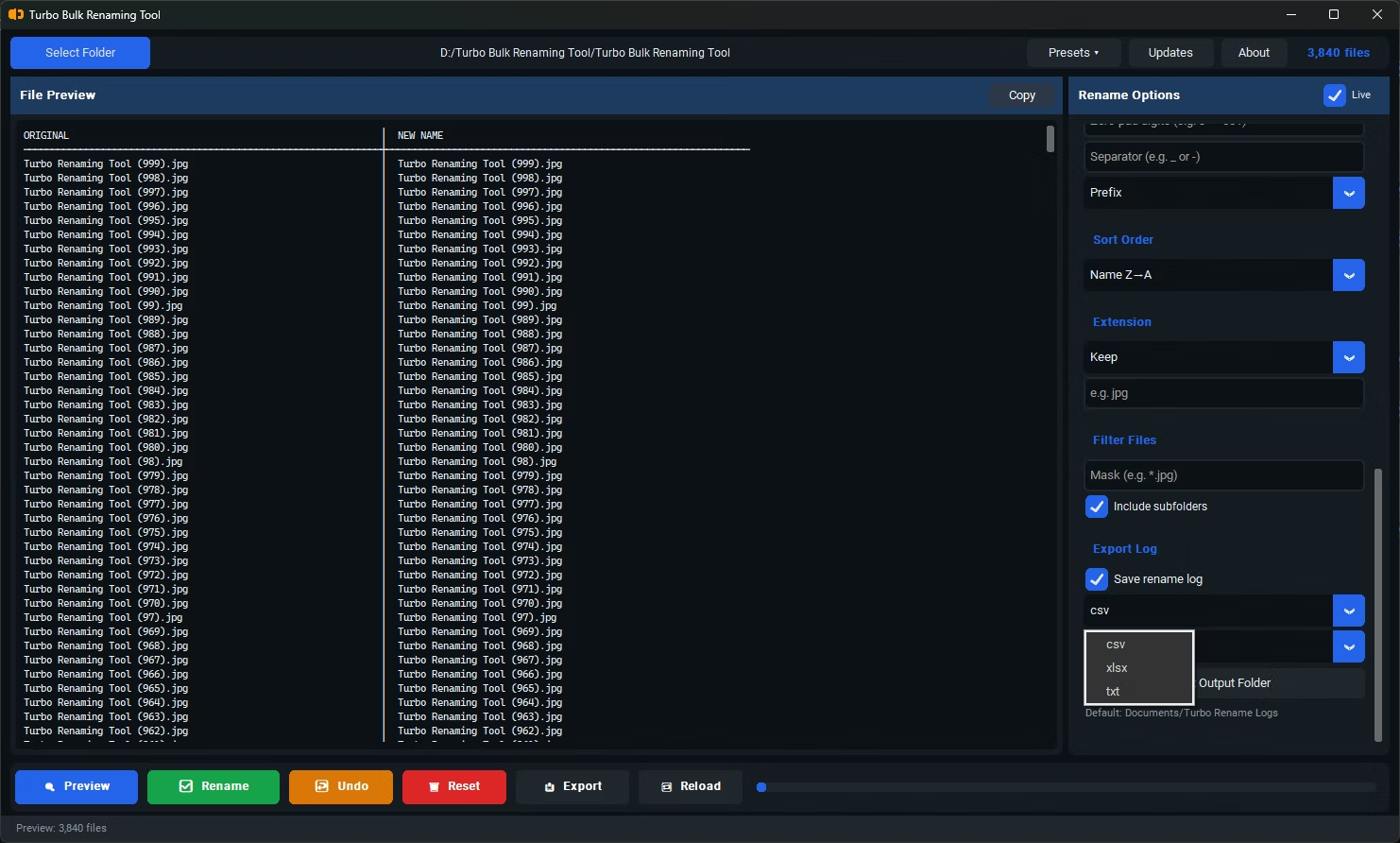
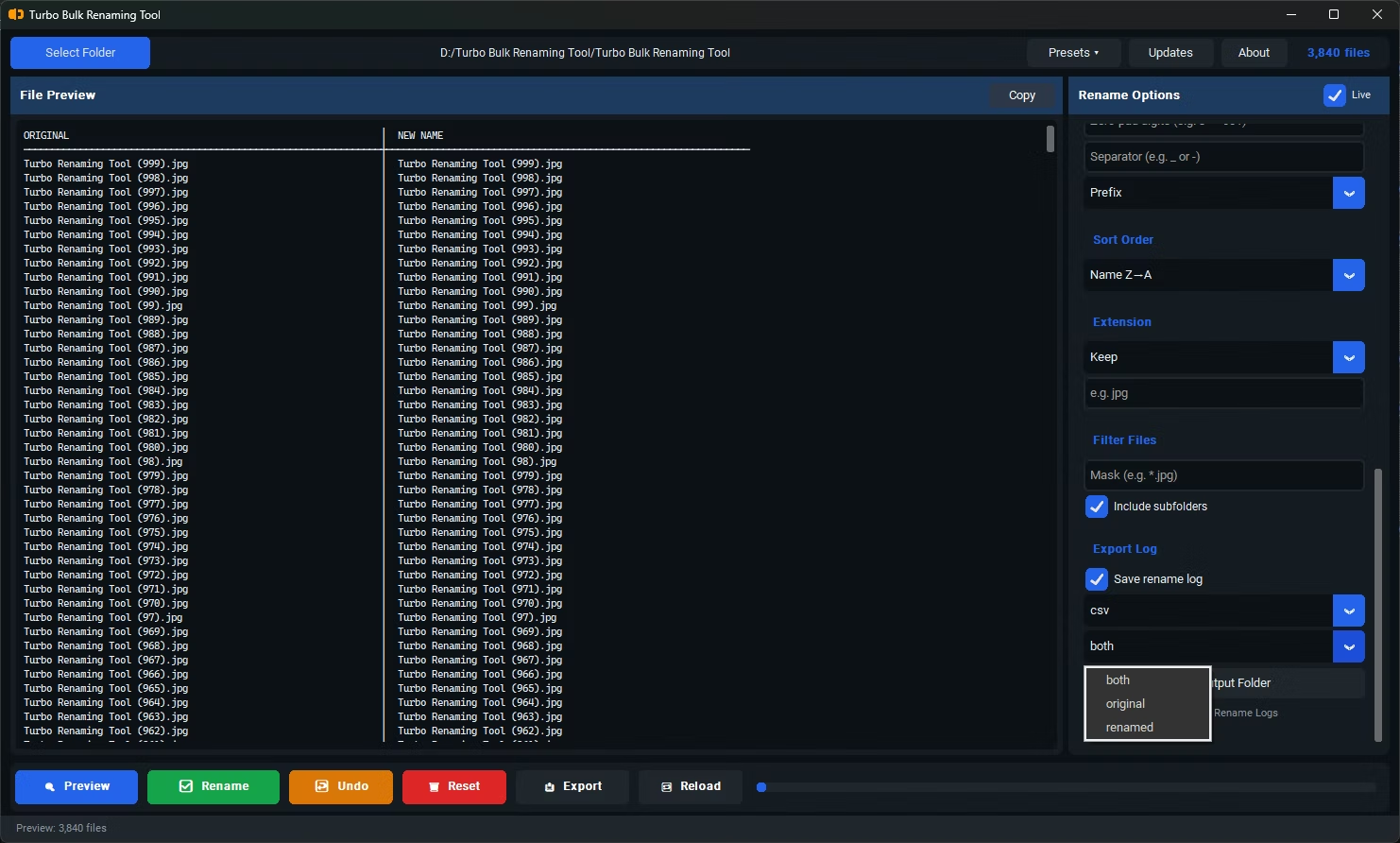
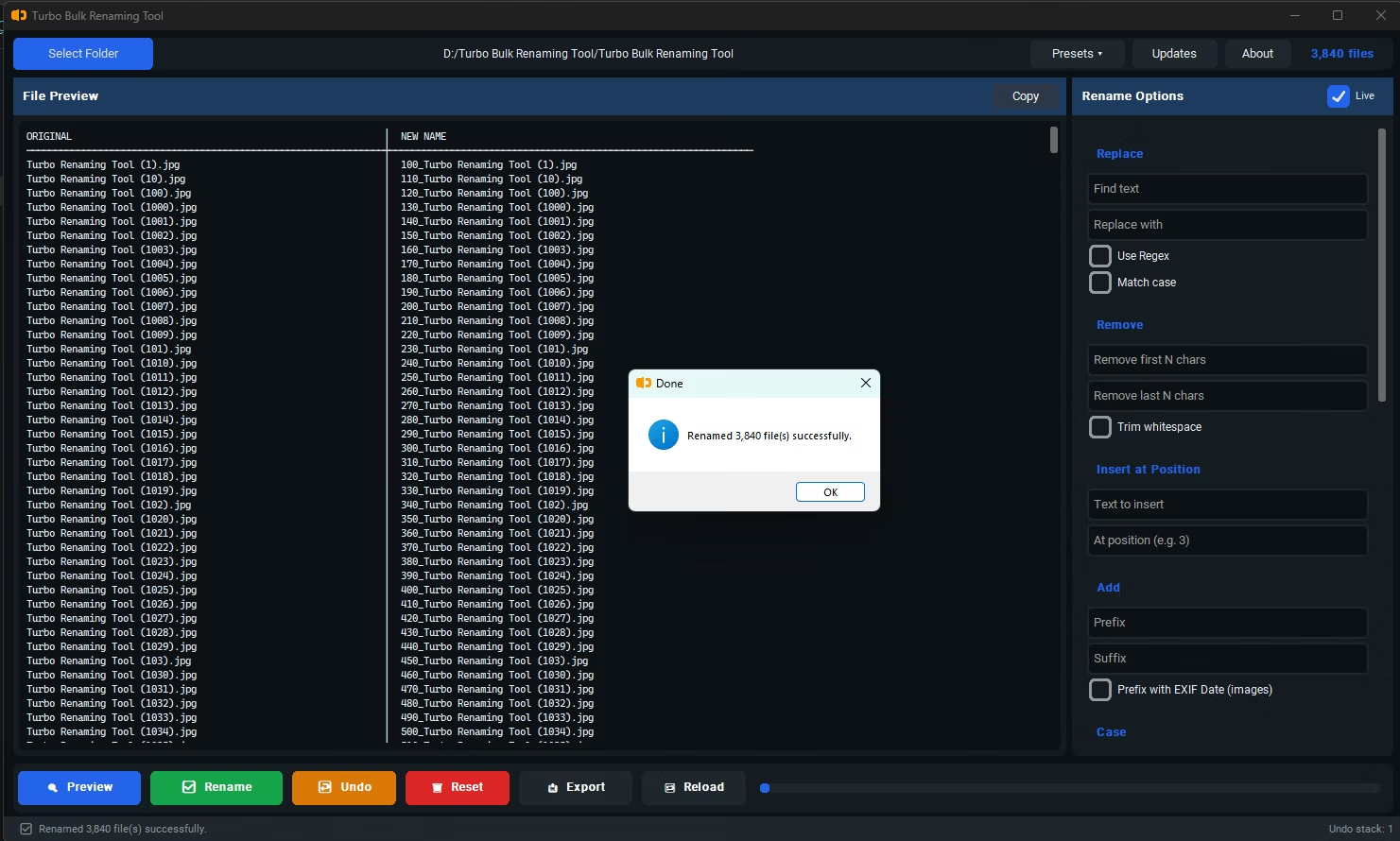
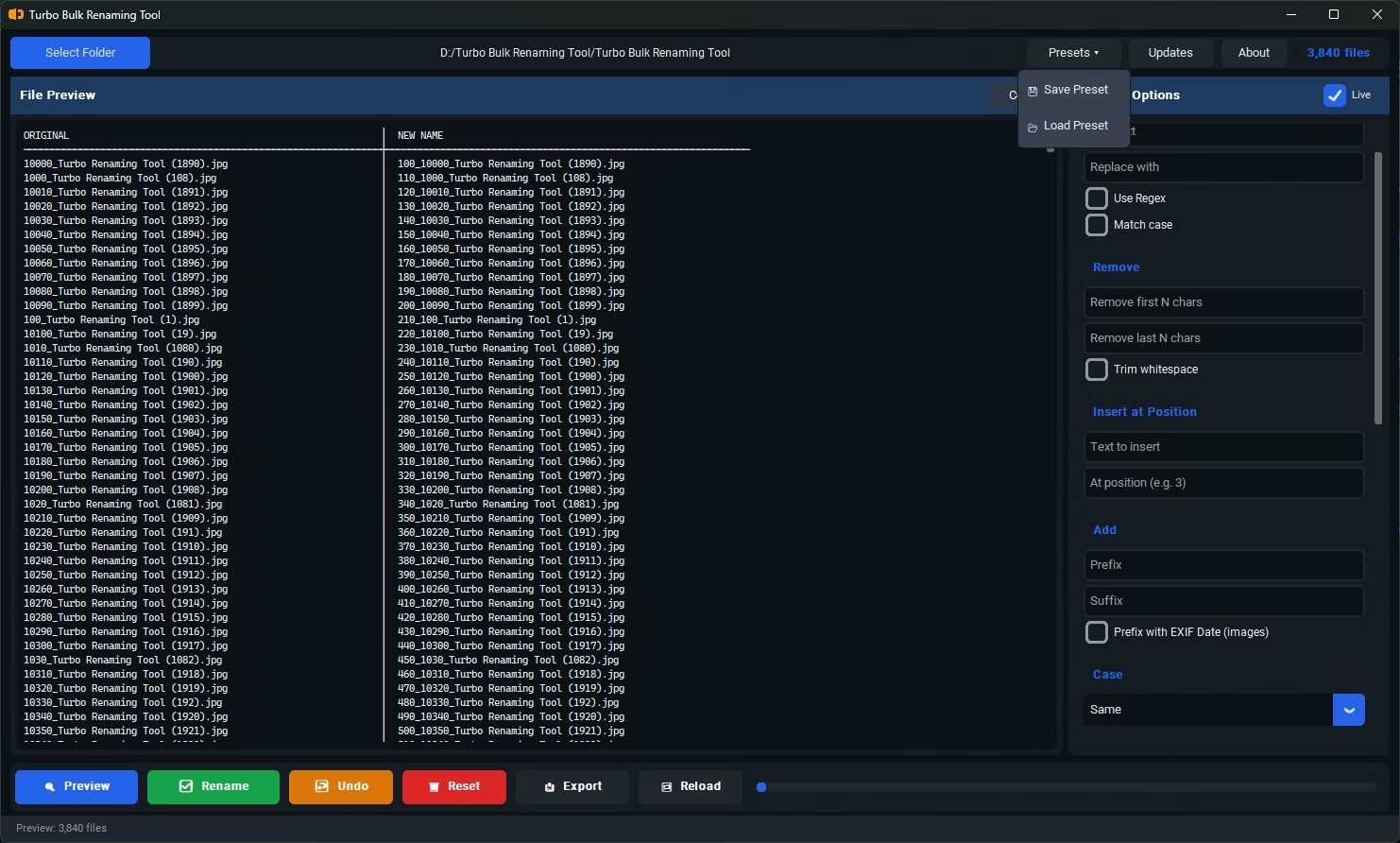
- Install Batchify Renaming Tool on your Windows PC.
- Open the app and load the folder containing your photos.
- Select the EXIF Date Prefix renaming rule.
- The app reads the DateTimeOriginal EXIF tag from each photo and prepares a prefix in YYYYMMDD_HHMMSS_ format.
- For folders under 100 files, review the live preview to confirm the dates look correct before renaming.
- Click Rename to apply the EXIF date prefix to every supported photo in the batch.
- Supported on JPG, JPEG, PNG, TIFF, and BMP files containing EXIF date metadata
- Uses the DateTimeOriginal tag, reflecting when the photo was actually taken
- Prefix format is YYYYMMDD_HHMMSS_, making files sort chronologically by name
- For folders over 100 files, live preview is disabled to avoid slowdown, though the rename still applies fully
- Recursive sub-folder support for organizing large, multi-folder photo libraries
- Runs fully offline, keeping personal photo metadata private during processing
What if a photo doesn't have EXIF date metadata?
Photos without the DateTimeOriginal EXIF tag won't have a date prefix added, since there's no metadata to read. Screenshots and some edited or downloaded images commonly fall into this category.
Why is preview disabled for folders over 100 files?
Reading EXIF data from a large number of files for preview purposes can slow down the interface, so the preview step is skipped above that threshold while the actual rename still applies the date prefix fully.
Which file formats support EXIF Date Prefix renaming?
JPG, JPEG, PNG, TIFF, and BMP files are supported, provided they contain the relevant EXIF date metadata.
Ready to rename your files in bulk, offline, with full privacy?