File extensions carry meaning beyond just identifying file type — some systems and workflows expect a consistent extension case, like all-lowercase ".jpg" rather than ".JPG," while others need the extension changed outright when a file's actual format has been updated but the extension wasn't kept in sync. Extension Control gives you direct authority over the extension portion of every filename in a batch, separate from whatever renaming rules you're applying to the rest of the name.
This matters in practical situations like consolidating photos from multiple cameras where some devices write ".JPG" and others write ".jpg," creating an inconsistent mix that looks messy and can behave unpredictably on case-sensitive systems. It's also useful when you've converted a batch of files to a new format using another tool but the filenames still carry the old extension, requiring a quick correction across the whole set rather than file-by-file editing.
Extension Control in Batchify Renaming Tool can standardize extension case across a batch, change extensions outright when needed, and works alongside your other renaming rules so extension cleanup happens in the same pass as everything else.
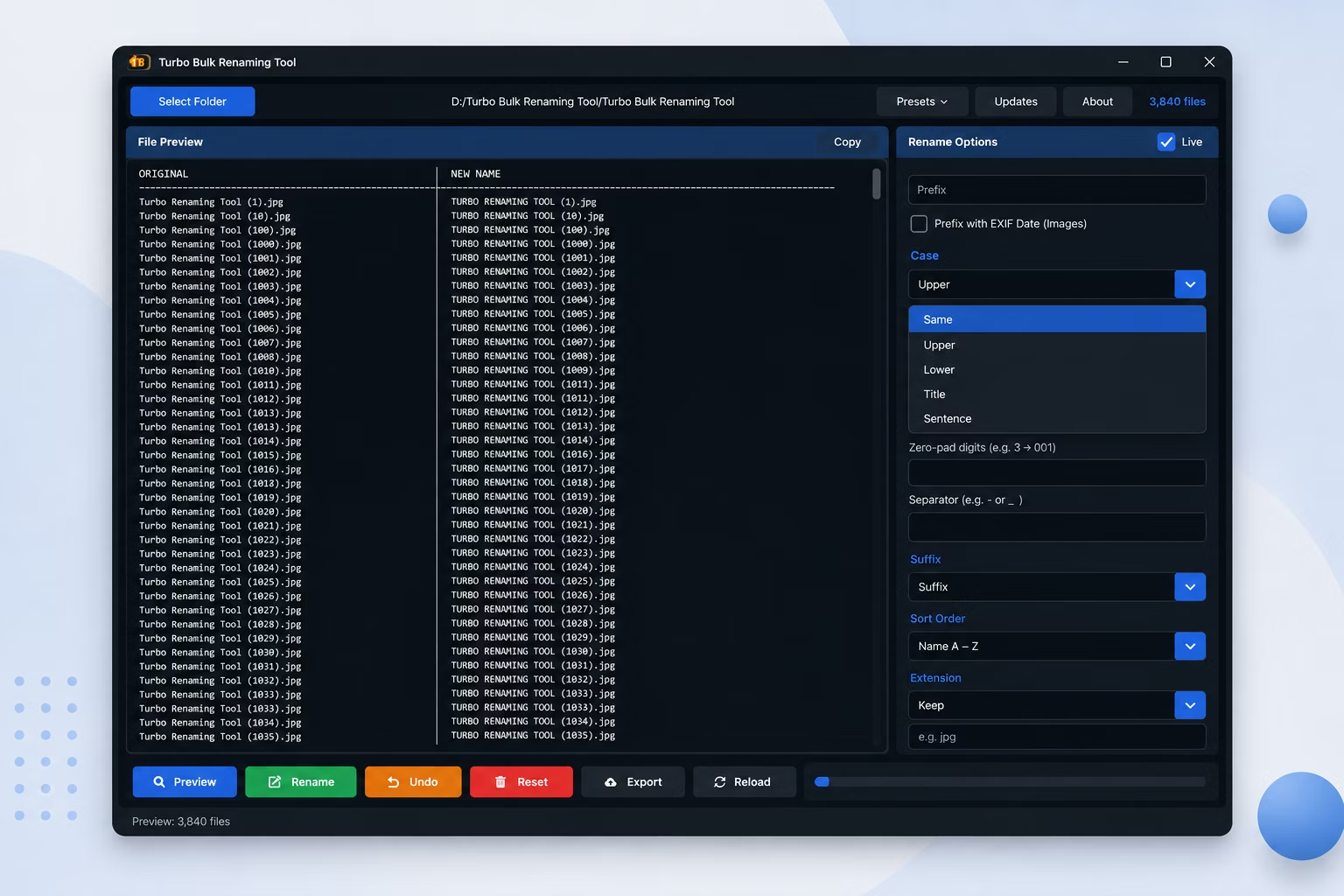
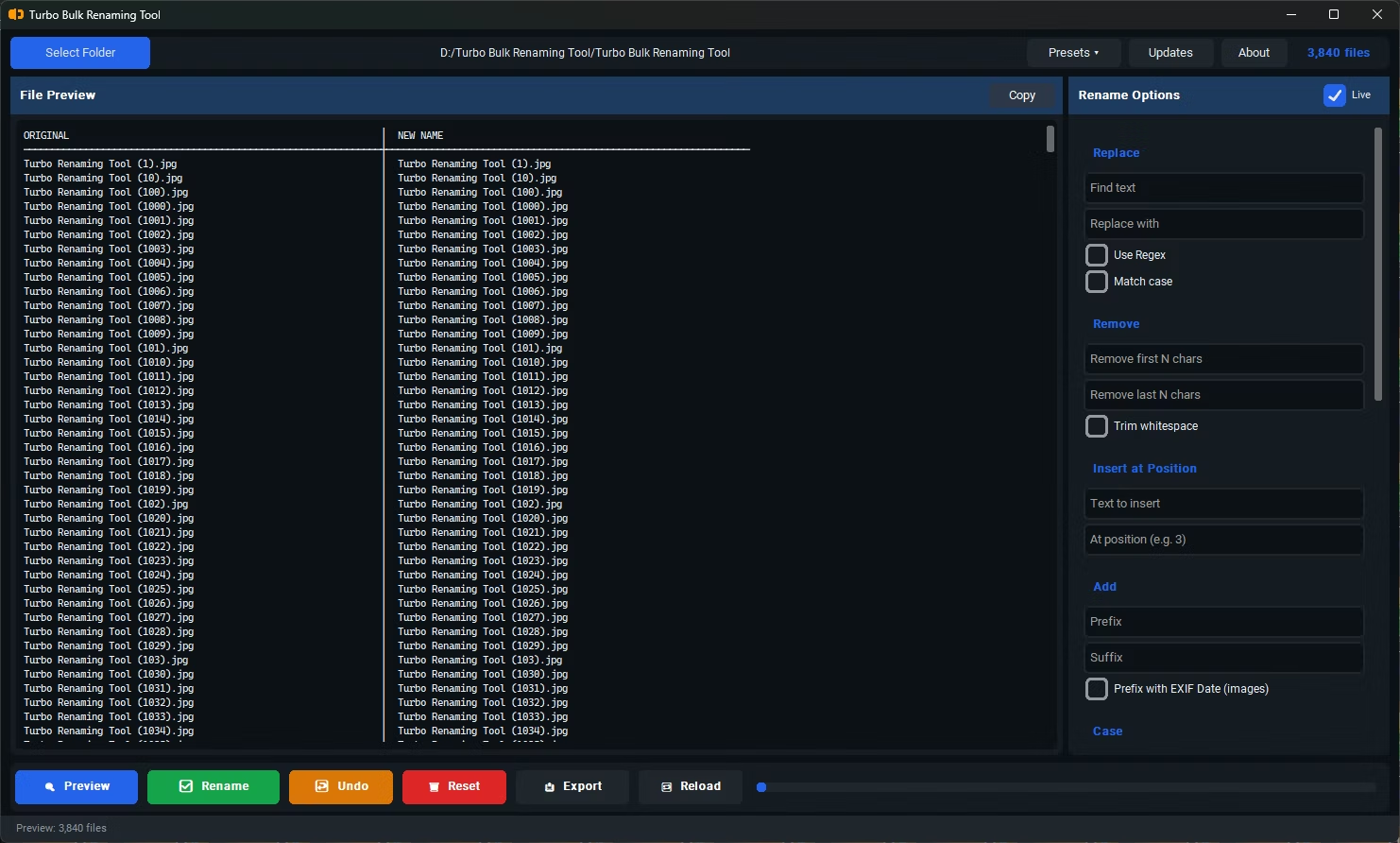
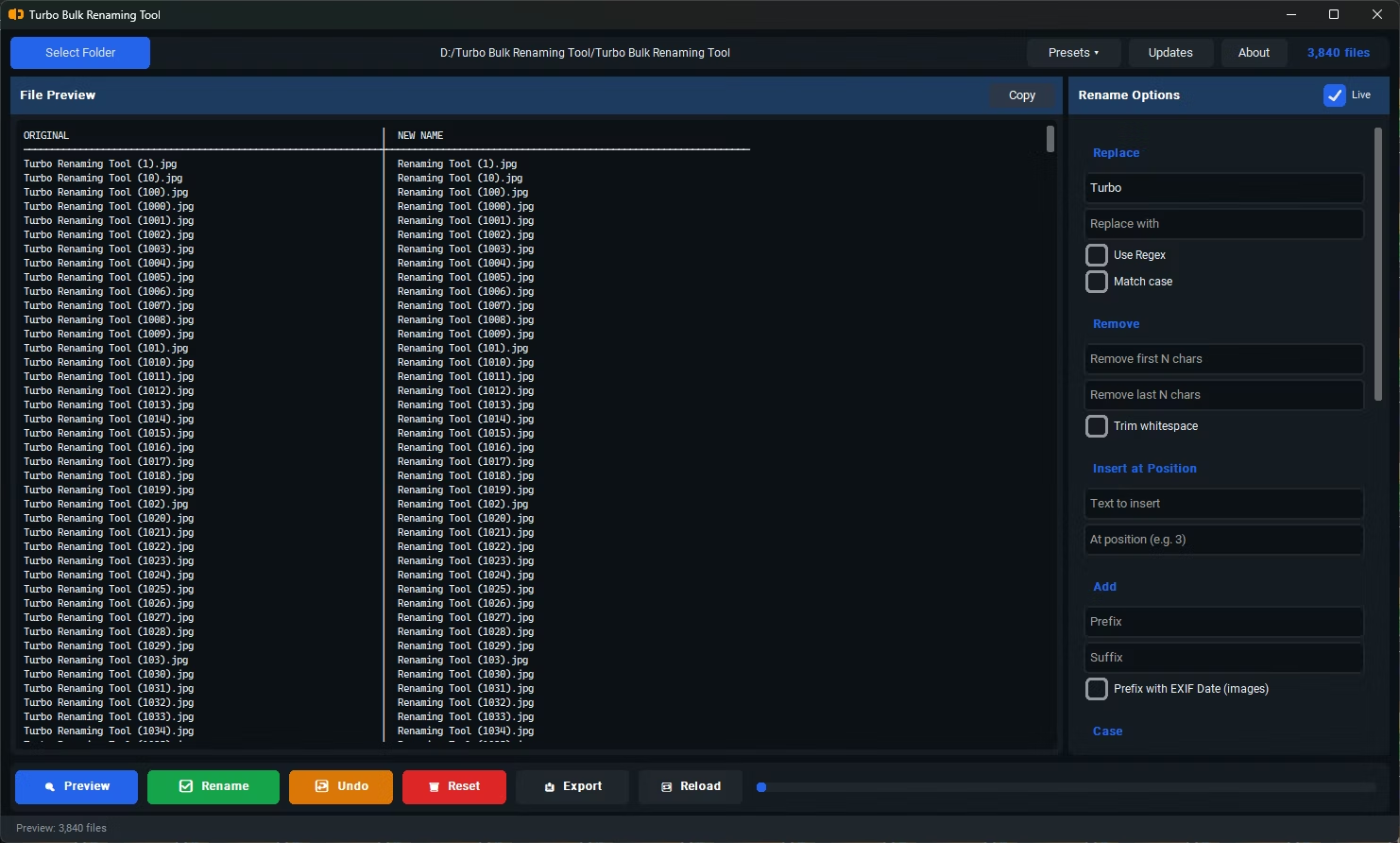
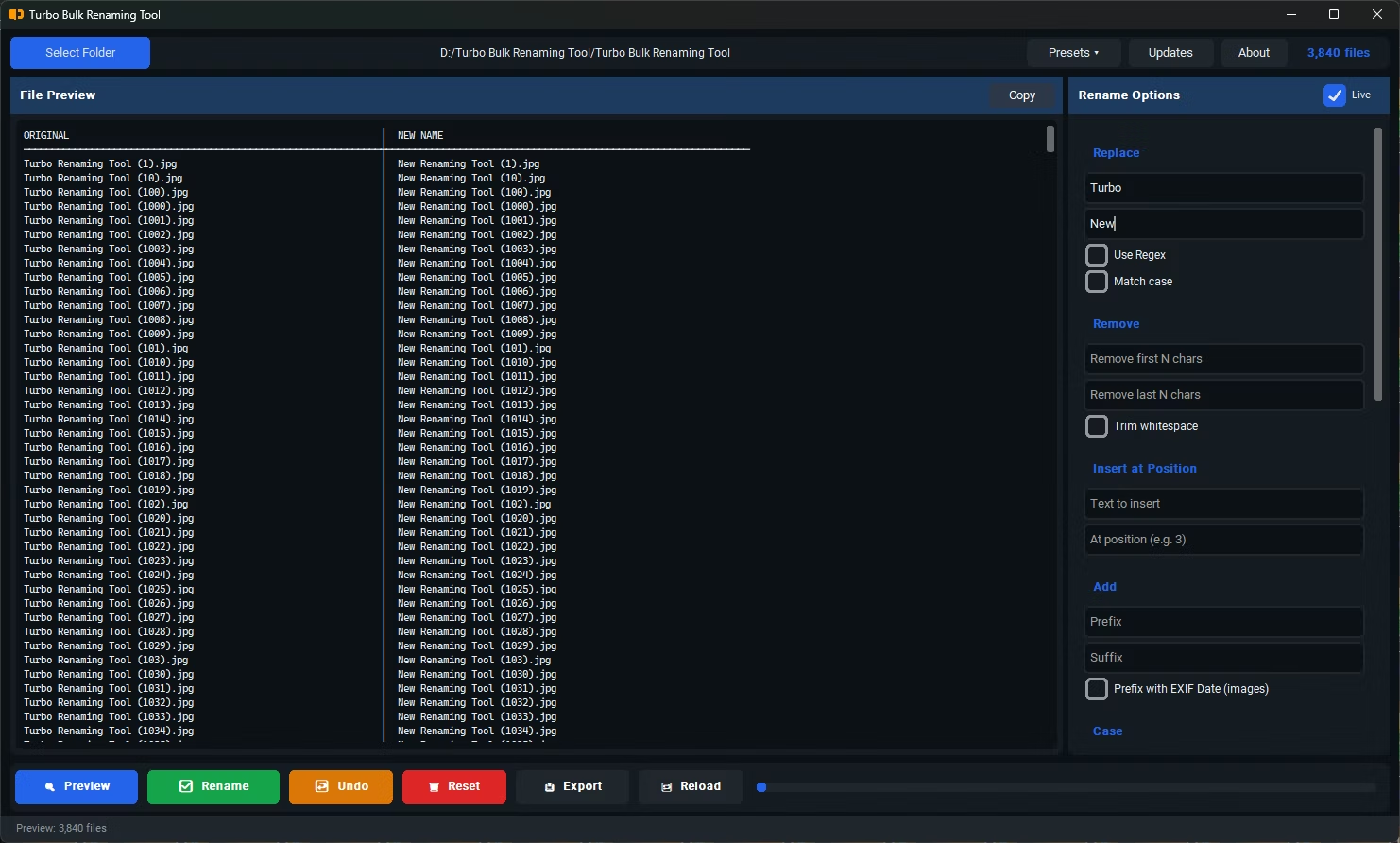
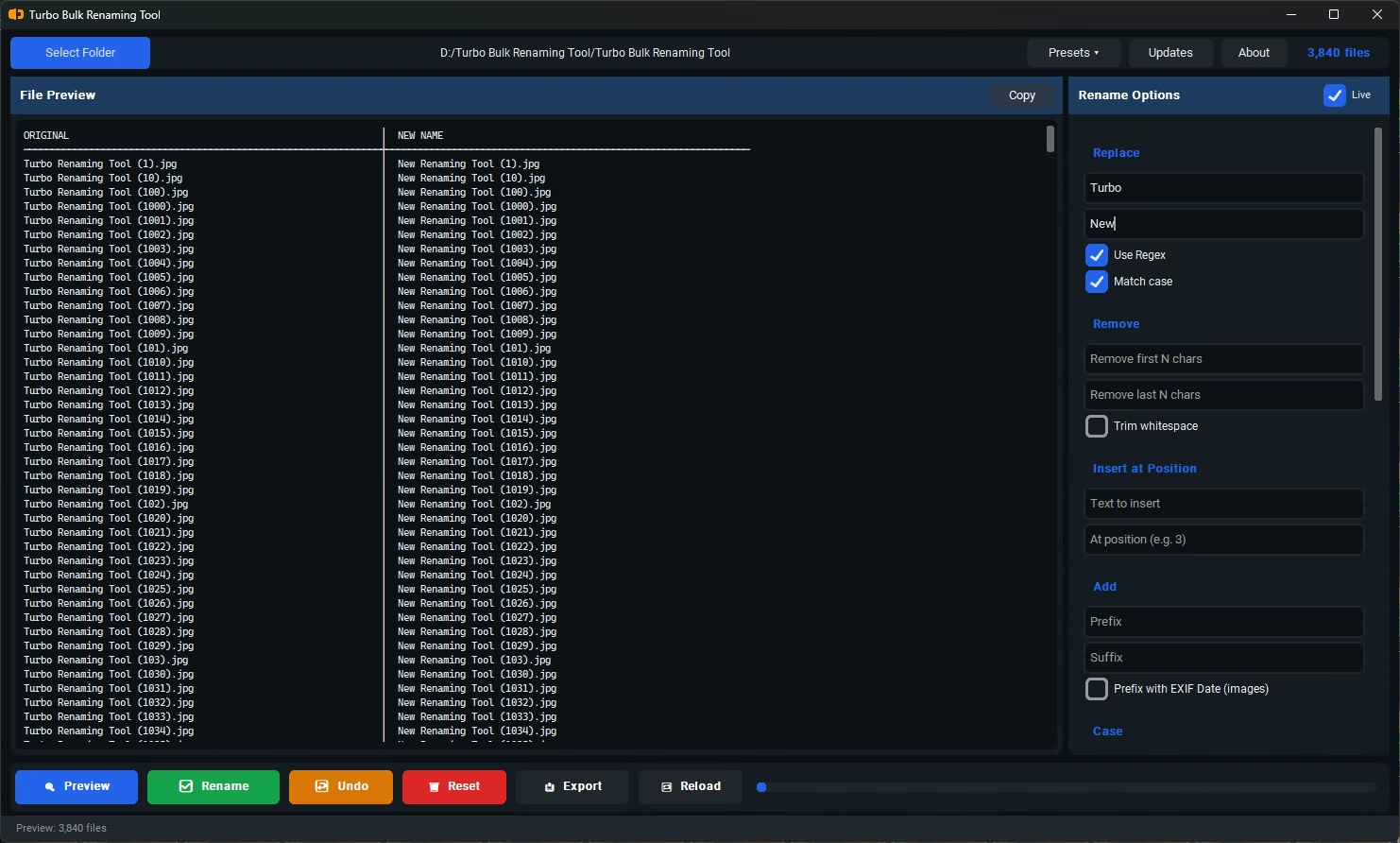
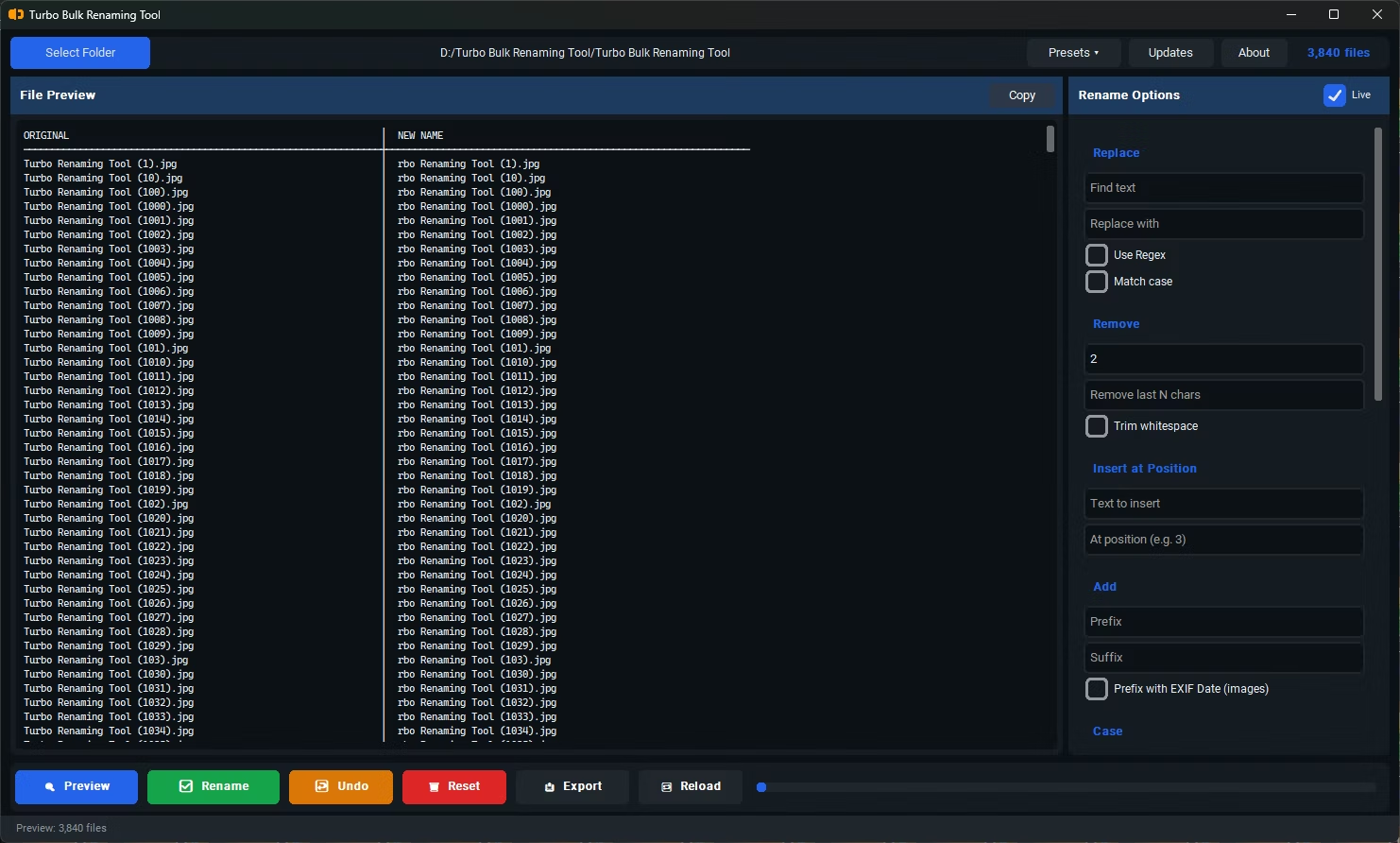
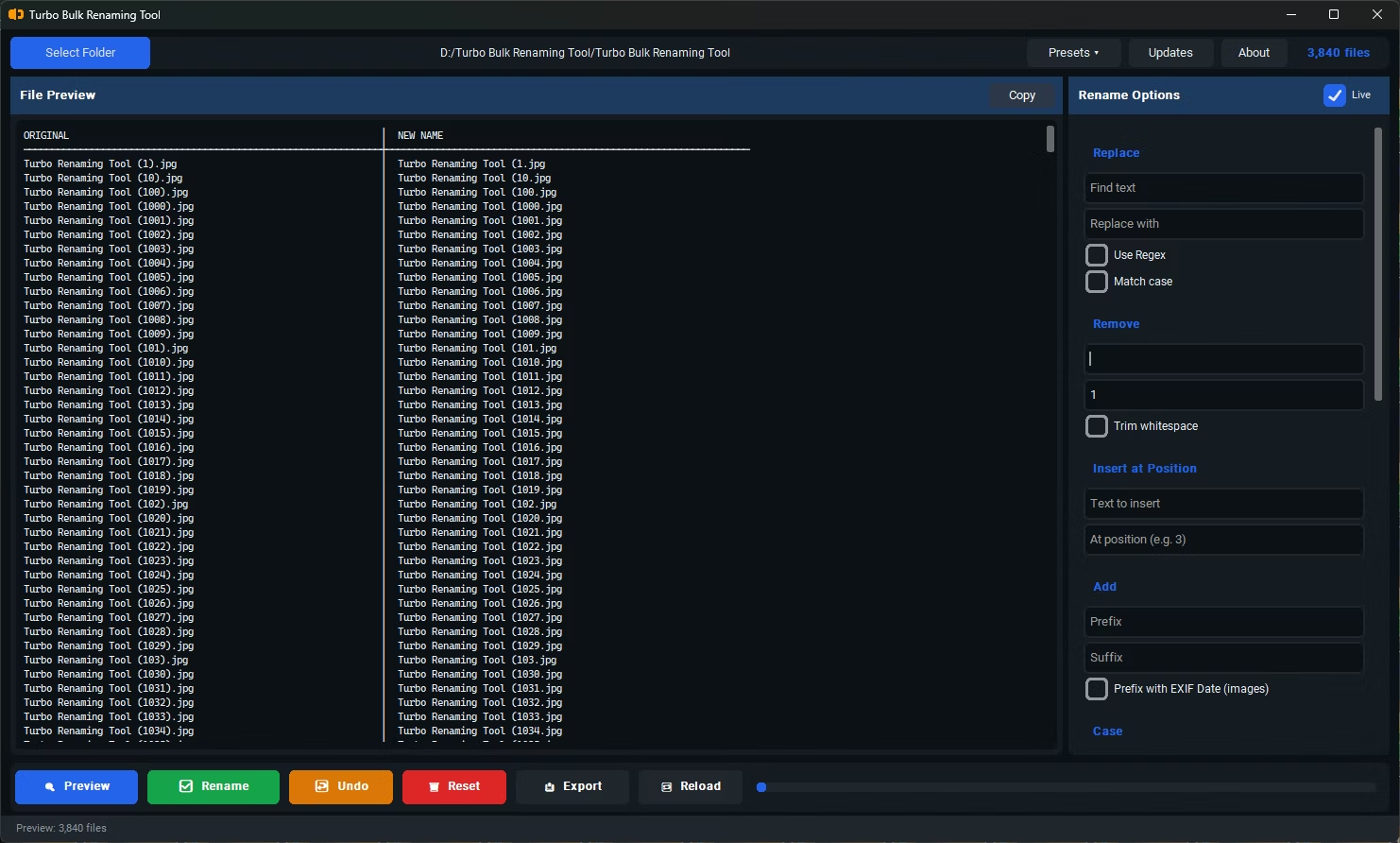
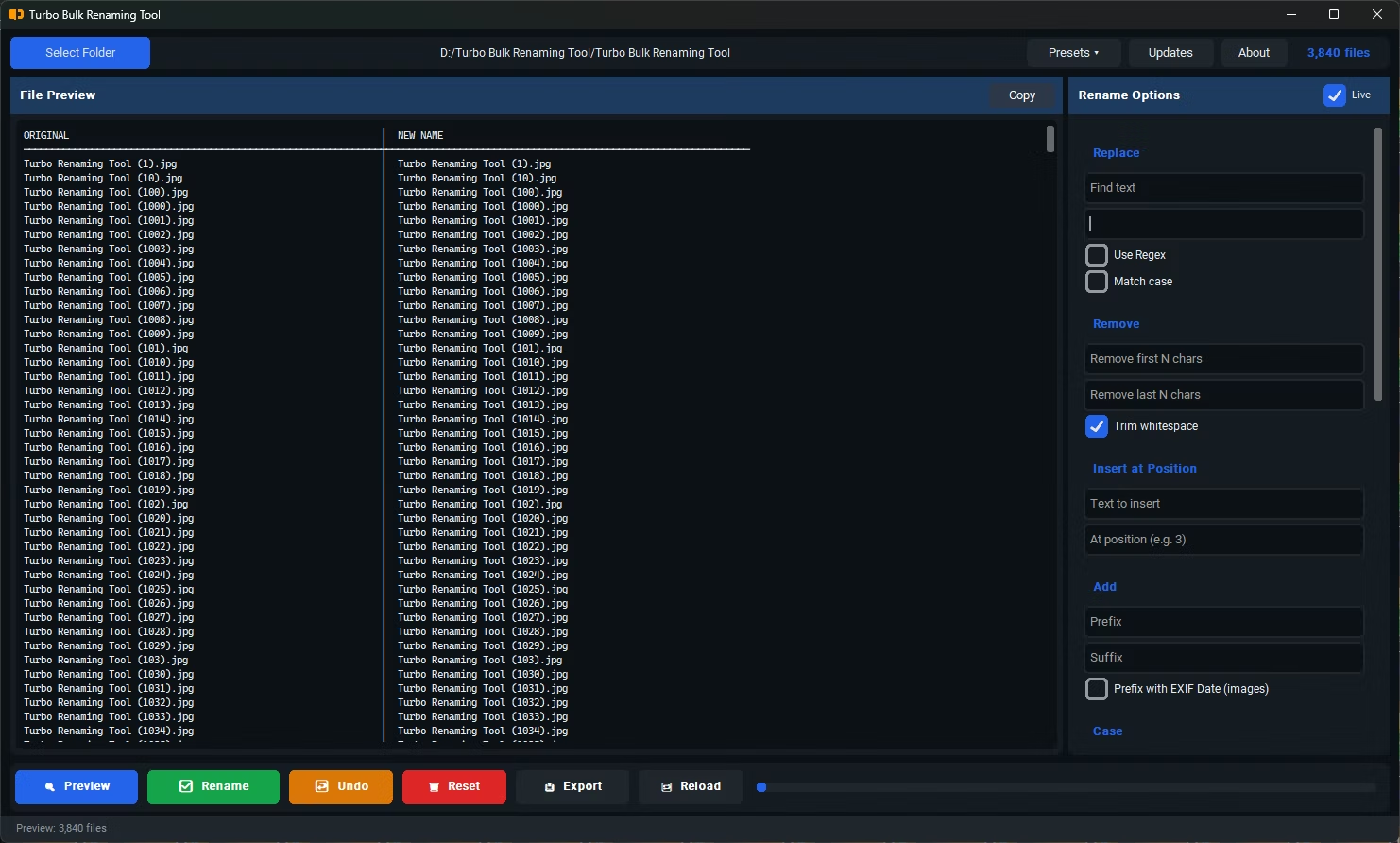
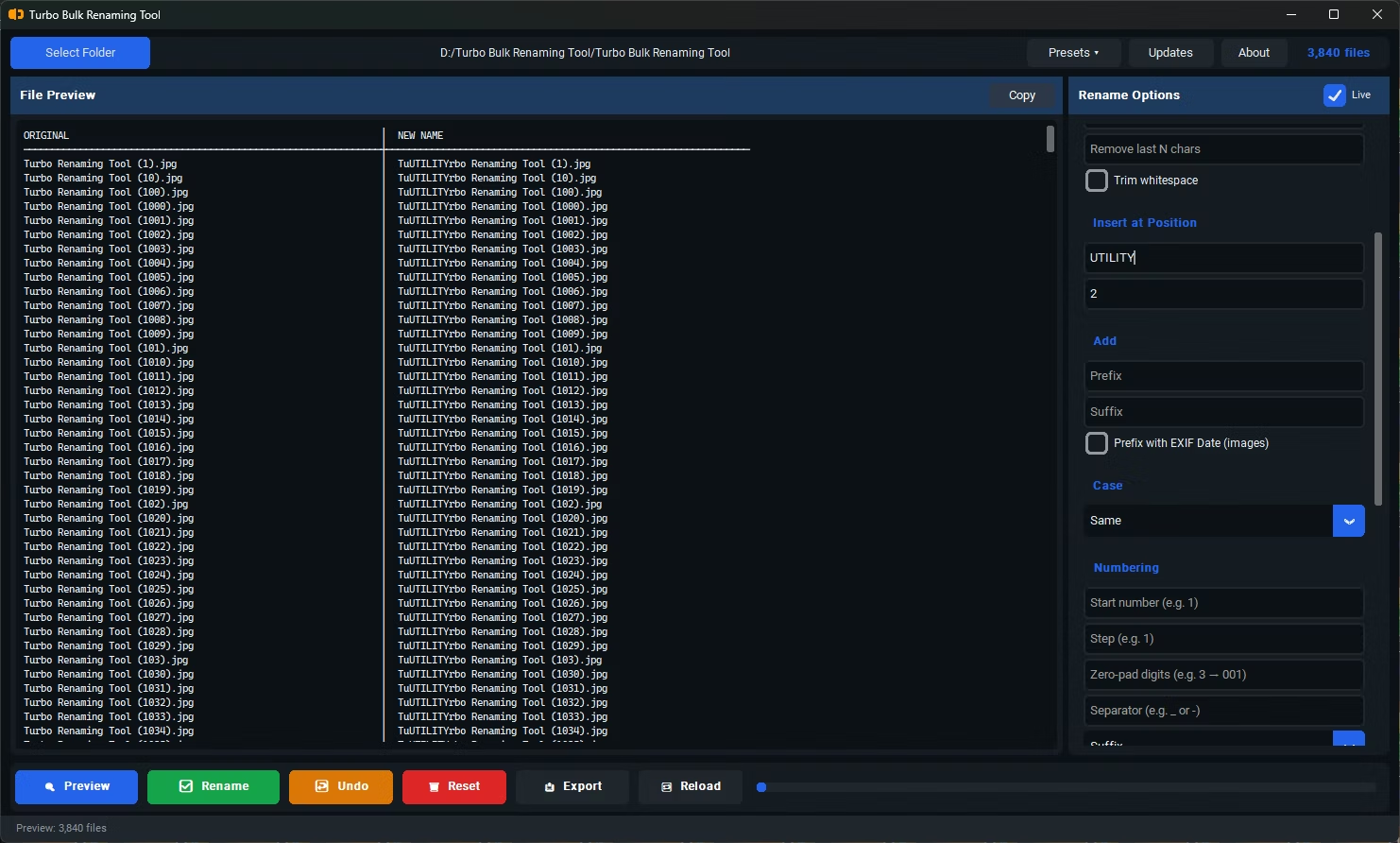
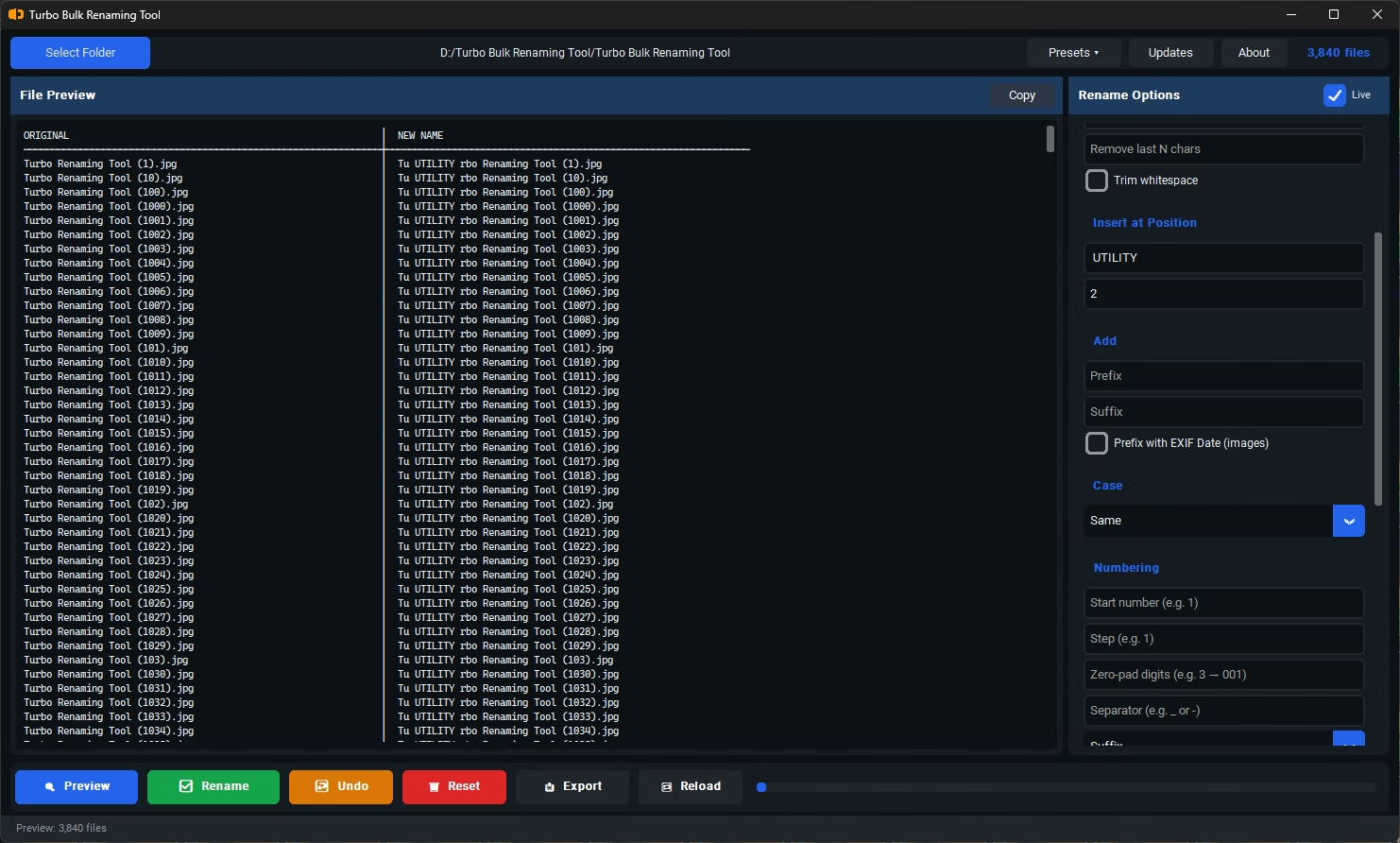
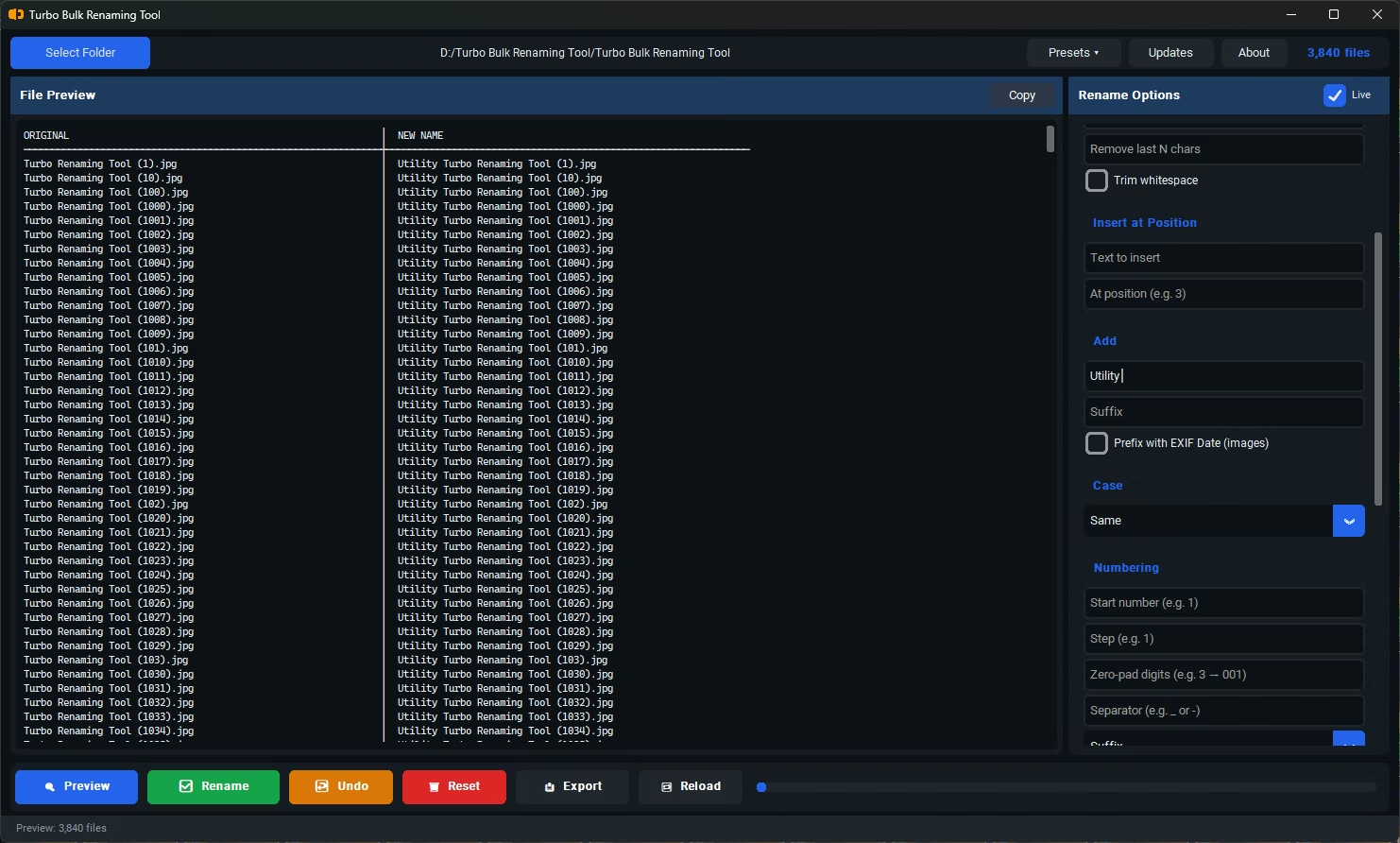
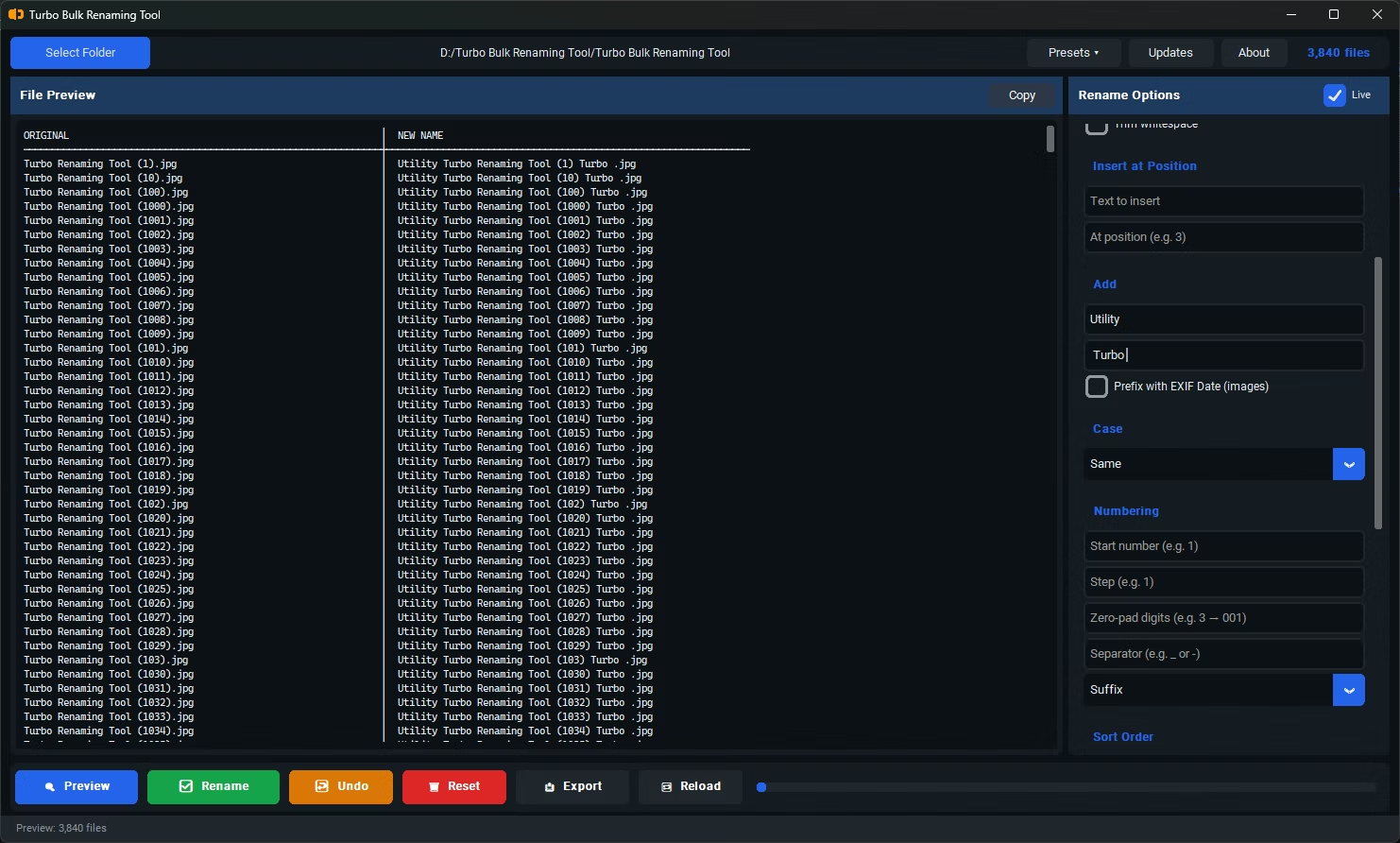
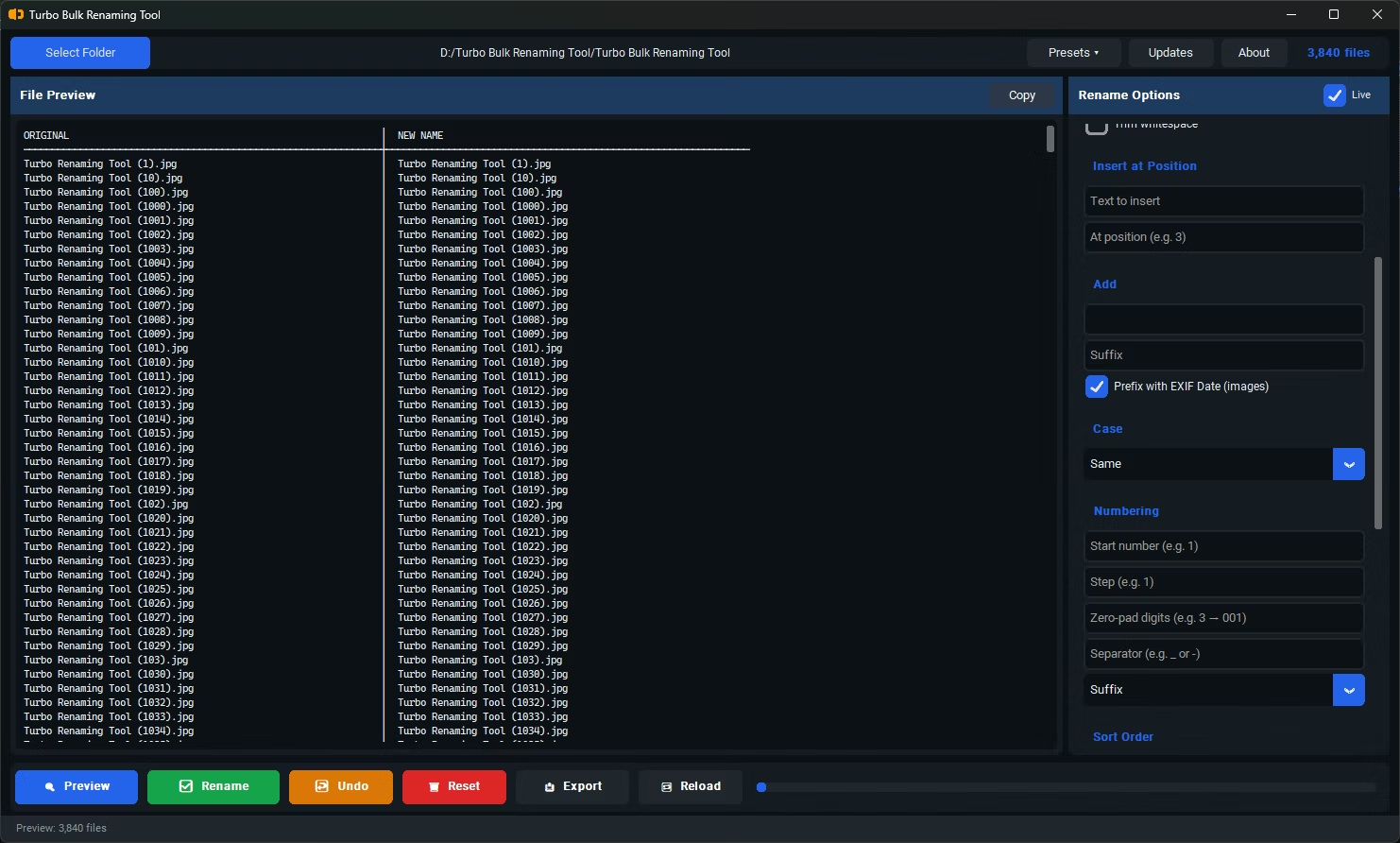
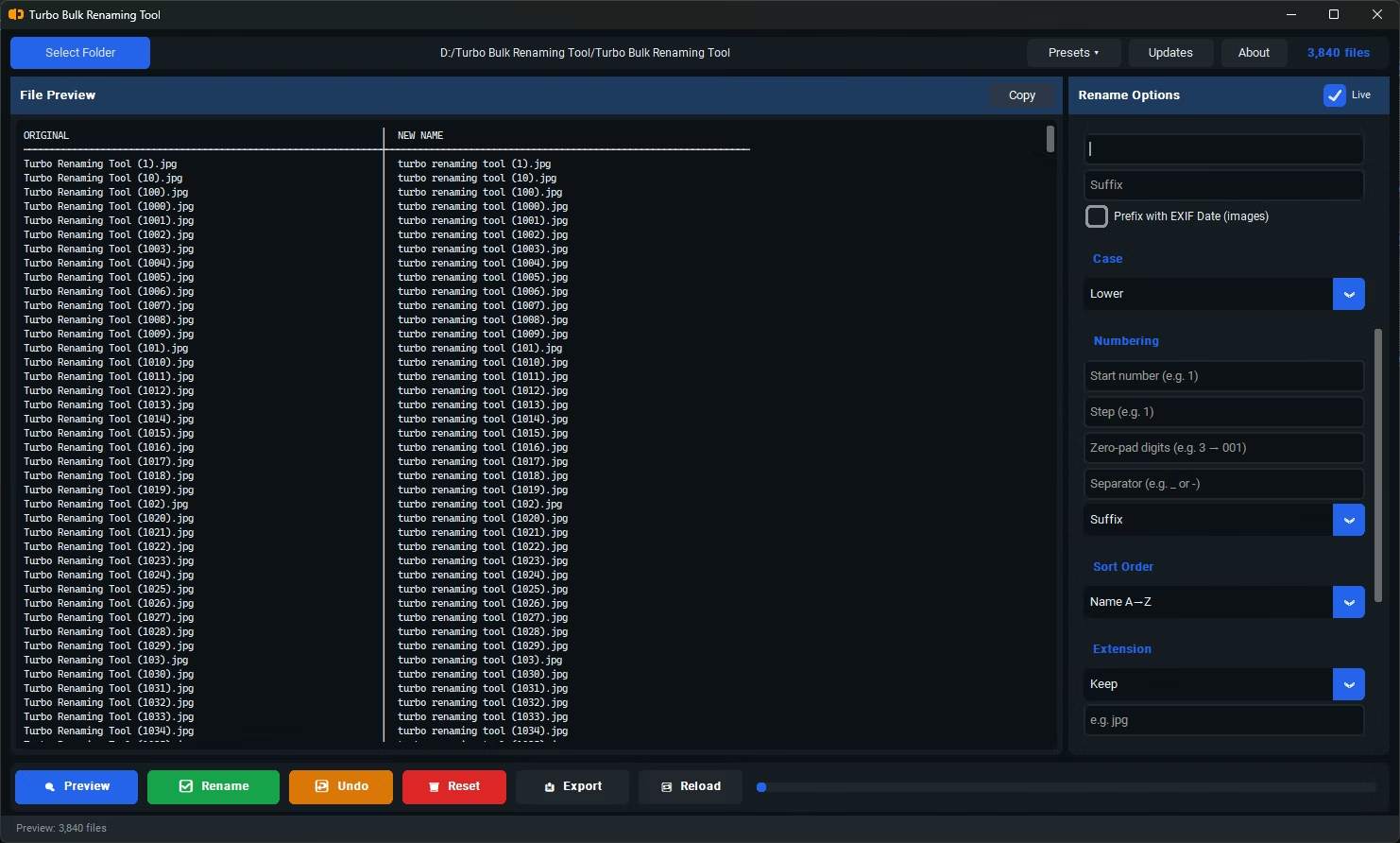
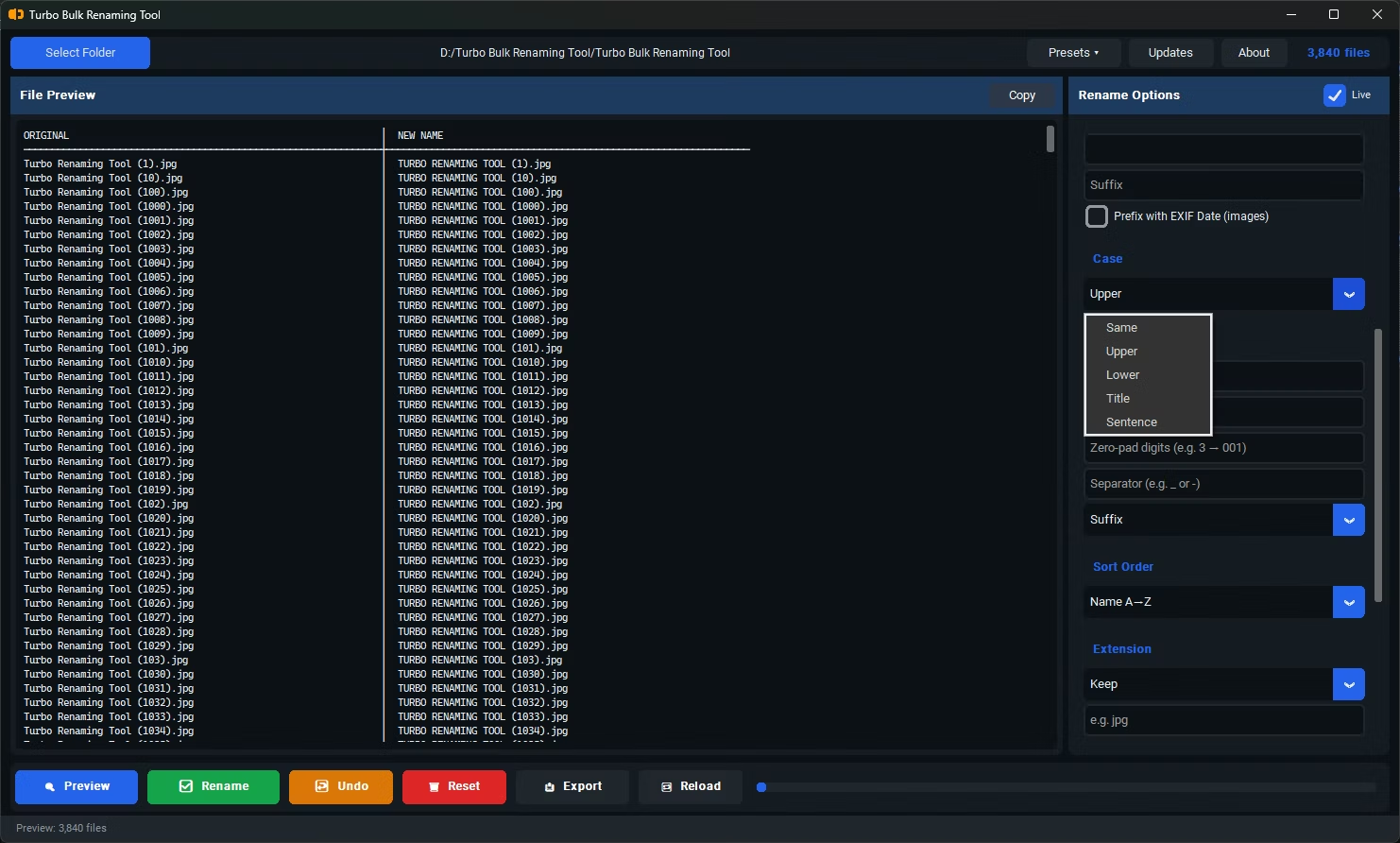
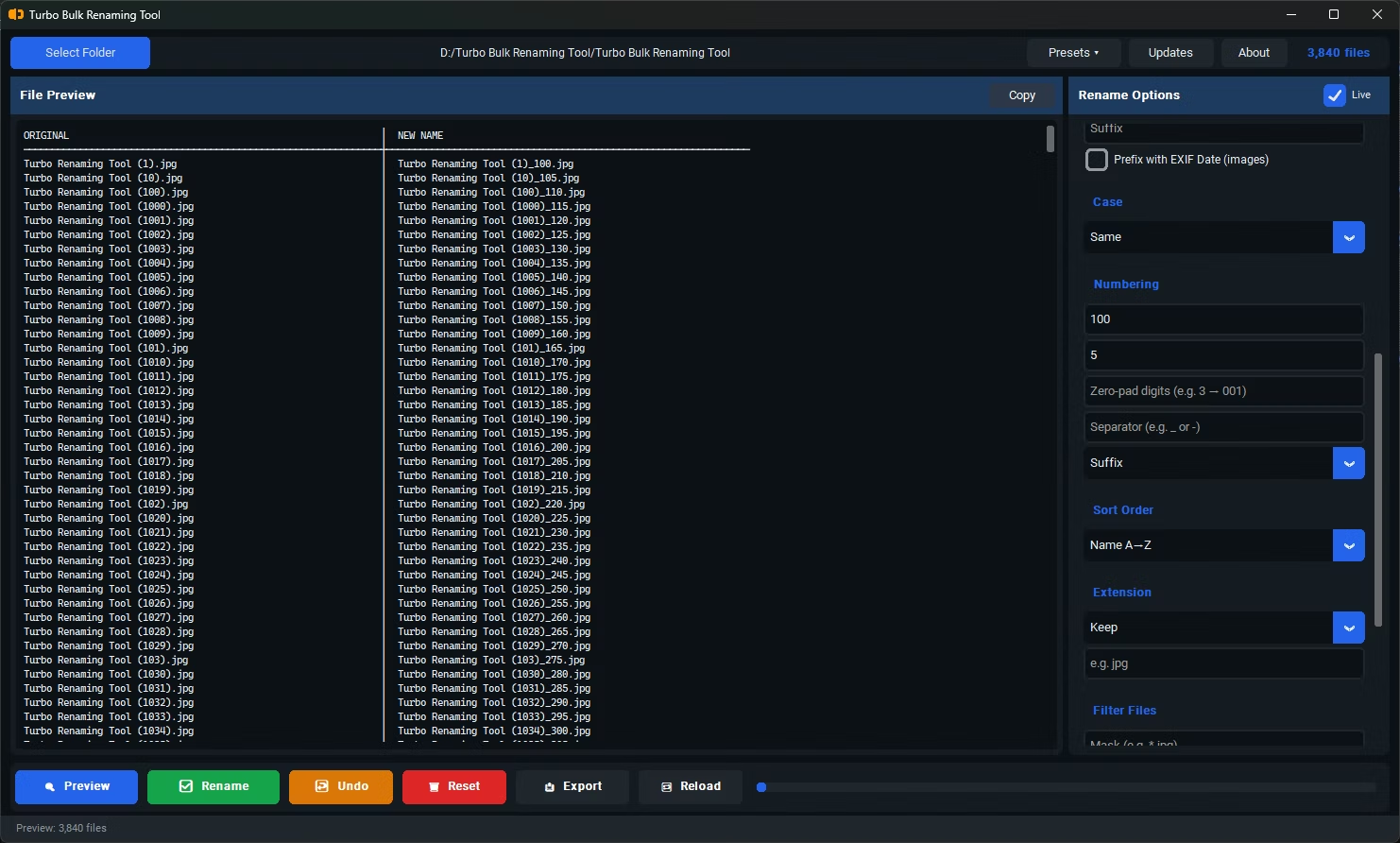
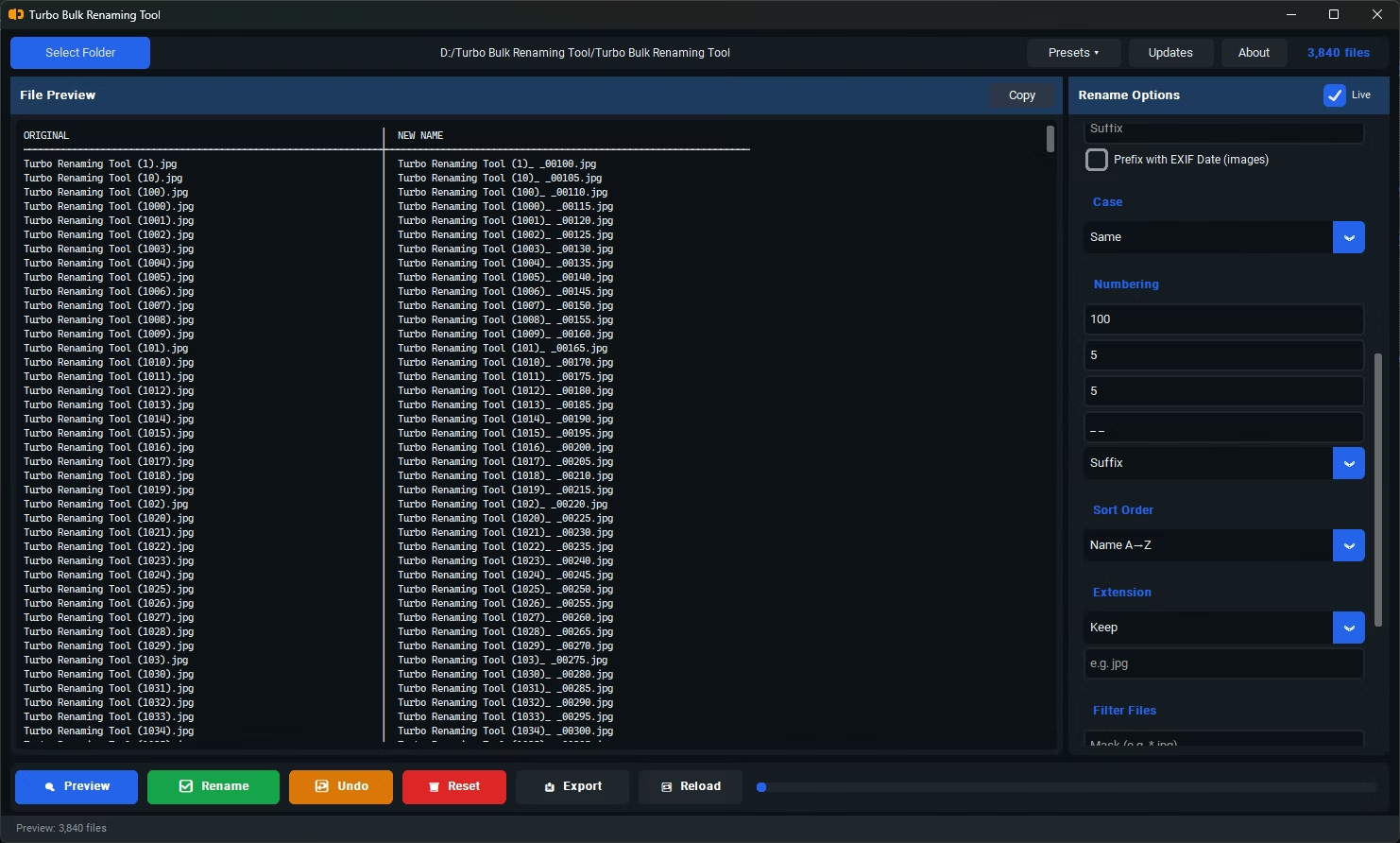
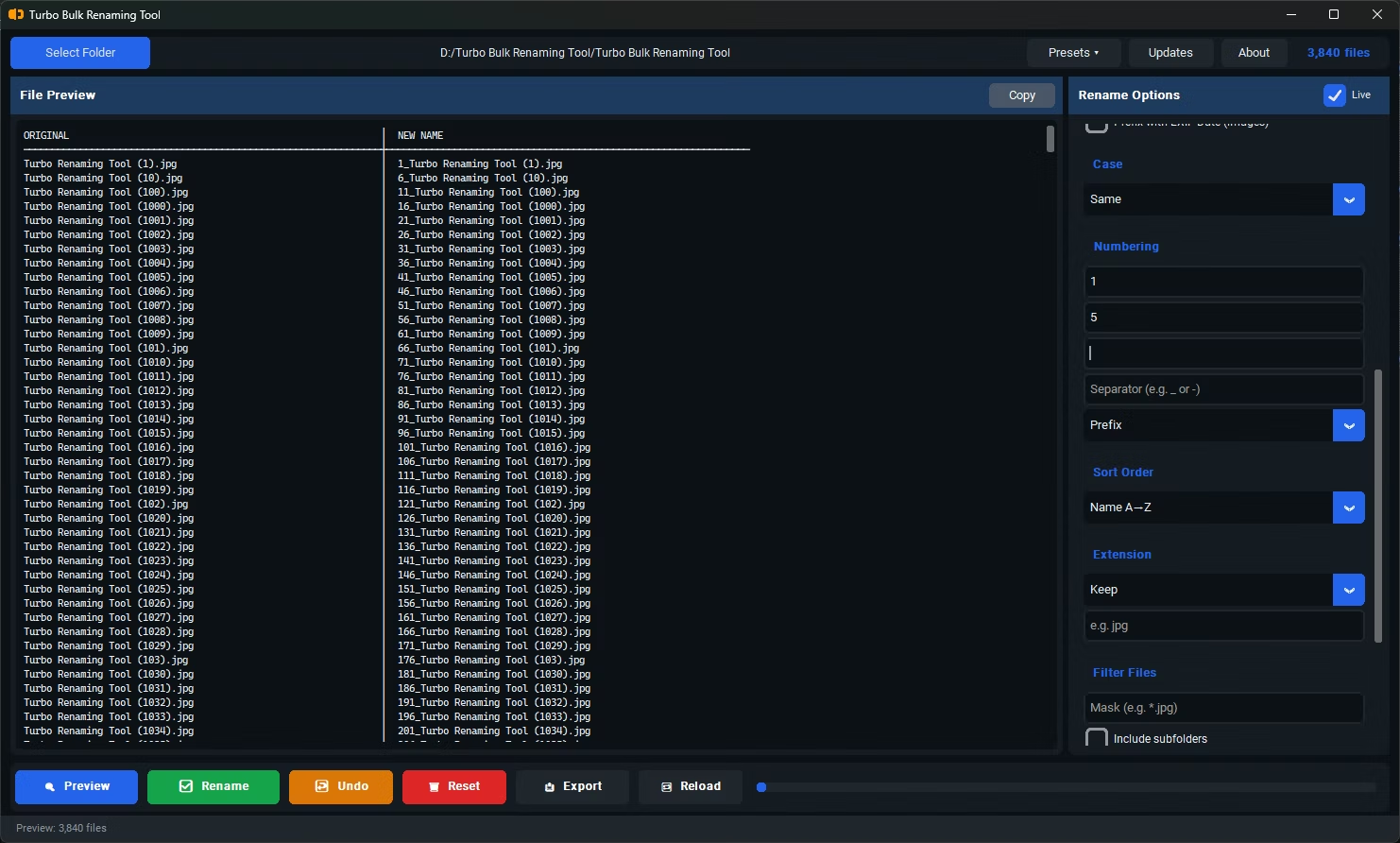
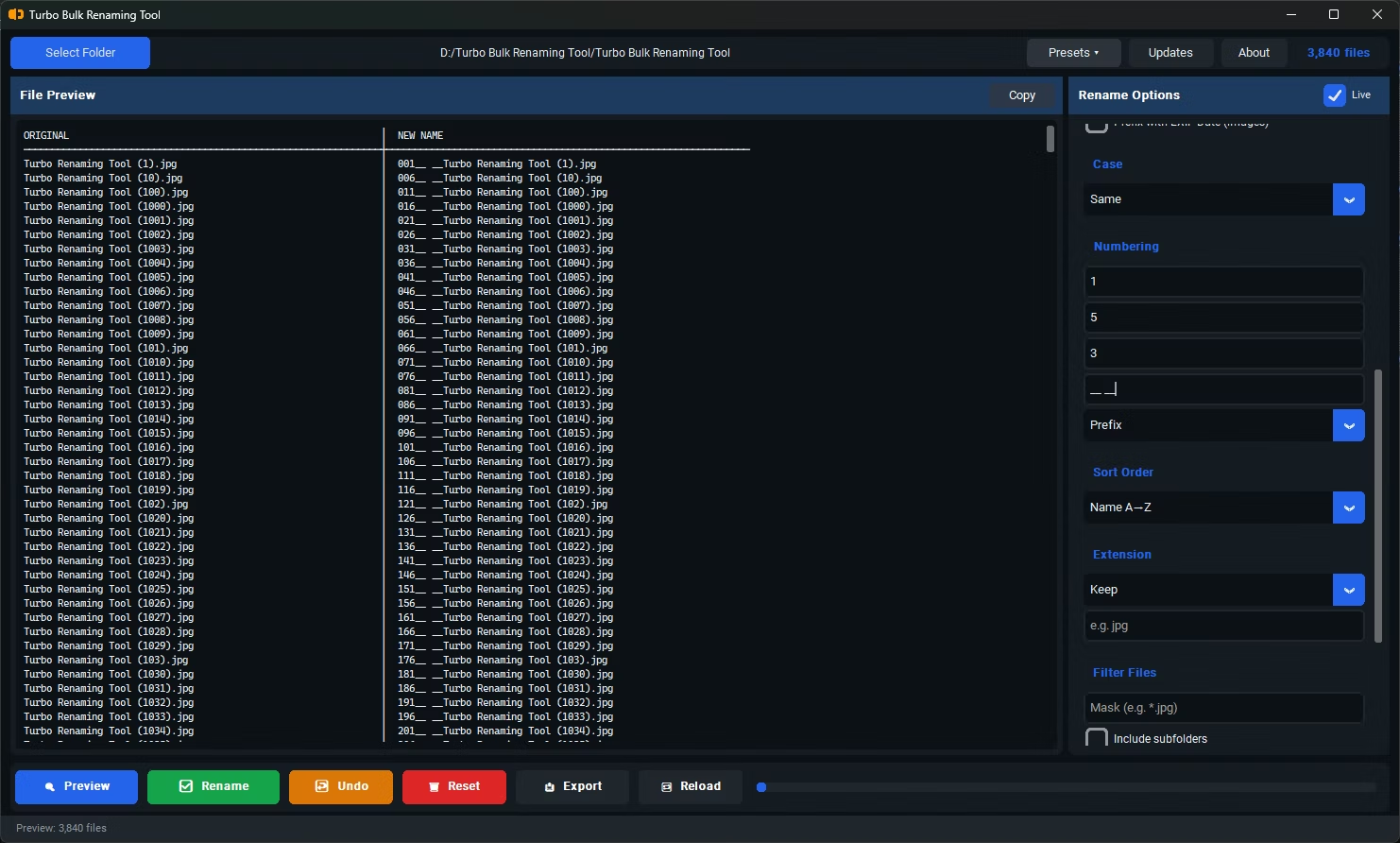
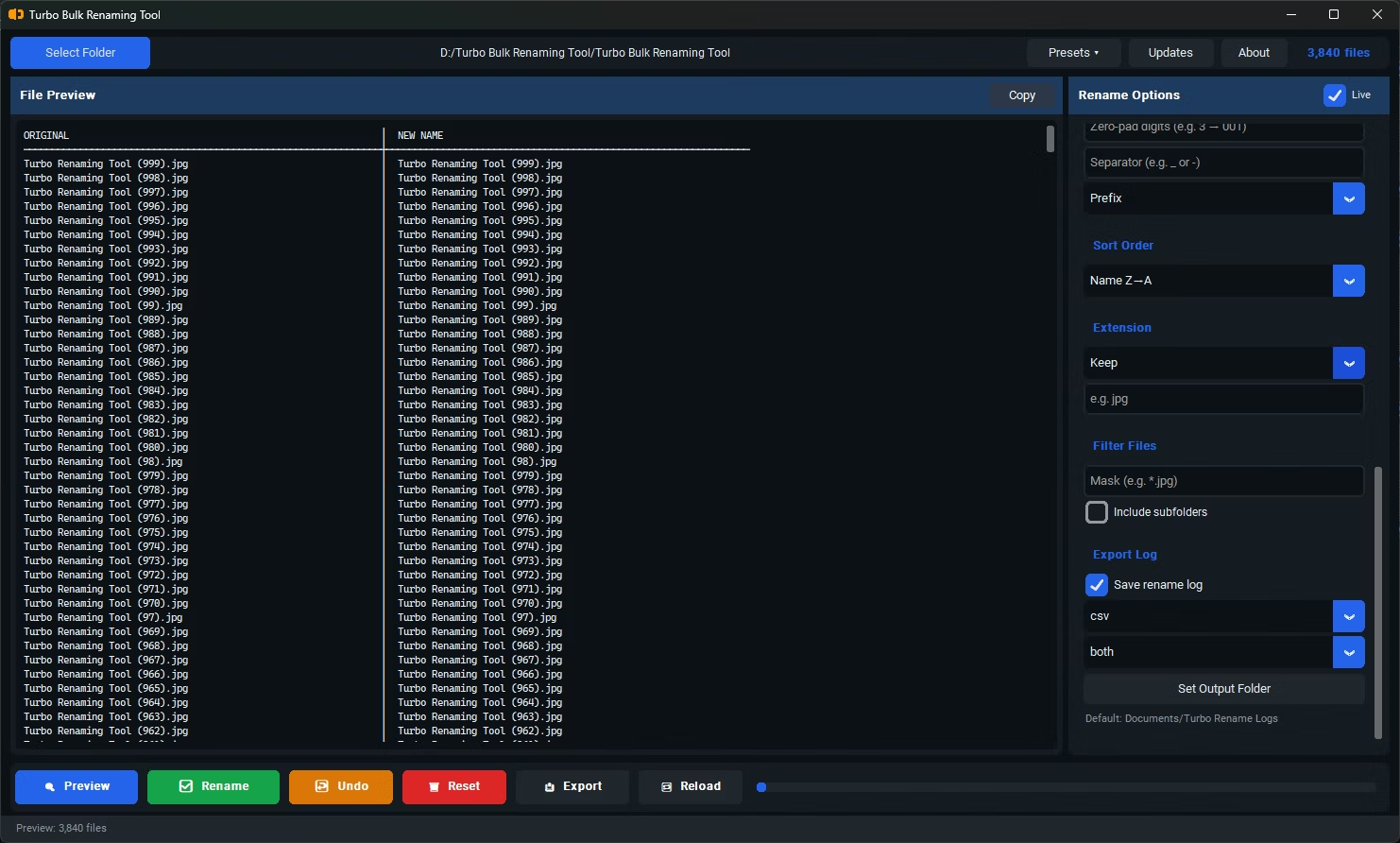
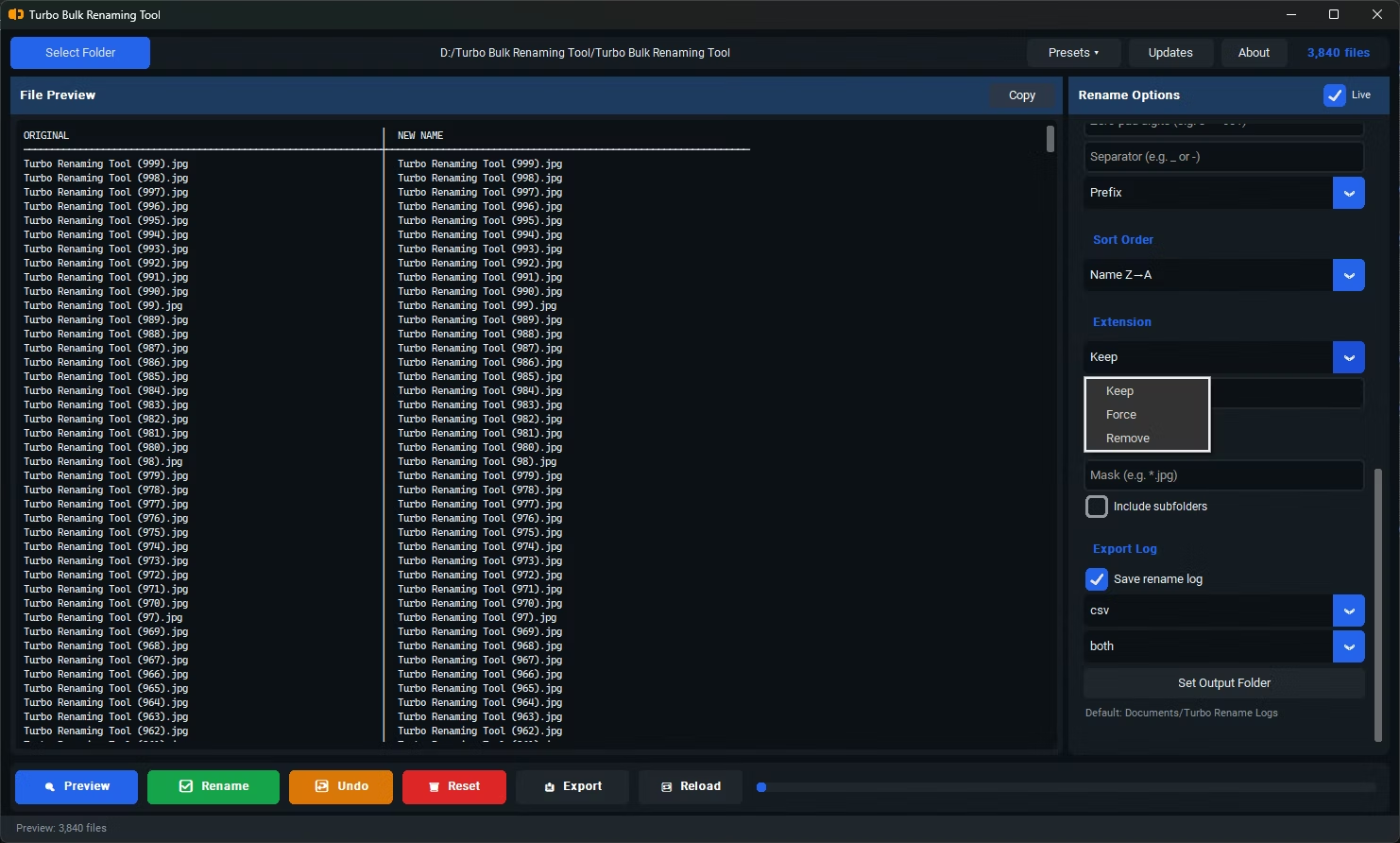
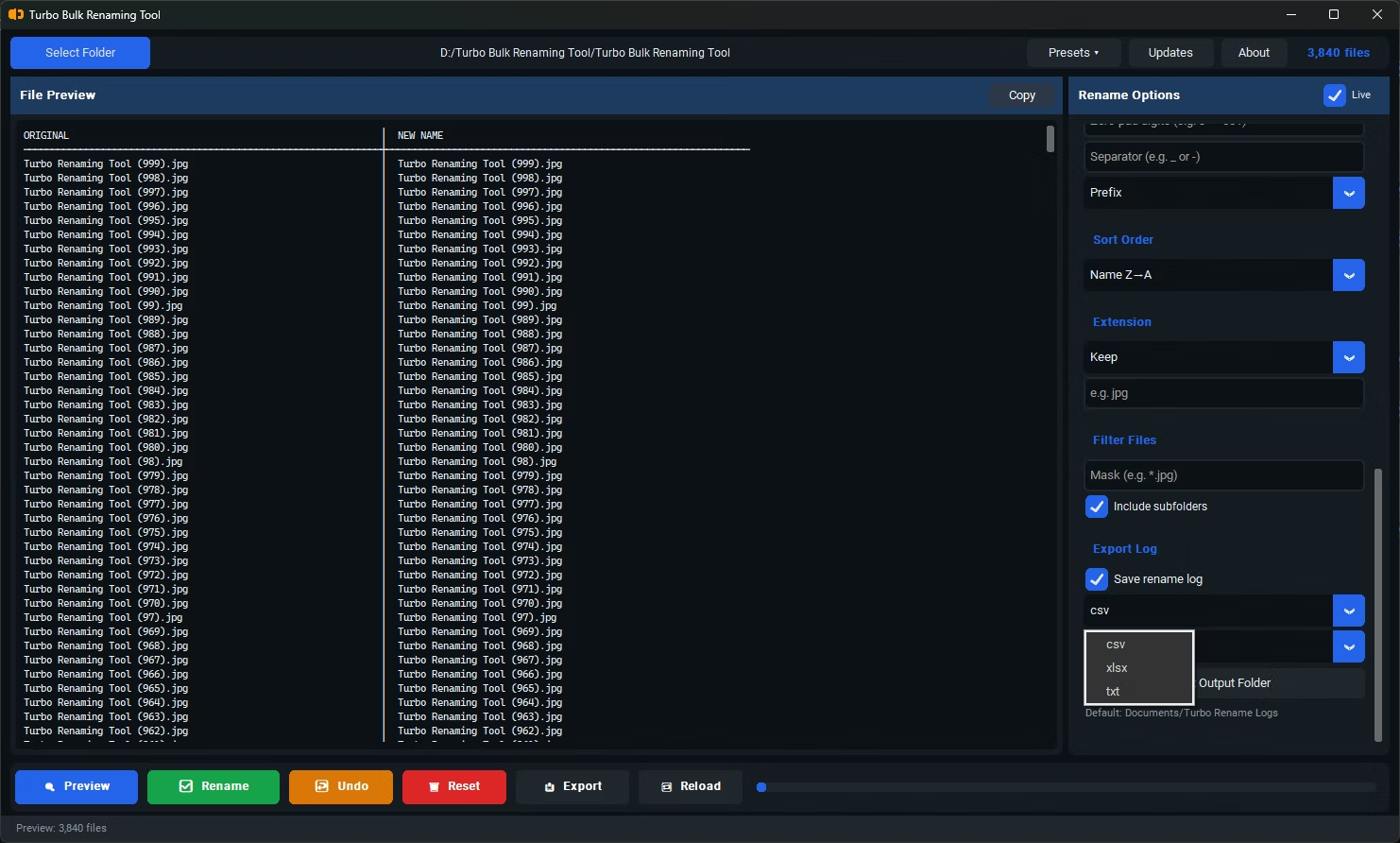
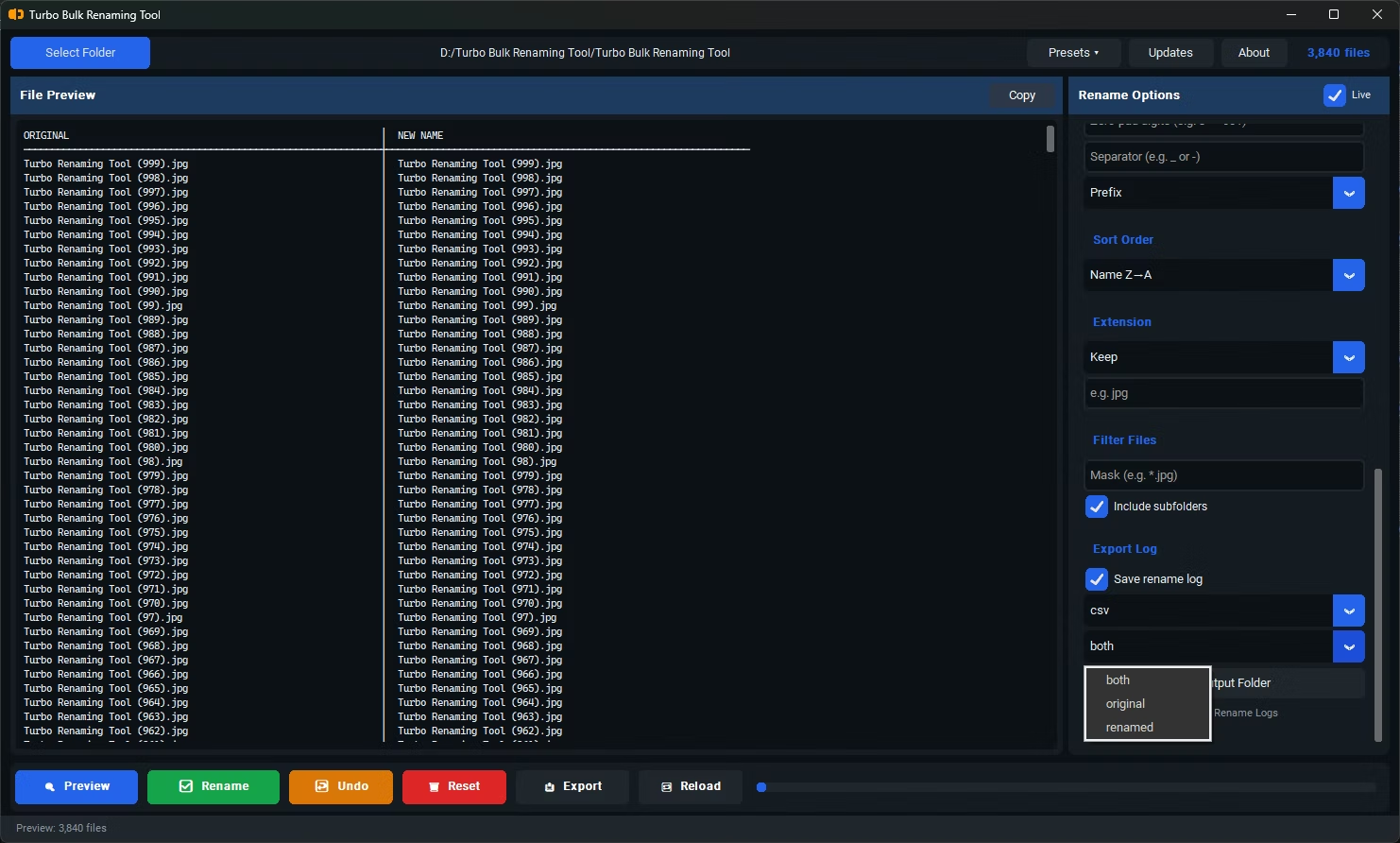
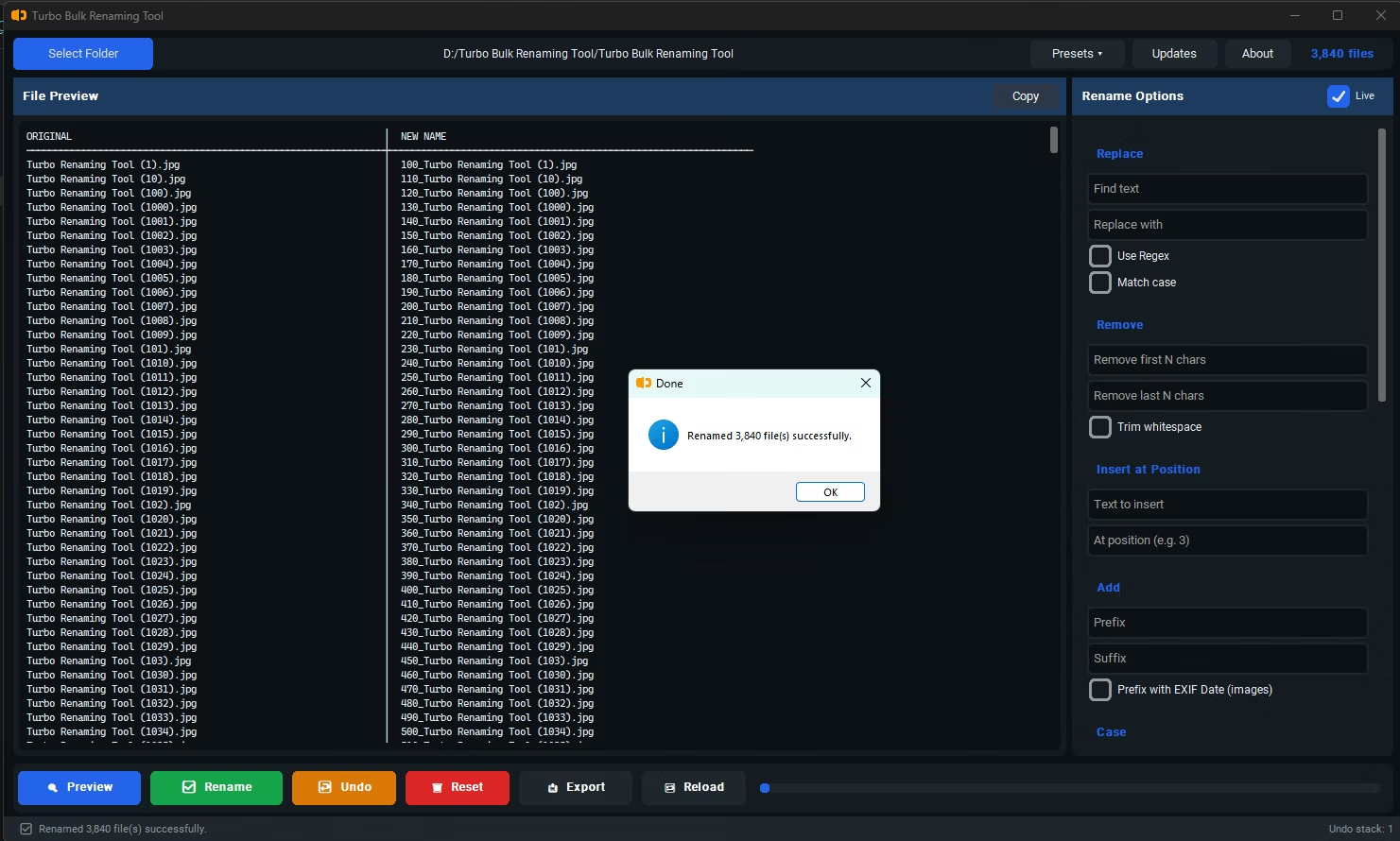
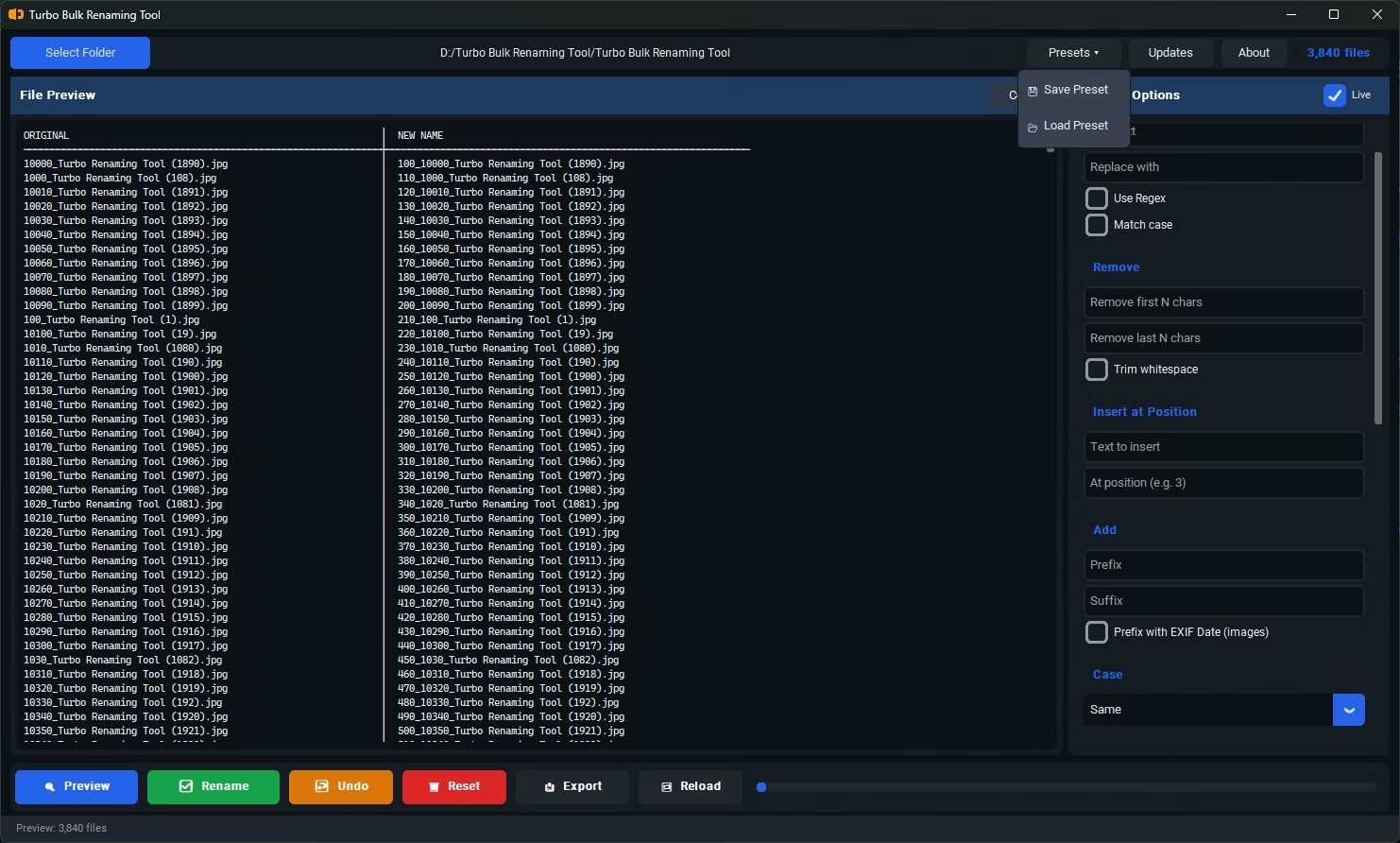
- Install Batchify Renaming Tool on your Windows PC.
- Open the app and load the folder containing the files you want to standardize.
- Select the Extension Control renaming rule.
- Choose whether to standardize extension case (lowercase or uppercase) or replace the extension entirely.
- Enter the new extension if you're changing it outright.
- Check the live preview to confirm the extension changes apply correctly across your files.
- Click Rename to apply the extension changes across your entire batch at once.
- Standardize extension case to lowercase or uppercase across an entire batch
- Replace extensions outright when a file's format has changed but the name wasn't updated
- Useful for consolidating files from multiple devices with inconsistent extension capitalization
- Works alongside other renaming rules in the same operation for complete filename cleanup
- Live preview confirms exactly how each extension will appear before you commit
- Runs fully offline, keeping your file names and folder structure private during the process
Does changing the extension actually convert the file's format?
No, Extension Control only renames the filename's extension text; it doesn't convert or modify the actual file format or content in any way.
Why would I need to standardize extension case across files?
Mixed-case extensions like ".JPG" and ".jpg" coexisting in the same folder can behave inconsistently on case-sensitive systems and simply look untidy in a file listing, which standardizing fixes in one pass.
Can I apply extension changes to only certain files in a folder?
Yes, combining Extension Control with the File Mask Filter feature lets you target only files matching a specific pattern or existing extension.
Is this safe to use if some files already have the correct extension?
Yes, files that already match your target extension case or format are simply left as they are, with no unnecessary changes applied.
Ready to rename your files in bulk, offline, with full privacy?