Converting a handful of PDF pages is fast no matter what tool you use, but the difference becomes obvious once a batch grows into thousands of pages across hundreds of files. A converter that processes pages one at a time on a single thread can turn a routine task into an hours-long wait, while parallel processing spreads the work across every available CPU core.
Modern multi-core CPUs make this kind of speed-up possible, but only if the software is actually built to take advantage of it, rather than converting everything sequentially regardless of how many cores are available.
Batchify PDF Converter runs on Windows 10 and Windows 11, both 64-bit, and installs as a single self-contained application with no separate Poppler or Ghostscript dependency to configure. That keeps setup to a couple of minutes, whether the app is going on a personal laptop or a shared office PC handling document conversion for a whole team.
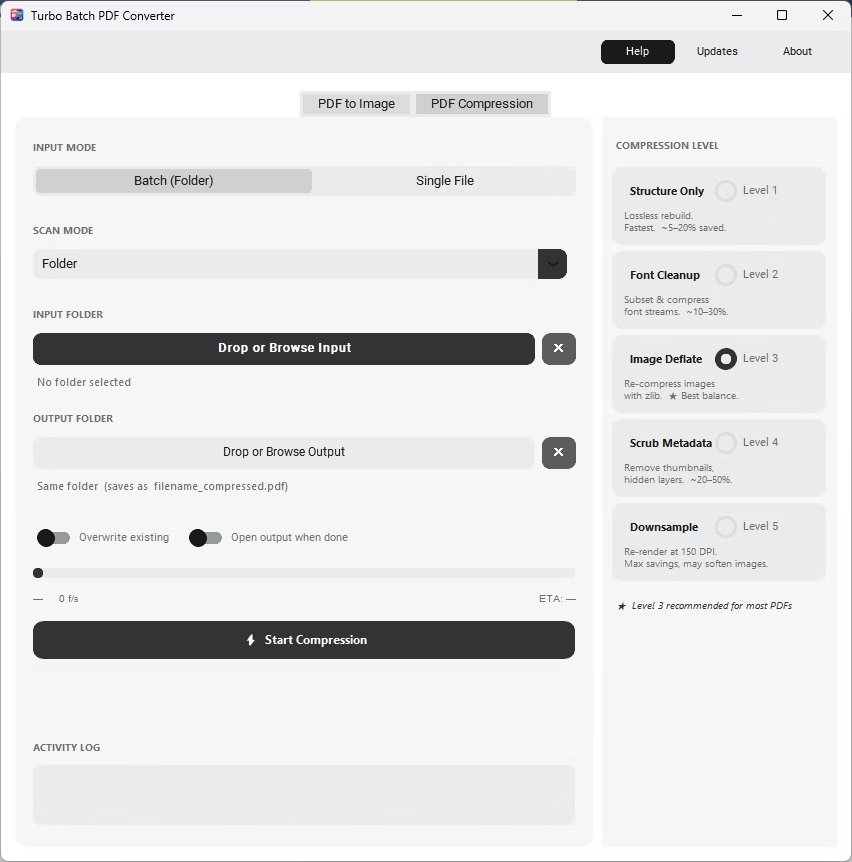
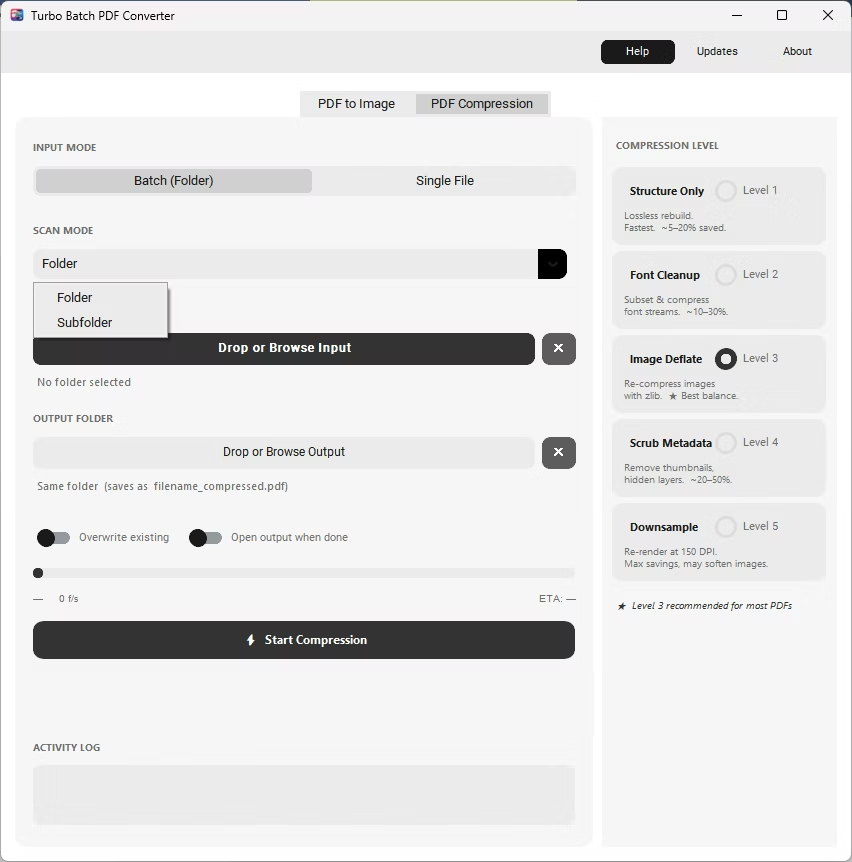
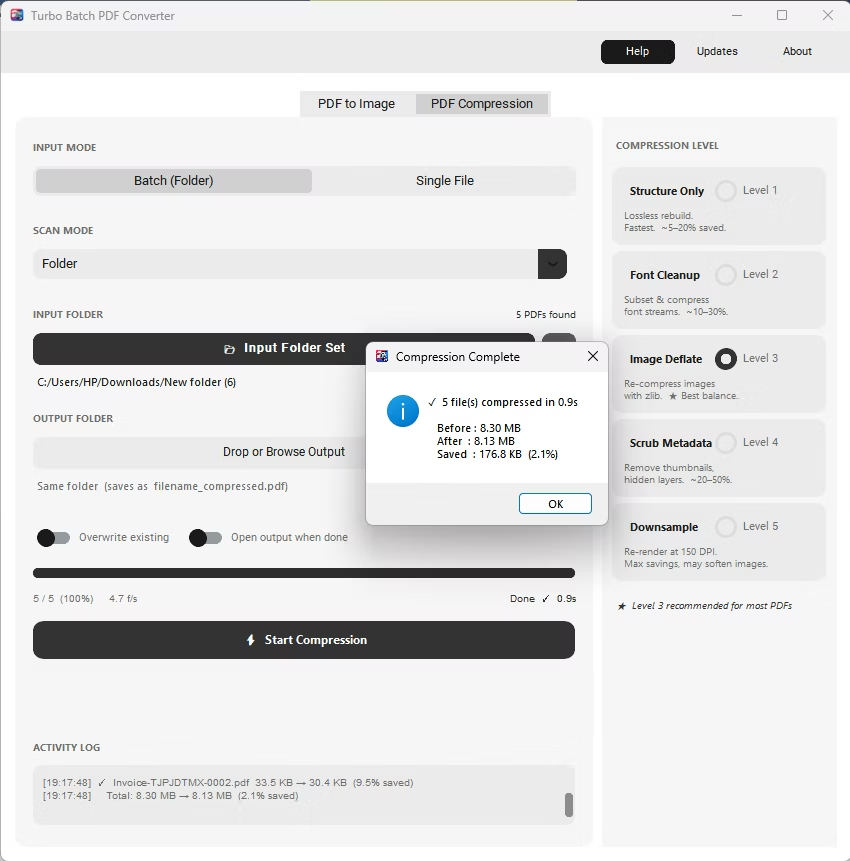
The same app also includes a built-in PDF compressor with five compression levels, so shrinking file sizes for email or storage doesn't require switching to a separate tool. Everything runs locally through a one-time Gumroad license, without a recurring subscription, and pairs naturally with other BatchifyApp utilities such as Batchify Renaming Tool for organizing converted files afterward.
- Install Batchify PDF Converter on your Windows PC.
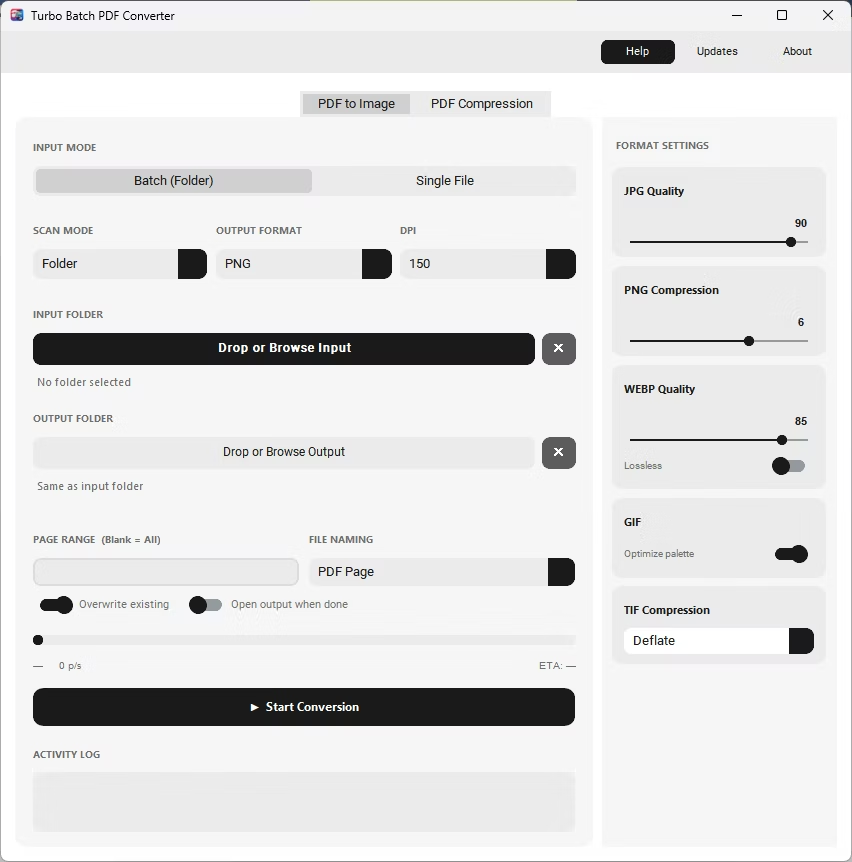
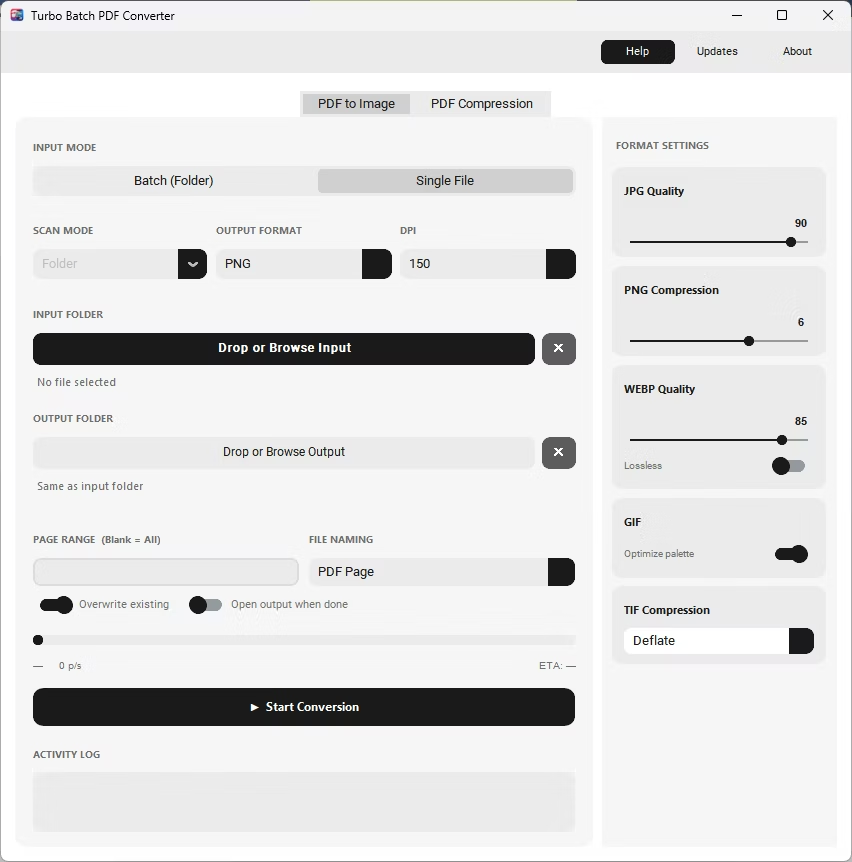
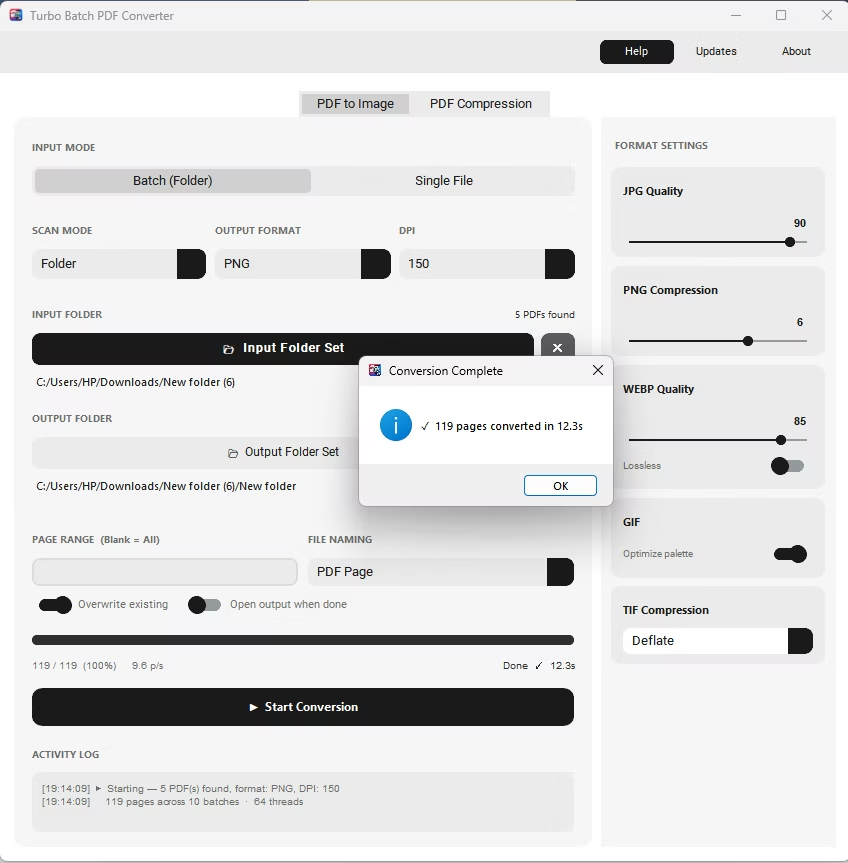
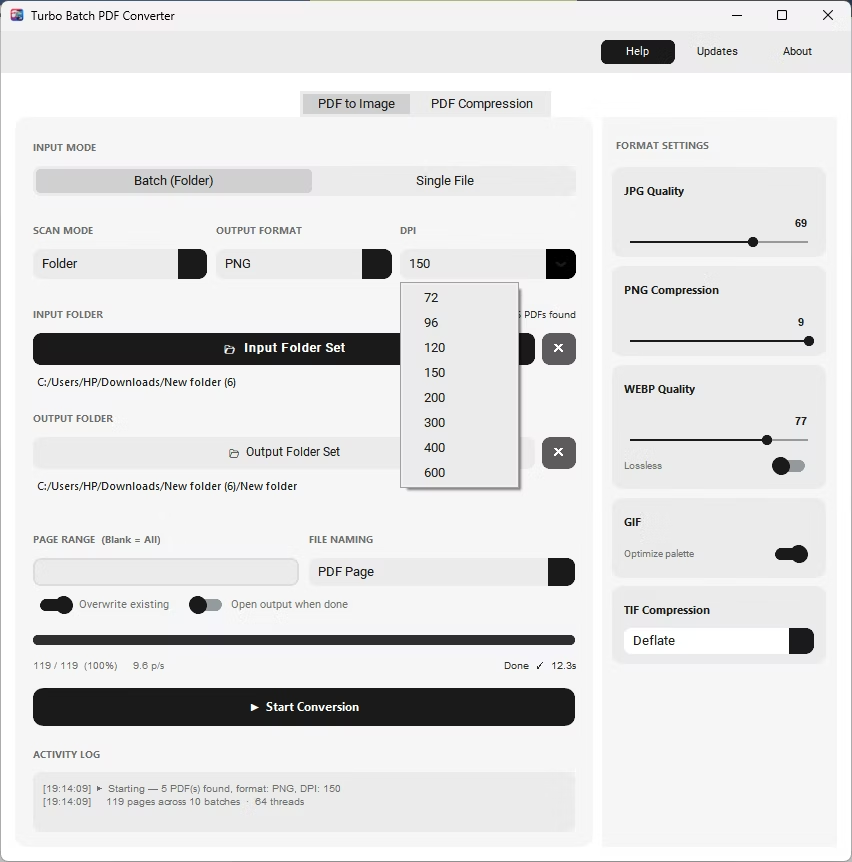
- Open the app and select a large folder of PDFs on the PDF to Image tab.
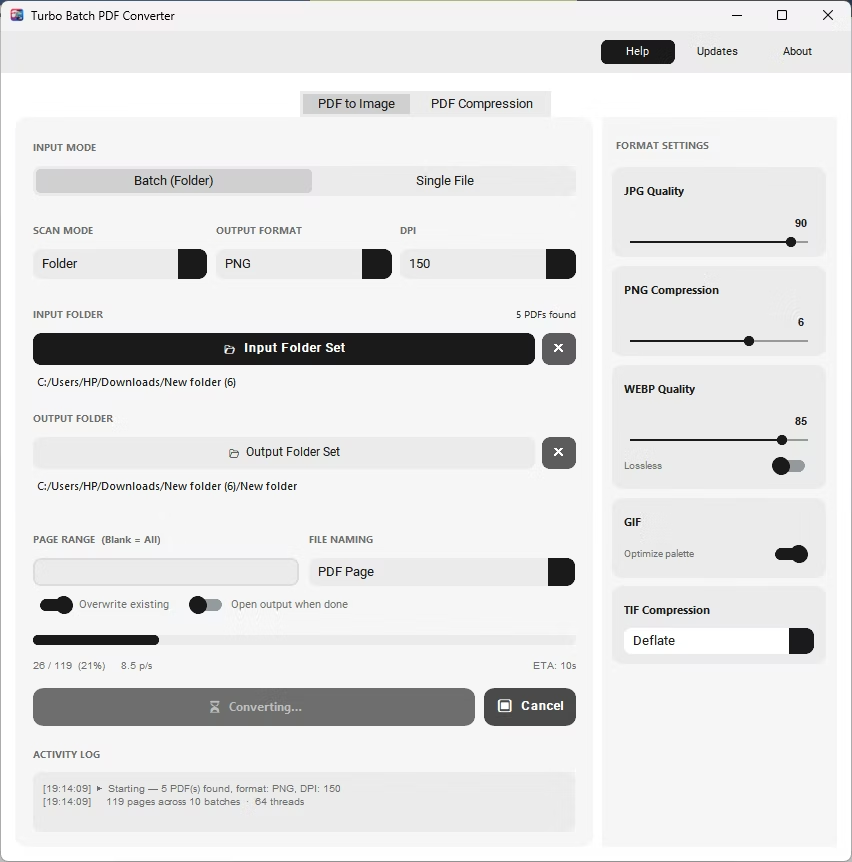
- The app automatically splits each PDF's pages into chunks of 20 pages per task.
- Up to 64 concurrent workers process these chunks simultaneously across your CPU cores.
- Click Start Conversion and watch live speed and ETA update continuously in the activity panel.
- Up to 64 parallel workers process pages simultaneously
- Pages are split into chunks of 20 for predictable, even memory use
- Live stats show pages done, speed in pages per second, and ETA
- Each worker opens and closes its own document instance independently
- Thread-safe engine keeps performance stable on documents with thousands of pages
- Scales with the number of CPU cores available on your PC
Does more CPU cores mean faster conversion?
Yes, since the app distributes chunks of pages across up to 64 concurrent workers, more available CPU cores generally means faster overall conversion.
Why are pages split into chunks of 20 instead of one page per worker?
Chunking keeps memory use predictable and efficient, even on documents with thousands of pages, rather than opening a new document instance per single page.
Can I see how fast a batch is converting in real time?
Yes, the activity panel shows live pages-done counts, conversion speed in pages per second, and an estimated time remaining while the batch runs.
Ready to convert your PDFs offline, in bulk, with full privacy?