"Fastest" only means something relative to an alternative. Compared to renaming files one at a time in File Explorer, almost any dedicated bulk renaming tool is dramatically faster, since it applies one rule to an entire batch instead of requiring a manual edit per file. The more useful comparison is between dedicated bulk renaming tools themselves, where the real differences show up in how quickly you can configure a rule, preview the result, and commit the change for a large batch.
For most everyday batches, the bottleneck isn't the actual rename operation — which is nearly instant — but the setup and verification steps leading up to it.
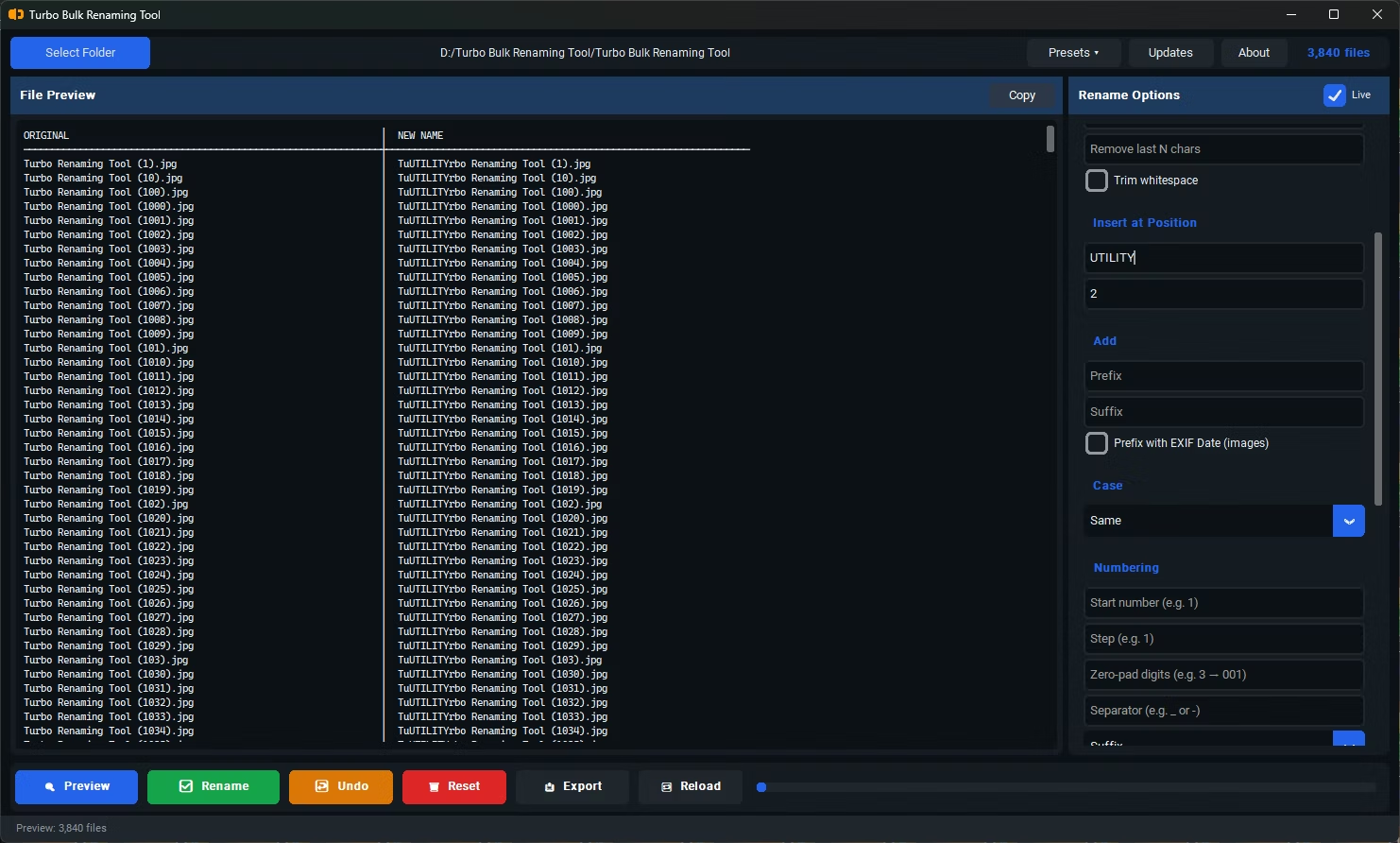
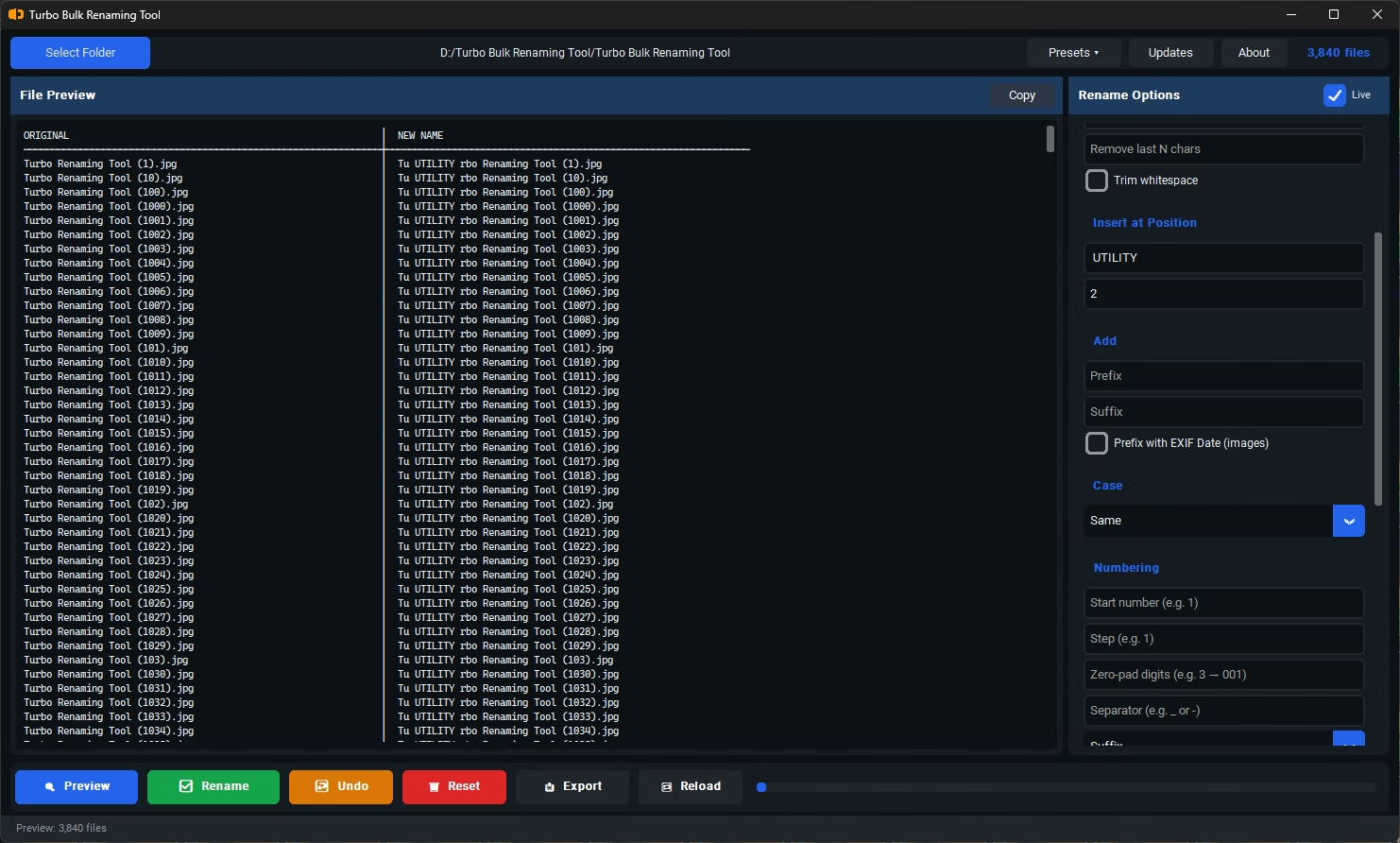
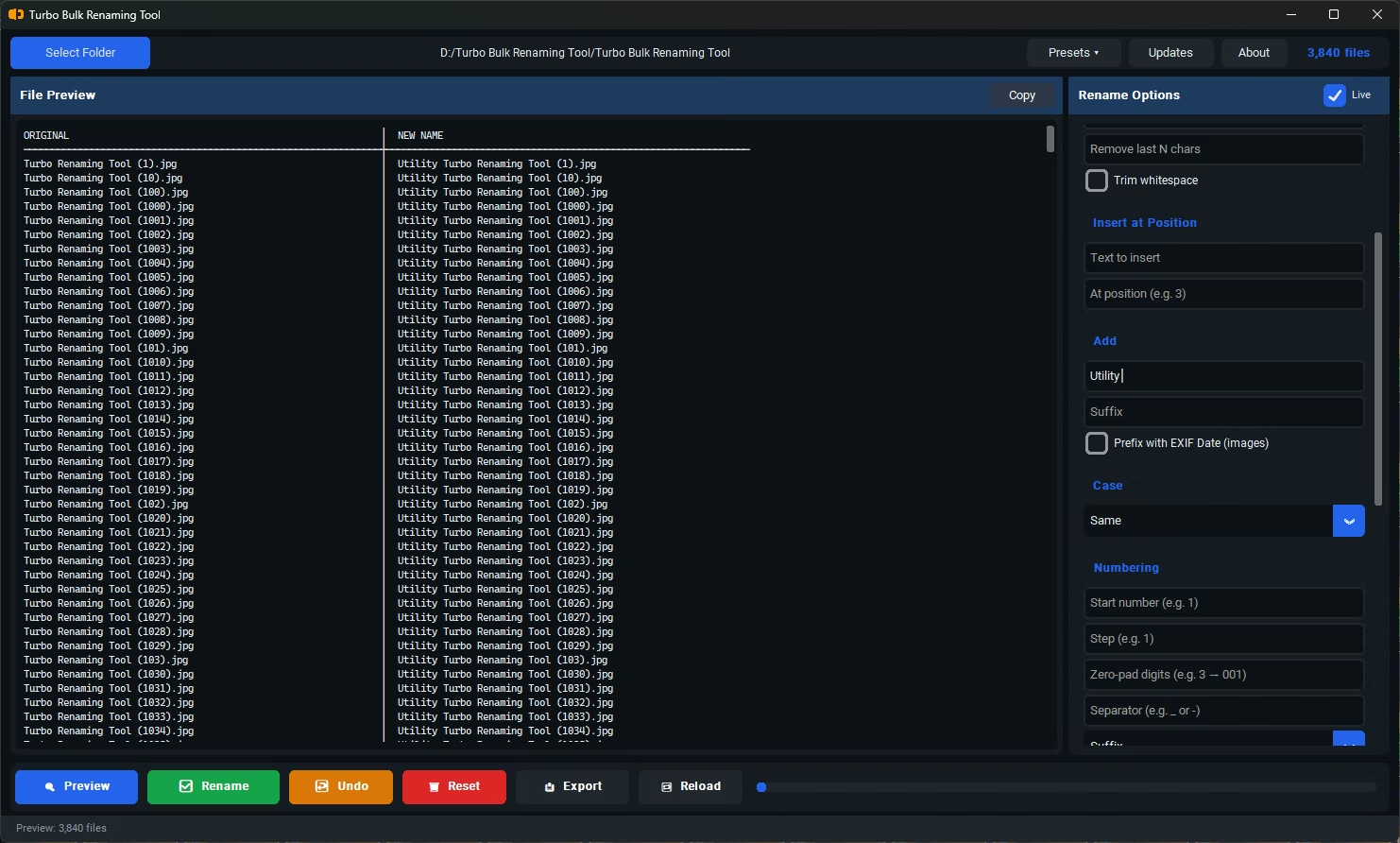
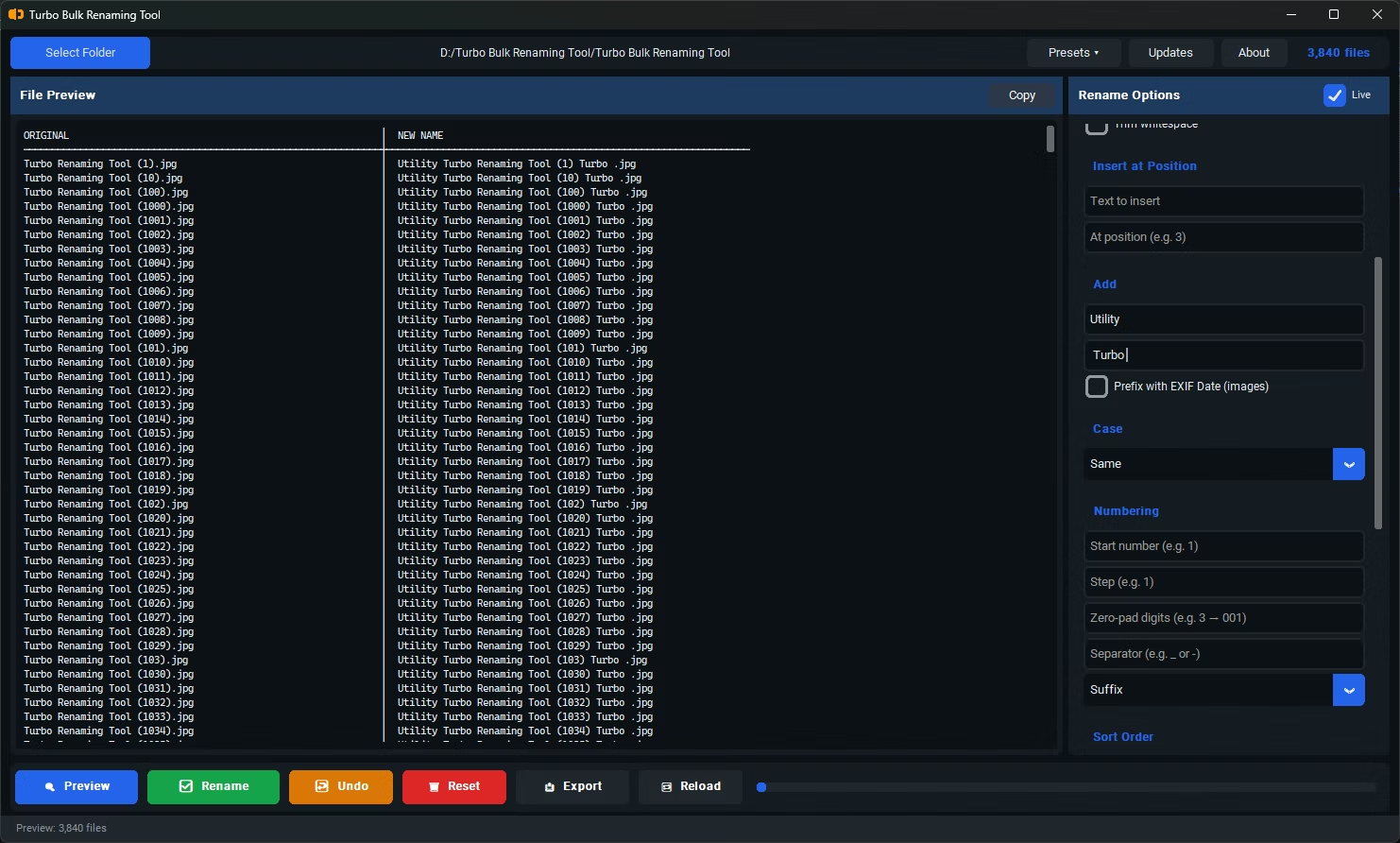
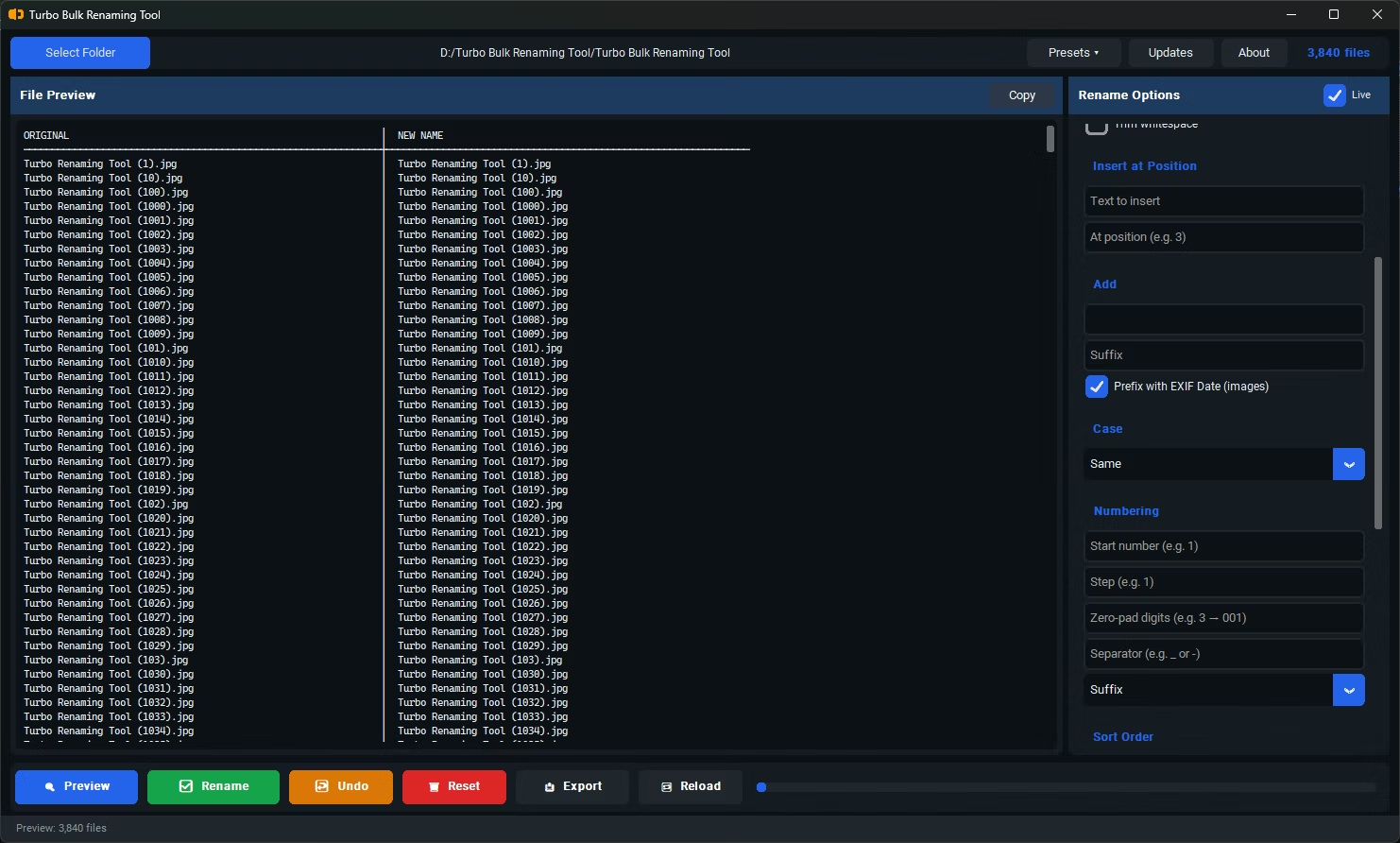
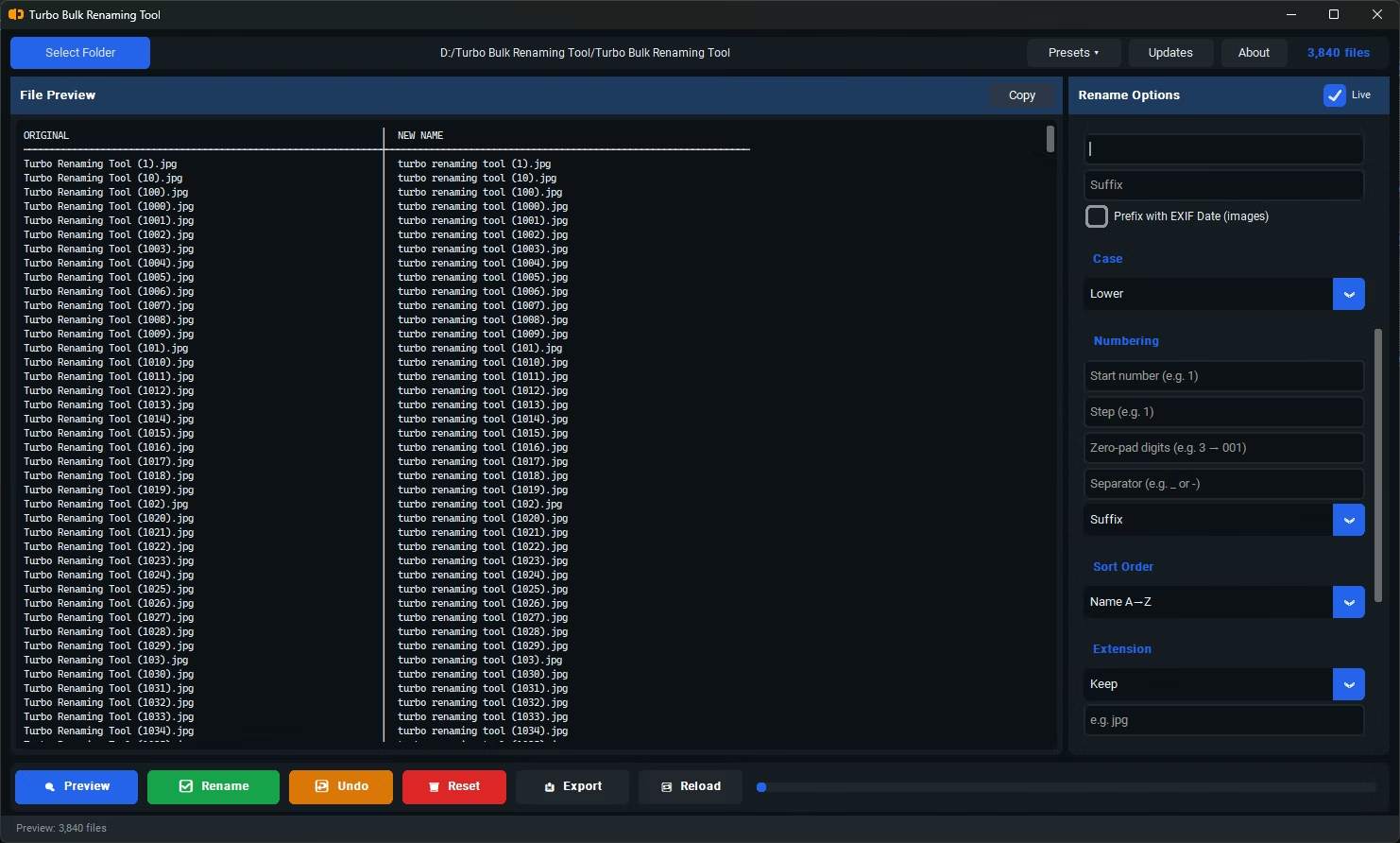
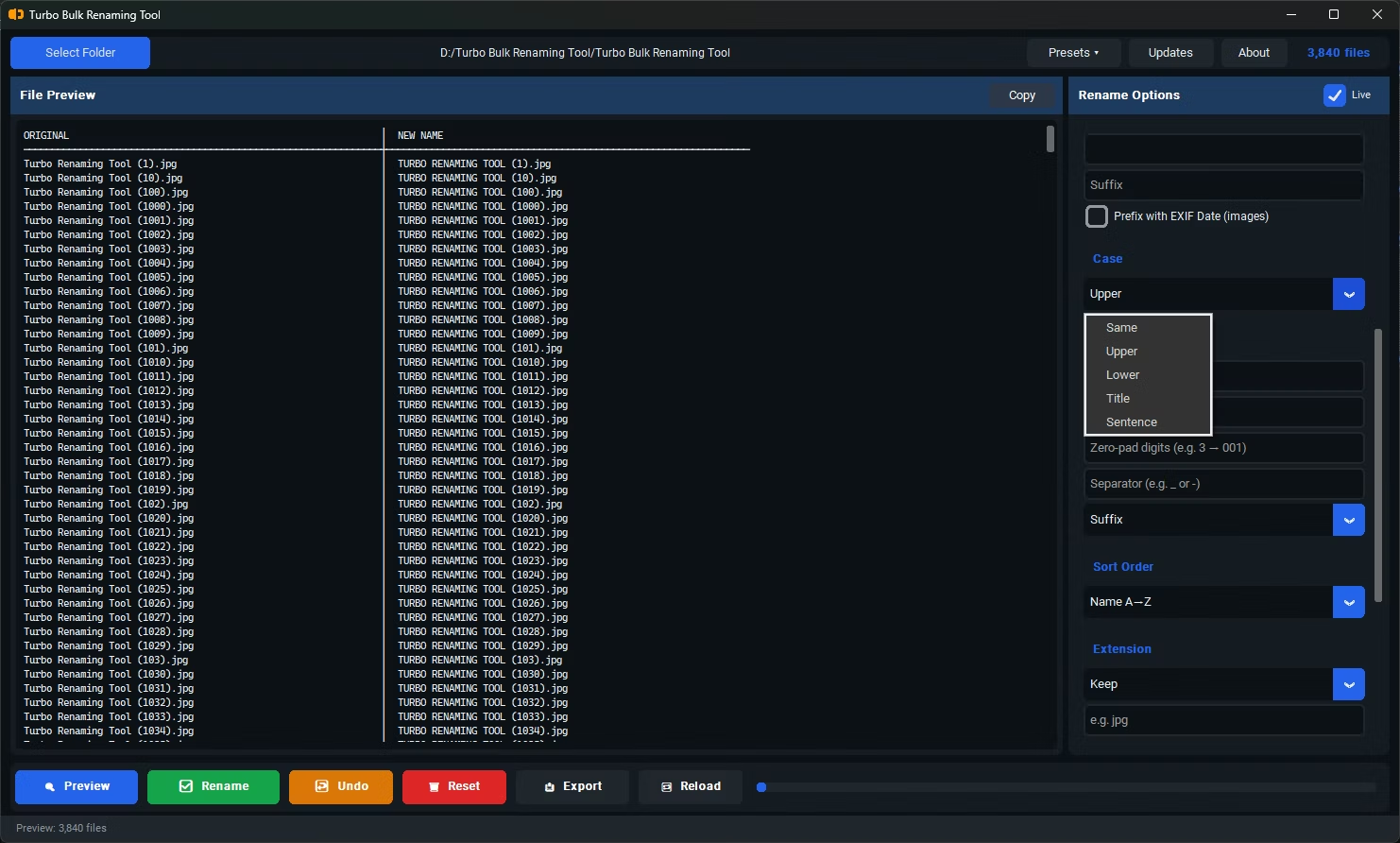
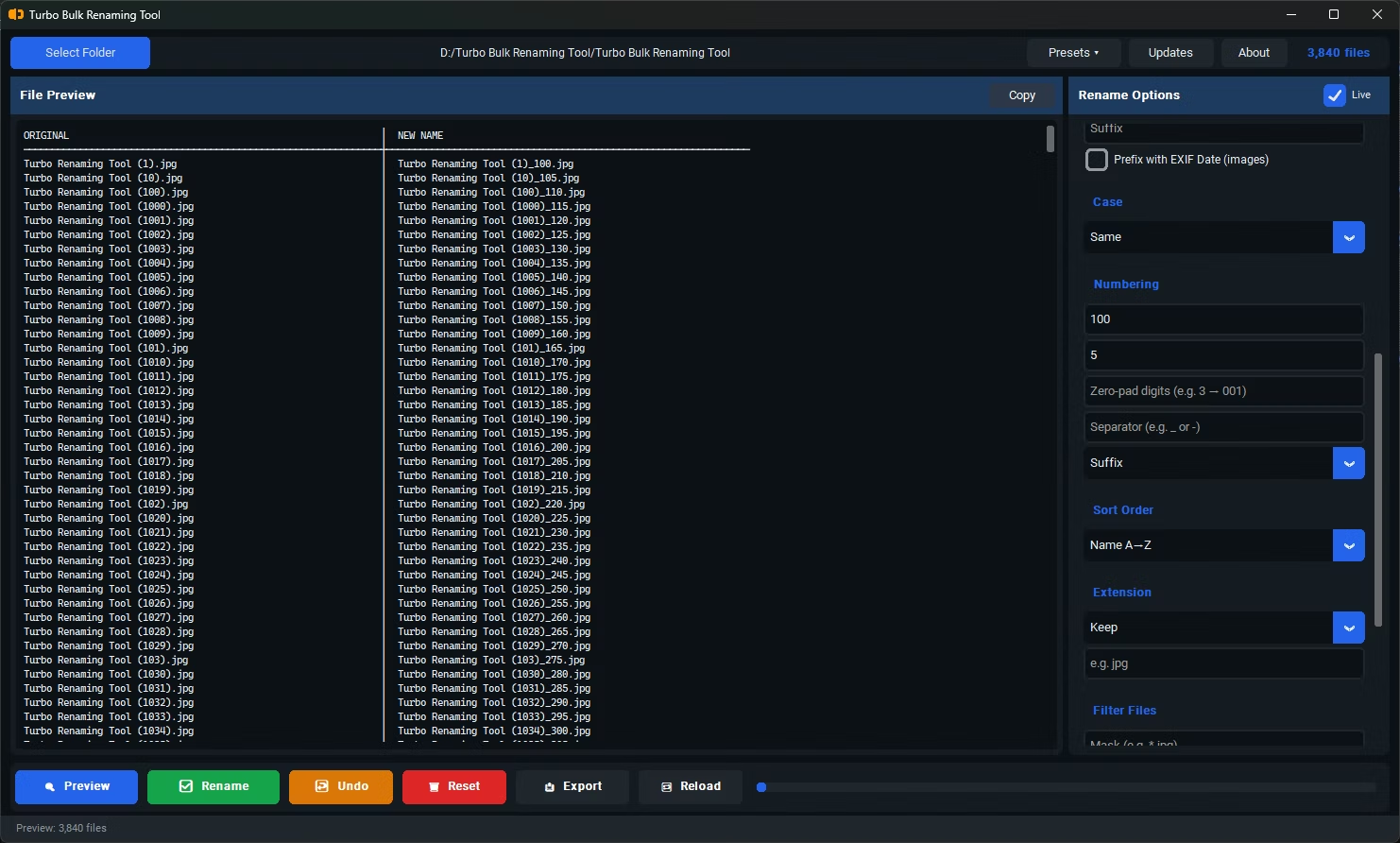
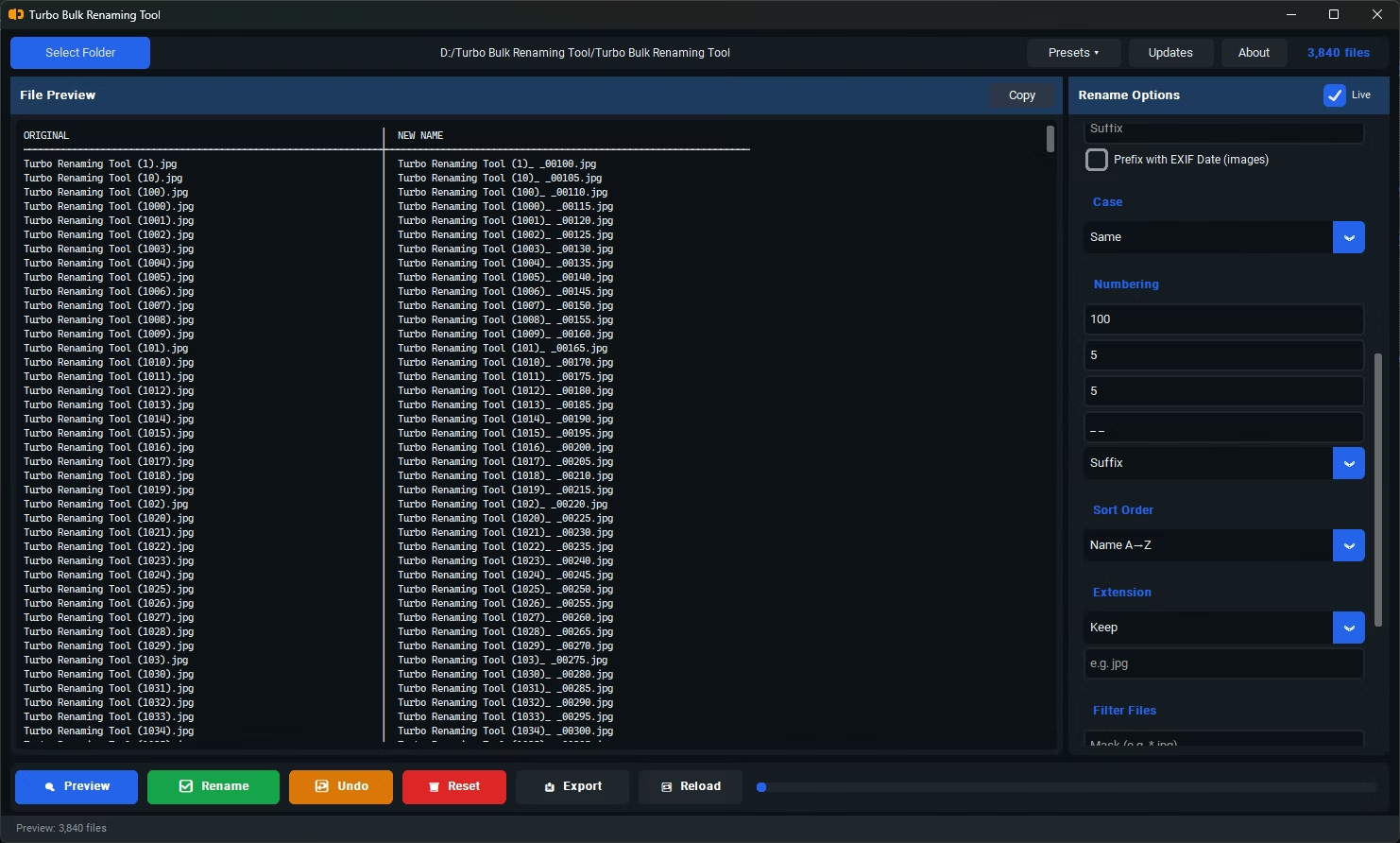
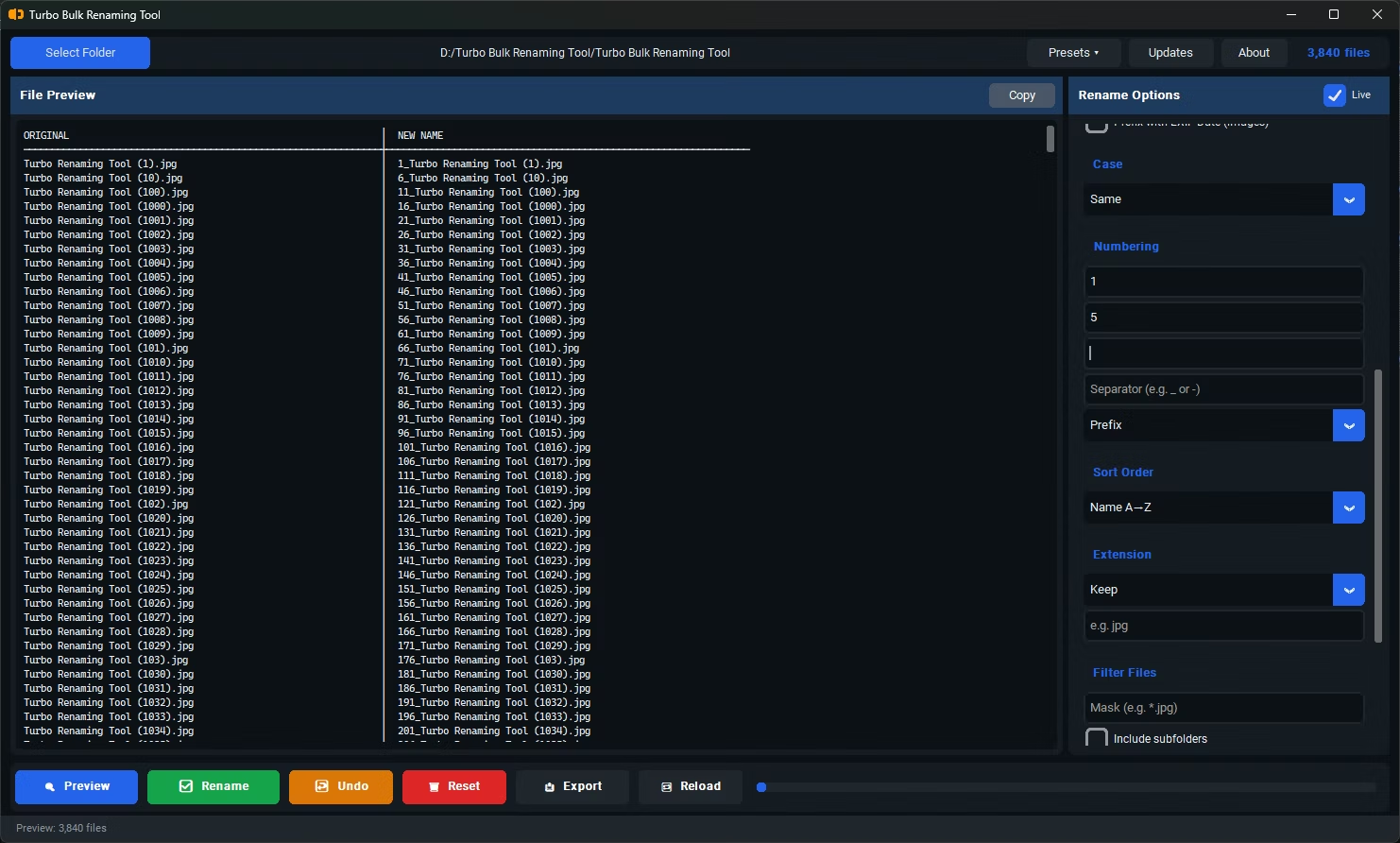
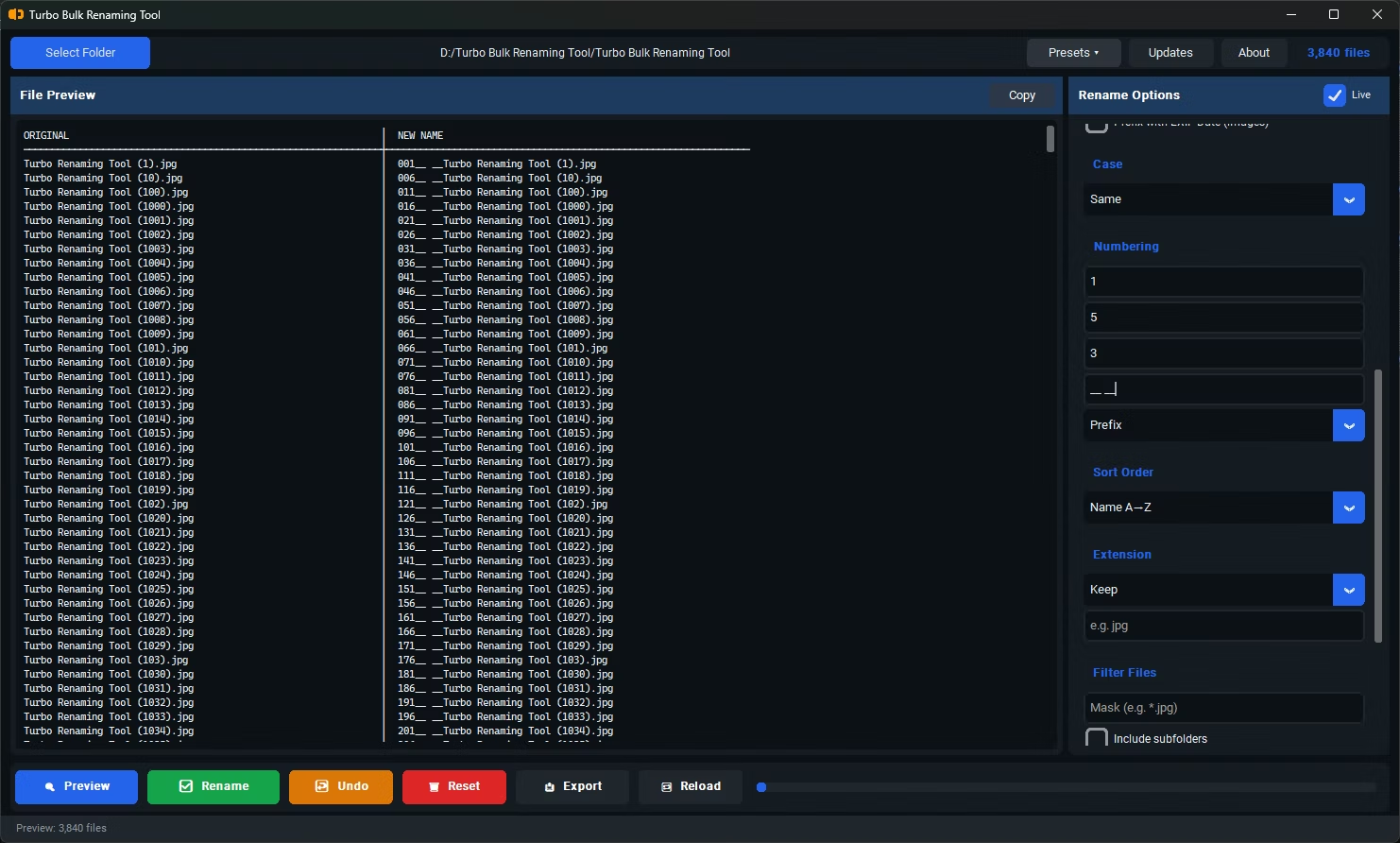
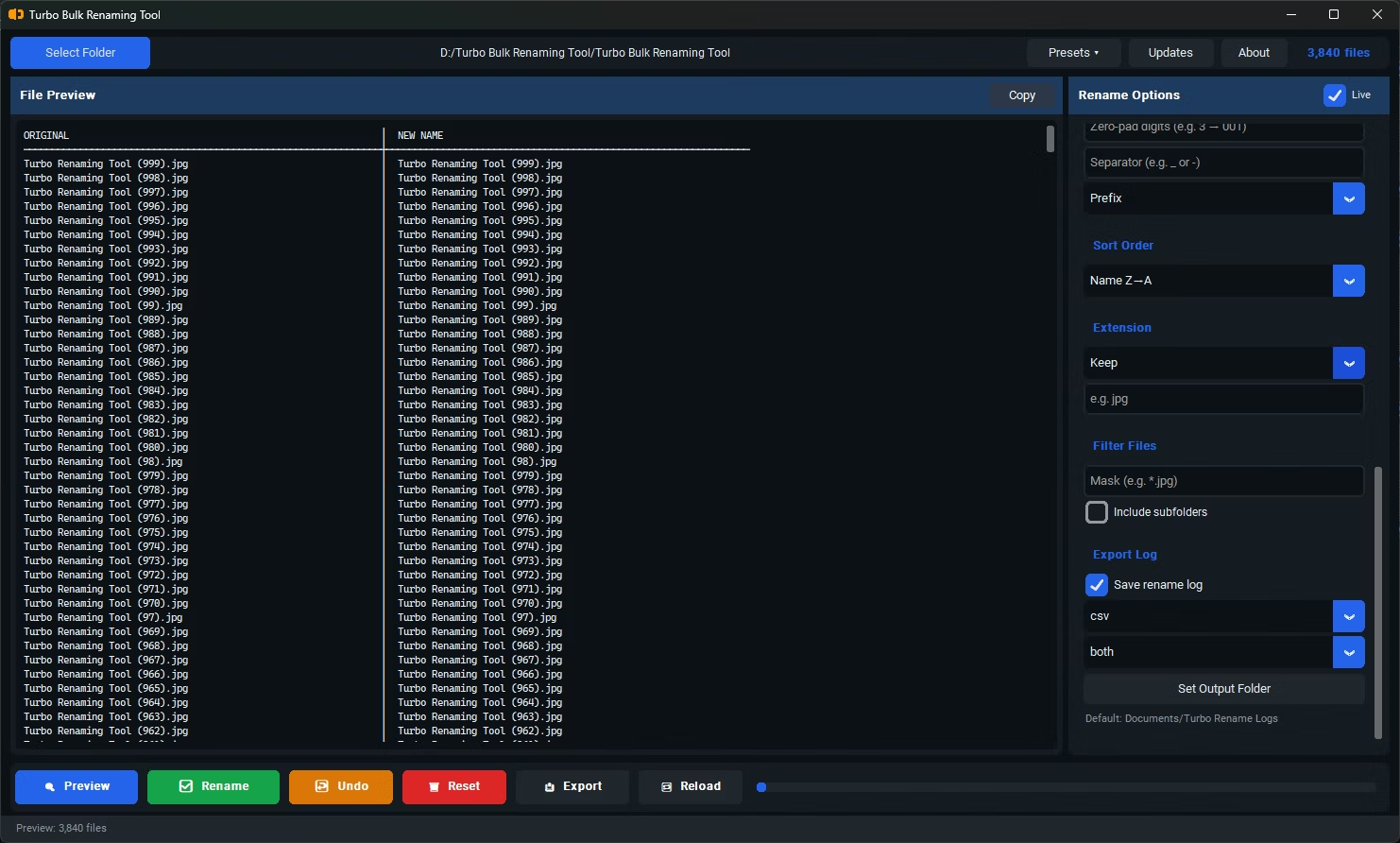
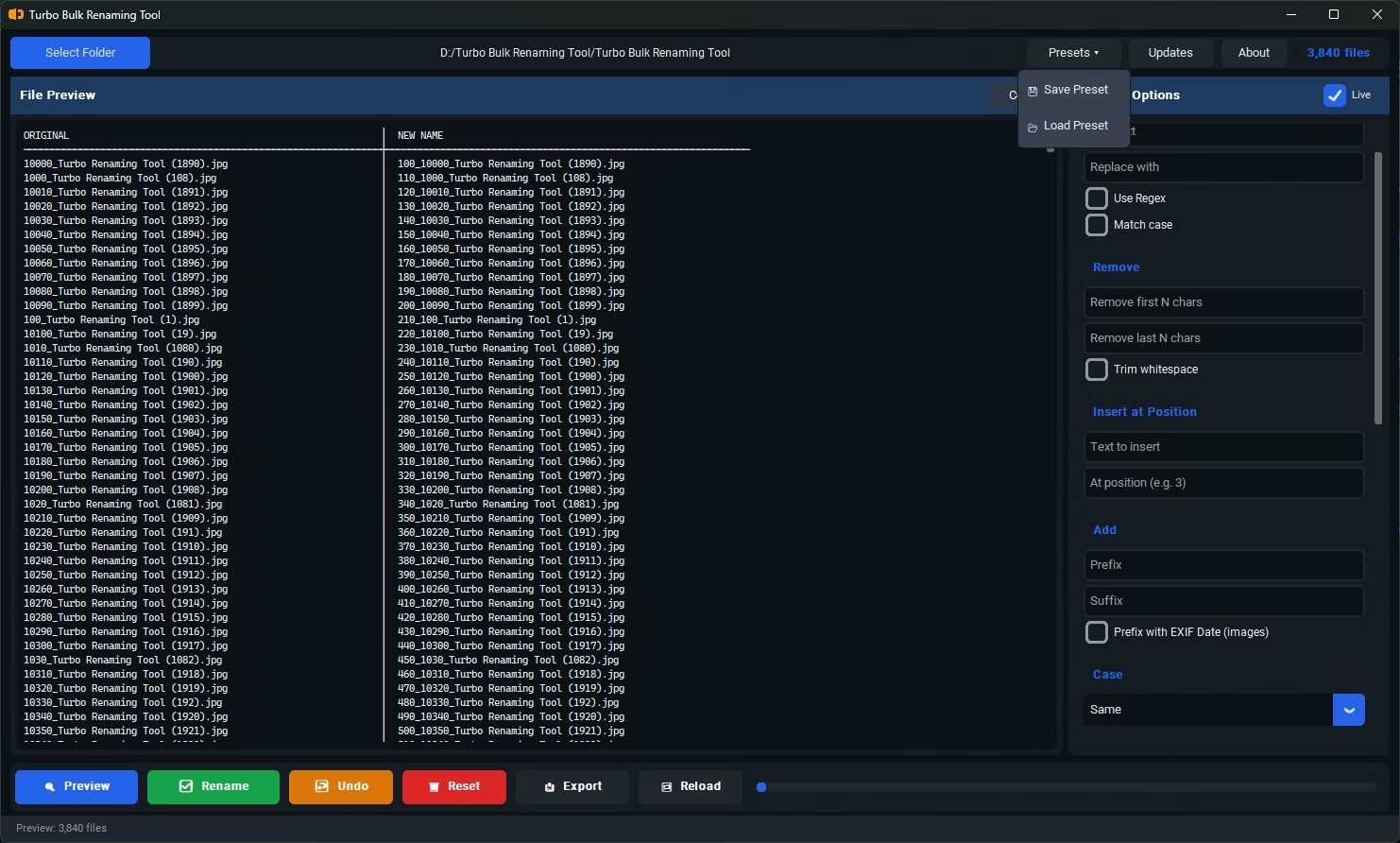
- Locating and loading the right folder, including any sub-folders
- Figuring out which renaming rule fits your situation
- Configuring the rule's settings correctly on the first try
- Verifying the result looks right before committing
- The actual rename operation, which is typically the fastest part of the whole process
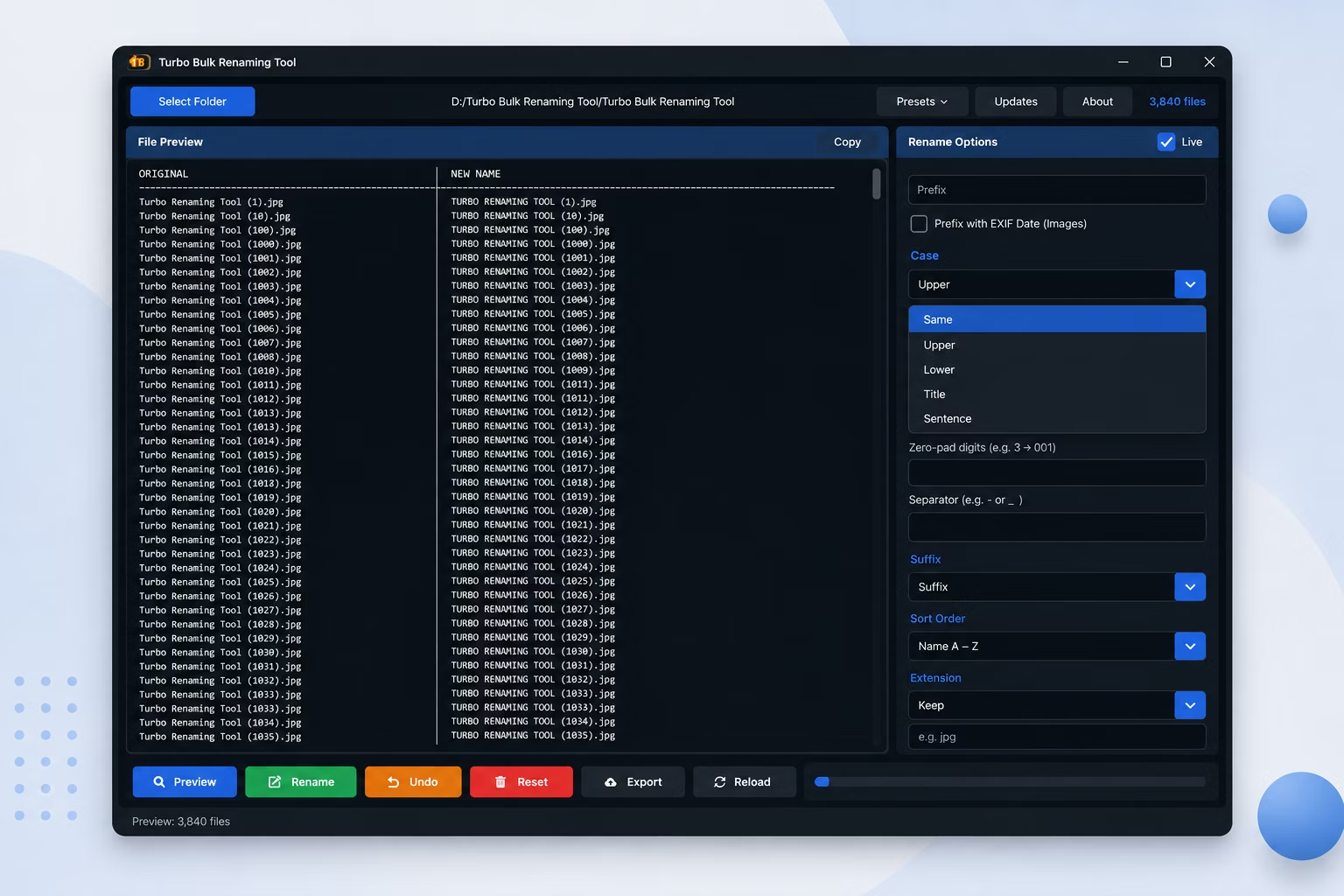
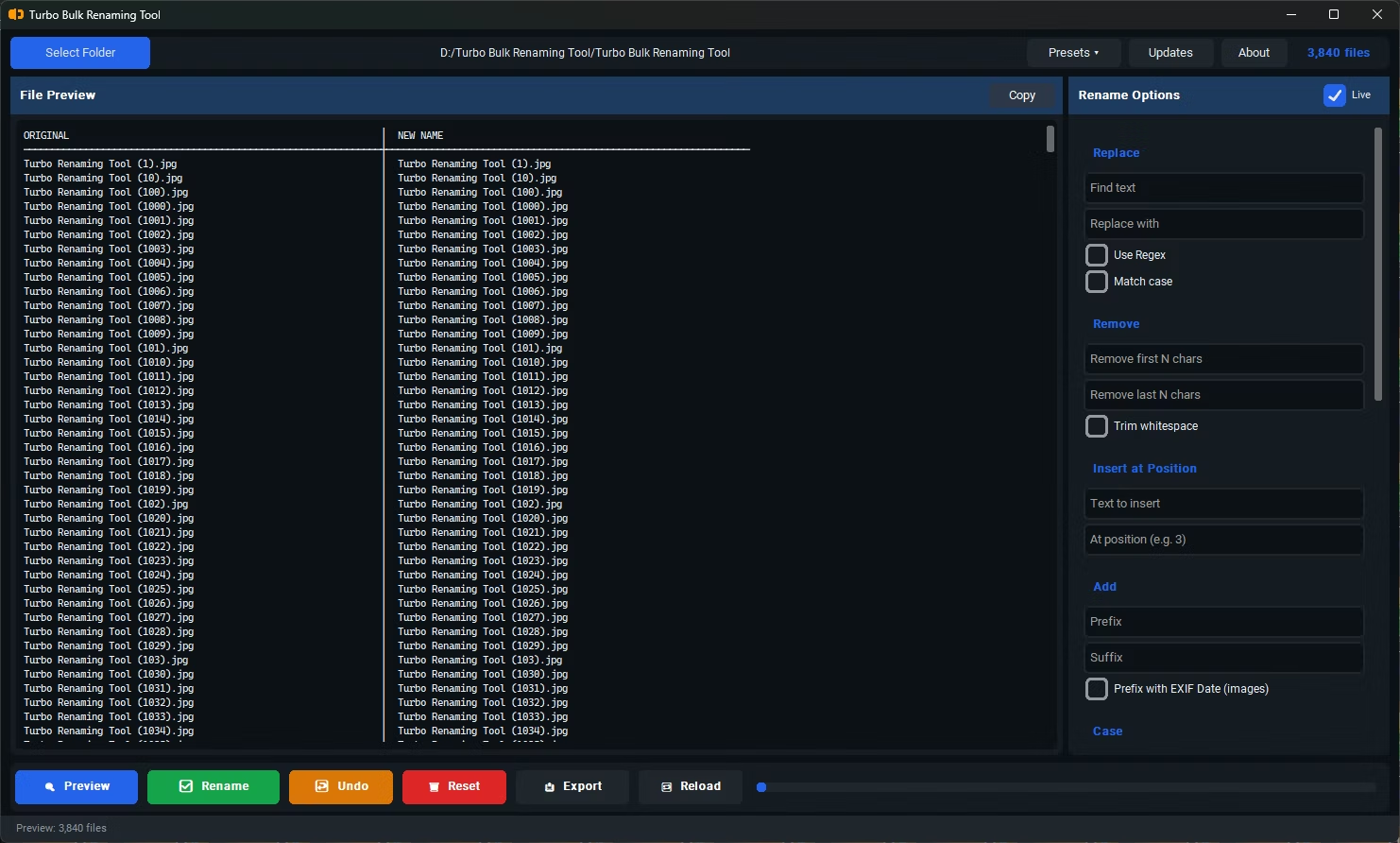
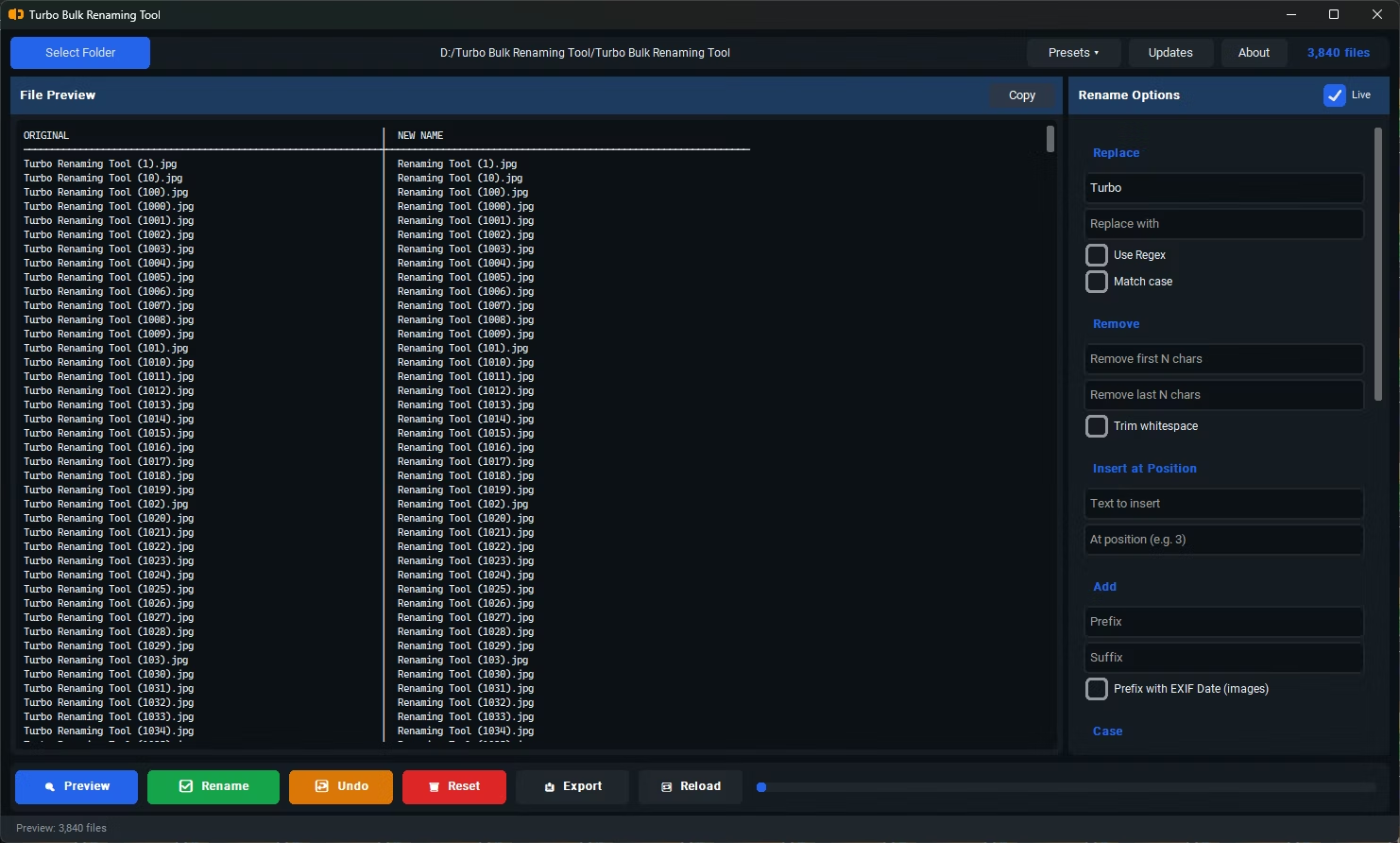
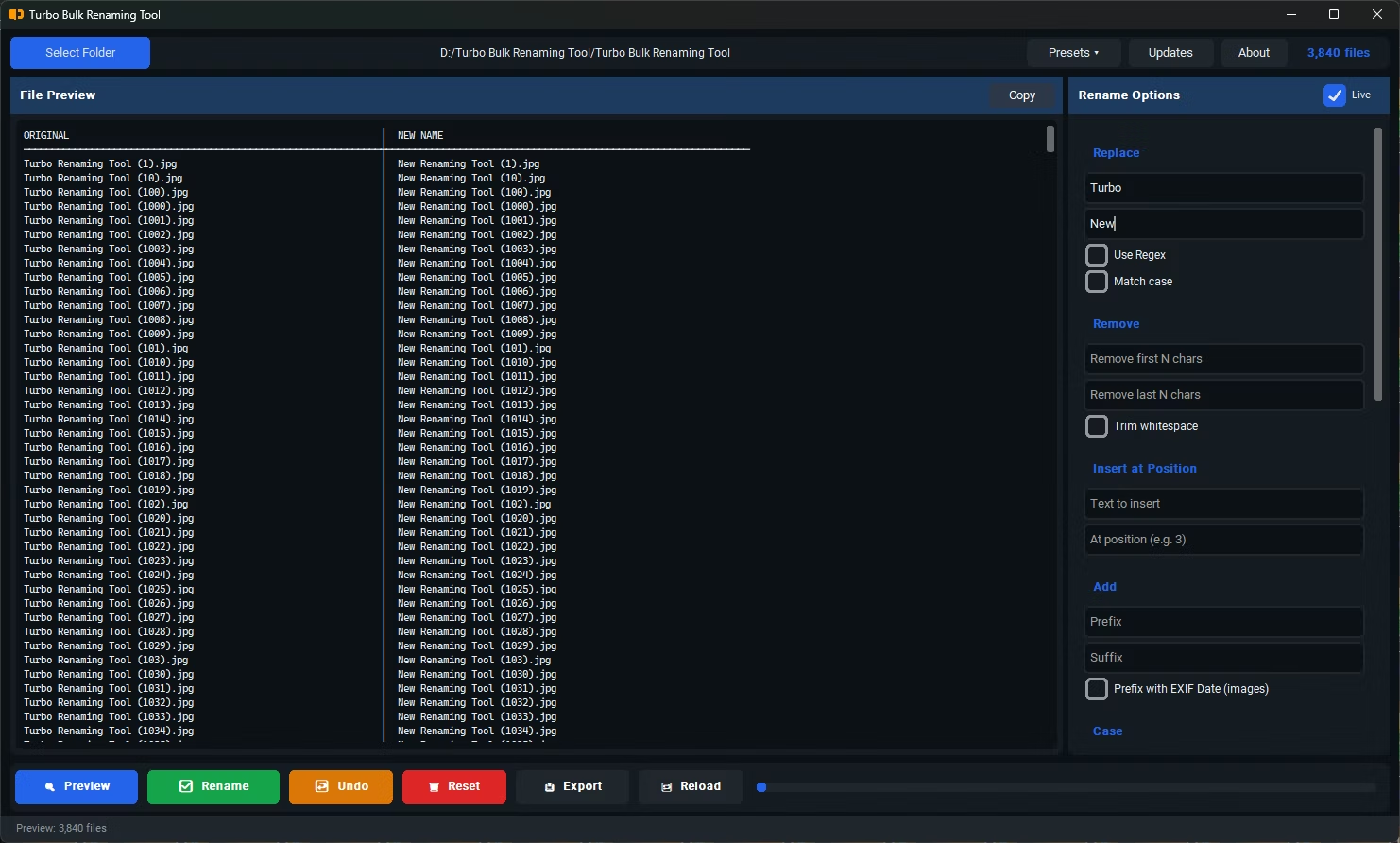
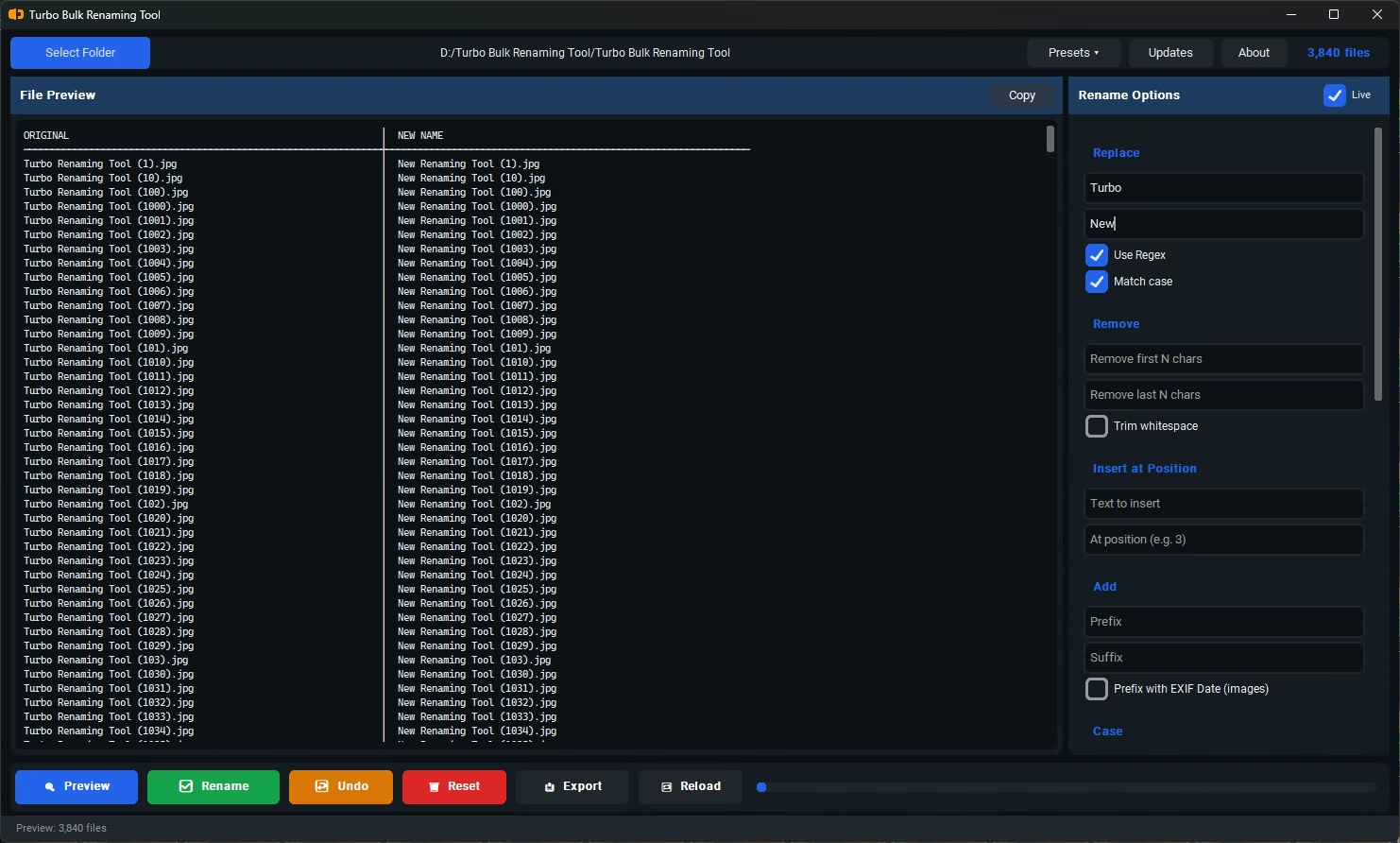
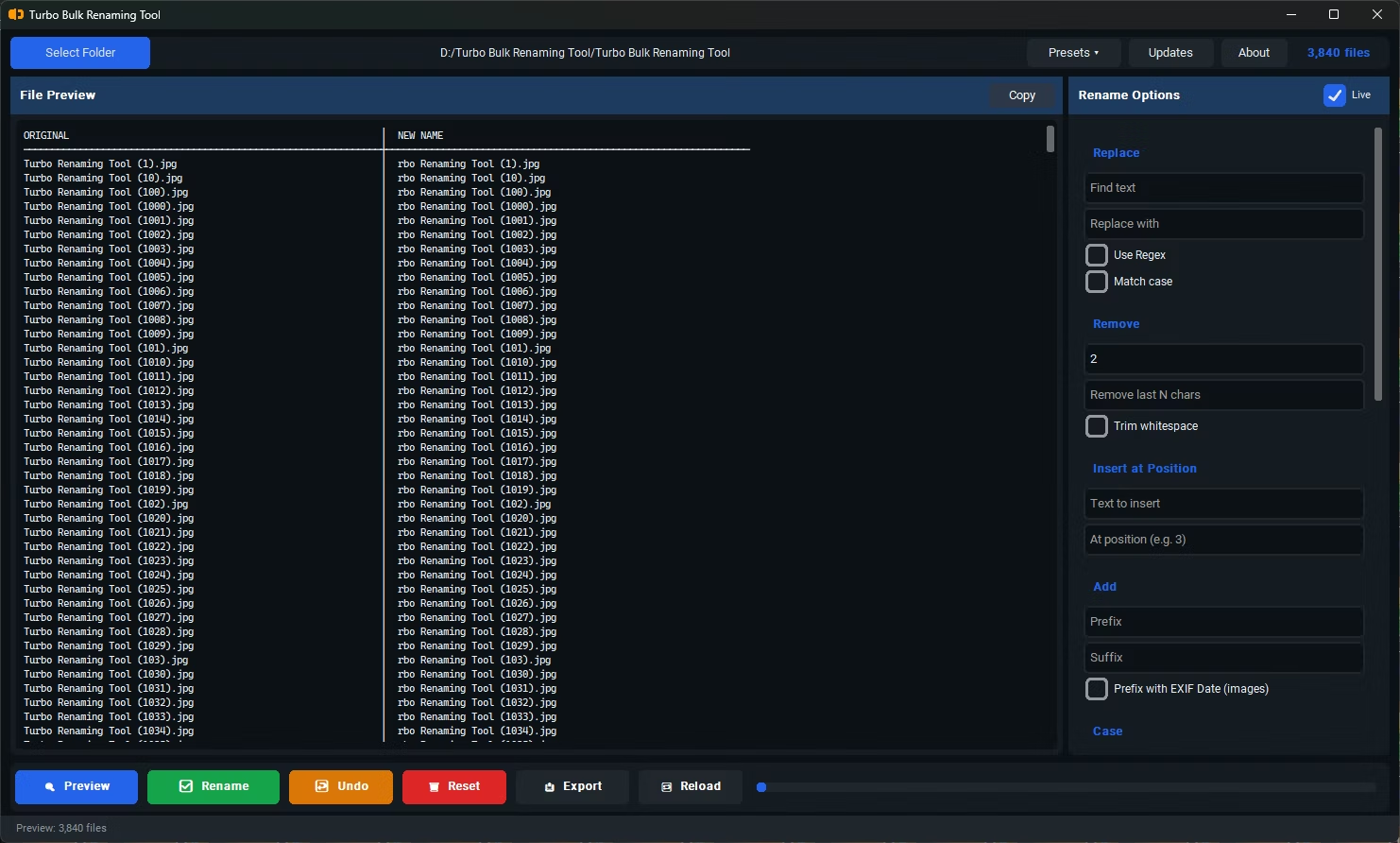
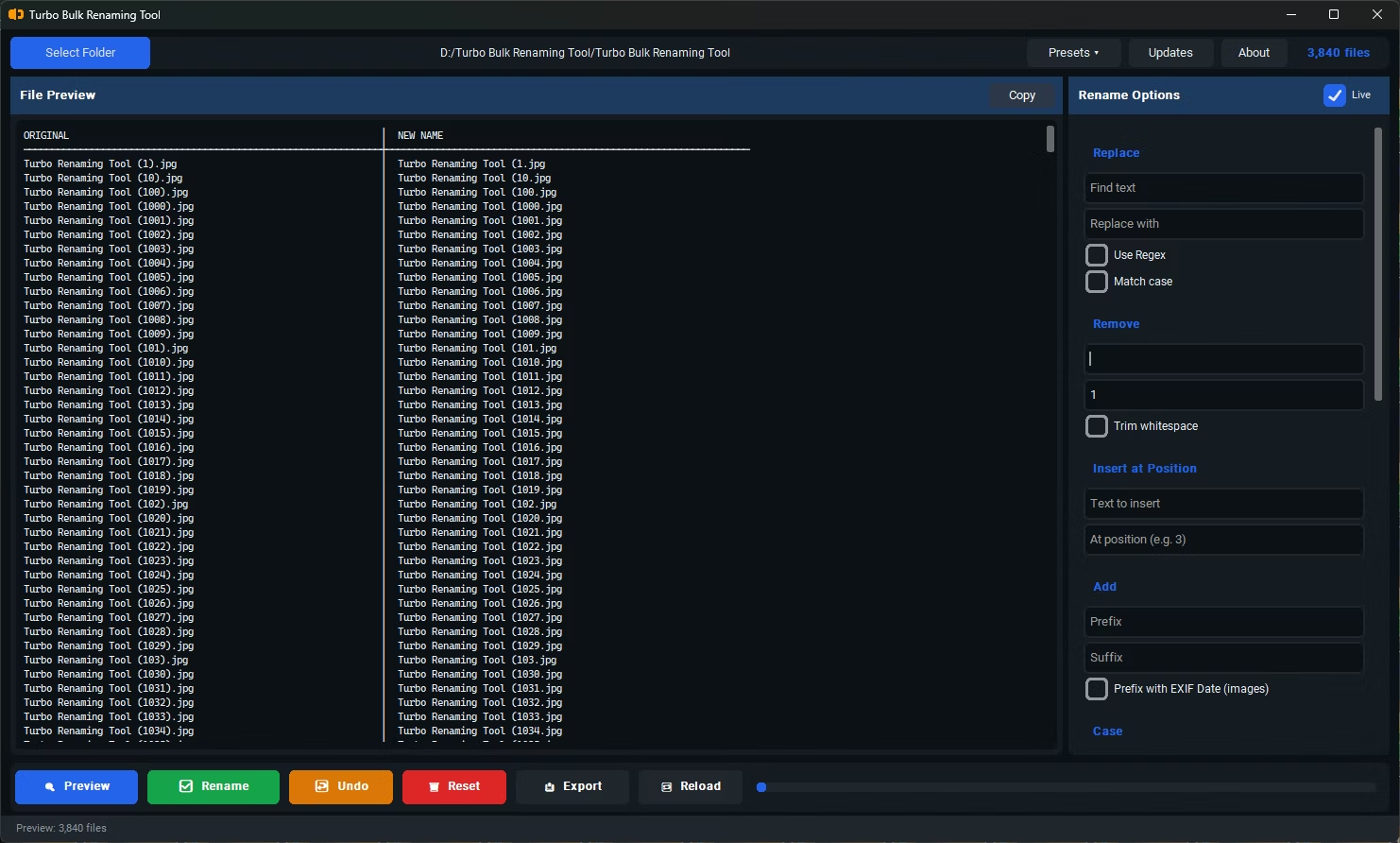
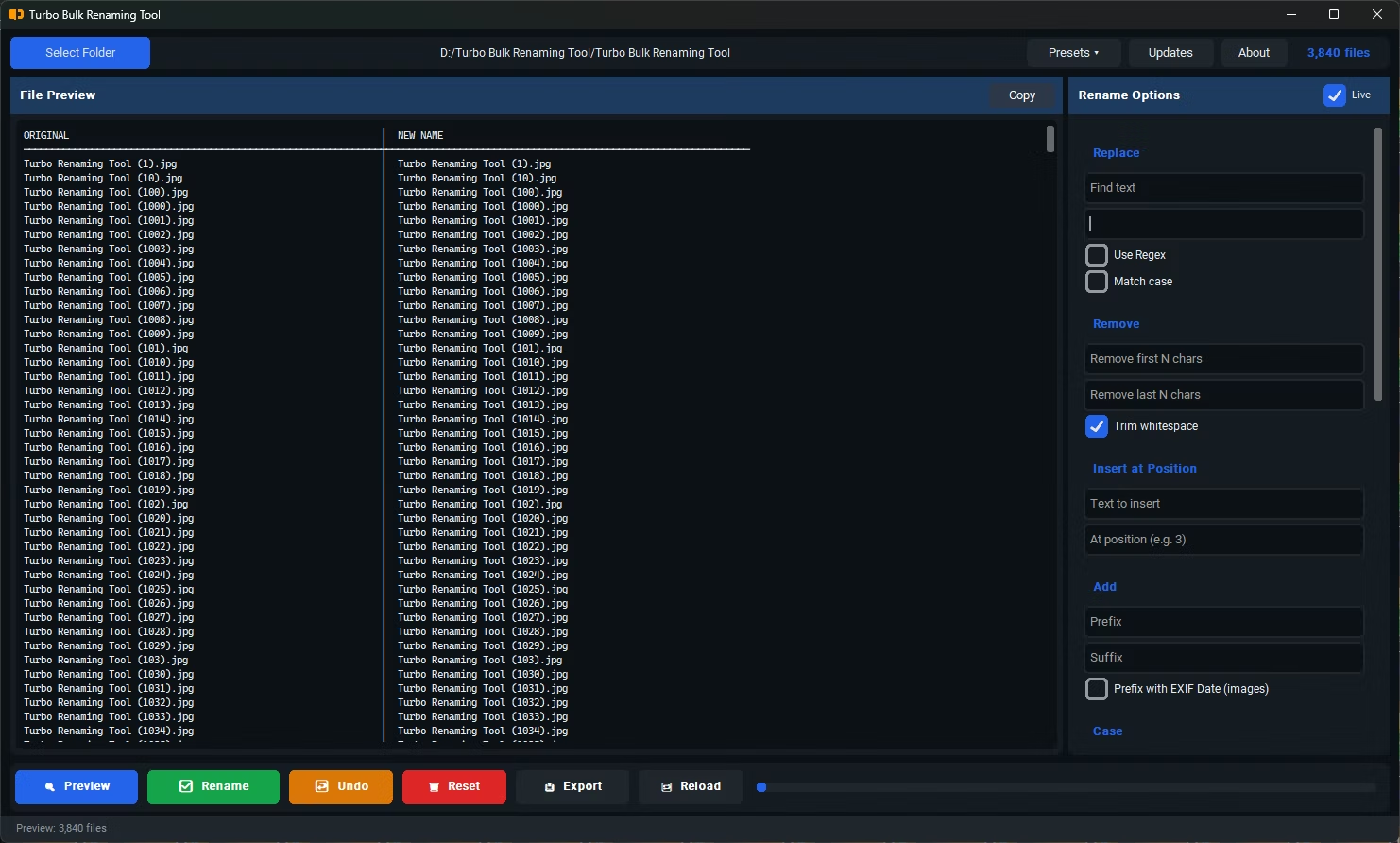
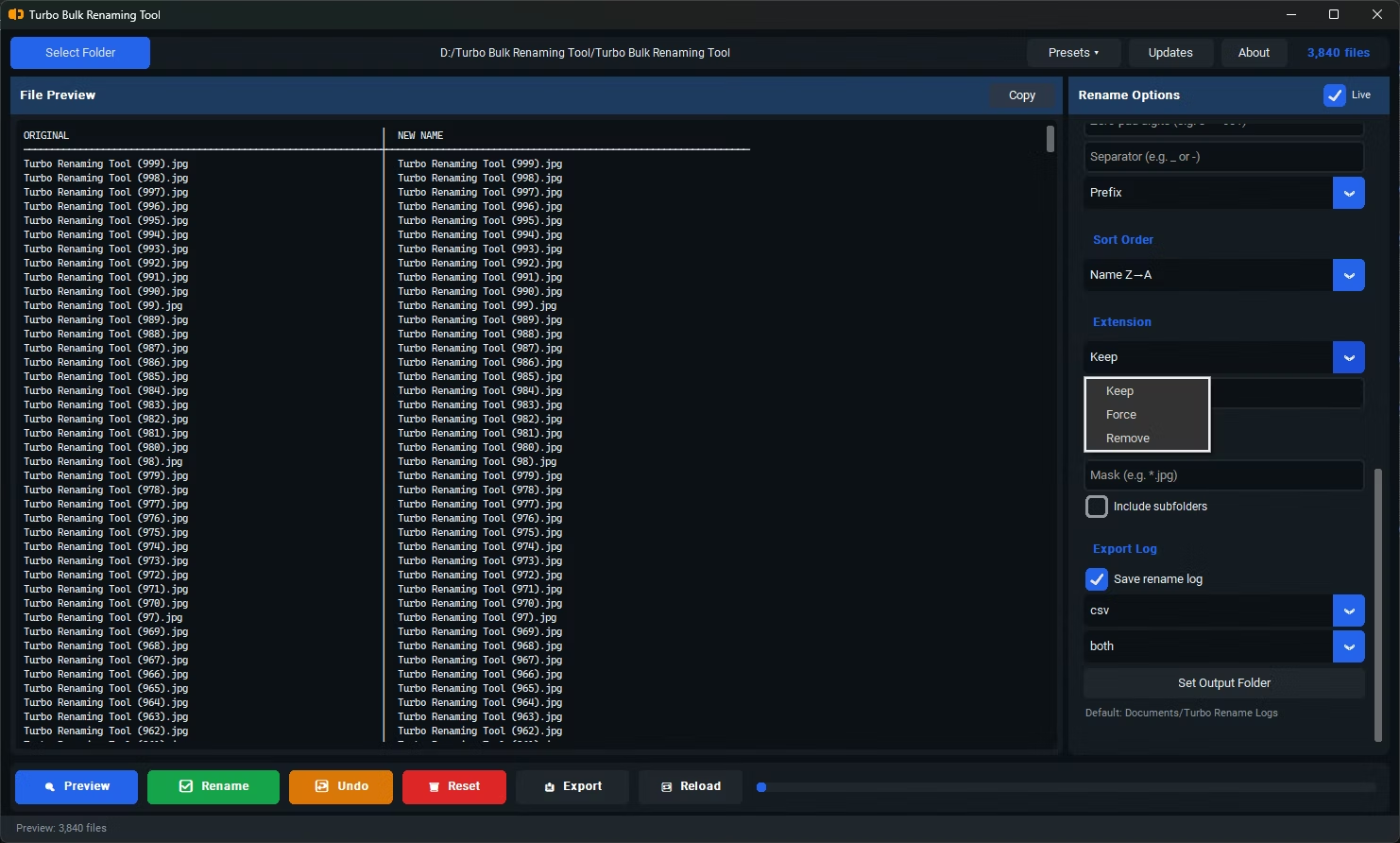
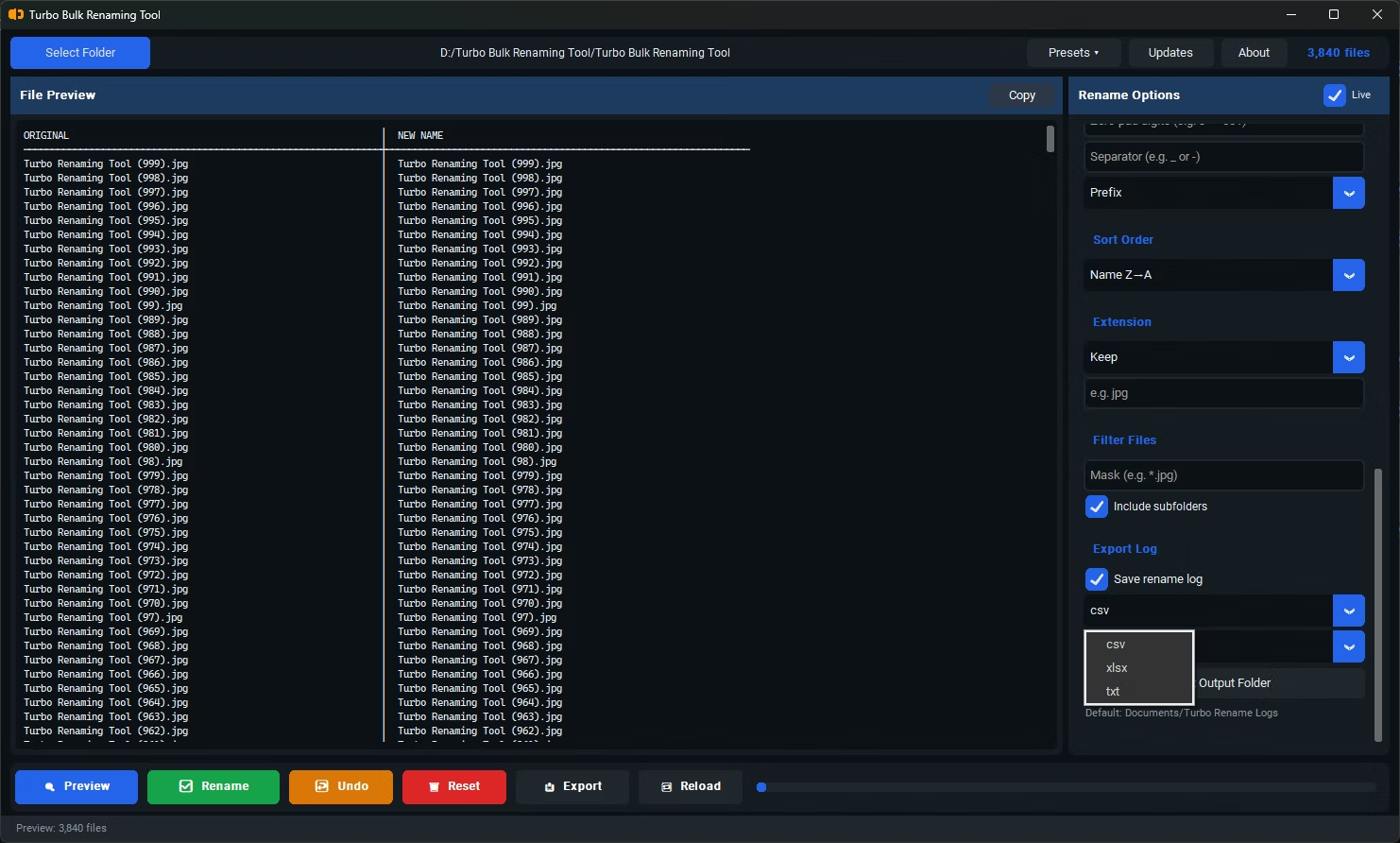
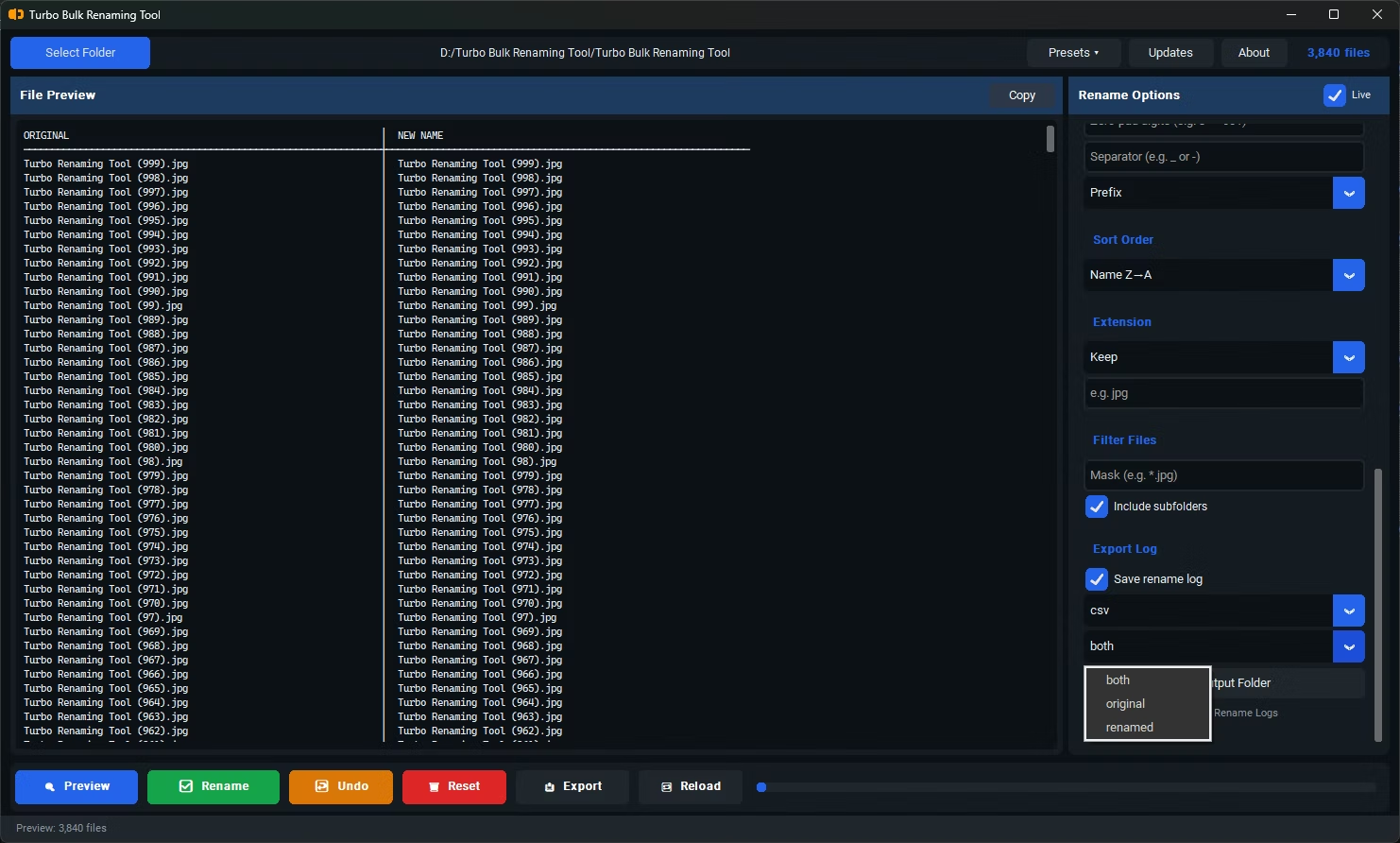
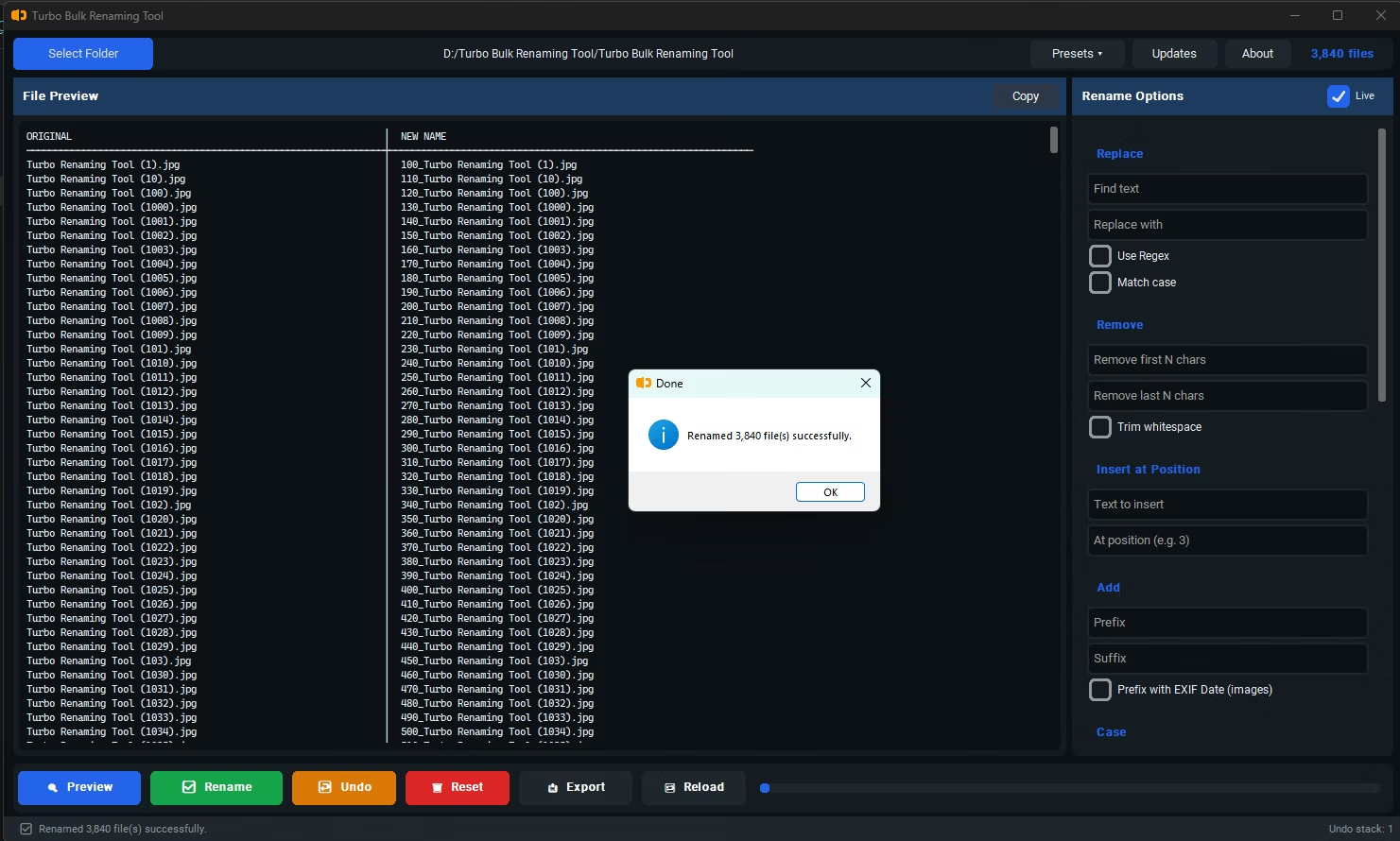
Batchify Renaming Tool is designed to shorten every step in that chain, not just the final rename action. Drag-and-drop folder loading with recursive sub-folder support skips manual navigation, 15 distinct renaming rules mean you're more likely to find one that fits your task without workarounds, and a debounced live preview lets you verify the result as you configure settings rather than after the fact. Conflict detection runs automatically alongside the preview, so you don't need a separate verification pass before clicking Rename.
Because it runs entirely offline, there's also no upload or download delay at any point, which matters more the larger your batch is.
Is the actual renaming step usually the slow part?
Generally no — the rename operation itself is quick. Most of the time in a renaming task goes into configuring the right rule and verifying the result beforehand.
Does an offline tool save meaningful time over a web-based one?
Yes, particularly for larger batches, since there's no upload or download step involved at any point in an offline workflow.
Does having more renaming rules actually save time?
It can, since having a rule that directly fits your situation avoids the extra time spent working around a tool's limitations with multiple manual steps.
Ready to rename your files in bulk, offline, with full privacy?