CSV files have a way of growing far past the size they were originally meant to be. A database export that started as a few thousand rows turns into a report with millions of them, and suddenly the single file you were handed is too big to open comfortably, too big to email, or too big for the system you need to upload it to. Splitting that one large CSV file into several smaller files solves all three problems at once: each part becomes small enough to open in Excel, attach to an email, or feed into a tool that enforces its own file-size or row-count limits.
The need to split a CSV file into multiple files comes up constantly in ordinary work. Marketing teams break a customer list into batches for a mailing platform that caps each upload at a few thousand contacts. Finance teams split a year's worth of transactions into monthly files for archiving. Developers split a dataset into training and testing chunks. Support teams break up a huge export by region so each local office only has to deal with its own rows. In every case, the underlying task is the same - take one CSV file and turn it into several smaller ones without losing or corrupting any data along the way.
Doing this by hand is where things usually go wrong. Opening a huge CSV in a spreadsheet program just to copy out chunks of rows is slow, and if the file is bigger than the spreadsheet's row limit, it may refuse to open at all or silently cut off the data past that limit. Writing a script to do the split is a reasonable option if you know how to code, but it still means handling edge cases like re-adding the header row to every file, dealing with different delimiters or text encodings, and making sure nothing breaks halfway through a multi-gigabyte file. Most people don't want to write and debug a script every time they need to split a file - they just want the split to happen.
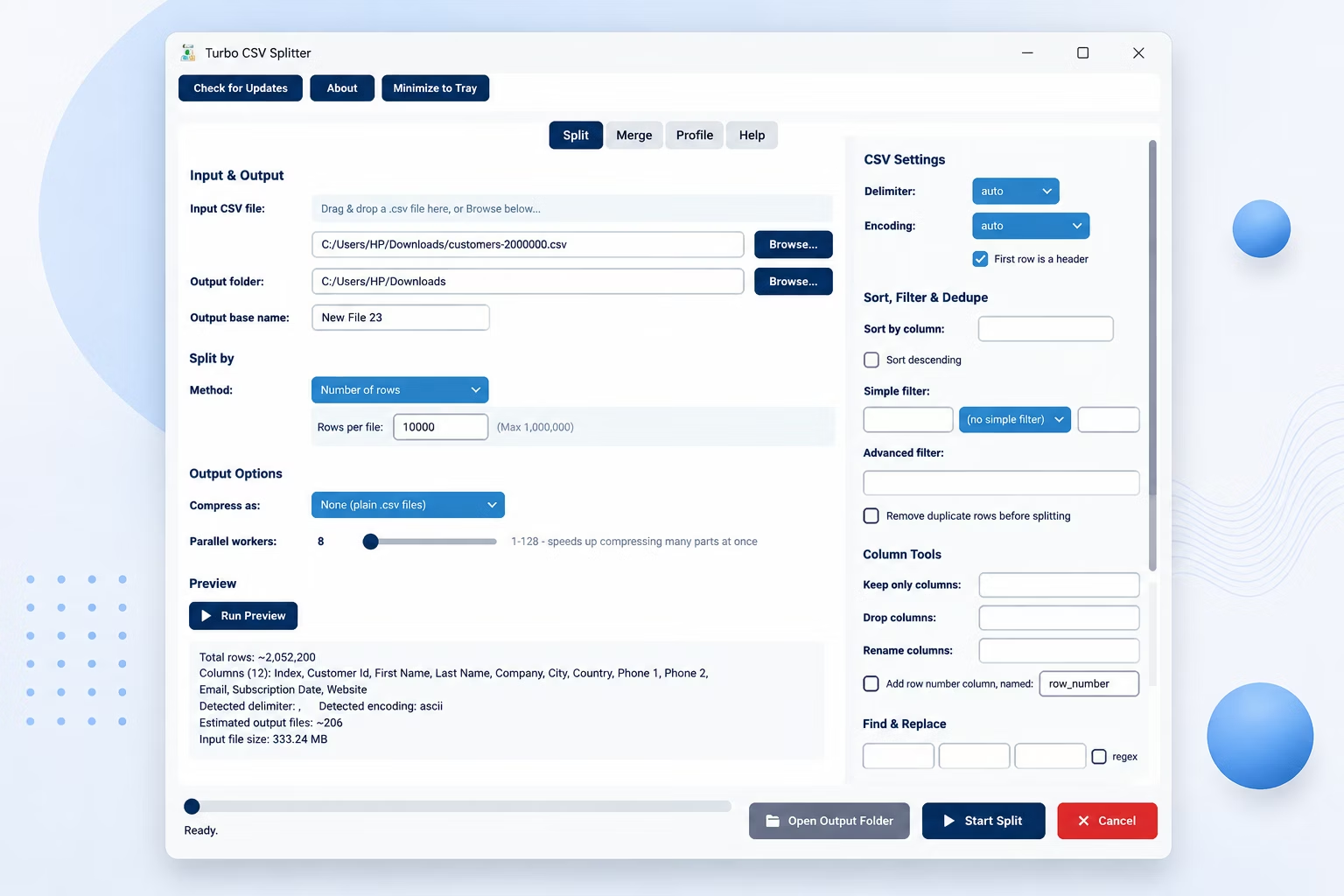
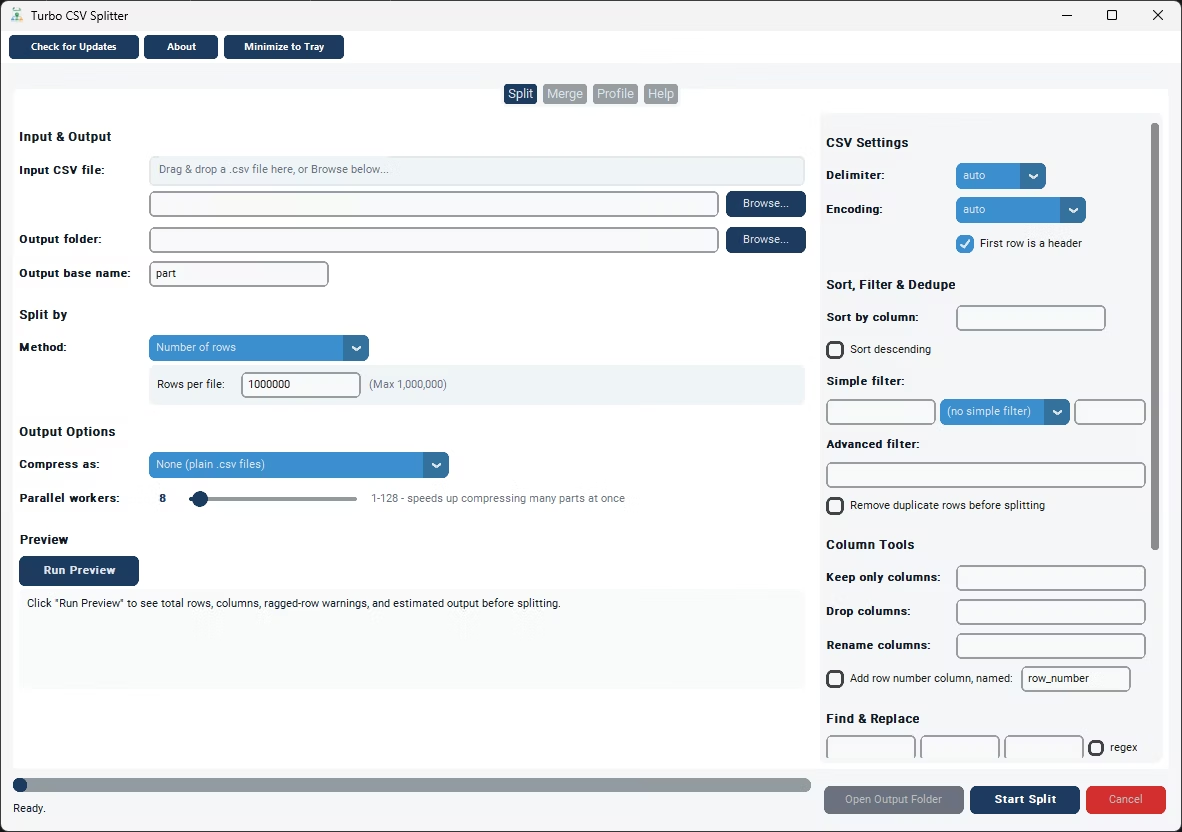
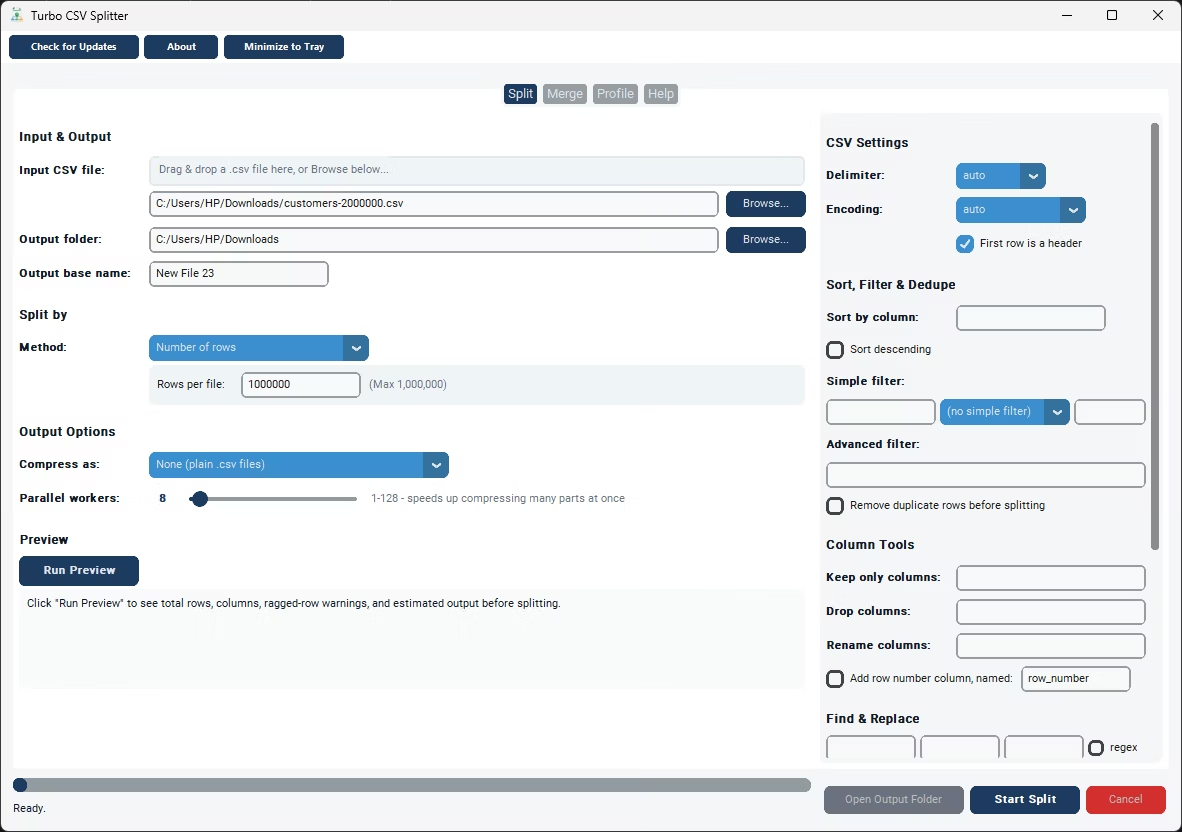
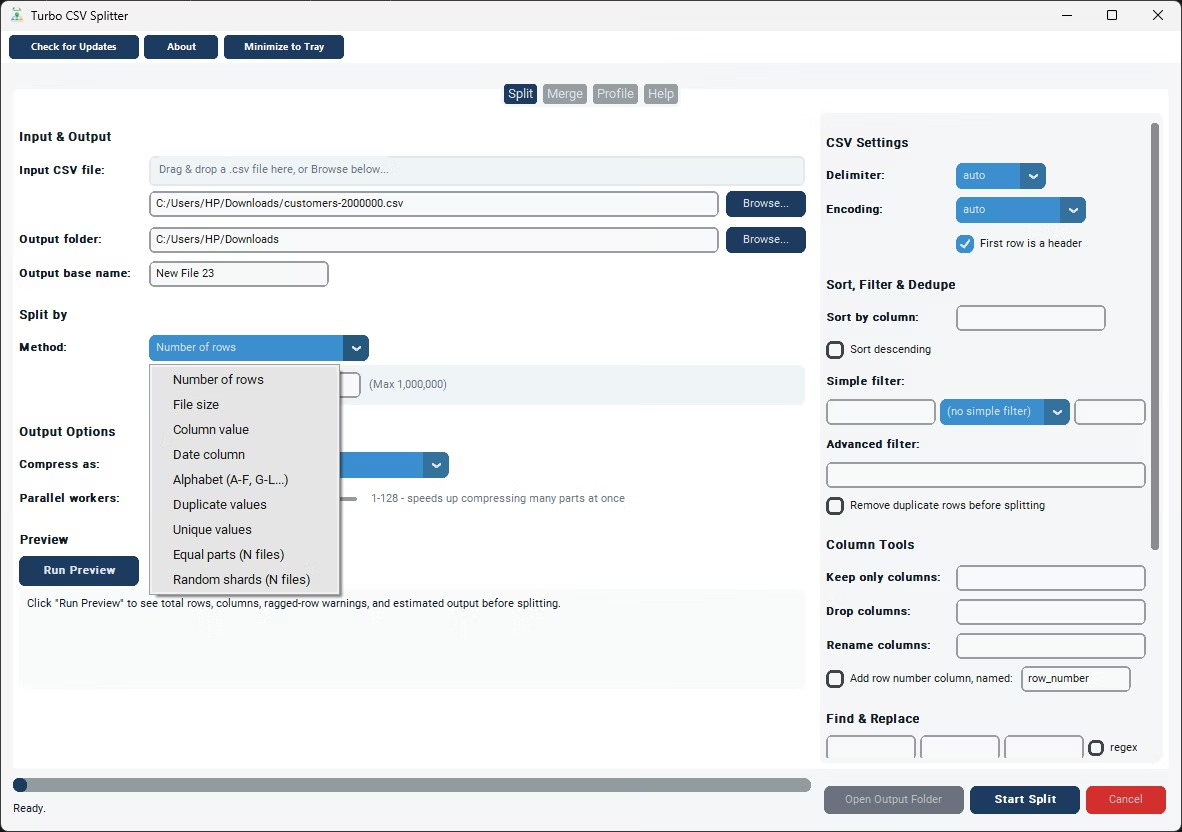
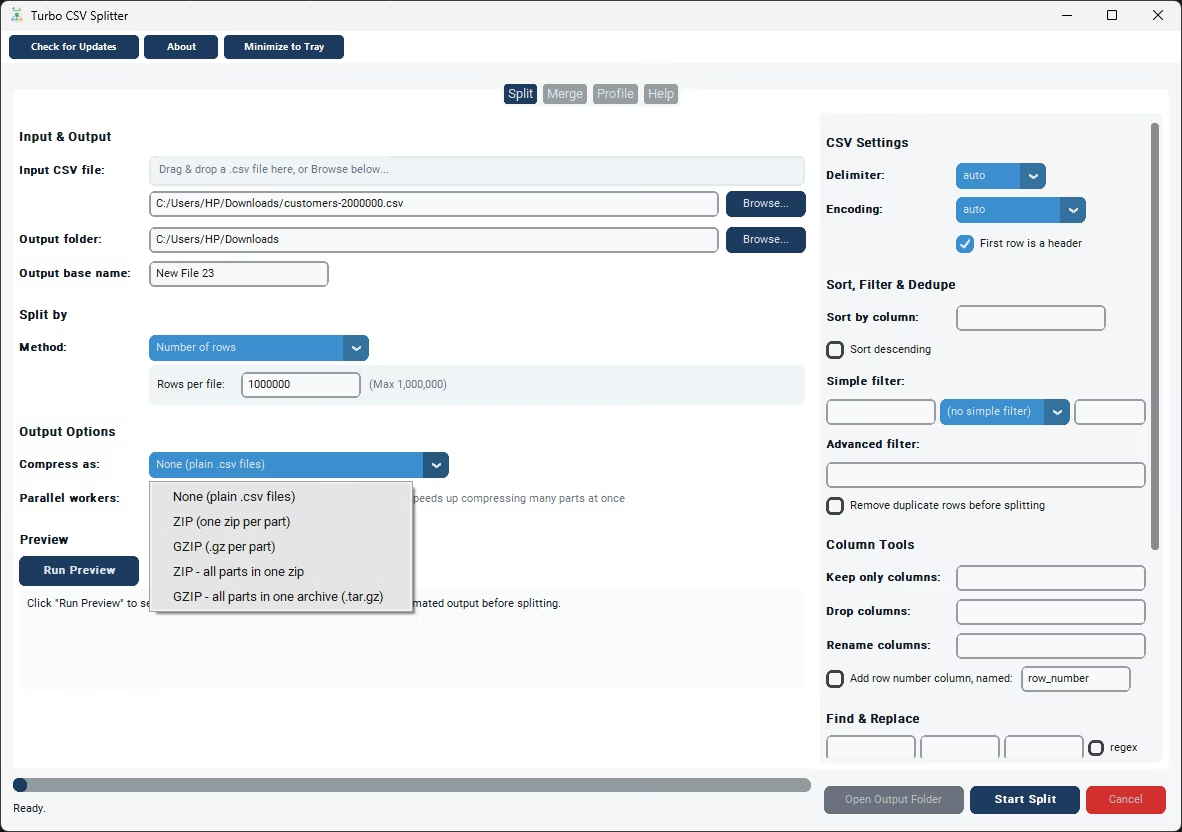
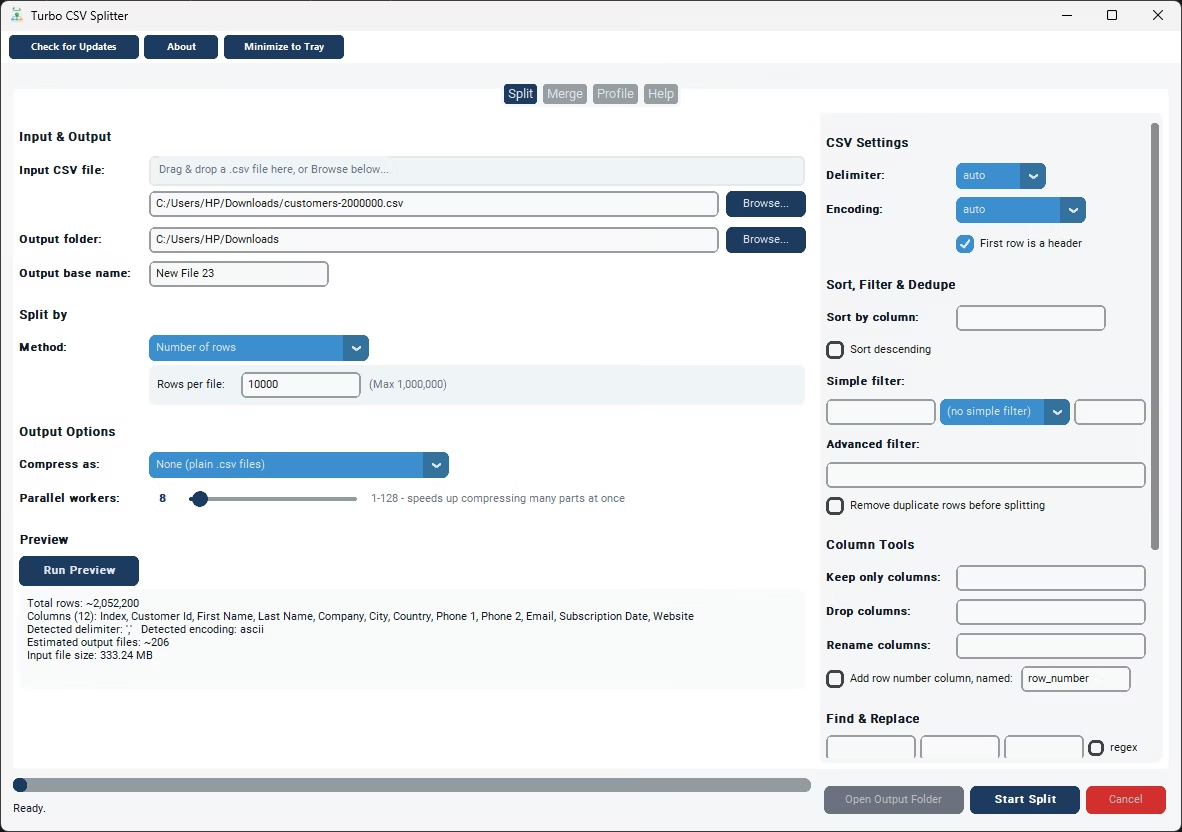
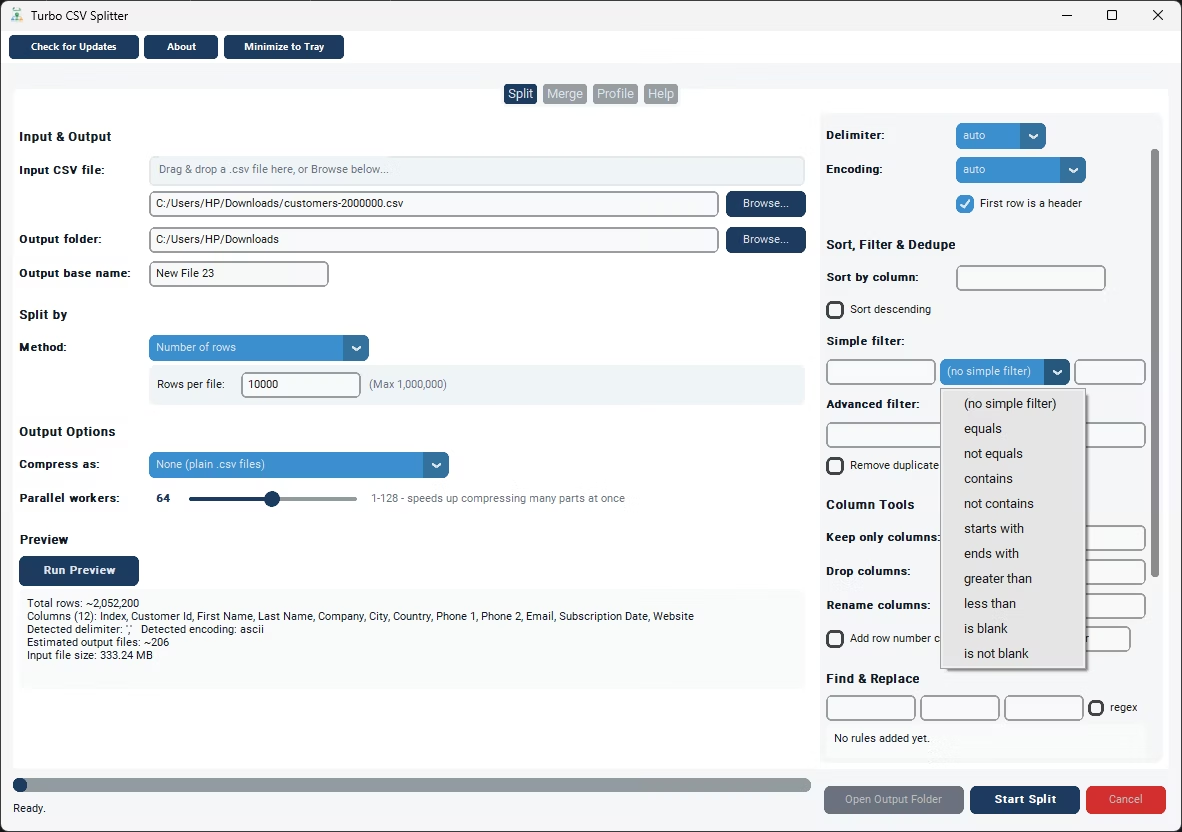
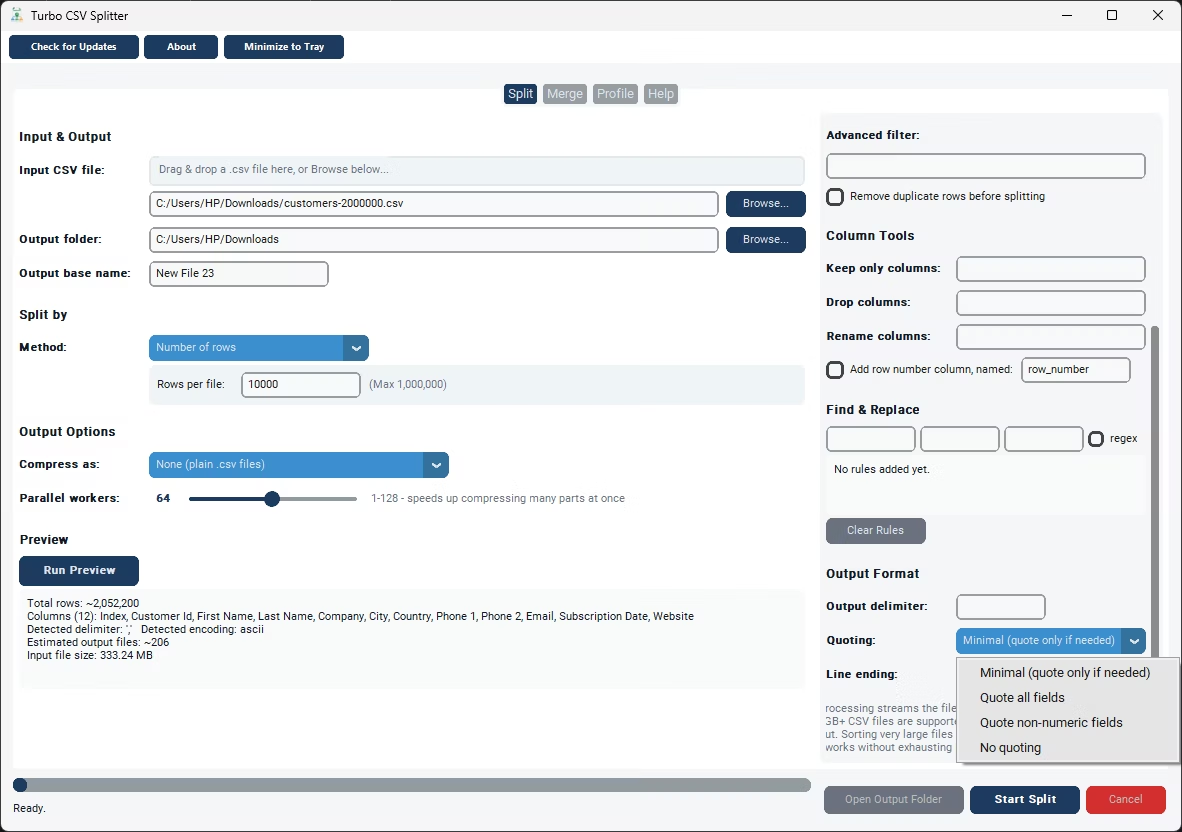
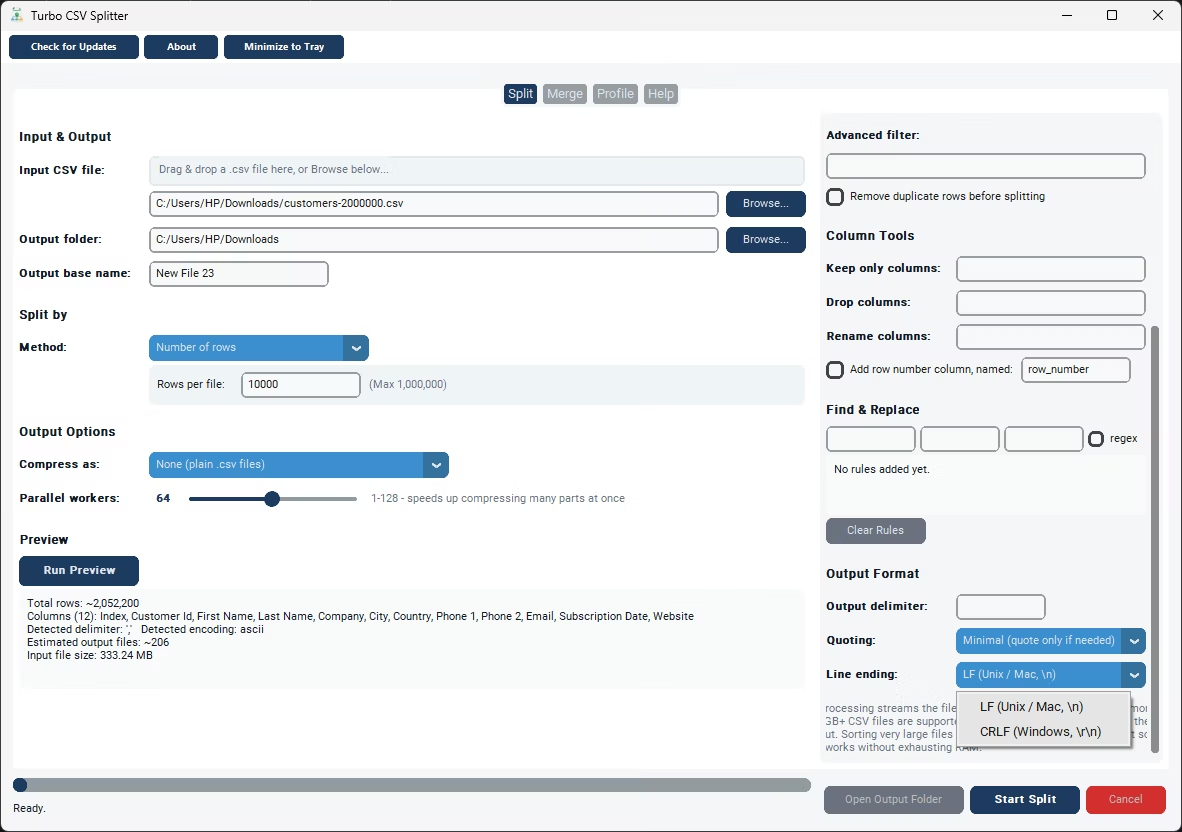
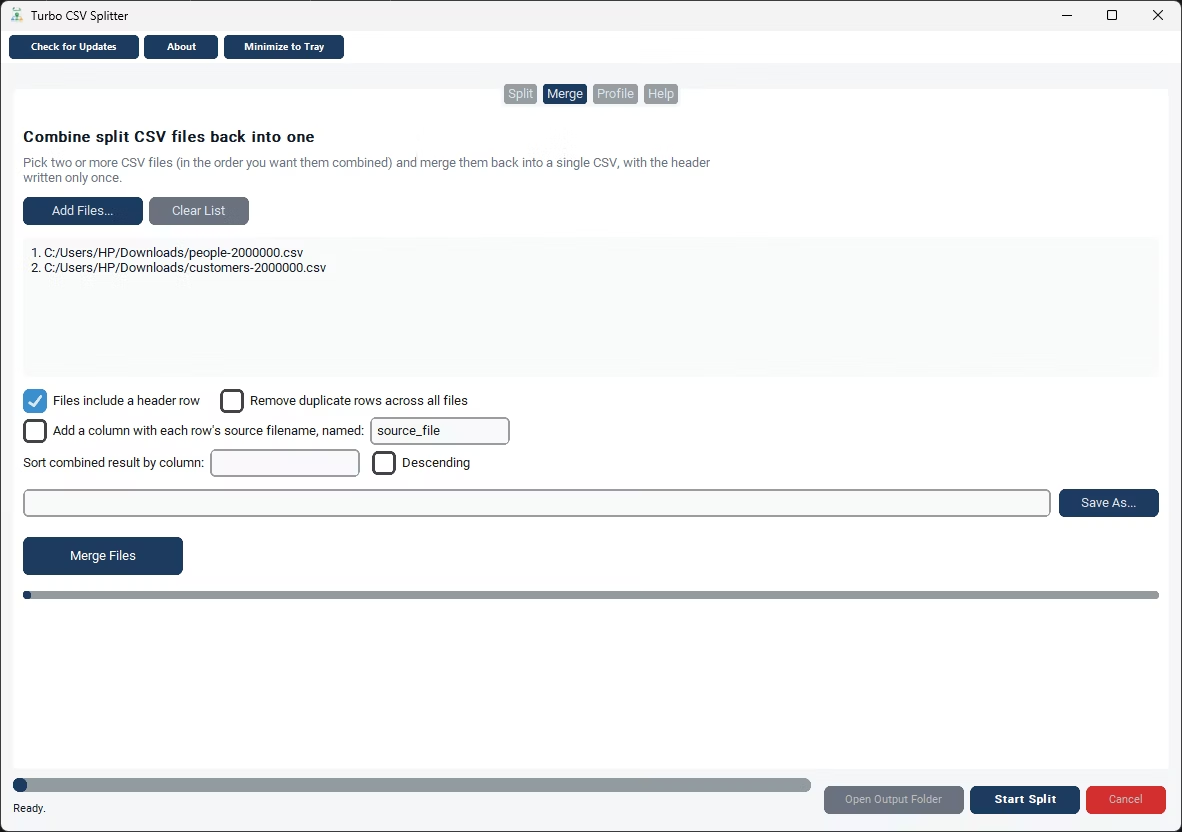
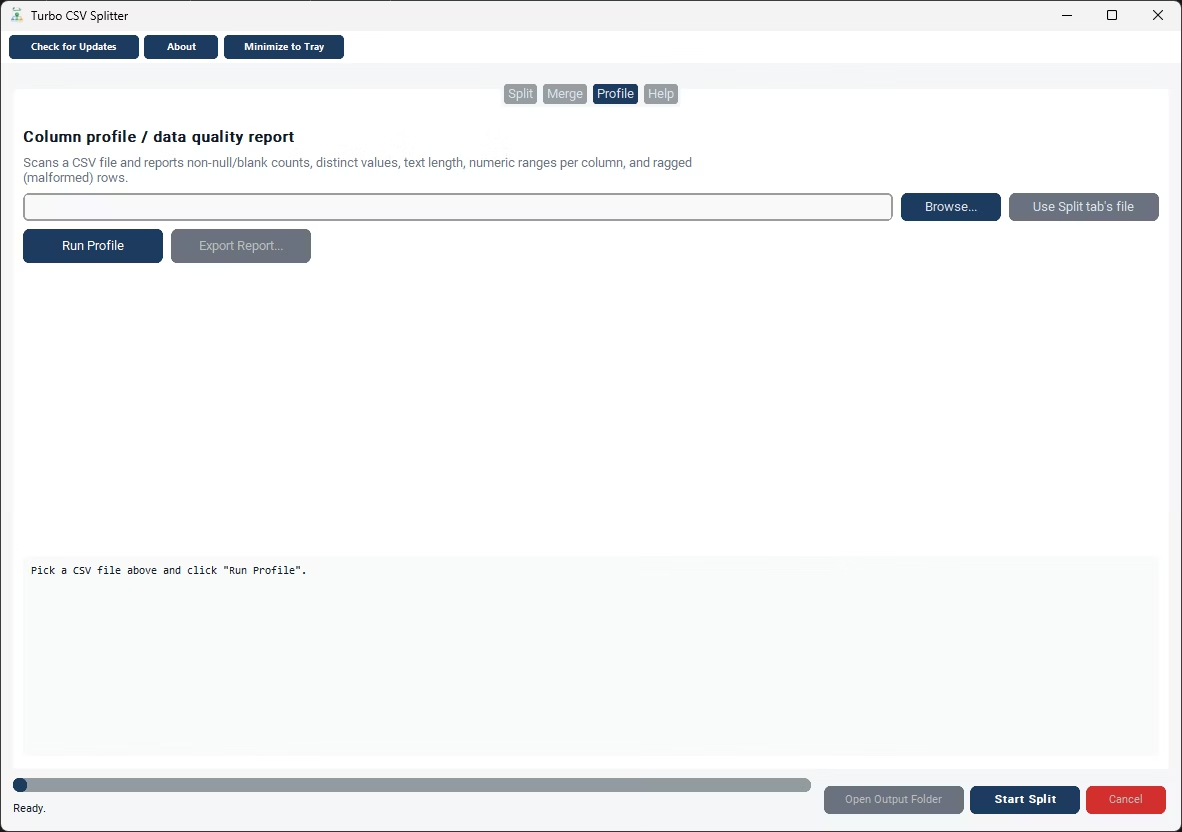
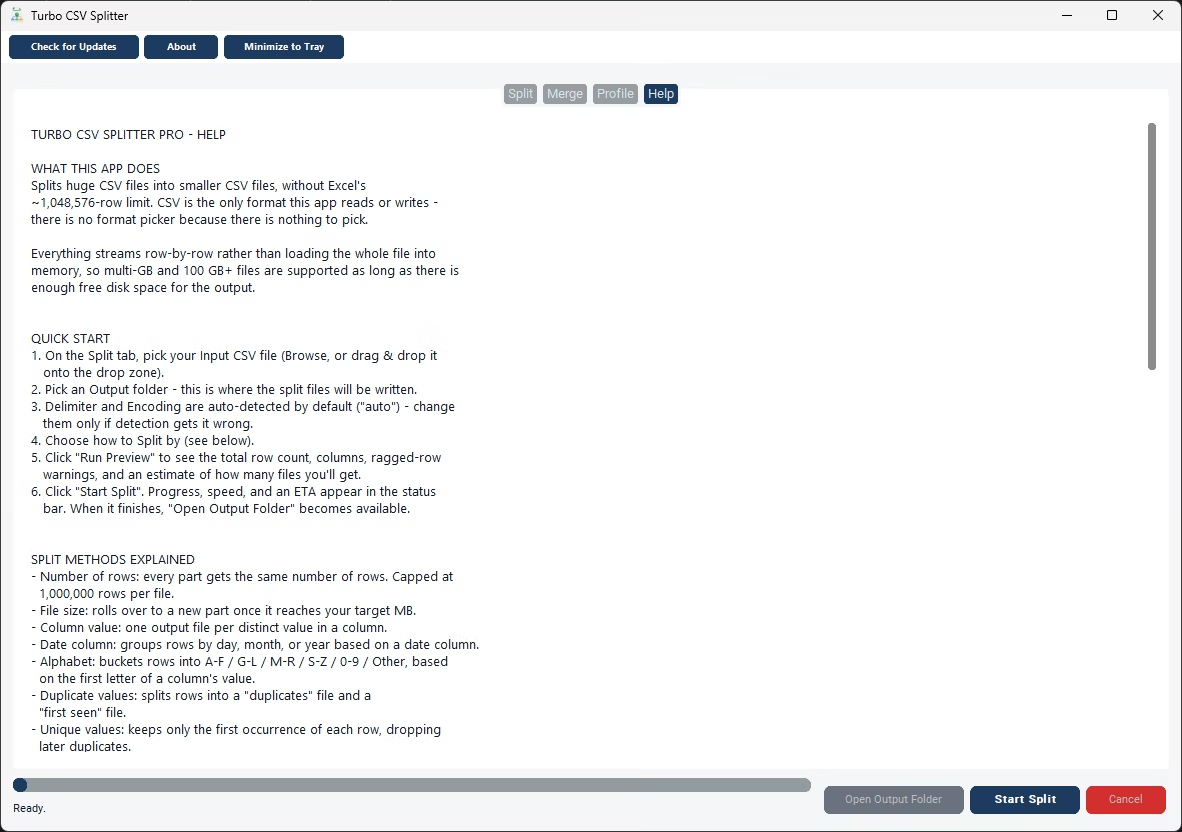
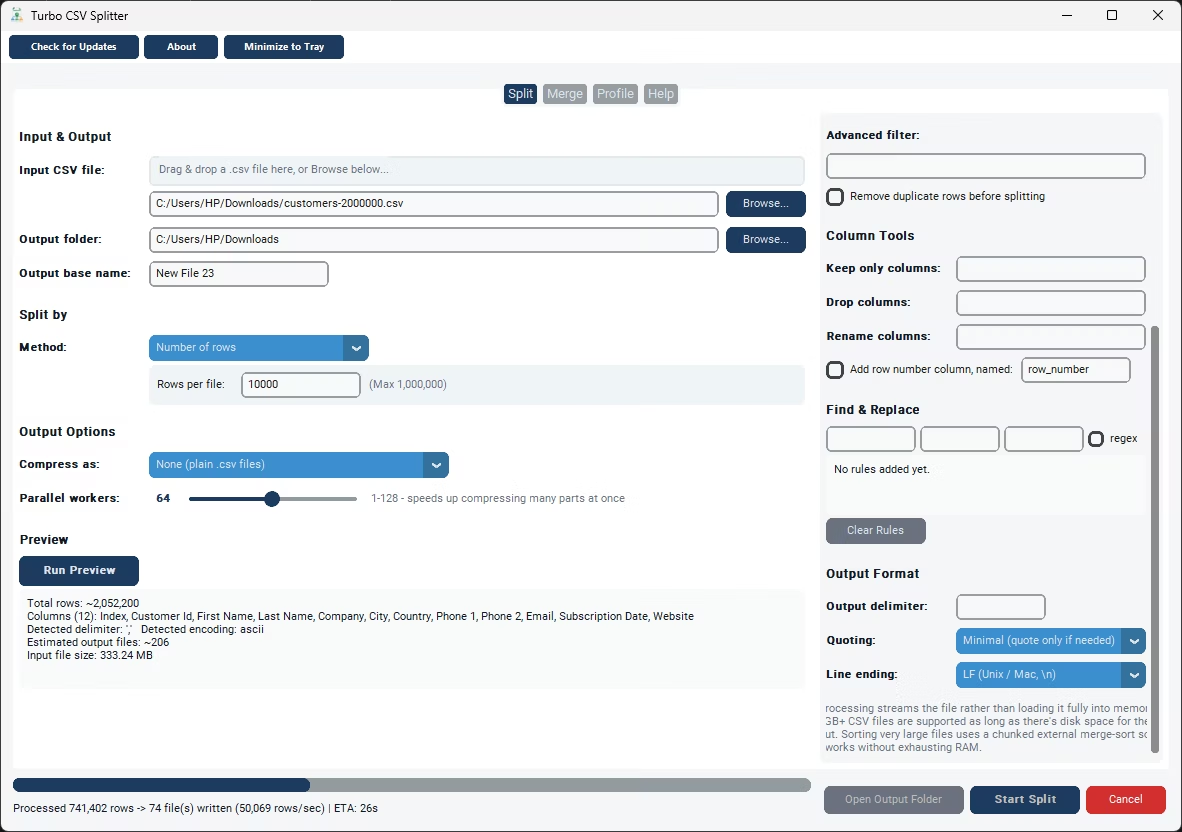
Batchify CSV Splitter is built around exactly this problem: turning one CSV file into as many well-formed output files as you need, without any scripting. You browse to the file (or drag and drop it onto the drop zone), choose an output folder, and pick one of nine split methods depending on how you want the file divided - by a fixed number of rows, by file size in megabytes, by the value in a chosen column, by a date column grouped into days, months, or years, alphabetically by the first letter of a column's value, by duplicate or unique status, into an exact number of equal parts, or into randomly assigned shards for machine-learning splits. Whichever method you choose, every output file gets the header row written in automatically, so each part is a complete, valid CSV on its own.
Because the app streams rows one at a time instead of loading the whole file into memory, file size stops being a limiting factor. A CSV with tens of millions of rows is split the same way a small one is - the only difference is how long it takes, and the status bar shows a live rows-per-second figure along with an estimated time remaining so you always know where the job stands. If you're not sure exactly how a file is structured before you commit to splitting it, the Run Preview option scans the file first and reports the total row count, the detected columns, any ragged rows (rows with a different number of fields than the header), a handful of sample rows, and an estimate of how many output files your chosen settings will produce.
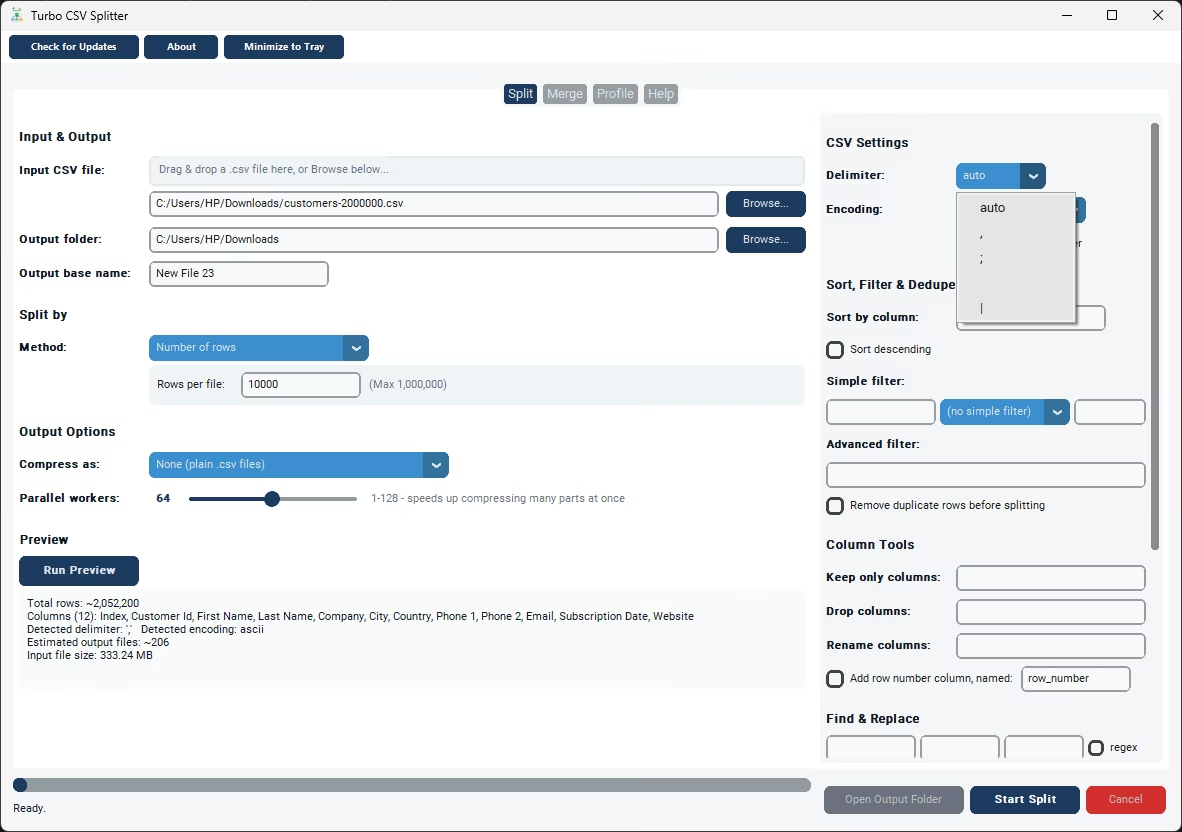
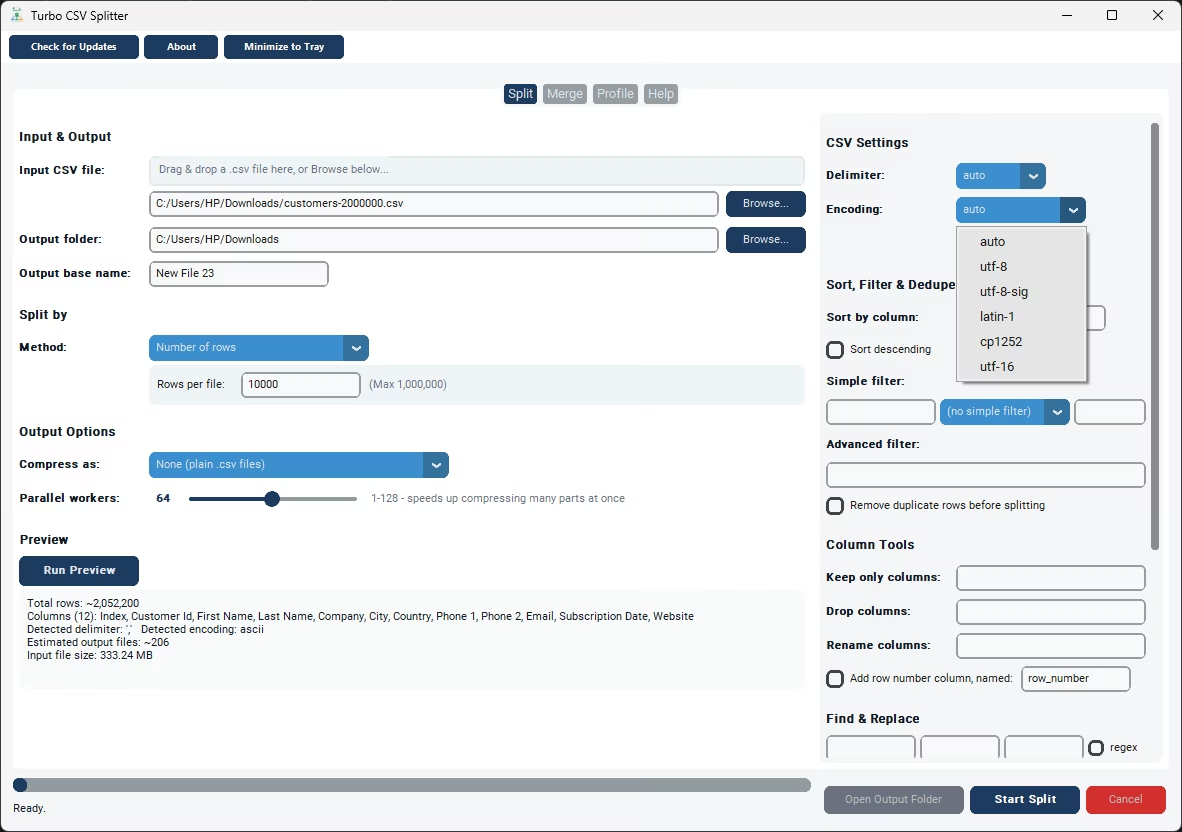
Delimiter and text encoding are set to Auto by default. Batchify CSV Splitter samples the file and detects comma, semicolon, tab, or pipe delimiters along with common encodings such as UTF-8, UTF-8 with a byte-order mark, UTF-16, CP1252, and Latin-1, so files exported from different systems and regions still split correctly without manual configuration. If a split job gets cancelled or the computer restarts partway through a large job, a checkpoint file saved in the output folder lets you resume exactly where the job stopped rather than starting the whole split over again.
Everything happens locally on your own Windows PC. There's no upload step, no waiting in a queue on someone else's server, and no file leaving your machine except to be written into the output folder you chose - which matters if the CSV file you're splitting contains anything sensitive.
- Install Batchify CSV Splitter on your Windows PC and open the app.
- On the Split tab, browse to your CSV file or drag it onto the drop zone.
- Choose an output folder where the resulting files will be saved.
- Pick a split method - Number of Rows, File Size, Column Value, Date, and more are all available.
- Optionally run Preview to check the row count, columns, and estimated number of output files.
- Click Start Split and watch the live progress, speed, and ETA in the status bar.
- Open the output folder to find your original file broken into multiple complete CSV files, each with the header intact.
- Nine different ways to split a file - by rows, size, column, date, alphabet, duplicates, uniques, equal parts, or random shards
- Header row automatically written into every output file
- Streaming engine handles multi-gigabyte and 100 GB+ files without high memory use
- Auto-detects delimiter and text encoding
- Checkpoint and resume for interrupted jobs
- Runs fully offline - your data never leaves your computer
Will the header row be repeated in every output file?
Yes. Batchify CSV Splitter writes the original header row into every output file it creates, so each part opens correctly on its own in Excel or any other spreadsheet tool.
What's the largest CSV file it can split?
There's no hard file-size ceiling. Rows are streamed one at a time instead of being loaded into memory, so multi-gigabyte and 100 GB+ files are supported as long as you have enough free disk space for the output.
Can I split a CSV file without writing any code?
Yes. Batchify CSV Splitter is a point-and-click Windows application - browse to your file, choose a split method, and click Start Split. No scripts, formulas, or command-line tools are required.
What if the split job gets interrupted partway through?
A checkpoint file is saved to the output folder as the job runs. If the job is cancelled or the app closes unexpectedly, clicking Start Split again with the same file and settings resumes from where it left off instead of starting over.
Ready to split your CSV files the easy way?