BMP is an uncompressed Windows bitmap format, which means every pixel from a rendered PDF page is stored exactly as-is, with no compression algorithm involved at all. That makes BMP the natural choice for legacy Windows applications, embedded systems, and printing pipelines that expect raw bitmap input rather than a compressed format.
Because BMP files are larger than JPG or PNG for the same page, converting to BMP usually makes sense for a specific software requirement rather than everyday sharing, and a batch converter handles that conversion for an entire folder of PDFs without manual page-by-page export.
Batchify PDF Converter runs on Windows 10 and Windows 11, both 64-bit, and installs as a single self-contained application with no separate Poppler or Ghostscript dependency to configure. That keeps setup to a couple of minutes, whether the app is going on a personal laptop or a shared office PC handling document conversion for a whole team.
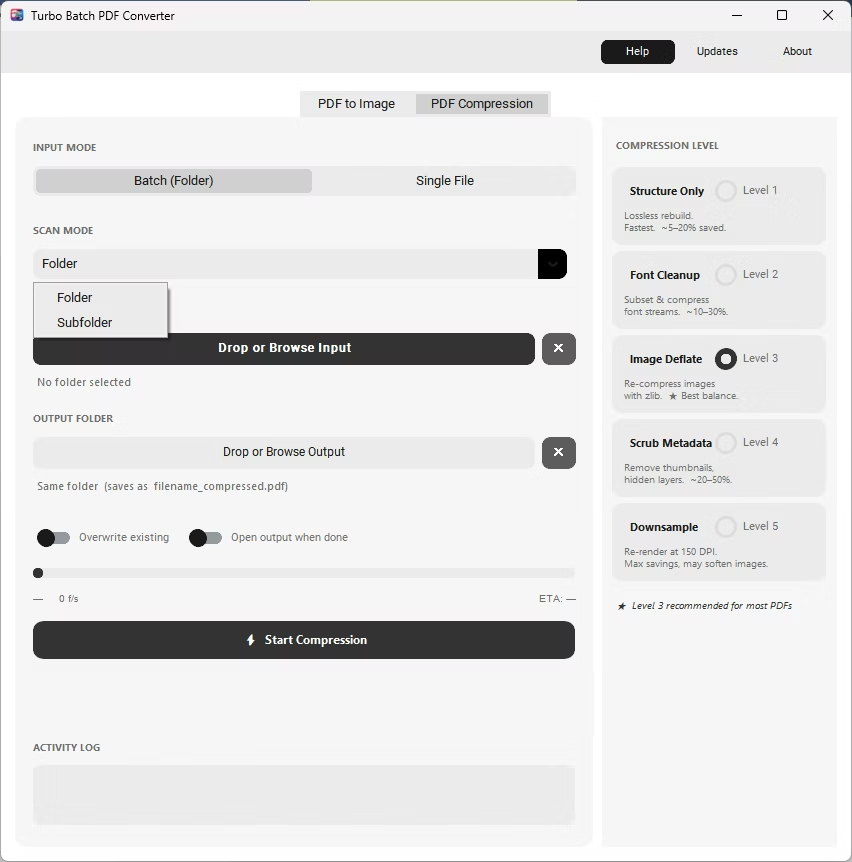
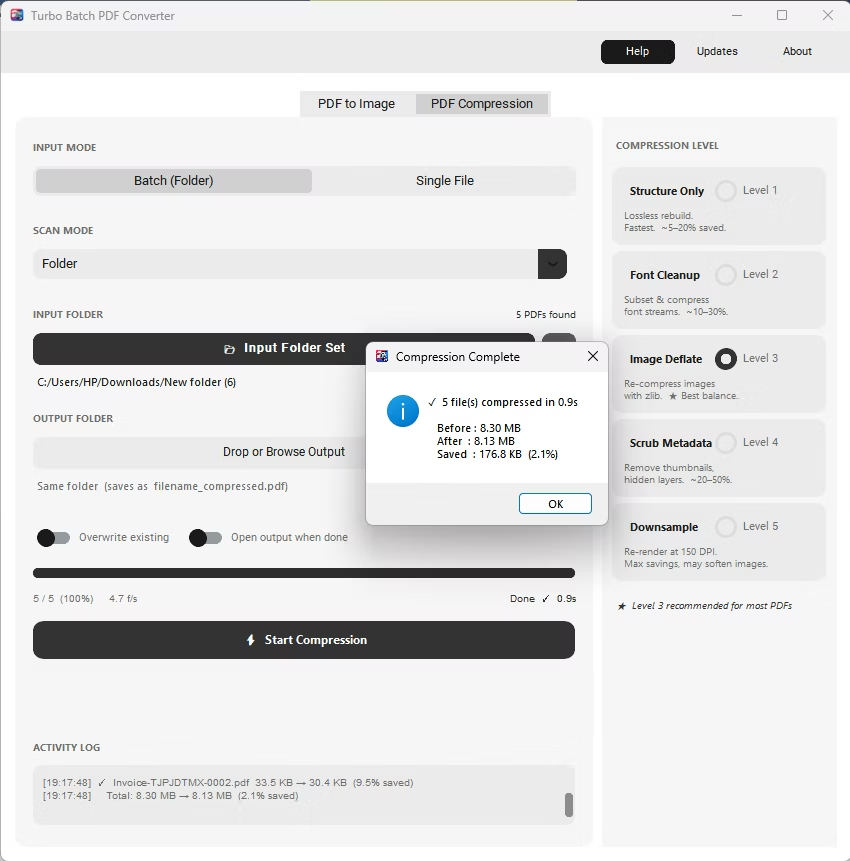
The same app also includes a built-in PDF compressor with five compression levels, so shrinking file sizes for email or storage doesn't require switching to a separate tool. Everything runs locally through a one-time Gumroad license, without a recurring subscription, and pairs naturally with other BatchifyApp utilities such as Batchify Renaming Tool for organizing converted files afterward.
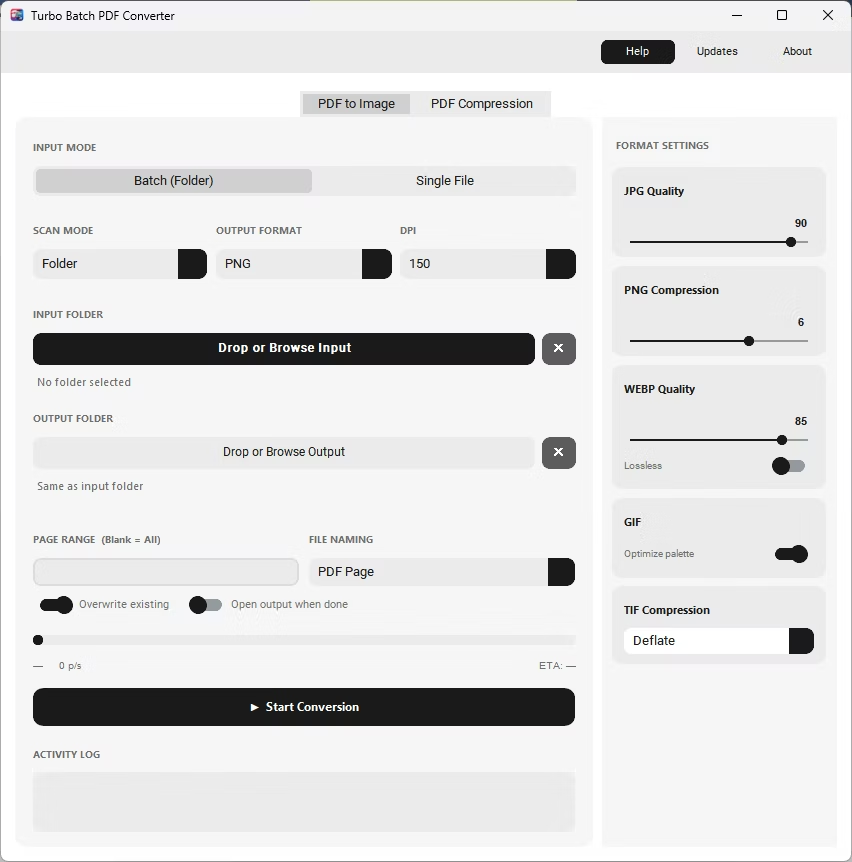
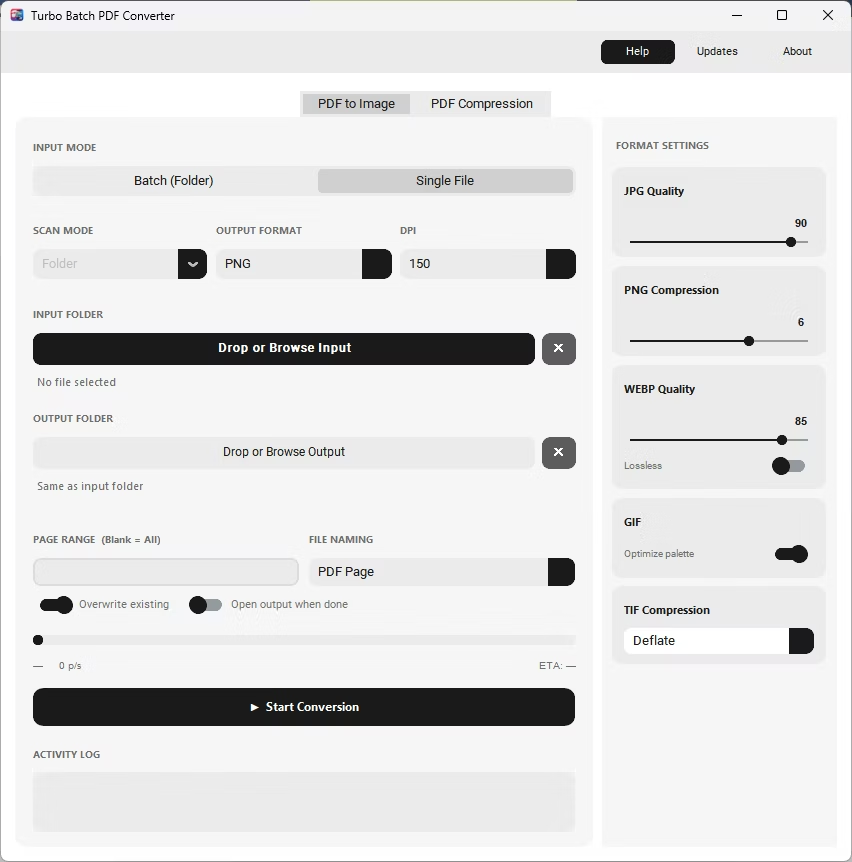
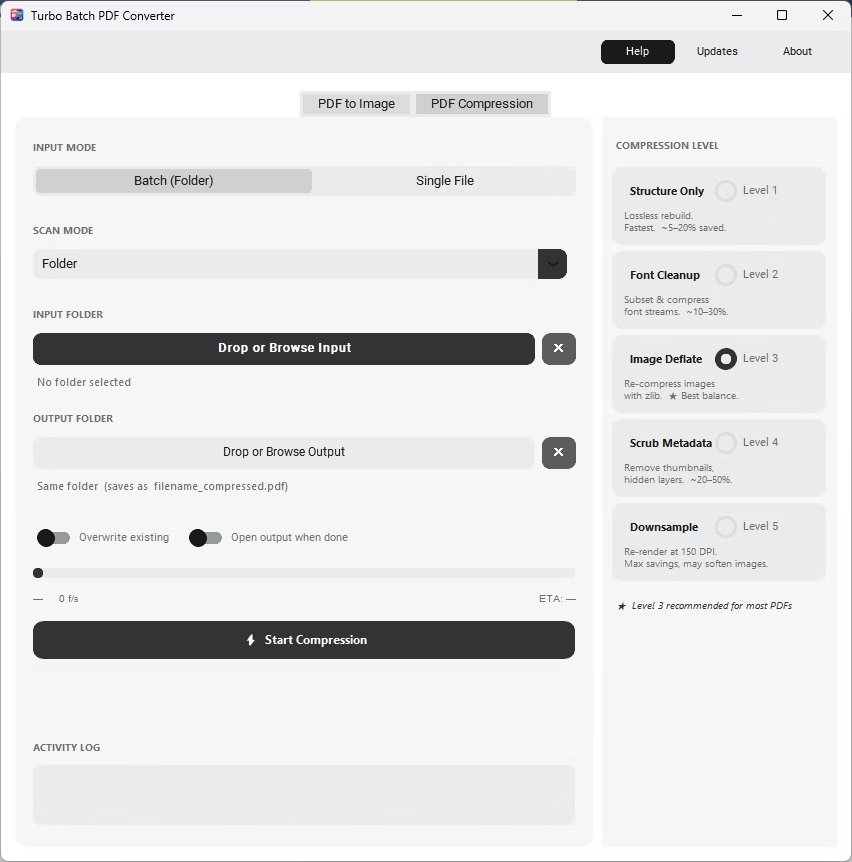
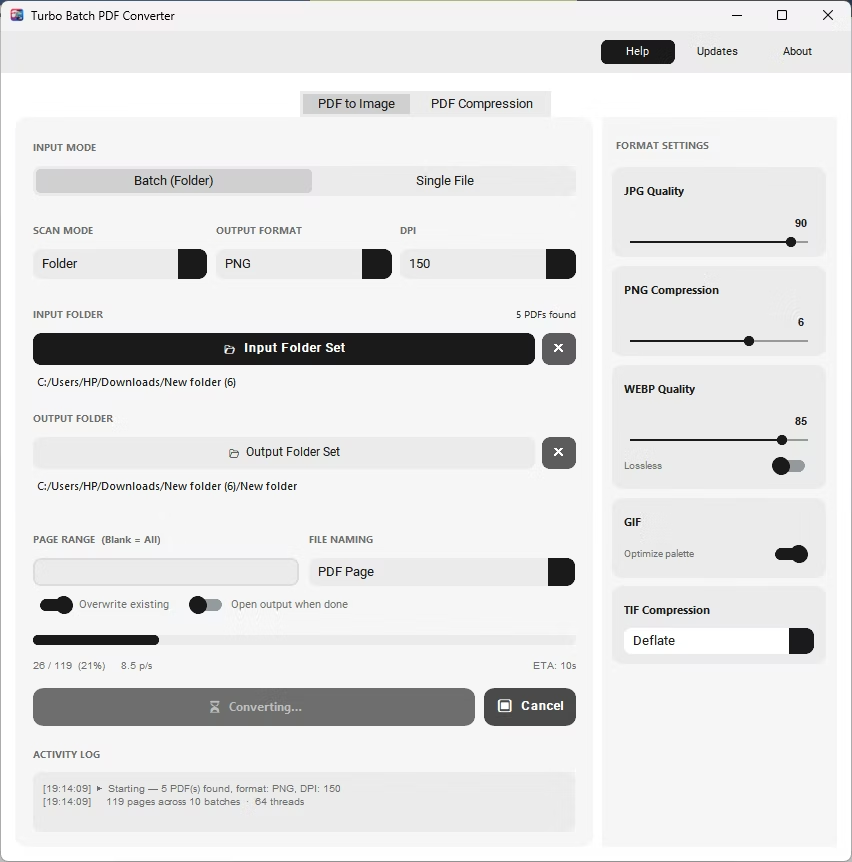
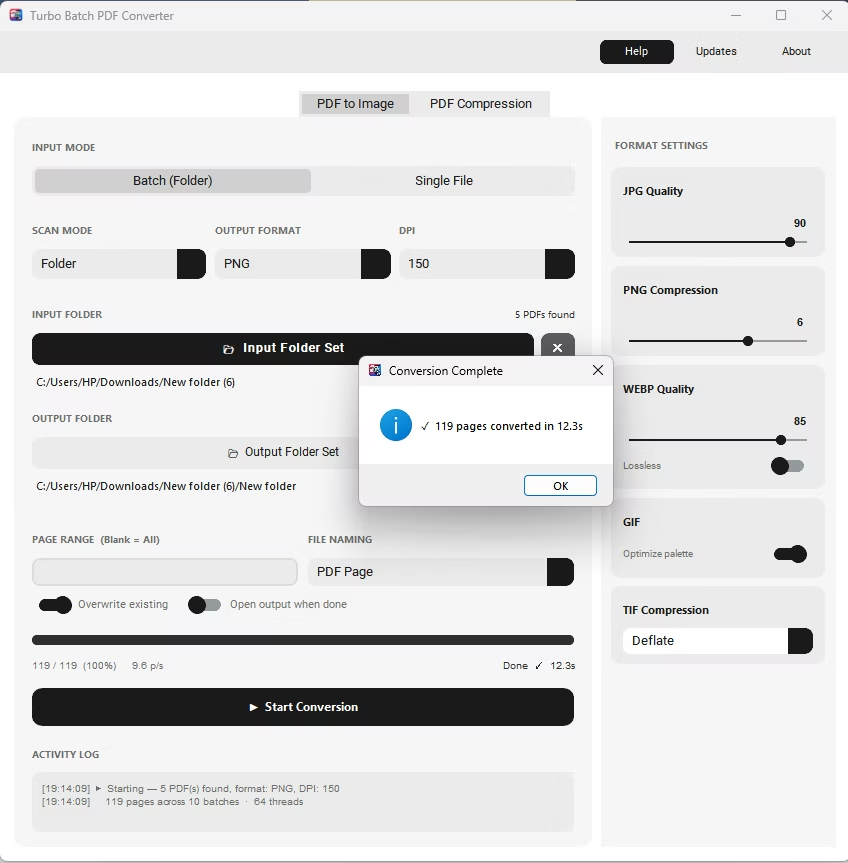
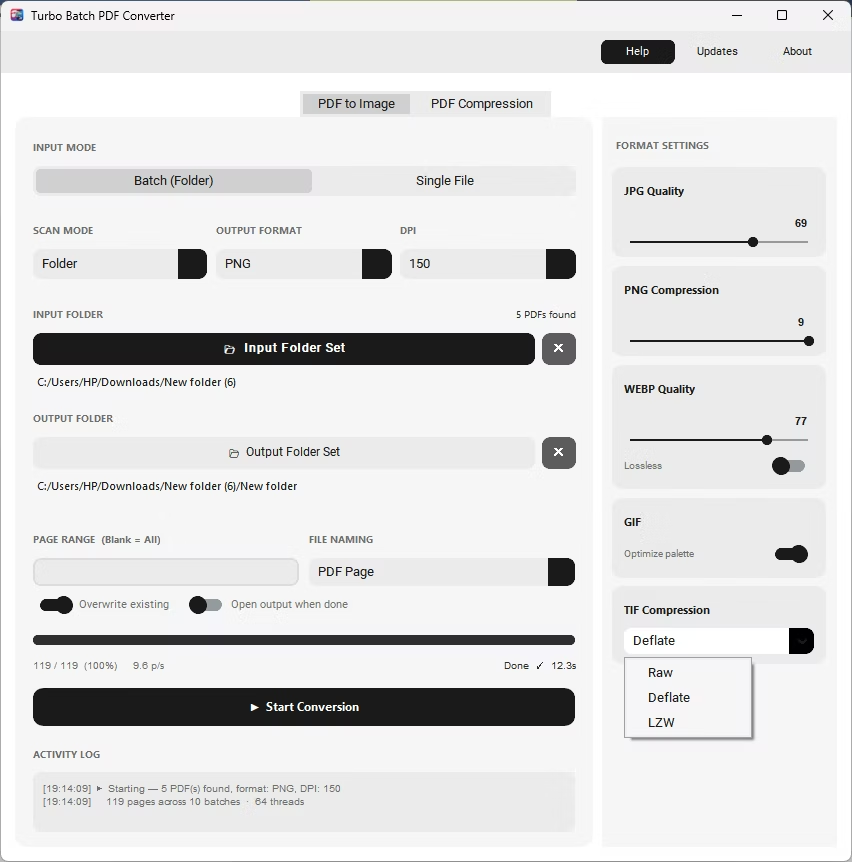
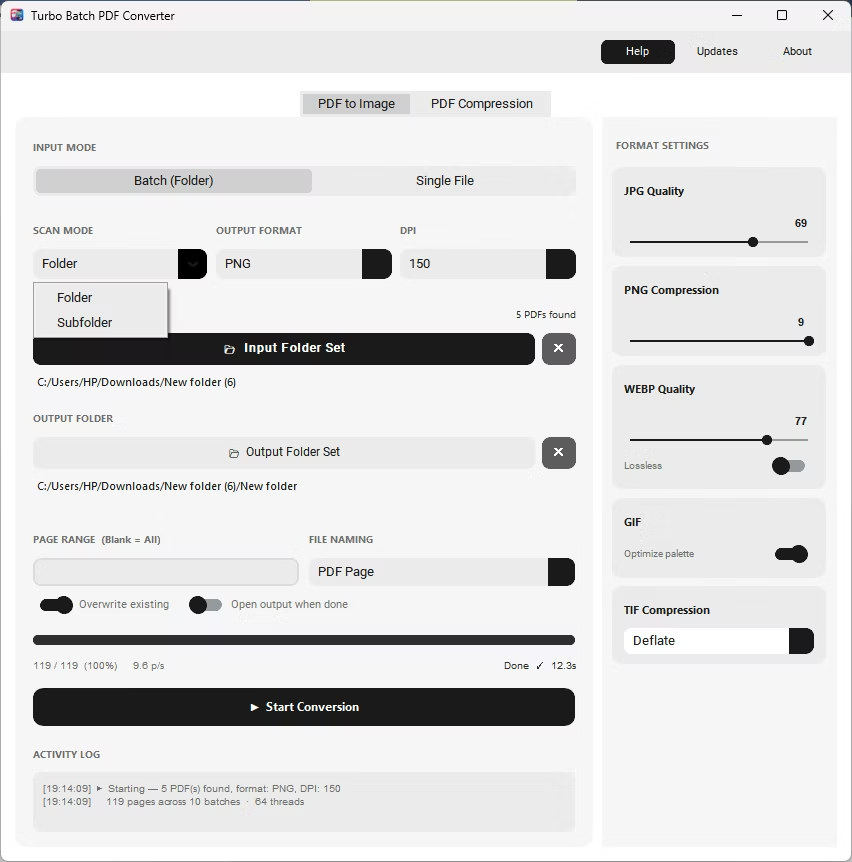
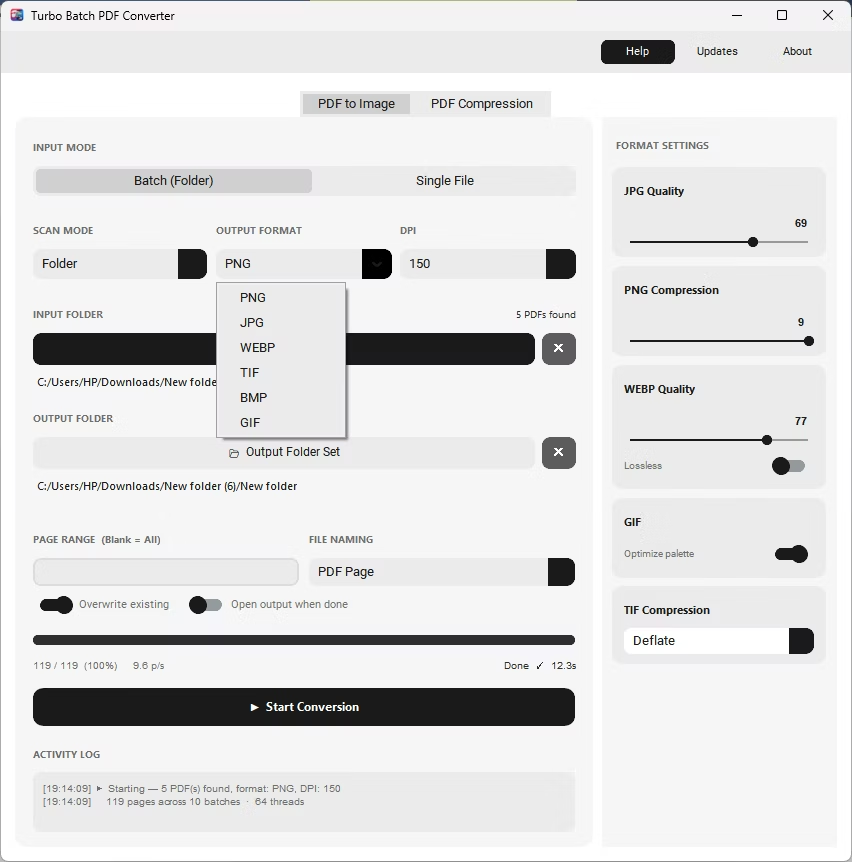
- Install Batchify PDF Converter on your Windows PC.
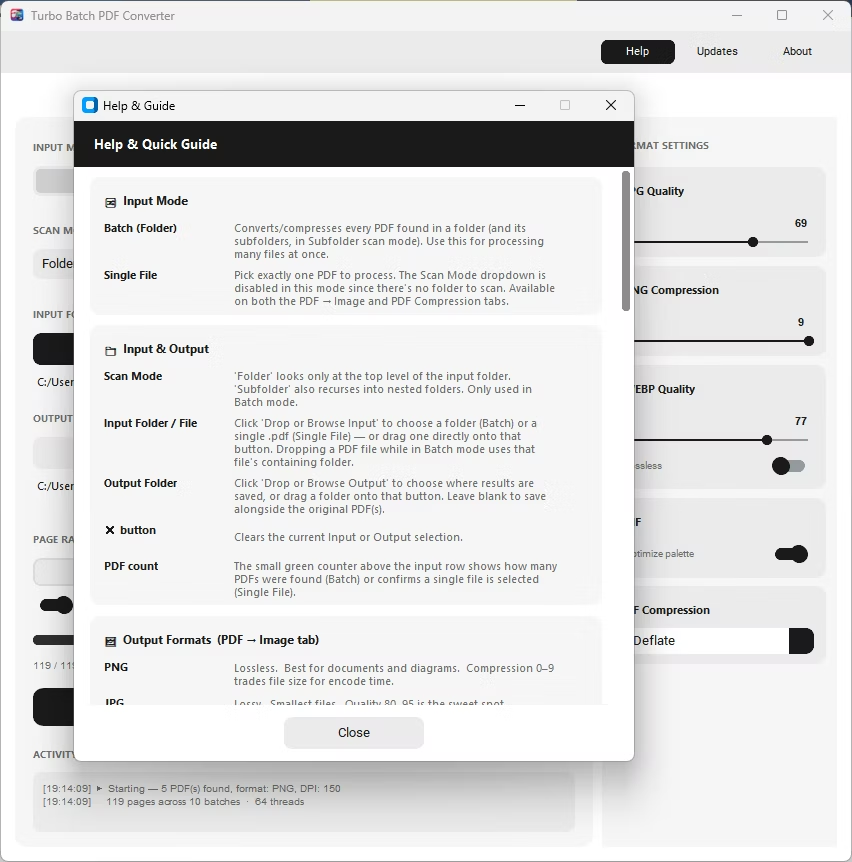
- Open the app and choose Batch mode for folders or Single File mode for one PDF.
- Drag your PDF file or folder into the app, enabling Subfolder mode if needed.
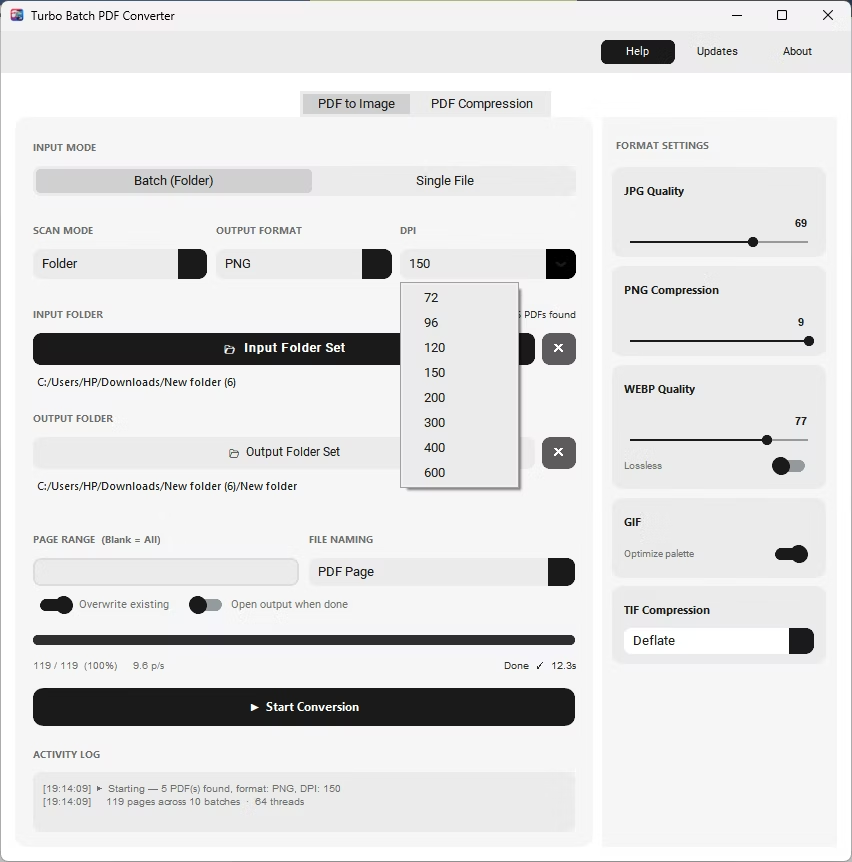
- Set the output format to BMP and choose a DPI up to 600 for the desired resolution.
- Click Start Conversion. Uncompressed BMP files are saved for every page, fully offline.
- Straight, uncompressed BMP output with a single click
- Ideal for legacy Windows applications and embedded systems
- DPI range from 72 to 600 for any resolution requirement
- Batch conversion of entire folders, including subfolders
- Overwrite protection to skip files that already exist
- 100% offline with no upload limits
Why would I choose BMP over JPG or PNG?
BMP is the format some legacy Windows software and embedded systems require directly, since it stores raw, uncompressed pixel data.
Are BMP files larger than JPG or PNG?
Yes, because BMP is uncompressed, file sizes are noticeably larger, so it is best suited to specific software requirements rather than general sharing.
Can I set a custom resolution for BMP output?
Yes, the DPI dropdown covers 72 to 600 DPI, letting you match the resolution a target application or printer expects.
Ready to convert your PDFs offline, in bulk, with full privacy?