GIF uses a limited 256-color palette, which makes it a lightweight choice for simple document previews, thumbnails, and pages that don't rely on rich photographic color detail. Converting a PDF to GIF produces small, easy-to-load image files for each page, well suited to quick previews on a website or in an app.
Many people search for how to convert pdf to gif online free and end up uploading files to a browser-based tool, which means sending document content to a third-party server. A local desktop converter avoids that entirely by rendering every page to GIF directly on your own PC.
Batchify PDF Converter runs on Windows 10 and Windows 11, both 64-bit, and installs as a single self-contained application with no separate Poppler or Ghostscript dependency to configure. That keeps setup to a couple of minutes, whether the app is going on a personal laptop or a shared office PC handling document conversion for a whole team.
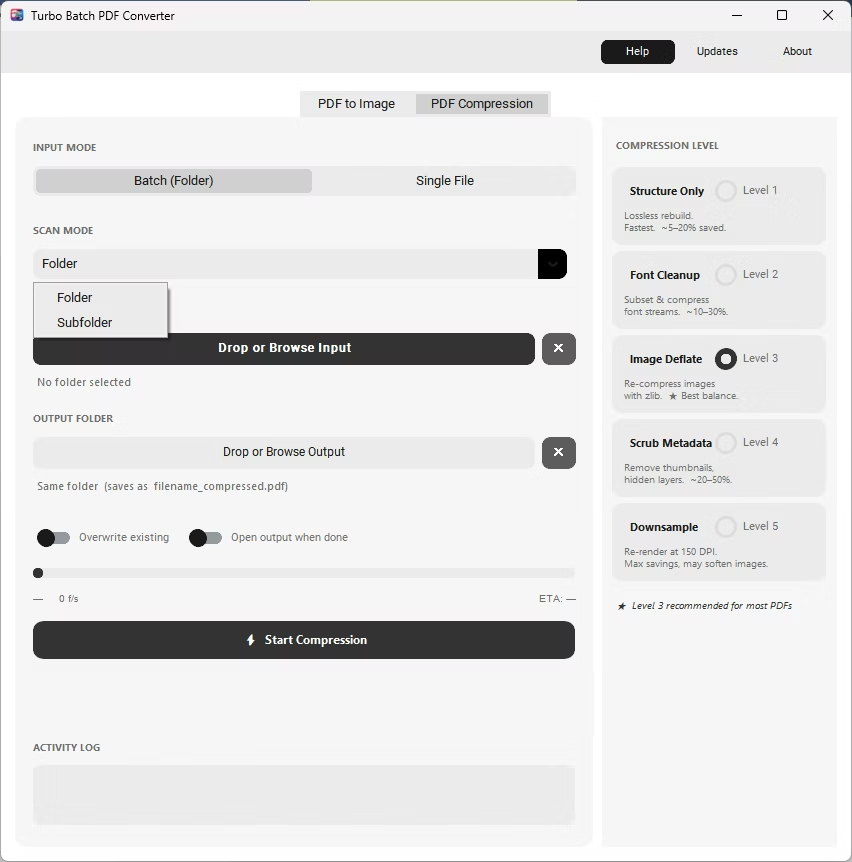
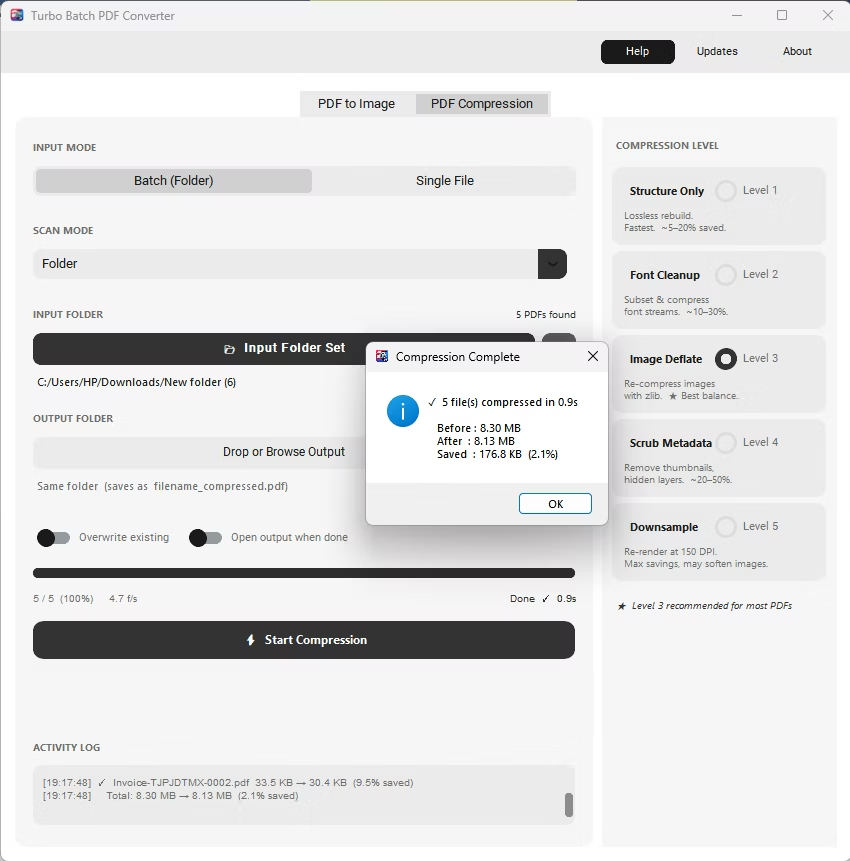
The same app also includes a built-in PDF compressor with five compression levels, so shrinking file sizes for email or storage doesn't require switching to a separate tool. Everything runs locally through a one-time Gumroad license, without a recurring subscription, and pairs naturally with other BatchifyApp utilities such as Batchify Renaming Tool for organizing converted files afterward.
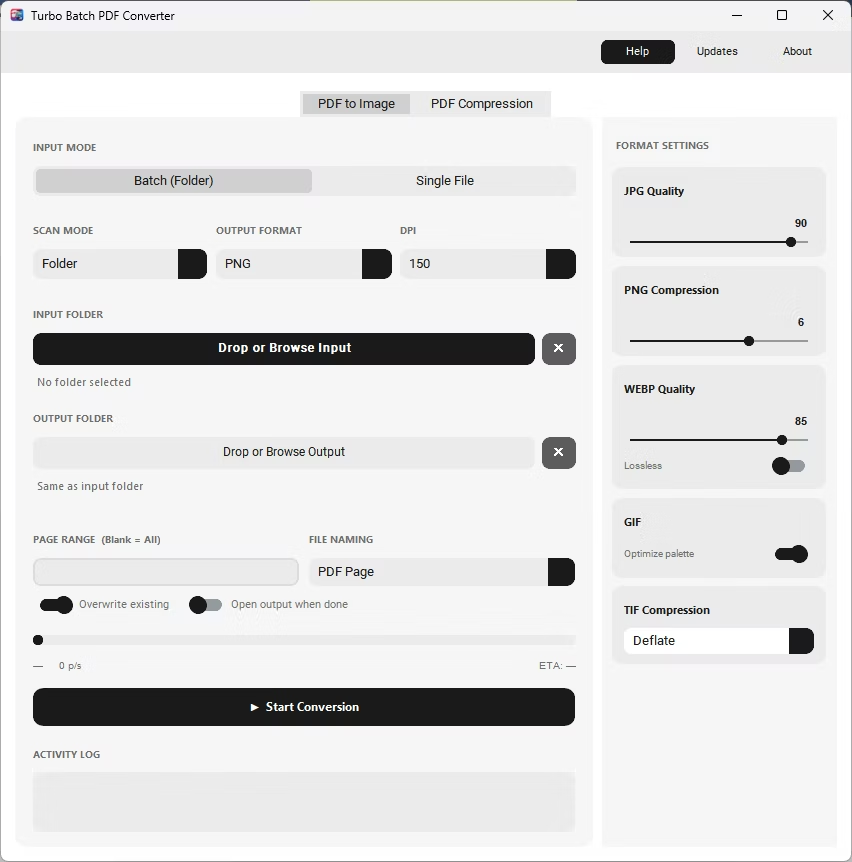
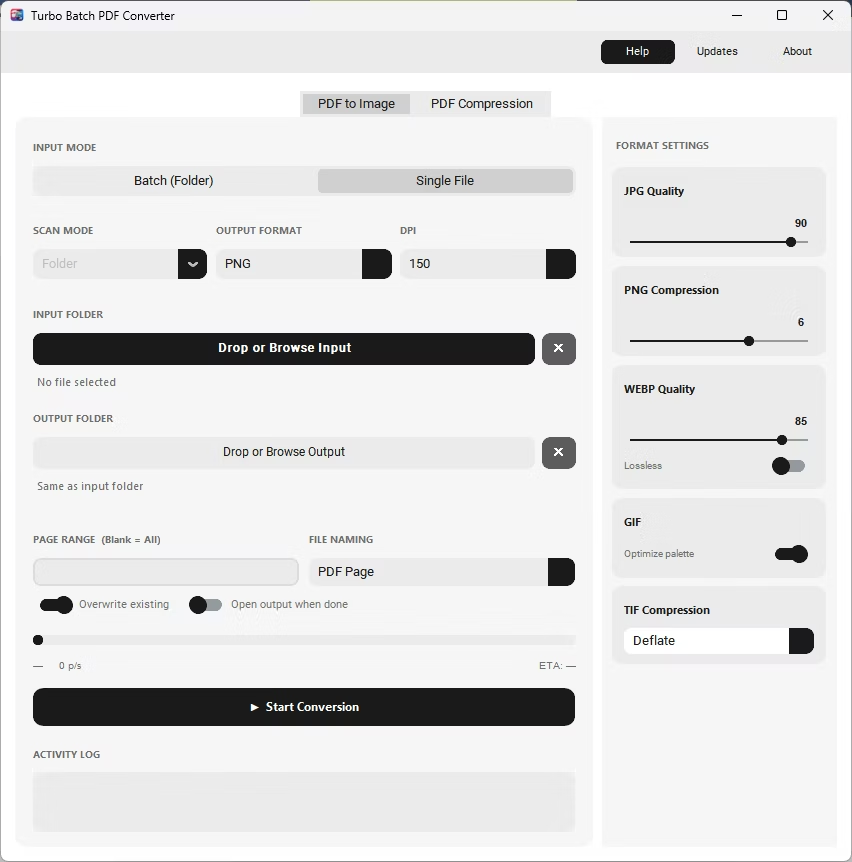
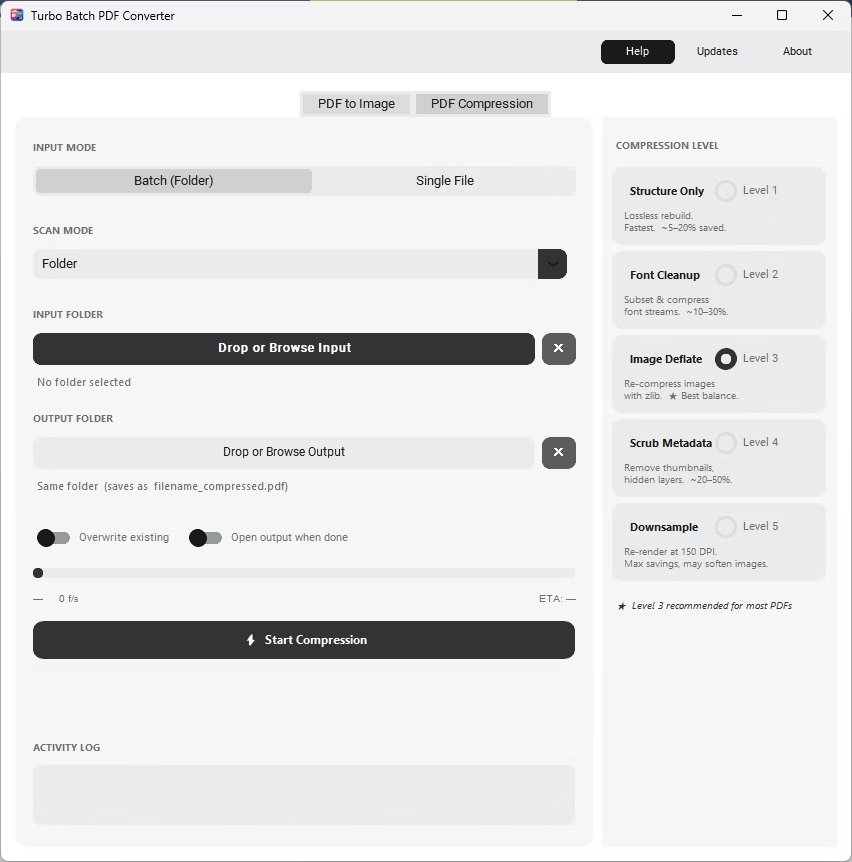
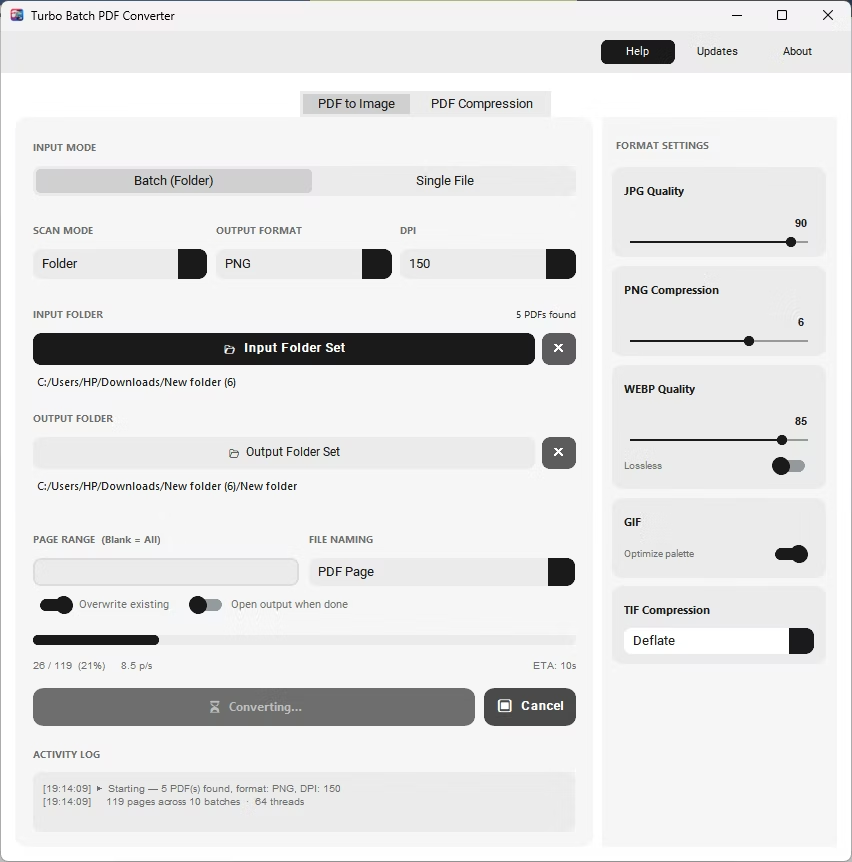
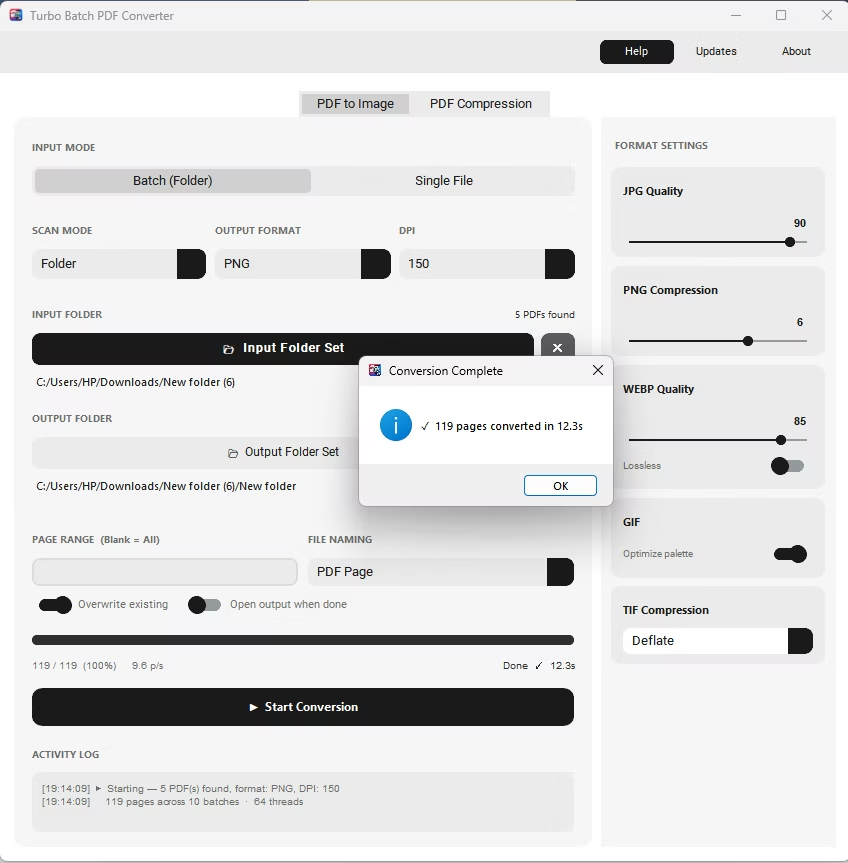
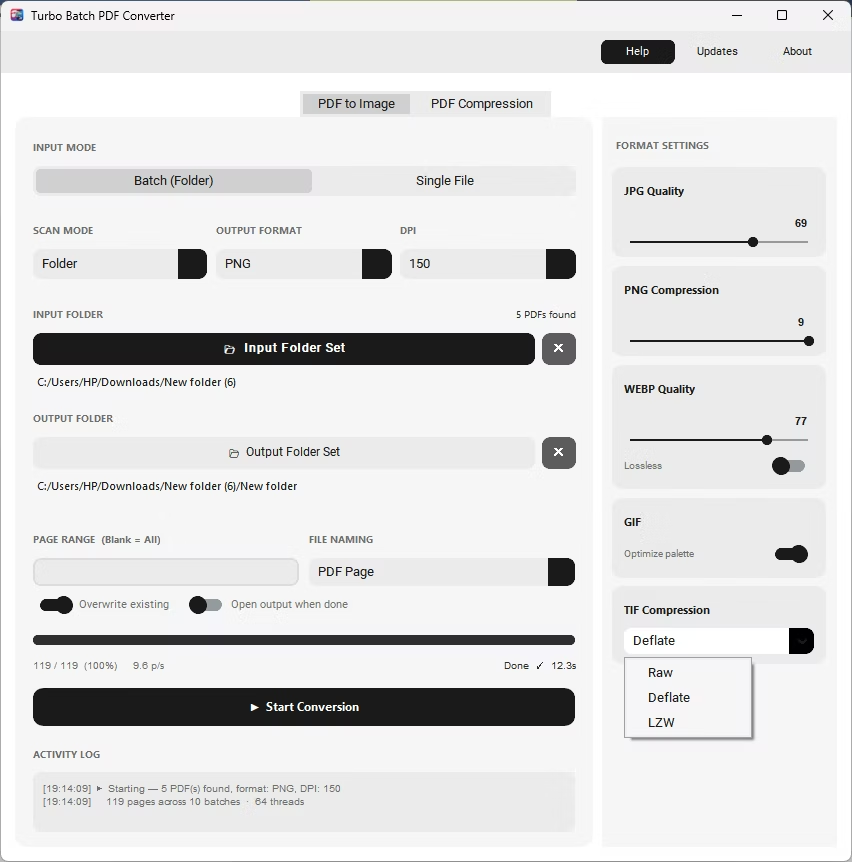
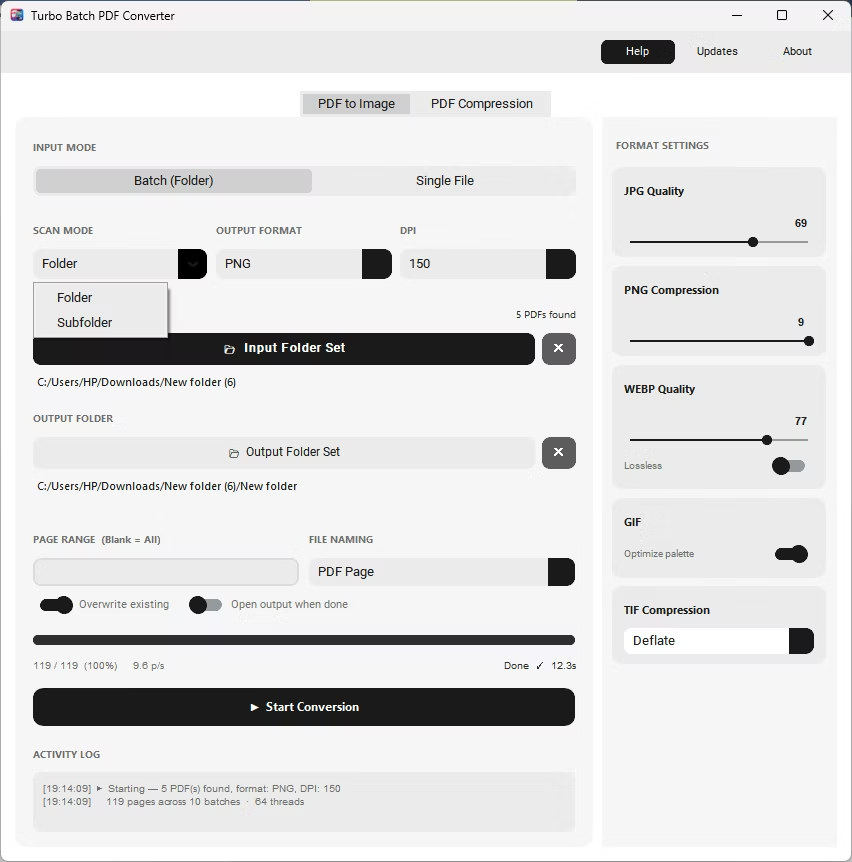
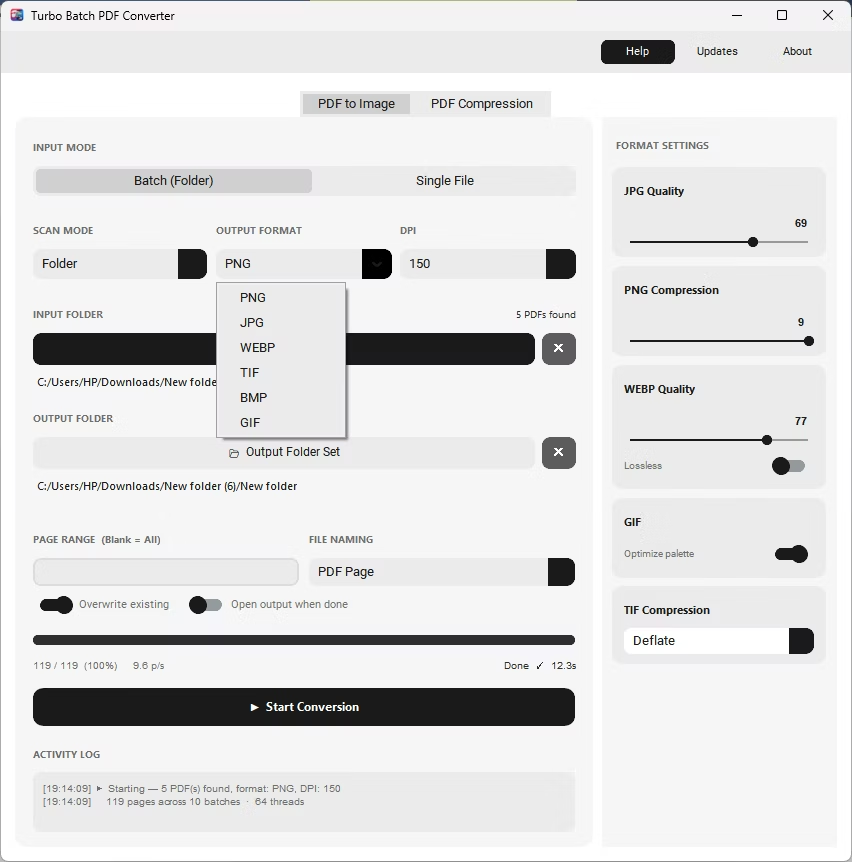
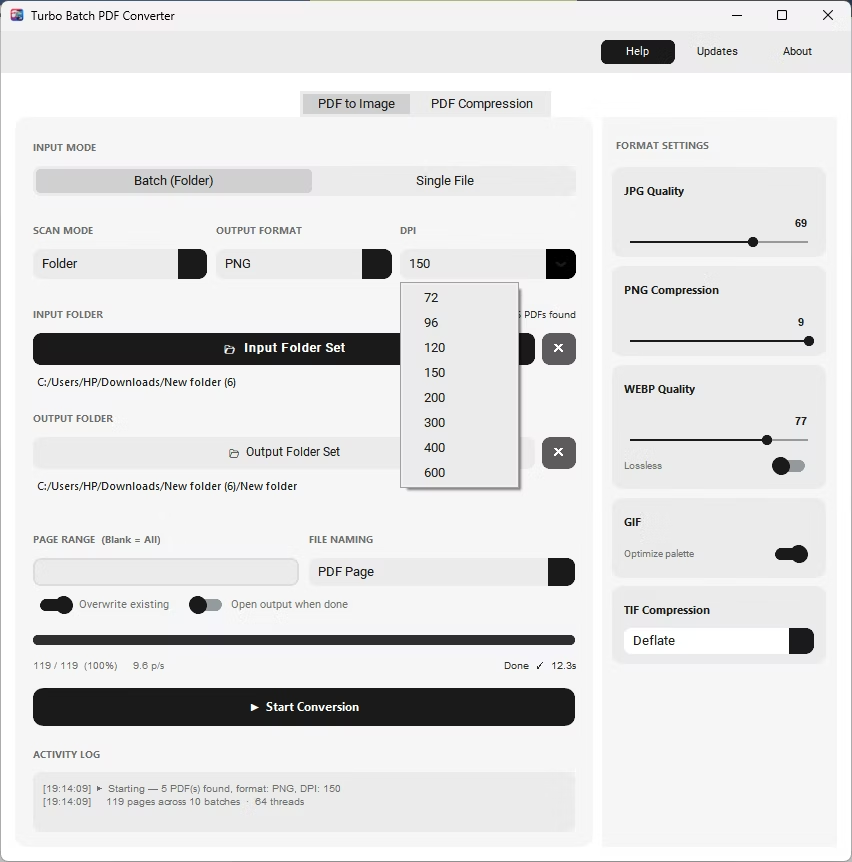
- Install Batchify PDF Converter on your Windows PC.
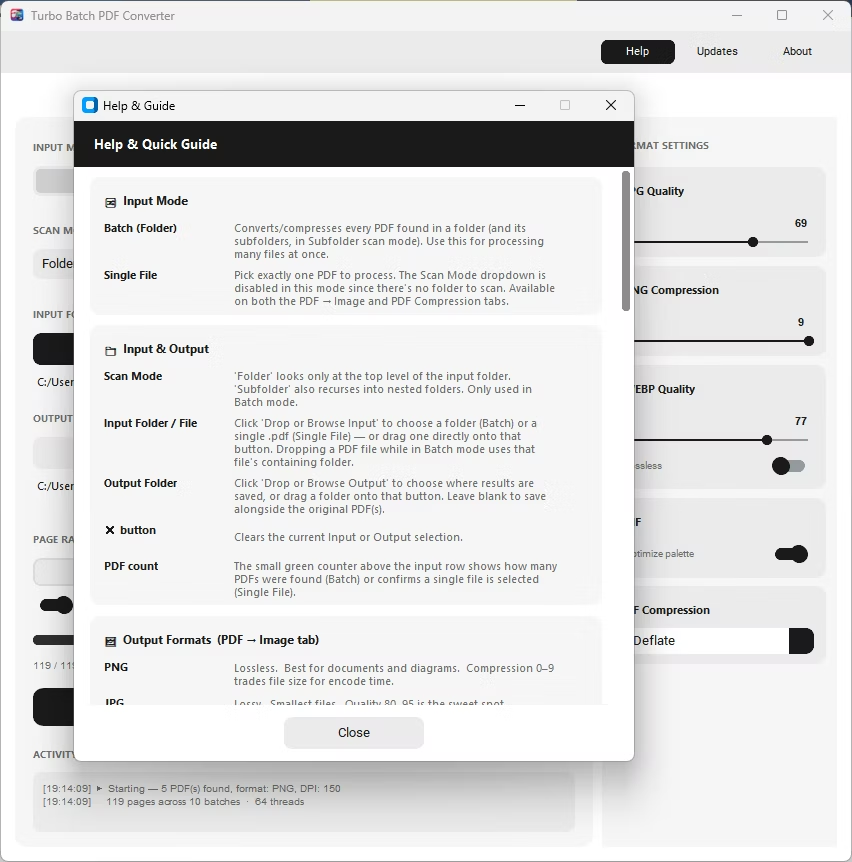
- Open the app and choose Batch mode for folders or Single File mode for one PDF.
- Add your PDF file or folder into the app window, enabling Subfolder mode for nested folders.
- Set the output format to GIF and turn on the Optimize Palette toggle for smaller files.
- Click Start Conversion. Adaptive 256-color GIF files are saved for every page, entirely offline.
- Adaptive 256-color palette for every converted page
- Optional palette optimization for smaller file sizes
- No upload required, unlike browser-based conversion tools
- Batch conversion of entire folders, including subfolders
- Live speed and ETA tracking while converting large batches
- One-time purchase, no recurring subscription
How do I convert PDF to GIF without an online tool?
Batchify PDF Converter converts PDF pages to GIF locally on your PC, with no upload limits, no watermarks, and no internet connection required.
Does GIF output support full photographic color?
GIF is limited to a 256-color adaptive palette, so it works best for simple documents, diagrams, and previews rather than detailed photographs.
Can I convert an entire folder of PDFs to GIF in one run?
Yes, Batch mode processes a whole folder, including nested subfolders, converting every page of every PDF at once.
Ready to convert your PDFs offline, in bulk, with full privacy?