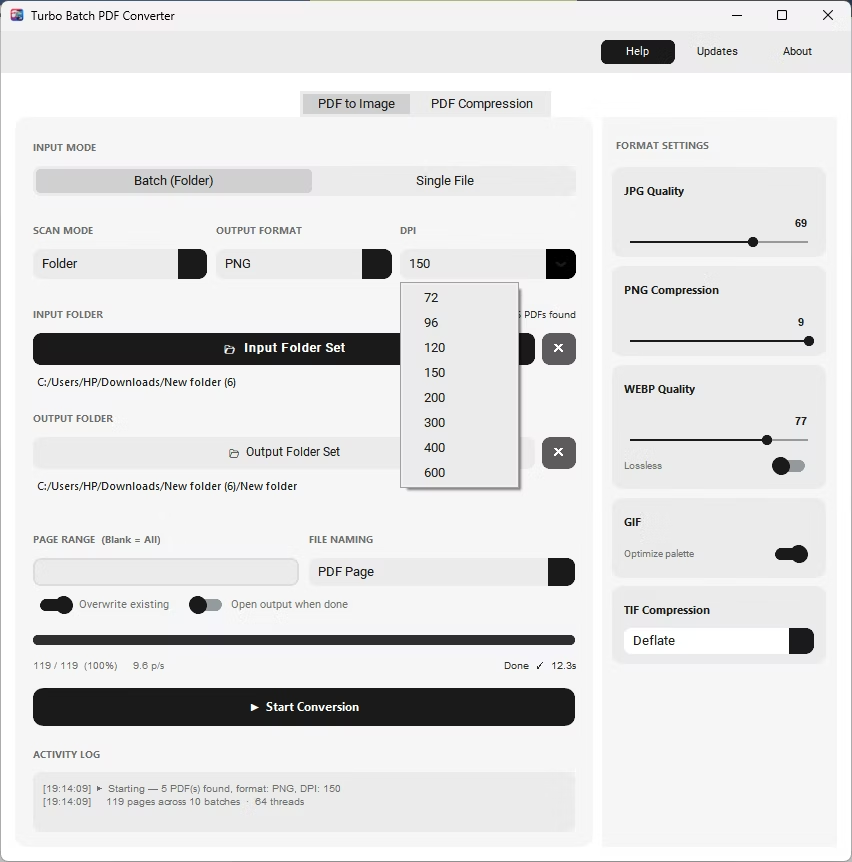
DPI determines how many pixels are rendered per inch of the original PDF page, which directly affects both image sharpness and file size. Choosing the right DPI depends entirely on what the output image will be used for, whether that's a quick screen preview or a page destined for professional printing.
A converter that supports a wide DPI range, rather than a single fixed resolution, gives the flexibility to match output quality to the task at hand across any of the supported image formats.
Batchify PDF Converter runs on Windows 10 and Windows 11, both 64-bit, and installs as a single self-contained application with no separate Poppler or Ghostscript dependency to configure. That keeps setup to a couple of minutes, whether the app is going on a personal laptop or a shared office PC handling document conversion for a whole team.
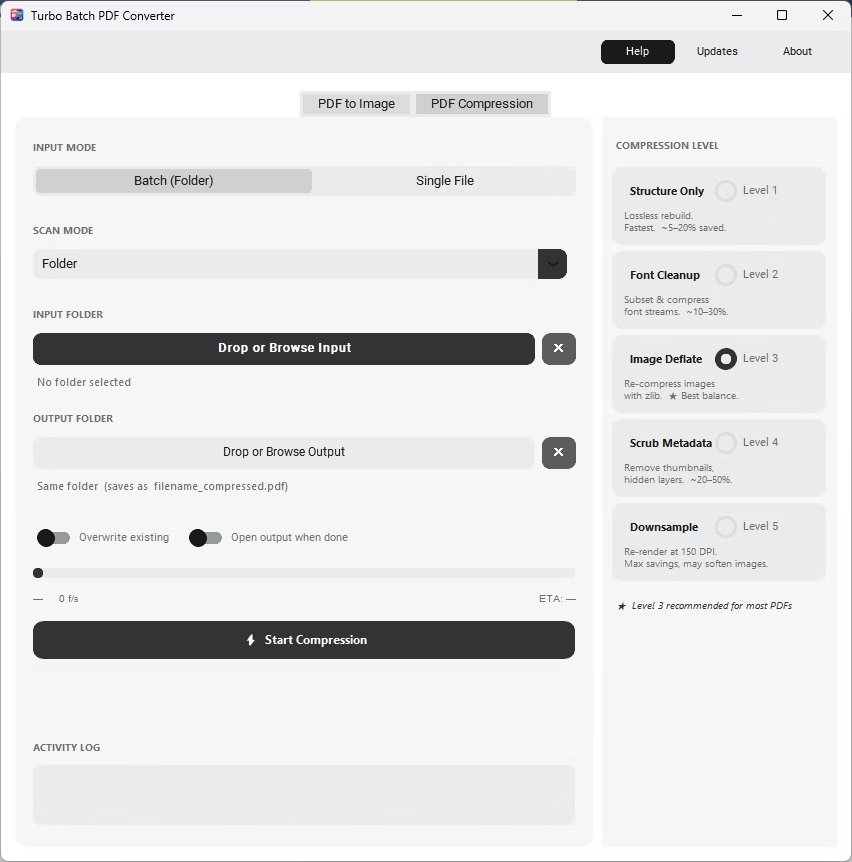
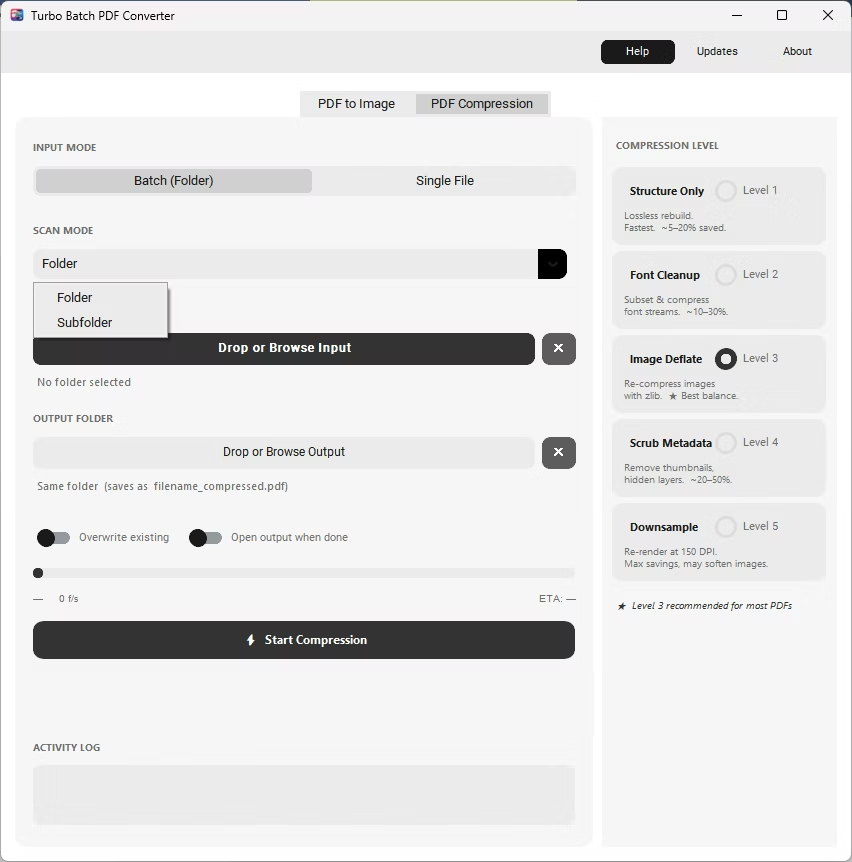
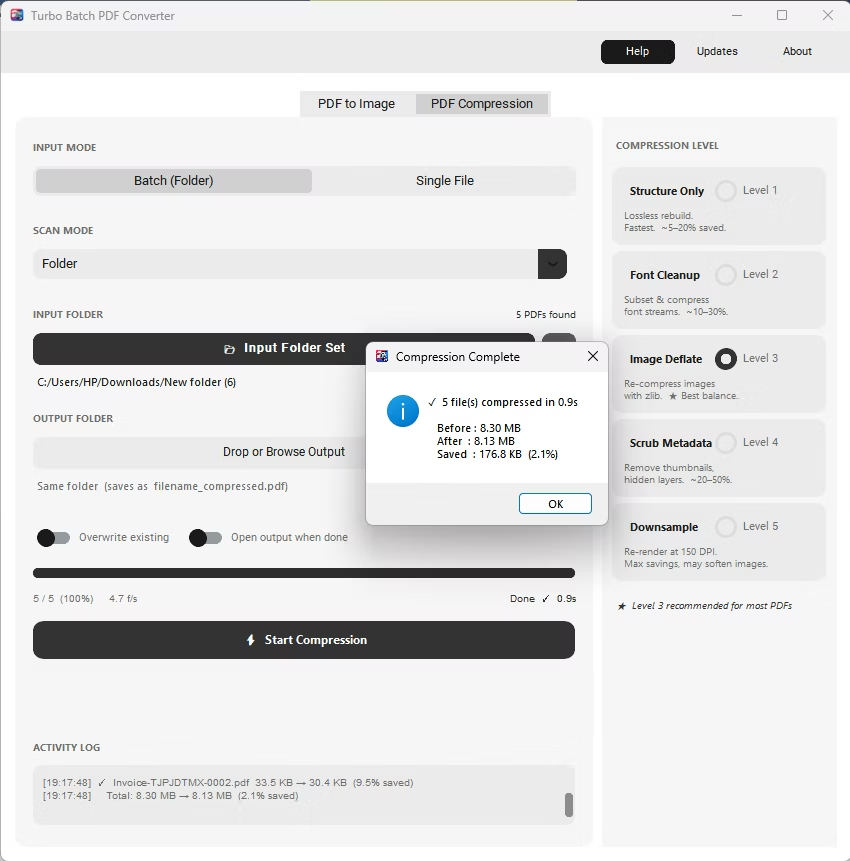
The same app also includes a built-in PDF compressor with five compression levels, so shrinking file sizes for email or storage doesn't require switching to a separate tool. Everything runs locally through a one-time Gumroad license, without a recurring subscription, and pairs naturally with other BatchifyApp utilities such as Batchify Renaming Tool for organizing converted files afterward.
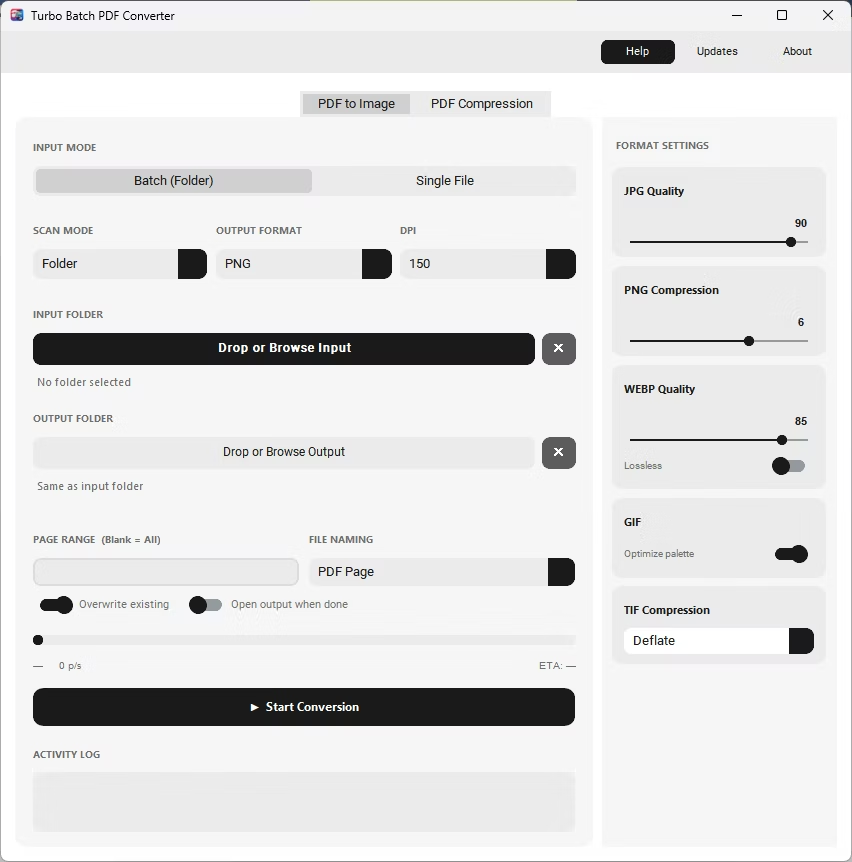
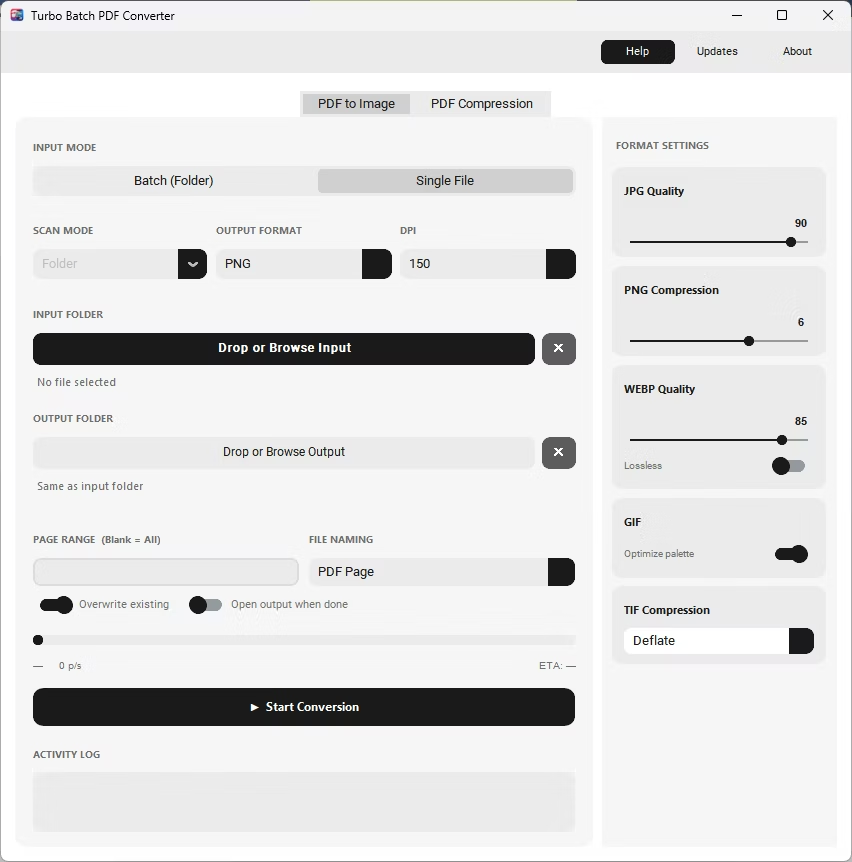
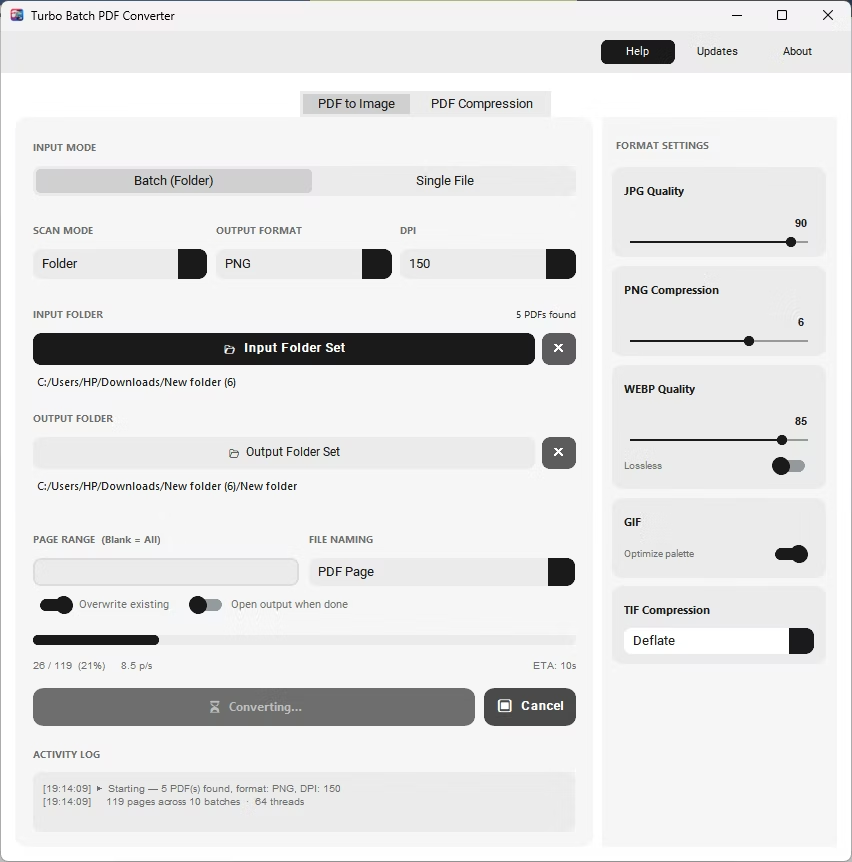
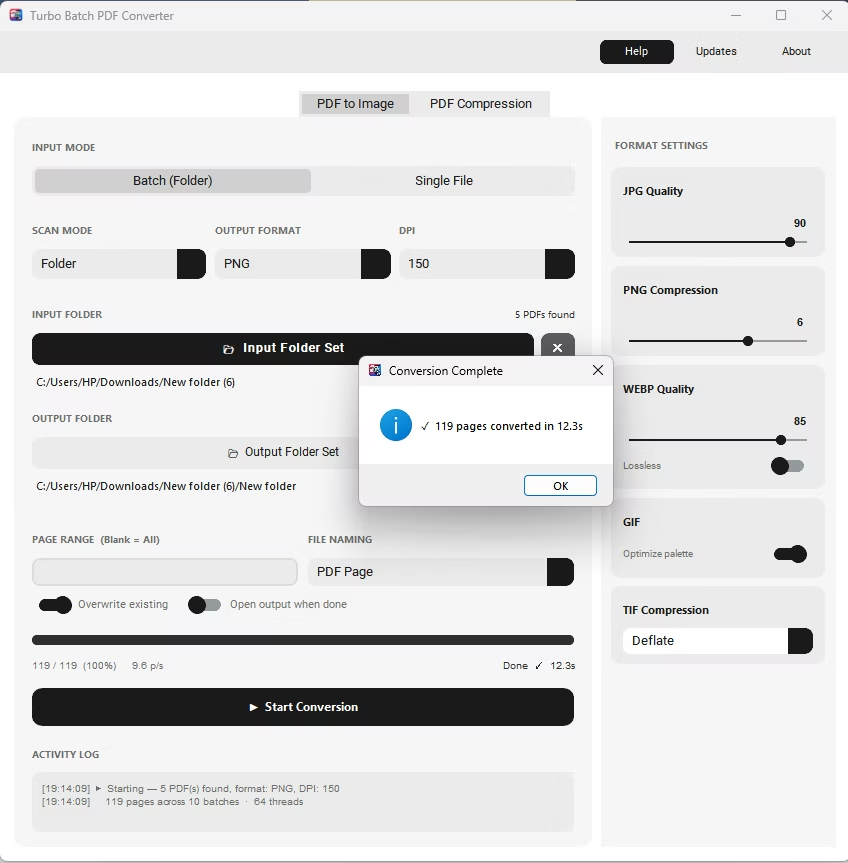
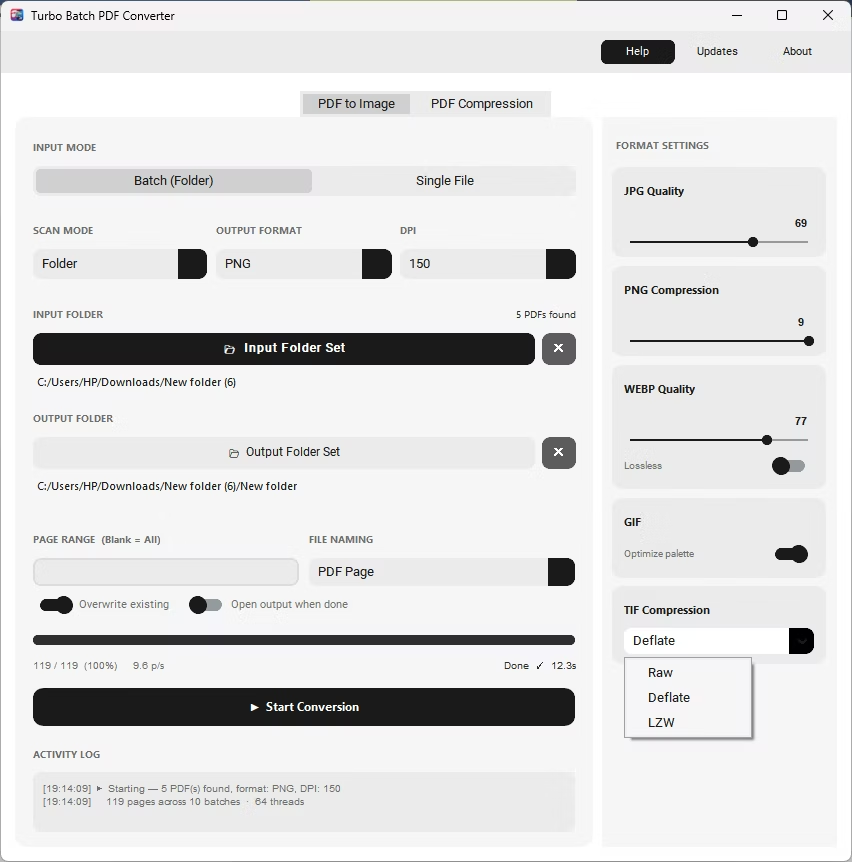
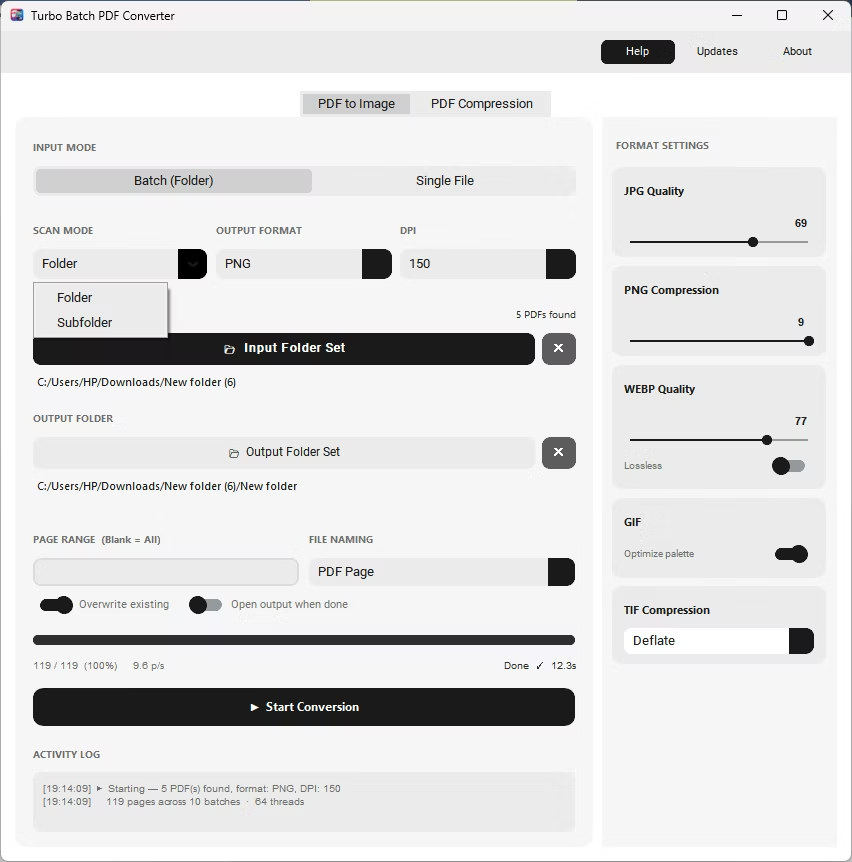
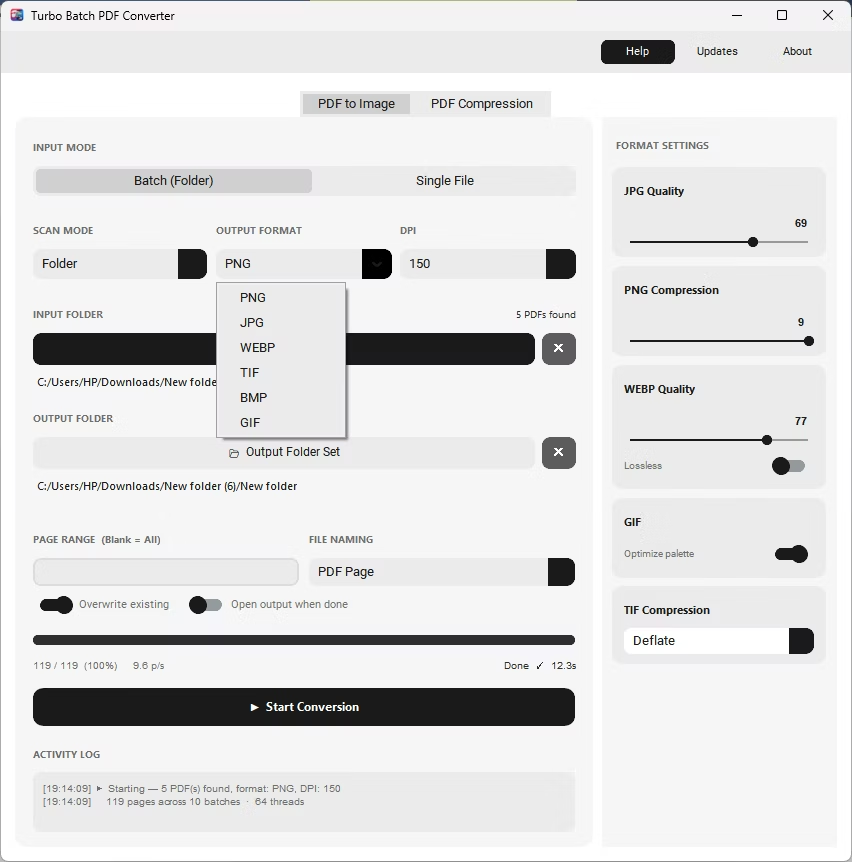
- Install Batchify PDF Converter on your Windows PC.
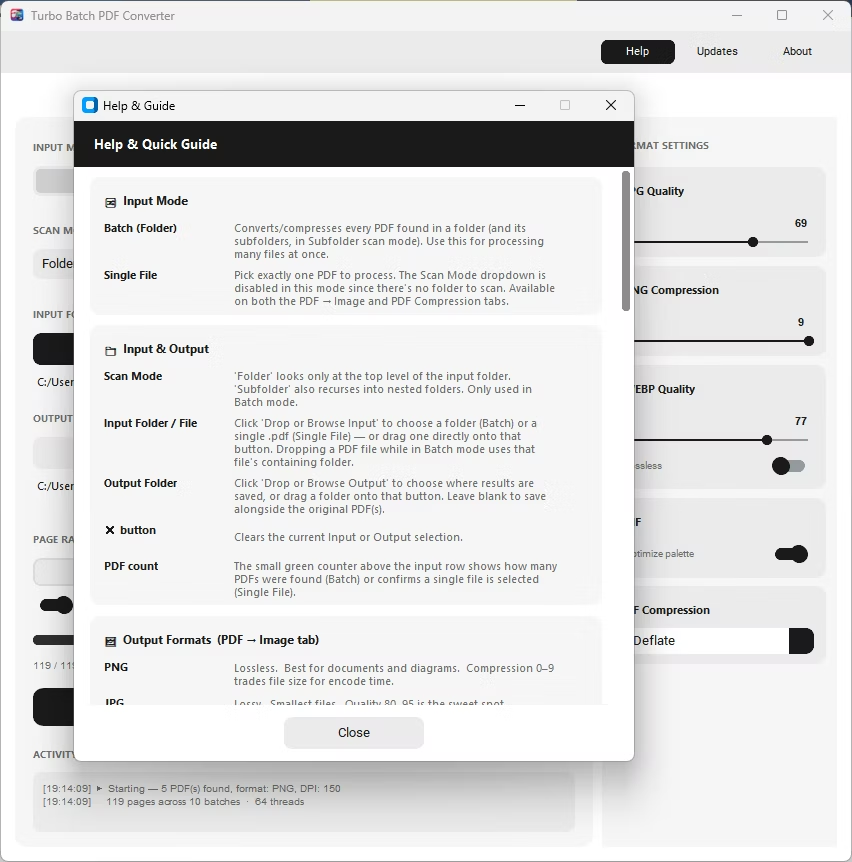
- Open the app and select your PDF file or folder on the PDF to Image tab.
- Choose your output format — JPG, PNG, WEBP, TIFF, BMP, or GIF.
- Select a DPI value from the dropdown, ranging from 72 up to 600.
- Click Start Conversion to render every page at the chosen resolution, offline.
- DPI range from 72 (screen preview) up to 600 (professional print)
- Works across all six supported output formats
- Higher DPI settings preserve fine text and line-art detail
- DPI setting applies consistently across an entire batch
- Combine high DPI with lossless formats like PNG or TIFF for archival use
- Combine moderate DPI with JPG or WEBP for smaller preview files
What DPI should I use for web previews?
72-96 DPI is usually sufficient for on-screen previews and keeps file sizes small across any output format.
What DPI is recommended for scanned archives?
300 DPI is a common standard for scanned document archives, offering a good balance between sharpness and storage size.
Can I use 600 DPI with any output format?
Yes, the DPI setting applies to all six supported formats, so you can pair 600 DPI with PNG or TIFF for the sharpest archival results.
Ready to convert your PDFs offline, in bulk, with full privacy?