JPEG and JPG refer to the same compressed image format, and converting a PDF to JPEG is the standard way to turn scanned reports, contracts, or eBook pages into files that any browser, photo viewer, or content management system can display without extra plugins. Because JPEG compresses smoothly, a hundred-page PDF converts into a set of image files that stay easy to store and transfer.
This kind of conversion also matters for automated workflows, such as feeding scanned pages into an OCR pipeline or a website gallery, where the input needs to be a plain image rather than a multi-page PDF document. A batch converter removes the need to export pages manually from a PDF viewer one at a time.
Batchify PDF Converter runs on Windows 10 and Windows 11, both 64-bit, and installs as a single self-contained application with no separate Poppler or Ghostscript dependency to configure. That keeps setup to a couple of minutes, whether the app is going on a personal laptop or a shared office PC handling document conversion for a whole team.
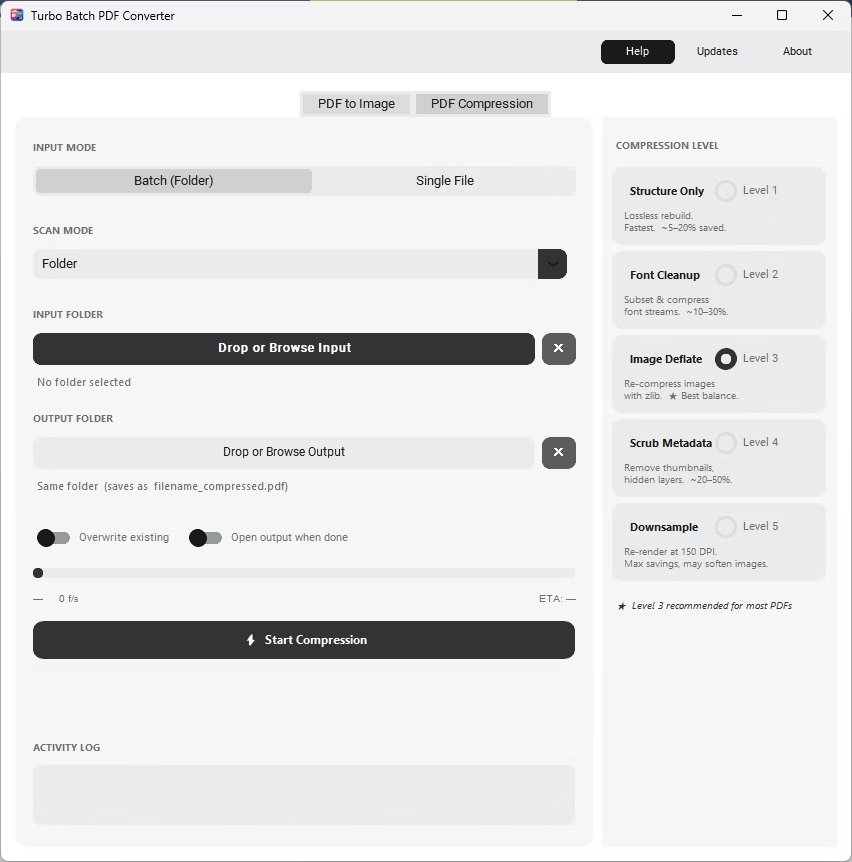
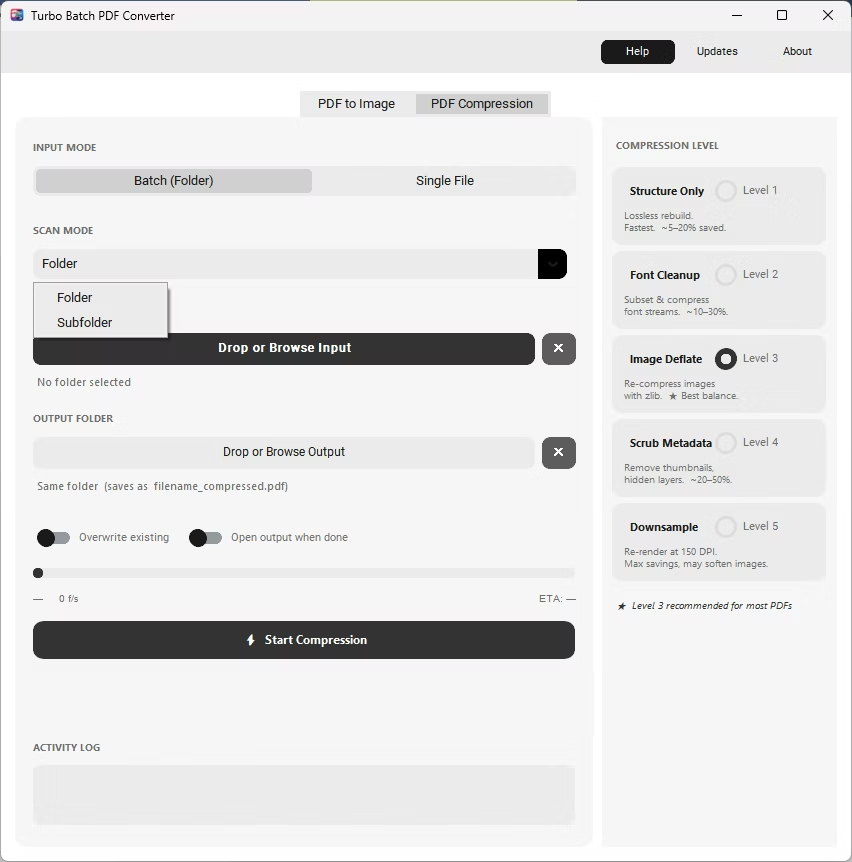
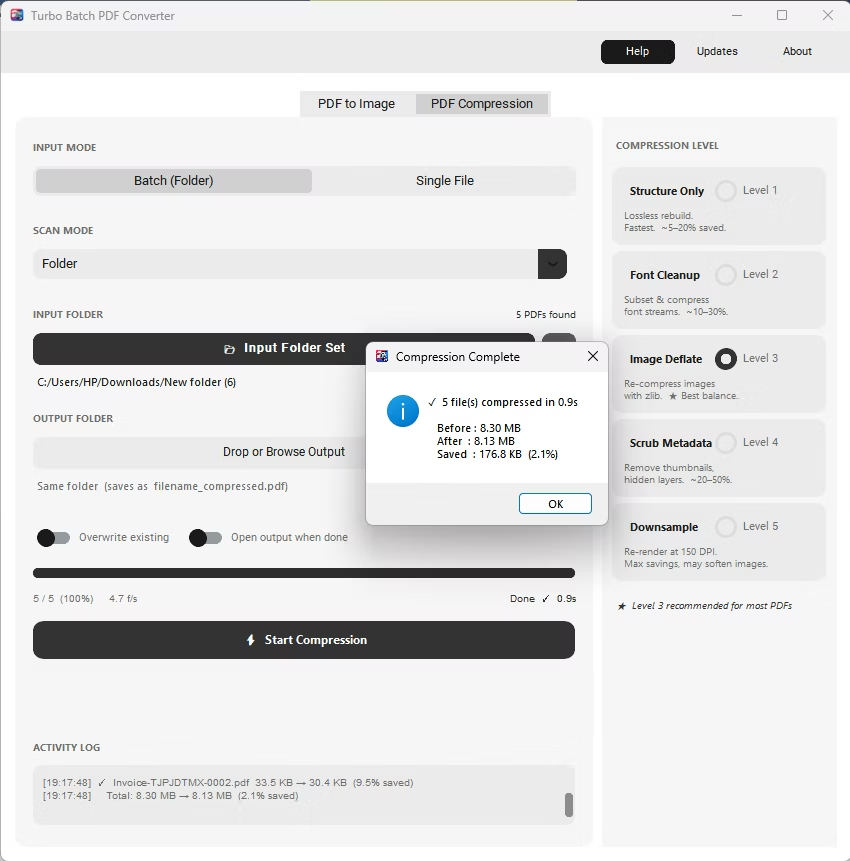
The same app also includes a built-in PDF compressor with five compression levels, so shrinking file sizes for email or storage doesn't require switching to a separate tool. Everything runs locally through a one-time Gumroad license, without a recurring subscription, and pairs naturally with other BatchifyApp utilities such as Batchify Renaming Tool for organizing converted files afterward.
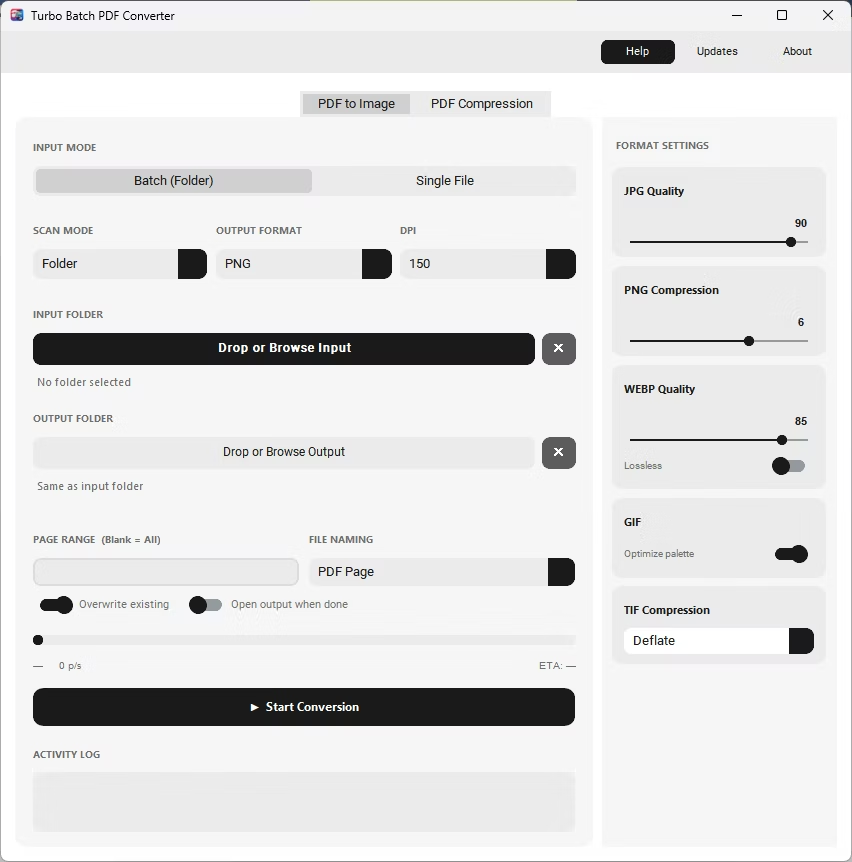
- Install Batchify PDF Converter on your Windows PC.
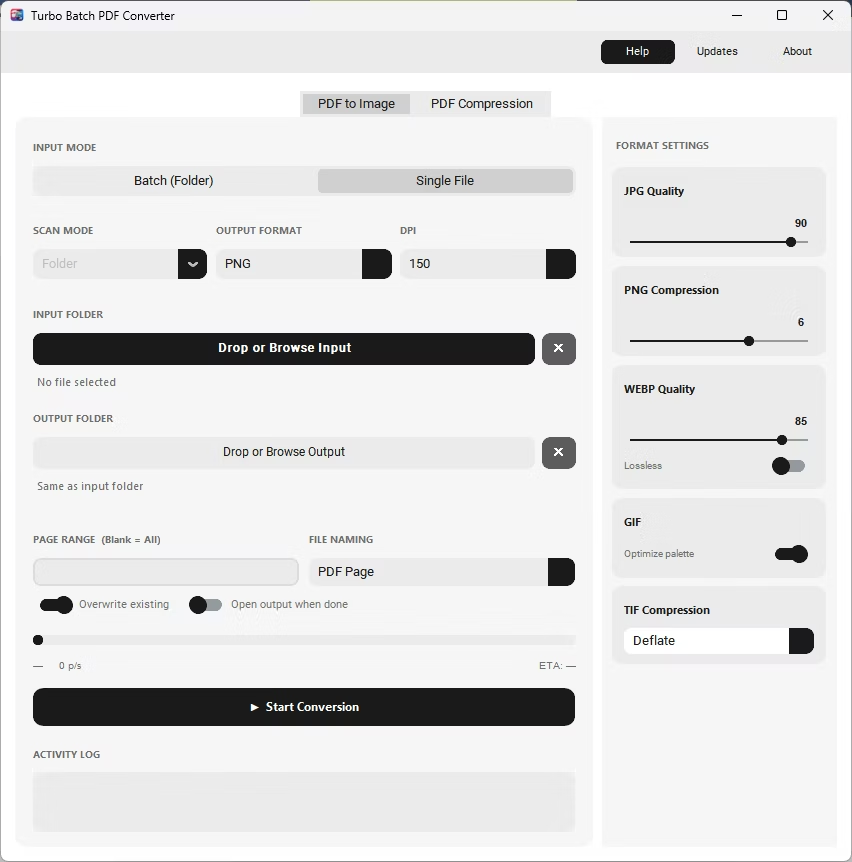
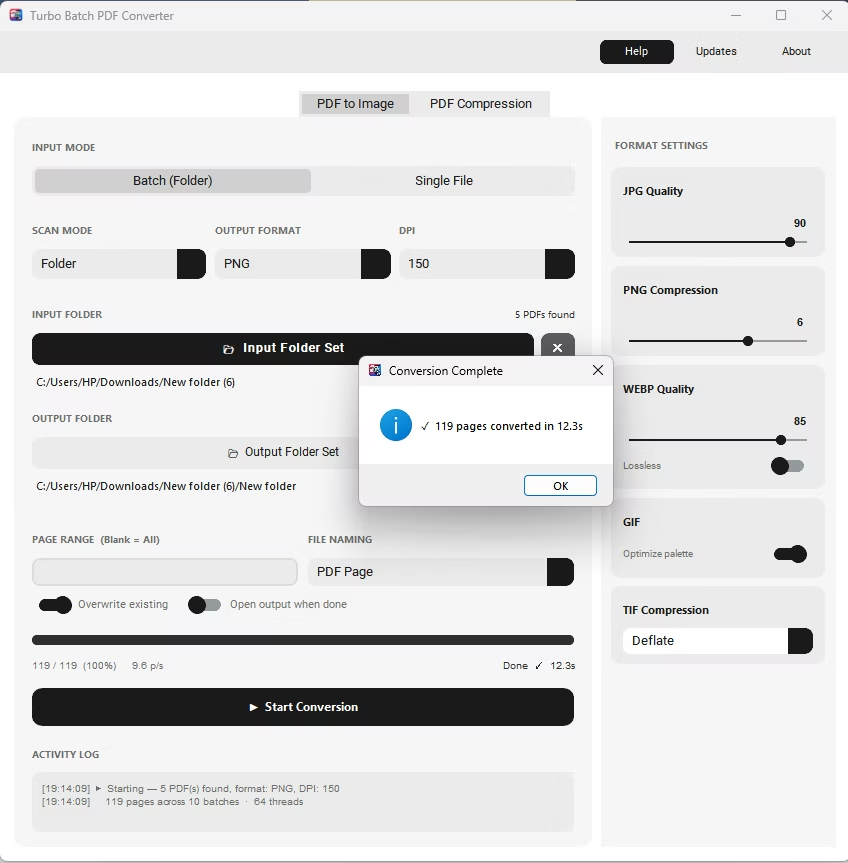
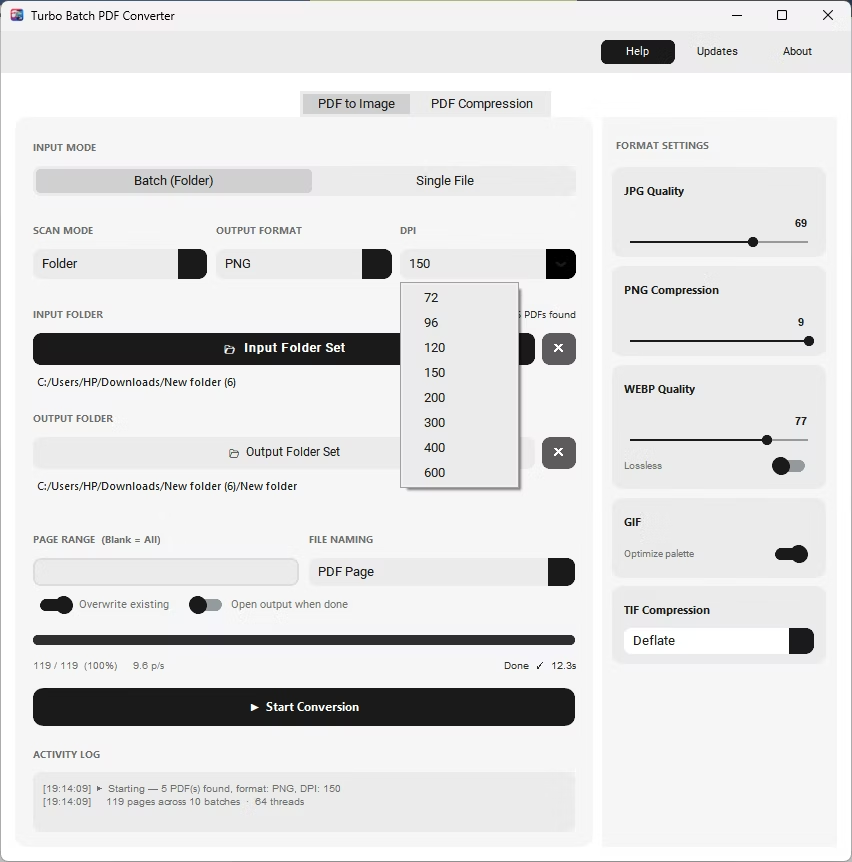
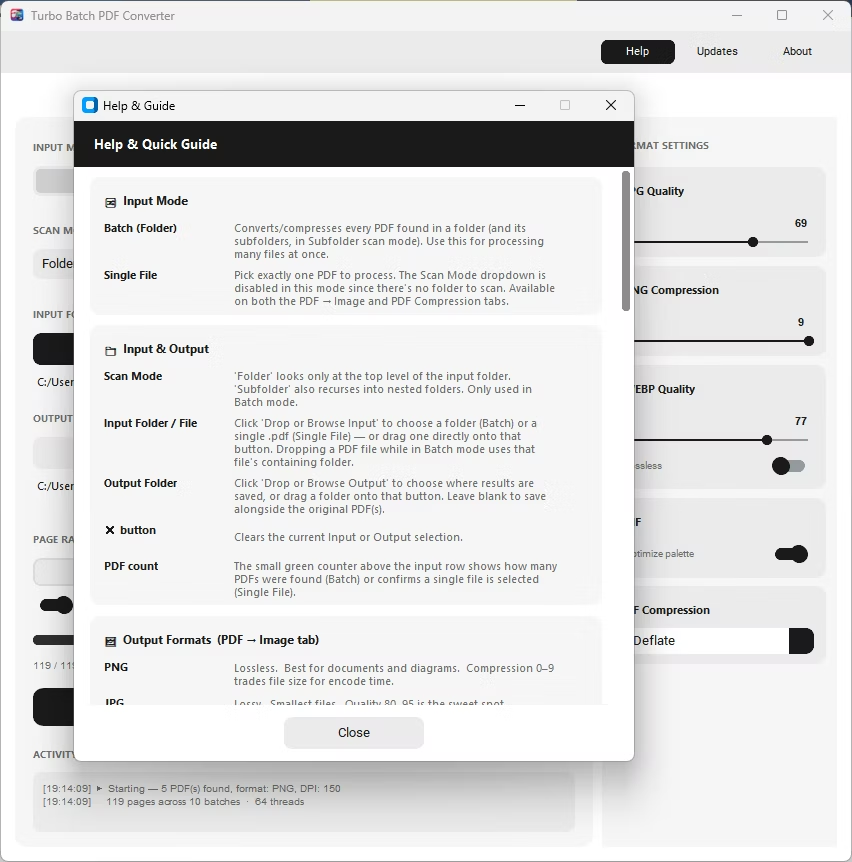
- Launch the app and pick Batch mode for multiple PDFs or Single File mode for one document.
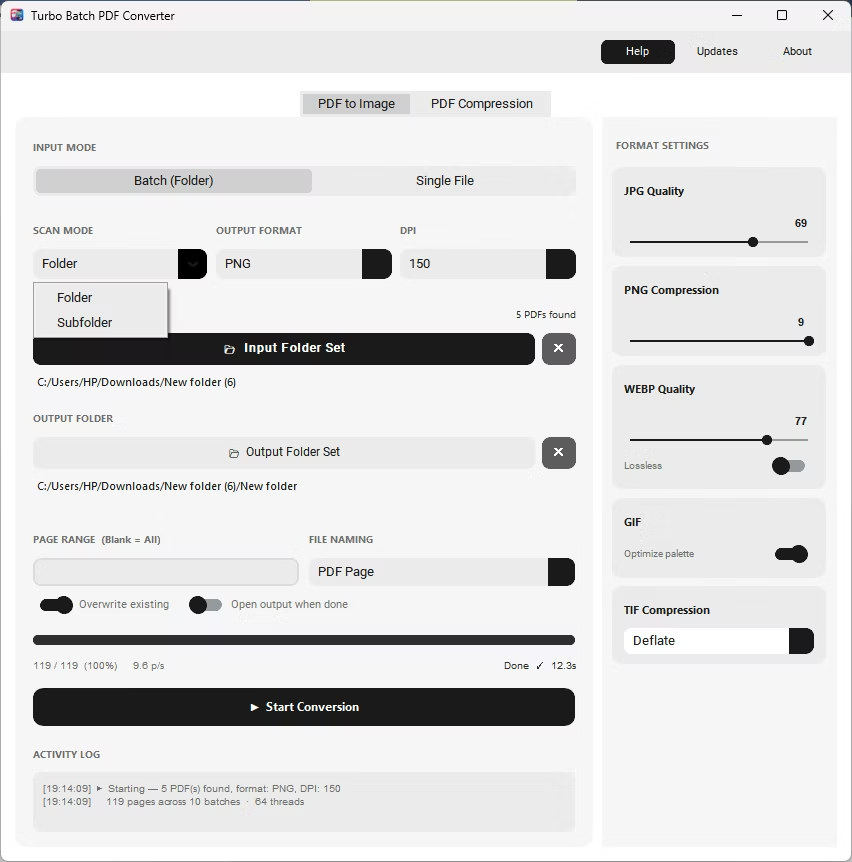
- Add your PDF file or a whole folder, enabling recursive subfolder scanning if required.
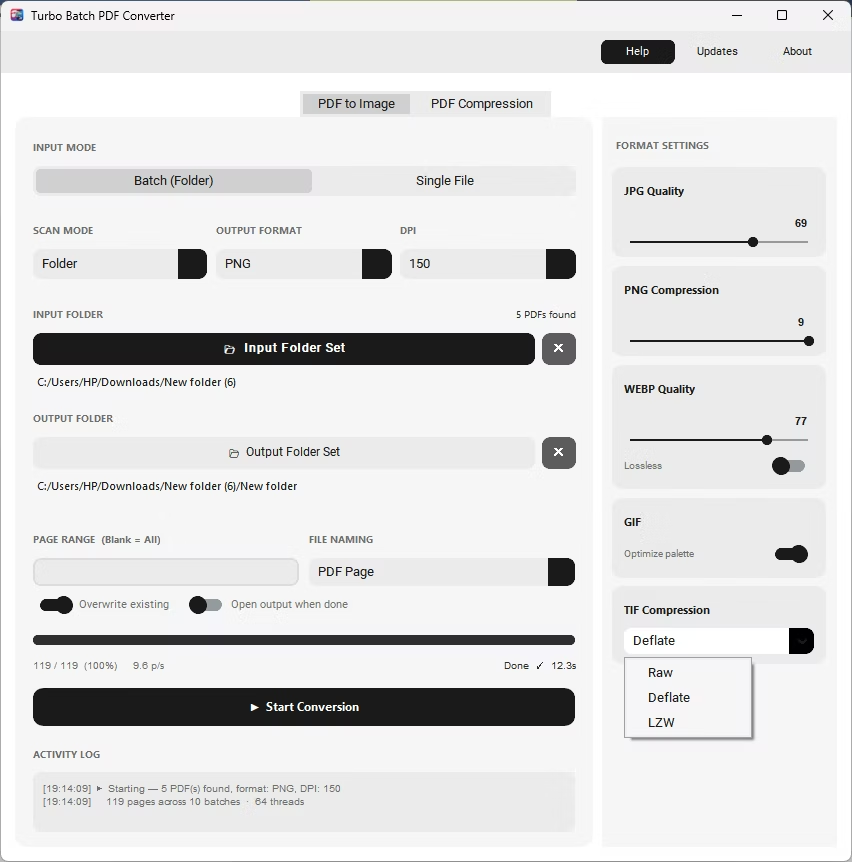
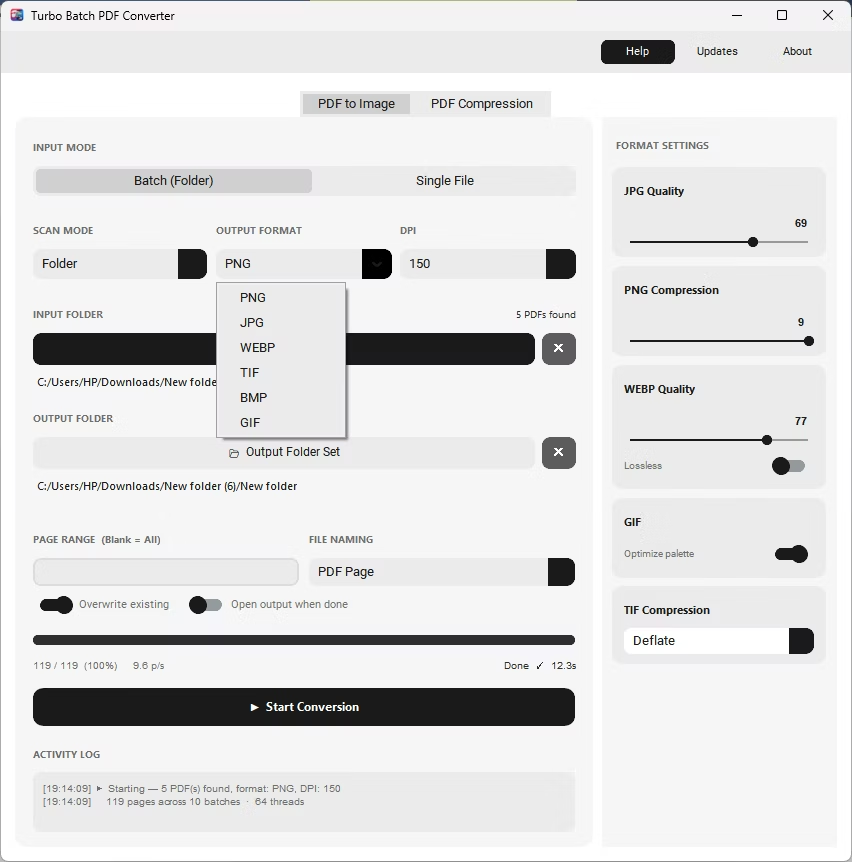
- Select JPEG as the output format, set the quality slider, and choose a DPI value.
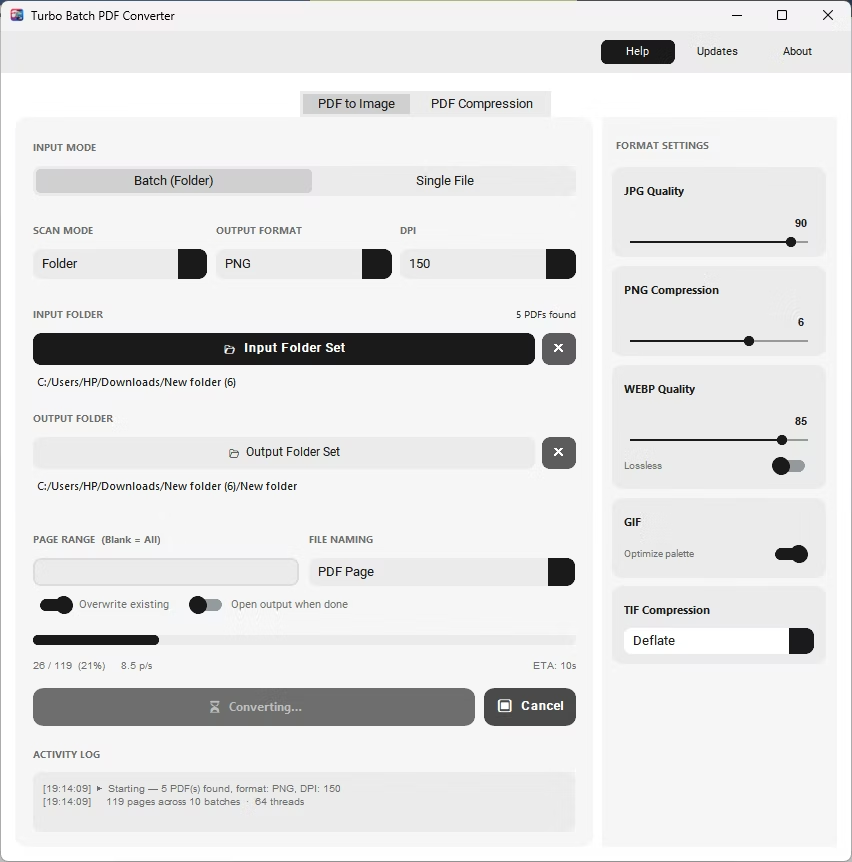
- Click Start Conversion to save every page as a JPEG file in the output folder, entirely offline.
- 100% offline conversion with no file uploads
- Quality slider from 1 to 100 for fine control over sharpness and size
- DPI range from 72 to 600 for screen or print-ready output
- Handles entire folders and nested subfolders in one batch run
- Live progress, speed, and ETA shown while converting
- One-time purchase with no recurring subscription
Is JPEG output any different from JPG output?
No, JPEG and JPG are the same image format under two names, so the output quality and file size behave identically either way.
Can I convert only certain pages of a PDF to JPEG?
Yes, entering a page range such as 1-3, 5, 8-10 converts only the pages you specify instead of the whole document.
Does the app need an internet connection to convert files?
No, conversion happens entirely on your PC. An internet connection is only needed once, for license activation.
Ready to convert your PDFs offline, in bulk, with full privacy?