Searching for a pdf to jpg converter software free download for windows 10 64 bit usually turns up a mix of browser-based tools with upload limits and desktop apps of varying quality. The most reliable option is a dedicated Windows application that installs locally, works fully offline, and offers a free trial demo before requiring a purchase.
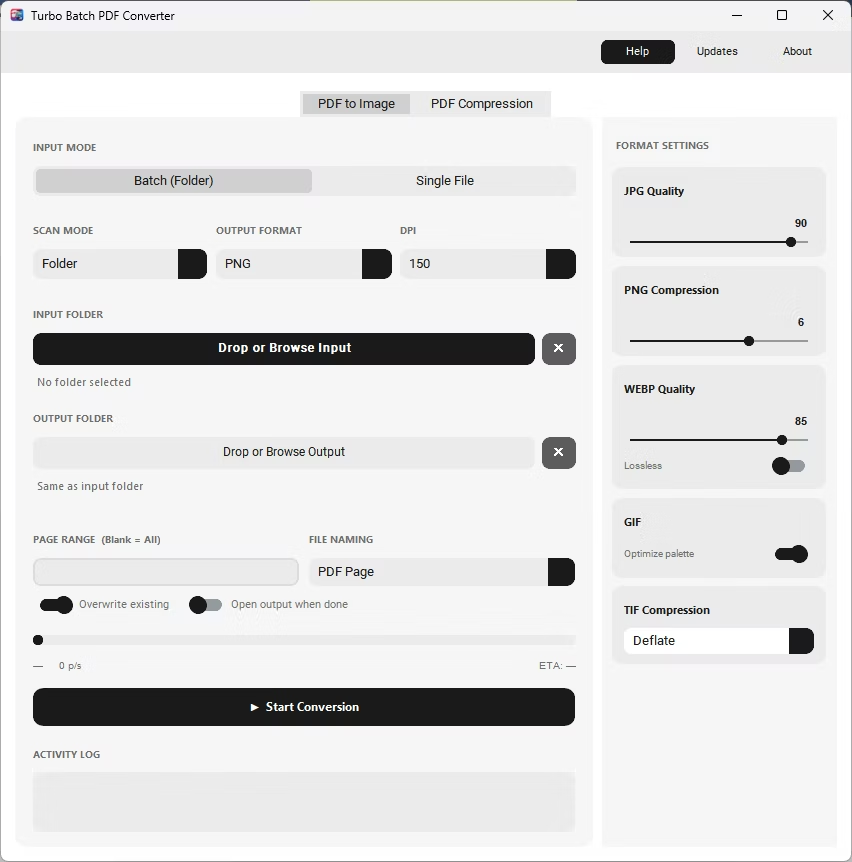
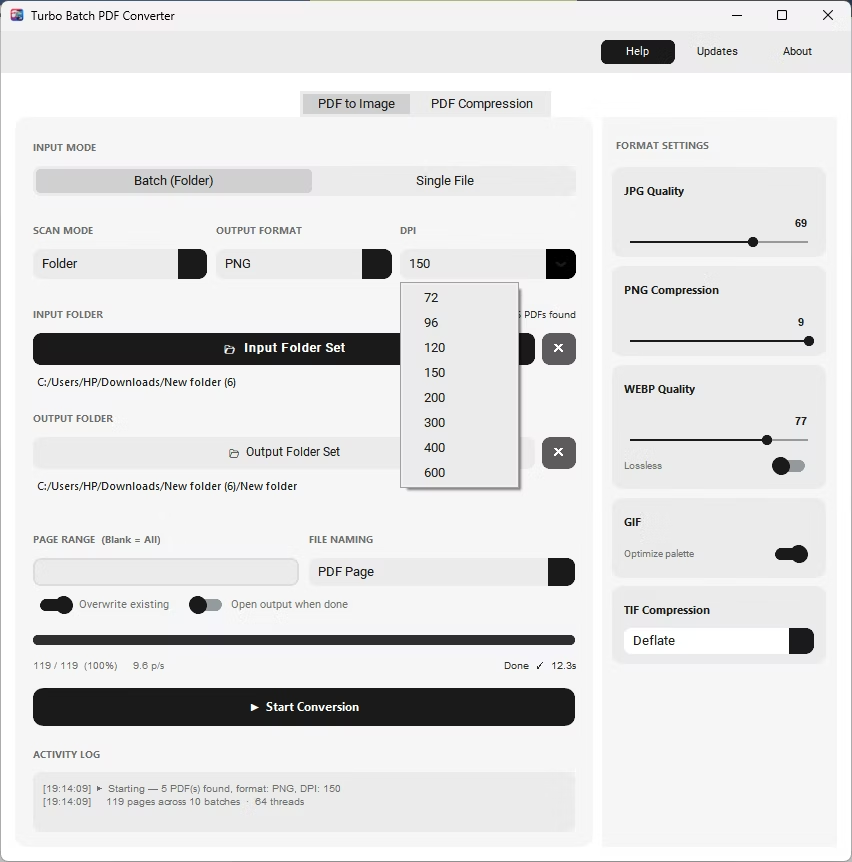
Batchify PDF Converter is built specifically for Windows 10 and Windows 11, both 64-bit, and is available as a free trial demo so you can test batch conversion, quality settings, and DPI options before deciding to buy a license.
Batchify PDF Converter runs on Windows 10 and Windows 11, both 64-bit, and installs as a single self-contained application with no separate Poppler or Ghostscript dependency to configure. That keeps setup to a couple of minutes, whether the app is going on a personal laptop or a shared office PC handling document conversion for a whole team.
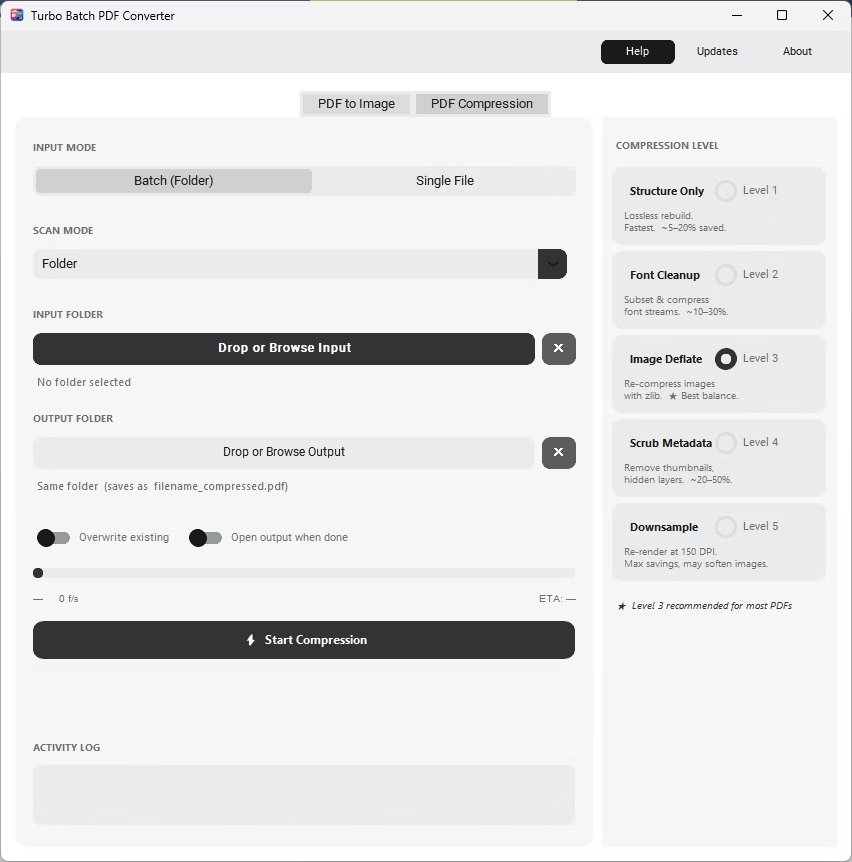
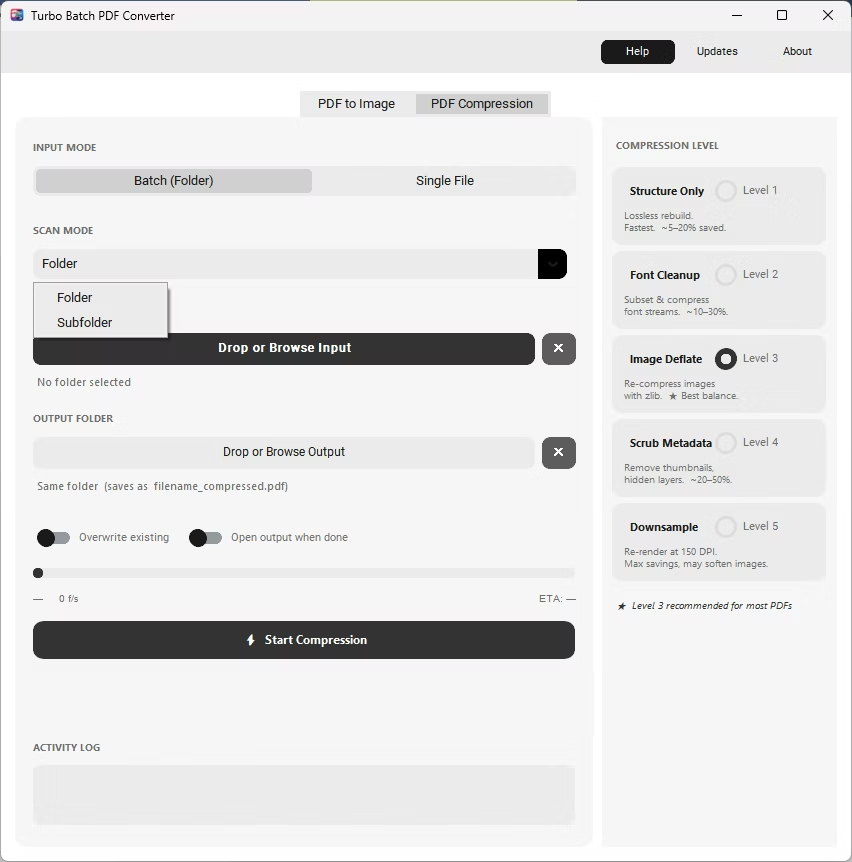
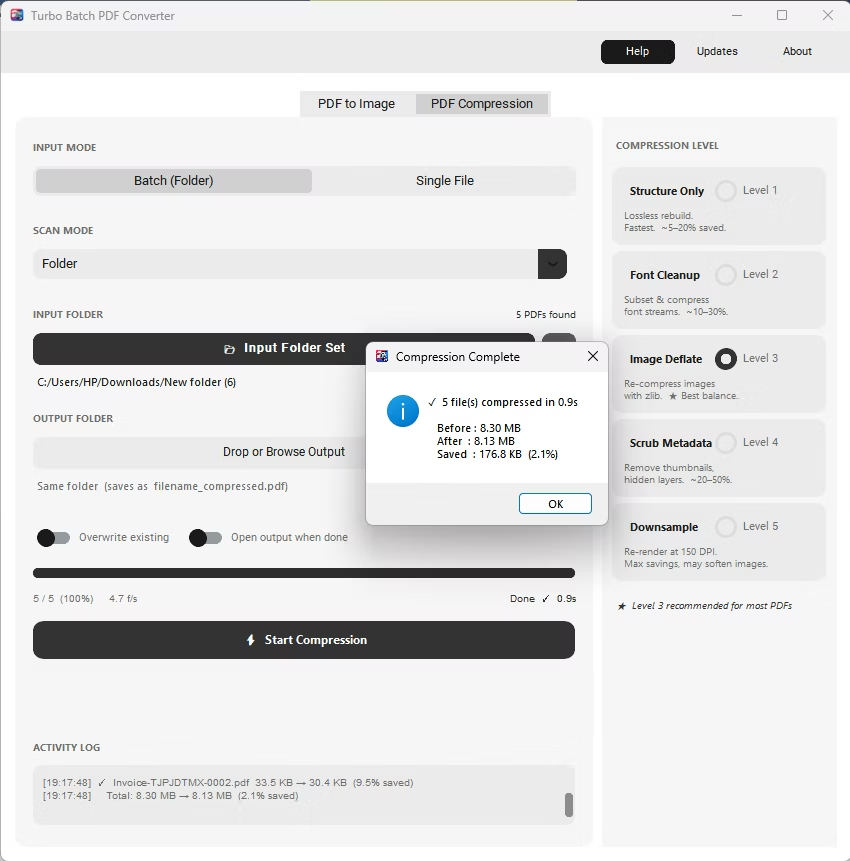
The same app also includes a built-in PDF compressor with five compression levels, so shrinking file sizes for email or storage doesn't require switching to a separate tool. Everything runs locally through a one-time Gumroad license, without a recurring subscription, and pairs naturally with other BatchifyApp utilities such as Batchify Renaming Tool for organizing converted files afterward.
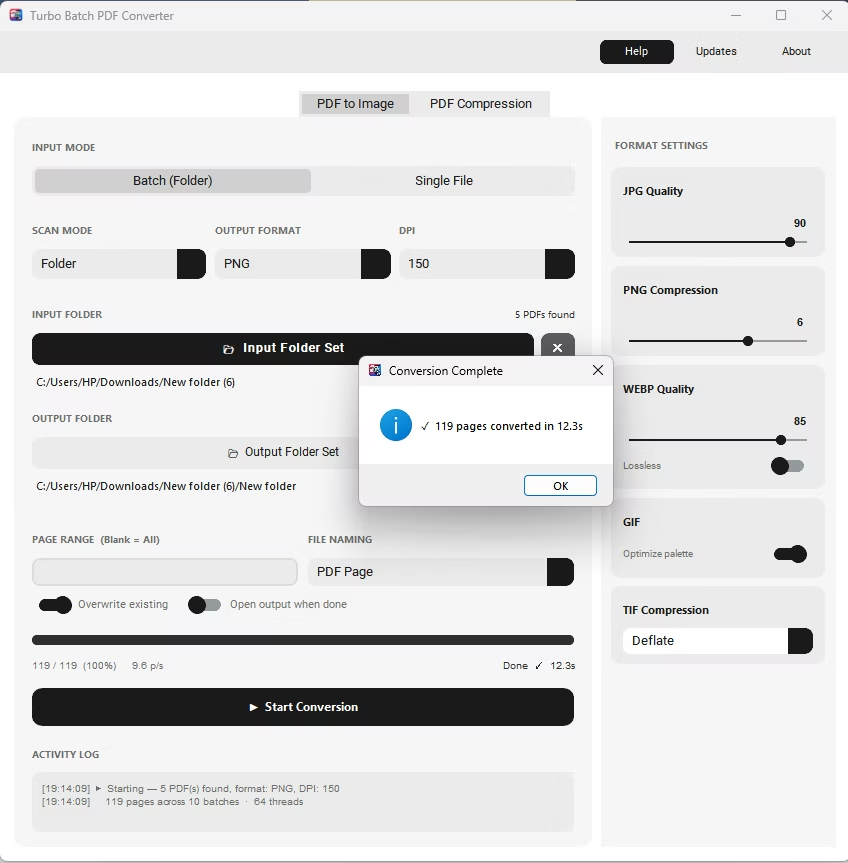
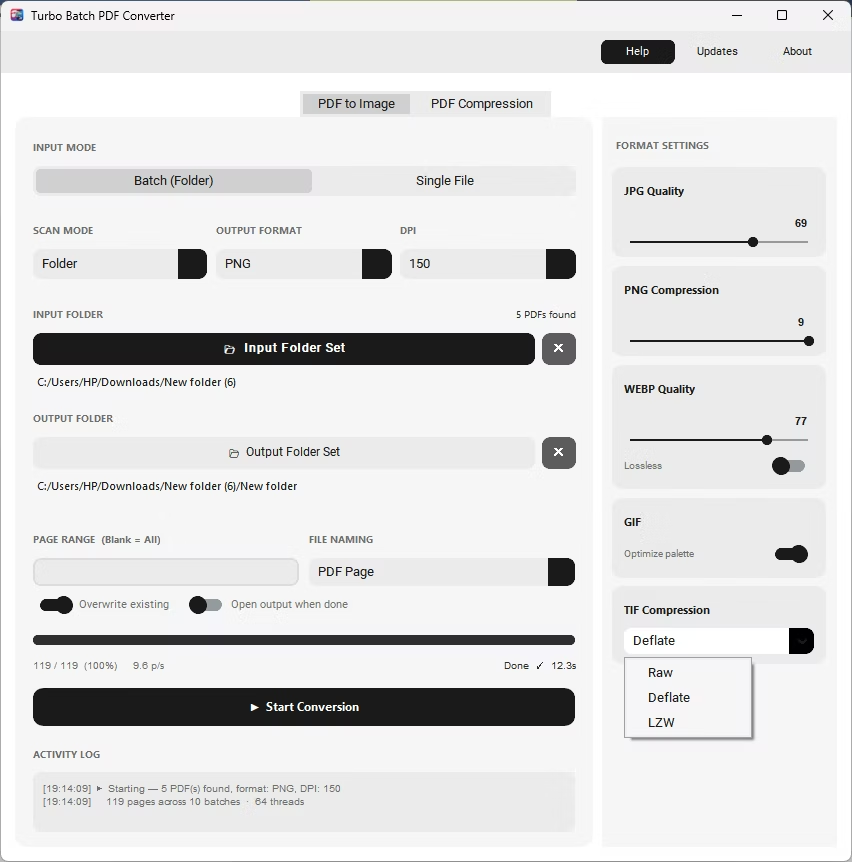
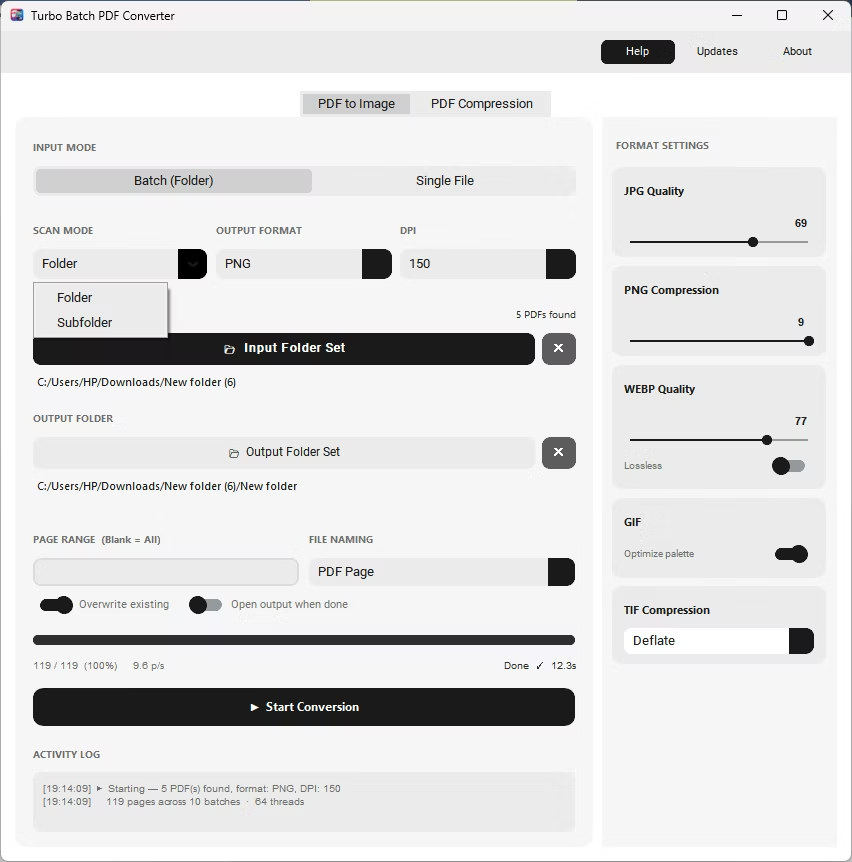
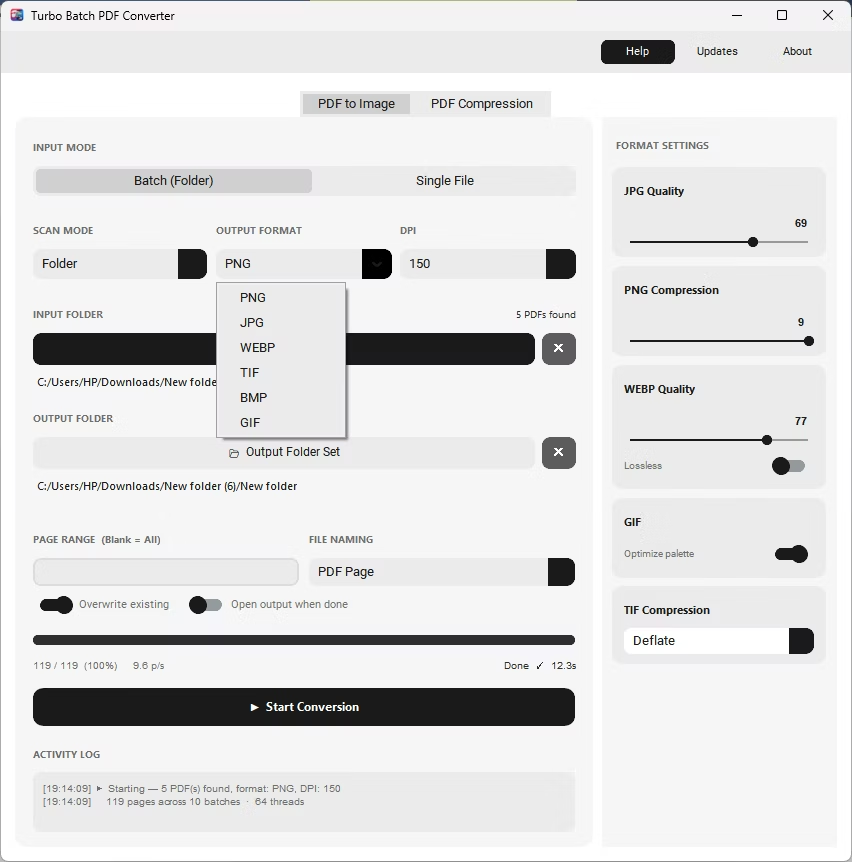
- Visit the Batchify PDF Converter product page and download the free trial demo.
- Install the app on your Windows 10 or Windows 11 (64-bit) PC — no separate Poppler or Ghostscript install is needed.
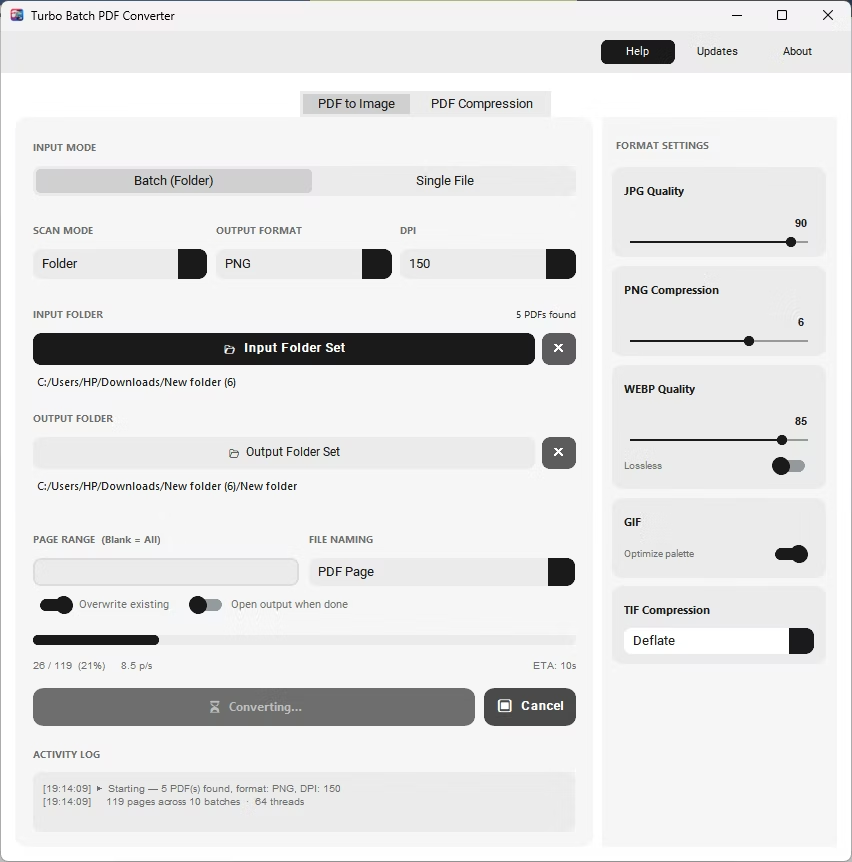
- Open the app and drag in a PDF file or folder to test batch conversion.
- Set the output format to JPG, adjust quality and DPI, and run a test conversion.
- If the demo meets your needs, purchase a license through Gumroad to unlock full, unrestricted use.
- Free trial demo available before purchase
- Works on Windows 10 and Windows 11, both 64-bit
- No Poppler or Ghostscript install required
- 100% offline conversion — no file uploads
- One-time Gumroad license, no recurring subscription
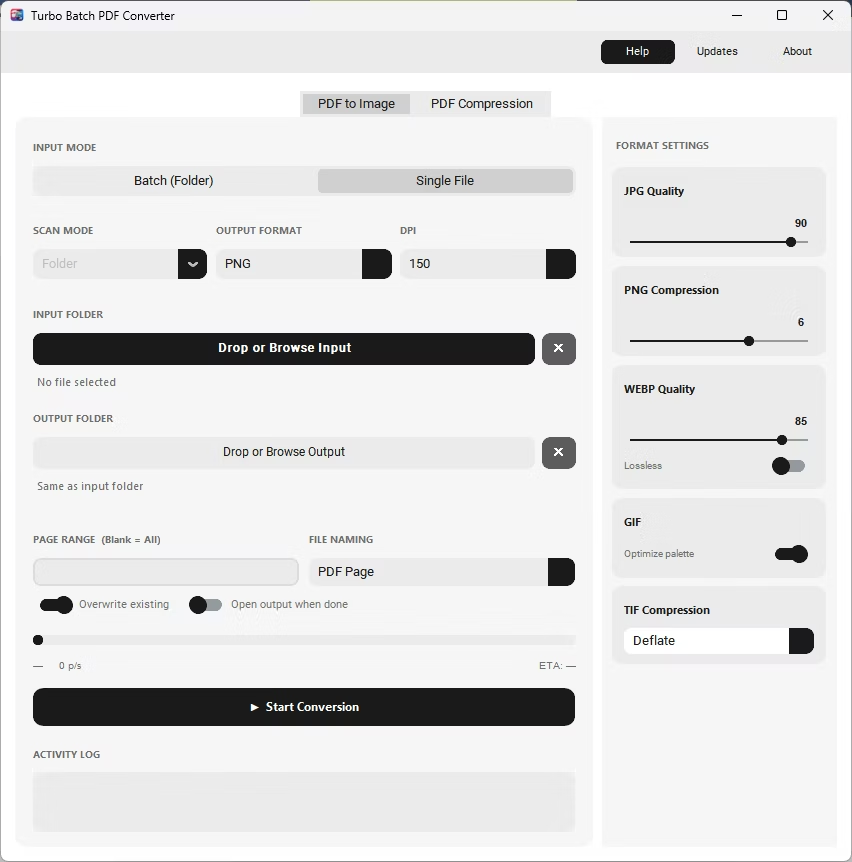
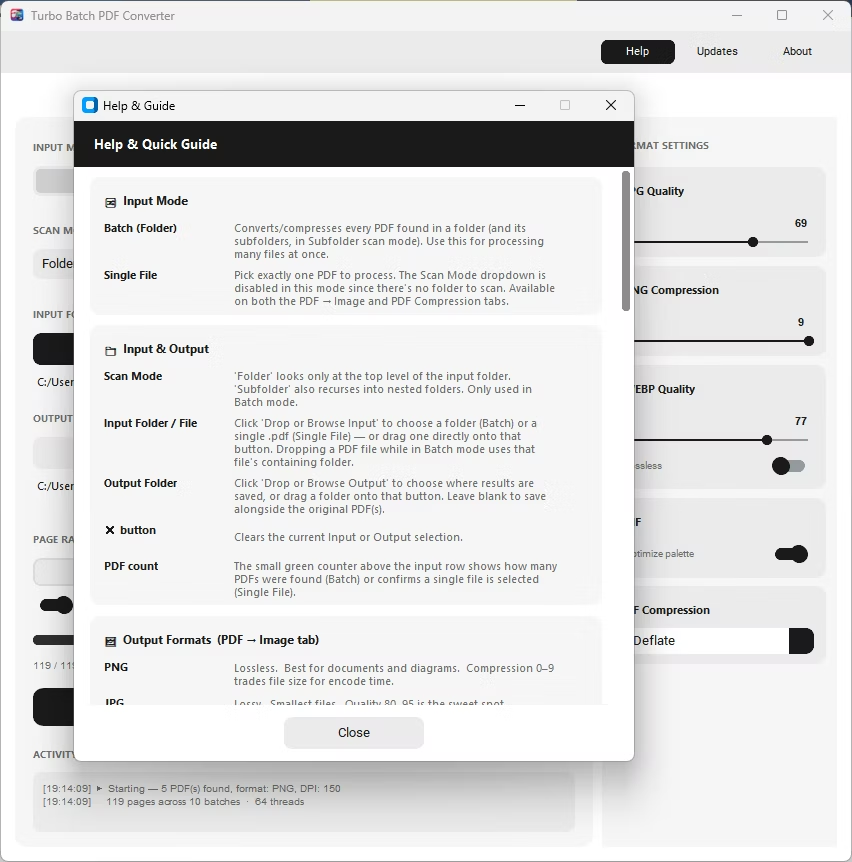
- Batch and Single File modes for any workload size
Is the demo version fully functional?
The free trial demo lets you test batch conversion, DPI settings, and quality options directly, so you can evaluate the app before buying.
Does it work on Windows 10 64-bit specifically?
Yes, the app is built and tested for Windows 10 and Windows 11, both 64-bit editions.
Do I need to install any other software alongside it?
No, the app uses a self-contained PyMuPDF-based rendering engine, so there is nothing extra to install.
Ready to convert your PDFs offline, in bulk, with full privacy?