WEBP is a modern image format that typically produces smaller files than PNG or JPG at a comparable quality level, which makes it a good fit for document previews, web galleries, or any page where load time matters. Converting a PDF to WEBP turns each page into a lightweight image that browsers can display quickly without a heavy download.
WEBP also supports a lossless mode for cases where pixel-perfect accuracy is required, giving the flexibility to choose smaller lossy files for previews or exact lossless files for archival copies, all from the same converter.
Batchify PDF Converter runs on Windows 10 and Windows 11, both 64-bit, and installs as a single self-contained application with no separate Poppler or Ghostscript dependency to configure. That keeps setup to a couple of minutes, whether the app is going on a personal laptop or a shared office PC handling document conversion for a whole team.
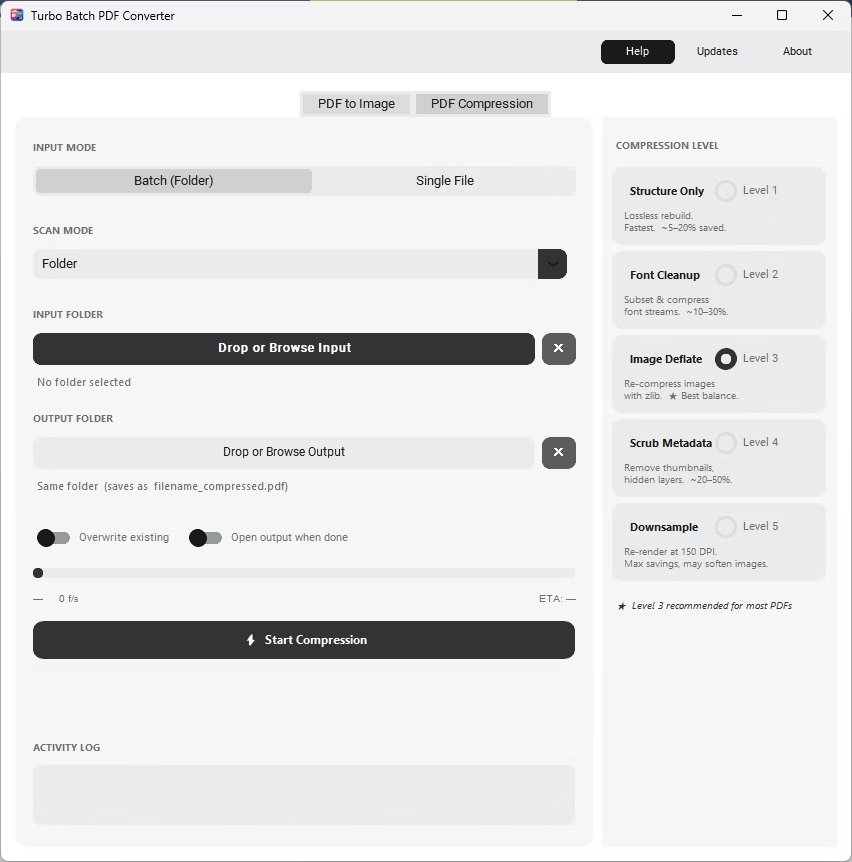
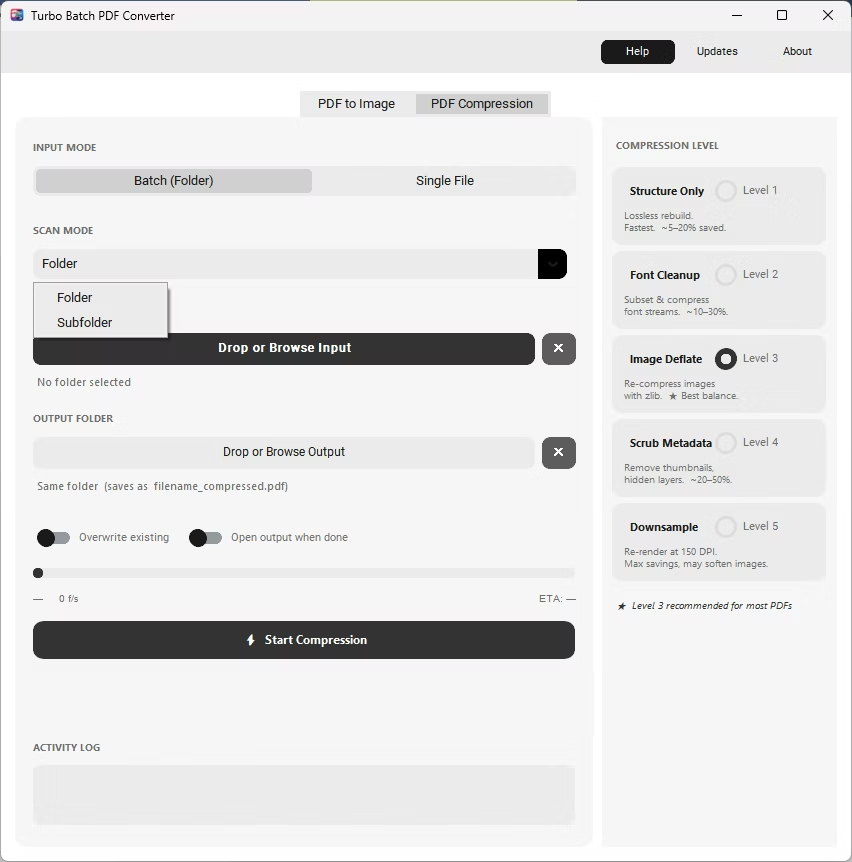
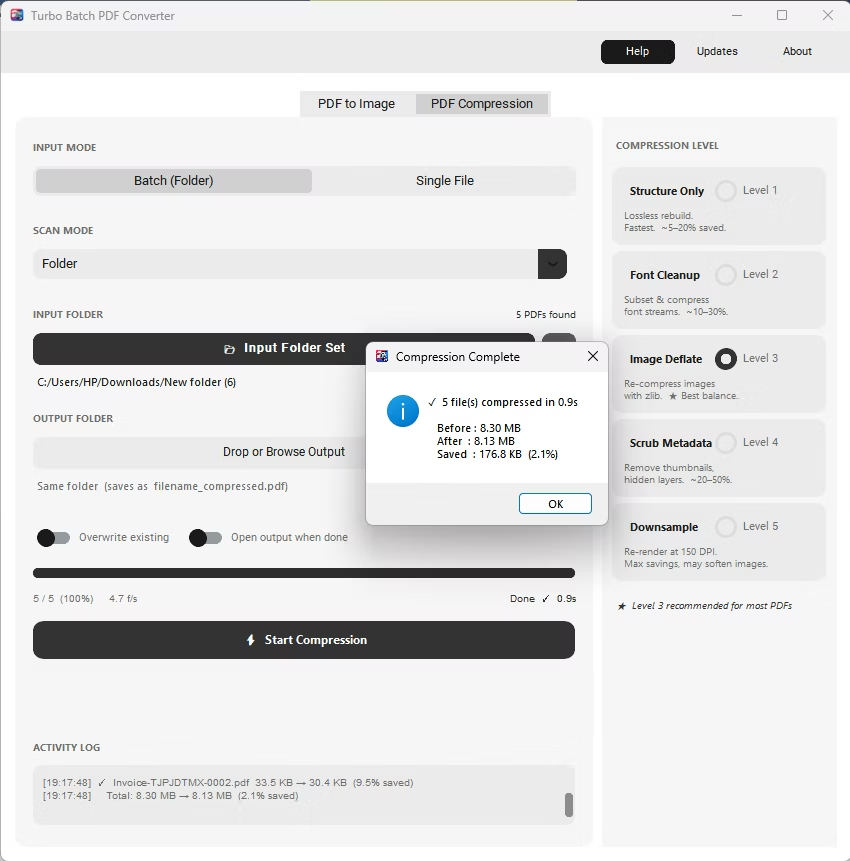
The same app also includes a built-in PDF compressor with five compression levels, so shrinking file sizes for email or storage doesn't require switching to a separate tool. Everything runs locally through a one-time Gumroad license, without a recurring subscription, and pairs naturally with other BatchifyApp utilities such as Batchify Renaming Tool for organizing converted files afterward.
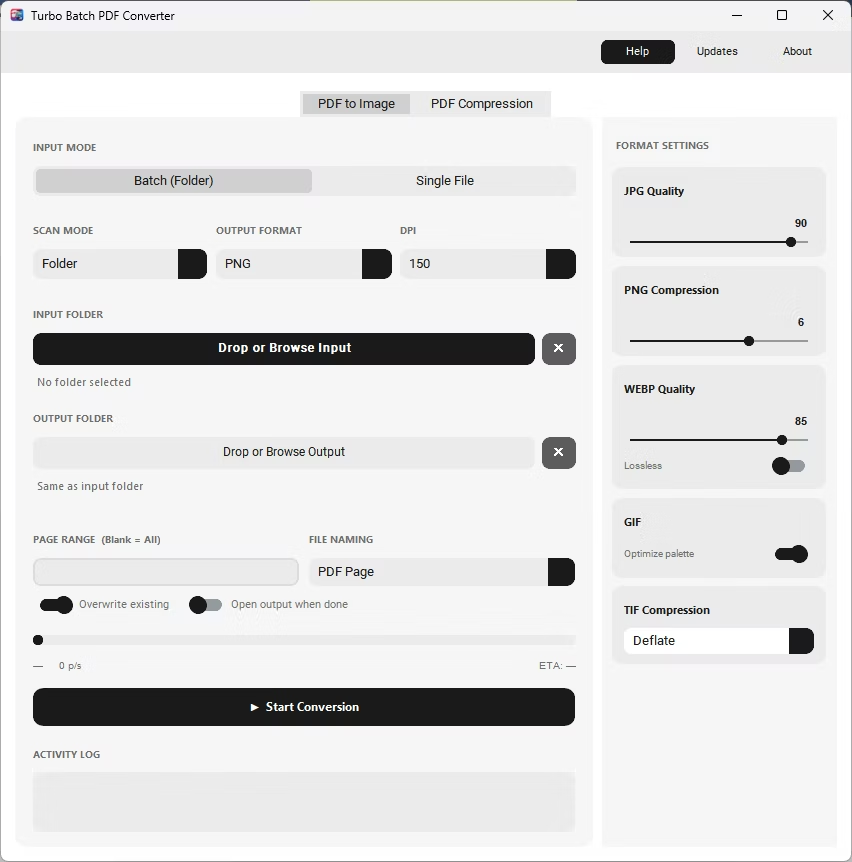
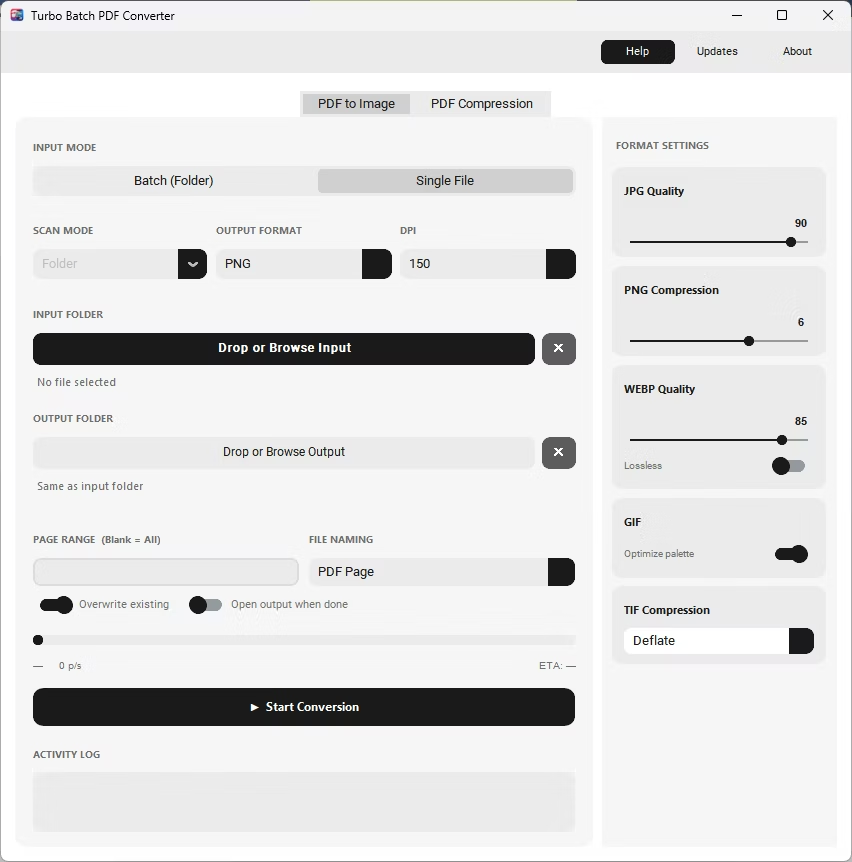
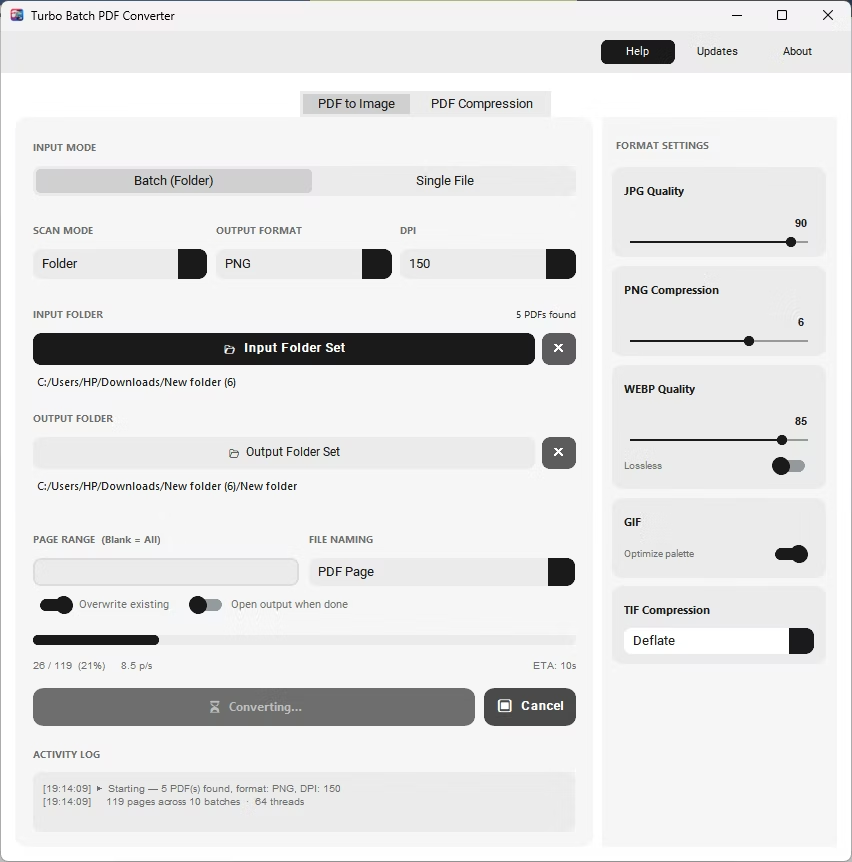
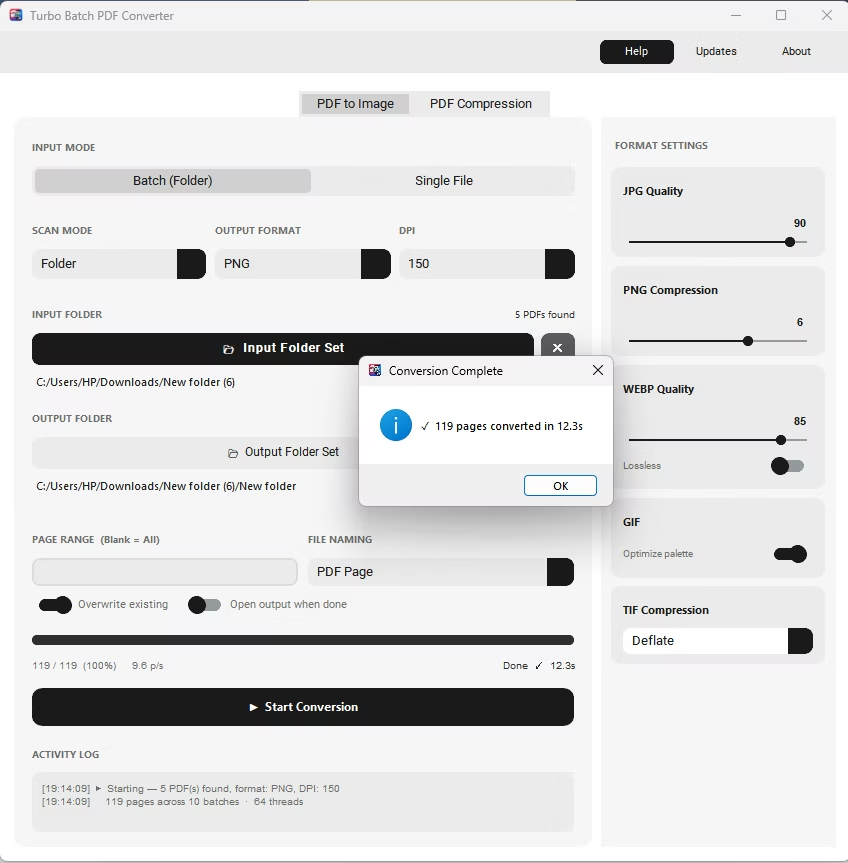
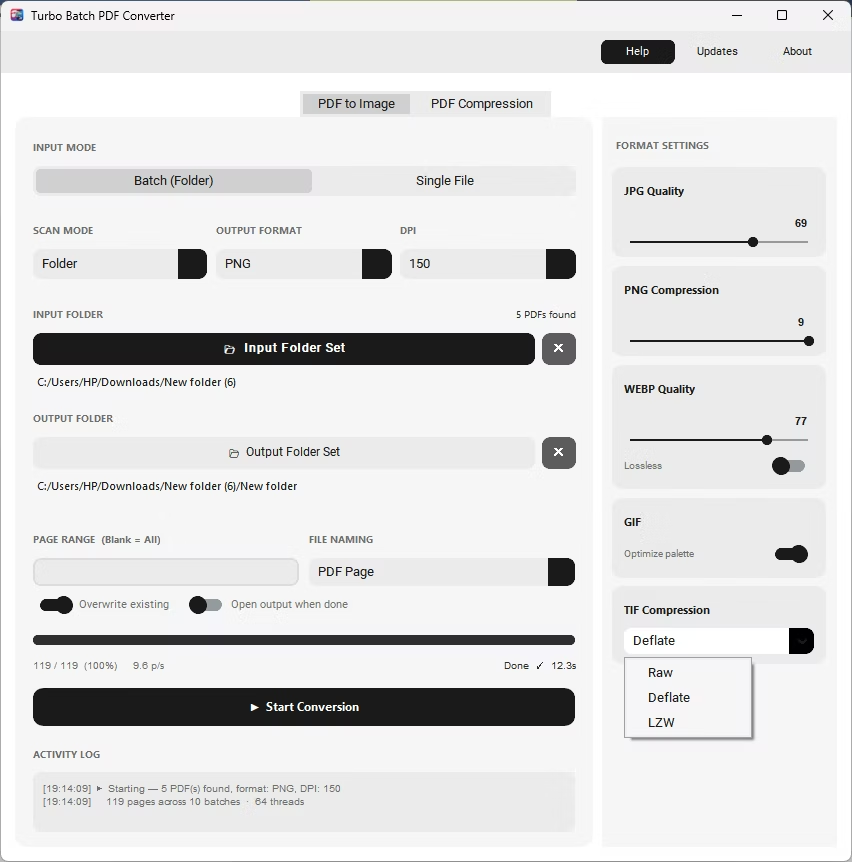
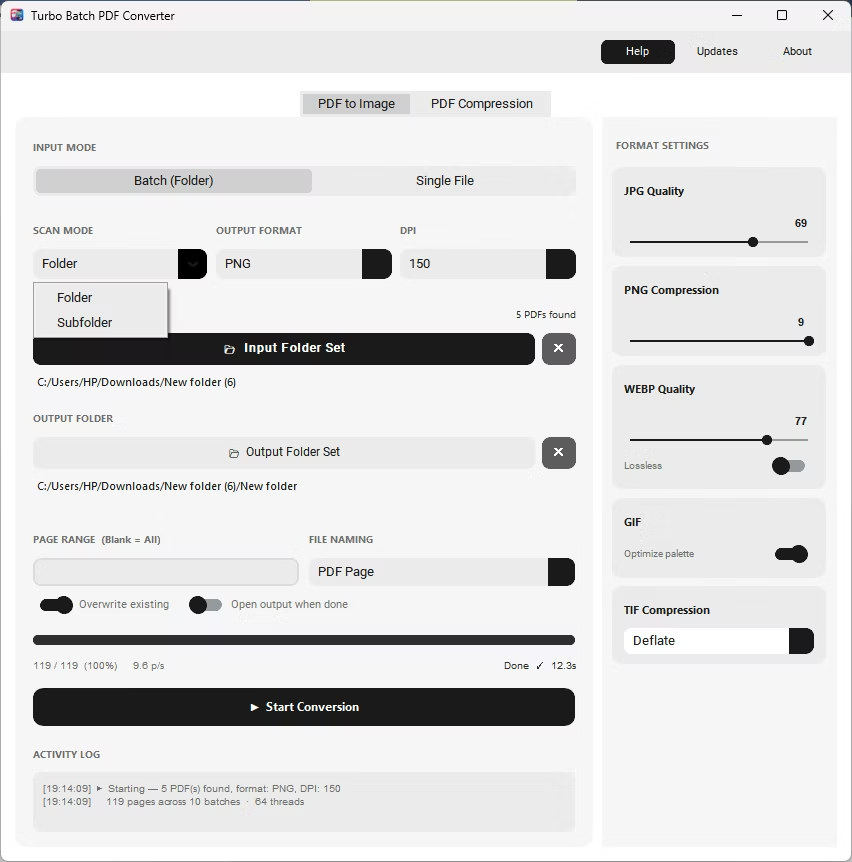
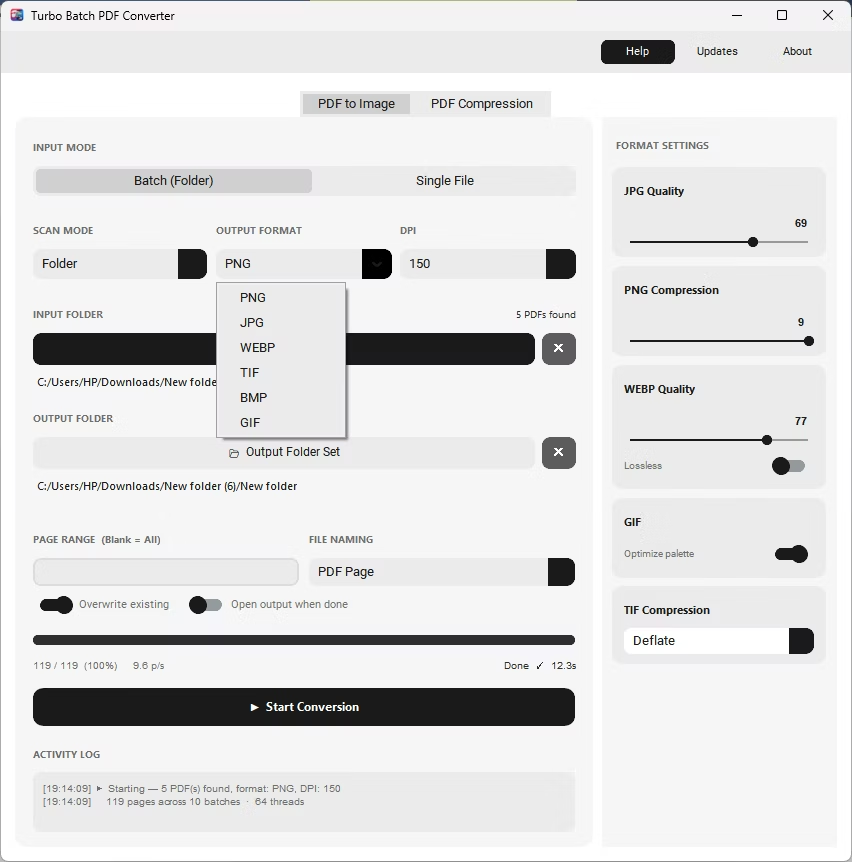
- Install Batchify PDF Converter on your Windows PC.
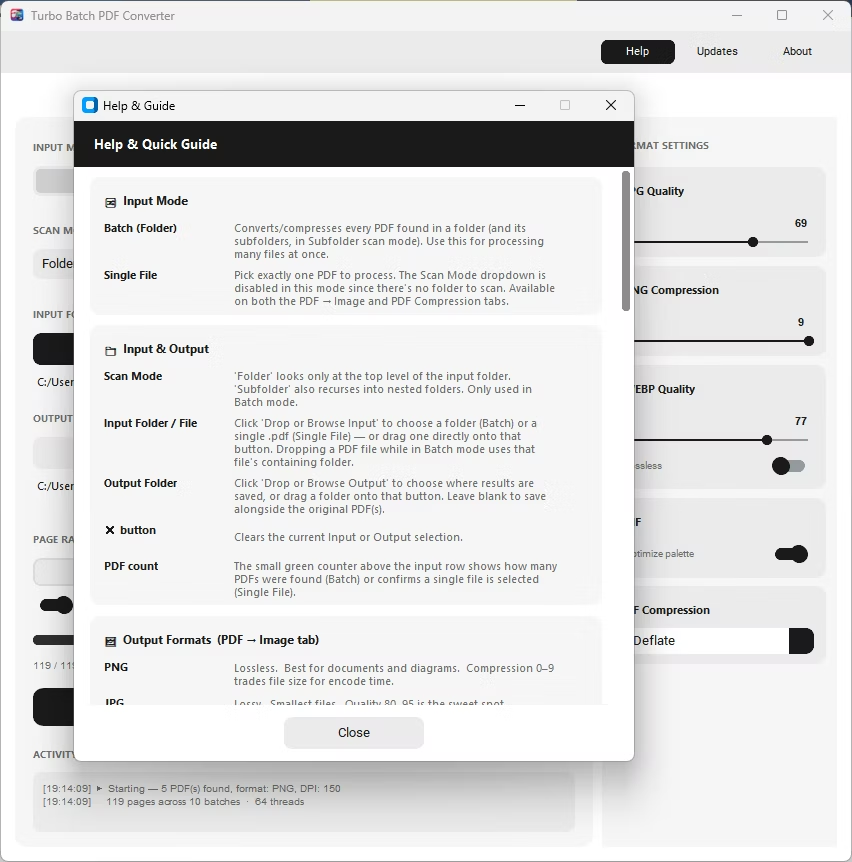
- Open the app and select Batch mode for folders or Single File mode for one PDF.
- Add your PDF file or folder, enabling recursive subfolder scanning if needed.
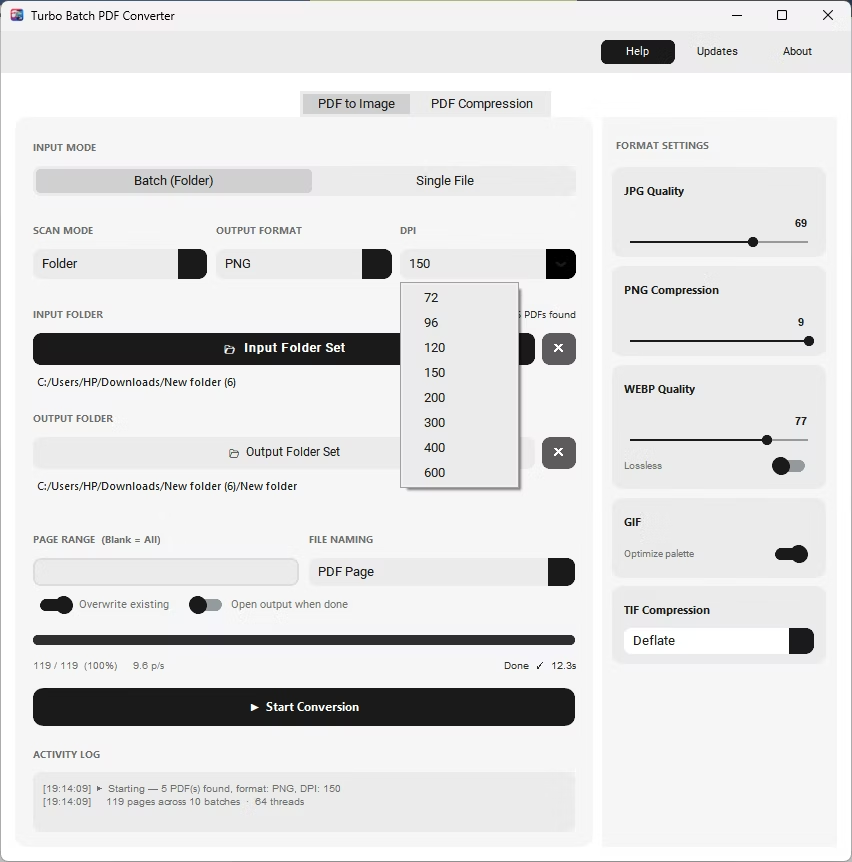
- Choose WEBP as the output format, then set a quality value from 1-100 or switch on Lossless mode.
- Click Start Conversion to generate WEBP images for every page, fully offline.
- Smaller file sizes than PNG at comparable visual quality
- Adjustable quality slider from 1 to 100 for lossy output
- Optional Lossless switch for pixel-perfect WEBP files
- DPI selection up to 600 for print-ready page renders
- Batch conversion across entire folders and subfolders
- Fully offline with no file size or page-count limits
Is WEBP smaller than PNG for the same page?
In most cases yes, WEBP's lossy mode produces noticeably smaller files than PNG while keeping text and images legible.
When should I use Lossless mode instead of the quality slider?
Use Lossless mode when a page must match the source pixel for pixel, such as archival copies; use the quality slider for smaller preview images.
Do web browsers support WEBP images?
Yes, all major modern browsers display WEBP images natively, which is why it has become popular for web-based document previews.
Ready to convert your PDFs offline, in bulk, with full privacy?