Adding a consistent prefix to a batch of files is one of the simplest and most common renaming needs — tagging every file in a folder with a project name, a client code, a date, or a category label so the files are instantly identifiable and easy to group with related material elsewhere on your system. Whether you're organizing exported invoices by client, labeling photos by event, or marking a batch of documents with a department code, a prefix gives every file in the set a shared, recognizable starting point.
Beyond simple organization, prefixes are also useful for sorting. Since most file browsers sort alphabetically by default, a consistent prefix lets you control where a group of related files lands in a folder listing, keeping them clustered together rather than scattered among unrelated files that happen to start with similar characters.
Prefix in Batchify Renaming Tool applies the same text to the start of every selected filename in one operation, and can be combined with other rules — sequential numbering, EXIF dates, case conversion — so a single rename pass can build a complete, structured naming convention rather than requiring several separate passes.
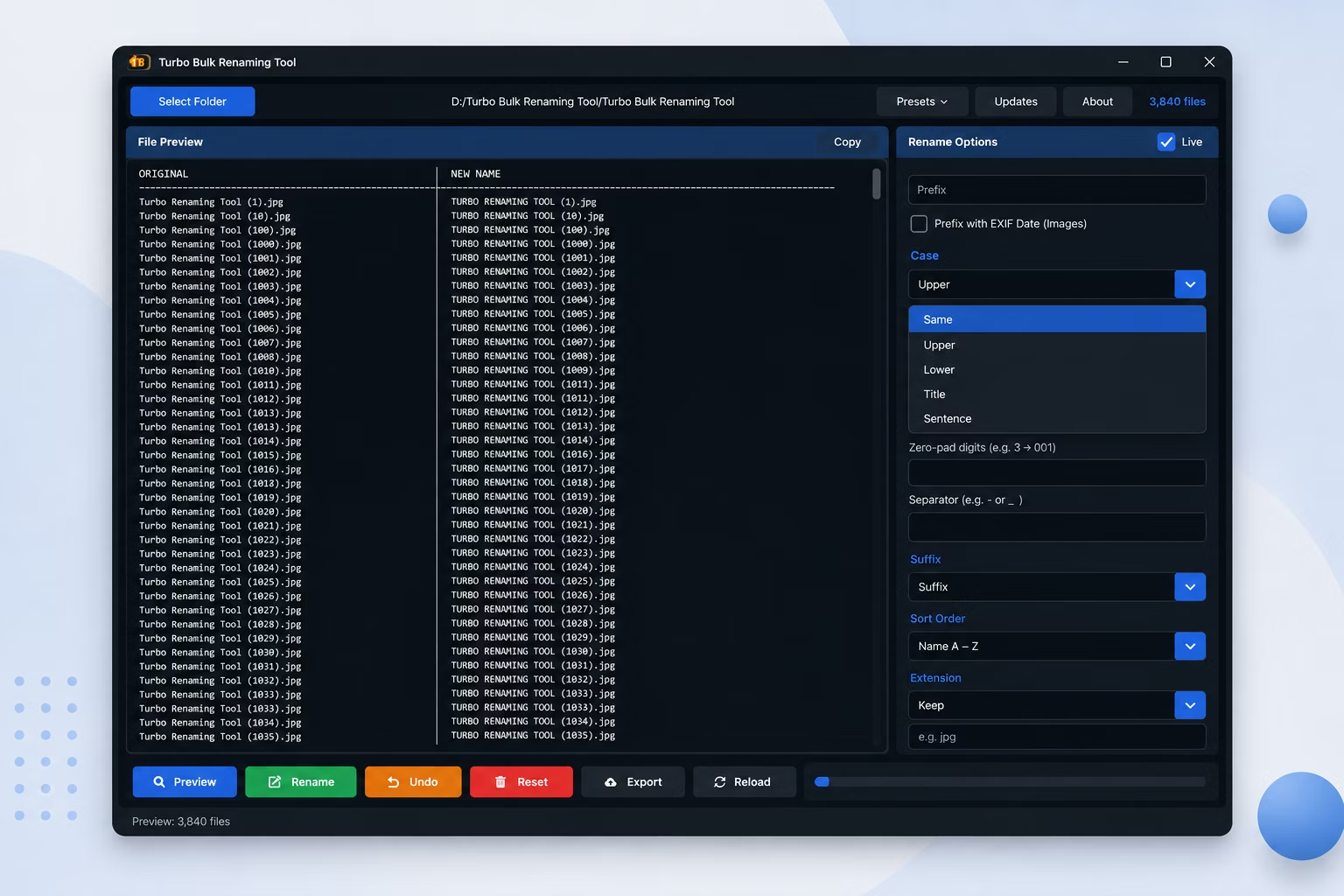
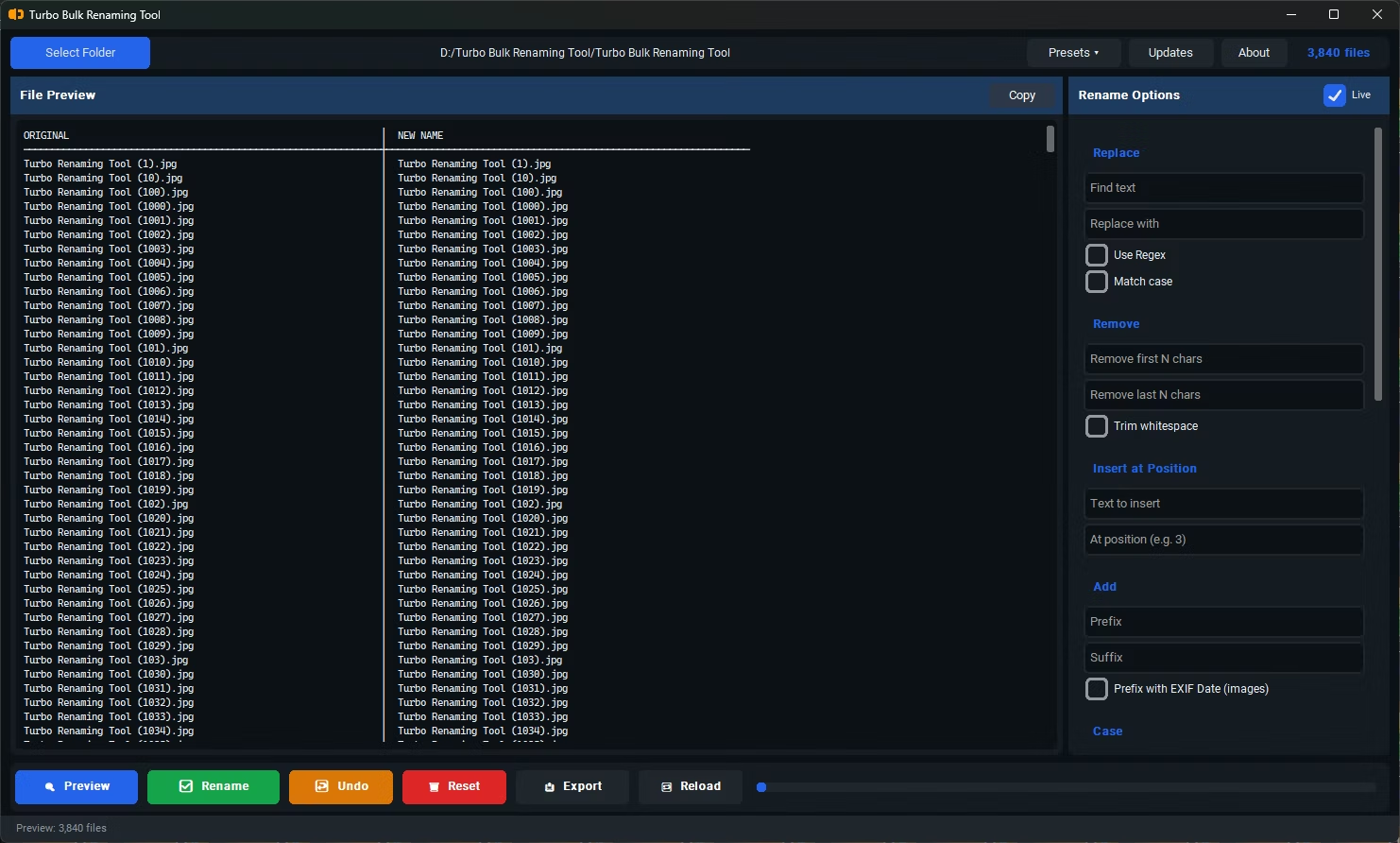
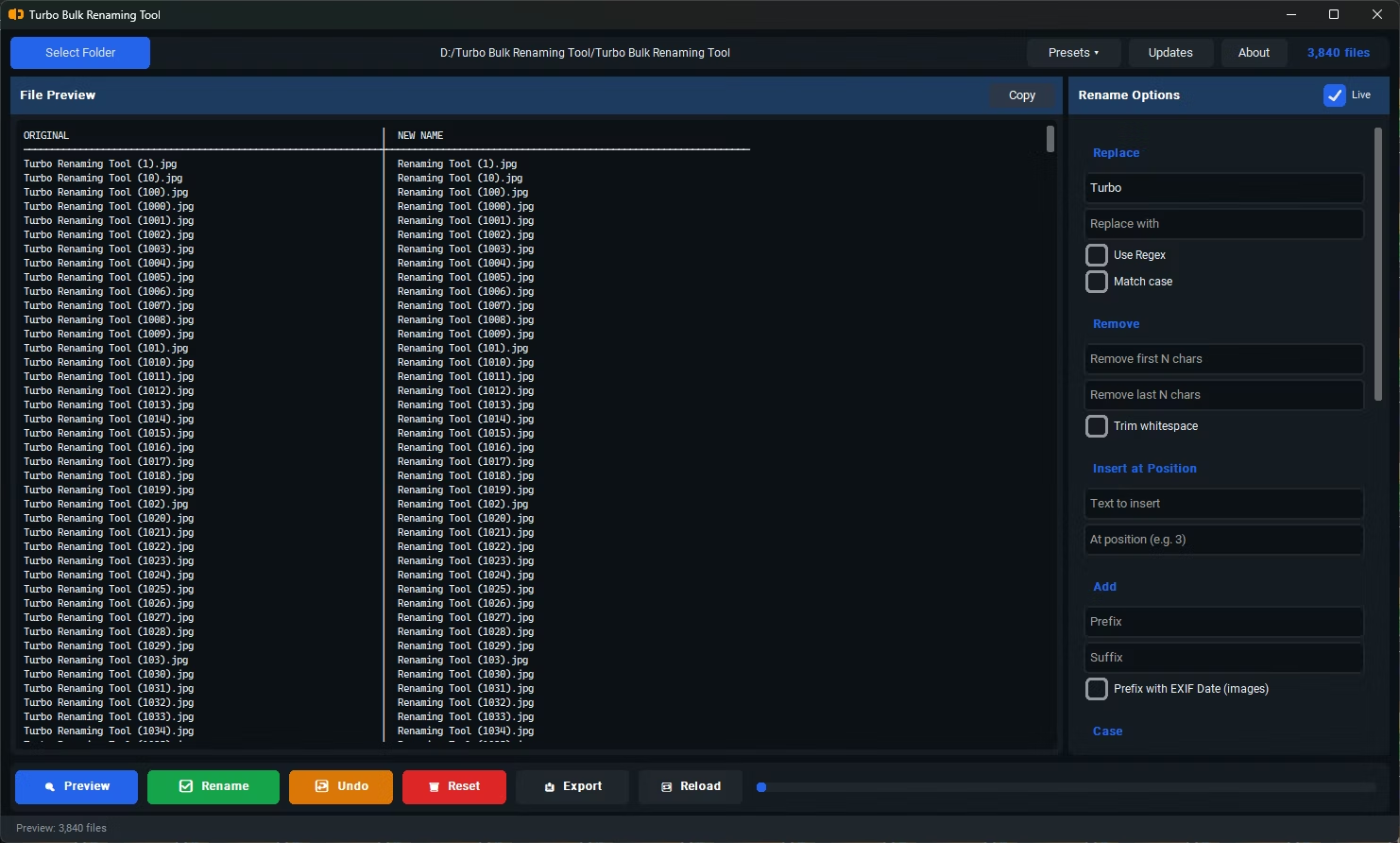
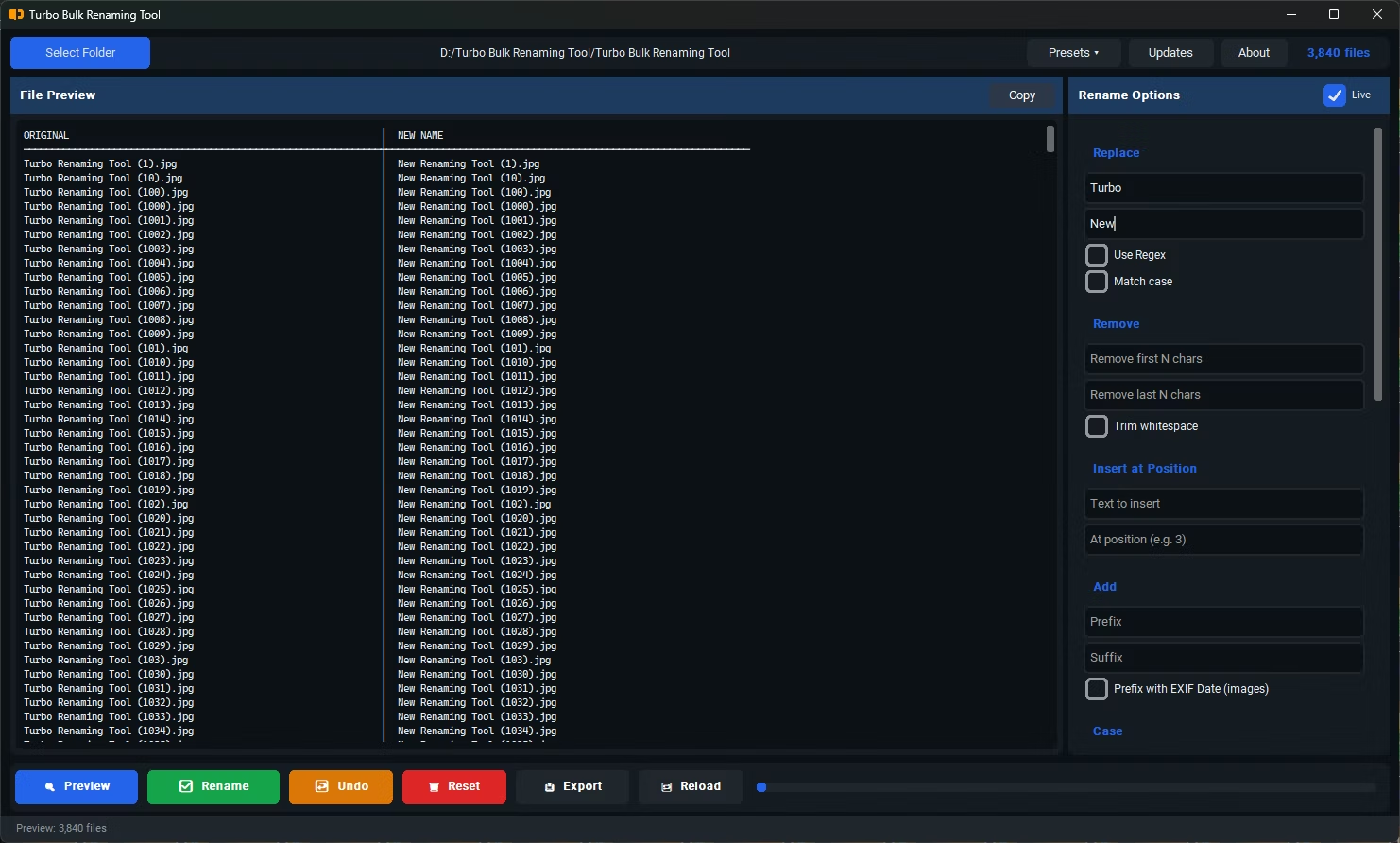
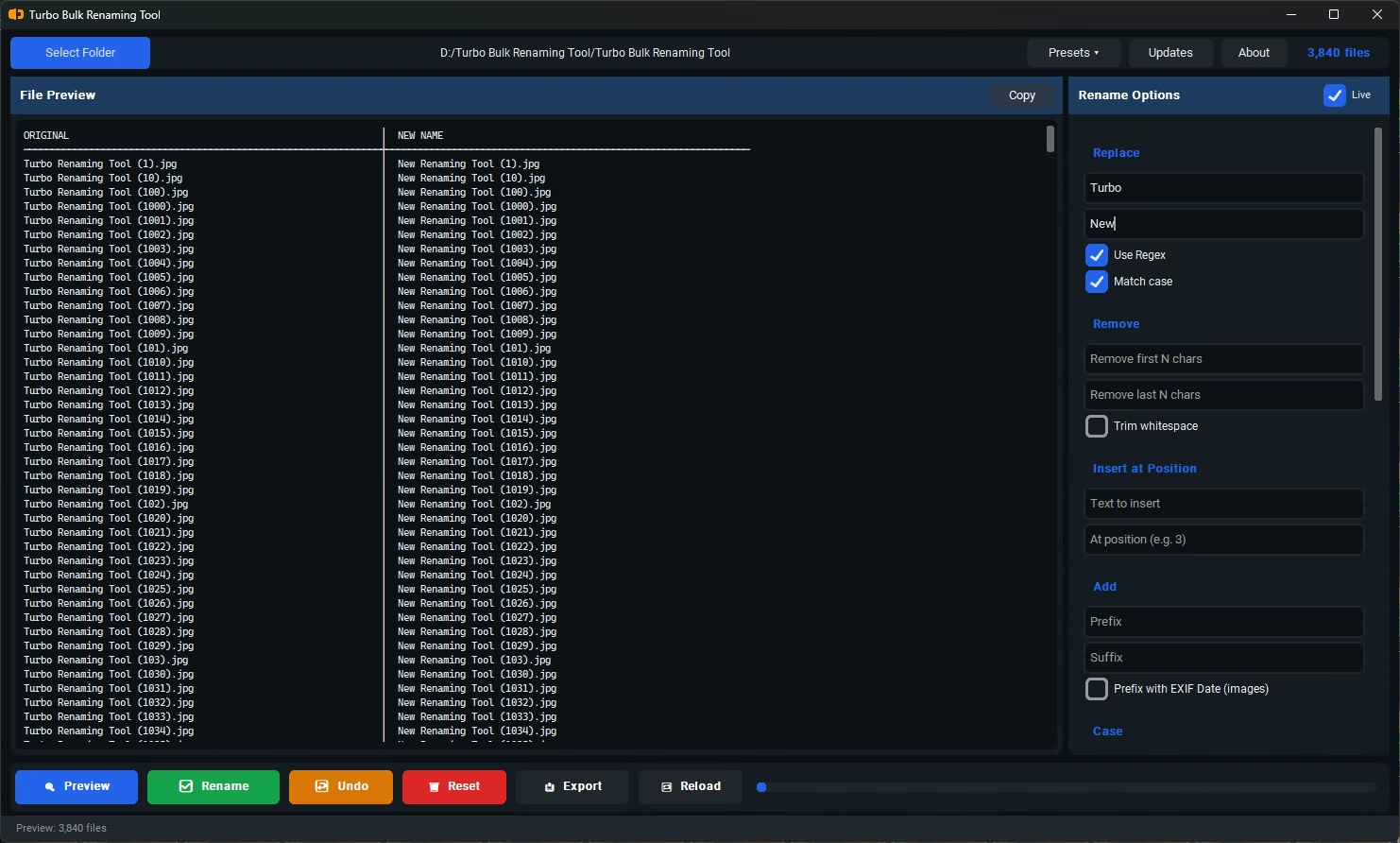
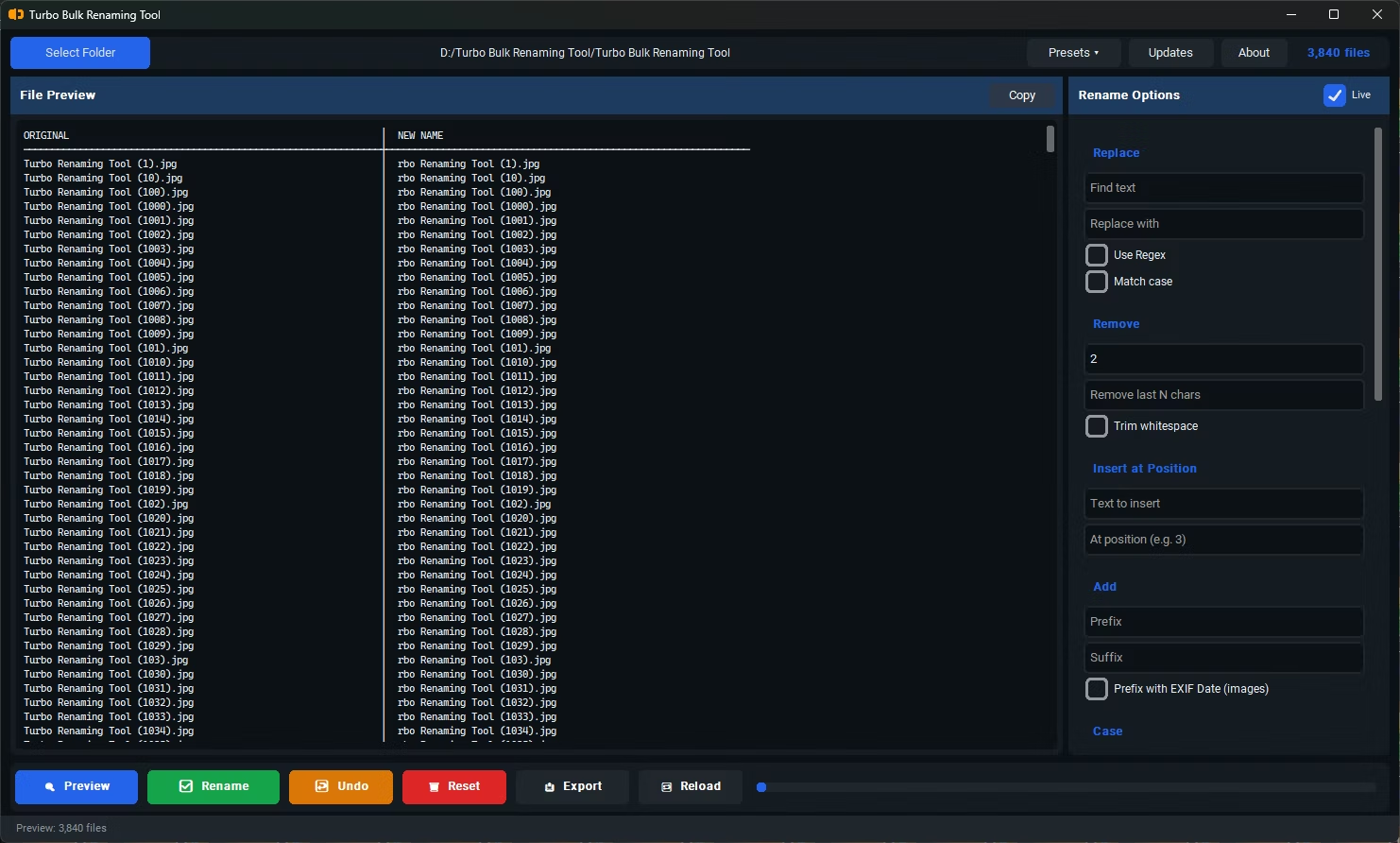
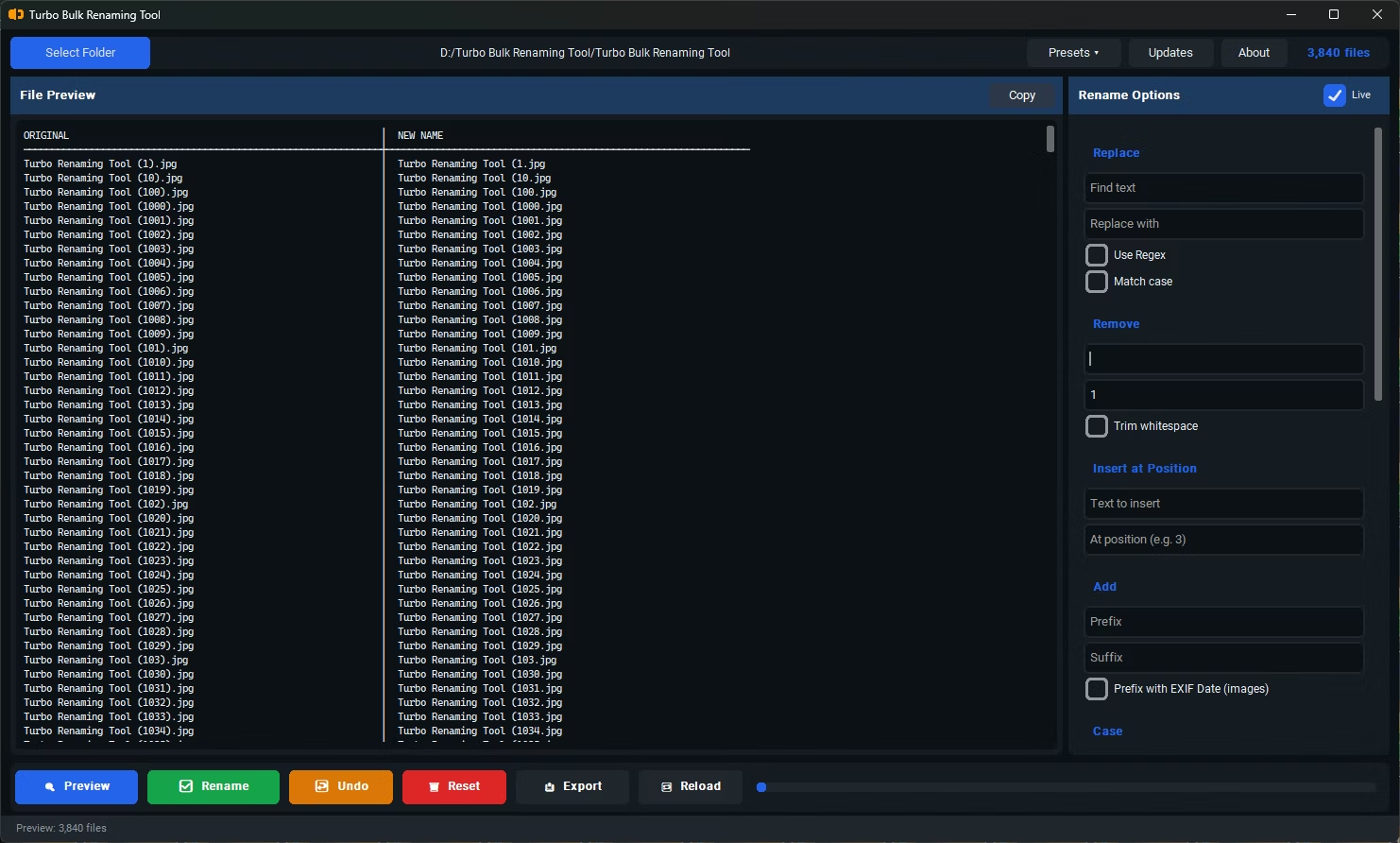
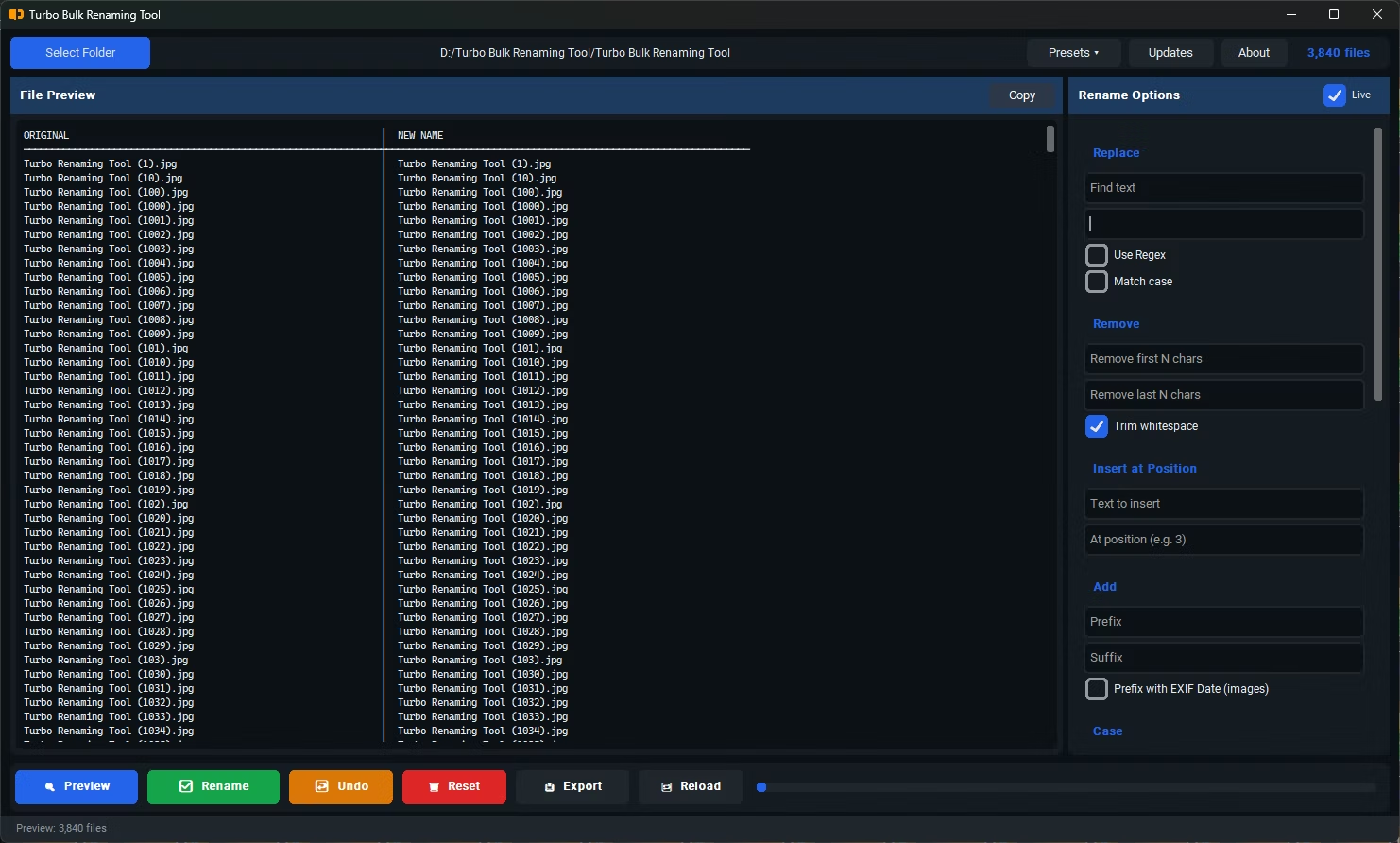
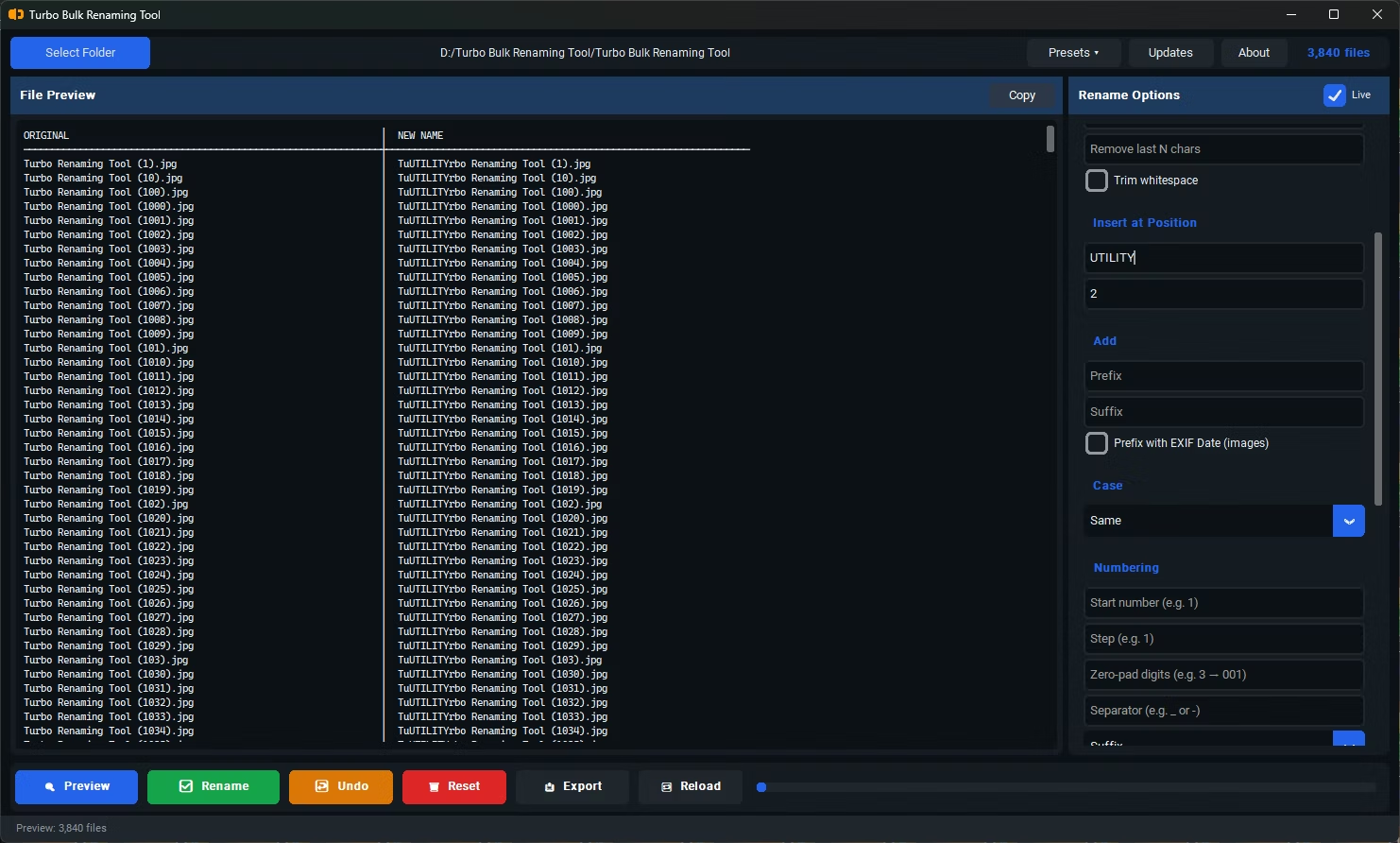
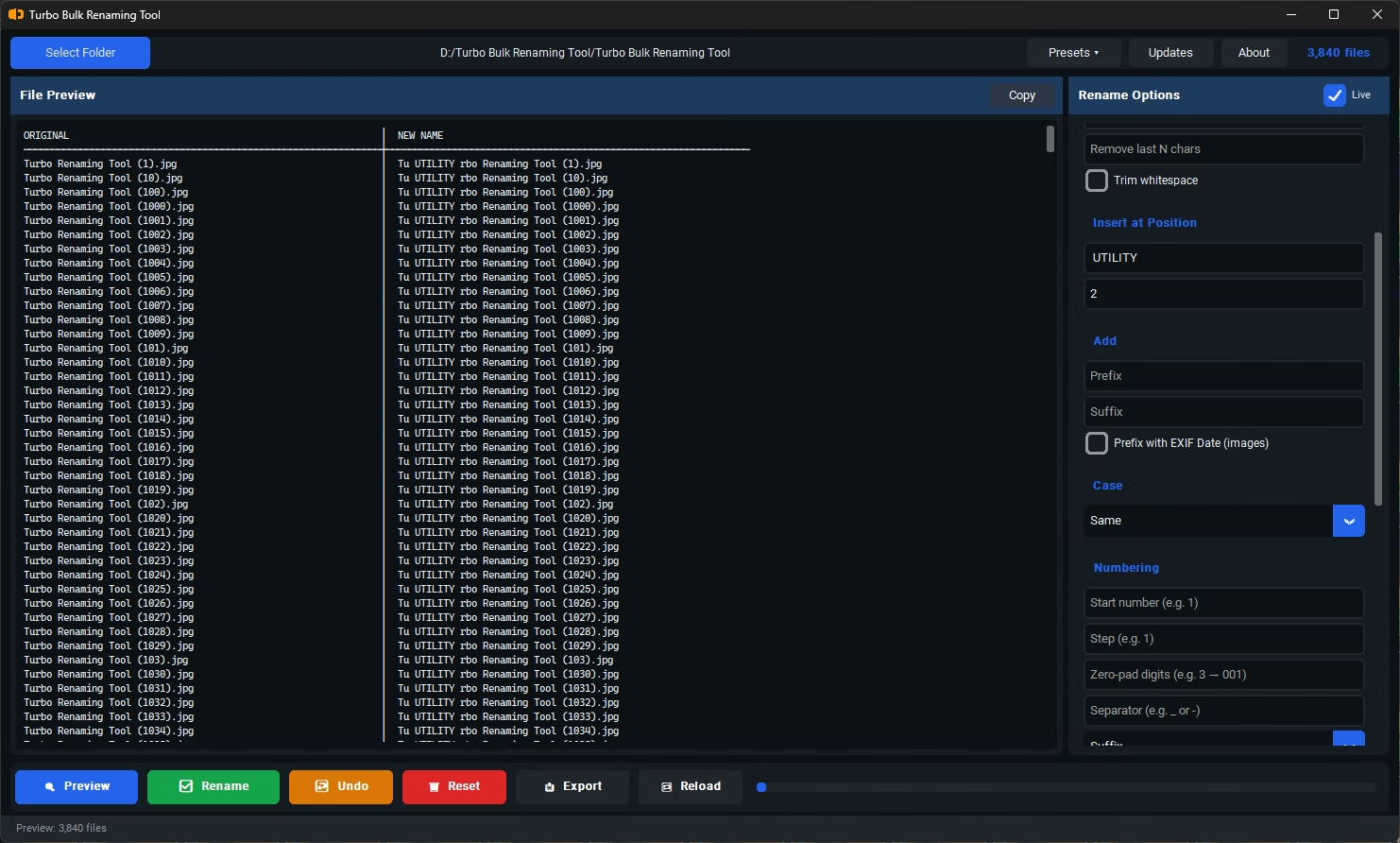
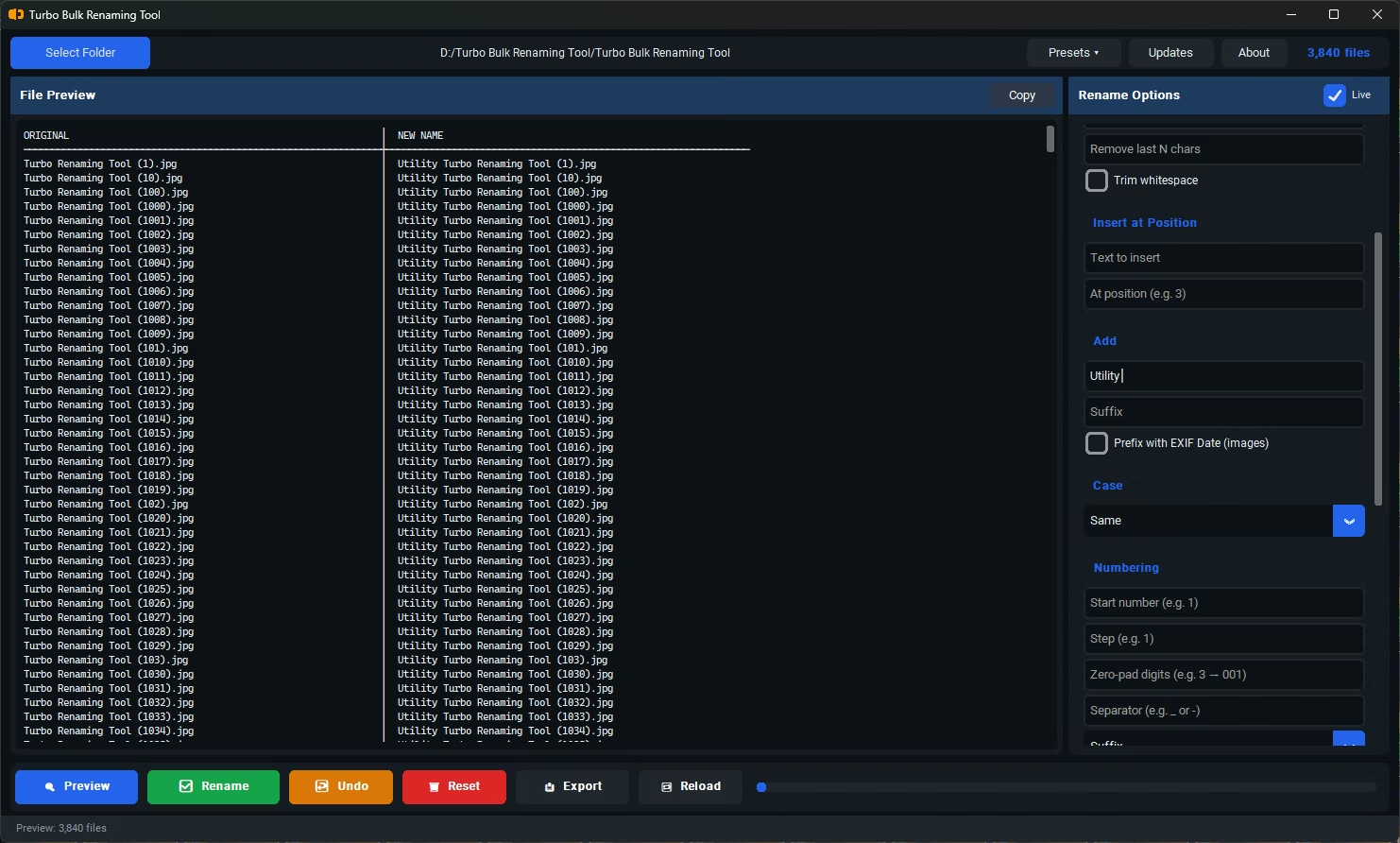
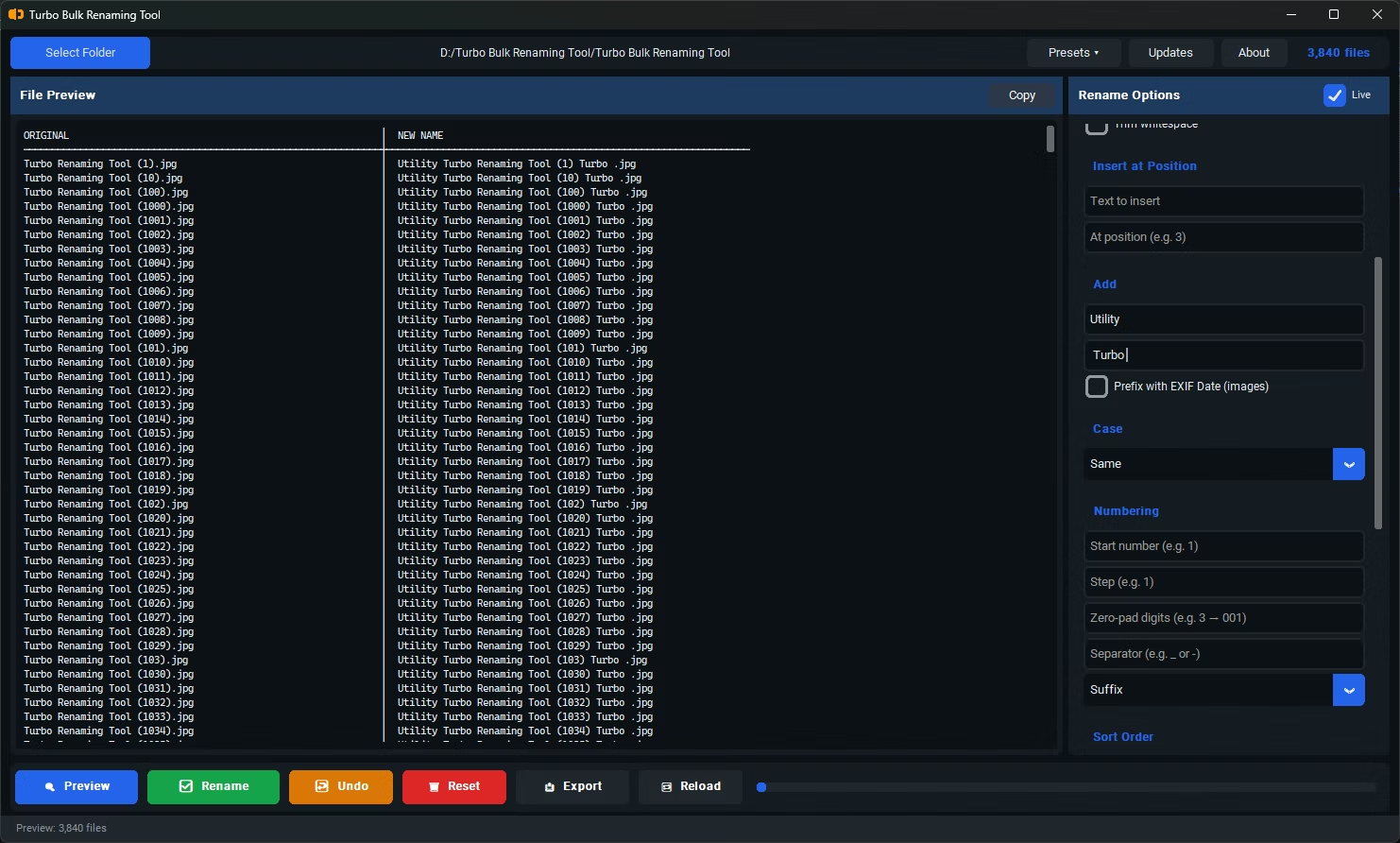
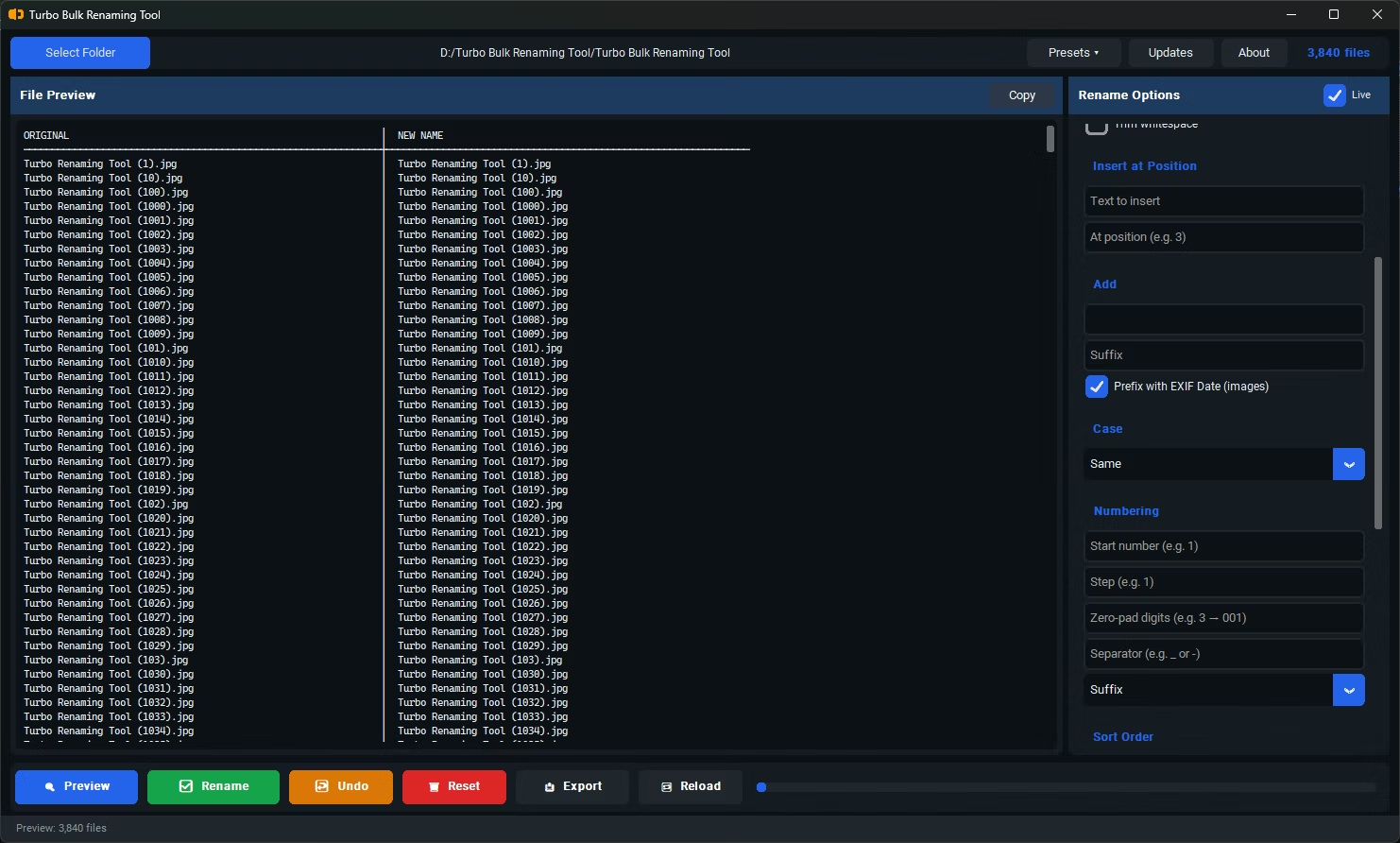
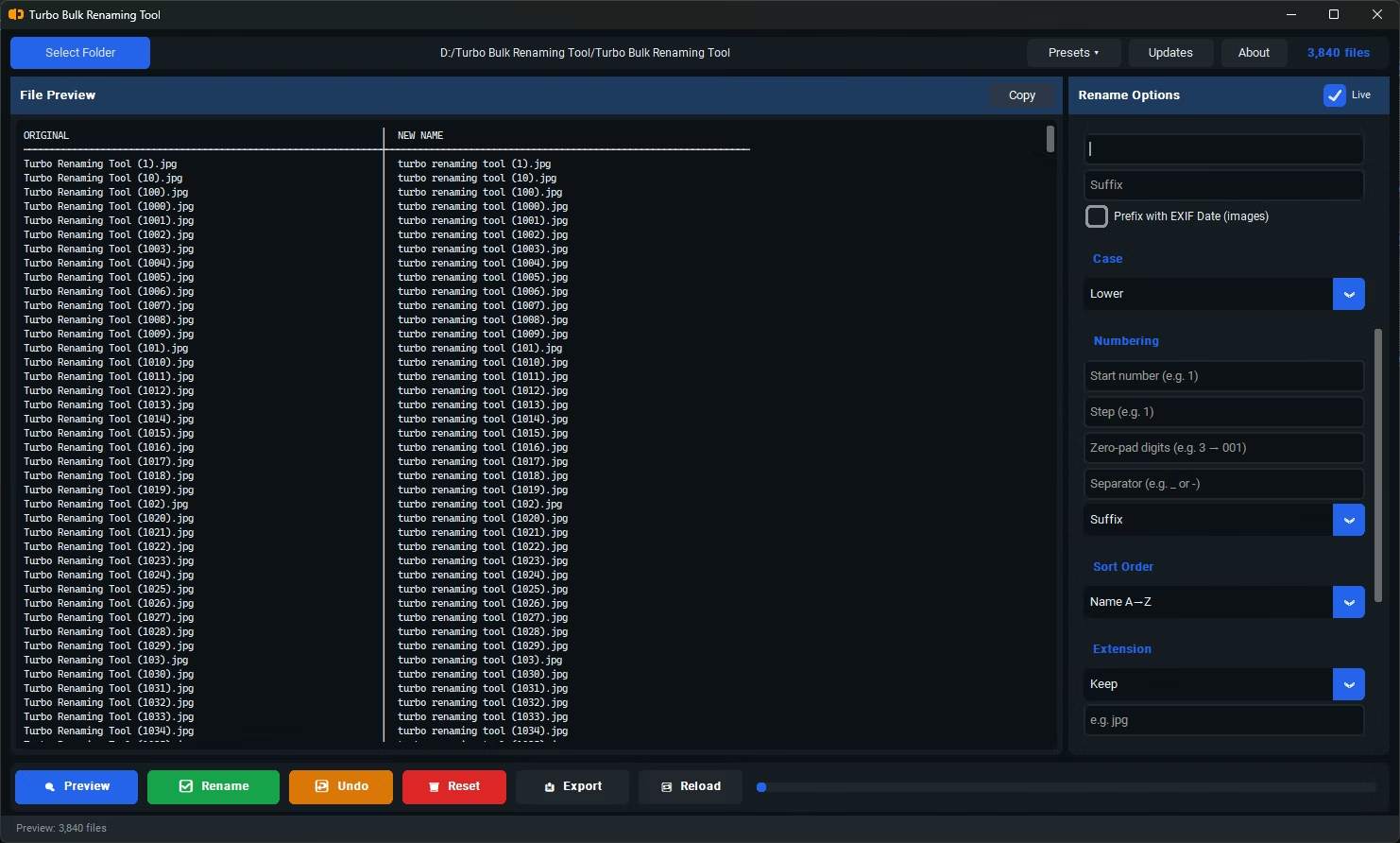
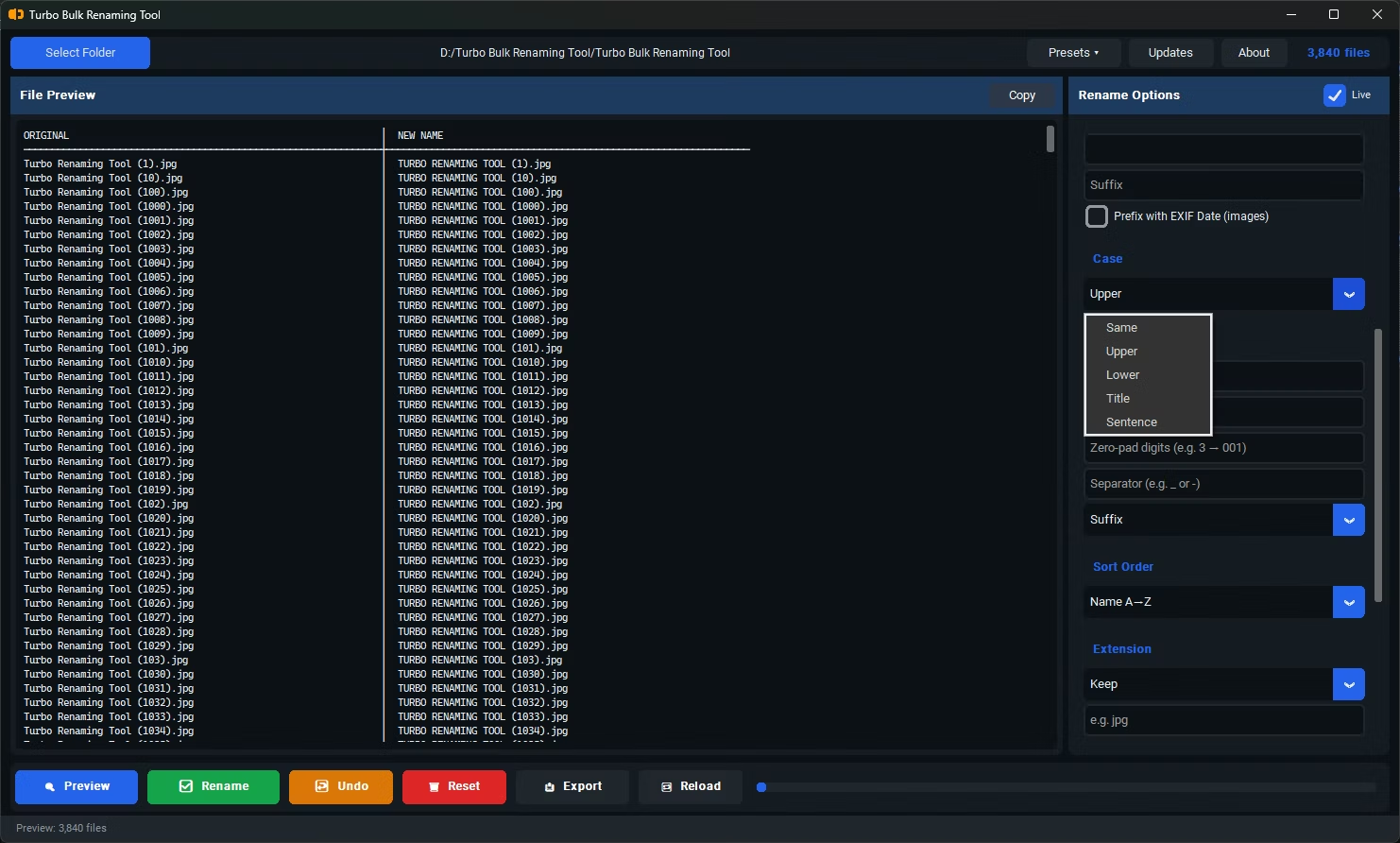
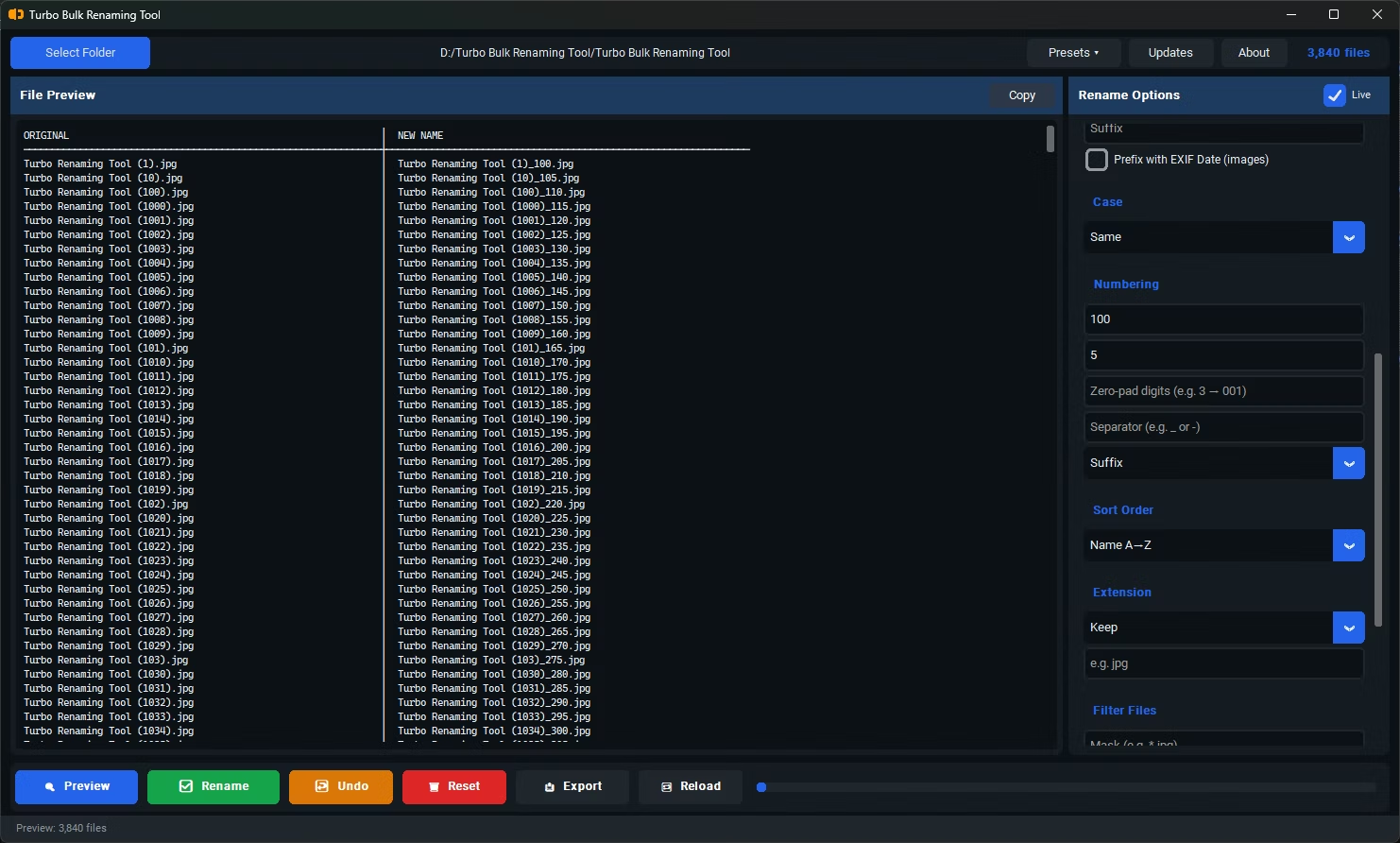
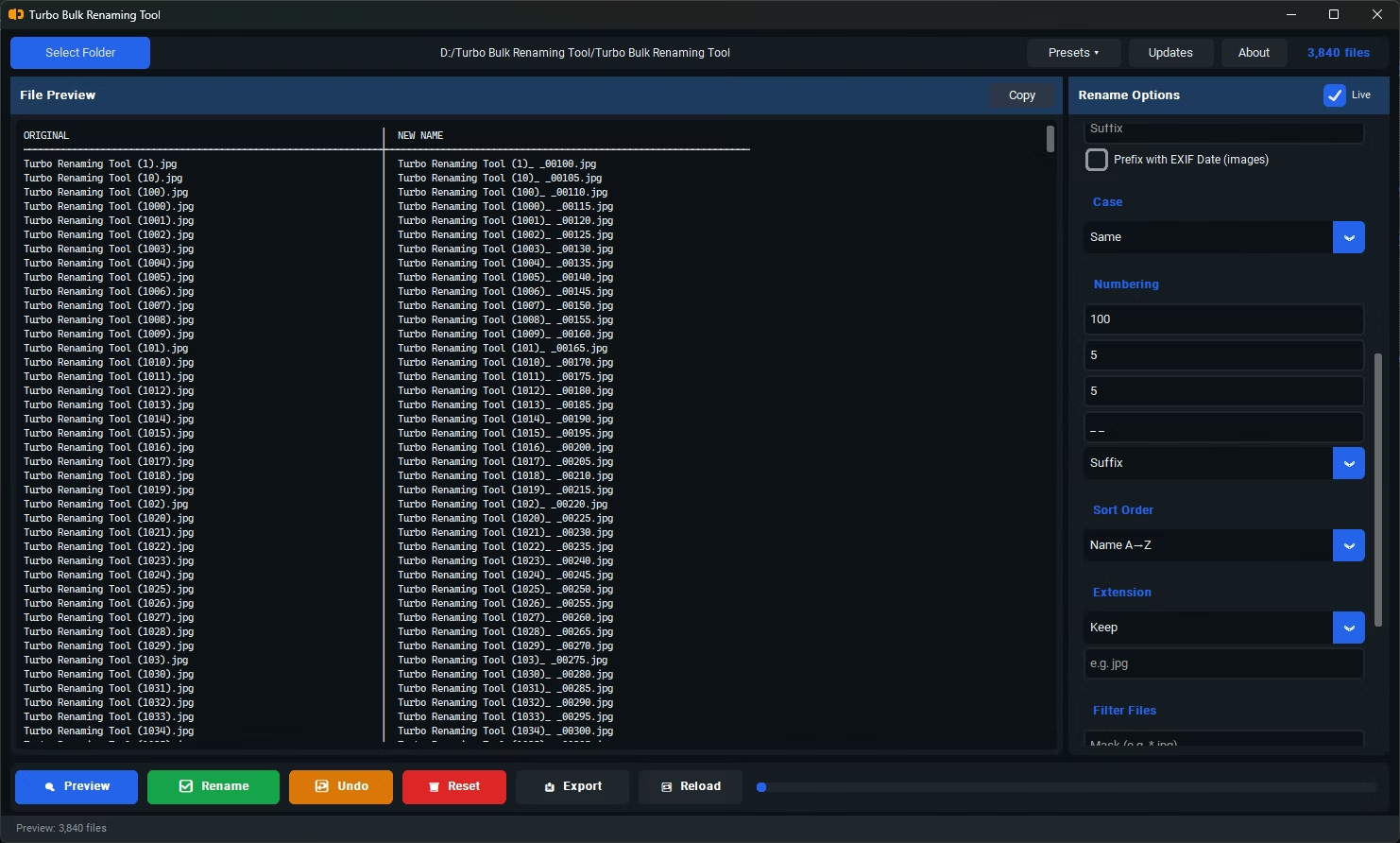
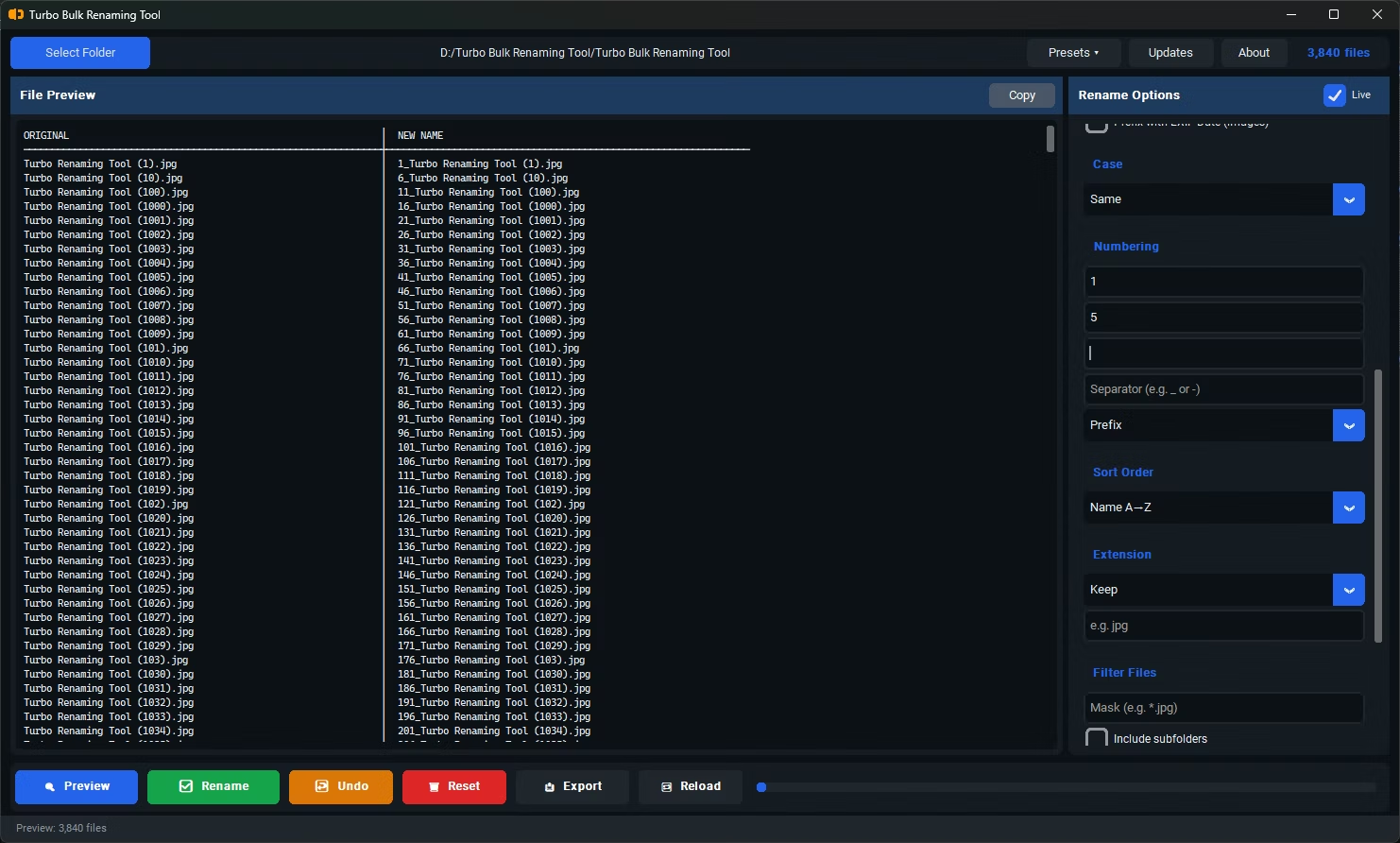
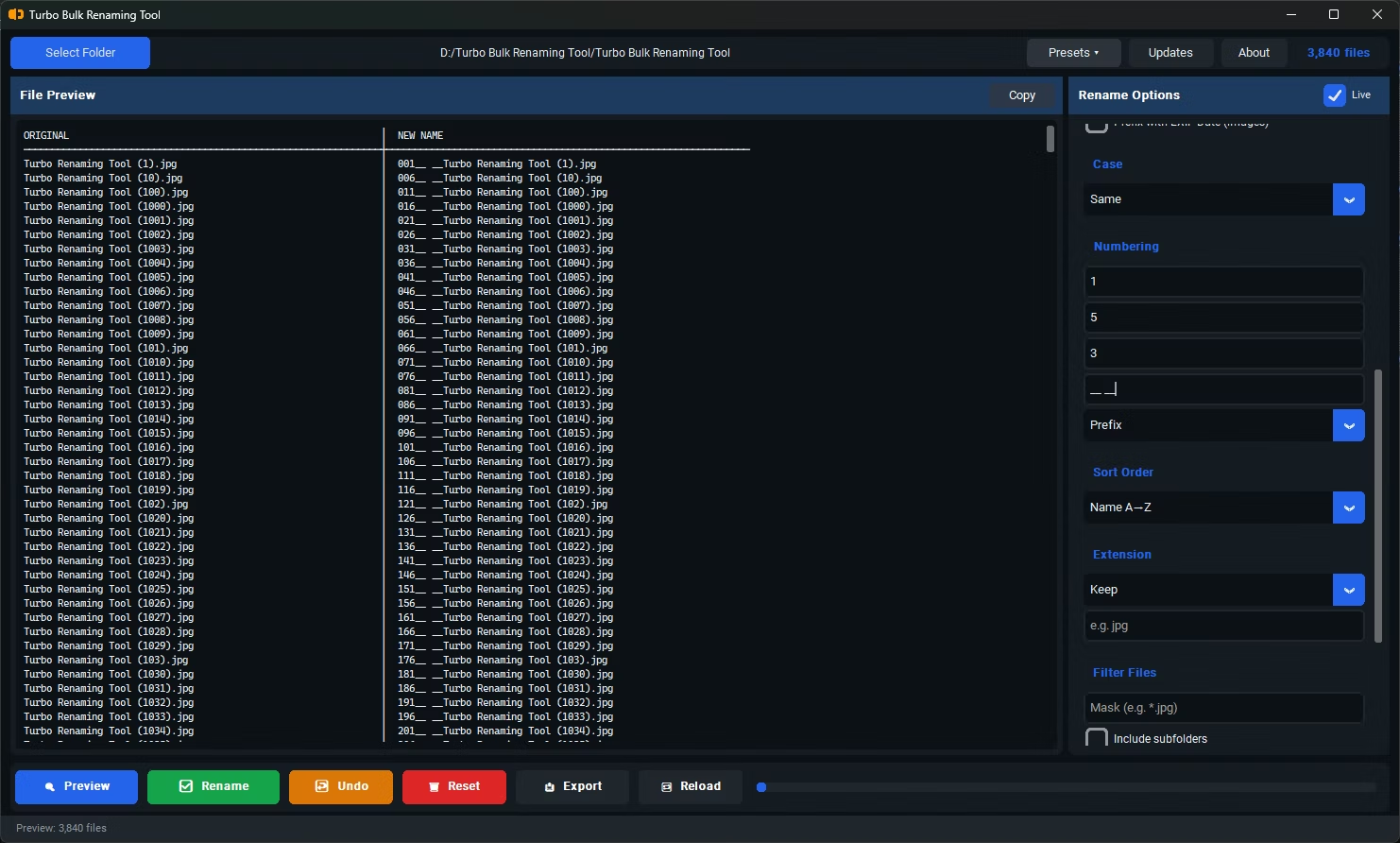
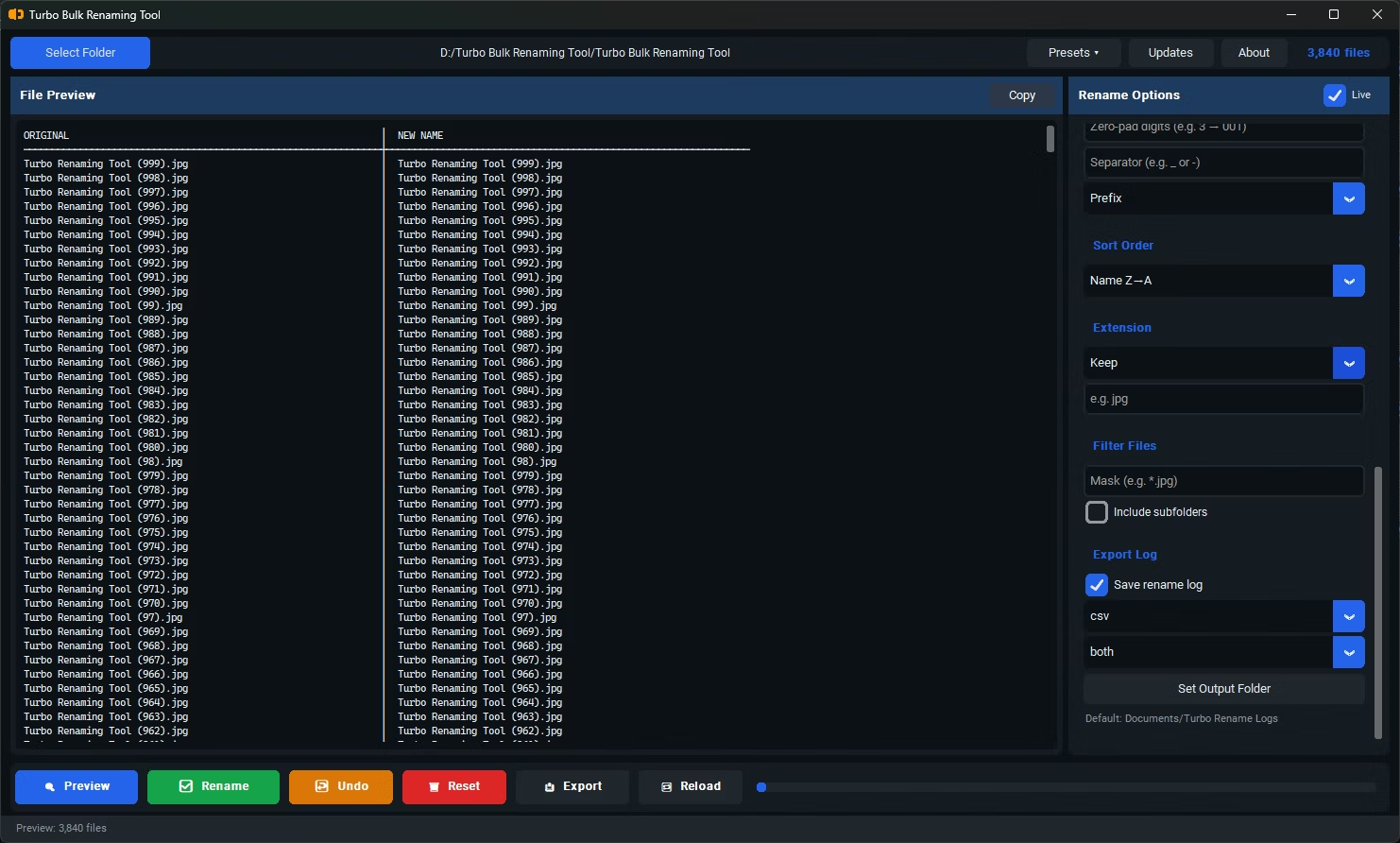
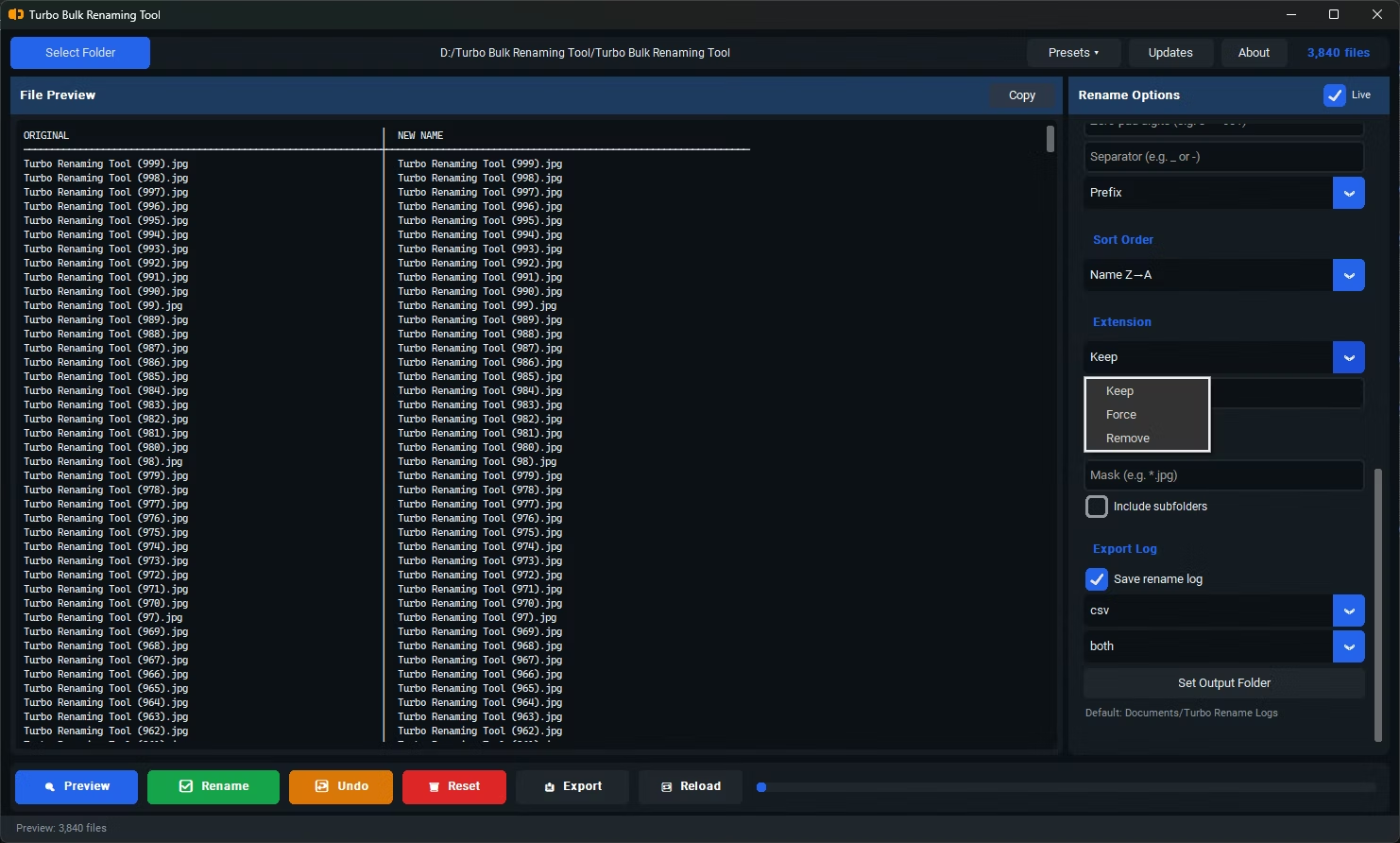
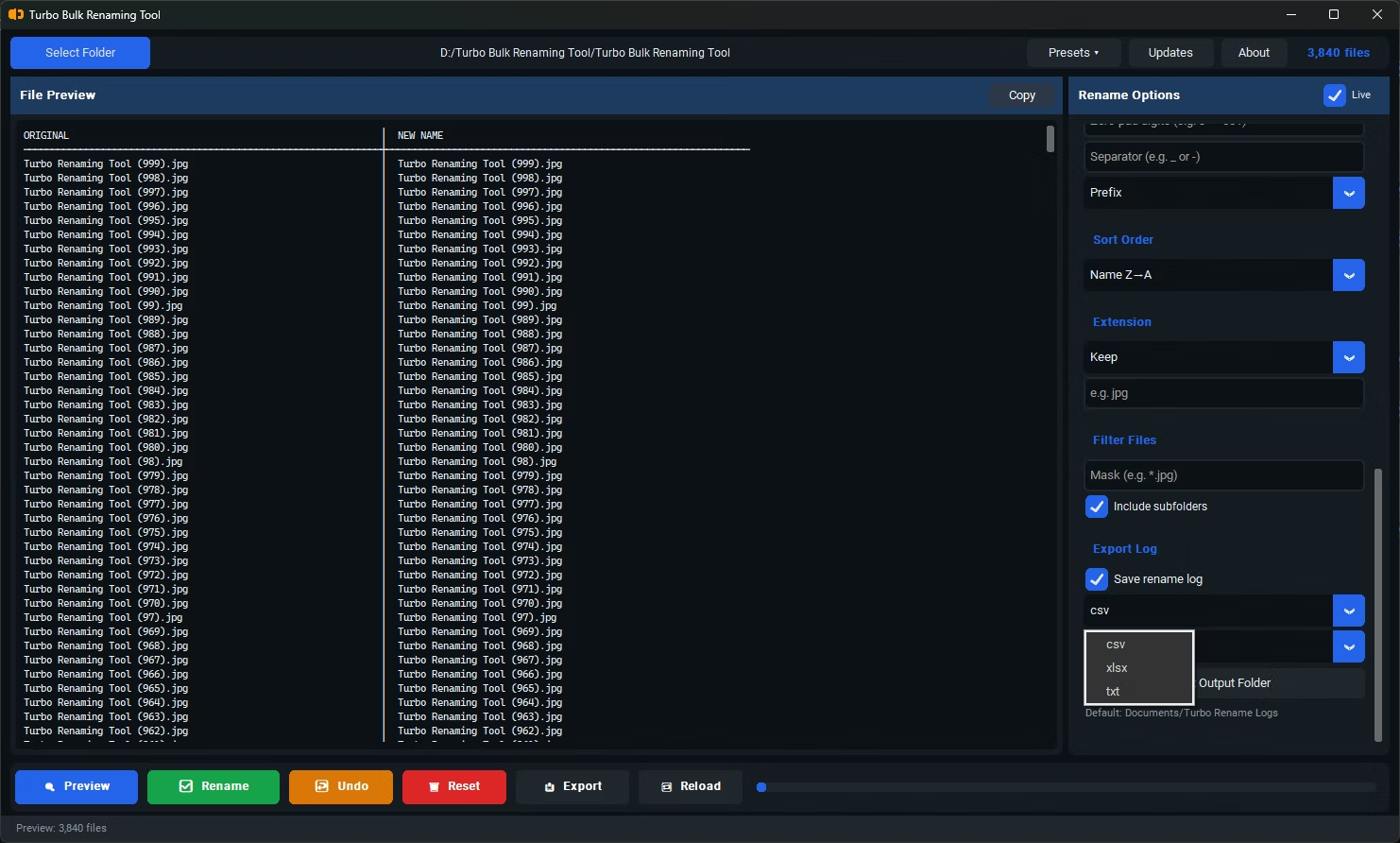
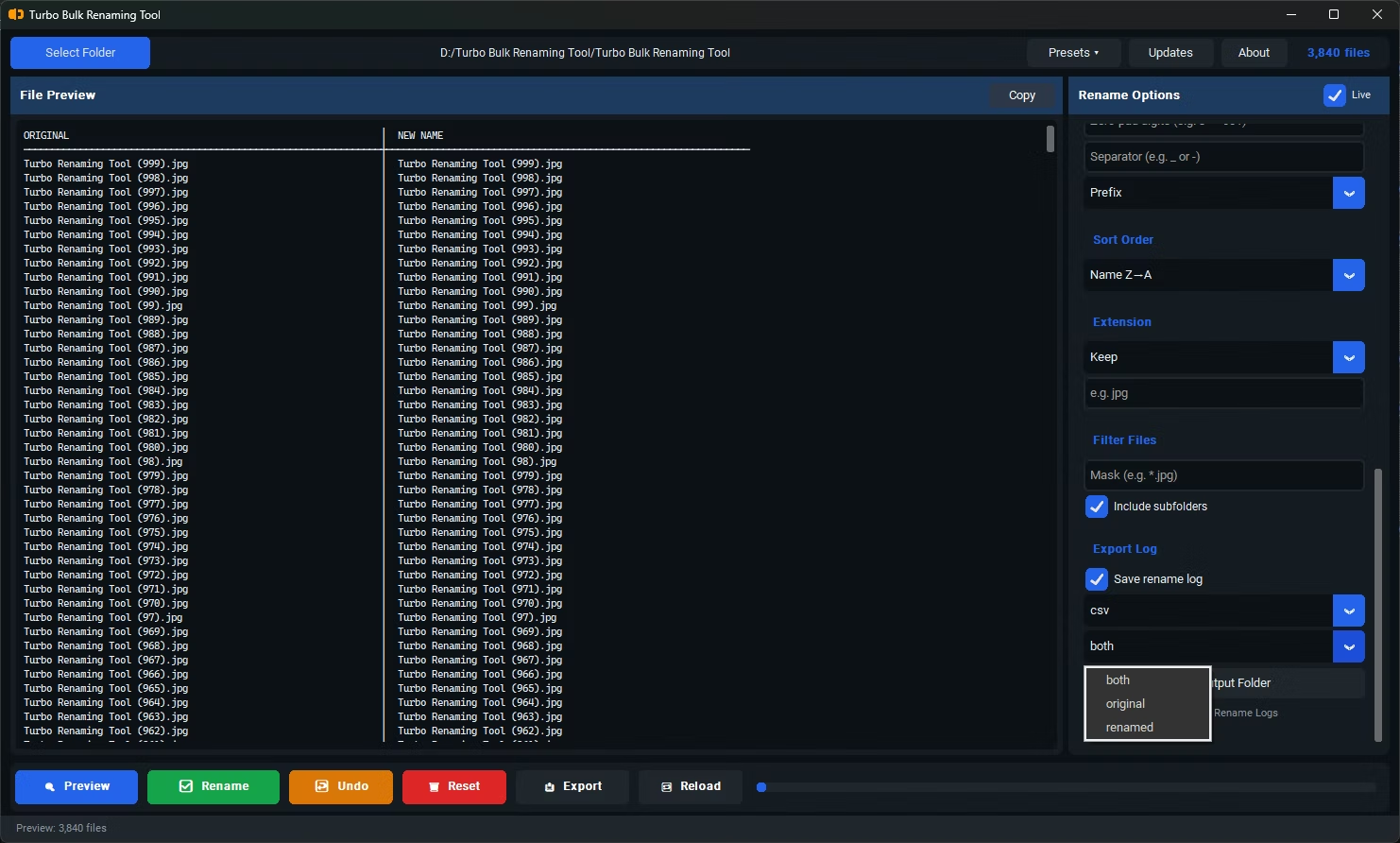
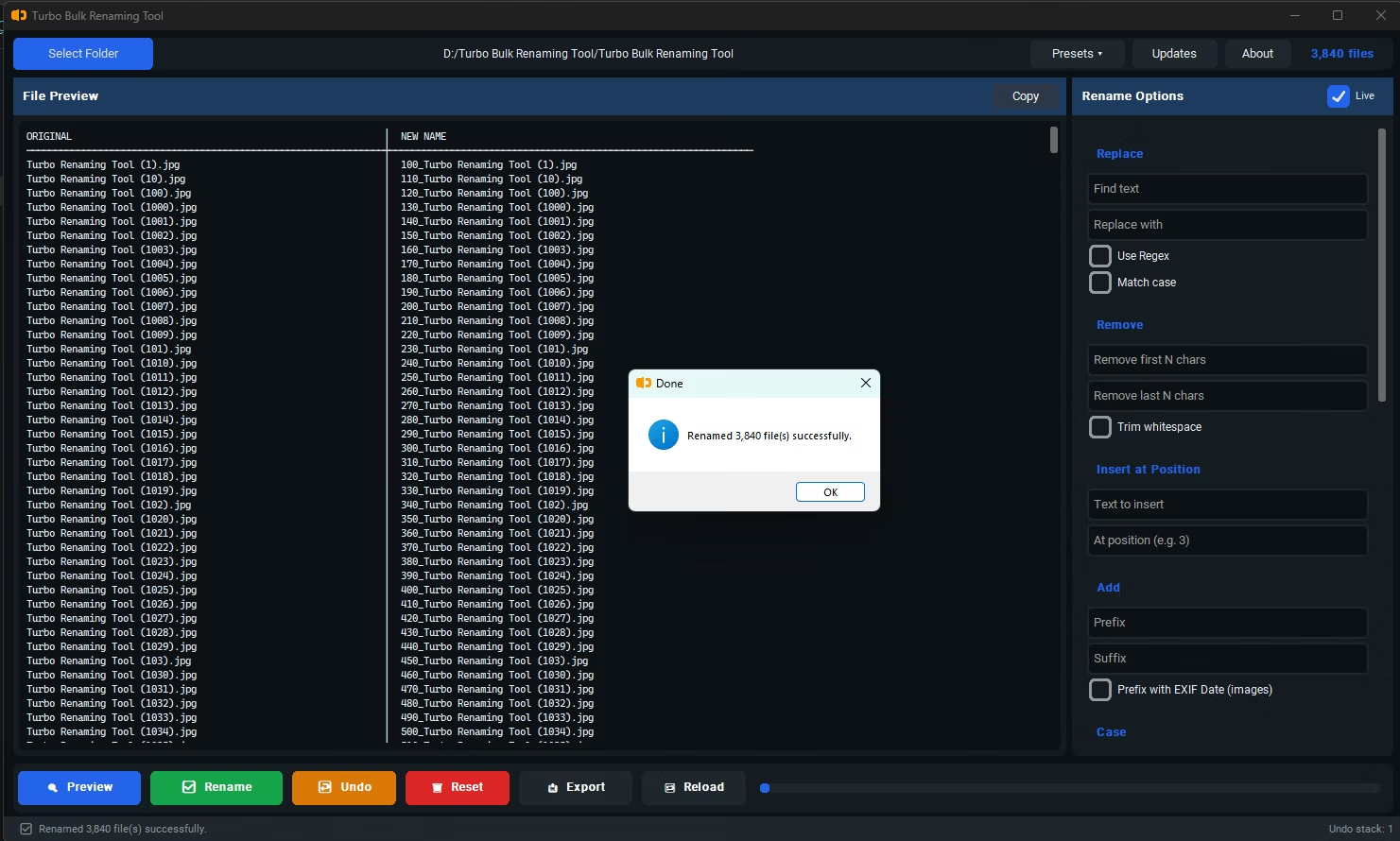
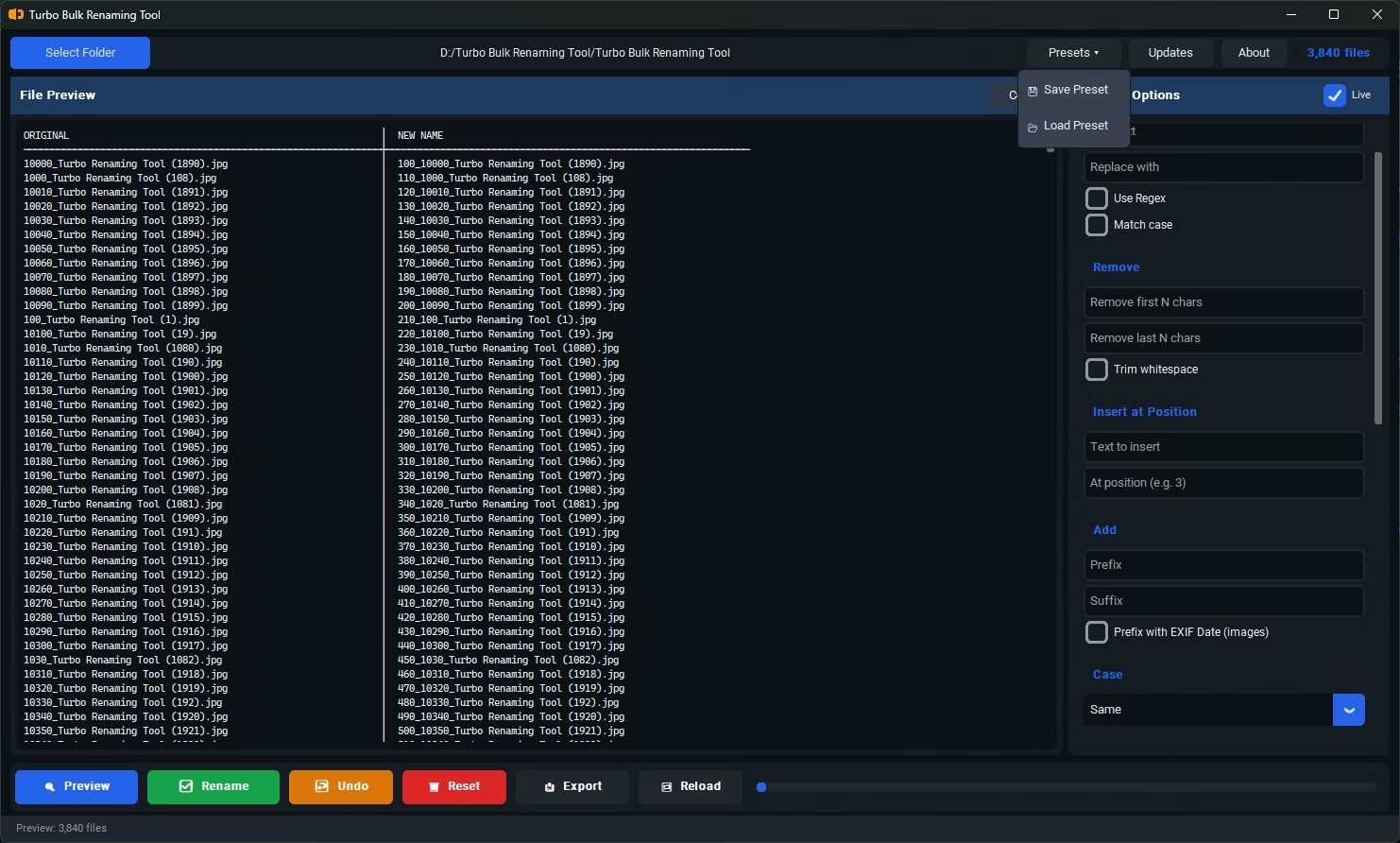
- Install Batchify Renaming Tool on your Windows PC.
- Open the app and load the folder containing the files you want to rename.
- Select the Prefix renaming rule.
- Enter the text you want added to the beginning of every filename.
- Check the live preview to confirm the prefix is applied correctly across your files.
- Combine with other rules, like sequential numbering, if you want a more structured naming pattern.
- Click Rename to apply the prefix across your entire batch at once.
- Applies a consistent prefix to every selected file in a single operation
- Helps control alphabetical sort order by grouping related files together
- Combine with sequential numbering, suffixes, or other rules in the same rename pass
- Live preview confirms the exact result before any files are actually renamed
- Recursive sub-folder support applies the same prefix across nested directories
- Runs fully offline, keeping your file names and folder structure private during the process
Can I add a prefix and remove existing text from the filename in the same pass?
Yes, Prefix can be combined with Find & Replace, character removal, or other rules within a single rename operation.
Is there a limit to how long a prefix can be?
Prefixes can be as long as needed within standard filename length limits, though shorter, more concise prefixes tend to be easier to read and sort by in practice.
Can I include special characters in my prefix?
You can use most standard characters, though characters that aren't allowed in filenames on your operating system will be handled or flagged accordingly.
Will adding a prefix create naming conflicts with existing files?
The tool's automatic duplicate protection checks for naming conflicts and adjusts results as needed so no files are accidentally overwritten.
Ready to rename your files in bulk, offline, with full privacy?