A large PDF usually gets that way from embedded images, redundant internal structure, or fonts and metadata that accumulate over repeated edits. Reducing file size means cleaning up that internal structure and, when needed, re-compressing embedded images, rather than simply lowering the resolution of the whole document.
Different documents call for different amounts of reduction. A scanned report full of images benefits from more aggressive compression, while a mostly-text contract may only need light structural cleanup to shrink noticeably without any visible quality change.
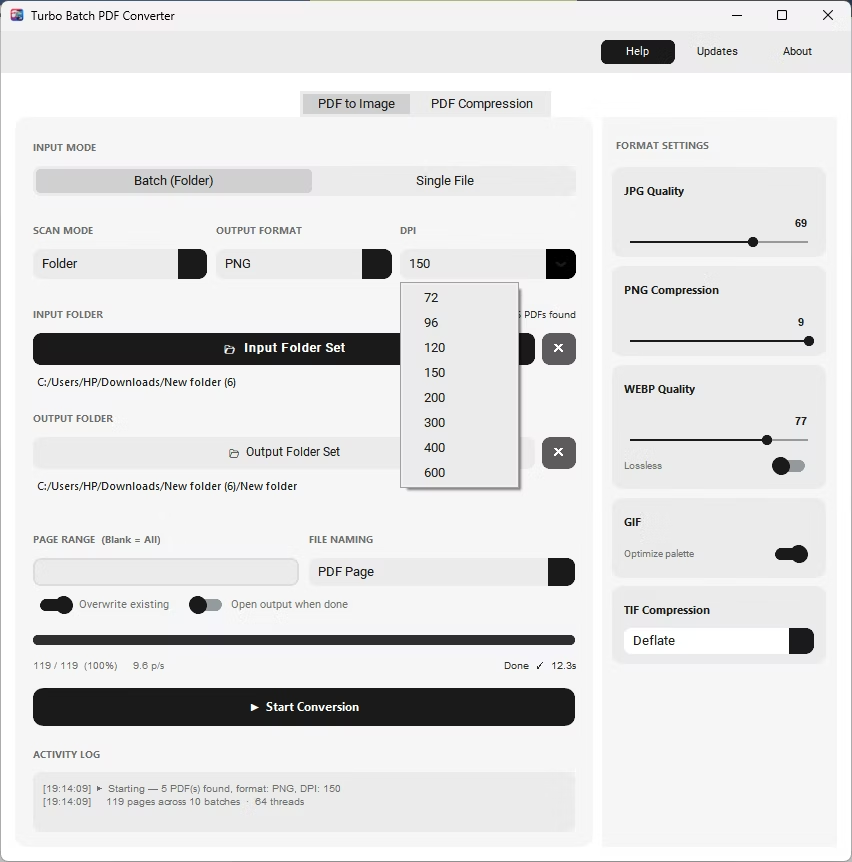
Batchify PDF Converter runs on Windows 10 and Windows 11, both 64-bit, and installs as a single self-contained application with no separate Poppler or Ghostscript dependency to configure. That keeps setup to a couple of minutes, whether the app is going on a personal laptop or a shared office PC handling document conversion for a whole team.
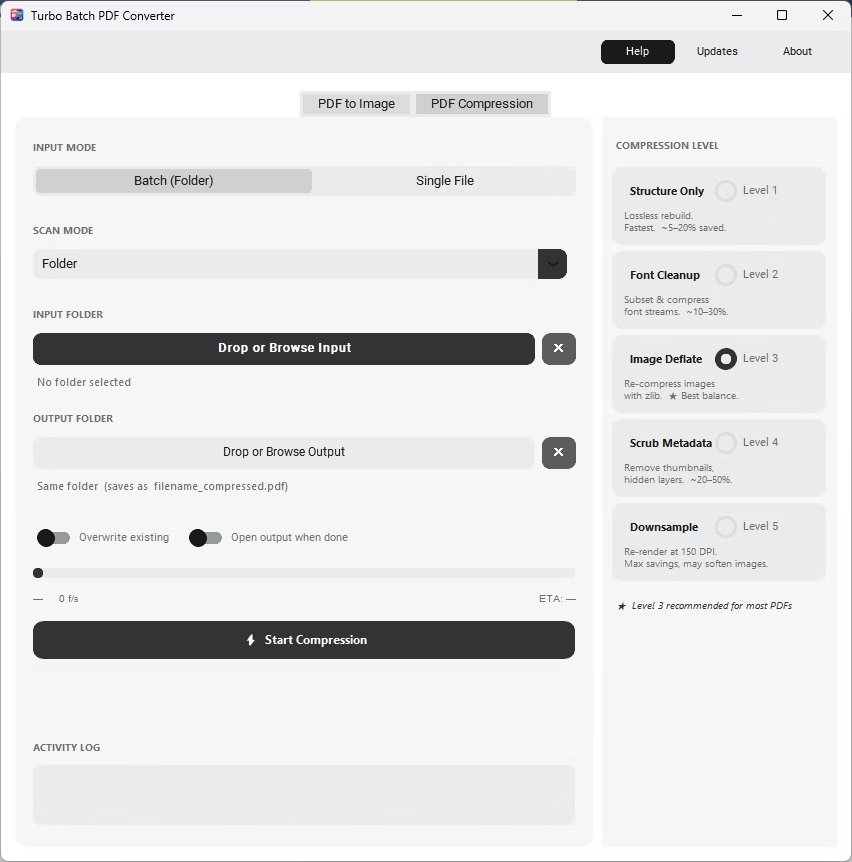
The same app also includes a built-in PDF compressor with five compression levels, so shrinking file sizes for email or storage doesn't require switching to a separate tool. Everything runs locally through a one-time Gumroad license, without a recurring subscription, and pairs naturally with other BatchifyApp utilities such as Batchify Renaming Tool for organizing converted files afterward.
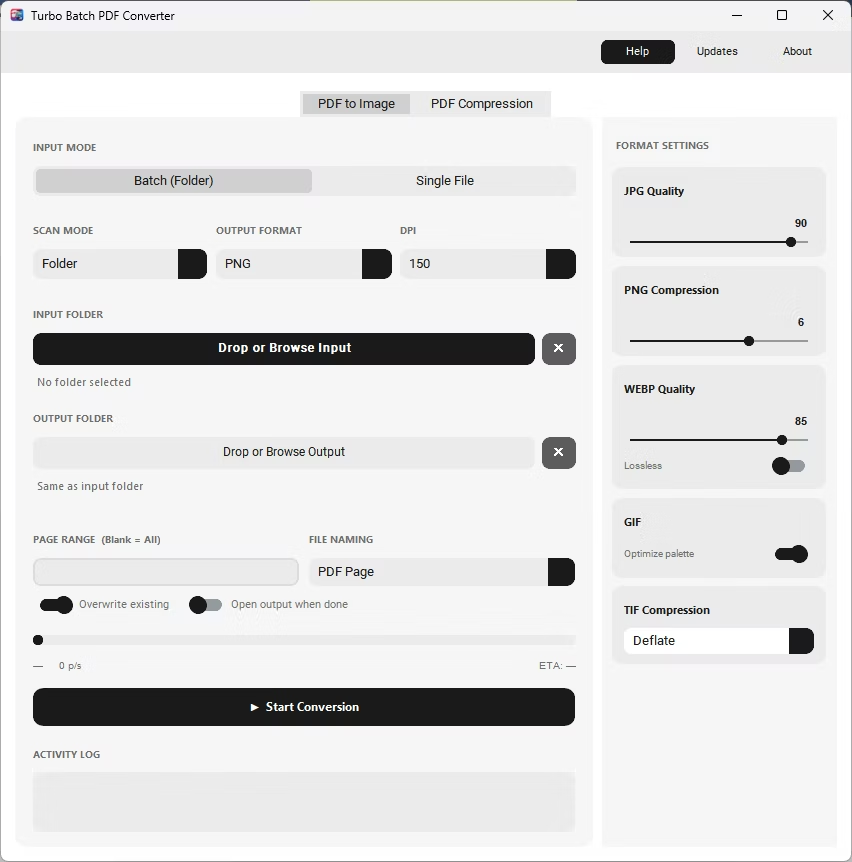
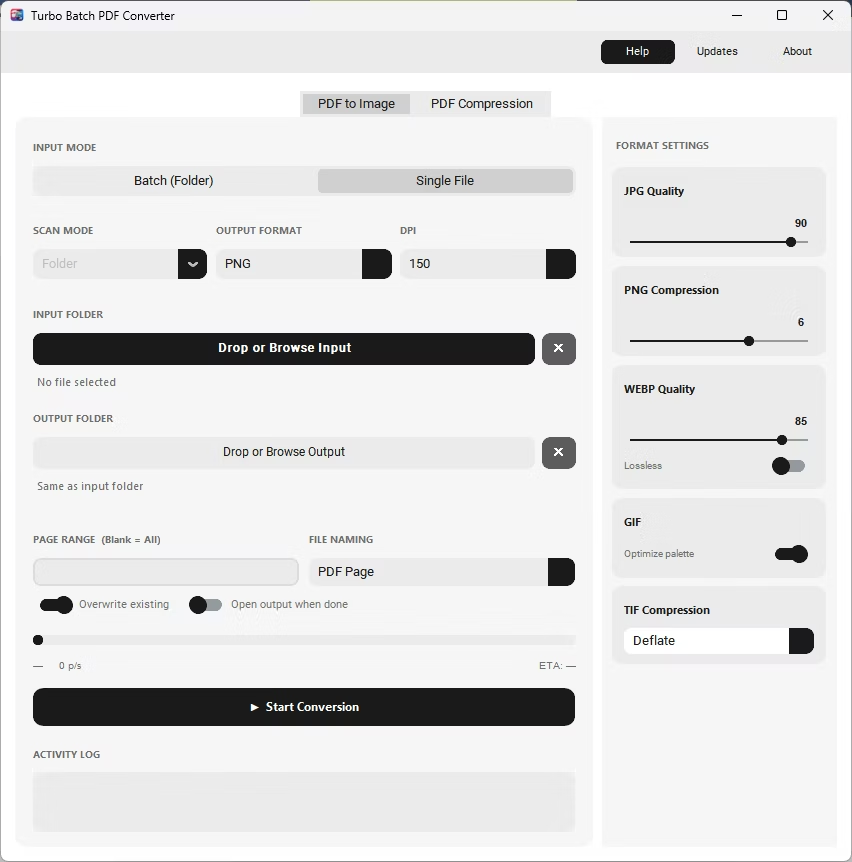
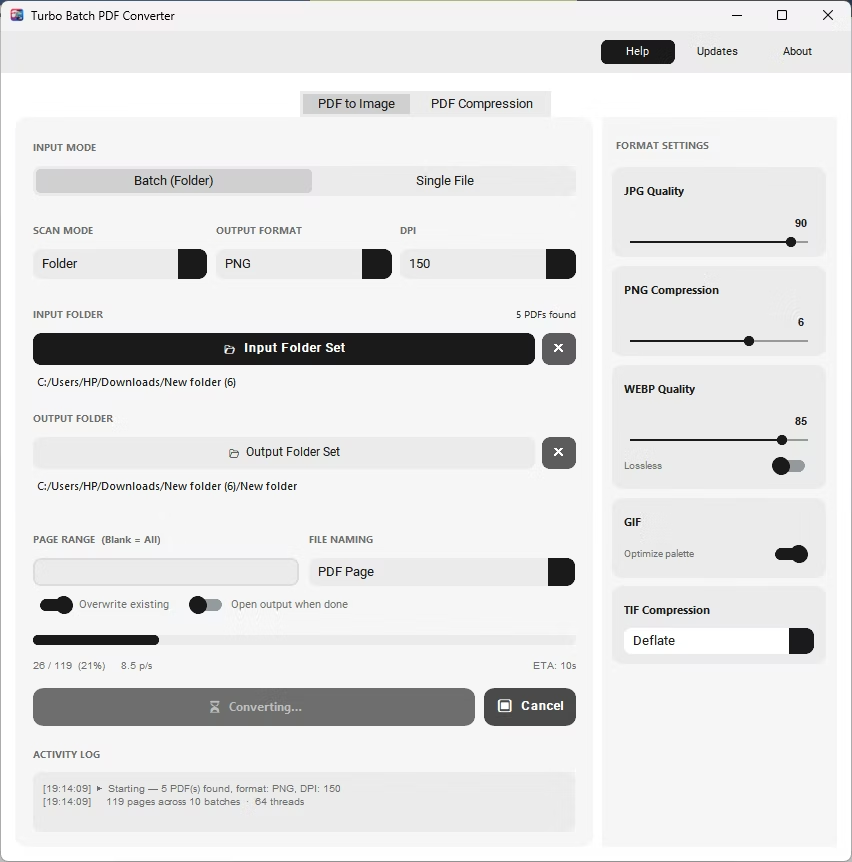
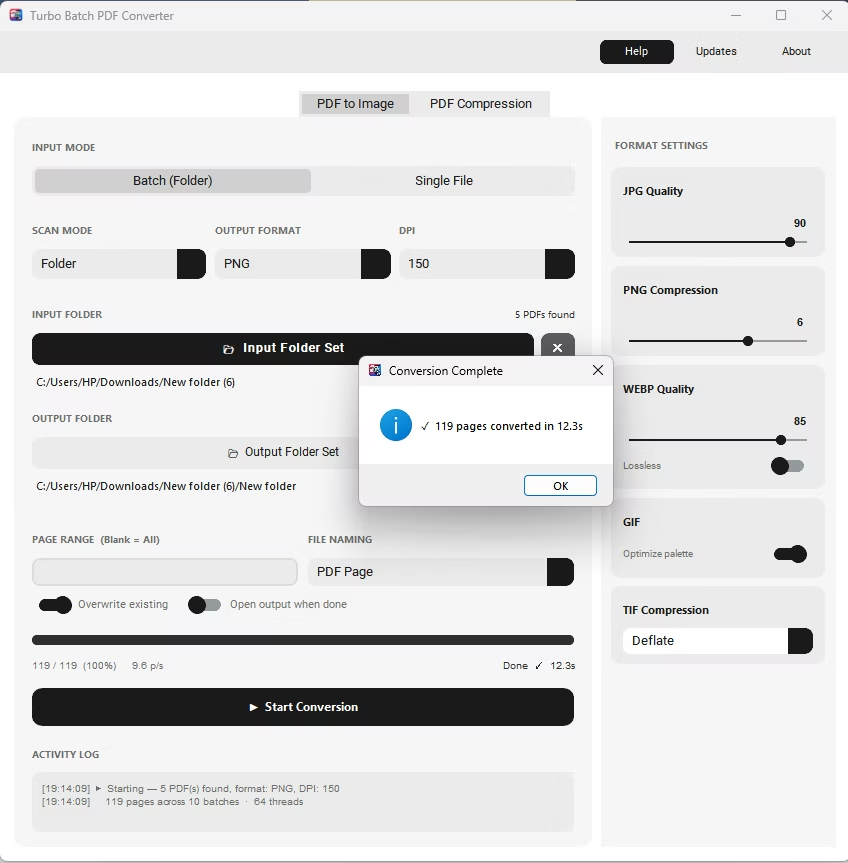
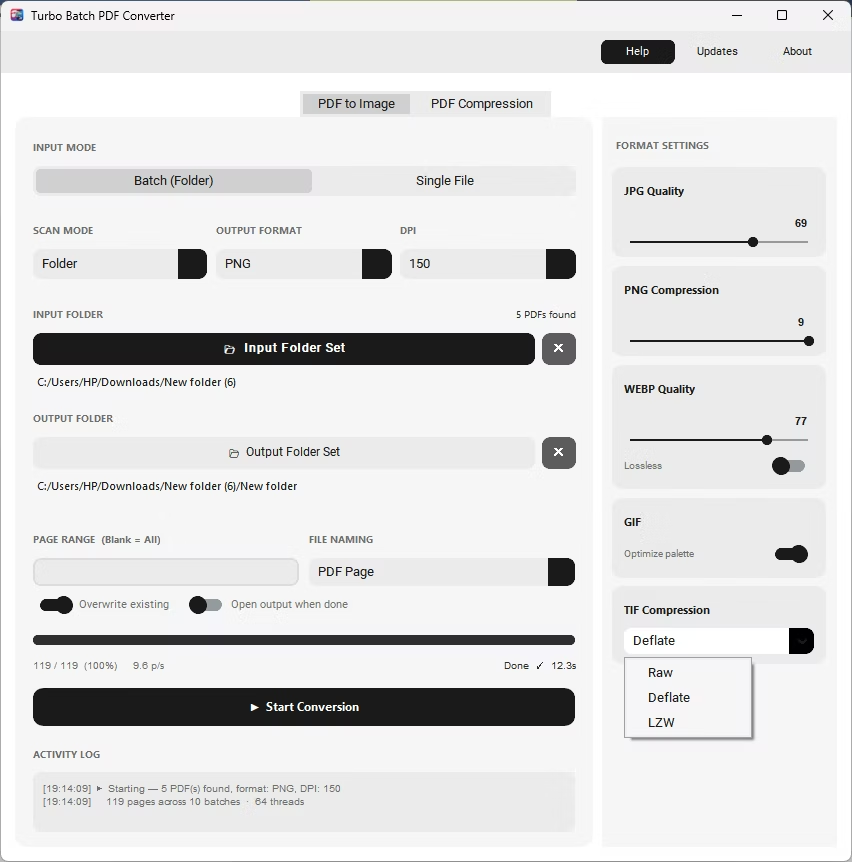
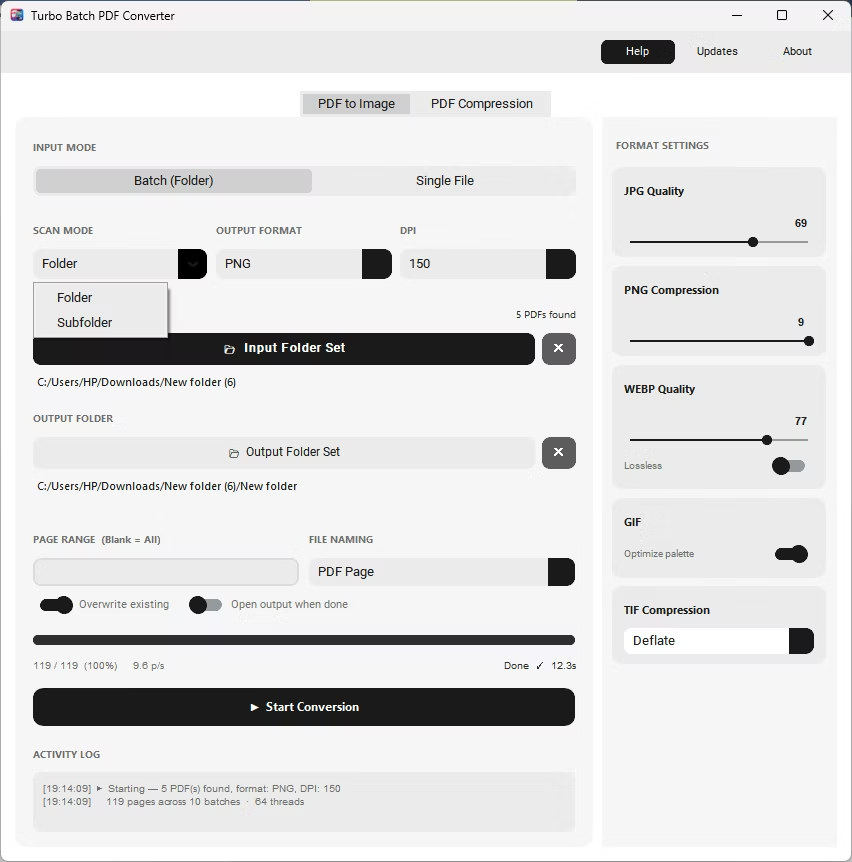
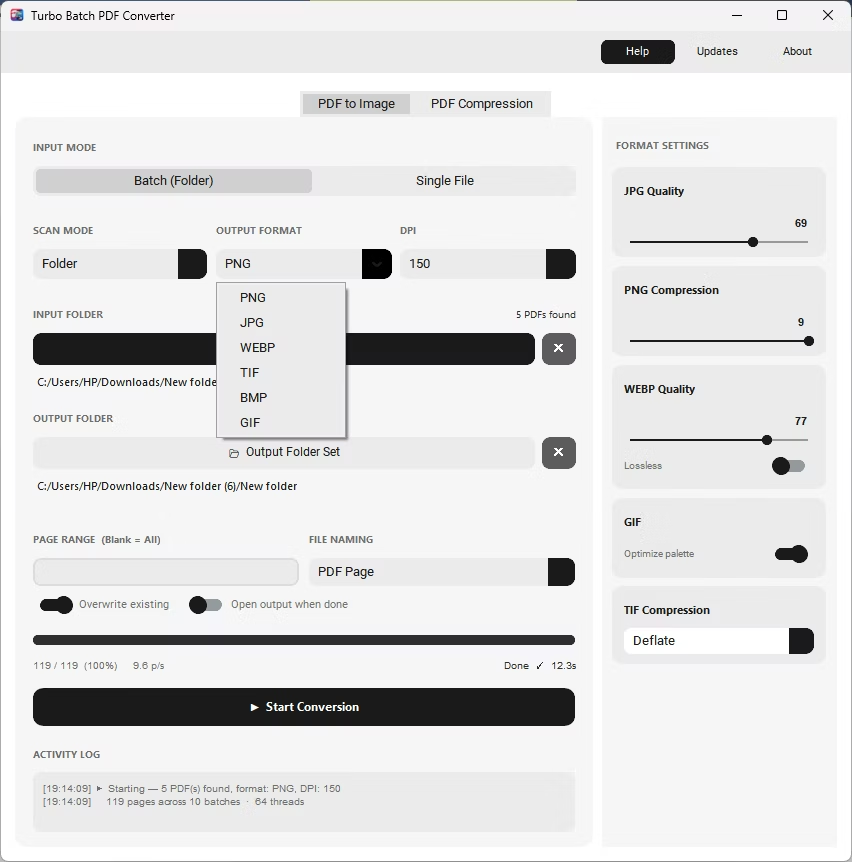
- Install Batchify PDF Converter on your Windows PC.
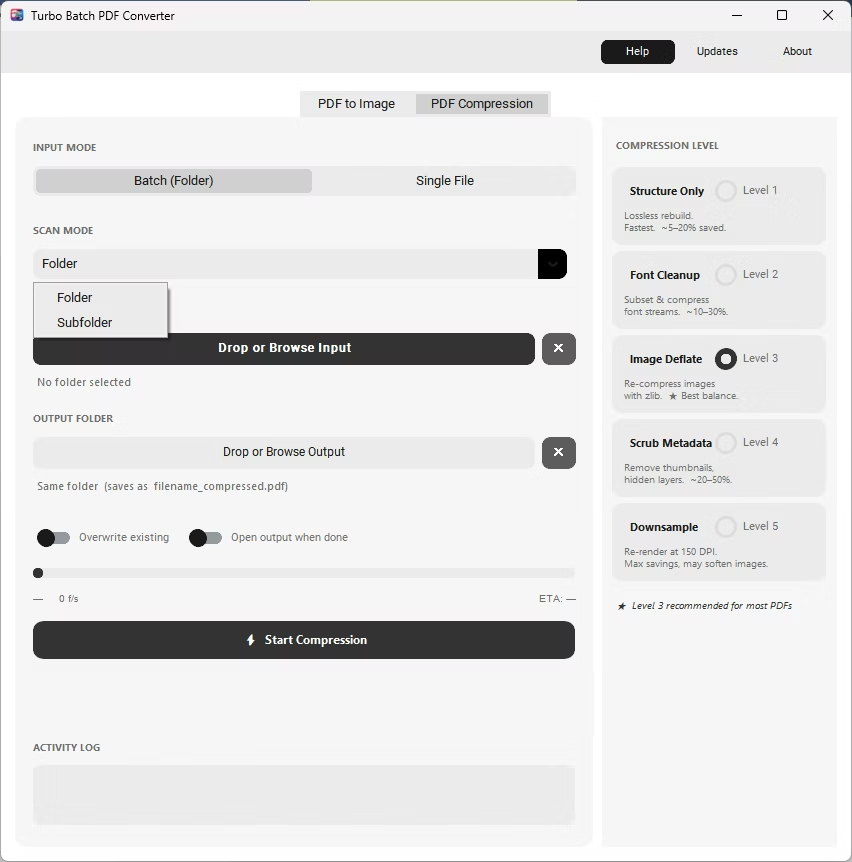
- Open the app and switch to the PDF Compression tab.
- Select a compression level from 1 to 5 based on how much reduction you need.
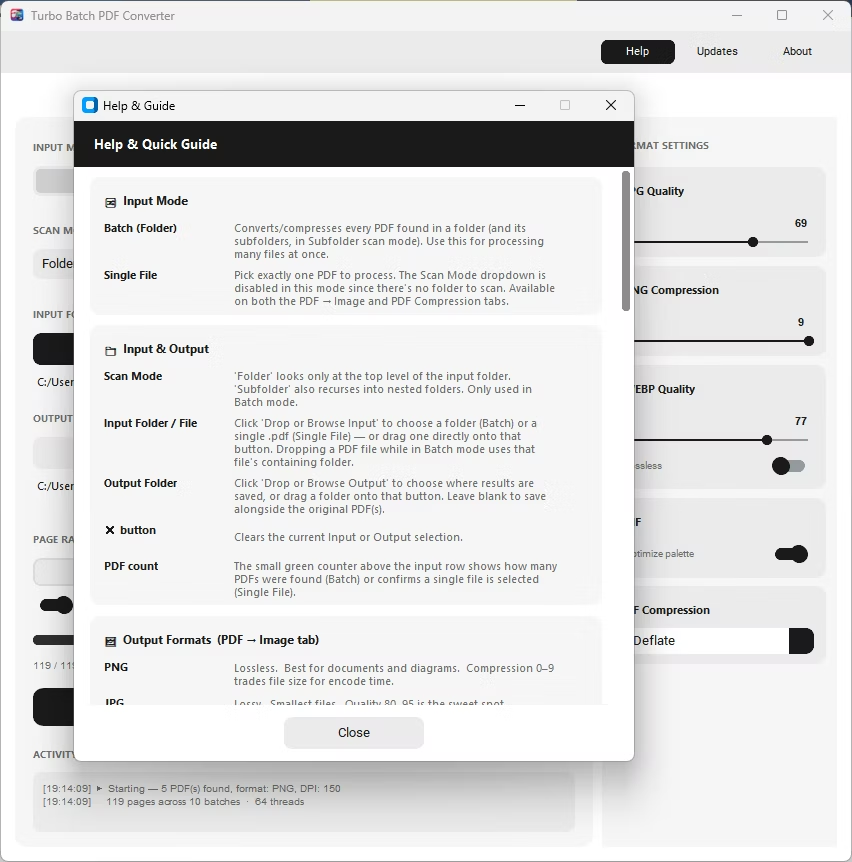
- Choose Batch mode to compress a whole folder at once, or Single File mode for one document.
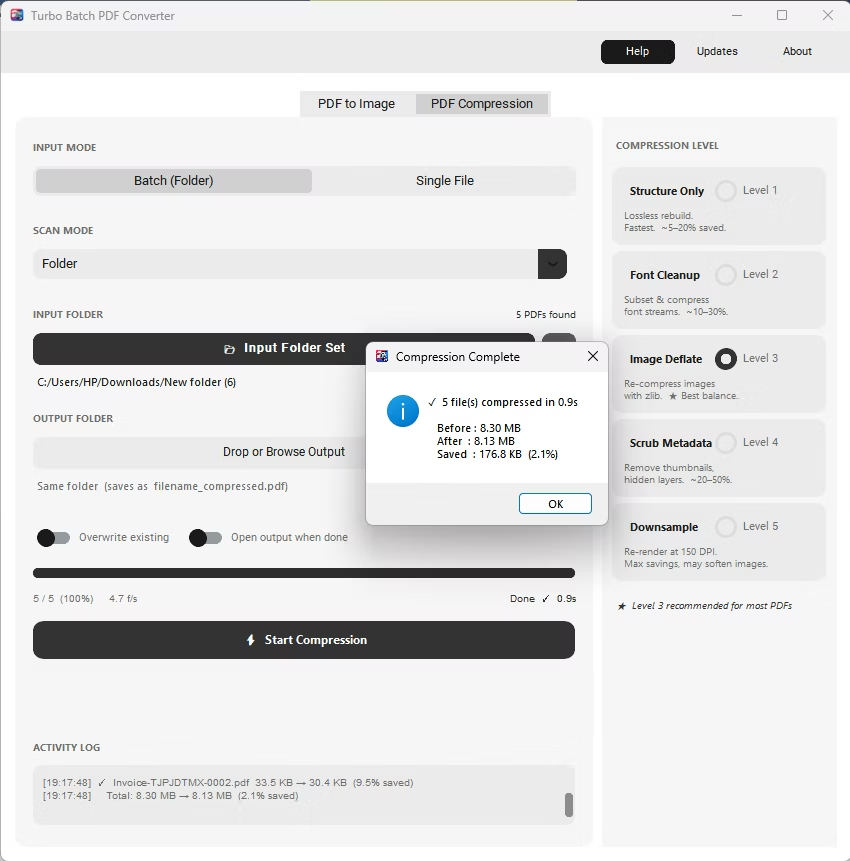
- Click Start Compression. The app reports the size saved for every file, so you can confirm the result.
- Lower levels apply lossless structure cleanup with minimal visual change
- Level 3 balances size reduction and quality for most documents
- Higher levels add more aggressive image downsampling for maximum reduction
- Every file reports original size, new size, and percentage saved
- Batch mode applies the same compression level across an entire folder
- Compression runs entirely offline, keeping documents private
Will compression make my PDF text blurry?
Structural cleanup and image re-compression at moderate levels preserve text sharpness; only the most aggressive levels reduce image detail noticeably.
How much can I expect a typical PDF to shrink?
Recommended-level compression typically saves around 15-40% of the original file size, depending on how many images the document contains.
Can I compress an entire folder of PDFs in one run?
Yes, Batch mode applies your chosen compression level across every PDF in a folder, including nested subfolders in Subfolder mode.
Ready to convert your PDFs offline, in bulk, with full privacy?