Many cameras, scanners, screen recording tools, and software exports add a fixed-length prefix to every file they create — a device code, a session identifier, or a generic label like "Screenshot_" or "IMG_". That prefix often takes up the same number of characters across every file in a batch, even if the rest of the filename varies, which makes removing a specific count of characters from the start a fast, reliable way to clean up the whole set at once.
This is different from Find & Replace in one important way: instead of matching specific text, you're simply telling the tool how many characters to strip from the beginning of every filename, regardless of what those characters actually are. That makes it useful even when the prefix isn't identical across every file — for example, when a camera prefixes each filename with a date that changes from shot to shot but always occupies the same number of characters.
Photographers cleaning up SD card imports, IT staff processing exported logs with consistent header codes, and anyone dealing with auto-generated filenames that follow a fixed-width naming convention can use this feature to instantly trim away the unwanted portion across an entire folder.
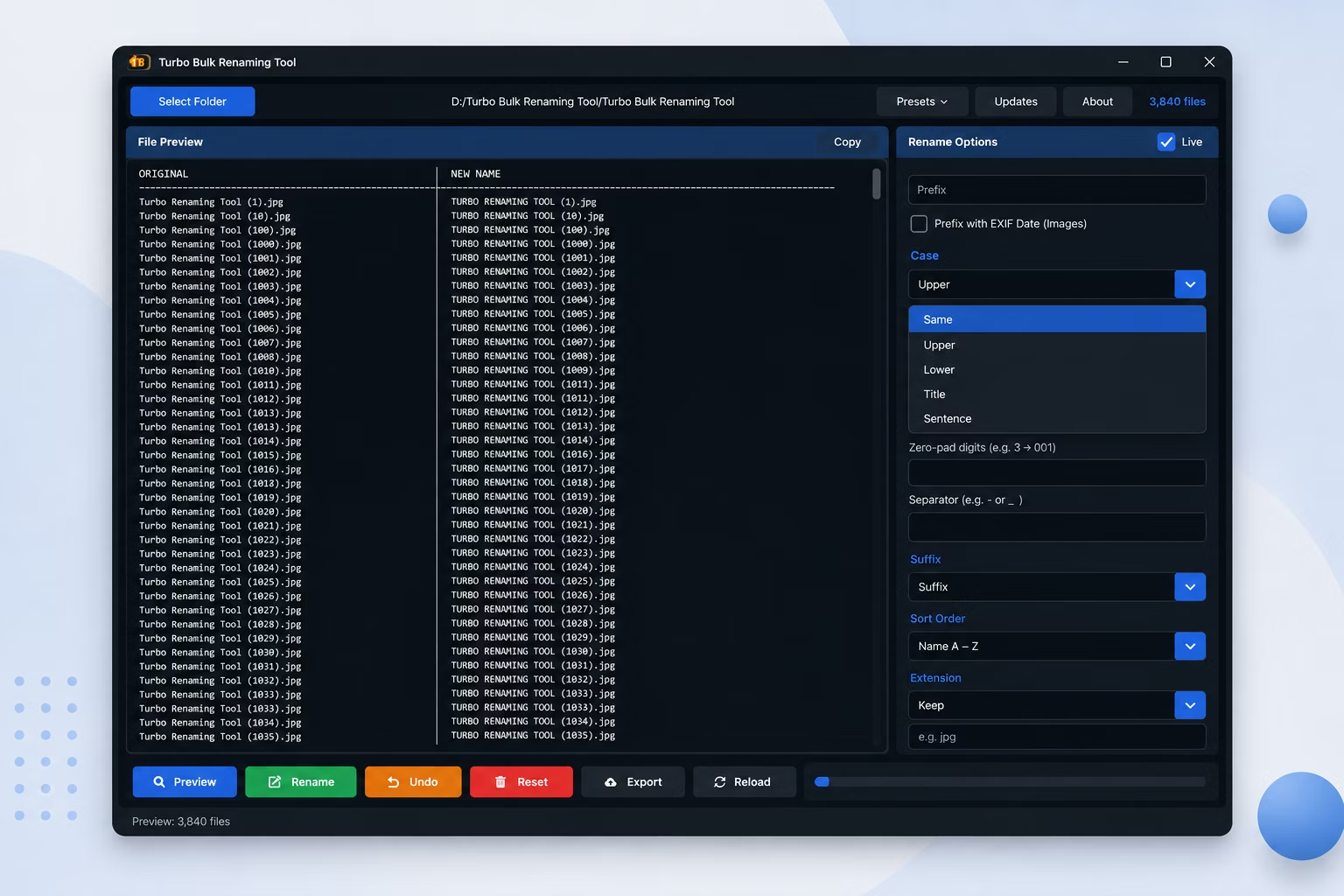
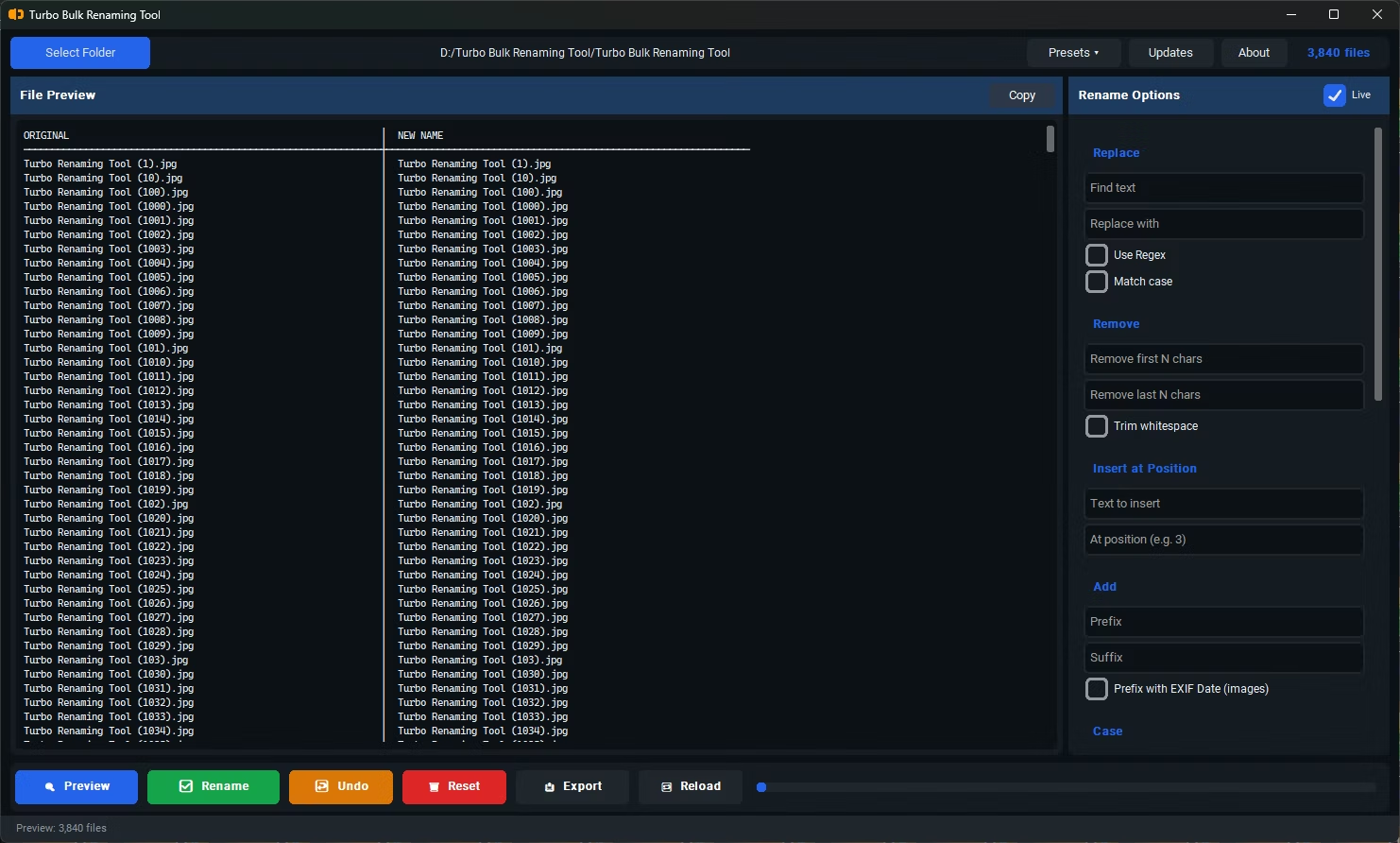
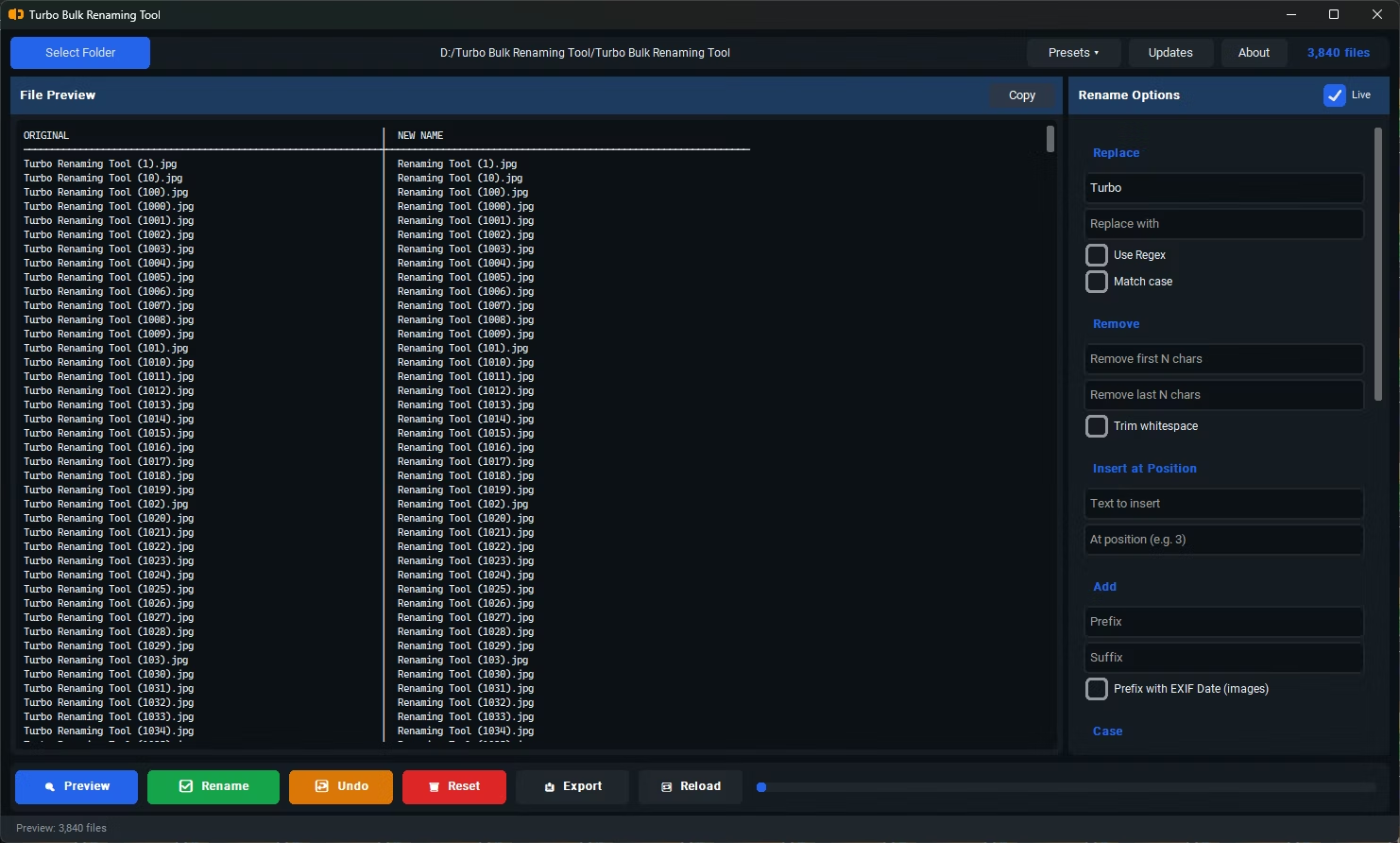
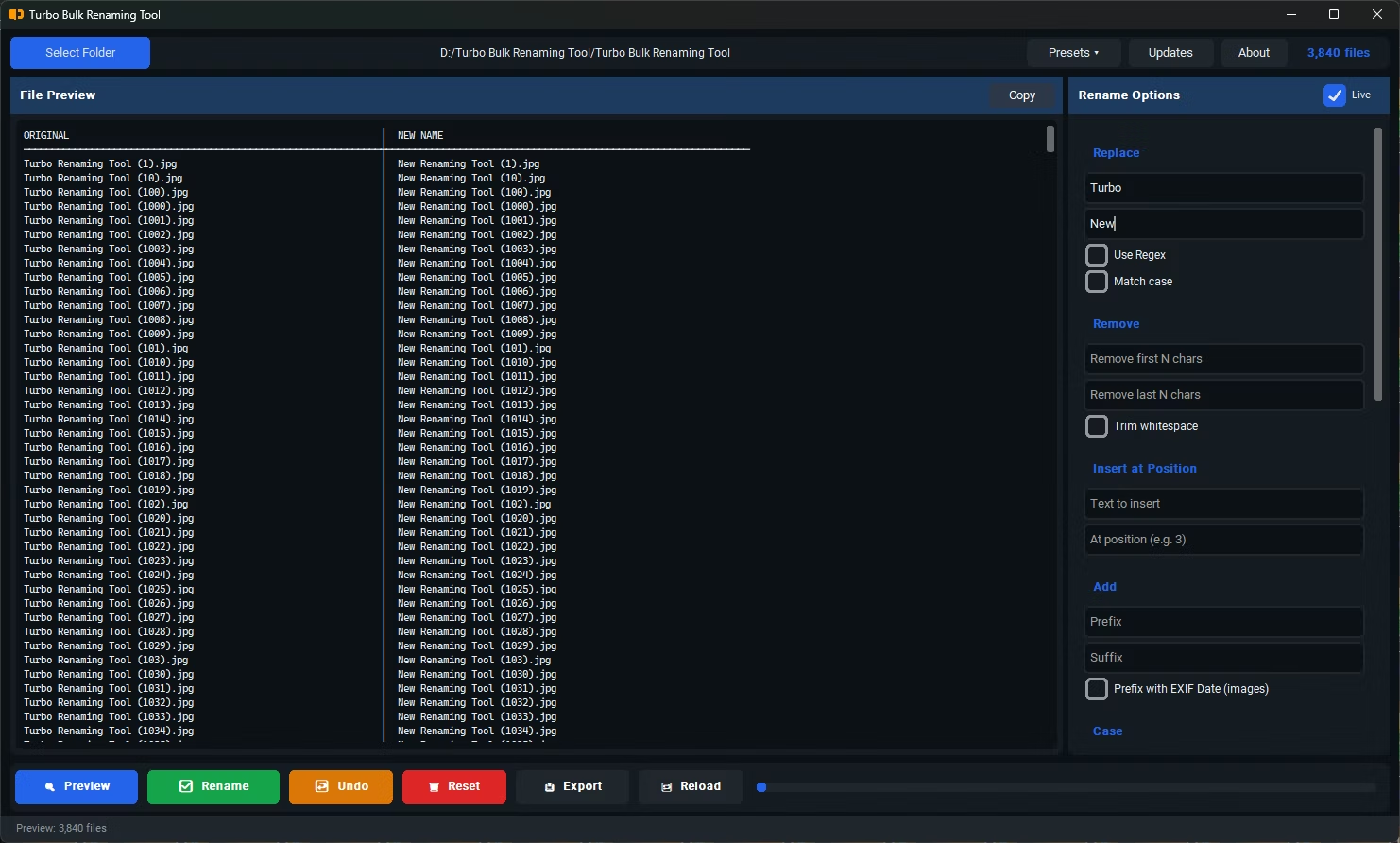
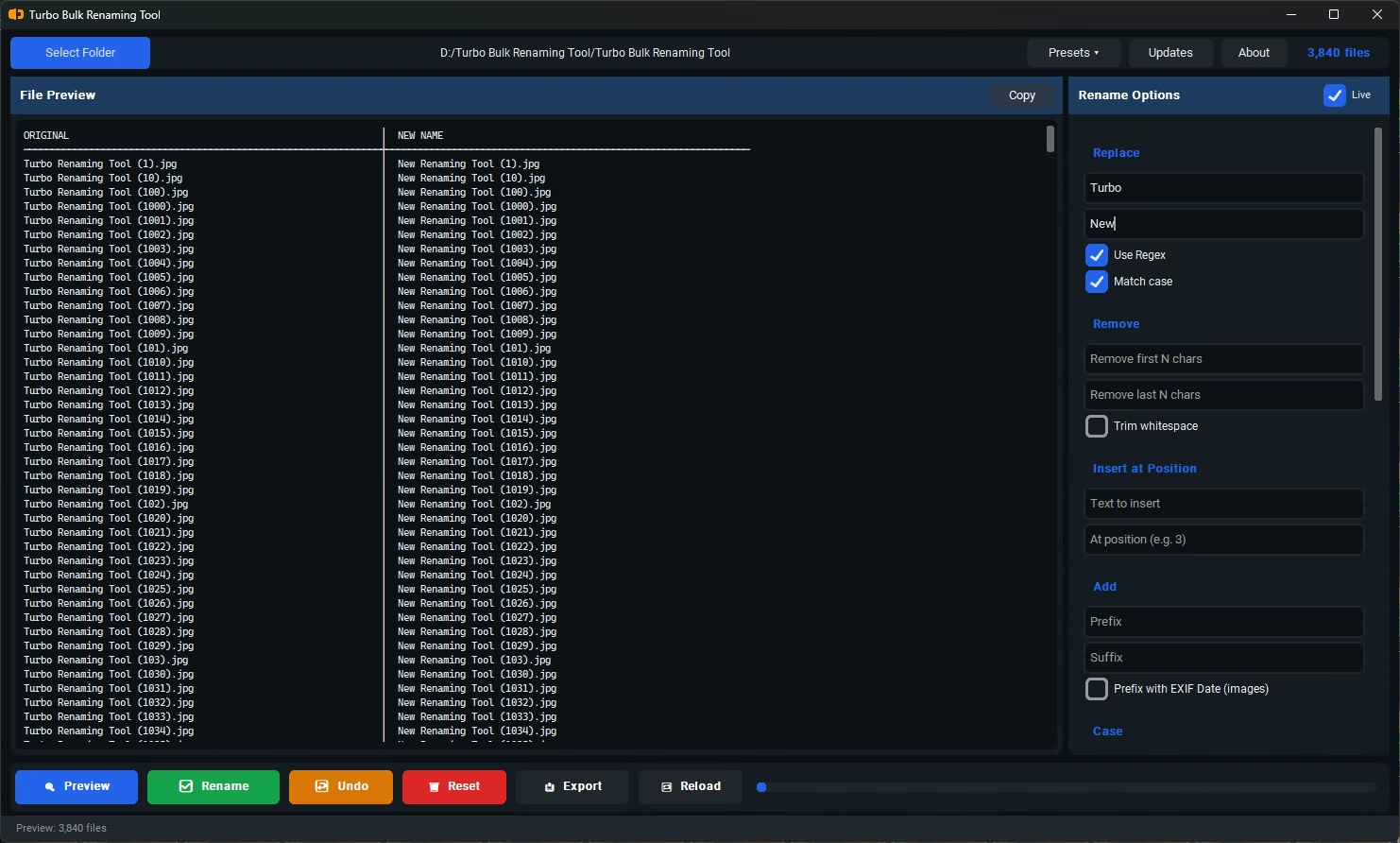
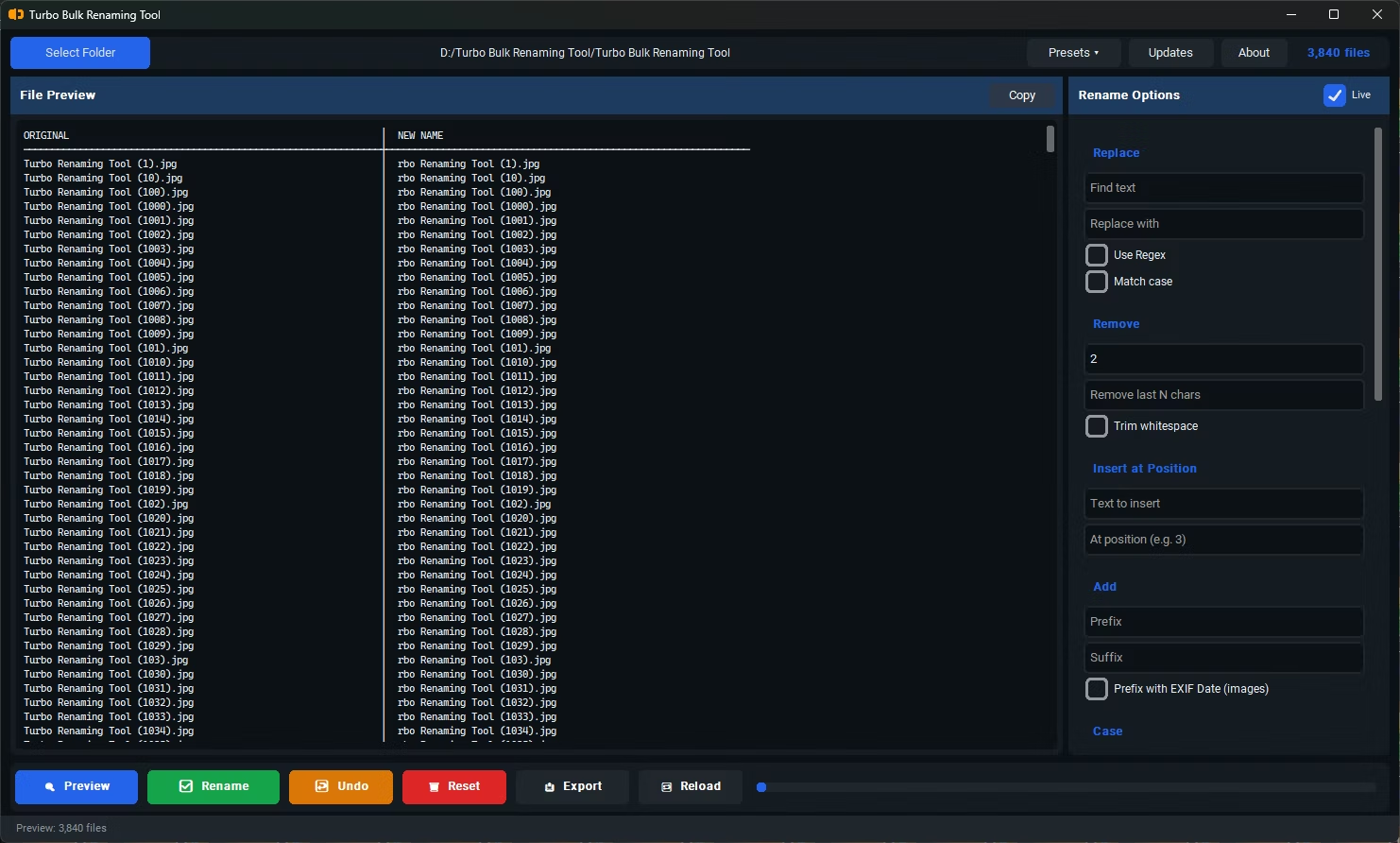
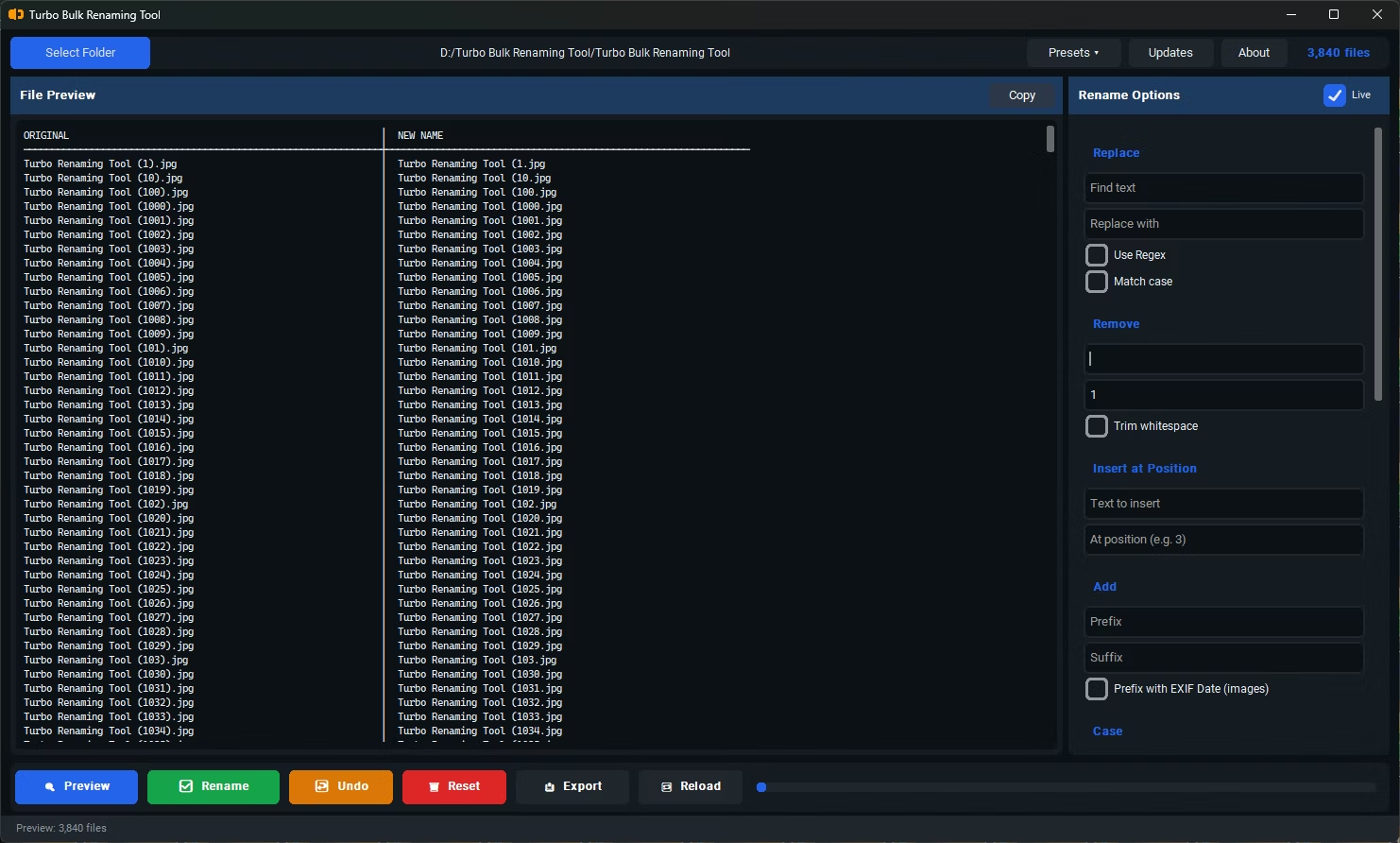
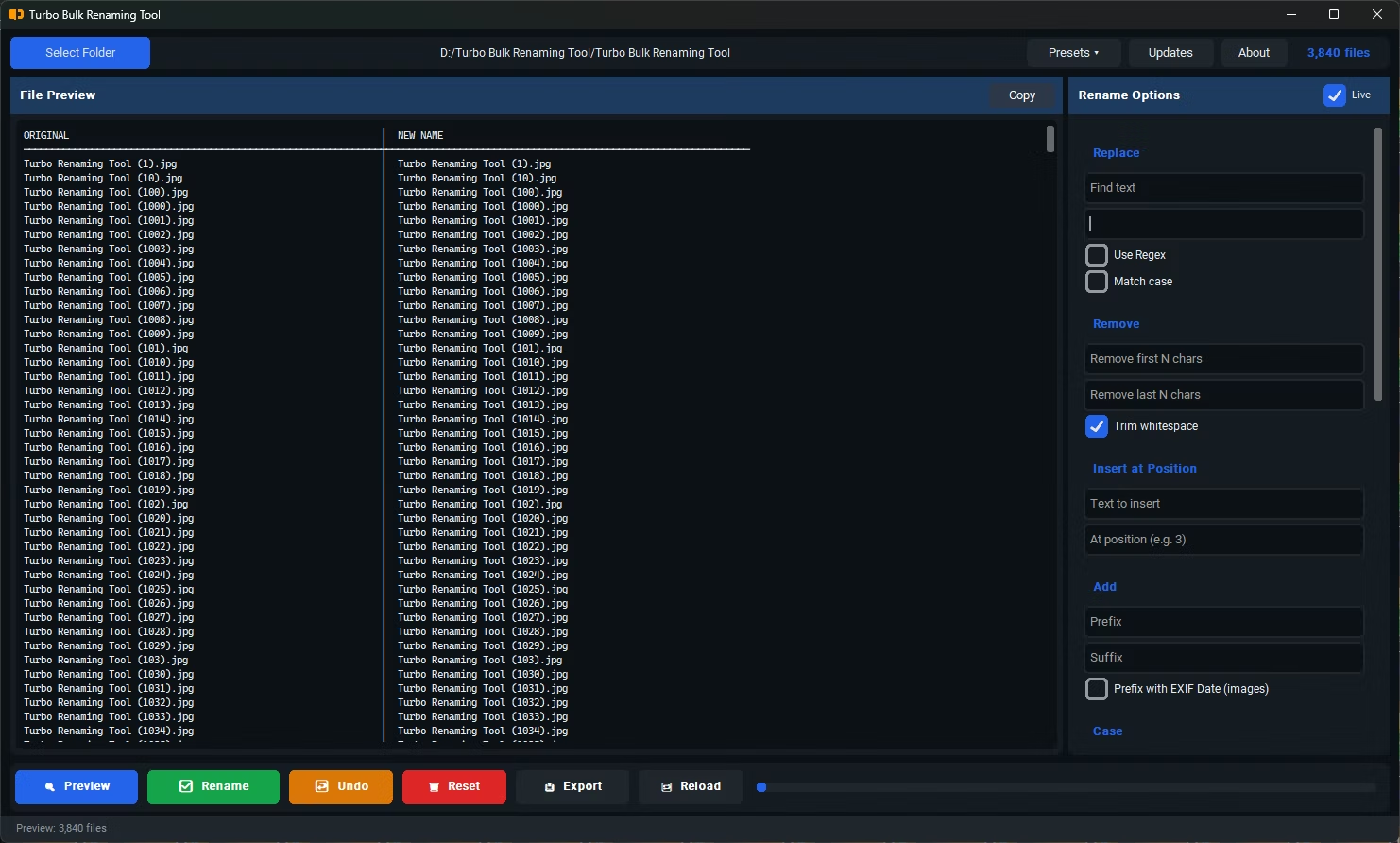
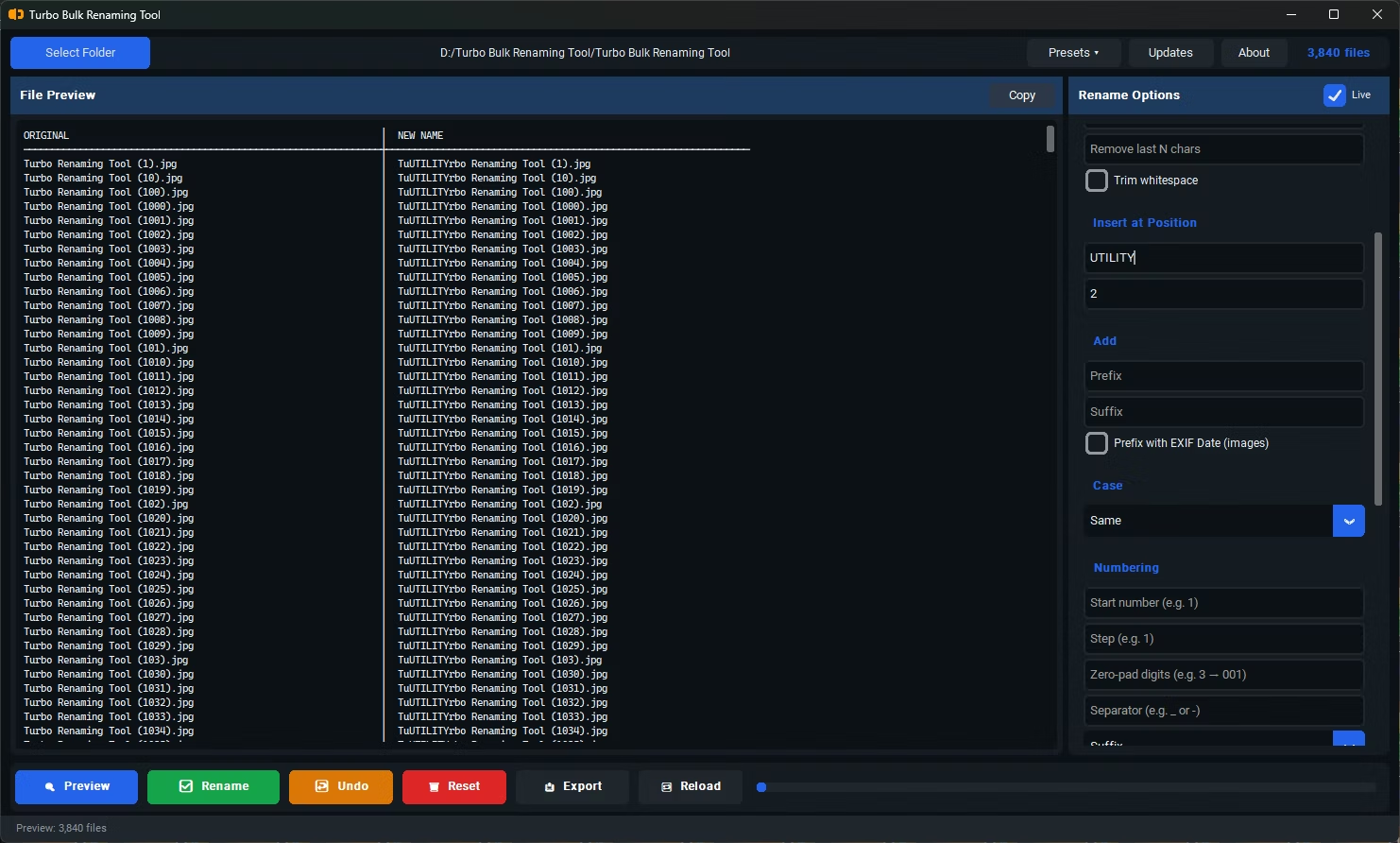
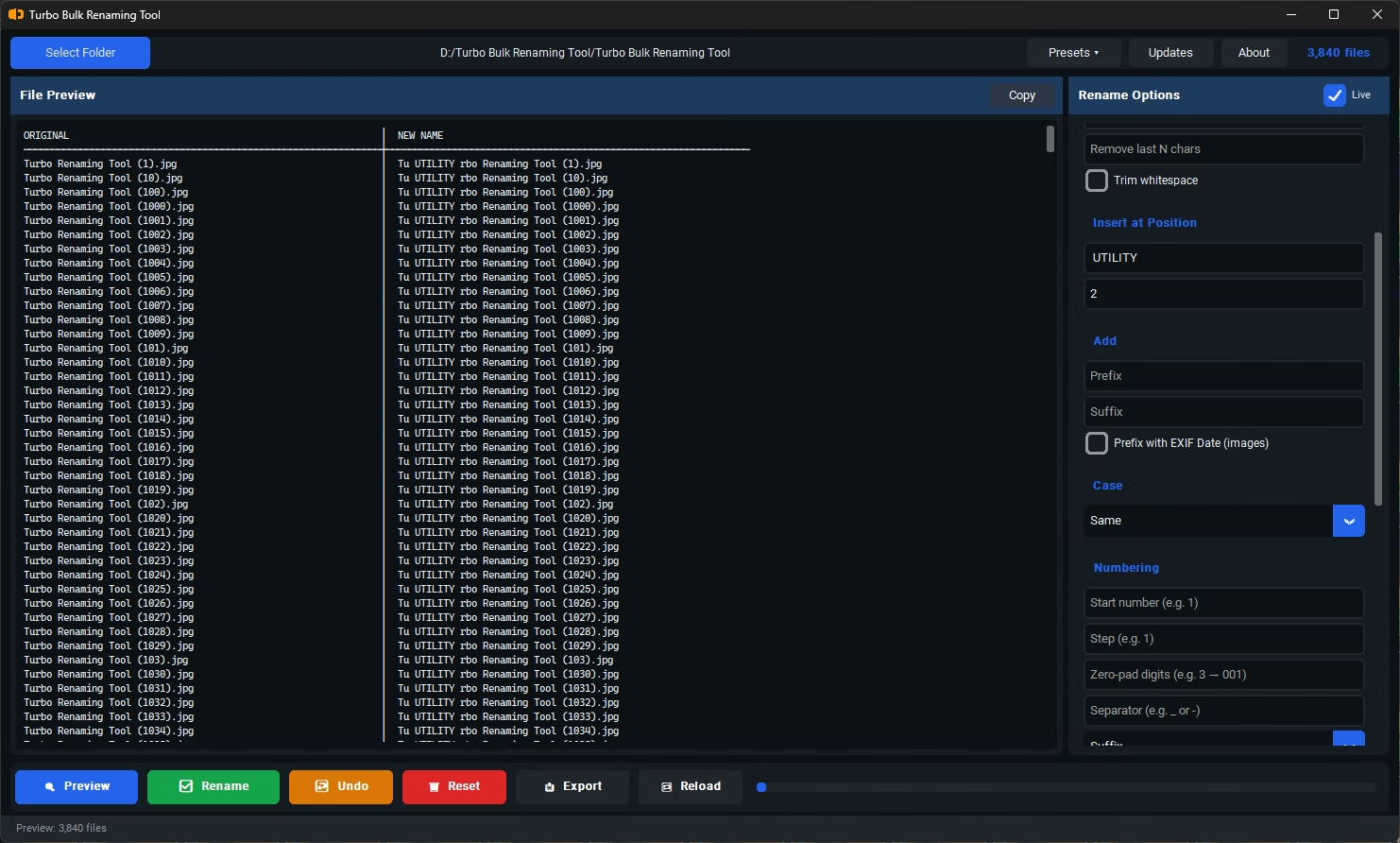
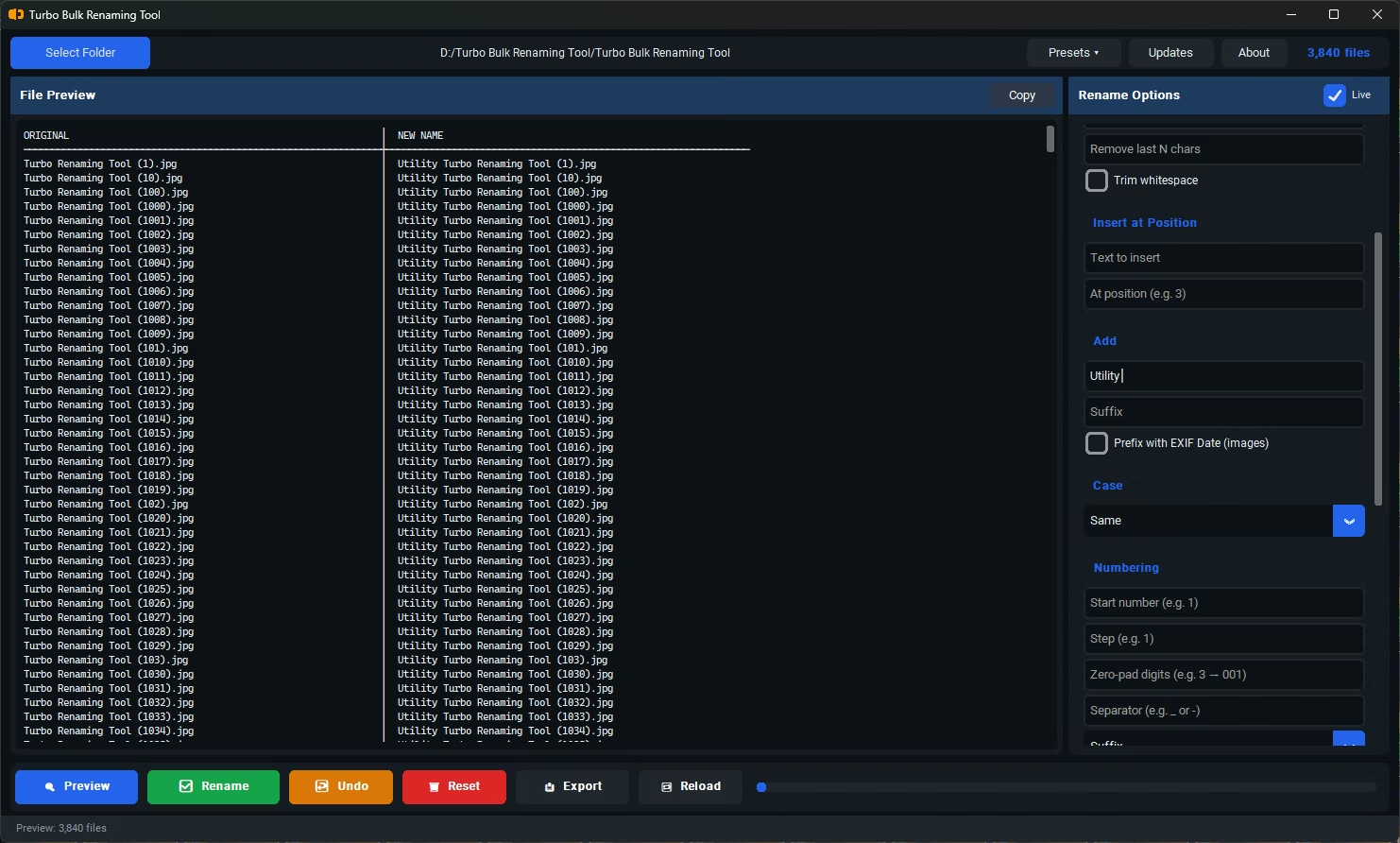
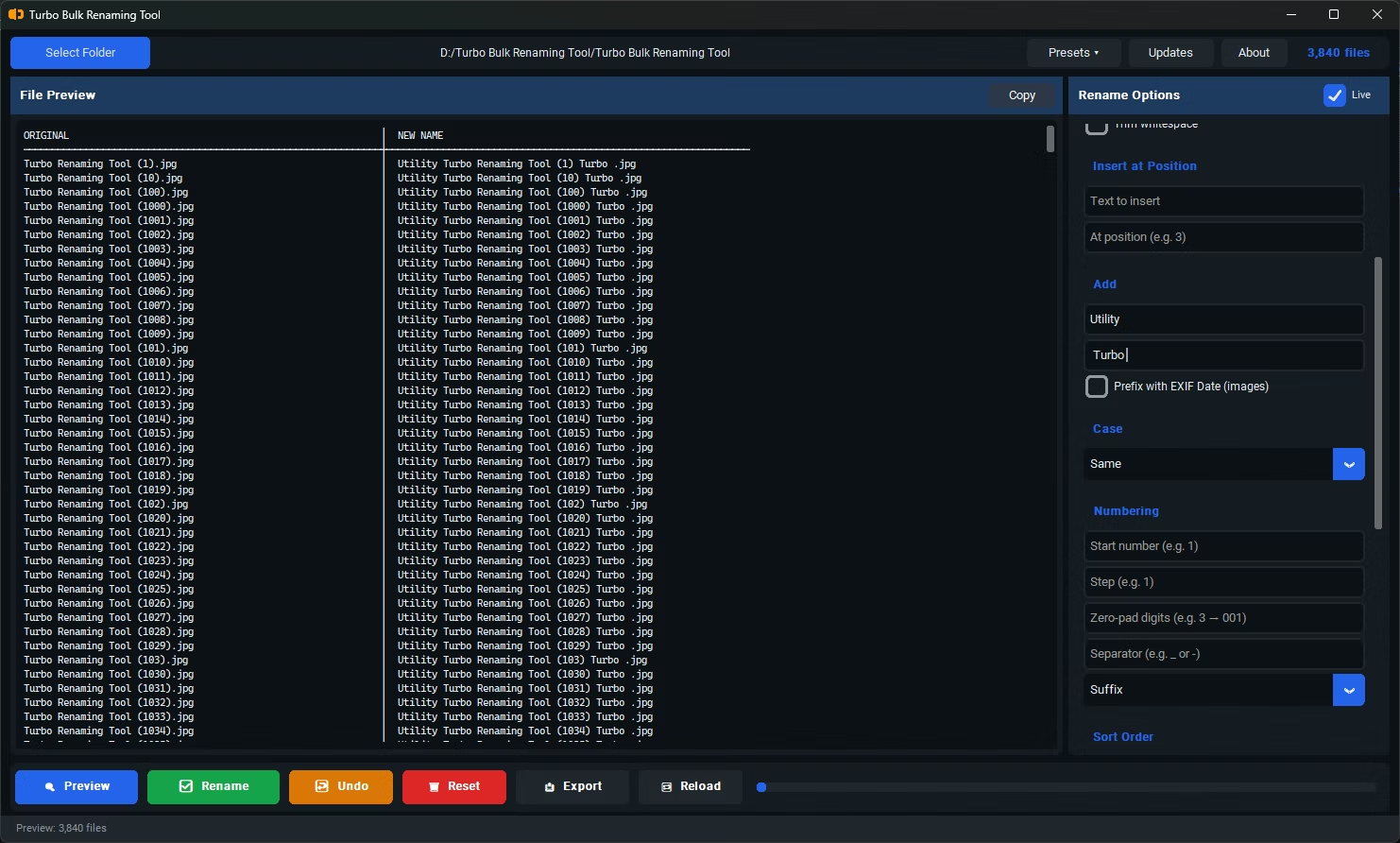
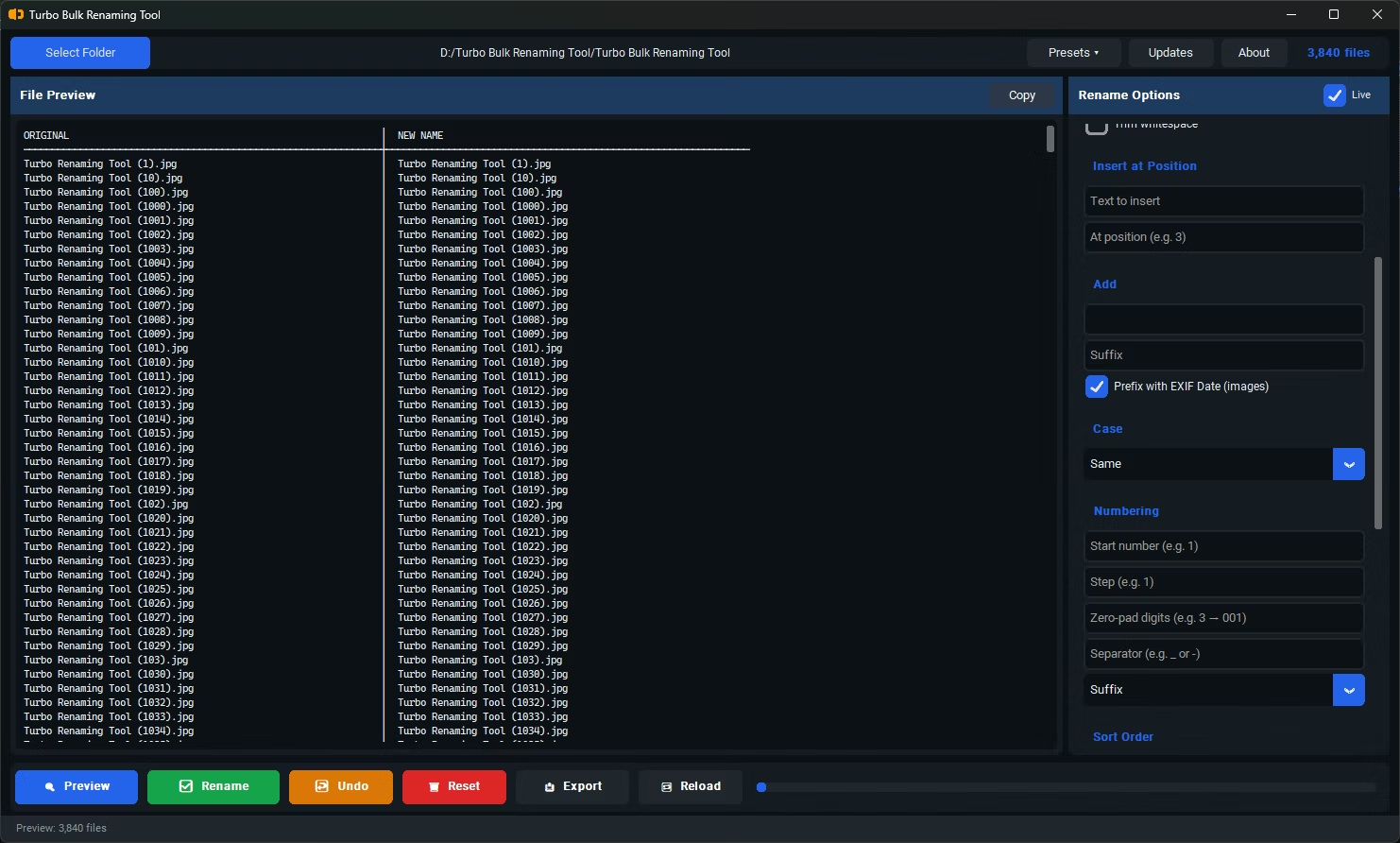
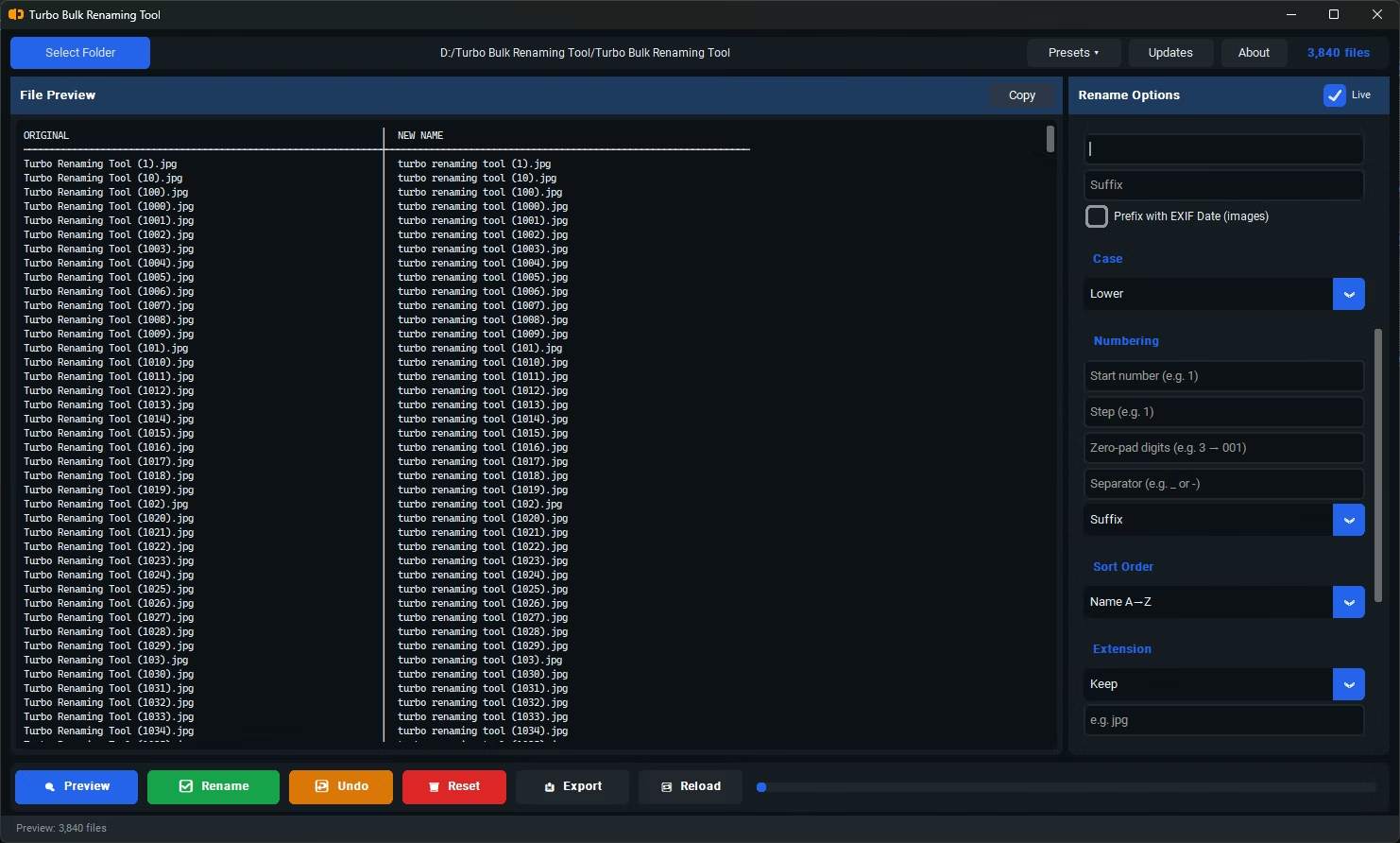
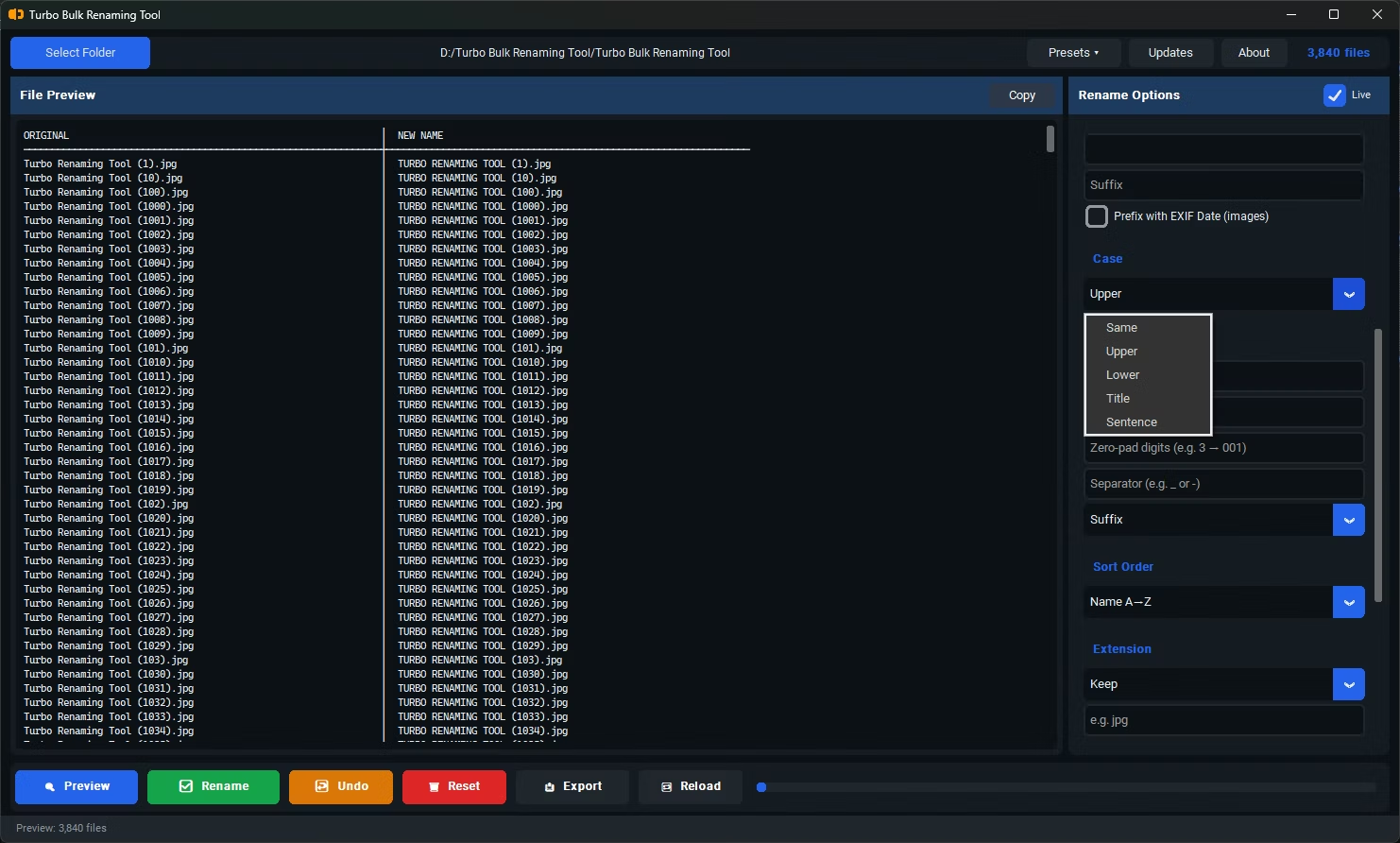
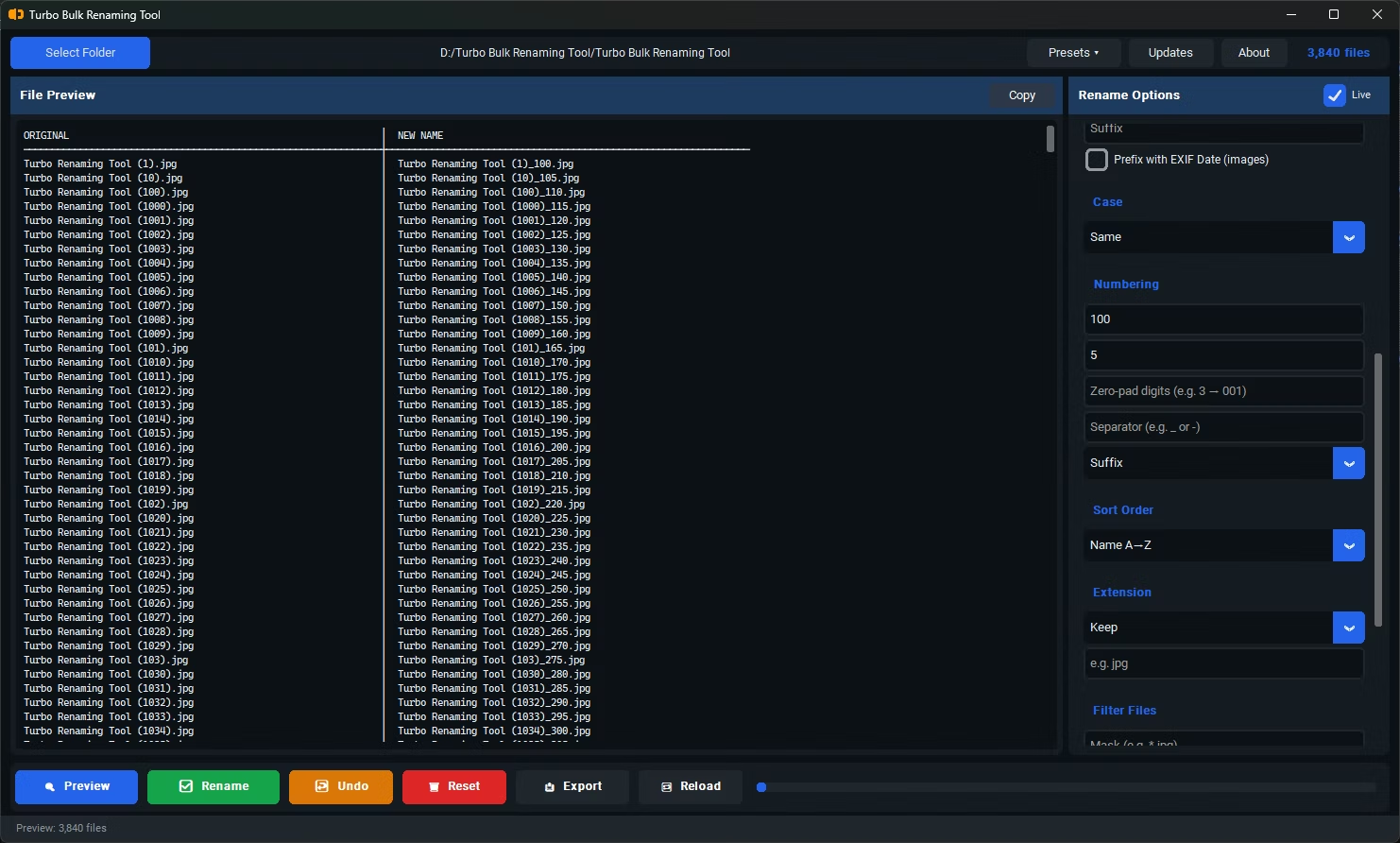
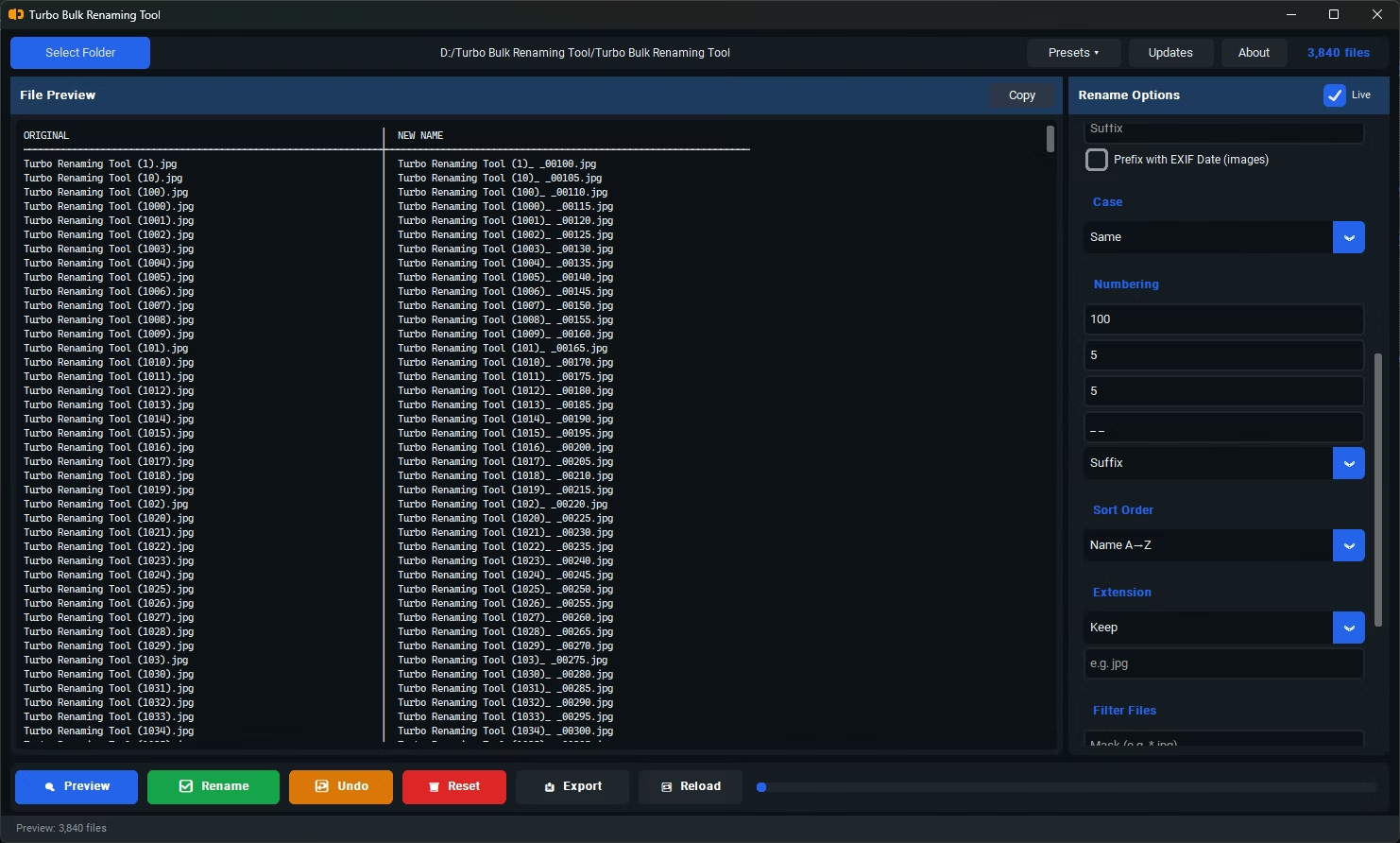
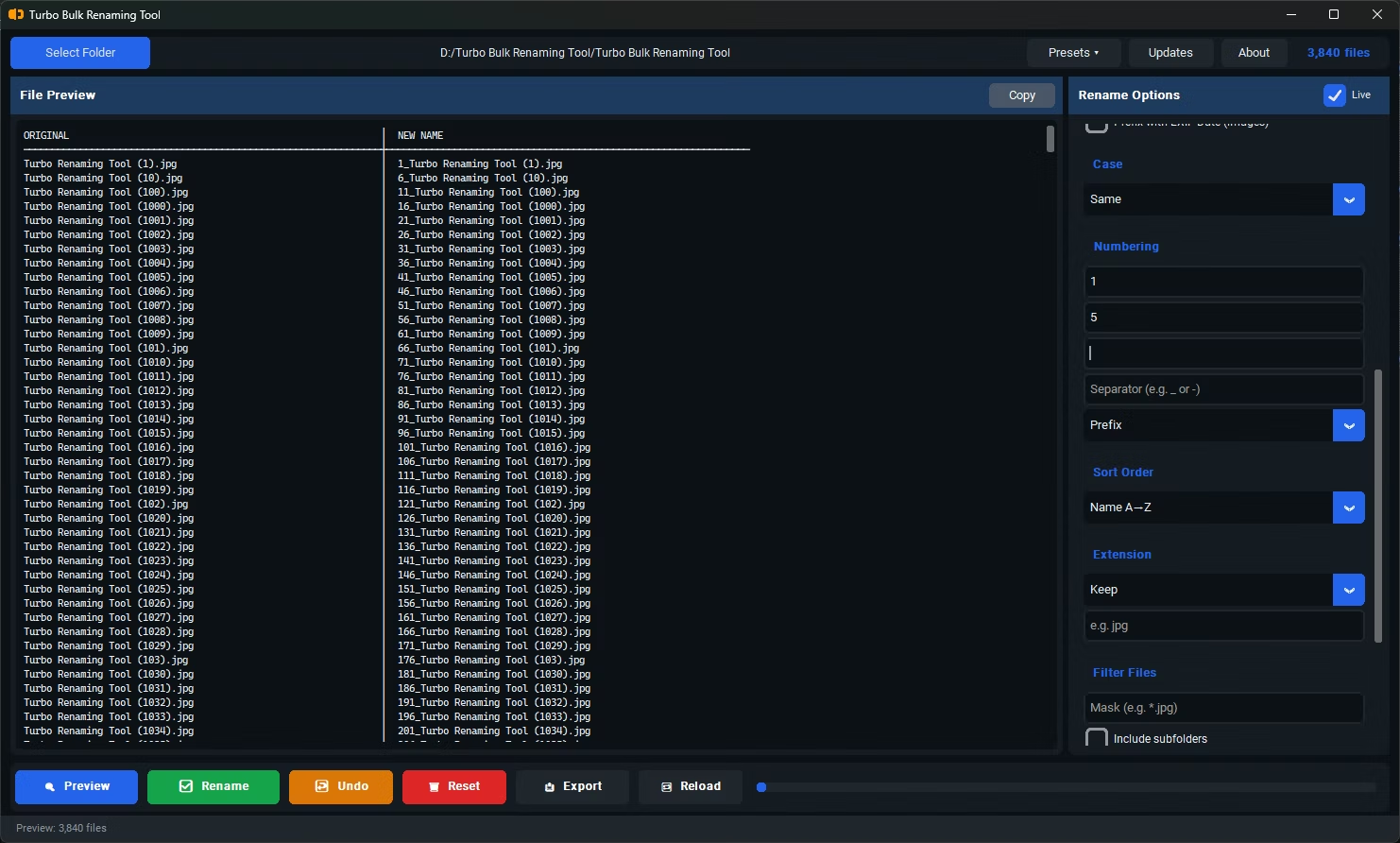
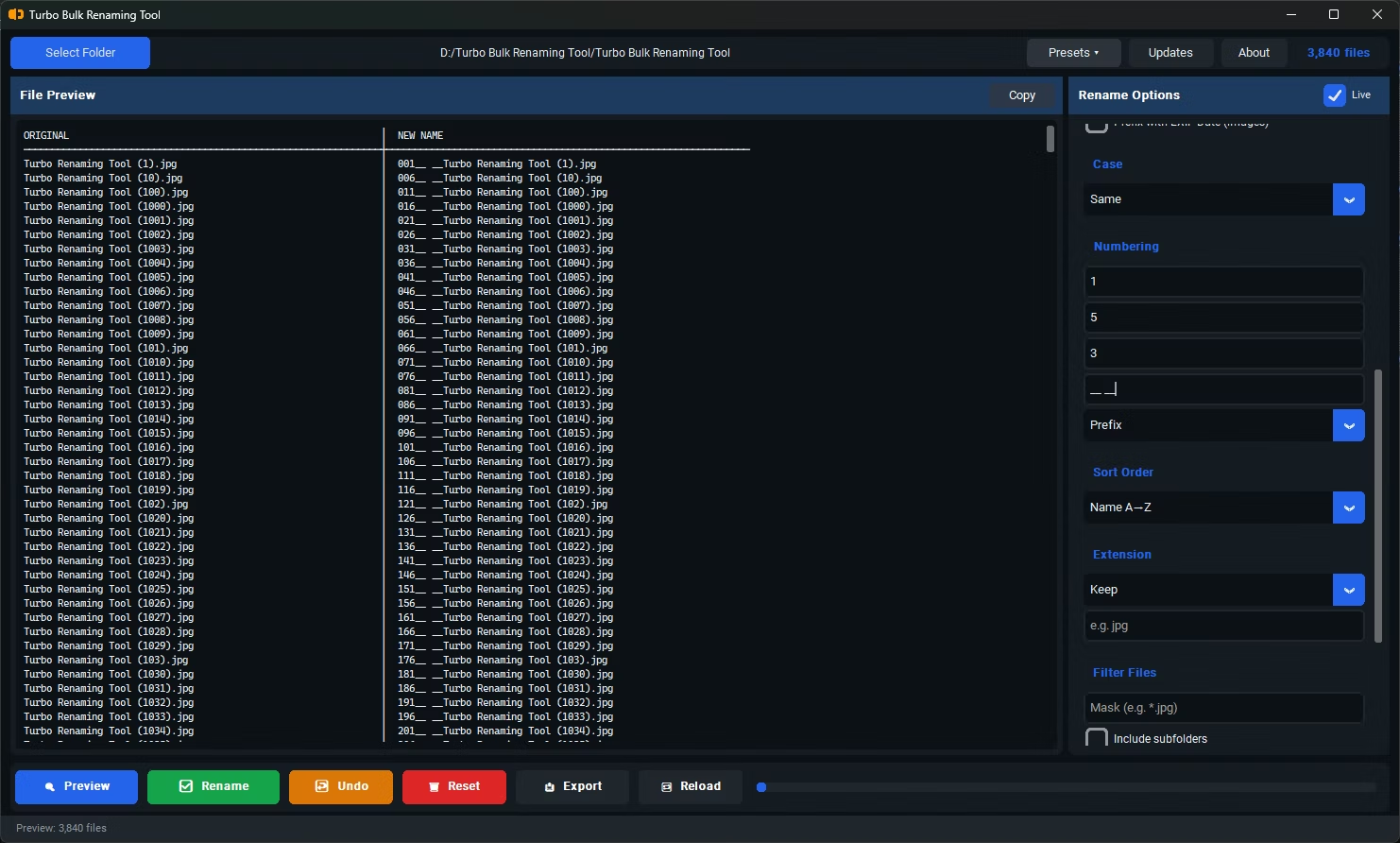
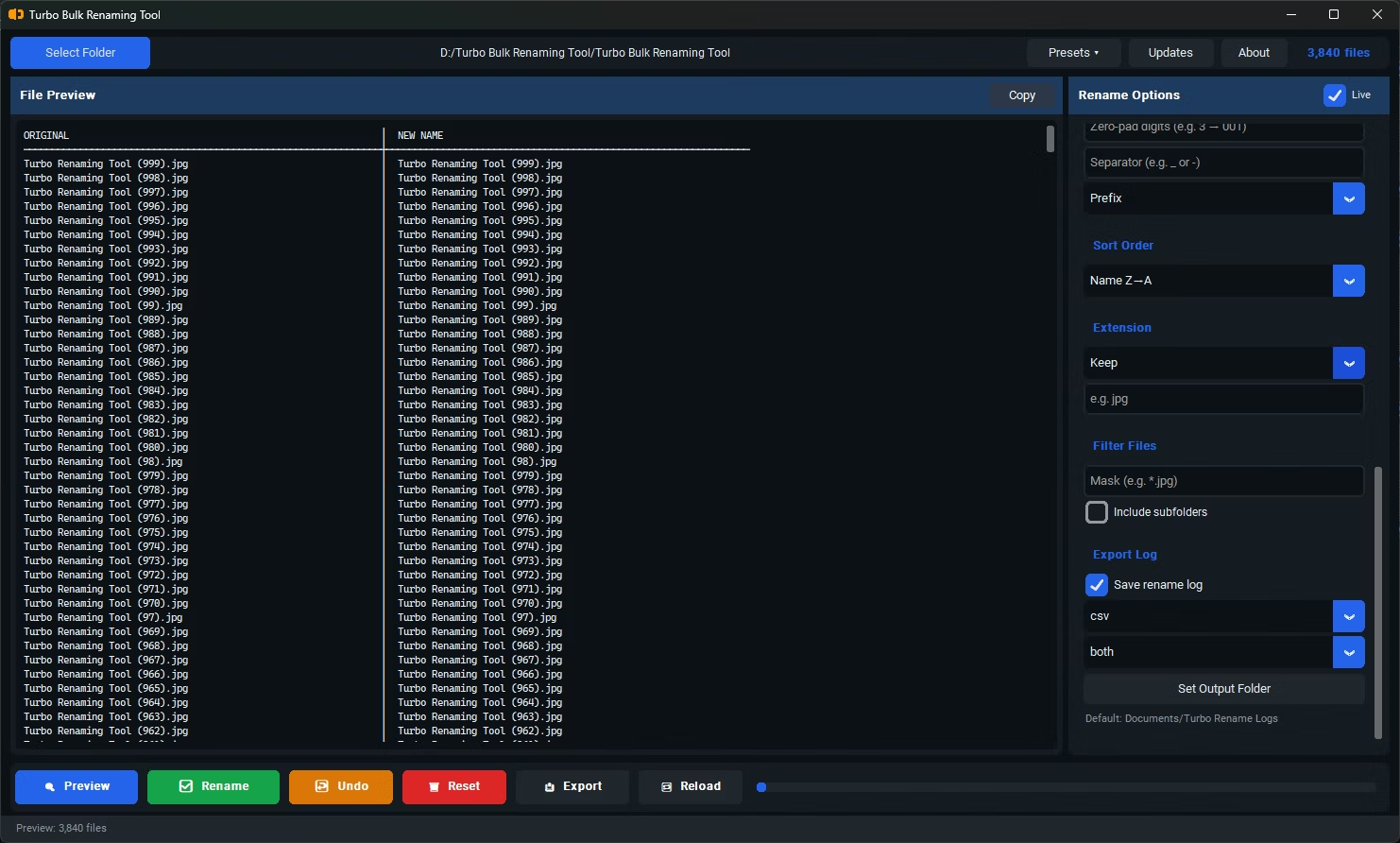
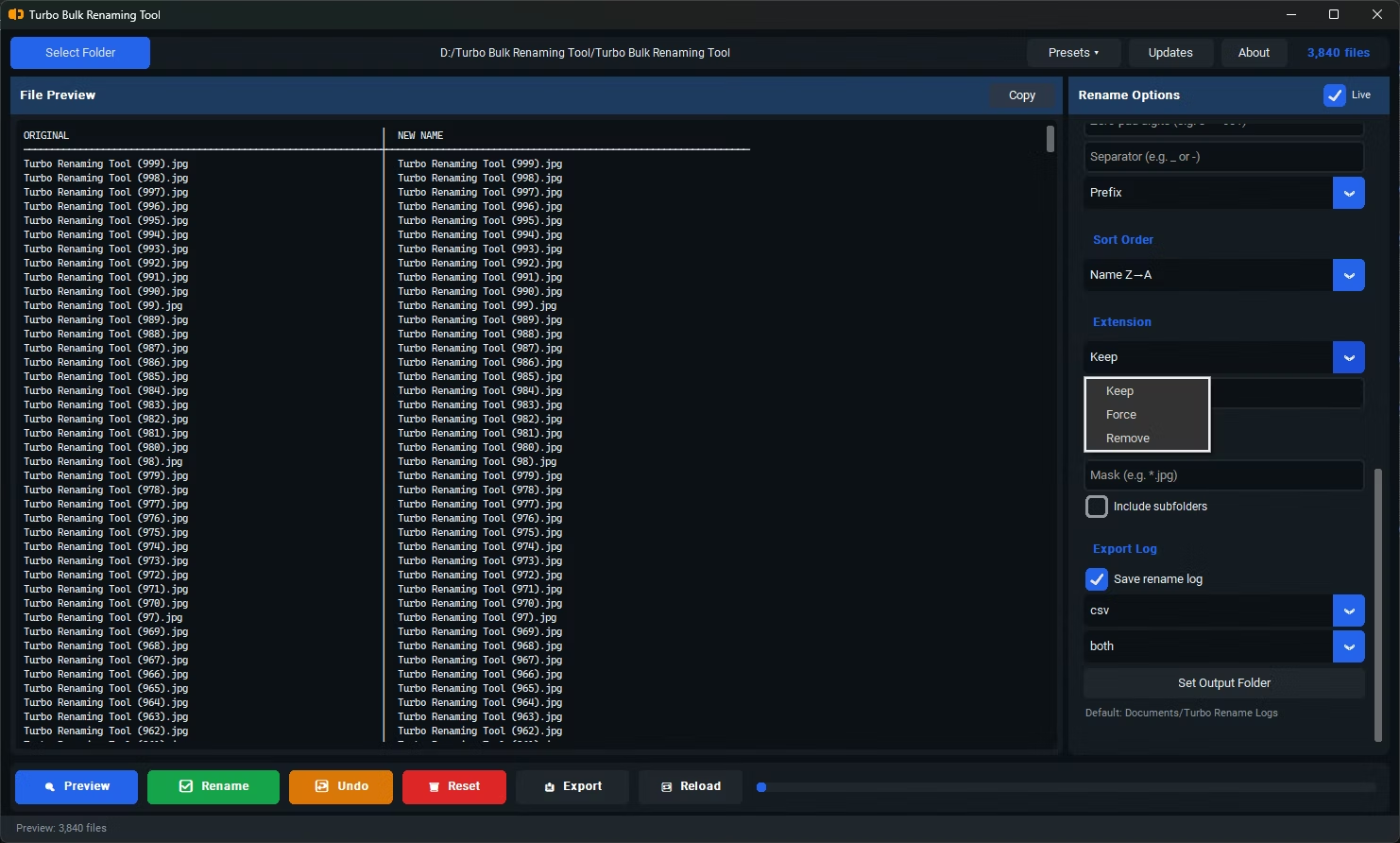
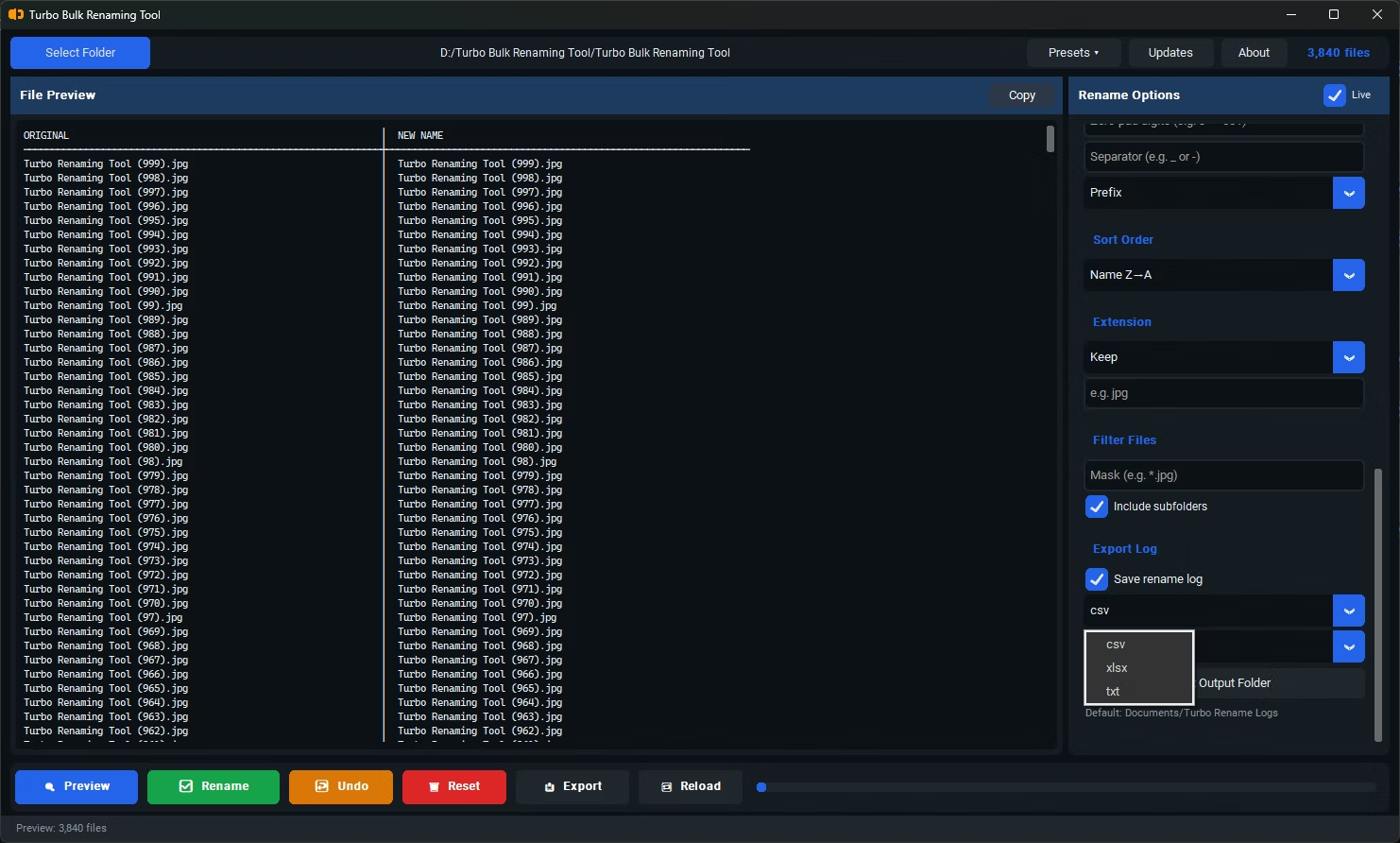
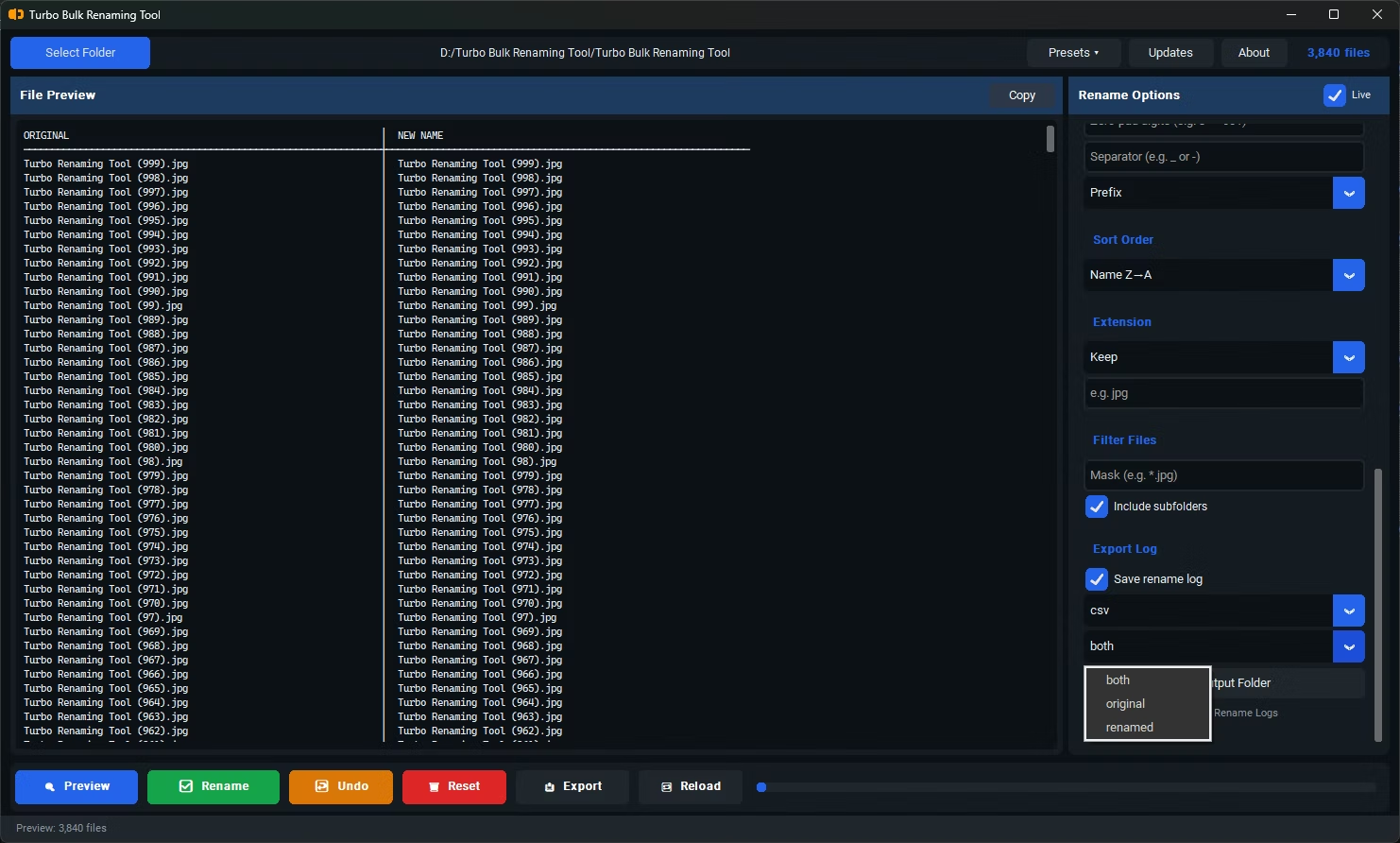
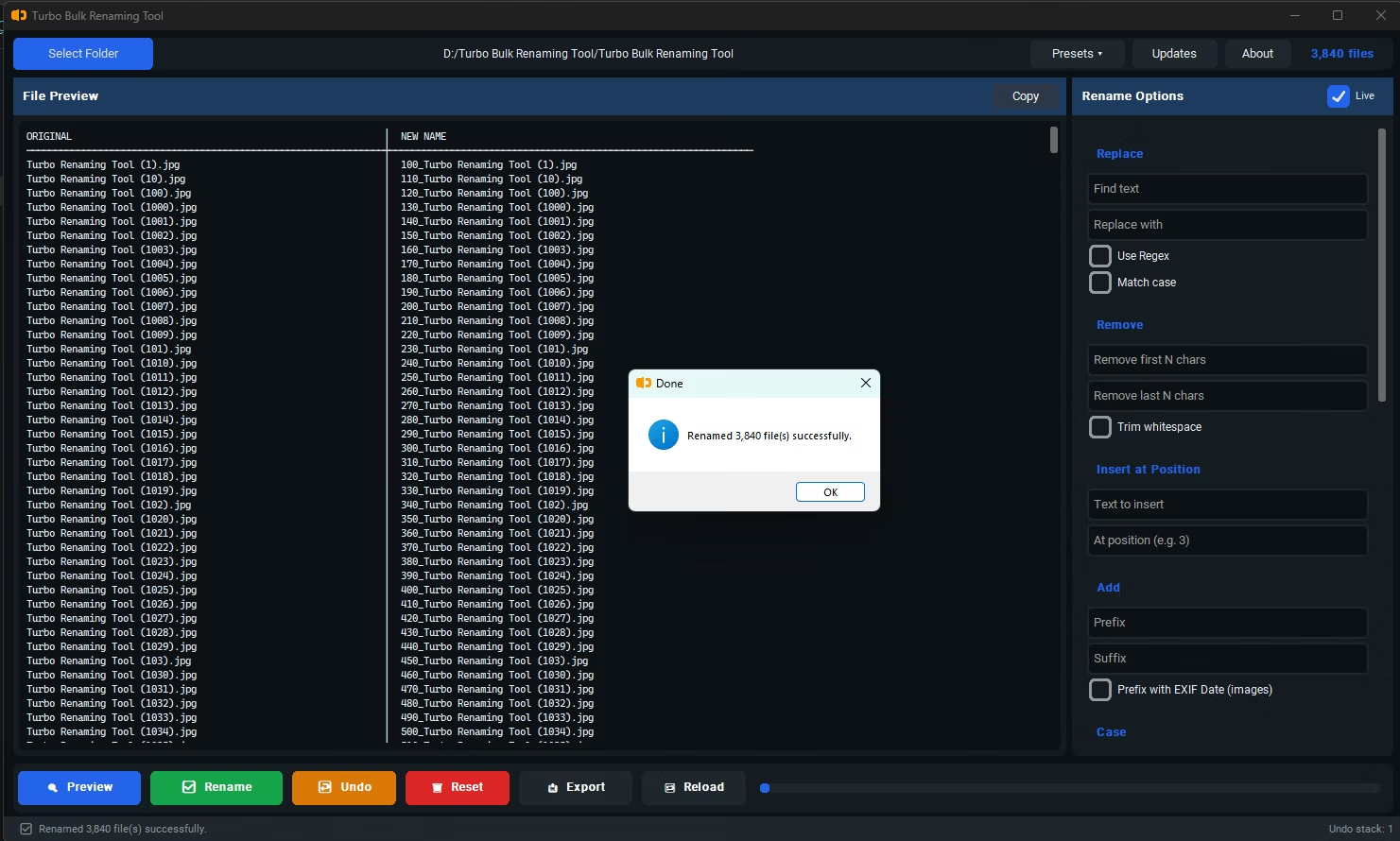
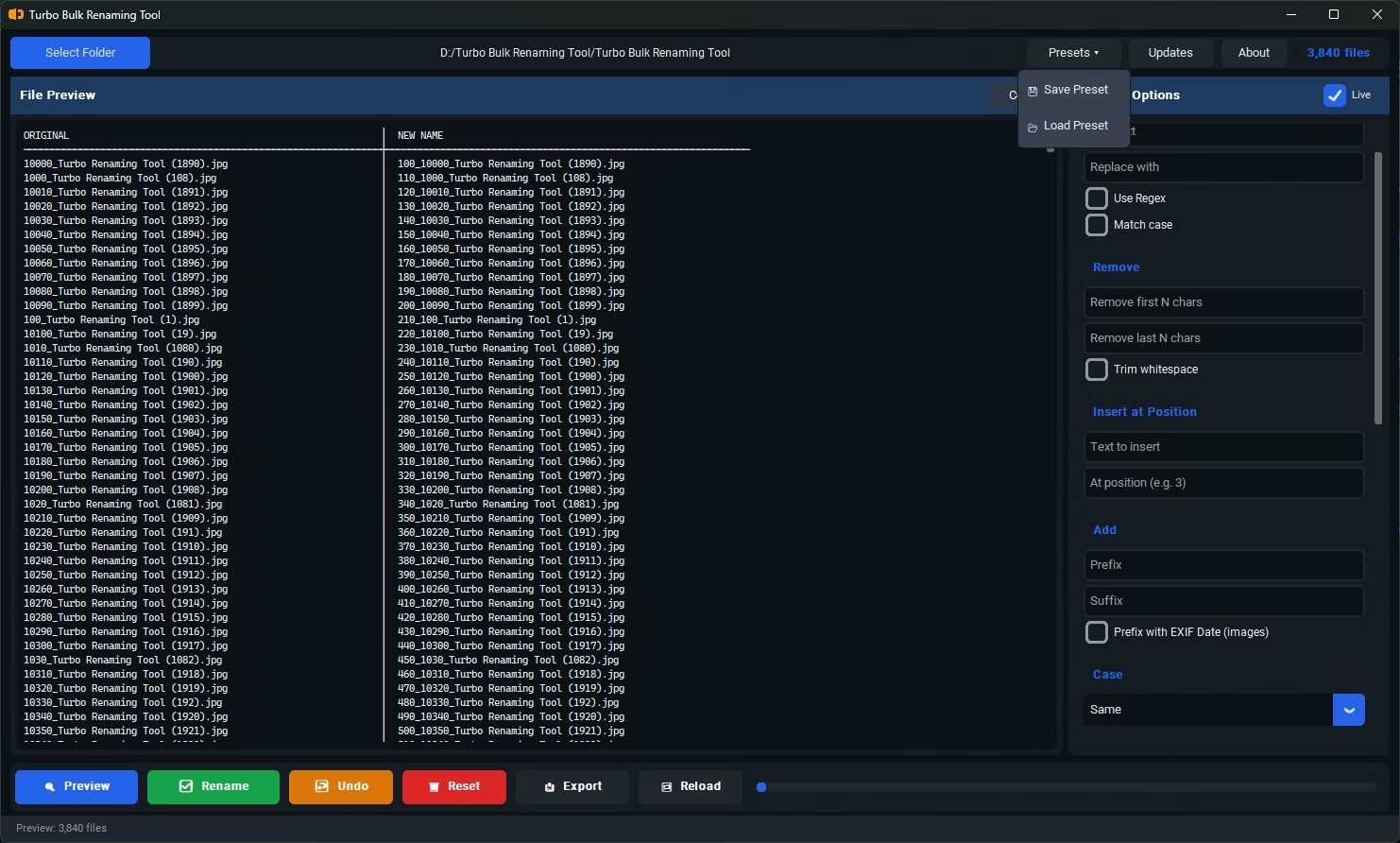
- Install Batchify Renaming Tool on your Windows PC.
- Open the app and load the folder containing the files you want to rename.
- Select the Remove First N Characters renaming rule.
- Enter the number of characters you want removed from the start of each filename.
- Check the live preview to confirm the correct portion of each filename is being trimmed.
- Adjust the character count if the preview shows too much or too little being removed.
- Click Rename to apply the change across your entire batch at once.
- Works regardless of what the removed characters actually are, not just exact text matches
- Ideal for fixed-width prefixes that vary slightly from file to file, like embedded dates or codes
- Live preview shows exactly which characters will be removed before you commit
- Combine with other renaming rules, like adding a new prefix or sequential numbering, in the same operation
- Recursive sub-folder support applies the same character-removal rule across nested directories
- Runs fully offline, keeping your file names and folder structure private during the process
What happens if a filename is shorter than the number of characters I want to remove?
Files shorter than the specified character count are handled safely without producing an invalid or empty filename, so you won't lose track of files during a large batch.
Does this affect the file extension?
No, the character count is applied to the filename itself, leaving the file extension intact regardless of how many characters are removed from the start.
Can I combine this with Remove Last N Characters in the same rename operation?
Yes, both rules can be applied together, letting you trim unwanted text from both the beginning and end of your filenames in a single pass.
Can I preview the results before committing to the rename?
Yes, the live preview updates instantly as you adjust the character count, so you can confirm the result looks correct before any files are actually renamed.
Ready to rename your files in bulk, offline, with full privacy?