Filenames sometimes carry unwanted text at the end, just before the extension — an auto-generated suffix like "_edited", a timestamp code, or leftover text from an export process. Removing a fixed number of characters from the end of every filename cleans this up across an entire folder in one step, without having to know the exact text to remove.
This rule trims a set character count from right before the file extension, which works reliably even when the trailing text varies slightly between files, as long as its length stays consistent.
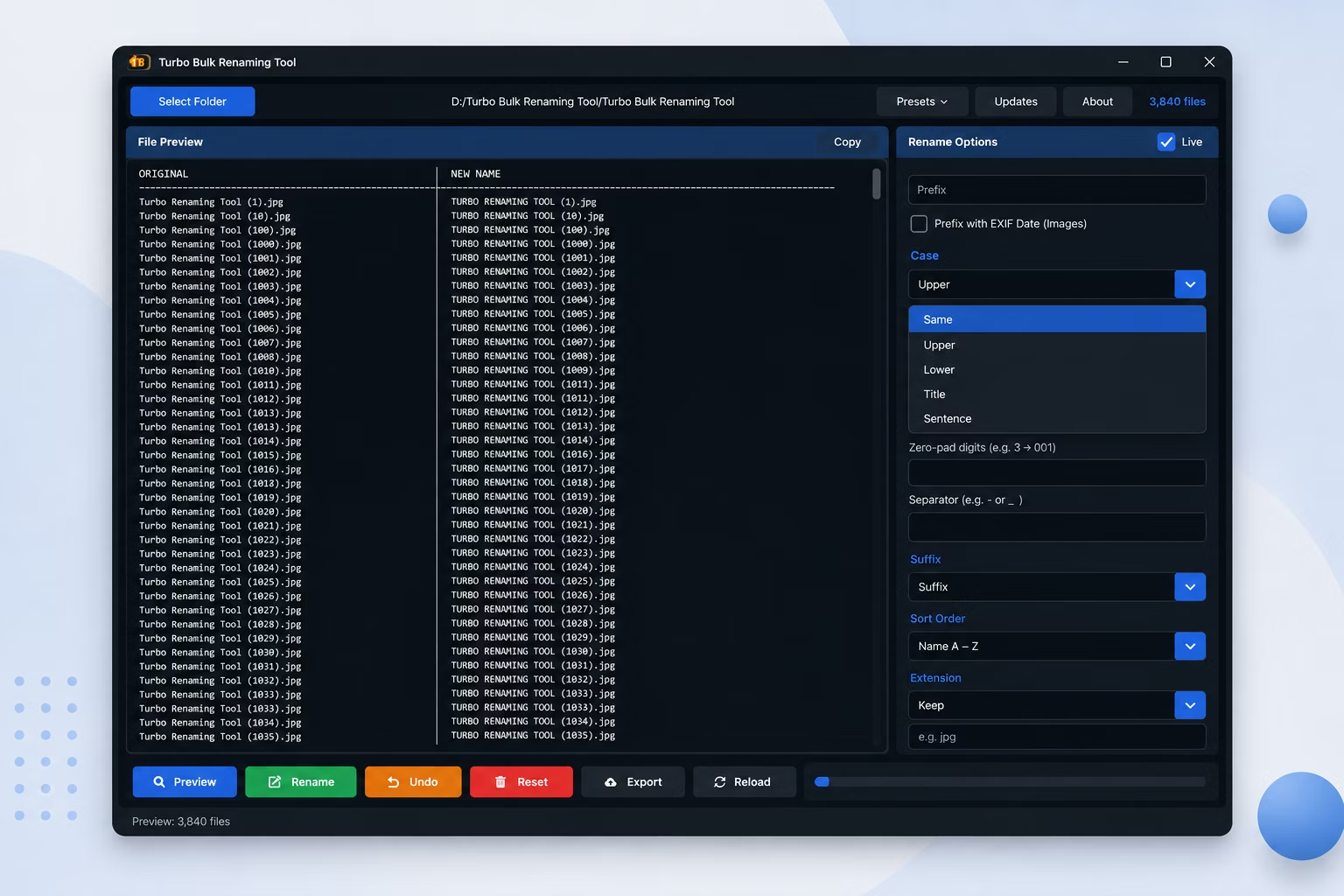
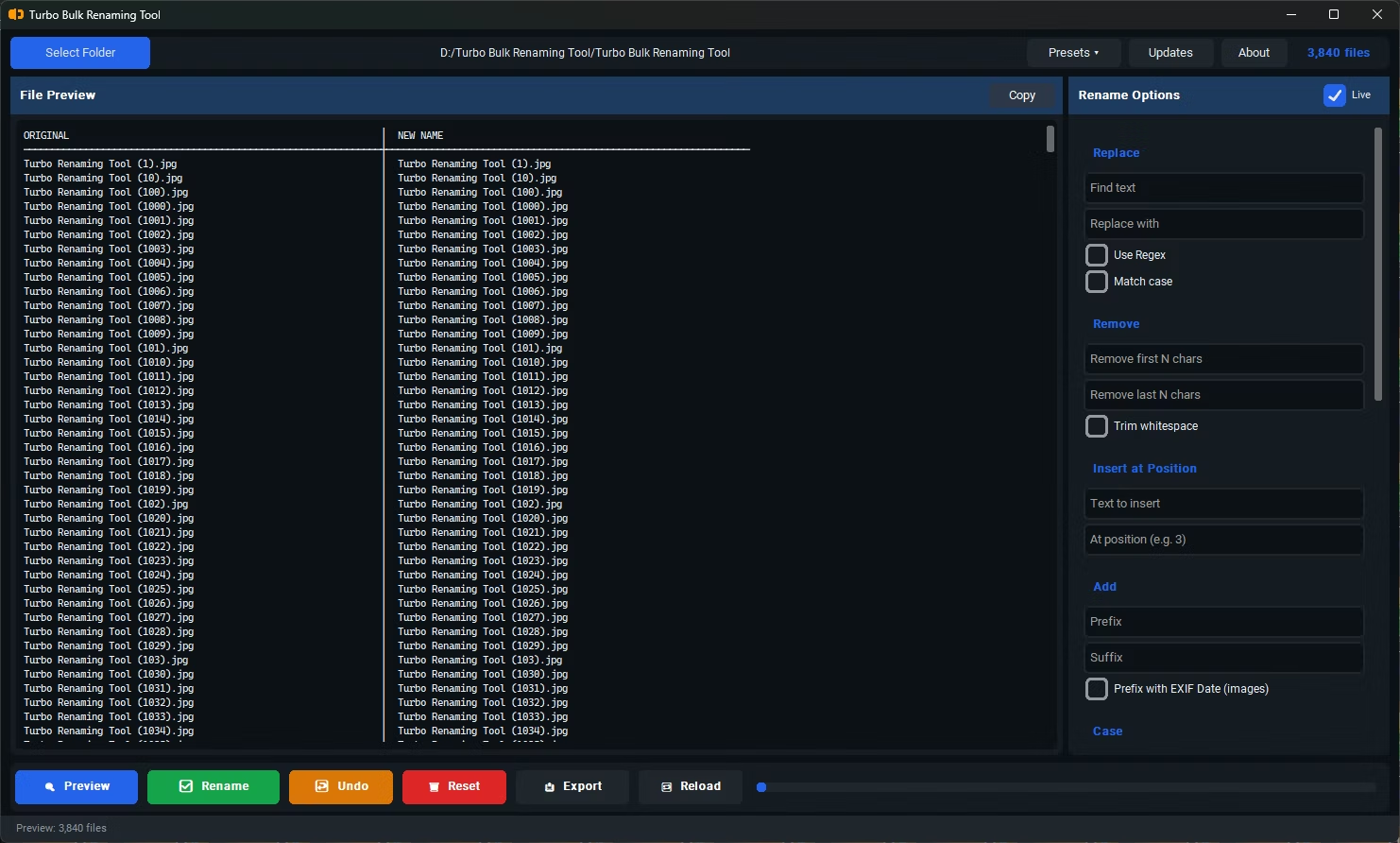
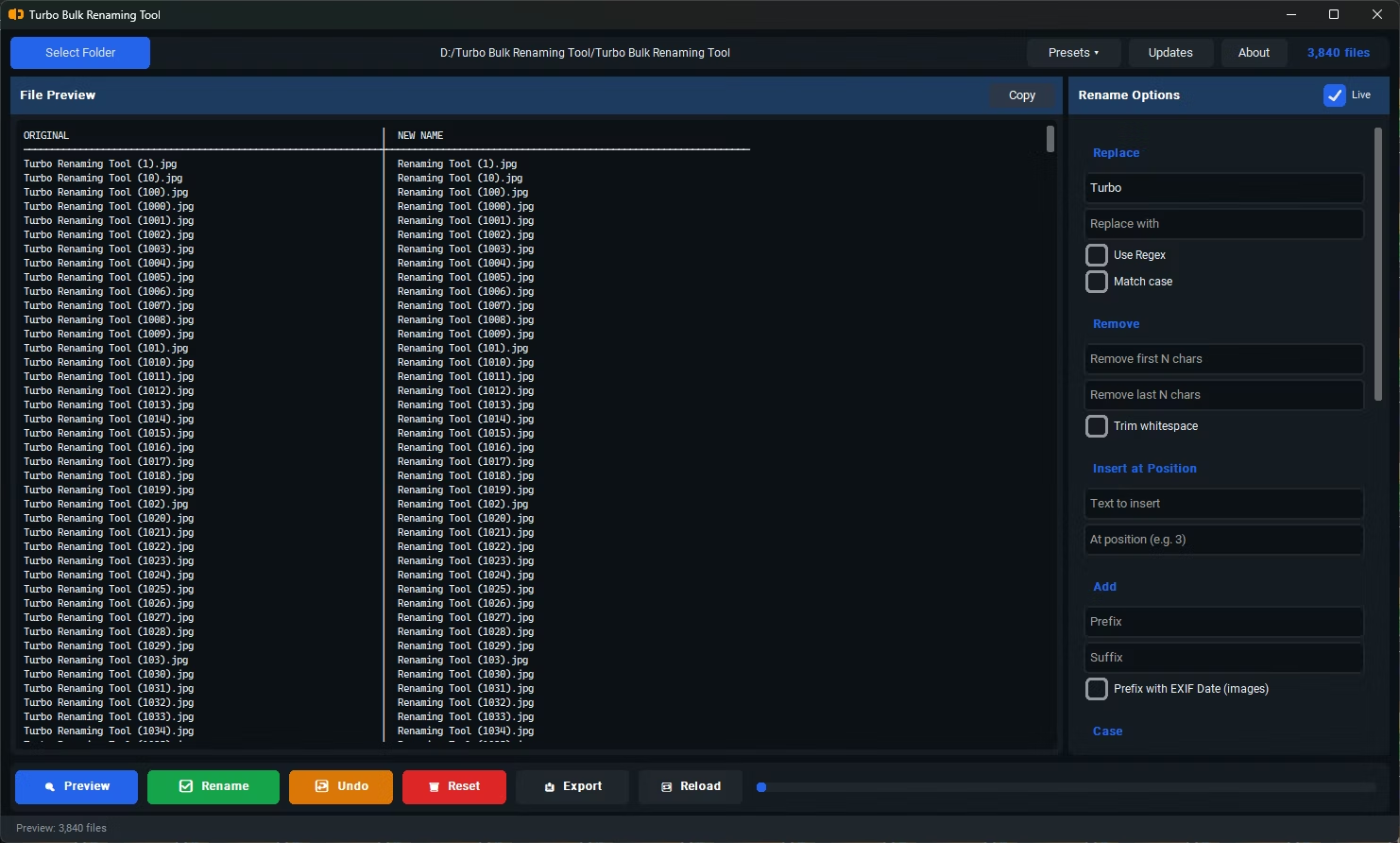
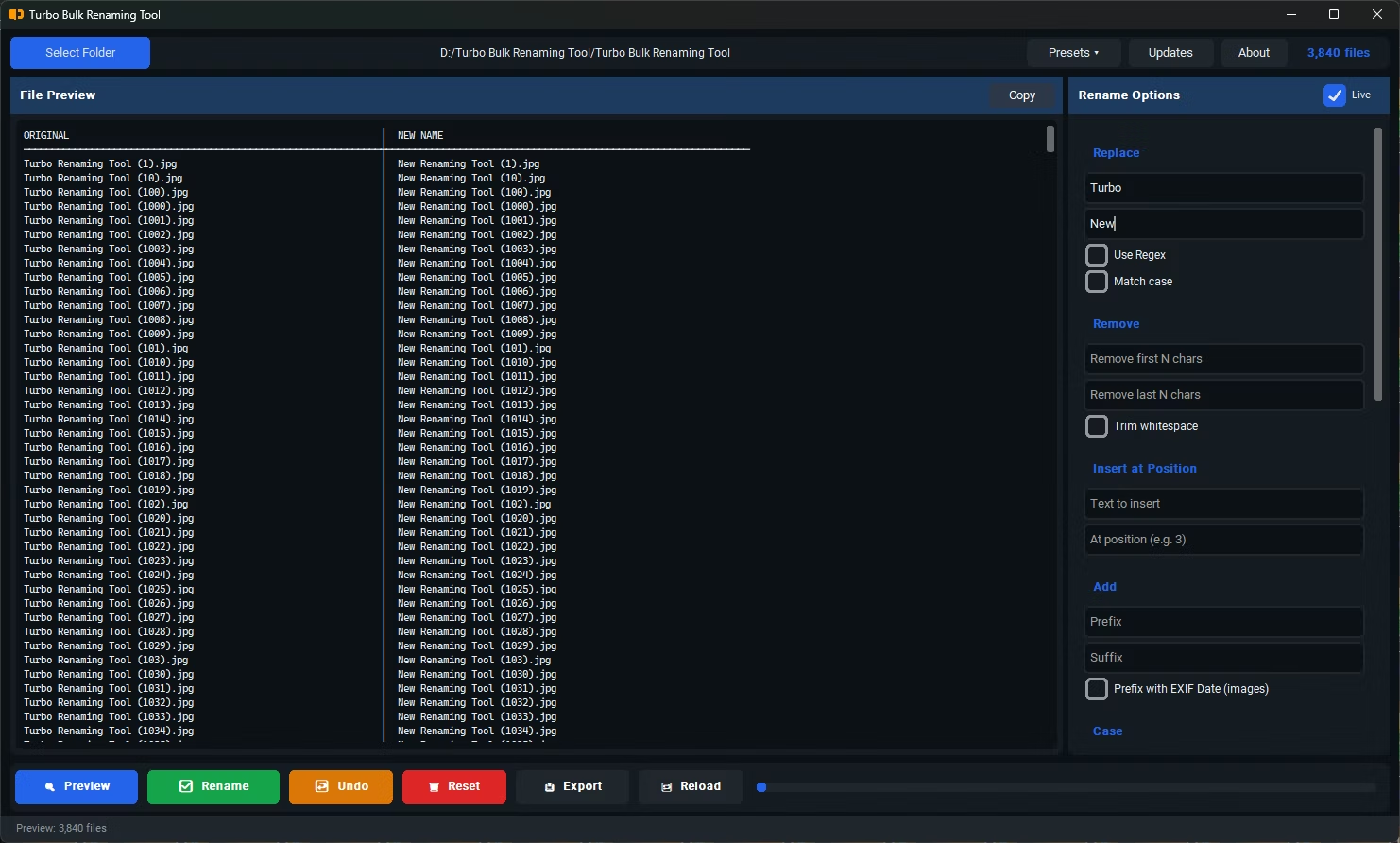
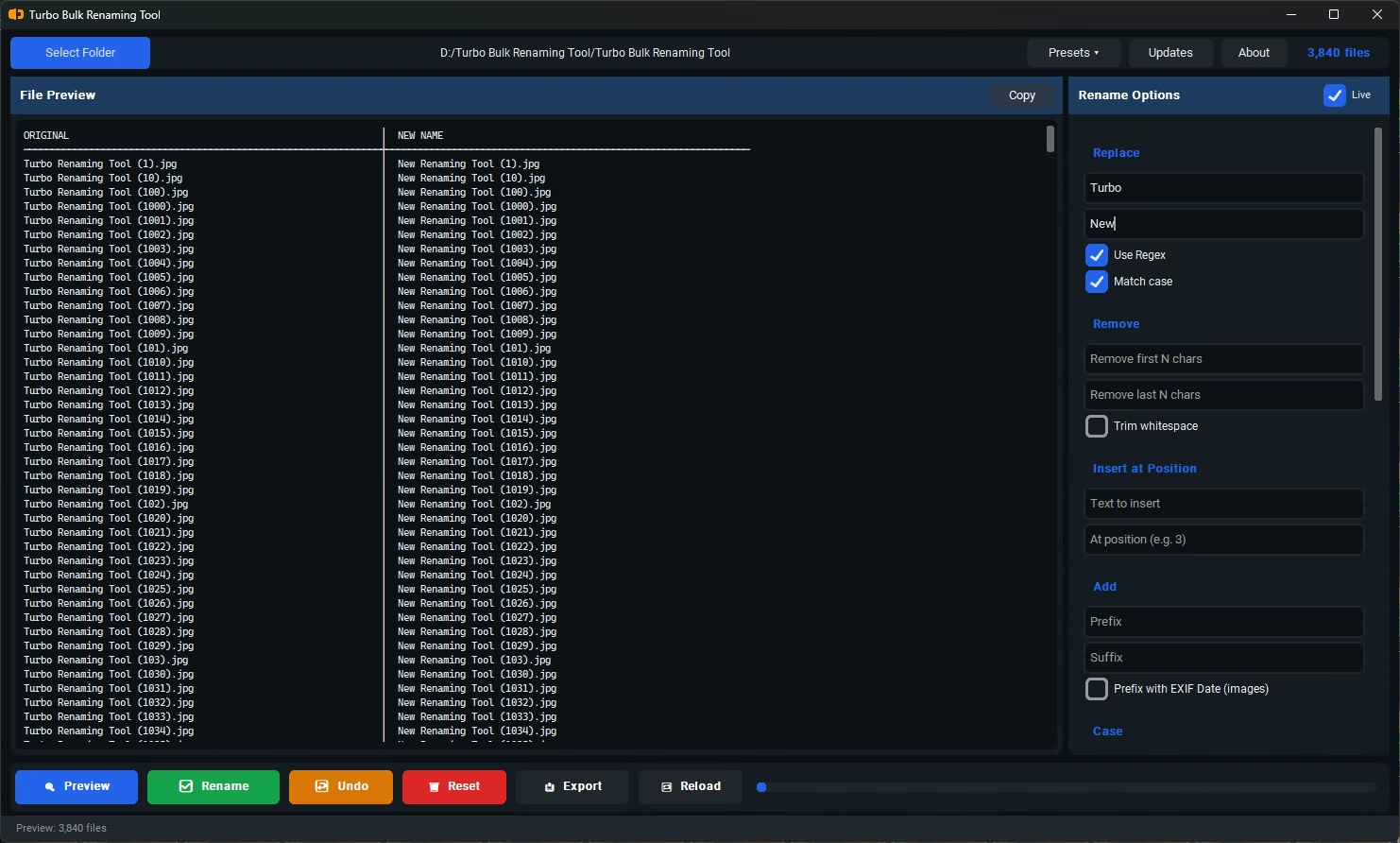
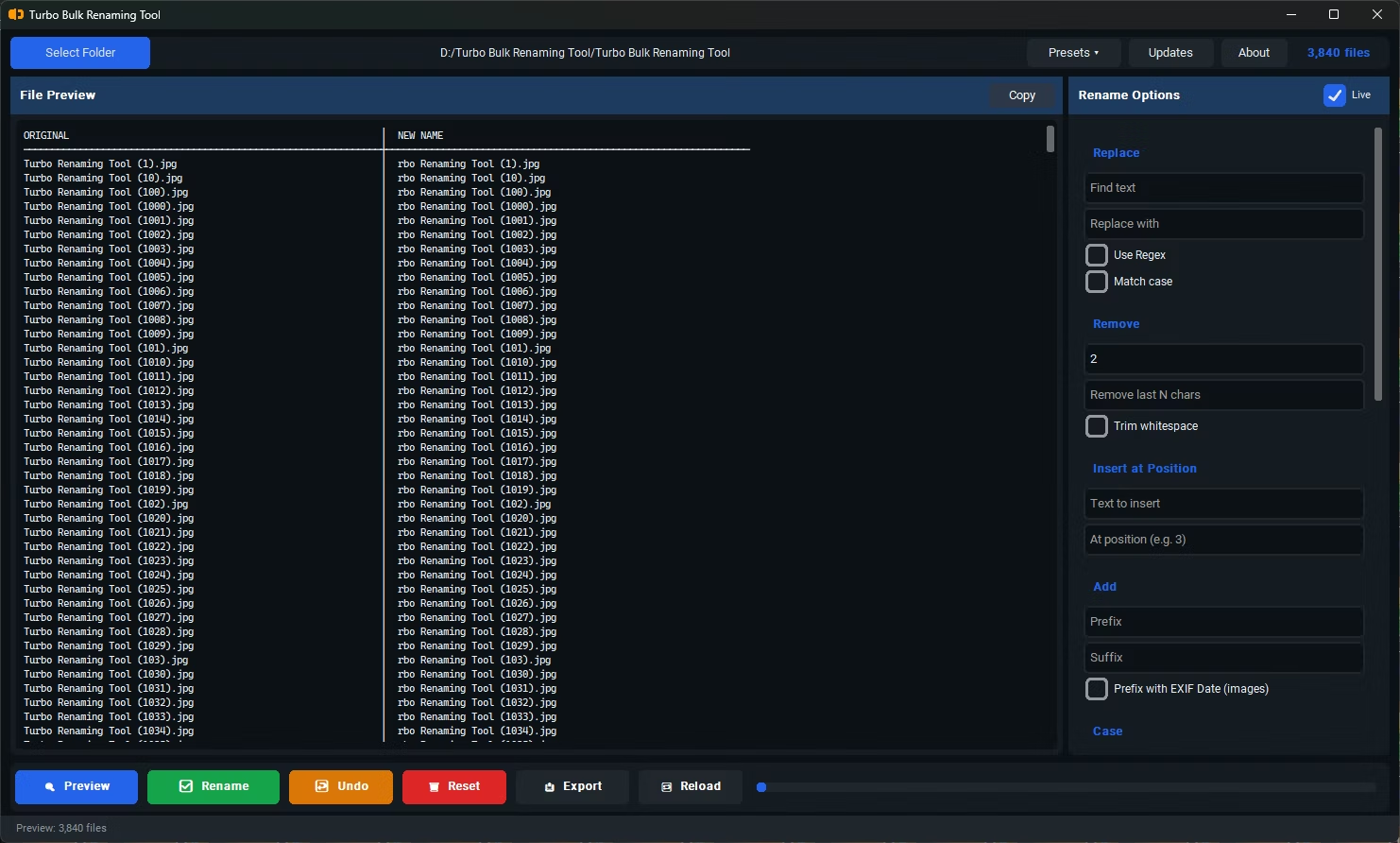
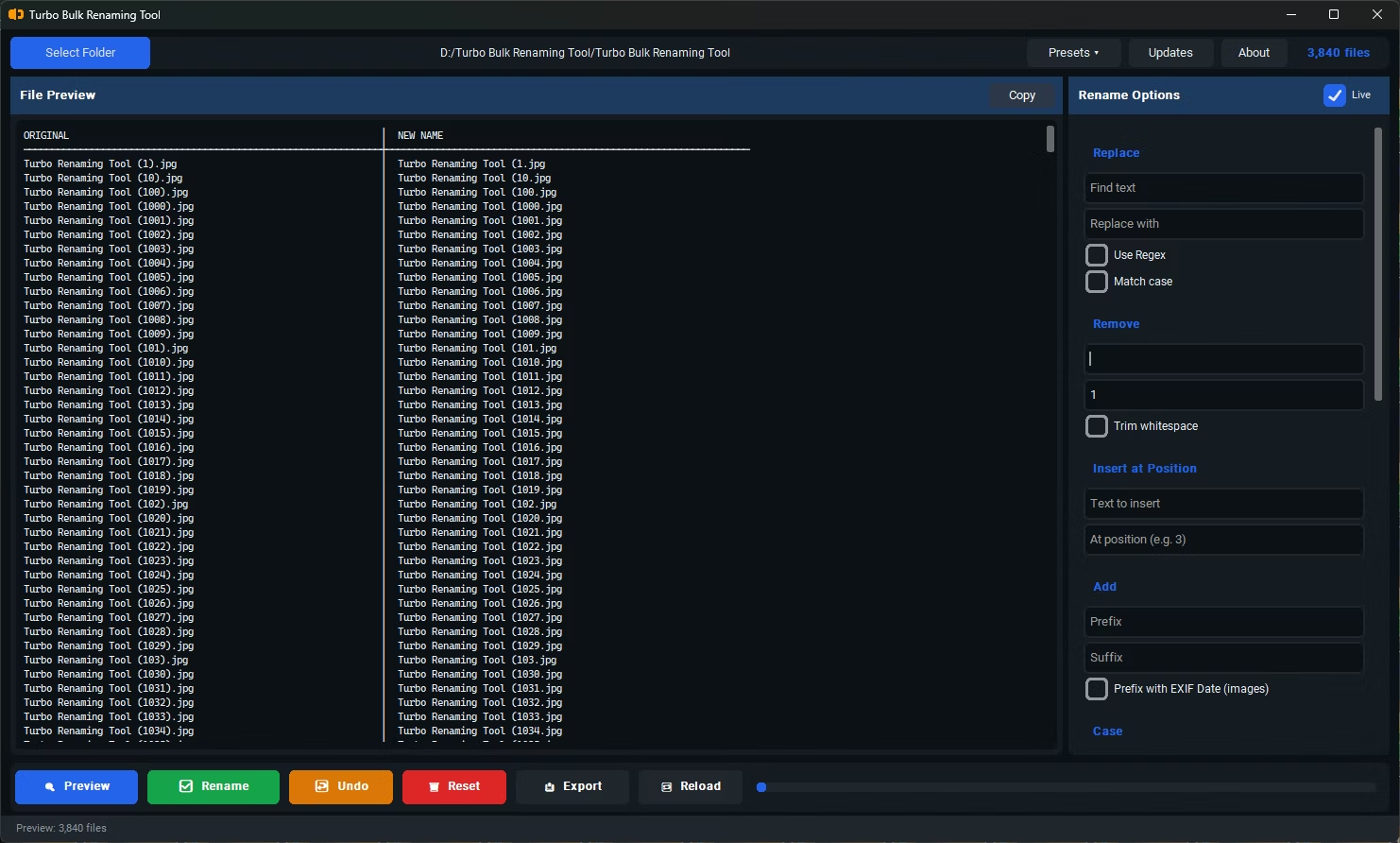
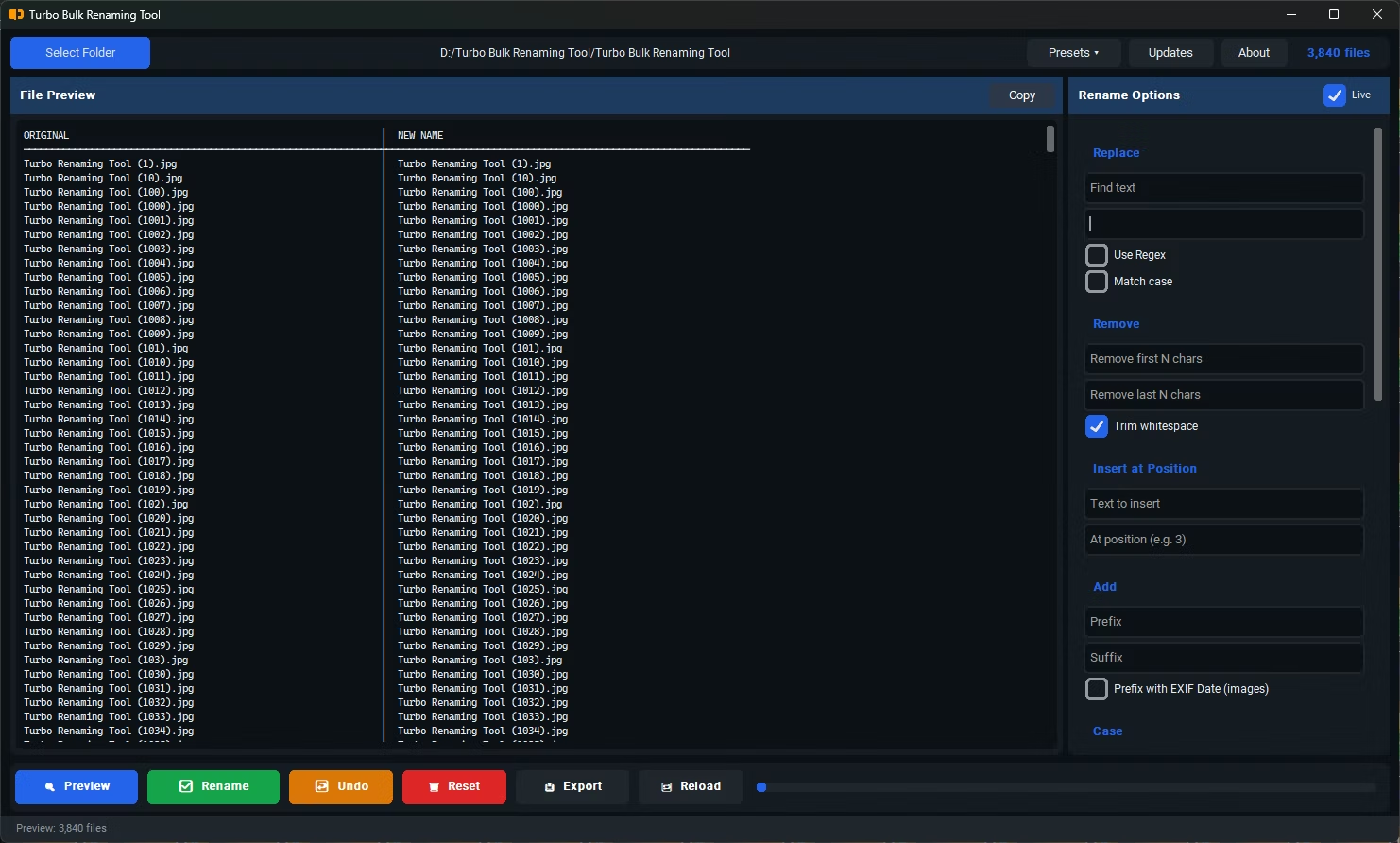
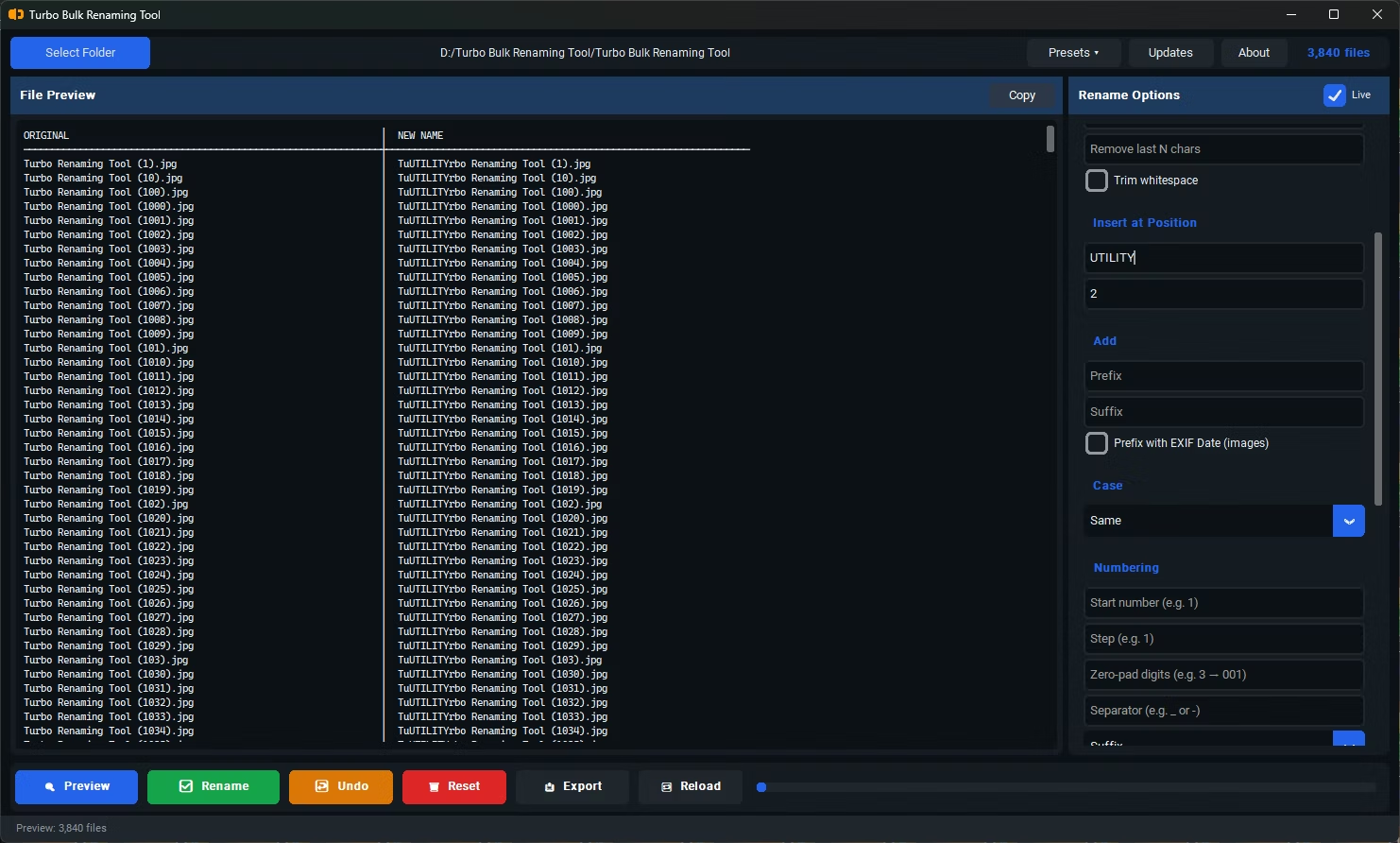
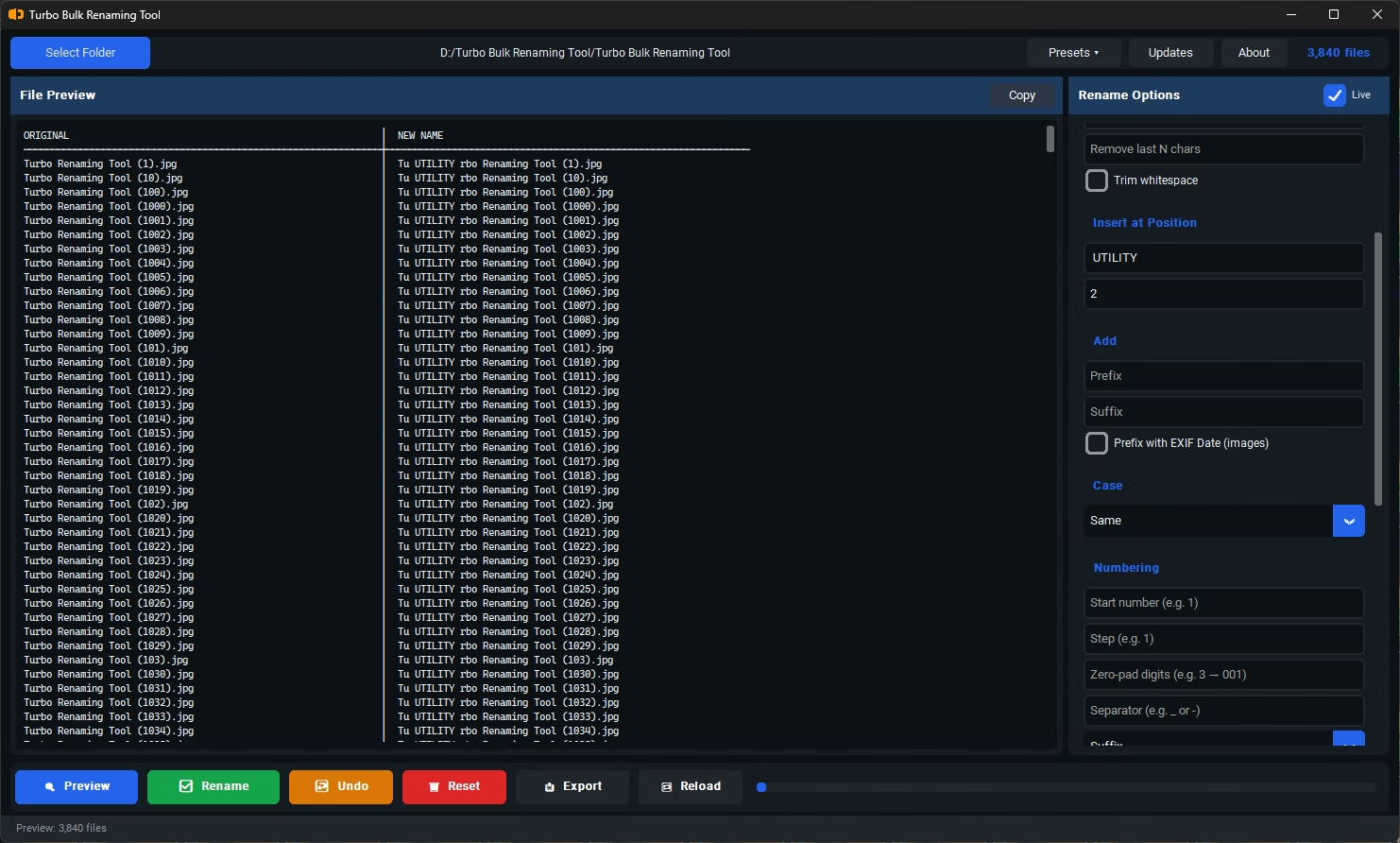
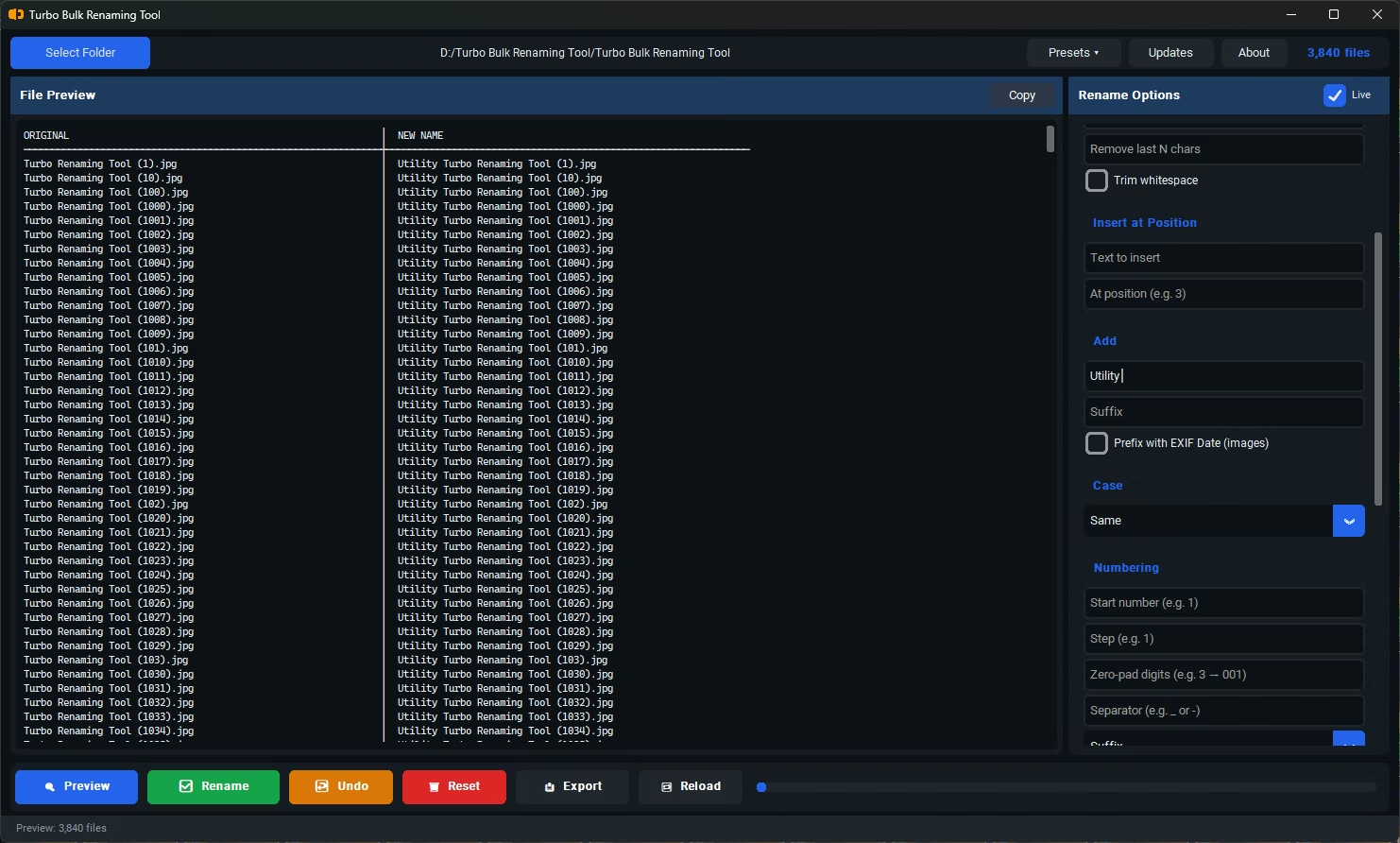
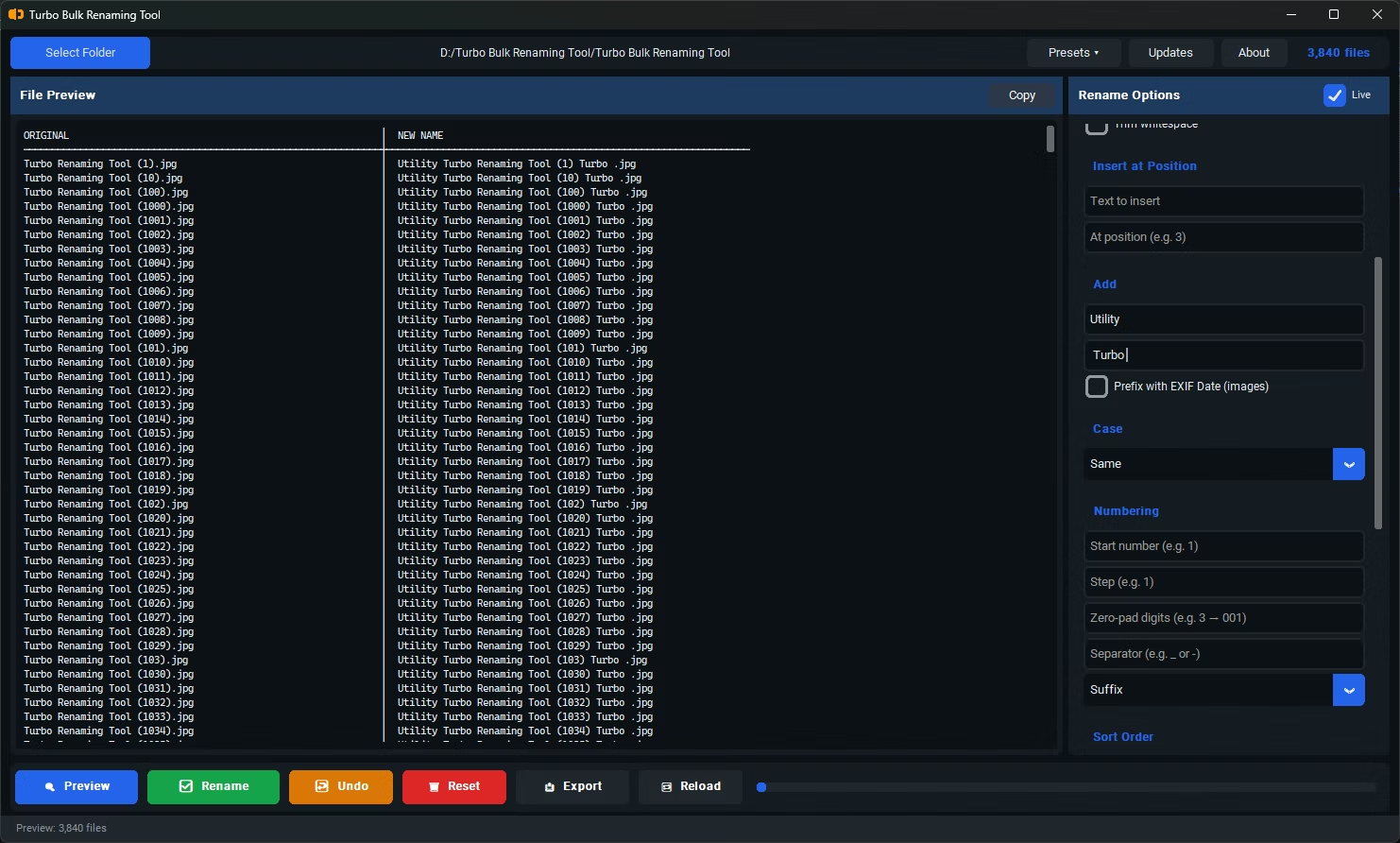
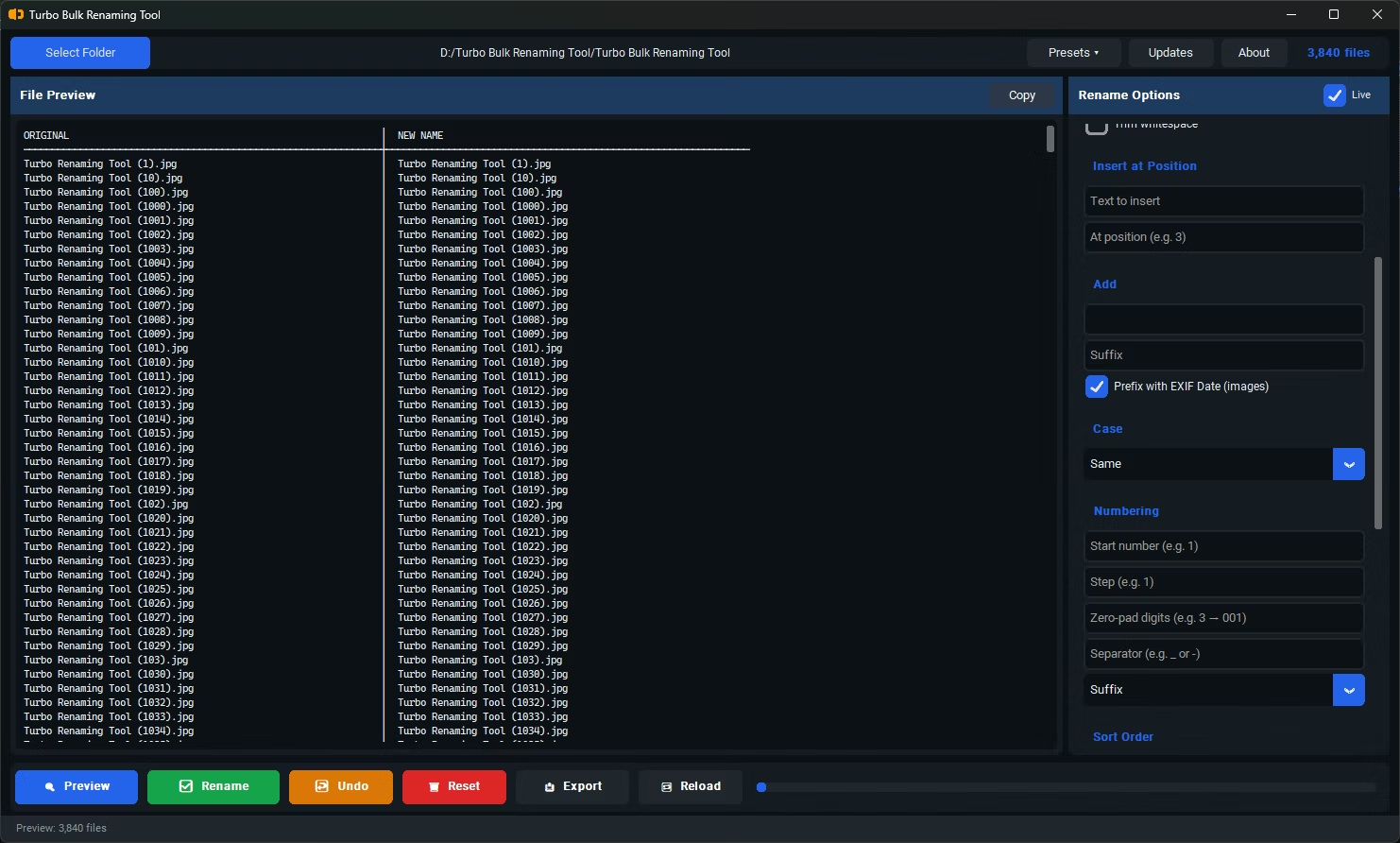
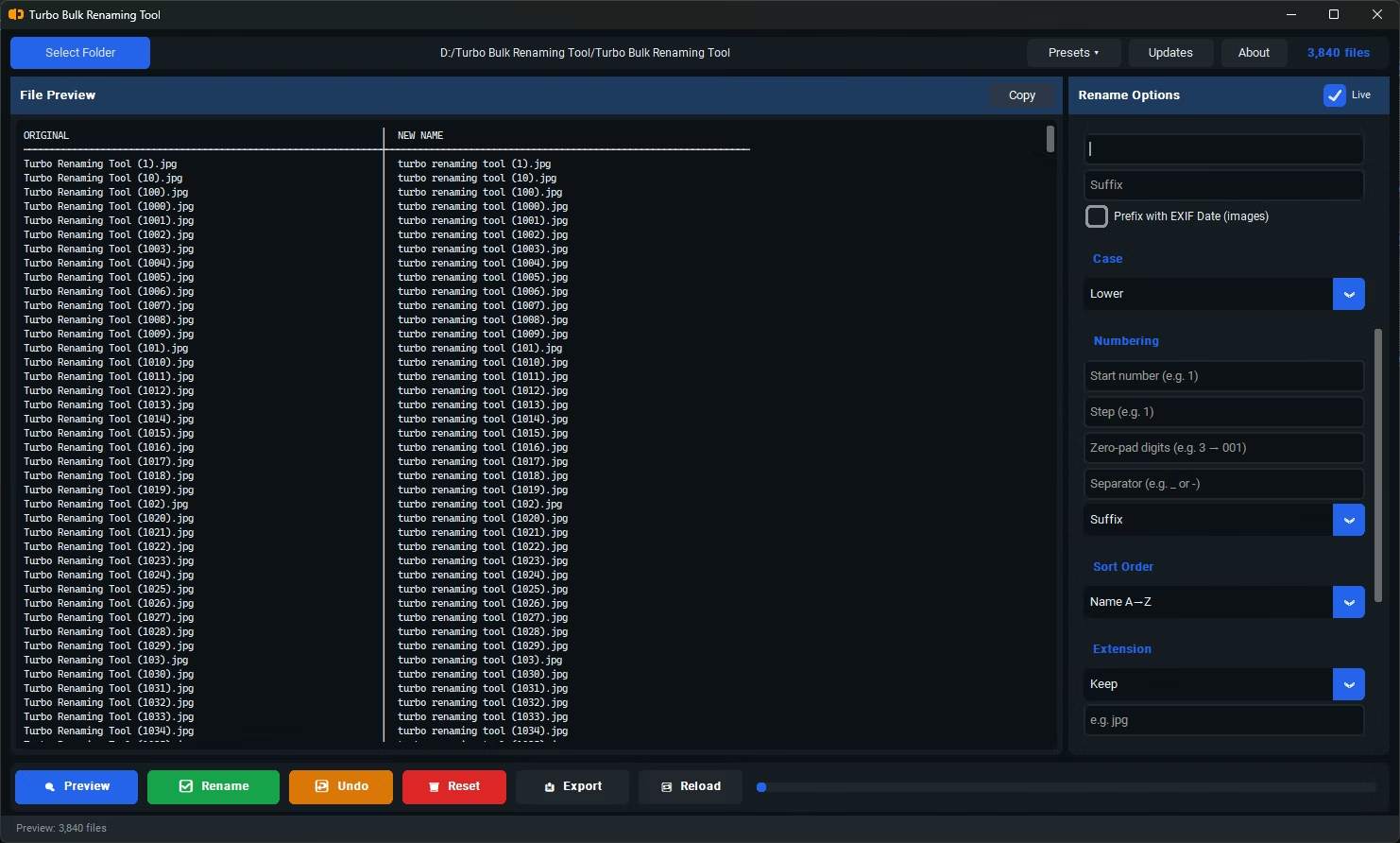
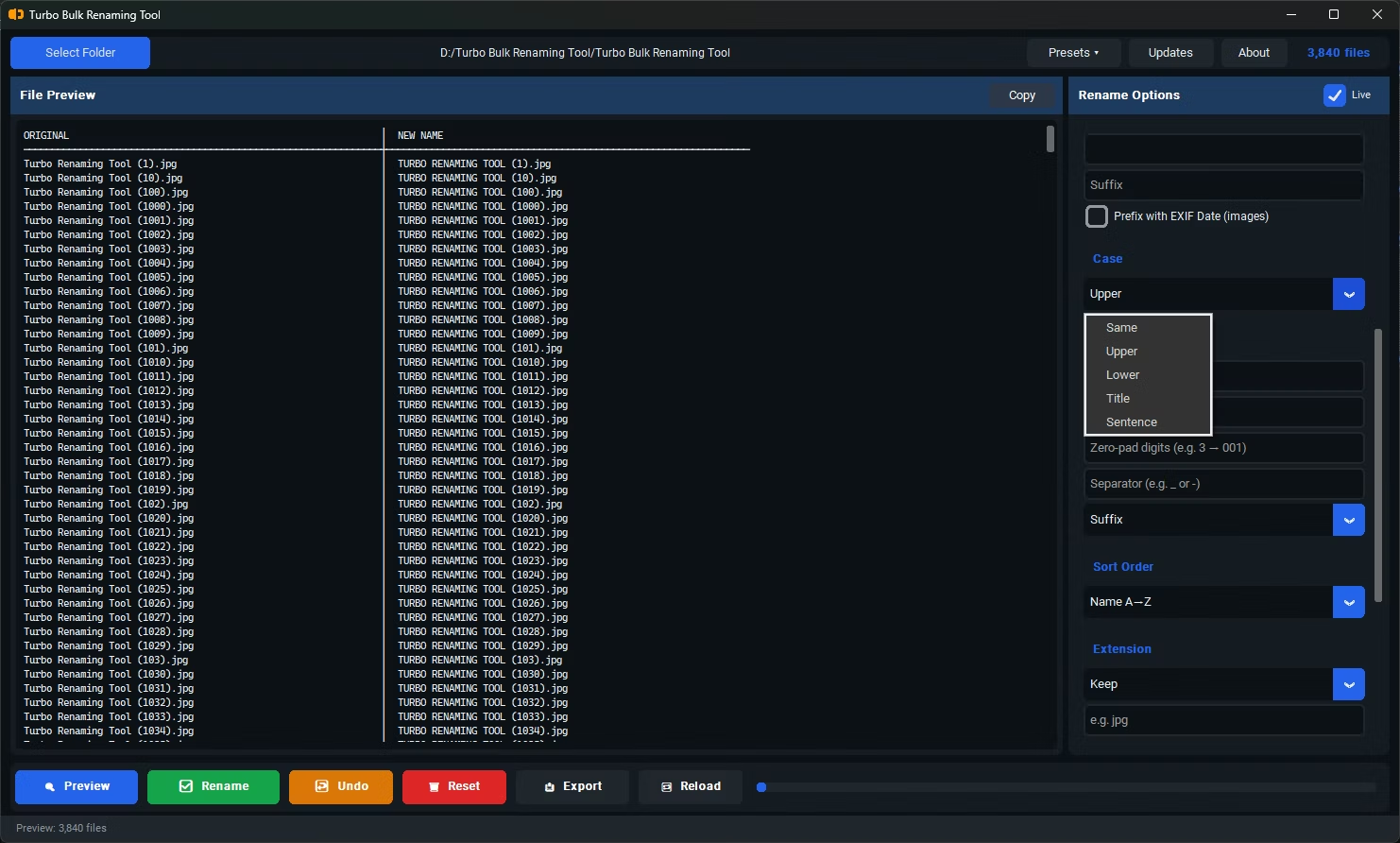
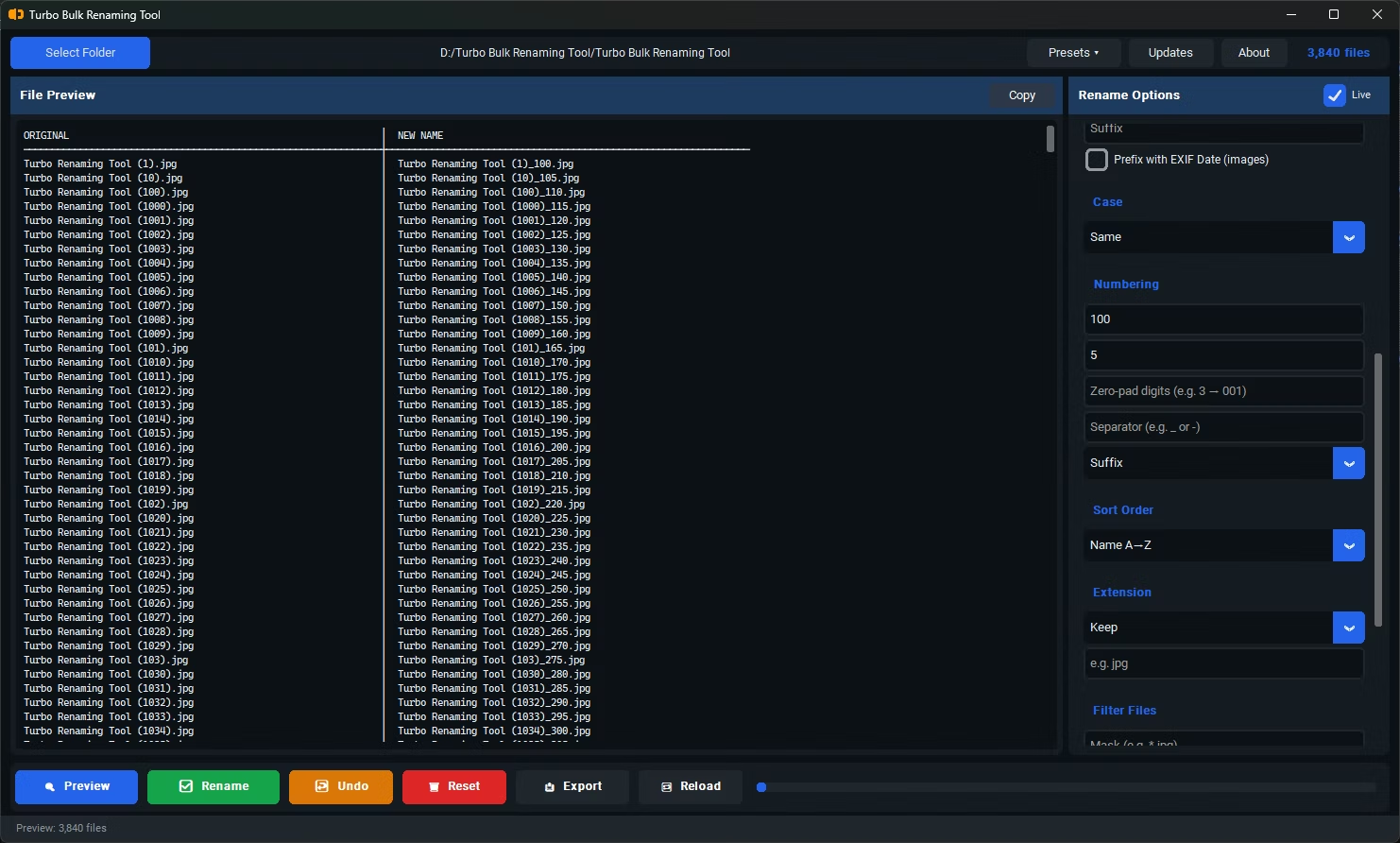
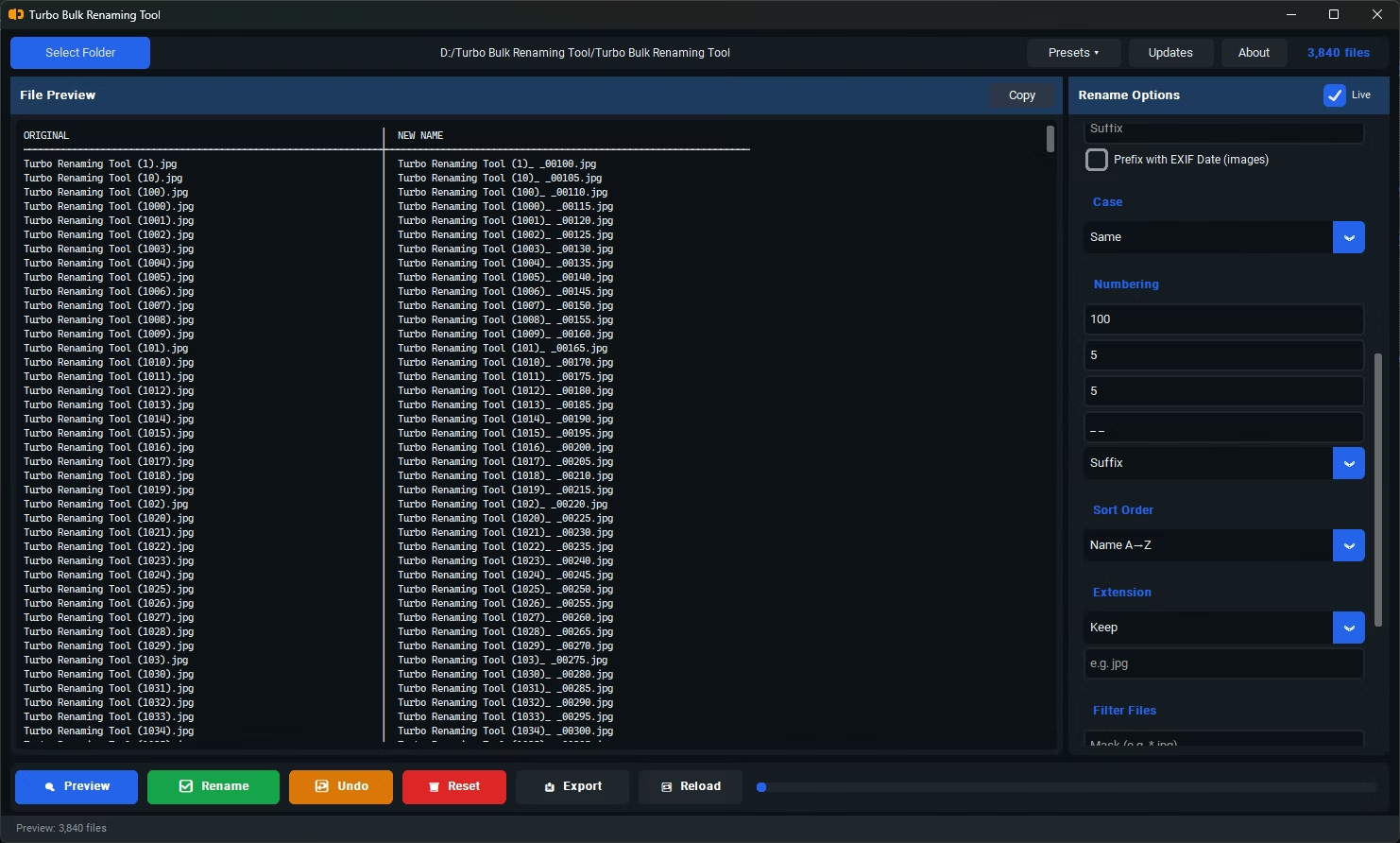
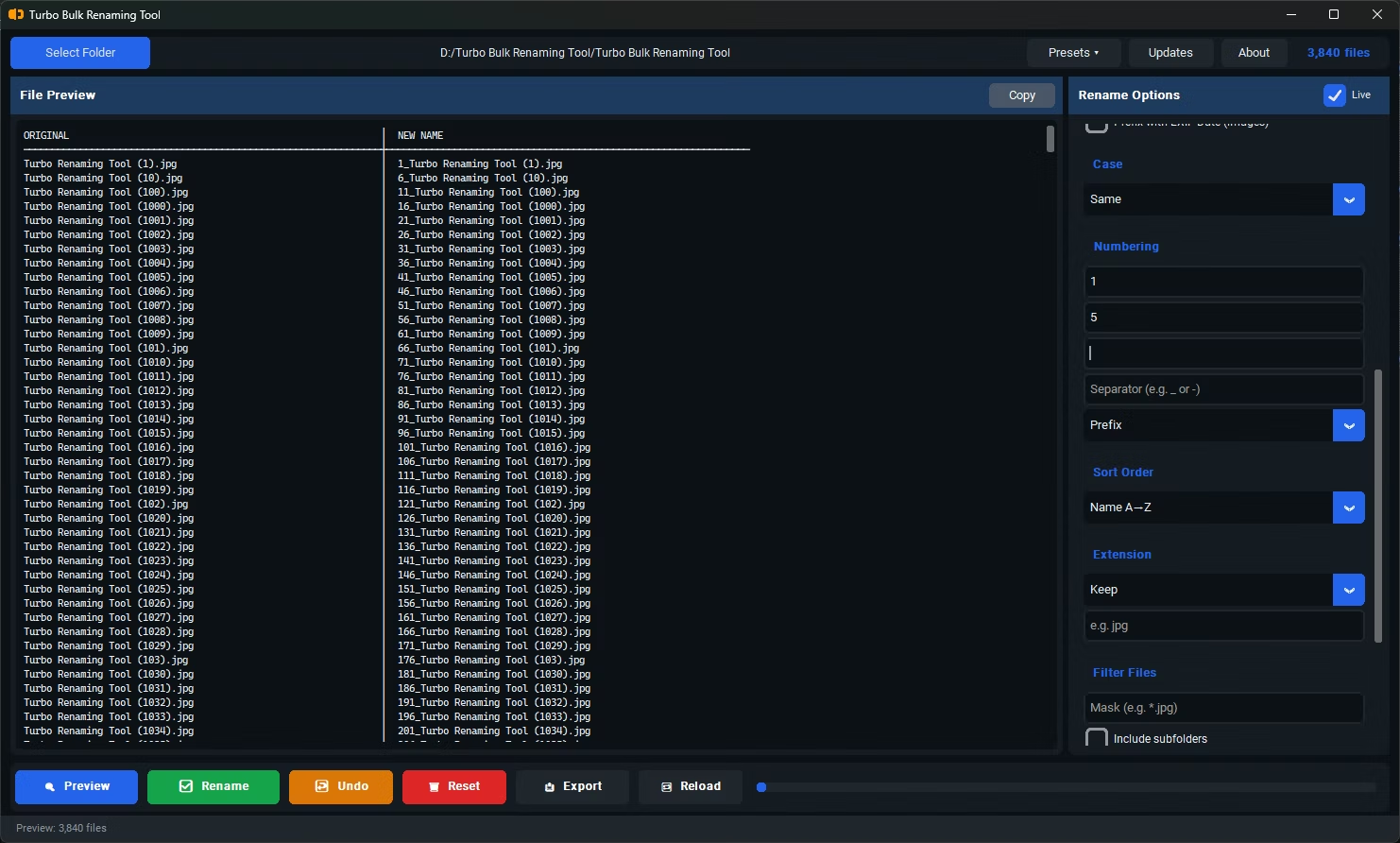
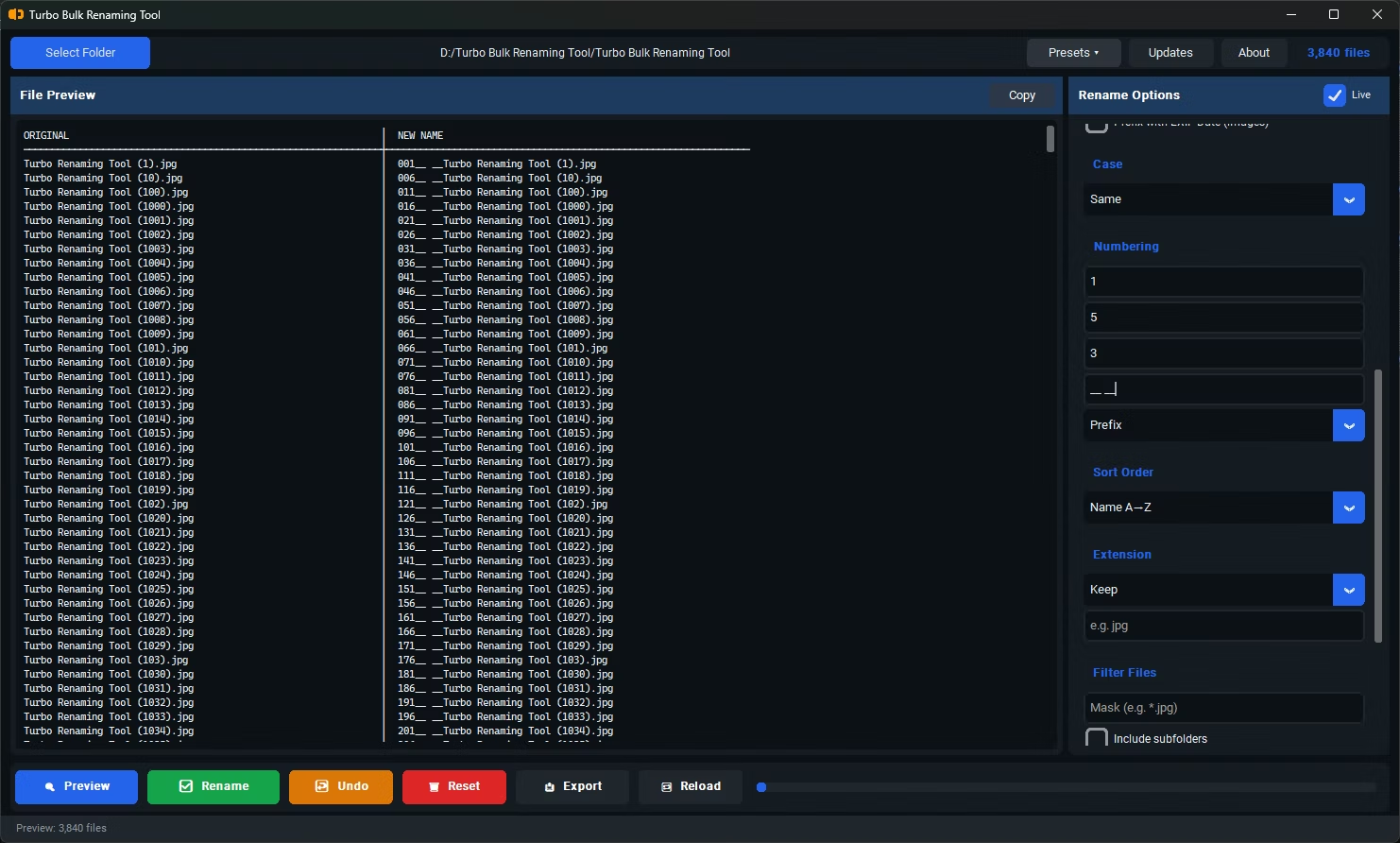
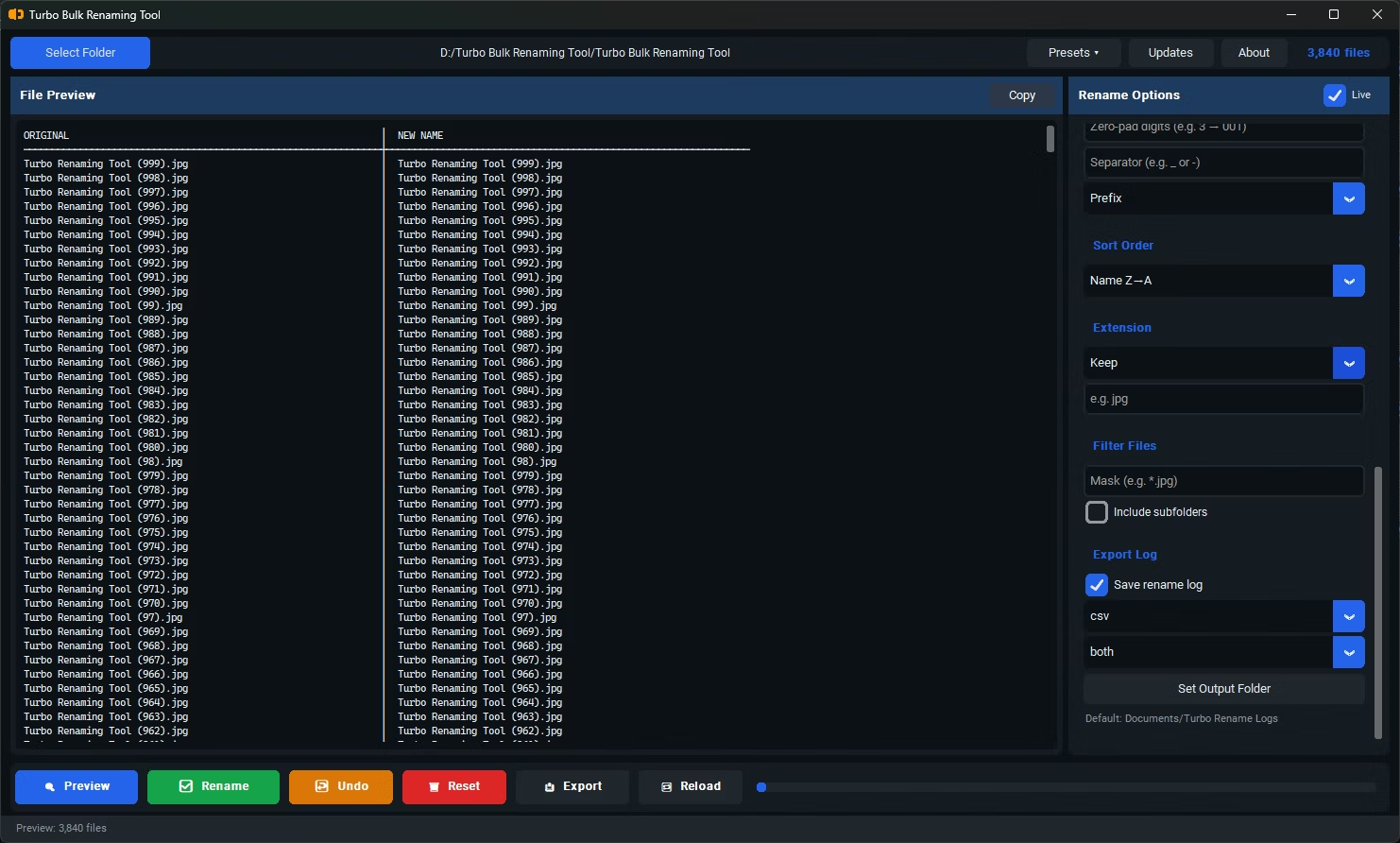
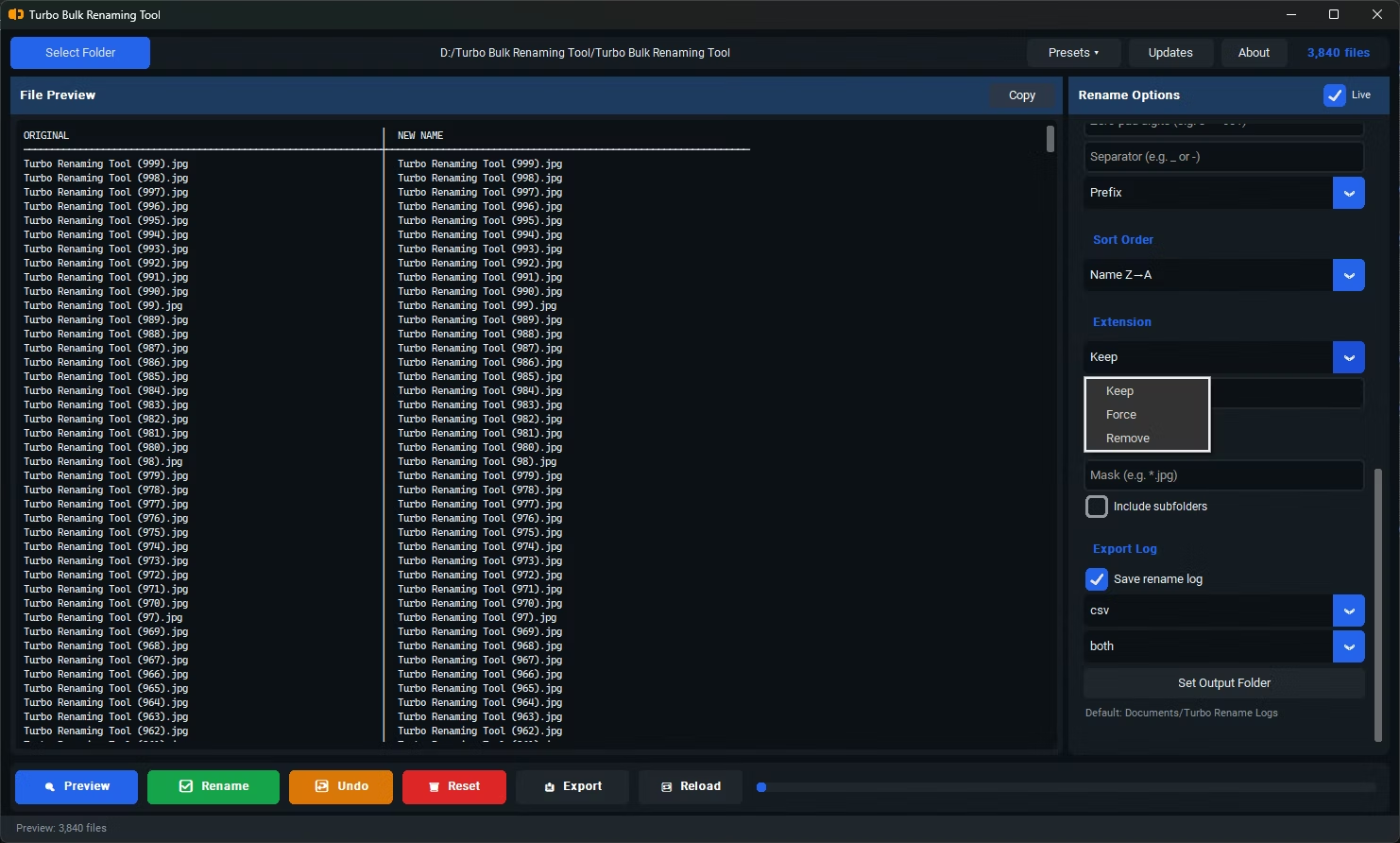
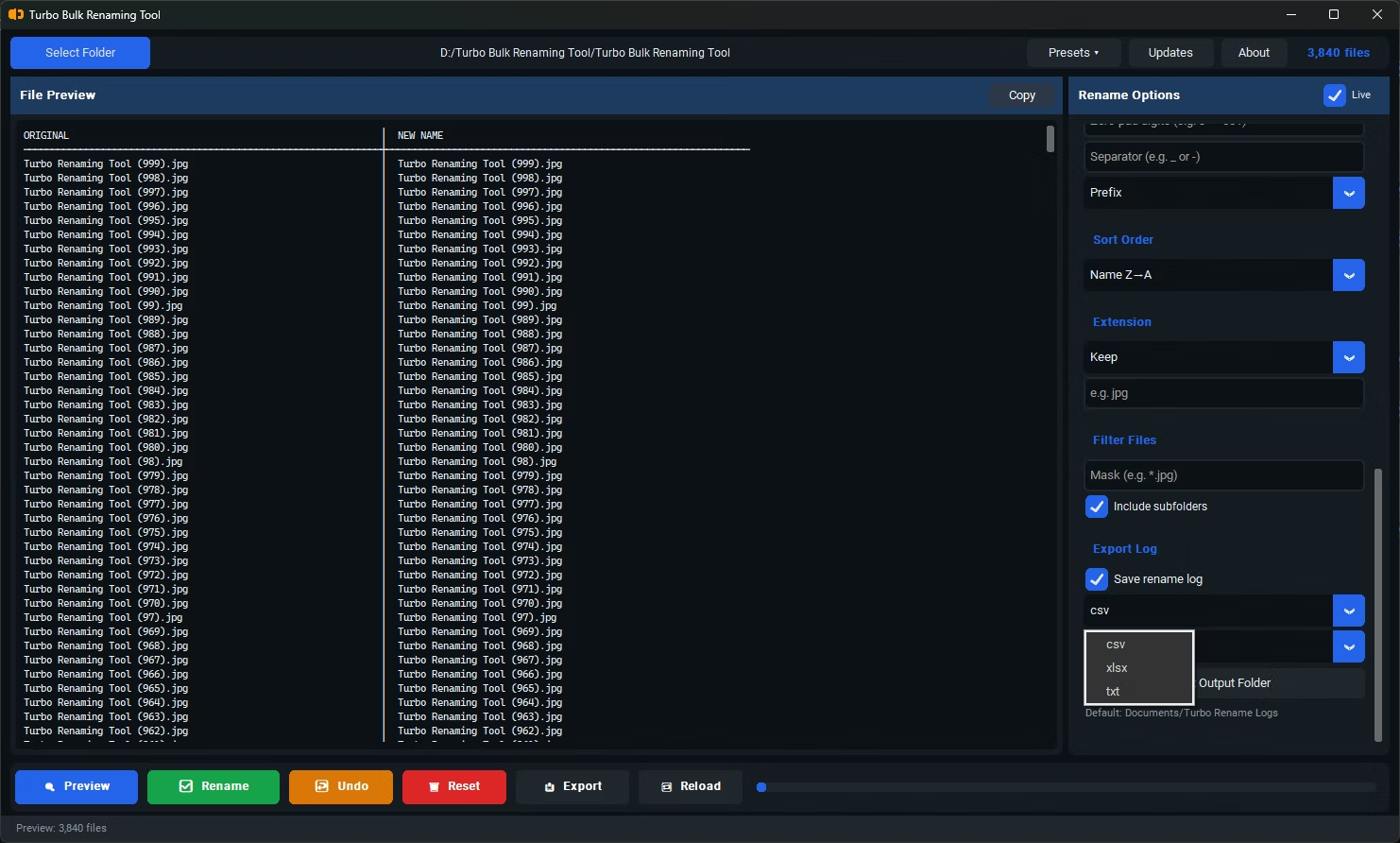
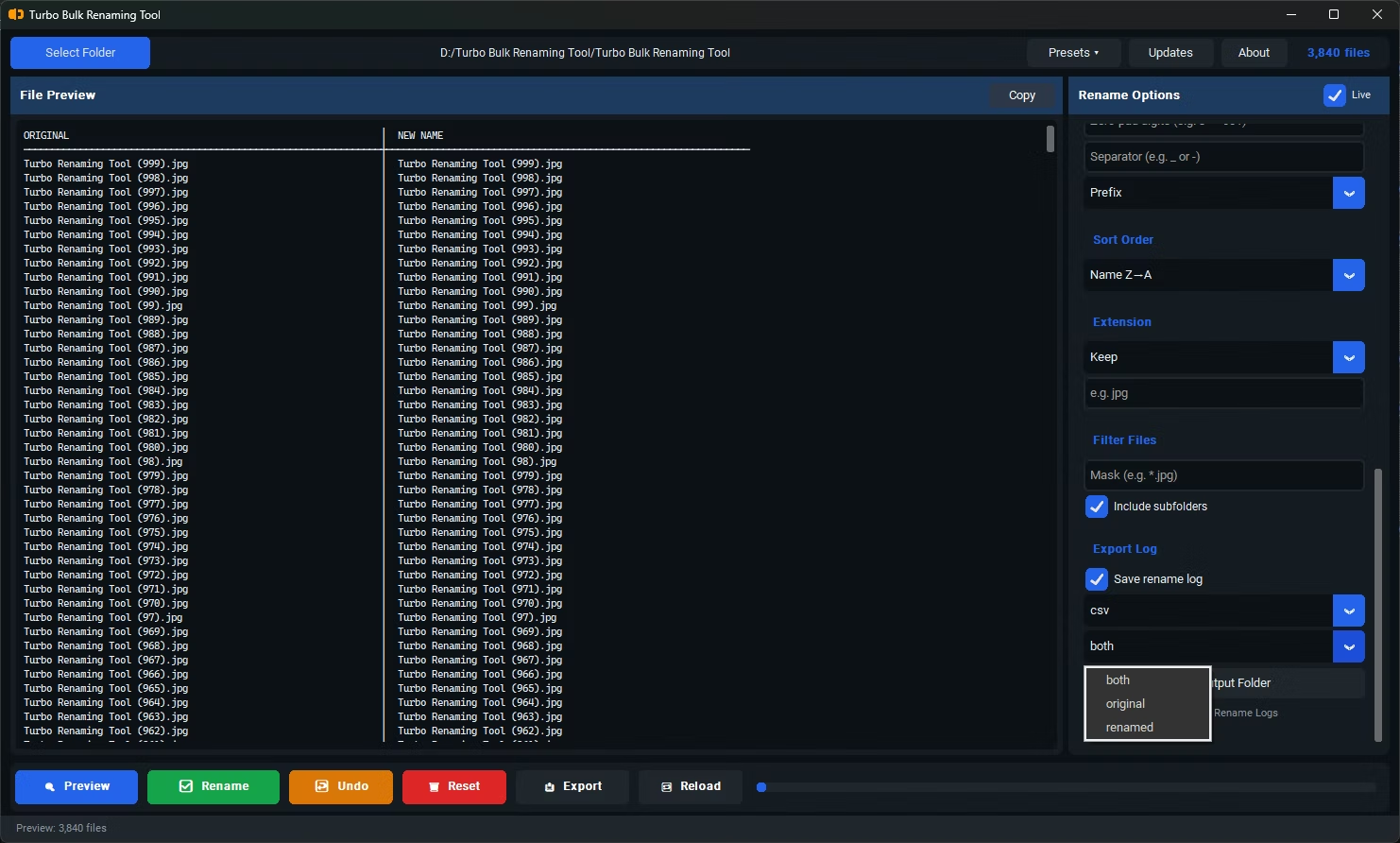
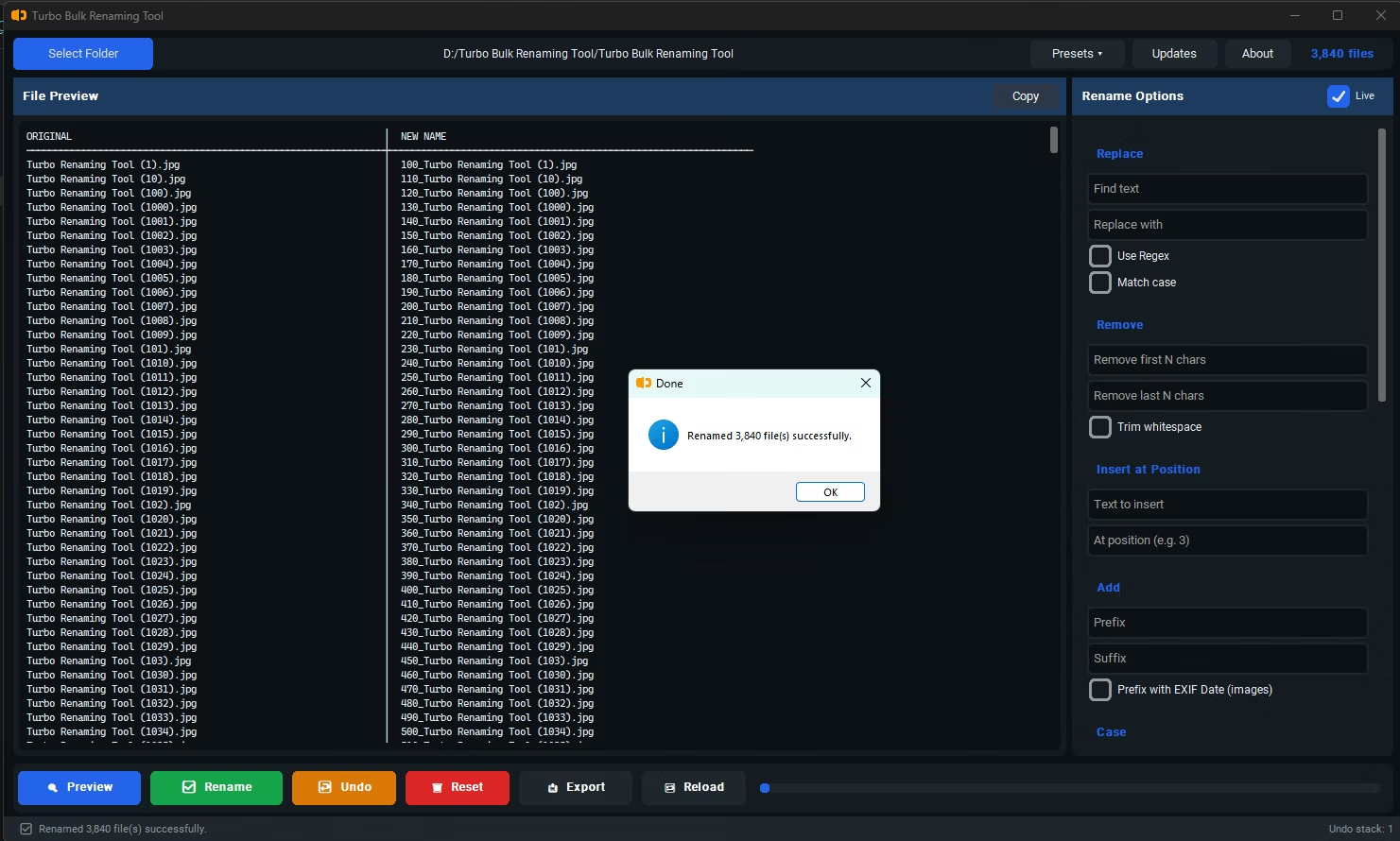
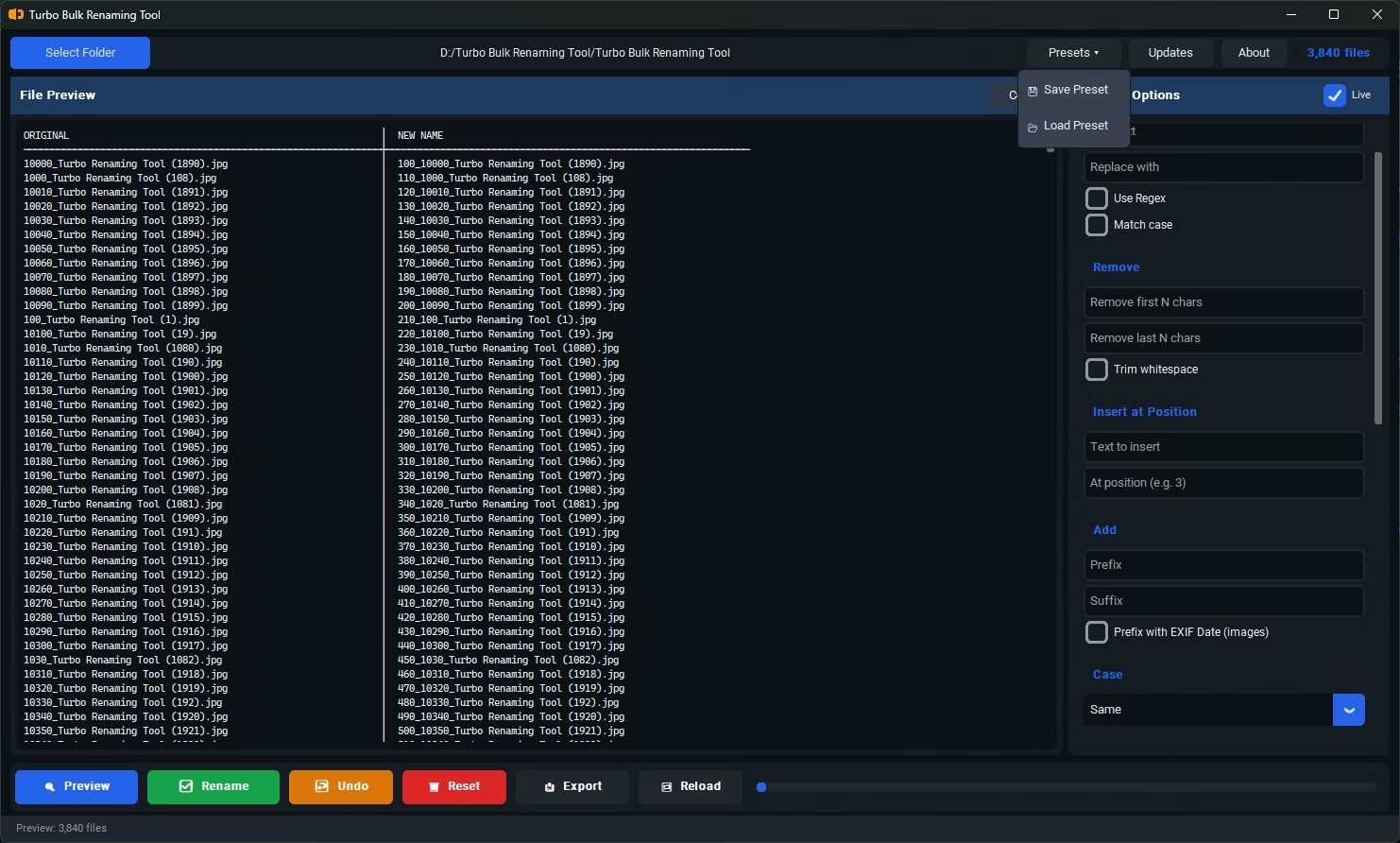
- Install Batchify Batch File Rename Tool on your Windows PC.
- Open the app and load the folder containing the files you want to clean up.
- Select the Remove Last N Characters renaming rule.
- Enter the number of characters to remove from the end of each filename, right before the extension.
- Check the live preview to confirm the correct portion is being trimmed from each name.
- Click Rename to apply the change across every selected file.
- Removes a precise character count from the end of the filename, before the extension
- Works even when trailing text isn't identical across all files, as long as the length matches
- Live preview shows the exact result before any files are renamed
- File extensions remain untouched during trimming
- Recursive sub-folder support for cleaning up nested file structures
- Conflict detection warns if trimming would create duplicate filenames
Does removing characters from the end touch the file extension?
No, the character count applies to the filename portion only, right before the extension, so the extension itself stays intact.
What if some filenames are too short for the character count I specify?
The live preview shows the result for every file before you commit, so you can identify and adjust for any filenames that are too short.
Can I use this together with adding a new suffix?
Yes, Remove Last N Characters can be applied first, followed by a Suffix rule, to both strip unwanted trailing text and add your own labeling in sequence.
Ready to rename your files in bulk, offline, with full privacy?