Adding a consistent prefix to a group of files is useful for sorting files together in a folder, tagging files by project, client, or date, or simply making a batch of files easier to identify at a glance. For example, prefixing a folder of invoice scans with "INV_" or a batch of project assets with "ProjectX_" keeps related files grouped and instantly recognizable.
Doing this manually for more than a few files is tedious and error-prone. A bulk renaming tool applies the same prefix to every selected file in one action, with a live preview so you can confirm the result before anything changes.
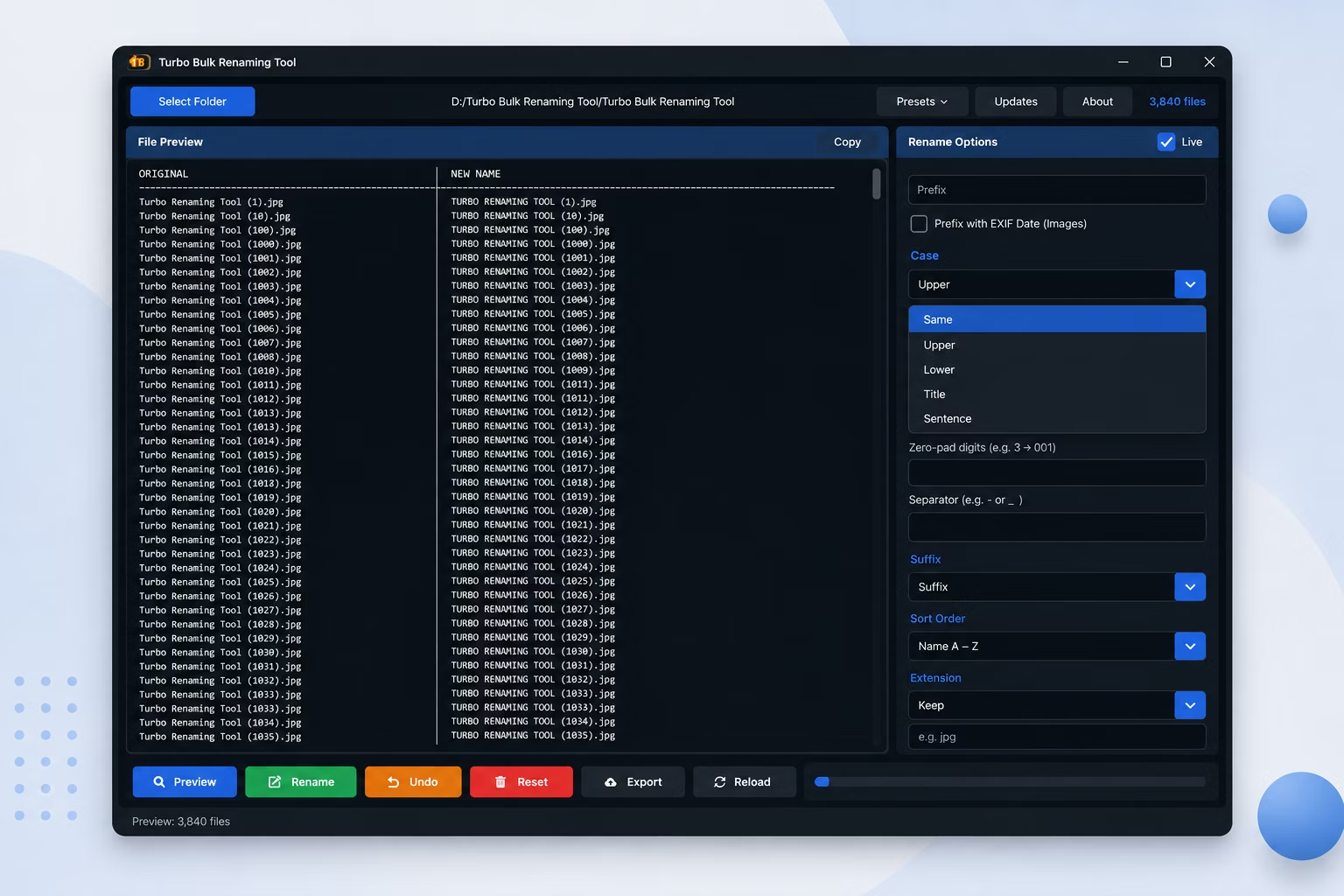
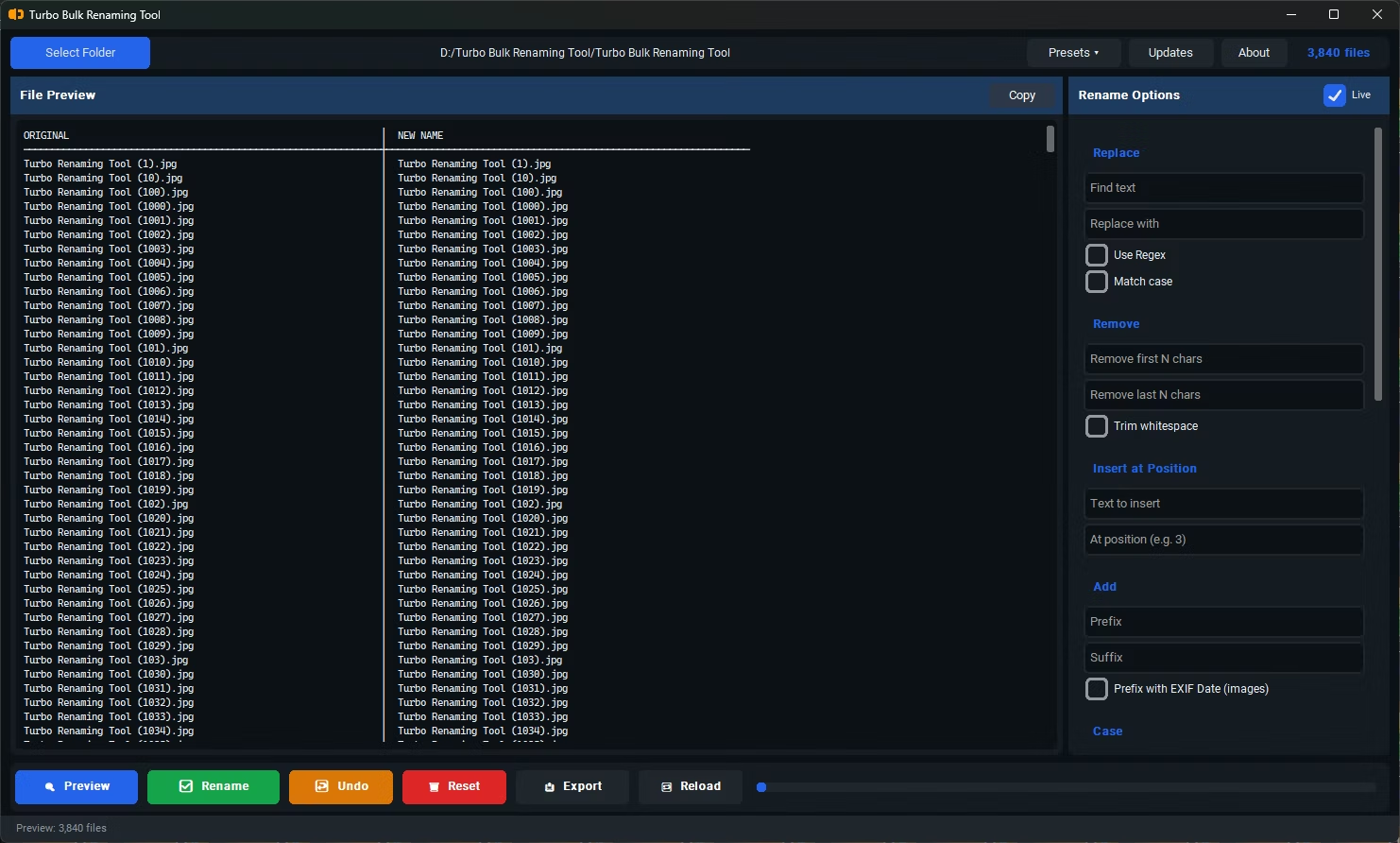
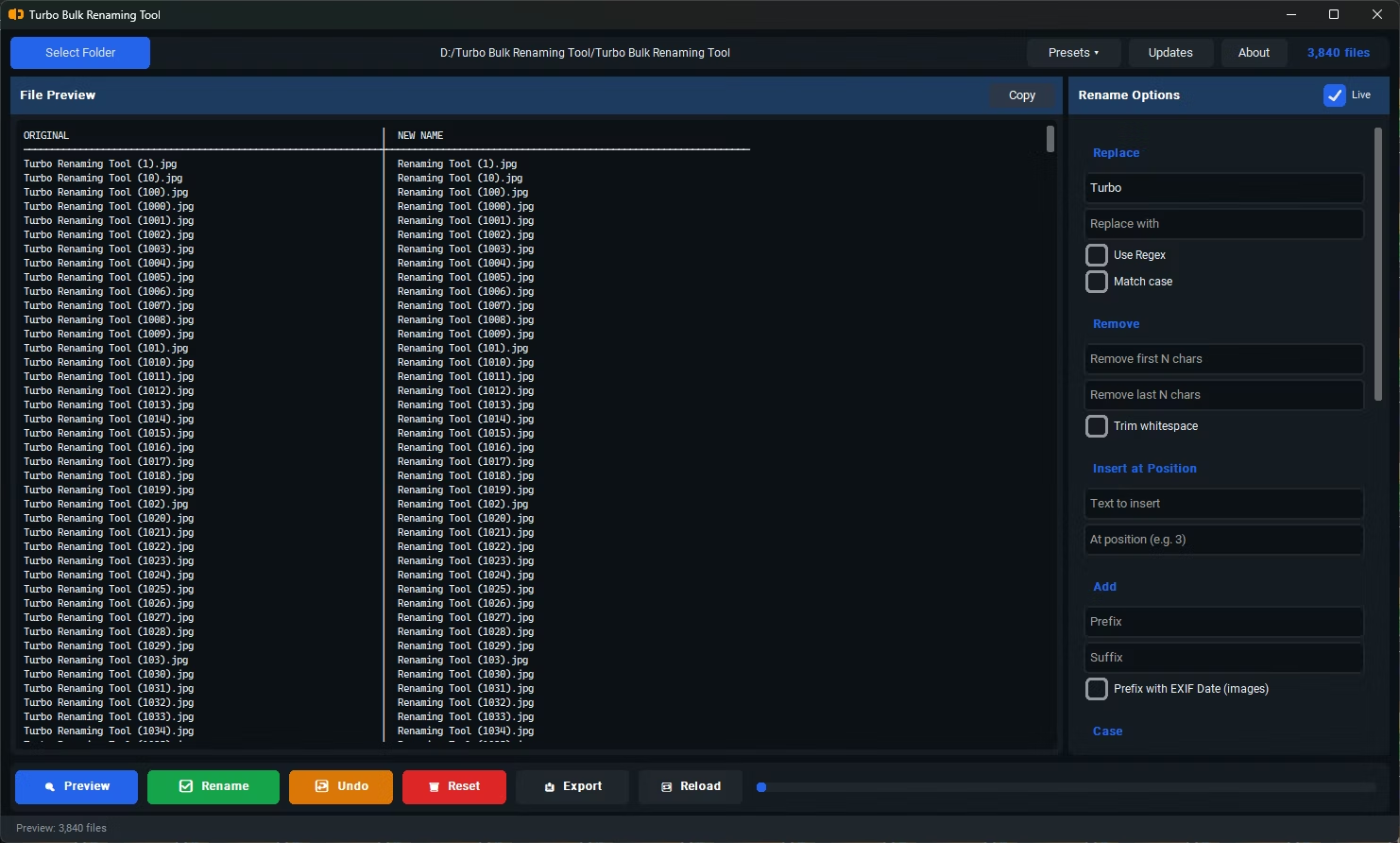
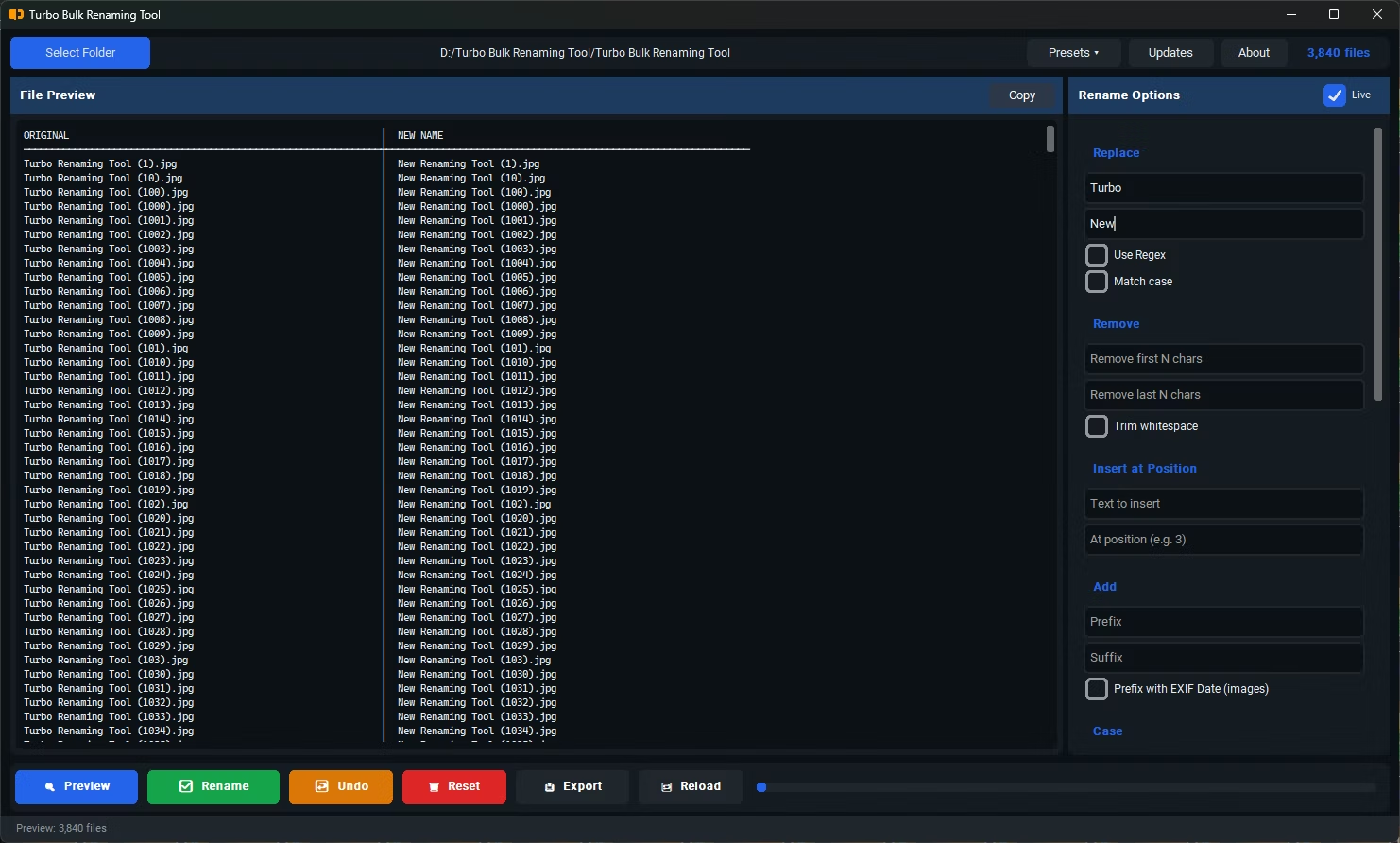
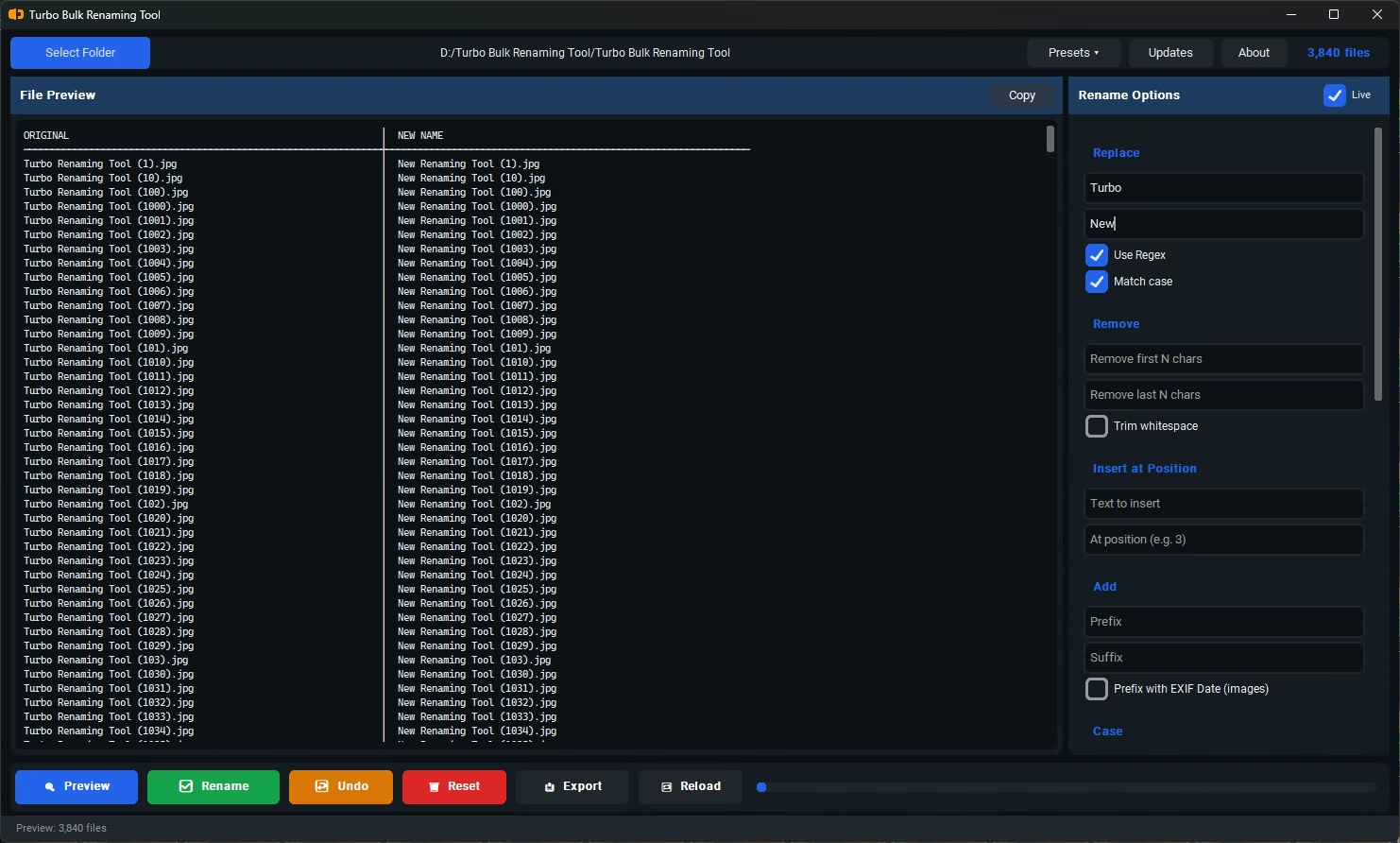
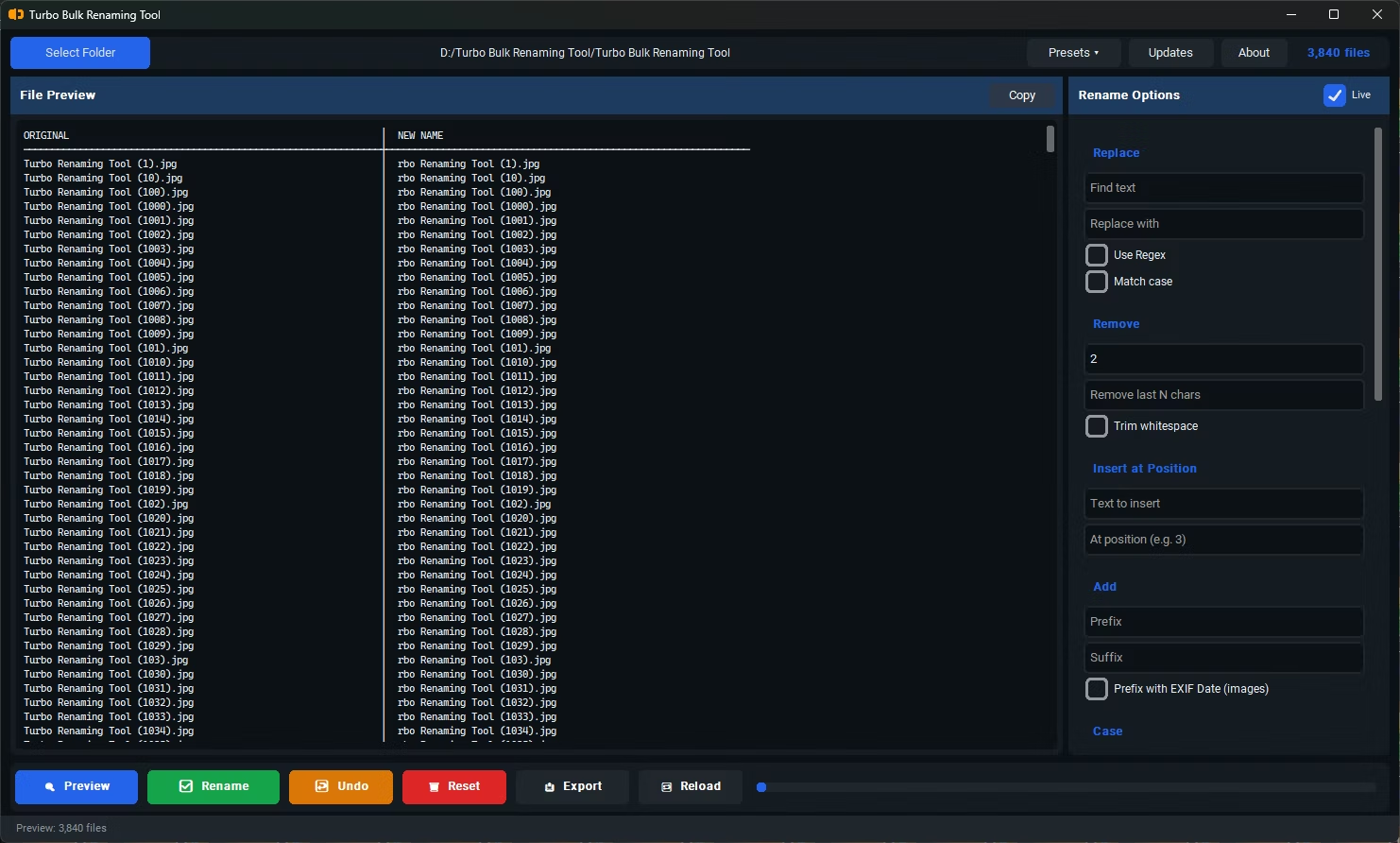
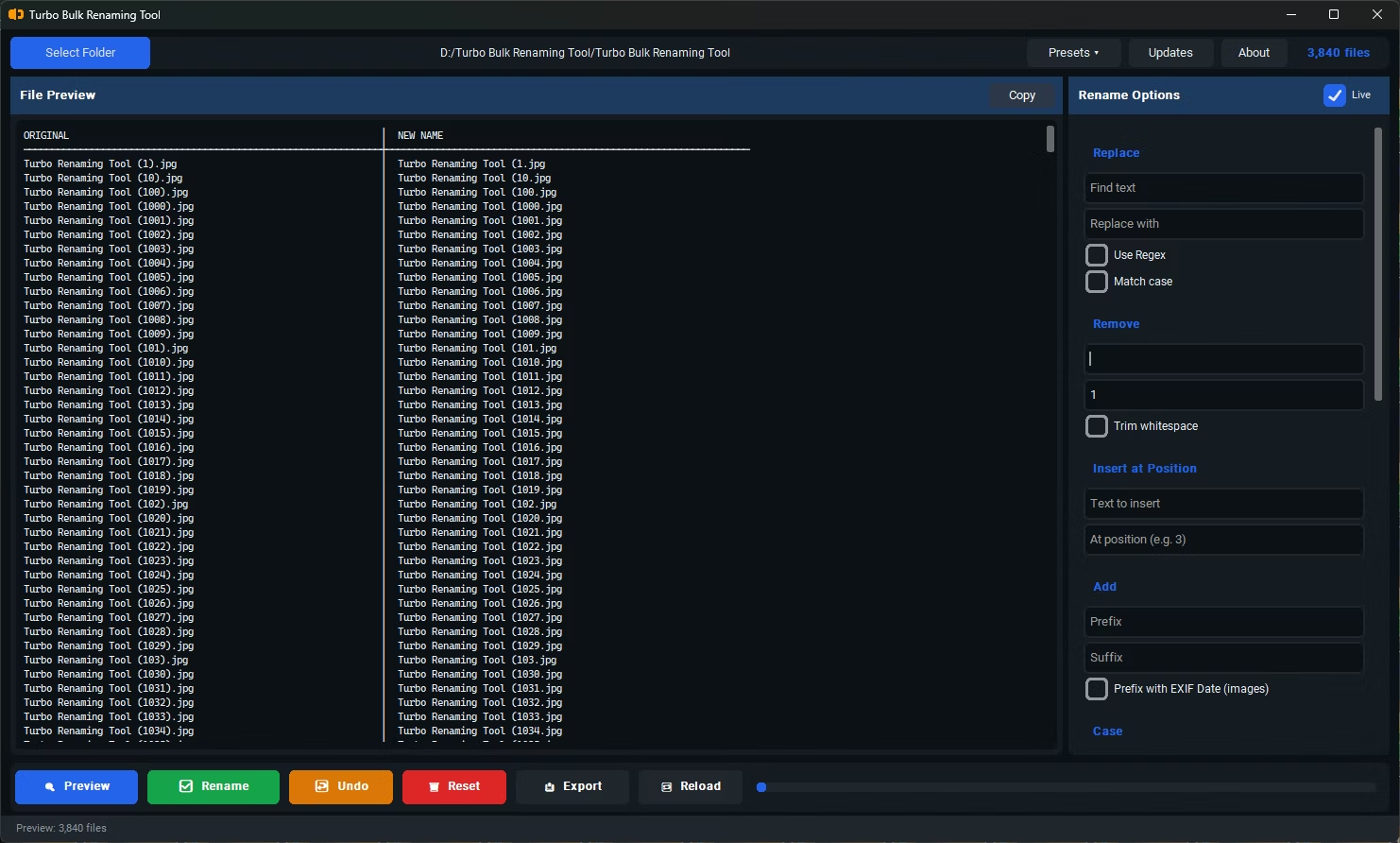
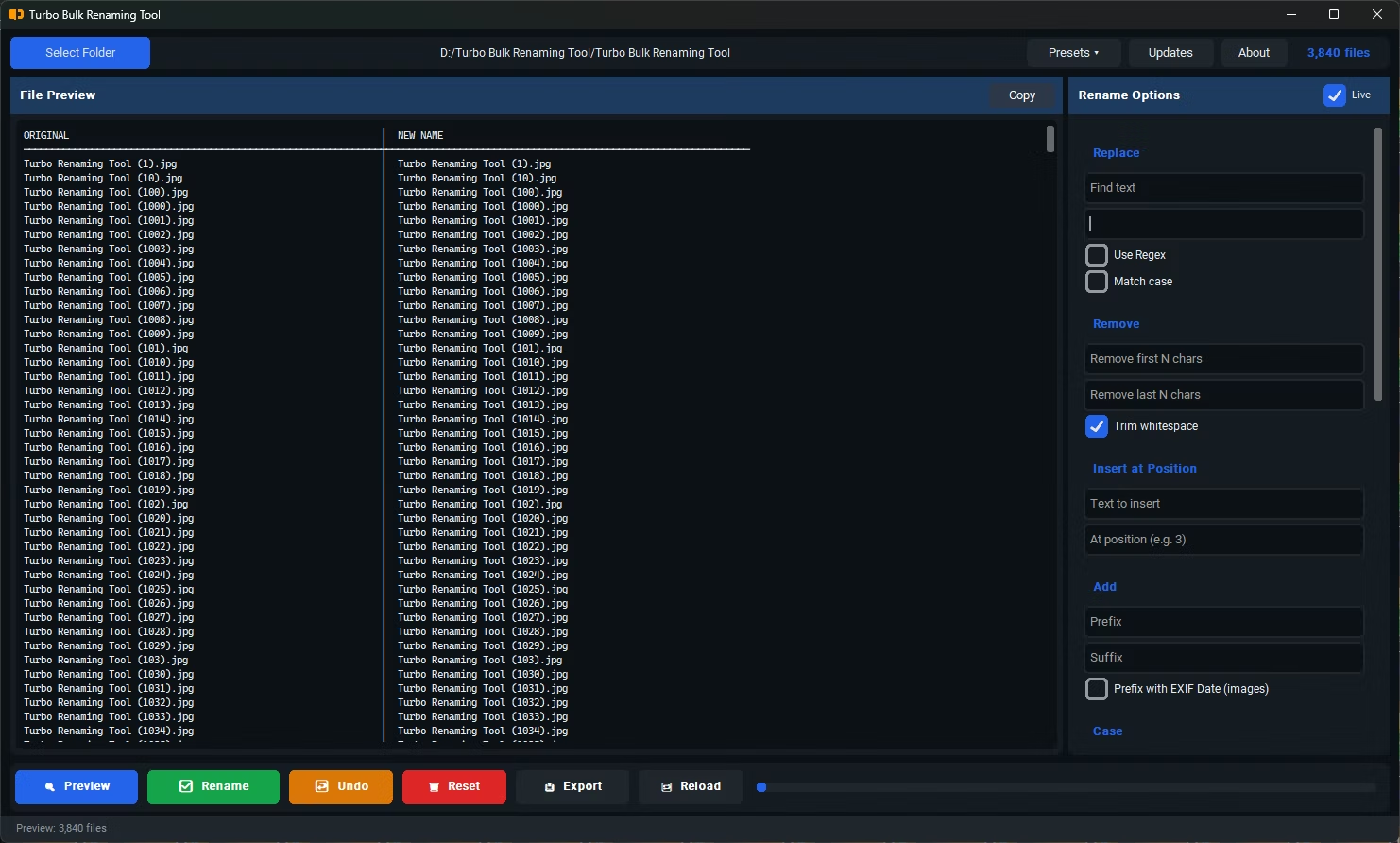
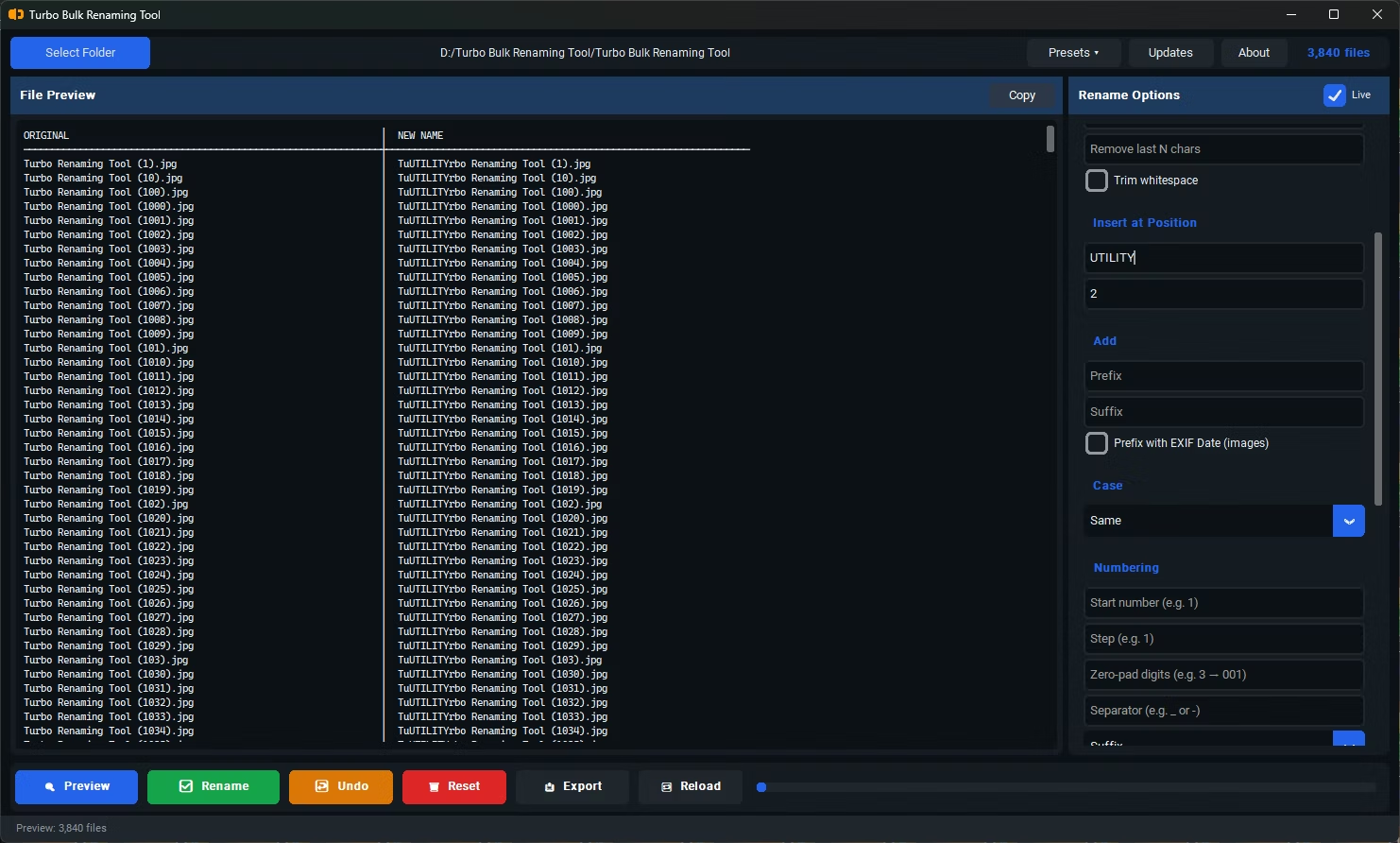
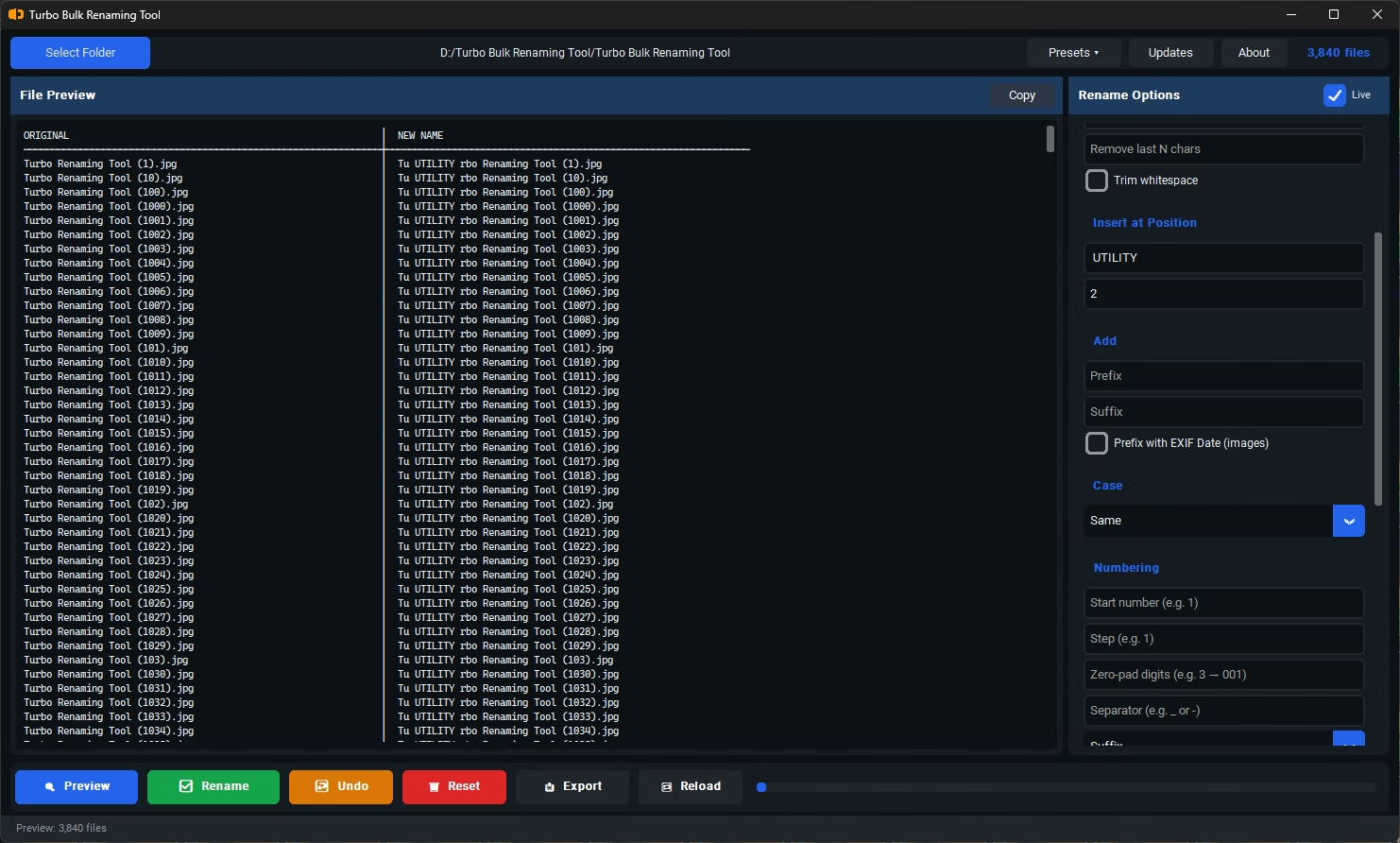
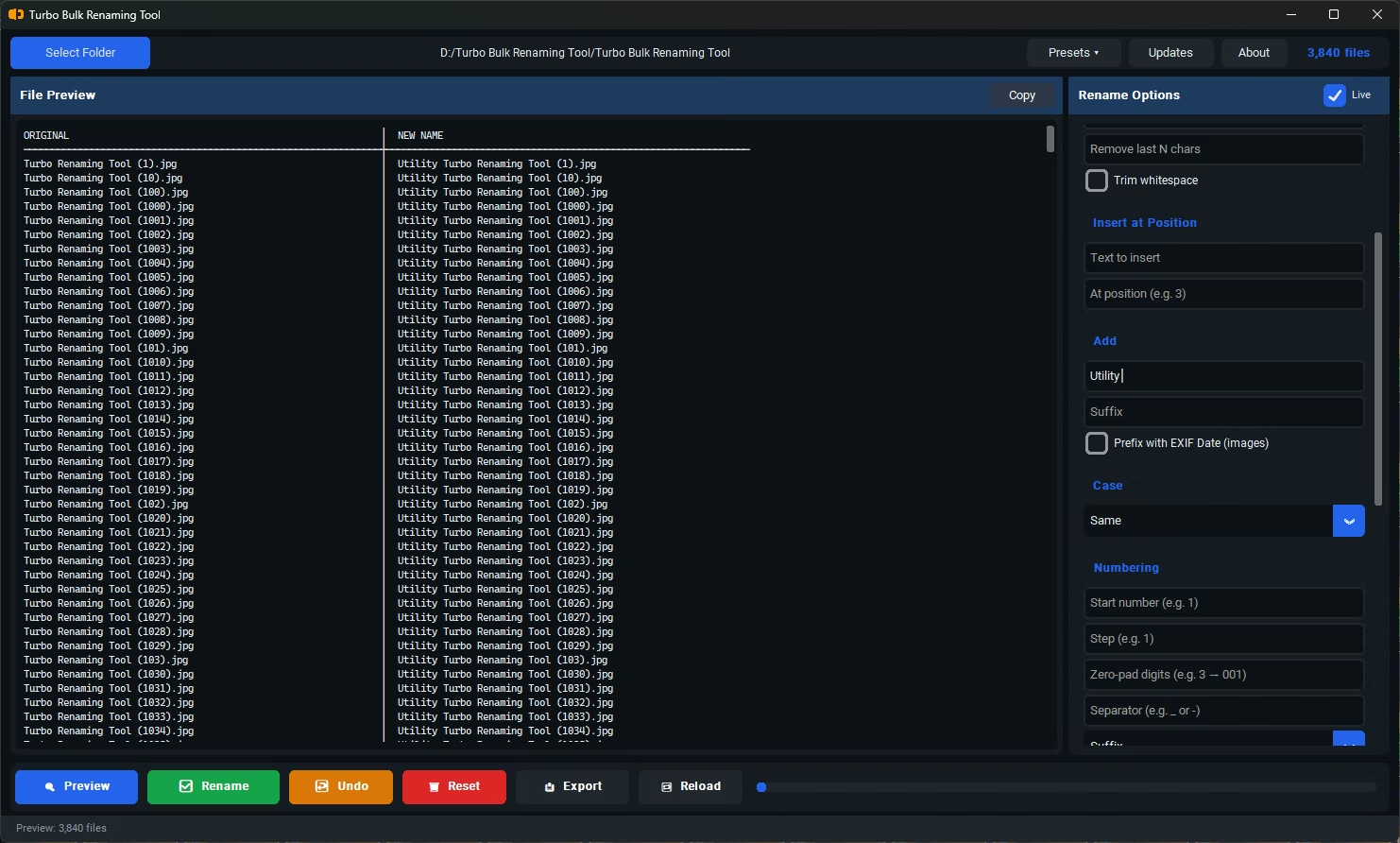
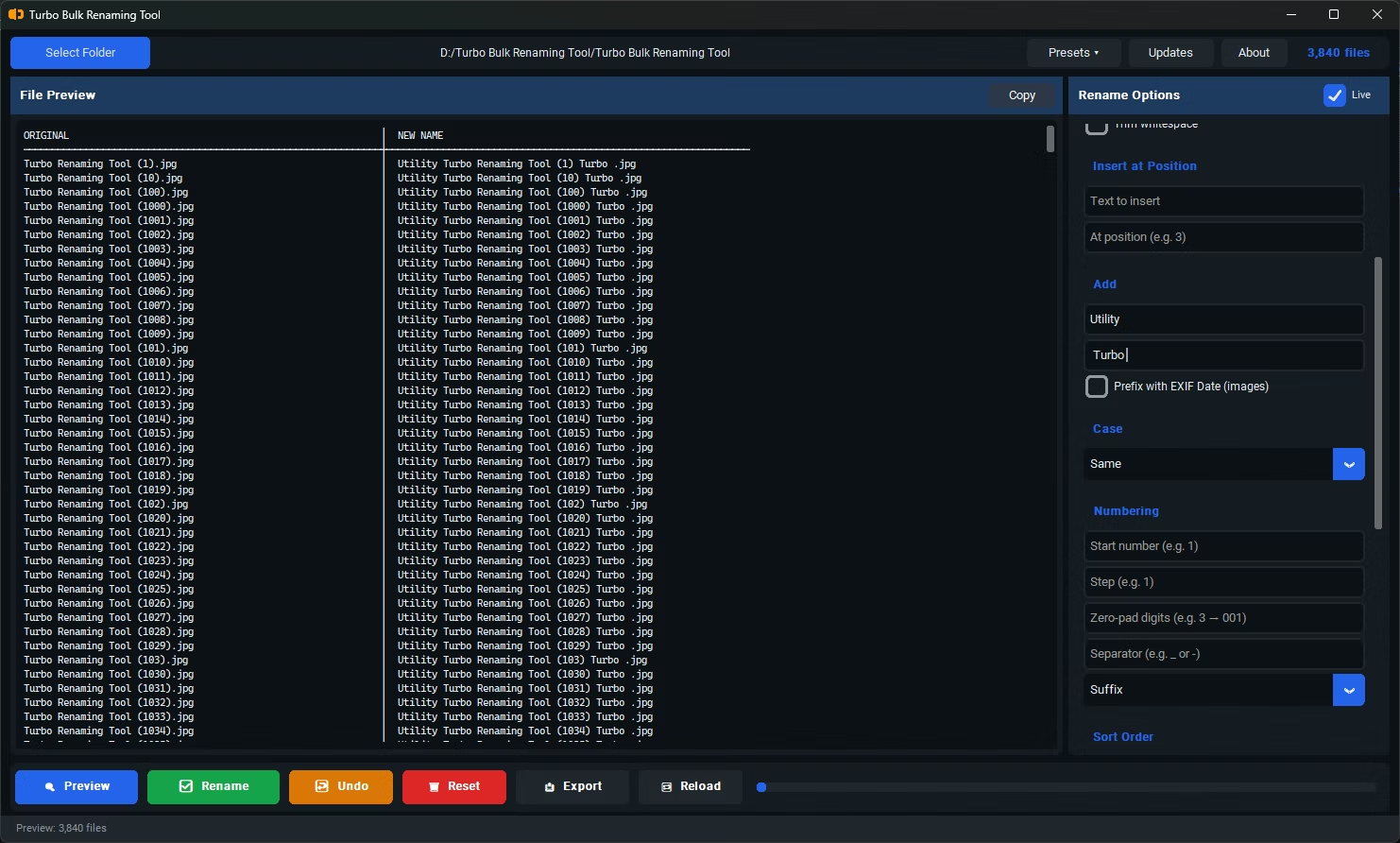
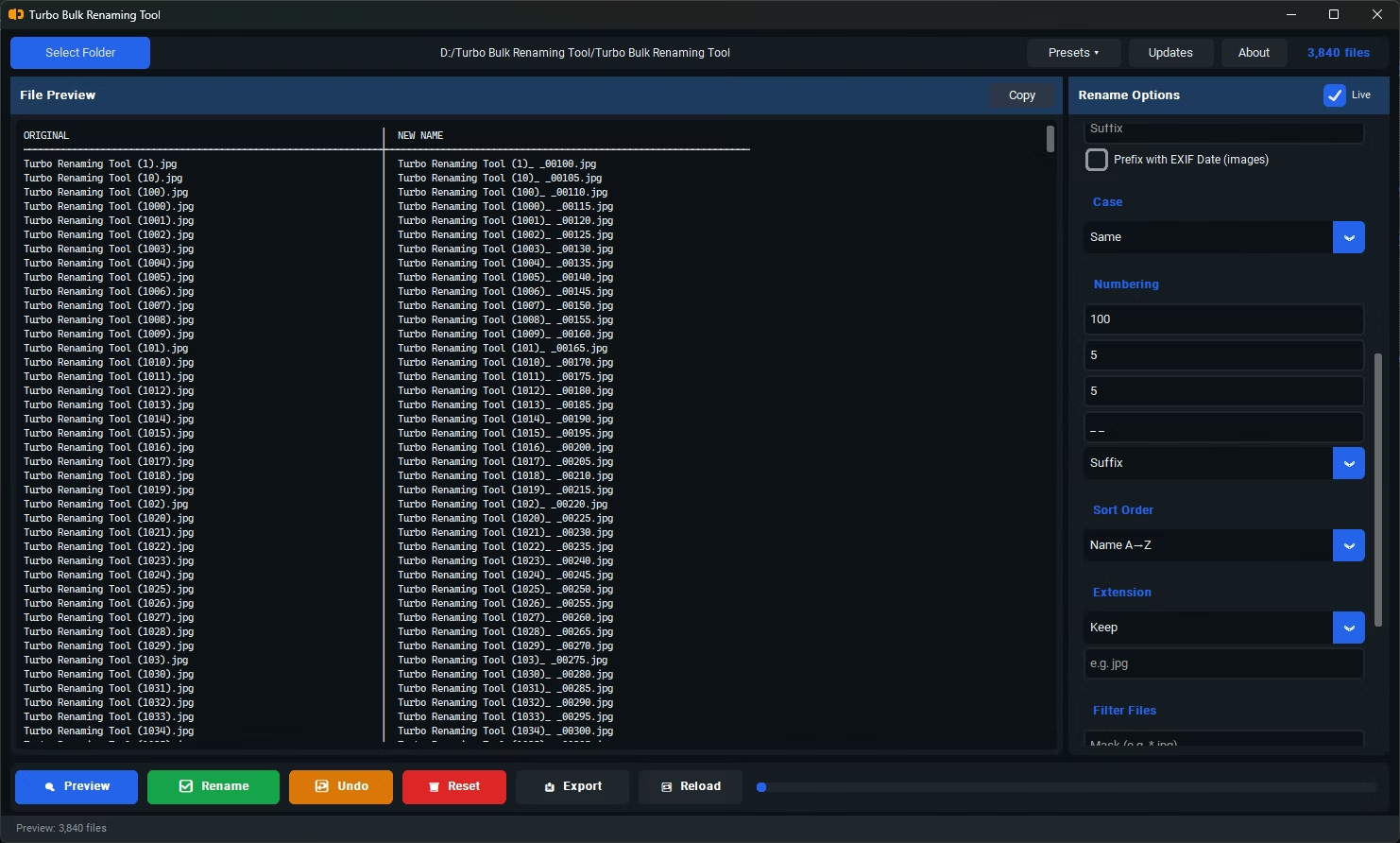
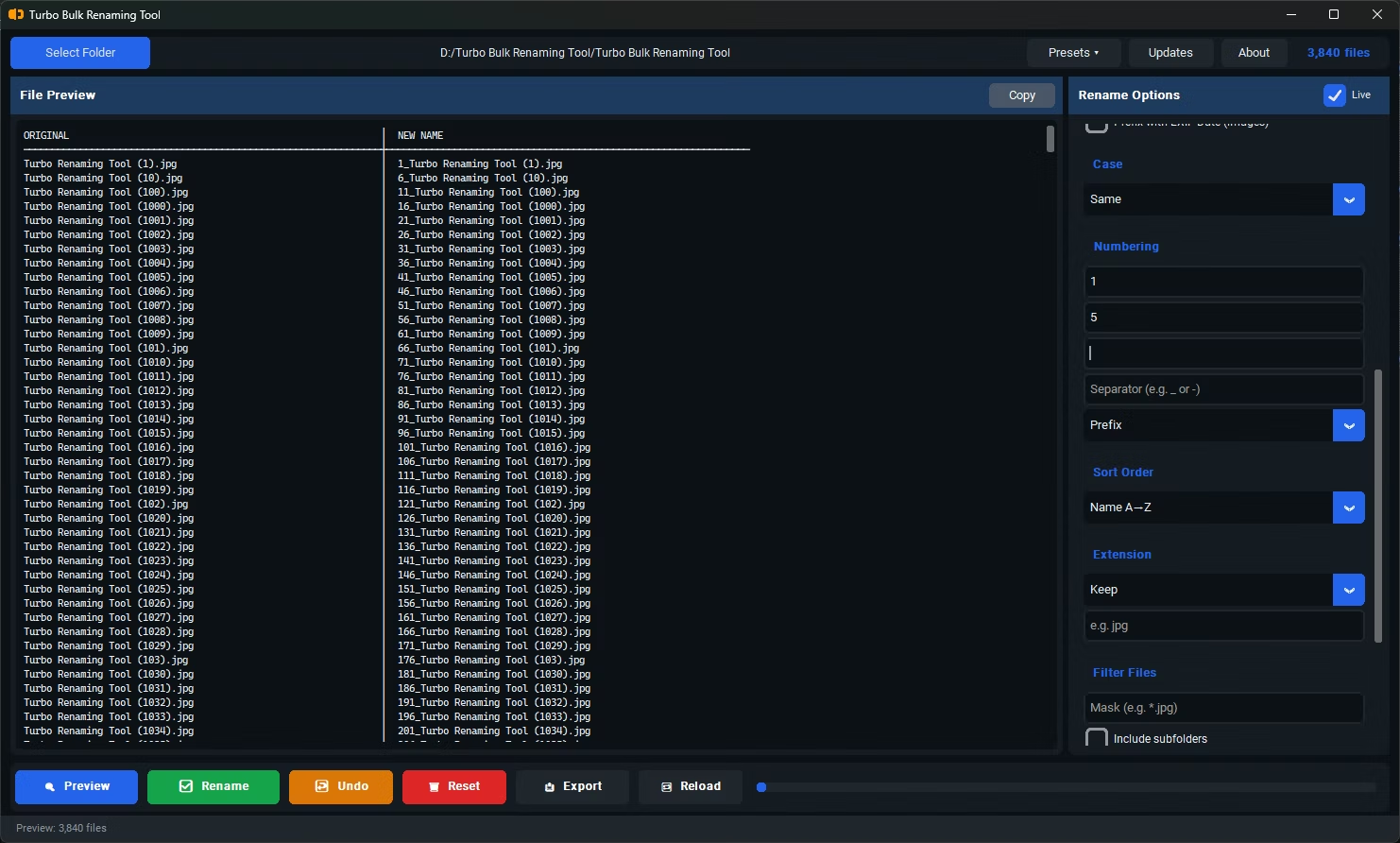
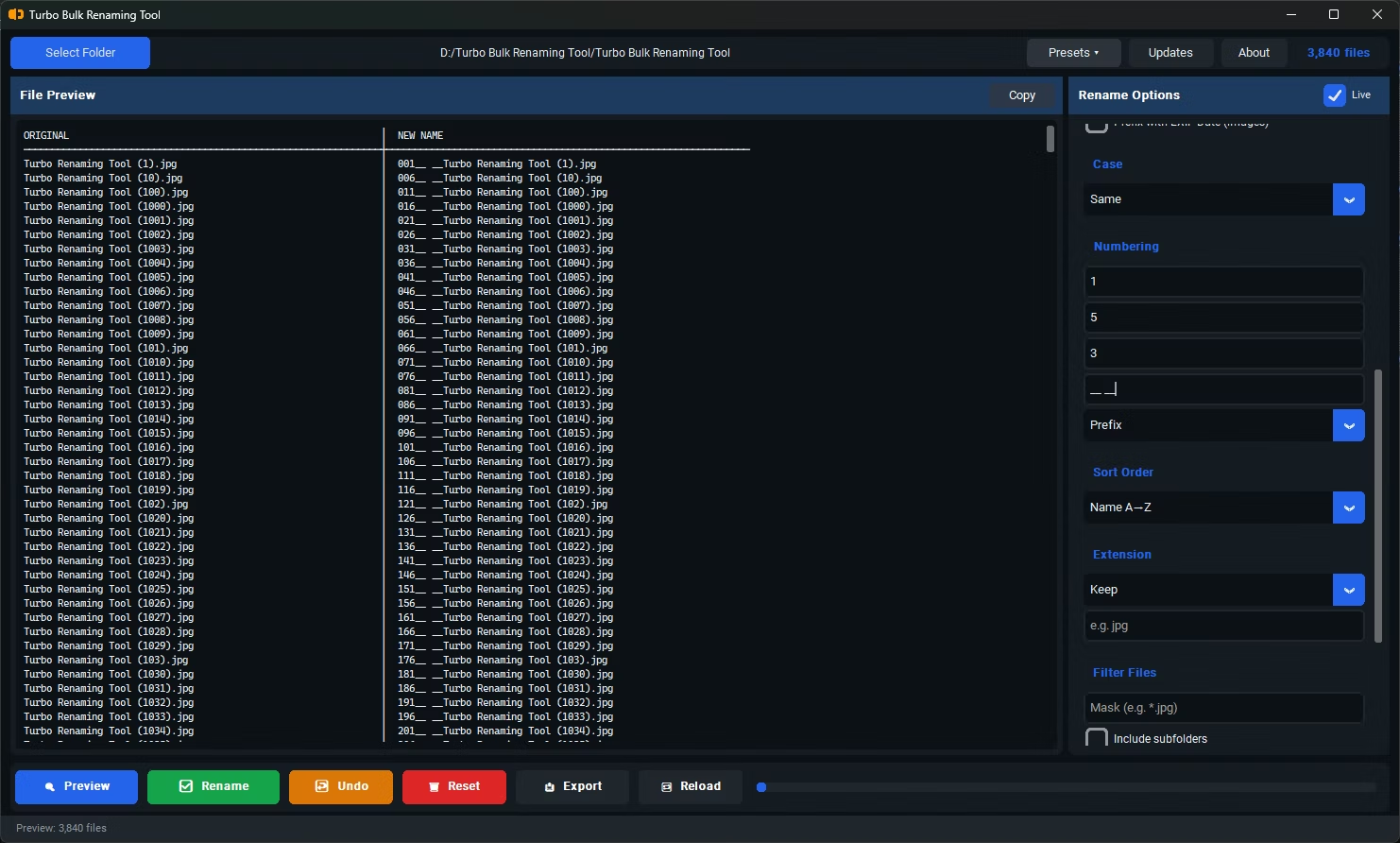
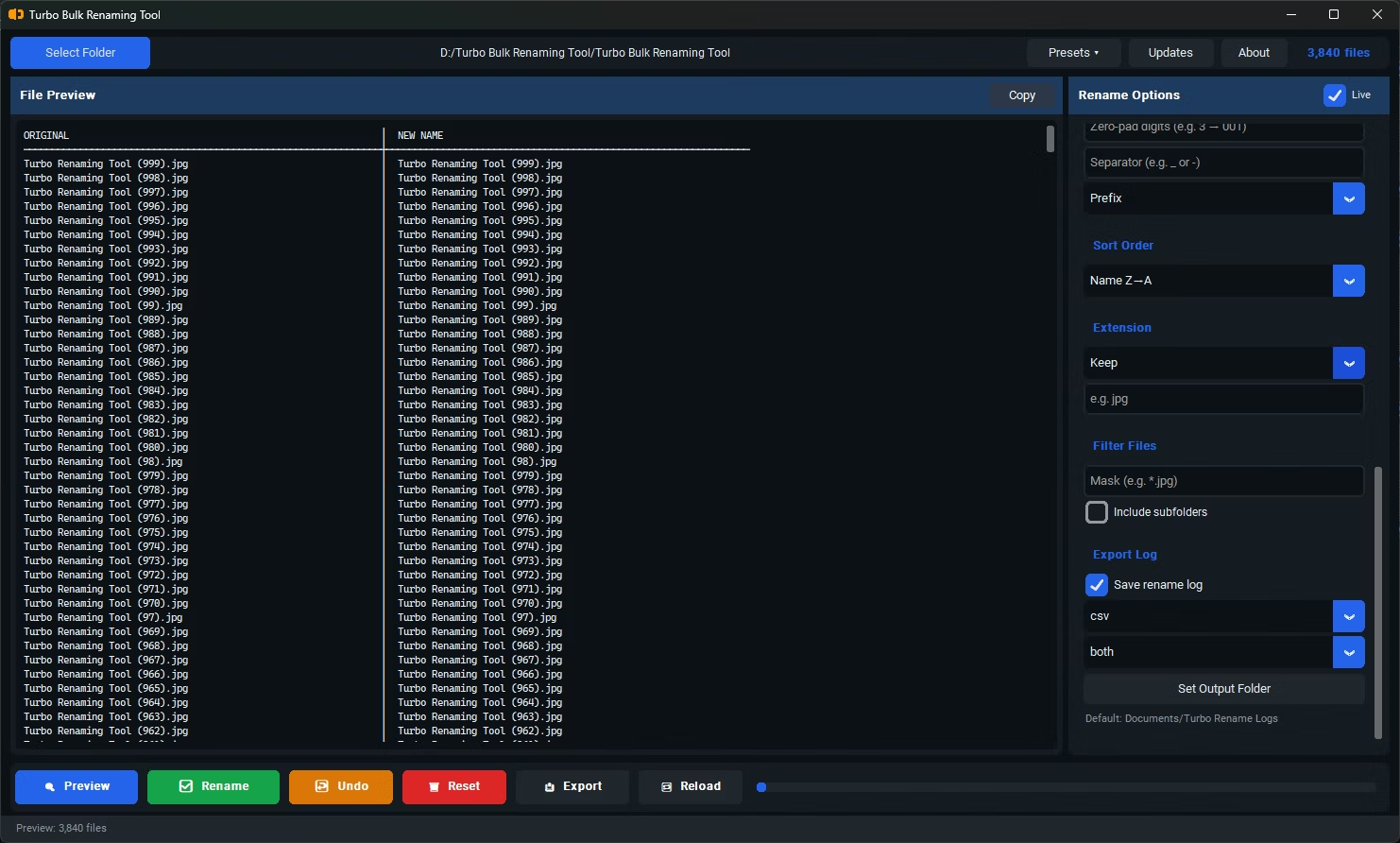
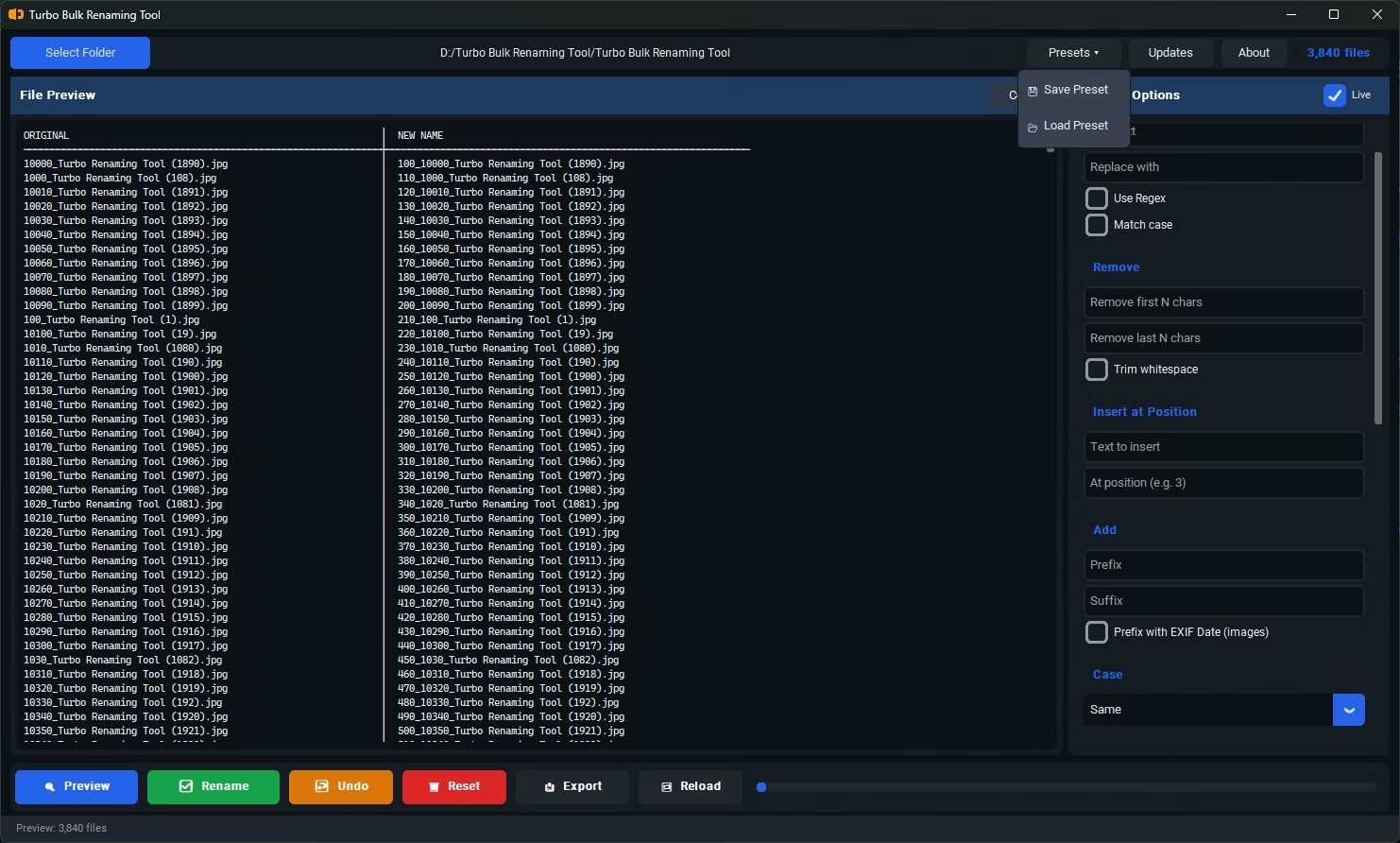
- Install Batchify Batch File Rename Tool on your Windows PC.
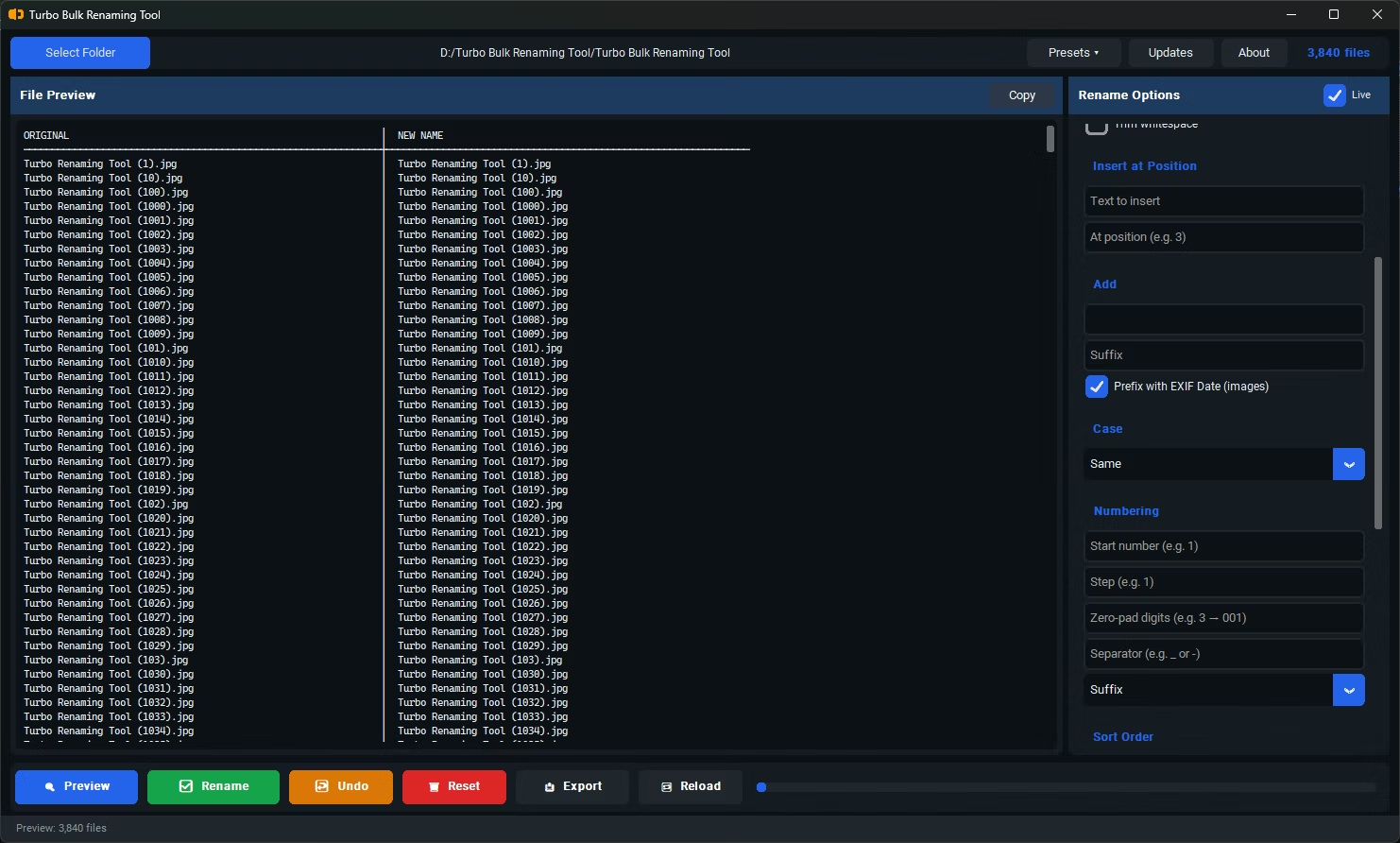
- Open the app and load the folder containing the files you want to prefix.
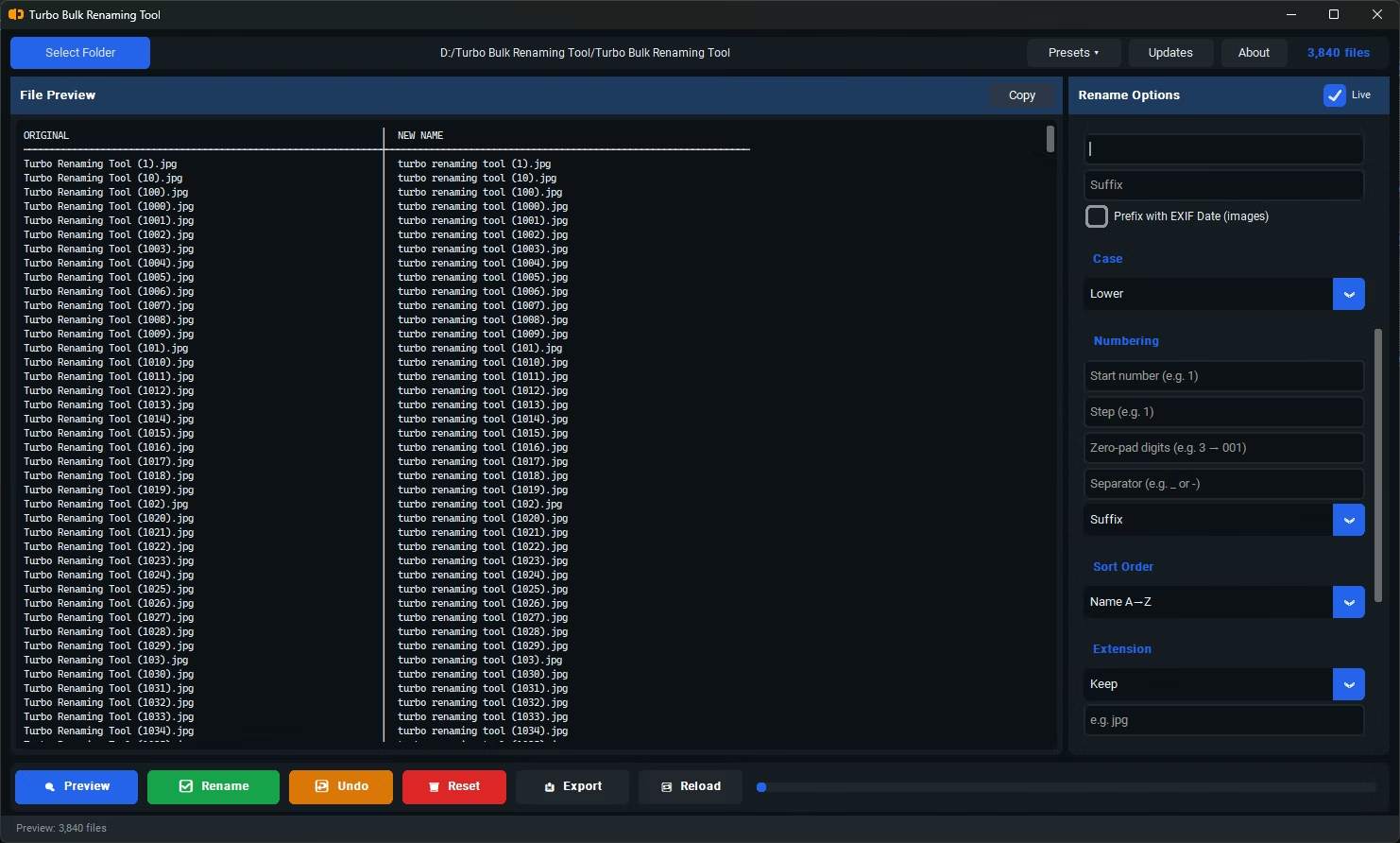
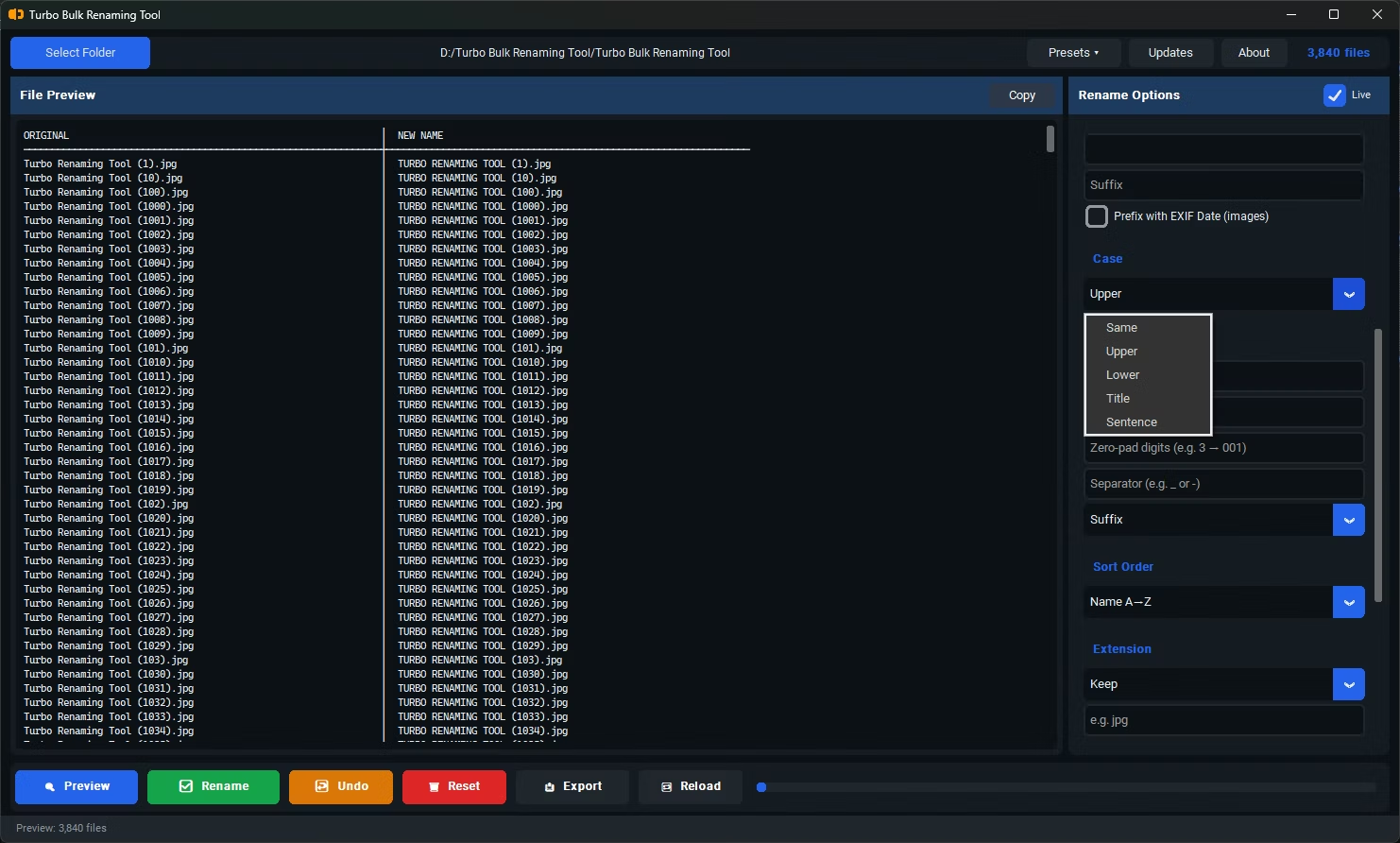
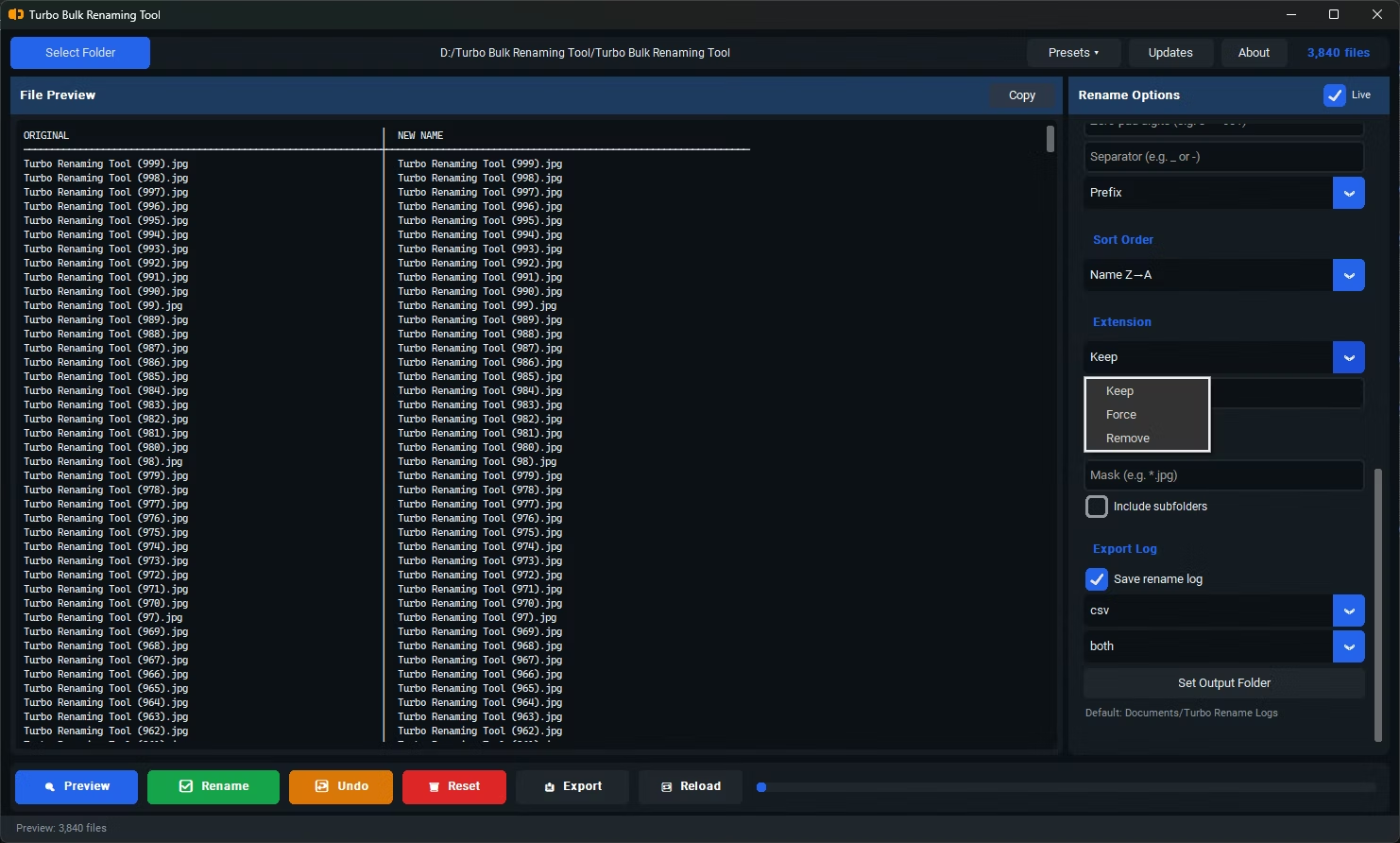
- Select the Prefix renaming rule, or use Insert at Position set to the beginning of the filename.
- Type the text you want to add as a prefix, such as "ProjectX_" or "2026_".
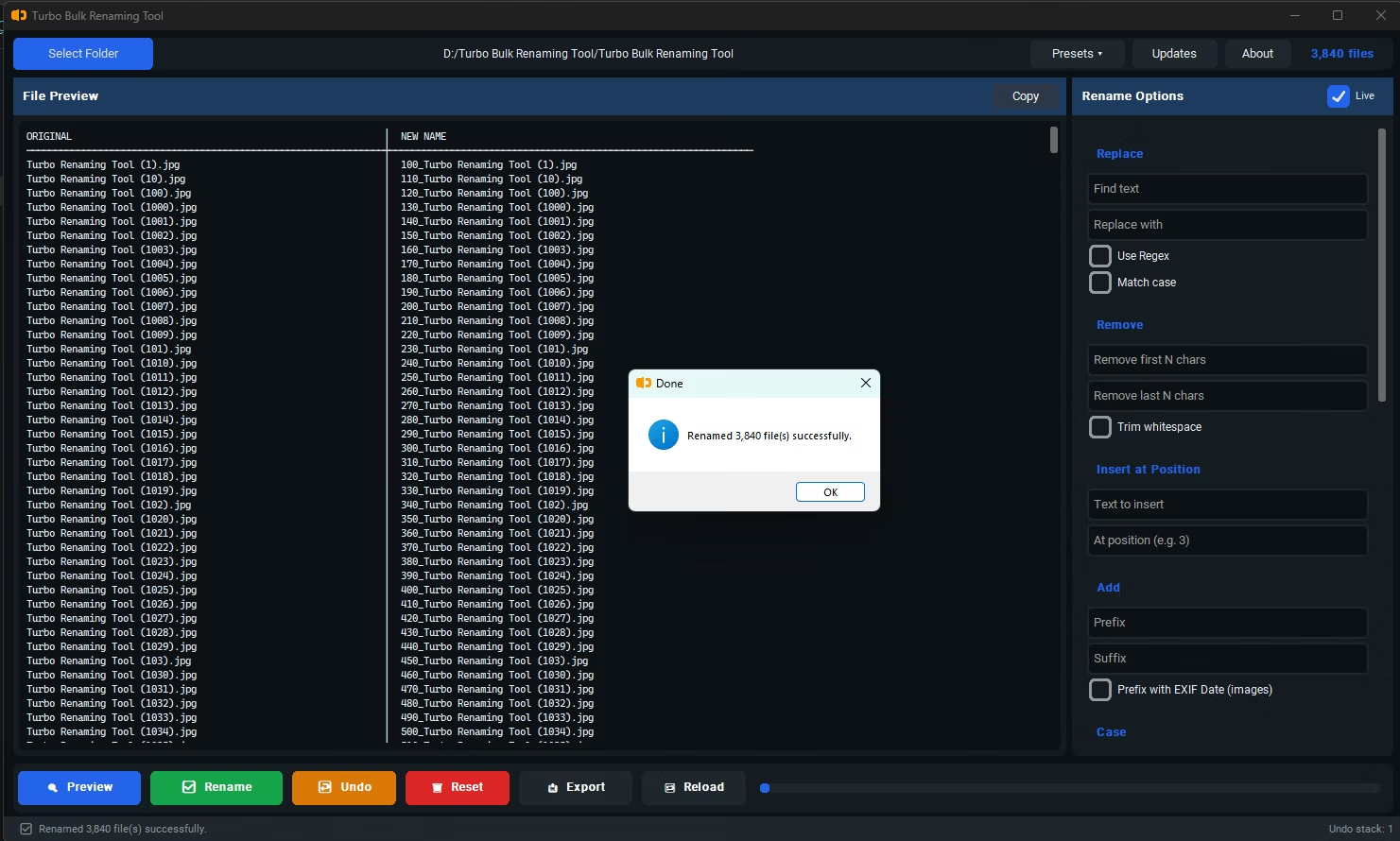
- Review the live preview to confirm every filename now starts with your chosen prefix.
- Click Rename to apply the prefix to all selected files at once.
- Apply the same prefix to an entire folder of files in one action
- Live preview confirms the result before any files are actually renamed
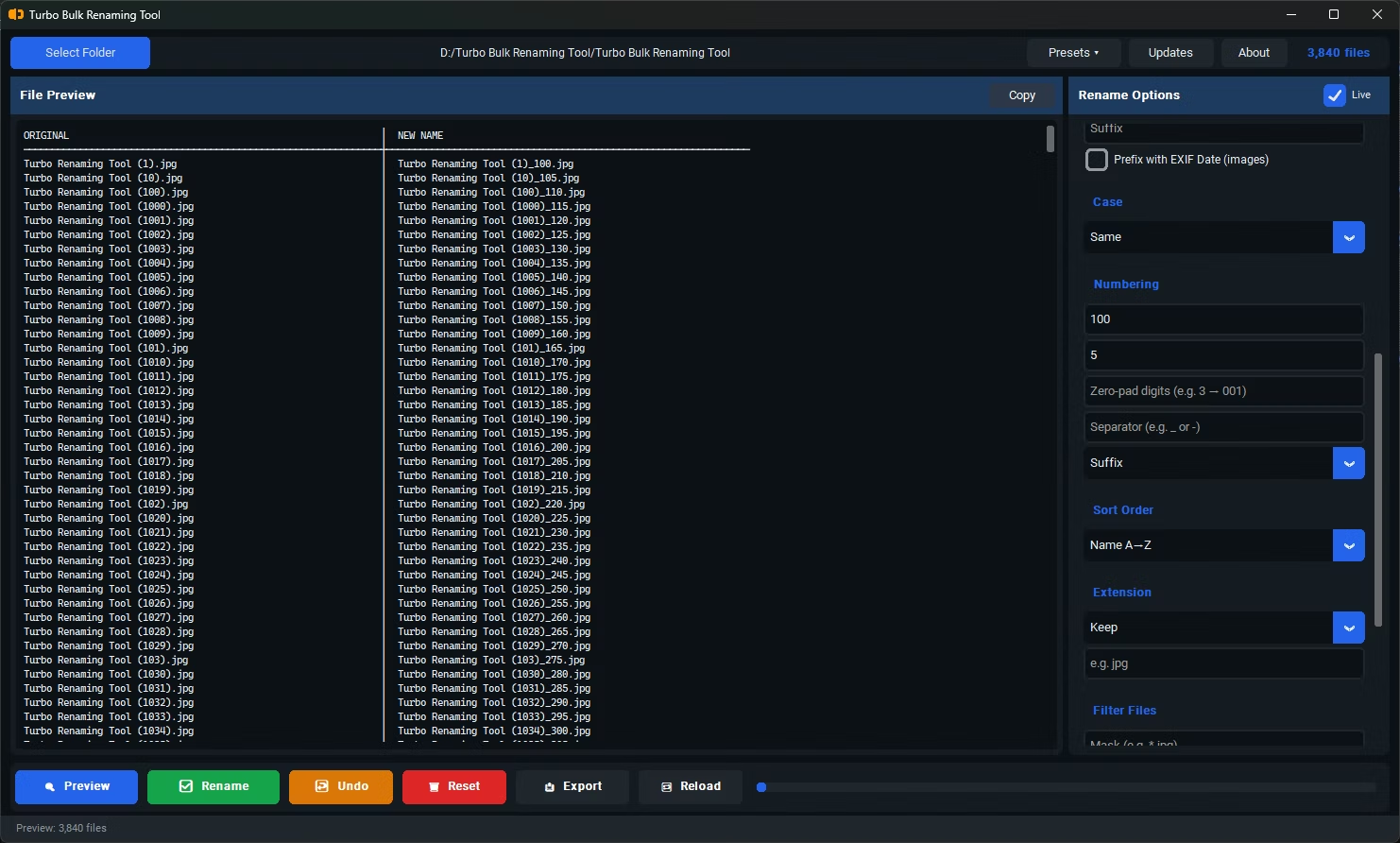
- Can be combined with sequential numbering for prefix plus number patterns
- Recursive sub-folder support if your files are organized into nested folders
- Conflict detection flags any naming collisions before you commit
- One-click Undo restores original filenames if needed
Can I combine a prefix with sequential numbering?
Yes, prefix and numbering rules can be used together to produce filenames like "ProjectX_001", "ProjectX_002", and so on.
Will adding a prefix affect file extensions?
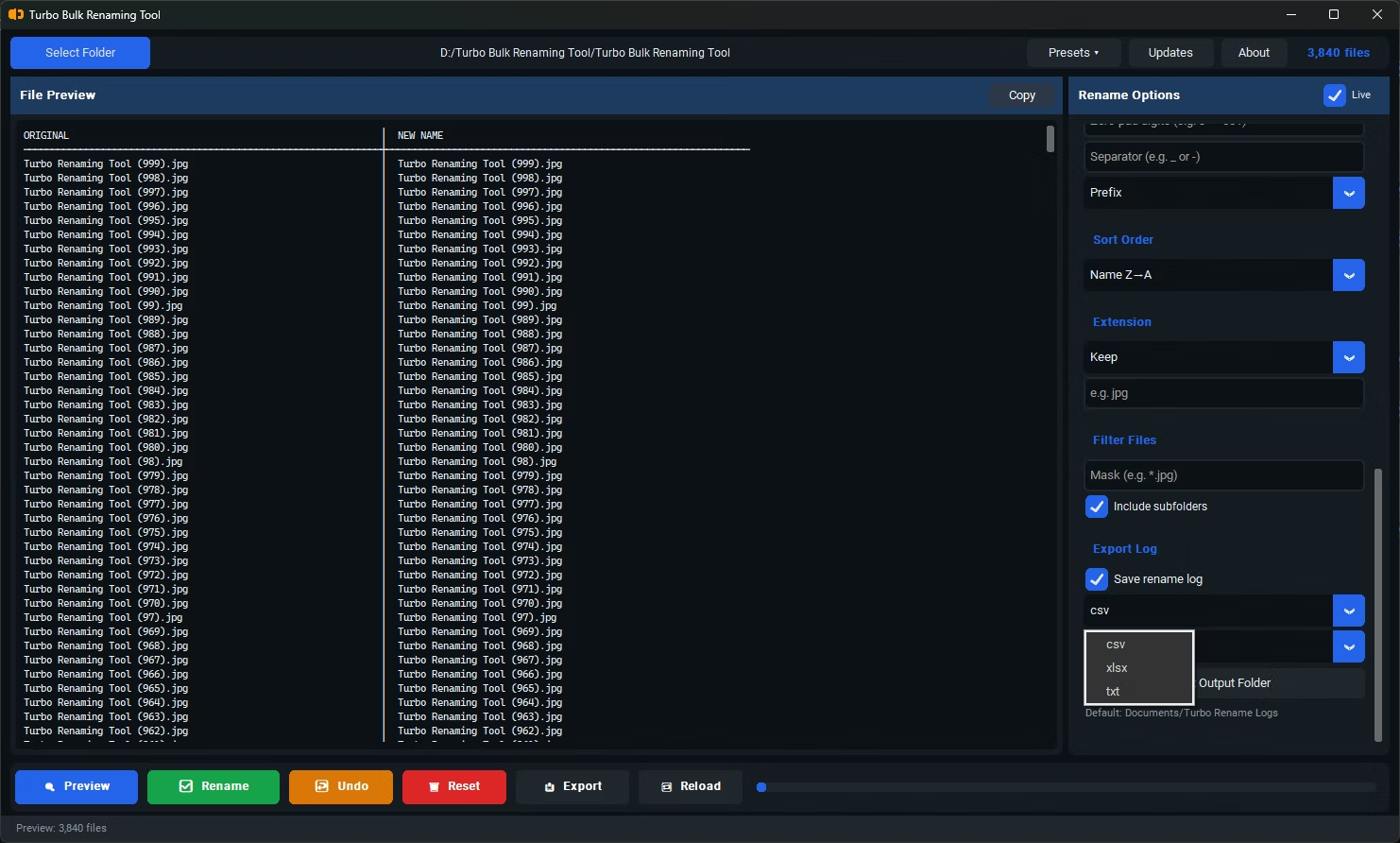
No, the prefix is added to the beginning of the filename only, leaving the file extension unchanged.
What if two files end up with the same name after adding a prefix?
The tool's conflict detection identifies any naming collisions before the rename is applied, so you can adjust your rule before committing.
Ready to rename your files in bulk, offline, with full privacy?