If you've ever combined photos from a phone, a separate camera, and a cloud backup into one folder, you've probably noticed the filenames give no useful order — a mix of "IMG_", "DSC_", and random export names, all out of chronological sequence. Renaming based on the EXIF capture date fixes this at the source, since the date comes from the camera's own metadata rather than when the file happened to be copied or downloaded.
This is particularly useful for combining a trip's photos from multiple devices into a single timeline, or for archiving years of family photos in a way that sorts correctly by filename alone, without depending on folder structure or file system timestamps that can change when files are moved.
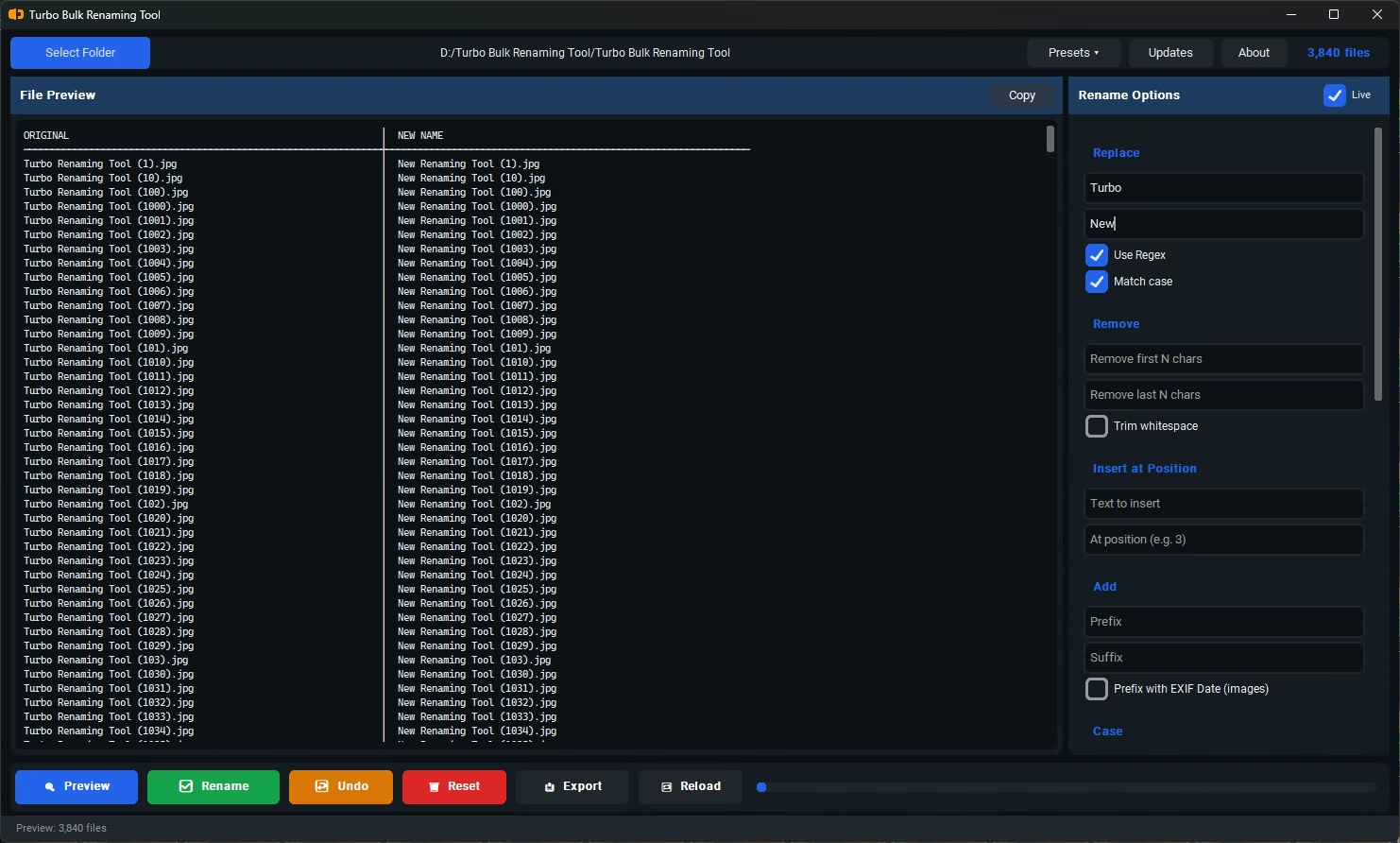
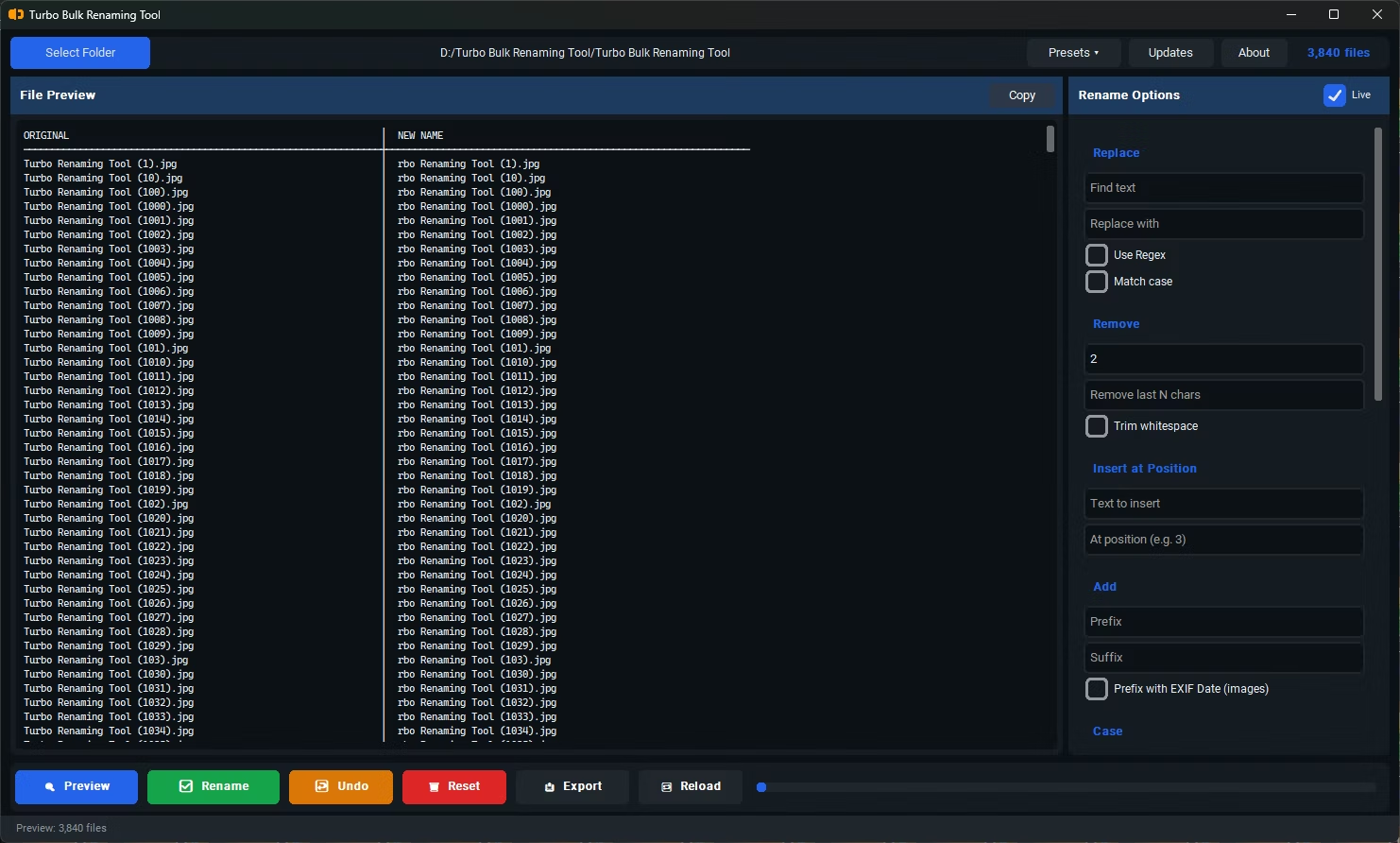
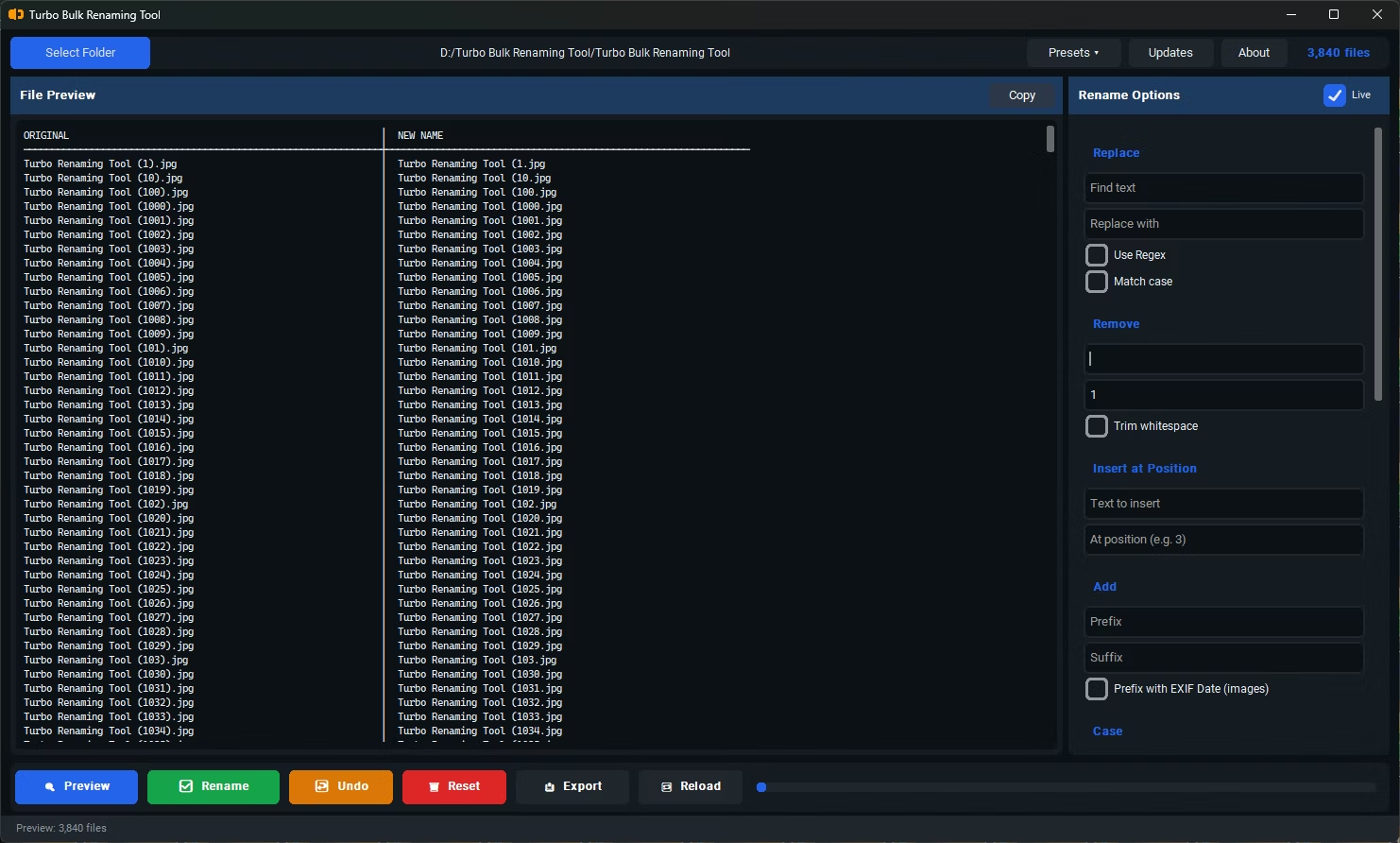
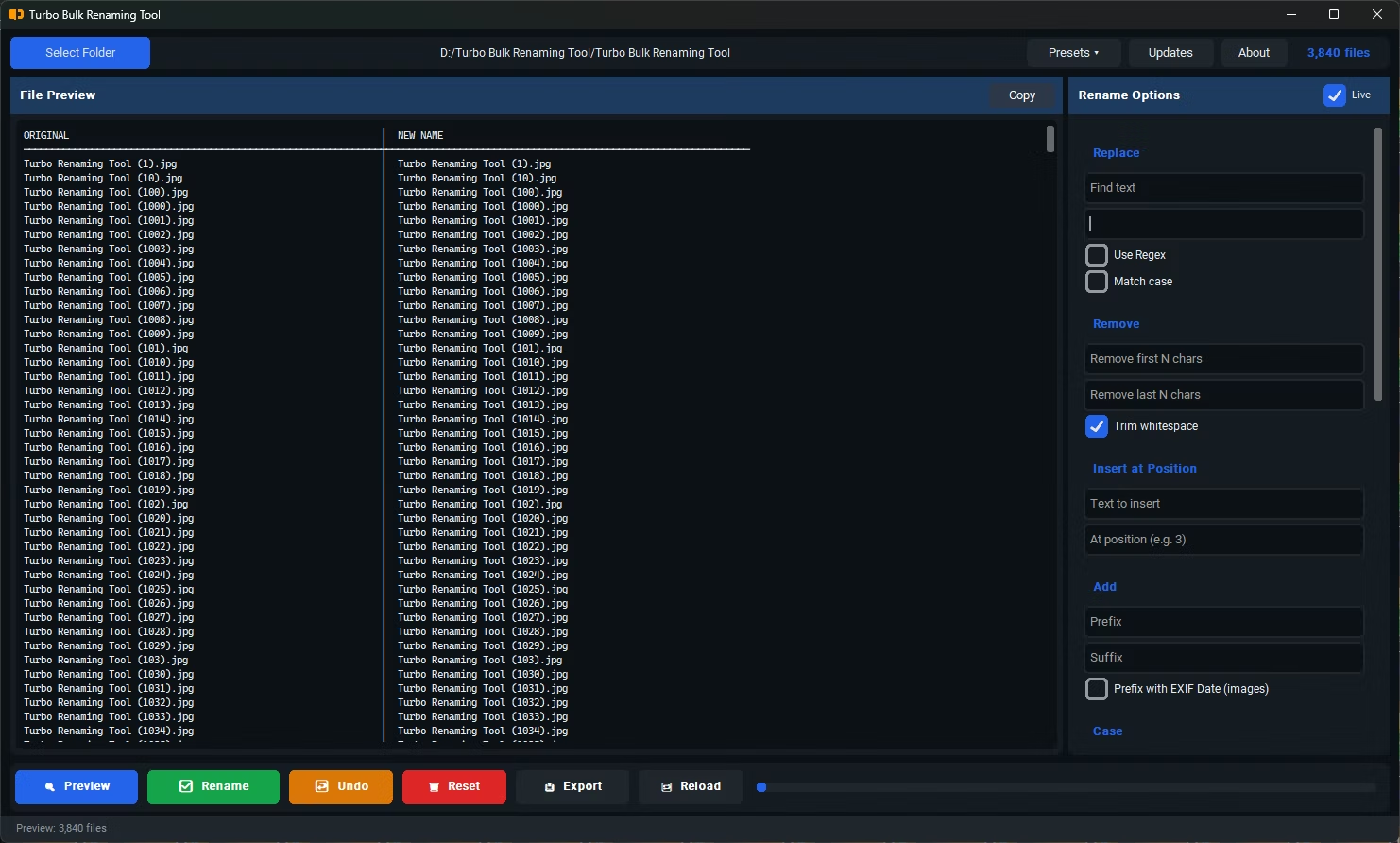
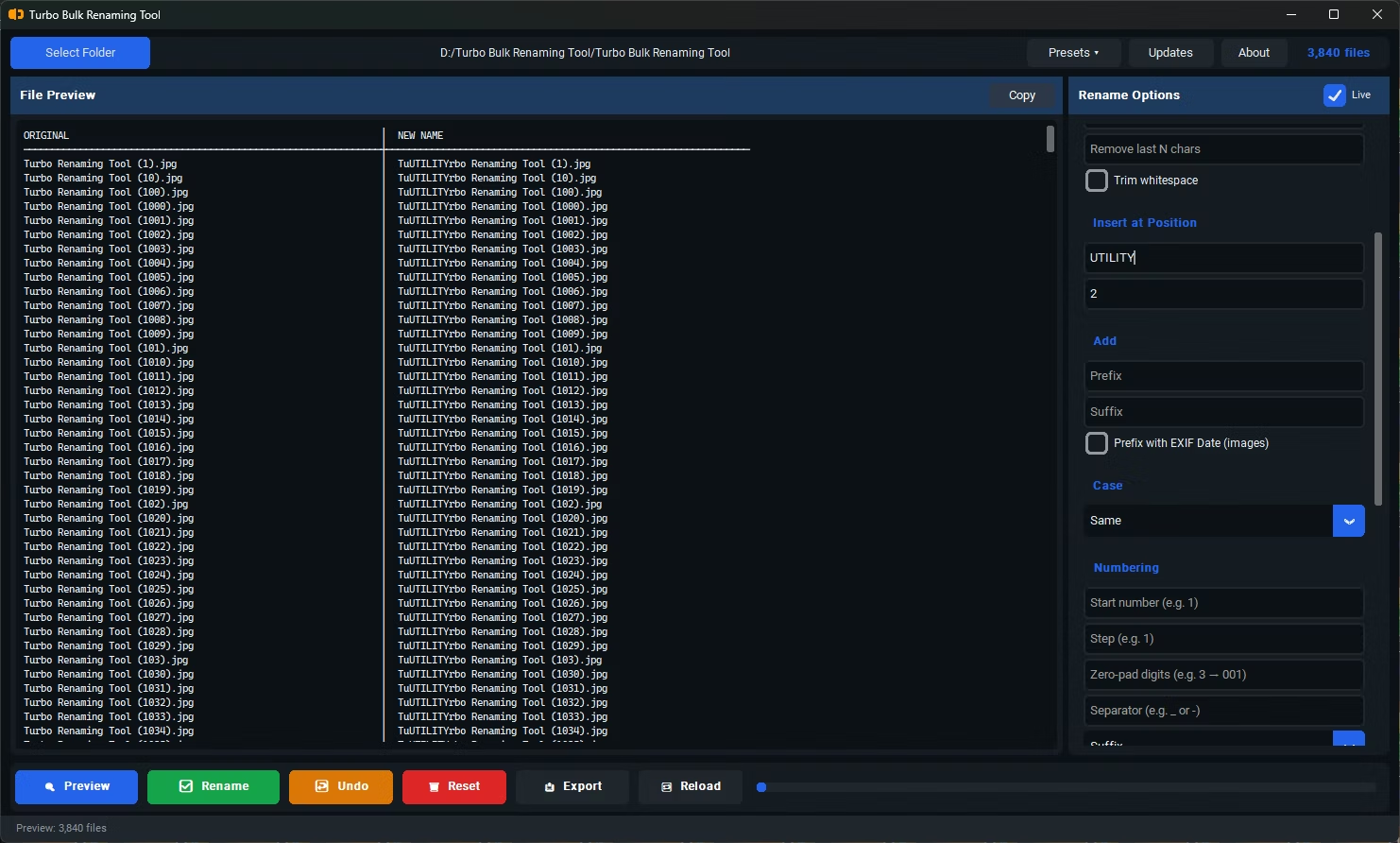
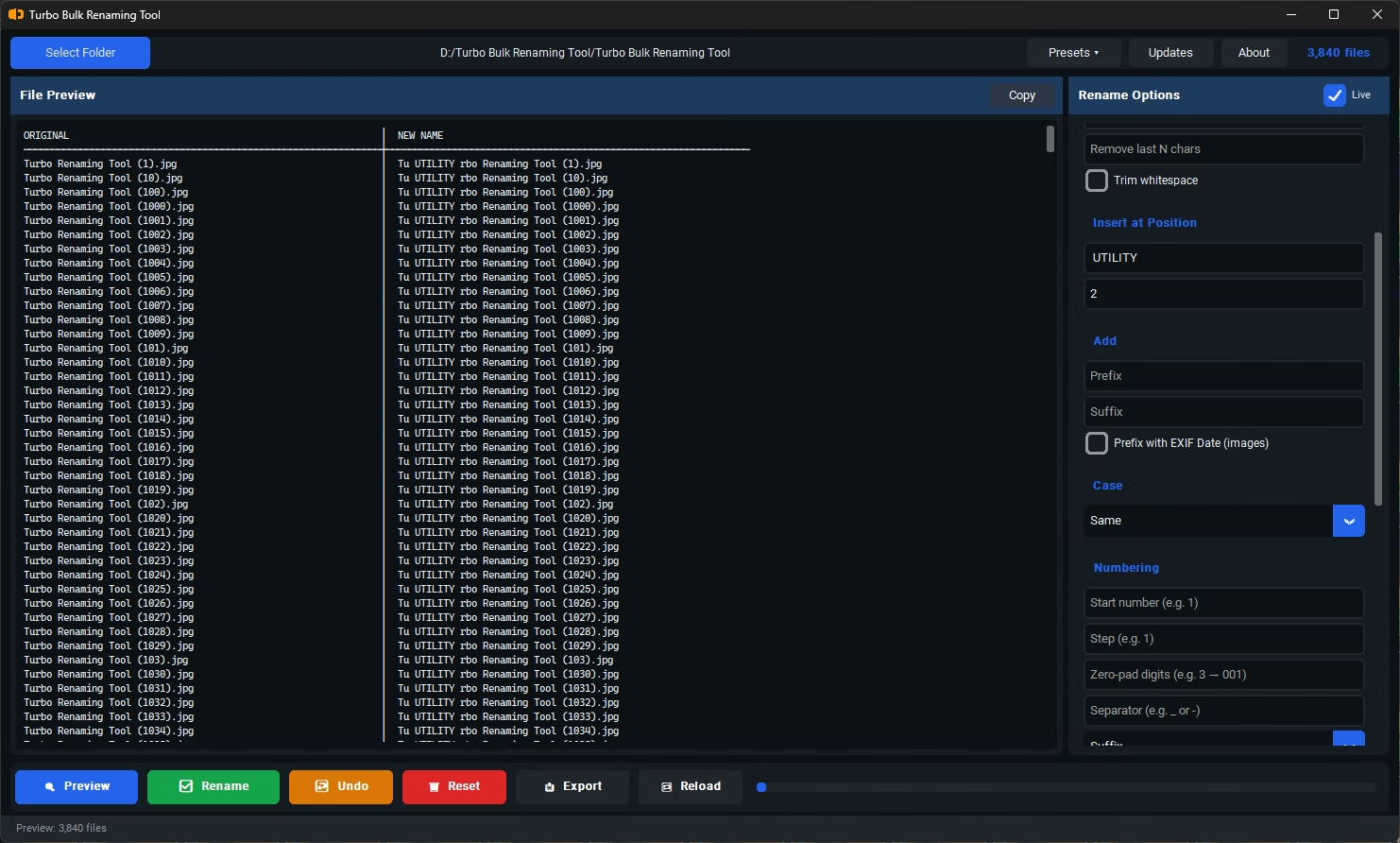
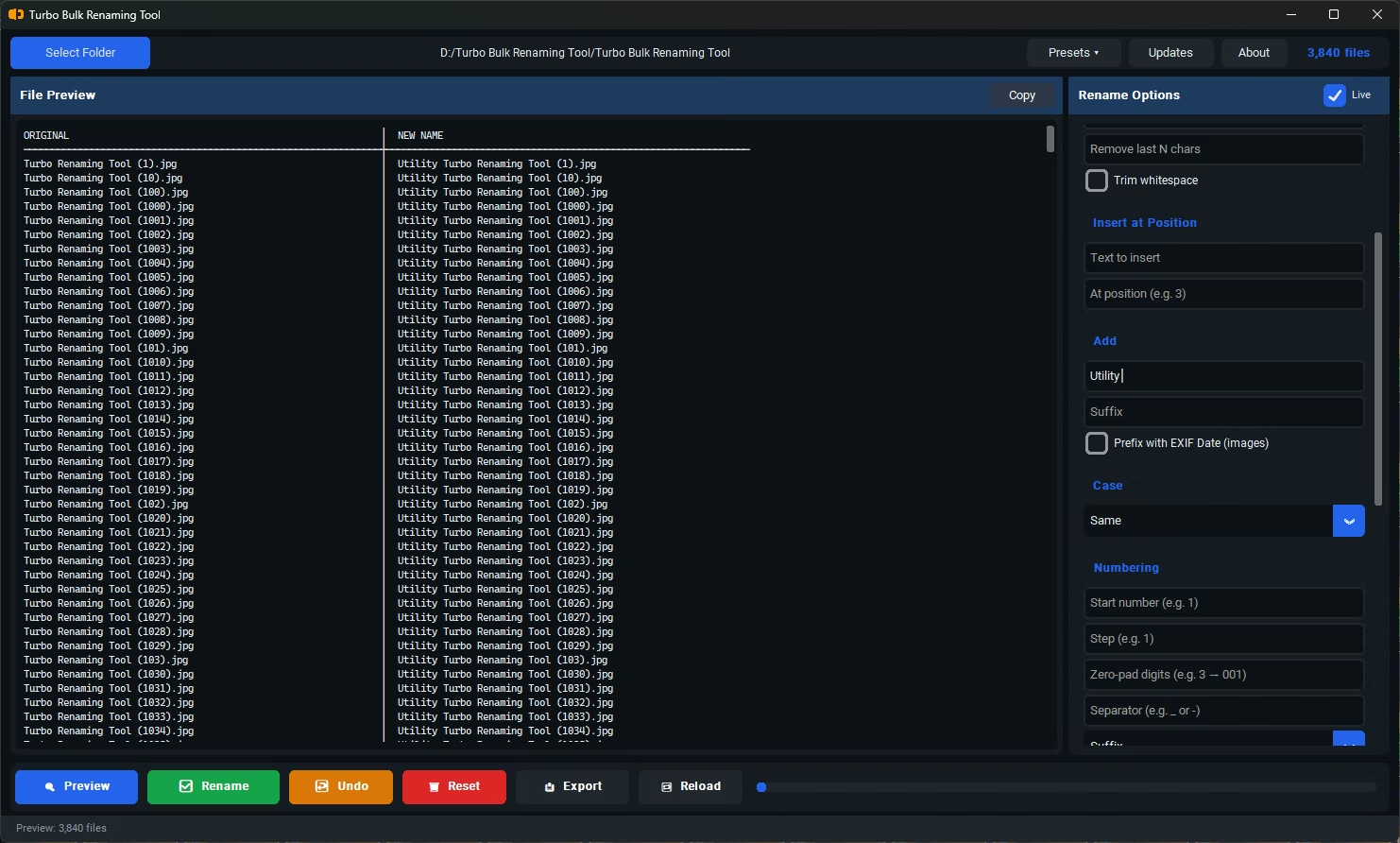
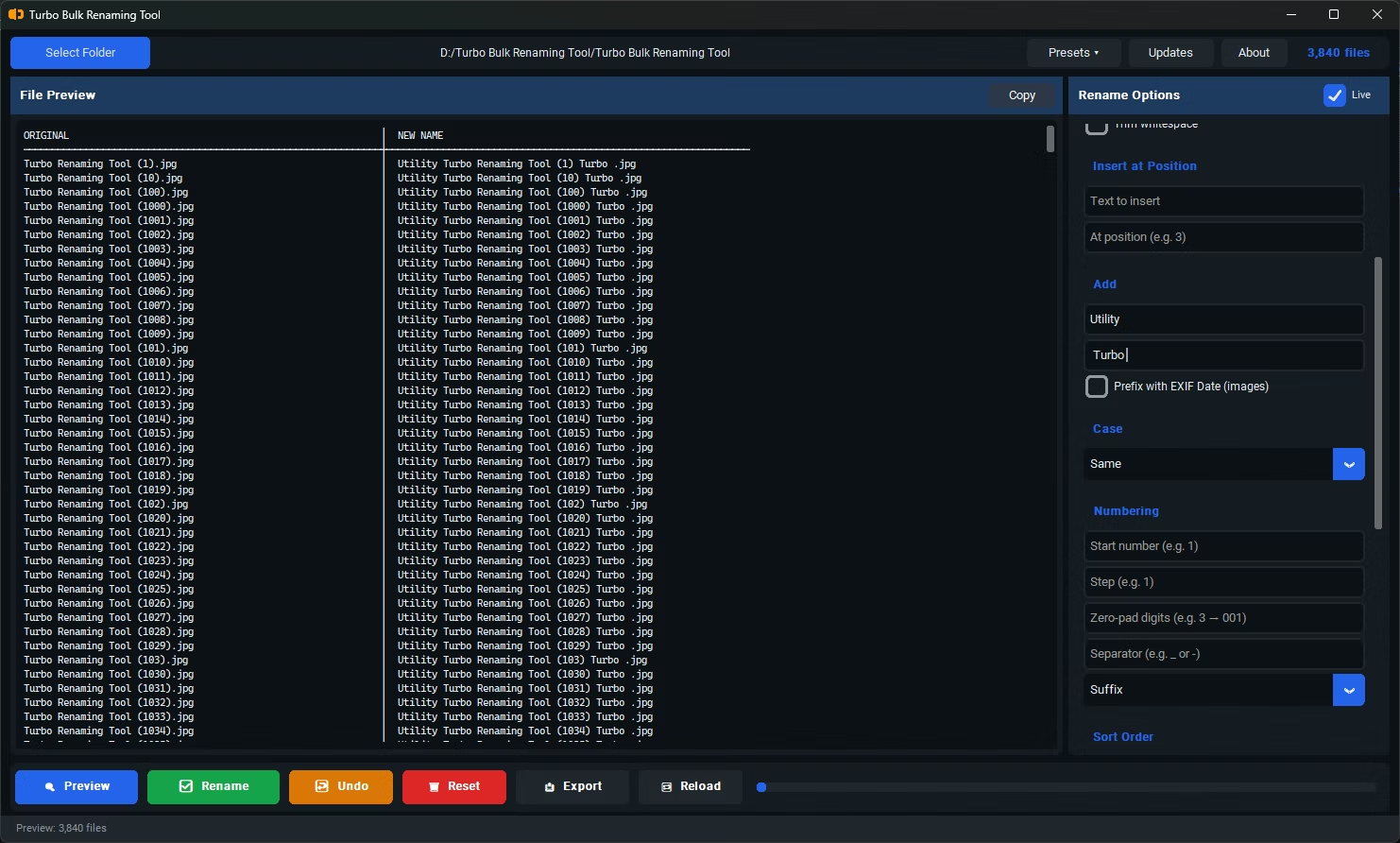
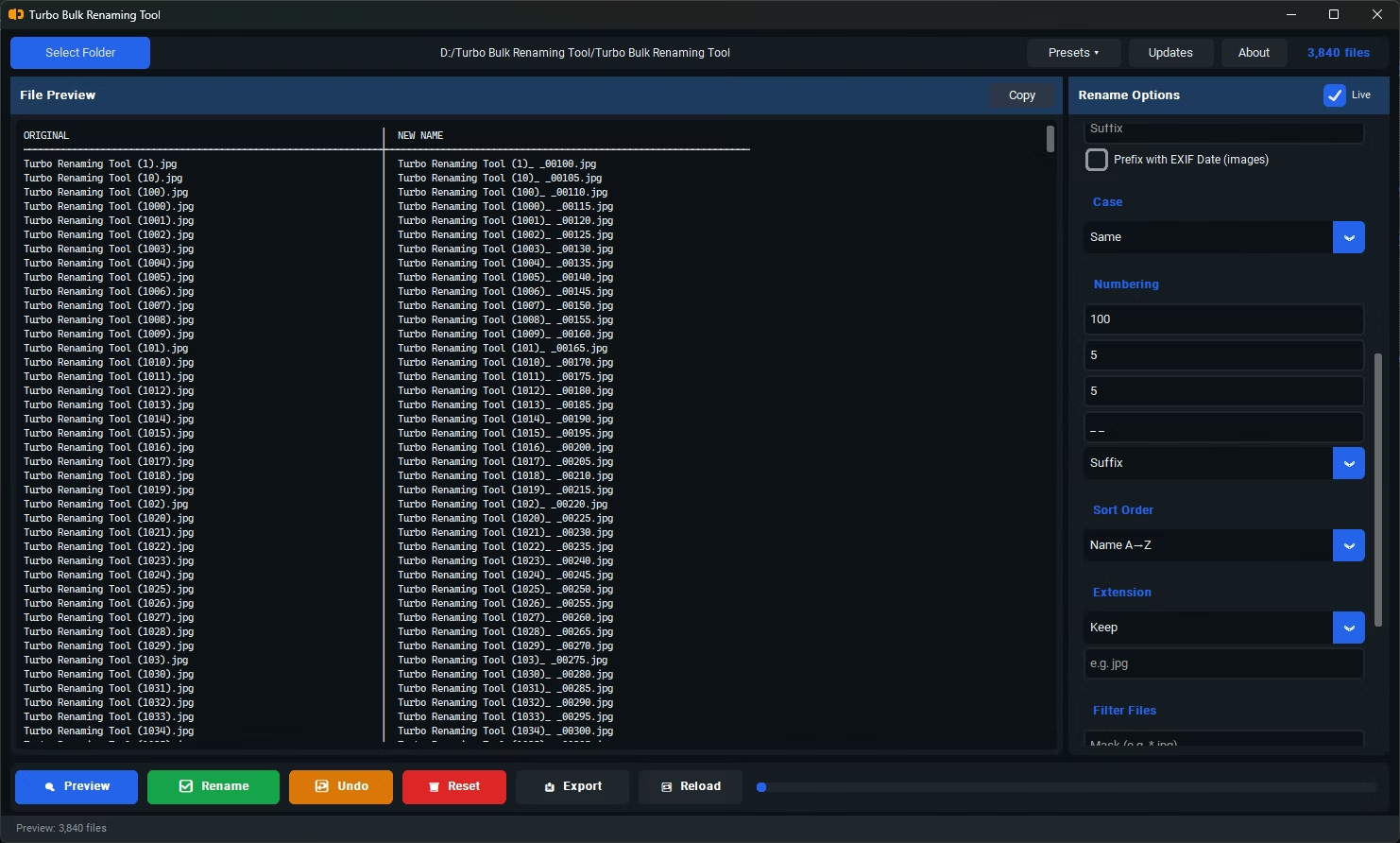
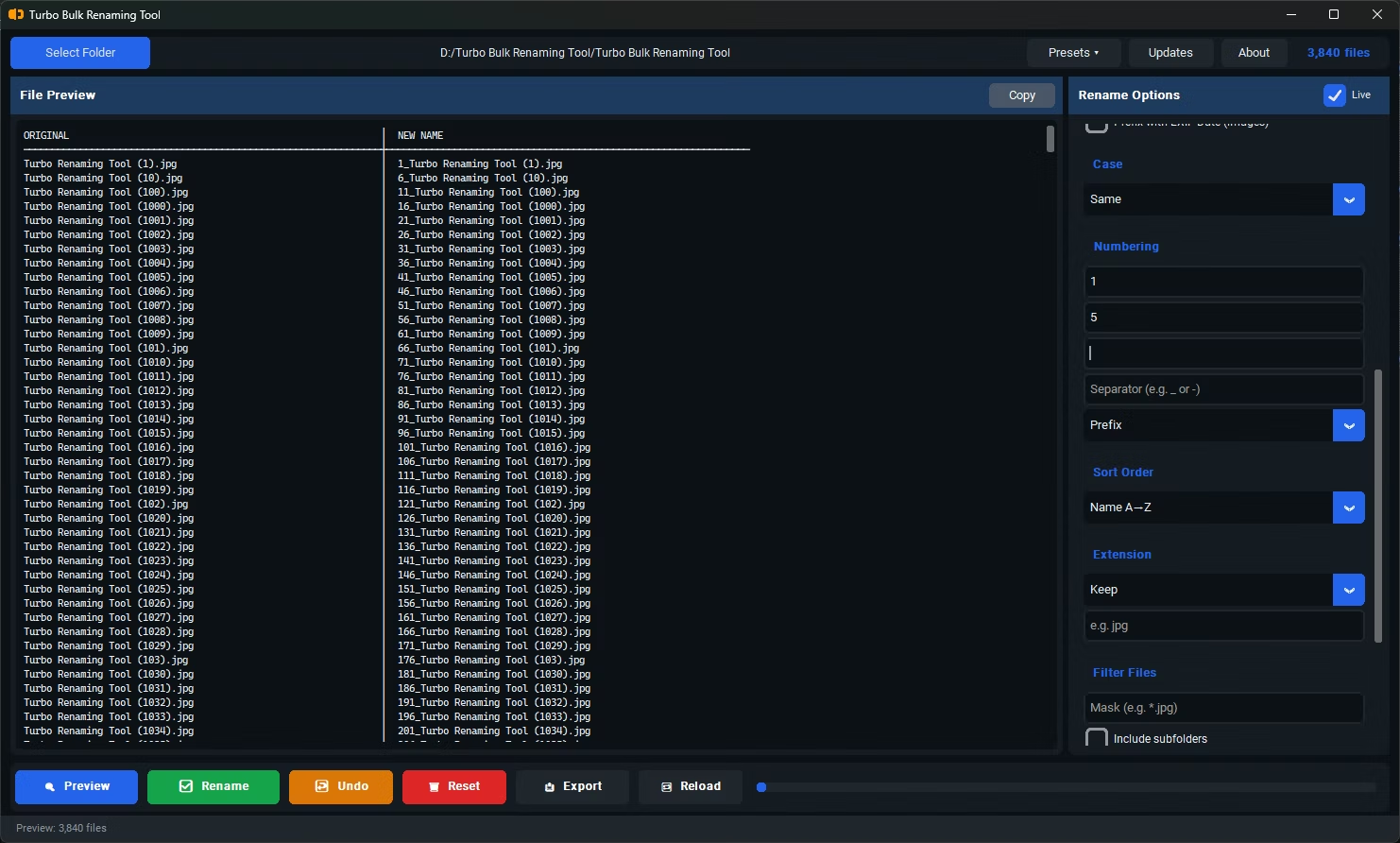
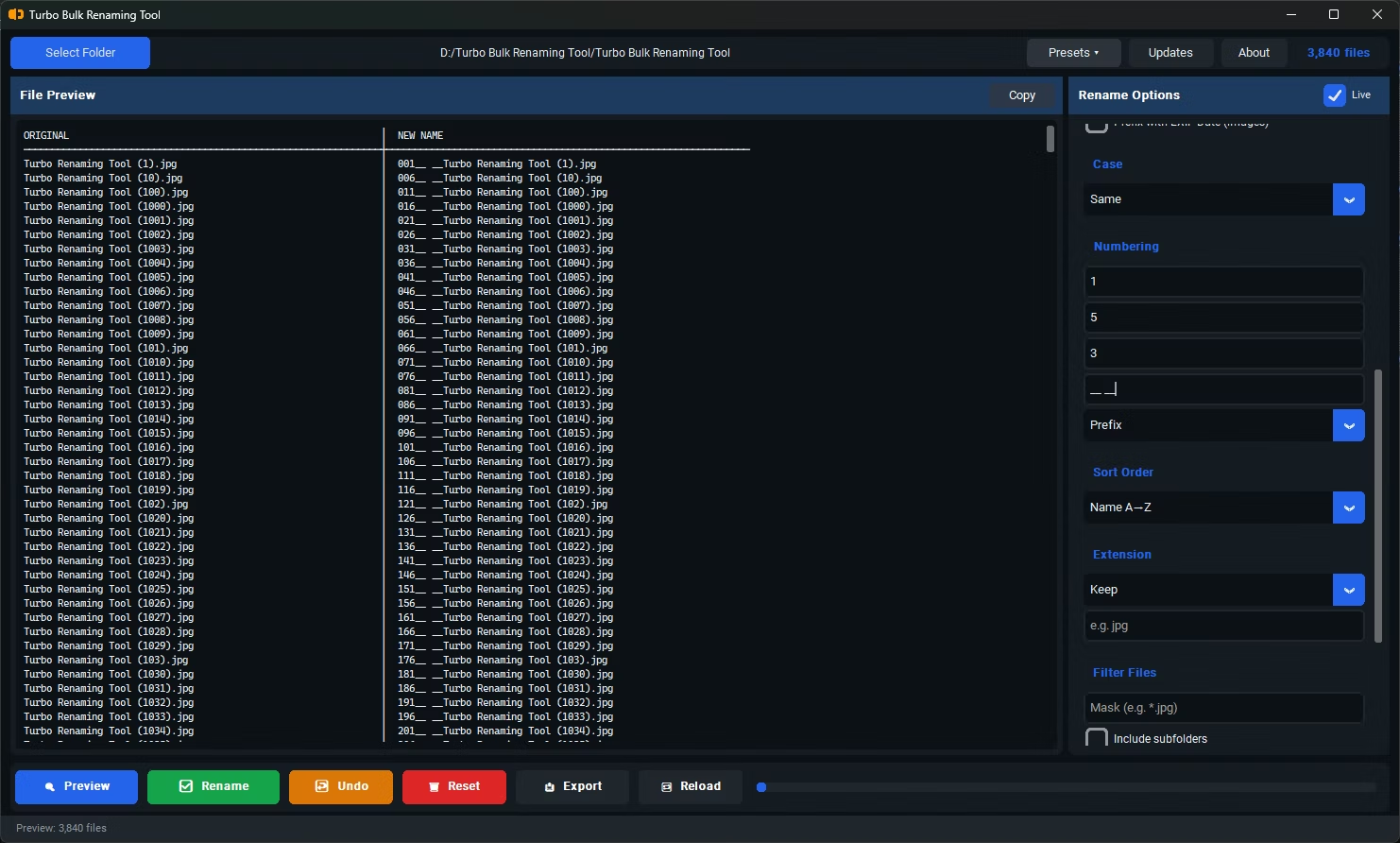
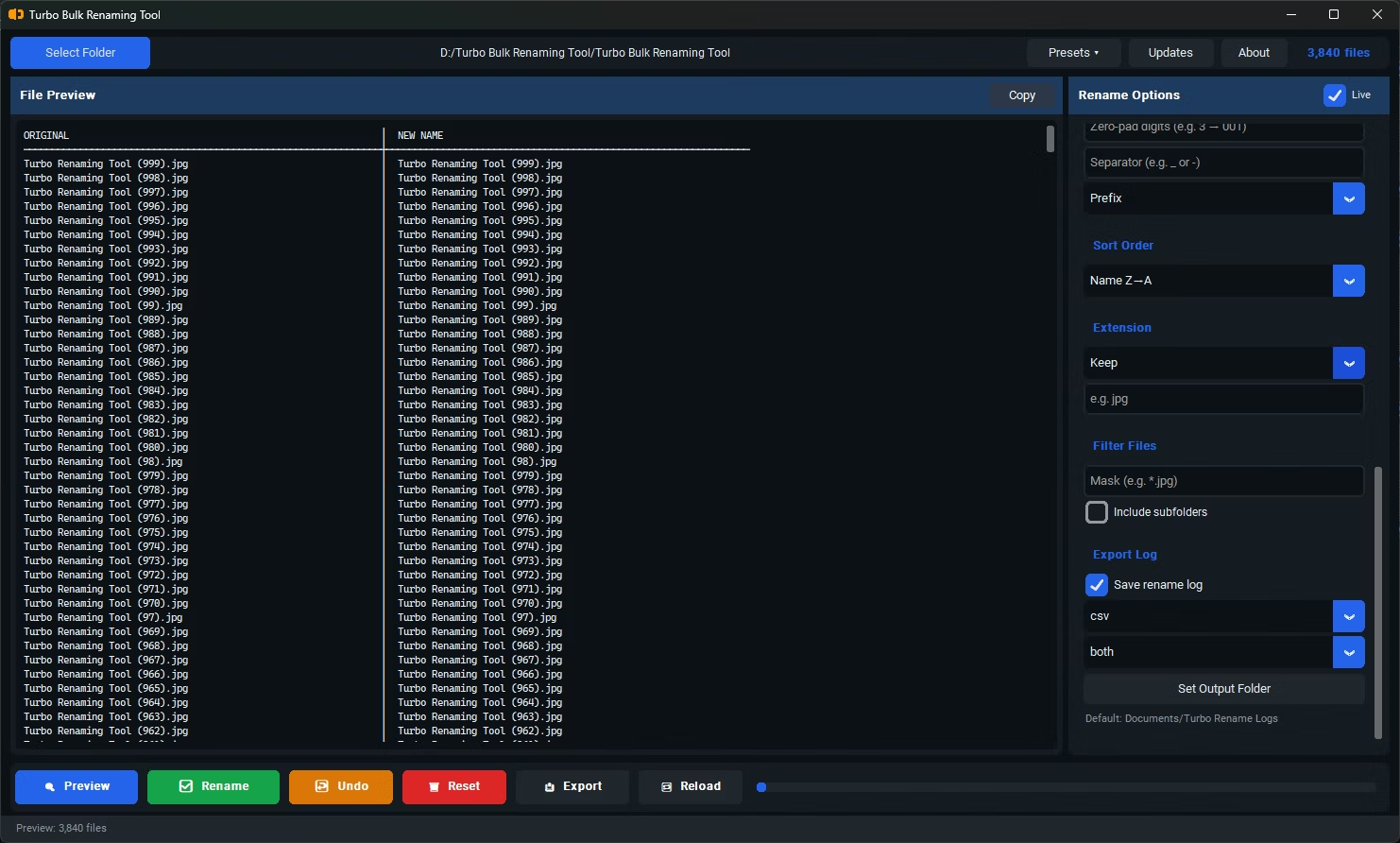
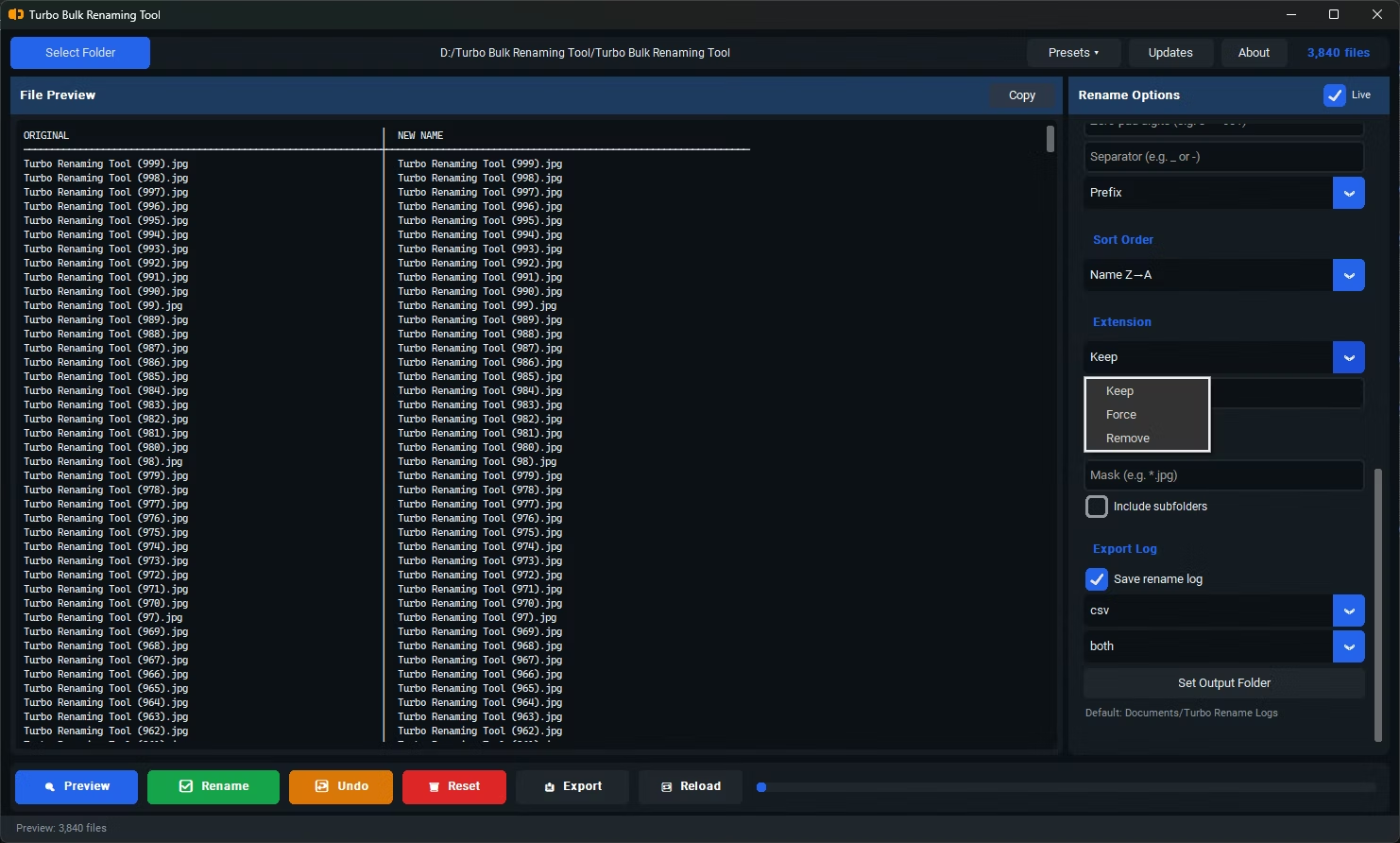
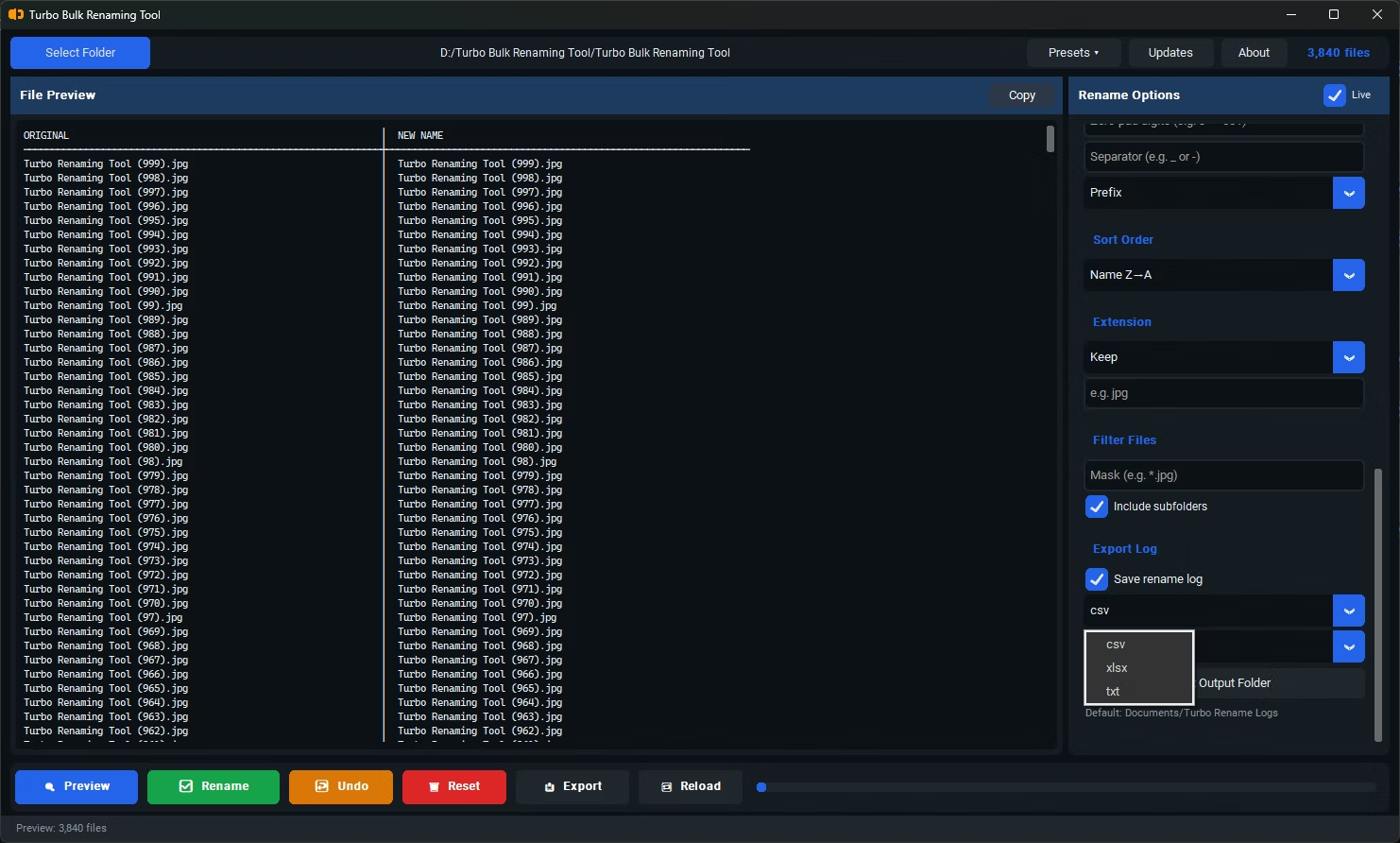
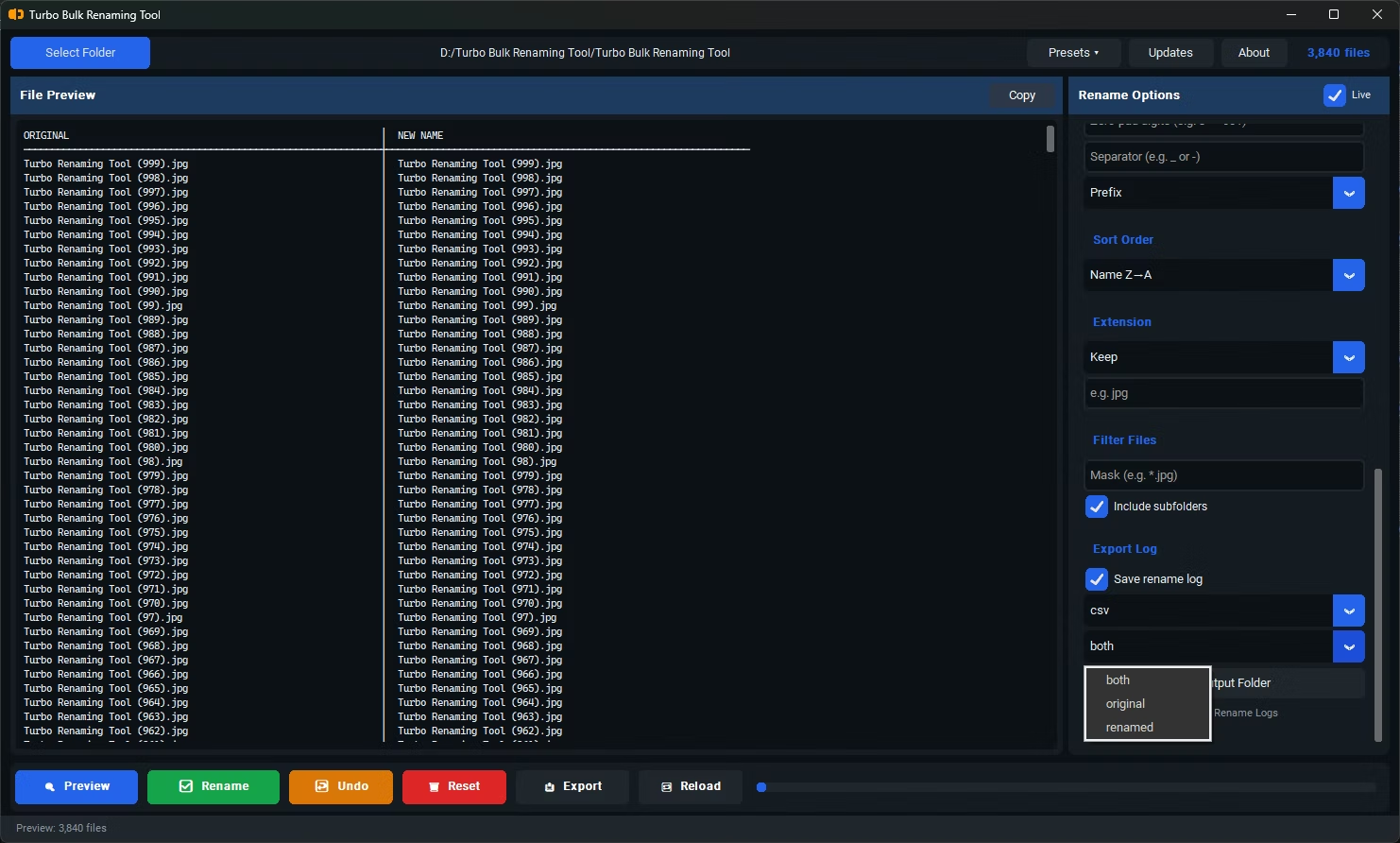
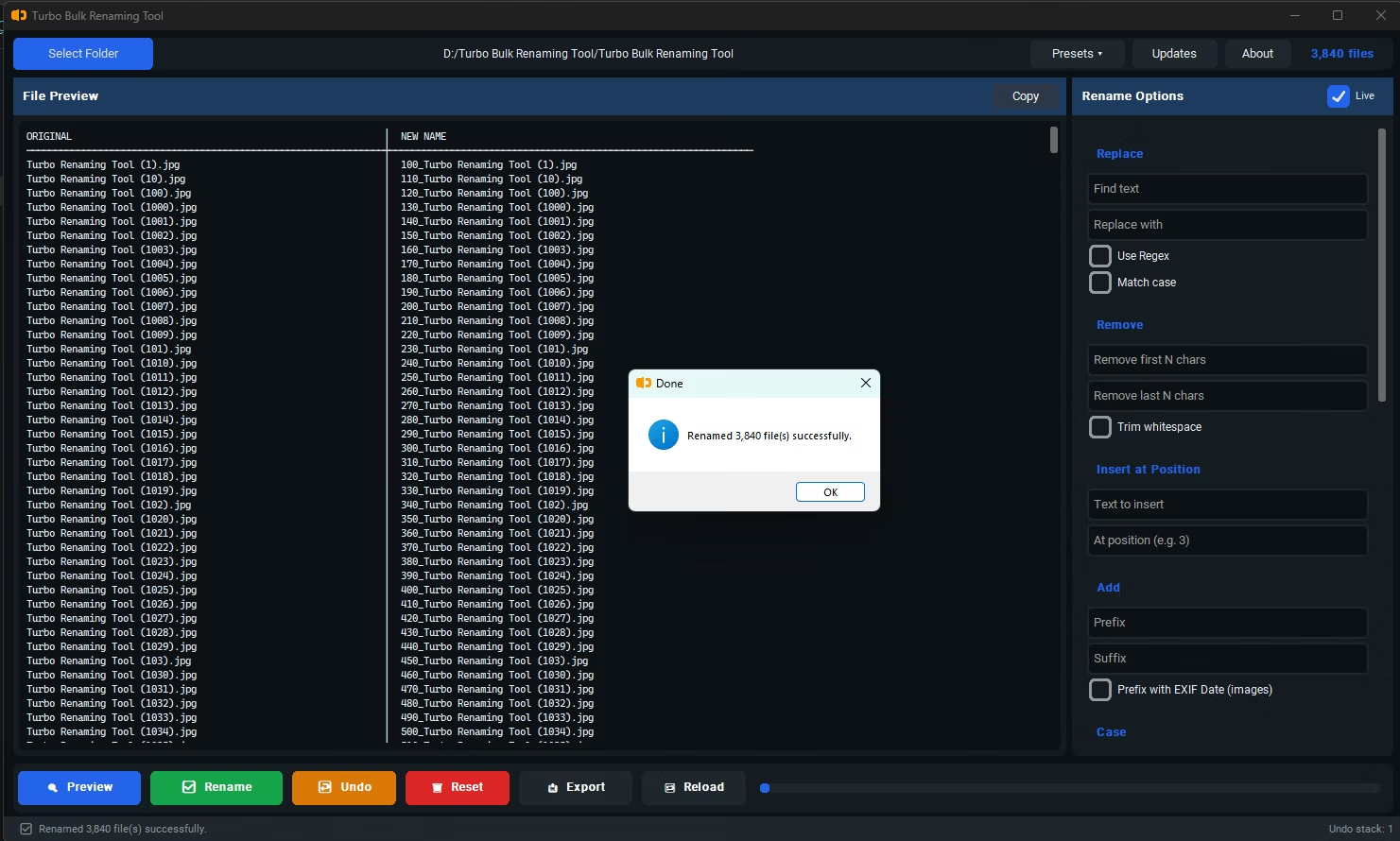
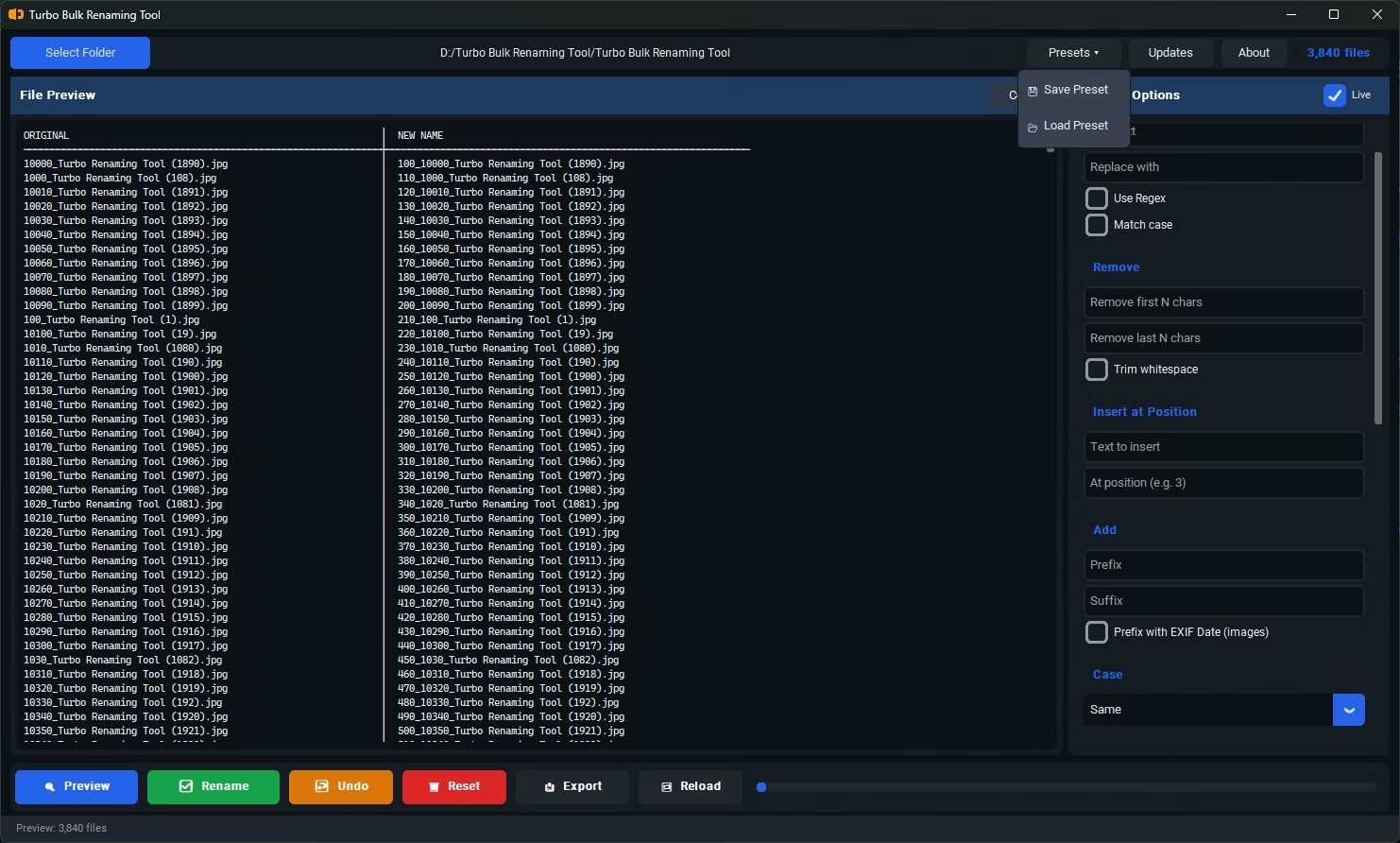
- Install Batchify Renaming Tool on your Windows PC.
- Gather your photos into one folder, even if they originally came from different devices.
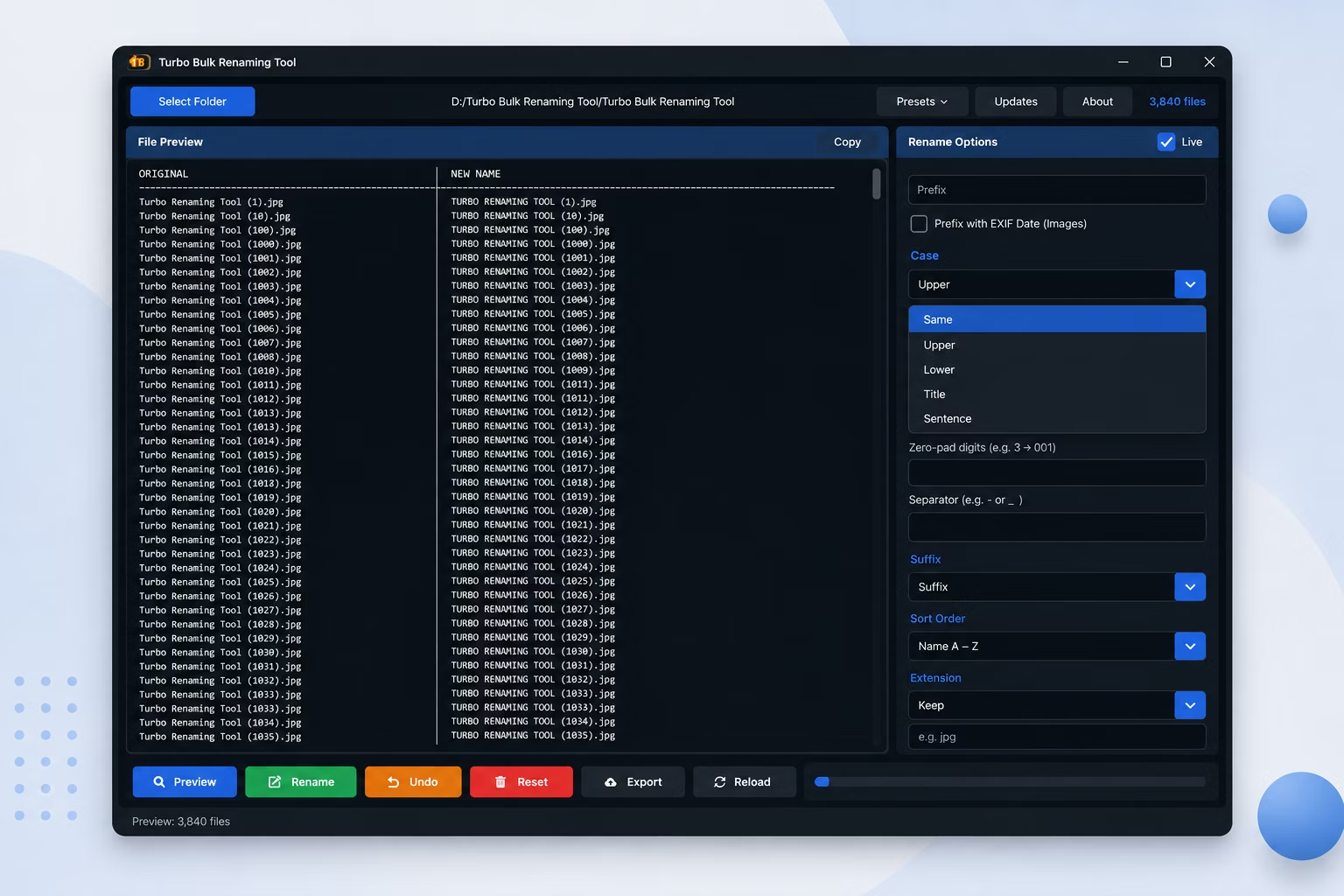
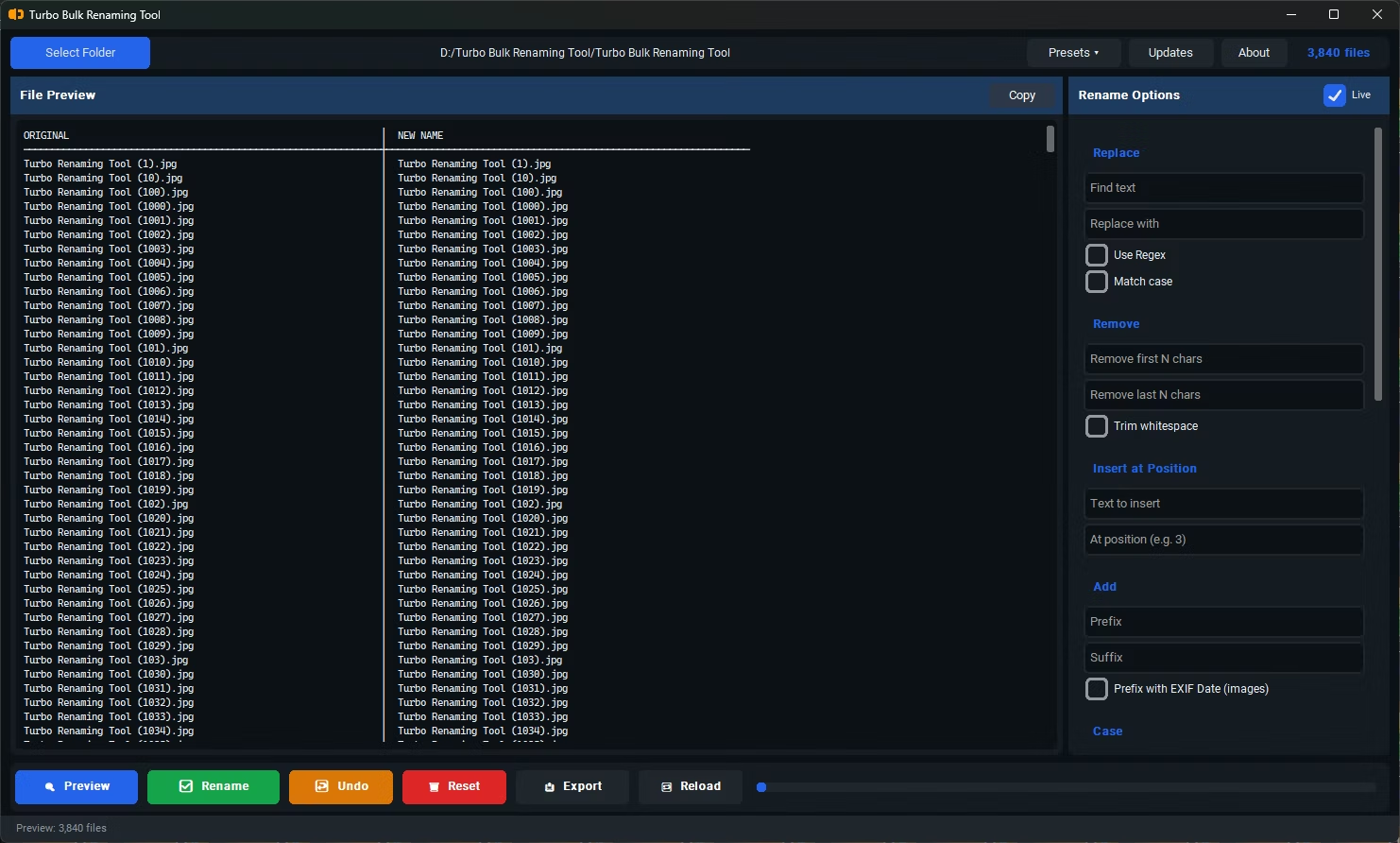
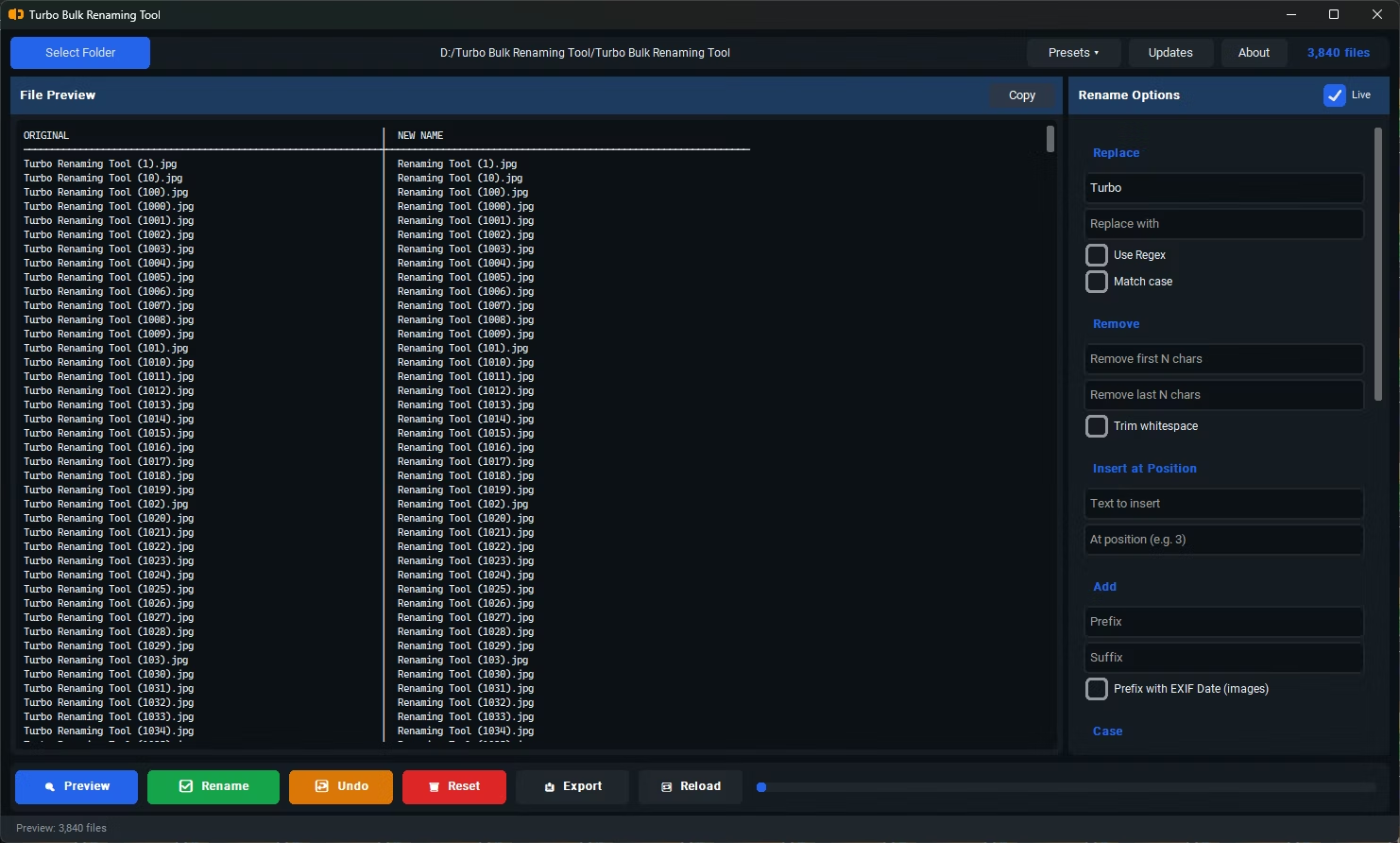
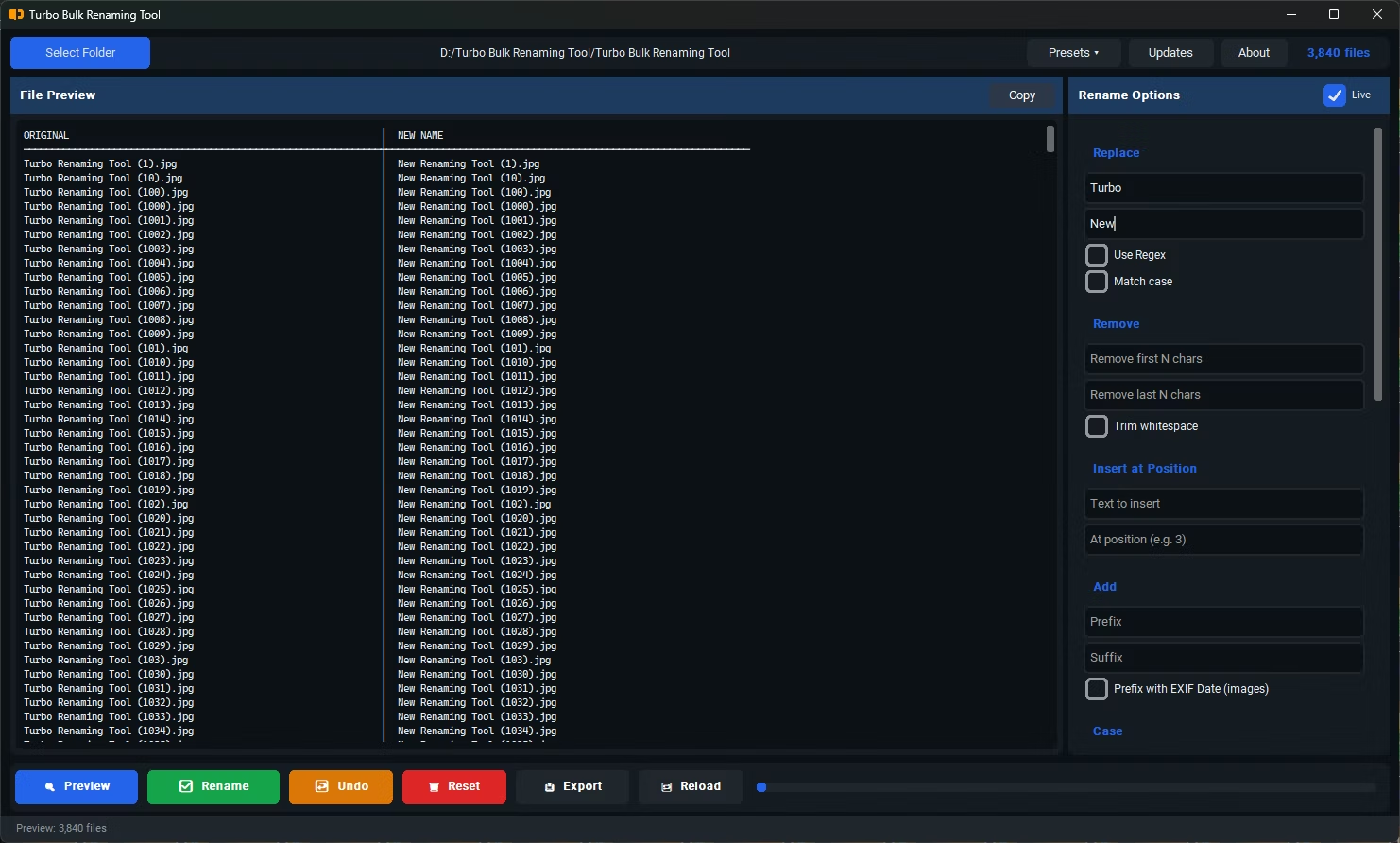
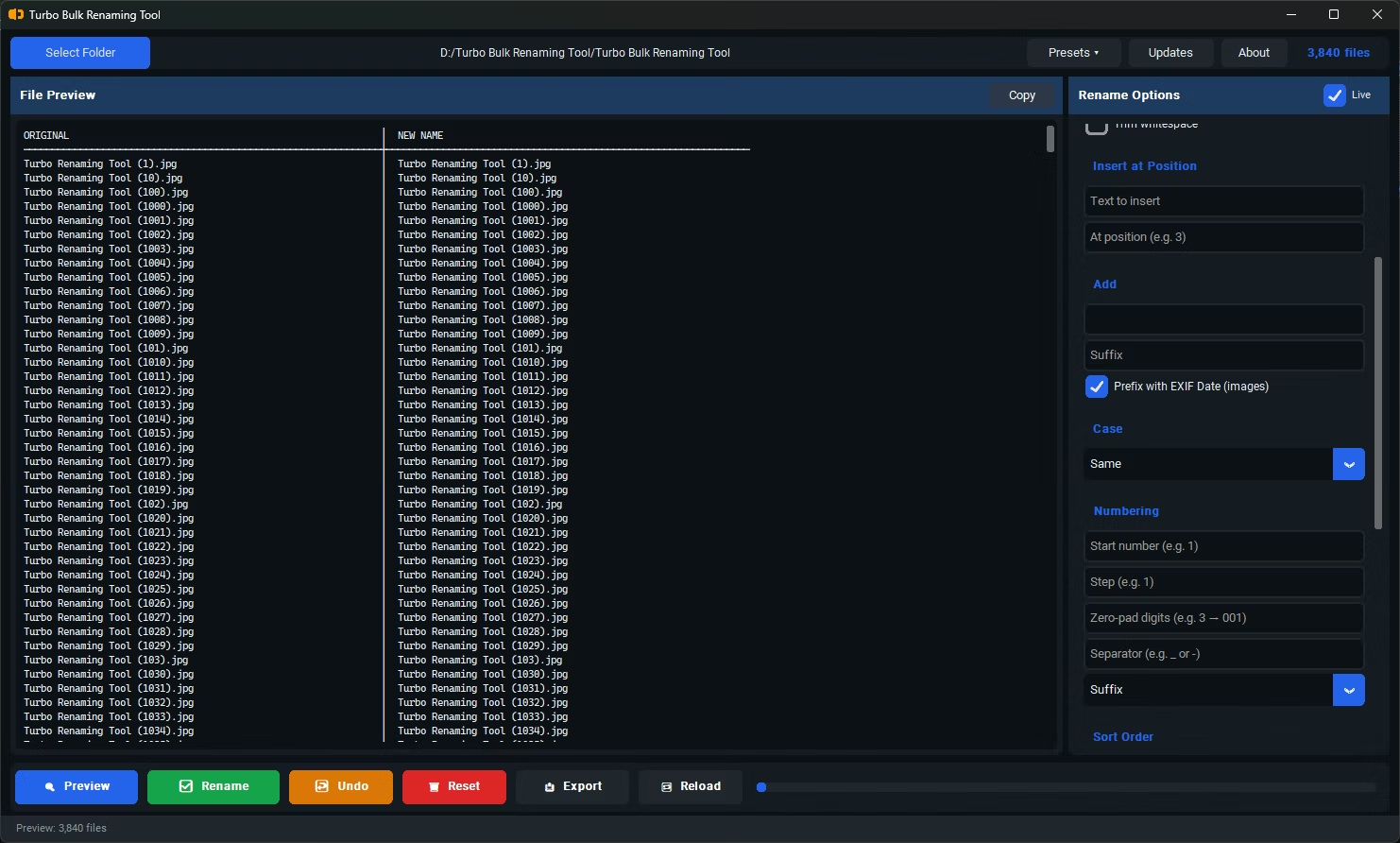
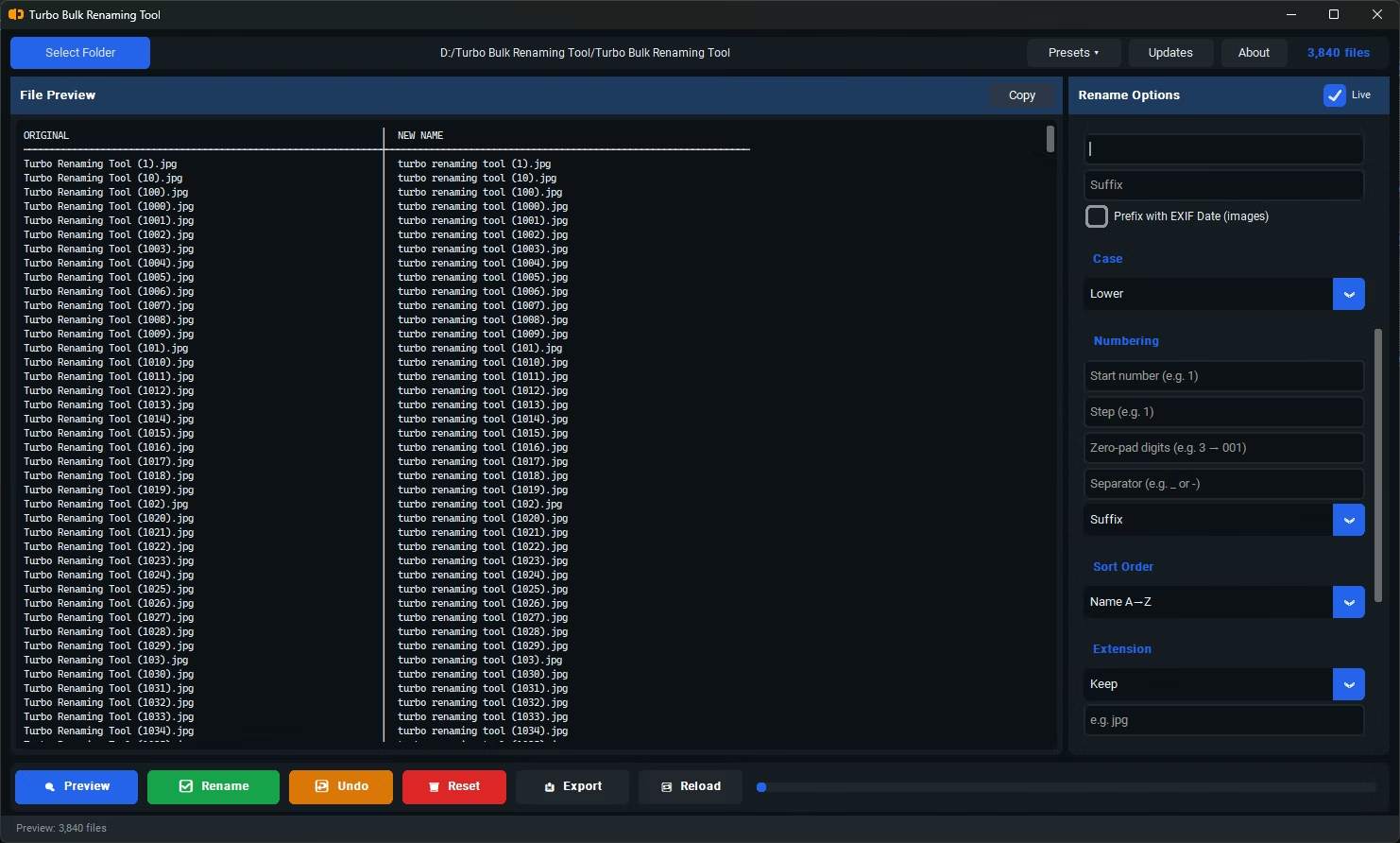
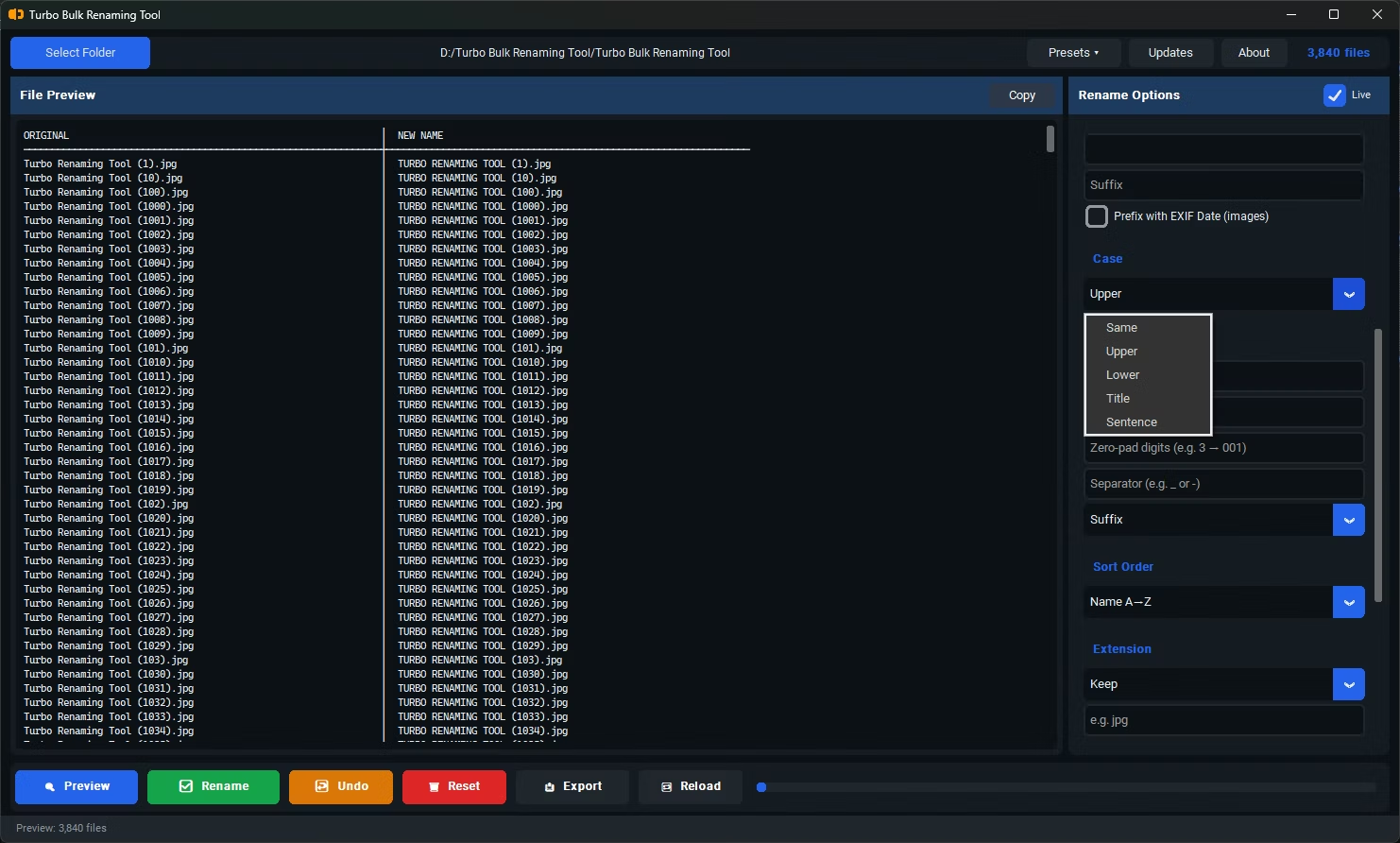
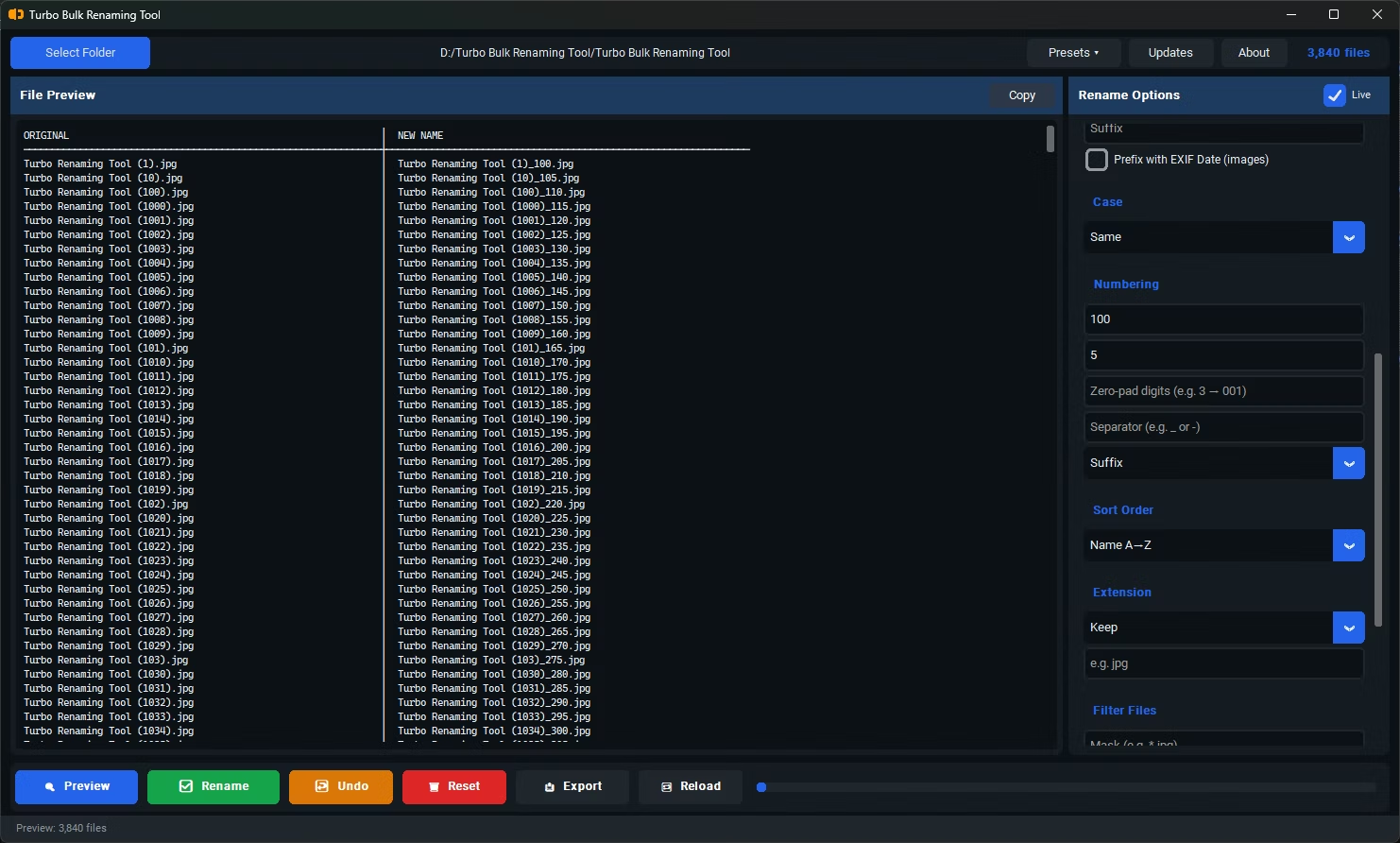
- Open the app, load the folder, and select the EXIF Date Prefix renaming rule.
- The app reads each photo's DateTimeOriginal EXIF tag and prepares a YYYYMMDD_HHMMSS_ prefix accordingly.
- Click Rename. Your combined photo folder now sorts chronologically by filename, regardless of which device originally took each photo.
- Reflects when the photo was actually taken, not when the file was copied or modified
- Stays accurate even after photos are backed up, transferred, or moved between drives
- Works across photos combined from multiple cameras or phones into one folder
- Supported on JPG, JPEG, PNG, TIFF, and BMP files containing EXIF date metadata
- Recursive sub-folder support for organizing a large, multi-year photo archive
- Runs fully offline, keeping personal photo metadata private during processing
Why not just sort by "Date Modified" in File Explorer instead?
"Date Modified" reflects when the file was last touched, which often changes when photos are copied, backed up, or transferred, while the EXIF capture date stays fixed to when the photo was actually taken.
Can I combine photos from my phone and a separate camera into one sorted timeline?
Yes, since the EXIF date prefix is based on each photo's own metadata, combining files from different devices into one folder still results in correct chronological sorting once renamed.
What happens to screenshots or images without EXIF data?
Files without a DateTimeOriginal EXIF tag won't receive a date prefix, since there's no capture date metadata to read from them.
Ready to rename your files in bulk, offline, with full privacy?