Building an effective renaming rule — especially one that combines several individual rules like Find & Replace, sequential numbering, and a custom prefix — takes some setup the first time you create it. If you regularly process the same kind of files using the same naming convention, rebuilding that exact combination of rules from scratch every single time wastes time and introduces room for small inconsistencies between sessions.
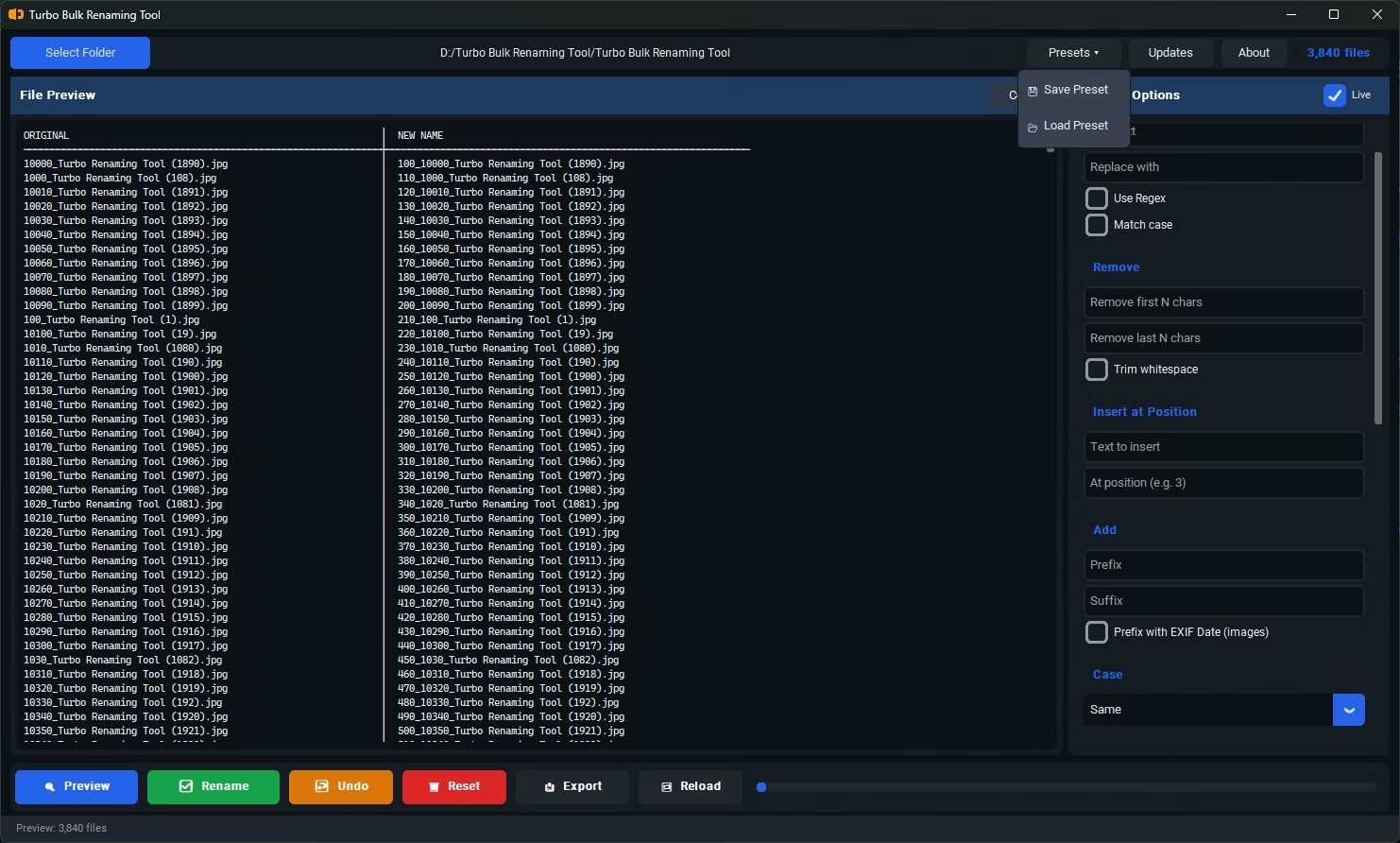
Save and Load Rename Presets lets you store a complete renaming configuration — every rule, every setting, in the exact order you've arranged them — as a named preset you can recall instantly the next time you need it. A photographer who processes every client shoot with the same EXIF date prefix, sequential numbering scheme, and client-code suffix can save that entire combination once and apply it to every future shoot in seconds, rather than reconstructing it each time.
This is especially valuable for recurring workflows: a business renaming exported invoices the same way every month, a video editor applying the same naming convention to every project's exported files, or anyone who has settled on a naming standard they want to apply consistently without relying on memory or written instructions to recreate it correctly each time.
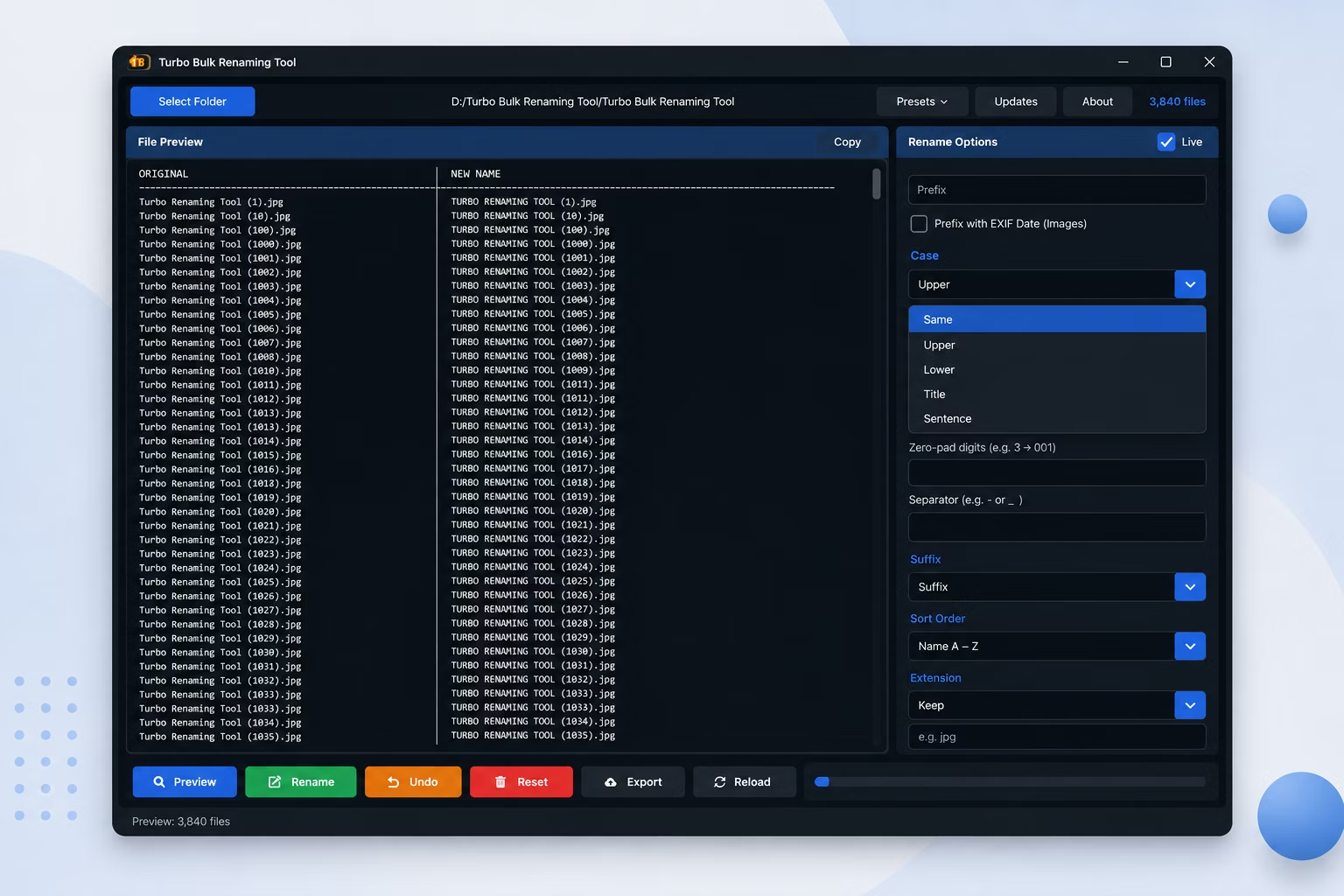
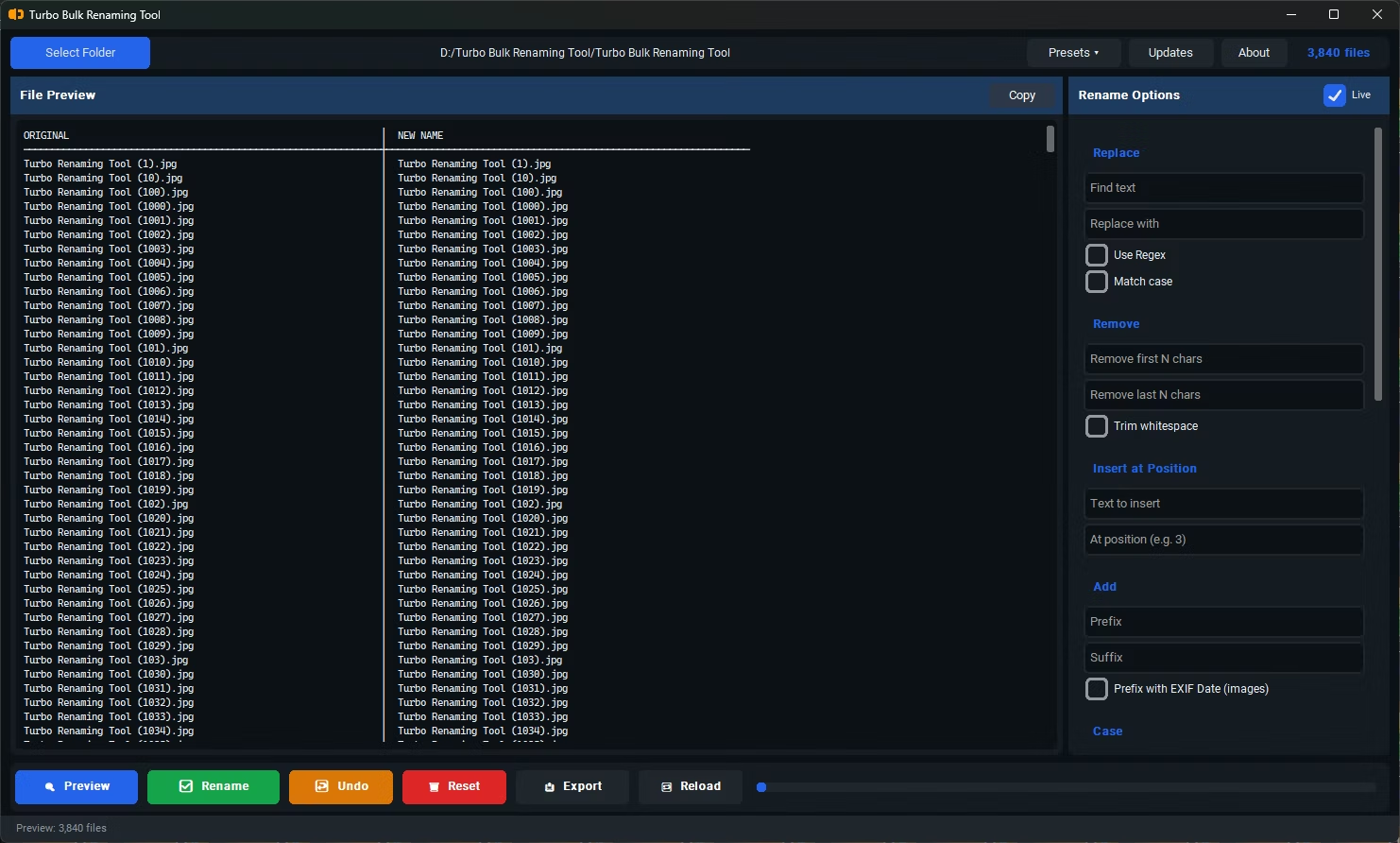
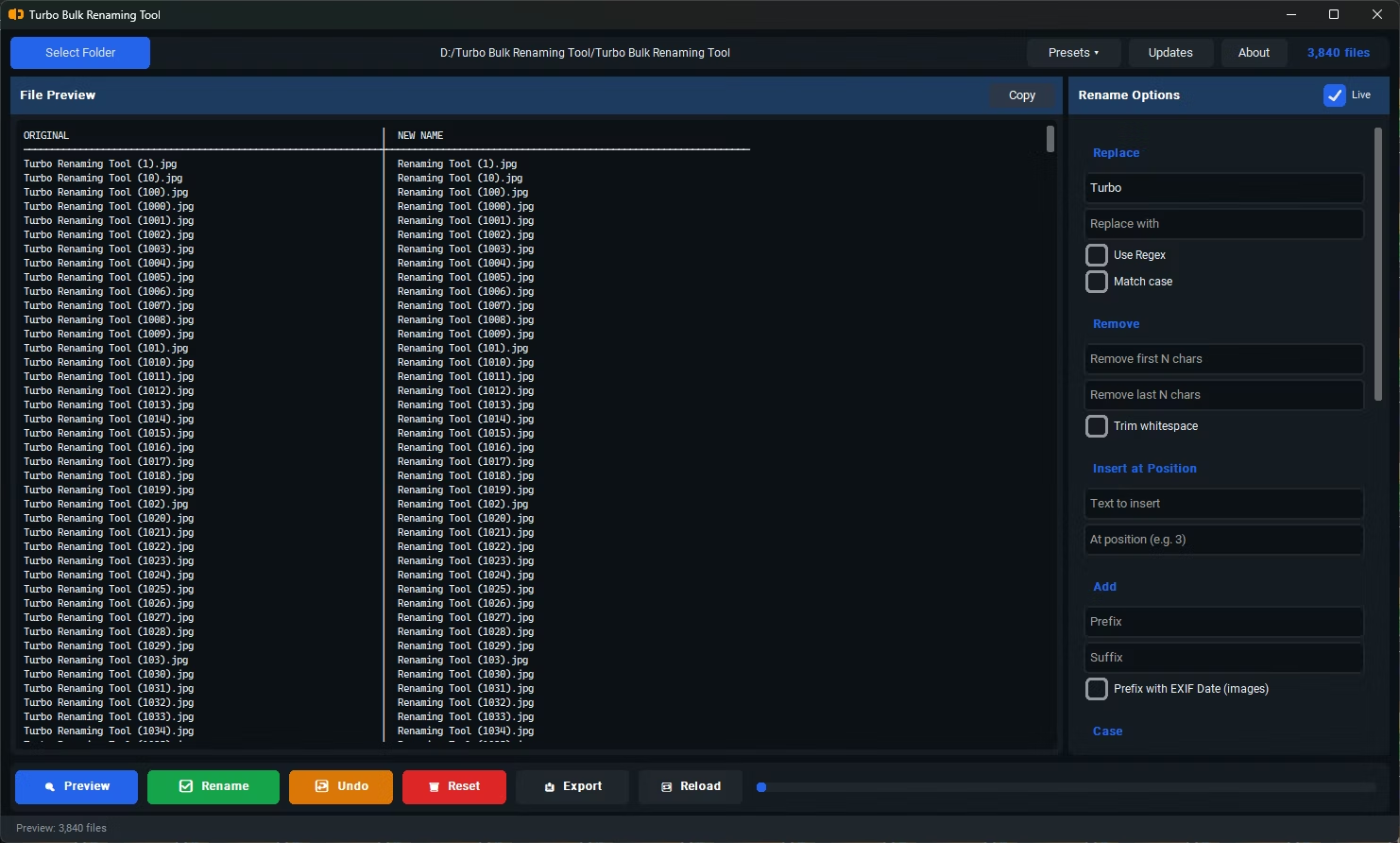
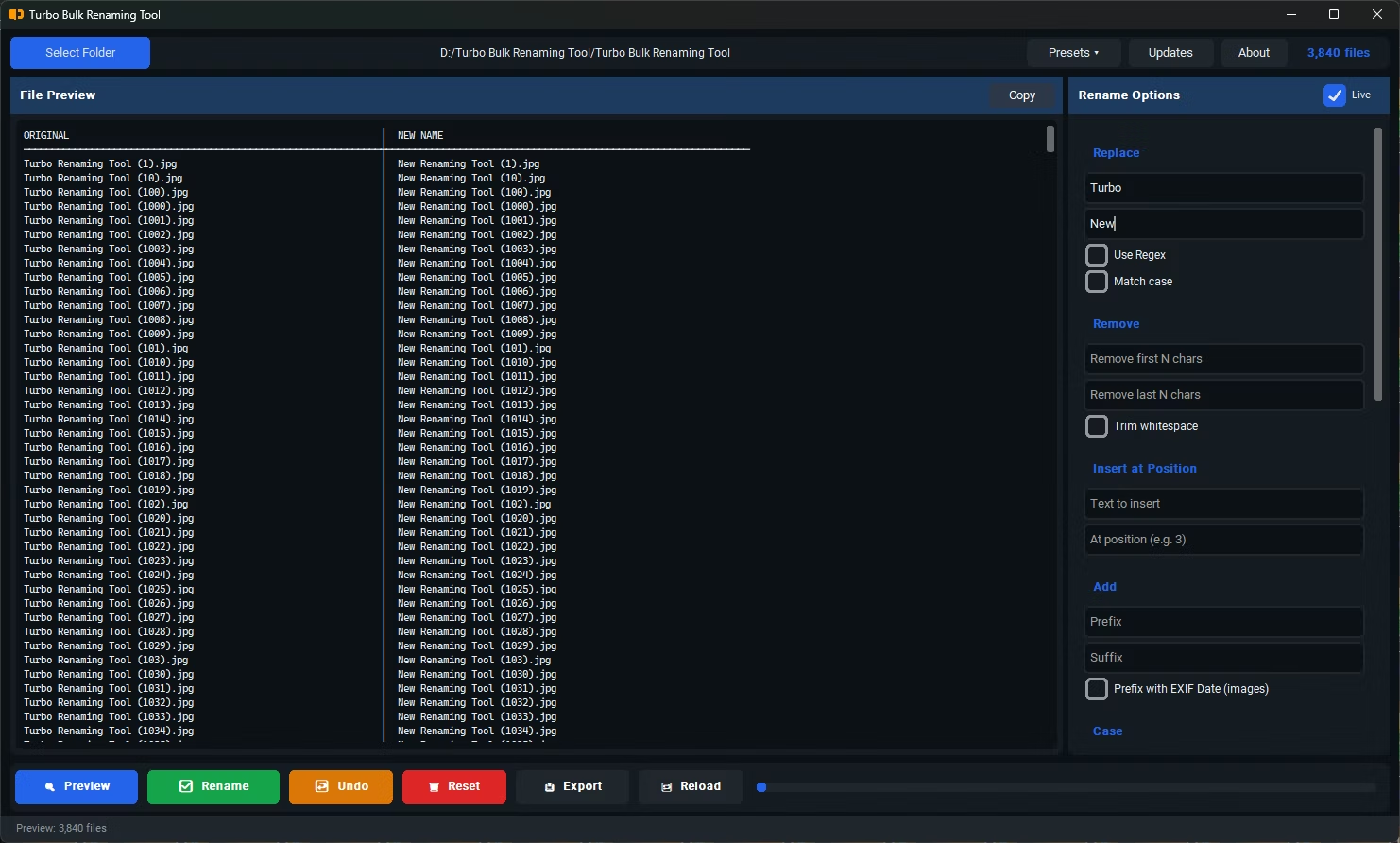
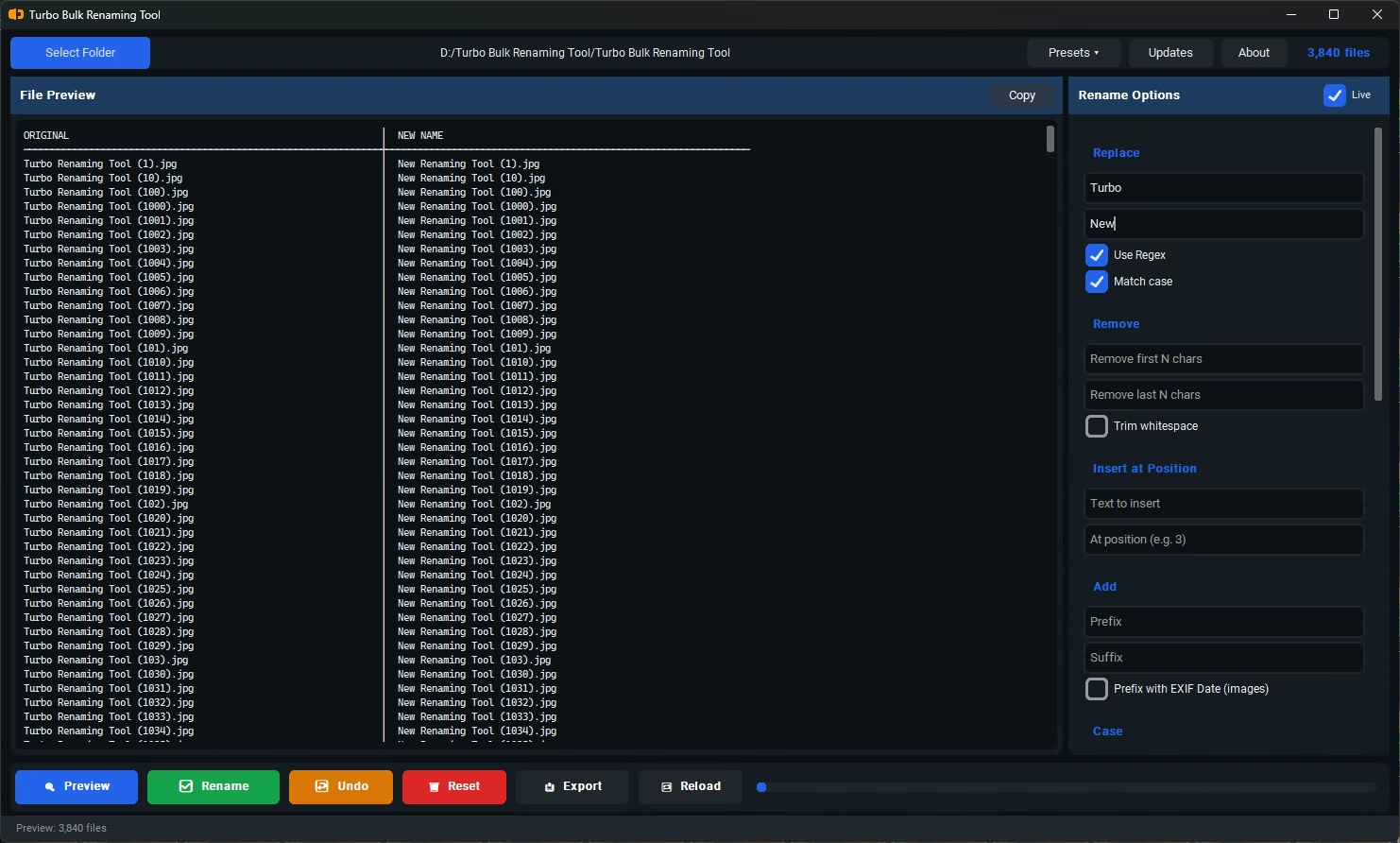
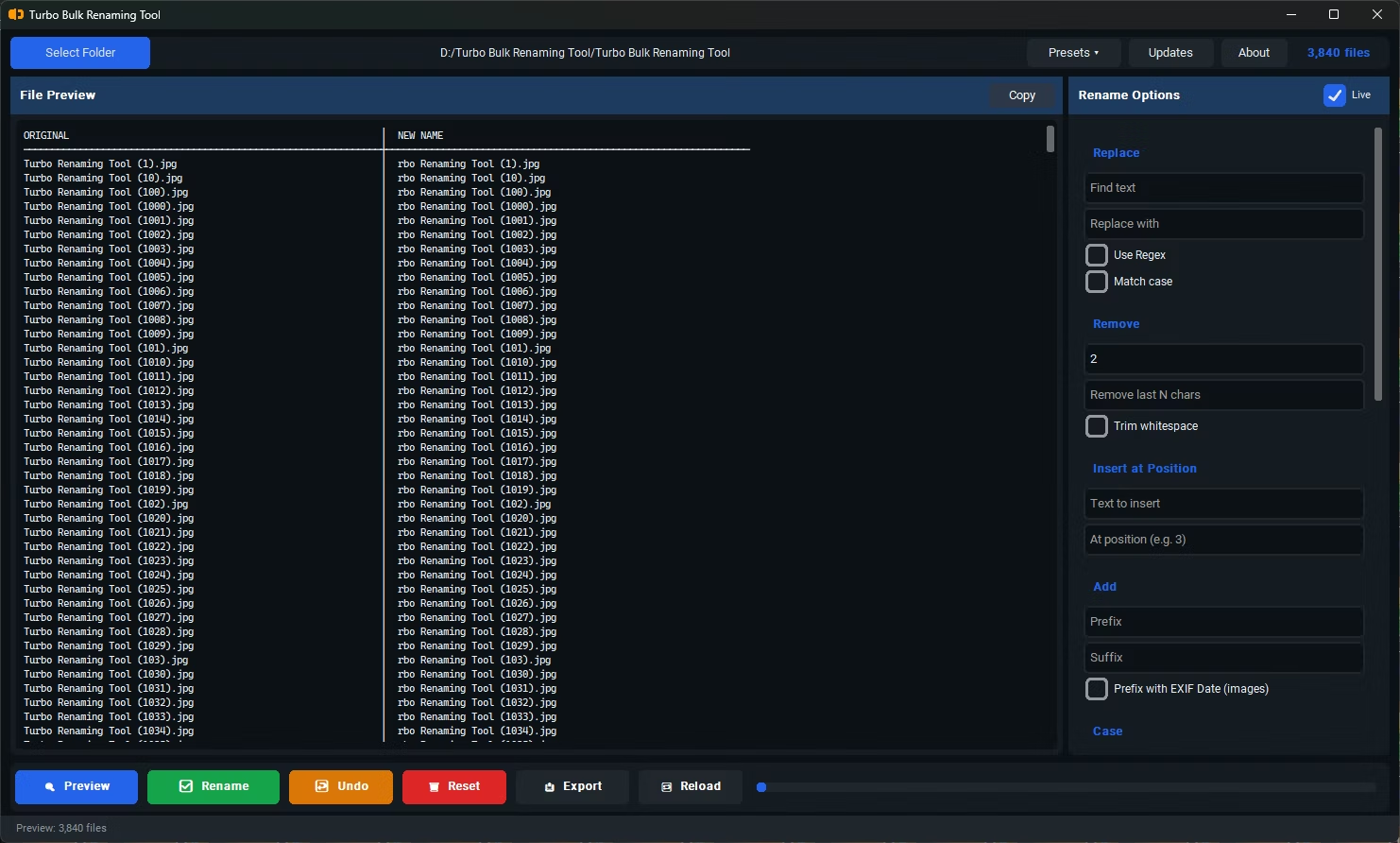
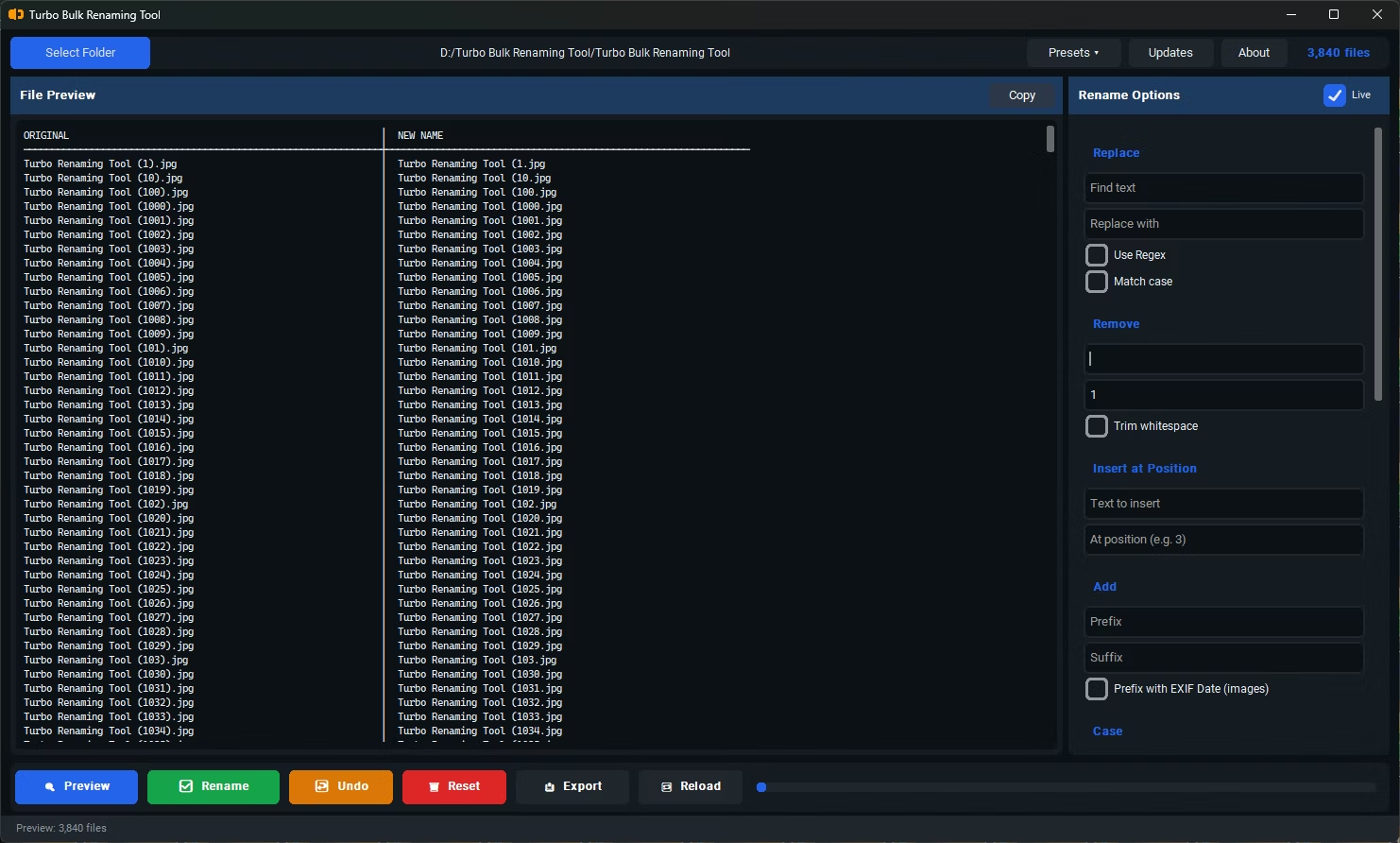
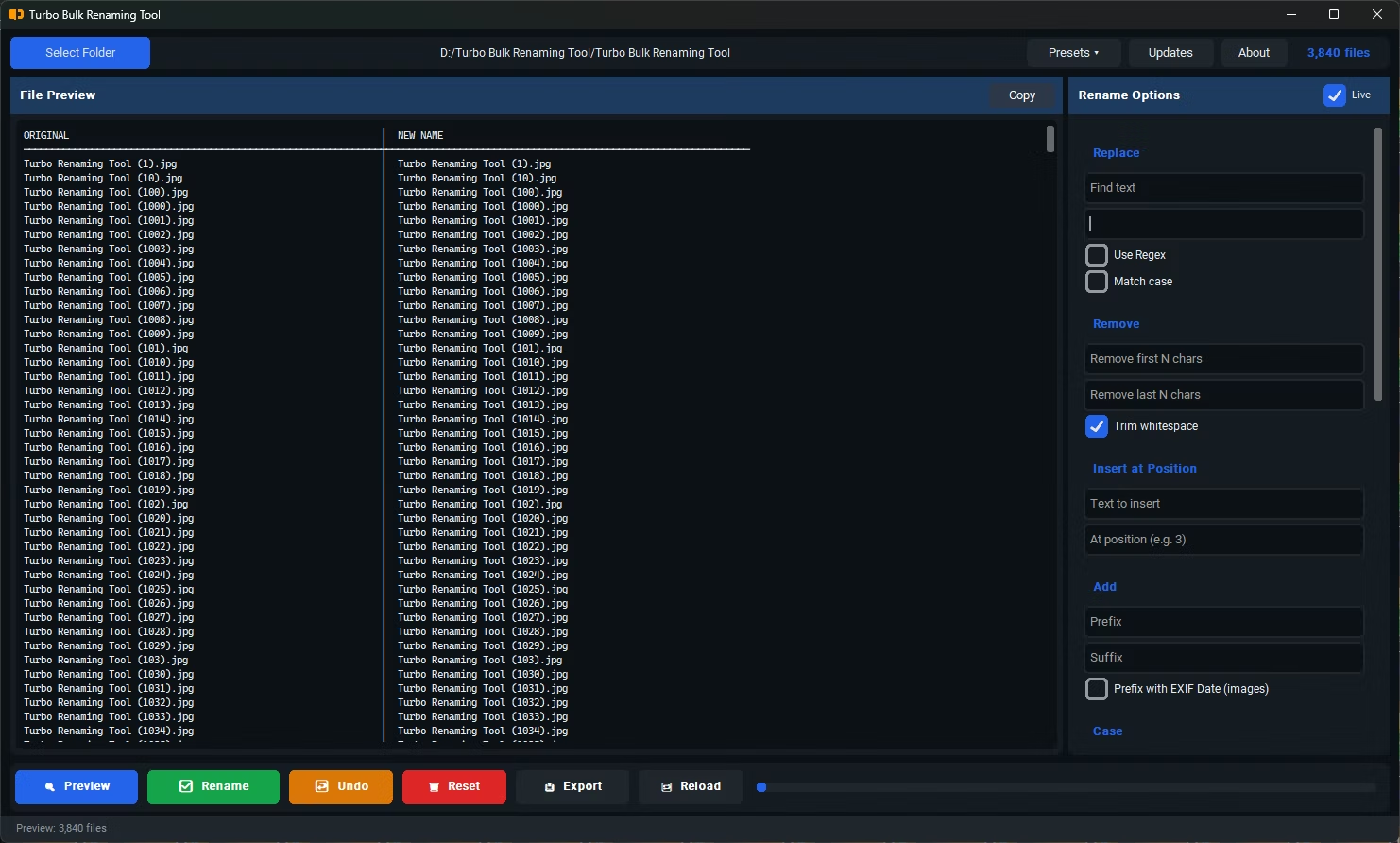
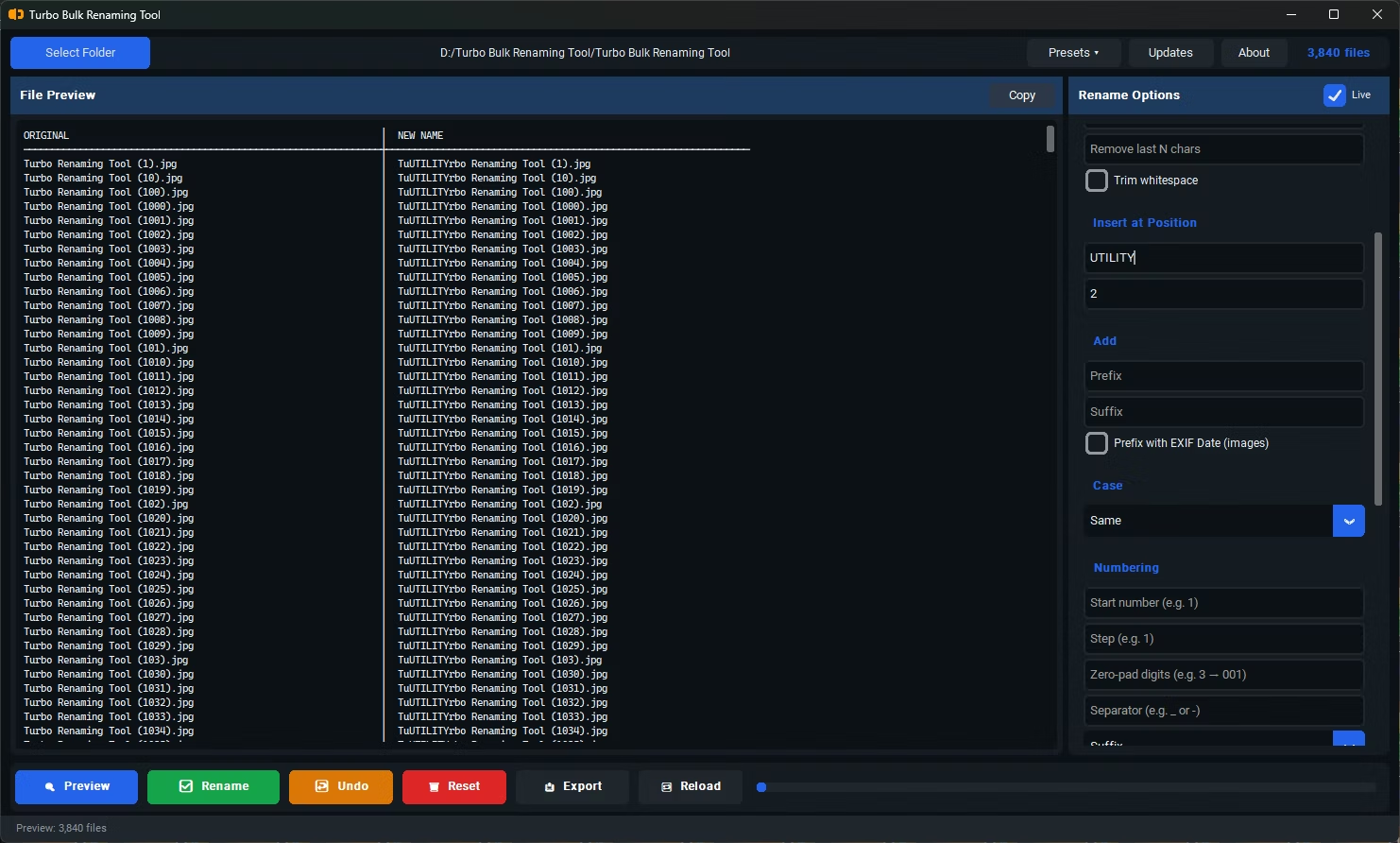
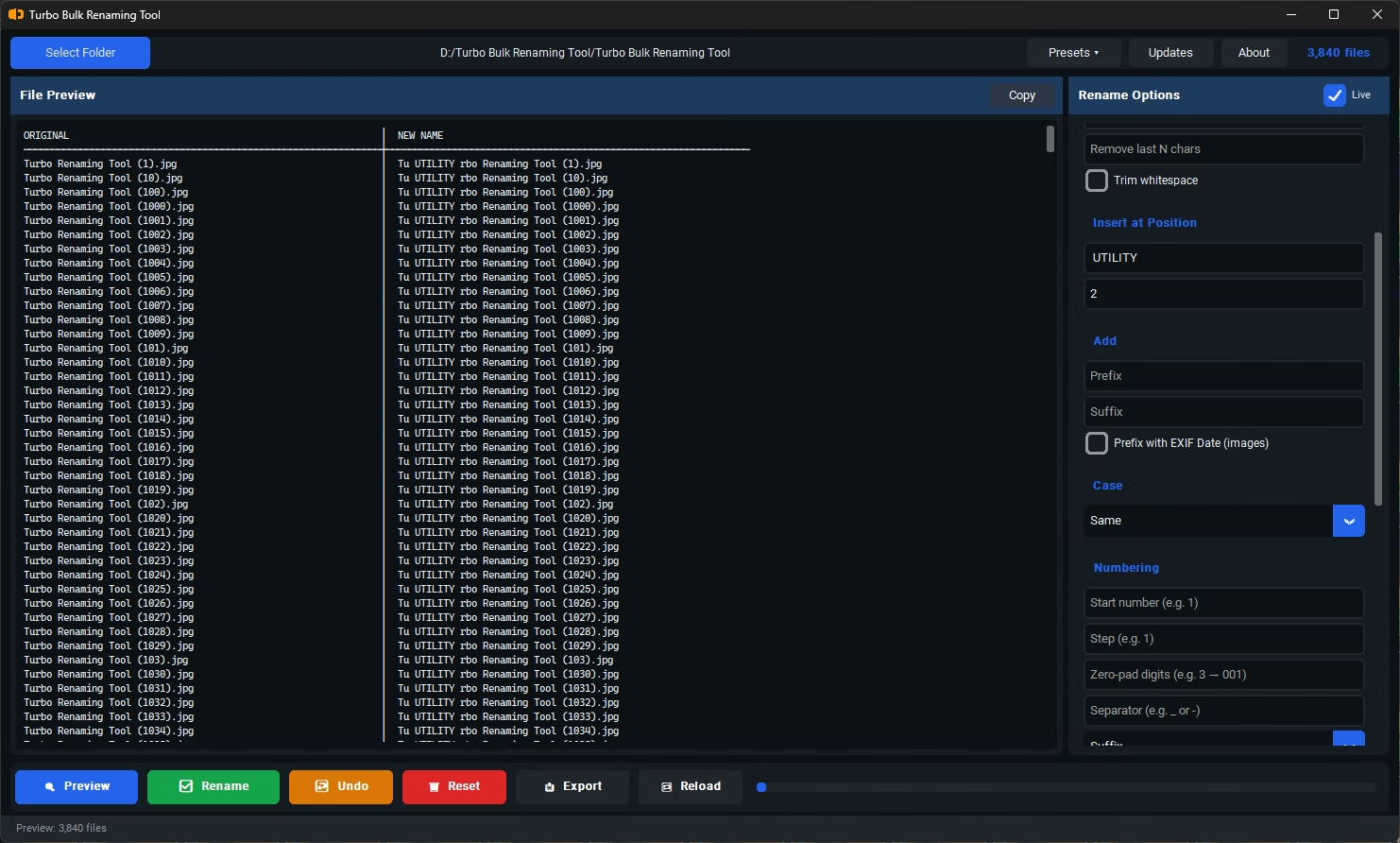
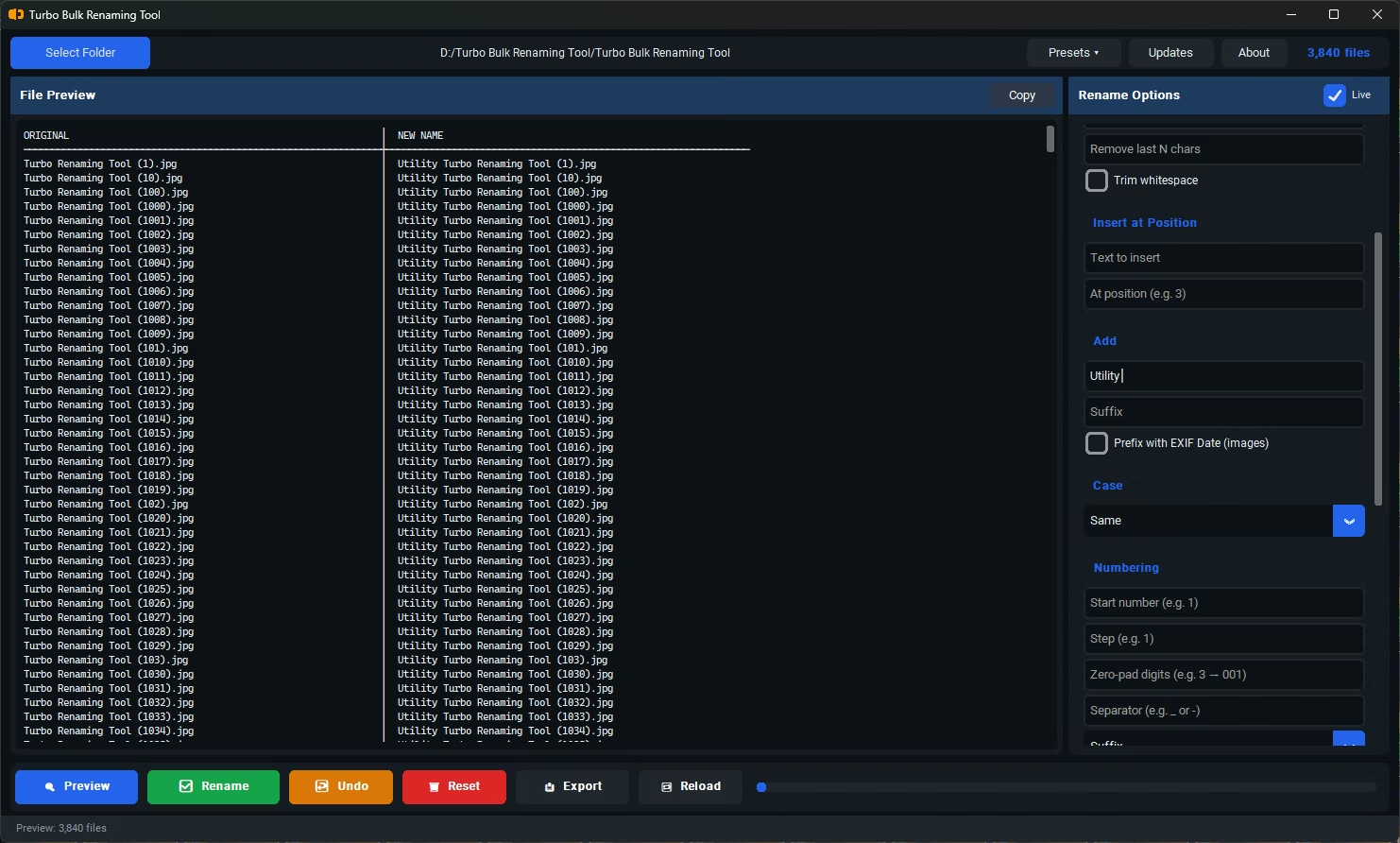
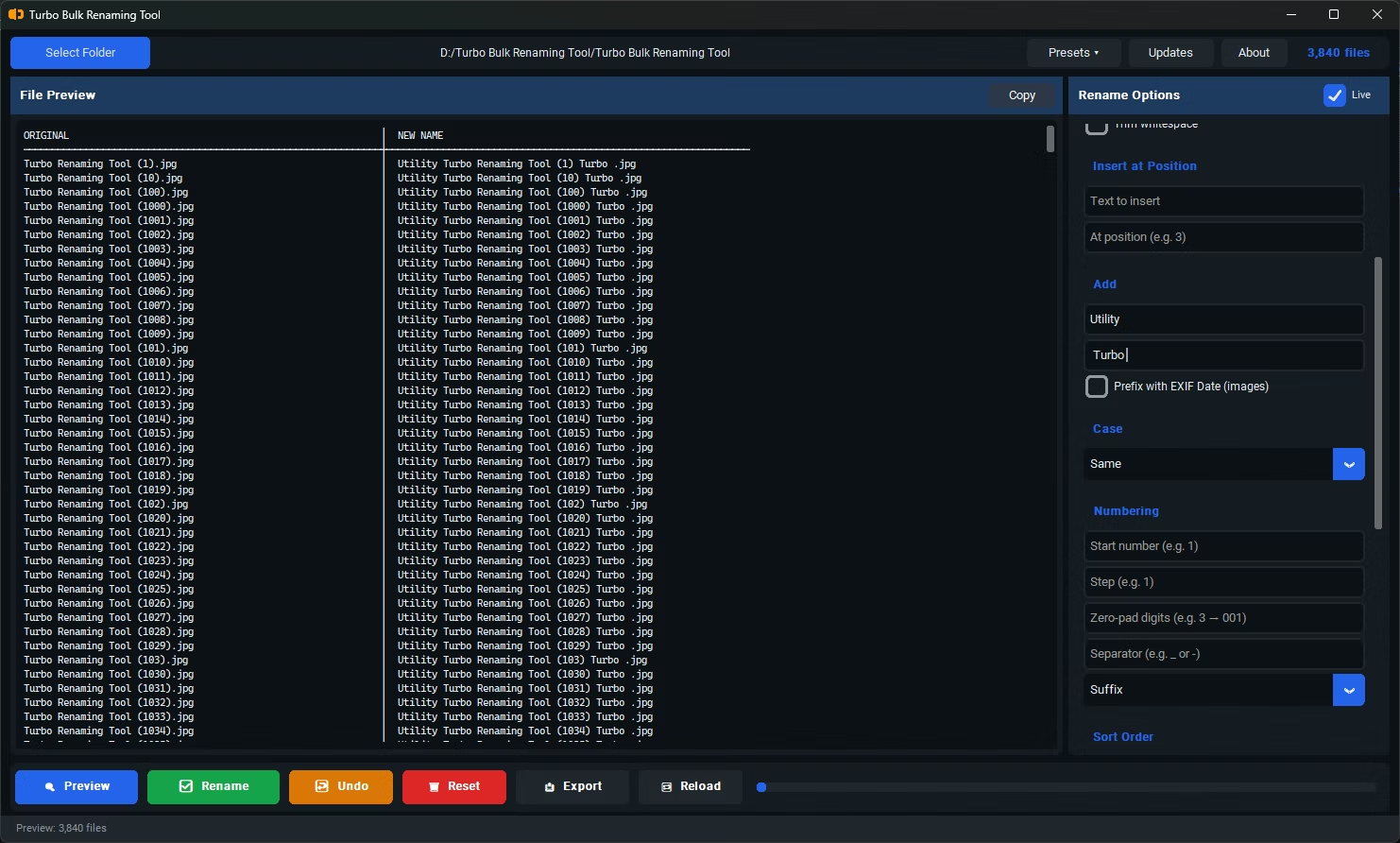
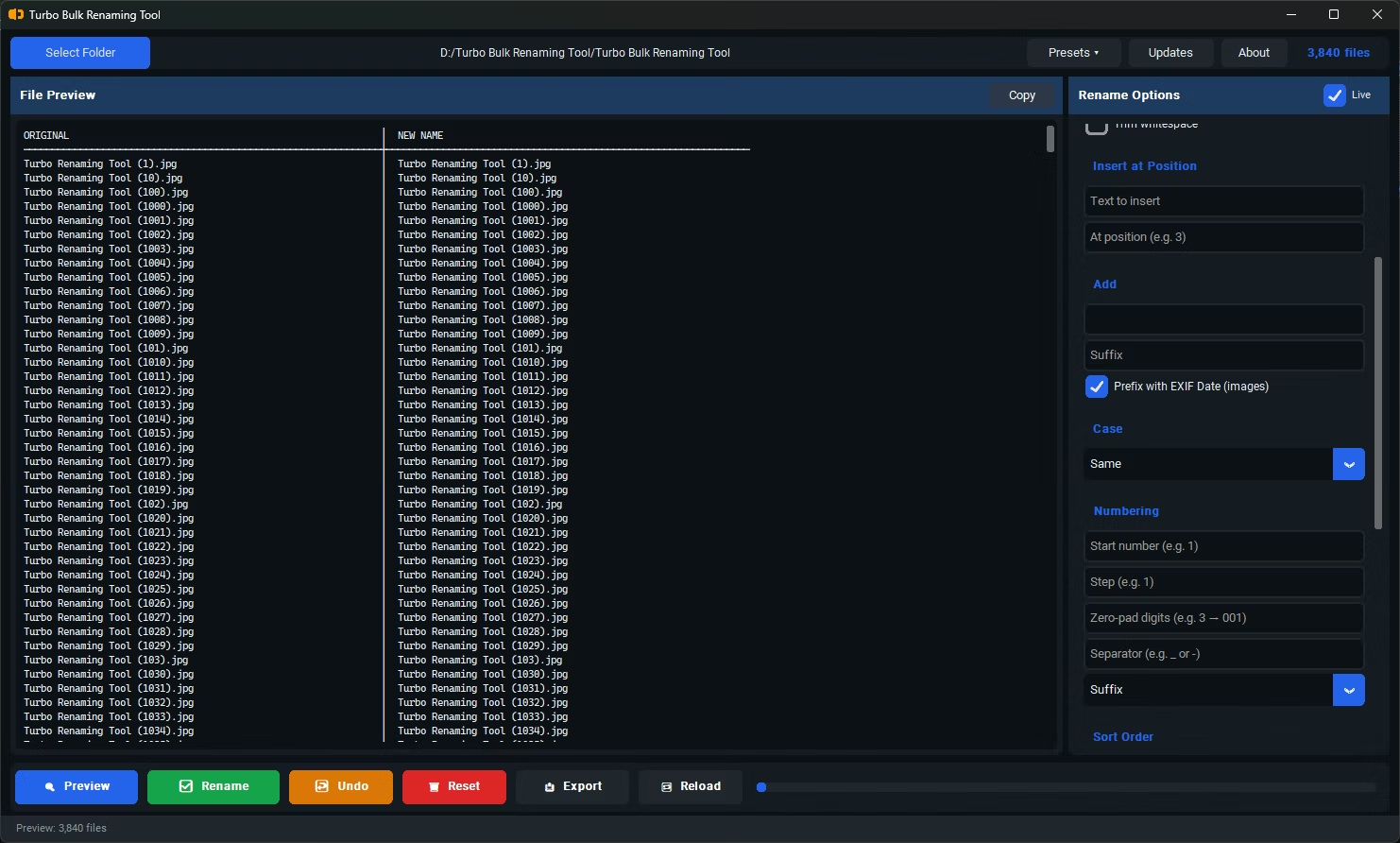
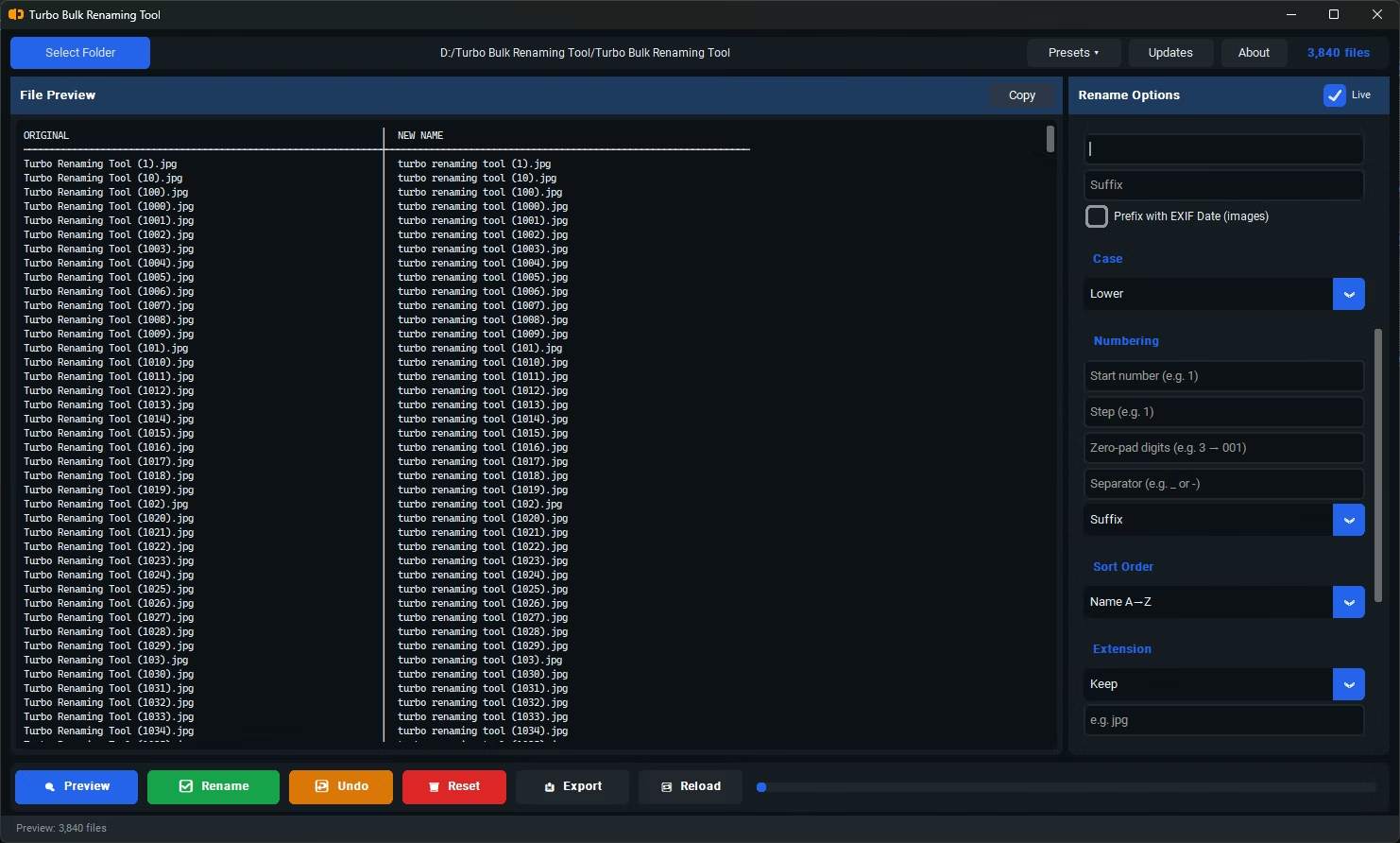
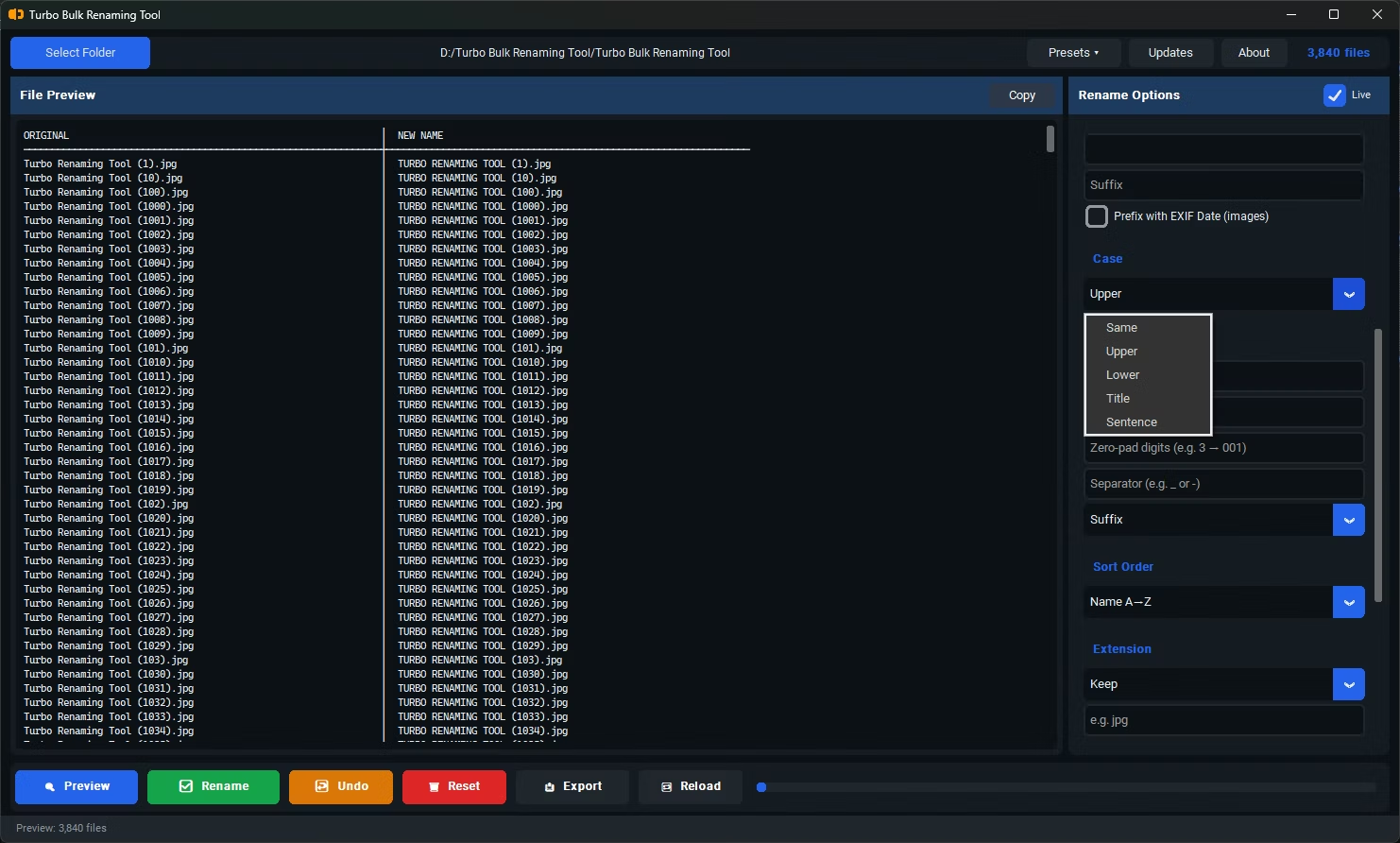
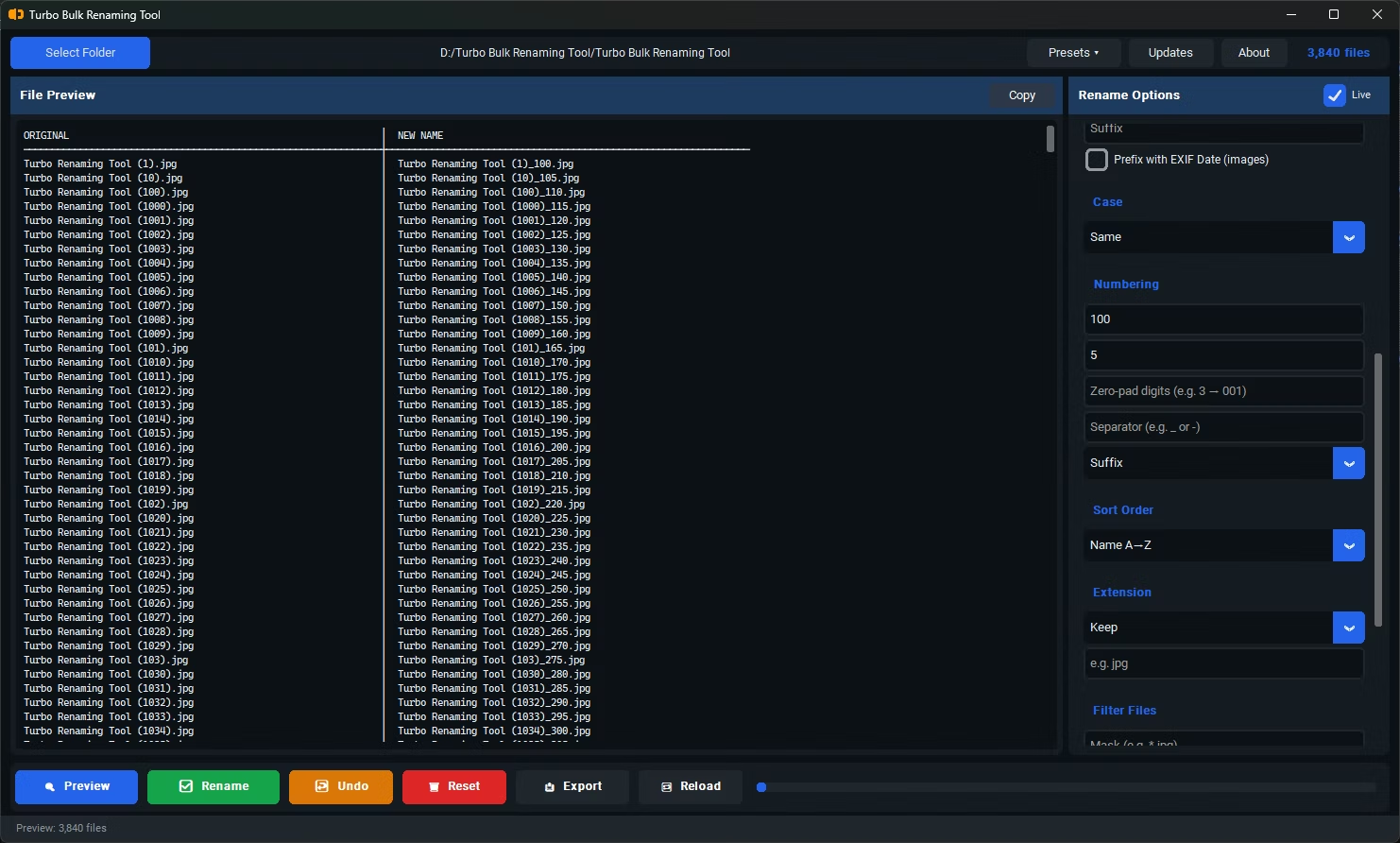
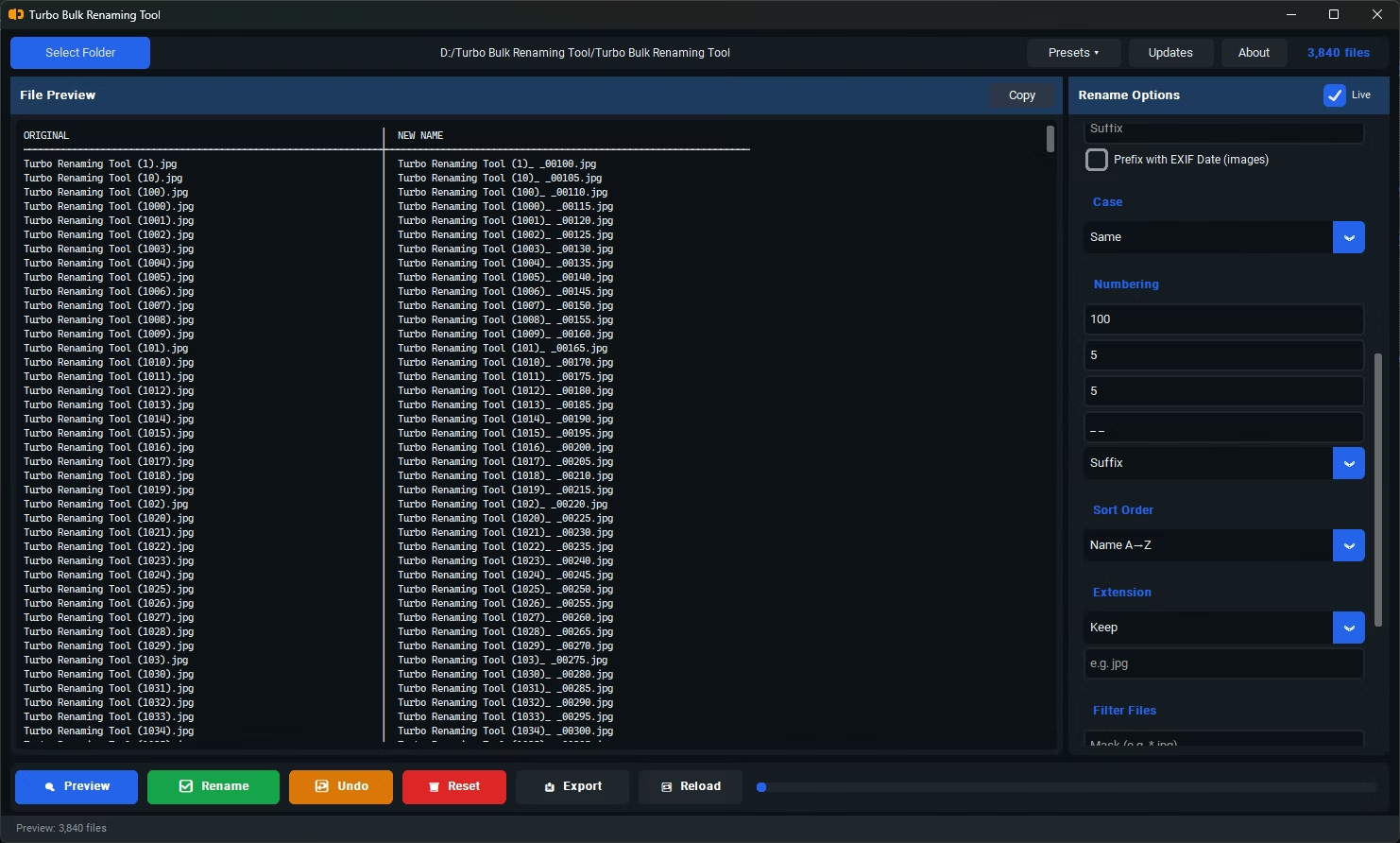
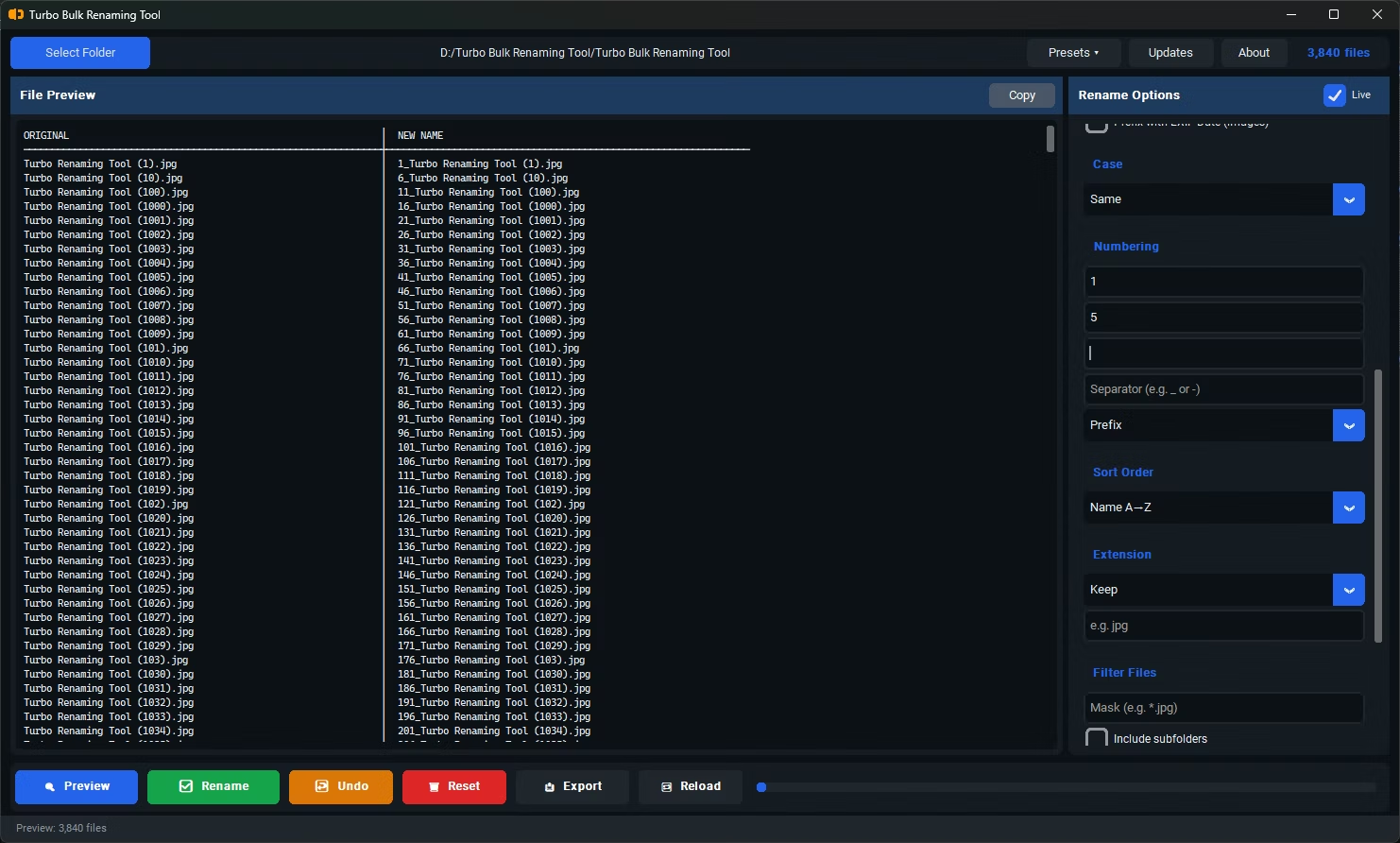
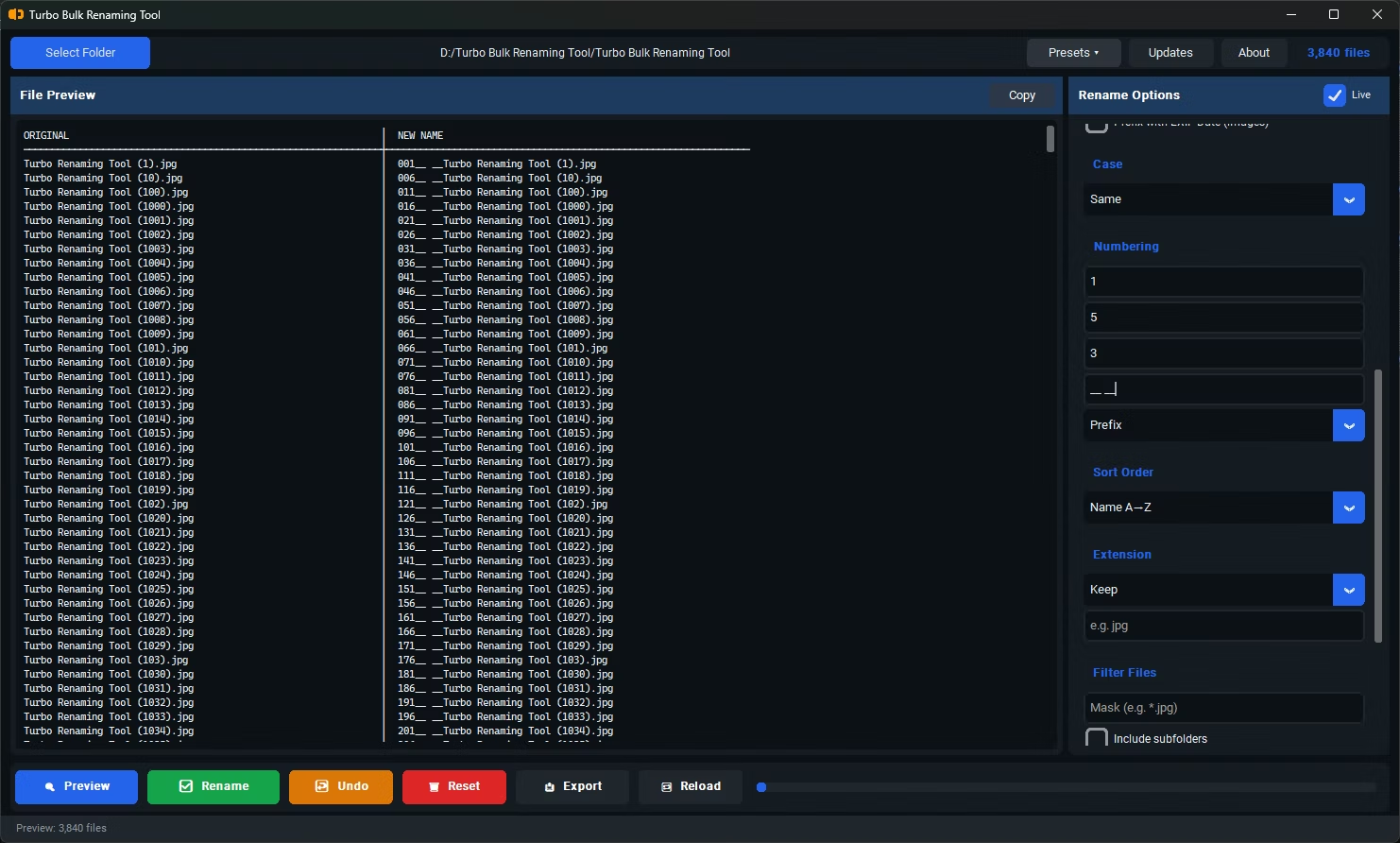
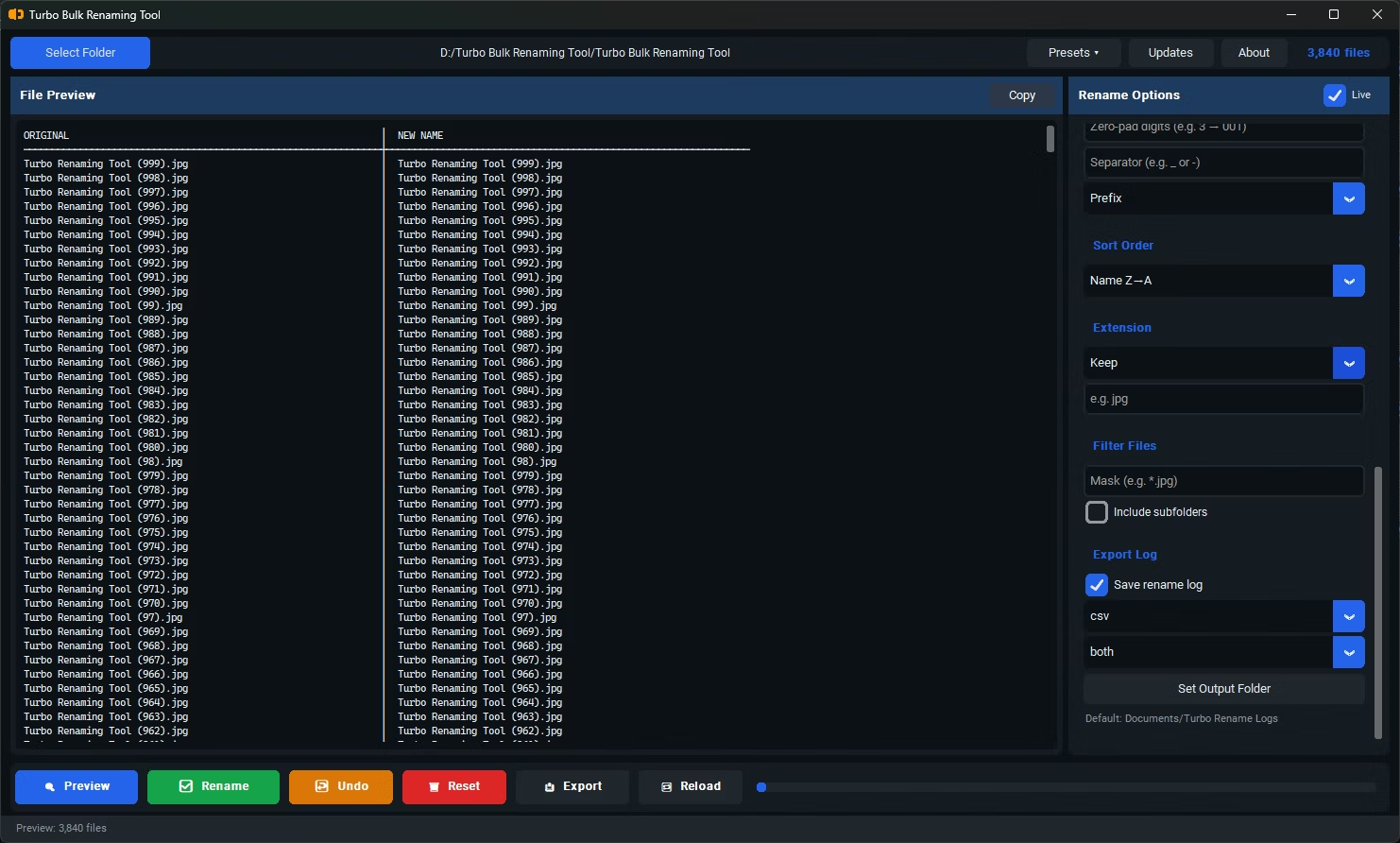
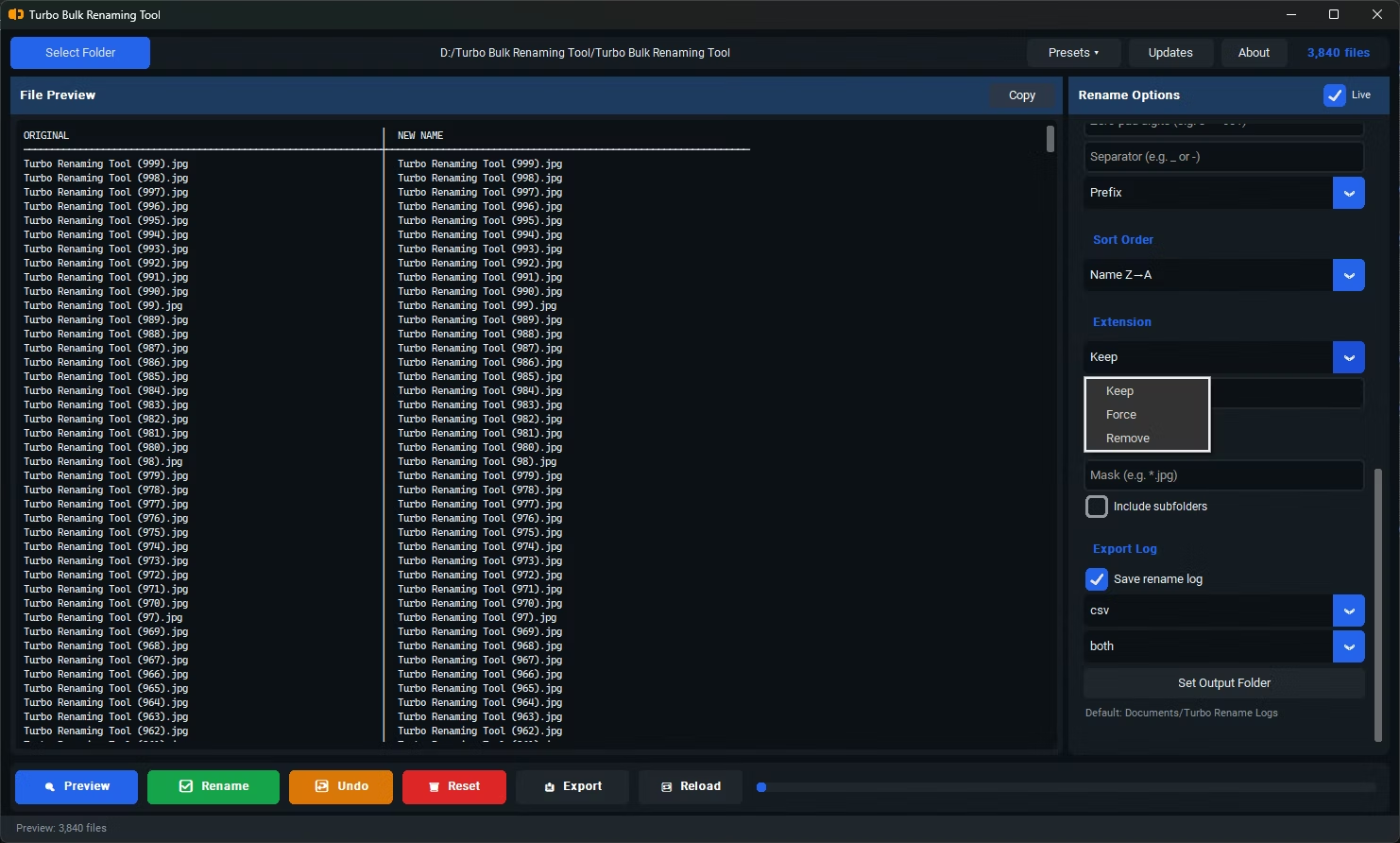
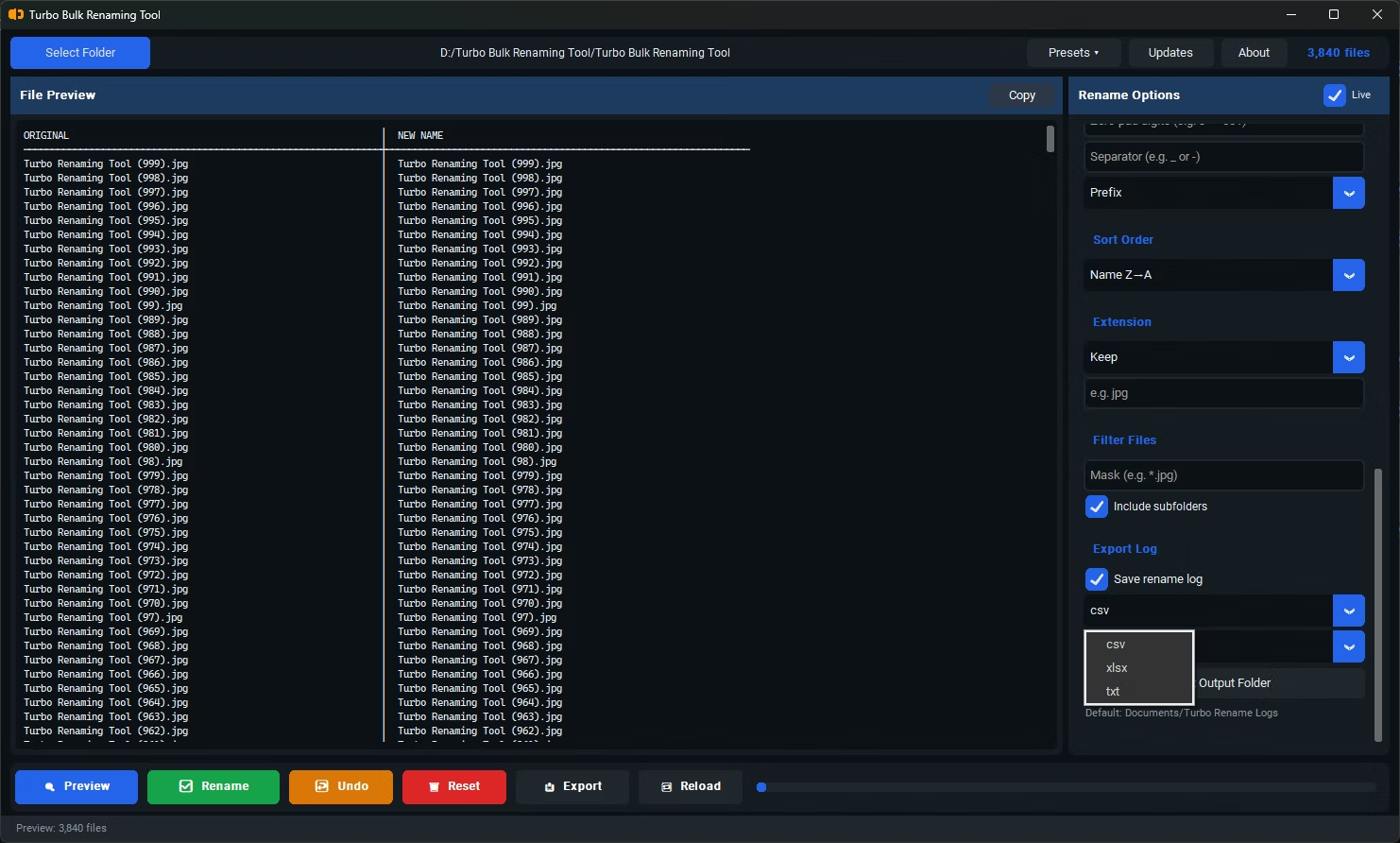
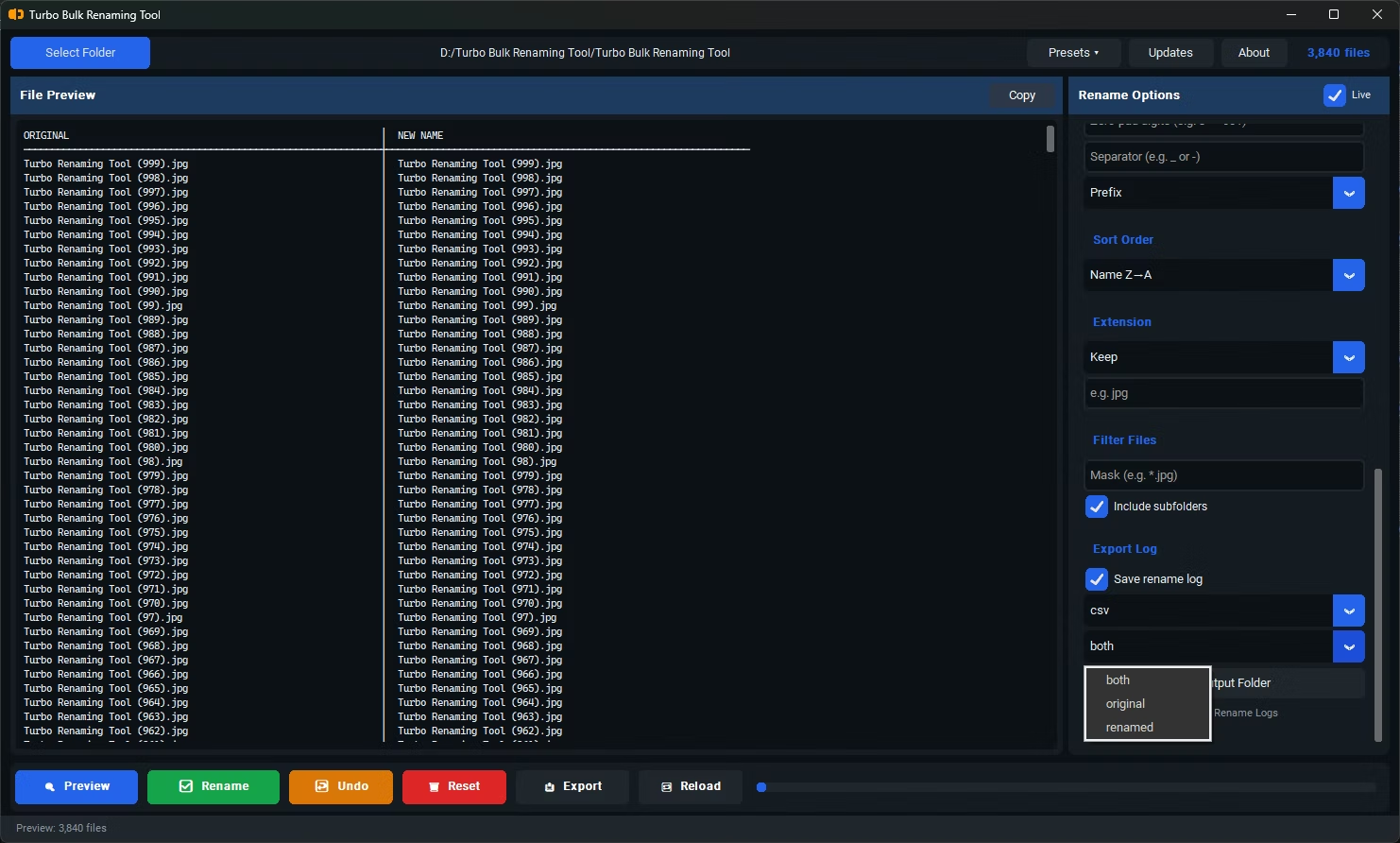
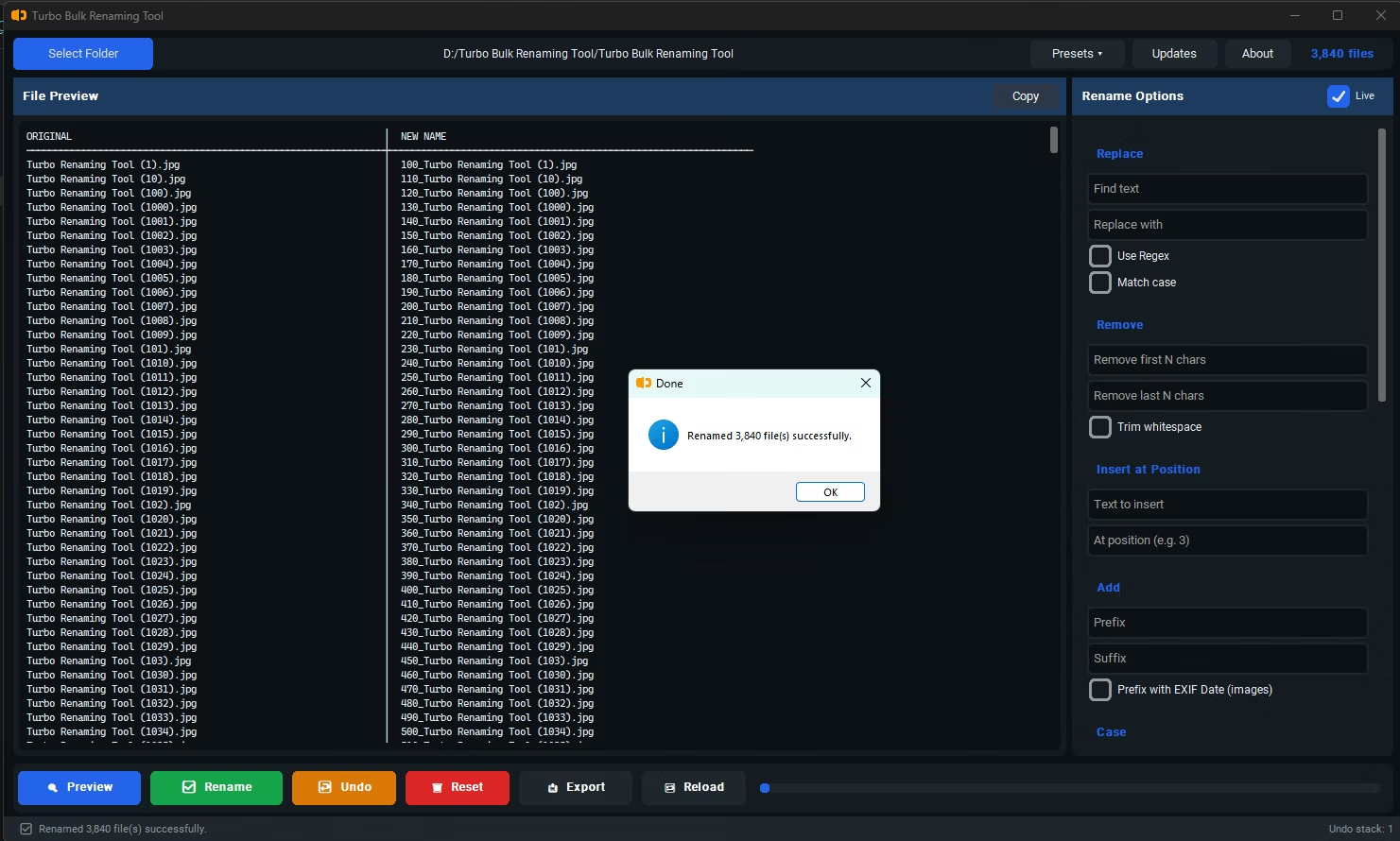
- Install Batchify Renaming Tool on your Windows PC.
- Build your renaming rules as normal, combining whichever individual rules suit your naming convention.
- Once you're satisfied with the configuration, select the Save Preset option and give it a descriptive name.
- The next time you need the same naming convention, select Load Preset and choose the saved configuration by name.
- All rules and settings load instantly in the exact order you originally configured them.
- Load a new folder of files and apply the preset immediately, adjusting individual values like a starting number if needed.
- Check the live preview, then click Rename to apply your saved configuration to the new batch.
- Save a complete combination of renaming rules as a single named preset
- Load a saved preset instantly instead of rebuilding rules from scratch
- Ensures consistent naming conventions across recurring projects or workflows
- Save multiple presets for different clients, projects, or file types
- Individual values within a loaded preset can still be adjusted before renaming
- Runs fully offline, keeping your presets and file names stored locally and privately
How many presets can I save?
You can save as many named presets as your workflow requires, making it easy to maintain separate conventions for different clients, projects, or file categories.
Can I edit a preset after saving it?
Yes, you can load an existing preset, make adjustments to its rules or settings, and save it again under the same name or a new one.
Will loading a preset automatically rename my files?
No, loading a preset only populates the renaming rules; you still review the live preview and click Rename to actually apply the changes to your files.
Are presets stored locally or do they require an account?
Presets are saved locally on your computer, with no account or internet connection required to create, load, or manage them.
Ready to rename your files in bulk, offline, with full privacy?