Turbo CSV Splitter
for Windows
Split, Merge, and Profile Large CSV Files Without Excel Limits
Turbo CSV Splitter is a focused Windows desktop tool for CSV files that have grown too big for a spreadsheet. It does one family of jobs well: breaking a huge CSV into smaller, well-formed CSV files, stitching parts back together, and inspecting a file’s columns for data-quality problems. Everything runs locally on your PC, with no upload, account or subscription in the way.
Spreadsheets cap out at Excel’s 1,048,576-row limit, and even well below that a multi-gigabyte CSV can freeze a machine or refuse to open. Exports from a database, an analytics platform or a CRM often produce a single enormous file that is awkward to email, import or review. This tool cuts it into parts sized for whatever comes next, whether that is opening in Excel, importing under a size cap or feeding a machine-learning pipeline.
Supported File Format
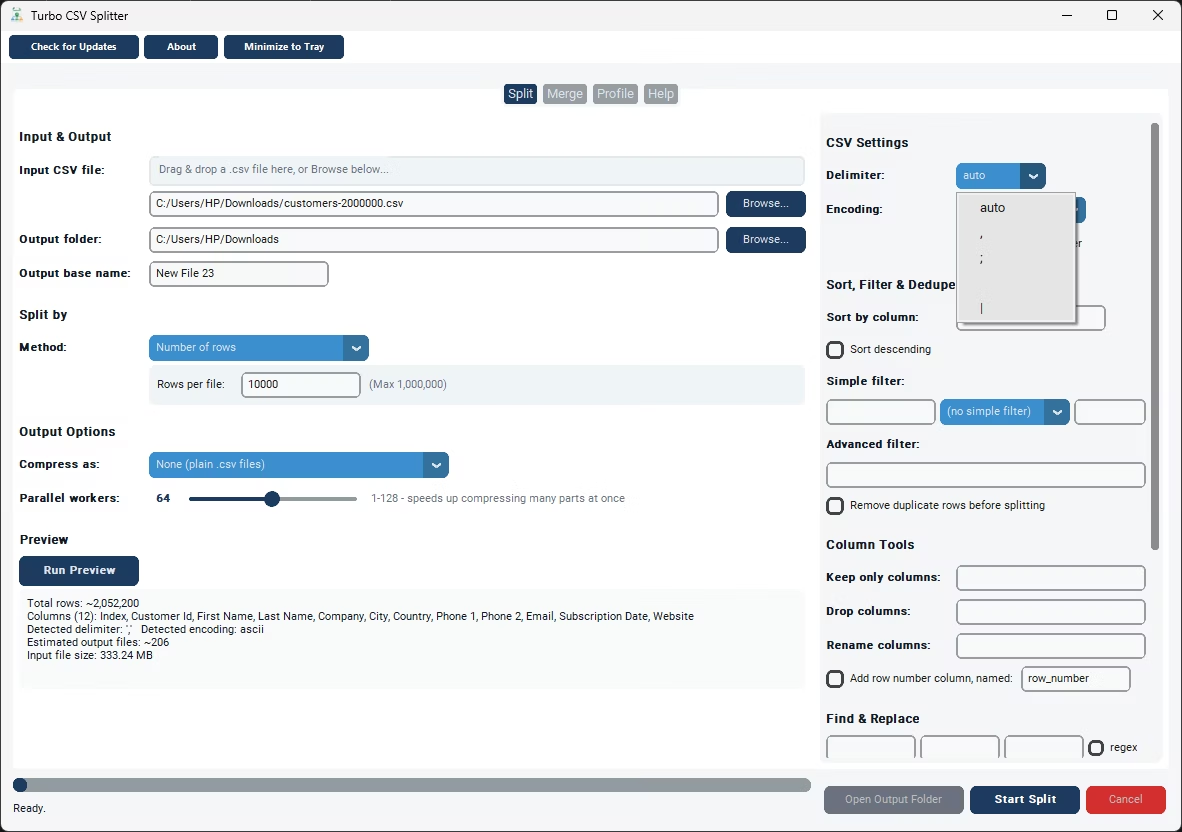
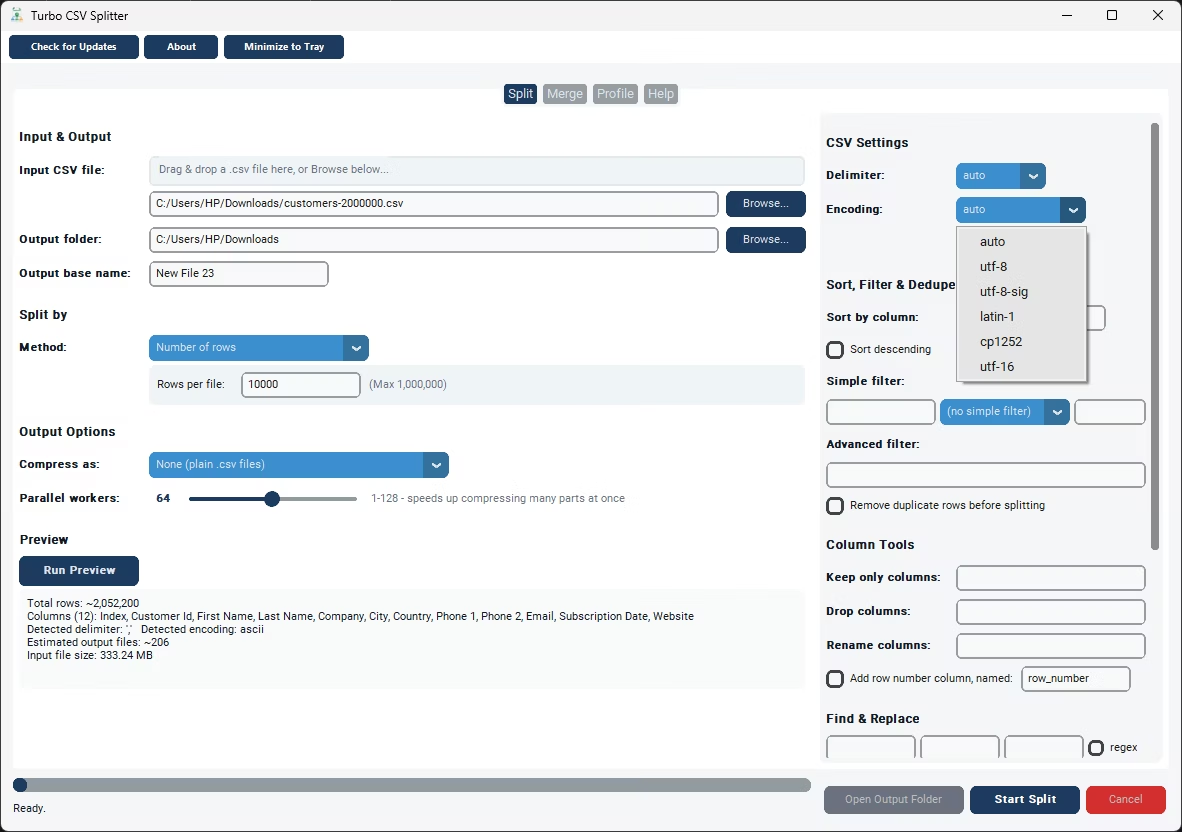
The app works with CSV and delimited text only, and detects the delimiter and encoding for you, so you can drop in a file and start splitting.
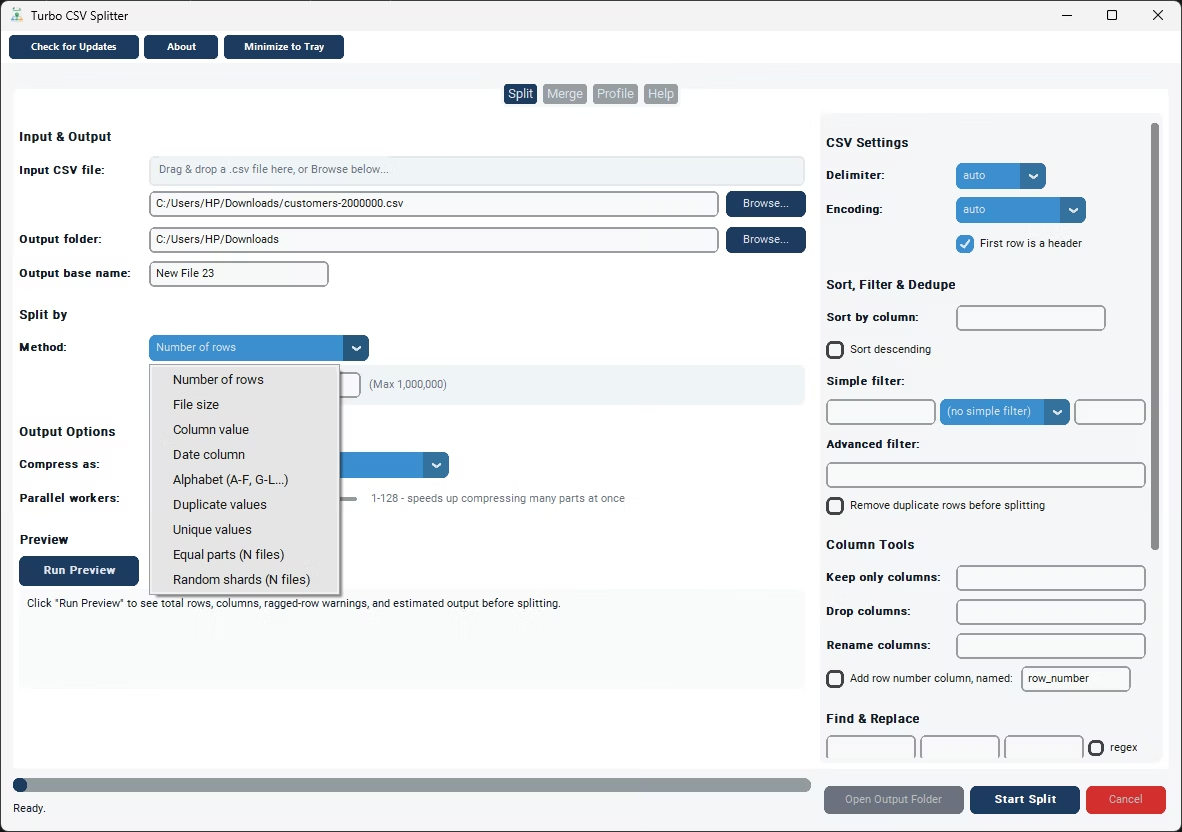
Nine Ways to Split a CSV File
| Method | What it does | Reach for it when |
|---|---|---|
| Number of Rows | Every file gets the same row count, up to 1,000,000 rows per file. | Pieces that open in Excel or stay under an import limit; 500,000 turns a five-million-row export into ten files. |
| File Size | Rolls over to a new part once it reaches your target size in MB. | An upload portal or email size cap. Parts hold different row counts but all stay near the target. |
| Column Value | Writes one output file per distinct value in a chosen column. | Handing regional data to regional teams, or splitting a master list by category. |
| Date Column | Groups rows by day, month or year, parsing common date formats automatically. | Monthly reporting, time-series data and period-based archives. |
| Alphabet | Buckets rows into A–F, G–L, M–R, S–Z, 0–9 and Other by the first letter of a column. | Directories of names, products or codes where alphabetical sections match how people search. |
| Duplicate Values | Splits rows into a "duplicates" file and a "first seen" file. | Isolating repeated records for review instead of deleting them. |
| Unique Values | Keeps the first occurrence of each row and drops every later duplicate. | When duplicates are noise and you want one clean copy. |
| Equal Parts (N files) | Splits into exactly N roughly equal files; a quick row count runs first. | A specific number of pieces, such as four files for four people. |
| Random Shards (N files) | Assigns every row at random to one of N files; a seed makes it reproducible, even on resume. | Machine-learning train, test and validation splits. |
The header is repeated at the top of every part, so each file is independently valid. Each method needs only one setting: rows per file, target MB, the column to split on or the number of parts.
Key Features
Split Tab
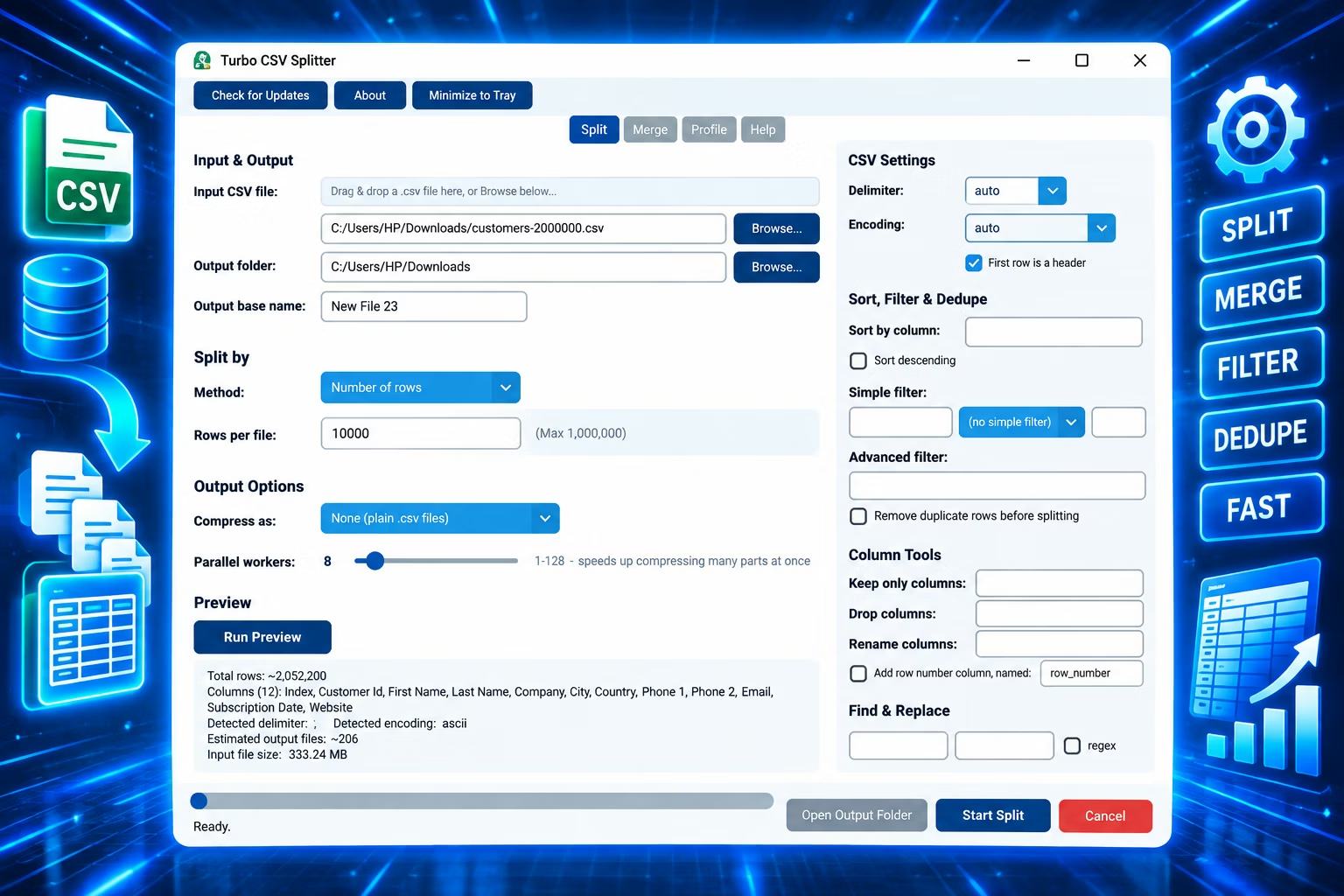
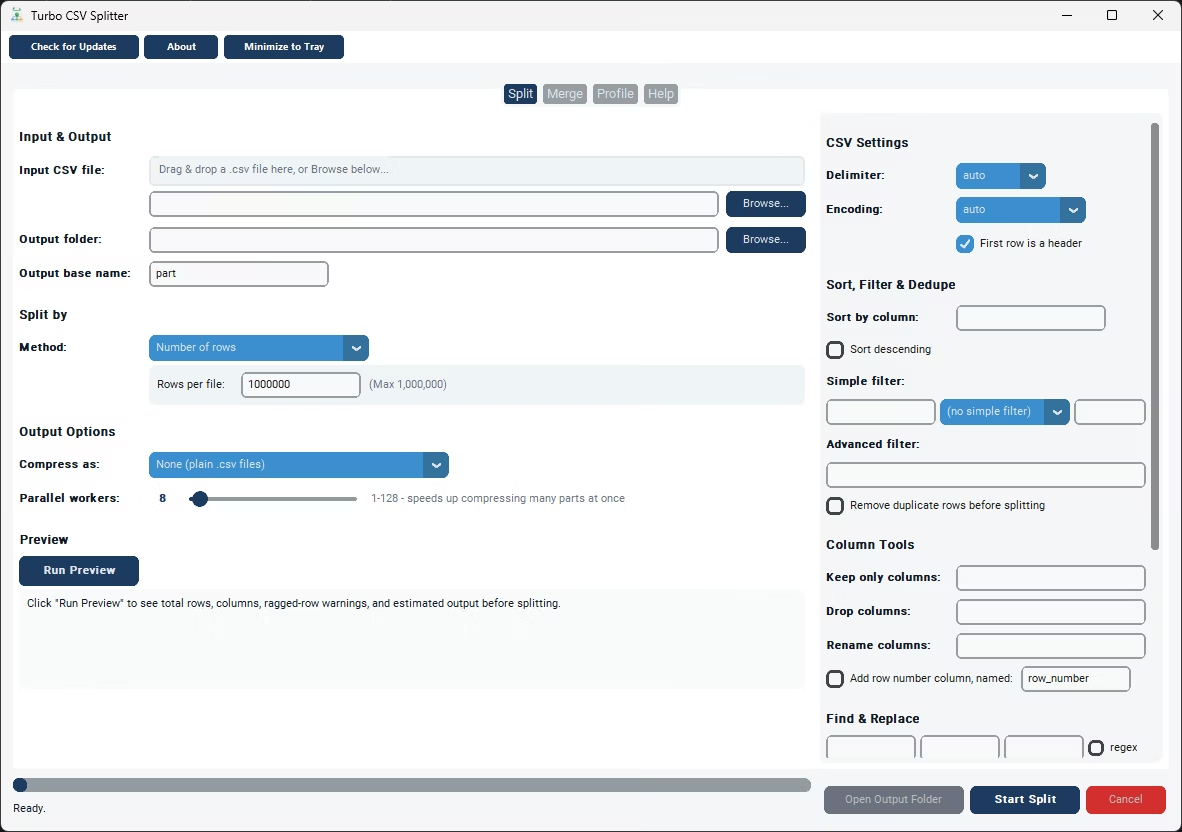
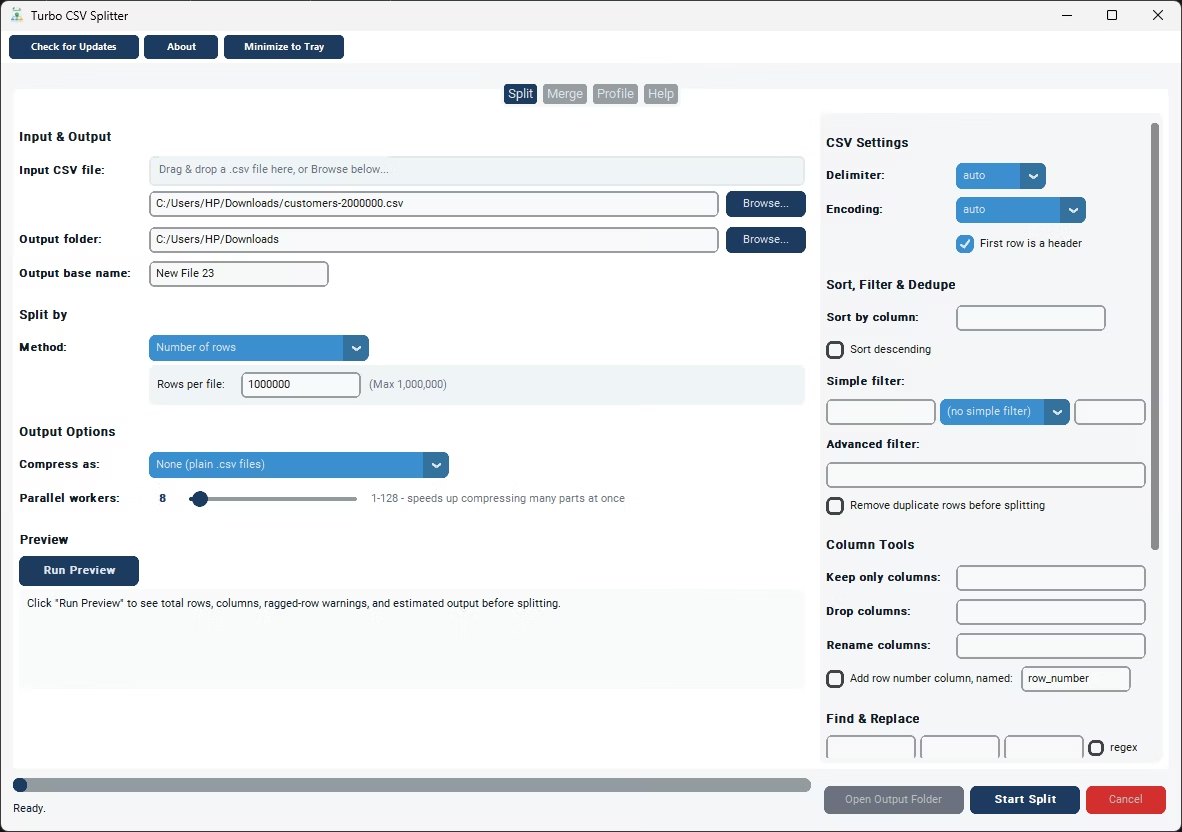
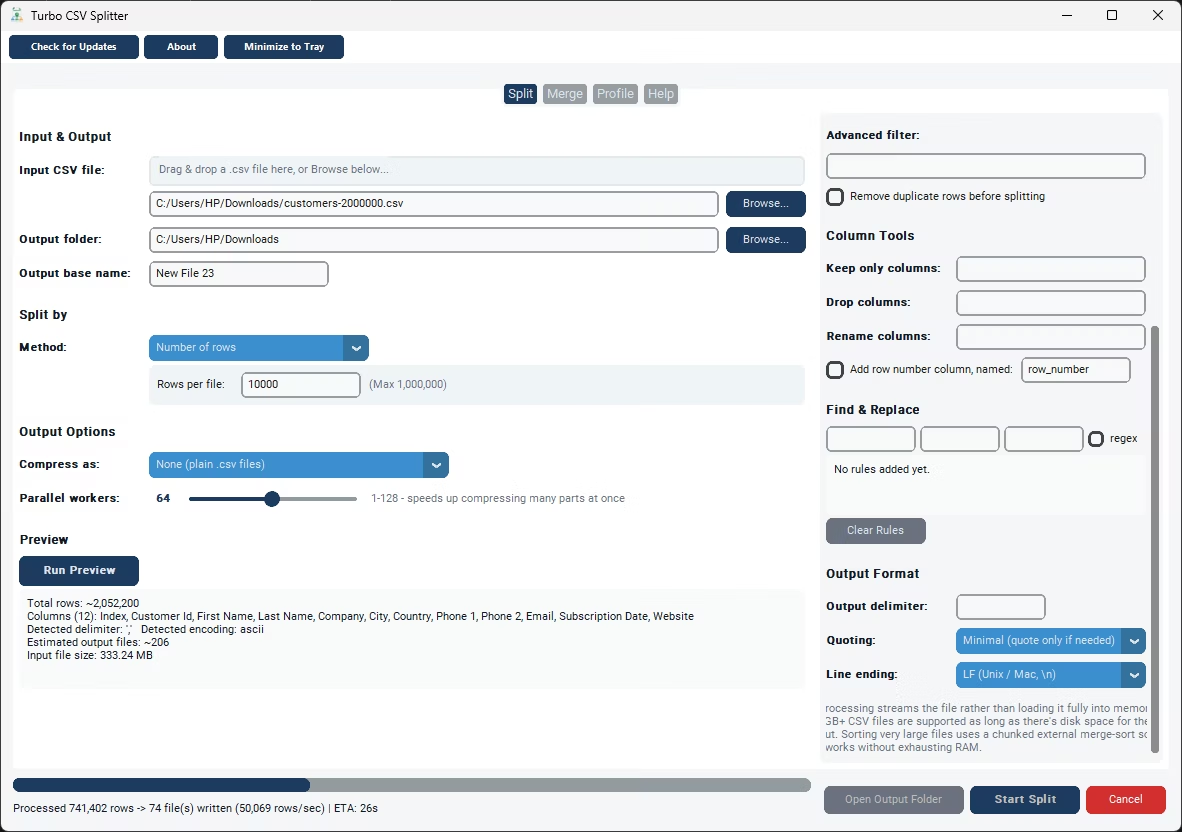
Choose an input CSV (Browse or drag it onto the drop zone), an output folder and a split method, then click Start Split. The status bar shows progress, live speed in rows per second and an ETA.
Merge Tab
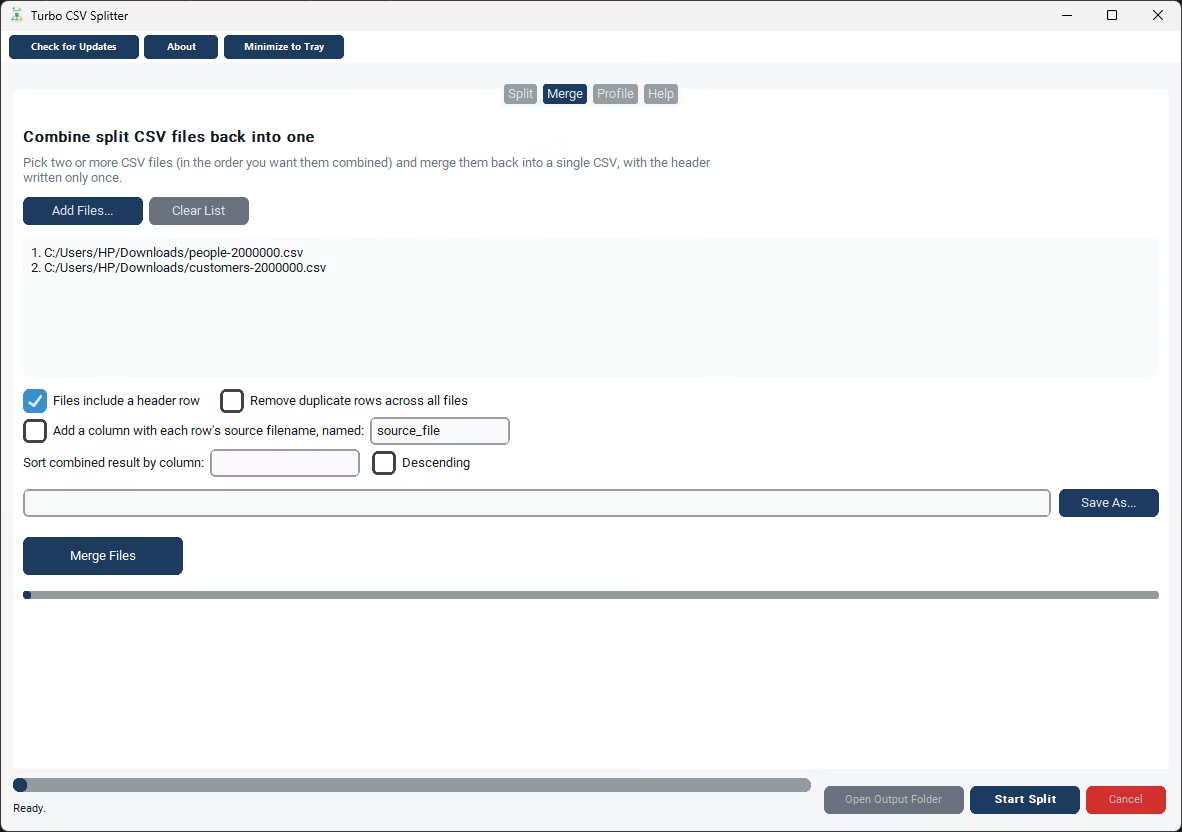
Combine two or more CSV files, including previously split parts, into one CSV with the header written once. Optionally tag each row with its source filename, remove duplicate rows across all files and sort by a column.
Profile Tab
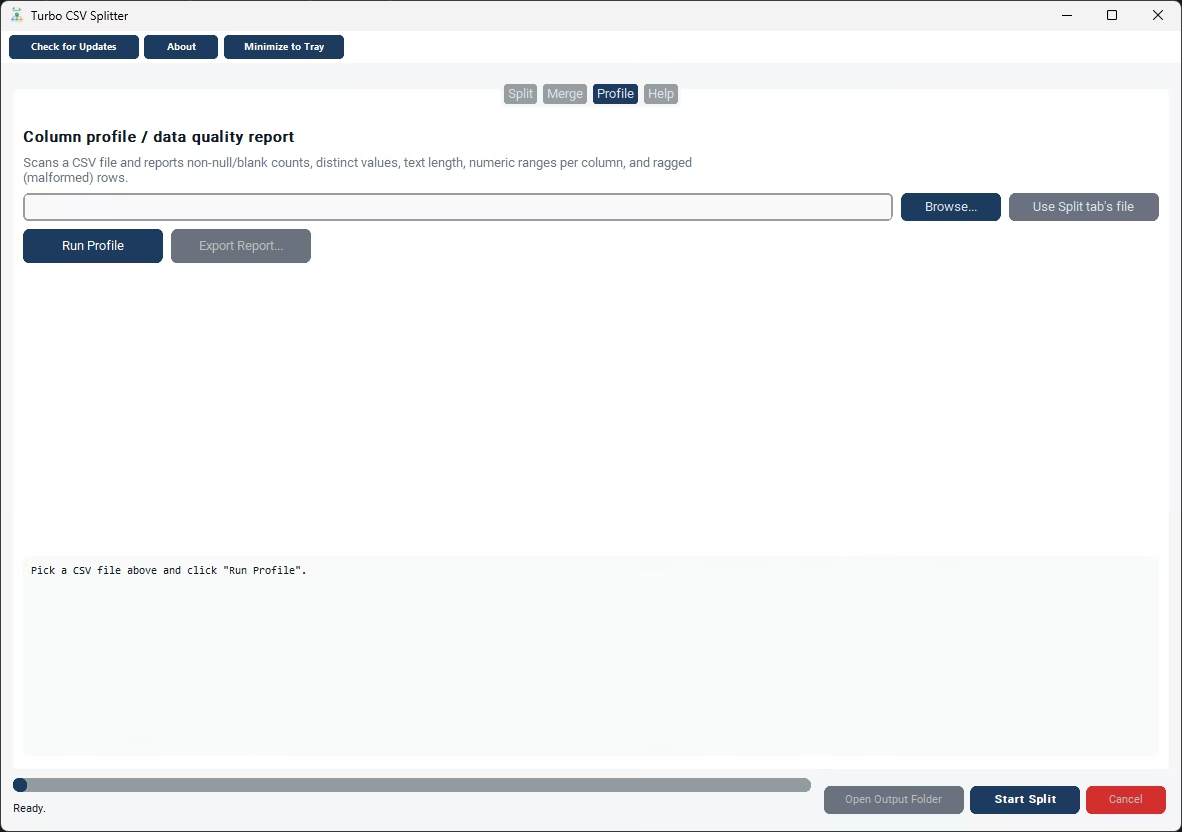
A data-quality inspector. Per column it reports non-null and blank counts, distinct-value counts, min and max text length and, for numeric-looking columns, min, max and mean. It also flags ragged rows whose field count differs from the header, and exports the report to a text file.
Preview Before You Split
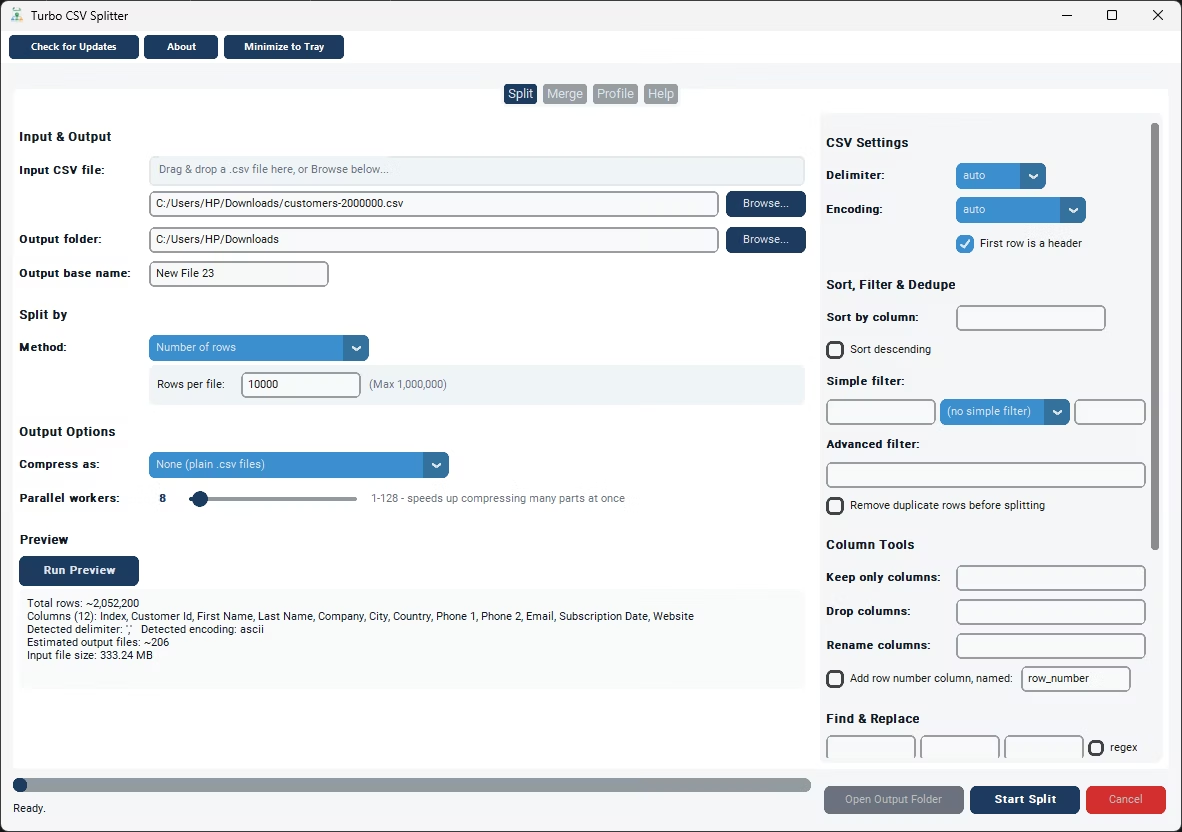
Run Preview to see the total row count, detected columns, ragged-row warnings, sample rows and an estimate of how many output files you will get, before committing to the full job.
Streaming Engine, No Excel Limit
Rows stream through one at a time, so memory use stays flat whatever the file size. Files with tens of millions of rows can be cut into parts that never hit the 1,048,576-row ceiling.
Cancel and Resume From Checkpoint
Cancel at any time and a checkpoint is saved in the output folder; starting again with the same file and settings resumes where you stopped.
Auto-Detected Delimiter and Encoding
Detection samples only the first portion of the file, so even huge files open quickly. Override either setting manually if needed.
Workers, Drag and Drop, System Tray
A worker slider from 1 to 128 speeds up compressing many output parts at once. Drop a CSV straight onto the window, and send the app to the system tray while a long job runs.
Column Tools, Filtering and Output Control
A single run can split and reformat at the same time, so the parts match whatever reads them next.
- Keep or drop columns. Comma-separated names; if "Keep only" is filled in, "Drop" is ignored. Rename columns with pairs like
old:new, and add a row-number column starting at 1. - Find and replace. Add one or more rules, optionally limited to one column and optionally using regex, applied to every row before it is written.
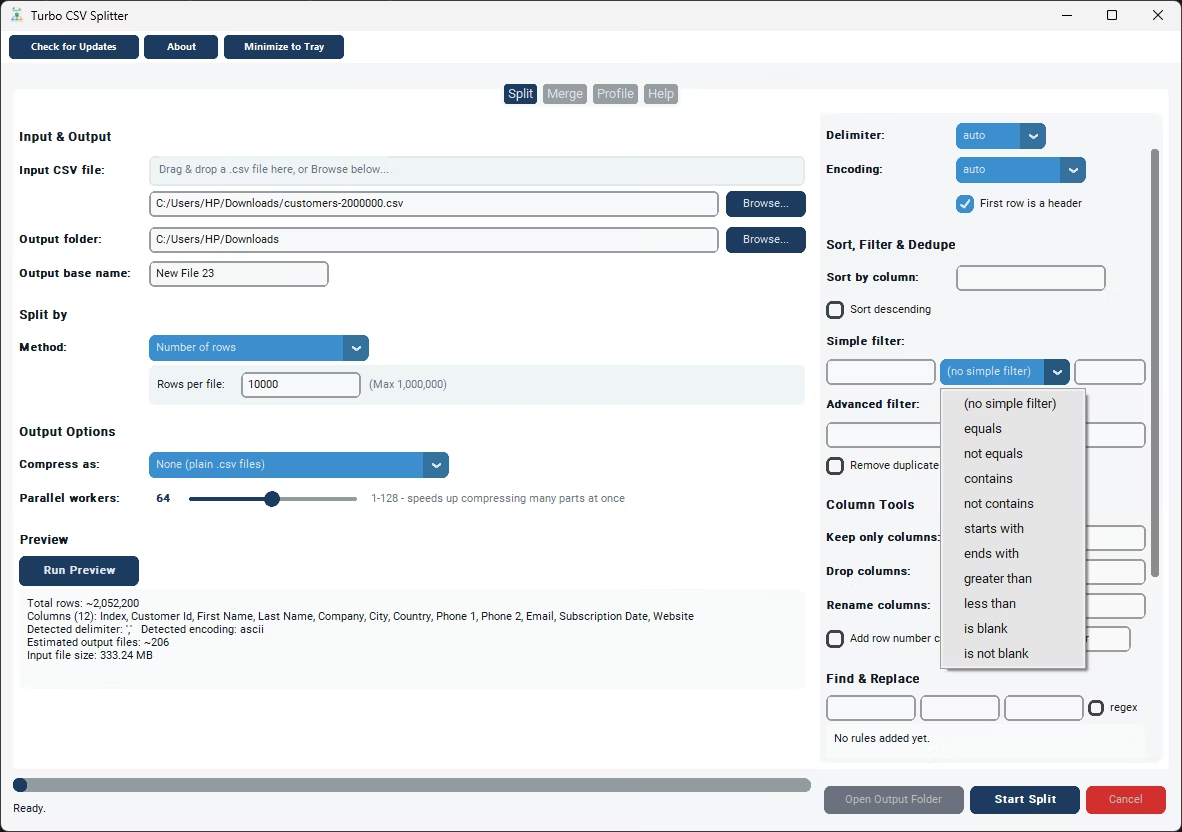
- Simple filter. Pick a column, an operator (equals, contains, starts with, greater than, is blank and more) and a value. The advanced filter takes a Python expression such as
row["Country"] == "USA". - Sort and de-duplicate. An optional chunked external merge-sort orders even huge files ascending or descending, and Remove Duplicate Rows drops exact duplicates across all columns before the split.
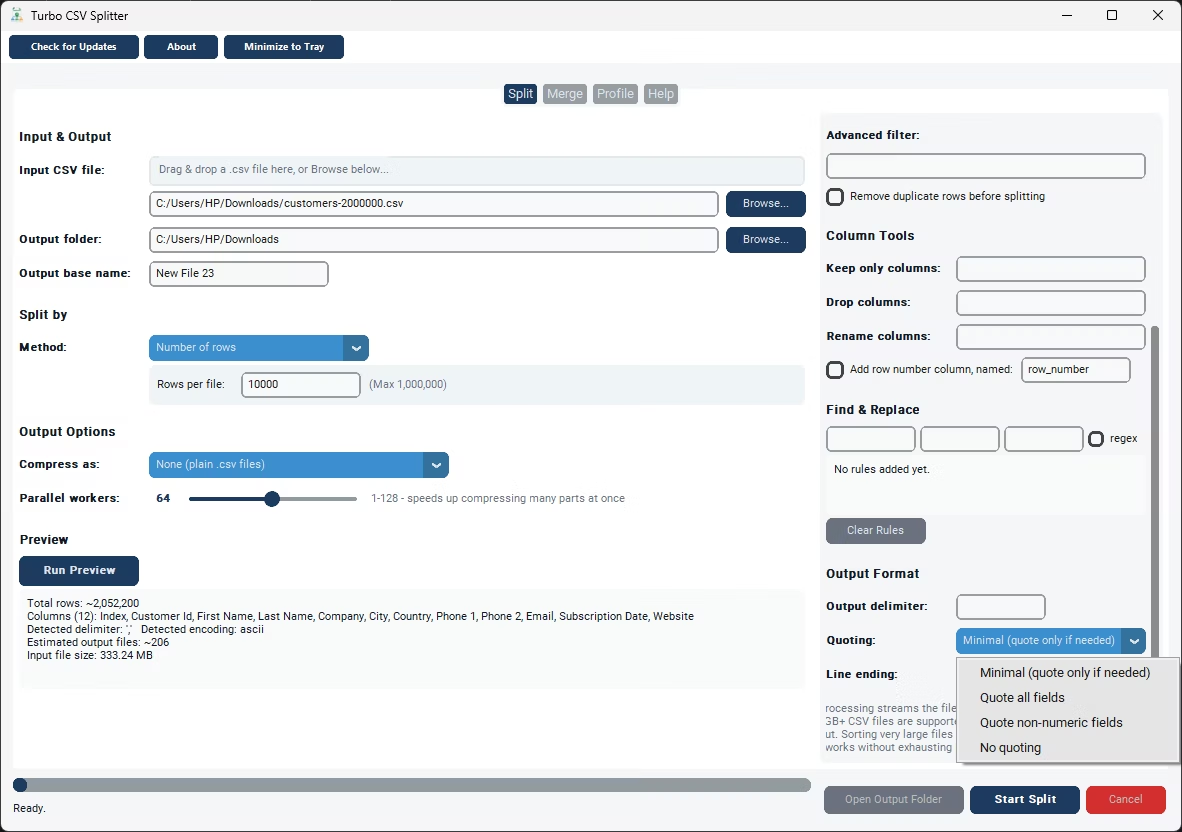
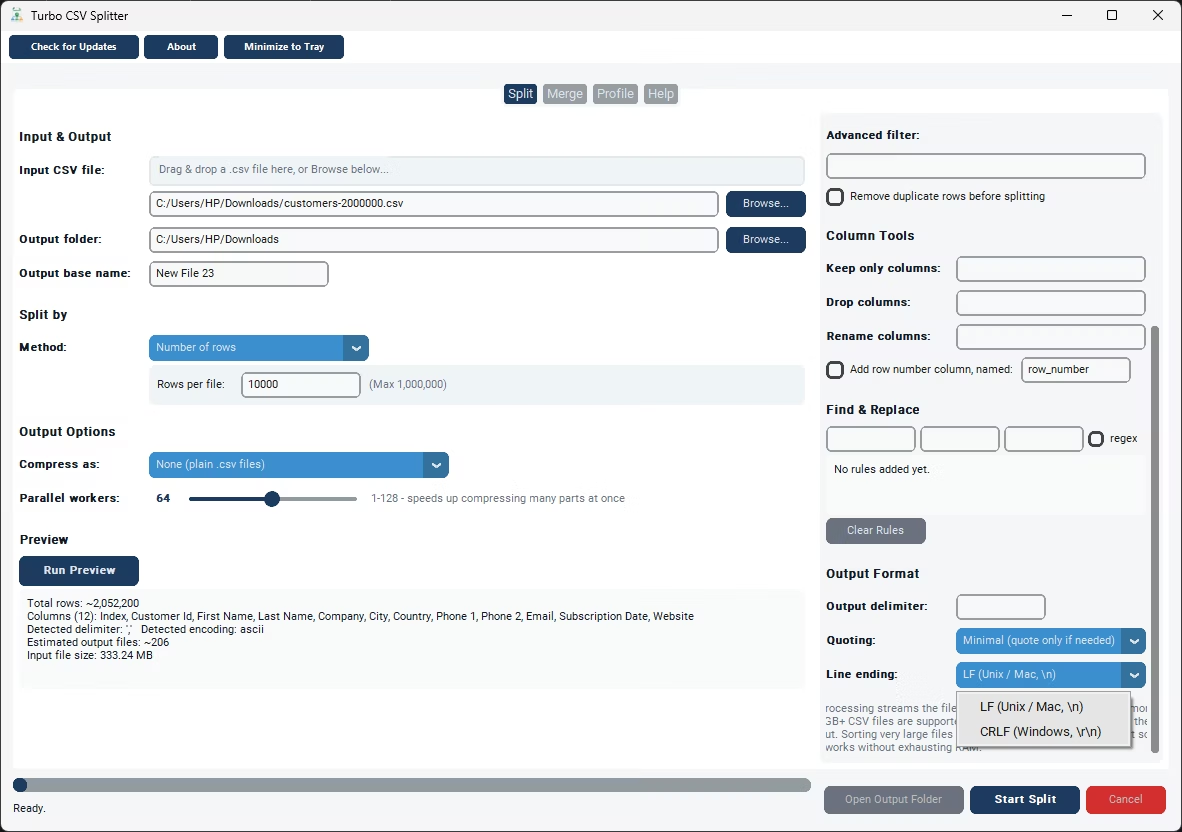
- Output delimiter, quoting and line endings. Leave the delimiter blank to match the input or convert on the way out (comma in, semicolon out); choose minimal, all, non-numeric or no quoting; choose LF or CRLF.
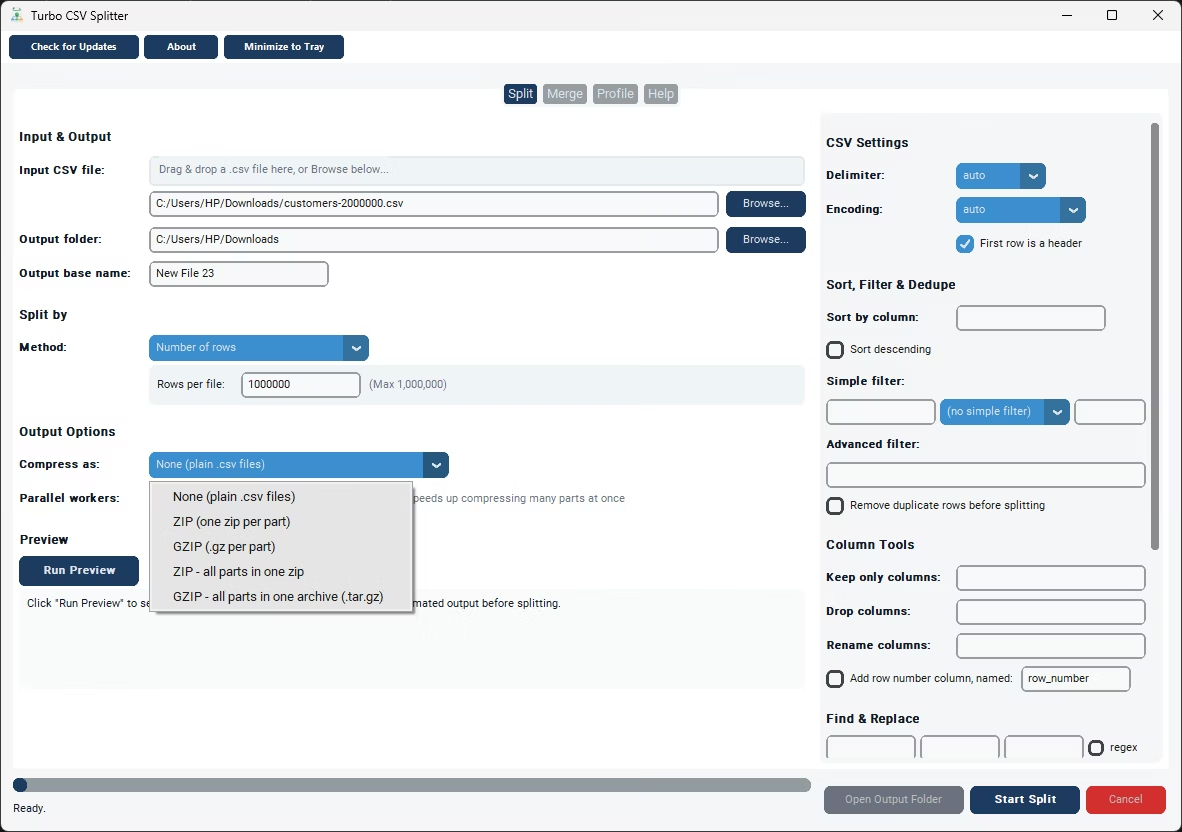
- Compression and naming. Leave parts as plain CSV, zip or gzip each part, or bundle every part into one ZIP or .tar.gz archive, and set a custom base name for the output files.
How It Works: A Step-by-Step Split
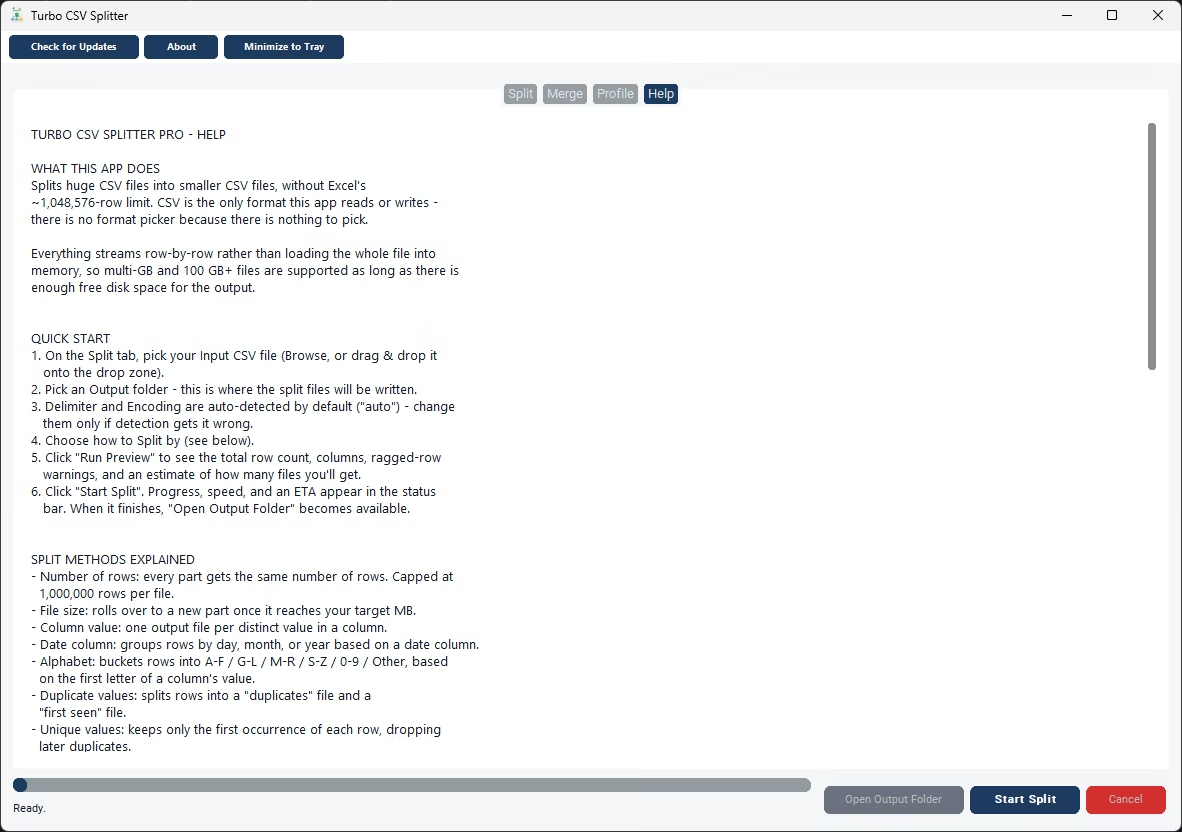
- Load your CSV. On the Split tab, browse to the file or drop it onto the drop zone. There is no format picker, because the app works with CSV only.
- Set the output folder. Every part, plus any archive or checkpoint file, lands there.
- Confirm delimiter and encoding. Both default to Auto.
- Choose how to split. Pick one of the nine methods and fill in its single setting.
- Run Preview. It reports the row count, columns, ragged-row warnings, sample rows and the estimated number of output files, as a safety check.
- Start Split. Watch progress, live rows per second and ETA in the status bar; Open Output Folder takes you to the results.
Performance
Rows are read and written one at a time, so memory use stays flat regardless of file size, with no full-file load into RAM. The status bar shows live throughput and a dynamically updated ETA. When compression is enabled, output parts are compressed across up to 128 workers in parallel instead of one at a time, while the row-by-row read and write itself stays a streaming operation. Sorting uses a disk-backed merge-sort, and delimiter detection samples only the start of the file. The tool suits database dumps, analytics logs, catalogues, survey data and multi-gigabyte exports.
Common Jobs
- Make a huge export open in Excel. Choose Number of Rows at 1,000,000, run Preview and split; every part carries the header row.
- Distribute data by region. Pick Column Value and the Region column for one CSV per region. Add a simple filter for the current quarter and Keep Only These Columns to omit internal fields.
- Prepare a machine-learning dataset. Choose Random Shards with the default seed for reproducible train, validation and test files, profile the source first for ragged rows, and add a row-number column for a stable identifier.
- Reassemble and clean parts. On the Merge tab add the files, write one header, tag rows with their source filename, drop duplicates and sort by a key column.
- Convert format while you split. Set the output delimiter to semicolon and the line ending to CRLF, then split by size to stay under an import cap, all in one pass.
Tips for Best Results
- Run Preview before every large split; it costs seconds and catches ragged rows and wrong delimiters before you commit.
- Profile a file first when it comes from an unfamiliar system, so data-quality problems surface before they break an import.
- Leave headroom on the output drive for all the parts, any archive and, if you sort, temporary sort files.
- Keep the default random seed when a train/test split must be repeatable, and note it with the dataset.
- Pick the method that matches the constraint: rows for Excel, file size for upload caps, column value or date for distribution.
Scope and Limitations
- CSV and delimited text only: no XLSX, JSON or database input or output. This single-format focus keeps it fast and simple.
- Row-based splitting is capped at 1,000,000 rows per output file, which keeps every part within Excel’s row ceiling.
- Output is written to disk, so the output drive needs room for all the parts and any archive.
- The advanced filter evaluates a Python expression per row, which assumes you can write a small expression; the simple filter needs no coding.
Offline and Private
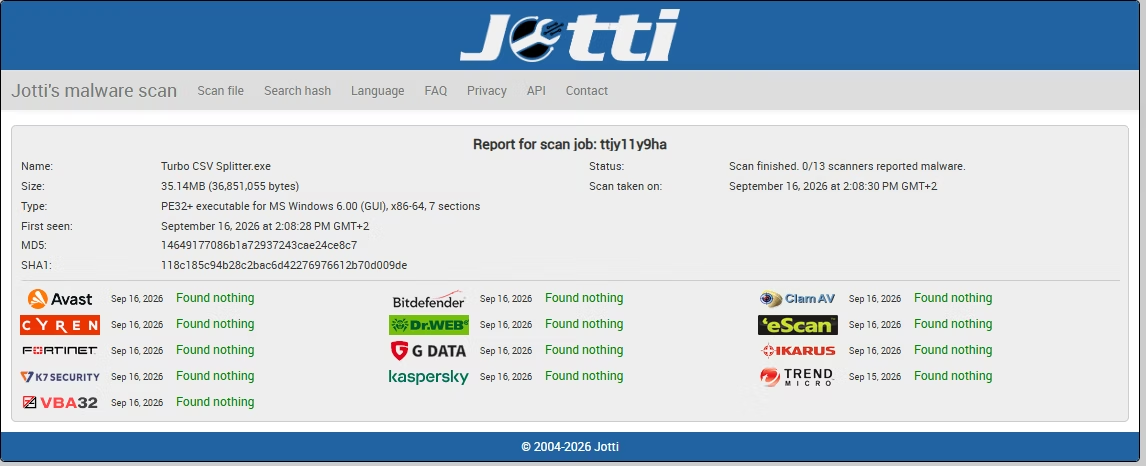
All splitting, merging and profiling happens on your own computer. No files are uploaded, scanned remotely or shared with third parties.
- The app does not log, analyze, track or store the contents of your CSV files, and has no third-party analytics, advertising trackers or background telemetry.
- Internet is used only for license validation; the request contains no file names or file content.
System Requirements and Licensing
| Requirement | Minimum | Recommended |
|---|---|---|
| Operating system | Windows 8 (64-bit) | Windows 10 or later (64-bit) |
| Processor | 1–2 CPU cores | 4 or more CPU cores |
| Memory | 2 GB RAM | 8 GB RAM or more |
| Storage | Free space at least equal to your split or merge output | SSD; headroom for input, output and temporary sort files |
Turbo CSV Splitter is a standalone Windows program with no browser, account or background service. Download it from the Gumroad product page, enter the email you purchased with and your license key, and the key is verified once and cached locally. After that no internet connection is needed; the Gumroad page is where the latest version is always available.