Turbo Excel Column and Row Extractor
for Windows
What the App Does
Data arrives as separate files, one workbook per branch, month, client, supplier or machine, and each holds far more than anybody needs. Someone then opens each file, finds the four columns that matter, copies them into a master sheet and repeats until the folder is empty.
Turbo Excel Column and Row Extractor removes that loop. You describe the extraction once (which folder, which sheets, which columns, which rows, which conditions) and the app applies it to every file it finds, reading many files at once and ignoring Excel's temporary lock files automatically. It is an Excel column extractor and a row extractor in the same window; use either half alone or both together.
- Narrow many files to a few columns. Keep every row but discard the columns you do not need.
- Pull out only the rows that matter. Keep every column but return the first fifty rows, the last twenty, or every row where Status says "Open".
- Do both at once. Take four columns, but only for rows where the region is South and the amount is over 10,000.
The output is a clean, data-only workbook or CSV containing exactly the cells you asked for, plus optional tracking columns. It is designed to feed pivot tables, BI tools, imports and reports, not to reproduce the formatting of the originals.
Supported File Types
| Type | Notes |
|---|---|
| .xlsx | Standard modern workbook, read through openpyxl. Multi-sheet workbooks are fully supported. |
| .xlsm | Handled exactly like .xlsx. Macros are never executed; only cell data is read, which is a safer way to open files from outside sources. |
| .xls | Legacy Excel 97–2003, read through the bundled xlrd engine. Off by default; tick it when your folder contains older files. |
| .csv | Plain comma-separated text, treated as a single-sheet file. The worksheet setting is ignored. |
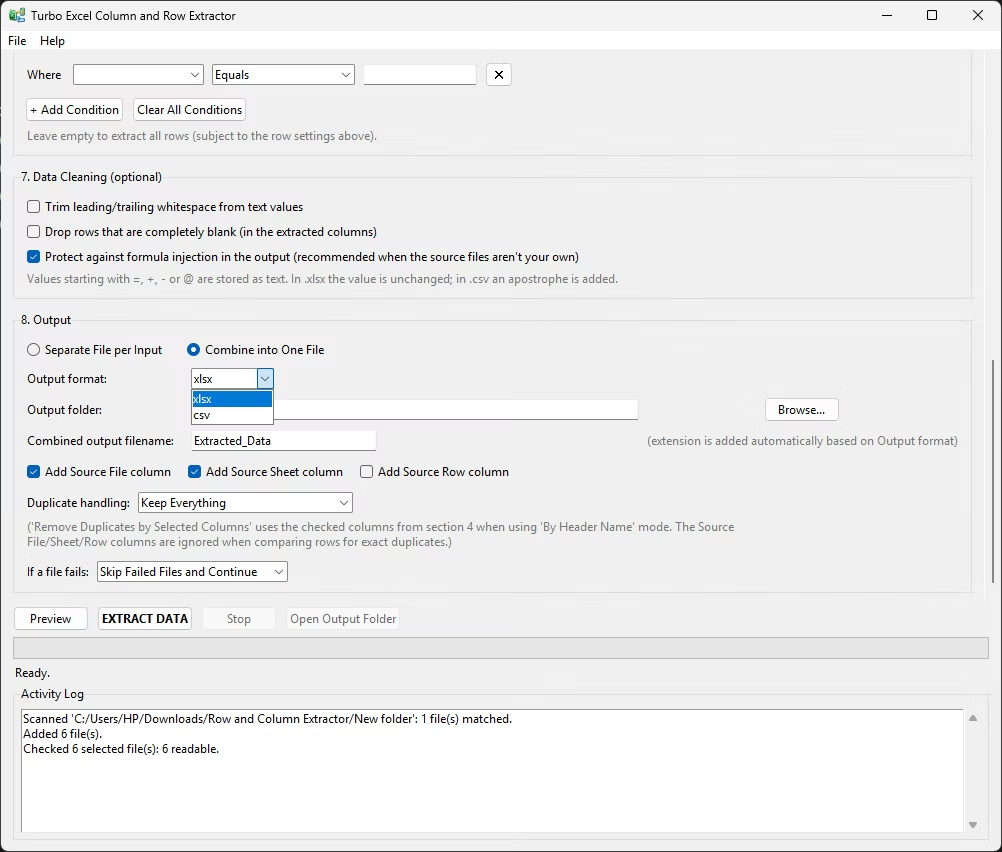
Each type has its own checkbox, with Select All and Clear All beside them, and all four can be mixed in one run as long as the requested columns exist in each. Output is one dropdown: XLSX when a person will open the result (a single tidy sheet with a header row, ready for a pivot table), CSV when a machine will read it (databases, Power BI, Python, R and ETL tools, with no row ceiling of its own and fast writes even for millions of rows). The extension is added for you.
Key Features
Batch Column Extraction
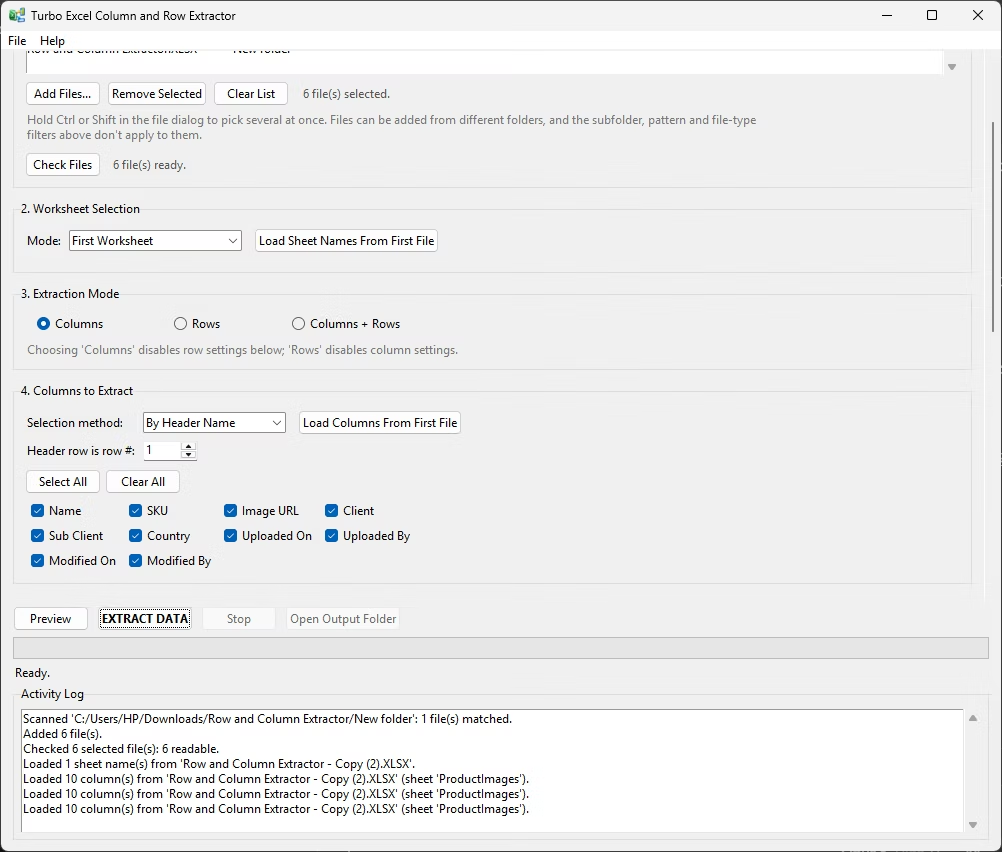
Choose columns once and pull them from every workbook in a folder, by header name (checkboxes loaded from a real sample file) or by column letters such as A,C,F:H.
Batch Row Extraction
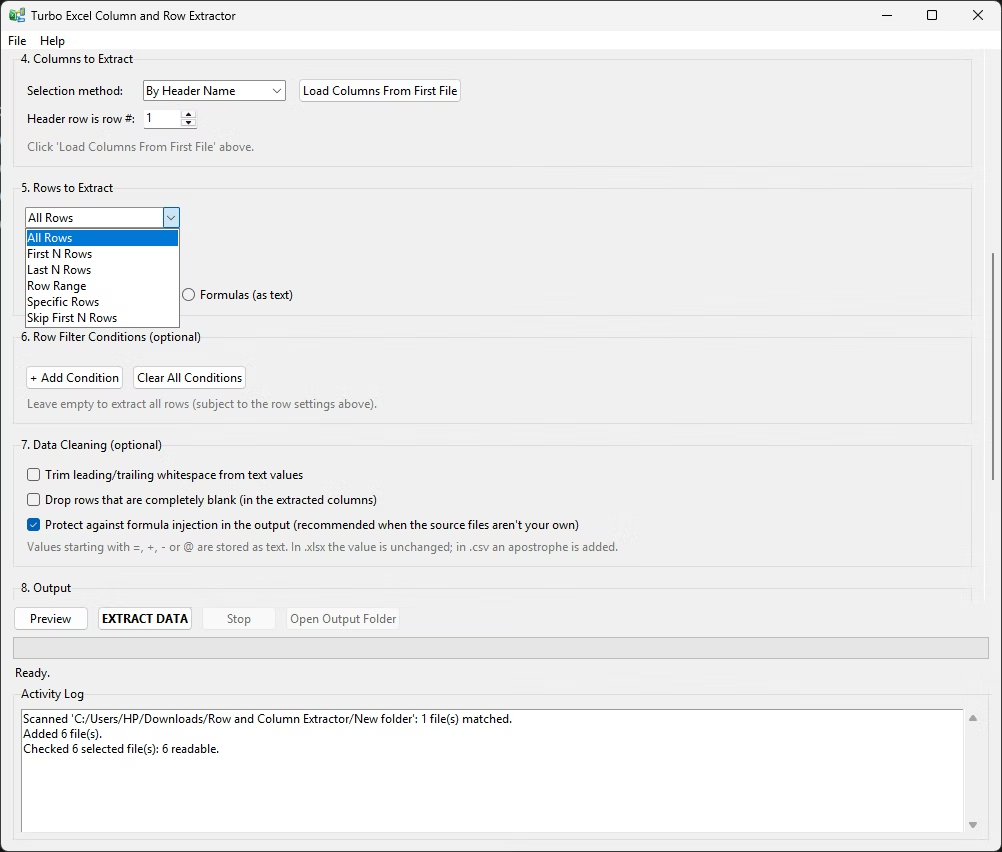
Six positional modes (All Rows, First N, Last N, Row Range, Specific Rows, Skip First N) combine with filter conditions to select rows by what they contain, not just where they sit.
Three Extraction Modes
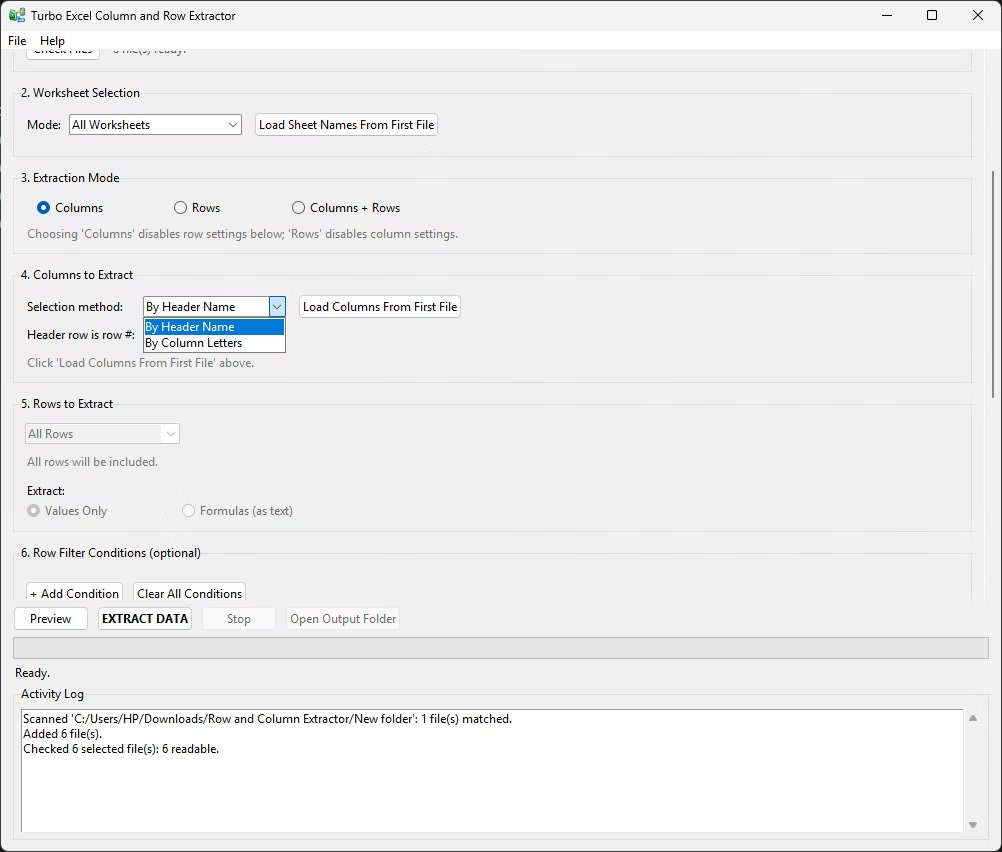
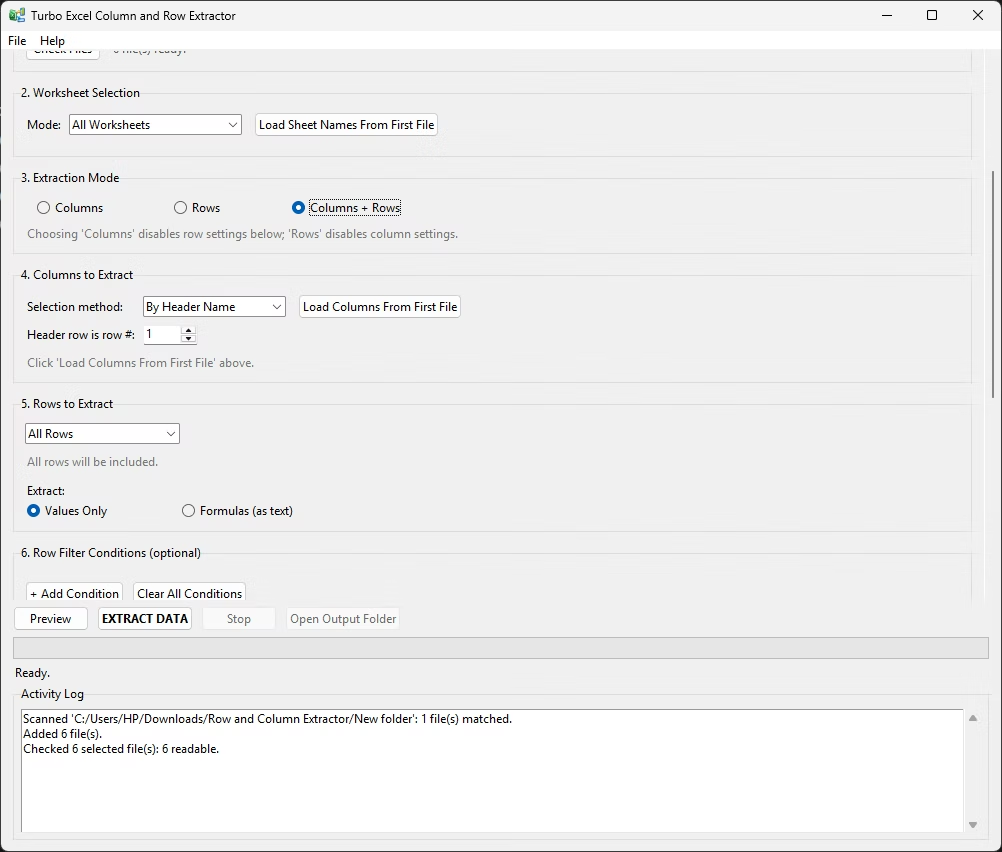
Columns, Rows or Columns + Rows. Settings that no longer apply grey out automatically, so it is always clear which rules are in force.
Recursive Scanning and Filename Patterns
Include subfolders walks the whole tree, a wildcard such as Sales_*.xlsx narrows the batch, and Scan Files reports the match count before you commit.
Four Worksheet Modes
Read all worksheets, the first, the active sheet as last saved, or a checked list of named sheets loaded from a sample file.
Configurable Header Row
A spinner tells the app where the real header sits, so reports with a title block, logo row or date stamp above the table are read correctly.
AND / OR Filter Conditions
Twelve operators, from Equals and Contains to Greater Than or Equal and Is Blank. Conditions run before column narrowing, so you can filter on a column you do not keep.
Source Tracking Columns
Optional Source File, Source Sheet and Source Row columns at the front of the output trace every record to its exact workbook, tab and line.
Combine or Split Output
Merge every match into one consolidated file, or write one output per source file named with an _extracted suffix.
Duplicate Removal and Cleaning
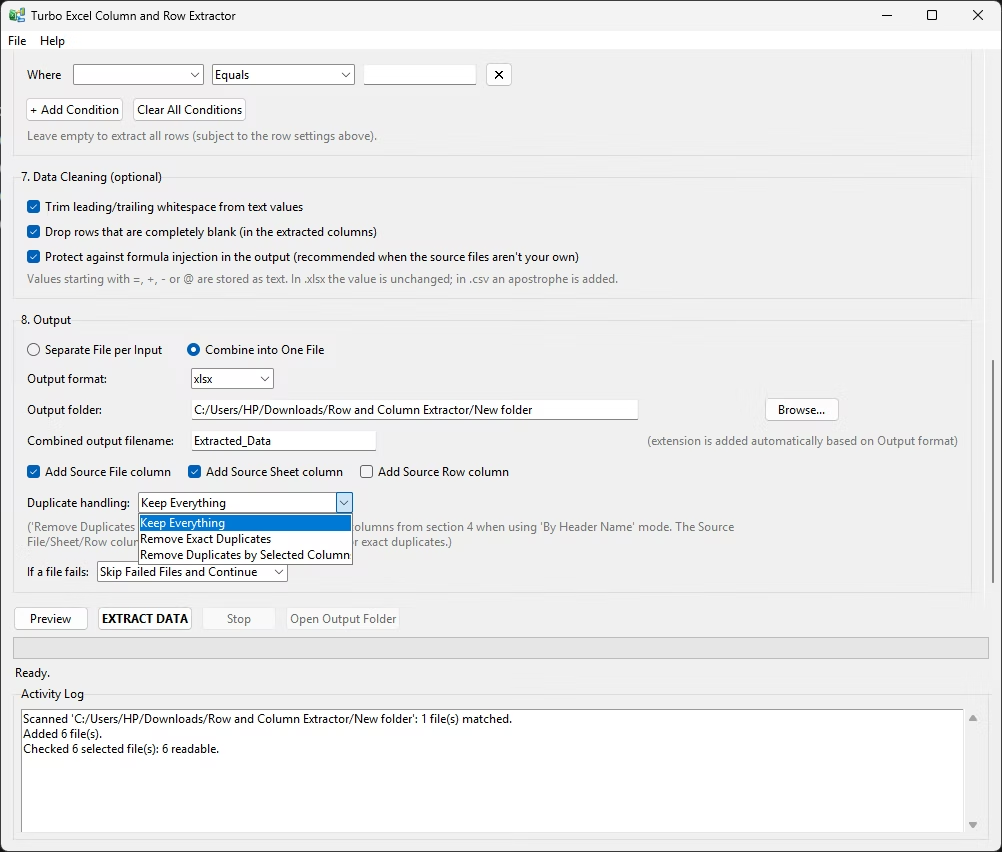
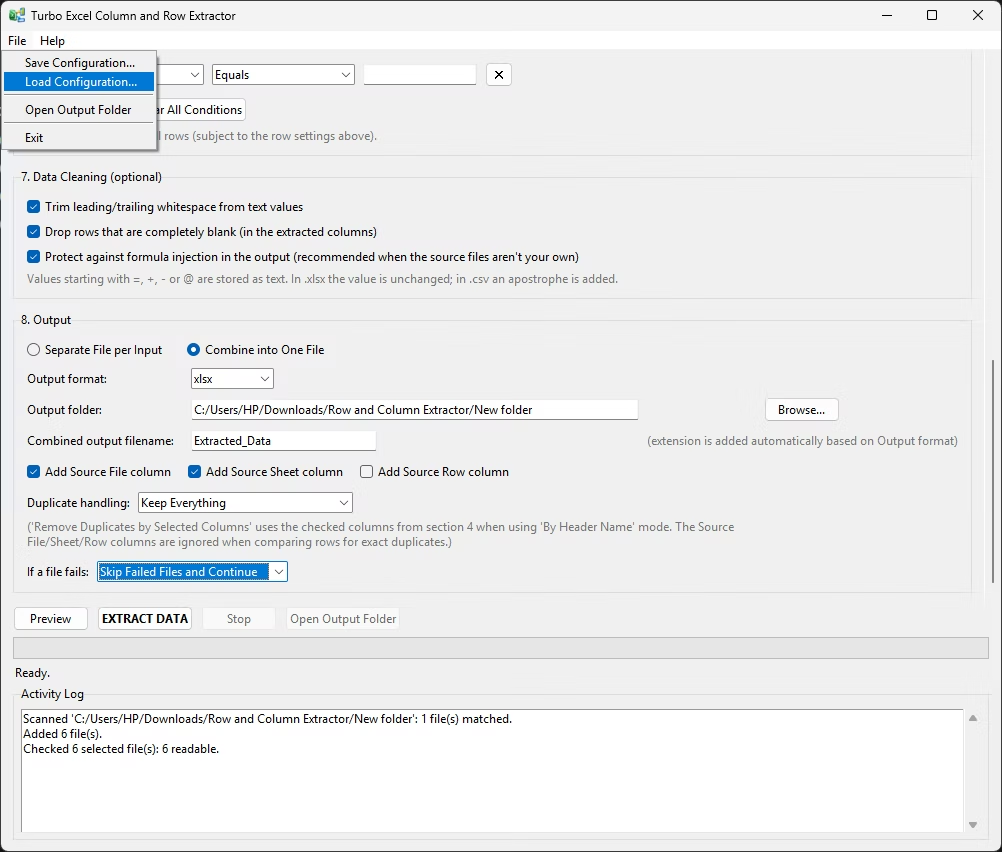
Drop exact duplicates or duplicates by key columns, trim whitespace (blank cells stay blank rather than becoming the text "nan") and drop rows that are entirely empty.
Live Preview
Runs your settings against the first matching file and shows up to 25 result rows plus the total number of matches, before you spend time on the full batch.
Progress, Stop, Log and Saved Configurations
A progress bar with files per second, success and failure counts and ETA; a Stop button that lets in-flight files finish so no output is half-written; a scrolling log; and settings that save to and load from .json.
How to Copy Columns and Rows From Multiple Excel Files
Copy columns from multiple Excel files
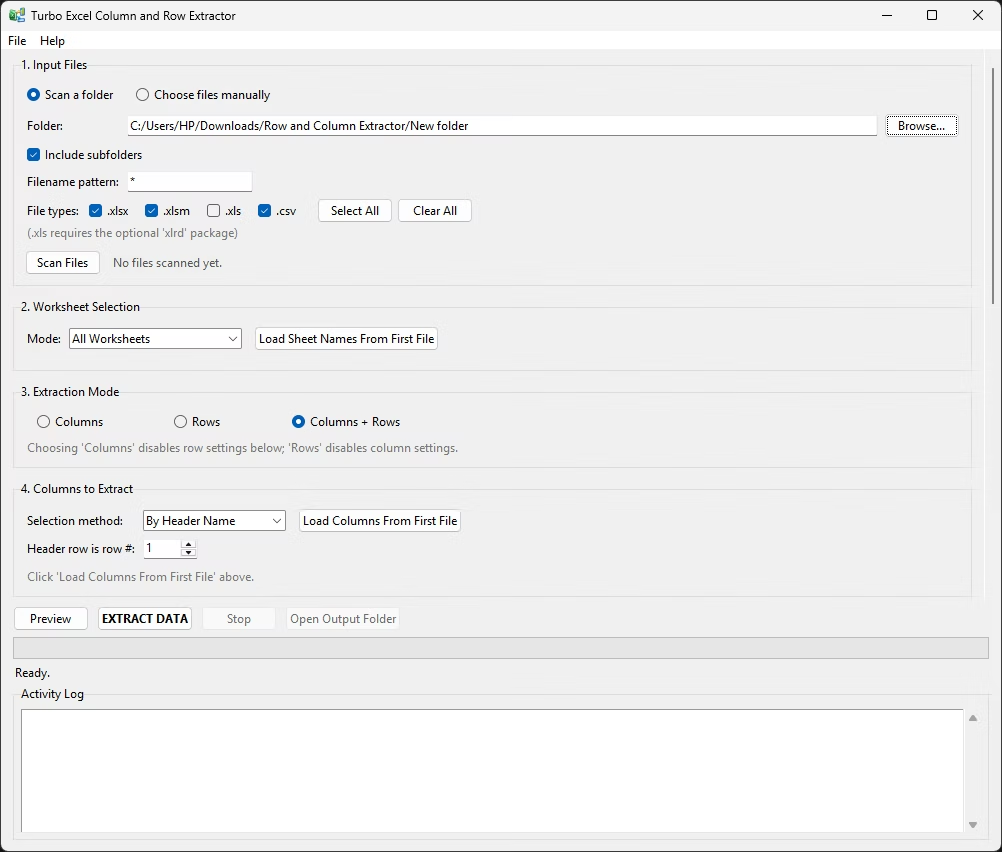
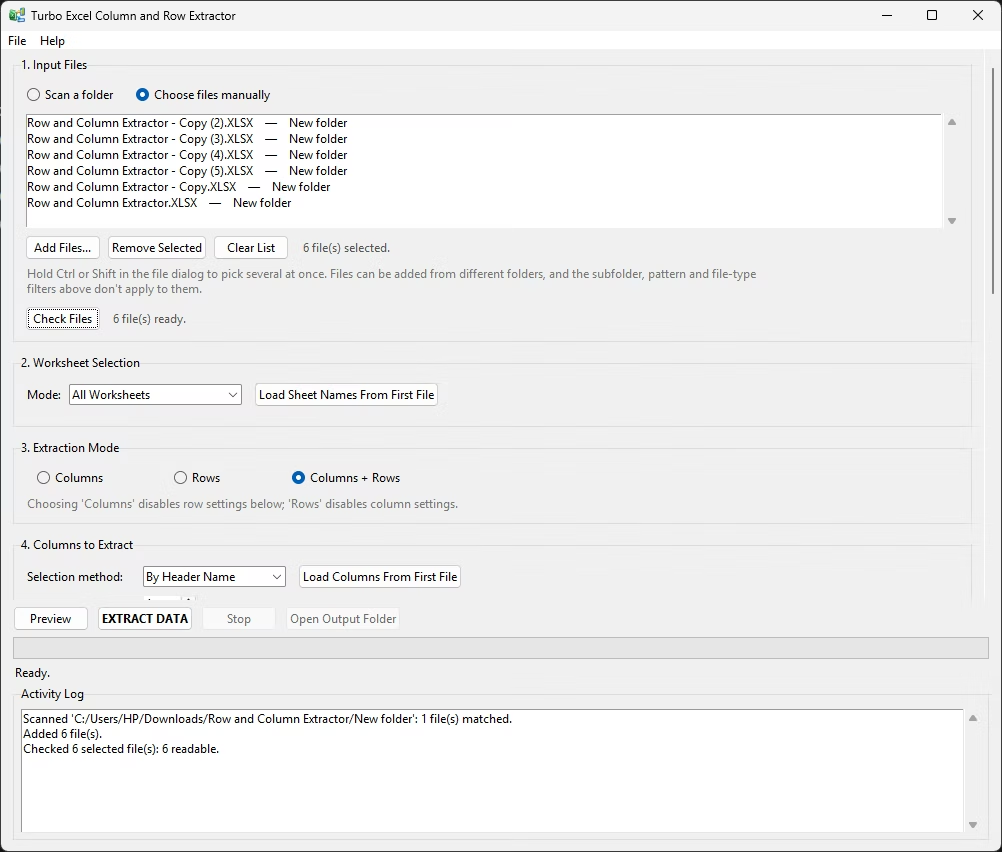
- Point the app at your folder. In section 1 browse to the folder, turn on Include subfolders if needed, set a filename pattern, tick the file types and click Scan Files to confirm the match count.
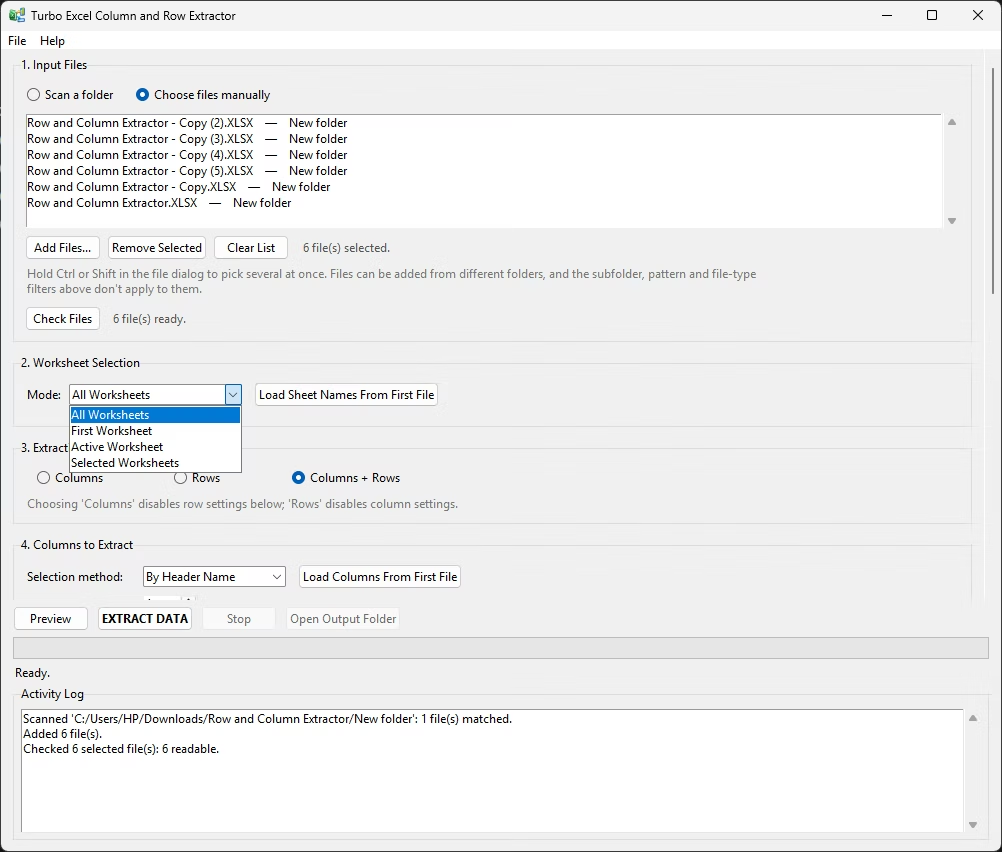
- Choose which worksheets to read. In section 2 pick All, First, Active or Selected Worksheets; for the last, click Load Sheet Names From First File and tick the sheets you want.
- Set the extraction mode to Columns. In section 3 select Columns. Row settings grey out and every data row in each file is kept.
- Pick the columns you want. In section 4 click Load Columns From First File and tick the headers, or switch to By Column Letters and type a spec such as A,C,F:H. If headers are not on row 1, set the header row first.
- Choose how the output is written. In section 8 select Combine into One File or Separate File per Input, pick xlsx or csv and an output folder, and leave Source File and Source Sheet on so every row can be traced back.
- Preview, then extract. Click Preview to test the settings on the first matching file, then click EXTRACT DATA. Progress, speed and ETA show live, and Open Output Folder appears when the run finishes.
Copy rows from multiple Excel files
- Select the folder and file types. In section 1 browse to your workbooks, decide whether to include subfolders, tick the file types and click Scan Files.
- Switch the extraction mode to Rows. In section 3 select Rows. The column picker greys out, so every column is carried through and only your row rules apply.
- Choose a positional row rule. In section 5 pick All Rows, First N, Last N, Row Range, Specific Rows or Skip First N; Skip First N suits files with title or metadata lines above the real table.
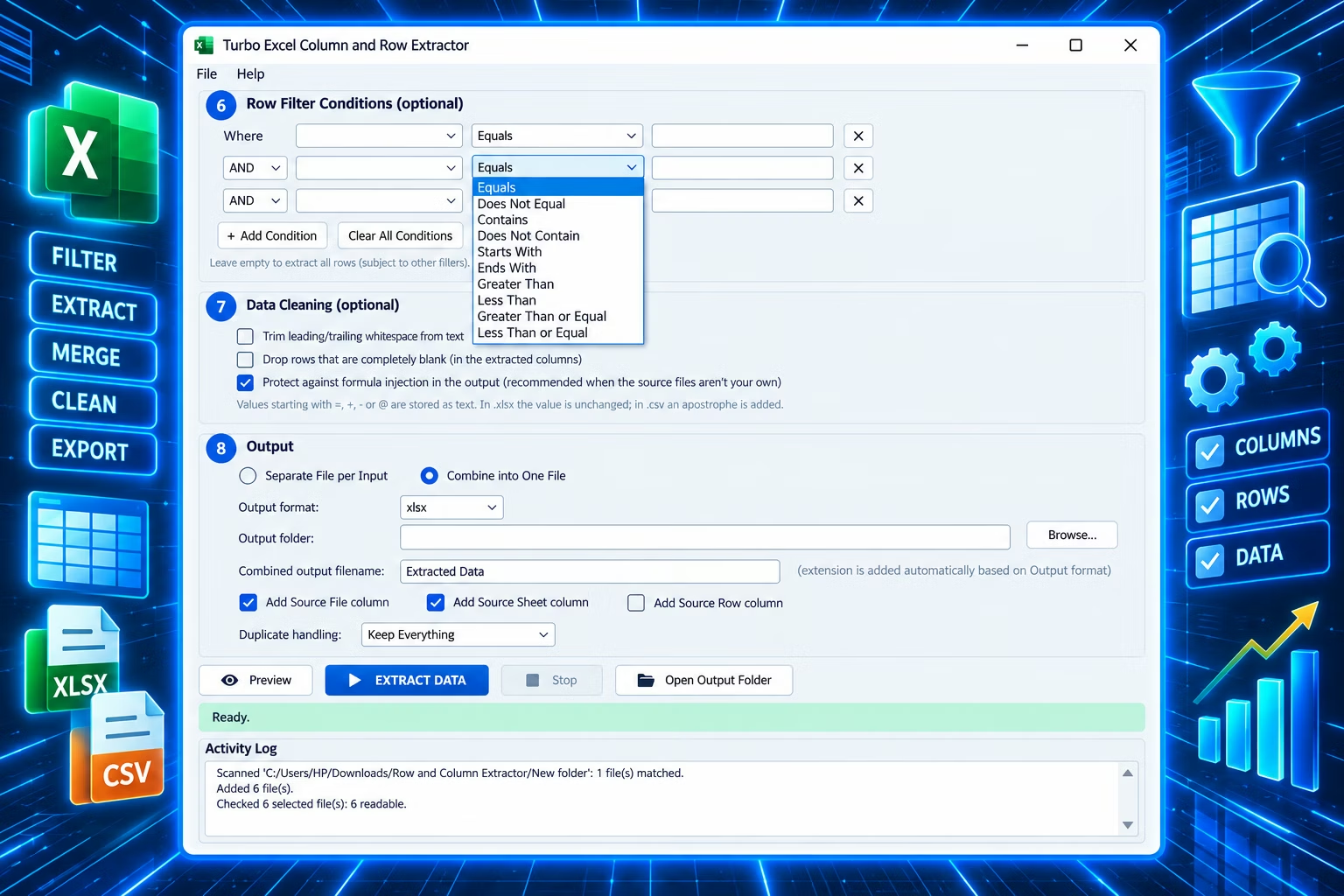
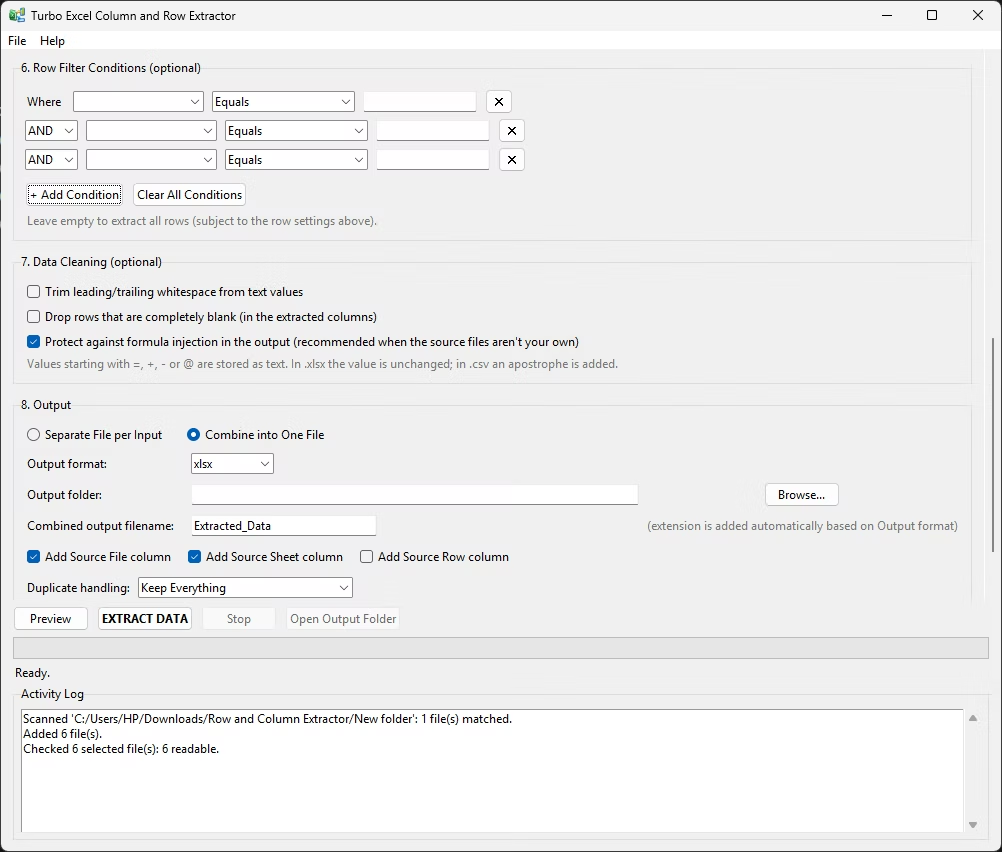
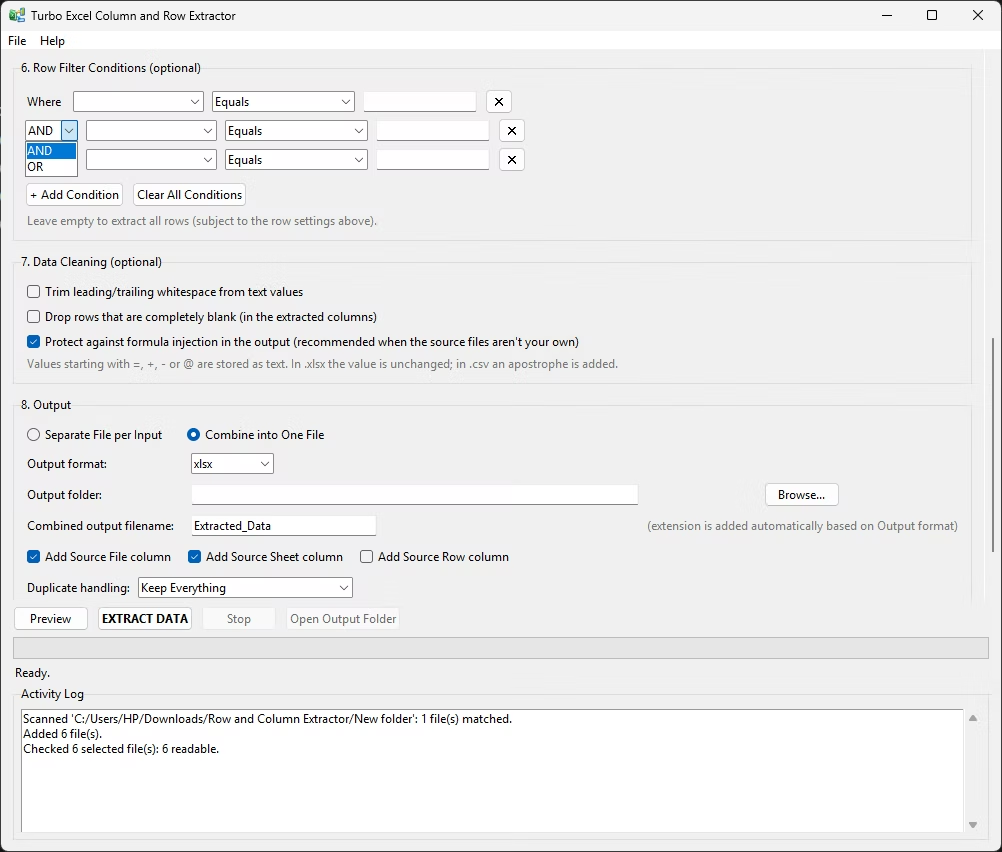
- Add filter conditions. In section 6 click Add Condition and build a rule such as Department Equals Sales, joining further conditions with AND or OR.
- Clean and de-duplicate. In section 7 optionally trim whitespace and drop blank rows; in section 8 choose Remove Exact Duplicates or Remove Duplicates by Selected Columns.
- Run the batch. Preview on one file, then click EXTRACT DATA. The activity log records every file processed, and Stop cancels cleanly.
How the Window and the Extraction Work
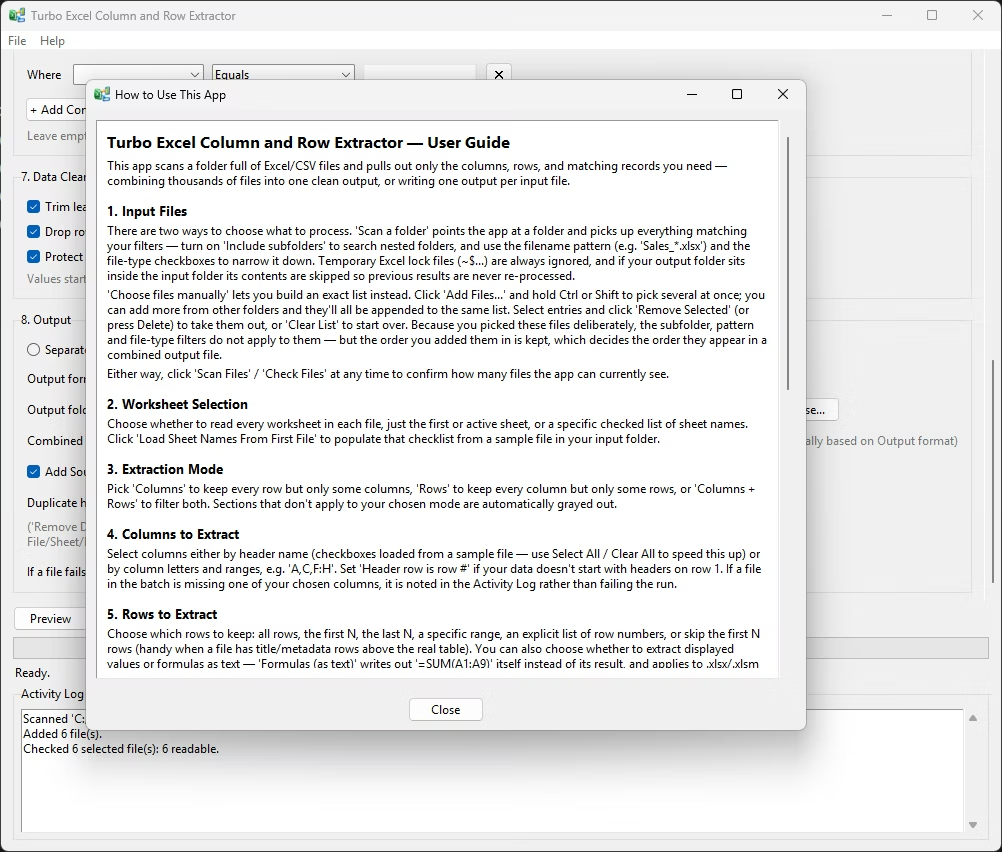
The app opens on one scrollable window with eight numbered sections in the order you would think about the job: 1 Input Folder, 2 Worksheet Selection, 3 Extraction Mode, 4 Columns, 5 Rows, 6 Row Filter Conditions, 7 Data Cleaning and 8 Output. Below them an action bar holds Preview, EXTRACT DATA and Stop. When you press EXTRACT DATA, each file goes through the same steps:
- The worksheet mode is resolved for that file, so a four-tab workbook and a one-tab workbook are both handled under one setting.
- Each sheet is read using your header row, with every value read as text so IDs with leading zeros, mixed-type columns and long numbers survive intact.
- Original row numbers are recorded before any filtering, which keeps Source Row accurate however much you filter.
- The positional row rule and the filter conditions are applied while every original column is still present, and only then is the table narrowed to the chosen columns, with tracking columns inserted at the front.
- The cleaning pass runs. In per-file mode the result is written immediately; in combined mode it is held until every file is done, then concatenated, de-duplicated and written once, because duplicates usually only appear once files are merged.
Choosing Columns, Rows and Values
- By header name. Load Columns From First File renders every header as a checkbox, all ticked, so the quickest route is Clear All then tick the few you want. Matching is by exact header text.
- By column letters. A spec such as
A,C,E,A:D,A,C,F:HorB:D,M,AA:ACselects by position. Letters are immune to header wording but shift if someone inserts a column at the front of a file. - Header row. Set it (default 1) before loading the column list, because the checkboxes are built from whichever row it points at. Set it to 4 for reports that open with a title, company name and date stamp.
- Row modes. First N (default 100) suits sampling; Last N suits logs where the newest records sit at the bottom; Row Range is inclusive, with row 1 the first data row below the header; Specific Rows takes a list such as
1,5,10,25, ignoring numbers past the end of a sheet; Skip First N discards junk lines below the header. - Values Only (the default) reads what a cell displays, so
=B2*C2arrives as its result. Formulas (as text) is a diagnostic option that reads cached values rather than re-evaluating formulas.
Row Filter Conditions
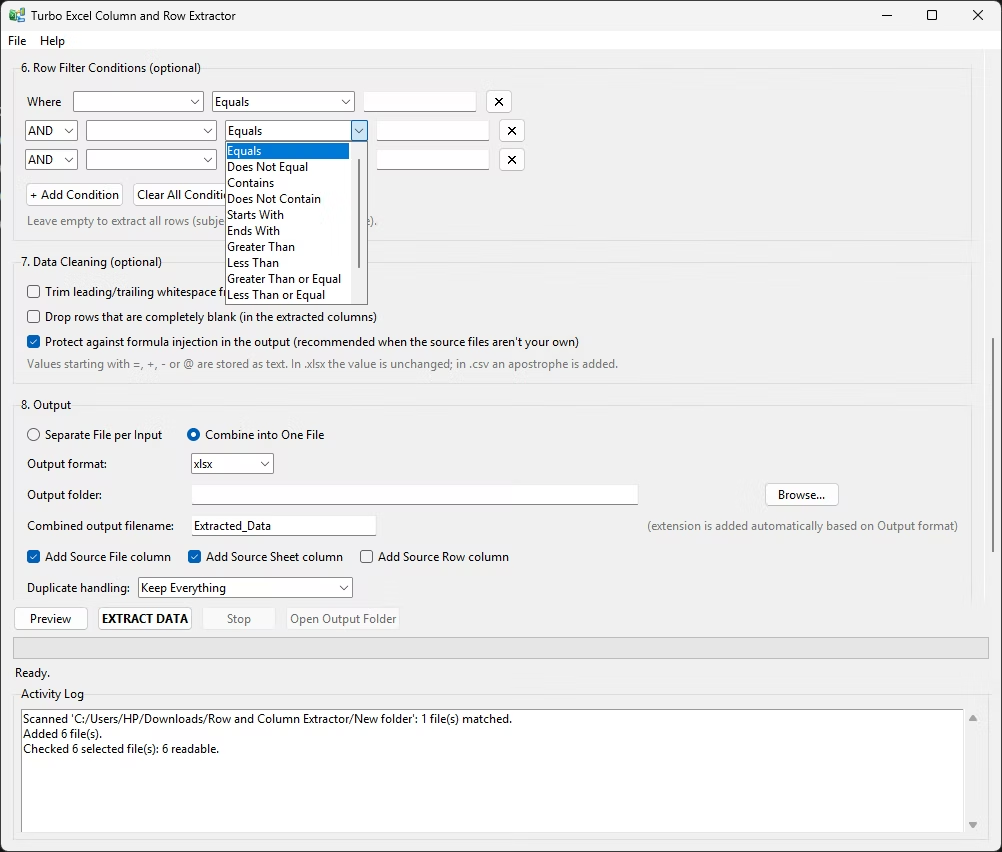
Section 6 is optional and empty by default, so every row passes. Click + Add Condition to build a rule; conditions after the first get an AND / OR dropdown, and a × button or Clear All Conditions removes them. There are twelve operators:
| Operator | Behaviour |
|---|---|
| Equals / Does Not Equal | Exact match (or everything except it), case-insensitive, surrounding spaces ignored. |
| Contains / Does Not Contain | The value appears anywhere in the cell (or nowhere). Case-insensitive plain text, not a pattern. |
| Starts With / Ends With | The cell begins or ends with the value. |
| Greater Than / Less Than | Numeric comparison. Non-numeric cells never match. |
| Greater Than or Equal / Less Than or Equal | Inclusive numeric comparison. |
| Is Blank / Is Not Blank | The cell is empty or only spaces (or contains something else). No value needed. |
Conditions are evaluated in the order shown, each joining the accumulated result above it, with no bracketing. If you want parentheses, run two extractions with different filters instead. Because conditions run before column narrowing, the dropdowns list every header from section 4, not just the ticked ones.
Output, Duplicates and Source Tracking
- Combine into One File (the default) concatenates every extracted row from every file and sheet into one output. Separate File per Input writes one trimmed file per source, so
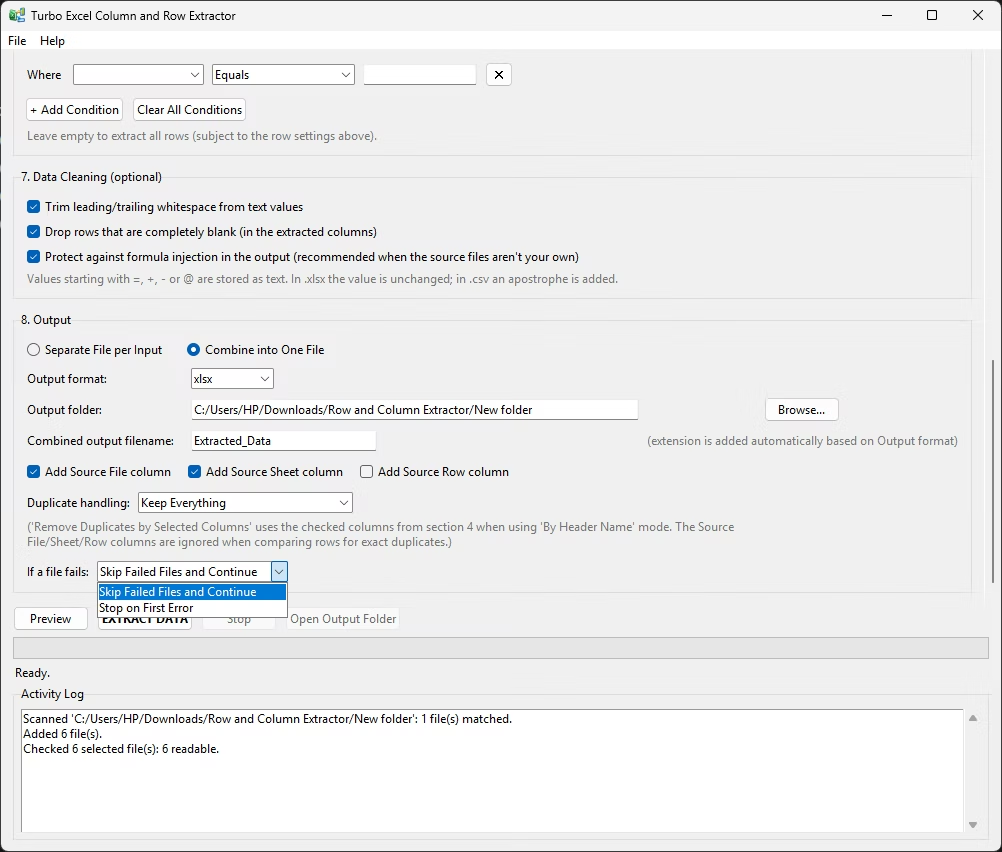
Branch_04.xlsxbecomesBranch_04_extracted.xlsx. - Output folder and failures. The folder is created if missing. Keep it outside the folder being scanned, or a re-run with subfolders on will pick up its own earlier output. The combined name defaults to Extracted_Data, and "If a file fails" is Skip and continue (the default) or Stop on first error.
- Duplicates are handled after every file is read: Keep Everything (the default, right when repeats are real events), Remove Exact Duplicates, or Remove Duplicates by Selected Columns to keep the first row per employee ID, invoice number or SKU. Whitespace trimming happens first, so rows differing only by a trailing space are caught when it is on.
| Tracking column | Contains | Default |
|---|---|---|
| Source File | The file name the row came from | On |
| Source Sheet | The worksheet name (CSV for CSV inputs) | On |
| Source Row | The original row number, calculated before any filtering | Off |
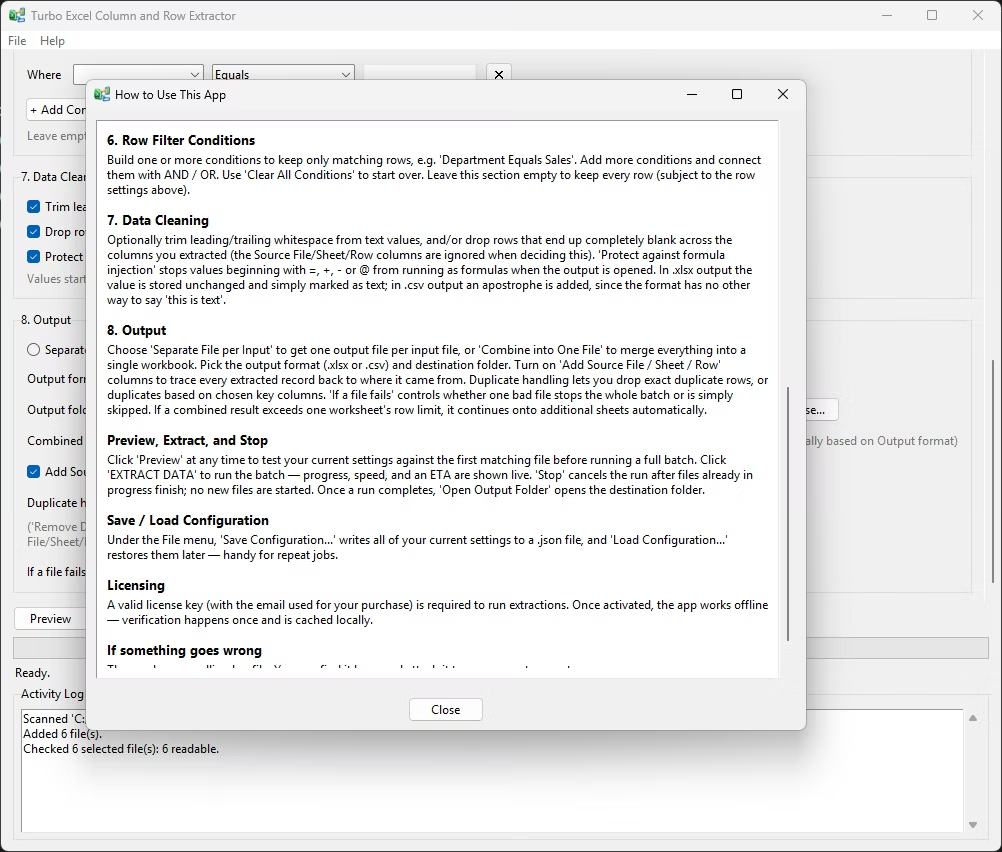
The columns are inserted in that order at the left of the table. Source File often stands in for branch, month or client, so a consolidated extract can be pivoted by source without adding a category column. Under the File menu, Save Configuration writes every setting to a .json file and Load Configuration restores it, which turns a monthly consolidation into loading last month’s file, changing the folder and pressing the button; it is also a reliable way to hand an extraction to a colleague.
Performance
Batch processing runs across a fixed pool of 128 worker threads, with no slider by design. Reading a workbook is dominated by waiting on the disk, file system or network share, so many concurrent reads cut wall-clock time, and one sensible setting avoids a badly chosen value that looks like a fault. What actually determines speed:
- Storage. An NVMe SSD can be several times faster than a mechanical drive, and local storage beats a network share by a wide margin.
- File size and sheets. Total data read matters more than file count, and All Worksheets on a 20-tab workbook means 20 reads; restrict to First Worksheet when the other tabs are irrelevant.
- RAM and format. Combine mode holds results in memory until the end, CSV writes faster than XLSX for very large results, and legacy .xls parses slower than .xlsx.
Notes and Current Limitations
- Formatting is not preserved. Output is a clean, data-only workbook; fonts, fills, borders, conditional formatting, number formats, merged cells and column widths are not carried through.
- Formulas are read, not re-evaluated, and password-protected files cannot be read, so they are counted as failures.
- Only cell data is extracted. Charts, images and pivot tables are outside its scope.
- No bracketed condition logic. Conditions join in order with AND and OR; nest complex logic as separate runs.
- XLSX row ceiling. A single XLSX worksheet holds at most 1,048,576 rows, a limit of the format itself. Choose CSV for larger results.
Offline and Private
- All processing is local. Files are read from and written to your own disk; nothing is uploaded and there is no cloud component.
- No telemetry on your data. File names, column names, cell values, row counts and folder paths are never transmitted.
- One network request. The only contact with the internet is the one-time license activation, which carries your key and purchase email. After that it works offline, including in air-gapped environments.
- Source files are never modified, and macros in .xlsm files are never executed.
System Requirements and Licensing
| Requirement | Minimum | Recommended |
|---|---|---|
| Operating system | 64-bit Windows 10 or Windows 11 | 64-bit Windows 11 |
| Processor | 64-bit x86, dual core | Modern quad-core or better |
| Memory | 4 GB RAM | 16 GB or more for very large combined outputs |
| Storage | 300 MB, plus room for output files | NVMe SSD, with input files stored locally |
| Display | 1280 × 720 | 1920 × 1080 |
| Excel | Not required | Not required |
Purchase through Gumroad with the Buy Now button on this page, run the installer, and activate on first launch with the email you purchased with and your license key; verification is cached locally afterwards. If activation fails, check that the email matches the purchase exactly and that the key was pasted in full with no trailing space. See the activation guide or support.