
Turbo Excel Lookup
for Windows

What Is Turbo Excel Lookup? A VLOOKUP Alternative for Windows
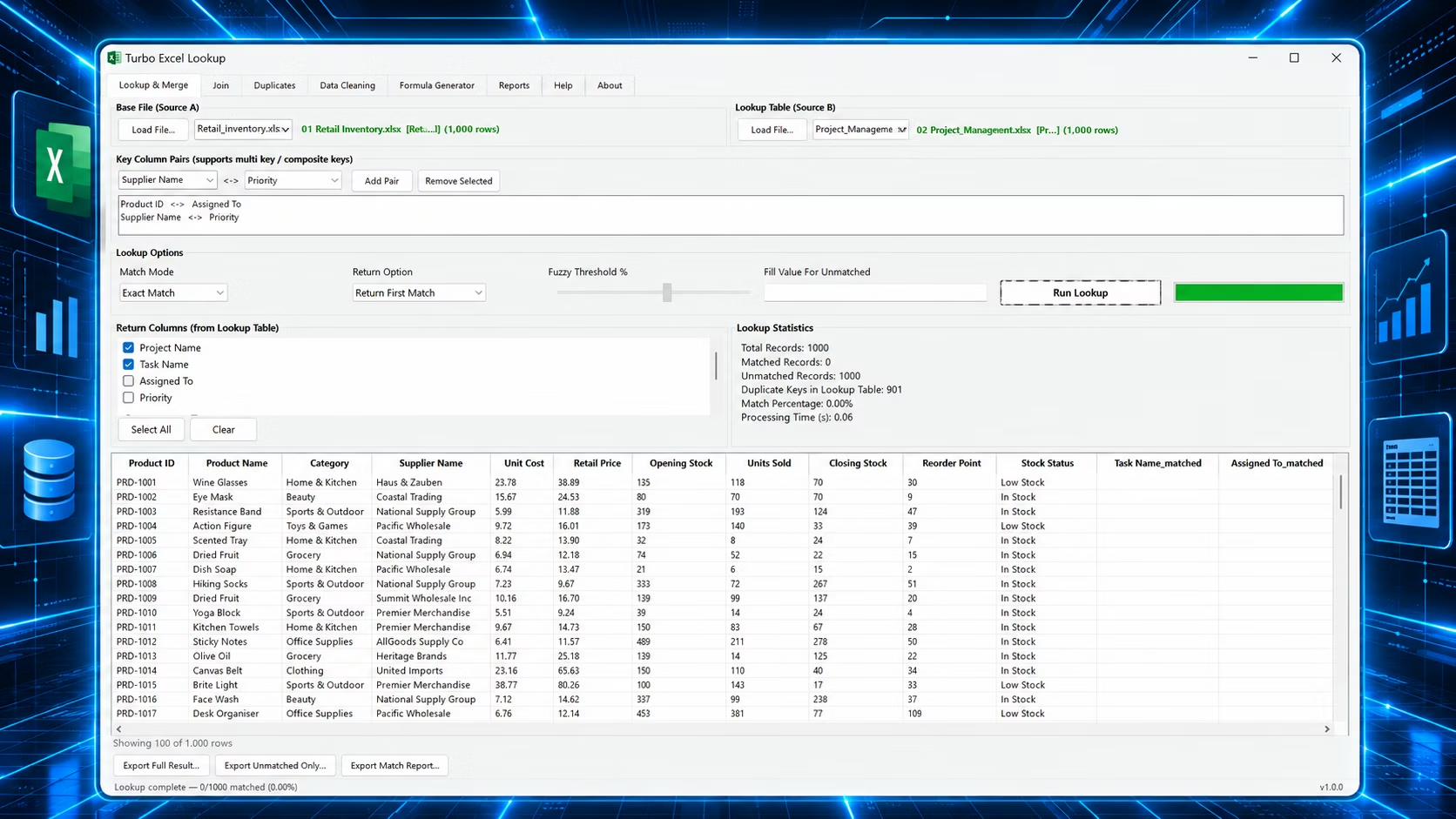
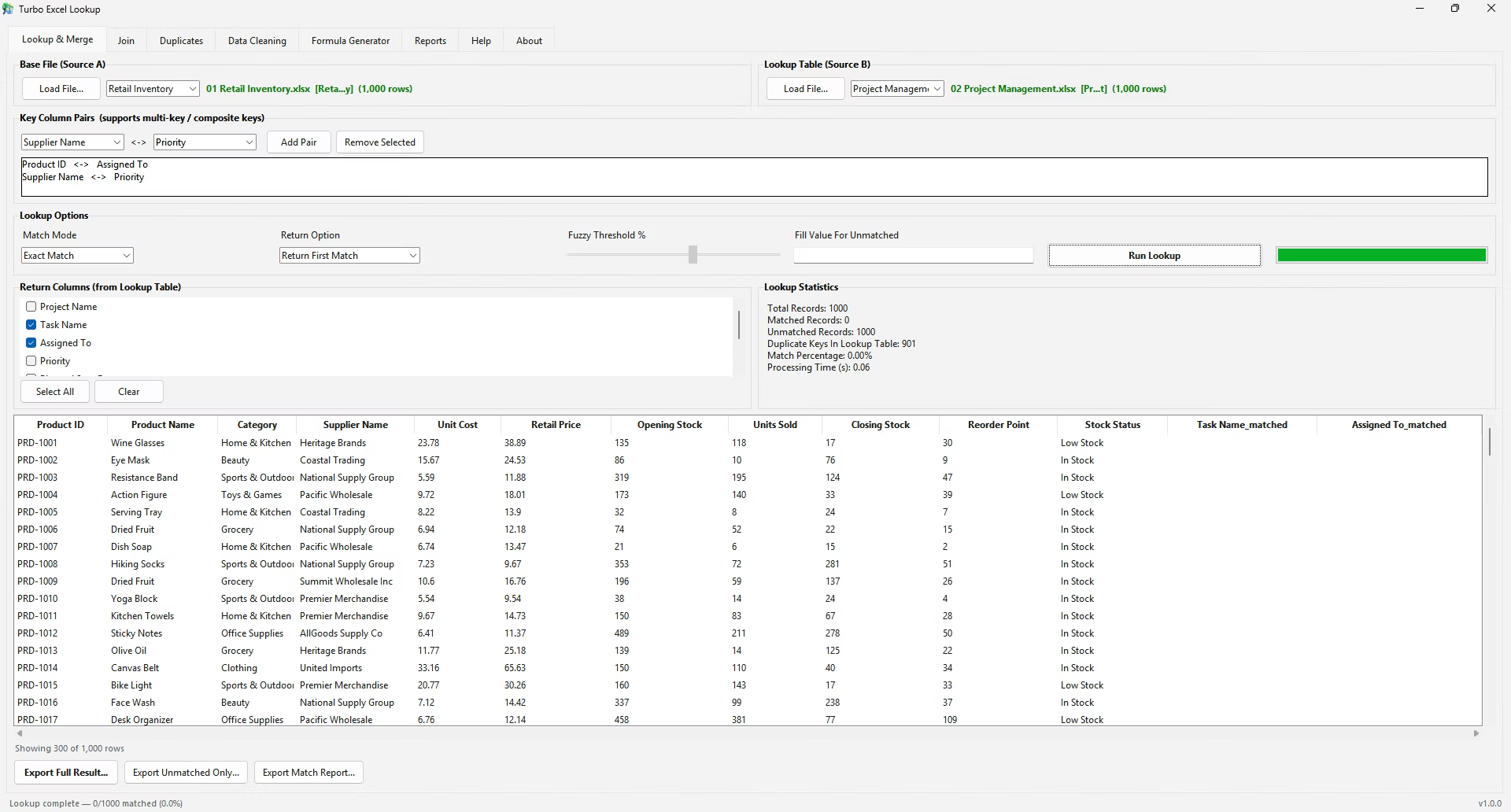
Turbo Excel Lookup is a Windows desktop application that matches, merges, joins, deduplicates and cleans Excel and CSV data without formulas. Load two files, choose the key columns that define a match, pick one of eleven match modes and click Run — workbooks with several sheets show a sheet picker first. The result is a static, exportable table with statistics showing how many rows matched, how many did not and how long the run took.
It replaces the VLOOKUP, XLOOKUP and INDEX-MATCH formulas most people use to pull data from one sheet into another, and avoids their usual problems: brittle range references, #N/A errors caused by a stray space or capital letter, formulas that break when a column is inserted, and slowdowns on large worksheets. Matching runs in a dedicated engine built on the pandas data-analysis library, so it handles far larger datasets than a live worksheet formula can comfortably manage.
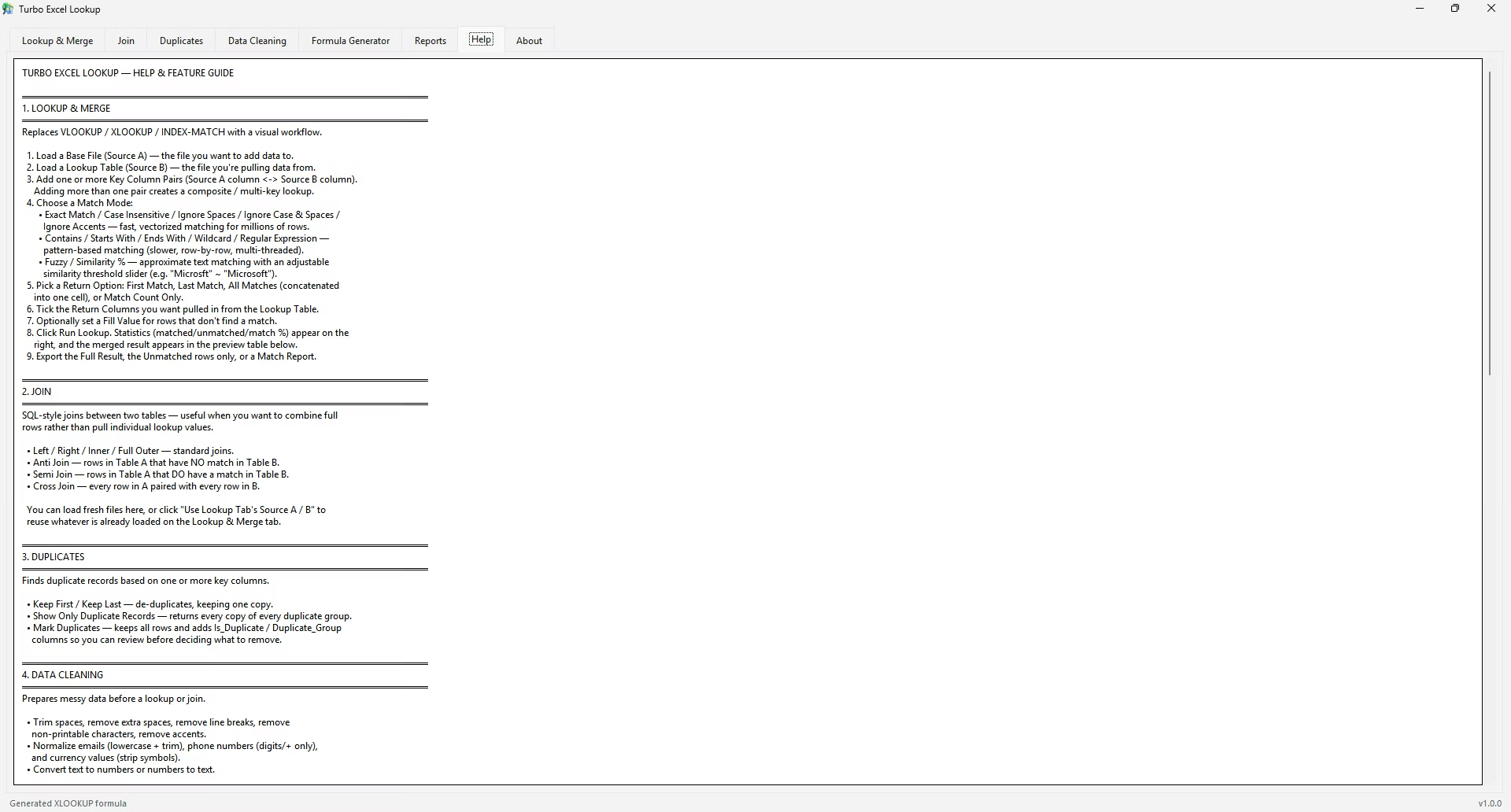
Eight tabs cover the full workflow: Lookup & Merge, Join, Duplicates, Data Cleaning, Formula Generator, Reports, Help and About. Every tab shares the same file-loading, column-selection, preview and export controls, so learning one means knowing them all.
Key Features
Composite Multi-Key Lookups
Add a second or third key column pair, such as First Name plus Last Name or Order ID plus SKU, and the match becomes composite automatically, with no helper columns.
SQL-Style Join Tab
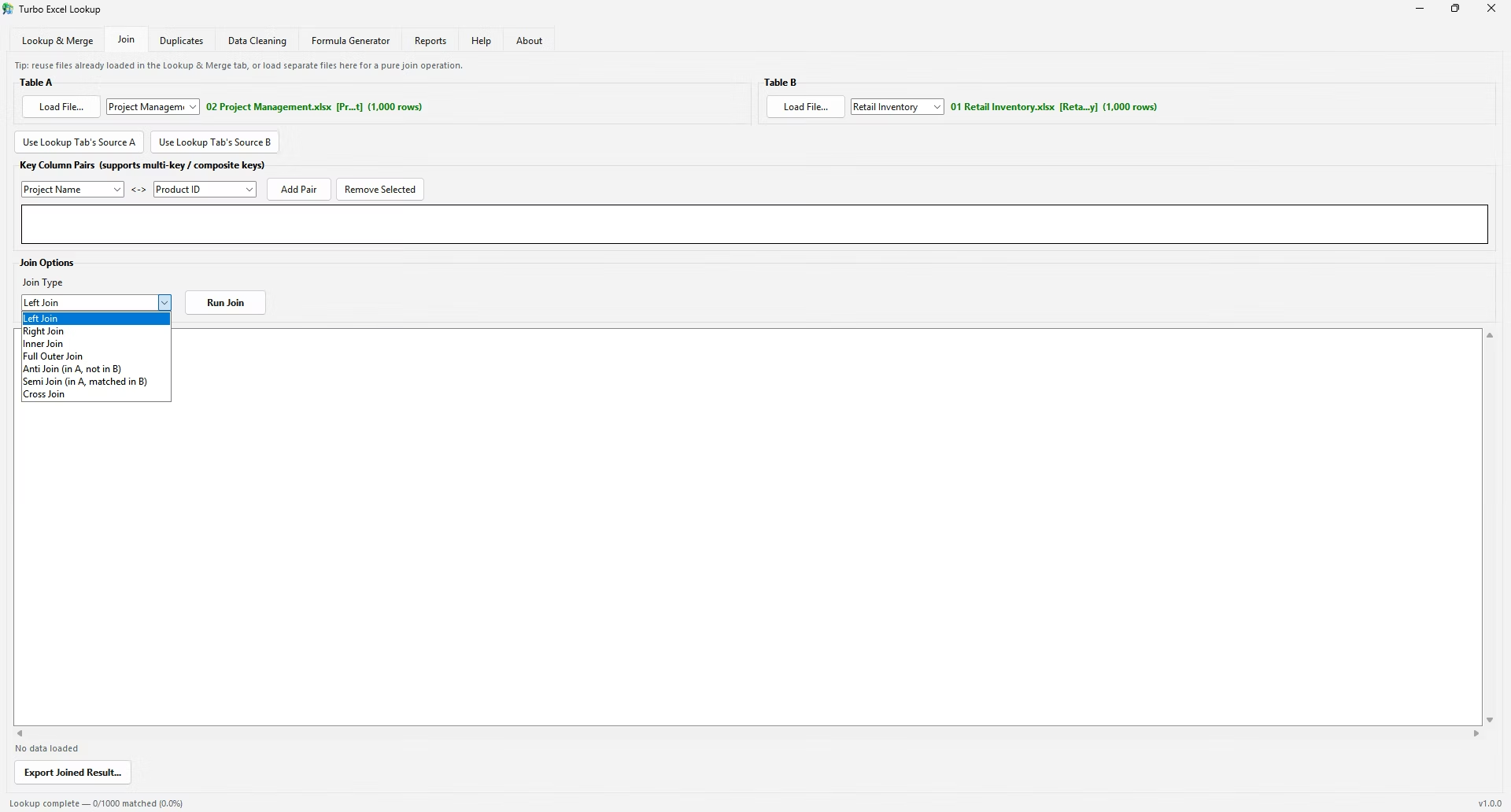
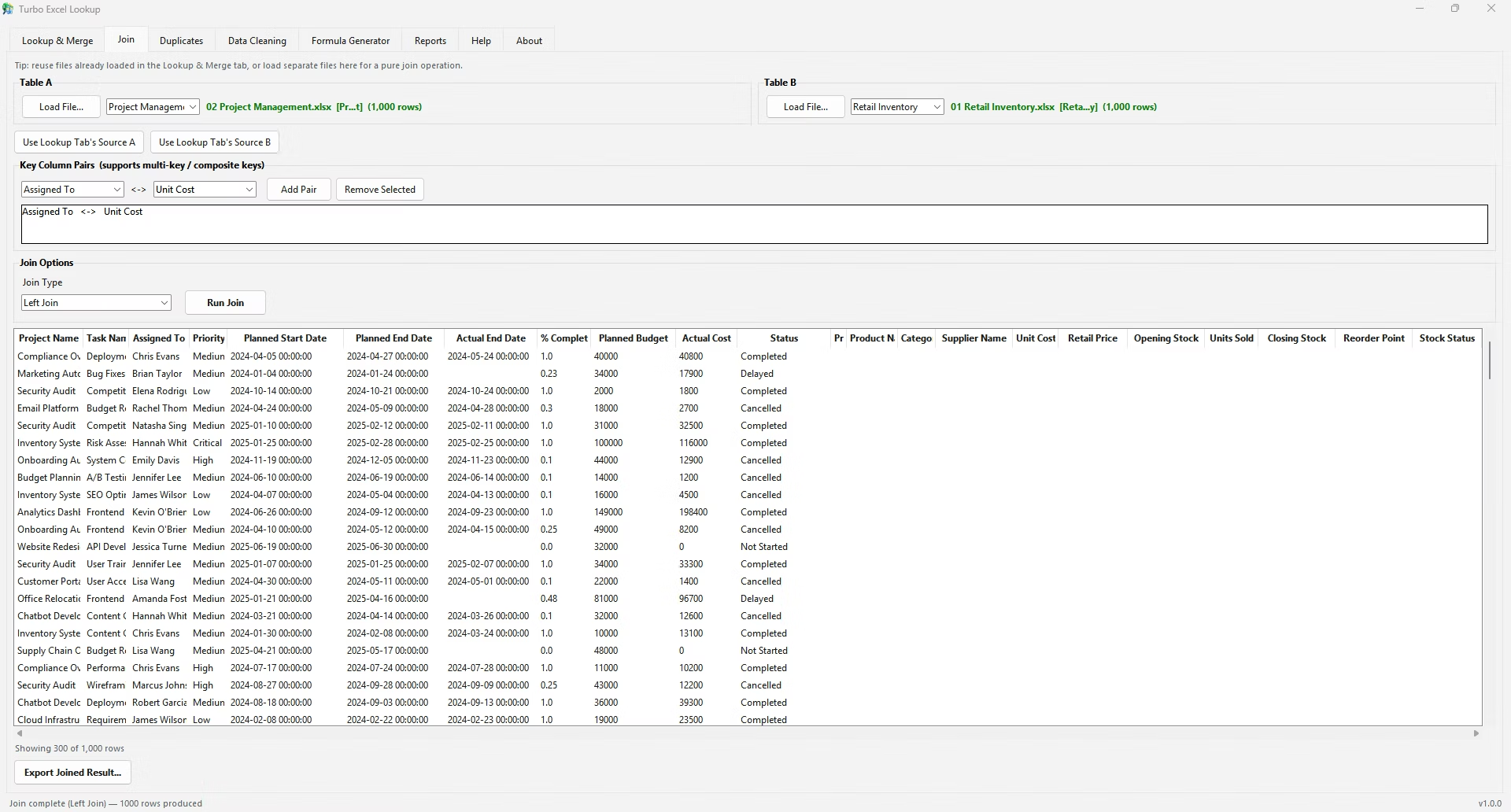
Combine two whole tables with Left, Right, Inner, Full Outer, Anti, Semi or Cross joins. An Anti join finds records that exist in one file but not the other; run it in both directions for every difference between two lists. You can reuse the files already loaded on the Lookup & Merge tab.
Duplicate Finder
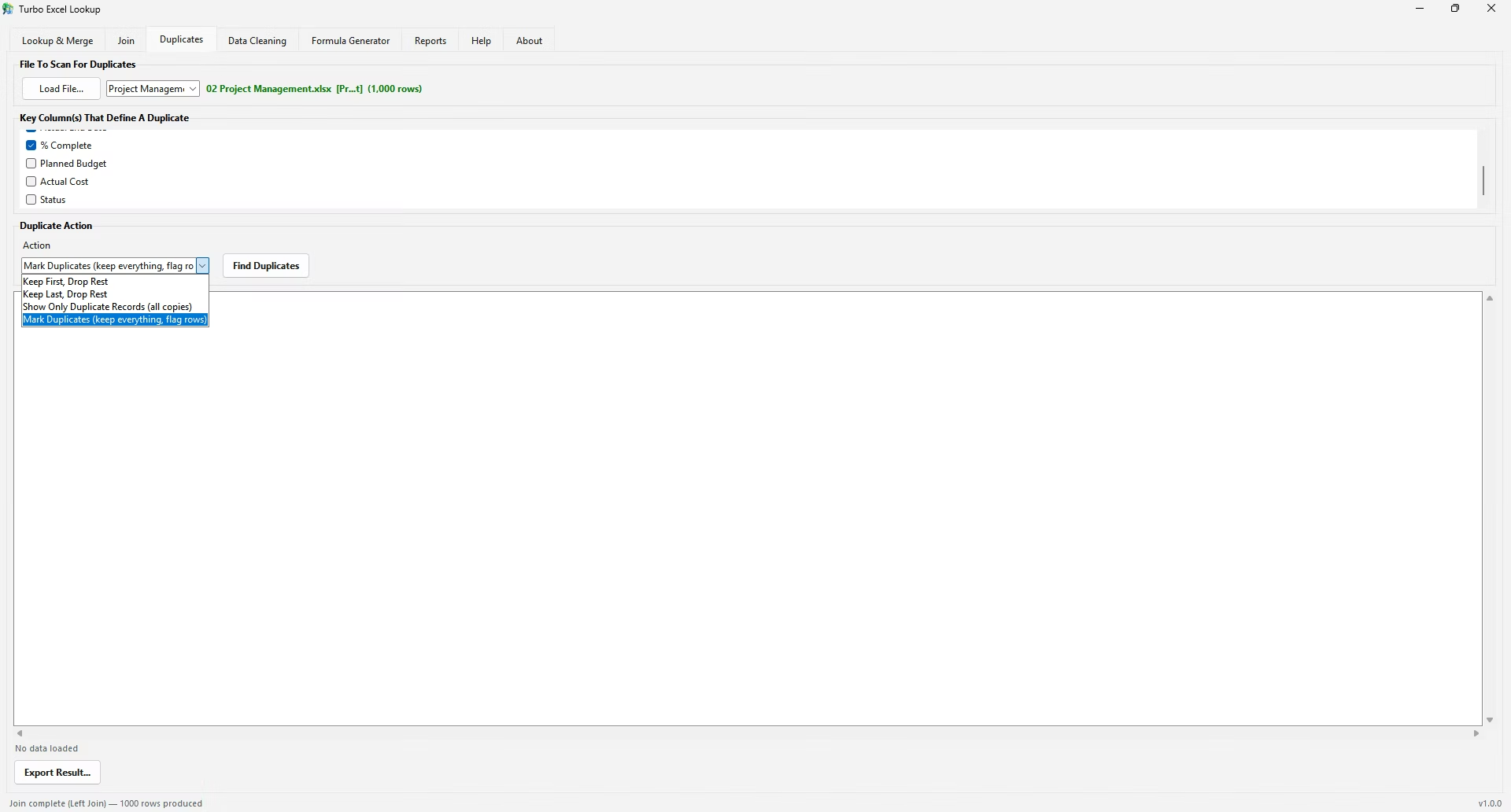
Scan one or more key columns, then keep the first record, keep the last, show only the duplicate groups, or mark duplicates in place with Is_Duplicate and Duplicate_Group columns without deleting anything. Each scan reports total rows, duplicate groups and unique rows.
Data Cleaning Toolkit
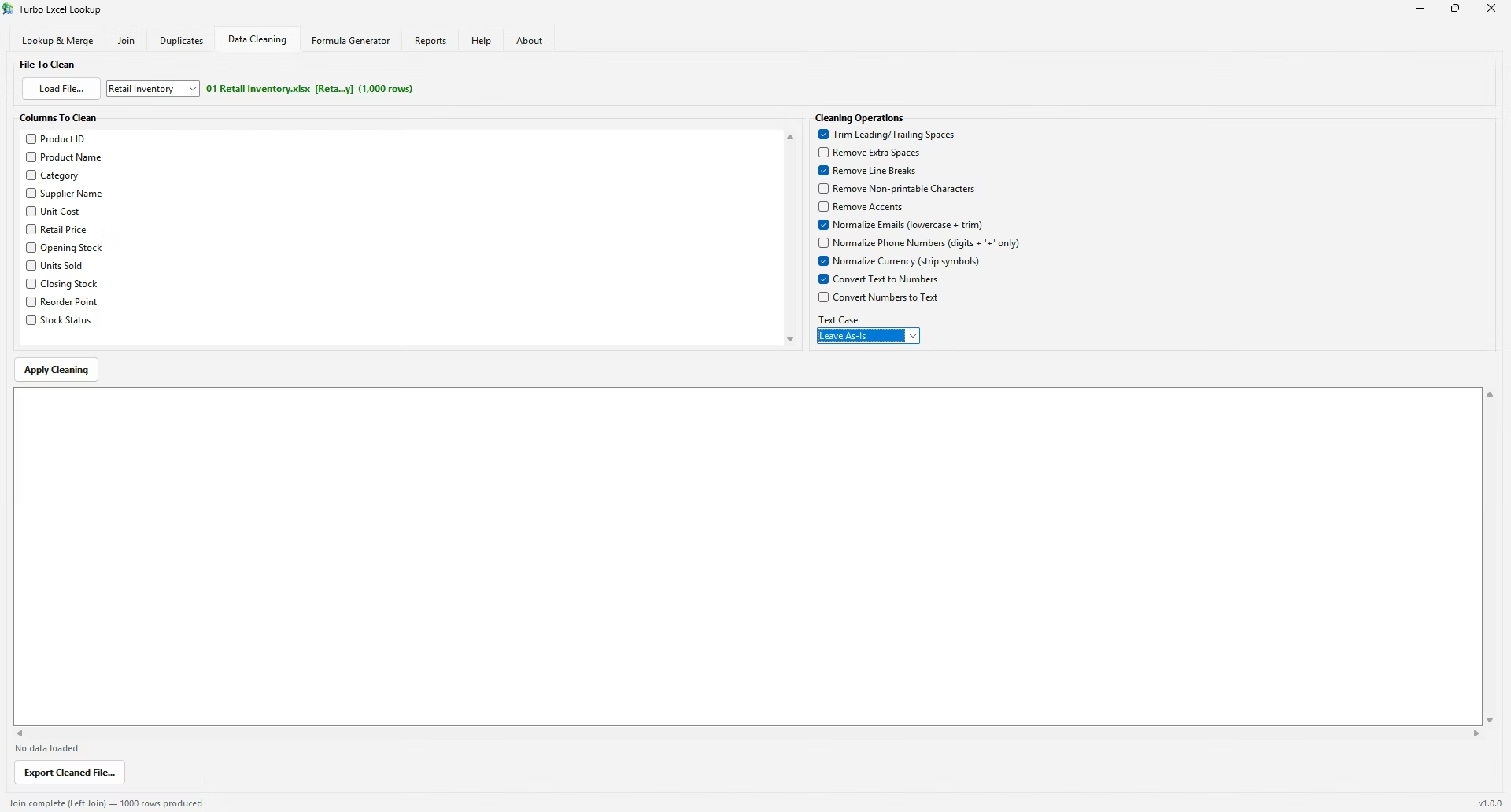
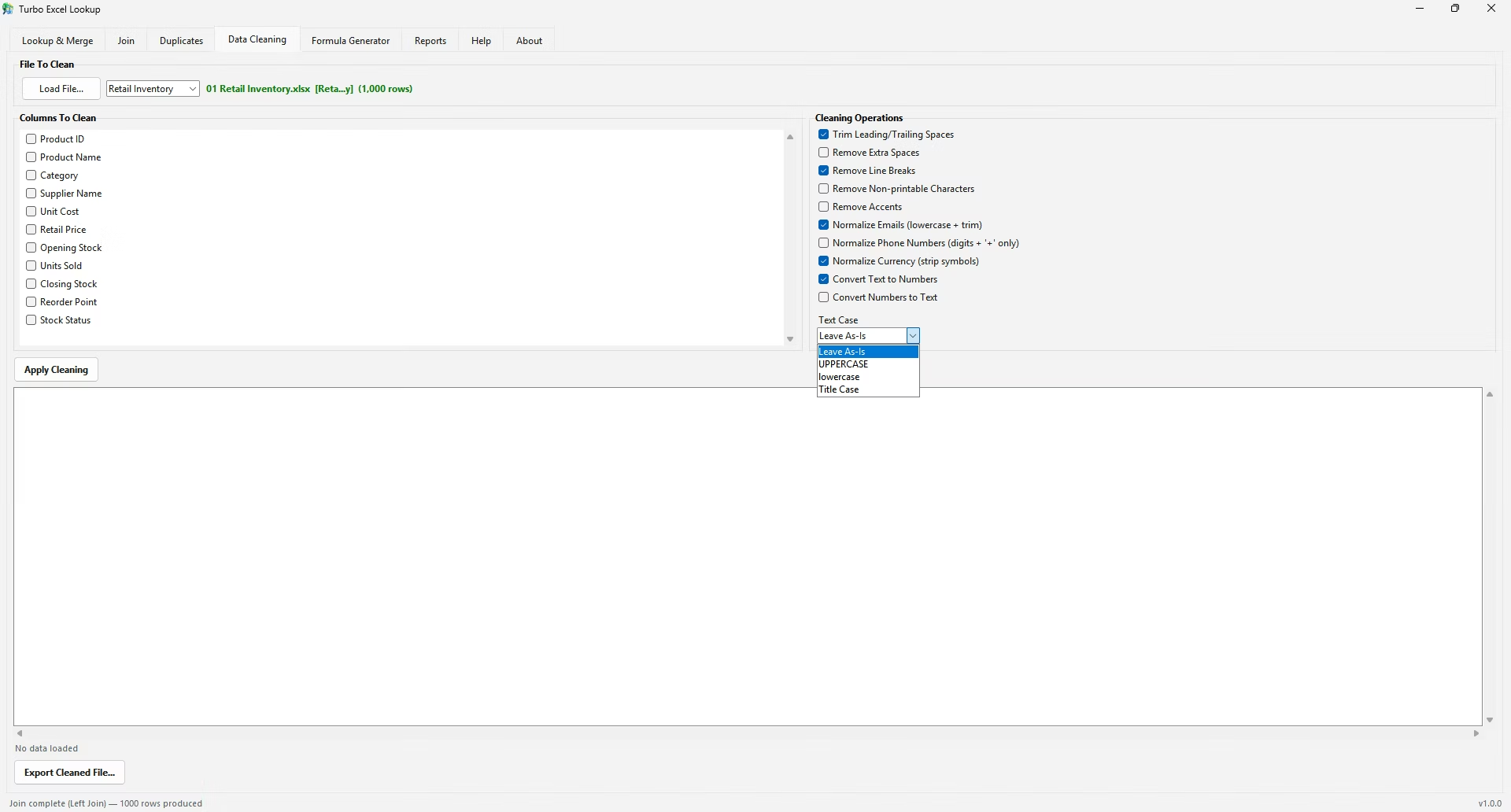
Trim and collapse spaces, strip line breaks and non-printable characters, remove accents, normalize emails, phone numbers and currency values, convert text to numbers and back, and change case, all on the columns you choose.
Formula Generator
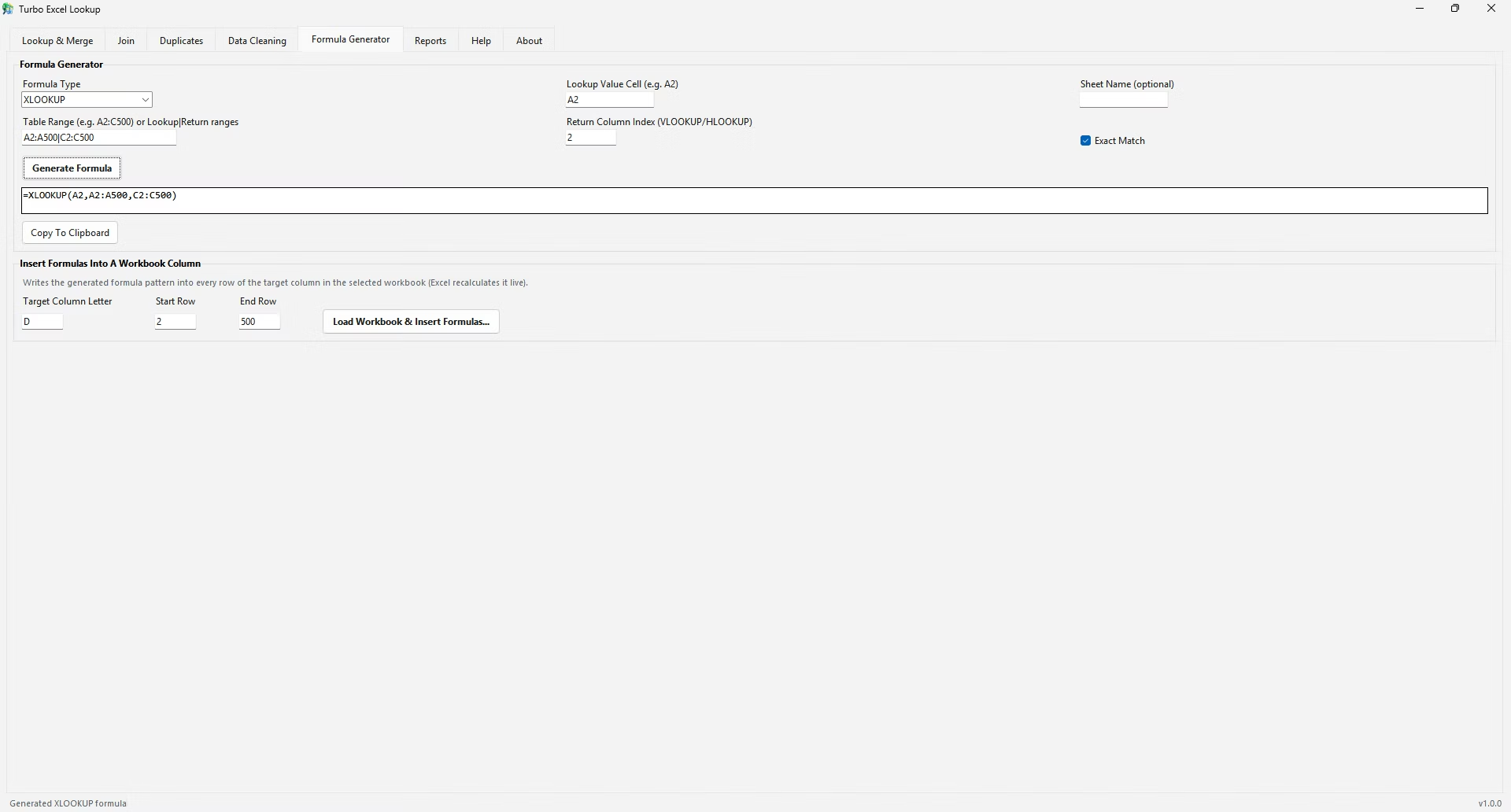
When you need a live formula instead of a static merge, generate VLOOKUP, XLOOKUP, INDEX/MATCH, INDEX/XMATCH, HLOOKUP or IFERROR-wrapped VLOOKUP formulas and write them into every row of a column in an .xlsx or .xlsm workbook, so Excel recalculates them. Sheet-name references and an exact-match toggle are supported.
Match Statistics
Every lookup reports total, matched and unmatched records, duplicate keys in the lookup table, match percentage and processing time, and exports as a standalone Match Report file.
Unmatched Row Export
Export only the rows that found no match, so typos, missing records and formatting mismatches can be reviewed without searching the full result.
Multi-Sheet Workbooks
Loading an XLSX or XLSM file with several sheets shows a sheet picker, so you choose which sheet feeds the operation without splitting the workbook first.
Session Log
The Reports tab keeps a timestamped, plain-text log of every lookup, join, duplicate scan, cleaning pass and export. Export it as a .txt file to record how a result was produced, or clear it for a fresh session.
Live Preview and Export
Every data tab previews the current table before you save, and exports to XLSX, CSV or TSV in one click.
Lookup & Merge: The VLOOKUP and XLOOKUP Replacement
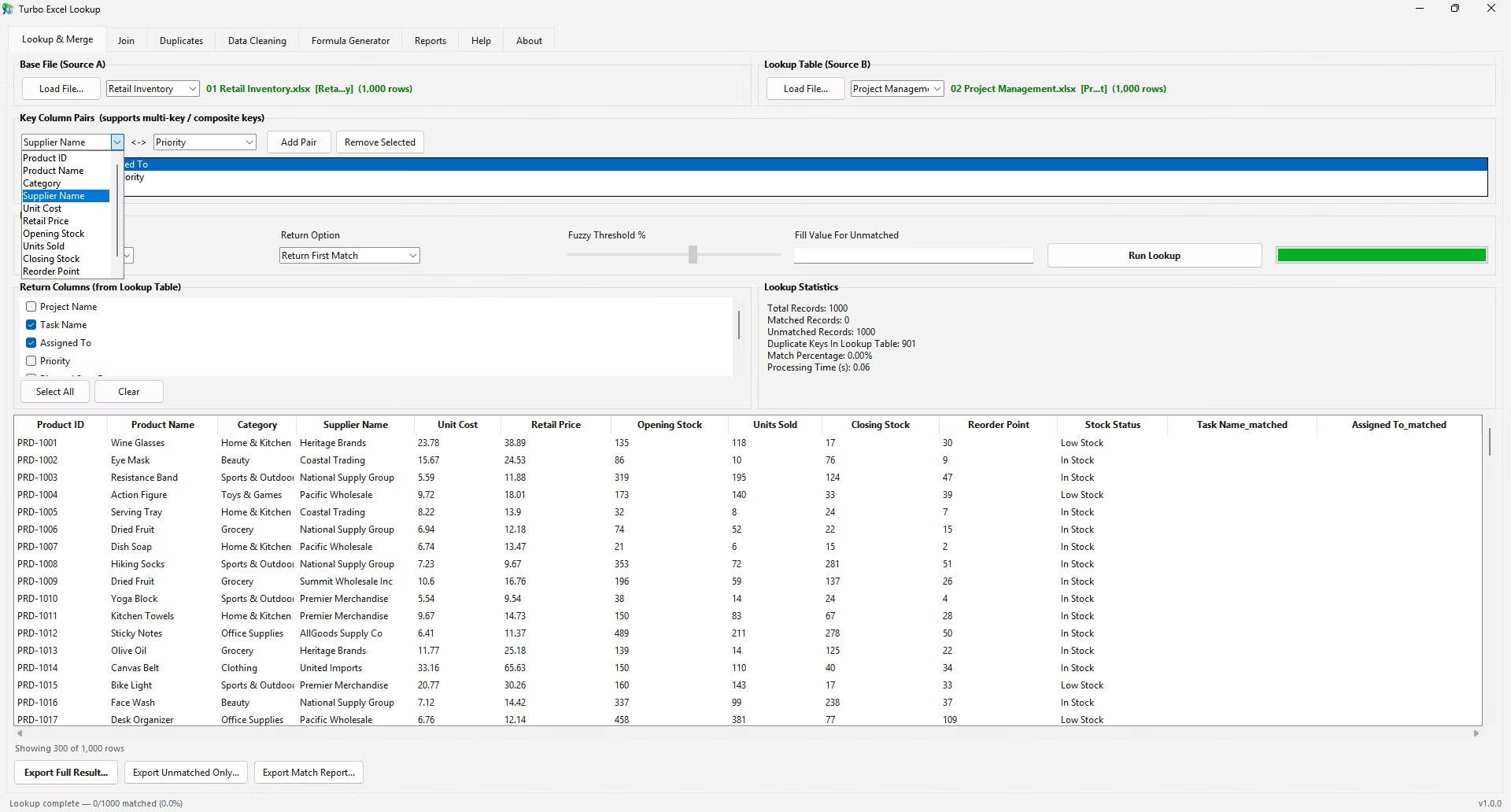
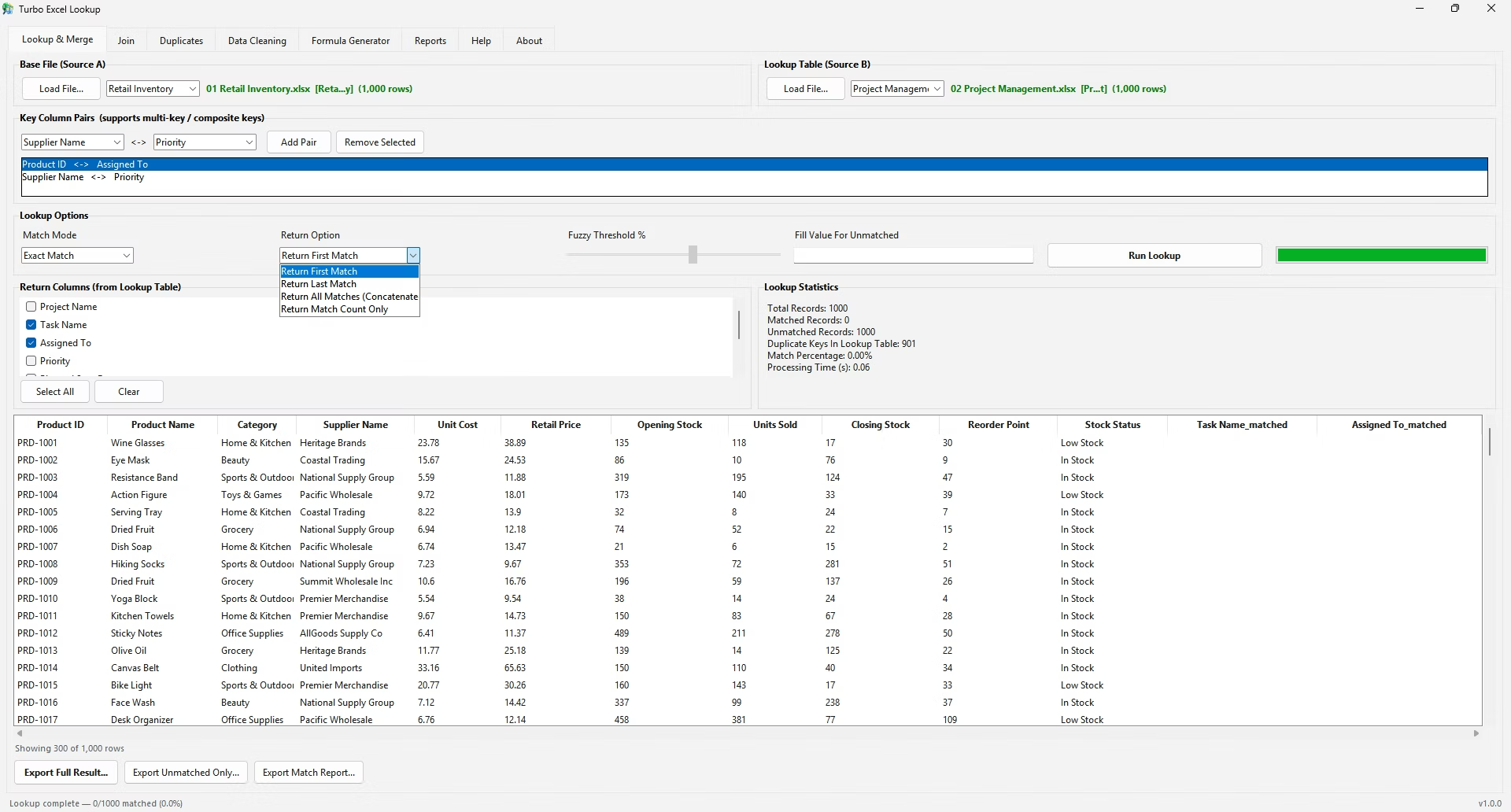
The Lookup & Merge tab mirrors the mental model of VLOOKUP or XLOOKUP without the syntax. Load a Base File (Source A), the file you want to add data to, and a Lookup Table (Source B), the file you are pulling data from. The app reads both sets of headers and lets you build one or more Key Column Pairs, each linking a Source A column to a Source B column.
Then tick the columns to pull back and choose what happens when a key matches more than one row:
- First Match. The standard VLOOKUP-style behavior.
- Last Match. The most recent record when the lookup table is in chronological order.
- All Matches. Every match combined into one semicolon-separated cell.
- Match Count. Reports how often each key appears in the lookup table, a quick audit for unexpected duplicates before you merge.
You can also set a fill value, such as "NOT FOUND", for unmatched rows. That makes failed matches easy to filter and distinguishes them from genuinely empty source cells.
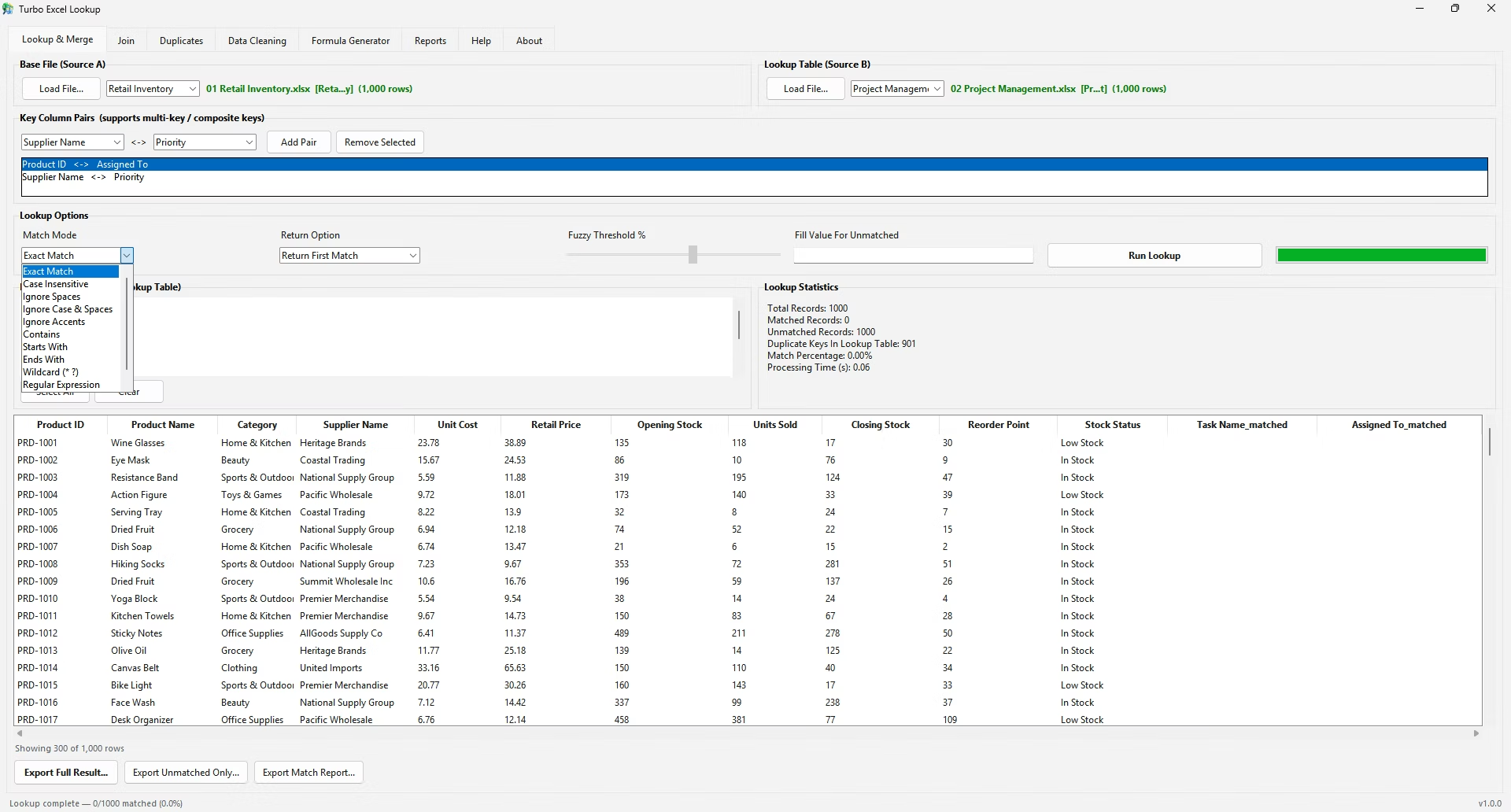
Eleven Match Modes, From Exact to Fuzzy
Data from two systems is rarely formatted identically. The match modes absorb that inconsistency without requiring you to clean every cell first.
| Match Mode | Example | Best For |
|---|---|---|
| Exact Match | "Bob" matches only "Bob" | Clean keys such as IDs or SKUs |
| Case Insensitive | "Bob" = "bob" = "BOB" | Inconsistent capitalization |
| Ignore Spaces | "B ob" = "Bob" | Stray internal spaces from copy-paste |
| Ignore Case & Spaces | " b OB " = "Bob" | Both fixes in one mode |
| Ignore Accents | "José" = "Jose" | International names exported without diacritics |
| Contains | The right-hand value appears anywhere in the left-hand value | Partial product codes and embedded references |
| Starts With | The left-hand value begins with the right-hand value | Prefix ranges such as invoice numbers |
| Ends With | The left-hand value ends with the right-hand value | Suffixes such as file extensions or region codes |
| Wildcard | INV-* matches INV-1001; SKU-???? matches four characters | Shell-style patterns without regex |
| Regular Expression | ^[A-Z]{3}-\d{4}$ matches three capitals, a hyphen and four digits | Complex, rule-based matching |
| Fuzzy / Similarity % | "Microsft" resembles "Microsoft" | Typos, abbreviations and near-duplicate free text |
Fuzzy mode scores each candidate pair from 0 to 100 and accepts pairs at or above a threshold you set with a slider from 50 to 100 percent, defaulting to 80. The highest-scoring candidate is returned. Around 90 to 95 percent catches only genuine typos, around 80 adds abbreviations and word-order differences, and near 60 matches values that share little more than a prefix, so review every result by hand at that level.
Start with a normalized mode before reaching for fuzzy matching. If the match rate is lower than expected, resist loosening the mode: export the unmatched rows and look at ten of them. The cause is usually a pattern, such as a trailing space, numbers stored as text or one source system that formats names differently. Fix that in the Data Cleaning tab and run again. Wildcard and regex modes test whether a value has the right shape, not whether it is the same record, so run Match Count first to see how many rows each key attracts.
Turbo Excel Lookup vs VLOOKUP, XLOOKUP and Power Query
| Consideration | VLOOKUP / XLOOKUP | Power Query | Turbo Excel Lookup |
|---|---|---|---|
| Fuzzy text matching | Not built in | Newer versions, limited controls | Built in, 50 to 100 percent threshold |
| Regex matching | Not supported natively | Not offered | Built in |
| Anti, Semi and Full Outer joins | Nested COUNTIF and IF formulas | Comprehensive, including anti joins | Seven join types in one dropdown |
| Match statistics after a run | Only with your own summary formulas | Not produced automatically | Reported on every run |
| Learning curve | Formula syntax to write and maintain | Steeper; query editor and step model | Shallow; every option is a visible control |
| Saved, refreshable steps | Formulas recalculate live | Yes, queries refresh with the workbook | No, each session is configured fresh |
| Runs without Excel | No | No, it lives inside Excel | Yes, a standalone Windows application |
Native formulas remain the better choice for a dozen values on a small, clean table, or when the finished workbook must recalculate on its own; the Formula Generator covers that case. Power Query suits pipelines that run every month on files of a consistent shape. Turbo Excel Lookup gets you to a verified answer faster for one-off reconciliations and messy data. Many people use more than one.
Performance
Match modes fall into two tiers. Exact, Case Insensitive, Ignore Spaces, Ignore Case & Spaces and Ignore Accents build a normalized key for both files and use the vectorized merge operations in pandas, which is far faster than worksheet formulas recalculating row by row. Contains, Starts With, Ends With, Wildcard, Regular Expression and Fuzzy compare each value individually on a thread pool of up to eight workers, so they are slower on very large lookup tables.
Lookups, joins, duplicate scans and cleaning run on background threads with a live progress bar, so the window stays responsive. There is no row cap; the limit is your machine's memory, because both files and the result are held in memory. If your keys are reasonably clean, stay with a normalized mode. A few seconds of cleaning first often allows a fast mode where a slow one would otherwise be needed.
Supported File Formats
XLSX is the recommended export: it is the standard workbook format. CSV is the most portable for other systems, and TSV helps when your data contains commas. XLSM and XLSB files are read-only, so export their results as XLSX, CSV or TSV. XLSB reading requires the optional pyxlsb library; the other formats work out of the box. Legacy .xls workbooks must be saved as .xlsx in Excel first.
Offline and Private
Turbo Excel Lookup is a desktop application, so your spreadsheets are never uploaded. Files are read from your disk, processed in memory on your own machine and written to a location you choose. There is no cloud component, no account to create and no server that holds a copy of your data.
The only network activity is a brief license verification against Gumroad when you activate, plus opening your browser if you click Check for Updates. Neither sends your data. That matters for customer records, payroll, patient identifiers and financial transactions, where uploading files to a web-based service is often prohibited by policy.
How to Match Two Excel Files Without VLOOKUP
- Load both files. On the Lookup & Merge tab, load your base file as Source A and your reference table as Source B, in any mix of XLSX, XLSM, XLSB, CSV or TSV.
- Define the key columns. Add one or more key column pairs. A second pair makes the match composite.
- Choose a match mode. Pick one of the eleven modes, from Exact Match to fuzzy matching with an adjustable threshold.
- Select the return columns. Tick the columns to pull from the lookup table, choose First, Last, All Matches or Match Count, and optionally enter a fill value for unmatched rows.
- Run the lookup. Click Run Lookup. A progress bar tracks the run and match statistics appear when it finishes.
- Export the result. Export the full merged result, the unmatched rows on their own or a match report, in XLSX, CSV or TSV.
Before a large run, clean the key columns of both files in the Data Cleaning tab, then run once with Match Count to confirm each key appears only once in the lookup table. If a count is above one, deduplicate the lookup table or add a second key column. Results are always written to a new file, and there is no undo, so keep your originals. For work that will be reviewed later, export the session log next to the output.
Current Scope and Limitations
Turbo Excel Lookup is a focused utility for one recurring task, not a database engine, a business intelligence platform or a substitute for Excel. Knowing its boundaries helps you judge whether it fits your workflow:
- No saved lookup profiles or column mappings; each session is configured fresh.
- No scheduled or unattended jobs, and no folder or subfolder processing; you load the specific files you want.
- No undo, crash recovery or version history, so keep your originals.
- No password-protected workbooks and no side-by-side diff viewer.
- Cell formatting, formulas, charts and conditional formatting from the source workbook are not preserved; it works with the data, not the presentation.
System Requirements and Licensing
Turbo Excel Lookup runs on 64-bit Windows 10 and Windows 11 with any modern multi-core processor. Microsoft Excel is not required, because the app reads and writes Excel files itself. Larger datasets benefit from more RAM. An internet connection is needed only briefly, for license activation.
It is licensed through Gumroad. On first launch an activation dialog accepts your purchase email and license key, or you can choose Continue Without Activating. Either way the app opens with full functionality: there is no demo mode, no row-limited export and no watermark. A verified license is cached locally, and you can check its status or look for updates from the About tab.