
Turbo Batch Image Converter Lite
for Windows
Batch Image Converter and Resizer for Windows
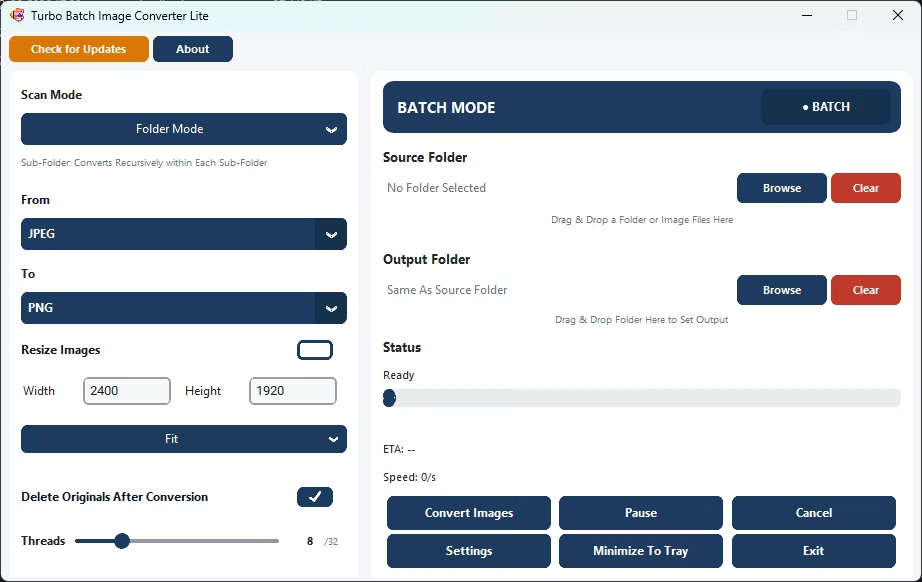
Turbo Batch Image Converter Lite is a Windows desktop app that converts and resizes images in bulk, entirely offline. Point it at a folder, choose the input and output format, optionally set a new size, and it processes every matching file in one run, including files in nested sub-folders — or switch to Individual mode to convert a single file. It focuses on the eight everyday formats, so it stays light, simple and affordable.
Lite shares the core engine, interface and workflow of Turbo Batch Image Converter Pro. It converts freely in any direction between JPEG, PNG, WebP, GIF, BMP, TIFF, SVG and ICO, with a per-format quality control for each, and resizes in the same pass as conversion. Nothing is uploaded, there are no watermarks or artificial file-count limits, and Pro is there later if you need RAW, HEIC, AVIF or other professional formats.
Supported Formats and Per-Format Settings
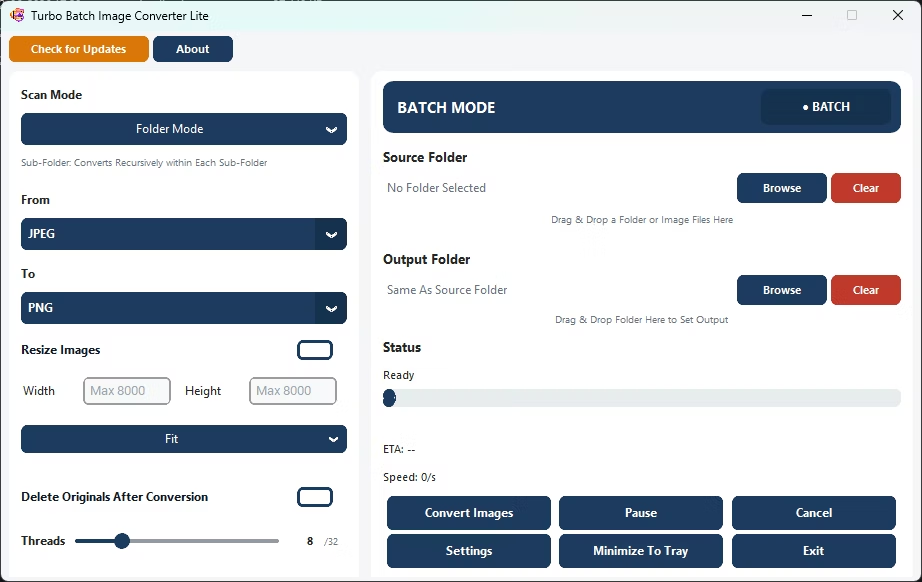
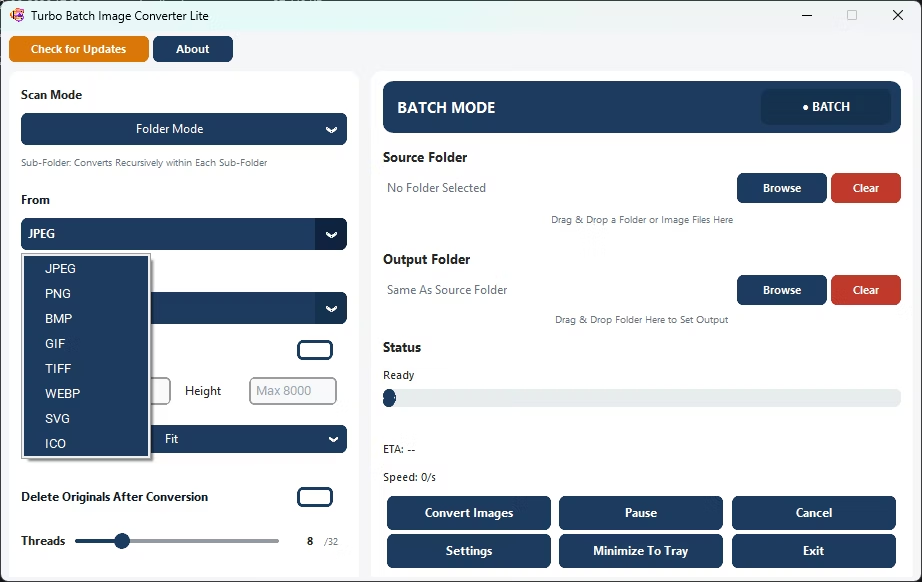
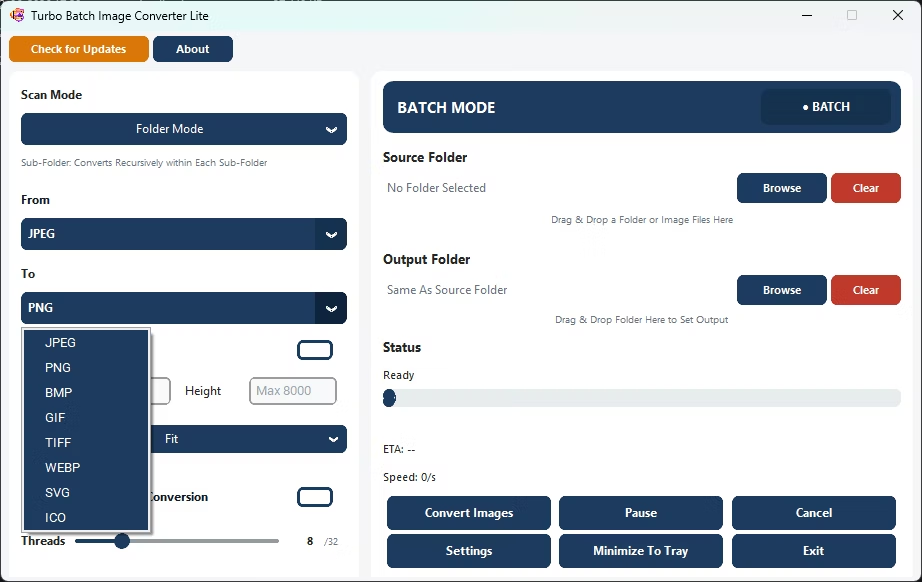
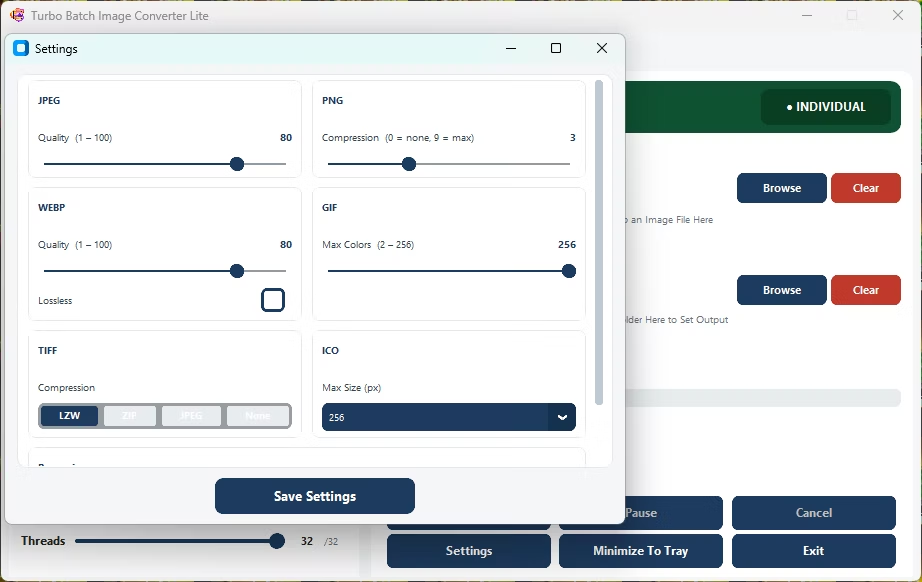
The "From" dropdown groups the inputs into eight families: JPEG covers .jpg and .jpeg, and TIFF covers .tif and .tiff. Every one can also be an output, so Lite converts in any direction between all eight. A Settings window gives each output format its own control, set once and applied to every file in the batch.
- JPEG (.jpg, .jpeg) — the universal choice for photographs and web images. Quality slider 1–100 (default 80); original EXIF metadata is carried into the output when present.
- PNG — lossless with transparency, ideal for logos and screenshots. Compression 0–9 (default 3) trades encode time for size and is lossless at every level.
- WebP — noticeably smaller than JPEG or PNG at similar quality. Quality 1–100 (default 80) plus a Lossless checkbox.
- GIF — a palette format for simple graphics and legacy compatibility. Max Colors from 2 to 256 (default 256).
- BMP — an uncompressed bitmap for older Windows software and pipelines that need plain images. No settings.
- TIFF (.tif, .tiff) — the archival format for scanning and publishing. Compression LZW (default), ZIP, JPEG or None; multi-frame and high-bit-depth files are normalized to 8-bit output.
- SVG — rasterized at 96 DPI on input; on output the image is embedded in a valid SVG wrapper. No settings.
- ICO — the Windows icon format. Lite builds a multi-resolution ICO with a size pyramid up to your chosen maximum (16, 32, 48, 64, 128 or 256 px, default 256).
Key Features
Single and Batch Modes
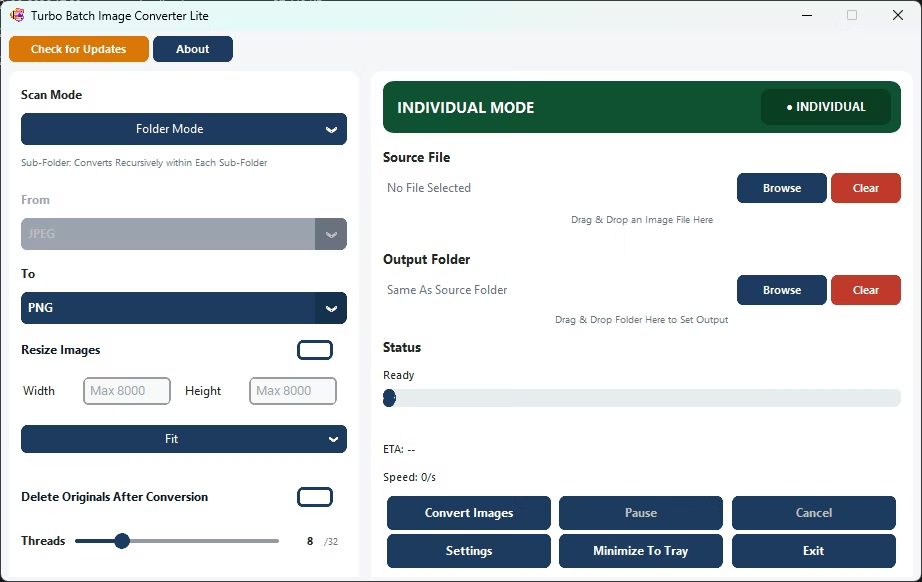
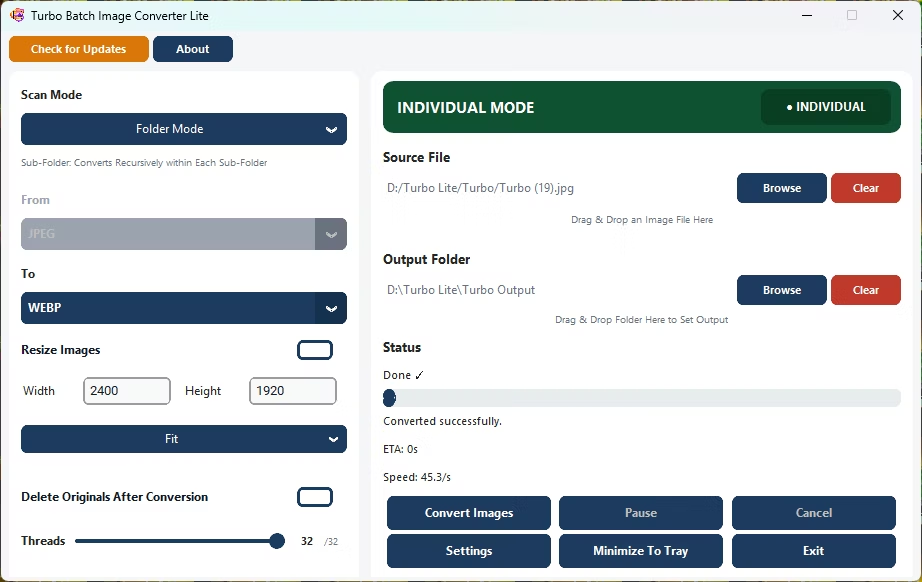
Convert one file in a click, or a whole folder or folder tree in one run across multiple parallel workers. Resize, quality settings and delete-original work in both modes, and single mode detects the input format automatically.
Recursive Sub-Folder Conversion
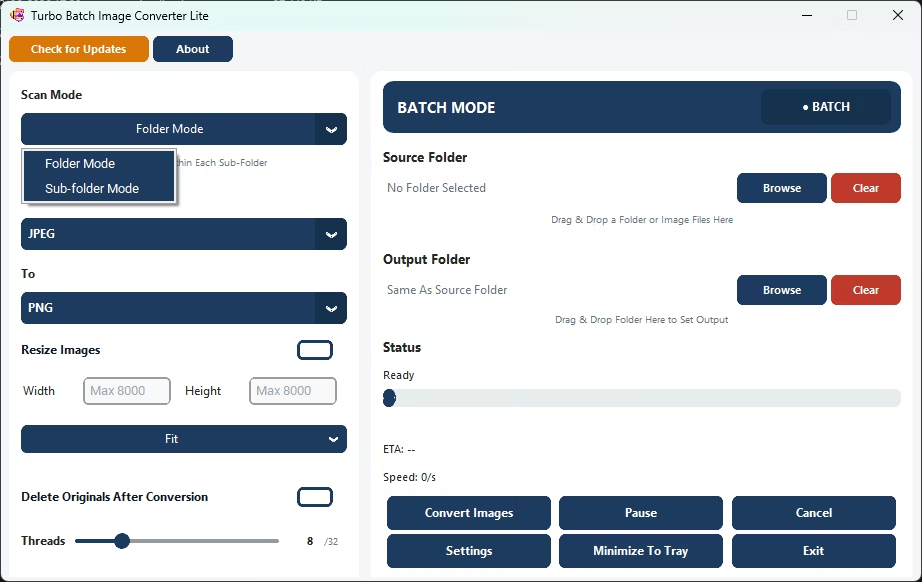
Sub-folder Mode walks the entire directory tree and mirrors your folder structure in the output. Choose a separate output folder or let the app write next to the originals.
Safe Delete of Originals
Originals go to the Recycle Bin, not the void, which makes bulk replacements such as PNG to WebP safe to clean up.
Real-Time Dashboard
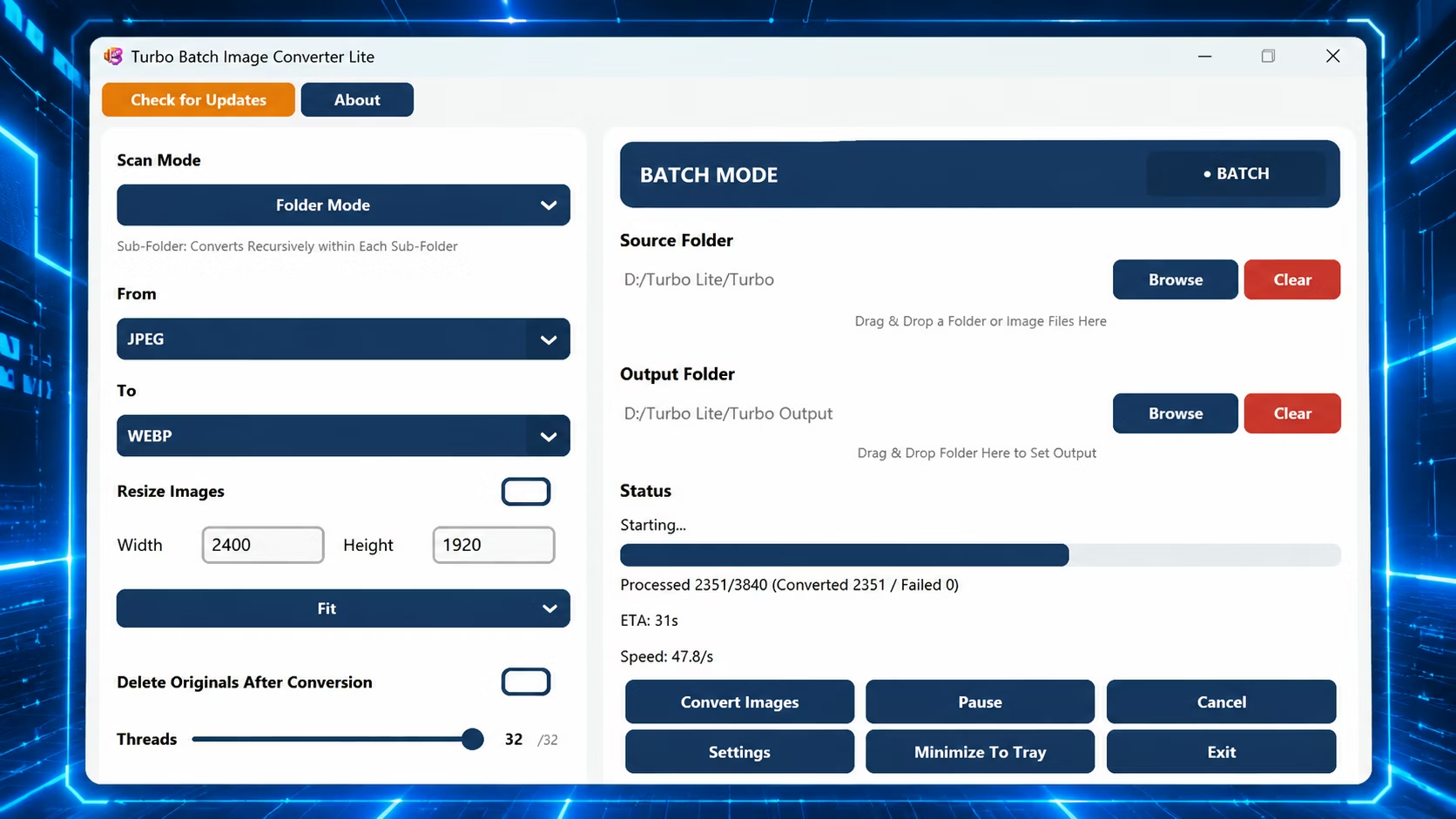
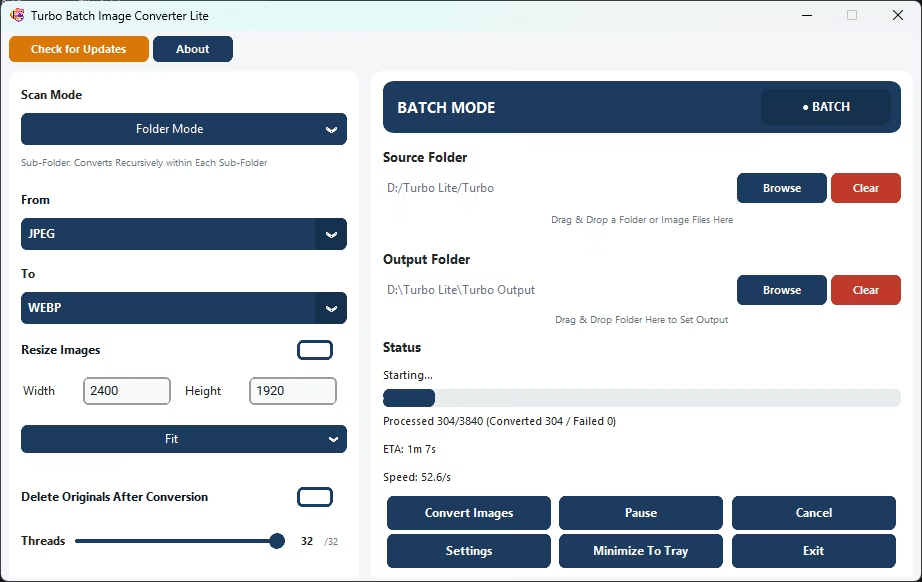
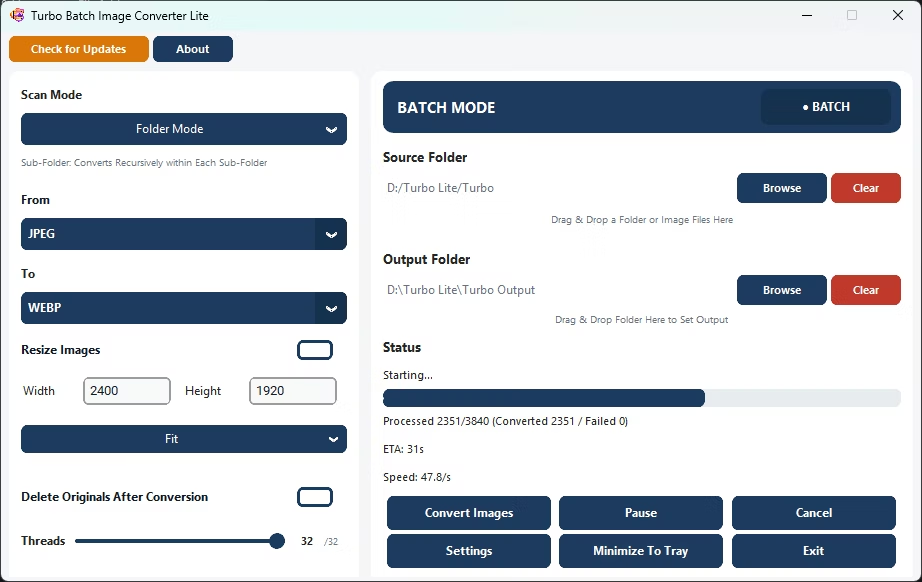
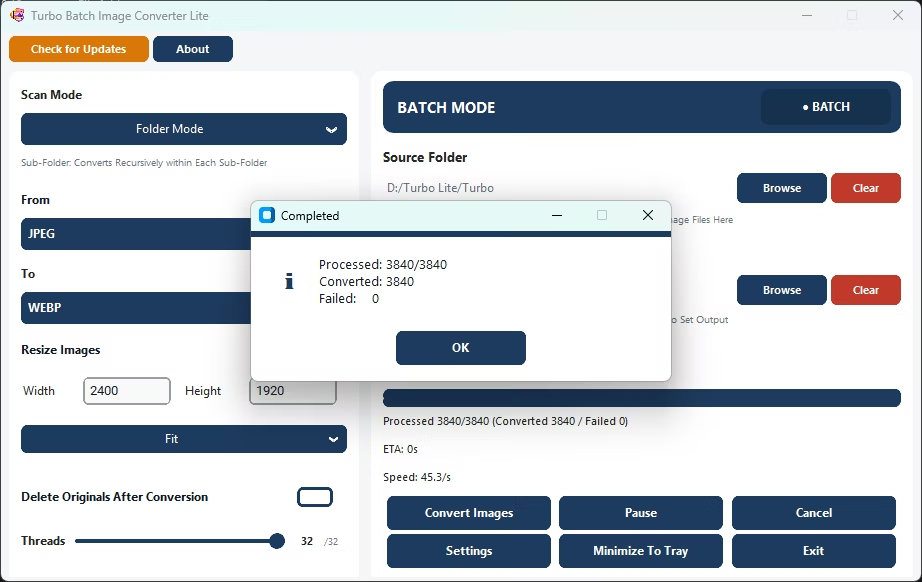
A progress bar, a "Processed X / Total (Converted / Failed)" counter, speed in files per second, ETA and the current filename, updated every 250 ms.
Pause, Resume and Cancel
Interrupt a batch and pick it up again without restarting the queue, or cancel cleanly at any point. Elapsed timing excludes paused stretches.
Failure Isolation
A corrupt, locked or unreadable file fails on its own and is tallied separately; the rest of the batch continues and a summary reports converted and failed counts.
System Tray and Drag and Drop
Minimize to the Windows system tray so a long batch runs quietly while you work; restore or quit from the tray icon. Drop files or folders onto the window instead of browsing.
Lightweight and Unlimited
A minimal footprint with no background services, no watermarks and no artificial file-count limits. Handles 1,000 to 100,000+ files in one session.
Batch Resize: Fit, Fill and Stretch
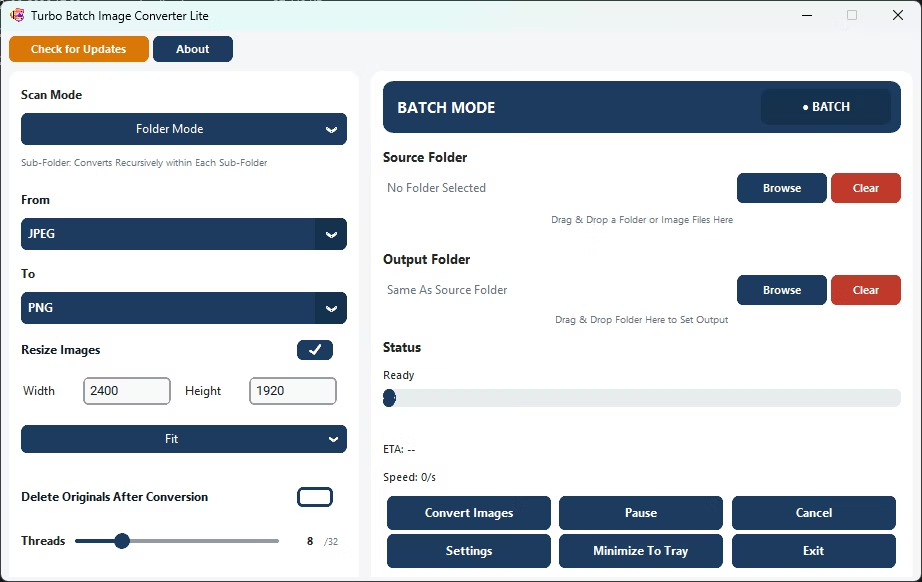
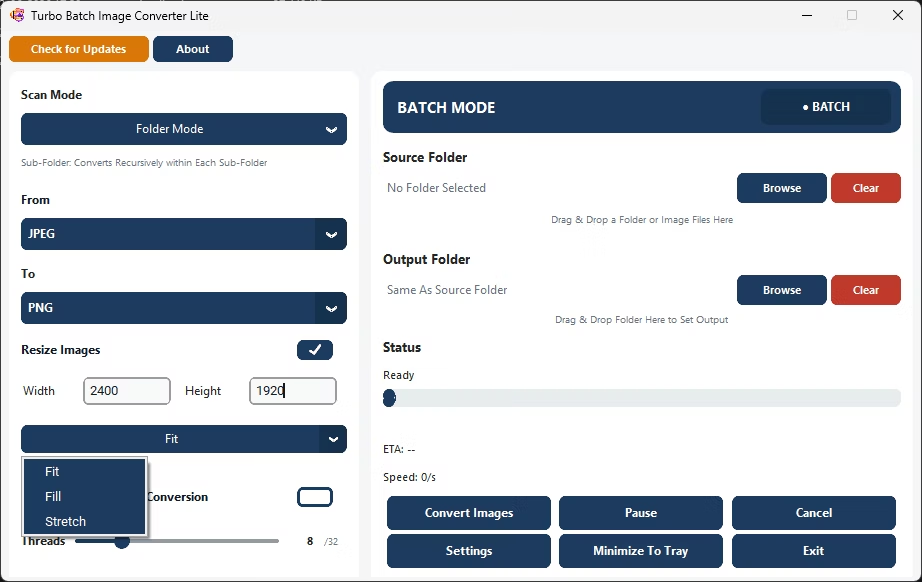
Resizing runs in the same pass as conversion. Enable Resize, type a target width and height (each up to 8,000 px) and choose a mode. Lanczos resampling keeps results crisp, and an overall ceiling of 64 megapixels protects memory on extreme dimensions.
- Fit (aspect-safe) scales each image to fit inside your width and height while keeping its aspect ratio. Nothing is cropped or distorted; ideal for thumbnails, previews and web galleries.
- Fill (smart crop) scales to cover the target box, then center-crops the overflow so the output exactly matches your dimensions, with no letterboxing. Perfect for product grids and avatars.
- Stretch (exact dimensions) forces the exact width and height, ignoring the original aspect ratio, for systems that need a precise pixel size.
Performance
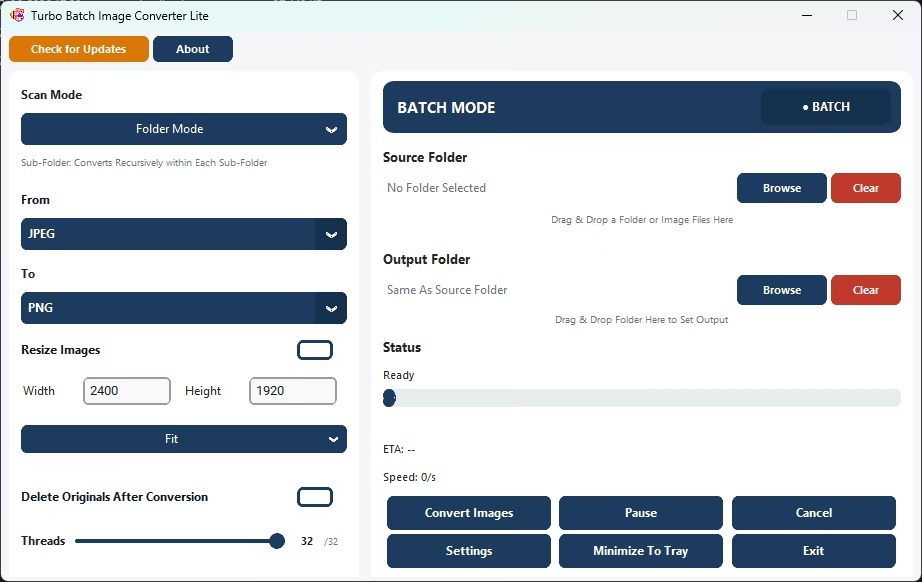
Lite uses the same multi-threaded engine as the rest of the Turbo converter range, tuned to stay fast and stable on ordinary hardware. It scales from entry-level laptops to multi-core workstations, and conversion speed grows with the number of workers you allow and the cores you have. The Threads slider goes up to 32 workers and defaults to your CPU’s core count, and Auto-Scale Workers can pick the count for you. Each worker loads, optionally resizes and saves one image independently, so workers never share data. Memory is managed automatically as files complete, so speed stays steady from the first image to the last, and the low-overhead design leaves other tasks unaffected.
Common Conversions
- PNG to JPG in bulk. Convert whole PNG libraries to JPG offline with full control over JPEG quality, or shrink files for the web.
- JPG to PNG in bulk. Convert hundreds of JPG files to lossless PNG in one operation, preserving full image detail.
- TIFF archives to JPG. Convert entire scanned TIFF archives to compressed JPG files without uploading anything.
- Resize a whole folder. Use Fit to preserve aspect ratios, or Fill for uniform grids, while converting.
Safety and Reliability
- Independent tasks. Each file task runs on its own, preventing conflicts and output corruption during simultaneous multi-file conversions.
- Conversion continuity. One failed file never stops the batch; skipped files are reported in the dashboard.
- Pause and resume safety. Jobs can be paused and resumed at any point without restarting the queue.
- Stable under heavy loads. Extended high-volume sessions keep running without performance degradation.
- Suited to sensitive environments. Corporate offices, legal firms, medical records teams and air-gapped networks.
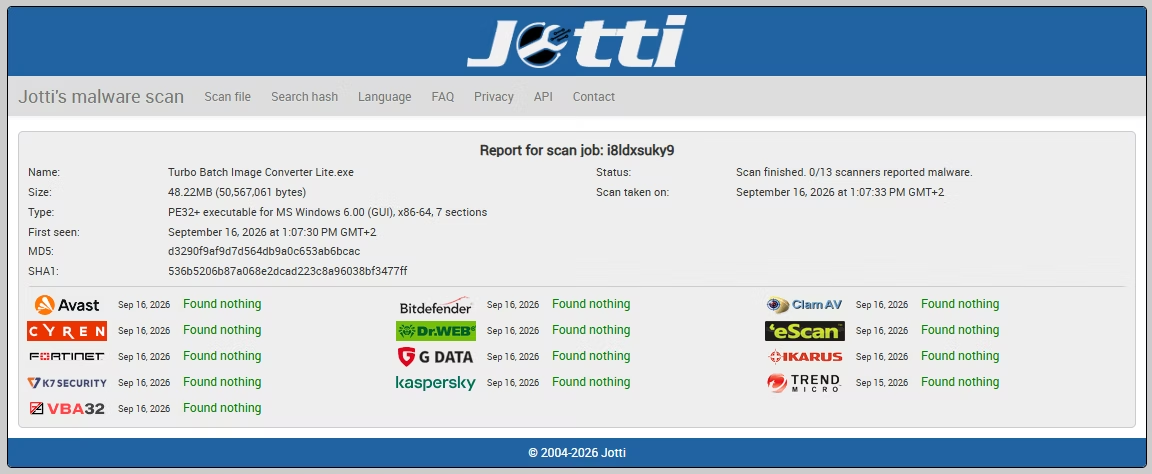
Offline and Private
All conversion, resizing and format transformation runs locally on your machine. No images are uploaded to cloud servers, no files are scanned externally and no image metadata is transmitted. The app does not log, analyze, track or store your image data, and has no third-party analytics, advertising trackers or background telemetry. Internet is used only for license validation, and the request contains no personal data, file names or image content.
System Requirements and Licensing
| Requirement | Minimum | Recommended |
|---|---|---|
| Operating system | Windows 8 (64-bit) | Windows 10 or 11 (64-bit) |
| Processor | 1–2 CPU cores | 4 or more CPU cores |
| Memory | 2 GB RAM | 4 GB RAM or more |
| Storage | 500 MB free disk space | 2 GB or more; SSD recommended for batch performance |
Lite is a standalone Windows desktop app with no browser extension, cloud account or background service. Download it from its Gumroad page, install it and enter your purchase email and license key in the License Activation window. The key is verified once against Gumroad and cached locally, and after that no internet connection is needed. It is a paid, licensed product; for help with activation or usage, see the Support page.