Turbo Batch PDF Converter
for Windows
Turn PDF Pages Into Images and Shrink Bulky PDFs - in Bulk, Offline
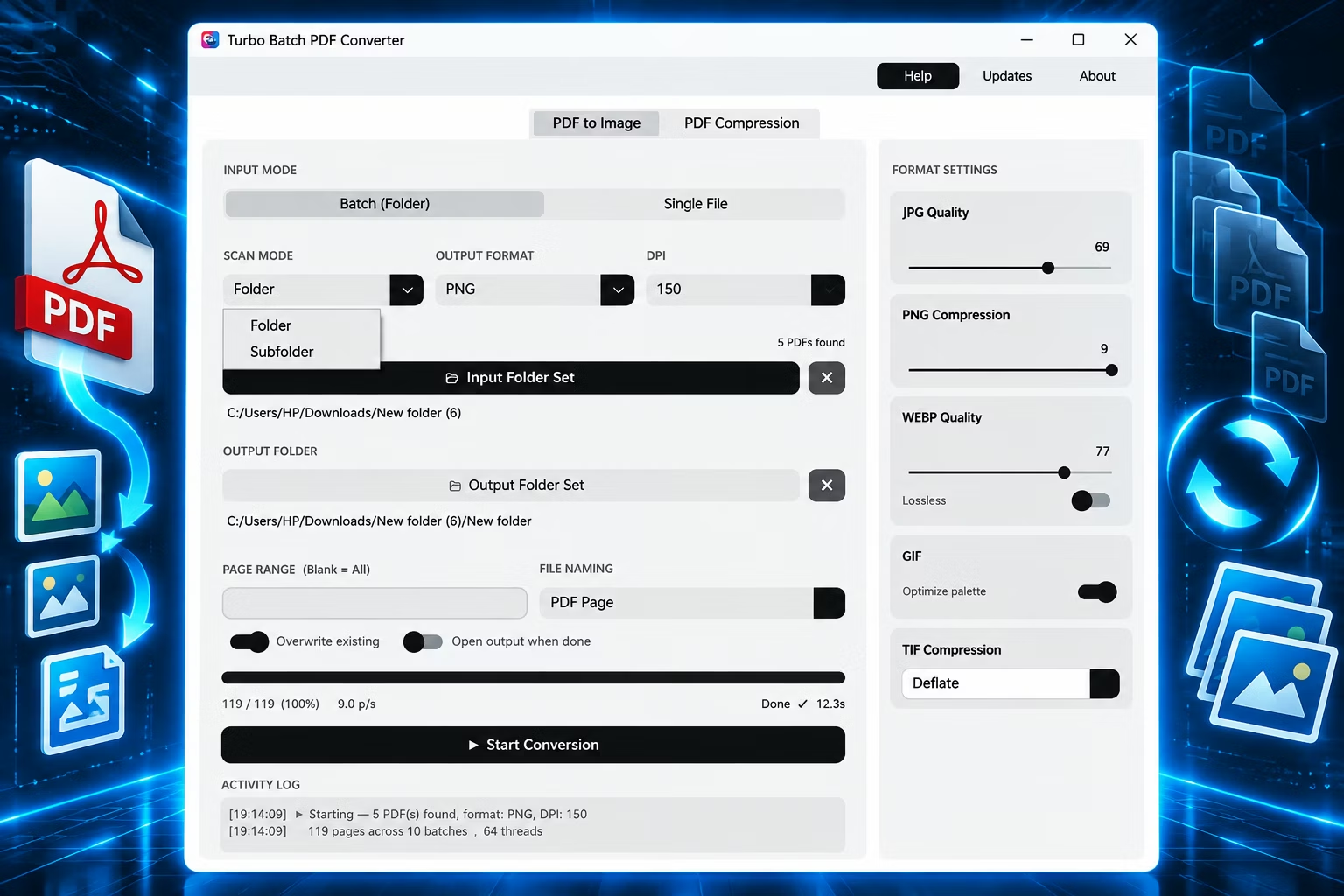
Turbo Batch PDF Converter is a Windows desktop app that does two jobs: it renders the pages of your PDFs into image files, and it compresses oversized PDFs. Both run on a single file or an entire folder, including nested sub-folders, entirely on your own PC, with no uploads and no external software to install. Rendering uses the built-in PyMuPDF engine, so there is no Poppler or Ghostscript to set up, and input is PDF only — it does not create editable Word or Excel files.
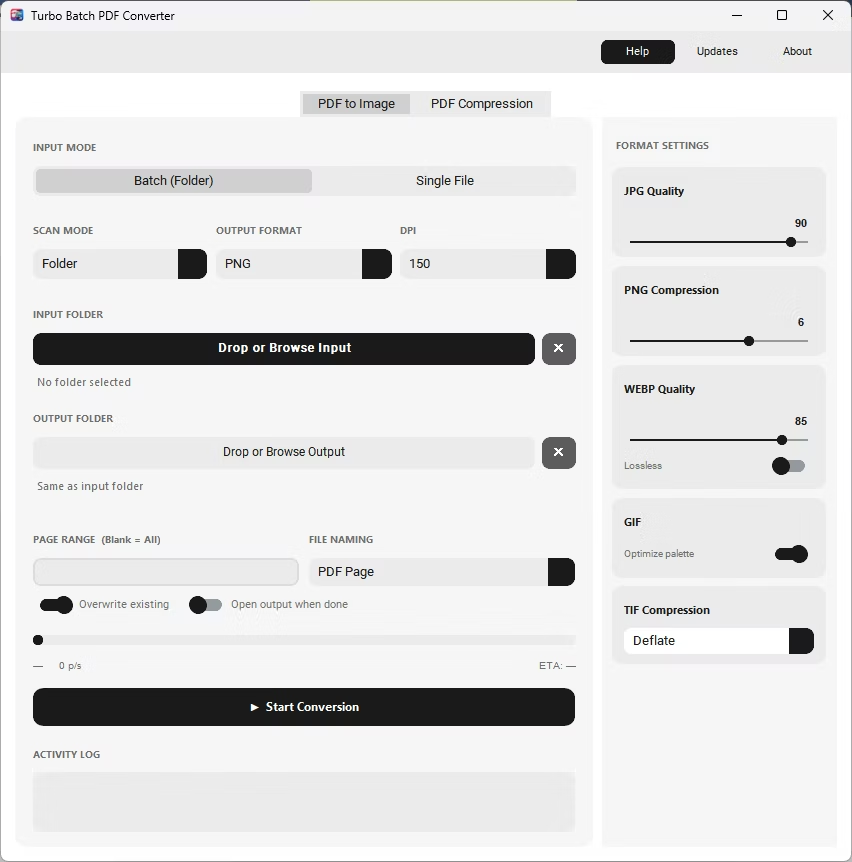
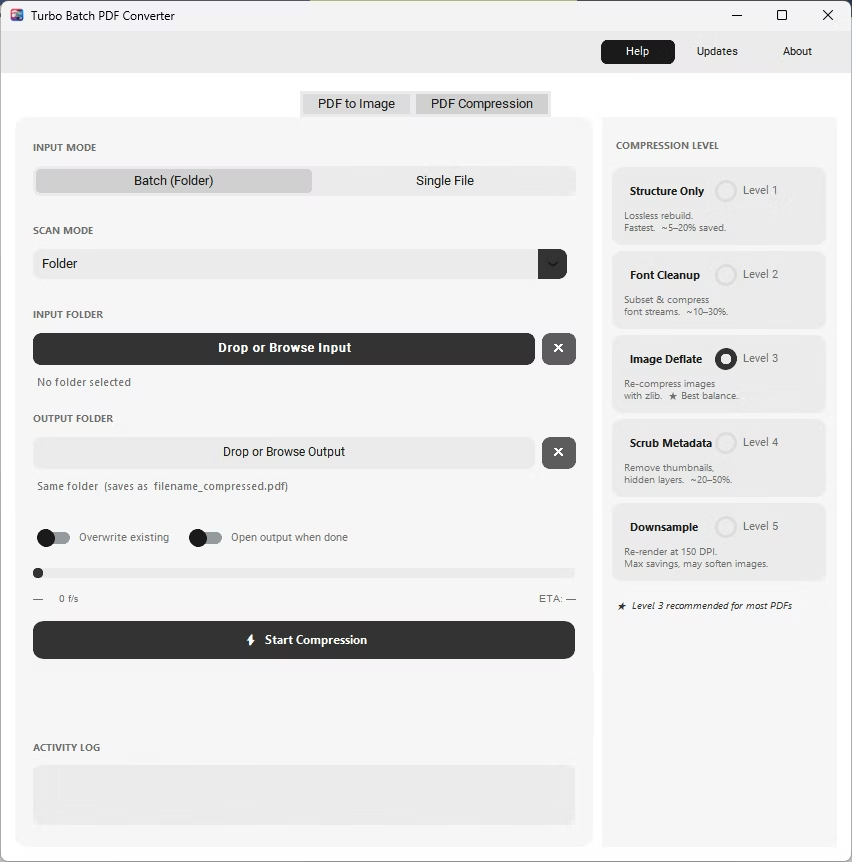
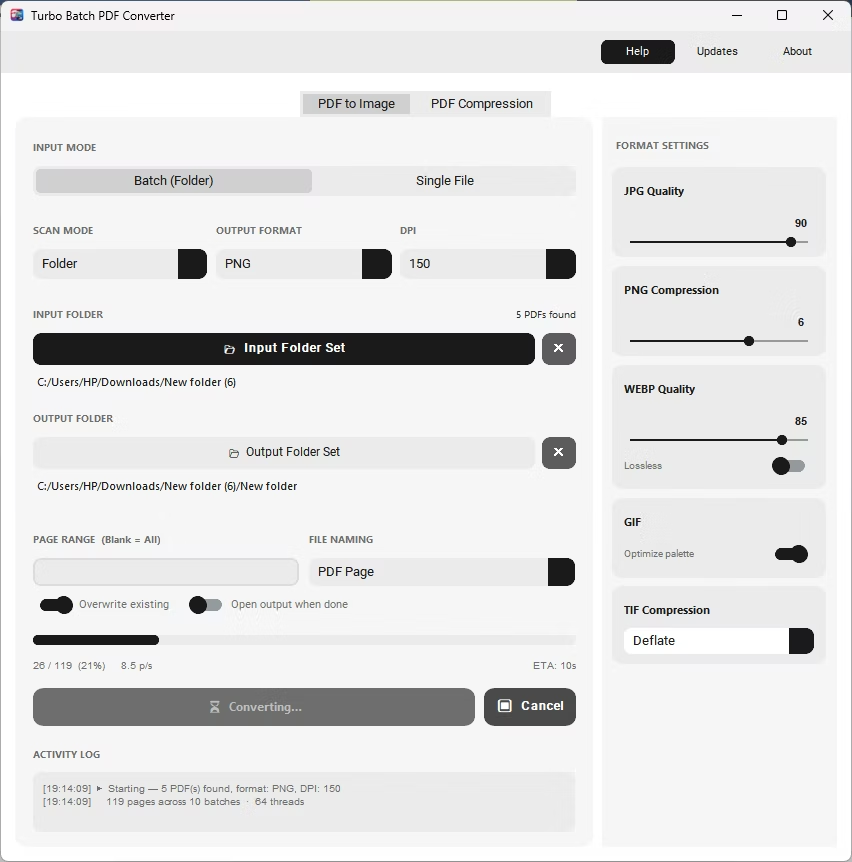
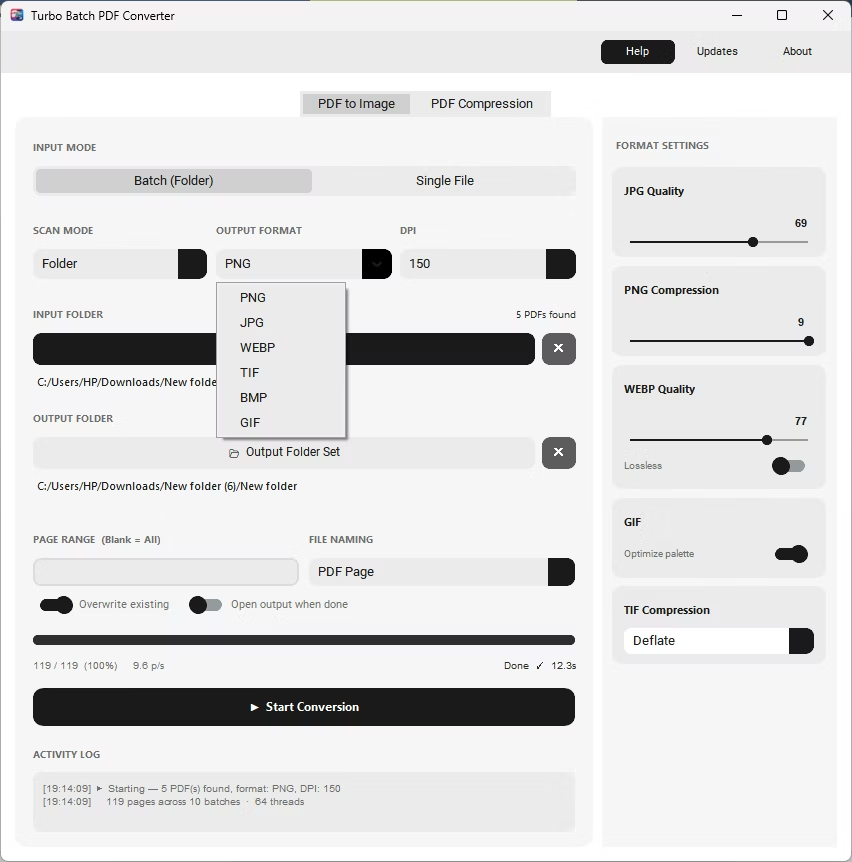
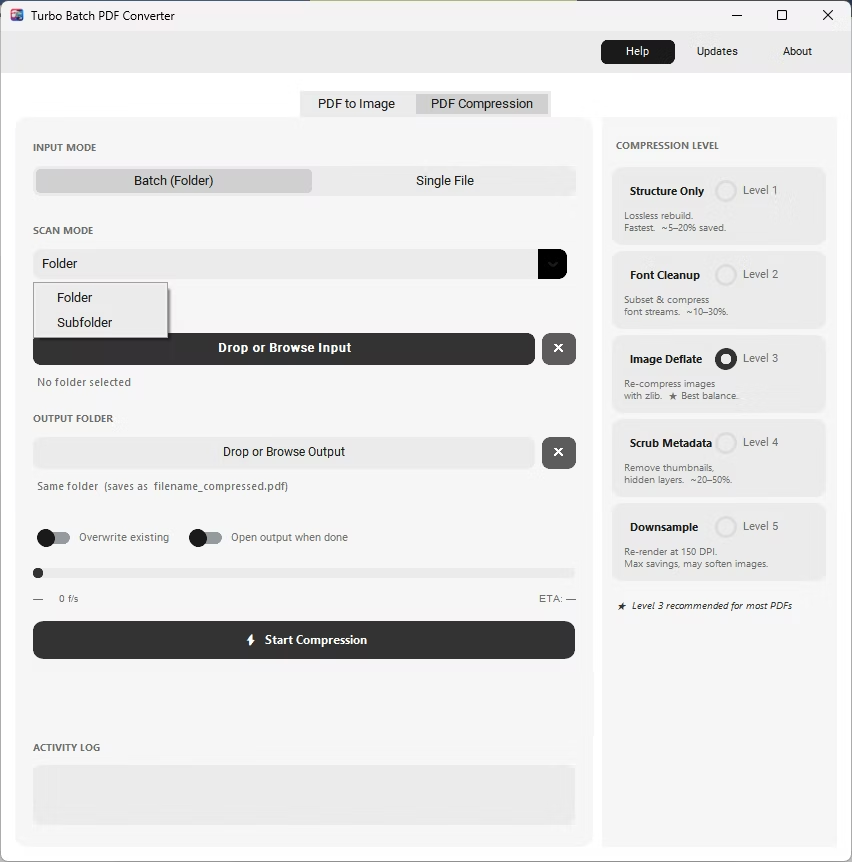
The app is organized into two tabs, each with its own independent settings. The PDF to Image tab converts each page of a PDF into a separate JPG, PNG, WEBP, TIFF, BMP or GIF at a DPI you control. The PDF Compression tab rewrites PDFs at one of five levels, from lossless structure cleanup to aggressive image downsampling.
Supported Formats
Input is any standard PDF, including multi-page scanned documents, reports and eBooks. On the PDF to Image tab the output is one of six image formats.
Choosing an output format
- PNG — lossless; best for documents, diagrams and anything with crisp text or sharp edges.
- JPG — the fastest to encode and the smallest for photographic pages; ideal for sharing and the web.
- WEBP — lossy or lossless with the best quality-to-size ratio for photos; encodes faster than PNG at comparable quality.
- TIFF — the archival standard, with Raw, Deflate or LZW compression, suited to long-term storage and print handoff.
- BMP — uncompressed, for the occasional tool that requires plain bitmap input.
- GIF — a 256-color palette format, fine for simple graphics and small, widely compatible images.
Key Features
Batch and Single File Modes
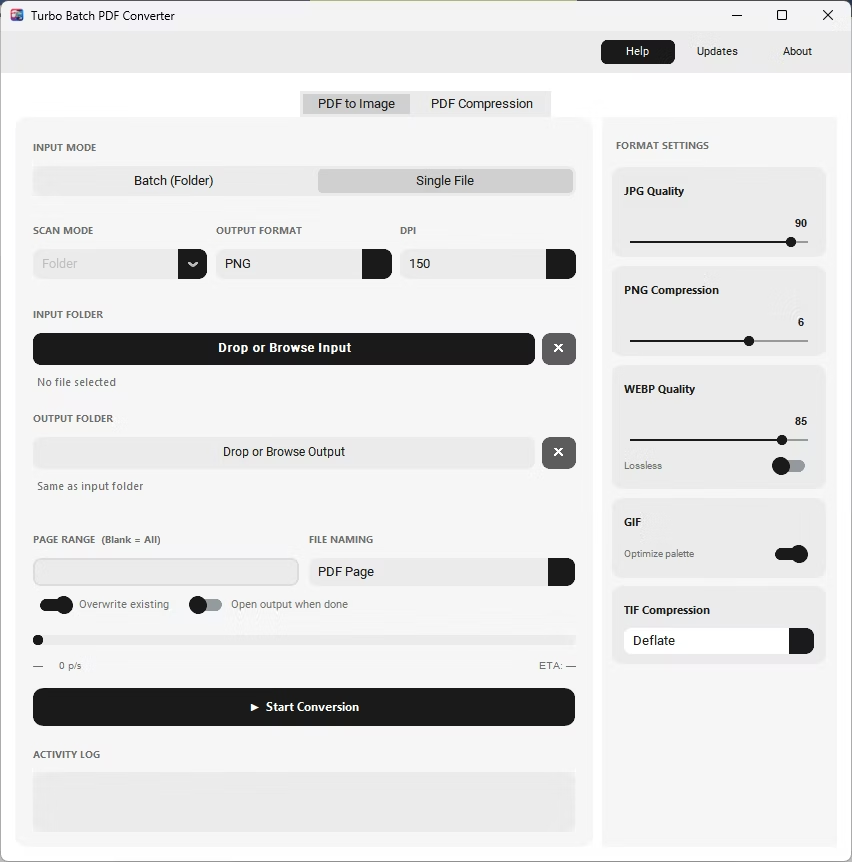
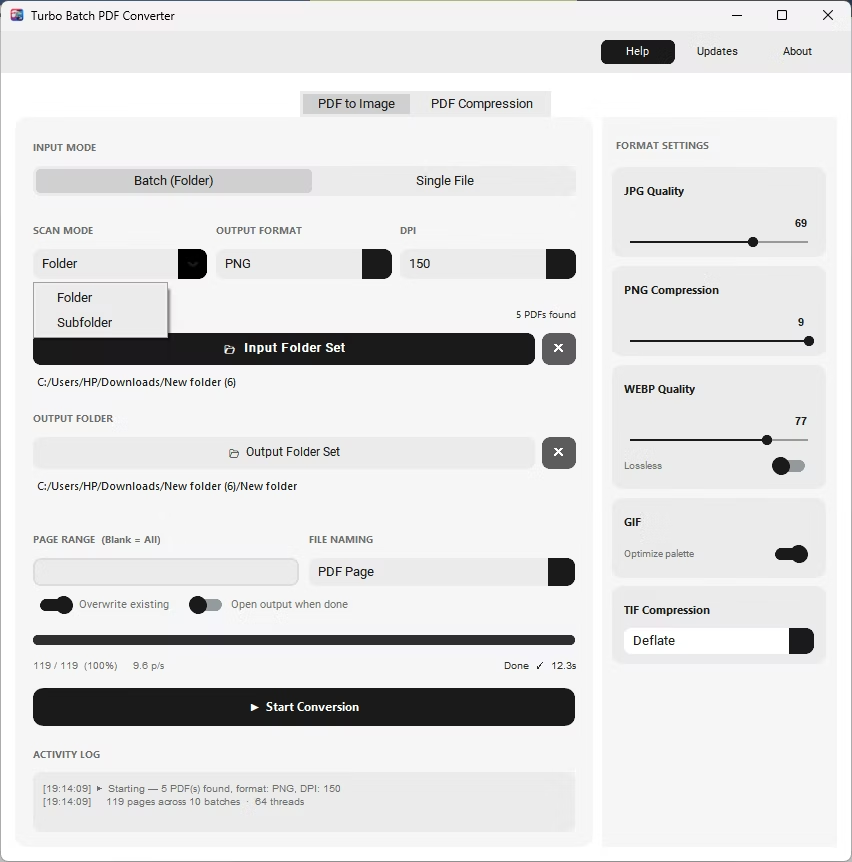
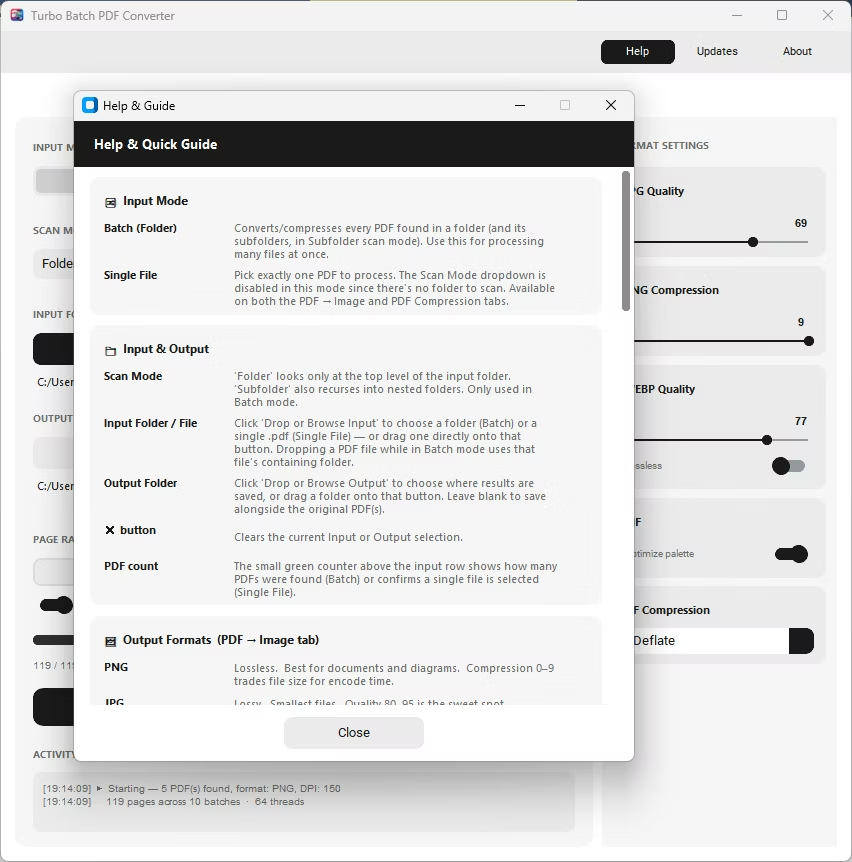
Process a whole directory of PDFs or one document at a time; each tab has its own toggle. In folder input, Folder mode scans only the top level, while Subfolder mode walks every nested folder, including deeply organized archives.
Two Tabs, Independent Settings
PDF to Image and PDF Compression each keep their own input mode, settings and Start button, so switching between them never resets the other.
Custom Page Ranges
Enter a range such as "1-3, 5, 8-10" to render only the pages you need, or leave it blank for every page. The range applies across the whole batch, so nobody renders 500 pages to keep three.
Two File Naming Modes
"PDF Page" keeps the source name in every output (report_p3.jpg), while "Page Only" gives uniform sequential names (page_0003.jpg) for tools that expect a predictable sequence.
Overwrite Protection and Auto-Open
With Overwrite existing off, any output file that already exists is skipped and noted in the log, which is handy for resuming an interrupted batch. Turn on Open output when done and the destination folder opens as soon as the run finishes.
Progress, Log and Cancel
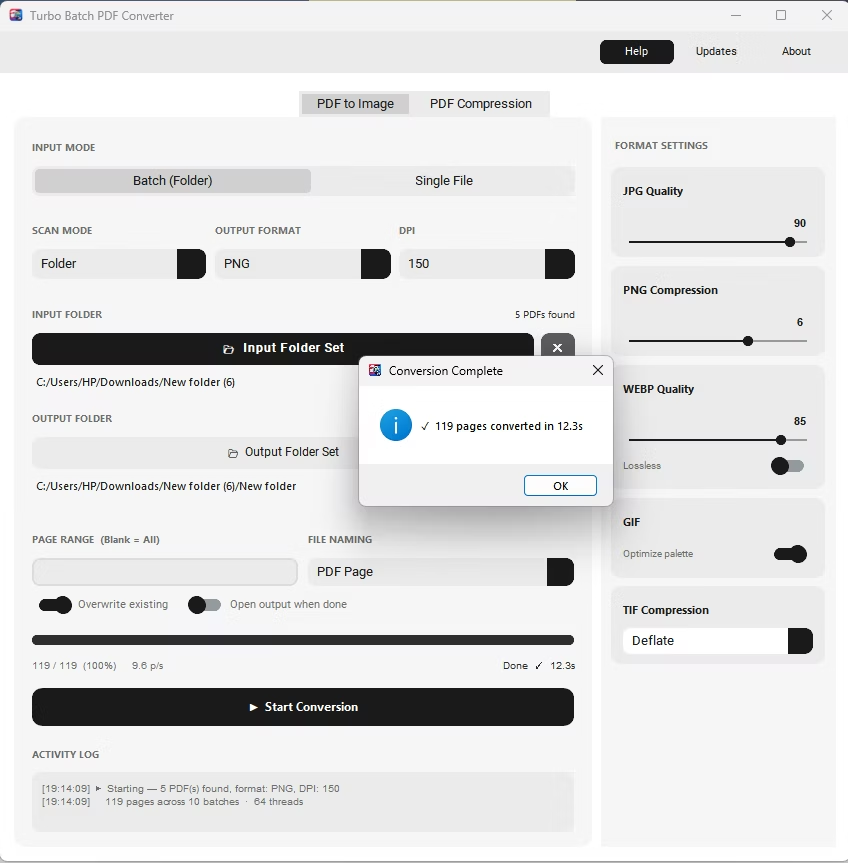
The activity panel shows pages done versus total, speed in pages per second and estimated time remaining. A scrolling log records PDFs found, pages counted, files saved, skips and per-page errors. Cancel stops a run cleanly, and a completion dialog confirms the batch finished.
Failure Isolation
If one page or file fails, the rest of the batch keeps going and the failure is reported in the log instead of stopping the whole job.
Drag and Drop
Drop a PDF or a folder onto the Browse buttons on either tab. Drag and drop relies on an optional component; if it cannot load, the Browse buttons work the same way.
PDF to Image Settings
DPI: from screen preview to print-ready
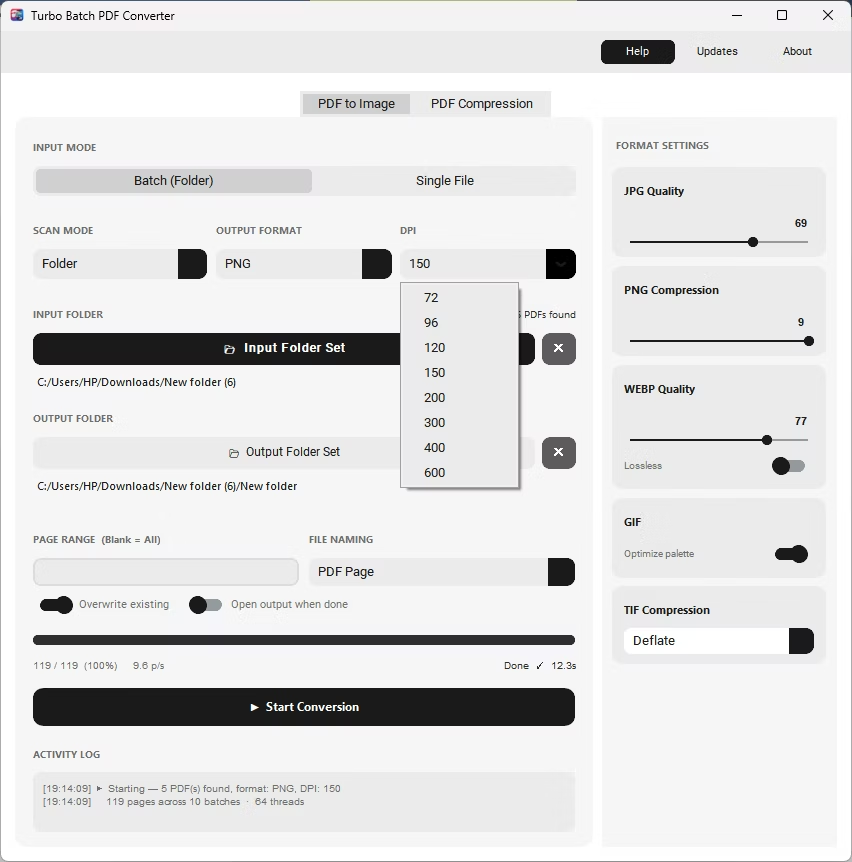
DPI controls how many pixels each page is rendered into; higher means sharper images and larger files. Choose 72, 96, 120, 150 (the default), 200, 300, 400 or 600. Use 72–120 for screen previews and thumbnails, 150–200 as the everyday sweet spot, 300 for quality printing, and 400–600 for professional and archival print. 600 DPI meets or exceeds what most printers, scanners and archival standards require, and the dropdown does not go higher. DPI multiplies both render time and file size, so pick the lowest setting that meets your quality target.
Format-specific controls
- JPG quality — a 1–100 slider; higher means better quality and larger files.
- PNG compression — a 0–9 slider. PNG stays lossless at every level, so this only trades encode speed for file size.
- WEBP quality and Lossless — a 1–100 slider plus a Lossless switch, which ignores the slider and gives pixel-perfect output at a smaller size than PNG.
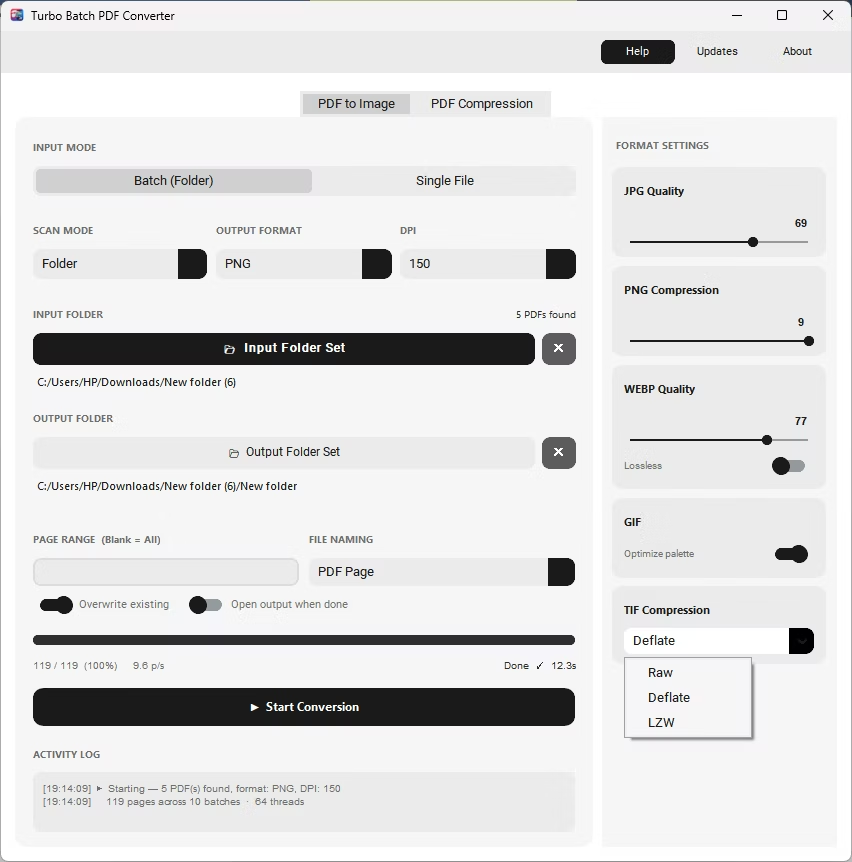
- TIF compression — Raw (uncompressed, largest), Deflate or LZW (both lossless). Deflate or LZW at a moderate DPI such as 150–200 is the easiest way to get small scanned-document TIFFs.
- GIF Optimize palette — each page becomes an adaptive 256-color GIF; the switch shrinks the file further.
PDF Compression Levels
| Level | What It Does | Typical Saving |
|---|---|---|
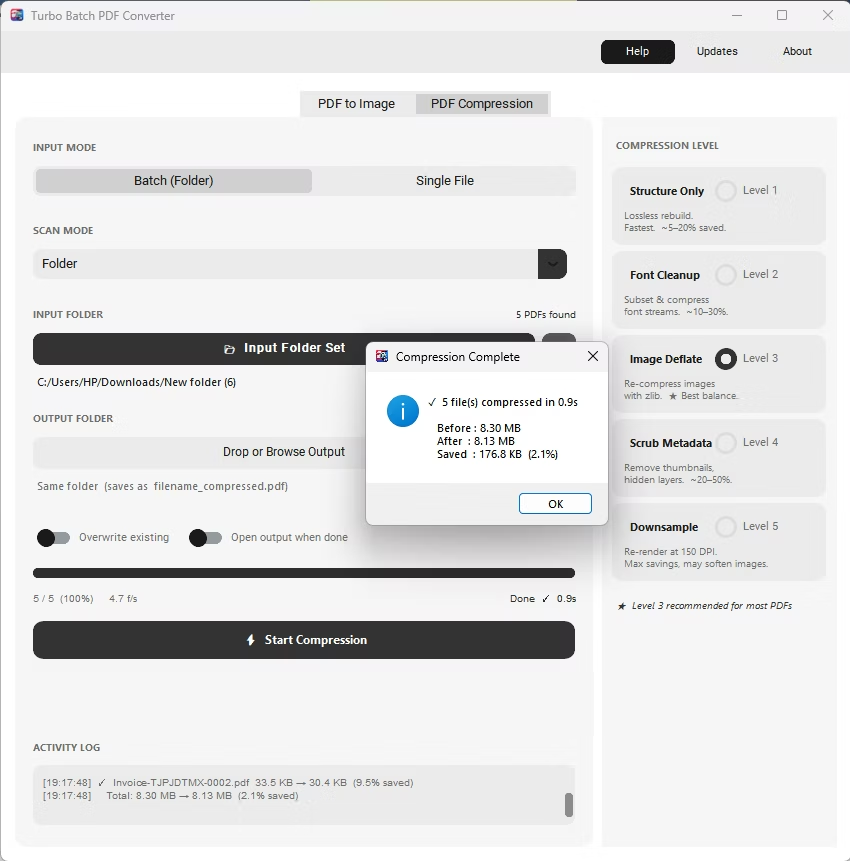
| Level 1 | Structure cleanup only: removes duplicate objects, rebuilds the cross-reference table and deflates streams. Images are untouched, so it is fully lossless and the fastest level. | ~5–20% |
| Level 2 | Level 1 plus font subsetting, embed cleanup and cleaned page content streams. Best suited to text-heavy PDFs. | ~10–30% |
| Level 3 (Recommended) | Level 2 plus re-compression of existing image streams. A good balance of size reduction and visual quality for most documents. | ~15–40% |
| Level 4 | Level 3 plus scrubbing of metadata, annotations, hidden layers and embedded thumbnails. | ~20–50% |
| Level 5 | Level 4 plus a full image downsample: every page is re-rendered at 150 DPI and rebuilt as a raster-only PDF. Maximum reduction, but text and vector elements are no longer live. | ~30–70% |
Each compressed file reports its original size, its new size and the percentage saved in the activity log, so you can confirm the result before deleting the source PDF.
How to Convert or Compress PDFs
- Pick a tab. PDF to Image renders pages into image files; PDF Compression shrinks PDFs.
- Choose the input. Switch between Batch (Folder) and Single File, then browse or drag and drop. In folder input, Folder processes just that folder and Subfolder walks every nested folder.
- Configure the output. On the image tab choose format, DPI, quality, page range and naming; 150 DPI PNG with a blank page range is a good first run. On the compression tab start with Level 3.
- Click Start. Watch pages done, speed and ETA in the activity panel. Cancel stops the run cleanly if you started the wrong batch.
- Open the results. With Open output when done enabled, the output folder opens when the run finishes.
Once you are comfortable, switch to Batch (Folder), turn on Subfolder scan and point the app at an entire directory tree.
Performance and Rendering Engine
Pages are rendered by a self-contained engine, so there is nothing extra to install and no console windows flashing in the background. Instead of assigning one page per worker, the app splits each PDF into chunks of 20 pages and distributes them across a fixed pool of up to 64 workers. Each worker opens the source document, renders its chunk and closes it independently, which keeps memory use predictable on documents with thousands of pages. Every render and compression pass is an independent task, so workers never interfere with one another.
Offline and Private
Every page render, image save and compression pass happens on your own computer. No PDF content is uploaded, scanned remotely or shared with a third-party server.
- No logging, analysis or transmission of your PDF content, and no telemetry, ad trackers or third-party analytics in the conversion engine.
- Internet access is used only for license activation; the request carries no file names or document content.
- Suitable for legal contracts, medical scans, financial statements and air-gapped networks.
System Requirements and Licensing
| Requirement | Minimum | Recommended |
|---|---|---|
| Operating system | Windows 10 (64-bit) | Windows 10 or 11 (64-bit) |
| Processor | 1–2 CPU cores | 4 or more CPU cores |
| Memory | 2 GB RAM | 8 GB RAM or more |
| Storage | 500 MB free disk space | 2 GB or more; SSD for large batches |
Turbo Batch PDF Converter is a one-time purchase through Gumroad, with no subscription. Activate once with your purchase email and license key; after that the app runs locally and only performs a lightweight license check.