Turbo Raw Image Converter
for Windows
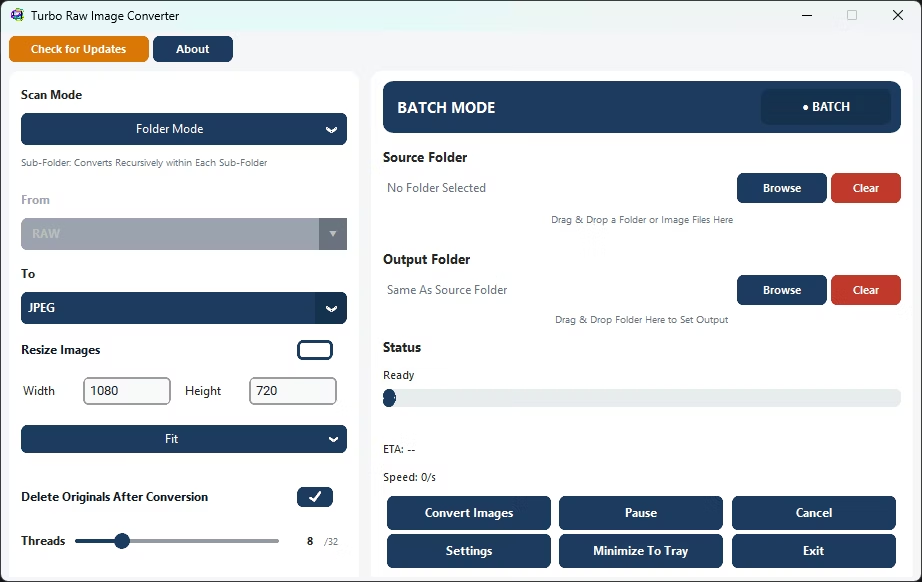
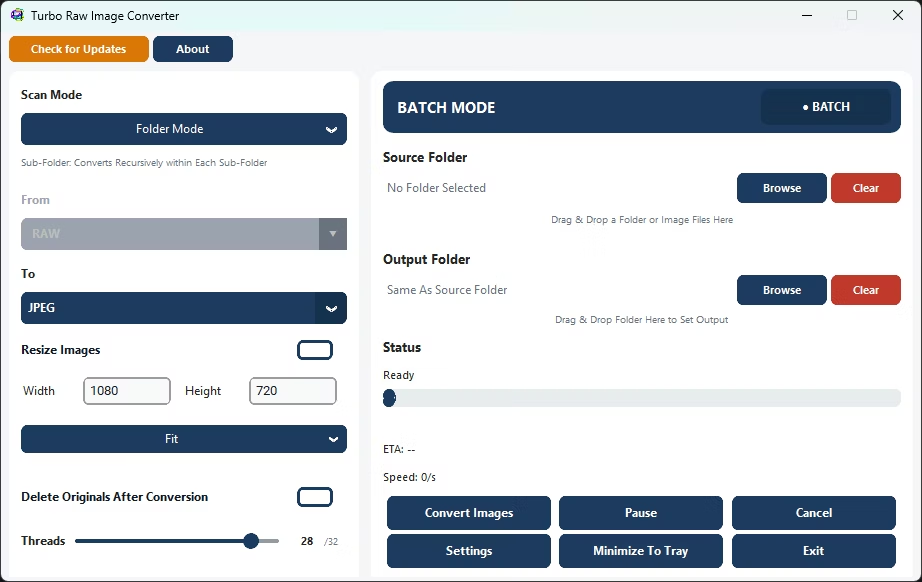
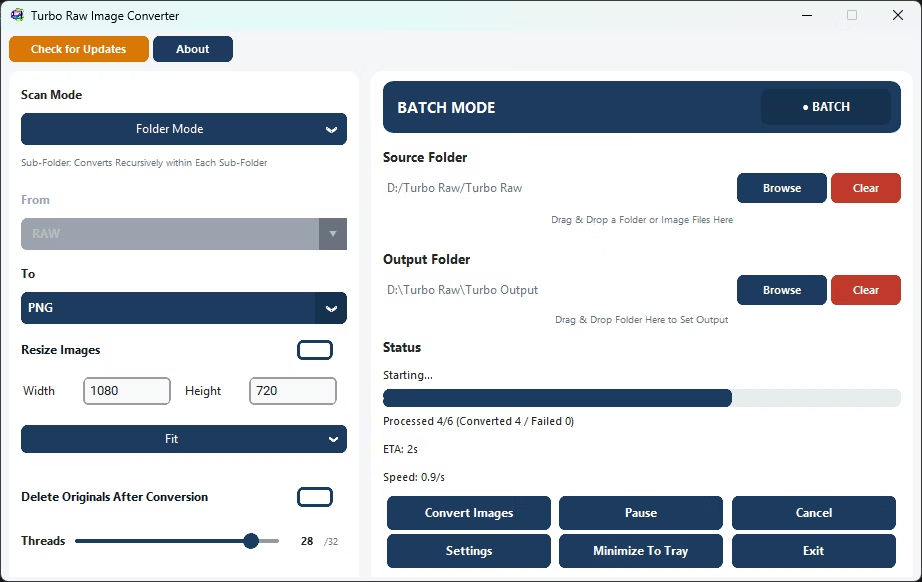
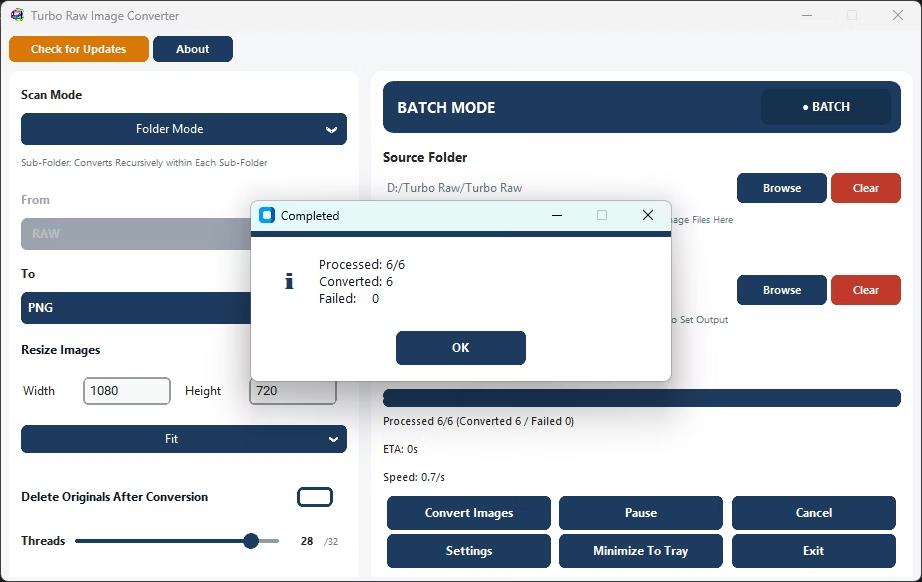
Convert RAW Camera Files to Everyday Image Formats - in Bulk, Offline
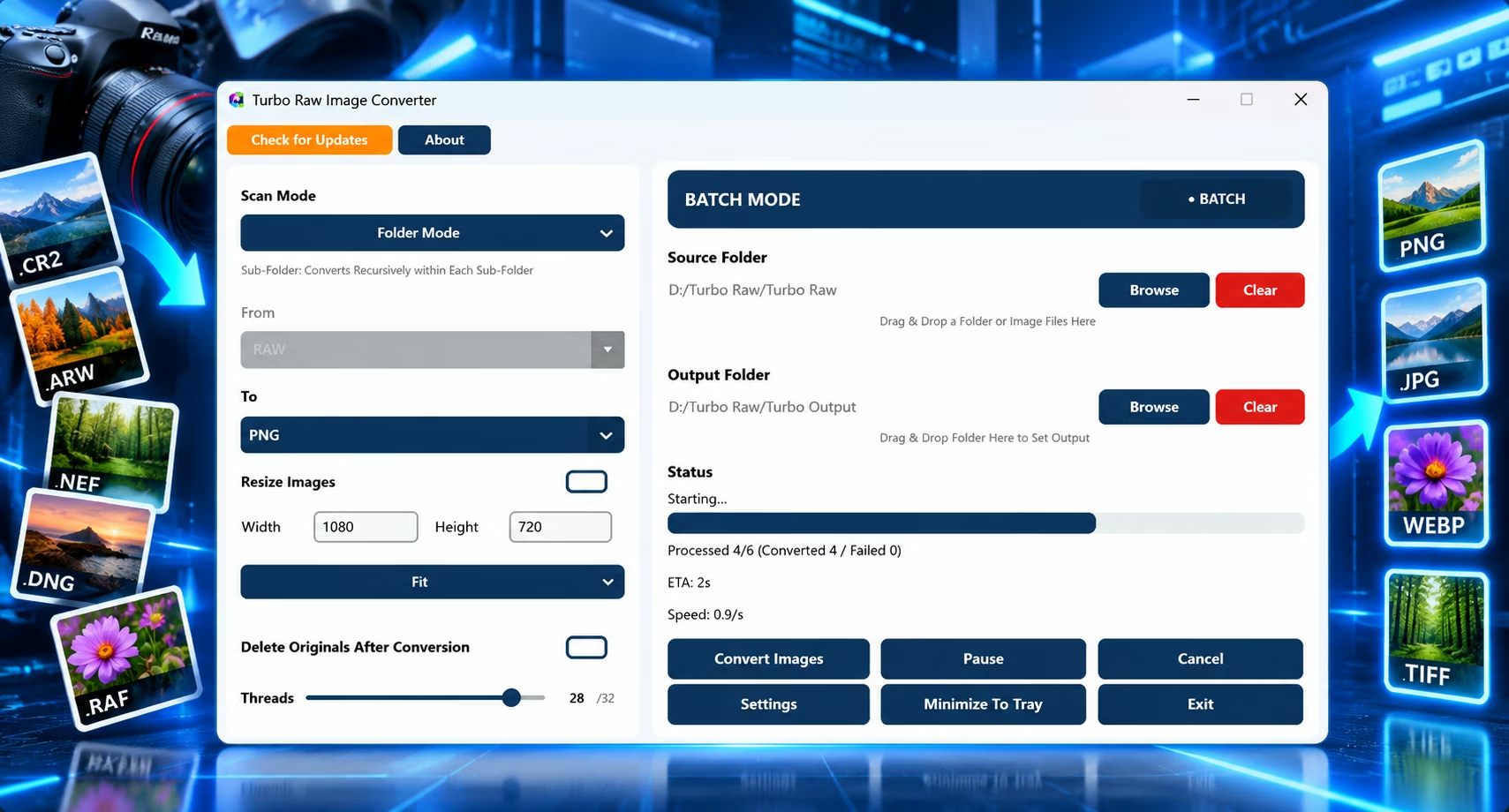
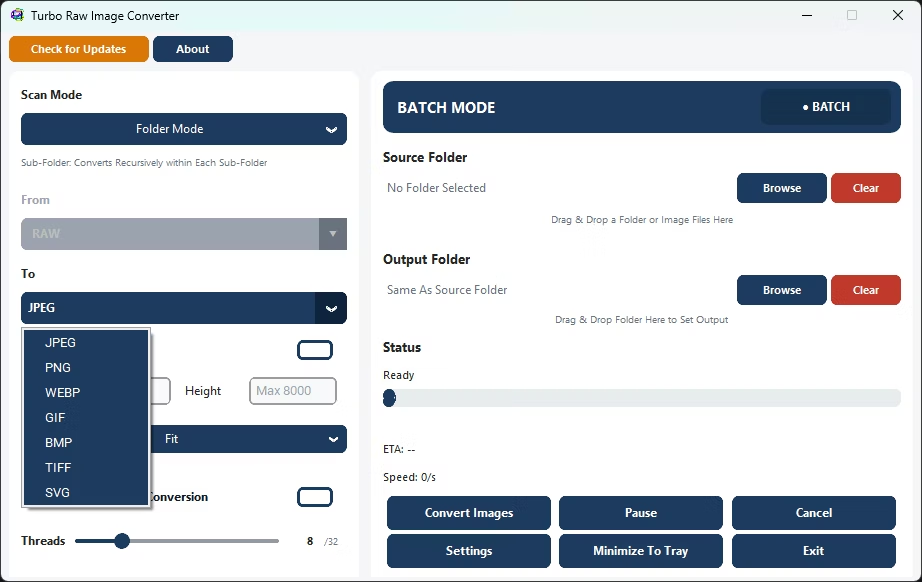
Turbo Raw Image Converter is a Windows desktop application that turns proprietary RAW camera files, including iPhone ProRAW photos, into standard, shareable image formats, one at a time or thousands at once. It reads 47 RAW formats from every major camera brand and writes JPEG, PNG, WEBP, GIF, BMP, TIFF or SVG, decoding each file locally on your PC with no uploads, no queues and no file-size limits. It converts RAW only and does not write RAW or DNG files.
RAW files preserve everything a camera sensor captured, which makes them ideal for editing but awkward for everything else. They are large, they will not open in most viewers or web pages, and every manufacturer uses its own variant: Canon’s CR3, Nikon’s NEF, Sony’s ARW, Fujifilm’s RAF and dozens more. When a shoot produces hundreds or thousands of them, converting by hand is slow. This app turns a full card of RAW photos into a folder of ready-to-use JPEGs or PNGs in a single run, and can resize them in the same pass.
Supported Formats
Canon (CR2, CR3, CRW), Nikon (NEF, NRW), Sony (ARW, SR2, SRF), Fujifilm (RAF), Panasonic (RW2), Olympus (ORF), Pentax (PEF, PTX), Adobe and Leica (DNG), Hasselblad (3FR, FFF), Phase One (IIQ, CAP), Samsung (SRW), Sigma (X3F), RED (R3D) and many more are covered.
Choosing an output format
- JPEG — the default for sharing, proofing and the web: small files, near-universal support and an adjustable quality setting.
- PNG — lossless output with no compression artefacts, best for editing masters and graphics work.
- WEBP — typically smaller than JPEG at similar quality, a strong pick for fast-loading websites and galleries.
- TIFF — a print and archival standard with selectable compression, for prepress and long-term storage.
- BMP and GIF — plain uncompressed bitmaps and a configurable-colour indexed format, for tools that specifically need them.
- SVG — wraps the converted raster inside an SVG container for workflows that expect an .svg file; it does not trace or vectorize the photograph.
Key Features
Single and Batch Modes
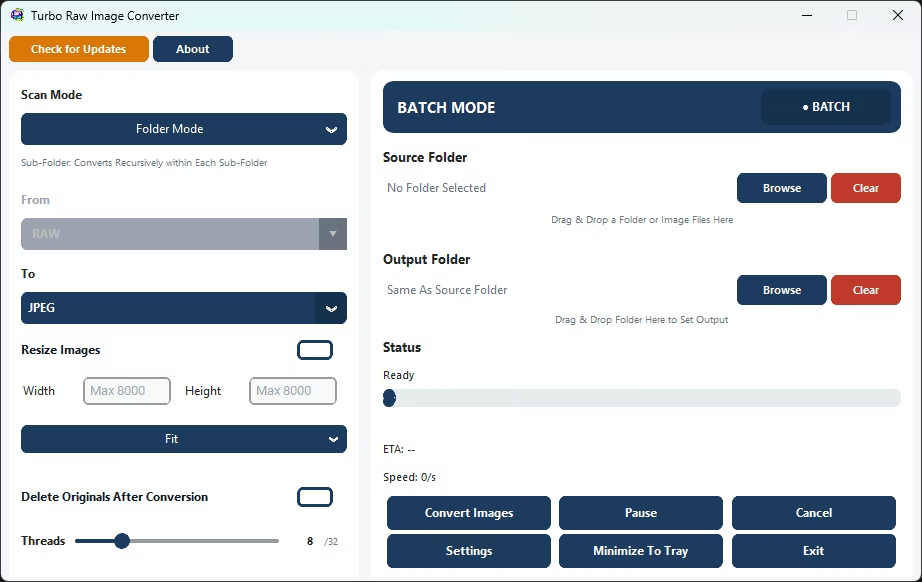
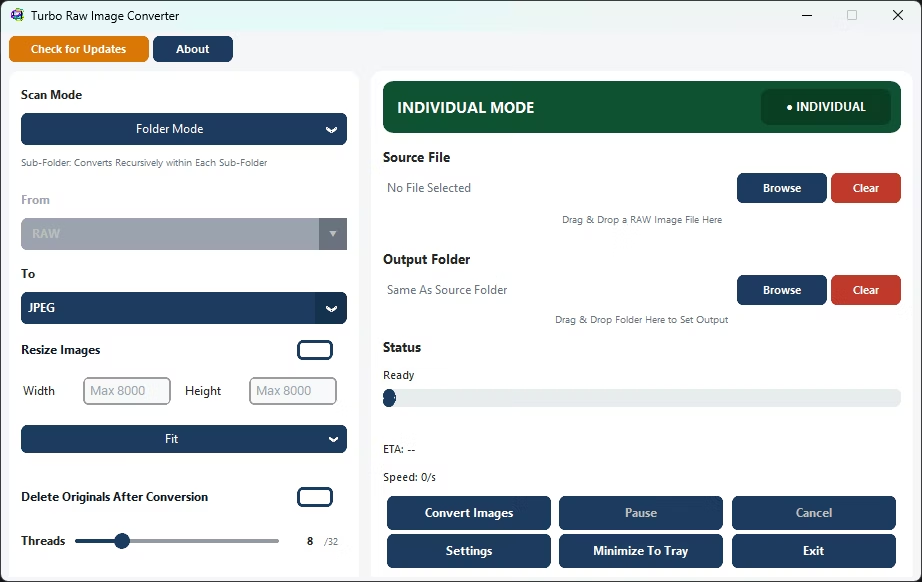
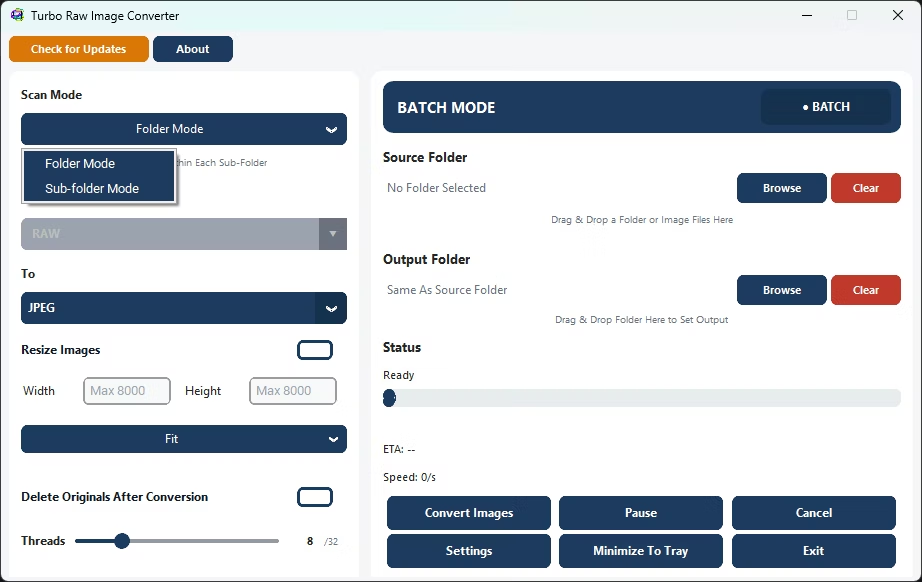
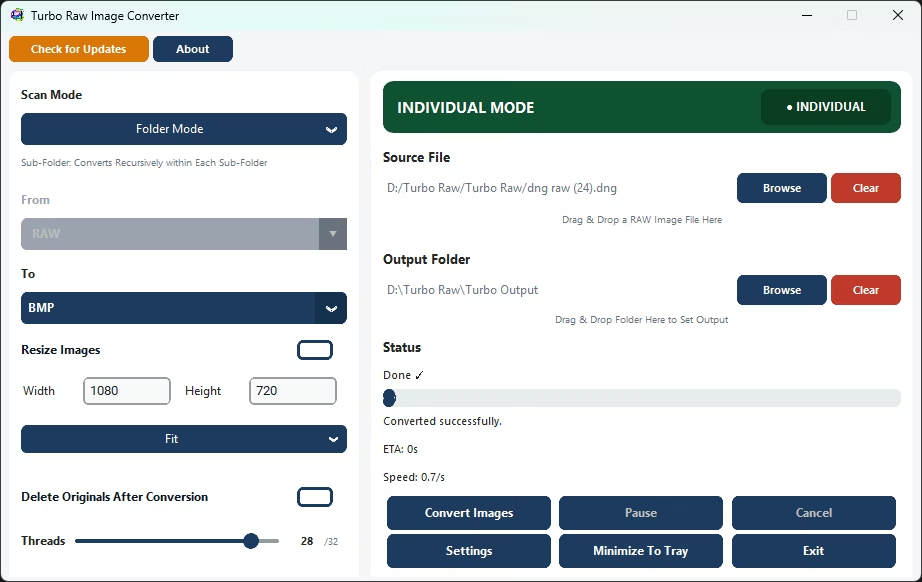
Individual mode converts one RAW file in a click; Batch mode converts a folder or a whole folder tree in one run across multiple parallel workers. Both offer the full set of decoding, resize, quality and delete-original options, and the engine is built to run stably from a thousand files to well over a hundred thousand in one session.
Automatic Input Detection
There is no manual "From" format to set. The app scans for all 47 RAW formats itself, so Canon, Nikon, Sony and other brands can share one folder and one run.
Recursive Sub-Folder Conversion
Sub-Folder mode walks the entire directory tree and mirrors the folder structure in the output, so an organised archive stays organised. Choose a separate output folder or convert in place.
Safe Delete of Originals
Optionally move each RAW file to the Recycle Bin once it is converted. Nothing is permanently erased, and originals are left untouched unless you enable this.
Naming Conflict Protection
When two RAW files share a base name, such as shot.cr2 and shot.nef, the original extension is appended to each output (shot_cr2.jpg, shot_nef.jpg). If a name is still taken, a numeric suffix is added until a free one is found.
Live Dashboard
Files processed, success and failure counts, speed in files per second, estimated time remaining and the current filename, refreshed every 250 ms. Paused time is excluded from the ETA.
Pause, Resume, Cancel and Failure Isolation
Pause and resume without rebuilding the queue, or cancel cleanly with the remaining files reported. A corrupt or unsupported file fails on its own and is counted separately.
Drag and Drop and System Tray
Drop RAW files or folders straight onto the window, and minimize to the system tray during long runs. Both depend on optional components being present in the build.
Settings and Resizing
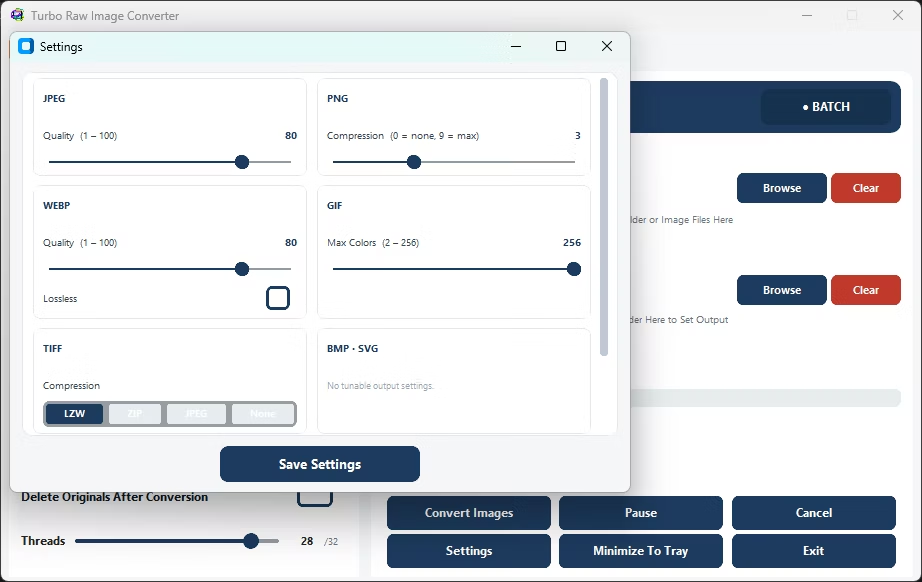
The Settings window
- JPEG quality — balance file size against fidelity for JPEG output.
- WEBP quality — a separate control, since WEBP can be noticeably smaller than JPEG at similar quality.
- GIF colours — the colour count used when writing GIF output.
- TIFF compression — the compression applied to TIFF output for archival or print workflows.
- Auto-Scale Workers — let the app pick the worker count from your CPU cores, or set it manually up to 32.
Resize while you convert
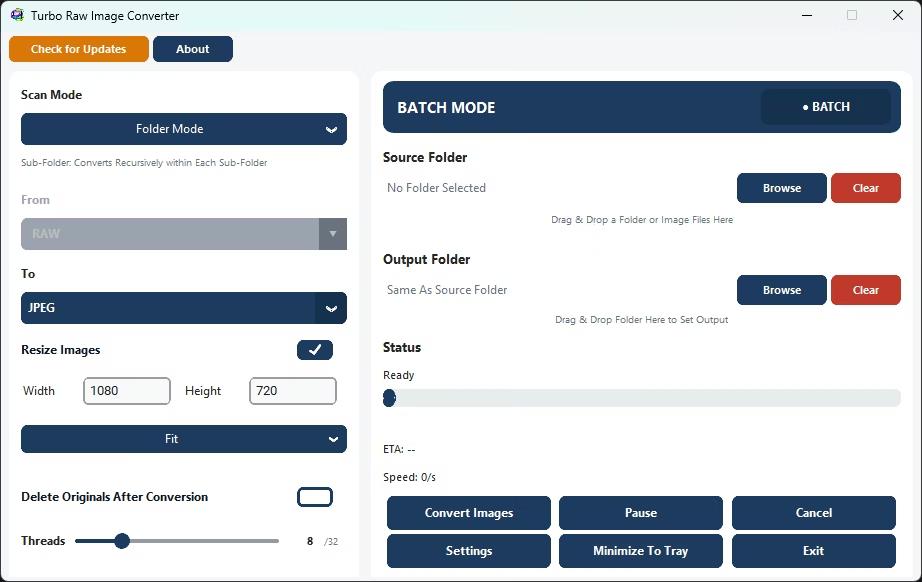
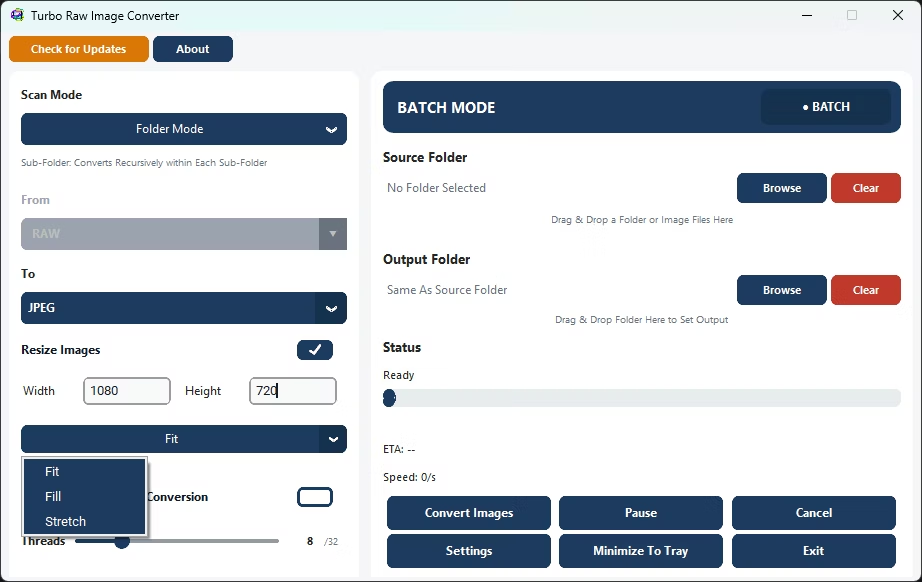
Enable Resize Images to shrink or standardize dimensions in the same pass as the conversion. Set a target width and height up to 8,000 pixels and choose a mode; all three use high-quality Lanczos resampling.
- Fit scales the image to sit within your target size while preserving its aspect ratio, so nothing is cropped or distorted. Best when every image must stay under a maximum size.
- Fill scales to cover the target and centre-crops the overflow, giving images that exactly match the requested size, ideal for uniform thumbnails and grid layouts.
- Stretch forces the exact width and height you enter, ignoring aspect ratio, for systems that demand precise pixel dimensions.
How It Works: From RAW to Ready in a Few Clicks
- Choose Single or Batch. Individual mode converts one RAW file; Batch mode converts a folder or a whole folder tree in one run.
- Add your files. Browse to a file or folder, or drag and drop it onto the window. The app scans for all 47 RAW formats automatically.
- Pick an output format. Select JPEG, PNG, WEBP, GIF, BMP, TIFF or SVG, and open Settings to fine-tune quality if you wish.
- Set options. Optionally enable resizing, choose an output folder, turn on Sub-Folder mode for nested directories, and decide whether originals go to the Recycle Bin afterwards.
- Convert. Click Convert and watch the live dashboard. Pause, resume or cancel at any point; a cancelled run leaves no half-written files behind.
Decoding and Performance
Each RAW file is decoded with the LibRaw engine using the camera’s own white balance, a fast LINEAR demosaic and no automatic brightness adjustment, which keeps colour consistent across large batches. Output is sRGB at 8-bit depth with standard sRGB gamma, converted directly to the chosen format without an intermediate copy. The demosaic is tuned for batch throughput rather than the slowest, maximum-quality alternative.
Decoding is CPU-bound, so throughput scales with cores, from dual-core laptops to 32-core workstations. You can set up to 32 parallel workers or enable Auto-Scale Workers, but for RAW input the effective count is capped at your CPU’s core count even if you request more, which keeps the machine responsive on very large batches. Each worker independently loads, demosaics, optionally resizes and saves one image and never shares data with another, and memory is managed automatically after each file so long sessions stay stable.
Scope and Limitations
- Input is RAW camera files only; this is a dedicated RAW converter, not a general any-to-any image converter.
- Output is limited to JPEG, PNG, WEBP, GIF, BMP, TIFF and SVG. The app does not write RAW or DNG; DNG is supported only as an input.
- SVG output embeds the converted raster inside an SVG wrapper rather than vectorizing the photograph.
Offline and Private
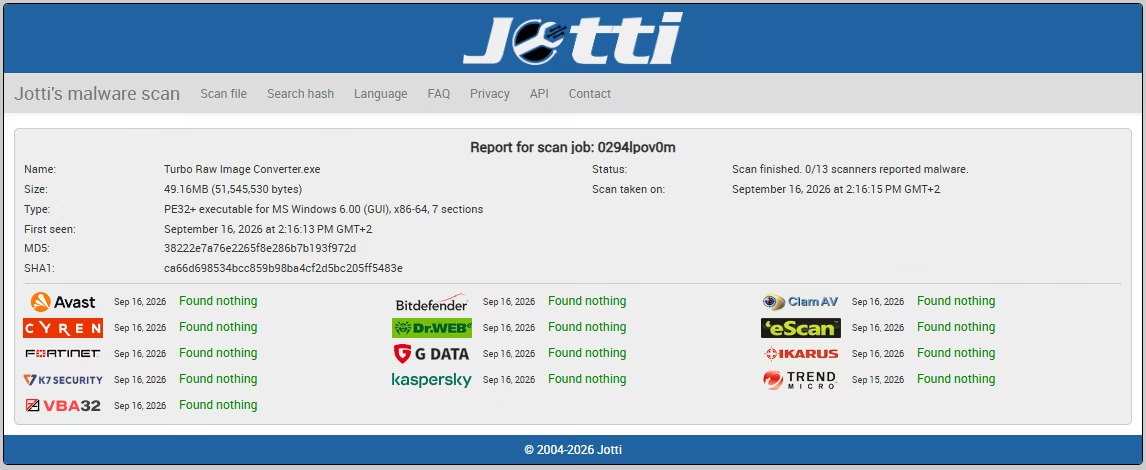
All conversion, resizing and format transformation runs locally on your machine. No images are uploaded to cloud servers, no files are scanned externally and no image metadata is transmitted.
- The app does not log, analyze, track or store your image data, and has no third-party analytics, advertising trackers or background telemetry.
- Internet is used only for license validation; the request contains no personal data, file names or image content.
- Suitable for photographers, studios, medical institutions and enterprises handling sensitive RAW libraries.
System Requirements and Licensing
| Requirement | Minimum | Recommended |
|---|---|---|
| Operating system | Windows 8 (64-bit) | Windows 10 or later (64-bit) |
| Processor | 1–2 CPU cores | 4 or more CPU cores |
| Memory | 2 GB RAM | 4 GB RAM or more |
| Storage | 500 MB free disk space | 2 GB or more; SSD recommended for batch performance |
Turbo Raw Image Converter is a one-time purchase through Gumroad, with no subscription and no online account. After purchase you receive the download plus your purchase email and license key. Run the installer, enter the email and key once to activate, then drag a folder of RAW files onto the window, pick an output format and click Convert.