
Turbo Bulk Renaming Tool
for Windows
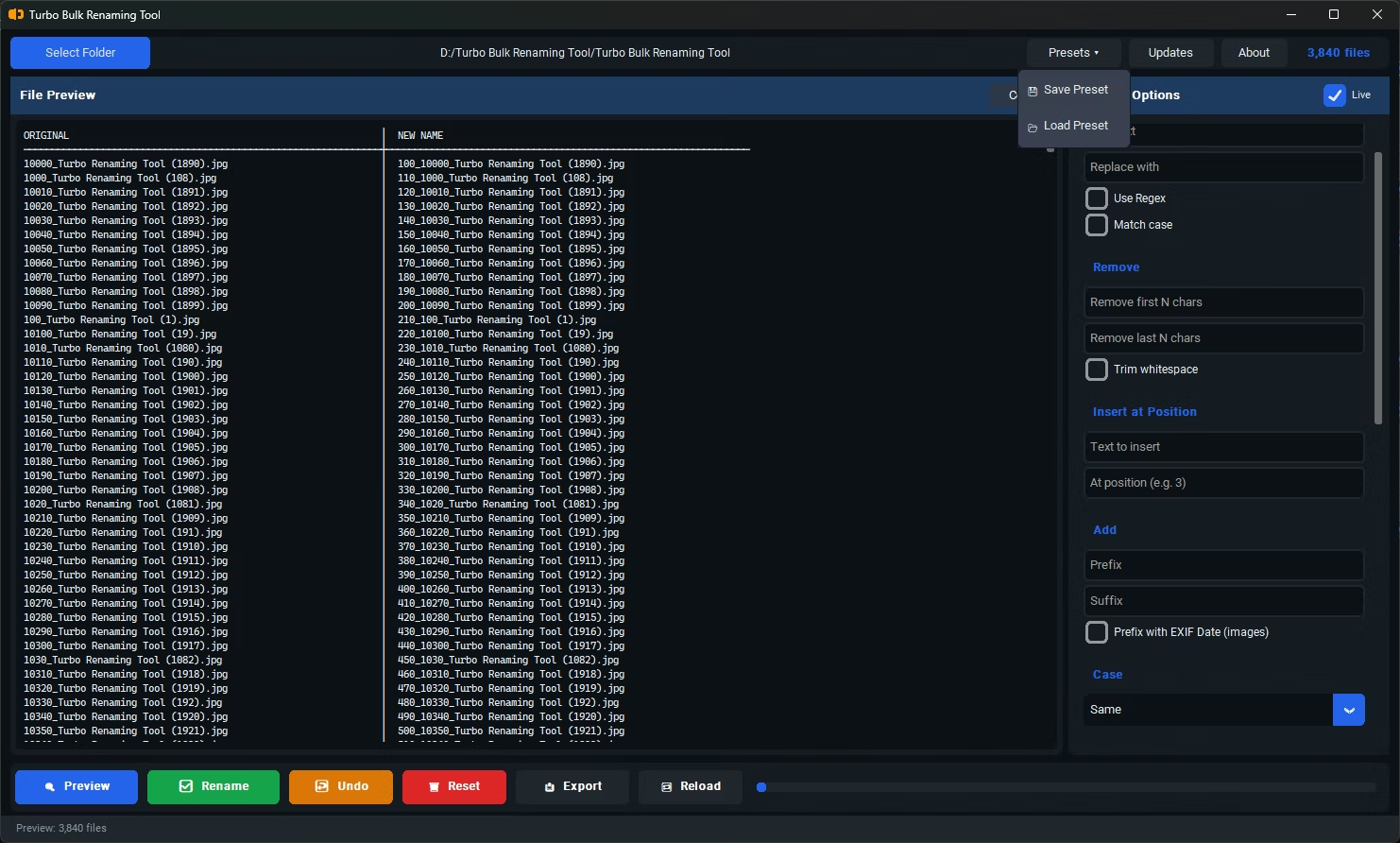
Bulk File Renamer for Windows: Preview, Rename and Undo
Turbo Bulk Renaming Tool is an offline Windows app that renames hundreds or hundreds of thousands of files in one pass. You load a folder, stack as many of its 15 rules as you need (find and replace, regex, prefix and suffix, insert at position, sequential numbering, case conversion, EXIF date prefix and more), watch a live preview of every original and proposed name, and only then commit, with a one-click undo waiting if you change your mind.
It works on any file type, not just photos. A two-pass rename engine means Windows never adds (1) or (2) brackets to your names, an automatic rollback protects against a failed batch, and every rename can be logged to CSV, XLSX or TXT as an audit trail. Nothing is uploaded: filenames, folder paths and file contents never leave your PC.
Rename Rules
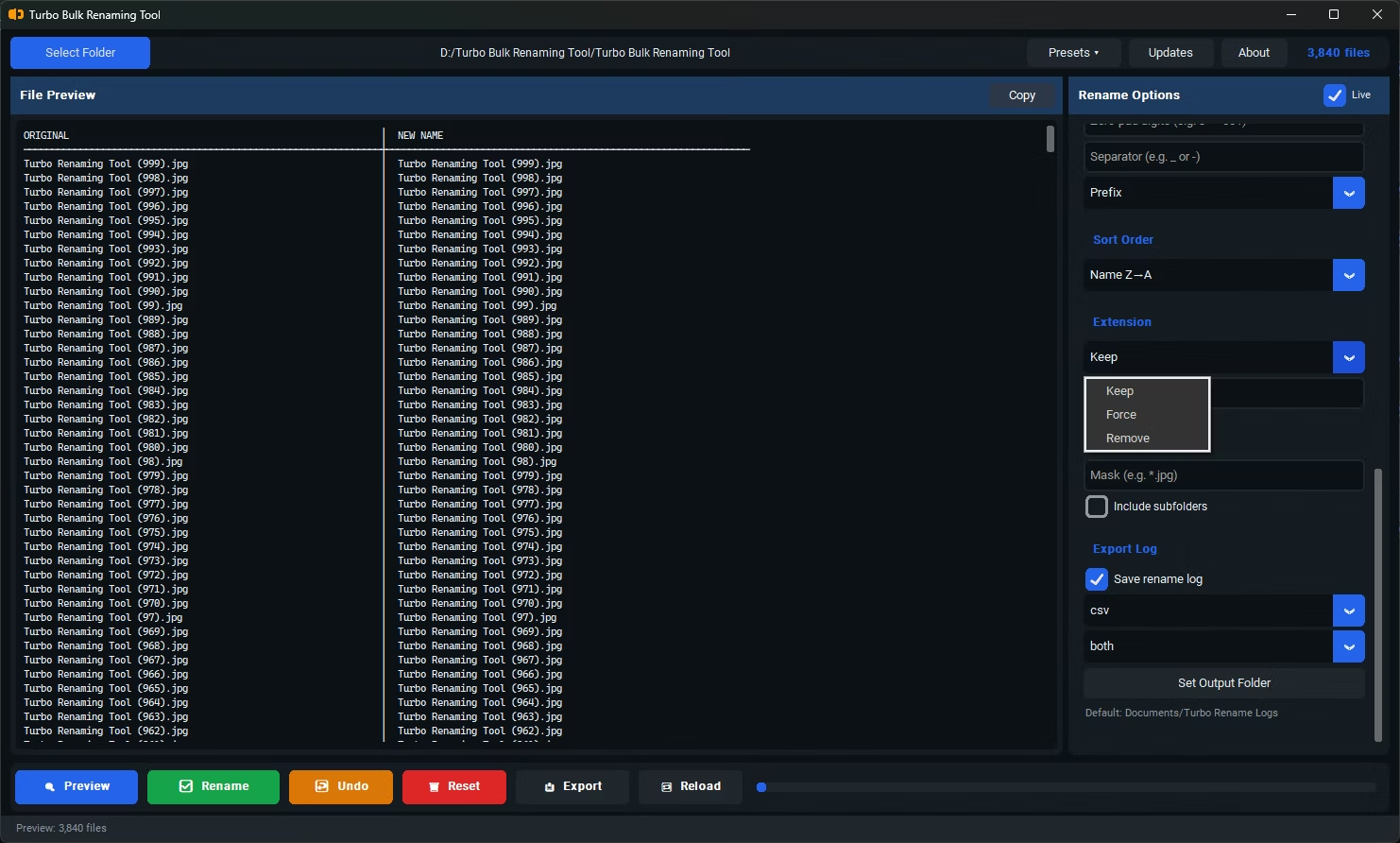
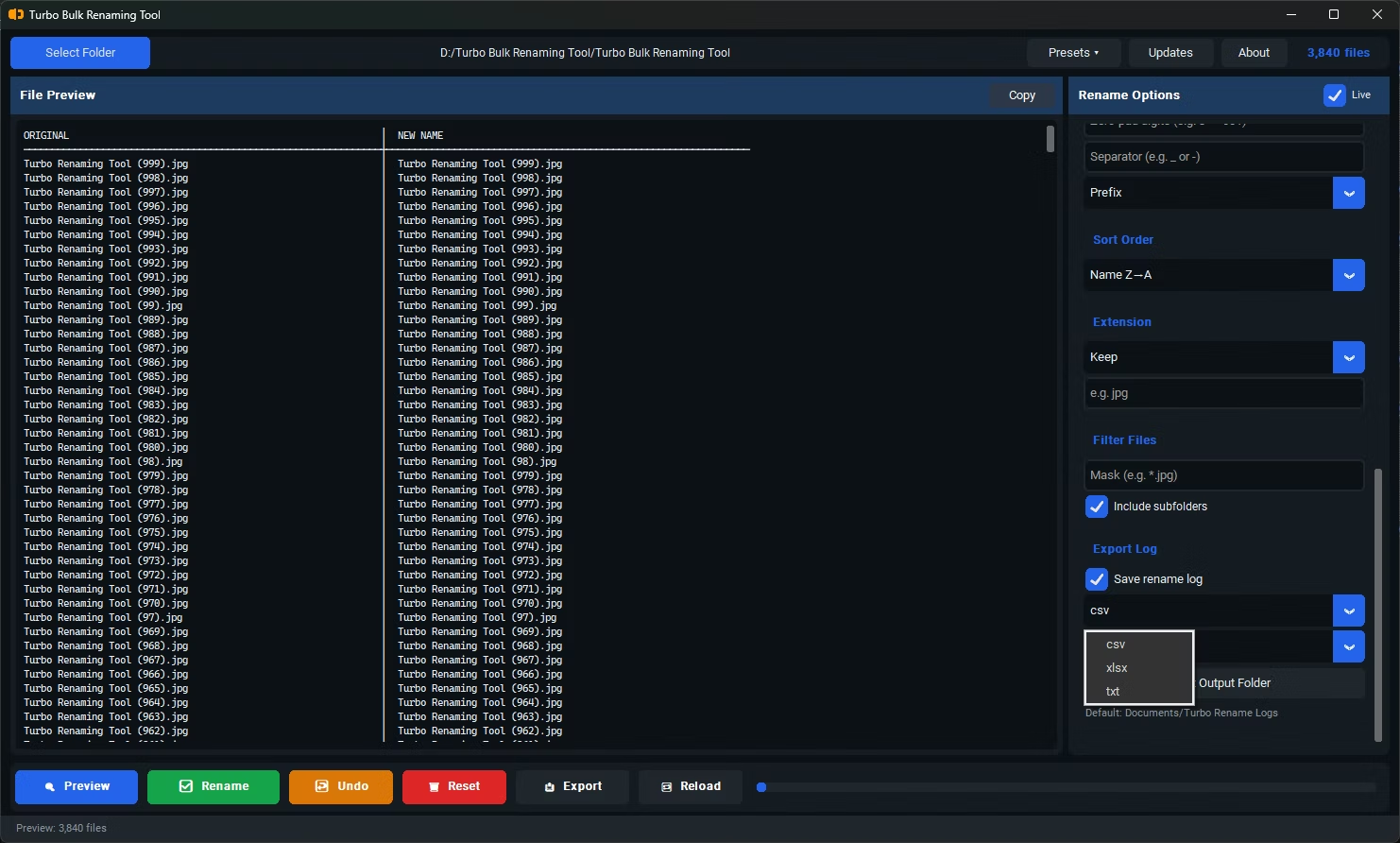
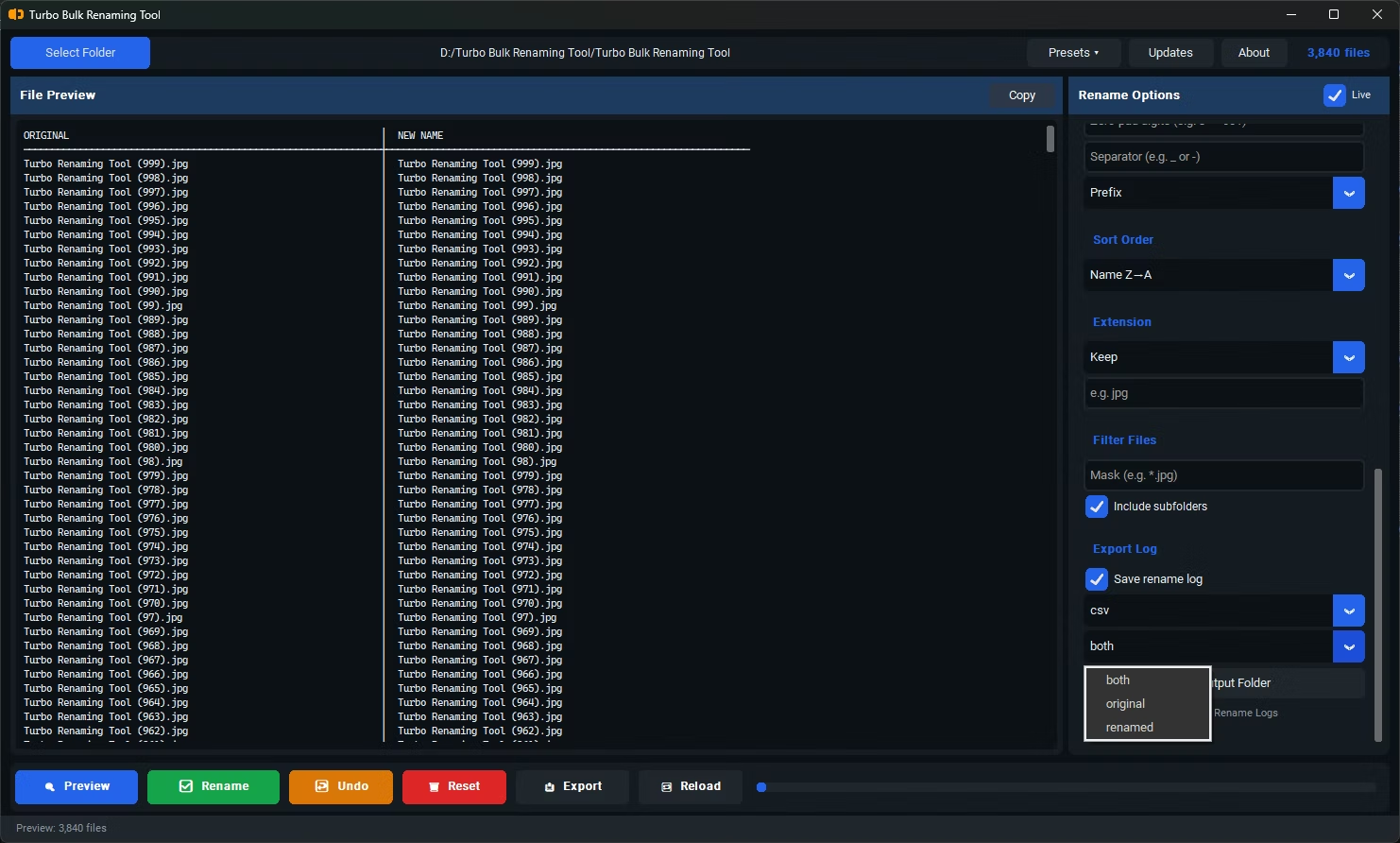
Fifteen rename rules can be combined in a single pass, and the rename log exports to three formats.
Rename Log Export Formats
Renaming Rule Details
| Rule | What it does |
|---|---|
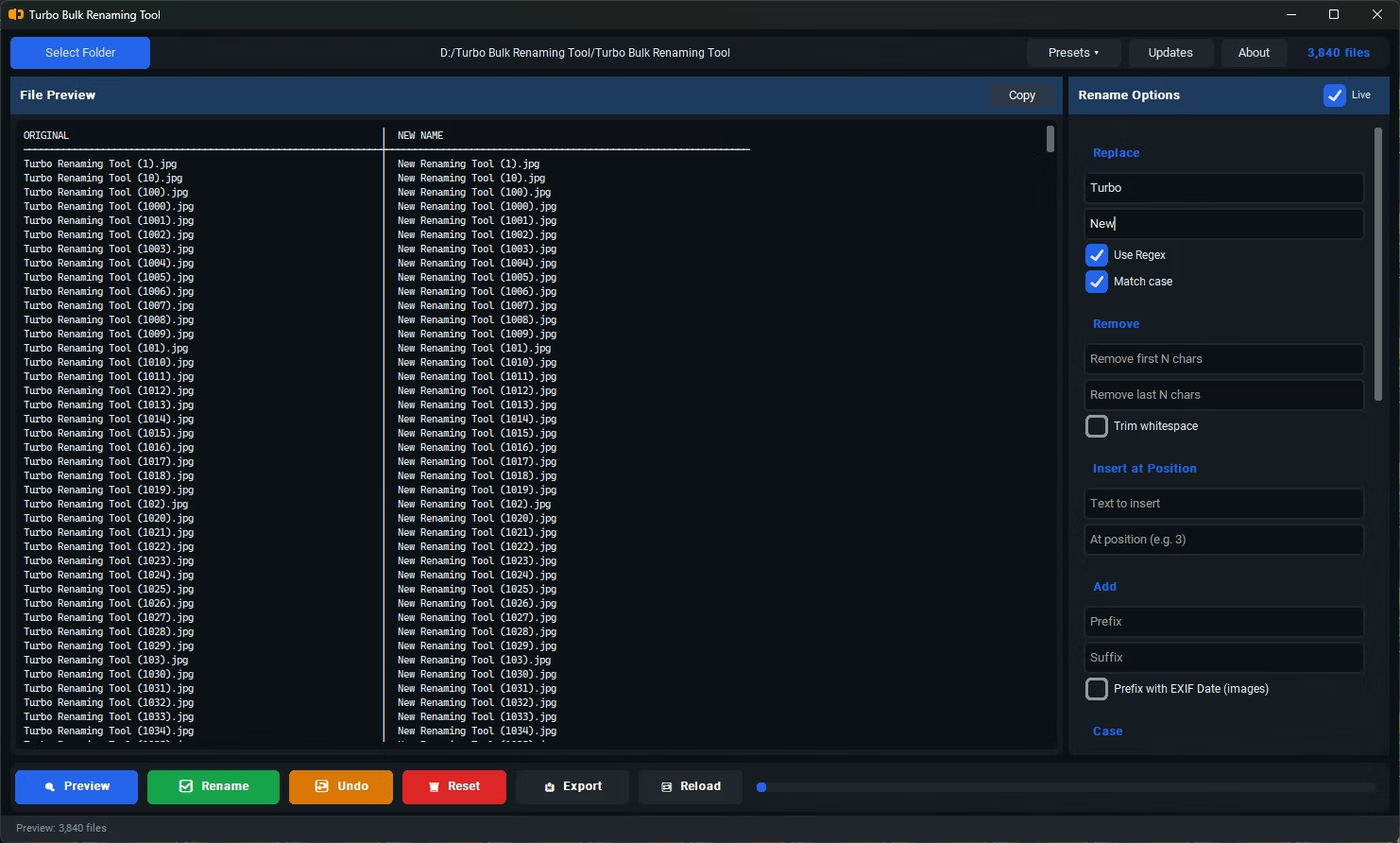
| Find & Replace | Replaces every occurrence of a text pattern in the filename base. Plain text is case-insensitive by default; Match Case makes it literal. The extension is never touched. |
| Regex Replace | Use Regex treats Find as a full regular expression, with capture groups, backreferences and lookaheads. An invalid pattern silently skips the rule for all files, so test in Preview. Not combinable with Match Case. |
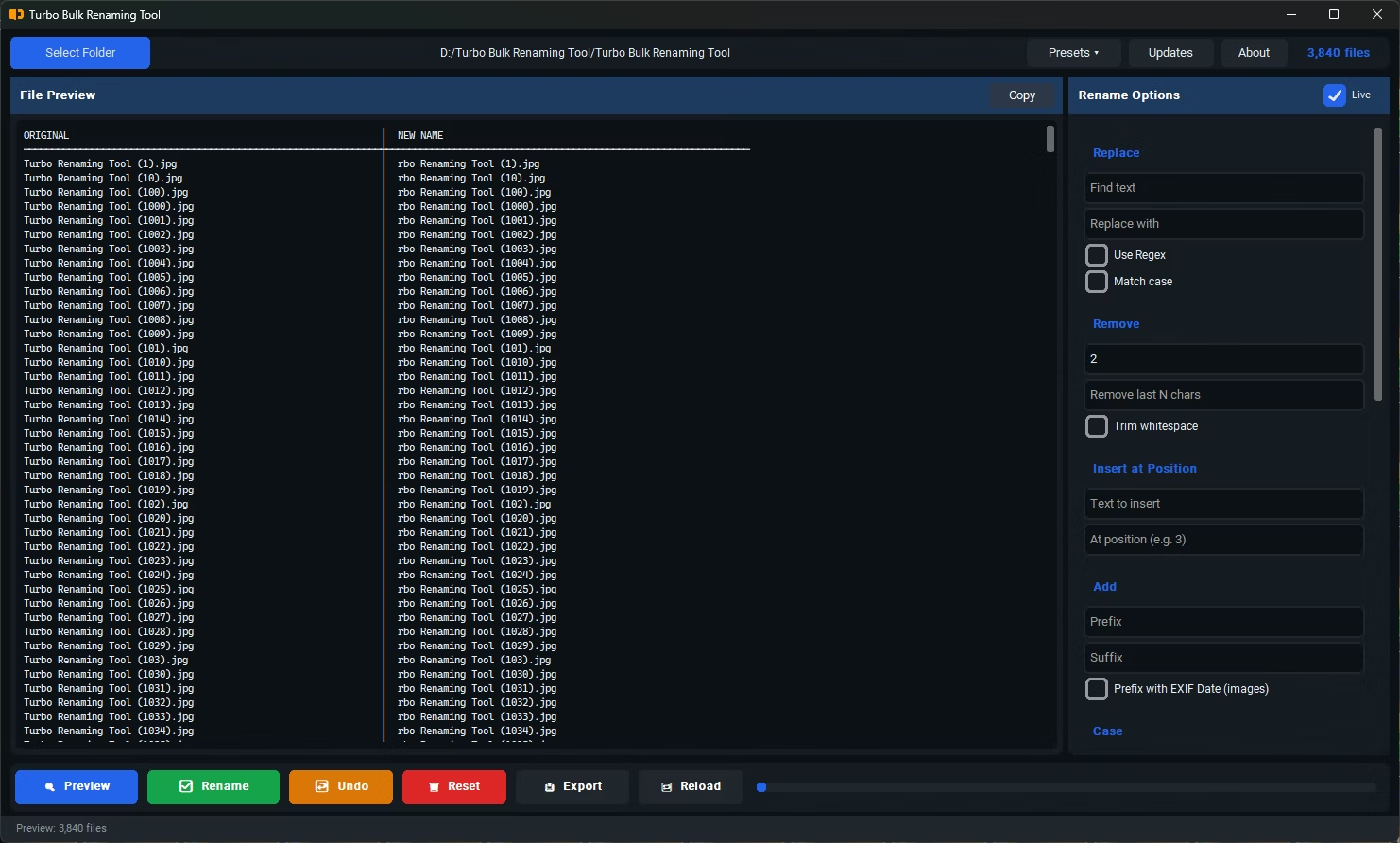
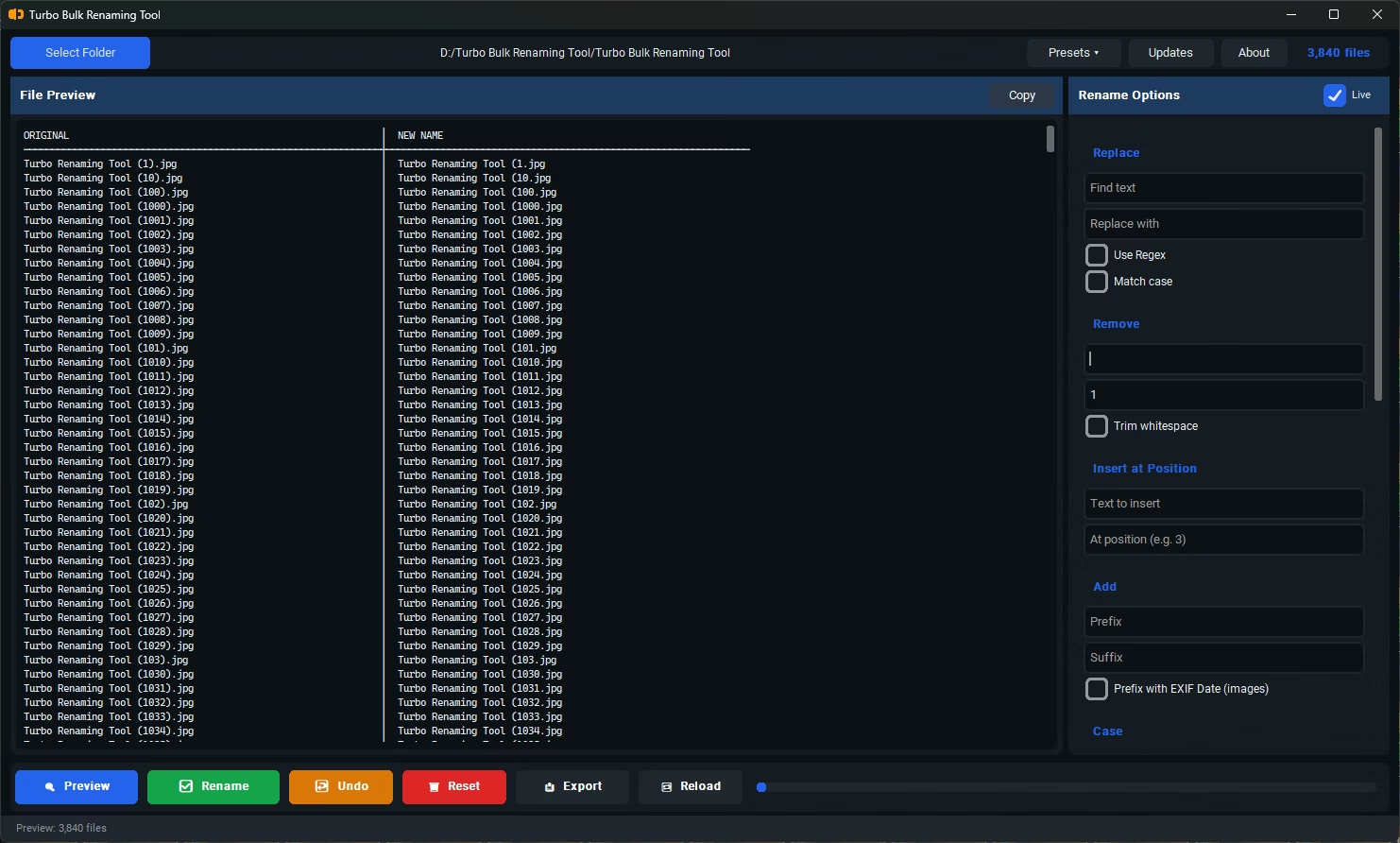
| Remove First / Last N Chars | Strips N characters from the start or end of the base: 4 turns IMG_photo.jpg into photo.jpg. Last N is skipped when N is not smaller than the name length; non-integers are ignored. |
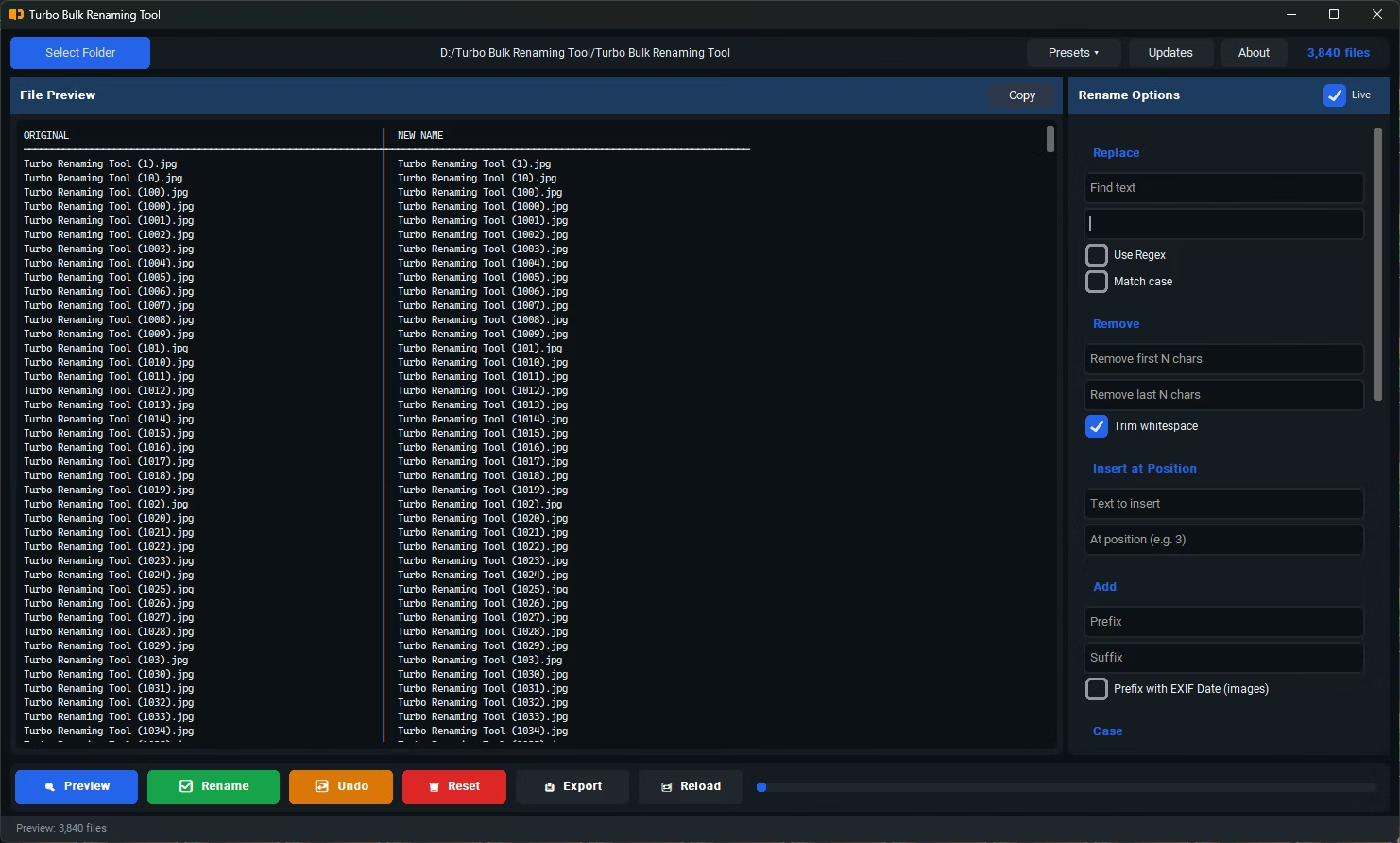
| Trim Whitespace | Removes leading and trailing whitespace from the base, common in files exported from third-party tools. |
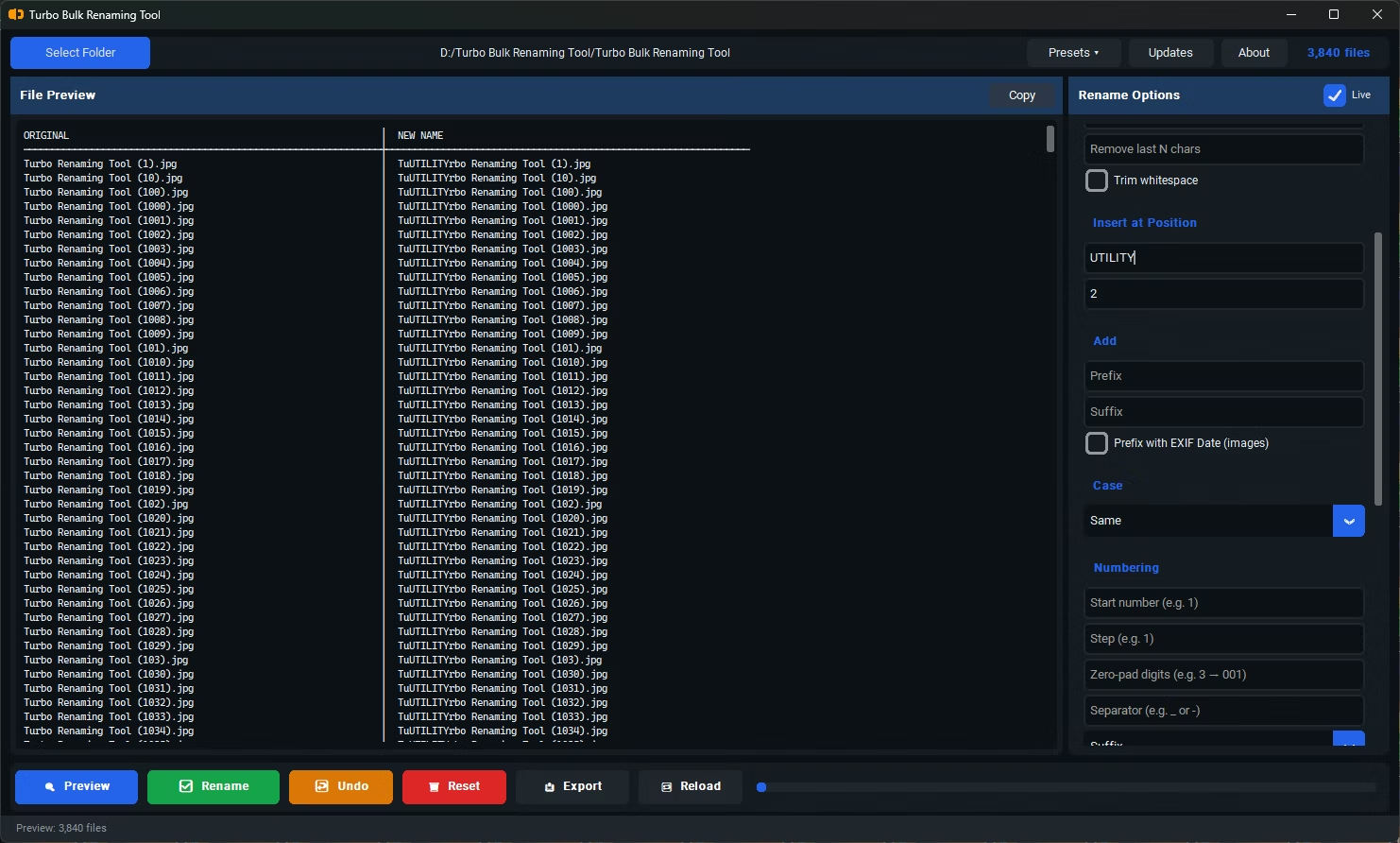
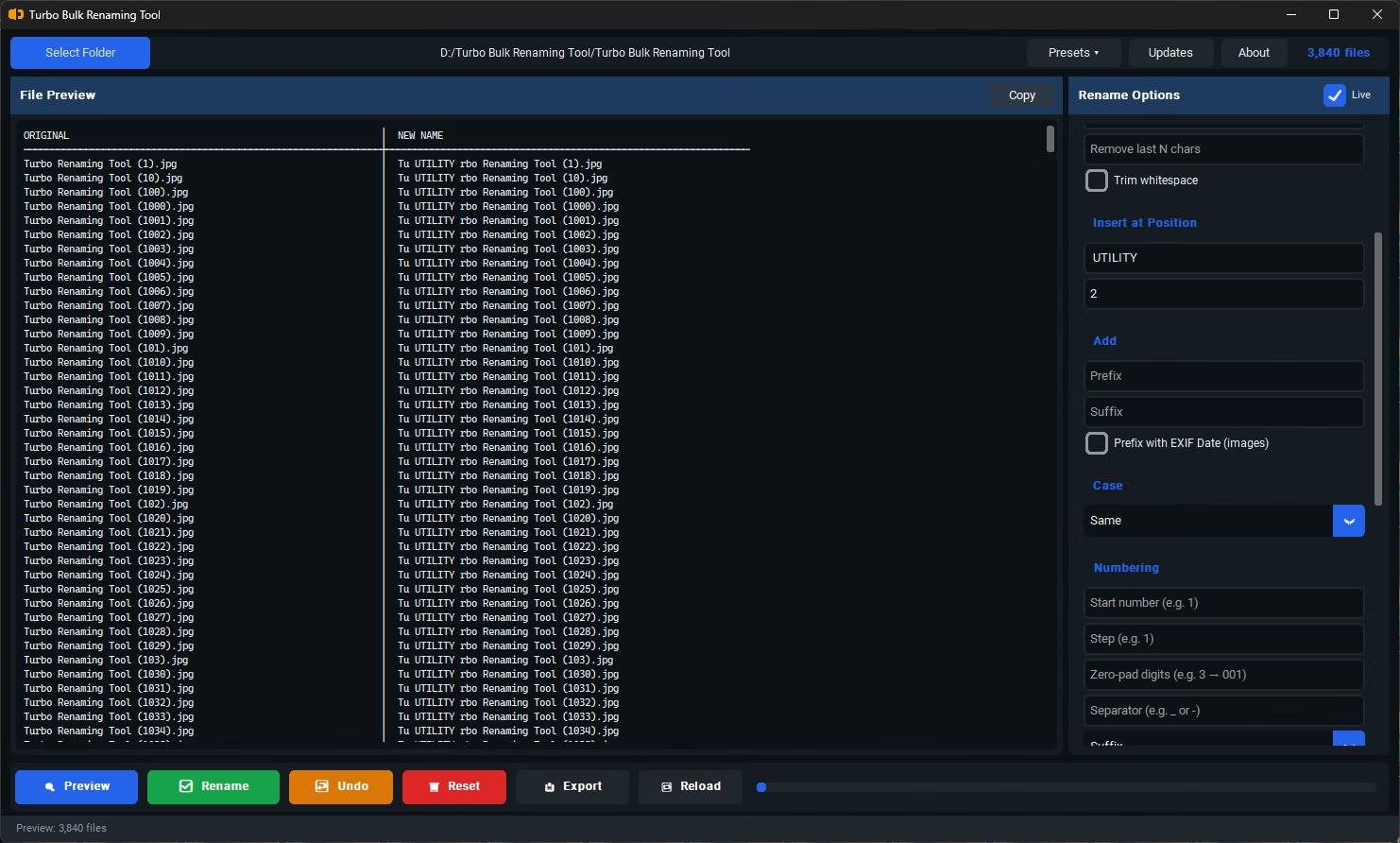
| Insert at Position | Inserts text at a zero-based position. 0 acts as a prefix, the name length appends, and larger positions are clamped to the end. |
| EXIF Date Prefix | Prepends the DateTimeOriginal tag as YYYYMMDD_HHMMSS_. Works for JPG, JPEG, TIFF and TIF only; PNG, BMP, RAW, AVIF, WEBP, HEIC and non-image files are still renamed, just without a date prefix. |
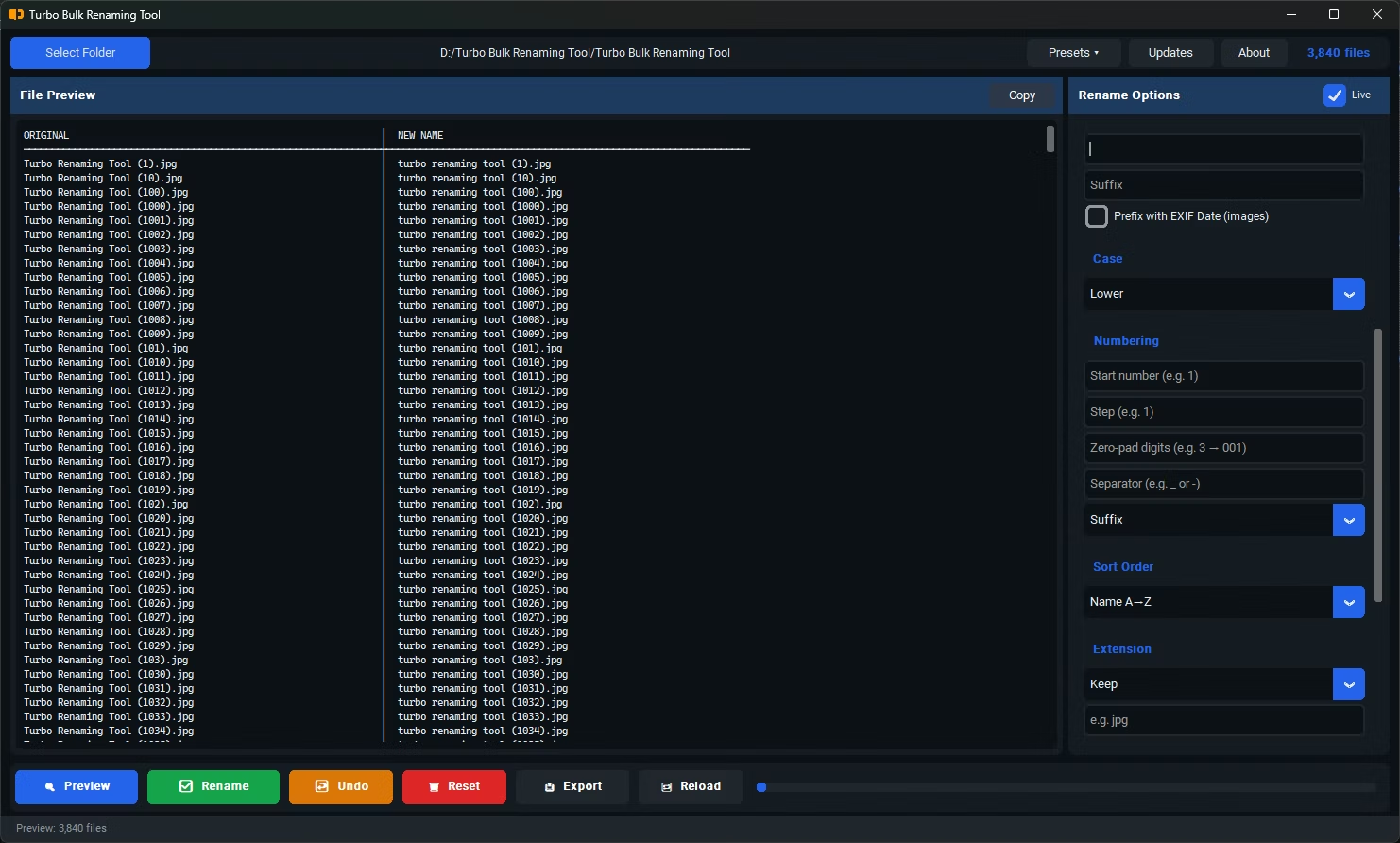
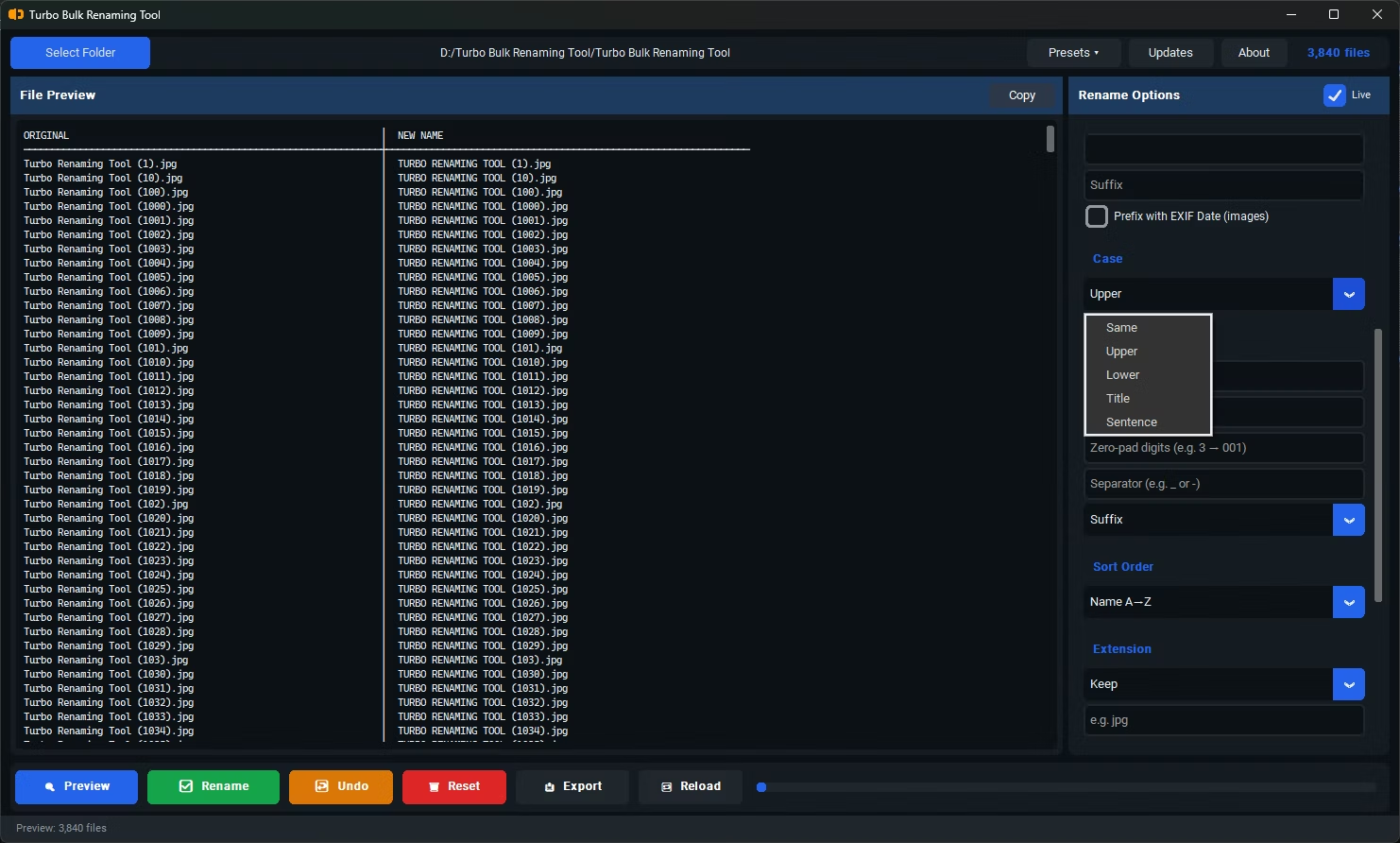
| Case Conversion | Same (default), Upper, Lower, Title (every word) or Sentence (first character only). |
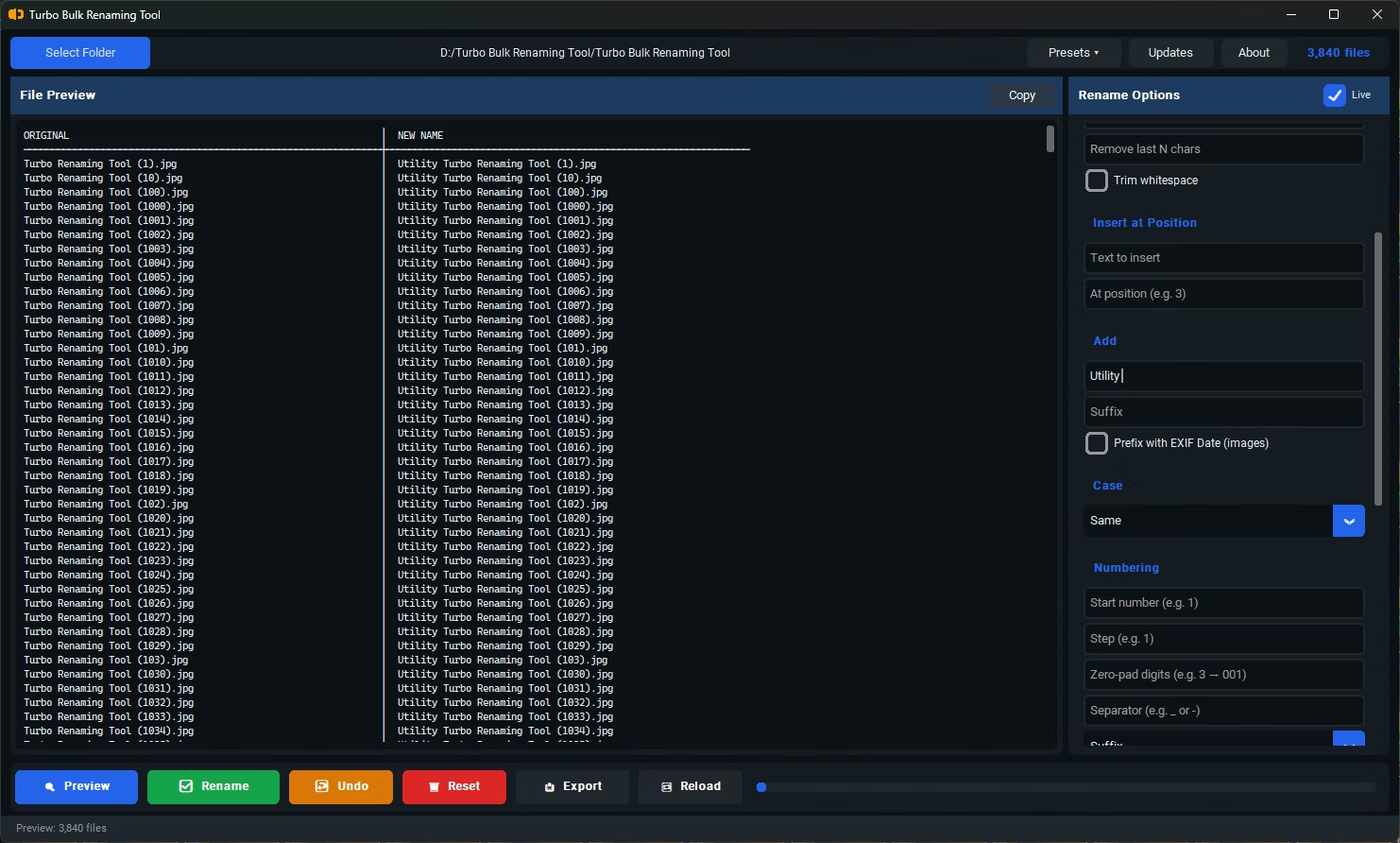
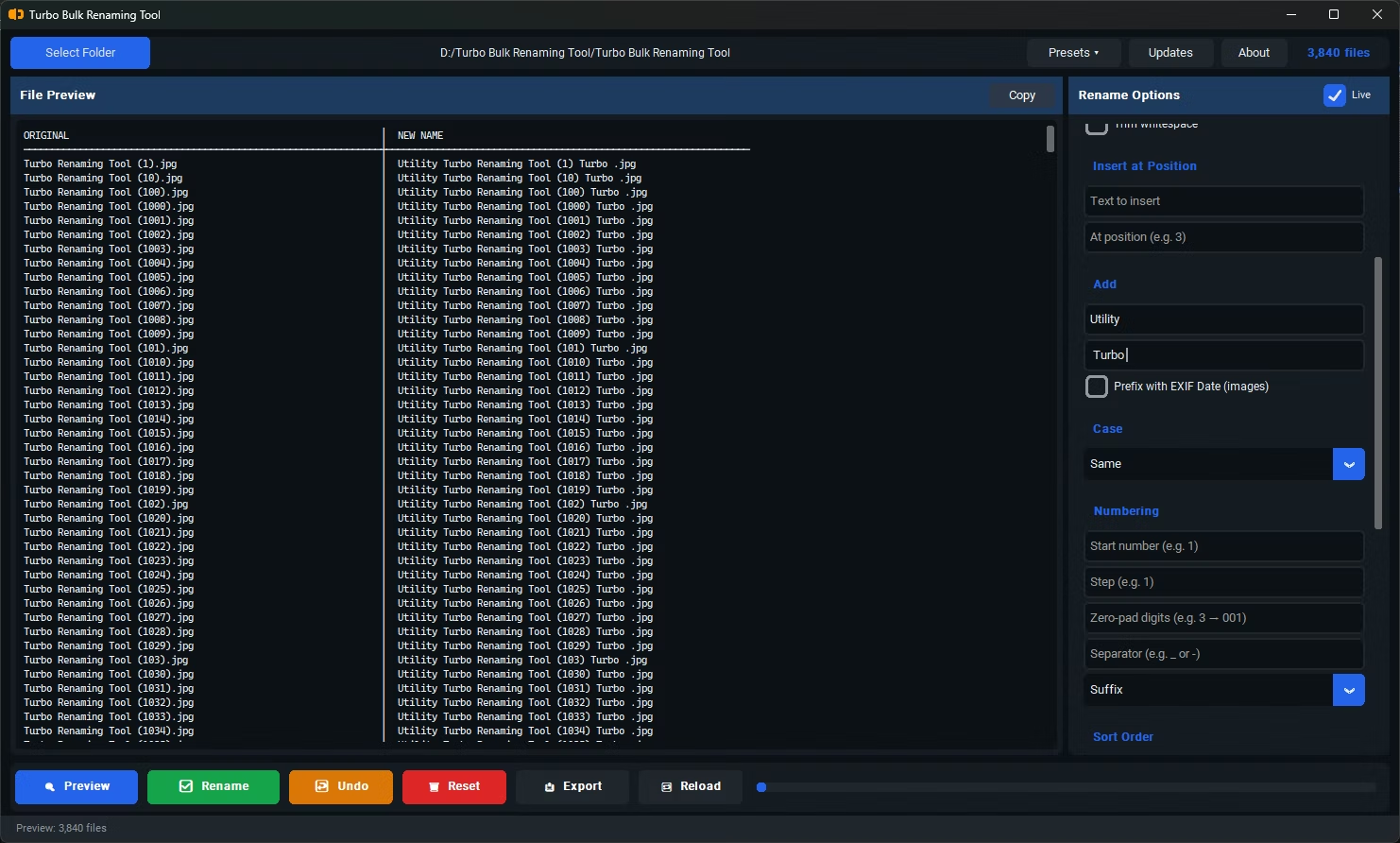
| Prefix and Suffix | Custom text before and after the base, applied together. With EXIF on, the order is EXIF_DATE_PREFIX_base_SUFFIX. |
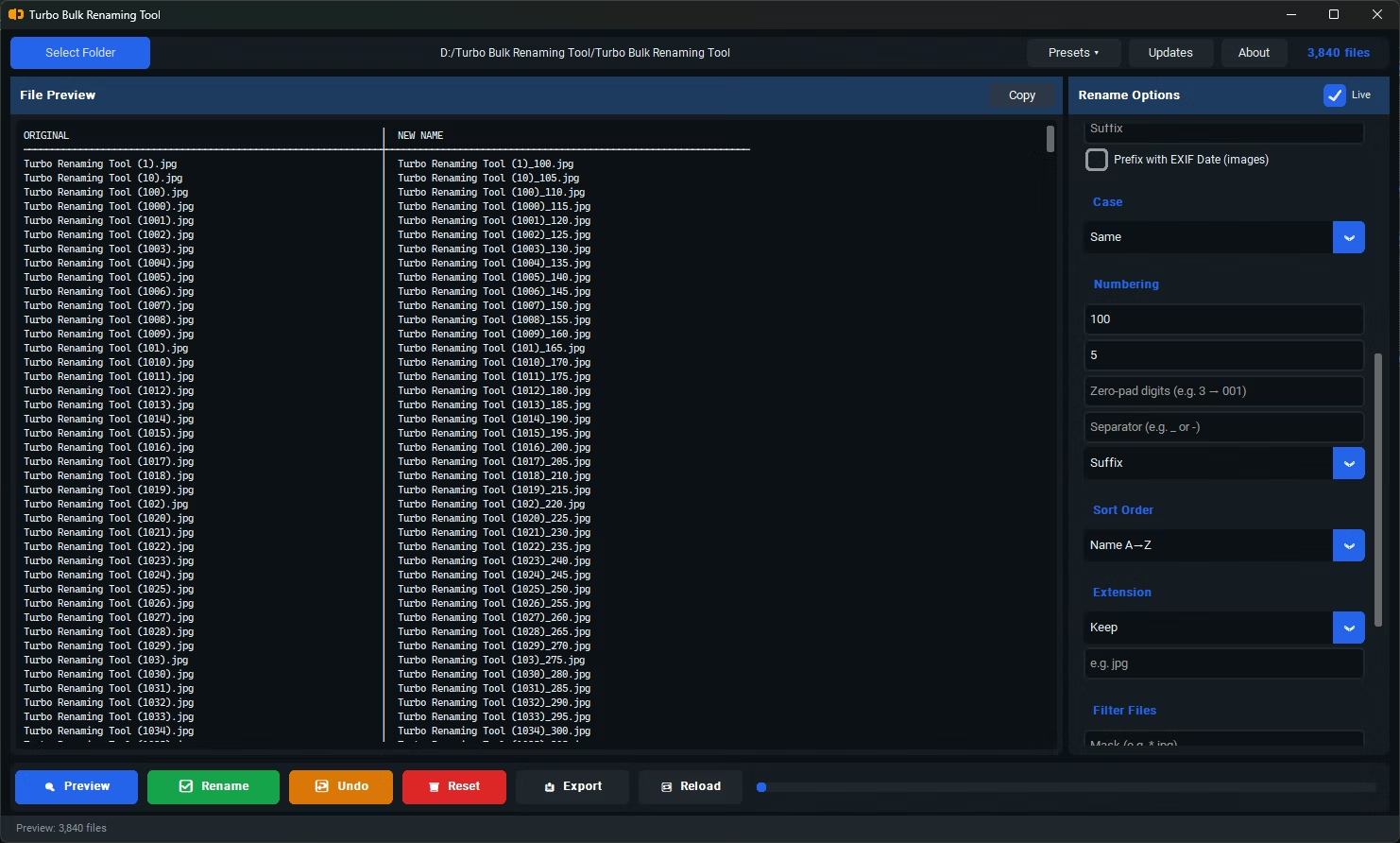
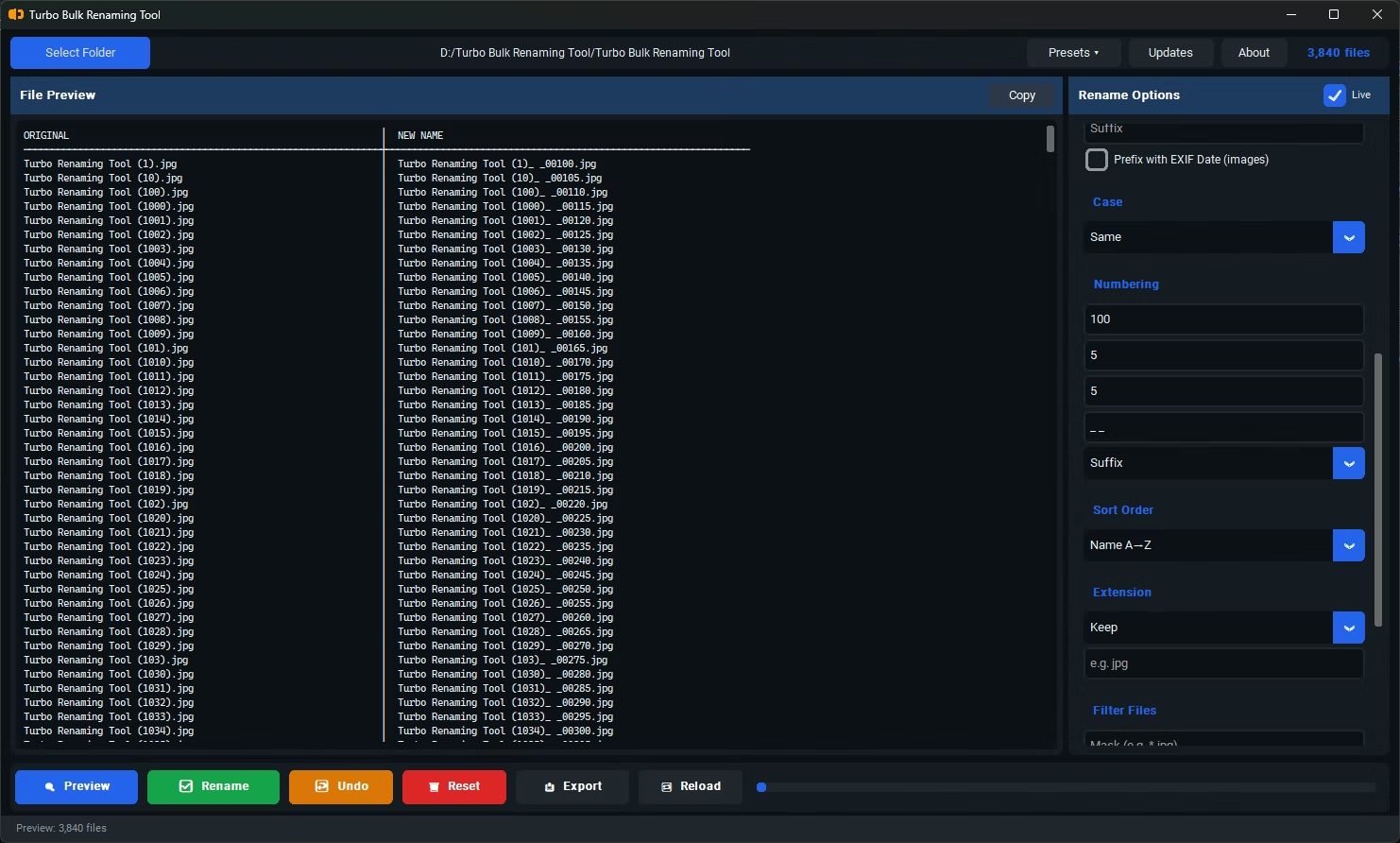
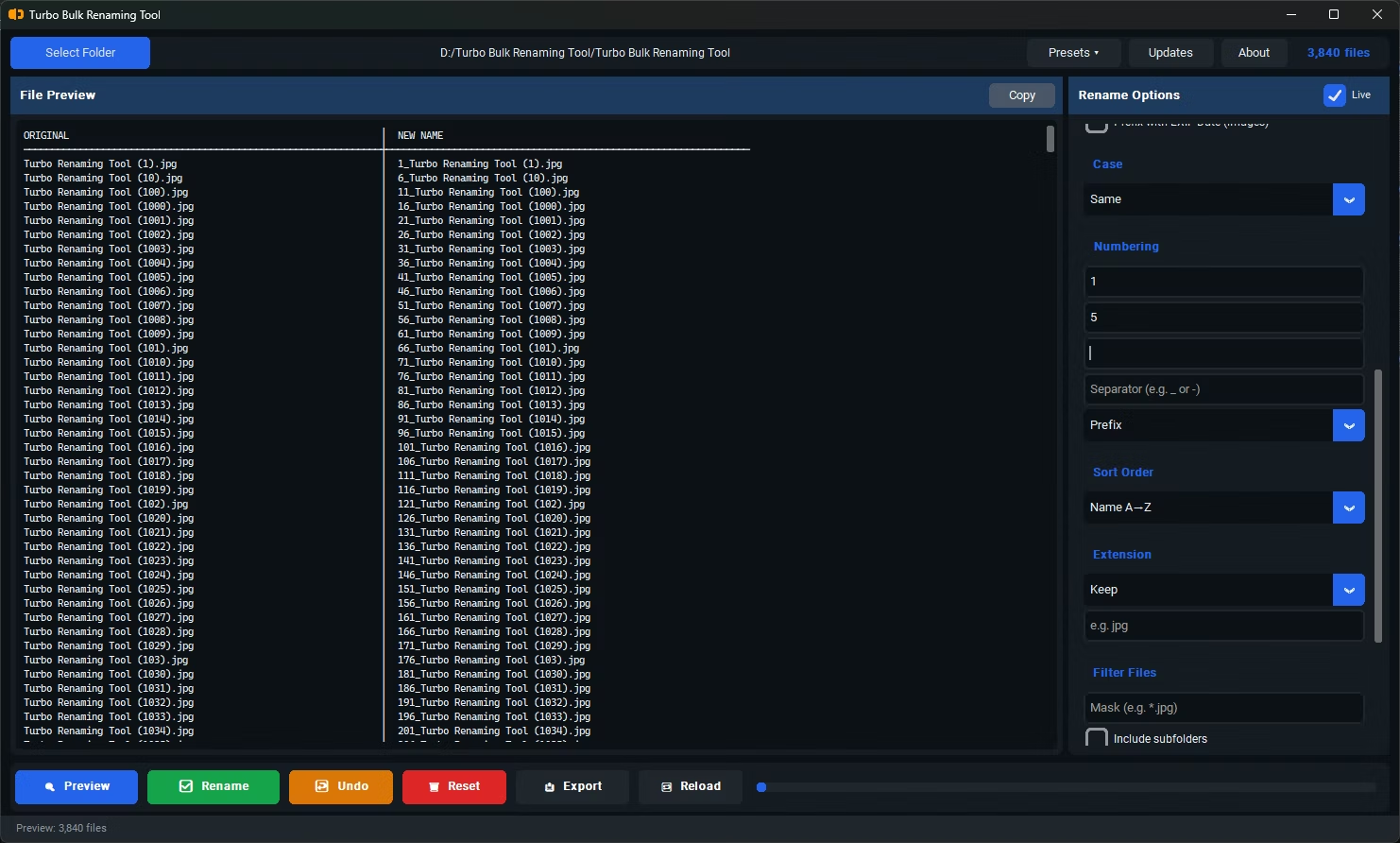
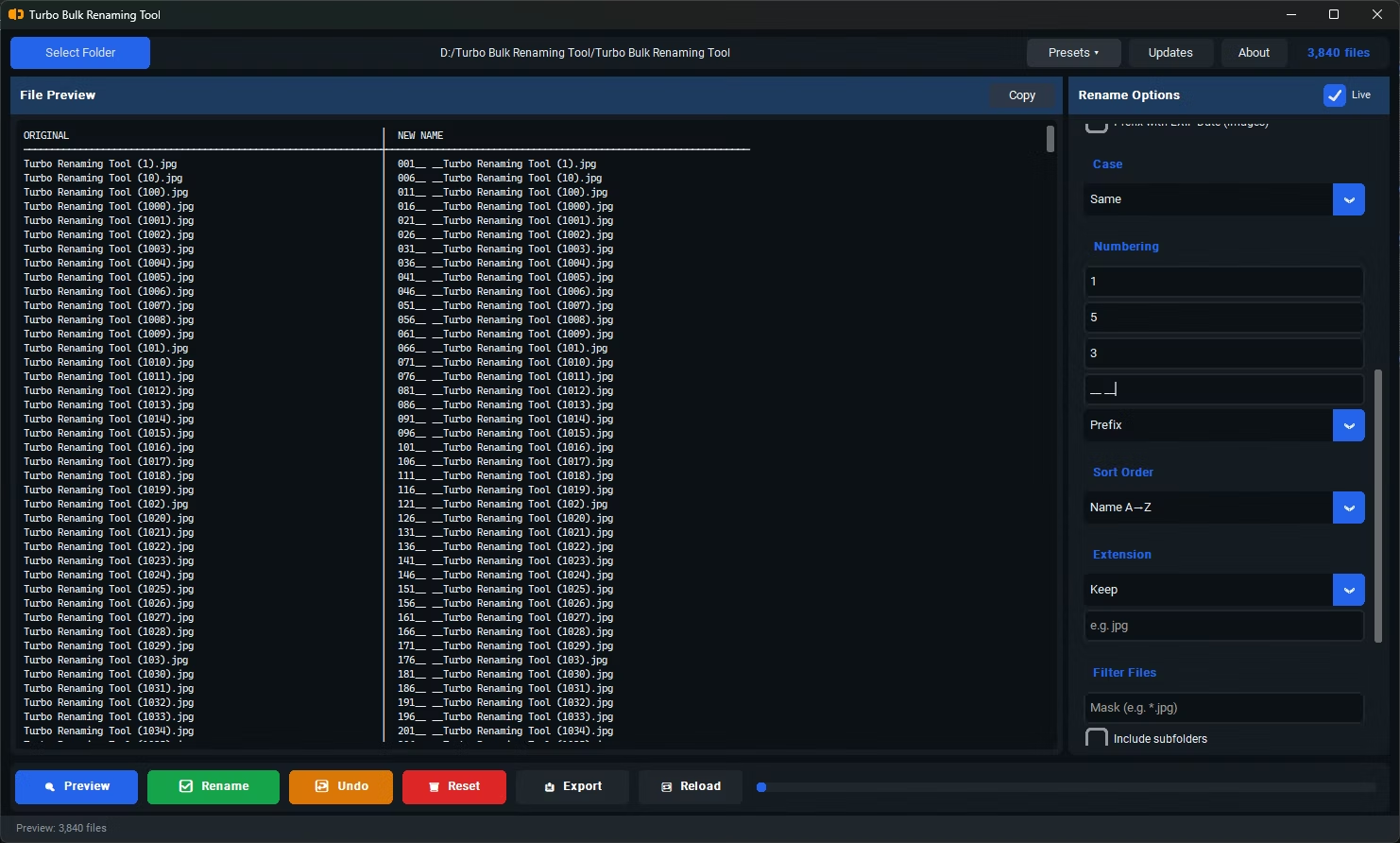
| Sequential Numbering | Start, Step (default 1, so 2 gives 1, 3, 5), Zero-pad digits (3 gives 001, 010, 100), Separator and Position (Prefix or Suffix). Files are numbered in Sort Order sequence. |
| Extension Control | Keep (default), Force (e.g. jpg) or Remove. Applied last and changes only the filename label; a .bmp forced to .jpg is still a BMP inside. |
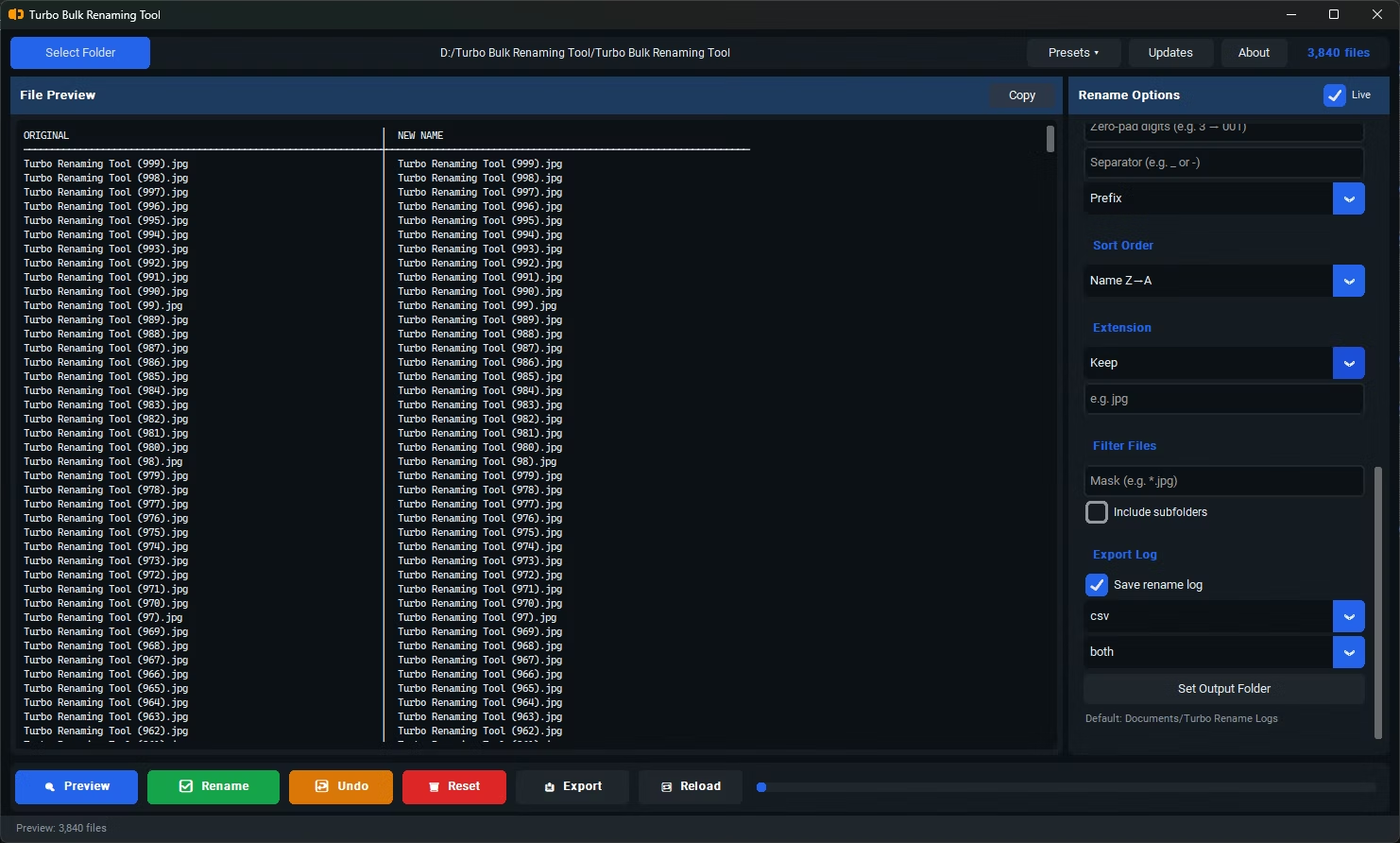
| Sort Order | Seven options: Name A→Z (default, case-insensitive), Name Z→A, Date Modified oldest or newest first, Extension A→Z, and Size smallest or largest first. It governs preview order and numbering. |
| File Mask Filter | A wildcard applied at load time, such as *.jpg or IMG_* (default *). Only matching files appear in the preview, rename and log. |
| Subfolder Support | Include subfolders (off by default) recurses into nested directories and stores relative paths. Only the filename is transformed; the folder structure is preserved. |
Rename Processing Order (Pipeline)
All active rules are applied to each filename in a fixed sequence within a single pass. Understanding the order matters when combining rules - earlier steps affect the input seen by later ones.
Illegal Windows filename characters (<>:"/\|?*) in the resulting name are automatically replaced with _ as a final sanitization step before the file is written.
EXIF Date Photo Renaming
Digital photographs contain EXIF metadata recording the exact date and time of capture. Turbo Renamer reads the DateTimeOriginal tag from supported image files and prepends it as YYYYMMDD_HHMMSS_ to the filename base, enabling chronological sorting of photo libraries without any manual effort.
If no EXIF tag is found (screenshots, edited images with stripped metadata, unsupported formats), the file is renamed normally without the prefix and with no error shown.
Key Features
Live Rename Preview
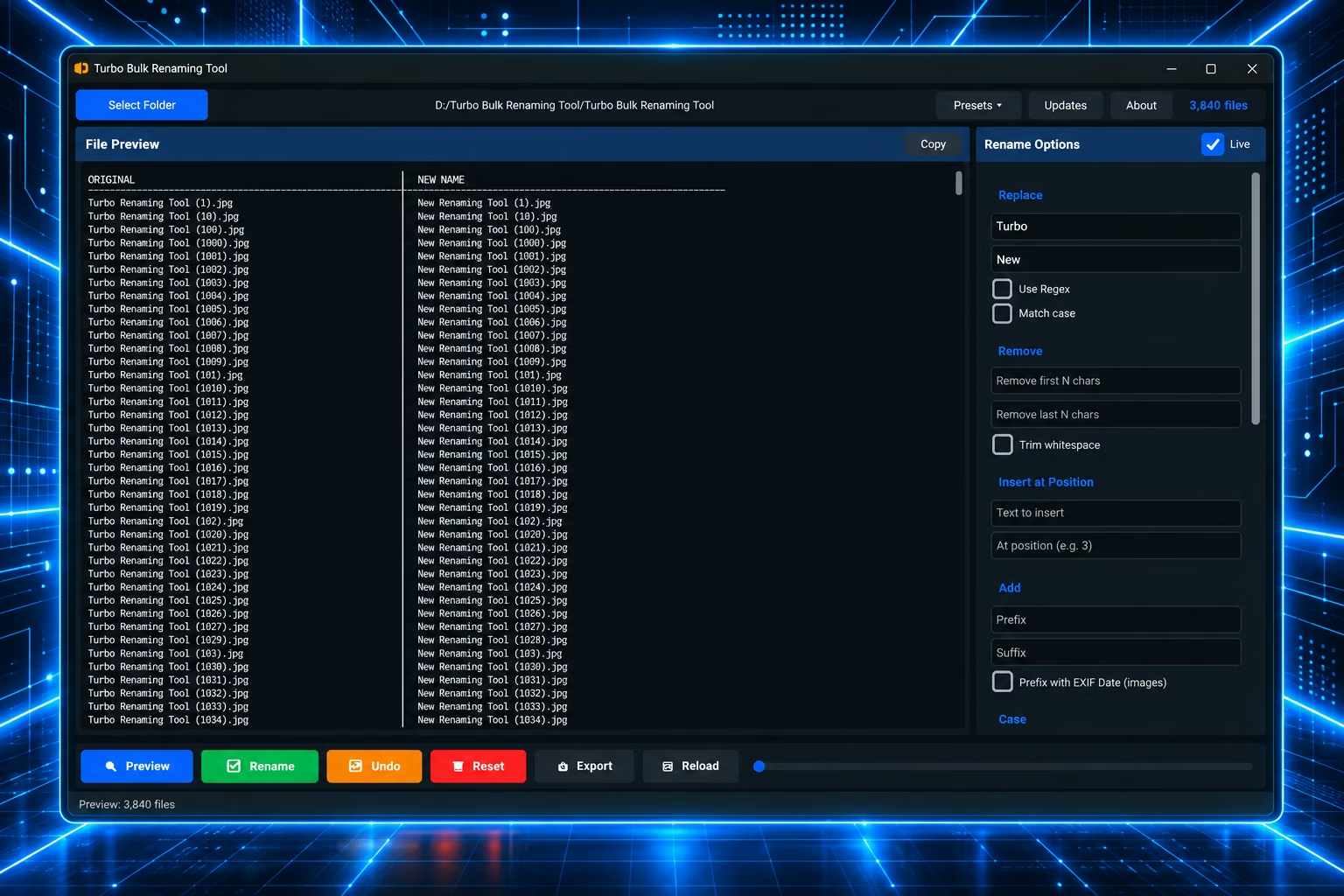
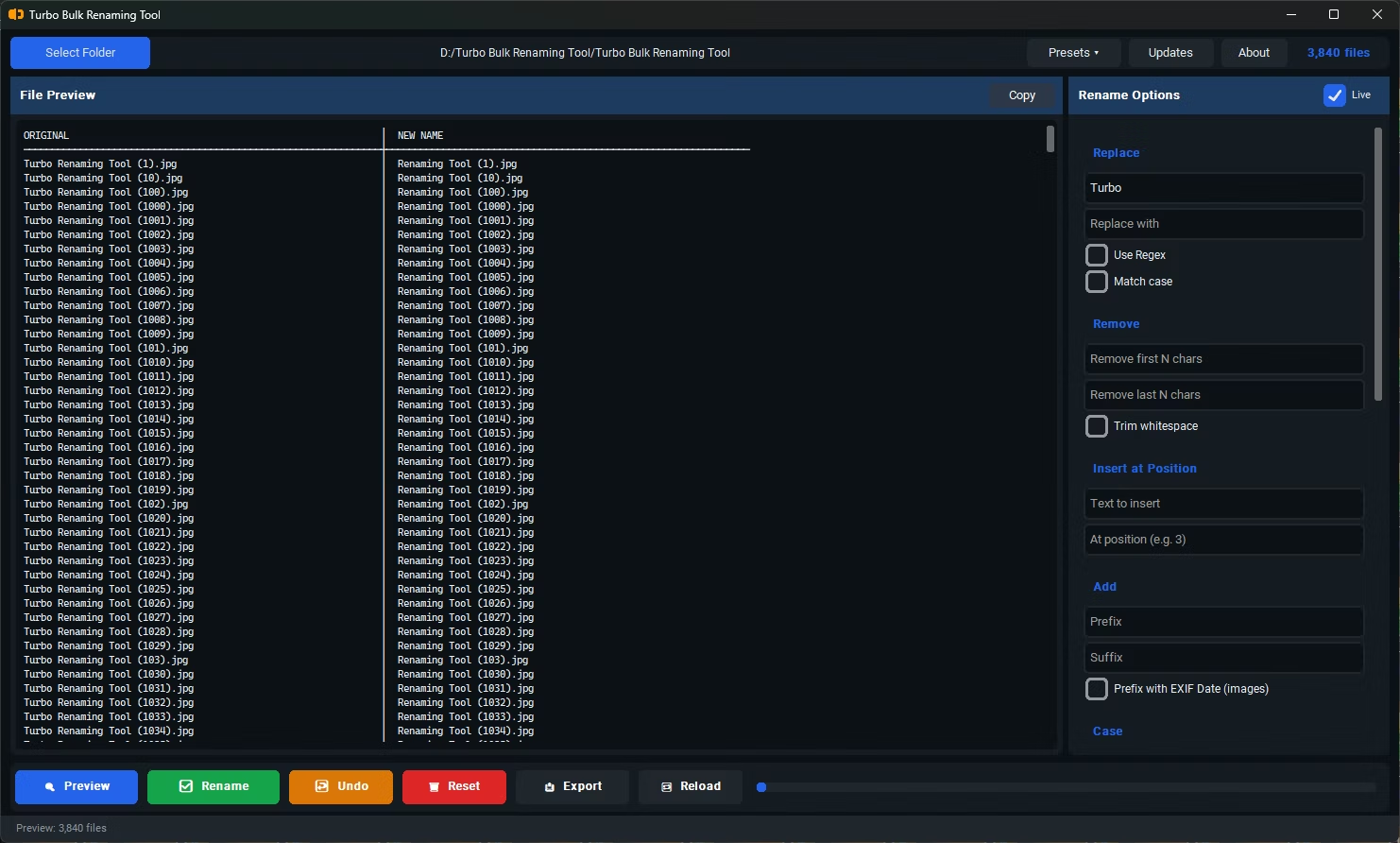
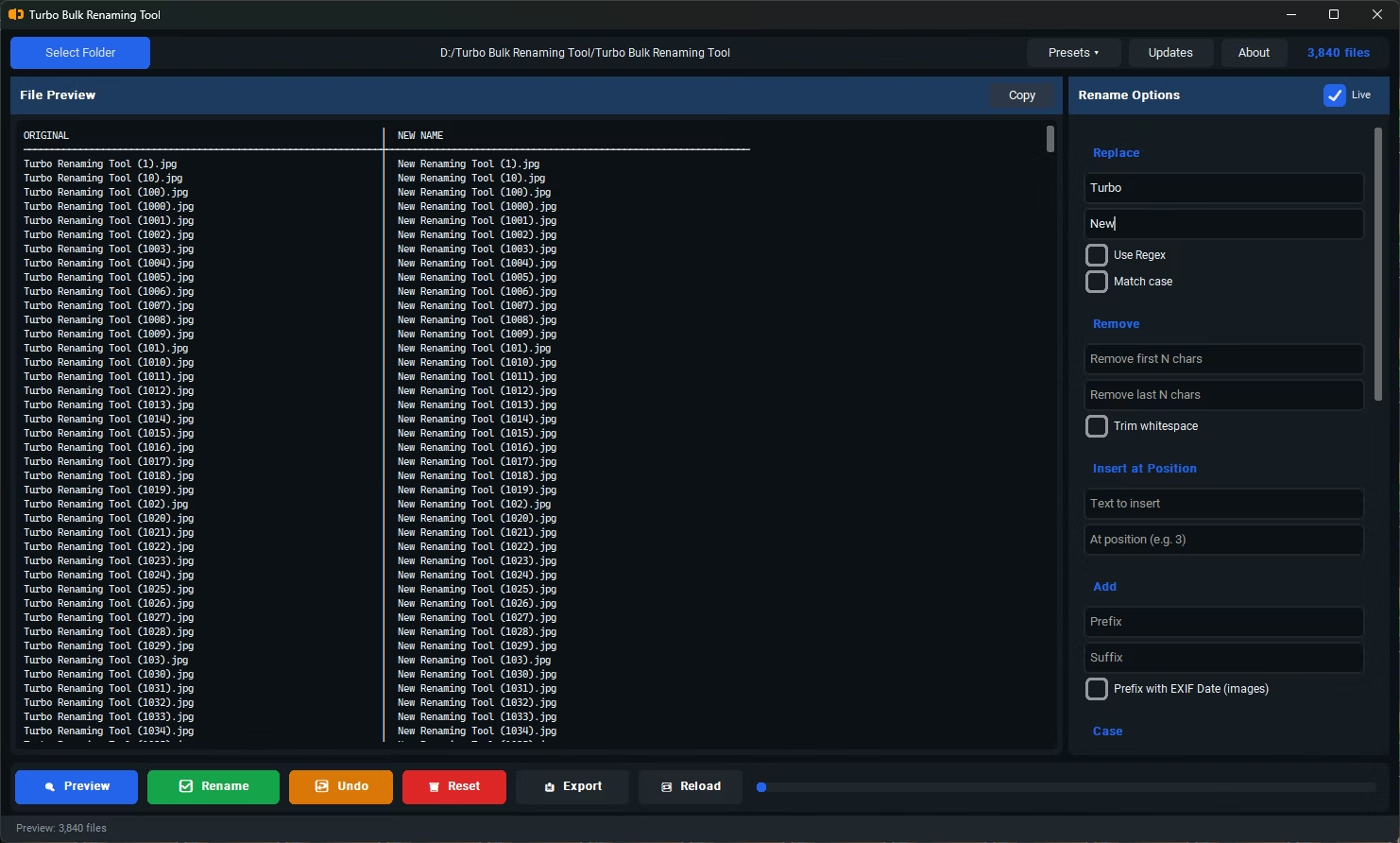
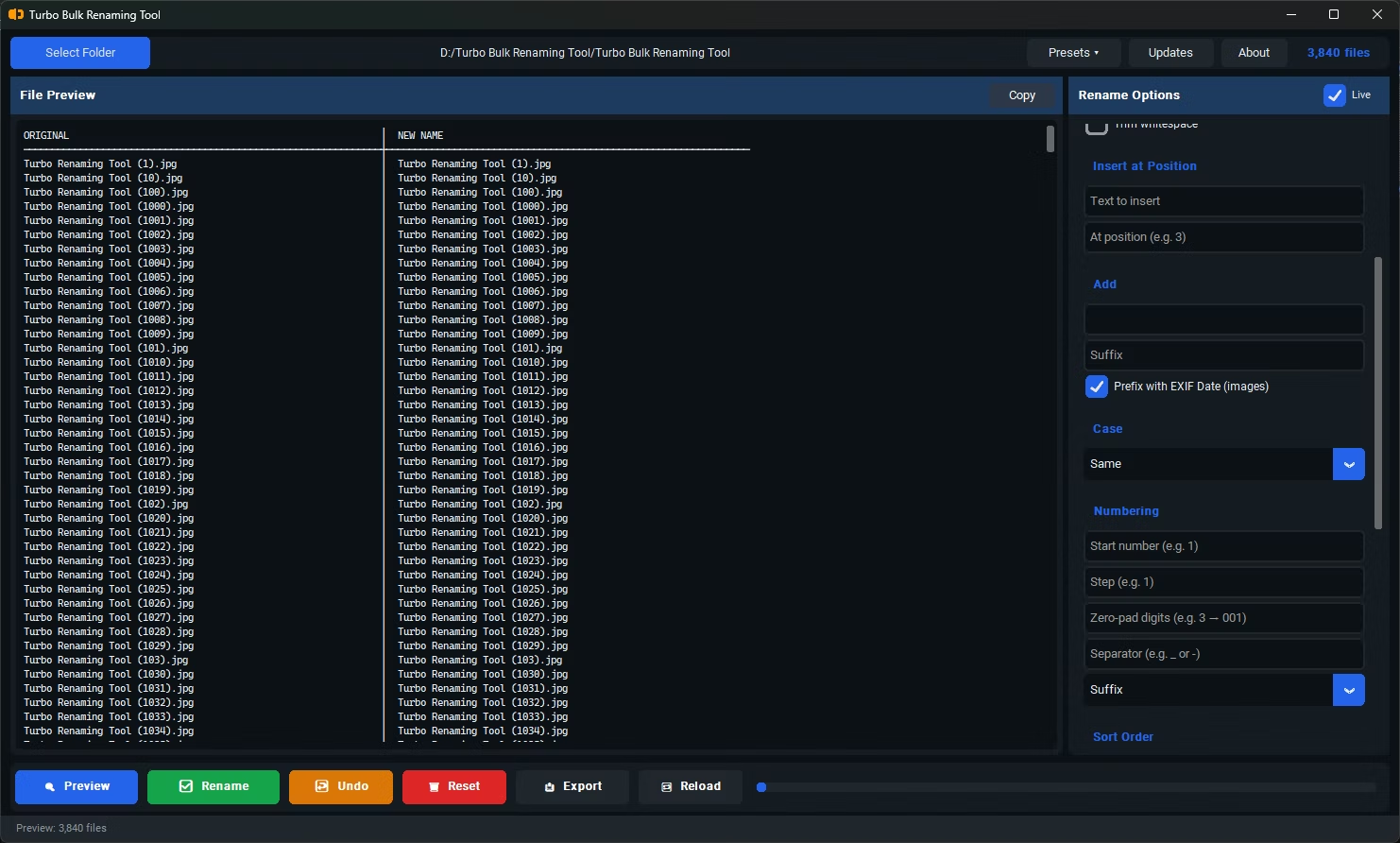
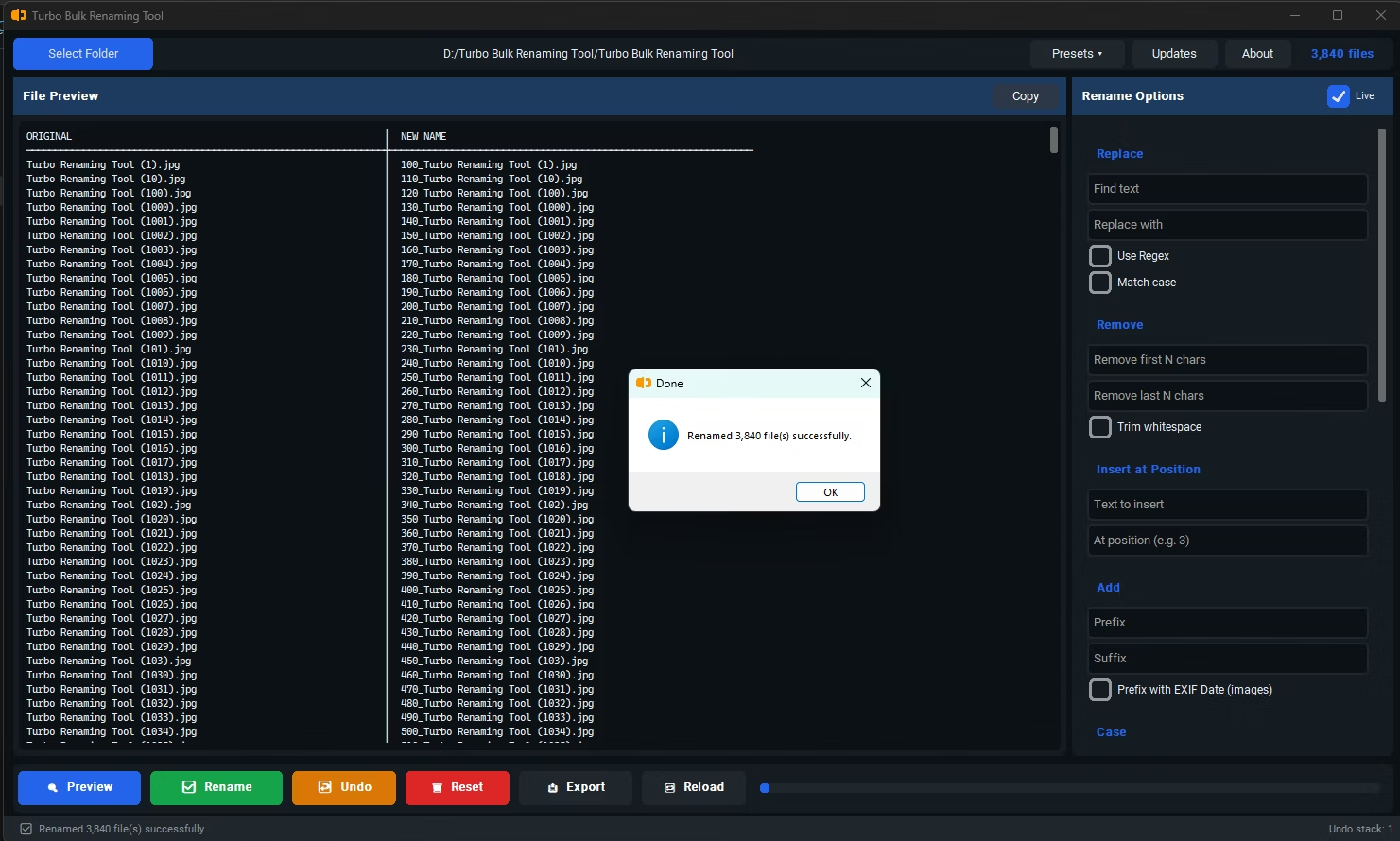
Toggle Live mode and the two-column preview updates as you type, or click Preview for a side-by-side view of original and proposed names before any file is touched. Duplicate or conflicting names are flagged with a ⚠ marker.
Two-Pass Rename Engine
Every file is first renamed to a random unique temporary name, then to its final name. No two files share a name at any point, so Windows never adds brackets or parentheses.
Automatic Rollback on Error
If the second pass fails for any file, the app tries to rename every temporary file back to its original name, preventing a partial rename. If a rollback rename also fails, that temporary name is left on disk and an error dialog appears.
Duplicate Final Name Protection
After computing a final name, the app checks whether that path already exists. If it does, it appends _1, _2 and so on until a free path is found, independently of the two-pass engine.
Undo Last Rename
Instantly revert the most recent rename session. The original-to-new pairs are stored and re-applied in reverse; one undo level is available per session.
Rename Presets
Save every rule field as a preset file and reload it with one click to restore a whole workflow.
Drag and Drop
Drop a folder onto the app window or the preview panel to load all matching files instantly; the file counter shows the exact batch size.
Rename Logs and Export Only
A log is saved automatically after every rename, and Export Only generates a filename log without renaming anything, reflecting proposed names if Preview has run.
Local, Any File Type
Everything runs on your PC with no file size limits and no cloud upload. It works on any file type, not just images, and files starting with turbo_output_ are excluded so the app never renames its own logs.
How Turbo Bulk Renaming Tool Works
- Select a folder. Click Select Folder and optionally tick Include subfolders; each file is tracked by its path relative to the folder you chose.
- Filter the file list. Use the File Mask Filter (for example
*.jpgorIMG_*); anything that does not match is left out of the preview, the rename and the log entirely. - Stack your rules. Fill in any combination of Replace, Remove, Insert, Add, Case, Numbering, Sort Order and Extension. Every rule feeds one pipeline pass.
- Preview the result. Each original name appears beside its proposed new name. Turn on Live to refresh as you type, or refresh manually on very large folders.
- Check for conflicts. If two files would end up with the same name, the preview flags them with a warning marker and a conflict count.
- Rename, and undo if needed. Click Rename; a progress bar tracks the run, a log is written in your chosen format and the batch is pushed onto the undo stack.
Interface Walkthrough
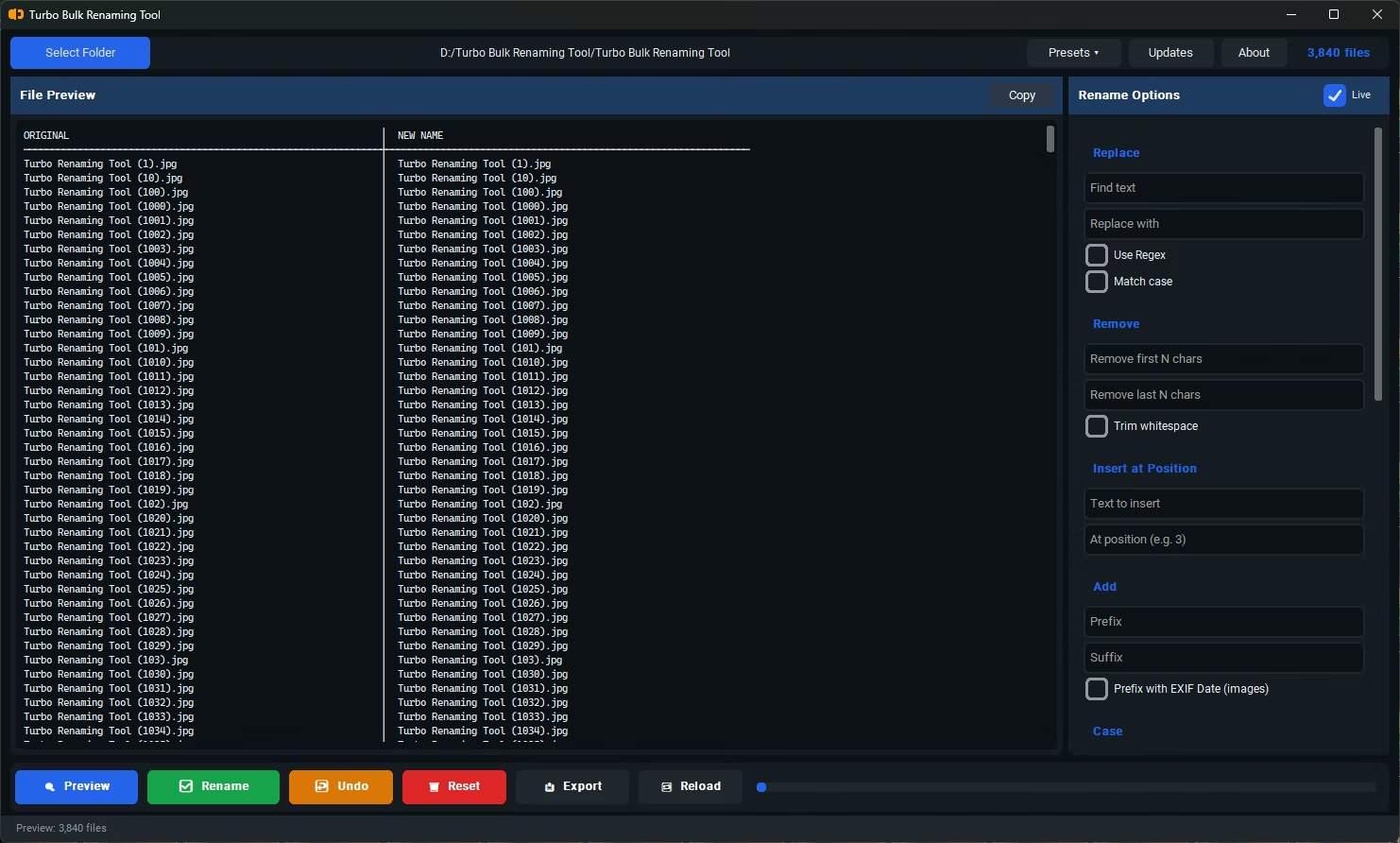
A single dark-themed workspace keeps everything visible, with no nested menus to hunt through.
- Top bar. Select Folder, the current path, a live file count and the Presets menu.
- Preview list. Original names beside new names, with a Copy button that places the current name list on your clipboard.
- Rules panel. The right-hand column, with labelled sections for Replace, Remove, Insert at Position, Add, Case, Numbering, Sort Order, Extension, Filter Files and Export Log.
- Action bar. Preview, Rename and Undo buttons, a progress bar, and a status line showing files processed and the undo depth. All controls lock while a rename runs, and the work happens on a background thread so the window stays responsive.
Performance
Renaming is a pure filesystem metadata operation: no file bytes are copied or written, so file size does not matter and total file count is the main factor. On an SSD, 10,000 files can be renamed in under 10 seconds. The two-pass approach doubles the rename calls, but both passes are OS-level moves. Files are processed one at a time in the selected sort order, so consistency comes before raw parallelism.
EXIF reading is the only step that adds real disk I/O, because each image must be opened, and results are cached per session. To keep the interface from freezing, EXIF is not read during Preview for folders over 100 files; a warning dialog says so, and the actual rename reads EXIF normally for every file.
Export and Output Options
- CSV is a UTF-8 file with a header row and one row per file, for spreadsheet import and audit trails. XLSX saves every cell as text so Excel cannot misread numeric filenames as numbers. TXT has one entry per line, columns separated by
|, for log pipelines and diffs. - Three data modes apply to every format: Both (original and new name), Original only, or Renamed only, giving nine output configurations.
- Location and names. Logs save to a dedicated subfolder of Documents unless you choose another folder, and each filename includes the sanitized source folder path plus a timestamp.
- Export Only generates a log without renaming anything, ideal for auditing a folder or sharing a rename plan before committing.
Known Limitations
- Sequential processing. Files are renamed one at a time in the selected sort order, with no parallel workers, so folders of 100,000+ files take longer than a parallel engine would, though OS-level renaming is fast per file.
- One undo level per session. You can undo the most recent rename but not step back through several successive renames.
- Presets do not store the source folder, so re-select it after loading a preset.
Offline and Private
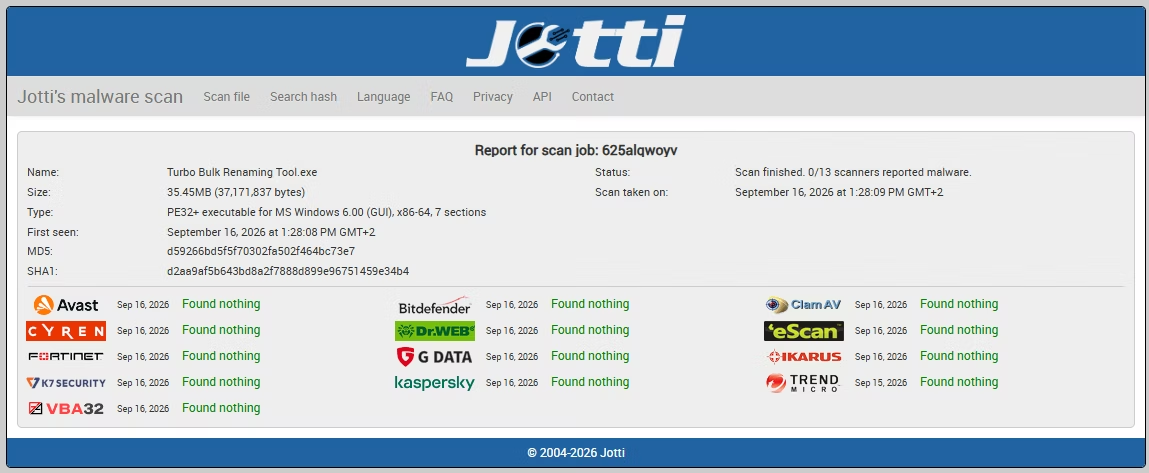
All renaming, previewing and log exporting happens locally on your machine. No filenames, folder paths or file contents are transmitted to any server, and the app does not log, analyze or track your filenames or folder contents. There are no third-party analytics, advertising trackers or background telemetry. Internet is used only for license key validation, and the request contains no personal data, filenames or file content. License data is stored locally in your AppData folder as an encoded file.
System Requirements and Licensing
| Requirement | Minimum | Recommended |
|---|---|---|
| Operating system | Windows 8 (64-bit) | Windows 10 or later (64-bit) |
| Processor | 1–2 CPU cores | 4 or more CPU cores |
| Memory | 2 GB RAM | 4 GB RAM or more |
| Storage | 500 MB free disk space | 2 GB or more; SSD recommended for large batches |
Turbo Bulk Renaming Tool is licensed through Gumroad. A free demo lets you try every feature (all rules, preview, undo, presets and log export) with a limited number of rename operations; activating with your purchase email and license key unlocks unlimited renaming. The license is validated once and then cached locally, so it keeps working offline.